When things behave unexpectedly, many people assume their computer has been compromised by remote hackers. Most of those people are wrong.
I get variations on this question often.
Someone believes their computer is being controlled remotely without their consent, or they believe their activities are being monitored in detail, or they believe their files and other information are being stolen or manipulated by others with malicious intent.
The bottom line is, they're convinced someone is spying on them — or worse.
What happens next is... complicated.

By far the most common situation is that your computer is not being remotely controlled and you're not being spied on. Much more common is that software, accounts, or equipment are not behaving as expected for more mundane reasons. The same basic security you should already be following still applies. If you do determine that you are being spied on, then locating trustworthy help for diagnosis and repair is critical.
I need to start by saying that if this is actually happening to you, I cannot help you. This requires a level of access I don't have and — quite honestly — a skill set I don't have.
But wait!
Before you run away, I definitely have some things for you to consider, steps to take, and advice to give if you believe that you're in this situation.
It may not be what you want to hear, but it's important to take the time to consider the situation carefully.
Nine times out of ten, there is no one controlling your computer but you. No one is spying on you personally, and no one is manipulating your files or email.
90% of the time, there's nothing going on at all.1
Unfortunately, by the time people reach out with this question, that's not the answer they want to hear. They're absolutely convinced there's something nefarious going on. Someone is out to get them. Someone is stalking them, spying on them, or out to cause them trouble.
I'll say it again: nine times out of ten, those people are wrong.
What I see happening instead is confusion. A program didn't behave as expected. An account password seemed to have been changed. A file or an email was lost. A mouse pointer started moving on its own. The computer started typing text all on its own. All of those scenarios have mundane explanations that are more likely than a malicious attack.
Without having a reasonable explanation for why those things are happening, it's easy to jump to the conclusion that someone is spying on you or taking over your computer.
Here's the real problem: it's difficult to know exactly what's happening.
I can't prove that someone is not operating your computer, just like I can't prove to you that your computer is not infected with malware, just like I can't prove that my machine is not infected. I can't prove a negative.
Nine times out of ten, however, on closer examination, more usual explanations for the behaviors you're seeing become apparent. For example:
All of those scenarios and many more are significantly more likely than someone gaining access to your computer and controlling it remotely in a way you would notice.
In fact, if you were being spied on, there's a good chance you would never notice, because real spyware, malware, and remote-control tools do a great job of hiding themselves.
Just because you have no explanation or can't conceive of an alternate explanation doesn't mean such an explanation doesn't exist. More often than not, it does.
So, how do you protect yourself?
It starts with the same old basics you're probably tired of hearing.
That last one warrants some extra attention.
It's critical to follow all those steps above. They not only prevent someone from spying on you, which is generally unlikely, but keep your computer safe from all online threats — a much more common problem.
However, if you believe you're worth being spied on, then that "secure your hardware" advice goes double for you. Specifically: never let anyone you don't trust touch your computer or have access to your online accounts.
If someone you don't trust has had access to your computer, or set up your computer and acts as your tech support:
Which leads to the next step.
If you are being spied on, manipulated, gaslighted, or harassed through your technology, it's critical you get qualified, trustworthy help.
That generally means finding someone local or contacting a knowledgeable friend or family member. Remember, in this scenario, trust is more important than deep technical knowledge. Both are important, but without trust, all the technical knowledge in the world is for naught.
If you can't find someone you trust who can help you, then to put it bluntly, you're on your own. That means you'll need to learn how to:
Those are the steps you'll need to take on your own if you have no one to turn to.
1: No, I don't have data to cite here, other than my own experience answering questions for close to 20 years. I'm tempted to say the actual figure is closer to 99%.
CTRL-A and CTRL-C can save you time and frustration when things go wrong.

It's frustrating to lose text you've been working on for a while. Have you ever been typing into a form on a website and accidentally hit the browser's "Back" button? Even if you return to the page on which you were typing, whatever you were typing may have disappeared.
A useful habit is to type CTRL-A followed by CTRL-C every so often.
You may never need it.
On the other hand, if you do — say you did hit the Back button and then hit Forward, only to find everything you'd been working on was missing — it's a simple process to put it back.
Much like typing CTRL-S every so often to save the document to disk when editing in a word processor, CTRL-A / CTRL-C is another simple safety net that can save you a lot of grief when things accidentally go wrong.
Saving software downloads can be a convenience, and it can also help in certain situations.

I find it particularly useful to save the installation files for programs I download and install. I create a folder into which I move the downloads after I've installed the software.
This comes in handy in several cases:
The usual objection to saving downloads is that software is often regularly updated, so why wouldn't you just download the latest if you needed to?
I do, when practical. (And then I save it again to my downloaded software folder.) But it's not always practical, and sometimes you don't want the latest; for a variety of reasons, you might want the same version you already have installed, which may no longer be available.
Bonus Tip: If you look closely at my folder in the image above, you'll see it's within my OneDrive folder. That means when I place a download there, it automatically becomes available on all my computers on which OneDrive is installed.
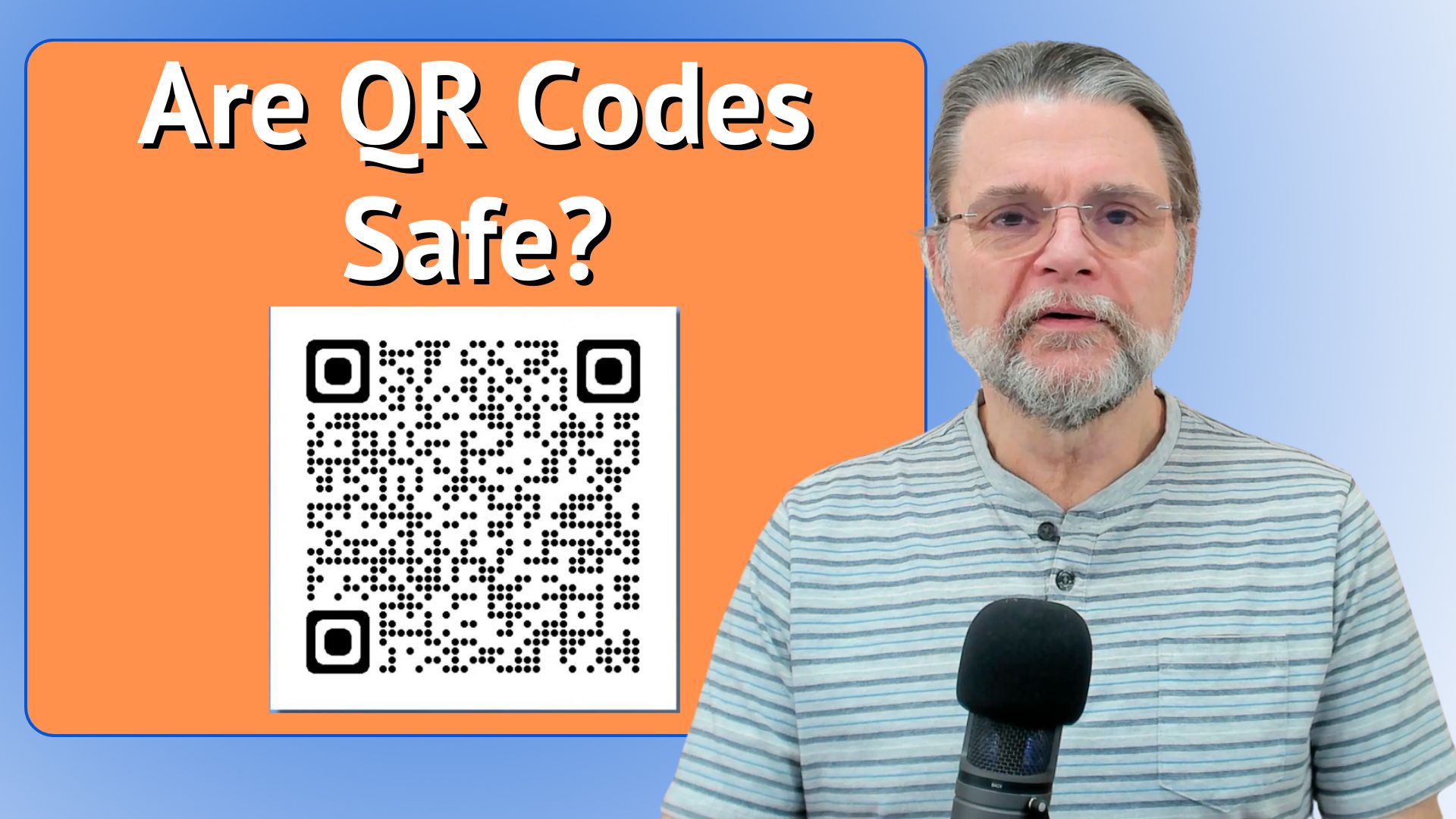
QR codes are a nifty way to encode web addresses and other text in a way that's easy for your smartphone to decode, but they are not without risk.

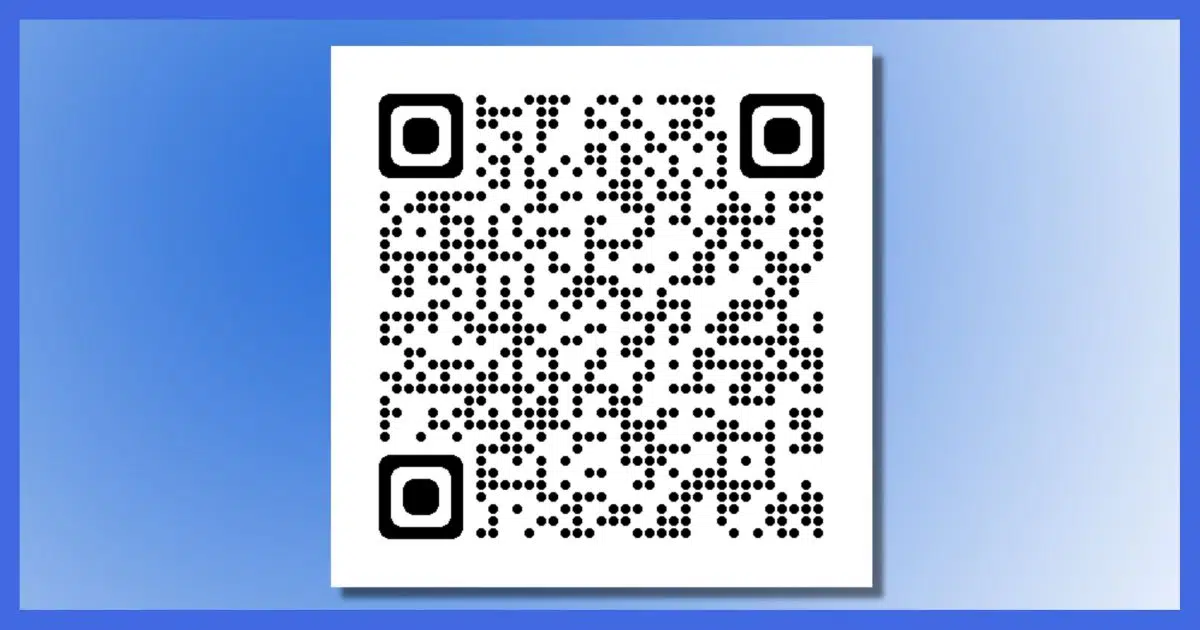
During a televised sporting event, a company spent a lot of money to run an advertisement that was nothing more than a QR code (like the one displayed above).
Apparently, against all common sense and with no regard for security, millions of people used it.
Why? What did it mean? What are you supposed to do with QR codes, and how do they relate to security?
They're pretty cool.
But they can also be weaponized, and you'd never know.
QR codes are text encoded in a machine-readable format so scanners and smartphones can easily decode them. They're most often used to encode webpage URLs. Since there's no easy way to ensure they point to a non-malicious webpage, be skeptical and use them with caution.
Here's the previous paragraph encoded as a QR code.

Here's the Gettysburg Address encoded as a QR code.

And at the top of the page is a QR code for the URL https://askleo.com.
QR codes are intended to be scanned by apps on smartphones and other devices.
Depending on your phone, you may need to install a dedicated QR code scanning app, or it may already be built into your phone's camera software.
Here's the QR code at the top of the page, as "seen" by the camera in my Pixel smartphone.
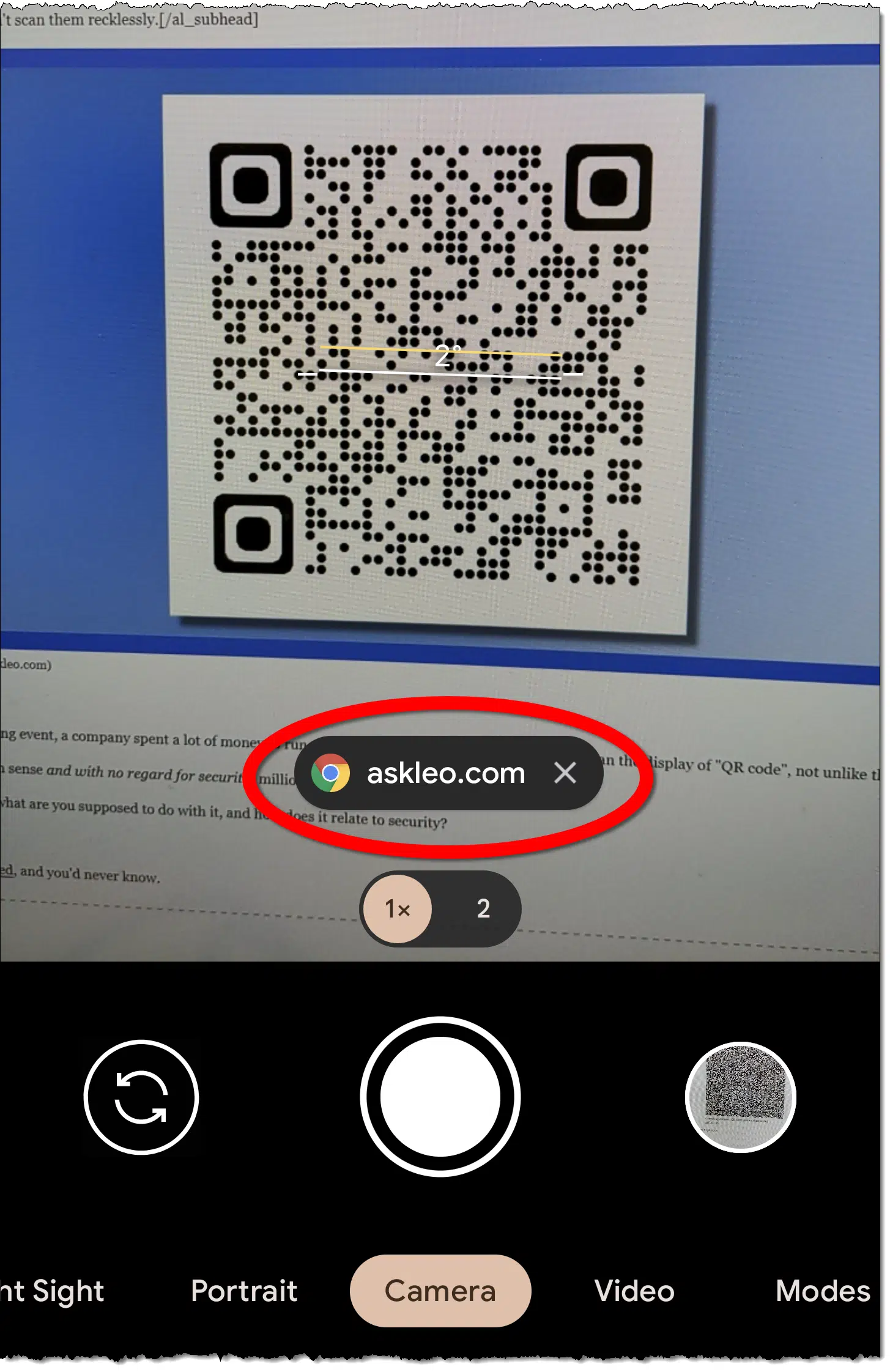
I've circled the text decoded by my camera. The camera previews the beginning of the decoded text if it can sense that it's looking at a QR code.
If I were to tap on the text circled in red above, it would open the web browser on my phone and take me to that URL.
And that's the general idea. While there are other uses, the primary intent is that you point your phone's camera at a QR code, let it decode what it sees, and then go to the URL encoded within.
But there's a risk.
You can't tell what a QR code contains before you scan it. Many scanning apps only display the first part of what they find, so the preview above could be incomplete. Some apps don't preview at all and load the page immediately.
Blindly scanning and using a QR code is like clicking on a link you can't see. You have no idea where it will take you.
You have no idea whether it's legit or dangerous.
Hackers and scammers know this.
Now, the QR code displayed in that TV ad is very likely legitimate,2 as are those I've shown above.
But you just don't know.
Be skeptical. Like any URL you click on, make sure you trust the source.
If you don't — if you're not sure — then don't. Get to the information it purports to represent in some other, safer way.
Many browsers now have controls that create a QR code for the URL currently displayed in your browser.
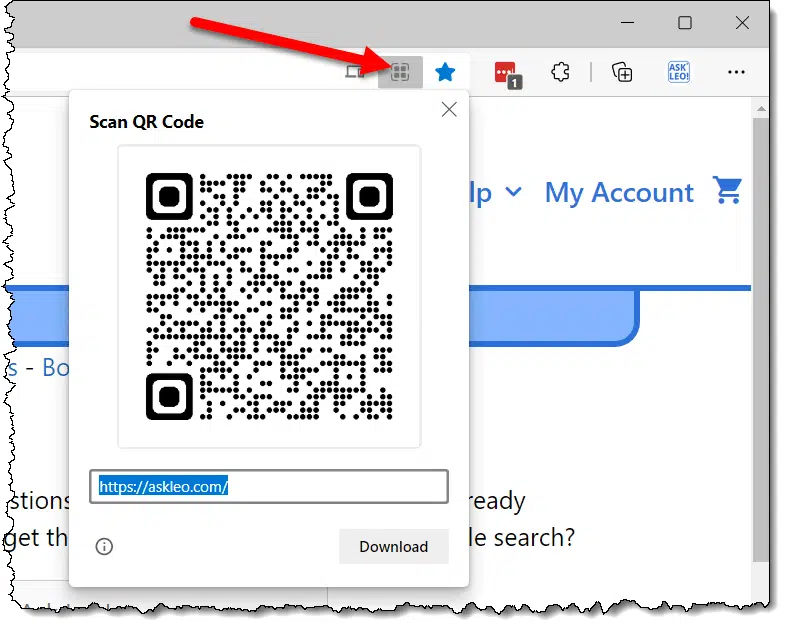
In addition, there are several QR code generators available on the web and in various applications.
2: Although it did crash the servers at the target website because of the overwhelming volume.
You have an email address and you want the associated phone number. It's unlikely you'll find it, but there are a few things to try.
Maybe.
There's no public directory or phone book you can look at that maintains a list of phone numbers and email addresses.
You're going to have to do a little legwork and be a lot lucky.
There's no direct way to find someone's phone number from their email address. Respecting privacy is important, and some means of discovery are unethical. Try searching online or on social media, or checking public records or online directories, but success is unlikely and sometimes costly. In cases of harassment or illegal activities, contact law enforcement.
I have to start by suggesting you respect people's wishes to remain private. It's certainly their right not to give you their phone number if they don't want to. Finding it some other way will likely be considered an invasion of their privacy.
While I won't be suggesting any illegal approaches, it's worth understanding that ignoring their wishes may be unethical and unproductive.
There are scenarios where it's desirable and even necessary, but at least think twice.

Most email services require their users to provide a phone number. It's generally for account recovery and to prevent bots from creating massive numbers of accounts. There are some services that don't, but the most popular do. And, of course, ISP-provided email accounts have the number as part of the internet service they're providing.
This is considered confidential information. You can ask the email provider all you like, but they're not going to tell you (unless you're law enforcement, and that's a whole different scenario).
That's why I say you have to do some legwork.
Your first reaction might be to head for your local search engine. This rarely works. Here's the problem: even if you search for an exact string by placing it in quotes — such as "leo@askleo.com" — most popular search engines ignore the quotes and treat it as separate tokens. Typically, that means the search is for "leo" and "askleo.com", or even worse, "leo", "askleo", and "com". Not helpful.
Well, not very helpful. It's worth performing the search in case something useful turns up, but unfortunately, it's not the search you might think it is.
One place people often "leak" their information is on social media. Some have an option to "allow people to find me if they know my email address".
It's definitely worth a trip to the more popular social media services to see if a search turns up anything useful.
You may get lucky and find more information, perhaps even including the phone number. Sometimes the additional information can also help refine your search.
If you know where the person is located, public records can be a source of information. Examples might include tax records, voter registration information, and other information made available by an assortment of public agencies.
Depending on the amount of information you have and the type(s) of records you have access to, you can sometimes find email addresses, phone numbers, physical addresses, and more. Not all jurisdictions make this kind of information available online, and most have privacy protection in place, but it's another place to potentially gather information.
When I search online for someone by name, many of the search results are for online directories. Results may indicate that they found several people by that name in the area that I'm searching.
The problem? If you want the details, they'll ask you to pay. Sometimes it's a little; sometimes it's more; sometimes it's a subscription.
And sometimes the promised information is not to be found even after you pay.
I avoid those. Always. Unless you have prior positive experience with one and are willing to pay, I suggest you avoid them as well.
If the reason you're looking for someone's phone number is that they're harassing you or doing something illegal, the right thing to do is to go to law enforcement. They have the tools and the authority to get the information if it rises to the level of having broken the law.
The problem here is that not all law enforcement agencies have the time and resources to devote to things that aren't truly serious and perhaps life-threatening. And some simply don't have the expertise.
But it's worth reporting if you believe the situation qualifies for law-enforcement action.
Cookies aren't the risk many people think they are, and clearing them has side effects.

In my opinion, security concerns about browser cookies are overblown. They don't represent the dire threat or performance impact many people believe they do.
Put another way: I never clear cookies unless I'm diagnosing a browser problem I think might be cookie-related.
Never.
The biggest reason? Convenience.
Cookies are what websites use to "keep state". They're used to remember that you don't need to see that subscription popup because you've already seen it. They're used to remember that you're already logged in and don't need to log in again.
They're used to remember a wide variety of things that make the web more convenient and less annoying.
There's no reason to be concerned about clearing cookies and every reason to let them do their jobs: create a better overall browsing experience.
If you do feel you need to clear cookies, either use a tool that will allow you to make exceptions for the various sites that you care about, or at least be aware of the convenience you're trading off.
Note: There's one possible exception, discussed in Should I Clear Cookies Before I Travel?
It's hard to determine whether an email address is fake.
While it can be helpful to identify fake email addresses — they're a great clue as to whether the email you're looking at is a scam or worse — you might not be able to. A phony email address can easily be made to look like a valid one.
Sometimes there are clues, and I'll review a few of those, but some of those clues also apply to legitimate email addresses.
Determining if an email address is fake can be tricky and perhaps impossible. Be sure to pay attention to the actual email address, not the display name. Use whois tools to confirm the domain exists. Look for typos or misleading domains. Be cautious if the email content feels off. Scammers are clever; it's hard to be 100% sure just based on the email address.
When you get an email, you may see something that looks like this.
From: Ask Leo! <leo@askleo.com>
The first part is the display name. It can be anything the sender configures. The second part (in angle brackets) is the actual email address.
However, many email programs display this instead:
From: Ask Leo!
The email address is hidden. The only way to see it is to hover your mouse pointer over the display name.
Spammers know this and use it to mislead you. For example:
From: leo@askleo.com
looks like it's coming from leo@askleo.com, but it is not. The display name, which can be anything, has been set to "leo@askleo.com". The actual email address is fake@somerandomservice.com. This mismatch is a great clue that something may be amiss, but again, you won't see it unless you put your mouse pointer over it.
So if your email program doesn't display both, make sure you're looking at the email address and not the display name.
An email address has several parts. Using "leo@askleo.com" as an example:
If the email address does not follow that syntax, it's invalid. For example, "leo@leo@askleo.com" is invalid.
Unfortunately, most spammers get this part correct.
Using a tool like whois.domaintools.com, confirm that the domain ("askleo.com") exists. (You can also visit your favorite domain registrar and see if the domain is available for purchase.)
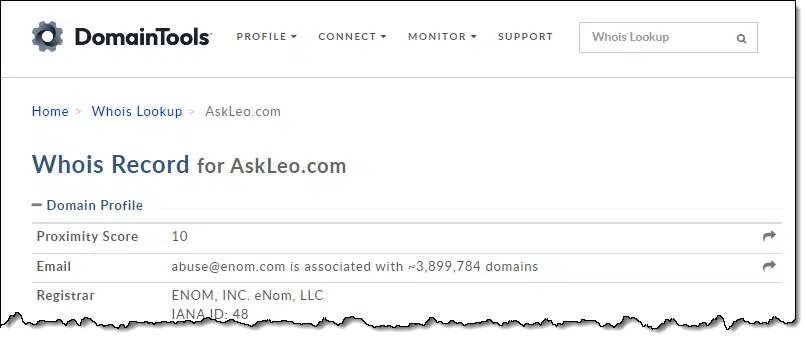
Whois may not tell you much about the owner of the domain, but it will tell you if it's registered by someone. If it's not registered, or it's available to buy, then it's likely a fake email address.
Whois may also tell you how recently the domain was registered. A recently registered domain (days or weeks old) might be suspect.
Look for typos in the email address. This is particularly true if the email address appears to be someone you recognize. For example, "lao@askleo.com" might be an attempt to fool you.
Similarly, a look-alike domain, such as "leo@goaskleo.com", can be an attempt to mislead you.4
Perhaps more common are email addresses built on top of domains that have been compromised. "Leo@askleo.com.somerandomservice.com" could be a working email address, but it's likely to be fake because it tries to trick you into thinking it's related to askleo.com when it is not.
Character replacements can be difficult to detect, and they are more commonly used in links in emails. However, they can be used in email addresses as well.
Consider these three email addresses:
If you're not careful, you could confuse the first two, even though they are completely unrelated to one another.
Depending on the font used by your email program, you could also confuse the first and third, which tries to confuse you by using the digit 1 rather than a lowercase L.
A display name should match the email address in some way. These two examples are likely to be valid.
Ask Leo <leo@askleo.com>
Leo Notenboom <leo@askleo.com>
However:
Bill Gates <leo@askleo.com>
or worse:
is almost certainly bogus. This type of mismatch is common in spam.
While not technically a check on the email address itself, the content of the email message, particularly typos and grammar that seem off or flat-out wrong, is also a sign that the sender might be bogus.
Especially if the email claims to come from someone you correspond with regularly and it just feels wrong — perhaps it doesn't sound like them, or it's asking something that your correspondent would normally never ask — it's worth a careful look.
This is somewhat of an advanced check, but it can be helpful.
You may already be familiar with DNS, or the Domain Name System. It maps names (like somerandomservice.com) to IP addresses (such as 52.27.227.69).
Using what's called an MX (for Mail eXchange) record, DNS is also used to determine which email servers handle email for which domains. Any domain that can receive email should have an MX record. While designed for technical folks configuring MX records, mxtoolbox.com is a good, quick resource to see if an MX record exists. Enter the domain portion of the email address you're checking out.
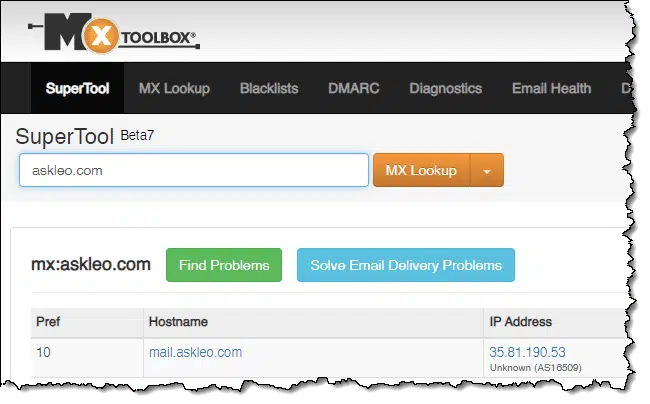
If the tool doesn't display an MX record, that may be a clue that all is not what it seems.
Spammers don't need to resort to any of the tricks above to make a fake email address. Someone could easily use something like:
Ask Leo! <fakeemail@askleo.com>
That's a perfectly valid email address for an account that doesn't exist. It could even be someone else's email address, including yours. The spammers want you to act on the body of the email, not the email address.
Since spammers rarely care about replies or bounces, and since it's trivial for them to put anything in the From: line, this may be the most common approach of all.

3: To avoid complexity, I'm ignoring email addresses on subdomains like "leo@newsletter.askleo.com", which are uncommon but valid.
4: Although in this case, I do own the domain.
Spam is inevitable; just don't ask for more.

Imagine a world without spam. What a nice, quiet place, right? Many services would be more efficient and cost less.
Unfortunately, that utopia is not to be. Spam exists and can't be completely prevented.
But you can take steps to prevent getting more spam.
You can't stop spam. To reduce the amount of spam you'll get in the future:
I occasionally get questions from folks who complain about the massive amounts5 of spam they get. When I dig deeper, they're complaining about the spam in their spam (or junk) folders.
Folks, that's the system working as intended. Spam is automatically routed to the spam folder, and non-spam (sometimes referred to as "ham") is delivered to your inbox.
Spam filters may make mistakes in one direction or another from time to time, but the goal is that all the spam you get lands in the spam folder, where you never need to look at it — or at least not look at it very often.
There's no way to stop spam. You can only deal with it in a way that makes it less of an issue when it arrives.
But there are steps you can take to avoid getting even more spam than you already do.
Many people unknowingly ask for spam in various ways. Each of those ways causes even more spam to head your way.
This might be the #1 way people ask for more spam. By responding to spam (even to complain), you're telling the spammer that they've found a real live email address that someone reads. They'll take that as a sign to send you more spam, not less.
Clicking on a link in the spam can do exactly the same thing. Worse is making a purchase based on a spam message. Besides being a risk for so many other reasons (like fraud), it tells the spammer, "We got us a live one!"
Spam often includes an unsubscribe link. Don't click on it. You were never "subscribed" in the first place. The unsubscribe link exists only to fool you into confirming to the spammer that you're real and that you read your email. Mark it as spam instead. (Only use the unsubscribe link to sever ties to emails you did subscribe to in the first place.)
The reason pictures are disabled by default on spam-filtered email, and often on legitimate email by default, is that the mere act of displaying that image can tell a spammer that they have a real email address.
This is one reason many people have more than one email address or create one-time or throw-away email addresses.
Many companies share their email lists with others or even sell the list of their customers' email addresses. Reputable companies do not, so you can keep shopping at Amazon and the like, but be careful when dealing with a company you've never dealt with before.
Consider creating and using a different email address for this purpose. Again, so-called throw-away email addresses are perfect for this, as you can simply stop paying attention to them if they start getting too much spam.
If your email address is visible on a public webpage, then spammers likely have it. They have been known to harvest email addresses from webpages because they're more likely to be real, active email addresses than ones they just make up.
A good example that you can easily avoid is noting your email address within a comment you post on sites like Ask Leo!. While I proactively remove those email addresses, not all sites do. The more you do so, the more likely spammers are to find your email address and send even more spam your way.
It's a little more difficult to control mailing lists with public online archives. If anyone can see the archives, and the archives include full email addresses, then spammers will be there as well. The best solution is to use a dedicated email address for such a mailing list and abandon it if it starts getting too much spam.
If you get an email you want to forward to someone else, consider trimming (deleting) the email addresses contained in the message you're about to send. A forward usually includes the full email address of the original sender as well as the email addresses to which it was sent. Sometimes those messages make it into the hands of spammers, who harvest the information.
Not only will you get less spam, but it's just good etiquette that results in an easier-to-read email and maintains the privacy of others.
Along those same lines, if you have a friend who regularly forwards emails without trimming email addresses, think twice about sending them the latest joke or viral message. You can't control what they do (no matter how much you might cajole them), but you can keep your email address out of the loop by not starting the chain.
One approach some people take to dealing with spam is to start over: to create and switch to a completely new email address.
While that attempt is ultimately doomed — eventually every email address will get spam — it's a perfect opportunity to ensure you're taking the steps above religiously. This will at least reduce the amount of spam the new account gets (or at least delay the arrival of the eventual spam tidal wave).

5: Different people have different definitions of massive. I routinely get around 100 spam messages per day, with occasional peaks to well over 300. Some consider that massive. I consider it routine.
Freely accessible Wi-Fi is almost everywhere, and most systems are set up to use it safely. There are a few things to pay attention to in order to stay safe.

This question was asked in response to a Ask Leo! Tip of the Day suggesting that you look out for "fake" public hotspots.
The issue is that even if the hotspot itself is the correct and trusted hotspot, what about all the other users?
While sharing a Wi-Fi hotspot is generally safe, risks exist. These include trusting the hotspot provider, avoiding ‘fake' hotspots, and protecting your device from other users connected to the same network. Choose your hotspots wisely, ensure your firewall is on, and consider using a VPN for extra security if warranted.
I have to start with a little philosophy.
There's no such thing as "secure". We can never reach 100% or complete security. We can only be more secure or less secure.
When it comes to security, then, our job is to stack the deck in our favor. That means understanding the pragmatic risks we're dealing with and making decisions that (hopefully) increase our security in each situation.
So, with reducing risk as the goal, let's look at some of the risks involved in using and sharing a public Wi-Fi hotspot.
When you're using a Wi-Fi hotspot connected to someone else's internet, they've become your ISP, or Internet Service Provider. They're providing you with internet service. That gives them access to... things.
This is true whether you're connecting wirelessly via a hotspot or are physically cabled to an Ethernet port. It's still someone else's internet.
You need to trust that person or company. Specifically, you need to trust that they're not attempting to snoop on what you're doing, or worse, maliciously interfering with your connection. They could, for example, attempt to route you to malicious websites in response to your attempts to go to the sites you normally and safely go to.
In most cases, this is a very small risk. On a recent trip, I wasn't at all concerned that the airport Wi-Fi or the in-flight Wi-Fi providers were interested in what I was doing online. Same goes when I visit a local business or coffee shop. They're just not interested.
However...
The Tip of the Day talked specifically about hotspots set up with malicious intent. They often masquerade as similar-sounding hotspot names that they hope you'll connect to.
For example, while at the airport here in Seattle, I used a hotspot I found called SEA-FREE-WIFI. It's a hotspot available throughout the airport, and one I'd used before, so my device auto-connected.
If, on the other hand, there were another hotspot — perhaps called SEATAC-FREE-WIFI — how would you know if it was legitimate? Honestly, unless the facility in question documents it somewhere, you probably don't. It could easily be someone in a corner with their laptop acting as a bogus access point and hoping you'll connect. Once you do connect, they can try to interfere with your connection, attempting to route you to malicious websites in response to your attempts to go to the sites you expect.6
Signs that a hotspot might be fake include things like not being available everywhere in the facility (in large facilities such as airports) or not being there every time you visit. Another possibility is that you might be asked to sign in to one of your accounts when you would normally not need to.
The good news here is that this risk is also low. While it's certainly possible, it's not a rampant problem. Simply paying attention to the hotspot you're connecting to and being appropriately skeptical is all you really need. When in doubt, don't connect, or ask what the proper hotspot name is.
When you use a Wi-Fi hotspot, you're sharing that hotspot with anyone else in the area using the same hotspot. That's the risk our questioner asked about.
There are two levels of risk: open hotspots and password-protected hotspots.
Open hotspots are something we've discussed for years. The concept is simple: the communication between your device and the hotspot is not encrypted. Thus, anyone within range with another device capable of connecting to that hotspot can see what's being transmitted back and forth.
This has become much less of an issue than it once was because while your connection to the hotspot itself is not encrypted, the connections you make to various sites and services often are, courtesy of HTTPS and SSL connections. At best, someone "listening in" could see that you're visiting, say, your bank, but they'd not be able to see what's being transmitted.
Password-protected hotspots are those where you need to enter a password into your device (not a webpage, but your actual device) in order to connect to the hotspot. Usually based on WPA2 or WPA3 encryption, this secures your connection from being snooped on by others nearby.
Or does it?
At home, you've likely set up a wireless hotspot and, for security's sake (and to prevent your neighbor from mooching your internet), set a WPA password of some sort.
Yet, you can still use networking to connect from machine to machine. When properly configured, you can connect from one machine to another, copy files between them, and even share devices such as printers. "Network discovery" allows you to identify the other machines on your network.
The network you've connected to elsewhere is really no different. It's sometimes interesting to run network discovery7 and notice how many people are connected, what their machine names are, and in some (now rare) cases, you can even see what's on their hard drives.8
This used to be a huge issue, so you're right to be concerned. The good news is that almost all operating systems now come pre-configured with firewalls enabled to prevent exactly this type of access.
On top of that, many (though not all) routers can be configured to prevent this type of cross-machine access. I would hope (but would not assume) that the routers used in public settings would be set up this way.

6: Even HTTPS can be compromised in the form of a man-in-the-middle attack, though it's difficult. It requires installing (or tricking you into installing) an additional root certificate that would legitimize otherwise bogus HTTPS connections. Again, the risk here is extremely small.
7: There are several approaches, but one common one that exposes some (but not all) is to just expand the "Network" node in Windows File Explorer and wait.
8: Someone drove this point home at a tech conference some years ago by copying (benign) files to all the machines they could find on the network. Let's just say several people improved their security immediately thereafter.
Periods in email addresses are ambiguous. Don't use them.

Here's a question: are ask.leo@randomisp.com and askleo@randomisp.com the same email address? Note that the first has an embedded period and the second does not.
The answer is: we don't know. They could be the same, or they could be different. It depends on how the email provider (randomisp.com, in this example) handles periods.
Some email services, most notably Gmail, ignore the period and treat ask.leo the same as askleo. Other services see them as different and unrelated email addresses.
Because of this ambiguity, avoid using periods in your email address, particularly when setting up a new one. You just don't know what you're going to get. (If you want some kind of separator, the underscore character, "_", is more commonly acceptable. It will either work or fail when you create that email address; no ambiguity.)
Your password vault can double as a page of frequently-used bookmarks.

I'm not a huge fan of browser bookmarks. While browsers have certainly made bookmarks more portable and easier to save/restore, they're still not as portable as I want them to be: across all platforms and browsers I might use.
On the other hand, my password vault — LastPass — is everywhere I want to be. As a result, I've organized some of its entries as "Favorites" so they appear at the top of the vault when I view it. I open a tab to that vault and pin it to remain open during my browsing session. Whenever I need to go to one of my favorite or most-used sites that requires a login, I click on that tab and click on the entry, and not only am I taken to the site, but I'm often automatically logged in.
My LastPass vault thus serves as a convenient page of frequently-used bookmarks. It's always up to date and available everywhere: every browser and every machine I use, including my mobile devices.
Depending on which vault you use and how you organize your life, this can be a convenient and secure way to get where you need to go quickly.
Many social media sites allow you to view public content without creating an account.

In my role as curator of Not All News Is Bad, I often post links to stories that are posted publicly on Facebook. I get occasional complaints from subscribers who have no desire to have a Facebook account. The catch? You don't need one.
If you go to this link — https://go.askleo.com/fbexample — you'll be taken to a Facebook page I've posted publicly from my personal account.
You do not need a Facebook account to see that page. It's public, which by definition means that anyone can see it on or off Facebook.
You may get an offer to log in or create an account, but as you can see from the image above, there's a convenient (although not particularly prominent) "Not Now" link that will dismiss the offer. And, yes, a banner will remain across the bottom with log-in and create-account options. You can completely ignore that and view the public content anyway.
This applies to many, many services besides Facebook. It's in their interest to invite you to log in or create an account, but often it's not required.
Look for that "Not Now" or "No Thanks" option the next time you're in this situation.
Don't overlook backing up as part of your computer security. When the worst happens, it's your backup that will save you.

We tend to think of backing up as separate from keeping our computers secure.
Nothing could be further from the truth.
To misquote the cereal commercial: backups are an important part of a healthy, secure breakfast.
Backups can save you from malware as well as hardware failure and user error. When used properly, backups also provide you with a safety net from the most destructive of malware: ransomware. Backups are an important part of your overall security.
Backups are a great way to ensure you're protected from hardware or software failure, or even your own mistakes.
Online or offline, the drill is the same: when something goes wrong, rely on your backup to save you (or at least reduce the impact).
But wait, there's more!
Backups — specifically image backups — play a key role in your overall security.
No protection from malware is ever 100% safe. We're all at risk. A proper backup dramatically reduces the impact of malware that does make it through.
With a full-image backup, malware becomes an annoyance instead of a disaster.
Ransomware is just malware.
Everything I've listed above about malware applies to ransomware.
Yes, it is that simple.
And yet...
People die wearing seatbelts, but that's no reason not to buckle up. While it is possible for ransomware to encrypt backups, that's no reason not to back up.
You're less likely to die wearing a seatbelt, and you're less likely to be affected by ransomware if you have good backups.
Here's why.
Again, ransomware is just malware. Malware that is not ransomware that deletes backups has been around for a long time. Same issue. Same solution.
You're safer with a backup than without.
I recommend you do not disconnect your backup drive.
That's like saying you'll put on your seatbelt when you know you're going to be in an accident.
You just don't know.
By keeping your backup drive connected, you can automate the backup process so you don't have to think about it, much like making your seatbelt an automatic habit when you get into the car.
Having a backup process work without needing your intervention is more important than worrying about the backups themselves being encrypted by ransomware. If you have to initiate a backup to make it happen, it won't happen.
You will forget.
And you'll be left without a current backup, even when you need it for reasons other than ransomware.

Microsoft changed the free storage allocation for Outlook.com and OneDrive.
In 2023, I started hearing from people who suddenly could not send or receive email via Outlook.com, or were seeing warnings that they'd soon be unable to unless they took action.
The action? Buying more OneDrive space.
What does OneDrive have to do with Outlook.com? Until 2023, not much. Now, though, they're attached9 at the hip.
Email attachments and in-line images in Outlook.com emails count against your OneDrive storage limitations. If you exceed the limit, your alternatives are to delete files from OneDrive, delete emails with attachments from Outlook.com, or purchase more OneDrive space.
Before 2023, your free Microsoft account included:
They were separate entities. A nice, clean division.
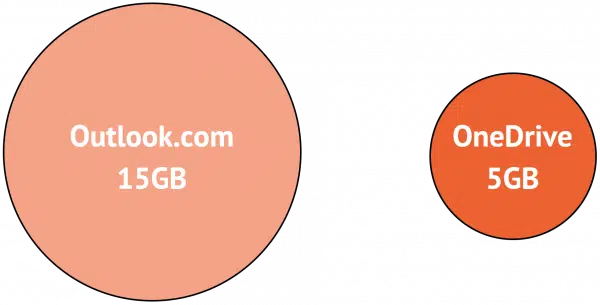
That clarity apparently couldn't stand.
The rule seems pretty simple: email attachments and in-line images count against your OneDrive storage.
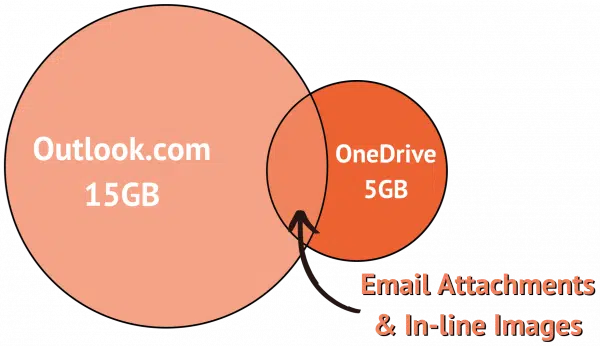
The net result, however, is complicated. Your OneDrive usage is now comprised of whatever you previously had in OneDrive (whether or not you realized it) plus all of your email attachments and in-message images.10
And that's where it gets weird.
Let's assume you had a lot of mail at outlook.com. Perhaps not a full 15GB, but something significant. Say 10GB.
Let's further assume your email had a lot of attachments. Perhaps 7GB of that 10GB are images and attachments.
Everything was working fine until Microsoft made this change. Suddenly, that 7GB counts against your (free) 5GB limit, and you're way over. "Your files are at risk of deletion," as Microsoft's message at the top of the page warns you.
You did nothing. Microsoft simply changed the rules underneath you.
In Outlook.com, at the lower left, click on the amount of storage usage reported.
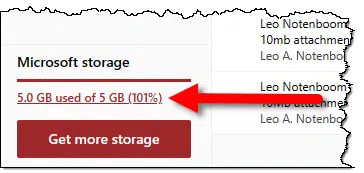
In the example above, I would click on "5.0 GB used of 5 GB (101%)".
This will take you directly to the Storage report in Outlook.com settings.
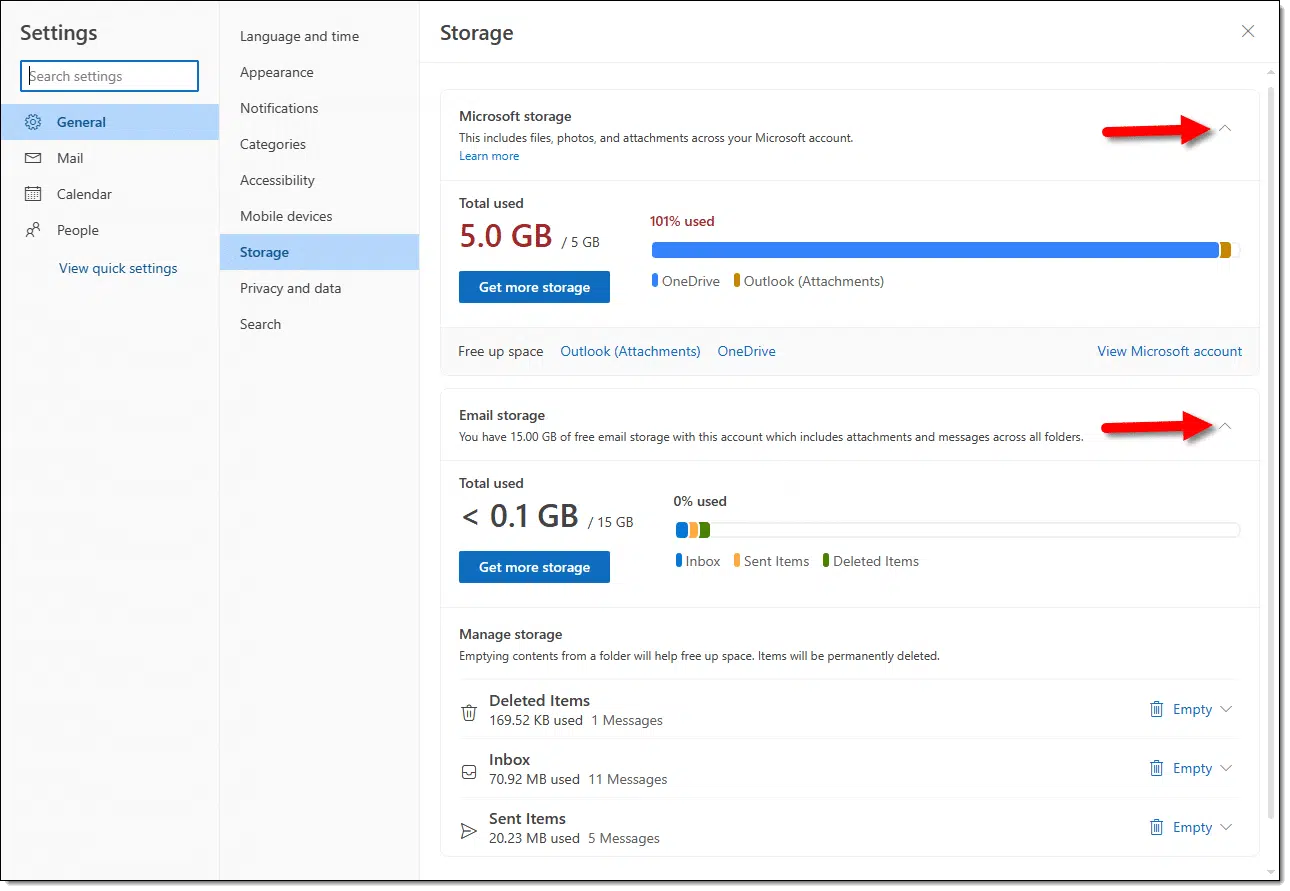
Be sure that both "Microsoft storage" and "Email storage" are expanded by clicking the small down-arrows in the positions indicated (they're up-arrows in the image, as they've already been clicked).
Here you can see that my "Microsoft storage" — also known as OneDrive — is over the limit at 101% used. The bar graph shows that this is mostly files stored in OneDrive, but at the end, there's a small indication including Outlook.com attachments as well.
You can also see that my email storage is negligible; it's well under the 15GB allocated to free accounts.
So what do you do when your Outlook storage approaches or tops that 5GB or 15GB limit? People often think to delete attachments from specific email messages without deleting the email message itself.
The problem? There's no way to do that in Outlook.com. You can't delete just the attachment. You can only delete the entire email. I'll cover a cumbersome workaround for this in an upcoming article, but for the present Outlook.com user interface, it can't be done.
Your options are:
You might be tempted to forward some of those emails with attachments to another account, but there are apparently situations where:
A classic Catch-22 situation.
It's a mess. And it's not your fault.
9: *cough*
10: Email treats inline images similarly to attachments. The only difference is that they're displayed in the email's body rather than separately in an attachment.
11: And yes, this feels like a marketing attempt to get more people to pay more money for an ongoing subscription. I'd love for a Microsoft representative to explain how this is all supposed to make sense.
Google deletes accounts that are inactive for two years -- including Gmail, Drive, Photos, and even YouTube content. I’ll explain what “inactive” means, how to keep your accounts safe, and why this change could erase important cultural history.

At the end of 2023, Google announced that the company would start deleting inactive accounts.
Let's review what it means to be "inactive", what you need to do, and why this might be a serious blow to our cultural history.
Google deletes accounts that have been inactive for over two years. You can protect all your Google accounts by signing in to each and doing anything. If you want to preserve content in inactive accounts, take explicit steps to archive that content before it's removed from the internet.
You'll find the full 2023 announcement here: Updating our inactive account policies.
Google positioned this as security-related — meaning it's for our "protection".
... if an account hasn't been used for an extended period of time, it is more likely to be compromised. This is because forgotten or unattended accounts often rely on old or re-used passwords that may have been compromised, haven't had two factor authentication set up, and receive fewer security checks by the user. Our internal analysis shows abandoned accounts are at least 10x less likely than active accounts to have 2-step-verification set up. Meaning, these accounts are often vulnerable, and once an account is compromised, it can be used for anything from identity theft to a vector for unwanted or even malicious content, like spam.
The net result is that the account, and everything in it, will be deleted.
Starting later this year, if a Google Account has not been used or signed into for at least 2 years, we may delete the account and its contents ' including content within Google Workspace (Gmail, Docs, Drive, Meet, Calendar), YouTube11 and Google Photos.
It's not difficult to keep your account active. Doing just about anything that requires you to sign in to that account does the trick, and might include things you don't even realize you're doing.
The important caveat, though, is that you must be signed in to your Google account when you do those things. Many of them — for example, Google Search — don't require sign-in. If you're not signed in, it doesn't count as "activity".
So... sign in. If you have multiple Google accounts, take the time to sign in to each at least once a year or so to ensure they don't get deleted.
Google gives lots of warning before accounts are deleted. Notification emails are sent not only to the email address of the account, but also to any recovery email addresses configured for the account. This is another case where making sure you have proactively set up recovery information and kept it current will help you avoid loss. It would be a good idea to double-check the settings every year as well.
Deleting means deleting. Gone. Forever. No recovery.
If, after all the warnings and all the lack of activity on the account, you take no action... then it's gone. All of it.
Steven Capsuto captured the concerns nicely on Mastodon.
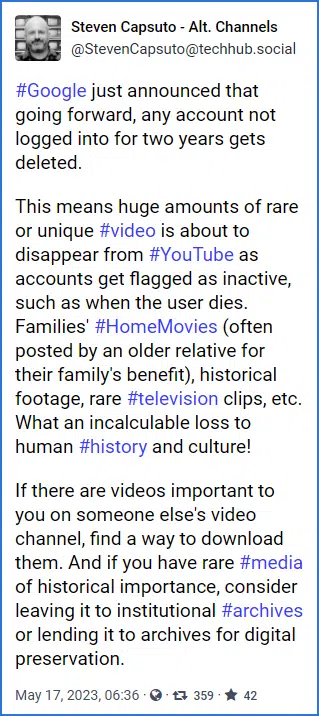
#Google just announced that going forward, any account not logged into for two years gets deleted.
This means huge amounts of rare or unique #video is about to disappear from #YouTube as accounts get flagged as inactive, such as when the user dies. Families' #HomeMovies (often posted by an older relative for their family's benefit), historical footage, rare #television clips, etc. What an incalculable loss to human #history and culture!
If there are videos important to you on someone else's video channel, find a way to download them. And if you have rare #media of historical importance, consider leaving it to institutional #archives or lending it to archives for digital preservation.
I expect two significant fallouts from this:
Both are potentially devastating. I hope that archival organizations will somehow step in and save what needs to be saved before it disappears forever.
One question not answered by the Google announcement is what happens to the email address associated with the Google account. Will it be released and available for reuse?
For instance, if "example@google.com" goes inactive and is eventually deleted, can someone else create a new account with that email address?
We do not know.
What we can say, though, is that if they can, it will be a new, empty account. It will not contain the old account's information.
12: Google backtracked on YouTube in response to feedback, but clearly the threat remains.
13: Yes, the original account holder should have the original files backed up and preserved somewhere, but experience shows that's frequently not the case, or their originals are long gone by the time the issue comes up.
It seems obvious, but it's a waste of your time to reply to emails that say, "Don't reply."

This sounds obvious, but many people fail to notice when an email is sent to them from an email address that explicitly or implicitly is not monitored. Usually the "From:" address includes a clue, such as:
donotreply@somerandomservice.com
Or there's text somewhere in the message that says something like, "This email is sent from an unmonitored account. Do not reply to this message."
The reason is simple: that "From:" address will likely get a lot of spam, message bounces, out-of-office messages, and other cruft that would have to be worked through to actually see your reply. Instead, they redirect you to a different email address or, more commonly, a contact form where responses can be more easily routed, filtered, and handled. Having you follow simple instructions like this is a way to ensure the message they get is from a real person and not some kind of automated response.
A friend told me a story of watching a "conversation" between someone and one of his automated responders. The individual got more and more angry as he would reply over and over again to each message, which in turn would automatically reply with a message that it was an unmonitored email address. He was arguing with a computer because he didn't pay attention to what the message said.
If the email says, "Don't reply to this address", then don't. Look for further contact instructions elsewhere in the email or, failing that, on the website of the service or individual you're attempting to communicate with.
Backing up your new computer on arrival can be an important safety net. But there are degrees of what's good enough.
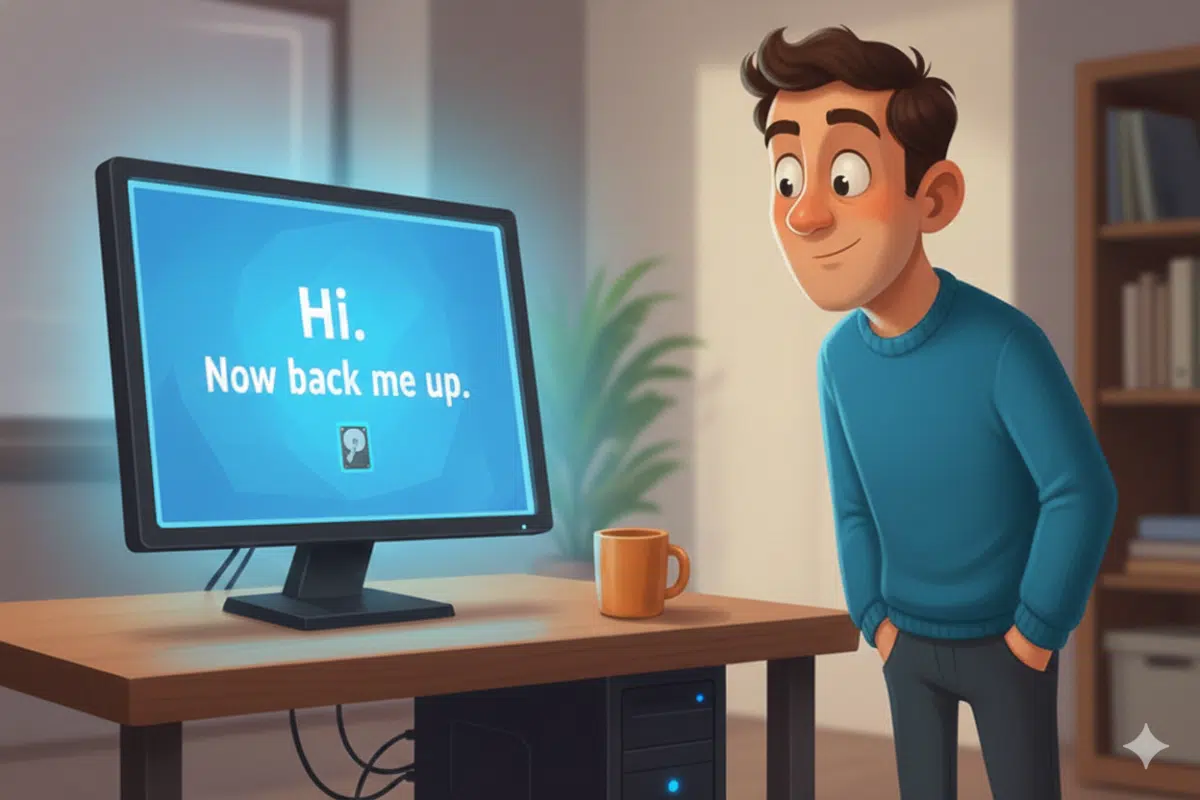
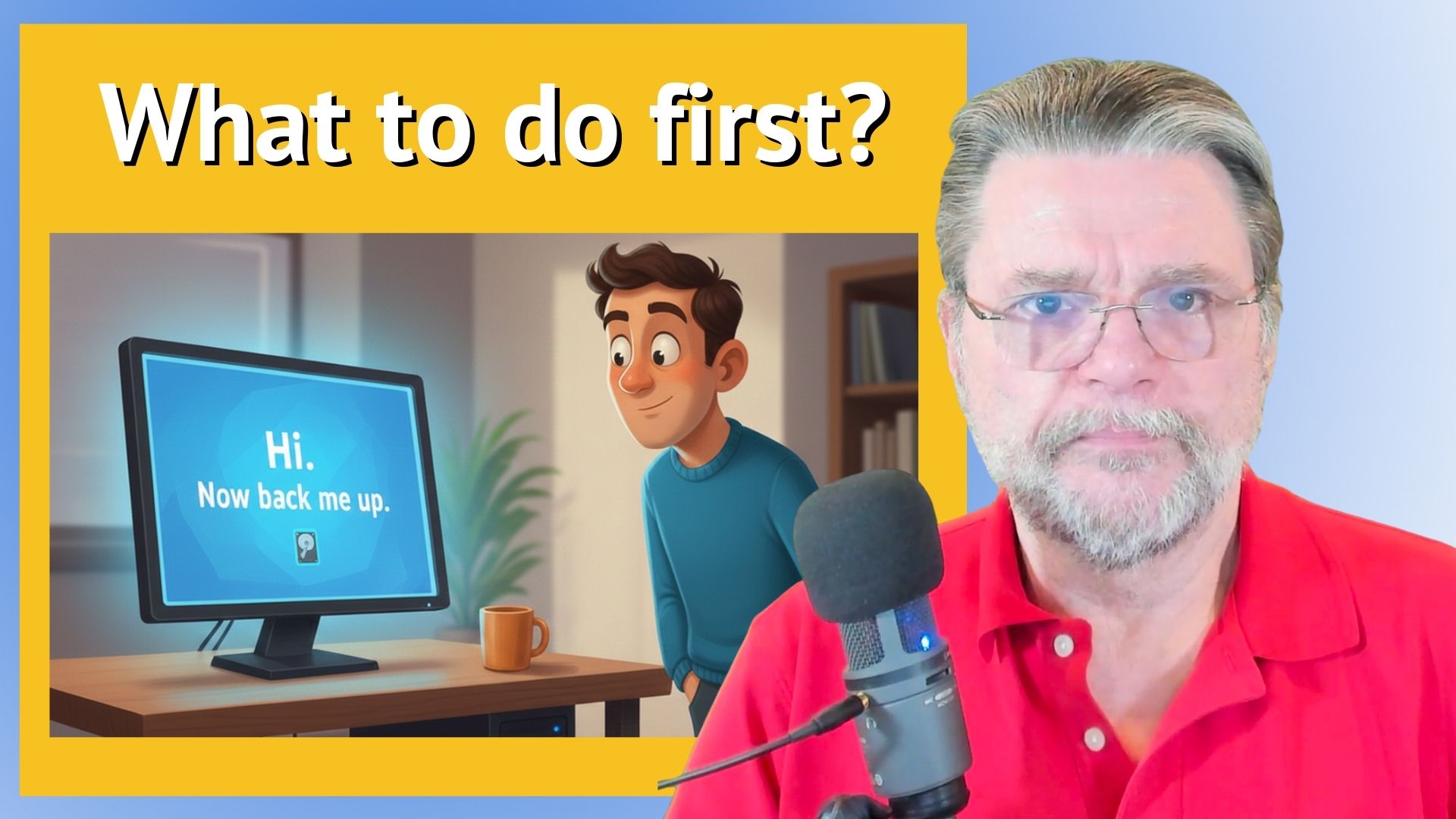
Creating an image backup of a brand-new machine boils down to a chicken-and-egg scenario: you want to back up the unmodified machine, but you must modify the machine by installing software to back it up.
Or do you?
There are a couple of approaches to this. One is practical and easy, and the other is technically more accurate.
Creating an image backup of a new computer is a good safety net should you ever need to restore to true factory settings. Realistically, just back up as soon as possible after setup. To create a truly pristine backup image, boot from the backup software's rescue media before anything else, or remove the hard disk and create the backup image elsewhere.
The concept is that we want to create a backup image of the new machine's hard drive exactly as it arrived from the factory. This can be useful in the future if the PC ever needs to be reset to its true factory conditions.13
The obstacle is that creating that backup will change the contents of the hard drive, either by completing Windows Setup, installing the backup software, or both. Regardless, the contents of the hard drive will have been altered. The backup we create will no longer be a pristine copy of the hard disk exactly as it arrived.
The approaches range from living with "good enough" to jumping through a few hoops to get exactly what we want.
My approach in this situation is typically to take the most practical path, as it's both easier by far and good enough.
This becomes your almost-factory-settings backup image. Should you ever want to restore your machine to this initial condition, you can.
Unfortunately, we've applied Heisenberg's uncertainty principle14 in that we've affected what we wanted to back up in order to back it up.
If we want to avoid that, things get complicated.
Before we complicate things too much, however, there's another fairly straightforward approach that gets us closer to our pristine image.
There are a couple of issues that can make this a little bumpy.
Technically, this has also modified the contents of the hard disk prior to taking the backup, but less so than the previous approach.
Here's an approach that gets you an image backup of a computer that hasn't been altered in any way.
The backup image that results from this process is an exact copy of the hard disk as it arrived from the factory.
Unfortunately, there are risks and pitfalls with this process.
It's the second one that's often more frustrating than it's worth; hence my personal reliance on the more practical but less technically perfect approach.
I rarely consider this, but for those who desperately want a pristine backup of their new drive before a single change, this approach can also work.
This might make sense, I suppose, if you're comfortable with hardware, have that second PC to attach something to, and feel the need to go this far.
I don't.
14: A reset within Windows only returns the machine to the initial conditions of the current version of Windows, not your machine's actual day-one condition.
15: Grossly over-simplified for popular culture as: you can know where something is, or you can know how fast it's going, but you can't know both. Or: the mere act of looking at something affects that something, making the prior conditions uncertain.
It's surprising how often people lose access to their primary email account because they forgot about their alternate.

One of the many ways people lose access to their accounts is by not signing in for a long time. Then services take the lack of activity as abandonment and close the account.
Now, it sounds slightly nonsensical. Why would you have an account if you never sign in? And if you weren't using it anyway, why would having it go away be a problem?
Account recovery.
It's common to have a primary account you use every day and a secondary account configured as its "alternate email address" for security and account-recovery purposes. If you lose access to the primary account due to a hack, forgotten password, or something else, the service can send a message to that alternate email to begin an account-recovery or password-reset process ...
... as long as you can sign in to that secondary account.
I hear regularly from folks who're having problems with their primary account only to find that the alternate email address they configured — often years in the past — is no longer functional. It's possible that they would then lose the primary account completely.
Set yourself a reminder to sign in to your alternate accounts every few months just to keep them active.
Windows tries to look sleek by auto-hiding scroll bars. If that annoys you as much as it does me, you can turn it off.

I'm sure that some people believe this to be a feature, but it annoys the heck out of me when scroll bars in Windows 10 & 11 and "modern" apps disappear on me. They never appear when I want them. I'm not so tight on screen space that I need those few millimeters, and they don't bother me visually.
So I disable that feature.
In the Windows Settings app, search for ease of access. In the left-hand navigation bar, choose Display. Scroll down on the resulting page until you find "Automatically hide scroll bars in Windows", and turn it off, or "Always show scrollbars" and turn it on. It'll take effect immediately; the scroll bars in the Settings app itself will appear right away.
One less irritation, if that kind of thing bothers you.
Internet speed: we all want it. Here's how to improve yours.

In a previous article about speeding up Windows, I mentioned that sometimes a computer can appear to be slow, but the fault may be in your internet speed.
That raises the question, of course: how do you increase internet speed in Windows?
I have some suggestions.
Before we begin, it's useful to get a picture of where you are right now. I do that by visiting speedtest.net.
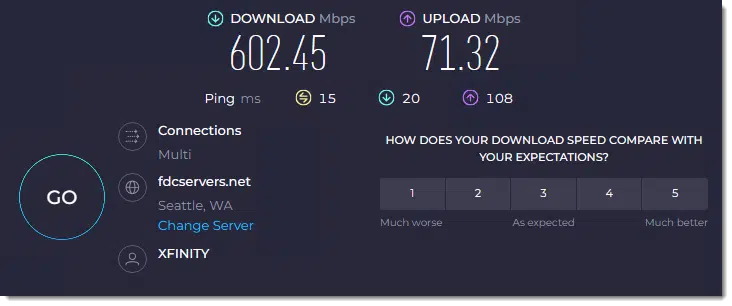
A couple of caveats when running speed tests.
With that as our starting point, we'll look at some adjustments.
Almost everything discussed in that prior article — 10 Ways to Make Windows 10 and 11 Faster — has the potential to impact what happens to your internet usage, so begin there.

|
10 Ways to Make Windows 10 and 11 FasterComputers slow down for many reasons. I'll review some of the steps you can take to speed yours up again.2023-11-29 - #165168 |
While that article mentions that slow internet speeds could make your machine seem slower, the reverse is also true: what your machine is up to can make your internet connection seem slower.
DNS — for Domain Name System — is the process of translating a domain name like askleo.com into the IP address used for the network connection. It's the first part of every network connection, and it's often surprisingly slow.
If you've never changed your DNS settings, chances are you're using whatever DNS provider your ISP happens to set. ISPs need to provide this, but it's typically not high on their list of priorities, and thus not always the fastest. The good news is you can choose to use a different DNS provider.
There are several alternatives that can be faster, and in some cases, more secure.
There are several others. Some, like OpenDNS, provide a level of additional security by refusing to return the IP address for known malicious sites.
You can also use a tool like DNS Jumper to run live tests against your current DNS provider, as well as many others, including those listed above.
If a different DNS provider is faster than what you're currently using, head over to How Do I Change the DNS Used By My Computer? for help making the change.

Sometimes the slowdown isn't your actual ISP-provided connection, but the connection between your computer and your router. Often, it's your Wi-Fi that's to blame.
Wired Ethernet is almost always faster than Wi-Fi. Yes, Wi-Fi is convenient, and speeds have certainly improved over the years, but it still doesn't match the speed and stability a wired connection can get you.
If possible, switch to a wired connection.
If you want to use Wi-Fi, make sure it's set up for the best results.
Wi-Fi is nothing but a specific type of radio-based communication protocol. It's subject to the same quality problems that any radio signal can experience.
The protocol is designed to be as robust as possible, but many factors can significantly affect your Wi-Fi throughput, including:
5 Steps to Better Wi-Fi in Your House is a great place to start for suggestions and explanations.
In the Settings app, search for Troubleshooters. Click on Troubleshoot settings when it appears, and then Other troubleshooters (or Additional troubleshooters in Windows 10). One of the choices is Network and internet (or Internet connections in Windows 10).
Run the troubleshooter.
While the troubleshooter isn't necessarily looking for ways to improve your performance, resolving any problems it finds may help.
This one takes some people by surprise, particularly if they have an older device. As their ISP provides faster and faster speeds, the router, switch, or hotspot that was once fast enough might not cut it anymore.
The most obvious case is a router that has only a capability of 100Mbps (megabits per second) connected to an internet connection capable of much, much more. Your speed cannot top 100Mbps, no matter how fast the connection can go.
The same is true for the capabilities of all networking equipment, including Wi-Fi hotspots. If your new laptop is capable of the fastest Wi-Fi protocols, but your Wi-Fi hotspot is not, you'll be limited to the older, slower speed.
When it comes to routers in particular, it's possible you may not have total control, though, which leads to my final suggestion.

In theory, your ISP should provide or specify a router fast enough to handle the speed of the connection they've sold you. If you suspect that's not the case, or if the router is provided and remotely managed by the ISP, it's worth asking them to confirm the configuration.
And, of course, it's also worth working with the ISP to confirm they're providing you the internet speed they've promised and for which you are paying. No amount of configuration changes or improvements on your part will improve speed on an internet connection that's throttled by the provider.
When you've tried some of the items above, re-run the speed test to see if there's an improvement. Once again:
Hopefully, you'll see the improvement you're looking for!

16: Speedtest.net (by Ookla) does have an app in the Microsoft Store, but I prefer being able to use it via different browsers.
Change is certain, and that applies to passwords too.

There are many reasons people use and re-use the same password on multiple sites, even when they know they shouldn't.
One of the more common reasons? "I just like it. It's easy for me to remember."
Fair enough. Just don't become attached to it. Why? Because if any of those sites where you use it suffer a breach, it's no longer a secure password. If your account is ever compromised, it's no longer a secure password. If anyone, anywhere, anytime discovers it, it's no longer a secure password.
You'll need to change it everywhere you've used it.
While you're at it, make sure to give each place you've used it a new, unique password.
Just don't become attached to those, either. Plan ahead for having to change them someday, too.
Bonus tip: If you're up for it, Check Your Passwords for Hacks — a previous Tip of the Day.
Drag and drop is a quick and convenient way to save bookmarks.

I'll use Chrome as my example, but this is true of most browsers: click and hold on the icon or indicator immediately to the left of the webpage address in the address bar. Now drag that to your bookmarks bar and release. You've just added a bookmark to that page.
(Don't see your bookmarks bar? In Chrome, hit CTRL + SHIFT + B. Other browsers have similar shortcuts.)
Some keystrokes do the same job, but this drag-and-drop technique also works in other places.
For example, click and hold on this Ask Leo! link right here in the article. Now drag and drop it to your browser's bookmarks bar. You've just added a bookmark.
Add a bookmark you don't really want to keep? Right-click on it in the bookmarks bar and then click Delete.
So much of we hear about just isn't panic-worthy, even if news reports make it seem like it is.

As I watched a "major" security issue16 unfold a few years ago, I read the media reports seeming to claim that the end of the world (or at least the internet) was upon us. I felt like I was supposed to be panicking.
I didn't, and neither the world nor the internet ended.
It's not in my nature to panic. That's just the kinda guy that I am. Panic may occasionally be called for, but usually it does more harm than good.
News stories regarding technology are often framed in the worst possible world-ending way to get you to click through to view articles (and their ads). While some items are genuinely important, it's better to bring skepticism to bear first. Decisions made out of panic are rarely the right ones.
Don't get me wrong; the issue was serious. The potential for havoc was high. In fact, I'll even say we dodged a bullet.
But dodge it we did.
For this particular issue, server administrators had reason to be deeply concerned. Their systems were vulnerable, and the moment the news broke, their systems needed to be fixed ASAP.
As the owner of an affected server at the time, I did due diligence to ensure the servers under my control were not affected. Rather than panic, I felt more of a "better look at this right away" kind of prioritization.
The general public had even fewer options. Aside from caution when moving forward after the bug had been publicized, there was absolutely nothing the average consumer could do. If there was damage, it had likely already been done.
More importantly, it appears that there wasn't a lot of damage done. Servers were fixed quickly, and life moved on.
I use the term "press" very loosely here. At the time, you could find proclamations on the issue everywhere from individual blogs to major news media outlets.
And it all comes back to clicks.
When a story sounds sensational, more people click through to read it. That page then offers more eyeballs to the advertisers that sponsor it. As a result, there's a powerful incentive to make headlines as shocking as possible, sometimes to the extreme.
It's called "clickbait," and nothing generates clicks like feigned end-of-the-world panic.
The result is that we need to view news reporting on just about any story very skeptically. There are great, trustworthy sources out there. It's just difficult to pick them out from all the noise.
In technology, particularly around personal computing and the internet, two themes appear consistently:
I have seen people make some terrible decisions — like unnecessarily reformatting or even discarding computers, closing online accounts, and even stepping away from online activities completely — in a panicked and often ineffective response to a seemingly imminent threat.
Imminent and dangerous threats do arise — but I have yet to see one that is so serious that you can't take some time to calmly and rationally consider the ramifications.

17: HeartBleed.
I hear from people who have lost their accounts permanently way too often. Here's how to avoid being one of them.

That's a synthesis of the comments I get frequently on some of my most viewed content: my articles and videos on account recovery.
Folks are often pissed at me because the process doesn't work, even though I usually start by saying, "This process might not work."
Call this tough love if you like: there's really no one to blame but yourself, no matter how many "thumbs down" you give me. Instead, learn from the situation and take the steps you should have taken to begin with to make sure this never happens again.
If you've lost access to an online account, and the account recovery or "lost password" processes don't work, it's likely you've lost the account forever. It's critical that you keep your account secure to begin with and that you keep recovery information up to date in the event you need to prove you are the rightful account holder.
Account recovery fails for only one reason: you are unable to prove that you are the legitimate account holder and should be allowed access to the account.
Online services are in a constant battle with hackers and others attempting to gain access to accounts they shouldn't be allowed to access. The services establish processes that only actual account holders can complete to prove they are who they say they are. If you cannot complete that process successfully, the service has no way to know you're not some hacker trying to break in.
Frustrating as hell, I get it, but that's the bottom line.
There are several ways this can happen.
The most common reason people lose access to their accounts is that they failed to set up account recovery information or they let that account-recovery information fall out of date.
Account recovery information includes things like alternate email addresses, phone numbers, or recovery codes. Setting up each of those when you create the account (or any time you have access to it) means that if and when you need to recover the account, you can prove to the service that you are the account owner.
If you can receive a code at an alternate email address or text message number that you set up, then you must be you. It's as simple as that.
If you can't — perhaps the email address no longer works, or you changed your phone number without updating the account — then you have no way to prove your identity.
Lesson #1: Set and maintain account recovery information for all your accounts.
A very common complaint I hear is, "I entered what I absolutely know to be the correct password, and it failed."
If the password fails and everything else is correct (the username is correct, you're signing into the real site and not a fake phishing site, etc.), then no, your password is not the correct password. Chances are someone hacked into your account and changed it. Your password is no longer your password.
But it can get worse.
Once hackers gain access to your account, on some services, it's possible for them to go in and change all that recovery information we talked about to prevent you from being able to recover the account. Most services will notify you using the old recovery information, but a) not all do, and b) if you're also suffering from failure #1 above, you might never get the message.
The password's been changed, the recovery information's been changed, and you have no way left to prove you are the legitimate account holder. It's not your account anymore.
Lesson #2: Do everything you can to prevent your account from being hacked. Use a password manager, long, strong, unique passwords, and two-factor authentication wherever possible.
Oh, my, do people get angry at this point. They've lost access to their account, and they want to reach out to the service's customer support options for help recovering the account.
Except there are no customer support options.
Free is free, and you get what you paid for. Even so-called "online chats" or "give us the last password you remember and a few message subject lines and we'll get back to you" options are usually automated and often fail with zero recourse. There is no person to call, there is no person to email, and there is no person to talk to.
You're on your own.
Lesson #3: Understand what you're (not) getting. Switch providers if you need more.
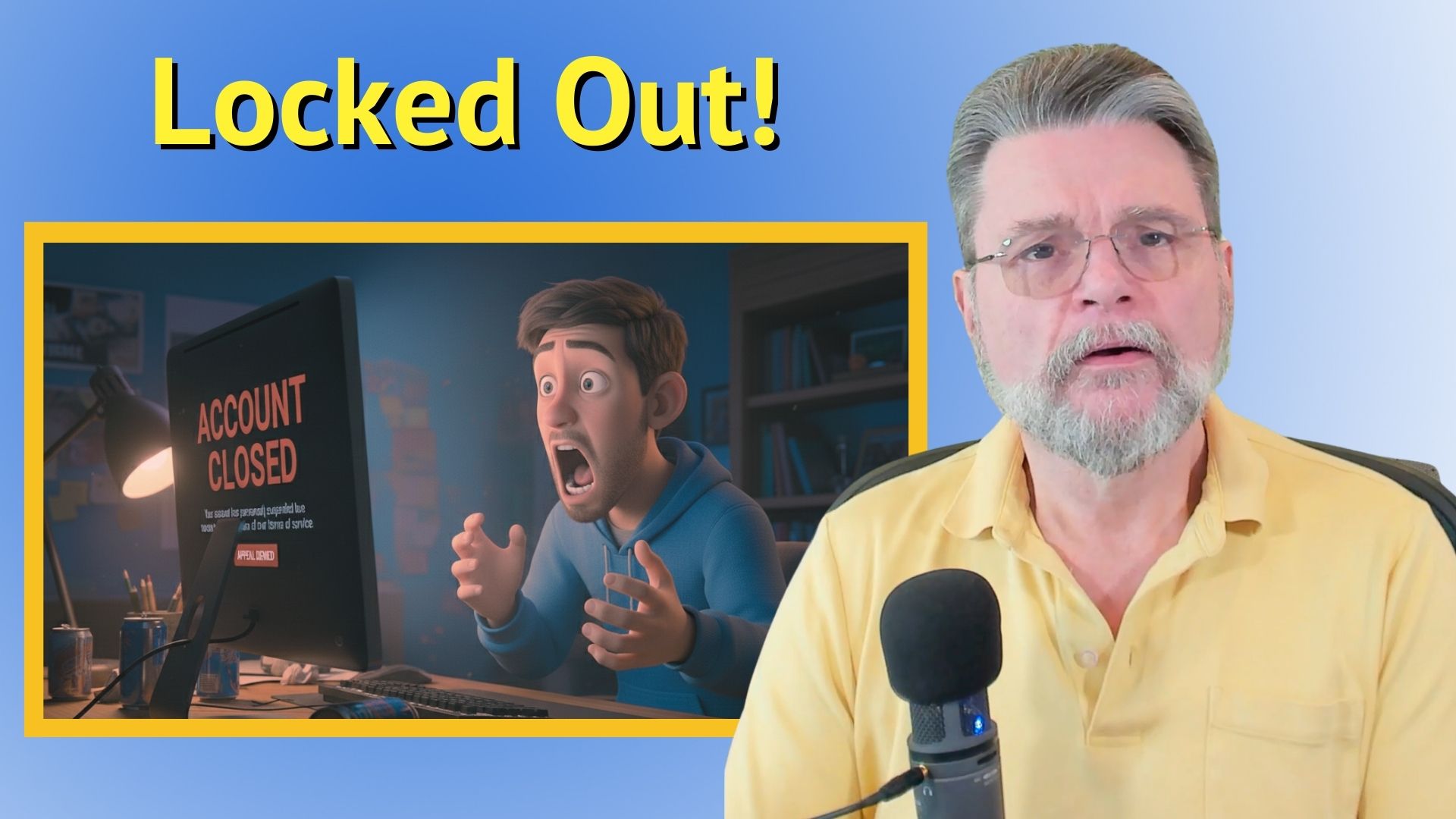
Alternate email addresses can allow you to regain access to your account if it's hacked or you forget your password.

Yes, you need a recovery email for every account that offers the ability to set one.
Recovery email is one of those concepts that is easy to take for granted and assume everyone understands. Even if you do, you might want to review the concepts and ensure that the recovery email addresses you have are set up properly.
Recovery email accounts are separate email accounts you configure to give your primary accounts another way to contact you. Should you ever be denied access, your ability to receive a recovery code on your recovery account proves you are you and should be allowed back into your primary account. Make certain to keep your recovery account up to date and access it periodically to ensure it'll be there when you need it.
My example will set up a recovery email address for a Gmail account, but this concept applies to any email account anywhere. It also applies to any non-email service that takes an email account as a recovery or alternate email (like social media accounts, for example).
You start by creating (or using) a second email account.
For example, I have a Gmail account, askleotest@gmail.com. If I want to set up an alternate email address for that account, I'll create a new email account somewhere else. In my case, that'll be askleoexample@hotmail.com.
I now have two separate email accounts:
So far, they are completely independent of one another. I can send and receive messages using either. I sign into gmail.com to access one and outlook.com for the other.
This varies depending on which service you're using, but for Gmail, visit myaccount.google.com/security, look for the section "Ways we can verify it's you", and then click on Recovery email.
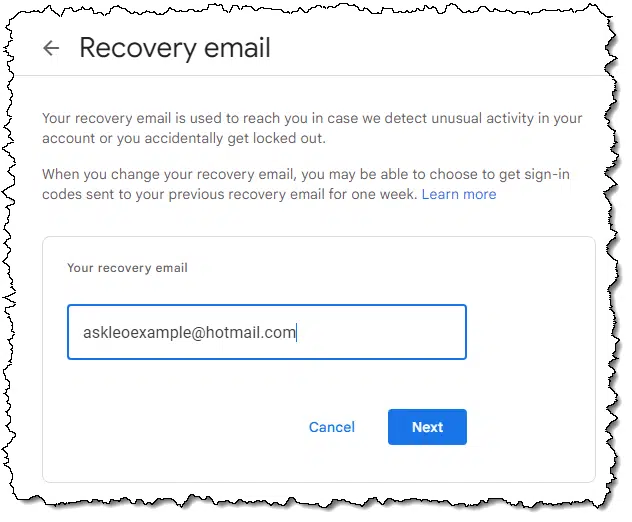
Enter your other email address: the second account that you intend to use as the recovery account. In my case, that's askleoexample@hotmail.com. Click on Next.
You'll be asked to enter a verification code.
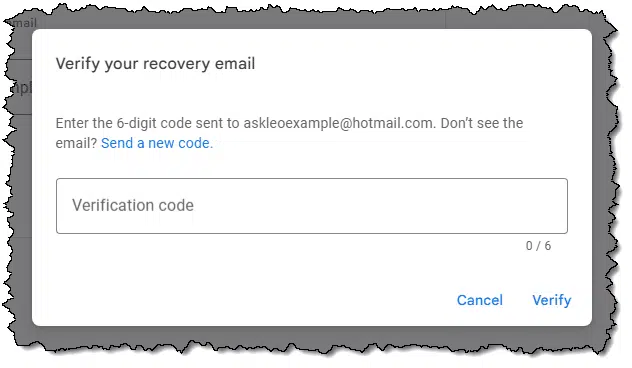
The primary account — my askleotest@gmail.com account — has sent an email with a security code to the recovery account I've specified. This is to make sure you didn't mistakenly enter an invalid account or an email address belonging to someone else, and you can actually access that recovery account.
Now, go visit the inbox for that other account. In my case, that means I open outlook.com for my askleoexample@hotmail.com account. Sure enough, there's a message in that account's inbox with a code.
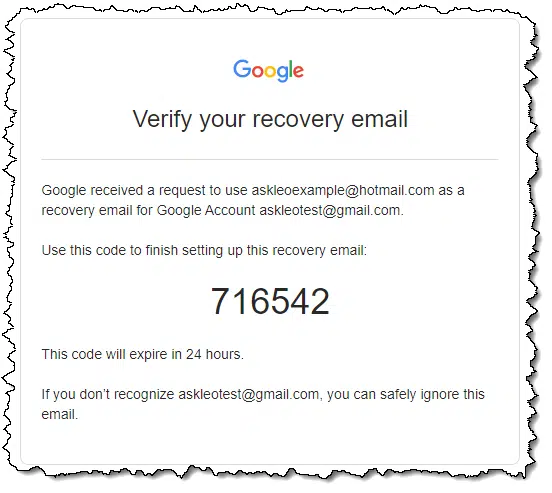
Enter this number on the second, alternate account, into the box that was presented by the first, primary account, and click Verify.
You've now told the primary service (Gmail) that this other account (on Outlook.com) is also yours.
I've set up askleoexample@hotmail.com as my alternate or recovery email address for my askleotest@gmail.com account. The Gmail servers can now reach me at my outlook.com address because I've set it up and said, "Yep, that's me too."
Okay, great, you've got an alternate or recovery email address set up with your account. When would you use it?
When/if you can't log in.
Your password isn't accepted for whatever reason. Perhaps you don't remember it, perhaps a hacker or someone else changed it, but regardless of the reason, you can't log in.
Then you use the "forgot password" link to begin the account recovery process.
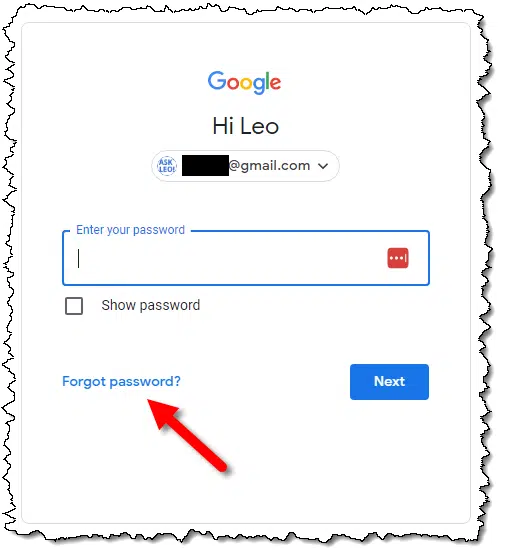
For most services, this begins a process to confirm you are the rightful account holder and should be allowed to set a new password and regain access to the account.
One way the service does this is by sending a code to your alternate email address, much like they did above when you set it up.
To receive the code, you sign in to that alternate email address. In my case, if I were having problems signing into my Gmail account at askleotest@gmail.com, I would go to outlook.com and sign in to my askleoexample@hotmail.com account to find the message with the recovery code in my inbox there.
Your ability to receive this code at that email address proves you are who you say you are because when you set up the alternate email address, you effectively told the service, "This is me, too."
Enter the code you received, and the service knows it's you. The next step is for you to specify a new password.
At this point, you have two email accounts — in our example, a primary Gmail account and a Hotmail account set as its alternate.
For security's sake, that Hotmail account should have an alternate email configured as well. The process is similar.
But you don't need to get a third email account.17 It's fine to:
That way, either account can be used to recover the other should you have problems later on.
The only time this becomes an issue is if you're having problems with both accounts at the same time. As long as you regularly sign in to each, the chance of this happening is low.
You'll notice that I've explicitly chosen to use two different services: Gmail and Outlook.com (aka Hotmail). This is on purpose.
You could have both your primary and alternate email addresses at Gmail.
I prefer (and recommend) having alternate email addresses on completely different services for an additional layer of protection against system-wide issues. For example, if something prevented you from signing in to any Gmail account — perhaps because you're travelling or some other cause — then having an account on a completely different service stands a higher chance of allowing you to recover the account.
The choice is yours, and it's more important to have an alternate — any alternate — than no alternate at all. But while you're at it anyway, choose a separate system.
I mentioned above that as long as you regularly sign into both accounts, you're unlikely to have a situation where both fail at the same time.
It would surprise you how many people fail to do this. They spend their lives in their primary account and completely ignore their alternate. Some time — often years — later, when they need the alternate, it's no longer available, they've forgotten the password, or there's some other hurdle preventing its use.
Sign in to your alternate email account periodically. Once a month works well. Just make sure it's still there and ready for you.

18: Unless you want to, I suppose.
19: Some even allow you to set more than one for even more security.
The second-most popular search engine might not be what you think.

Google remains the most popular search engine on the internet by far.18
However, contrary to most people's expectations, YouTube is #2.
This point was driven home to me when I asked a friend how his daughter, who is about to head out to college, searches for answers online. YouTube was the answer.
Most people don't consider the video-hosting platform a search engine at all. That's a mistake. There's an amazing amount of information available via YouTube.
Let this serve as a reminder: when you're looking for answers or information, consider YouTube (and perhaps the Ask Leo! YouTube channel  ).
).
20: For now. And at least in the Western world. It's unclear how China's equivalent compares.
Reusing passwords -- even strong ones -- is risky. If one site gets hacked, attackers try that same password elsewhere. Worse, once exposed, it’s saved bv hackers and reused in future attacks. I’ll discuss why this matters, how to check if your password’s out there, and what to do instead.
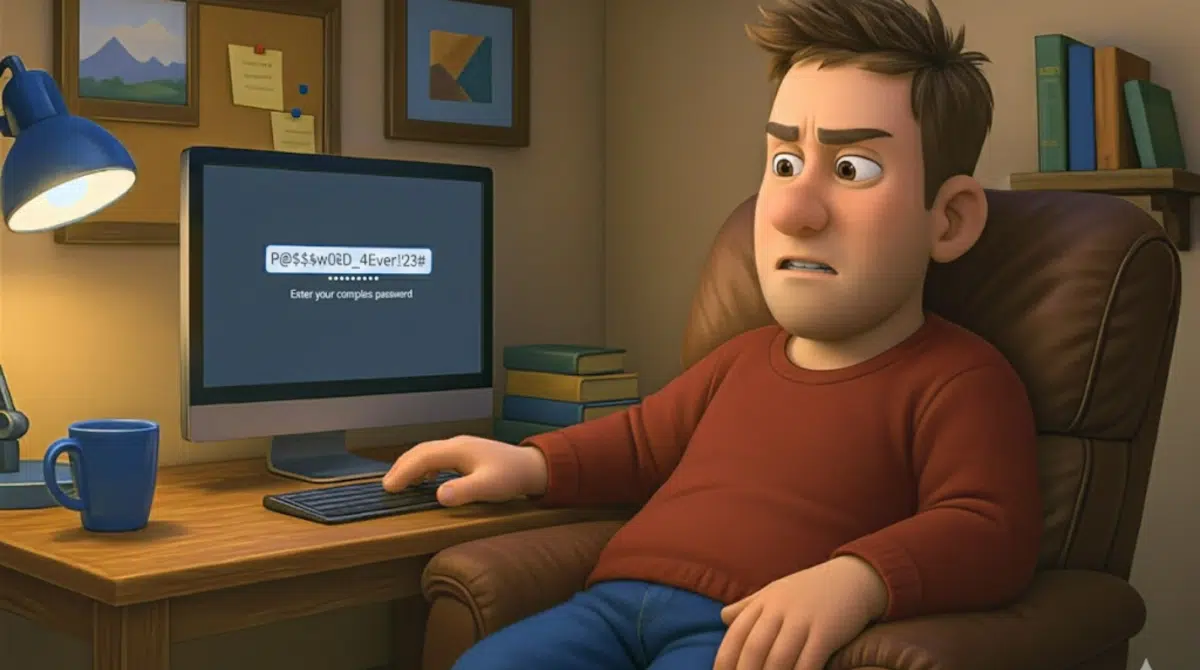
A reader recently commented:
I disagree.
You don't need a password-strength tester.
You should, however, use a password-found tester. And while it's not "some random website", there is a website I suggest you use.
When hackers discover passwords in a breach, they try them out at other accounts associated with your user ID or email. They also use collections of previously discovered passwords in brute-force attacks. Once a password is discovered, no matter how strong, it is no longer a secure password. Use unique, long, strong passwords, ideally random, and enable two-factor authentication on all accounts that support it.
Strong passwords are easy. If you're using a password vault, use its password generator to generate passwords of at least 12 (I use 20) random characters.
Something like rGyk2fhfQAtAzoejLZFF. Or gzmkuRUgyhqY. That style of password is quite secure — as secure as it gets, as a matter of fact. And I didn't even bother to use special characters. No strength testing needed.
Use a password manager to save your passwords, and it doesn't matter that you can't possibly remember them.
Security achieved.
However.
Using the same password at multiple different sites is probably the single most risky thing you can do,19 no matter how secure the password might be.
Here's why.
Let's say you use the same nicely secure password — rGyk2fhfQAtAzoejLZFF — at service A and also at an unrelated service B.
Service A gets hacked. Not your fault; nothing you could have done about it; but it happened. What's worse, service A did an even worse job than we thought with security: they stored passwords in a way that the hacker was able to recover the actual passwords. The hacker now has rGyk2fhfQAtAzoejLZFF as the password for your account, along with your email address, which is commonly exposed in breaches like this.
The hacker starts trying your email address and password at all sorts of other common services in case you happen to have accounts there.
Eventually, they reach service B, and when they try to sign in as you, it works, since you used the same password there as you did at service A. Security measures at service B never came into play because it was never hacked. The hacker simply signed in as you with your username and password: the password they had discovered somewhere else.
This happens all the time.
This is a variation on the theme, but it's not obvious. So far, we've focused on making sure two or more services don't use the same password at the same time. But it's worse than that. Even if you use a password in one and only one location, even if you later change it, you should never use that original password again.
Let's say you have a nicely secure password — 9Fotvb7fb2J4BbEAFKk4 — at service A and only service A.
Service A gets hacked. Once again, it's not your fault. Once again, service A's security was poor, and they stored passwords in a way that the hackers could get them. The hacker now has 9Fotvb7fb2J4BbEAFKk4 as the password for your account, along with your email address.
Service A has been hacked, but only service A. The hackers try your email address and password at other services, but it gets them nothing. You used it in only one place. Good on you.
Now never use that password again. Ever. Why?
Because something else happens when hackers discover account passwords: they save them. They build a list of all the passwords they've ever discovered anywhere.
And they use that list in the first volley of brute force attacks in the future.
We think of brute force attacks as trying all possible passwords, but a more effective hacking strategy is to try all previously discovered passwords first. Why? Because people insist on reusing passwords. If not right away, then eventually.
What this means is that once you've used a password, you should never, ever use it again, anywhere else, for all time.
One and done.
Dream up a password that doesn't follow our rules above: something that would clearly be a poor password. I'll choose pinkducky.

The image above shows the result of entering pinkducky at Pwned Passwords, a service of Have I Been Pwned. Pinkducky has been discovered 83 times across the breaches that Have I Been Pwned is aware of. (Maybe don't use that as a password.)
I don't consider Pwned Passwords a random site; it has a great reputation and does all the tech right. Your actual password isn't really uploaded, and anonymity is preserved (you can read more on the site about how this is accomplished if you're so inclined).
Here's the thing: any password you've ever used could be on the list, particularly if you don't use a technique like the "12 random characters" approach I used above. Even if you have been using long, strong passwords, if that password was ever discovered by hackers, it could be on their list to try.
So even if you think you're properly obfuscating (0bF45c4T1ng) your passwords, you might want to check them with Pwned Passwords.20 If anyone anywhere happened to use the same password, and that password was breached, you could be setting yourself up for a problem eventually.
Passwords are kind of a mess. I definitely prefer the 20-random-character method for new passwords, but changing old passwords, compromised or not, is a big job. My last password vault backup had over 1,000 entries.21
The good news is that an account protected with two-factor authentication is still reasonably secure, even if the password is weak or even known. As I've said elsewhere, even if they know your password, with two-factor authentication enabled, they still can't get into your account.
21: Well, aside from posting your password publicly, or giving it to someone you shouldn't, I suppose.
22: Pwned Passwords is not a canonical list. Hackers may have longer, more extensive lists that haven't been discovered yet. But it's what we have available to us.
23: I'm probably exceptional in this regard, but I expect most people have over 100 accounts.
Click-and-release is one of the most basic mouse operations there is, yet there's a little bit more to it than that.

Usually, when we click a mouse button, we think of it as a two-step process:
In reality, there's a period of time between when the mouse button is down and when it comes back up.
Generally, that time is minuscule and not worth considering.
Things get interesting when it's not.
Generally, action happens on the release. So you can click and hold, and as long as you don't move the mouse around, when you release, the button you're over will be clicked, the checkbox checked, etc.
Now, consider this scenario.
What happens then depends on what you're pointing at after you've moved the mouse.
It can be useful. If you've clicked a button and realized it was a mistake, moving the mouse pointer off the button before you release it prevents the button from activating.
It can be annoying. If you've clicked on, say, a file in Windows File Explorer, and then accidentally move the mouse pointer before releasing, you can create an unintended copy of the file. There are several scenarios like this where accidentally moving the mouse — sometimes just a little — can have unintended or confusing consequences. If something unexpected happens, consider an untimely mouse release as the cause.
If you realize that's about to happen, press the ESC key before releasing the mouse button. This typically cancels the operation that would have happened.
The takeaway: understand the mouse-down/time/mouse-up sequence and use it to your advantage. Keep a steady hold on that mouse to avoid accidentally invoking it.
I can only do so much when provided incomplete information.

OK, I'll admit this is part pet peeve and frustration on my part, but my goal is to get you the answers you're looking for.
When someone asks you to provide more information, or asks you additional questions to clarify something you're asking about,
If you can't answer a question or provide the information requested, at least say so.
It's common for me to ask a couple of clarifying questions only to get none or only one of them answered in response. I can't tell you how frustrating this is, because it prevents me from actually helping you.
And it's not just me. Anyone who asks you for more information is facing the same issue. If they need more information and you don't provide it, they can't help you either.
Cookies are placed on your machine by websites -- often more websites than you realize. We'll review cookies and how third parties use them.

In two other articles — What Can a Website I Visit Tell About Me? and What Are Browser Cookies and How Are They Used? — I discussed how websites gather information about the people who visit them.
What I didn't talk about in much detail is that through clever use of cookies — typically associated with advertising — some services gather and use more information about you.
We need to talk about tracking and third-party cookies.
Cookies are pieces of data stored on your computer by websites to remember information between visits. Third-party cookies, which are often used by advertising services, track your behavior across multiple websites. While this enables targeted advertising, individual users aren't personally tracked, and data is analyzed only in aggregate.
First, a quick review: a cookie is just some data placed on your computer when you visit a website. That data is sent back to that website the next time you visit it.
That's all.
When you visit askleo.com, for example, the website might place a cookie on your machine that says, "This person has seen the newsletter pop-up." A week later, when you visit askleo.com again, that cookie is automatically and transparently sent to the website. Now it knows that you've already seen the newsletter pop-up, and it won't annoy you with it again.
That's all cookies are: a way for websites to remember things between visits. What they remember is up to what the website chooses to place in the cookies it leaves on your machine.22 They can contain pretty much anything.23
Next, we need to talk about how most advertising works on a website.
Most advertising on the internet is performed by services that connect large numbers of advertisers with large numbers of websites signed up to display ads.
So when you visit https://example.com, you might see ads from https://ads.somerandomservice.com. (All URLs here are fictitious examples.) Later, when you visit some other site — maybe https://reallybigbookstore.com — you might see ads there from that same advertising service (https://ads.somerandomservice.com). When your browser loads the page from https://example.com, the HTML on that page says, in effect, "Place an image here. Get that image from https://ads.somerandomservice.com/..." at which point your browser dutifully fetches the image from ads.somerandomservice.com, which is an ad.
This is where cookies enter the picture.
When your browser fetches a URL — be it the page you asked for or an element within that page, like an ad — the website it contacts can place cookies on your computer.
So when you go to https://example.com, then of course, example.com can place cookies. However, if that page also references another website (like https://ads.somerandomservice.com/) for an image on that page, then ads.somerandomservice.com can place cookies as well.
These are called third-party cookies.
So far, so good: you visit a site, it can place cookies on your device, and the sites that provide additional content on that page can also place cookies.
Here's where it gets interesting.
Let's walk through a scenario step by step.
That is a tracking cookie at work. Third parties use cookies to understand where you go on the net within the sites they service.
So far, all I've talked about is advertising services. In reality, this simple technology can and does span more services.
For example, you may have heard of a company called Google. They have their fingers in many, many pies.
The list goes on.
The net result is that by interacting directly with a Google service or interacting with a site that uses a Google service24, you are exposed to many opportunities for Google to leave tracking cookies on your machine.
It's not just Google; they're just a large, easy-to-understand, somewhat extreme example. The same is true for varying degrees of other advertising networks and behind-the-scenes online service providers.
Most browsers block third-party cookies by default. It seems like this would invalidate much of what I've listed above. Sadly, that's often not the case.
Since browsers block more and more third-party cookies, advertisers and other services have developed other approaches. Tracking still happens via cookies, so-called ever cookies, local storage, on-page information, and more. It's more complex, for sure, but not that difficult.
That's why you'll sometimes see ads that "follow" you around the internet, even if you have third-party cookies disabled.
My fervent belief is this:
Your actions as an individual are completely uninteresting. No one cares.
No one is tracking you personally. Besides, most of these services collect way too much data to drill down to any one person.
Instead, this type of tracking is examined in aggregate. For example, with this data, the advertiser can determine things like "40% of people who visit example.com also visit reallybigbookstore.com." None of them say or care that "Leo Notenboom visited both example.com and reallybigbookstore.com."
At best, they can say, "Anyone who visited example.com and looked at X should then be shown ads for X when they visit reallybigbookstore.com." Note that it's "anyone" — generic, anonymous people — and not "Leo Notenboom".
Advertisers and website owners eat that stuff up. They use it to make decisions that support their profitability.
But, again, I strongly believe that Leo Notenboom just isn't that interesting as an individual.
And don't take this personally, but... neither are you.

24: Exactly where cookies are stored varies from browser to browser, but CTRL+SHIFT+Del is a common keystroke to bring up the dialog that allows you to clean them.
25: While cookies can contain anything, because of the way they're used, it doesn't matter what they contain. They can't harm your computer.
26: Like Ask Leo!, which uses Google services.
Hang on to that wired keyboard and wired mouse to use as a diagnostic tool or a practical alternative.

Wireless devices have unique problems. When they work — as they usually do — they're great. I'm typing on a wireless keyboard right now, in fact.
But I'm using a wired mouse.
I tried to use wireless mice with this computer, but for whatever reason,25 they either failed to work at all or worked inconsistently. So I grabbed a wired mouse, and all the problems went away. It just works.
My recommendation is not that you switch, but that you keep a wired keyboard or mouse for just such a diagnostic operation. If your wireless mouse or keyboard is misbehaving, try a wired equivalent and see what happens. It's a step towards diagnosing the problem.
Or you might decide, as I did, that living with the wire is more practical.
27: Probably the plethora of other electronics on my desk and around my office.
Apps don’t last forever, and when one you rely on disappears, it can take your data with it. I'll show you how to protect yourself so you stay in control.
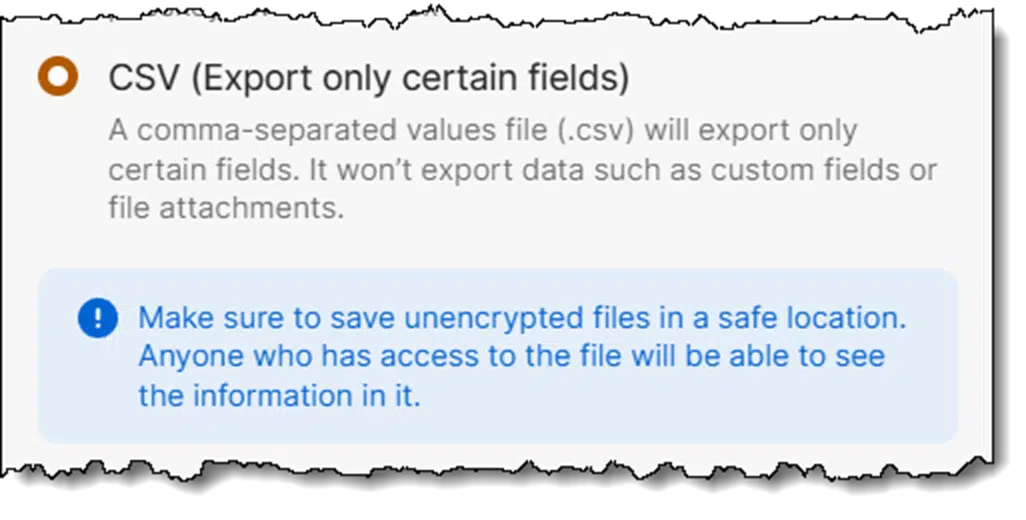
What you describe happens more often than one might think.
There are people who use an application for some time and suddenly find that the company is no longer in business, and there's no way to get an update. Sometimes that means they can't migrate to current versions of their operating system if they want to keep running that now-unsupported software.
It's something I consider when selecting important software. Depending on what programs we're talking about, there are approaches you can use to back up your data and protect yourself from potential software obsolescence or disappearance.
When an app you depend on dies, you don't have to lose your stuff. Save your data in simple formats like text or CSV, keep copies of important software, and store unencrypted backups safely. With a little prep, you can switch apps later without panic.
It is critical for utilities that keep important data in proprietary formats (like password managers such as 1Password and others) to support the ability to export your data into a common, simple, open file format. For example, they should support exporting everything to a text file, a CSV file that can be read by Excel, or a PDF file that can be read just about anywhere.
That way, if something ever happens to the utility or its ability to provide its functionality, you have a backup.
Not only that, but you have a backup that's in a standard file format you can use or can import into a replacement utility.
This is one reason I stopped using RoboForm many years ago. At the time, it had no export capability. (I'm told it does now.)
With encryption utilities like TrueCrypt, its successor, VeraCrypt, or Cryptomator, the approach is a little different. These utilities are tasked with encrypting or providing encrypted storage for important data files.
The approach to protecting yourself from the program "going away" is fairly simple:
As long as you have a copy of the files you need outside of the utility — albeit perhaps in a significantly less convenient yet secure format or location — then it's no disaster if the utility stops working some day.
As long as you keep a working version of the utility around, you're protected nonetheless.
"But Leo!" I hear you saying, "We use tools like VeraCrypt and 1Password to keep things secure. Doesn't keeping those unencrypted exports around leave us just as vulnerable as not using the utilities at all?"
Well, sure, if you leave those unencrypted files where anyone can get at them.
Don't do that.
You must secure those unencrypted backups. That could mean storing them offline in a secure location. It could also mean encrypting them with a different tool. For example, if you encrypt your 1Password export using a tool like 7-Zip with encryption, then:
I follow my own advice and do what I've described.
The unencrypted files I store in Cryptomator are backed up nightly into an encrypted .zip archive, which is then stored in a secure location.
I periodically export my 1Password database26, which is bundled into a password-protected .zip file and then stored in a secure location.
When it comes to popular and pervasive software like VeraCrypt or 1Password, my belief is that the risks are quite minimal. You may not have to take all the steps I've listed. The only exception might be if you plan for your backups to be accessible decades from now. I expect that plain text and CSV will outlast almost any proprietary format and will be readable on whatever passes for a computer 20 years from now.
If a utility is destined to die, there is usually lots of notice, and you'll be able to make other plans. Even though TrueCrypt's demise was sudden, existing copies of the tool keep working, giving those so inclined plenty of opportunity to research and move to alternatives.
The risks are with the smaller operators or software destined for smaller markets. There may not be an equivalent "common format" to export to, or the export functionality might not be a priority27. In cases like this, there's little to be done other than to stay on top of upgrades, if practical, or possibly keep a copy of the utility and an operating environment in which it works for as long as possible. It might also be a time to investigate more exportable alternatives.
And even then ... sometimes the worse case scenario actually happens. For example, Microsoft's Publisher is going away next year, and there seem to be no alternatives.
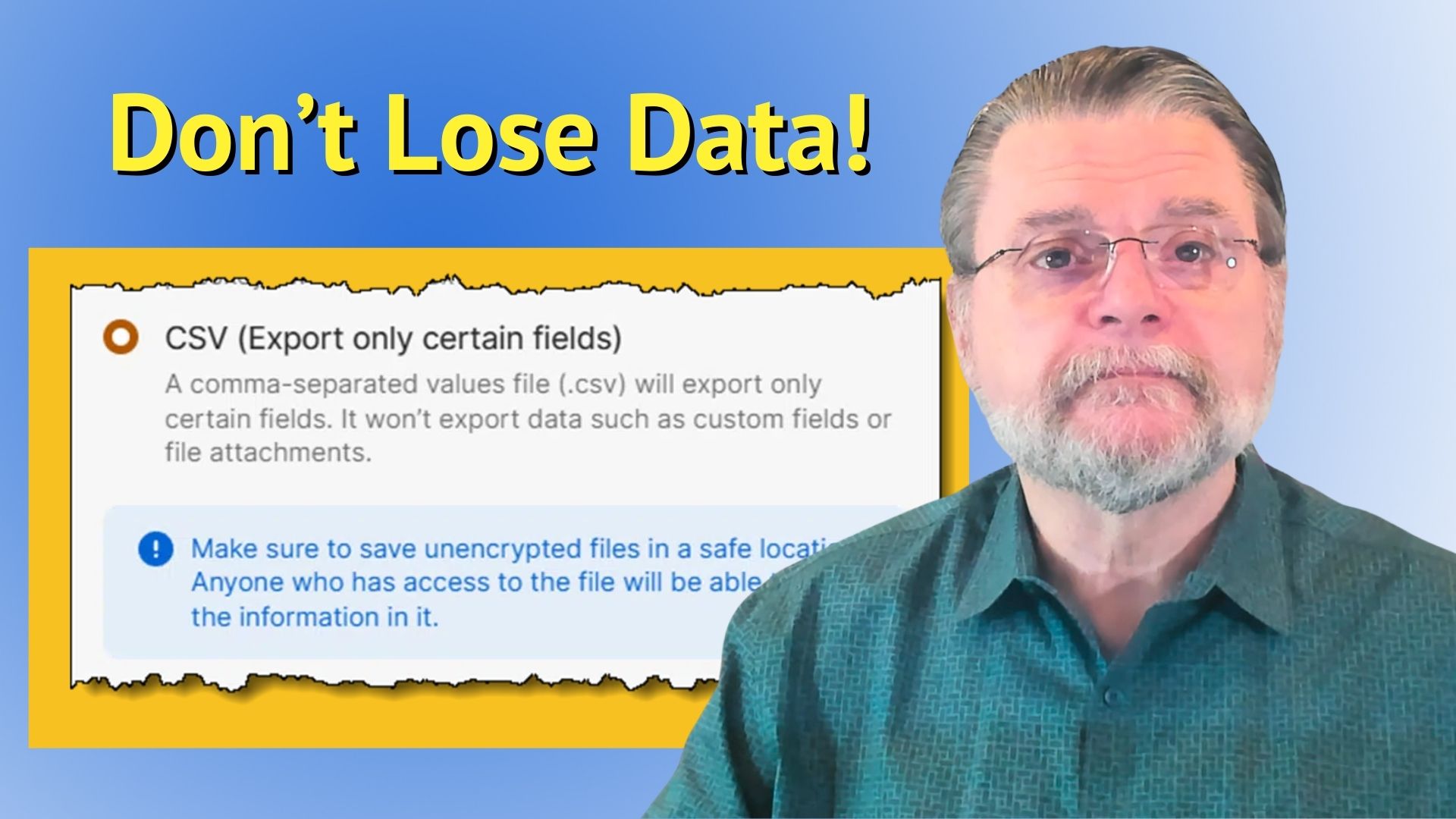
28: I have a monthly reminder.
29: Occasionally, it's a business decision intending to lock you into whatever software you're using by making it difficult to export and move your data elsewhere.
Trying to print a cute photo from a website and wondering why it looks fuzzy on paper? I'll explain why that happens, what you can do, and when high-quality results are possible.

This question has one simple and one complex answer.
The simple answer is that most of the time, you can't.
The complex answer, of course, is: it depends.
Most pictures on websites are too small to print clearly. When you stretch a tiny image to fill a sheet of paper, it gets blurry. Unless the site provides a high-resolution version you can download, there's no way to make it look sharp, even with today's AI tools.
I often get frustrated watching TV crime shows because I know too much. They frequently take liberties with what is and is not technologically possible.
For example, a bunch of detectives look at a blurry photo of a car in the distance, and the person in charge directs the resident computer guru to "enhance it". Maybe even more than once. Like magic, the blurry photo of the car in the distance gets crisper and crisper, and the license plate becomes visible. The cops identify the criminal and save the day.
It doesn't work that way... at least not the magical "enhancement" they're talking about. If a picture is blurry, it's blurry. If a picture has low resolution, it has low resolution. Yes, there are "enhancements" of a sort, but they all involve trading off other aspects of the image — typically decreasing the image fidelity in order to, say, increase contrast, change colors, and the like. Sometimes those "enhancements" will reveal something; sometimes, they won't.
No enhancement will take a small, blurry image and turn it into a large, crisp one.
And that's what you're asking for.
Let's use an example.

This cute photograph is a 200-pixel-wide image. On my screen, it measures approximately two inches across, meaning that my screen is roughly 100 dots per inch, or DPI.
Now, if I want to print that picture on an 8-1/2-inch-wide paper, using eight inches as the printable area, that means the printing process will need to make that picture four times wider and four times higher.
Here's a small portion of that image when magnified four times:

You can see the image is already starting to get a little blurry. It's the same image as displayed above, just magnified four times.
Sadly, we're not done magnifying.
Most printers print at resolutions of at least 300 DPI, if not much higher. The net effect is that if you print an image that is less than that (say our 100 DPI image above), then the printer (or your printing software) must also magnify that image again. In our case, that's an additional factor of three times.

Now you can really start to see the details of jpeg compression as well as the increased blurriness of the picture. Again, this is the same picture we started with. In fact, if you were to take a magnifying glass to that original on your screen, you'd likely see something similar to this magnified version.
The bottom line is that on-screen images rarely print in high fidelity.
There's just no getting around the fact that you're magnifying a small on-screen image and printing it on a device with higher inherent resolution.
Now, there's one exception, but it depends entirely on how the webpage was designed. And for reasons that will become clear, most webpages are not designed this way.
Here's our puppy, once again.

If you're on a slow internet connection, you may notice that this version of the picture was a little slower to display. It may also look slightly different from the same-sized image earlier in the article.
The first image in this article is a 200 Ã- 217 pixel image. This image is a 1153 Ã- 1249 pixel image, but I've instructed the webpage to display it in a 200 Ã- 217 rectangle. The browser automatically resized the very large image to fit in the tiny hole.
I've set it up so that if you click on that image, you'll see it in full resolution. Since the browser already had to download it to show you the smaller version, the larger version should display very quickly.
And this would be the exception. If a small image on a webpage is set up to use a high-resolution version downsized by the browser, then printing that image will probably use the high-resolution version, giving you a much better result.

In this case, the image still had to be enlarged to show the printed equivalent, but this time by a factor of two rather than 12.
The net result, of course, is a much sharper image when printed in a larger format.
Since I originally wrote this article several years ago, something has changed. AI "enhancement" is now available.
First, here's our original, low-resolution image.
Now, here's that same image, this time enhanced by the AI tool Topaz Gigapixel.

It's not the same quality as the high-resolution original, but depending on the situation, it might be "better enough".
The difference is simple: rather than just stretching and smoothing pixels to take up more space28, AI examines the content of the image and attempts to enhance it in ways that correspond to that content. For example, eyes are made larger in a way that makes sense for eyes, fur (or hair) is made larger maintaining the characteristics of fur, and so on.
Sadly, even AI can't reconstruct license plate numbers that aren't visible in the low-resolution original, no matter what the cop shows show you. At best, it'll make something up that comes close in appearance but not in detail.

30: A very crude definition of what it means to increase the size of a photo in a photo-editing app.
Do you think your passwords don’t matter because you use 2FA everywhere? I'll break down why weak passwords still put you at risk, how attackers work around 2FA, and the steps that keep your accounts safe.
2FA (Two-Factor Authentication) adds a strong safety net, but it doesn't replace the need for good passwords. As the first factor, passwords work together with 2FA to protect you from different kinds of attacks.
Strong passwords still matter, even with 2FA. Two-factor helps block many attacks, but it can't stop everything. A weak or reused password can still be guessed, stolen, or misused in ways 2FA won't catch. Using both a strong password and 2FA gives you the most reliable protection.
I get it, I really do. Account security is not only overly complex, but a moving target. What was good enough a few years ago is considered "asking to be compromised" today. People are tired of juggling long, complicated passwords and hearing that they should be longer and more complicated than ever.
There's also a fallacy that two-factor means hackers just can't get in, so why bother with the other parts?
And, of course, the whole move to a promised "passwordless" future sheds doubt on the importance of passwords as we move forward.
I've often said that two-factor authentication of any sort is powerful security because it protects your accounts from attack even if "they" know your password. Without your second factor, they still can't get in.
That's true whether your password is "password", "FLd*Wd2bJM%LvG7xjE$TiWB", or something in between.
So, in that sense, you're correct: 2FA protects you regardless of the strength of your password. Two-factor authentication stops someone who knows your password from signing in.
How did they get your password?
With two-factor in place, when signing in on a computer you haven't signed into before, the attacker has to provide the second factor. Presumably, they cannot, and thus you're protected.
Two-factor is important, but it's not perfect. Someone who knows (or can guess) your password can still cause mischief in a number of ways.
Choosing a weaker password weakens your security against all these attacks.
Password authentication is not perfect by any means, and there are moves to reduce or even eliminate passwords in various ways, including passkeys and passwordless accounts.
Passkeys are great where they are supported. Even so, you need to be able to sign in some other way (which may or may not involve a password) in order to set them up.
True passwordless accounts use other sign-in mechanisms like email confirmation, text message authentication, or something else.
Both cases are still single factors. 2FA can still be layered on top for additional security.
And, of course, it'll be a while before we get there. Passwords will be around for a long time.
The whole point of two-factor authentication is to have two strong authentication mechanisms that work in tandem to secure your account. Weakening either weakens your overall security. By reducing your password complexity, you're choosing to allow your second factor to be, in effect, the single factor.
Consider this sequence:
This is also the psychology behind so-called MFA fatigue. You tire of these annoying 2FA prompts, so you just say yes to make them stop.
Done properly, strong passwords plus two-factor authentication is like having both a doorknob lock and a deadbolt on your front door. Either keeps a certain level of intruder out, but using both makes it that much harder for anyone to get in.
Slmgr.vbs is an obscure, geeky little tool for managing Windows activation from the command line.

There are several ways to query Windows for activation and product key information. Some time ago, I stumbled onto another (somewhat geeky) tool included in Windows: slmgr.vbs.29
Run an administrative command prompt and then enter slmgr.vbs (followed by the Enter key). The result will be a usage pop-up similar to that shown above. It's the first in a series of pop-ups that detail the options you can specify.
Enter slmgr.vbs /dli for a summary of information about your Windows license.

Enter slmgr.vbs /dlv for an even more complete display.
You can use slmgr.vbs to change your product key, force the activation process to run, and several other handy activation-related activities.
And in case you're wondering, ".vbs" means it's Visual Basic Script. You can examine the file (normally in C:\Windows\System32) to view the actual Visual Basic code it contains.
31: The second letter is a lowercase ˜L'.
It seems so obvious, yet it happens every single day: people forget their passwords.

I know, I know, this sounds like the most basic of tips ever. I mean, who doesn't remember their password? That you need to remember it is so obvious!
You. Would. Be. Amazed.
I believe it's because of the different ways we try to make frequent logins easier. You can tell Windows not to require a password. You can have your browser remember passwords for you. You can tell websites to remember you. There are lots of ways to sidestep the need to enter your password over and over again.
I do it myself.
The downside is that by never entering it, you're not reinforcing your memory of that password. Eventually, you forget it.
And then one or more of the techniques you've used fails, and you need to enter it.
I won't lecture you on the best ways to remember your password. Just do something, somehow, somewhere, so that when — not if — the time comes that you need it, you have it. The consequences of not having it can be as severe as needing to reformat a machine or having to abandon an online account.
Do something safe.
But do something.
Windows 11 proved the old “Windows 10 is the last version” claim wrong, but was it that claim a lie? I'll look at where it came from, what Microsoft actually said, and how headlines can twist a message.
With the end of support for Windows 10 having passed (or been extended, or something), I've heard from many people complaining, "But Microsoft said Windows 10 was the last version of Windows!", often followed by some form of "neener neener!"
In my opinion, Microsoft did not lie when "they" said, "Windows 10 will be the last version of Windows." Let me don my asbestos underwear and explain what I think happened.
No, Microsoft didn't lie about Windows 10 being "the last version." A single comment got turned into a big headline, people ran with it, and Microsoft left it all unclear. Eventually, plans changed, branding changed, and we now have Windows 11. It's a reminder not to trust catchy sound bites or get angry over something that was likely a stupid mistake.
For something to be a lie, the person must know it to be false. A lie is a falsehood told on purpose.
The person who said Windows 10 would be the last version of Windows would have to have known that there would someday be a version after Windows 10.
I don't believe that to be the case. I believe that wherever it came from, the person who said it believed it.
That's not a lie.
It was apparently a tech evangelist by the name of Jerry Nixon who said that Windows 10 would be the last version of Windows. It's unclear whether he was speaking for himself or the company.
Regardless, the press took it to be the company. As just one example, consider Why Microsoft is calling Windows 10 ‘the last version of Windows', published by TheVerge.com in 2015. The headline, which is quite attention-grabbing, attributes the statement to the company even though in the article it's clearly quoted as coming from Nixon.
So, it could have been just him making an attention-grabbing and quotable statement.
Not a lie. A mistake; perhaps a stupid mistake, but at worst, just a mistake.
Unfortunately, the company did not help matters.
When questioned about the statement, Microsoft is quoted at the time as saying:
Recent comments at Ignite about Windows 10 are reflective of the way Windows will be delivered as a service bringing new innovations and updates in an ongoing manner, with continuous value for our consumer and business customers. We aren't speaking to future branding at this time, but customers can be confident Windows 10 will remain up-to-date and power a variety of devices from PCs to phones to Surface Hub to HoloLens and Xbox. We look forward to a long future of Windows innovations.
Classic corporate-speak: neither a yes nor a no. Or both.
I suspect that it was closer to the latter. They didn't want to dilute the hype they were generating about Windows 10 by admitting so soon that there might be a Windows 11.
In either case, it was a non-answer wrapped in corporate-speak, but also not a lie.
We live in a society where changing your mind is considered a bad thing. Politicians are regularly raked over the coals if they dare take a new position in light of new or updated information — even if changing their position is exactly the right thing to do.
The same seems to be true elsewhere as well. Make a statement, and ever afterwards, changing your mind is seen as inherently deceitful.
It's not. Changing your mind due to new information or changing times, or realizing what you said before was in error, is a good thing. John Maynard Keynes is quoted as saying, "When the facts change, I change my mind. What do you do, sir?"
Regardless of whether it was believed to be true or not, Windows 10 as the last version of Windows seemed iffy from the start. Never say never, and all that.
I'm certain there are plenty of folks at Microsoft who regret the way that statement has taken off. (Though the marketing folks no doubt loved the exposure it got them... perhaps to this day.)

Hide what you're doing or expose your desktop with a single mouse click.

If you look carefully at the bottom right of your Windows screen, at the far right edge of the taskbar, you'll see a narrow vertical bar that doesn't look like anything useful.
Click on it. It will hide all the active windows on your computer, exposing the desktop. Click it again, and everything is restored.
You can use this in either of two ways:
Either way, a quick move of your mouse to the lower-right corner followed by a click is a quick way to access this feature.

+ M is a keyboard shortcut to do the same thing.
Immediately clicking the lower right taskbar corner after using it to minimize everything may (sadly, may) bring all the windows back, though possibly not in the same order they were originally.
Tired of chasing updates for all your programs? This tool pulls all of them into one place and keeps them up to date for you. I'll show you how UniGetUI can save you time, reduce clutter, and make managing your apps almost effortless.
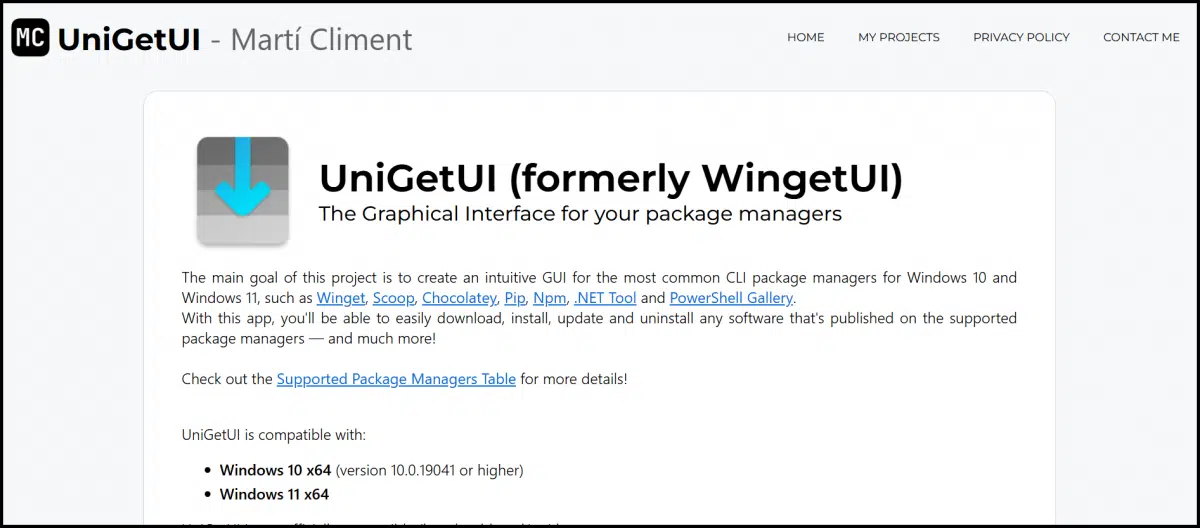
It's common advice to keep your system and all your installed applications as up to date as possible. Windows Update takes care of Windows and many of its apps, as well as other Microsoft apps like Microsoft Office.
But what about everything else?
The reality is a mishmash of applications that install update checkers that run all the time, apps that check for updates each time you run them, apps that check for updates every so often as you run them, and, of course, apps that don't check for updates at all.
UniGetUI is a great solution for all that.
UniGetUI makes it easy to keep almost all your apps updated in one place. Instead of juggling lots of update tools, it gathers everything into one list and updates them with a click. It runs in the background, alerts you when updates are ready, and saves you time and hassle.
There's no central repository of applications for Windows. The Microsoft Store is a start, but it's nowhere near complete. You probably have applications installed from a variety of sources around the internet.
Microsoft created30 a command-line tool and infrastructure called "WinGet" to address this. It's already installed in your Windows 10 or 11 PC.
WinGet is essentially a large database of information about Windows applications, where they live, how they're versioned, and what one needs to do to install, uninstall, or update them.
Run "winget list" in a command prompt, and you'll get a list of all the apps installed on your machine that WinGet knows about (which is most, these days).
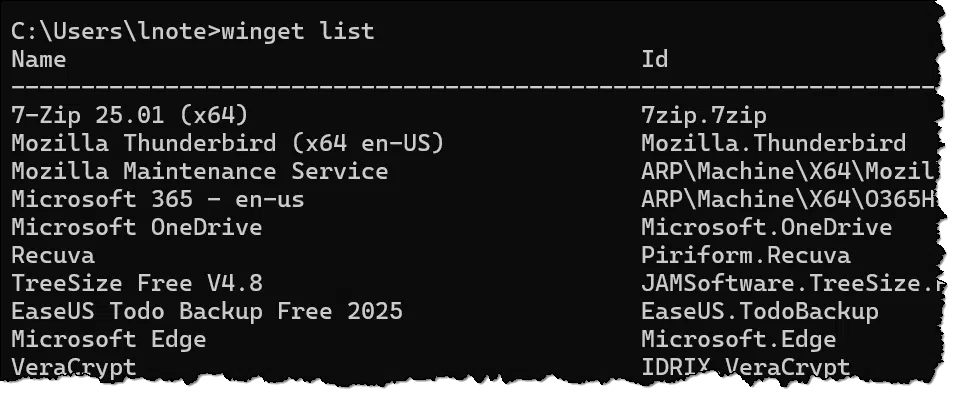
The problem, though, is that WinGet is a command-line tool. It works, it's handy, and it solves a needed problem, but it's a little much for the average user.
UniGetUI is, in a sense, a graphical user interface wrapper for WinGet — plus more31.
While UniGetUI has an official website (shown at the top of the page), it's easy to install from the Microsoft Store. Search for unigetui.
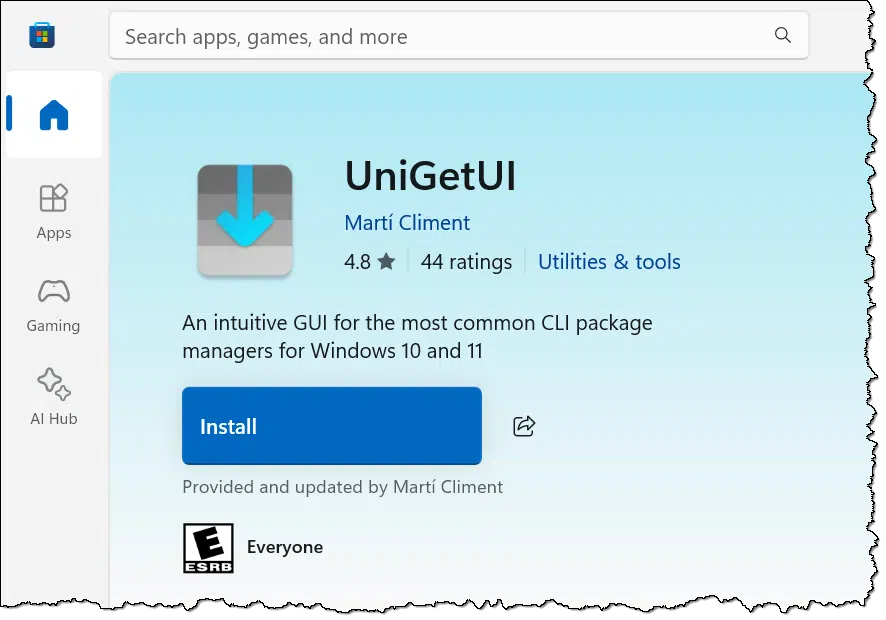
Click on Install, and the tool will be downloaded and installed. Click on Open to run it.
Click on the computer icon in the left-hand pane for a list of all the apps UniGetUI "knows about" that are installed on your machine.
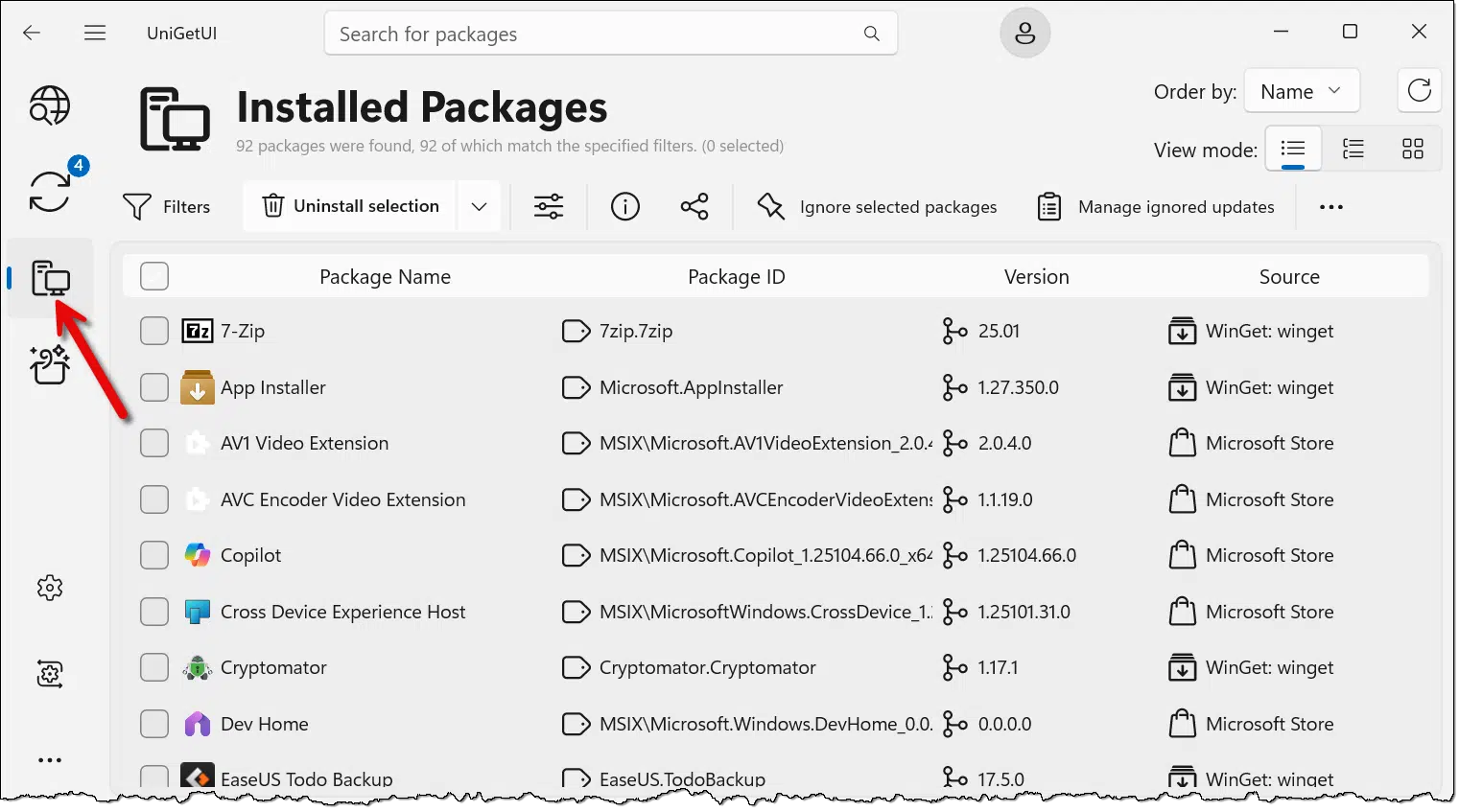
You can scroll through this list to explore what you have. You can also right-click on any item you find for more information, as well as a few actions you can take on that item. Of course, be sure you know what will happen before making any changes. For example, uninstalling a recognized application is one thing, but uninstalling things you're not sure of could cause problems later.
As you'll see, it's a long list. It's probably the best inventory of what's installed that I've seen to date.
Click on the update icon in the left pane, and the list of applications will be filtered to those with available updates.
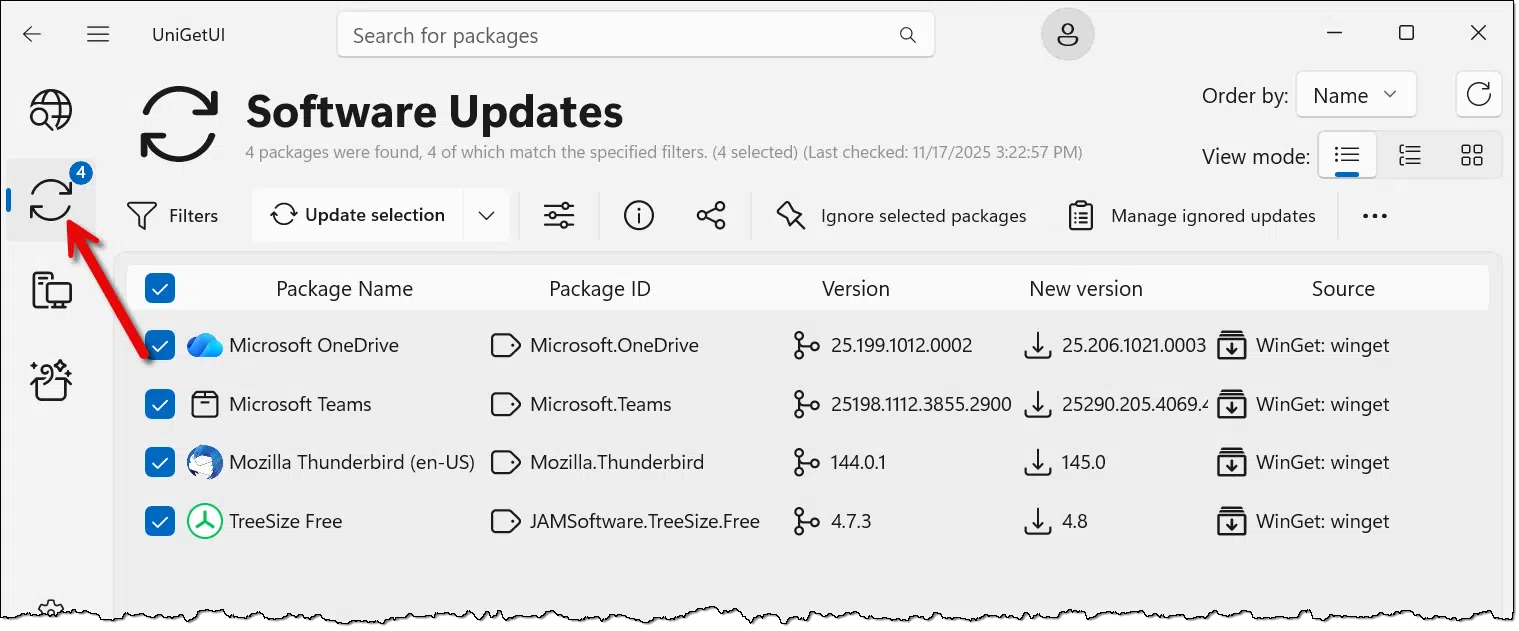
In the example above, you can see several updates are available on my machine. In this example, I could rely on each of those update mechanisms happening independently.
However, the first time you run UniGetUI, you're likely to have a long list of available updates.
Click on Update selection, and all of them will be updated immediately. The updates are run sequentially, one after the other. Some may require that you confirm a UAC prompt. When complete, your applications will be up to date.
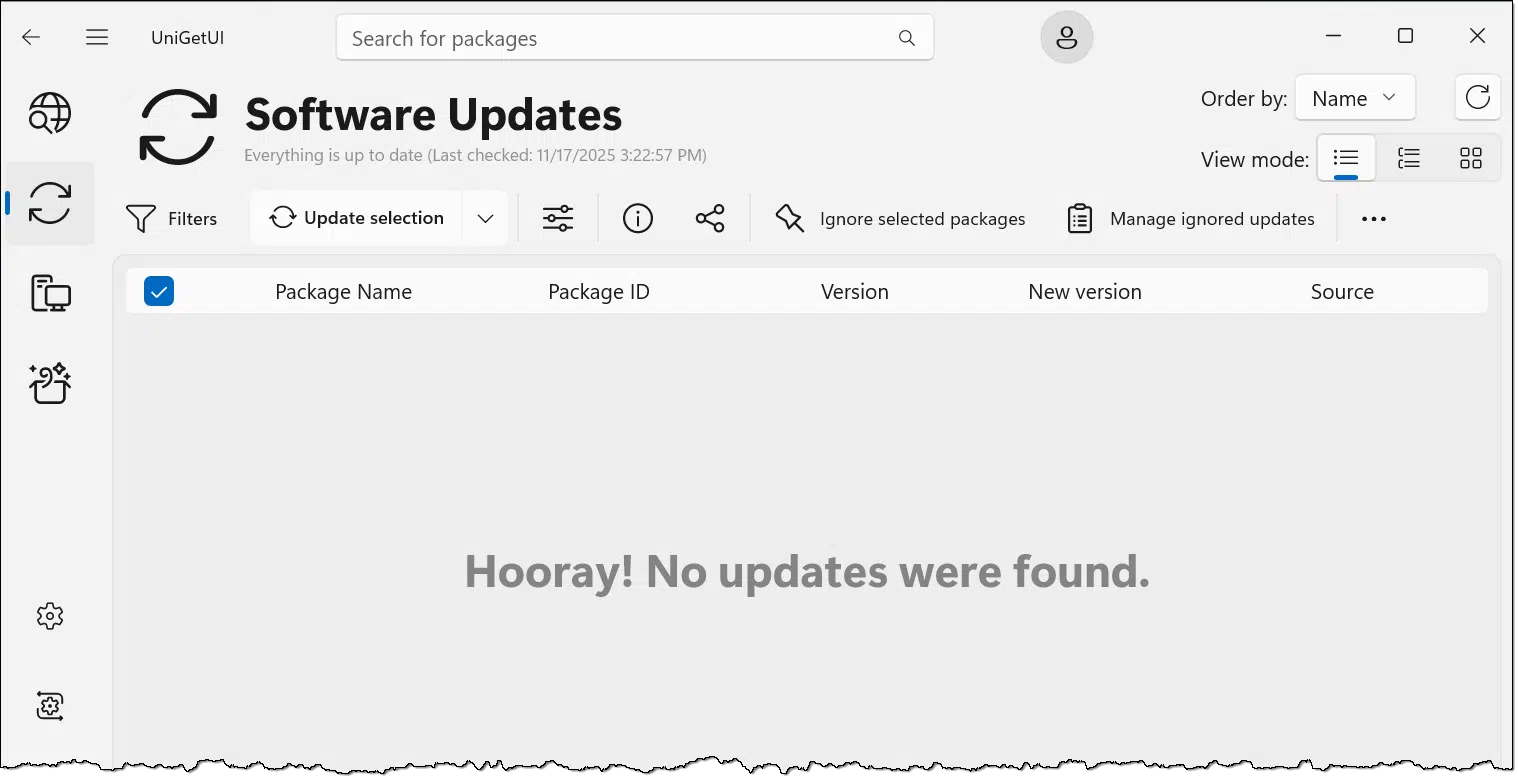
Once installed, UniGetUI runs a small program in the background to monitor for updates.
Every so often, you will get a notification from UniGetUI that one or more apps have updates available. You can choose to dismiss that notification, or you can instruct it to install all available updates. You can also click on the notification icon to open the program and choose to update manually.
You may be surprised at how often software is updated. I'm an extreme case, of course; my list of applications has 273 entries on my primary computer. But even my "simple" example machine shown here has 95. It's rare that a day goes by without one or more of those applications having an available update.
It's your choice, of course: update every time, wait until a few have accumulated, or turn UniGetUI's notifications off completely and just fire it up periodically to run a manual check on your own schedule.
I've been running UniGetUI for several months. Shortly after I installed it, I realized that it was having difficulty with one application. The attempt to update that app would never succeed from within UniGetUI.
One of the right-click options is to have UniGetUI ignore that specific package.

This particular app does a fine job of updating itself regularly, so rather than try to track down a solution, I just told UniGetUI to ignore it.
Out of the 273 items in my list, that's the only one I've had an issue with. I don't know if the issue is the program's, UniGetUI's, or if it's something about my system. As I said, I didn't bother to explore further.
32: There is some controversy over the relationship to an independently developed "AppGet".
33: UniGetUI also understands a couple of other app and component repositories, but for this introduction, I'm focusing on WinGet and the applications it's aware of.
The Command Prompt has a number of commands and tools. One of them lists available commands and tools.

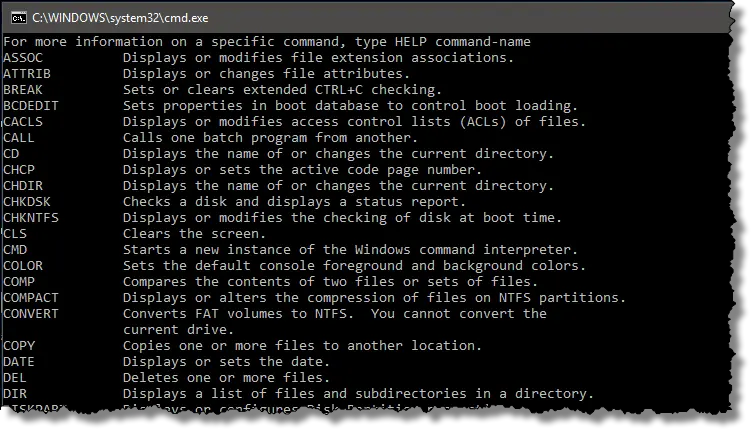
Three tips in one for the Command Prompt.
In the Windows Command Prompt, type Help followed by the Enter key. What you'll see fly by is a list of nearly 100 different commands you can use in the Command Prompt.
Some are actual stand-alone programs. For example, the second item on the list is called "ATTRIB". That corresponds to the program file C:\Windows\system32\attrib.exe. (Command Prompt commands are case-insensitive.)
Some are what are called "built in" commands — you won't find them anywhere on the machine. An example is the first on the list: "ASSOC". This command is implemented within the Command Prompt itself.
You can get help on individual commands by typing "Help" followed by the name of the command. You can even type "Help Help".
The list output generated by Help is much longer than your Command Prompt window, so much of the output gets lost as it scrolls past the top. This is a common problem in command-line programs, and there's a simple solution: the "More" program.
"More" displays input one screen at a time, pausing for a key press after each. This way, you can read the contents of one screen and then press a key (I recommend the space bar) to see the next.
You can exit the program early by pressing the Q key (or Ctrl-Break, in earlier versions of Windows).
The question, then, is how to get the output of the Help command to be the input for the More command.
Piping is exactly that: taking the output of one program and providing it as input to another. For example, in Command Prompt, type:
Help | More
where "|" is the vertical bar character, often referred to as the "pipe" character. This instructs the first program to "pipe" its output into the second. Now the list provided by Help will be displayed one screen at a time, controlled by More.
Finally, you can get Help on More.
Help More
Note that there is no pipe character in that command: the word "More" was provided as a parameter to the Help command, asking it to display information about the command "More".
If that's longer than your window is tall, you can pipe that output into More so you can see it a screen at a time:
Help More | More
In English, that means running the Help program, asking for help on "More", and piping that output through the program "More" to display one screenful at a time.


While the impact might seem particularly scary, keyloggers aren't anything special in terms of how you deal with them.

If you'll excuse me, I need to vent a little.
THERE'S NOTHING SPECIAL ABOUT KEYLOGGERS!
I get a fairly steady stream of questions related to keyloggers. Can they be detected? Can they be bypassed? How do I remove them? How do I avoid them?
Here's the reason those questions are frustrating to me: keyloggers — and ransomware, another topic that people get worried about — are just malware: nothing more, nothing less.
Just. Malware.
That means you already know the answers to your questions. You detect any kind of malware with good anti-malware tools (though there's never a guarantee). Sometimes keyloggers can be bypassed, but sometimes not, (and you can't tell) because once on your machine, malware can do anything. And you remove keyloggers just like any other malware, using anything from anti-malware tools to a complete reinstall of your system.
Yes, keyloggers (and ransomware) sound scary, because they are. They can do a lot of damage... because they're malware.
They don't require any special steps other than those you should already be taking to protect yourself from... malware.
Thanks for indulging me. I feel better now. For a moment, anyway.
RAID might sound like a clever backup shortcut, but it’s not. In fact, relying on it could make things worse. Learn what RAID does, how it helps (and doesn’t), and why it still won’t save your data when disaster, malware, or mistakes strike.
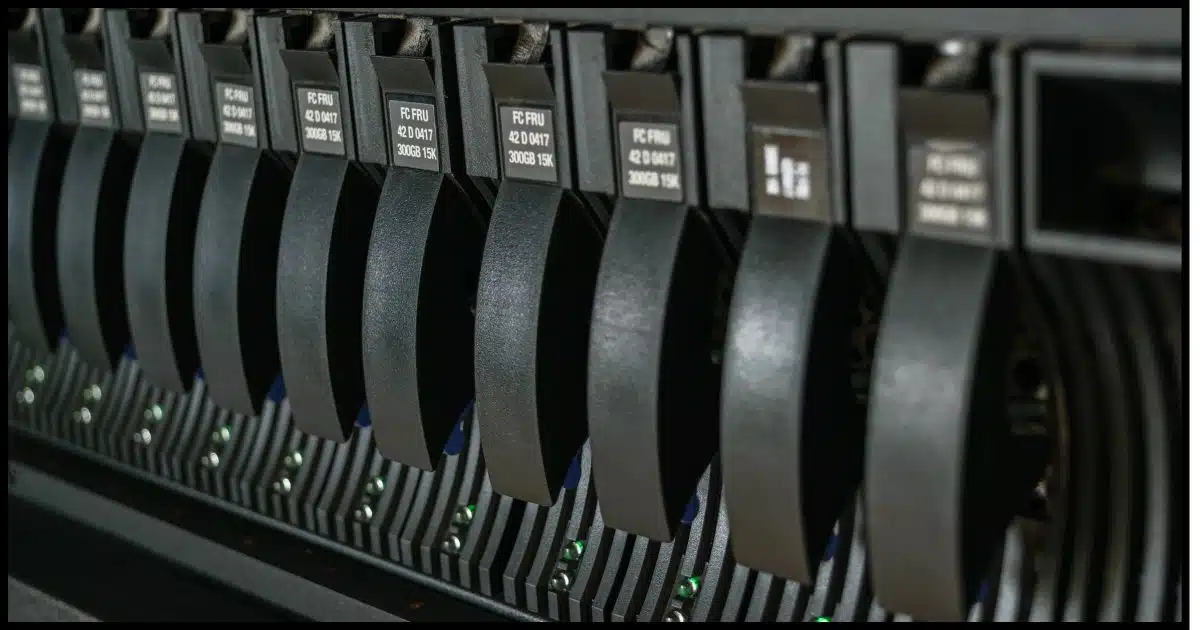
No. No. No. Absolutely not.
And, by the way, NO!
RAID is not backup technology and should never be considered a replacement for backing up.
I'll review what RAID is and, most importantly, what it is not.
RAID — Redundant Array of Inexpensive Disks — is a technology used to increase the reliability and/or speed of hard-disk access by configuring multiple disks to act as a single disk drive. RAID is not a replacement for backing up: it does not protect against other types of hardware failure, malware (including ransomware), or user error.
RAID is an acronym for Redundant Array of Inexpensive32 Disks.
RAID technology configures multiple physical disks to act as a single disk in what are called RAID arrays.
There are several ways to arrange the disks, but they all boil down to improving one or both of two things:
To manage a RAID array, you can either use a dedicated hardware RAID controller or implement it through operating-system software.
RAID 1 (which is what you're asking about) uses what's called mirroring to improve the reliability (or more correctly, the fault tolerance) of a disk drive.
The multiple drives appear as a single device. For example, you might have two one-terabyte drives, one mirrored to the other and which together appear as a single terabyte of storage. Writing data to the logical (single terabyte) drive that your operating system sees (perhaps C:) writes that data simultaneously to both physical drives linked by the RAID controller.
Should either drive fail, the other is still present and available. The RAID controller will run in single-drive mode until you replace the failed drive.
Some RAID controllers allow this to happen without powering down, keeping the logical drive available even while replacing one of its component physical drives. The system is now more tolerant of drive failure; a physical drive can fail completely, and the system can keep on running.
RAID 0 uses what's called striping to improve the apparent speed of your hard disk.
Striping spreads your data across two (or more) physical hard drives. You might have two one-terabyte drives that together appear as a single drive with two terabytes of storage. Data is spread out across both drives, perhaps alternating every other sector of data across two physical drives.
This increases the apparent speed of the combined drives because while one drive is returning data, the other can be locating the next sector. Alternating between the two in this fashion, the apparent data transfer rate can theoretically be doubled.
Realistically, this has the greatest impact on traditional magnetic media hard drives, where locating the next sector involves physical and time-consuming disk head movement. SSDs don't benefit from this approach much.
You should never use RAID 0 by itself, even though I've seen machines that come with it pre-configured. It increases the impact of hard drive failure because if either of the two drives fails, the entire logical drive fails.
It is, however, a basic RAID technique you can build on.
You can combine mirroring and striping in various ways by adding additional drives.
One common technique uses both redundancy of data across multiple drives and distribution of data across multiple drives to achieve both improved speed and fault tolerance.
Consider this equation:
A + B = Z
Let's think of A and B as our data (we can also think of them as bytes or sectors — it doesn't matter), and we'll call Z a sum of A+B.
Let's say A, B, and Z are each placed on three separate one-terabyte hard drives. The RAID controller manages these three drives to look like a single two-terabyte drive.
When you write data to the drive, A and B each get written to their separate drives. The RAID controller calculates A+B and writes that to the third drive as Z.
Why?
If any of the three drives fail, the RAID controller can recalculate whatever was on it from the remaining two.
The RAID controller allows your system to continue running while you replace the failed drive. This gets you the fault tolerance that I discussed as a characteristic of RAID 1.
Your data is spread across two drives: A and B. This allows the RAID controller to stream your data off those two drives, and doing this simultaneously gets you the speed improvement of a RAID 0 configuration. (In theory, it could spread the reading load across all three drives with different data distribution algorithms, but I'm keeping it simple for example's sake.)
Best of both worlds.
There are many ways to configure RAID arrays, but these are the fundamental concepts that apply across the board.
You might be tempted to look at RAID 1 and say, "Hey, my data is on two drives. That's backed up, right?"
Nope.
Your data is on one drive: C:. Your setup might be more tolerant of a hard disk failure, and that's nice, but it's not a backup.
In general, there are two rules of thumb for backups that you can apply to any backup approach.
Relying on RAID 1 as backup violates both rules.
One of the little-considered side effects of using RAID is that you cannot just grab a drive used in a RAID array, attach it to another system, and expect to extract data from it.
While the RAID array looks like a single drive that is formatted in, say, a Windows-compatible disk format like NTFS, that rarely actually happens at the physical disk level. One way that RAID controllers do what they do — be it for speed or redundancy or both — is by using proprietary physical disk layouts. These layouts are typically unique to the specific RAID controller being used.
What that means is the only way to move a RAID array disk from one machine to another is to move the entire RAID controller and all the disks attached to it. Honestly, it's probably simpler to take an image of the logical "this looks like a single Windows disk", and restore that image to disks on the other system.
34: Or "independent" disks, depending on who you ask.
35: Don't laugh — it happens more often than you think. It's even happened to me.
Emailing your entire contact list with a notice that you've changed your email address is NOT the way to change your email address. I'll show you what to do instead.
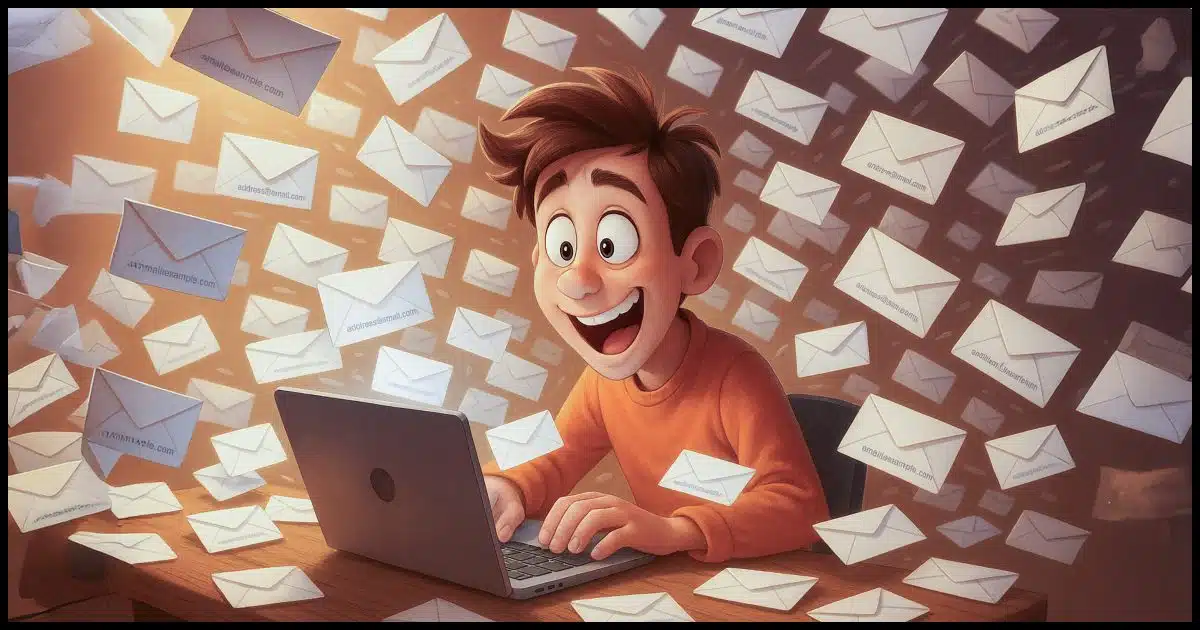
From time to time, I get emails like this one:
Hello everyone,
Just letting you know we have changed our email address to {email address removed}.
Our old address, {email address removed}, was compromised. Please delete it.
We will stop using our old address immediately.
Thanks,
{name removed}
{new email address removed}
On one hand, this is an easy way to let your friends and family know that your email address has changed.
On the other hand, there are serious drawbacks to this approach. Let's review the most common and what you should do instead.
Emailing everyone about your new address seems easy, but you risk exposing contacts, wasting effort, and being ignored by companies and mailing lists. Instead, tell friends privately (using BCC) and change your email directly in each online account. It's slower, but it works.
You can't see it in my example above, but the individual who sent that message included all the recipients on the CC line... all 68 of them.
Honestly, I'm surprised their email provider allowed them to do that.
Not only will the message be difficult to read in some email clients (long lists of email addresses sometimes take up a majority of the space above the message itself), but the sender exposed everyone's email address to everyone else, whether or not they were okay with that.
Email addresses are funny things. While many people think them unimportant, to others, giving out someone's email address without permission is an inconsiderate breach of privacy.
Since I could see them all, I reviewed the list of additional recipients. I saw many email addresses for companies that this person had done business with, including major drugstore chains, bookstores, and more. That may not be information this person wanted to expose to everyone.
The good news is that companies don't pay attention to this kind of email. They don't have time to handle individual email address changes this way. They won't see the lengthy list of CC'ed email addresses.
The bad news is that companies don't pay attention to this kind of email. They don't have time to handle individual email address changes in this manner. The email was probably ignored completely. More importantly, your email address with that company will not be changed.
There could be more bad news. A less-than-honest company could pay just enough attention to harvest the email addresses from the CC line and start spamming all your friends.
But they still won't change your email address.
I got this email because this person subscribes to one or more of my mailing lists.
Once again, just sending email to the mailing list owner isn't the way to change your email address. I have perhaps a dozen different lists across three different providers. I don't even know which list that email address is on.
Somewhat ironically, several of the addresses on the CC line were "do not reply" email addresses. Sending a reply to a "do not reply" email address is pointless for obvious reasons.
Changing your email address with all the organizations, accounts, lists, and people you communicate with takes time. That's one reason that changing an email address can be painful.
But the steps are pretty simple.
Send that email as above, but:
Log in to your account at each of those services and change your email address yourself.
If you no longer have access to an old email address associated with the account, or you've lost your password, look up the customer support options and follow those. Do not just send email to a random email address and expect results; you won't get any.
Check the most recent email you received from that list for instructions on how to change your email address, and change your email address yourself.
If there are no instructions, find the site or service where you signed up in the first place for instructions. Only if you can't find instructions to change your email address yourself should you then look for support options relating to that mailing list to ask for help. (Here's one example.)

Speech recognition on your desktop computer or the device in your pocket can be a useful alternative to typing.

I did not play type this paragraph. Instead, I used Windows voice recognition, or Speech Recognition, to type it for me. It made exactly one mistake that I have to go back and enter fix.
The second error was mine.
The ability of computers to understand the spoken word has skyrocketed in recent years. You may think of voice-enabled home assistants like Amazon Echo, but in reality, your computer and smartphone are also amazingly capable.
There are two scenarios in which I rely on speech recognition.
It's not perfect — you still need to proofread what the computer has typed for you — but I encourage you to consider exploring the options available across all your devices. It may be useful in scenarios you haven't yet thought of.
Pagefile.sys is the paging file that contains Windows' virtual memory. You can easily remove it, but you need to understand the ramifications.
Pagefile.sys is a file (along with swapfile.sys) created by Windows to manage memory usage.
It takes special steps to remove it, but it's not difficult. I have instructions.
The catch: you probably don't want to, and even if you do, it won't make much of a difference unless you're really low on RAM.
Pagefile.sys is the Windows paging file used to manage virtual memory. It's used when a system is low on physical memory (RAM). Pagefile.sys can be removed, but it's best to let Windows manage it for you.
Pagefile.sys is the Windows paging file, also known as the swap or virtual memory file. Virtual memory is disk space used by Windows when it runs out of physical memory, aka RAM.

When programs on the computer use a lot of RAM — perhaps trying to use more than the machine has — some RAM contents are written to the paging file. If the "paged out" memory is needed again, other RAM is written to disk — again in the paging file — and the previously-written information is read back in.
It's where Windows juggles and keeps track of demands for a lot of memory.
Note that pagefile.sys is a system file. To see the file in Windows File Explorer, the option to "Show hidden files and folders" must be enabled, and "Hide protected operating system files" must be disabled.
Since the file is being used by Windows even when it's not actively paging memory, you can't just delete it. It'll either tell you "permission denied", "file in use", or something similar. Extra steps are required.
You may notice pagefile.sys is roughly the same size as your virtual memory settings. That's a clue.
This leads to our first way to get rid of it: set your virtual memory to zero and reboot. Once you return, Windows will no longer be using the file and will let you delete it. (You may need to use an administrative command prompt to do it.)
If you have enough RAM in your system to handle the amount of memory needed to run all the programs you use at the same time, you may not need virtual memory at all. I have lots of RAM and often run with no virtual memory configured and no pagefile.sys present on my drive.
Note, however, that pagefile.sys will return if you re-enable virtual memory.
The other approach to deleting pagefile.sys is less useful, but I'll include it to be complete.
Boot into another operating system and delete the file.
If you boot from a Linux "Live" USB or DVD and explore your Windows hard drive, you'll find, and should be able to delete, pagefile.sys.
However, as soon as you boot Windows, as long as you have virtual memory enabled, pagefile.sys will return.

Backing up is a good thing unless it's the OneDrive backup "feature". Just say no.
(Video: askleo.com)
This isn't something you'd expect me to say, but not only am I saying it, but I'm saying it LOUDLY.
OPT OUT OF ONEDRIVE BACKUP.
As you can see from the sequence above, you'll be offered this backup "feature" often, usually with no clarification of exactly what it does. (Spoiler: what it does is mess things up.)
Unless you understand what the feature truly entails — The Problem With OneDrive Backup will explain — and unless you know that this is what you want, decline. Every time, no matter how often it's offered, opt out.
Outlook.com accounts are hacked into and lost every day. Here's how to ensure you won't lose email or contacts if it happens to you.
Most people don't back up their online Outlook.com accounts. All their email is stored in exactly and only one place: in that account stored on Microsoft's online servers. When the account is hacked or lost for any reason, all that email disappears, often forever.
Remember: if it's only in one place, it's not backed up.
To avoid the possibility of losing everything, backing up your Outlook.com account — or any online email account — is critical.
If your Outlook.com account is hacked or lost, your email and contacts can vanish forever. Use a desktop email program like Thunderbird to download your messages and export your contacts. Run it regularly so new mail is always copied safely.
If your email is stored in one and only one place — Microsoft's servers — you need to make a copy in some other place.

The simplest way is to use your PC.
Using an email program running on your PC downloads your email to your PC. Keeping that email on your PC creates a second copy of your email. In fact, if you're backing up your PC regularly, as you should be, you'll be creating additional backups of the email downloaded to it.
Unfortunately, the built-in email programs (confusingly now also called "Outlook"), will no longer work, as they're more like interfaces to the online account rather than a download-to-your-computer email program.
There are many different email programs that could be used. Examples include Thunderbird, Microsoft's own Outlook (classic), eM Client, Apple Mail, and many others.
I'll show you how to back up your email using Thunderbird.
Thunderbird is a free, powerful, open-source email client. I prefer Thunderbird for a variety of reasons, but it can be a little more daunting to set up. My article Back Up Your Email Using Thunderbird has fairly complete step-by-step instructions for both email and contacts.
In a nutshell, the steps are:
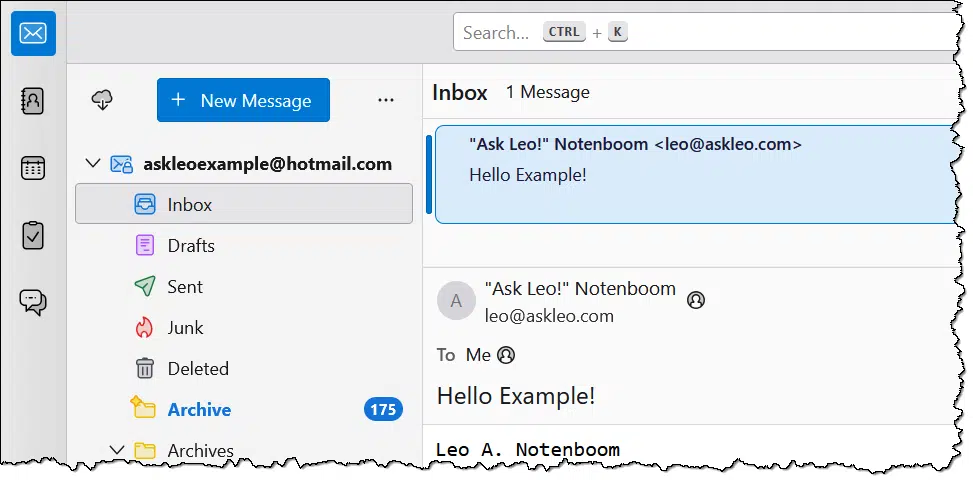

Where Thunderbird (and most other email programs) comes up short is with contacts. While Thunderbird has a perfectly fine contact management system, there's no automatic synchronization for the contacts you have stored in your online Outlook.com account.
To back up your Outlook.com contacts, you need to manually export them and save that exported file somewhere on your PC. Again, Back Up Your Email Using Thunderbird has an overview of the steps required to do so.
Caveat: Aside from a few rather obvious fields, such as name, email address, etc., there is no standardization of what's included with a "contact". As long as you're backing up with the goal of restoring to the same email service in case of a problem, you should34 be OK.
Thunderbird stores all of the information in what's called a profile. That profile is a folder on your machine containing all of your email, contacts, account configuration, and more.
Generally, you'll find your profile in a somewhat randomly named subfolder in:
C:\Users\%username%\AppData\Roaming\Thunderbird\Profiles

You can find out more about Thunderbird profile storage locations in this support article.
Now that you've connected a desktop email program to your online account, there's one very important final step you need to remember.
Run the program once in a while.
If the program is never run, it'll never download your email, and your email won't be backed up. If you run the program periodically — perhaps every week, as I do — and just let it run for a while, it'll also download all the updates since the last time it was run.
In Thunderbird, specifically, you should also run File -> Offline -> Download/Sync now.
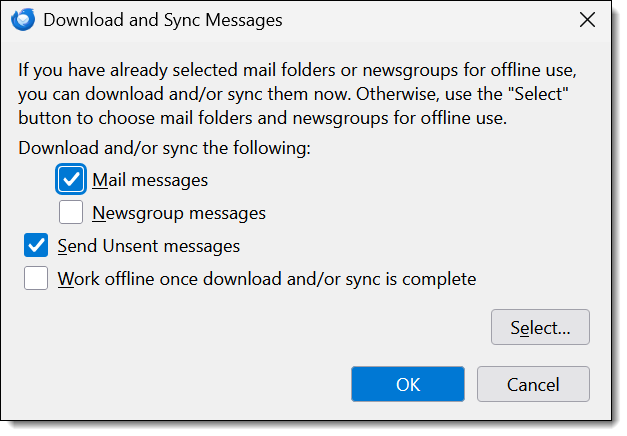
This ensures that all email from all folders will be downloaded to your computer.
That's the bare minimum, as it creates a second copy of your email on your PC. Should the online account ever go away, you'll always have your local copy.
Even better: if you regularly back up your PC, as I recommend, you'll have additional copies — backups — as part of that process.
There's nothing wrong with actually using the desktop email program to access your email if you like. You might find it more responsive or feature-rich than the online Outlook.com interface. It can also be a nice way to have a single point of access to multiple email accounts.
The connection we've made to download your email will also upload the email you send into your Sent mail folder online.
In fact, using your desktop email program is a good way to ensure that it's run "every so often", as described above, to make sure your email gets backed up.
36: I have to say "should", even here, because application and online service support for contact export and import is so fundamentally poor.
Scammers' favorite tricks include old lies told in new ways. I’ll show you how these scams work, how to spot them before it’s too late, and the simple steps you can take to protect yourself, your money, and even your identity.
It's no secret that scams are rampant and that older folks (which these days includes me) are being targeted heavily.
The US Federal Trade Commission recently posted False alarm, real scam: how scammers are stealing older adults' life savings. It details some of the techniques scammers are using and steps you can take to stay safe.
I want to highlight some of what they said because too many people still aren't getting the message.
Scammers lie about who they are, what's going on, and how serious and urgent everything is. Their goal is to scare you into reacting quickly and without thinking so they can steal your money or information. Don't believe it. Hang up, verify through real contact info, never move money "to protect it," and always stay skeptical.
Scammers lie. According to the article:
This lie might start with someone pretending to be your bank, flagging so-called suspicious activity, or pretending to be Amazon with a message about an unauthorized purchase...
These lies are all designed to get you to react emotionally without thinking. Supposedly, something is happening to your money without your knowledge or consent.
The scam is that the contact information provided — be it via email, text message, voicemail, or any other path — leads you not to someone who can help you "fix" the issue but rather to someone who'll scam you out of your money.
It's a lie. There was no suspicious activity or unauthorized purchase to begin with.
Scammers lie.
This lie may come from a supposed government officer or agent, warning that your Social Security number is linked to a crime like drug smuggling, money laundering, or even child pornography...
Once again, these lies are designed to scare you into acting inappropriately without thinking. In this case, rather than your money being at risk, it's you. The wording often threatens legal repercussions, including heavy fines or even jail time.
The scam is, once again, that the contact information provided is not to some official agency that can help you clear things up, but rather to a scammer who collects information from you and uses it to either drain your bank accounts or steal your identity, leaving you with massive debt as they open accounts and take out loans in your name.
It's a lie. There is no crime associated with your name or Social Security number.36

Scammers lie.
This lie often starts with a fake on-screen security alert that looks like it's from Microsoft or Apple with a number to call. If you call, they say your online accounts have been hacked.
These lies are designed to leverage the complexity of computers and your lack of knowledge about how things work under the hood.
As with the preceding lies, the contact information you're given leads not to a reputable company to help you "clean things up" but to a scammer. They take your information, including your credit card number. In some cases, they offer to take remote control of your computer to help and then install malicious software.
It's a lie. These messages or phone calls do not mean there's a security issue with your computer or your accounts.
Fortunately, the FTC article includes three things you can do to keep yourself and your money safe.
Never transfer or send money to anyone, no matter who they say they are, in response to an unexpected call or message. Even if they say it's to "protect it."
Scammers can be very persuasive. They love this technique because once you "move" the money — into something suggested by the scammer, of course — it's theirs. There are scams where individuals are even convinced to purchase gold that they then hand over for "safekeeping" to someone who turns out to be a scammer.
Never. Just... never.
Hang up the phone and call the company or agency directly using a phone number or website you know is real. Don't trust what an unexpected caller says, and never use the phone number in a computer security pop-up or an unexpected text or email.
I'll emphasize that last part: never use the contact information provided by the caller. Also, never use Caller-ID information for validation or for call-back, as that can be easily spoofed. Look up the real number for the company or government agency that they claim to be from, and call that number yourself.
Oh, and if you threaten to hang up and they get angry, or they call back immediately, that's a very strong sign that something's amiss.
Do not engage.
Learn about your call-blocking options to stop many of these scammers before they reach you.
Honestly, that statement's not strong enough for me. Yes, do look into your call-blocking options, but don't assume that's enough. Instead:
And if that voicemail leaves a callback number? If it sounds like anything we've discussed above, or you're even the least bit concerned, don't call it. If they claim to represent a company or organization, look up the number for that organization instead.
One of the more frequently overlooked realities of these situations is that legitimate organizations don't use the techniques we discussed above.
If you get contacted via email, text message, or some other digital mechanism, that contact should:
For instance, "Please sign in to your online account for an important message from Chase" is probably legitimate. "We've detected suspicious activity on your account. Please reply to this text or call us at 1-866-###-####" is extremely suspicious, and you should not follow those instructions.

37: Well, unless you really are committing crimes, but then this article isn't really for you anyway.
38: The only exception I'm aware of is if you have a relationship with a specific person at your local bank. Even then, make sure they call you by name, that they sound as you expect, and that they don't object to your asking them to let you call them back.
39: Yes, there's a possibility of an in-person scam, but it's much rarer than the digital/online kind.
At ftc.gov: False alarm, real scam: how scammers are stealing older adults' life savings.
Just because you are asked to donate doesn't mean something isn't free.
Let's clarify something.
A site asking you for a donation is not demanding that you donate.
It does not mean, for example, that the software you just downloaded isn't free. It is. Your donation is entirely optional. Free software often relies on donations to fund its efforts, but the whole point of a donation is that you get to choose whether or not to donate.
I've used the current Thunderbird donation request page that comes up after a download as my example because I've had more than one person accuse me of lying when I said Thunderbird is a free program.
It's free. Use the "x" in the upper right to close the request, or just hit the ESC key.
As I've said in other tips, pay attention to what's on the screen.
If you're uncertain about something, the safest thing to do is ask someone else.


This is as much philosophy as it is technology, but it's a critical component to keeping yourself safe online and off.
If you're uncertain about something — a product, service, claim, proposal, or promise — ask someone.
But here's the key thing: don't ask the person making the offer or claim! Of course, they'll confirm what they're promising.
Ask someone else.
Depending on the situation, that could be a friend or family member, a social group (online or off), an independent support organization or service, or just about anyone who might know or have experienced the offer being made.
Here at Ask Leo!, I'm often asked for my opinion of a specific technology product or service. My answers range from "Yes, I trust and use them myself" to "I don't have direct experience, but I hear they're trustworthy" to "RUN AWAY."
Sometimes, a well-timed "run away" can be the most valuable advice of all.
HTTPS and WWW are more complex than you might think.

OK, this is a bit of mostly-useless trivia that I want to share. In rare situations, this nuance could be abused by (very inept) malicious actors, I suppose. It's worth sharing.
Using HTTP or HTTPS can lead to two different websites.
With and without "www." can lead to two different websites.
Usually, these four URLs do take you to the same website:
But they don't have to. That they are not four separate websites is convention, not technology.
If you use any of those four possibilities for askleo.com, the fact that you eventually always land on the https://askleo.com variation is something I had to configure on the askleo.com server.
Ever get an email from yourself that you didn’t send? You’ve likely been spoofed. I’ll show how spammers fake your address without touching your account at all, why it happens, and what (little) you can do about it.
No. You have not been hacked. They don't need access to your account.
"From" spoofing means faking the "From:" address on an email to make it look like it came from you. To do it, spammers don't need access to your account at all. I'd say that 99.99% of the time it has nothing at all to do with your account, which is quite safe.
They only need your email address.
While your email account and your email address are related, they are not the same thing.
There are several ways a spammer can impersonate your email address and use it in the "From:" line of the email they send. All they need to do is craft an email with your email address listed as the sender and send it. Your account need not be involved in any way.
Let me say that again: your email address is one thing, and your email account is another.
The two are related only to the extent that email routed to you using your email address is placed into the inbox accessed by your email account.
To see how spammers get away with "From" spoofing, let's look at how email is sent.
Let's take a quick look at how you create an account in an email program. Using "Advanced" or "Custom" setup, we get a dialog asking for a variety of information.
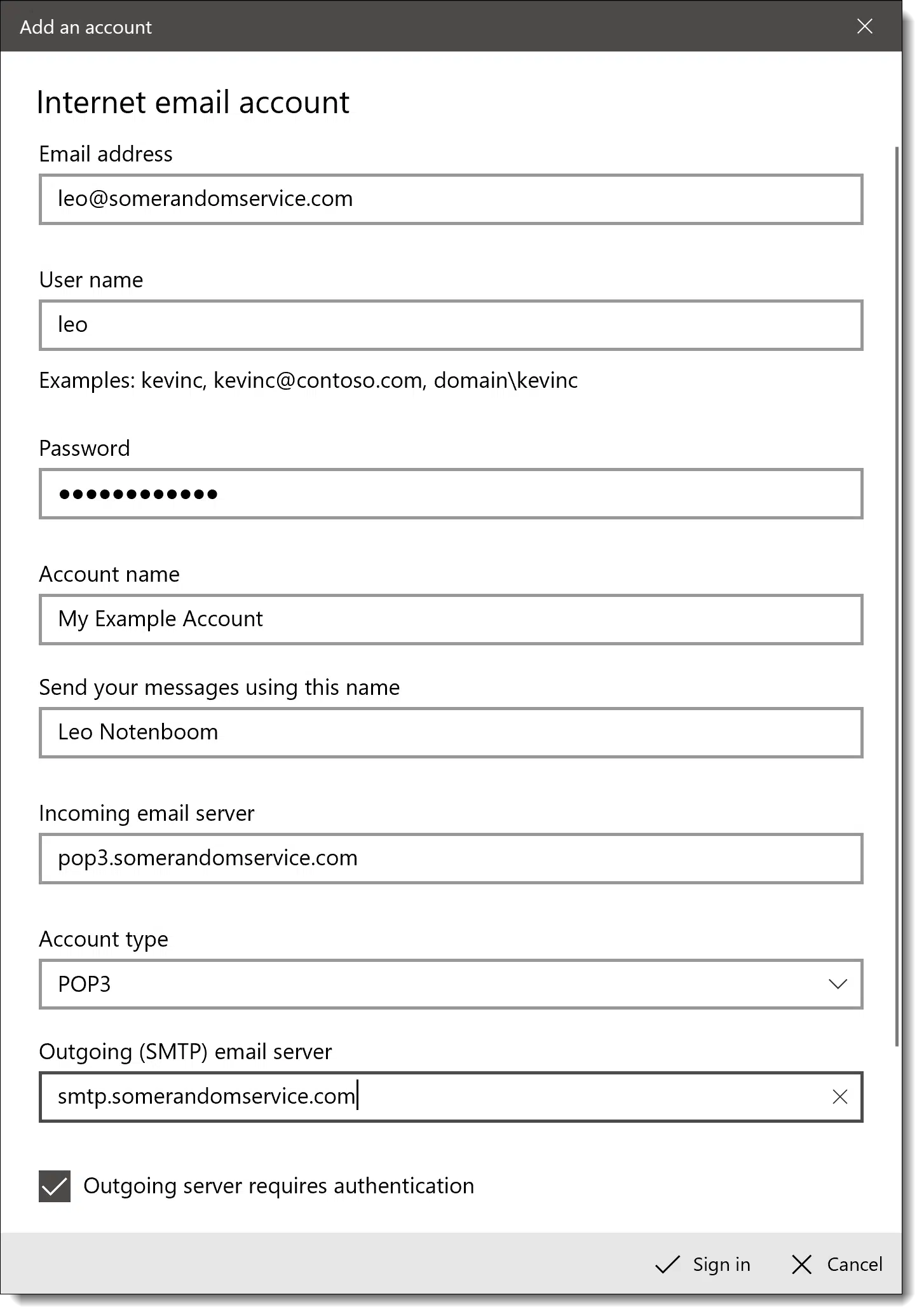
I'll focus on three key pieces of information you provide.
Very often, email programs display email addresses using both the display name and email address, with the email address in angle brackets:
From: Display name <email address>
This is used when most email programs create your email, and that's what you'll then see in the "From:" line of emails you send.
To send email appearing to be from someone else, all you need to do is create an email account in your favorite email program, and use your own email account information while specifying someone else's email address and name.
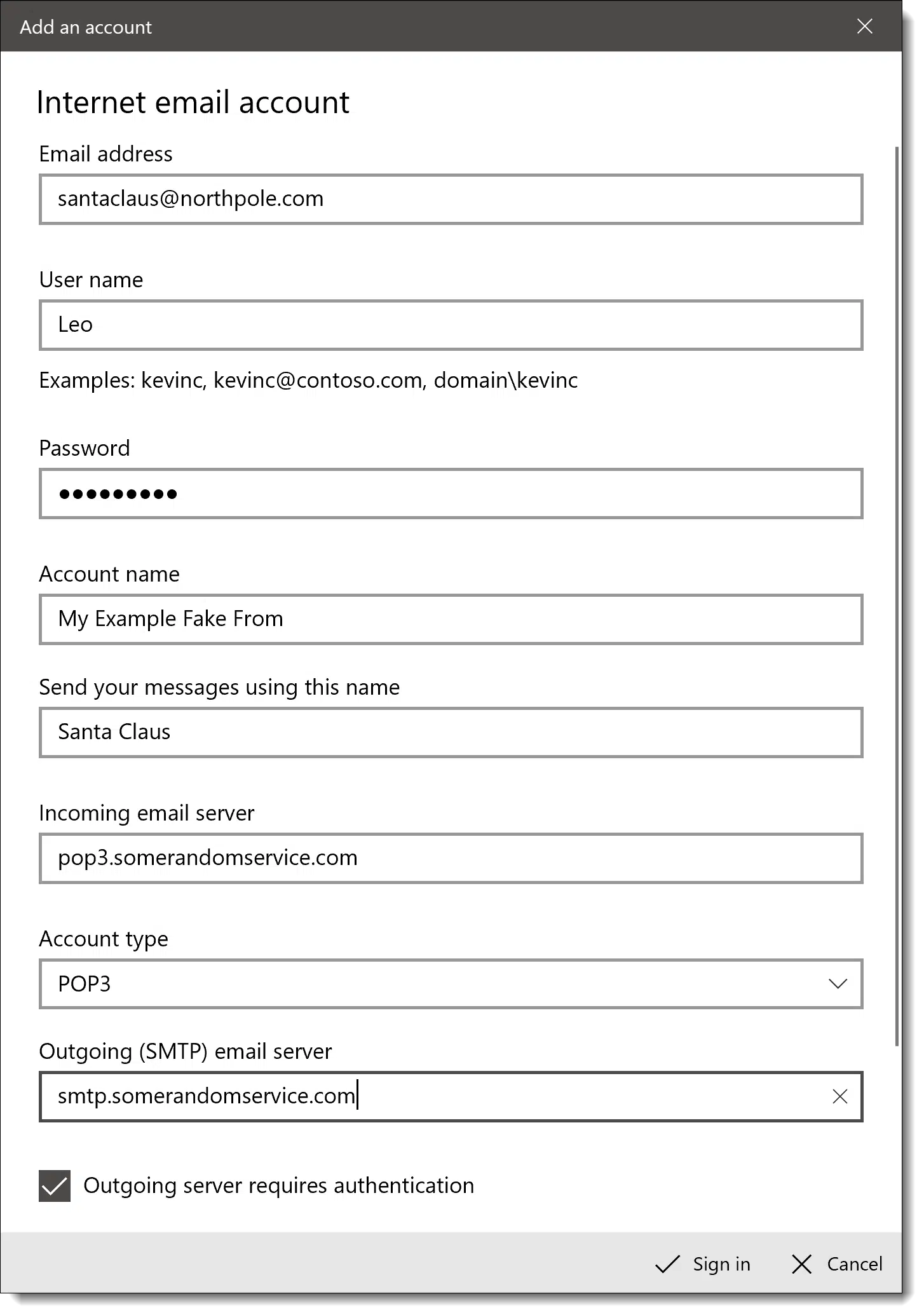
Look at those same three bits of information.
Email sent using this configuration would have a spoofed "From:" address:
From: Santa Claus <santaclaus@northpole.com>
And that — or its equivalent — is exactly what spammers do.

Before you try spoofing email from Santa Claus yourself, there are a few catches.
Spammers don't care. They use so-called botnets or zombies that act more like full-fledged mail servers than mail clients (Microsoft Office Outlook, Thunderbird, and so on). They completely bypass the need to log in by attempting to deliver email directly to the recipient's email server. It's pretty close to anonymous because spam is exceedingly difficult to trace back to its origin.
So you might be asking yourself: if they didn't compromise your account, where did they get your email address?
Spammers get email addresses everywhere. Data breaches, public postings, emails forwarded by friends without removing your email address, less-than-reputable companies, some kinds of public forum postings, and more.
Basically, spammers get your email address from wherever they can, but they don't need access to your account to spoof you.

40: One point of confusion I'm sidestepping is that email addresses are often used as usernames. They are still two distinct things.
AI tools like ChatGPT sound smart and sure of themselves. I’ll explain why blind trust in AI answers can be risky, how its confidence can fool you, and what simple habits will keep you from being misled while still getting the most from this amazing technology.

Don't get me wrong: used properly, AI is an amazing tool. I use it myself daily for everything from idea generation to image creation to summarization and more.
I also use it for search and Q&A. Mostly. Sometimes. With a great deal of trepidation and skepticism.
When I hear people "just" use AI now in place of more traditional tools and techniques, I get worried... really worried.
AI can be a powerful tool, but it doesn't always get things right. Its confidence can fool us into trusting bad answers. Use AI to explore ideas, not as your only source of truth. Stay skeptical, double-check facts, and remember: even smart tools (and people) can be confidently wrong.
When I say AI here, I'm referring to large language models (LLMs) such as ChatGPT, CoPilot, Gemini, Claude, and a host of others. They're certainly artificial, but whether they're an "intelligence" is up for debate, both technical and philosophical40.
To be clear, they don't "think". As others have pointed out, they're really nothing more than a glorified, immensely powerful, auto-complete function. The "answers" you get from AI are nothing more than the words that are most likely to follow the words in your question. There was no thought put into it, just massive amounts of statistical analysis.
Responses from Large Language Models like ChatGPT, Claude, or Gemini are not facts.
They're predicting what words are most likely to come next in a sequence.They can produce convincing-sounding information, but that information may not be accurate or reliable.41
Nonetheless, they're amazing. It does feel like they do a much better job of understanding42 my various statements and queries than a traditional search engine. A vague, poorly worded question that might baffle traditional search, for example, can get spot-on results from an AI.
However, understanding my question is completely different from answering it correctly.
It's easy for us to evaluate what AI gives us and recognize — even be impressed with — its ability to understand what we mean or realize that it completely misinterpreted us.
It's nowhere near as easy to evaluate the response it gives us. Unless we're already familiar with the topic at hand, we have no objective way to evaluate whether the answer is correct.
This should scare you.
One characteristic of AI that was identified early on was the confidence it exhibited in its answers. It was humorous: AI was known for providing very confident and very inaccurate answers.
While its accuracy has certainly improved, the unwarranted confidence remains. If anything, it's taken on a new sheen of sycophancy. It not only provides answers with authority, it does so in a way that plays to our egos. It still gives confident answers couched in terms that try to please or suck up to whoever's asking it.
Sometimes it's right. I might even say that most of the time it's right. And yet, it's still often wrong. Sometimes a little, and sometimes very, very wrong.
With its confidence and eagerness to please, it's too easy to just assume it's correct and skip any kind of verification.43
This is another reason misinformation spreads: we assume the source is correct when it's not.

I'm not saying not to use AI for questions or in place of search. I do it myself.
But.
I use it to augment what I know, not replace it. For example, I ask AI tech questions all the time. It's not uncommon for me to just copy/paste a question I've been asked into an AI — perhaps because I couldn't understand the question and AI might, but mostly because it's a quick way to generate potential answers.
I vet those potential answers. Because this is my area of expertise, I can weed out the right from the wrong, the pragmatic from the dangerous, and what's applicable from the irrelevant. If I need to, I can take what AI has provided and refine it with more queries — often in the AI, but also in more traditional searches (often including that on my site). This process often generates issues I wouldn't have thought of or that I wouldn't have thought of as quickly.
If you're not familiar with the subject to begin with, it's terribly easy for AI to lead you astray. I've heard from too many people who've made a further mess of things simply by blindly following the (no doubt very confident) instructions provided by an AI chatbot.

If you're going to use AI to research information and answer questions, you must — MUST — remain skeptical of the information it provides. Ignore the confidence and be skeptical of the answer.
Double-check it. Check the references if they're provided. Pit two (or more) AIs against one another and see how their answers differ.
Use a completely different technique to vet the answer you've been given. That could be your own experience, common sense, or more research into the topic at hand.
Just don't take AI-generated answers at face value unless or until you have something else that would lead you to believe that the answer is correct.
One thing humans do is build trust over time. For example, if you've gotten an answer from me that turned out to be helpful, you're slightly more trusting of me the next time you have a question. This is how trust is built.
I'm not sure trust-growing should apply to AI.
If you get a helpful answer from AI, you're more likely to go to it with your next question. Whether or not the previous answer should influence your level of trust is complicated.
If it's in an area closely related to your original question, some additional trust might be warranted. An example might include questions about how to get Windows File Explorer to display things a certain way. It could still be wrong, but the probability is less.
If it's in a different area, then no additional trust is warranted, period. That it answered a Windows File Explorer question accurately should have no bearing on the answer it might provide about something health-related. These are two completely separate areas of information. (This concept applies to the humans you might ask these questions of as well. Ask me about Windows, but not that suspicious lump on your arm.)
Here's the problem: When is it really a different area? We don't always know.
An AI might have ingested more information on Windows File Explorer than on, say, the Windows Event Viewer, device drivers, Windows 11 versus Windows 8, or many other topics. The topics might feel related — they're all about Windows, in this case — but under the hood, they're dramatically different areas of information. Once again, that includes your human resources.
It's much too easy to extrapolate accuracy in one area into areas where that trust remains unwarranted.
You'll note earlier I said, "Skepticism is still required". That's because in a very basic way, this shouldn't be new behavior for us at all.
We've long been skeptical of search engine results — even more so in recent years, as those results have been skewed by various competing interests ranging from politics to advertising to sponsorships to SEO-gaming and more.
Apply the same level of skepticism — and perhaps a skosh more — to AI.

41: What does it mean to be "intelligent", anyway?
42: Via Stop Citing AI
43: Whatever "understanding" might mean.
44: My theory is that when something acts "eager to please", it's more difficult to think critically about it because of our instinct not to offend... even though there's nothing here to be offended. Just my pet theory.
Reinstalling Windows also means reinstalling applications. What if you can't download a fresh copy?

One of the more common and pragmatic (if somewhat painful) solutions to various PC problems is to reinstall Windows from scratch. The process often resolves a variety of errors that targeted troubleshooting will not. As daunting as it seems, it can take less time than a lengthy troubleshooting process.
The problem, though, is that you'll have to reinstall more than just Windows; you'll have to reinstall all of the applications you use as well.
These days, that often means downloading it again from the application vendor. That way, you've immediately got the latest version as well.
But what happens when the vendor is no longer in business, or they only offer physical media that they're asking you to pay for?
As you purchase programs and download software, save them. Save the original media if you get media, and save the download you installed for any software you acquire that way.
When the time comes to reinstall, you'll have what you want ready to go, whether the original manufacturer is around or not.
Does whole-disk encryption slow your computer? You might be surprised. The bigger risk is losing access to your data if you’re not careful with your encryption keys and backups.
Neither... and both.
Encryption in general, and whole-disk encryption specifically, has come a long way since it was first introduced many years ago. One of the most striking changes is its impact on performance.
I'll put it this way: I would not let performance concerns hold you back from using whole-disk encryption.
Whole-disk encryption barely slows modern computers. It works imperceptibly when reading or writing files, and today's fast CPUs and SSDs make any speed difference negligible. The real danger isn't speed, it's losing access. Always back up your encryption key, remember your password, and keep unencrypted backups of your files safe.
Whole-disk encryption kicks in when things are written to or read from the disk. That means the apparent performance of your disk when encryption is at play is gauged by two things: the speed of the disk itself and the speed of your CPU.
Both have been getting significantly faster over time.
While not directly impacting encryption, the speed of disks, particularly SSDs, is impressive. In general, speed is the first thing we think of when it comes to read/write performance, whether your data is encrypted or not. You're more likely to notice the impact of a slower drive than you are to notice whether the data is being encrypted.
CPU speeds, as well as the number of CPUs available on a PC, also directly influence the performance impact of most types of encryption44. Encryption is a very complex mathematical calculation. As complex as it may be, though, today's CPUs are more than capable of handling the work without breaking a digital sweat.
In comparison to the amount of time required to get data on and off the disk — which is the same whether it's encrypted or not — the additional time it takes to encrypt or decrypt that data along the way is amazingly short.
There's no specific time when whole-disk encryption has more or less impact. It happens as your computer reads and writes data to and from the encrypted disk.
Startup tends to be particularly disk-intensive; the operating system and all your startup applications and data are read from (or written to) the disk. But this is the same with or without encryption.
I also can't say that it has "constant" effect on your performance, because it's only about disk operations. If your computer is idling, there can be no impact because there's no disk activity and no encryption being performed.
More important than any performance impact is your ability to access the data when (not if) something goes wrong. That means:

45: Sometimes the encryption happens within the drive itself, which doesn't impact your CPU at all.
46: Which is kinda the point of the encryption in the first place: someone unable to log in to your machine and not in possession of the recovery key shouldn't be able to view your data.
Buying a new computer? Whether you click Buy Now online or walk into a local store, both have perks and pitfalls. I'll help you weigh convenience, cost, and trust so you can make the best choice for your situation and know where to turn if things go wrong.
There is no "better", I'm afraid. Either can be great and either can be a nightmare.
It really depends on you, the resources you have available, and the specific stores — online or off — where you shop.
There is no single best place to buy a computer. Online stores can offer better prices and convenience; local stores give in-person support. What matters most is trust in the seller, the brand, and the resources you have for help.
It's important to understand the resources you have on hand already.
For example, when there's trouble with your equipment, are you on your own, or do you have someone to call? That someone could be a company, I suppose, but think about friends, family, and community support. For example, you might turn to a knowledgeable (and available) family member when things aren't working.
They might also be someone you can turn to for advice when considering your next purchase — both what you need and also which businesses to gravitate towards or avoid.
Another consideration is location. Are you able to take a computer somewhere should you need help? Again, that "somewhere" could be a local computer store, but it could also include services offered by local libraries or community/senior centers.
The more support you have in place or available to you already, the less dependent you are on getting help from the place you buy the computer.
Online can be good if you:
Reputation and expectations are squishy concepts, I get that. But both are important considerations.
Purchasing from an online store you've used before with good results is different than purchasing from someone you've never heard of before. Similarly, purchasing a brand-name computer that has a good reputation online is less risky than purchasing a name you've never heard of before.
Brick and mortar can be good if you:
Many of the same concerns we consider for online purchases apply here. Once again, reputation and "having confidence" are difficult terms to nail down, but they're still important.
Any store can promise the world, but what matters is whether they'll deliver it when the time comes. That boils down to reputation.
In both cases, what matters most is your trust in the company.
Your local resources can make either choice a little less risky — for example, perhaps that local senior center can help when the store you purchased from suddenly goes out of business — but there needs to be a basic level of trust regardless.
Online or off, do your research. As best you can, learn from the experiences of others. There will be bad experiences no matter where you look, but take them in context: is it just a handful of negative reviews, or the majority? How did the business handle the feedback? Does what you find look like something you'd be comfortable dealing with if need be?
It's easy to get more than you bargained for when installing a downloaded program. Pay attention and make explicit choices.

PUPs (Potentially Unwanted Programs) are nothing new. They're software that are either "offered" or occasionally just installed without your knowledge when you install something else. After installing program A — the software you wanted — you might find that an unrelated, unwanted program B has also arrived.
There are three scenarios.
The most important thing to remember is to pay attention. Make sure you've displayed all available options. Install only what you want and need, and don't let the defaults dictate what else you'll get.
Uploading your photos causes data and quality to be lost.
Regardless of where you upload your photos or how you share them, save the original images as created by your phone or camera.
By that, I mean keep the files as they exist before you upload or share. Copy them to your computer — back them up somehow — but make sure that you save the unmodified originals.
Here's the thing: when you upload a file, it is usually modified and the original is discarded.
This can happen across photo-sharing services and social media.
I was reminded of this recently when an individual who had carefully uploaded all their photos to Google Photos discovered that when they attempted to retrieve the photos via Google Takeout, metadata they cared about had been stripped from the images.
Saving the original before storing or sharing it sidesteps the issue.
I swapped out two old computers for a pair of tiny but mighty mini-PCs, and I’m impressed. If you’ve ever wondered whether one of these small machines could replace your bulky desktop, this peek behind my setup might surprise you.

I recently replaced two old and very different machines with two identical, newer computers. I've become quite enamored with them.
They're not for everyone, and some of the details I'll share might be a bit geeky to digest, but if you're about to replace a desktop computer, the upshot is that this class of PC might be worth your consideration.
I replaced two computers with small, powerful Geekom mini-PCs. One now runs my home file server; the other handles my scanners. They're fast, quiet, and take up little space. For people who browse, email, and stream, these tiny PCs could easily replace bigger desktop PCs.
Not to be confused with minicomputers, mini-PCs are just that: very small PCs. You can see an example of what I mean in the image at the top of the page: the small gold box in the center is the PC. Smaller than the monitor or keyboard, it measures roughly 4.5 inches square by 2 inches high.
They pack a surprising amount of computing capability into a small box. While they're not as expandable internally as a traditional boxy desktop PC, they include USB ports to which you can connect a plethora of additional devices, HDMI ports for display, and typically an Ethernet port and wireless hardware for connectivity as well.
They've been around for a while (Apple has them as well), but this was my first realization that they might fit my needs nicely.
I ended up getting two mini-PCs from Geekom. Specifically, the GEEKOM A5 2025 Edition Mini PC46. While I'm not usually all about detailed specs47, they include:
There's even a headphone jack and an SD card slot.
This is a middle-to-low-end offering, but it was all I needed. I paid $329 for each.
I figured they'd easily handle the jobs I had in mind.
The computer pictured at the top of the page is my NAS (Network Attached Storage) "wannabe". Technically, it's not a NAS, but its primary job is to connect 11 external hard disks and make them available to the other machines on my home network. So it's... Storage Attached to my Network.
The mini-PC replaced an aging HP desktop machine that had seen better days.
The old machine had been running Ubuntu Linux's server edition (meaning there's no graphical interface or GUI, only the command line). While the Geekom came with Windows 11 pre-installed, my first act was to install the latest version of Ubuntu instead, followed by the Webmin server management package. This allowed me to manage the server using its interface, and more importantly, manage it from the machine in my office rather than needing to visit the basement repeatedly.
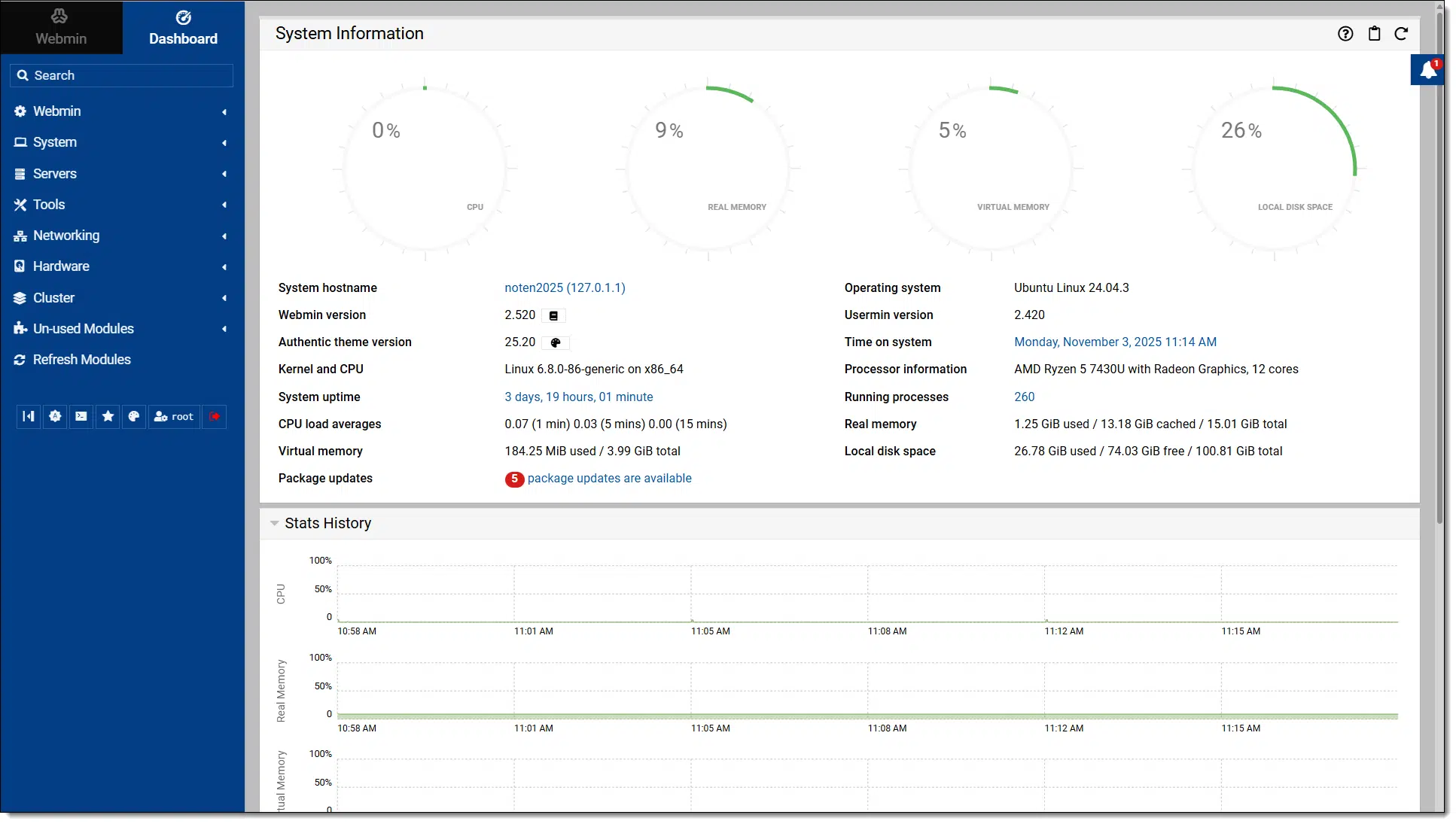
I plugged in the external drives (most notably the SABRENT 10-Bay USB 3.2 Gen 2 SATA Docking Station — ten drives via a single USB-C connection!), configured sharing in Linux48, and my new not-an-NAS was up and running and more responsive than before. It also gave me a chance to clean up the workbench on which it lived.
I got the second mini-PC to repurpose what I called my backup laptop, an early-generation Framework. It had been dedicated to the various scanners I have in my office. After having run the Geekom above for a couple of months, it dawned on me that another one would be a perfect fit for this role.
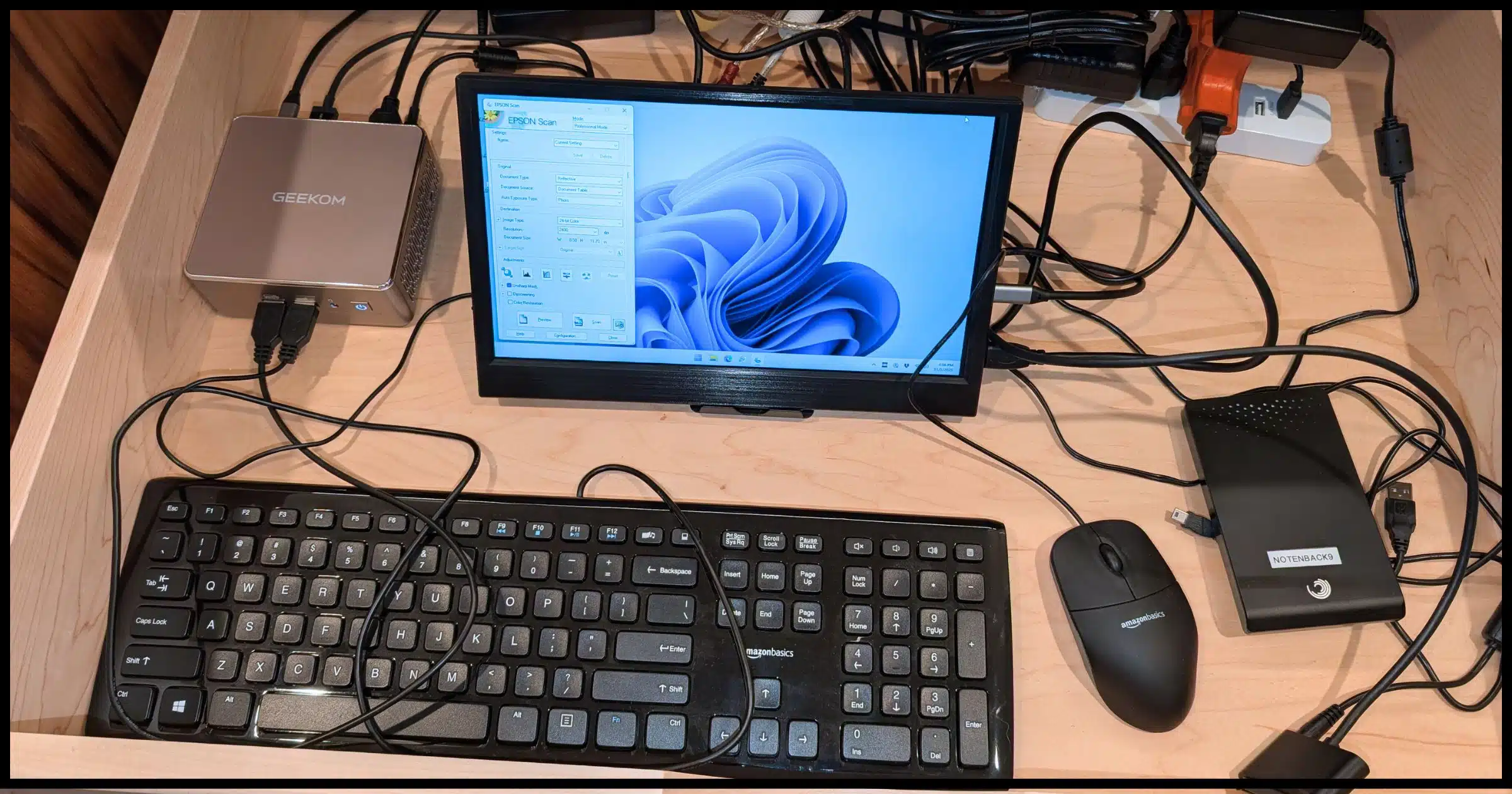
That's a drawer in a cabinet behind my desk. On the table above it are three scanners:
On this mini-PC, I completed the Windows 11 install and installed assorted scanning software. I also installed Dropbox, which I use to collect the scanned images, and remote-desktop software for easier access.
Removing the laptop left me with no screen. I bought a small 11.6-inch portable monitor that connects using HDMI and is powered via USB-C. (Sometimes remote desktop just doesn't cut it, and you need a real screen.)
I am impressed by the capabilities of these "little" machines. They'll never replace my primary desktop machine — I need more expansion capabilities for things like higher-end graphics cards and video editing — but I can see them being perfect for more typical users.
As I said, mine are medium-to-low end, and they're still quite capable.
One aspect that amused me is that they came with a mounting plate: they could be mounted to the back of a monitor, freeing up even more desk space and simulating an all-in-one computer.
If you mainly browse, do email, stream, or work in documents, a mini-PC might give you all the power you need without the clutter.
47: Most links are likely to be affiliate links.
48: I find that past a point, obsessing over specs is a waste of time and effort.
49: Still not as easy as we'd like, particularly when sharing with Windows and Mac machines, as I do. Fortunately, I had the previous machine's configuration to build on.
You can't always believe your ears.

With the rise of AI, and specifically AI voice cloning, malicious individuals are running scams that work like this:
The catch is that your friend or family member was never actually involved. Somehow, a recording of their voice was cloned and used by AI to say whatever the scammers want. They're counting on you believing that this is, indeed, someone you care about and that they really do need your help.
They do not.
Since we apparently can no longer believe our ears, it's important to have another way to validate who we're talking to. The simplest? A code word.50 Set it up beforehand. Make sure it's relatively obscure but easy for you both to remember. Then, when a situation comes up that involves red flags like the one above, ask for it.
If they can't provide the code word, hang up and contact them some other way. You'll likely find that they were never in any danger.
50: In the worst case, scammers position this as your family member being threatened with physical harm.
51: I'd call it a "safe word", but that has other connotations.
Spam is everywhere, whether or not we like it. Stressing out doesn't help.

I'm amazed at how worked up folks get about spam.
I get that it's a problem. I get hundreds of spam messages every day. What I see, though, are people who are so upset that they waste more time trying to fix the unfixable than they would have had they just marked it as spam and moved on.
That's today's tip. It breaks down into three parts:
Don't get upset. Don't get frustrated. Don't stress out because of all that junk mail.
It's normal, it's pervasive, and there's nothing you can do to make it stop. Everyone gets spam.
Stressing out doesn't help.
Ever wonder why your antivirus program didn’t catch that virus? It’s not broken. Security is a race, and the bad guys are usually ahead. Learn why security tools can’t stop everything, what that means for you, and the most important step you can take to stay safe.

In other words, why don't anti-malware tools work better? Why don't they work the way we expect them to?
I fault AVG for the phrase "traditional viruses". I think that puts an unrealistic spin on your expectations. Malware is malware, and that includes viruses, spyware, ransomware, rootkits, zombies, and gosh knows what else. What they mean by "traditional" is unknown, and I have no idea where the 3% figure comes from.
But there's a kernel of truth in AVG's statement. No matter what program you run, there's still a chance your computer will get infected.
Anti-malware tools don't always stop threats because it's a race. Malware writers create new tricks every day, and security software is always catching up. Updates take time, tools vary, and sometimes users ignore warnings. The best defense is still you staying alert and making smart choices.
In the past, we categorized security software by the type of malware being targeted.
We had anti-virus programs looking for files containing data patterns matching those of known viruses. Anti-spyware tools monitored for known spyware behavior. Anti-rootkit tools specifically countered advanced techniques used by rootkits to hide files.
In recent years, the lines have become so blurred as to be meaningless. As a result, we now talk in more general terms about security software and malware.

Different security software vendors use different techniques to detect malware. This is one of the biggest reasons one tool might detect malware another does not.
New malware is found daily. Almost all security programs use a database of information updated daily (or even more frequently) so they can identify the latest malware by its behavior or appearance.
Another way different tools differ is in how quickly they update their database — including the research required to identify new malware strains as well as the mechanics of updating and pushing out that new malware database. Some companies are better or faster than others.
Sometimes, new malware's behavior can't be addressed by a simple database update. The security software itself must be updated in some way. Some companies are better at effective, rapid deployment than others.
How fast vendors can address these issues varies depending on everything from the day of the week to the perceived priority of the issue at hand (not always agreed on) to the technological details of the new malware and how the security software's architecture can be changed to catch it.

Combating malware is a four-way race.
Malware writers are always in the lead. You and me? We're dead last. Hopefully close to the pack, but even so, last.
That means it's possible to be doing security as well as you can and still get infected, if:

I've written about The Dancing Bunnies Problem before. People will explicitly ignore, disable, and bypass all security measures to access something they've been led to believe is particularly desirable.
If an email you get says "Download the attachment to see dancing bunnies," some percentage of users will do exactly that and more, if necessary, because they want to see dancing bunnies, dammit.
Put in more relevant terms, you can have the best anti-malware and security software that could exist, and it'll do you no good if you ignore its warnings or bypass its restrictions.
Your security software "allowed" you to get malware because you told it to against its warnings and advice. It didn't matter what security software you were running or how good it might be.

There is no single best anti-malware tool or security software.
Security tool A may catch this newly released virus today, but program B might address tomorrow's new virus more effectively. Vendors know this, so they're continually working to improve the coverage of their products.
The techniques used by program C may work with little to no impact on my system yet be a major resource hog on yours. The best vendors test across a wide variety of systems and configurations, but by definition, doing so is in direct conflict with getting important updates out as quickly as possible.
And, of course, there's still the race between malware authors and anti-malware vendors. There's always a hole in the coverage, and something might slip through.
I don't mean to imply that any of this is or even should be easy. We've seen major security vendors push out updates that have failed or even crashed some customers' machines. It should never happen, but, given the rush to get updates tested and out quickly, I'm surprised these problems don't happen more often. It's difficult to get it right 100% of the time, especially when we expect anti-malware tools not to affect the performance or functionality of our computers.

Lost your password vault? You’re not locked out forever. It's just an inconvenience. With some patience and the right steps, you can reset your accounts, rebuild your vault, and protect yourself from future mishap.

The technique is simple.
The technique is also time-consuming and ponderous.
Let's review it, and what you can do to avoid this situation in the future.
Losing your password vault isn't a disaster by any means. You get back into most accounts by using the "Forgot password?" link. Reset each password, save it in a new vault, and back up that vault regularly. It's slow, but it works.
I need to start by pointing out that having lost access to your password vault does not automatically lock you out of all the accounts, nor does it mean you've lost access to those accounts forever.
Those "Forgot password?" prompts on login screens exist for a reason: people forget passwords. Here, the concept is the same; you've just "forgotten" a lot of them all at once by losing access to your vault.
Whether you can easily reset your password depends on having set up account recovery information for each account. Normally, that's a side effect of having an email address associated with each, but it can be more. If there's no recovery information or it's out of date, you might not be able to use "Forgot password?" on those accounts.
I'm a firm believer in using password vaults (AKA password managers) because they enable greater security.
Using a password vault, you can easily use longer, more secure passwords that are different for every site. These two actions together increase your overall online security dramatically.
If there's a downside to using a password vault, it's that, used properly, you don't know your own passwords. This is a good thing, since strong passwords are, essentially, not memorable. But it's also a bad thing in that, should you lose access to your password vault, you lose access to all the information it contains.
Good password vaults have no way to recover your master password if you lose it. They should not be able to tell you your password because they don't know your password. They know if you type in the right password, but without knowing what it is. As a result, if you forget it, they can't recover it for you.

If you've lost all your passwords, there's really only one thing to do: set new passwords on each account through its "I forgot my password" or equivalent account recovery link.
Each account.
One at a time.
It's painful. It's ponderous. But it'll work.
It'll take some time.
And it does require that you have recovery information set (and kept current) at each account you need to recover.
Before you start, however, I'd recommend you set up a new account with your password vault so that as you reset all those passwords, you can:
There's also no requirement for you to reset all accounts immediately.
As you go about your day and attempt to log in to an account for which you haven't reset a password, do so. Over time, you'll rebuild the database of passwords stored in your password vault.
It's easy to say, "Don't forget your vault password," and leave it at that. But that's oversimplistic. It also doesn't account for other things that can go wrong.
Instead, fall back on my other most common recommendation: back up.
Specifically, back up the contents of your password vault. Ideally, back it up in an unencrypted form, which you then save in some different, yet secure, way. For example, I regularly back up my password vault unencrypted and save it in a different, secure location. Should I ever lose access to my vault, I'll always have that backup from which to start over.
Something wrong? Your computer will often tell you what to do if you take the time to read the error message.

If this tip sounds familiar, it's because it should: it's a repeat — something I try not to do very often with The Ask Leo! Tip of the Day.
But it keeps happening. And happening. And happening.
So I'm asking you again: Please. Read. The. Screen.
I get a surprisingly large number of questions that clearly show the questioner has not taken the time to read what their computer is telling them. It's often as simple as not paying attention to an error message that clearly (and I do mean clearly) explains what went wrong and what to do next.
Instead, they panic, get frustrated, stop, or start looking for help. It's frustrating for me, of course, because the help they need is right in front of them if they take the time to read it.
Now, not all messages or help documents are clear or easy to understand. I get that; I've built a business around it. Much of what I do is to provide missing information or translate confusing concepts.
This isn't about that.
This is about not reading clear and obvious answers or instructions right there on your computer or device's screen.
Please don't be that person. When something goes wrong, take the time to pay attention to the information your computer gives you. Contrary to popular opinion, people who write software want you to succeed, and many are good at helping you do so even when things go wrong.
But it entails reading what's on the screen. Read the Friendly Message. (Besides, the first thing a helper asks you will be, "Was there an error message? What did it say?" If reading the message doesn't help you, write it down so you can answer that inevitable question.)
(P.S.: I admit to being guilty of this at times. In my rush to get things done, it's easy to quickly dismiss errors without reading them, thinking you know what's happening. It's embarrassing when I'm wrong. So don't be like me, either. )
Want to email a big group without looking like a spammer or getting blocked? I'll show you why the usual tricks don’t work well and walk you through safer, smarter ways to send group emails, from simple groups to full newsletter services.

1: I have been working on figuring out how to send emails to a large group of people at a time. I have an organization, and would like to send weekly emails out to them. Right now, I have 1500 people, but am actively signing people up and expect to have several times more over the next couple of months.
2: When I travel, I send e-mails to a selection of friends (all of whom have explicitly asked to be on the list of recipients, and who presumably therefore do not mark them as spam). But my ISP sees multiple addressees and an overseas IP address, assumes spam, and prevents it from being sent. I have taken it up with them, and their attitude is "Your problem, not ours."
First, thank the spammers. ðŸ'� Because of them, email services — the ones you use to send as well as those used by your intended recipients — have been forced to make this more difficult than it should be.
What we might do without thinking about it too hard makes us look like spammers. Hence, our messages don't get through — either bouncing, landing in spam folders, or just disappearing entirely.
And yes, it's our problem, not the email service's.
Sending email to many people isn't as easy as it looks. Using To:, Cc:, or even Bcc: can make you look like a spammer. The safer path is using groups or newsletter services like Google Groups, Groups.io, or AWeber. Always get permission, keep promises, and make unsubscribing simple.
If we want to send a single message to a group of people, it's tempting to just... send a message to a group of people. By that I mean fire up your email and list everyone in the To: or Cc: lines.
From: Ask Leo! <leo@askleo.com>
To: tom@askleoexample.com, dick@askleoexample.com, harry@askleoexample.com,
  mary@askleoexample.com, george@askleoexample.com, josie@askleoexample.com,
  fred@askleoexample.com, marcia@askleoexample.com, maxine@askleoexample.com,
  norma@askleoexample.com
Subject: My awesome vacation pics!
Email services are more likely to treat your email as spam as a result. Why? Because it's something spammers do. My example above has only 10 recipients, but some services prevent you from sending to that many at once, and even if they do allow it, the receiving service may notice the number and toss the email in the spam bucket. The actual number may be less than 10 or more; it varies from email service to email service. I start to get concerned when the number of recipients exceeds five.

One way to sidestep the privacy issue is to use Bcc instead.
From: Ask Leo! <leo@askleo.com>
To: Leo <leo@anexampleisp.com>
Bcc: tom@askleoexample.com, dick@askleoexample.com, harry@askleoexample.com,
mary@askleoexample.com, george@askleoexample.com, josie@askleoexample.com,
fred@askleoexample.com, marcia@askleoexample.com, maxine@askleoexample.com,
norma@askleoexample.com
Subject: My awesome vacation pics!
In this case, the email is still sent to all the recipients — you, the sender, sees and fills out the Bcc: line — but that line is hidden from all the recipients. It's better email etiquette because you're not exposing everyone's email addresses to all the recipients, which is considered both rude and a violation of everyone's privacy.
Even using Bcc:, though, two problems remain.
In short, Bcc: doesn't help when it comes to getting your email delivered, and can even hurt.

Sending email using a free email service puts you at a disadvantage right away. A lot of spam originates from them, and as a result, if you use one, it acts as a kind of strike against you, particularly if you're sending to a large number of people.
Things have gotten better over the years. Services have made it more difficult for spammers to create large numbers of accounts they use to spam, but it's still an issue.
I know you love your free email, and you likely rarely see any problems, but it's important to realize that there can be disadvantages, particularly for sending large quantities of email.
One of the solutions people have suggested is to send your email in multiple, smaller batches. For example:
From: Ask Leo! <leo@askleo.com>
To: Leo <leo@anexampleisp.com>
Bcc: tom@askleoexample.com, dick@askleoexample.com, harry@askleoexample.com
Subject: My awesome vacation pics!
Followed after some delay by:
From: Ask Leo! <leo@askleo.com>
To: Leo <leo@anexampleisp.com>
Bcc: mary@askleoexample.com, george@askleoexample.com, josie@askleoexample.com
Subject: My awesome vacation pics!
And, again, followed after some delay by:
From: Ask Leo! <leo@askleo.com>
To: Leo <leo@anexampleisp.com>
Bcc: fred@askleoexample.com, marcia@askleoexample.com, maxine@askleoexample.com,
norma@askleoexample.com
Subject: My awesome vacation pics!
Rather than one email to 10 people, it's three emails sent to three or four.
Does the delay matter? Maybe. If you send several emails in rapid succession, that, too, can look like a spammer at work. Whether or not it factors in is unclear, and almost certainly varies depending on the email providers involved.
It's crude, but it can be effective. If this is something you're doing rarely, it's a solution at your disposal right now.
Yahoo Groups is no more, but two alternatives can be used to the same effect:
In both cases, you create a group with the email addresses of the individuals you want to get your messages. They may have to confirm that they want to receive your messages, but that's just good practice to prevent being labeled a spammer.
You can then send a single message to the group email address.
The service then sends single messages to each of the members of the group.
Because it's opt-in by the recipients, and because it's from a service with a good reputation, and because individual emails are sent one-to-one rather than one-to-many, the chances of getting delivered are significantly higher.
Google Groups is free, and Groups.io has a free plan. Both have an array of additional features you might find useful for your message, such as archives, photo storage, and more.
The best response to the questions above is a newsletter, whether it's 1500 people getting periodic emails from an organization or a collection of friends getting periodic updates from someone traveling.
Newsletter-sending services are ideal for periodic broadcast emails to many recipients.
There are many. I'm partial to AWeber, which I've been using for Ask Leo! from the start, close to 20 years ago. MailChimp is another you've probably heard of. Even something like Substack can be used for this, assuming you don't mind your content being posted publicly.
Regardless of the solution you eventually take, there are some important rules to follow when you start mass mailing people. Most of these are common sense, and all are important to avoid being labeled a spammer. Others are actually legal requirements, at least in the U.S.
Sending bulk email, email newsletters, hosting discussion lists, and anything that results in "messages to many people at once" requires special consideration. I encourage you to think it through and do it right.

Gmail is taking away the handy “Check mail from other accounts” feature in 2026. If you use it to manage multiple email accounts in one place (Gmail), you’ll need an alternative approach. I'll cover what’s changing, why it matters, and the options you have left before your mail disappears.
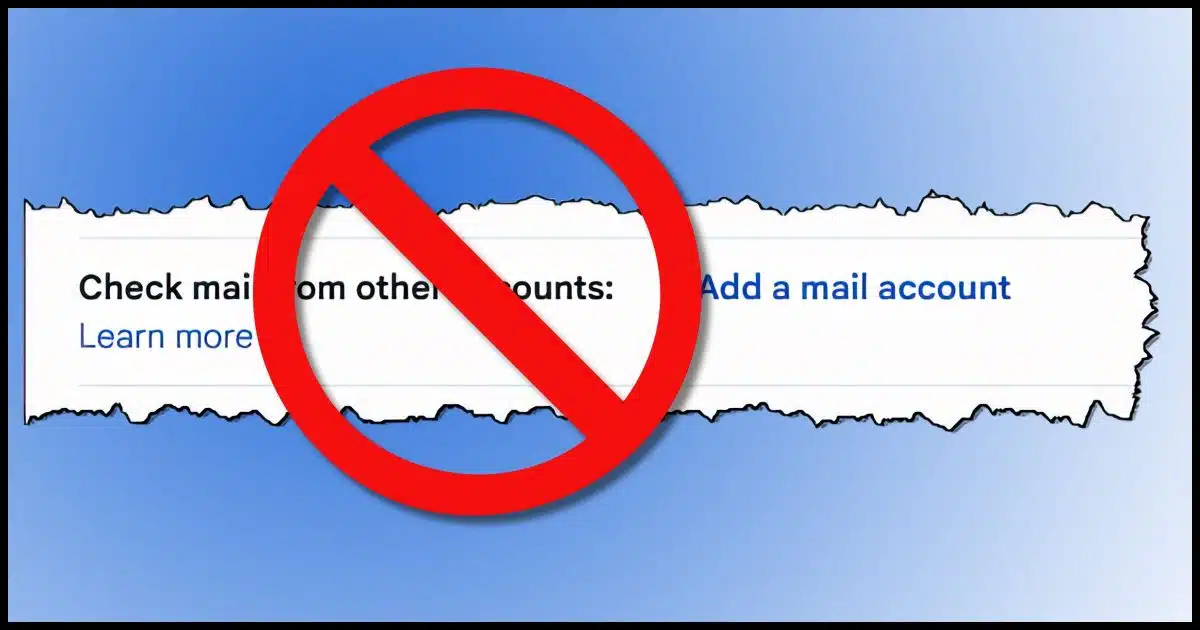
I've recently learned that Gmail will remove the ability to check email from external accounts.
If you don't use it, you don't care. If you do use it, I'm guessing you'll care deeply.
I fall into the latter category; for years, I've used Gmail as a one-stop collection of all my email from all my email accounts.
In January 2026, Google will remove Gmail's "Check mail from other accounts" feature. If you've relied on it to pull in other email, you'll need to change your habits: use webmail, switch to an email program, or perhaps use a paid service. Autoforwarding isn't an option. Plan ahead so you won't miss mail.

From Learn about upcoming changes to Gmailify & POP in Gmail, starting in January 2026:
The option to "Check mail from other accounts" will no longer be available in Gmail on your computer.
Using this feature has been a popular way to access email accounts. There have been two primary reasons:
It's an approach I've recommended and used myself for years.
No more.
There aren't any true alternatives that I'm aware of.
I know of only two approaches to use instead of checking mail from other accounts: webmail and email programs.
Webmail involves visiting a webpage in your web browser to access your email accounts. It sounds simple, except:
Check with your other email account provider to see which bucket your situation falls into.
Many email programs, which are installed on and run on your computer, can gather email from multiple addresses, like Outlook (classic), Thunderbird, emClient, and others. They download your email and allow you to access multiple email account(s) through their interfaces. They usually offer programs for mobile devices as well.
If you configure the programs to access your email using IMAP, you can do both: use an email program on one or more computers as well as an email app on your mobile device.
The advantage of using an email program is that you can bring all email from all of your accounts into a single place, so you don't have to switch between browser tabs or switch between an email program and a web browser to access different accounts in different places.
You can use an email program to access your existing email account and any other accounts, including Gmail, in a single place. (You can still use the Gmail interface online for Gmail only, but it's likely to get confusing because of how Gmail uses labels and not folders.)
There are three email services I'm aware of that let you pull multiple email accounts into a single web interface online:
I don't believe these are free, at least for this functionality.

The most common suggestion I've received from folks who've heard of this happening is this:
Why can't we just autoforward email sent to my other email address to my "real" email address (like gmail, outlook.com, or earthlink, or, or, or-.)?
The difference is subtle but important.
Forwarding forwards everything, including spam. That makes your other account look like it's sending spam. Its reputation is affected, and the email sent from that account — including the forwards — is more likely to be filtered as spam by recipient email services or not delivered at all.
Forwarding is just not an option.
RAID arrays are great for speed and resiliency, but those qualities come at a cost.

RAID (Redundant Array of Inexpensive [or Independent] Disks) is a technology that allows you to use multiple disk drives as if they were a single drive. This is typically done for either or both of two reasons.
For maximum impact, RAID systems are typically implemented in hardware called a RAID controller.
RAID controllers can write to disks in any way they see fit. They're usually optimized for the speed and redundancy goals listed above. Even though a RAID array might appear as a single disk that uses a standard disk format (such as NTFS or FAT32), the actual physical disk may not; its contents are written in a way that is unique to the RAID controller.
Therein lies a problem. I'm often asked if a disk drive taken from a RAID array can be installed into a different machine for data recovery (if, say, a RAID controller has failed). The answer is almost always no. That physical drive has data stored in non-standard, proprietary methods determined by the RAID controller.
The only way to get data off a drive used in a RAID array is with the exact same kind of controller used to write data on it in the first place.
The best way to plan for that?
You already know the answer: back up your data.
(Bonus reminder: RAID is not a backup.)
Thinking of skipping or delaying Windows 11? You can keep using Windows 10 safely, but changes are inevitable. From security updates to app support, here’s what happens if you stay put. Learn how long you can expect things to keep working before problems appear.
Staying with Windows 10 — not updating to Windows 11 — is a valid choice. I've written about how you can keep using Windows 10 safely after support ends.
But there's more to it than that, isn't there? Over time, things will change. It's important to understand what those things are and how you need to prepare.
Sticking with Windows 10 is fine for now, but support is ending. Security fixes stop, some apps may drop support (TurboTax already has), and Defender updates end in 2028 (probably). Most programs will keep working for years, but slowly, more will move on. Plan ahead, and don't panic.
As I write this, the official end of support date for Windows 10 has passed. This means a few things.
However, Extended Security Updates are available, and stretch support out for a year.
If you sign up for the ESU program — which you should still be able to do at any time — the "end of support date" changes to October 2026.
While there's been no official word on it, ESU seems to have become a free program (as long as your computer settings are backed up to your Microsoft account), so there's little reason not to sign up for it (other than that it requires a Microsoft account). This effectively gives you another year of most types of support.
After October 2026:
I believe the termination of in-person support still applies.
At least one popular software package has announced that it will no longer support Windows 10.
TurboTax Desktop 2025 will only run on Windows 11 (64-bit). You won't be able to install or use TurboTax Desktop 2025 on Windows 10.
Alternatives include not using TurboTax or switching to their online product.
This is the only software I'm aware of now that has pulled Windows 10 support. It's unusual in that it's an abnormally quick exit.

Microsoft has promised that Windows Defender will continue to receive database updates for three years after the original Windows 10 end of support date. While they haven't said October 2028 specifically, that's what the math works out to.
If Defender updates stop in October 2028 — and I suspect they may not — you'll need to switch to a different security package for Windows 10.
The reason I suspect Defender updates may not end at that time is that this is a path they've been down before. Even though it was never promised, Microsoft continued to provide database updates for the equivalent Windows 7 tools for many years after its end-of-support date. I expect that a technical rather than a policy issue might drive the actual switch someday. For instance, perhaps wanting to change the underlying security engine or model beyond a simple database update will mean they end Defender updates.
TurboTax aside, the apps you have installed in Windows 10 should keep working just fine. They're typically on their own update cycle. Those that use Windows Update should continue to be updated, and of course, any tools that provide their own update mechanism will keep updating as well.
For now.
When I say eventually, I mean over several years. Most apps will keep working just fine for a long time.
Then, slowly — and sadly, unpredictably — third-party apps may announce an end-of-support date of their own for running on Windows 10. If, when, and how you're affected depends on which apps you use and what those companies decide to do.
Don't worry about this until you find out you're affected. As I said, it'll likely be a while.
Yes, some may "pull a TurboTax" and end support for Windows 10 early, but I expect that'll be a short list.
Throughout all of this, there's a good chance that Microsoft will continue to "encourage" you to move past Windows 10.

Depending on whether your machine is capable of running Windows 11, you may be offered the upgrade (which should be free), or you may be encouraged to purchase a new Windows-11-capable machine.
You don't need to. Dismiss the messages and carry on. When they return or new ones appear, dismiss them as well.
52: There are apps that still work in Windows XP just fine.
AIs are great an answering questions with confidence... even when the answer is complete manure.

People reading this likely fall into two distinct camps:
AI is evil, and I'd never use it or trust it for a moment!
or
AI understands me and gives me answers much more easily than other methods.
While I don't agree with the former group, this tip is for those falling into the latter group.
AI does do an amazing job of understanding our questions. It is certainly better than search engines and often better than real people. When I'm having trouble understanding someone's question, I often turn to AI and ask, in effect, "What the heck is this person asking?"
AI is also very good at presenting answers with authority and confidence... even when those answers are completely wrong.
It happens often. Maybe someday it'll get better, but right now, you cannot trust AI to give you a correct answer.
Here's how to use AI answers safely.
AIs are powerful and helpful. But, particularly when you're asking a question about something with which you're not familiar, never trust it blindly.
You can avoid unanticipated updates and reboots with a workaround.
(Video: askleo.com)
The transition to Windows 10 included an annoying change: the amount of control we have over updates. Specifically, the ability to choose which updates would be installed when, and when a reboot would happen, was effectively removed. There were many stories of inappropriately timed reboots with unwanted consequences.
Things have gotten better, but we still don't have the control we might want.
Here's a workaround.
You must remember to do this within the timeframe that Windows allows the pause to last, or Windows will unpause itself and take updates without your consent.
But it's a process that brings updates and reboots back into your control.
Use a different machine to help diagnose problems.

If you're having problems with something, see if the same problems show up on a different computer. This is a useful diagnostic approach for hardware, but it applies to software as well.
With hardware like USB drives or keyboards, it's easy to take the device, plug it into a different machine, and see if the problems remain. When it comes to software problems, if the same software is available on another machine, you can see if it behaves the same way there.
This helps localize the problem. If the same problem appears everywhere, you know it's the device or software. If not, you know there's something troublesome with your specific computer or situation.
This technique is valuable enough that it makes sense to borrow a friend's machine if you only have one yourself.
Some system cleaners cry wolf, showing scary error counts to pressure you into buying. Others disagree on what counts as “dirty.” I'll unpack the scare tactics, the lack of standards, and the risks of using these utilities, plus safer ways to keep your PC running smoothly.
What you're experiencing leads me and many others to avoid recommending any registry or system-cleaning utility.
It's not just a few bad apples that spoil the entire bunch; in this case, it's often difficult to find an apple worth biting into at all.
The most common reason a free trial reports lots of errors is simple: they want to scare you into purchasing their product to clean up what they supposedly found. (Running the scan is the only part that's free.)
I say "supposedly" because the most disreputable scanners — and there are a lot of them — aren't above lying. They report errors that don't exist. Of course, when you purchase the program, suddenly those errors are no longer there. It's not because of their exceptional error-correction technology; it's because the utility did nothing at all.
More reputable utilities, which do clean things up, are still not above overstating the risk of what they find.
For example, some may claim that having a thousand cookies is a serious performance and security risk. It's neither; cookies are nothing you need to act on. But if you buy into their rhetoric, you'll be convinced you need to purchase their product to clean them all up — which they then do.
Which brings up the second problem with these cleaners.

Ask 100 tech pundits about this topic, and you'll get 100 different opinions. Maybe more.
The same is true for the creators of system-cleaning software. Even among legitimate programs, many opinions exist about what is and is not an "error", what is worthy of cleaning, and what can be cleaned safely.
You could run one legitimate program to completion and have it report that your device is now 100% clean, and then immediately run a different legitimate program and have it report that the machine is riddled with cruft.
Which one is correct? There just isn't a formal definition of what it means for a machine to be "dirty". There are things that most people would define as dirt, but once you stray from that list, things become unclear.
Even on those items that everyone considers technically "dirt", you'll find a variety of opinions about whether there's any value in cleaning it up.
The biggest piece of advice I have is to resist the temptation to try the free trial of the latest and greatest system-cleanup utility or registry cleaner. Just don't.
At a minimum, only run tools you've heard of that are recommended by people you trust.
If you've never heard of it and the only words of support about it are from the tool's own site or advertisements, walk away.
The potential for harm — or just wasting your time and money — is just too great.

A blue screen that won’t go away feels like the end, but it may not be. Learn how to boot from other media, rescue your files, and figure out if it’s Windows or hardware at fault. Most importantly, backing up now saves heartbreak later.
This question has a lot to unpack, including why a blue screen may prevent a normal boot-up to the potential for data loss.
There are techniques to deal with the former, and I have strong opinions on the latter.
A quick workaround to being unable to boot because of a blue screen is to boot from something else, like recovery media, Windows install media, or Linux live media. If repairs fail, it may be hardware trouble. As always, backups are your lifesaver.
This caught my attention before I even started thinking about dealing with the blue screen.
"There are so many things on there that I need to have."
This tells me something critically important: you're not backing up.
If your computer were to disappear — *poof* — would you lose data? Then you're not backing up.
Computers don't magically disappear, but I can tell you for certain that hard disks (as just one example) can die in an instant without warning, causing much the same effect.
And sometimes that manifests as... you guessed it... a sudden and inexplicable blue screen of death (BSOD).
I want you to start backing up. Someday, you'll thank me.
Admittedly, I've never gotten useful information from a blue screen of death (which is being redesigned, as I understand it, into a black screen of death – still BSOD). I'm sure the information is useful to someone, somewhere, but not to me.
All it tells me is that the machine won't boot. It only got through a portion of the Windows boot process, which I suppose says something, but not much.
There's typically no getting past a BSOD.51
Step one, therefore, is to boot from something else.
I can't tell you exactly how you boot from these because it varies from machine to machine. You may need to change the boot order in your BIOS/UEFI, or you may need to type a key as the boot begins to enter a boot selection screen, or something else. Check with your computer's manufacturer for instructions on exactly how to boot from something other than your computer's hard disk.
What happens next depends on many things. Without knowing more about the computer, its history, and whether there are other symptoms, I might proceed as follows.
Failing that, and knowing you don't have a backup, at this point, I would come to a complete halt and back up the hard disk completely before proceeding further (you can typically boot from the backup software's emergency disk to perform the backup). Additional steps below could further damage the data, and we want to capture and save it before moving on.
Also, the act of attempting a backup may give us more information about what kind of failure we're looking at.
Assuming the backup works, I would continue with:
If that fails, we are likely looking at a hardware-related issue rather than a software fix.
Again, there's not a lot to go on, but if I seriously suspect a hardware issue, I'd take additional steps.
First, if the backup attempt failed, then, depending on the failure, this likely points to a hardware issue, possibly the disk itself. I would either seek the assistance of a local tech or even a data recovery service if the information you might lose is precious to you.
If not, my first step would be to replace the hard drive. If that doesn't resolve it, then it's technician time for sure (or, depending on the age of the machine, replacement time).
One thing I would absolutely do is remove the hard disk from the machine and place it into an external enclosure. This will give you the opportunity to run recovery tools on it using a different computer and possibly recover some of the data on it. Even if the earlier backup succeeded and the drive appears to be working, this is an easy way to gain access to the disk's contents on a different machine.
Whether you successfully recover your machine and the data on its hard drive or not, I want you to learn from this experience.
And if this isn't your experience, I want you to learn from the experience of others.
Start backing up. Do not delay. Failures like this happen, and if you're not prepared, "so many things on there that I need to have" could easily become "so many things on there that I've lost forever".

53: In theory, if your machine were configured to dual-boot, you could try booting into the other operating system, but few people have or need dual-booting capability.
54: That you're apparently not using, but I had to include it for completeness for others.
55: IMPORTANT: do not click on the various "Download" buttons. Those are ads. Look specifically for a link to the ISO.
Wonder what those strange strings of numbers labelled things like MD5 or SHA mean next to a download? They’re a way to double-check that a file is safe and complete. Here’s how checksums work, why they matter, and when you might want to use them.
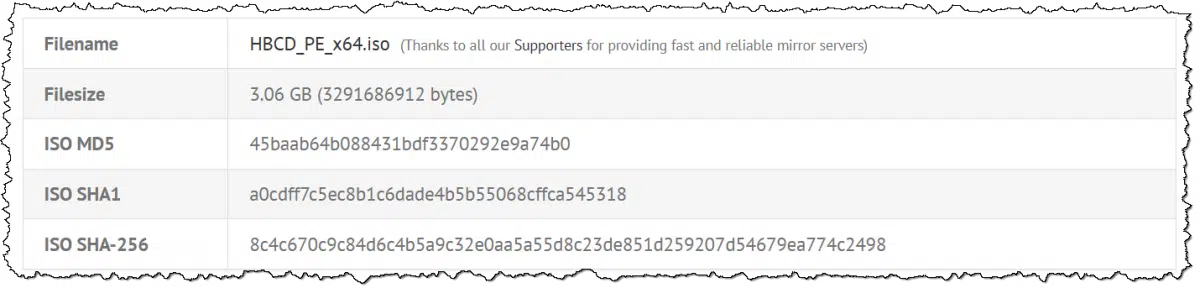
When you go to a download website to download a large file, you might see a series of numbers displayed alongside the download link. These are commonly referred to as checksums or hashes and allow you to confirm that the download completed successfully.
The example above for Hiren's Boot CD PE shows a link for what some would consider a fairly large download: over three gigabytes. (If you're curious, Hiren's Boot CD provides diagnostic and recovery tools that run from a bootable CD, DVD, or USB drive.) We'll use it as an example as we look at why checksums exist and how to use them.
Checksums like MD5 and SHA are long numbers that prove a file you downloaded is complete and unchanged. By comparing the site's published checksum with one you calculate, you can confirm the file isn't broken or tampered with. It provides extra safety for important downloads.
The use of checksums has evolved. In years past, even if a large download completed, it was not unheard of for portions to have been garbled along the way54. Running a tool to calculate the checksum on what you just downloaded and comparing it to the expected checksum allowed you to determine if you'd received everything as it should be.
These days, all you really need is patience. Depending on your internet speed, you can generally count on the download eventually completing without incident.
A more recent use for checksums is to confirm that what you downloaded is what was actually provided and not some malicious imposter. Again, calculating the checksum on what you downloaded and comparing it to what you expected told you whether you'd received what you intended to download.
It's not perfect (someone capable of placing a malicious download could potentially update the checksums to match), but there are scenarios where it still adds value. For example, on mirror sites — multiple sites that share the work of hosting downloads — the official source publishes the checksums. If a single mirror is compromised by a hacker, it can be detected when the checksums are compared.
Checksums — or more correctly, hash values — are mathematical operations that read the entire file and generate a large number based on its contents. Even a tiny (one bit!) change in the original file results in a dramatically different number, meaning they're great for change detection. If two files generate the exact same hash, we know they're the exact same file.55
So, let's say you have downloaded this version of Hiren's Boot CD PE.
First, you right-click on the file and choose Properties so you can check the filename, "HBCD_PE_x64.iso", and the exact file size: 3,291,686,912 bytes.
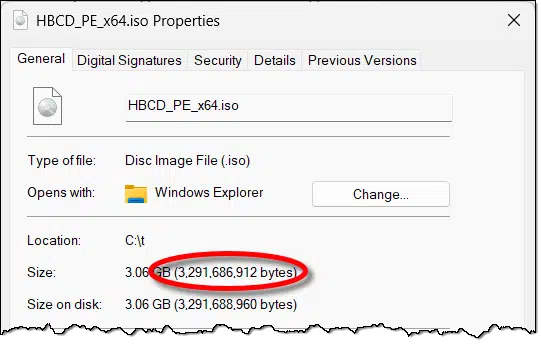
Next, we calculate checksums using one or more of the listed hashing algorithms: MD5, SHA1, or SHA-256. Any will do, but I'll do all three.
While I'm sure there are plenty of third-party Windows tools you can find to do this, you don't need them. Everything you need is available in the Windows Command Prompt.
The magic command is:
certutil -hashfile <filename> <hash algorithm>
To run the MD5 hash on the file we downloaded, we would type:
certutil -hashfile HBCD_PE_x64.iso MD5
Here are the results of calculating each of the three hashes provided.
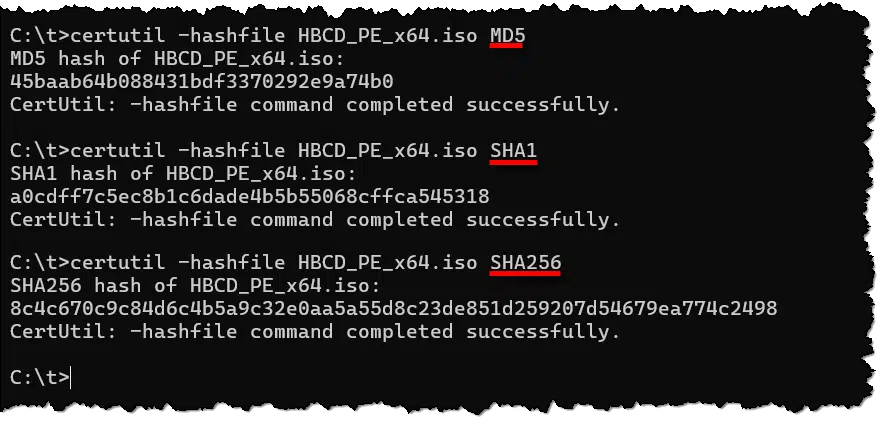
Compared to the checksums in the image at the top of this article, the calculated values match.
MD5 – 45baab64b088431bdf3370292e9a74b0
SHA1 – a0cdff7c5ec8b1c6dade4b5b55068cffca545318
SHA-256 – 8c4c670c9c84d6c4b5a9c32e0aa5a55d8c23de851d259207d54679ea774c2498
We got the file we expected.
Technically, SHA1 and SHA-256 are more robust and secure than MD5. In practice, though, MD5 is sufficient for simple file comparisons and is usually faster.56

When checksums don't match, life gets interesting.
My first approach is to download the file again in case there was a problem with the download. Ideally, I might do this on another machine if I have one available.57
If the hashes still don't match, then:
Most of the time, hashes match.
Hashes are great for tracking file changes — or rather, lack of change — in general. For example, a duplicate file finder might cache hashes on files it scans so as not to need to scan them again every time you run it.
I've used hashes across machines. If I want to see if the file on machine A is exactly the same as that on machine B, there are two methods I could use:
Reading the file and calculating the hash is typically much faster than copying something across a network.
56: Among other things, download protocols — the methods used to transfer files from one place to another — have improved dramatically, as has the underlying internet connection; we're not using noisy dial-up modems anymore.
57: Statistically speaking. While two different files can generate the same hash value, it is so statistically improbable as to be a non-issue.
58: The difference matters much more when hashes are used in encryption, which is another common application.
59: Bonus points if you can use a different OS, such as Linux or Mac, which includes similar tools, just to rule out any Windows-specific issues. It's unlikely, but if we're ruling things out, this is an easy one if you have another computer lying about.
Windows File Explorer is surprisingly capable and flexible.
(Video: askleo.com)
Windows File Explorer is a surprisingly flexible application that provides a number of ways to look at the files on your computer.
Click on the View menu and explore.
This is an example of an interface that's best discovered by simply clicking around and experimenting. You may find that when tailored to your own needs, Windows File Explorer becomes even more useful.
Generally, it's legal for your employer to spy on you when you use their equipment.

In most countries, it's perfectly legal for your employer to spy on you.
When it comes to technology, that's especially important to remember. Not only does your employer set the rules you must follow when using their technology, but they also have the ability and the right to monitor how you use it. That can include (but is certainly not limited to):
If those possibilities aren't acceptable to you, you need to restrict how you use their property. If you need to do something that would break the rules, do it on your own equipment and network.
Ever right-click the Start button and wonder why you sometimes see Command Prompt, other times PowerShell, or maybe something called Terminal? They look similar, but each has its own role.
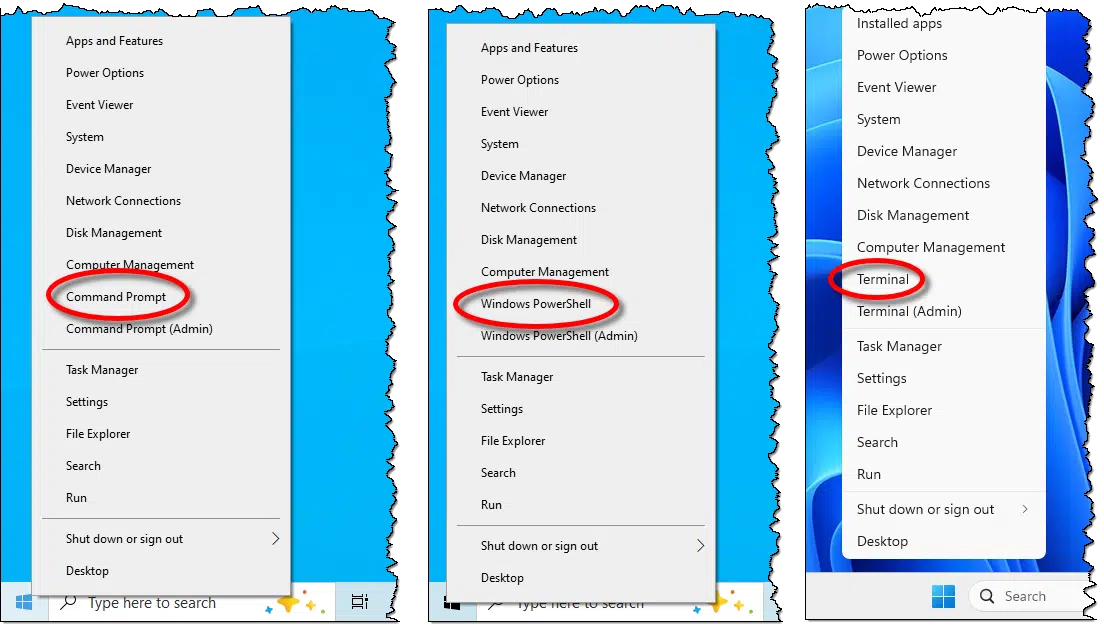
There's a very good chance you'll never need a command-line interface in Windows. However, on occasion, particularly when diagnosing or tweaking your system, there are certain things that are more easily done using one. In rare cases, a command-line interface might be the only way to accomplish some obscure tasks.
Depending on your setup, you might see one of three separate options in the alternate (right-click) Start menu:
They're all command-line interfaces, but of course, they're different. Sort of.
Let's examine what they are, what you can control, and which you might want to use.
Command Prompt is the old, simple command line. PowerShell is newer and more powerful, mainly for advanced users. Terminal is a wrapper that can run both, plus others, in tabs. For most folks, using Terminal with Command Prompt is enough unless you need PowerShell's extra features.
Occasionally, inaccurately, and somewhat fondly referred to as the "DOS box" or "MS-DOS", the Command Prompt has been in Windows since the beginning. It mimics the older MS-DOS command line interface.
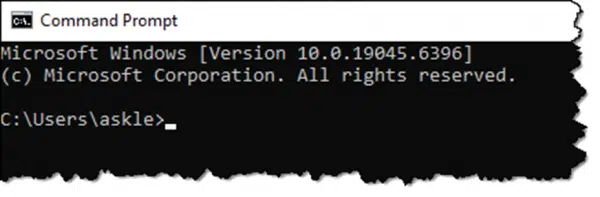
You use it by typing in commands, like "DIR" for a directory listing, among many others, followed by the Enter key to run the command you just typed. Its syntax (or language rules) and basic commands go all the way back to MS-DOS. It's been refined quite a bit since then.
The default prompt — "C:\Users\askle>" above — indicates which folder (AKA directory) is the current folder: C:\Users\askle.
You can also run Command Prompt by clicking the Start button, searching for "CMD", and clicking on the words Command Prompt.
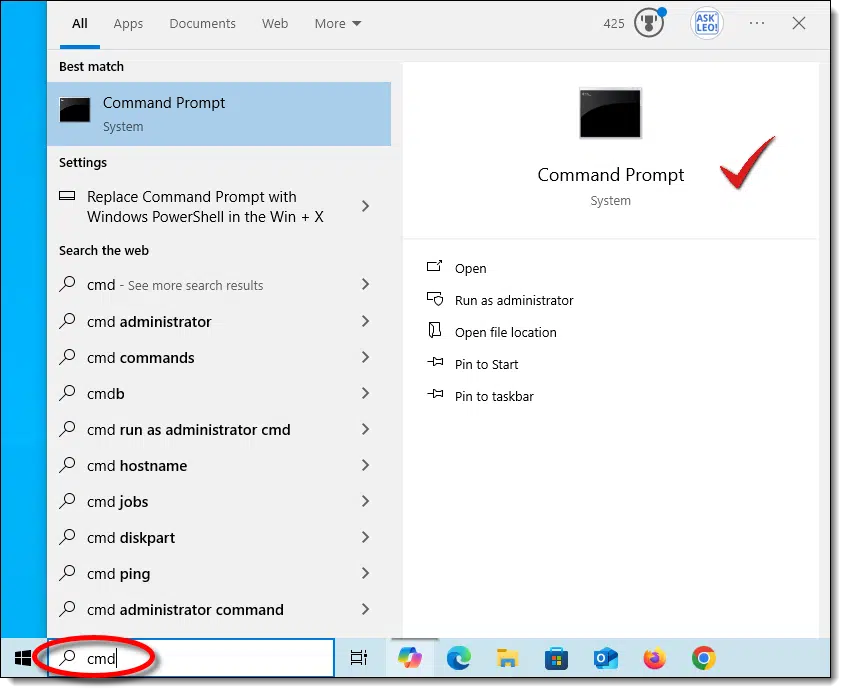
You can also type +R and run "cmd".
Windows Command Prompt is powerful, but it has limits. As a result, Microsoft created a new command-line interface called PowerShell.
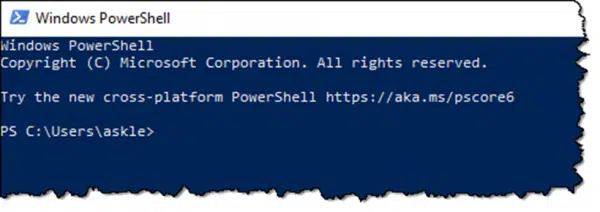
It's a command-line interface, just like Command Prompt, meaning you type in commands and press Enter to run them. The difference is that PowerShell is similar to, but not compatible with, Command Prompt. Some things that work in Command Prompt work differently in PowerShell, and there are many things in PowerShell that you can't do in Command Prompt at all.
PowerShell lives up to its name: power. It includes a more powerful scripting (programming) language and significantly more direct access to Windows programs, settings, and other internal aspects of the OS. It's intended to run fairly advanced system configuration, maintenance, and manipulation scripts.
The default prompt — "PS C:\Users\askle>" above — is exactly like Command Prompt's, with the addition of a leading "PS" to indicate you're in PowerShell.
You can also run PowerShell by clicking the Start button, searching for "powershell", and clicking Windows PowerShell when it appears.
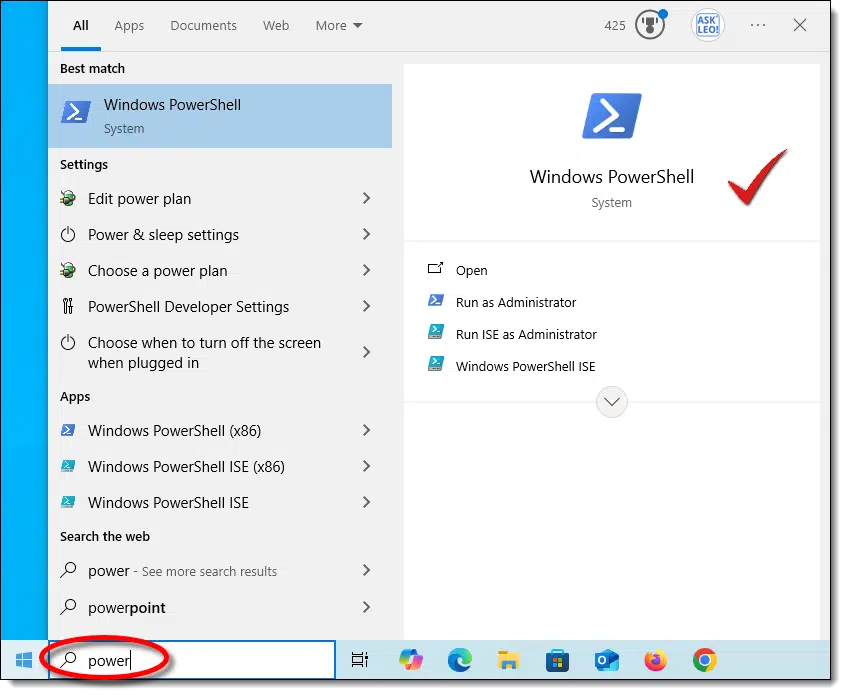
You can also type +R and type "powershell".
Terminal wraps Windows Command Prompt and Windows PowerShell together and adds even more.
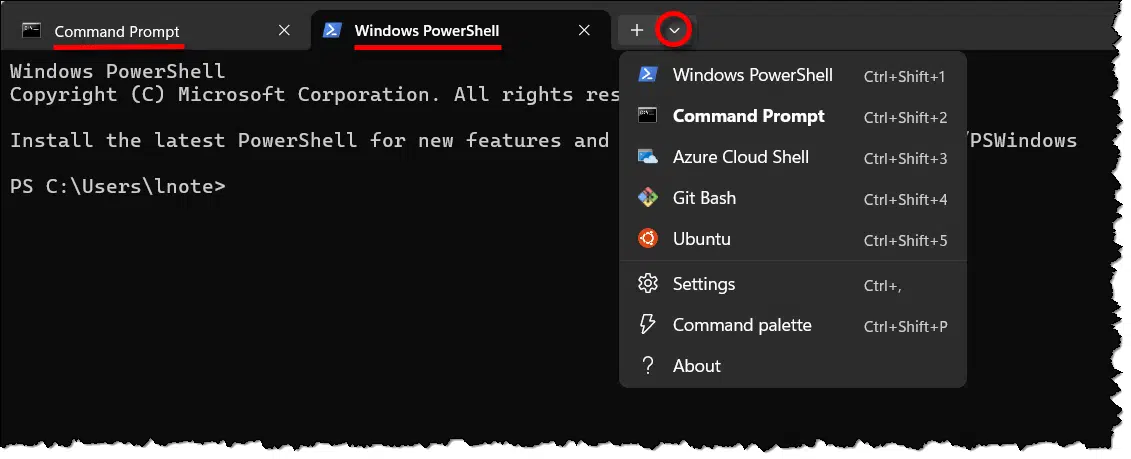
With its tabbed interface, Terminal runs either Command Prompt, Windows PowerShell, or both, as shown above. Depending on the software you have installed, there may be additional command-line interfaces available. On my computer, that list includes the following; your computer will be different.
In Terminal's settings, you can choose which tools (Command Prompt, PowerShell, or something else) open by default when you start Terminal.
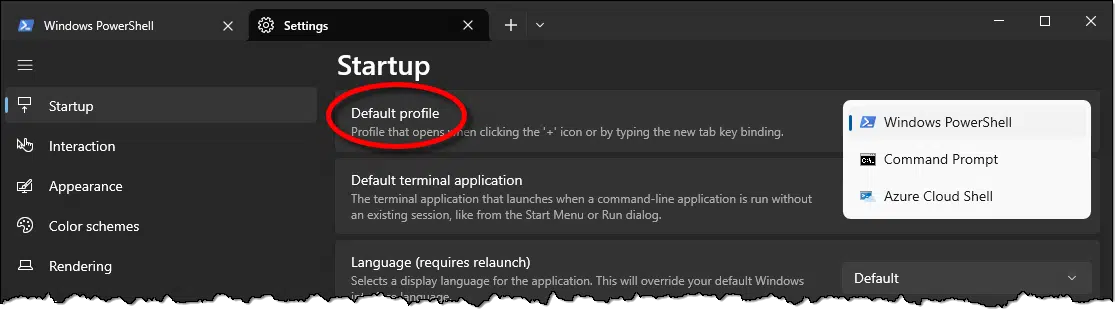
You can also run Terminal by clicking the Start button, searching for "terminal", and clicking Terminal when it appears.
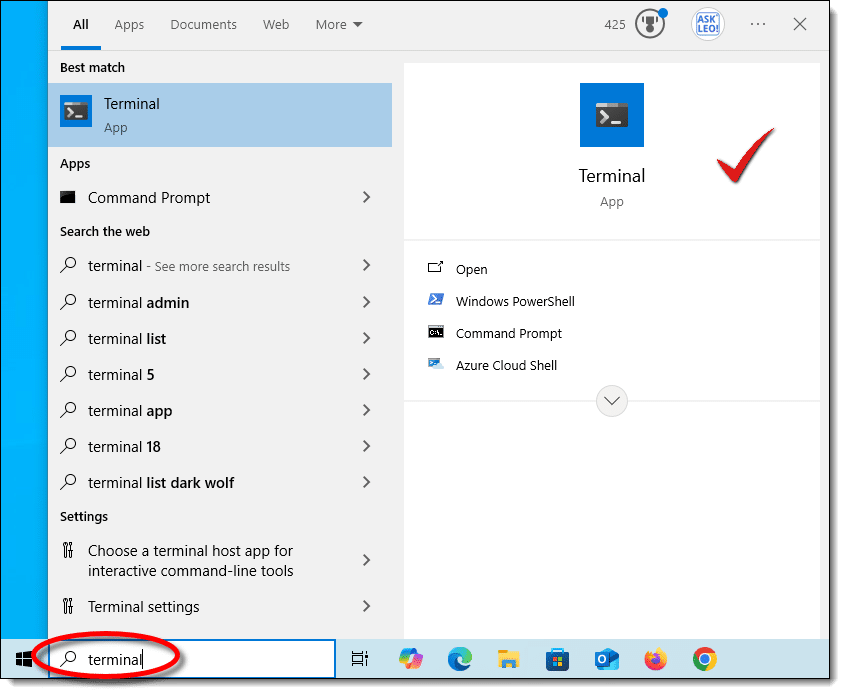
You can also type +R and run "terminal".
In current versions of Windows 11, you'll find Terminal in your alternate Start menu. In Terminal, you can use any command-line interface.
Windows 10 defaults to the Windows Command Prompt, but there's a setting that allows you to change that to PowerShell.
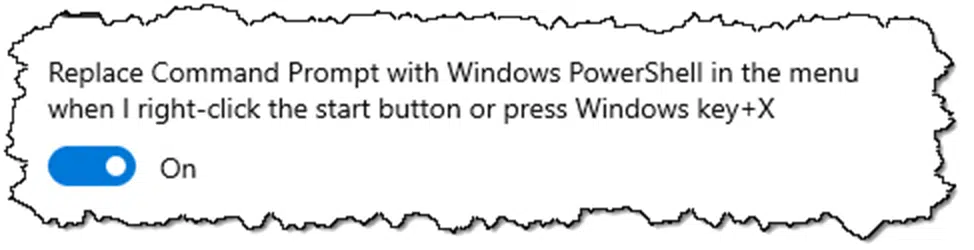
You can also install the Windows Terminal app from the Microsoft Store, though this may not affect the alternate Start menu. You can run it in the other ways I described above.
I use Terminal. Since I'm old-school, I have it open the Windows Command Prompt. It's what I'm used to, and compared to other command-line processors, it's probably the simplest.
Open the wrong one? Here's a simple trick to switch.
Each will open in the existing command line window.
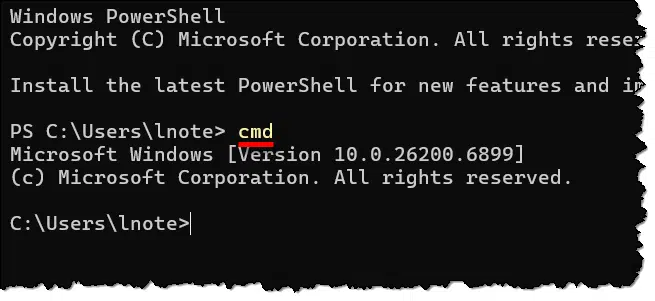
You may have to type "exit" twice when you're done: once for each.
Whichever command-line interface appears in your Start menu is listed twice.
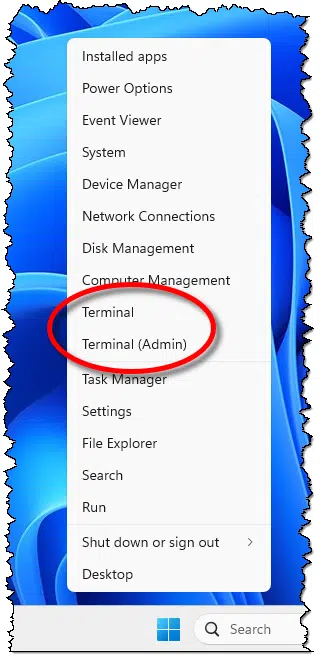
Without "(Admin)", the tool runs with your current privilege level. Even if your account is administrator-capable, it'll run with limited privileges. Sensitive operations may fail or prompt you with the UAC dialog.
Running the "(Admin)" version will first prompt you with the UAC dialog but run with full administrative privileges thereafter.
Which one you want depends on what you're attempting to do. Unless instructed otherwise, or if you're not sure, use the non-admin version of the tool.
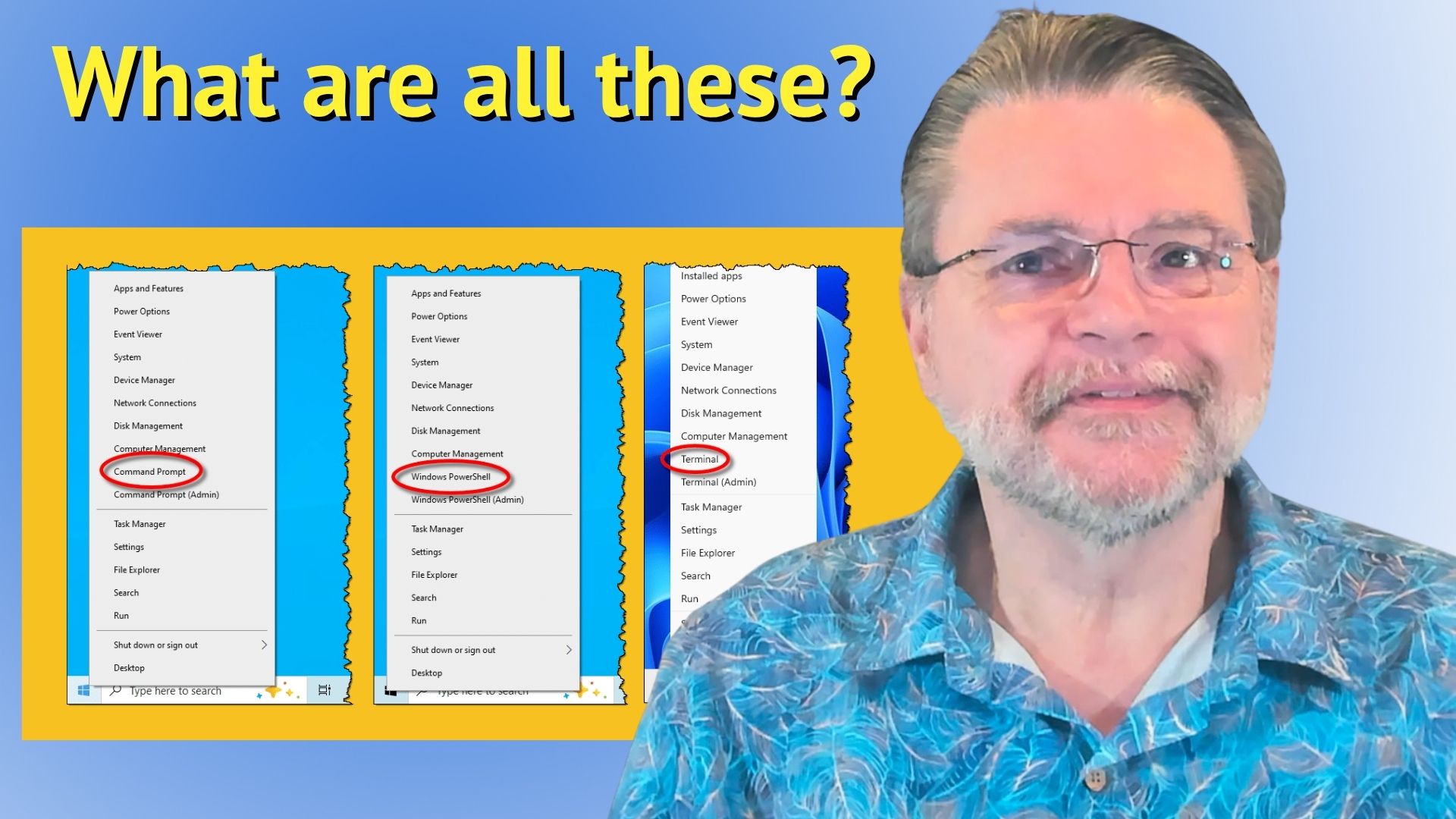
AI is rewriting the rules of the web, and sites like Ask Leo! are feeling the squeeze of fewer clicks, more bots, and uncertain futures. What does that mean for the content you rely on? I'll look at the challenge, the irony, the fear, and what you can do to help.

I have a love/hate relationship with AI. Hate might be too strong a word — let's just say I have concerns. And some of those concerns relate to whether sites like Ask Leo! will survive.
AI is an existential threat. Maybe someday for humanity, I don't know; what I do know is that the threat is real and current for websites you probably rely on for content... like answers to your technical questions.
We're losing our reason to exist.
AI is changing the internet. Instead of sending people to sites like Ask Leo!, search engines and chatbots give instant answers, bypassing site visits and cutting site revenue. Survival? Well, right now it means video, community, and direct support from readers. The future is very uncertain and constantly evolving.
I talked about this a few months ago. The original business model of Ask Leo! (and many other sites across many different topic areas) was this:
AI summaries in search engines and AI chatbots have basically tanked that model in the last 24 months. They no longer present prominent links for people to click on, but instead present summaries and answers. People do not need to click through and visit my site.
Fewer visits mean lower ad revenue. In my case, it was bad enough that I removed all third-party advertising from the site. There was no point in continuing to annoy the folks who made it here with ads that weren't helping support the site.

Ironically, I recently had to increase the size of the askleo.com web server58 because it was getting pounded with page requests.
Not from real visitors, of course. There are two culprits at play.
Search engine spiders. Even though they're not presenting links as much, they continue to scan the site for updated and new content. How they use that information varies based on the search engine involved. Sometimes they present links to content relevant to what people are searching for, like the old days. More often, though, they use the content they find on my and related sites to generate the summaries and answers they present.
AI spiders. There are many AIs out there right now, and they're all crawling the web, slurping up content to train their large language models or provide real-time information when people ask questions of AIs. It's the same model as search engine summaries, though more extensive and complete. And while there are often references to source material, there's little incentive for people to click through.
So, yeah, I had to get a bigger (read: more expensive) server to feed my content to the various spiders and bots that are scanning the web.
The most obvious question is: why let them? There are various mechanisms I could use to prevent bots from accessing the content on my site. It's one reason you're seeing more "Are you human?" tests as you navigate other sites on the web yourself.
Website owners like me face two scenarios.
It's not a great choice.
And that's why I say the fundamental model of publishing useful information online may be dying. What's my incentive (other than altruism) to keep publishing? Particularly if I have to spend still more money to keep the server from being overwhelmed by bots?
What's the incentive for anyone to continue to create useful content online?

I've written about this before as well: I use AI as a tool more or less constantly. I don't have it write content for me (hence the "Written by a real human" at the top of every page), but I use it to generate eye-catching images, prompt me to dig deeper into ideas, and make generating these articles easier.
And I use AI when searching for answers myself. I try to click through to references presented (I mostly use Perplexity, which is great about including references to its source material), but I don't always. Sometimes the AI-generated answer really is all I need.
I'm not complaining that the current state of affairs is wrong, nor am I saying it's right.
It is what it is, and it's having an impact.
And that impact is going to get bigger.
Here's a scary concept:
The quantity of AI-generated articles has surpassed the quantity of human-written articles being published on the web.
– More Articles Are Now Created by AI Than Humans – graphite.io (an SEO/AEO company)
There are questions about whether real people see those articles and whether they show up in search engine results or are used by AI. (AI being trained on AI-generated content is another, separate, scary concept.)
The fact is, it's happening.
And as some have commented, you are currently seeing the worst AI we will have going forward. AI is only going to get better.
This is like my customer support position of some years ago: if someone understands my problem, and I can understand their answer, and their answer actually resolves my problem, I don't care who or where they are.
Understandability and accuracy matter. If those fail, then it's a bad customer service experience. I think we've all experienced that at one time or another.
Pragmatically, is AI different? If it gets you the answer you need, does it matter that it's AI-generated?
To be sure, there are many issues in the background. With human customer support, it's about jobs and working conditions and so on. With AI, it's about where those answers ultimately came from.
But as a user, when you need an answer, are you going to turn down the right answer because it came from someone's idea of the wrong place?
Again, I don't know.
Honestly, what's saving Ask Leo! today is video. Every written article has a video posted on YouTube where I cover the same topic. If there's something to demonstrate, I demonstrate; otherwise, I discuss (not "narrate") the article at hand.
Including this one. By the time you read this, there'll be a video of me talking about the issue on camera.
AI will probably be able to meet or surpass the quality of much written content in the not-too-distant future. I'll keep writing, and I'll keep pointing out that I'm human, but I know it's a losing battle.
The same will happen with video someday. There's some amazing AI video being generated right now, but it's not on a par with videos created by real people discussing and demonstrating topics in the tech space. Yes, AI is being used as a tool — for example, someone whose English skills are not up to par can use AI to transform their voice into something more understandable. But it's still human-generated content.
If you see me on camera, that's me.
But I'm not sure how long that'll last. I'll say we're good for a few years while AI catches up to the current state of human how-to and Q&A video creation, but catch up it will.
I'm not sure what happens then.
I'm not the only one facing this situation. I'm not even the first. Maybe the topic of technology is a little harder for AI to replicate. We're certainly seeing AI in other spaces further down its evolutionary path than we see in tech.
Creators are responding in several different ways.
Giving up. I hope not to do this, or at least not for a very long time. But someday, the incentives and revenue we rely on are likely to disappear. I'm not sure when or what this will look like for me.
Exploring alternate presentations. This is what I'm leaning into with YouTube and my online course creation. AI's not there yet, so it's very much worth my time and investment.
Building community. This is what I see happening a lot outside the tech space. It's all about building direct access to a resource you trust. Newsletters, Substacks (and equivalent), patronage, and members-only access are all built on one-to-one relationships, bypassing all the things AI is competing on. It's why I've been a little more vocal about my own patronage options.
Something else? Many creators and entrepreneurs continue to explore different ways to do what they do in a way that competes with AI less or complements it more. I don't know what this looks like, but again, it's something I'm keeping an eye on.
I've used myself as an example throughout this essay because I know my issues, and you know what I do.
I am extremely privileged that while Ask Leo! is absolutely a business with a bottom line, paying me a salary and also paying three assistants, I won't lose my home or go hungry if it goes away. (Same with my assistants, I believe.)
The same is not true for other online creators. Many are terrified to see their livelihoods threatened by the changing landscape. Some may adapt, some may figure out how to make it work, some may pivot, and others may end up giving up on a dream they've invested much of their lives in.

60: Was: Intel(R) Xeon(R) 8 cores, 32GB RAM. Is now: 16 cores, 64GB RAM. All hosted at Amazon Web Services.
Like your operating system, it's important to keep your internet browser as up to date as possible.
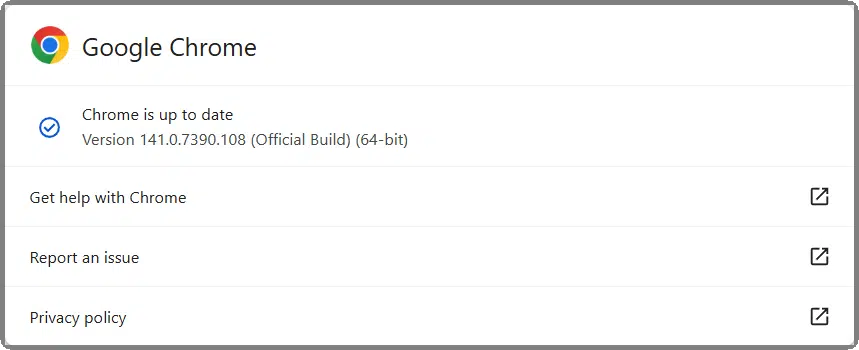
I used to think everyone's browser would be up to date because the major browsers automatically update themselves.
I was wrong. People might have an out-of-date browser, their auto-update wasn't working or available, or they just ignored the "update available" notifications.
Don't be that individual.
Your browser is your first line of defense against threats from the internet. In reality, browsers are more like the first point of vulnerability, as hackers like to exploit browser vulnerabilities to place malware on your machine.
Like any software, all browsers have bugs. Some bugs result in vulnerabilities, and some of those vulnerabilities can be used for malicious purposes. Most browsers — again, like most software — are continually updated to fix bugs as they are discovered to remove those vulnerabilities.
As a result, you need to run the most recent browser version available for your platform.
So keep it updated — it's for your protection.
For many applications, uninstalling isn't the only option.
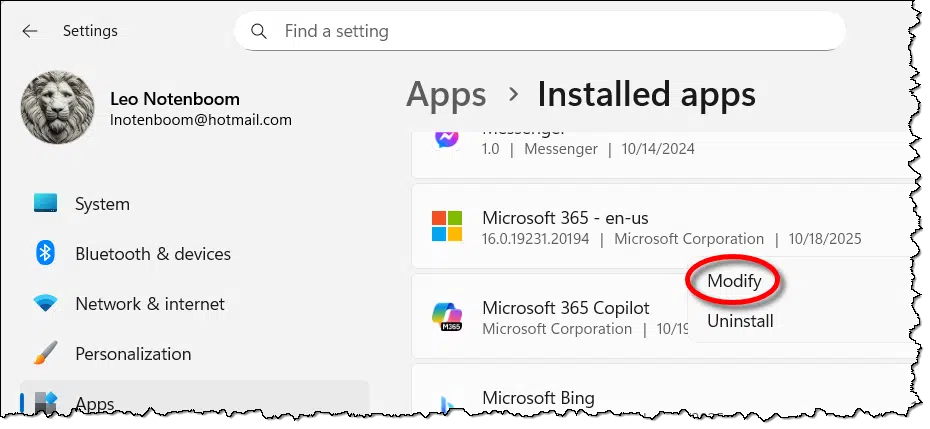
In addition to uninstalling software via Settings > Apps > Installed apps (or Add/Remove programs, as we knew it in the past), you can also modify some installations.
The option to modify isn't always available. It requires support from each application's setup program, and what it does isn't consistent from app to app. It may:
Microsoft Office is a good example of change over time. Currently, if I click the Modify button shown above for Office 365, it launches a repair wizard that offers to repair my current installation. In this case, I guess "modify" means "fix". In older versions of Office, however, it allowed you to select which specific Office applications were installed.
Knowing that modification options might exist can be another useful tool, depending on your situation and the problem you're attempting to solve.
It's not pleasant to think about, but planning is essential.

I was contacted some time ago by a family trying to recover a loved one's online life after a death. It was not going well.
I try not to be morbid, but it's important to consider. If you suddenly disappeared, what would happen to your digital world? Would being unable to access it present a problem for anyone you left behind? Would they be able to pay bills, access your email, save your photos, or find information they need?
It doesn't even have to be about death: any kind of prolonged disconnection counts, even if it's not permanent. An unexpected hospital stay, a vacation that lasts longer than expected, and involves a loss of connectivity — just about anything that makes it impossible for you to access your online life can have dramatic ramifications for other people in your life.
When you plan for your death, include your digital life.
I can't say what is or isn't appropriate for you. It could be as simple as a single password in a known location. It could be a document of instructions kept with a lawyer. It could be taking advantage of features built into some tools for exactly this circumstance. The common thread is simply that you must prepare. And as things change, you must keep things up to date.
Think about it for the sake of the people who rely on you.
Tempted to hit "reply" and tell spammers to knock it off? Don’t. Here’s why replying makes things worse, and what you can do to keep spam under control.
I assume that by "BULK" you mean unsolicited email, more commonly called spam: email you never signed up for and don't want.
Never, ever reply to spam. Period. It won't help and will more likely make things worse.
I won't show you how to set up an automated reply because it's the wrong thing to do. Period.
Instead, let me explain why replying to spam — automated or manually — is a really, really bad idea.
Don't reply to spam. It won't reach the real sender and just proves your address works, so you'll get more junk. Instead, mark true spam as spam so filters learn. Unsubscribe from emails you asked for. Don't bother blocking, since From: addresses change all the time.
When you reply to an email, the reply goes to the address listed in the "From:" field59 in the original email.
The problem is that in spam, the "From:" line is a lie. It's rarely the person or organization that sent the mail. More commonly, it's the email address of someone completely unrelated to the spam message — an innocent bystander.
If you reply to spam, the person who gets your message can do nothing about it. In fact, you're now spamming them.
Spammers use "From: spoofing," as it's called, to hide. It makes tracing the source of spam difficult, if not impossible.
Spammers send email to millions of addresses at a time, including many that are bogus. (Another reason for faking the "From:" address is so the spammer doesn't get all the resulting bounces.)
Why?
It's more like "Why not?" There's no additional cost to the spammer to send out all those bogus emails, as long as some of the addresses are valid.
Sometimes spammers pay attention to your reply, but not in the way you want.
If they pay attention to it, they now know that your email address is valid and their spam has been read by a real person. Note that they will not read your message. They don't care what you have to say. By replying, all you've done is confirm to them that your email address is legitimate.
That's valuable information to spammers, giving your email address gold status among their targets.
The result is that you'll get more spam. Possibly lots more spam.
So, what should you do with spam?
If it's really, truly spam — something you did not sign up for — then mark it as spam in your email program or email service. They will use the characteristics of the message to better identify and automatically filter spam in the future.
If it is something you signed up for, then unsubscribe. Mark it as spam only if the unsubscribe process doesn't work.
Don't bother blocking the sender of spam. The sender is rarely accurate and changes randomly.
If you don't have the option to mark it as spam, or it doesn't seem to help, simply delete it and move on. It's not worth getting all worked up over. There's very little you can say or do that will stop spam once you start getting it.
As a last resort, you might move to an email service that has a better spam filter. While not perfect, as of this update, Google Mail remains the most effective.

61: Or the "Reply-To:" field, if there is one. Also easily spoofed.
Thinking of backing up your files to another partition on the same hard drive? Learn how this puts your data at risk and discover smarter, safer ways to back up before disaster strikes.

It would work, but, yes, it's the wrong direction.
There are risks. And from what I can see, you're running a huge risk before you even begin.
Copying files to another partition on the same hard drive isn't a real backup. If the drive fails, both partitions fail, and you lose everything. A true backup needs to be on a different drive, ideally external, in online storage, or both.
What you describe isn't backing up. You're just moving some files over here so you can erase stuff over there.
It's a fine approach to solving the problem at hand: making room for a clean Windows install. It's a fast way to copy files so you can wipe out the primary partition and copy the files back later.60
But don't think of it as a backup.
If it's in only one place, it's not backed up.
Backing up one partition onto another where both partitions are on the same hard disk is at best only half a solution; at worst, it's a disaster waiting to happen.
If the hard disk fails, all the partitions fail with it. If you put the backups of the primary partition onto a separate partition on the same hard drive, and the drive fails, they both disappear at once.
It's like having no backup at all.
Backups on a separate partition may be useful for some kinds of errors. Perhaps you delete a file you didn't mean to, or a bad sector crops up on a file in the primary partition — the backup on the separate partition would still be there.
But that completely ignores the more disastrous and more common scenario of a catastrophic failure of the entire hard drive, in which case you lose everything on it.
In case I haven't been clear, don't do backups this way.
Back up. That's a given.
Back up in such a way that you're protected from events that might cause you to need the backup. Options include:
Backing up to an external drive will cover 99% of most of the problems you're likely to encounter.

62: Many people would leave what you're calling the backup partition in place after the install. There's no requirement that those files be in the same partition as Windows itself.
Not all websites protect your password the same way. Some do it well, others badly, and a few dangerously poorly. I’ll walk through the good, the bad, and the ugly of password storage, and share one simple step you can take to keep your accounts safe.
You would think. And they should. That's what makes it so frustrating when these attacks are successful.
The problem is that security is sometimes an afterthought. In fact, it's often not thought of in any deep sense until after a successful attack.
The good news is that there's something simple you can do about it.
Websites can store passwords in good, poor, or horrible ways. The safest use salted hashes, which add secret info before hashing so stolen databases are harder to crack. Sadly, some sites still store passwords in plain text or weak hashes. Protect yourself: always use a unique password for every site.
I include it for completeness only, but a very, very bad method websites can use to keep track of your password is to store your actual password.
For example, if your password is:
password
then somewhere in the account database, in a password field, is:
password
Anyone who steals that database can just look inside and find your password.
This is extremely poor security. Sadly, it happens occasionally.
Websites should not keep a record of your actual password. Put more bluntly, with the most basic security, the website does not actually know your password.
Instead, when you first set (or change) your password, they "hash" the string of characters you provide as your password and store that hash instead. A hash is a one-way complex mathematical conversion of the characters you type in to a number. Hashing a password generates a number unique to what you typed in. Even if a hacker accesses that number, they cannot figure out what was typed.
When you log in, the system hashes the password you type in and compares it with the hash that was stored when you set your password. If the hashes match, you must have typed in the same password both times, and the system gives you access to your account.
There are several standard hashing functions. For example, if we hash the password:
password
using the "sha256" hash, the result is:
5e884898da28047151d0e56f8dc6292773603d0d6aabbdd62a11ef721d1542d8
And that's exactly what a "poor" website might do: store nothing more than a standard hash.
The problem is that anyone who hashes "password" using sha256 will get exactly the same result. There are several approaches that allow hackers to discover which hash algorithm was used. While they cannot calculate the password from the hash directly, they can try hashing long lists of common or discovered61 passwords. If they find a matching hash in a breached database, they then know the password used to create the hash for that account.
Not good.
Let's say you specify a password.
password
When using good security, the website modifies it slightly before hashing it. It changes it in a way unique to the website via a "secret" method. It could be as simple as adding a string to your password.
password-website-added-string
Now when that modified password is hashed using a standard hash algorithm, the result is quite different.
ecd4615720cd24c455cbf627243737c94cd1539f4c8903d664a36ef4992fbce8
Each time you enter your password, the website adds this unique information — called "salt" — to what you entered before it calculates the hash. As long as no one knows the salting string (or, more commonly, the salting algorithm, which is more complex than just adding a simple string), there's no way to reverse-engineer a stolen database of password hashes.62
This is password storage done properly.
Whenever there's a report of a user-account database breach, I look for information about what that database contains. I look for one of three phrases.

63: This is why not reusing passwords is so important.
64: This is an oversimplification. A properly secure password storage mechanism would use a different hashing function for a variety of reasons, as well as a unique, random number as a salt. I found a good, more detailed rundown at Salted Password Hashing ' Doing it Right.
Every once in a while, pay attention to your router and reboot it.

We take our routers for granted. I mean, we really take our routers for granted.
Seriously, when was the last time you even thought about that device, which is a critical component of connecting you to the internet and keeping you safe? I'm thinking it's been a while.
I've talked a lot about router security in the past, but this is more of a performance and stability thing: every so often, reboot your router.
Routers are amazingly complex little devices. They're small computers in their own right, often running a variant of the Linux operating system. Like any operating system, things can become less efficient over long periods of time. Rebooting your router once a month or so can improve its performance and even make some of those mysterious connection errors less frequent.
Ignore an account for long enough, and it'll die of natural causes.

I'm often asked how to close various types of accounts. The most common cause for concern is an email account getting unwanted email.
My advice?
Don't.
The best way to "close" an account you're no longer interested in using is:
That's it.
Behave as if the account doesn't exist. Ignore any mail sent to it or anything else associated with it.
Eventually, the service will probably remove it for lack of use.
Important: don't log in to see if it's still active. Even logging in once can be taken as a sign that you've changed your mind and want the account to remain active.
Also, make sure you're not using the account elsewhere in other ways. For example, you can ignore your hotmail.com email, but if you're still using that account to log in to your PC or access OneDrive (or any other Microsoft service), the account is still active and will not be deleted. Once you understand how many places an account is used, you might decide not to delete it after all.
Want Windows 11 without tying it to a Microsoft account? There’s still a way. I’ll walk you through a simple but slow two-step trick. The result: a fresh Windows 11 setup with only a local account... at least until Microsoft closes the door again.

Microsoft has removed various workarounds discovered to allow Windows 11 to be installed without using a Microsoft account. Their recent justification claimed a change was to "avoid missing important parts of the setup process".
Important for whom?
The technique I'm about to describe is simple but time-consuming. So far, my results show it works... for now. The resulting installation of Windows 11 Home has only a local account.
The process starts a little further back than you might imagine.
Boot from Windows 10 installation media and set up Windows 10.
Yes. Windows 10. It's not our final destination, of course, but it's the first step in our local account two-step process.
The easiest way to install Windows 10 with only a local account is to disconnect the internet. Unplug the Ethernet cable or turn off the Wi-Fi adapter. The setup program may complain, but forge ahead anyway without connecting.
Eventually, you'll be asked, "Who's going to use this PC? What name do you want to use?"
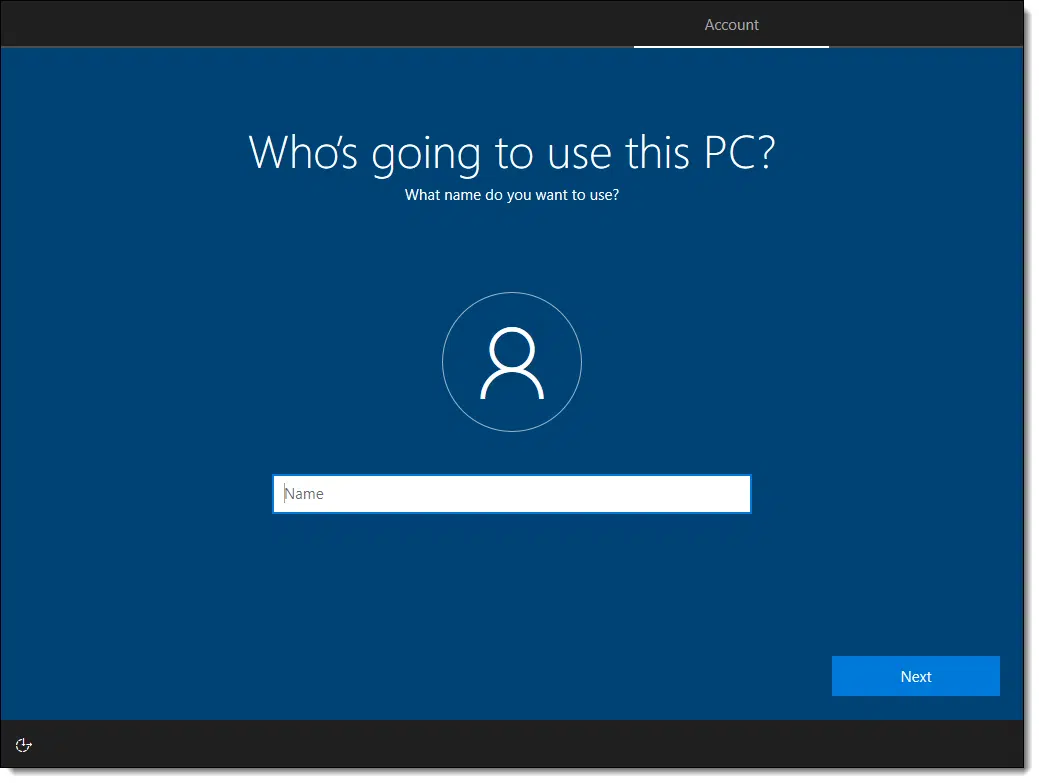
This is the username of your local account. For example, I generally use "leon"63.
Click on Next, and you'll be asked to provide a password (twice) and set answers to some recovery questions.
Complete the Windows 10 installation. Even when done, do not connect to the internet.
Replace the Windows 10 installation media with Windows 11 installation media.
Run the "Setup.exe" file found there.
Assuming your computer meets Windows 11's minimum requirements, the Windows 11 upgrade will proceed.
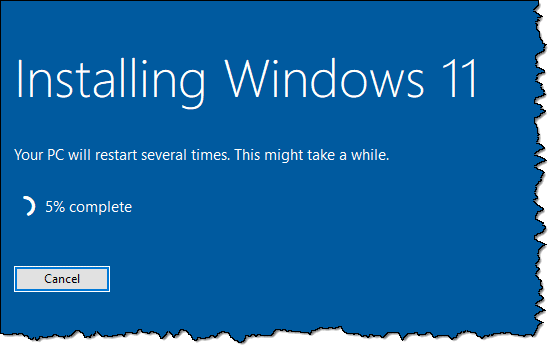
Eventually, after the inevitable copies and installs and perhaps even a reboot or two, you'll find Windows 11 ready to sign in.
With your local account.
If you now examine the accounts in Windows 11 settings, you'll see that there's only a single local account with no association to a Microsoft account.

Now, of course, you connect to your network and let Windows 11 update itself and more.
Be careful!
Windows will "encourage" you to sign in with a Microsoft account multiple times and in multiple ways. Assuming you want this computer to have nothing to do with a Microsoft account, resist the requests. Signing in to any service with a Microsoft account, even once, can have ripple effects that go far beyond whatever service you think you're signing into (particularly if you don't read the fine print).
I assume you understand what you're missing without a Microsoft account. Things like backing up BitLocker recovery keys, using cloud storage, and managing other services and features become your direct responsibility.
I totally understand that, for many people, avoiding those features is exactly the point.

65: Which literally harkens back to my first email address at Microsoft in 1983.
Is your PC slowing down, acting odd, or just feeling old? A full reset might be the fix, but how often should you do it? I’ll share when it makes sense, when it doesn’t, and how to decide if your computer needs a fresh start.

Resetting your PC involves backing everything up, reinstalling Windows and applications from scratch, and restoring your data from the backup or elsewhere.
In years past, I advised doing a reset fairly regularly. Recommending an annual reset wasn't uncommon for active users, including me.
These days, a reset isn't as necessary as it once was. I'll review why and when we would want to reset Windows.
Resetting your PC gives it a fresh start, clearing out cruft, clutter, and problems. These days, most people may never need to do it. But if your computer feels slow, unstable, or is hit by malware, a reset can help. Sometimes it's the quickest fix. Of course, always back up first.
Like any modern operating system, Windows is unfathomably complex.
Over time, Windows becomes slightly less stable. As updates are applied, old components are replaced, software is installed and uninstalled, configurations are changed, malware is discovered and removed, and so on, the internal state of the system gets messier. Some of it is under Windows' control, but much is at the mercy of third-party software, like the drivers and applications you install.
The symptoms are subtle. They range from the system feeling slower than it once was to applications not behaving as they should to random crashes and other issues.
A reset starts over with a clean slate, and the process begins again.
That hasn't really changed. What has changed is that the rate of degradation has decreased dramatically. These days, it's reasonable to assume that for a casual user, the operating system will remain stable enough throughout the life of the computer itself. A "reset" of sorts happens when the device is eventually replaced.
But, sometimes — particularly for active users who stress their systems in various ways, such as installing and uninstalling lots of different software — a reset might be called for before the computer's replacement.
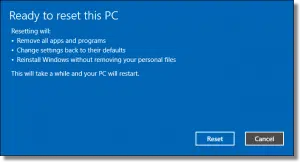
There's no hard-and-fast answer to how often you should reset your PC.
As I said, it's possible you may never need to.
I'll use myself as an example. I used to count on a reset roughly once a year. As you can imagine, I'm a heavy user. I play with a lot of different things and test an assortment of even more. I definitely consider myself at the far end of the bell curve.
And yet, I've reset my current desktop — five and a half years old as I write this — exactly once, about a year ago. That's over four and a half years without a reset.
Your mileage will definitely vary. Rather than looking at a specific timeframe, base it on your system's performance. At some point, its behavior will reach some threshold and just "feel" like it's not the machine it once was. That's a prime time to consider a reset.

Besides feeling that your machine has slowed down or become unstable over time, there are a few other times when it's worth considering a reset. Rather than being driven by explicit concerns, these are opportunities to reset the clock.
When you're thinking about replacing your machine, take a minute to see if it's really as bad/slow/incapable as you think it is. Whatever's driving you to consider a replacement is also an opportunity to see if your existing machine might feel like a replacement after a reset. While certainly not guaranteed (there are too many variables), it can save you a lot of time and money when it works. And, let's face it, getting a new machine incurs many of the same "costs" as a reset; you still have to reinstall all your applications and restore/move your data.
I'm constantly amazed at the time people spend trying to remove malware from their computers. They'll spend hours or days downloading assorted tools, running scans, and following sketchy advice — all without a guarantee that the malware is actually removed.
Aside from restoring an image backup taken before the malware arrived64, a reset is quicker. It's also guaranteed to remove the offending malware. As a bonus, your machine gets to start over with a clean slate.
I don't mean to imply that performing a reset is some magical silver bullet that will suddenly fix all the problems you've been having with Windows, but it'll fix a lot of them.
I also realize how Windows performs changes over time. A clean install of the Windows OS from four years ago will behave differently — faster or slower — than a clean install of today's Windows — even the same version (10 or 11, for example). That's the nature of software development over time.
But removing the accumulation of cruft is always a good thing.

66: Which, sadly, too many people do not have.
Forcing your printer drivers to start over with a remove/reinstall can resolve issues.

Even though it's improved dramatically over the years, printer problems remain common and often vexing in Windows.
When experiencing a problem with a printer — especially when you can't connect to it — I recommend a simple diagnostic step.
This forces the printer drivers to reset to a known initial state and often resolves connectivity issues.
It won't fix every printer problem, but it's a good diagnostic and repair technique to have in your toolkit.
Whole disk encryption is great, but it's important to understand when it doesn't protect your data.

Whole-drive encryption is a great way to ensure that everything on a hard drive is encrypted and invulnerable to prying eyes.
Regardless of how you encrypt your data, when you unencrypt it to use it, remnants of that data can appear — also unencrypted — in temporary files or the system-paging file.
With whole-drive encryption, even those locations are encrypted before they're written to disk.
Here's the problem: while your system is running, everything on your encrypted disk is freely available. That's a benefit: you can continue to use the files and folders on the disk normally, knowing that when you turn your machine off, it's all inaccessible to whoever else might come along.
Here's an example of when this becomes a problem. Say someone is traveling and:
Whole disk encryption is good, but it's important to understand its limitations. If the disk and its data are accessible to you, it's accessible to anyone with the same access as you. Only when the machine is powered down or the disk is disconnected does the full protection of whole-disk encryption kick in.
Your friend or that coffee shop down the street might be your ISP at any particular moment. Understanding that is important.
This sounds redundant, but whoever provides your internet is, by definition, your internet service provider.
Seems obvious, right?
When your internet is provided by a hotel, landlord, coffee shop, or even a friend whose home you're visiting, it's the hotel/landlord/coffee shop/friend who is your ISP. They may get their internet service from a more commonly recognized name-brand ISP, but in providing it to you, they've become your ISP in that moment.
Why is this distinction important?
Because your ISP, whoever it is, has access to what you're doing online. They can see what sites and services you're connecting to, and they can view the data you're exchanging with those services, unless it's encrypted.
In the worst case, they can turn evil, routing you to sites and services you might not expect.
It all takes some technical savvy, but depending on what you're doing, it might be important to protect yourself.
Most importantly, just be aware.
When people find their posts or comments removed or altered from websites they visit, sometimes they claim that their right to free speech has been violated. That's rarely the case.

No, it doesn't.
Free speech is an interesting concept in general, especially in today's turbulent times. Take it to the internet, and things get even more "interesting".
Yes, there are rules and even laws, but it's complex.
The internet is not an entity, and there are no rules or laws that span it completely. Actual laws vary, often dramatically, from place to place. Free speech, when afforded by law, does not mean you may use someone else's venue for your message. It's their platform run by their rules. You can, however, set up your own platform (website, newsletter, magazine, or street corner). The First Amendment only covers what the U.S. government can or cannot do, but does not prevent, say, website owners from setting up more restrictive rules of their own. Regardless of the situation, free speech does not guarantee you access to any particular audience, or any audience at all.
I am not a lawyer. This is not a substitute for legal advice from an attorney or other source better versed in all the nuances of free speech. If you need real legal advice, then get a real attorney65.
My discussion here represents only my understanding of and opinions on the assortment of issues related to free speech.
I could be wrong. I don't think I am, but I could be. (Which, by the way, applies to everything I've ever said or published. )
Let's start by acknowledging that there is no such entity as "the internet". Internet is just a term that describes a vast global network of interconnected computers.
It has no laws or rules.
Even the protocols, formats, and various ways devices interconnect aren't governed by enforceable laws. A more appropriate (if sexist) term would be "gentlemen's agreements." Adhere to this specific protocol, and you'll be able to do Z on the internet. Change that protocol (which can be done), and Z won't work.
Just look at all the cross-browser capability standards used to display a webpage, and you'll get an idea of those agreements at work. Or not.
There are laws that govern aspects of how we communicate with each other, including how we do so over the internet.
One problem is that those laws are not global. They're different for each of the hundreds of countries in which internet users live.
As you might imagine, countries rarely agree on everything, including what you're allowed to say and where you can say it. In some countries, it's illegal to speak ill of the ruling monarch. In others, it's only illegal if you threaten them. In still others, you can say what you want.
The issues, concepts, and legalities surrounding the internet and what can be done on it are no different. Some countries try to strictly regulate the internet used within their borders; others, not so much. Many try to apply laws that were written before the internet's existence to current internet-related issues, and they experience varying degrees of consistency and success.
In short, there's a bucketload of laws that apply to what happens on the internet. Unfortunately, it's a bucketload of inconsistent, incomplete, and contradictory laws that may or may not apply to any situation you encounter — and even then, only if it rises to the level of some government agency's attention.
Not all countries have free speech provisions.
Just because you live in a country that affords free speech as a right doesn't mean that the service you're using in that country has the same guarantees. Depending on the location of the company, the individuals who own the site, or the hosting company that provides the server space and network connection, there may be no free-speech guarantee at all. Period.
Let's say I run a website. To keep things simple, we'll say that you, I, and the website are all within the United States.
You take issue with something I post on my website, and you say so, using the comment function on that website.
This has nothing to do with your free speech rights. If anything, I expect it has more to do with my rights as the website owner. I am not required to provide you a place for what you want to say, no matter what you say or how you say it.
However, you can set up your own website, where you might choose to take issue with me. I can do nothing about that.
That's what free speech really is, at least to me: the ability to set up your own pulpit and say whatever the heck you want. Free speech does not mean you have the right to use someone else's venue for your message.
And it doesn't make a difference that you can't reach my audience to make your point from your site. Freedom of speech does not guarantee an audience. If you get one, fantastic. I have no right to reach them via your venue, either.
People often cite the First Amendment to the United States Constitution (often in the context of having their First Amendment rights violated). Typically, they are incorrect.
The amendment starts with the phrase, "Congress shall make no law...". If no law was made, or you weren't arrested, or a court decision wasn't involved, or a government agency didn't intervene, then the First Amendment doesn't apply. The wonderful webcomic XKCD explains it beautifully.
There's more to this than the whim of the site owner. Many will have thought through what their site is about and what they want it to look like. They may well have set up some rules or guidelines ahead of time.
Most websites publish Terms of Service (TOS) about posting information. Be it writing your own blog on a blog-hosting service, making posts in a forum, or leaving comments on an article, by participating, you either explicitly or implicitly agree to abide by those terms.
Don't like the terms? Don't post there. Go somewhere else. Violate the terms? Expect to see your comments, posts, or blog disappear.
It's not your site. If you want to play there, you must play by their rules.
Similarly, if you use a hosting service or something similar to set up your own website, service, or blog, you'll likely be faced with an Acceptable Use Policy, or AUP. As the name implies, when you use someone else's services — even if you're paying for the privilege — you're required to abide by what they consider to be acceptable use of their services.66
And regardless of where you post or host and what their rules are, there remain things that are simply wrong to say or do — at least morally and perhaps legally. The classic example is that it's not within free speech rights to randomly yell "Fire!" in a crowded theater67. Where free speech guarantees are available at all, they don't trump the safety of others.
"So, if website owners can just randomly delete my comments or posts, how am I supposed to make my point to the people who are there and need to see it?"
You may not be able to. Whether you're on the web or using another form of media, there's nothing about human discourse that guarantees you get to make your point to the people you think need to hear it. There's certainly no legal recourse that I'm aware of.
Except (and this is where you really need to talk to a lawyer) ...
Defamation, slander, and libel are all terms that have very specific legal implications. I won't try to delve into that. But depending on your specific situation, information on the internet that intentionally lies about or maliciously harms you may be one thing on which you can act. Like I said, get an attorney.
I've been banned from one discussion forum (that I know of).68
And as unfair as it is, the site owner had every right to do so. It really sucks because it prevents me from communicating with the other users of that site.
But it must be this way.
Consider the alternative: what if I was able to force that site owner to let me back in? If there were a mechanism to let people force their way onto sites that others own and control, that would have a pretty chilling effect on the internet. In fact, it's likely that sites like Ask Leo! wouldn't exist. Malicious entities would use that ability to their own ends.
As distasteful as it is, the website owner's ability to pick who they allow on their site is an important form of freedom of speech.
Even if they're wrong.

67: Get a real one. Get an honest one. They're out there.
68: Perhaps the easiest way to explain AUP differences is that some hosts allow you to post porn while others do not.
69: Unless, presumably, there was an actual fire.
70: Corgi-related, of all things. Go figure. Just goes to show that it's not always politics. In this site's case, I take my ban as a badge of honor. Update: The site that banned me is gone. I'm still here.
Internet cafe owners can monitor the activity on open WiFi hotspots. Whether or not they take the time to do it is another story!

When you're using someone else's WiFi — or even their wired connection — they're providing you with internet service.
They've become your internet service provider, or ISP.
And ISPs are special.
Any internet connection provided by a third party can be monitored by that third party. They are your internet service provider in that situation and can watch your data as it passes through their equipment. Even HTTPS, while it protects the data, does not hide which sites you're connecting to. A VPN is the only real protection, but even then, the provider can see when you're transferring "a lot" of data. Do they watch? It's unlikely, but there's no way to tell for sure.
We talk a lot about staying safe when using an open WiFi hotspot. Those are the free WiFi connections available at many coffee shops, airports, and other public places.
The concern here is that an open WiFi hotspot — one that requires no password for an initial connection — doesn't add any security, and anyone within range can monitor your traffic.
Fortunately, a WiFi connection that is not "open" — meaning it's secured and encrypted using a WPA2 password or the hardwired connection that they provide — doesn't suffer from this risk.
But that doesn't mean that there isn't still a significant risk.

Your ISP can see everything you do.
If you're not taking additional steps to encrypt or otherwise hide what you are doing, your ISP can see that you are downloading, say, a specific file from a specific location.
ISP stands for Internet Service Provider. The coffee shop or other location is providing you with internet service. In this situation, they're your ISP. The administrator of a publicly available internet connection, such as an open WiFi hotspot, can monitor all unencrypted traffic and see exactly what you're doing.
Whether or not they watch is a completely different subject.
My guess is that the local coffee shop manager not only doesn't care what you are doing with the internet, but also doesn't have the time or expertise to know what to look for. Perhaps someone upstream can look — perhaps there's technology in place that's looking for certain types of activity — we just don't know for sure.
What we do know is that they can look.
The only way to truly protect yourself from that level of intrusion is to use a Virtual Private Network, or VPN. My article How Do I Use an Open WiFi Hotspot Safely? discusses this in a little more detail.
Ultimately, a VPN is the only way to hide what you're doing from the coffee shop owner, administrator, or your ISP.
But we're not quite done.
When you're using a VPN, an ISP may not see what you're downloading, but they can see that you're downloading a lot. They can probably figure out which computer connected to their network is the guilty party.
They can identify you as being a bandwidth hog; they just can't tell what file you're downloading.
Given that we talk a lot about using HTTPS to remain secure, it's worth exploring why I've not mentioned it here.
HTTPS encrypts the connection between your computer and the service you're using. That's important for things like banking, as one example — your conversation with the bank can't be listened in on by anyone.
But your ISP can still see that you're talking to your bank. And if it's an open WiFi hotspot, so can that creepy guy with a laptop over in the corner.
If you're downloading something over HTTPS, the ISP can't see what you're downloading, but they can absolutely see the site you're downloading it from. Sometimes that — coupled with the fact you're downloading something large — is enough to question what you're up to.
A VPN won't change the size of the download, but it will hide the site you're connecting to.

Think a VPN makes online banking safer? Banking is already protected by strong encryption, but a VPN adds a twist. I’ll explain what’s really protected, what isn’t, and where the real risks lie when you bank on the go.

Online banking these days is relatively safe to begin with. HTTPS connections, for example, mean your conversation with the bank is encrypted between your computer and the bank's servers, regardless of whether or not you use a VPN.
There are a couple of things that a VPN kinda/sorta makes slightly safer.
Let's examine the differences.
Online banking is already secure with HTTPS connections, even without a VPN. A VPN can hide which bank you're using, but it doesn't make your banking safer in most ways. In my opinion, the bigger risk is losing your laptop, so focus on strong logins and two-factor authentication instead.
Without a VPN, connecting to your bank's website happens over an HTTPS connection. This means that data is encrypted before it leaves your machine and can only be decrypted when it arrives at the bank's server, and vice versa. No one in between can make sense of the encrypted data.
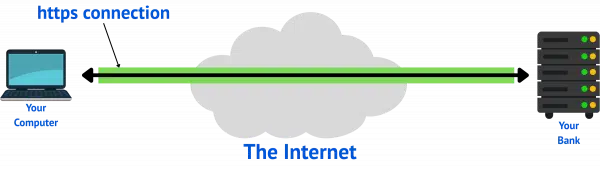
This provides nearly bulletproof security regardless of whether you are at home or on the road. No one can intercept your data, not the ISP you're using, the open hotspot you're connected to, or anyone else.
That doesn't mean it's completely risk-free, however.
Without a VPN, due to HTTPS, no one can see what data you're exchanging. However, a hacker can see that you are connected to your bank. In fact, they can see which bank you use. That tells them you may have your credentials for logging into your bank available.
This could make you a slightly bigger target for other forms of malicious behavior. It seems unlikely but possible that knowing you're connecting to a specific financial institution could be enough of an incentive to try to steal your laptop, for example, and see if your accounts could be broken into once they have physical access to your computer.
It's not something I worry about.
Another form of vulnerability is called a "man in the middle" attack. When you connect to your bank, information is securely exchanged as part of setting up that encrypted connection. In rare cases, it's possible that a malicious actor could insert themselves in such a way as to appear to be your bank, right down to the HTTPS verification. This is extremely rare and difficult, and almost always involves some kind of notification that certificates are being installed on your machine. Accepting these types of unrecognized certificates can lead to HTTPS compromise (so, as always, pay attention to notifications).
This is something I worry about even less, mostly because it's extremely rare, plus there's a notification that something's happening, which I'd never allow while on the road. The more common scenario is when schools or corporate networks intentionally use the same technique to monitor their users' online activities.
Using a VPN, your connection to your bank still happens over HTTPS and is end-to-end encrypted between you and your bank. The VPN adds a layer of encryption and data obfuscation between your machine and the VPN's internet server.
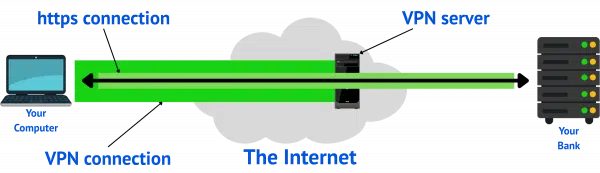
A VPN hides what you're doing. If someone can see data to and from your machine, the only thing they can see is that you're using a VPN (and which one you're using). They cannot see that you're doing any online banking, or which bank you use, at all.
The VPN service, of course, knows which bank you're connecting to, but still can't see the data being exchanged.
The only real risk a VPN introduces is that it could perform a man-in-the-middle attack on the HTTPS connection — but again, there would be notifications that something was going on.
I bank online all the time. It's convenient, and most importantly, it's safe.
If I'm at my local coffee shop or airport, I'll fire up my trusted VPN before I do anything (banking or otherwise), but I also don't panic if I forget to. HTTPS has me covered.
What I definitely do, though, is when a site asks if I want it to remember my sign in (usually a little checkbox below the username and password fields) I'll always explicitly say "no" (by leaving that unchecked).
Clearly, I don't consider packet sniffing and data interception nearly the problem it once was, but that doesn't mean that there aren't risks.
Ways that I reduce those risks include:
The biggest risk, in my opinion, is losing my laptop. These are all measures that secure my accounts in such a way that even if someone does steal my computer and bothers to try to break in69, they'll be blocked from accessing my accounts.

71: Most theft is about hardware resale, not breaking in.
72: I would avoid banks that don't use HTTPS by default. Fortunately, I don't know of any.
FAT is the most commonly understood disk format across almost all devices that accept a USB thumb drive.

When formatting a disk, you're given options as to which type of file system you want to use. This determines how data is organized on the drive.
If you're formatting a USB flash, thumb drive, or SD card, my recommendation is to use FAT32 or exFAT, particularly if you expect to use them with non-Windows devices.
USB thumb drives are among the most portable of devices and are inserted into a variety of systems. Not only might you use one to carry data between computers, but many smart TVs and other devices now allow you to insert a thumb drive containing video, music, or other data to be processed by the device.
Not all file systems work on all devices. Fortunately, FAT — and specifically, FAT32 — is by far the most commonly understood and accepted way of storing information. Unless you have a reason to choose otherwise, choose FAT32 for those thumb drives. ExFAT is the next choice.
Email is like a postcard: anyone with access can see what it says.

Typically, when you send an email, anyone along its delivery path can read it. Like a postcard mailed through a postal service, your mail carrier can read it, as well as anyone in the postal offices and delivery trucks between the sender and you. (The exception would be if you manually encrypted your email's content — perhaps like putting your postcard in an envelope.)
Not just anyone has access to the delivery path of an email. For example, it would be difficult for you to intercept an email I send to someone who isn't you. But the mail servers at either end, the internet connections between those servers, and any servers along the way are all opportunities for technicians or government agencies to see what's being sent.
That may not bother you. It rarely bothers me. But it's important to keep in mind if you are communicating something sensitive via email.
With USB-A and USB-C, things have gotten simpler, but not always obvious. I’ll walk you through what cables really do, how devices and chargers “talk,” and why missing charger blocks isn't a big deal.
USB standardization has made all of this much simpler.
For the most part, if the cables fit, your device will charge safely. Slowly, perhaps, but safely. There are exceptions, but when talking about portable devices, it's rare.
USB has simplified charging dramatically. Most cables just pass power through, so if it fits, it works. It may be slower, but it'll be safe. USB-A always means five volts, while USB-C is smarter: device, charger, and even cable "talk" to each other to decide the fastest, best, and safest speed. Missing chargers? Standard ones are everywhere and work fine.
The older, larger, square plug and socket used for years is the USB-A socket. Regardless of what's at the other end of a USB cable, if one end is USB-A, this tells us pretty much everything we need to know.
USB-A supports five volts. That's part of the definition of the USB standard.
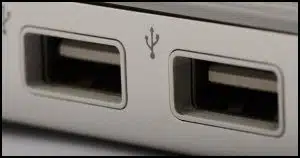
Originally, USB-A ports were limited by the USB specification to providing only half an amp of power (0.5A or 500ma), though that's been increased in USB 3 to nearly twice that (900ma), and even 1.5 amps in a charging-specific specification.
The upshot is that if your device uses a USB cable of any sort to charge, and that cable plugs into a USB-A connector, it'll work. The USB standard defines everything we care about.
It may charge more slowly than it could, though. That's where USB-C factors in.
USB-C is a newer, smaller, more flexible version of the USB family of connectors.

USB-C is smaller than USB-A, has more wire connections (24 compared to 4), and is symmetrical, meaning you can plug it in either way; there is no right-side-up to figure out.
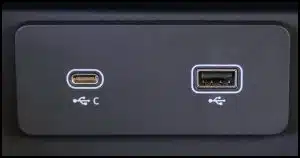
USB-C is a more flexible but slightly more complicated solution for power delivery. It's not limited to five volts. USB-C may provide:
Later versions of the protocol have expanded to include 28, 36, and 48 volts as part of the EPR, or Extended Power Range, addition.
Here's the trick: when you plug in a device — say your phone — into a USB-C socket, the phone and power supply have a little "conversation" about:
If there's no conversation, the default is our old friend, five volts. On the other hand, if the two can negotiate something better, that's what they use. If that happens, your device will charge faster.
When it comes to your mobile phone and other small portable devices, a USB cable is just a cable. Wires in the connector at one end pass through to the connector at the other. If you can plug it into a power supply at one end and your device at the other, then the cable will work and your device will charge.
These are referred to as passive cables. They do nothing other than connect.
Some (or even most) USB-C cables have a chip as part of the cable that, among other things, identifies the cable's capabilities. For example, extended power capabilities can range up to 240 watts of power delivery, which requires a cable capable of safely transferring that much power.
This means that the "conversation" between power supply and device now includes a third voice: the cable connecting the two. The conversation then covers:
The goal is for them to agree on the safest, highest-power delivery.
As you pointed out, more and more devices come without a charger. This is an attempt to reduce electronic waste, since:
Given that USB-based chargers are the emerging standard, each device no longer needs a unique charger. The chargers we've already accumulated will do just fine. Assuming the cables fit and connect, you're mostly done.
And if you find yourself short a charger, they're standard, inexpensive, and easy to find.
Sharing contacts with online services can have benefits, but it can also have a nasty side effect: spam.

Many online services, including most social media sites, ask you to share your contact list with the service. I recommend you avoid doing so — at least until you understand what will happen when you do.
When you upload your contact list, the service determines which of your contacts use the same service. This is most often done by matching email addresses: if an email address in your contact list is the email address of a user of the service, then the service will either connect you or offer to make the connection.
The service will also know which of your contacts are not currently using the service — and this is where it gets dicey.
A well-behaved service will offer to send your contacts an invitation to join the service. You'll say "no", I hope, since your friends' emails should be kept confidential unless you have their permission to share them.
A not-so-well-behaved service will send the invitations without asking. Most people consider this kind of "invitation" spam, as it's unwanted.
Until you're certain you won't be inadvertently spamming your contacts, don't upload their information. If you want to invite them, do so manually by dropping them a message yourself.
Worried that staying signed in leaves you open to hackers? I’ll explain why your router, firewall, and smart habits protect you, what the real risks to your accounts are, and the simple steps you can take to stay safe online.

There are two ways to take your question:
Can hackers hack into my computer from the internet to access accounts that I've signed into?
or
Can hackers hack into my online account on the internet because I haven't signed out of the account on my computer?
Both answers are basically "no". But because there are never any absolutes when it comes to security, the true answer for both is that it's extremely unlikely.
Movie plots aside, hackers can't just "reach in" from the internet and hijack your signed-in accounts. Firewalls, Windows updates, and good security habits keep you safe. The real risks come from phishing, malware, and weak or reused passwords, not from staying logged in on your computer.
If someone successfully hacked into your computer, then yes, they would have immediate access to any accounts you happen to be logged into at the time.
But before you panic, let's look at what that hacker would have to do to make that happen.
They would have to breach your router. Your router acts as a powerful firewall, preventing unsolicited connections from the internet to any computer on your local network. Routers are underrated; they are a very powerful first line of defense.70
They would have to breach the Windows firewall. The Windows firewall is something we rarely think about, as it works quietly in the background. While its history has been spotty, the firewall built into Windows has come a long way and represents another significant layer of protection. While it's technically redundant with the firewall provided by your router, it's so unobtrusive that leaving it on is a fine thing to do.
They would have to breach Windows. Even if hackers were able to bypass both firewalls in their way, they'd still have to find and leverage some kind of unpatched vulnerability in Windows itself before they could gain access to anything. Keeping Windows up to date, as well as keeping your security software up to date, is your best protection in the unlikely event that anyone ever makes it this far.
So, no, I don't see it as being likely at all. This is also why I don't turn off my computer at night as protection against hacking. It's just not that big a threat.
This one's even easier.
There's nothing about being signed in to an online account on your PC that makes hacking into that account from somewhere else on the internet any easier.
In fact, for some accounts, it could make it a little harder.
Let's say you're signed in to an account on your PC. Now you go to sign in to that same account on your mobile device or another computer. You're instructed to "approve" the second sign-in on the first computer. Approving something on a machine they don't have access to is just not something a hacker has any hope of hacking. Admittedly, most sign-in techniques will let you say "I can't access the signed-in machine", but the alternatives offered aren't affected by your having been signed in in the first place.
Once again, no. Your online account isn't at any greater risk because you stayed signed in on your PC.
Hopefully, I've set your concerns to rest. But what about the real risks to your security?
First, if you allow malware onto your machine, that malware can do anything. Your firewall(s) don't protect you if you explicitly download and run something malicious or open an attachment you shouldn't have. All bets are off when this happens. Having that malware gain access to your online account(s) might be the least of your concerns.
Online accounts get hacked for a variety of reasons. Here are the most common mistakes to avoid.
In my opinion, these are the risks you should be paying attention to and ensuring your good habits protect you against.
73: And, interestingly, not by design but by accident. The technique used to share a single internet IP address among several machines has this firewall as a side effect.
Two-factor authentication isn't always limited to smartphones and text messages.

I regularly hear from people who avoid two-factor authentication because they don't have a mobile phone or a smartphone, or don't do text messaging.
Depending on the service, two-factor authentication may offer methods that don't require any of those things.
Frustratingly, sometimes they support alternatives without making it clear. For example, Yahoo! requests that I enter a mobile number, which would seem to make two-factor a mobile-only alternative. Not only could I add my landline number, but once I logged in, I was offered additional options, including:
Clearly, two-factor authentication at Yahoo! is significantly more flexible than they make obvious.
Before you give up on the additional security that two-factor authentication provides, make sure you've explored all the options your service supports. While it may not support all the options you might want, it may support more than you expect.
Like me, you may be surprised.
Lose power suddenly? Reboot again for safety.

The power goes out, and your computer unexpectedly turns off.
Once the power comes back on, the typical approach is to reboot and hope you haven't lost much data and everything is working as it should. If it is, or at least seems to be, you move on as if nothing happened.
I take an extra step: once my machine is up and running, I turn around and reboot it.
The issue is that when you shut down a computer — the first half of a reboot — the operating system writes data to disk and makes sure everything is cleaned up in an orderly fashion. We think most often of files on disk, but modern OSs keep track of a tremendous amount of information about all of your devices and the operating system itself.
When the power simply disappears, the operating system has no way to do that.
When the power comes back on, the OS should notice what's out of whack and clean it up as it boots. But anyone with much experience will tell you that's not always the case. Sometimes an additional, orderly shutdown as part of a reboot will cause the operating system to write to disk what it wasn't able to write before.
It's one small thing that can prevent mysterious errors from cropping up later without explanation.
Possibly being labeled a spammer is another reason not to forward political and other emails. Do it enough, and your normal email may not get delivered.
As I write this, thousands of people have my email address. It's right there on the "From:" line of every newsletter I send.
Naturally, some of them forward me jokes, political messages, hoaxes, or urban legends. I know they mean well and do so with the best of intentions.
But I mark them all as spam. It seems harsh, but I feel I have to.
Because that's exactly what they are.
Even if I don't, others may, and because of that, there's a very important lesson here in making sure that the rest of your email keeps getting delivered.
Spam is whatever the recipient says it is. If enough people mark your emails as spam, email systems start to consider you a spammer. Be respectful of other people's inboxes, and you should be fine.
In its purest form, spam is email you didn't ask for. Some folks limit it to commercial email, but many do not.
It's a simple definition.
You can argue about it all you want (and I often do), but the fact is, people will push the "Report Spam" button on anything they don't like.

I'll use Google's Gmail as my example here.
When a Gmail user hits the "spam" button on an email you sent, that's a strike against your email account. That person is telling Google that any email that looks like this is spam as far as they're concerned.
One of the biggest things Google can look at as part of trying to define what "looks like this" is the email address the message was sent from.
You.
If that happens often enough or is marked by enough different recipients on Google, then Google will start automatically marking email that looks like that as spam without needing to be told further.
In other words, your email won't get delivered. That includes not getting delivered to all the other people on Gmail who never called it spam.
This applies to just about any email system that has a "Spam" or "Junk" reporting system.

It doesn't matter. You don't get to define what is and is not spam; your recipient does.
And by reporting spam, your recipients can affect whether your email makes it to others.
I know that this doesn't feel right, but it is what it is. People want control over what shows up in their inbox, and marking any unsolicited email as spam is one way to do it.
In the beginning, I tried replying and asking people to stop forwarding me stuff.
Not only does that take time, but people got angry with me for daring to do so. No one wants to deal with angry people, but I don't want their forwards.
So, one click and it's marked as spam. I get on with my life. If it's a one-shot email, it probably affects nothing. If it's a repeat offender, eventually Google will get the message and mark it as spam for me, removing it from the email I need to see.
As I said, people got angry when I replied. I expect people will get annoyed at what I've said here, and blame me for being too draconian in my approach to email I didn't ask for.
This isn't about me.
This is about all your email recipients who are doing the same thing without telling you.
If you find that your email isn't getting delivered to people, ask yourself this: Have I been sending them things they didn't ask for? Lots of humor? Petitions? Politics? Irresistible pictures and videos?
If the answer is yes, then it's possible that by using the Spam button, they've convinced their email provider that email from you is spam.
Worried you need a new rescue disc every time your backup program updates? Relax. I’ll explain when it matters, why it usually doesn’t, and how you can get one at the last minute.

You don't need to make the rescue media every time you back up.
You don't even need to make new rescue media each time Reflect updates itself.
Heck, you may not even need to make rescue media at all until you need it.
There are times it's appropriate to make a new one, but even then, it's not a disaster if you don't.
To restore a backup image to a hard drive, that hard drive can't be in use by other software. Booting from the hard drive means that Windows itself is using it, so you need to boot from something else.
That "something else" is the rescue media or rescue disc. It's also referred to as an "emergency disc" or other terms by other backup programs. It's typically a USB stick from which you can boot your computer when or if you need to restore a backup image to the computer's hard drive.
Most backup programs encourage you to create rescue media when you first install the backup software, or perhaps after performing your first backup. Creating a rescue disc is something you can do at any time from within the backup software.
I encourage you to create rescue media, as well as make sure you can boot from it, so you know you're prepared should the need ever arise.
You absolutely don't need to make a new rescue disc for each backup. The only time you might consider it is when the backup software itself updates.
My recommendation is that you only make new rescue media on major version updates (say, version 6 to version 7) and not on minor updates (like 6.1 to 6.2) unless the release notes indicate a compelling reason to do so.
Honestly, even then, I'm likely to overlook it and not bother with a new rescue disc at all.
It won't be a disaster.

Say you've misplaced your rescue disc or you didn't make one at all, or you realize that your rescue disk is for version 4 of the backup software, and you've since upgraded to version 7.
And suddenly you need to restore a backup image.
Not to worry. You can create one at the last minute.
On another machine — even that of a friend, if needed — download and install the backup program if it's not there already (the trial version will typically do), and create the rescue media. Then take that rescue media to your own machine, boot from it, and you're good to go.
Rescue media isn't tied to your machine, account, purchase, activation, or any specific backup you've created. Any current copy of rescue media for the backup software you use should do just fine.
It's also typically backward-compatible, so if you were backing up using version 4 and all you can download in your time of need to make the rescue media is version 7, it's still not a problem. Newer rescue media should read and restore older backups just fine.

Think those old files on your hard drive are gone forever? Maybe not. I’ll walk you through what affects your chances of recovery, the tools you can try, and why sometimes, it all comes down to luck.
This is another question that earns my most common answers: "Maybe" and "It depends".
As long as a few conditions are met, it may be possible to recover old data from a hard drive. I'll review what those are and recover some files from a drive I formatted.
You might be able to recover old files from a hard drive, although it's never guaranteed. If the drive hasn't been used much since the deletion, your chances improve. Tools like Recuva are a good place to start, but often, recovery comes down to luck.
Several things conspire for or against successful data recovery. The more of these conditions are met, the higher the chances you'll be able to recover files.
I suspect accidentally formatting the wrong disk is one of the more common reasons folks need data recovery. The good news is that as long as you didn't specify "full" format — in other words, you opted for a "quick" format — you dodged a bullet. A full format overwrites the entire hard drive, rendering its contents inaccessible to mere mortals.
Recovering data is easier on an external drive than an internal one. If you delete a file from an internal drive that contains the operating system, the data can be unrecoverable because the hard drive continues working, potentially overwriting the file. If you mistakenly delete a file on an external drive and stop using the drive completely, your chances of recovering it are good regardless of how much time has passed.
Now we get into grey areas. The more data you write to a drive, the lower your chances are of recovering what was there before. If you delete a bunch of things and then use the drive, causing a small amount of data to be written to it, the chances are better than if you cause a lot of data to be written. How much is a little or a lot, I can't say.
Small files are more likely to be completely recovered than large files. The larger the file, the higher the chances that intervening use will have overwritten some portions within it.
Depending on how the drive was used before the file you're looking for was created, when it was created, and after it was deleted, you could get lucky. In concept71, if there was a lot of data on the drive when the file was created, and if much of that pre-existing data was deleted before the desired file was deleted, it's possible that what you want is on a rarely reached portion of the hard drive, and therefore more likely to be recoverable.
There's no getting around the fact that if the drive has been used for anything that involved writing data to it, previously deleted data is at risk. A good portion of successful data recovery boils down to sheer luck on where the desired file happened to be written on the disk and whether any of it has been overwritten since it was deleted.
My tool of choice for data recovery is Recuva, from Piriform, the same folks that make CCleaner72.
Some time ago, I formatted a drive I hadn't used in a while. As an experiment, I fired up Recuva and had it scan the drive. Its quick scan turned up nothing, but it offered a deeper scan, warning that it might take some time.
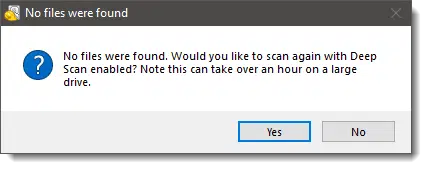
"Deep scan" results began to show almost immediately.
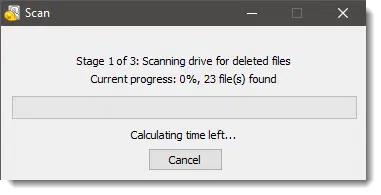
True to its word, five hours later, it was complete.

Apparently, I had stored music on this drive in the past. While Recuva listed over 109,000 files, my attempts to recover them were unsuccessful. The files recovered were not the original files and could not be played.
This goes to show that when it comes to file recovery, time, as well as lack of activity, is of the essence. This might have been my oldest external drive73, and it was used heavily. Clearly, its use invalidated the information on the drive, preventing the successful recovery of its prior contents.

74: In concept. Various disk formats have different strategies for where to place data on hard drives to minimize wear, so it's possible that this might not even apply. But you could get lucky.
75: As with CCleaner, you do not need to pay — the free version will do just fine — and you should always watch the install options for any unwanted extras or PUPs.
76: It's actually a "limited edition" Seagate FreeAgent Go, engraved with the old Ask Leo! logo.
Searching for support can easily lead to unexpected and even dangerous results.

Most free services have no telephone support. This is a cost of using a free service: there's no one to call.
At least no one not directly associated with the service.
For the longest time, you could search for (say) "hotmail phone support" and the results would include dozens of listings for phone numbers you could call. There were two problems with those results.
Many search engines have attempted to clean up what ads can be placed on pages resulting from such searches, but misleading ads and the potential for abuse still exist.
My rule of thumb: if there's a phone number, it's likely not associated with the service in question, and almost certainly not free. Heck, even if it's a website, the same rules apply.
Instead, when looking for help about a particular service, start with the service itself. Go to the Microsoft, Outlook.com, GMail, Yahoo!, or other service's website and explore the help and support options right there. Those are official and not scams.
But above all, keep in mind that there's no phone number and no one to call. If there is, that should set off alarms.
Cloud storage is safe and useful as long as you understand the tradeoff between convenience and security.

In various Ask Leo! articles, I've discussed techniques to encrypt the data you place into cloud storage services like OneDrive, Dropbox, and others.
There are tradeoffs, however. One feature of most cloud storage services is your ability to access your files from any browser on any device, anywhere you have an internet connection. If you encrypt your files, you won't be able to access the unencrypted versions that way; you'll need a computer with the storage service's software installed that is running your encryption software of choice. That's not nearly as convenient.
But that's kinda the point.
If, for example, someone hacks into your Dropbox account, all those unencrypted files are immediately visible to them. (As they are to law enforcement, should your files ever come under legal scrutiny.) The extra inconvenience of giving up random online access is the price you pay to ensure that no matter what happens, your files are accessible to you and only to you.
Logging in to the web interface for the storage service is a great way to determine what you want to encrypt. A hacker could access anything you can access there. If that's unacceptable, then you know what you need to encrypt.
In my case, I store lots of unencrypted reading material so I can access it anywhere I choose. I also have folders encrypted with Cryptomator to protect more sensitive information. I can't access those files online, but I know no one else can either.
If your computer refuses to start, the problem might be the Master Boot Record (MBR). Fixing it isn’t as scary as it sounds. I’ll show you how to use Windows’ built-in Startup Repair and a couple of handy command-line tools to get your machine running again.
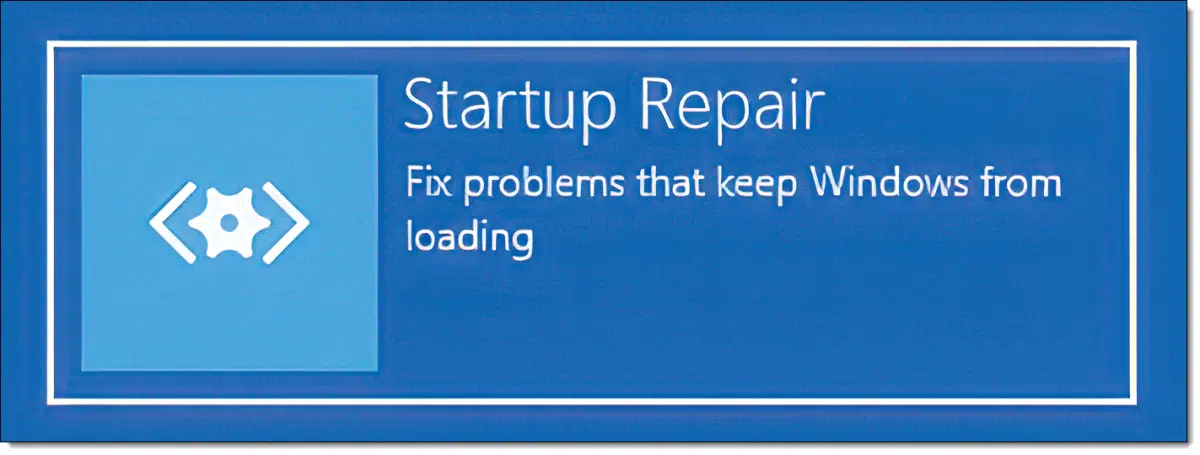
The MBR, or Master Boot Record, is the first sector of MBR-configured hard disks. (GPT-configured hard disks have something similar, but I'll be referring to MBR unless the difference matters.) In either case, it tells the BIOS or UEFI where on the hard disk to locate the software to be loaded when you boot the computer.
Without an MBR, or with a damaged MBR, your machine won't boot (power up and load the operating system).
There's a lot more to booting than just the MBR. Fortunately, recent versions of Windows have made the distinction between these various pieces fairly transparent, referring to all of them as "Windows Startup".
I'm not sure what led you to ask about fixing the MBR, but repairing Windows Startup will address MBR problems as well as others.
If your PC won't boot, Windows has a built-in Startup Repair that often fixes the Master Boot Record (MBR) and other startup issues. Just boot from a Windows setup USB or disc, choose Repair, and run Startup Repair. If that fails, use command-line tools like bootrec /fixmbr.
Recent versions of Windows now include Startup Repair: software that attempts to fix several problems that can cause a machine to fail to boot. Fixing the MBR is just one of them.
The first logical question to ask is, if you can't boot the machine, how do you run the boot repair tool?
You boot from something else.
Specifically, you boot from a System Repair Disc (a disk you create beforehand, when the operating system is running), or you download the Windows Setup Disc for your version of Windows, which also has these tools.
I'll assume the setup disk since that's more common, and you can download it using a different computer if you need it.
Boot from your Windows Setup CD, DVD, or USB. You'll first be asked what language and keyboard layout you'll want to use. (Not shown.)
Click Next. This will bring up the primary Windows Setup screen.
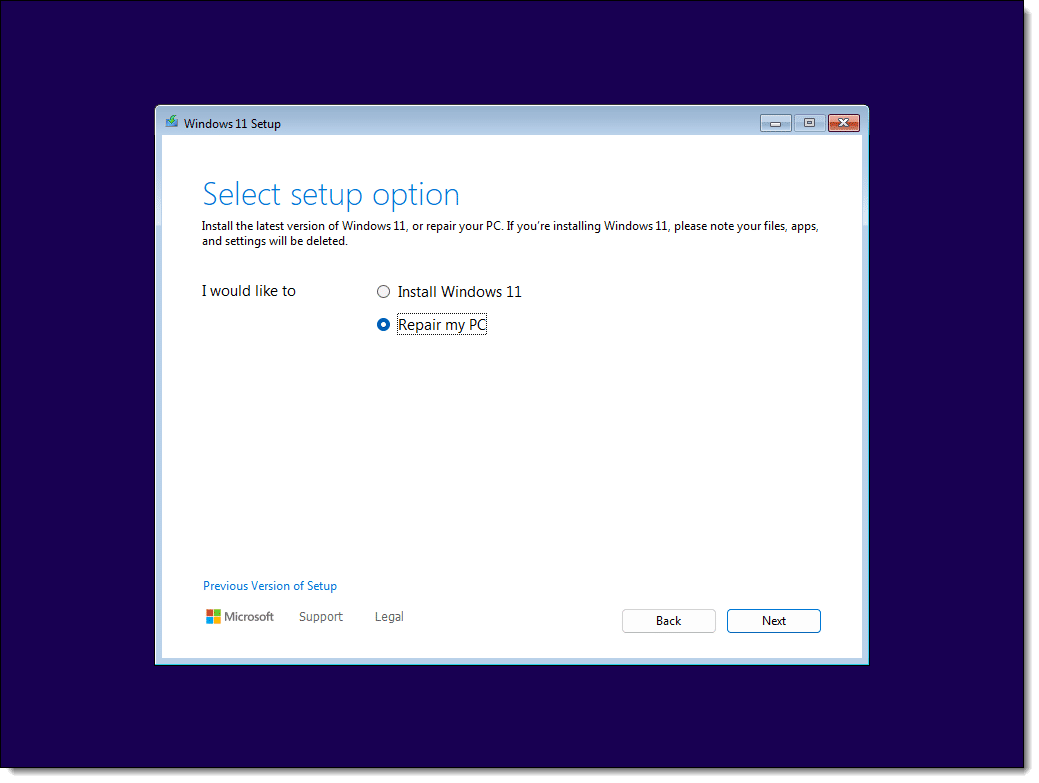
Make sure "Repair my PC" is selected, and click Next. (Previous versions of the setup program may have a "Repair your computer" link in the lower left to click instead.)
You'll be asked for your keyboard layout (not shown) and then presented with a menu of options.
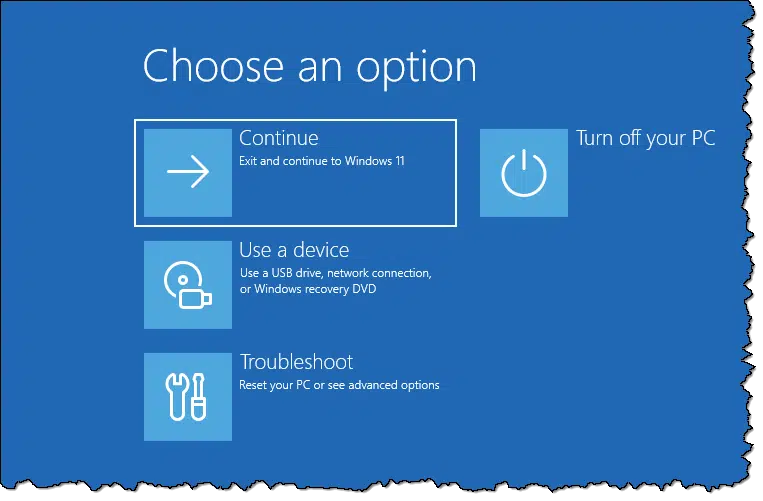
Click on Troubleshoot.
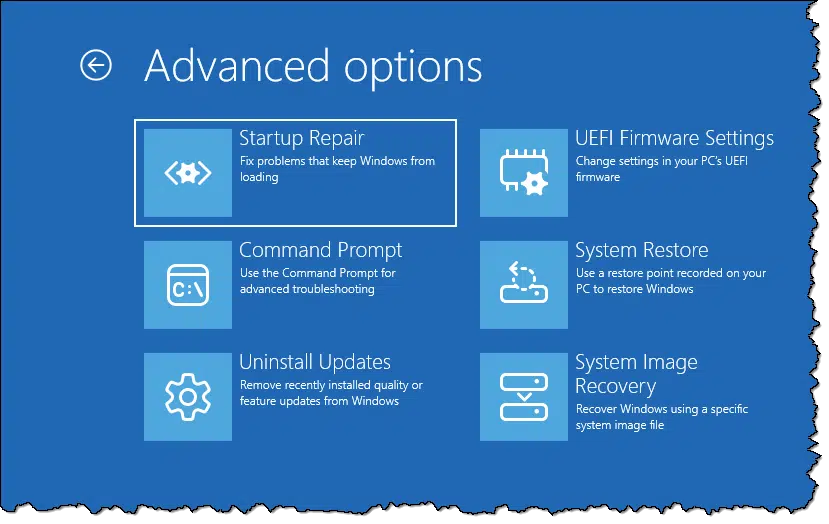
Click on Startup repair.
If the system drive is encrypted using BitLocker, you'll be asked to provide the recovery key. (If the system drive is not encrypted, you won't see this screen.)
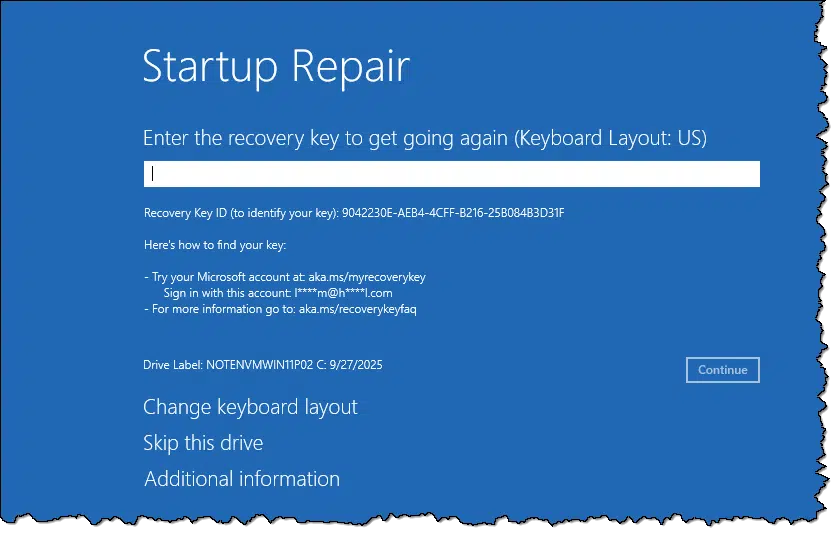
You can locate the key saved in your Microsoft account by visiting aka.ms/myrecoverykey. If you have the key saved elsewhere, you can fetch it from there instead.
Enter the key and click on Continue.
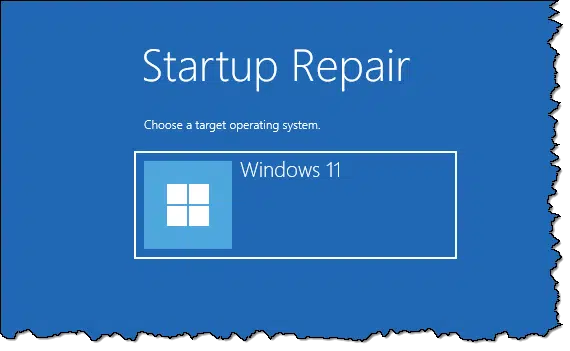
You'll be presented with a list of operating system installations that were found on your machine. In most cases, there'll only be one, as in the example above. Click on it, and Startup Repair will begin.

After it completes, you'll either be told that nothing could be fixed (as in my case, since there was nothing to be fixed) or that repairs were made and you can reboot your machine.
If Startup Repair explicitly fails or your computer doesn't start after running it, you can try the command-line tools listed below.
Caveat: I assume that Startup Repair runs these same tools, or their equivalents, for you behind the scenes. In particular, I'm assuming it runs MBR-related tools for MBR-configured disks and GPT-related tools for GPT-configured disks. The hope is that by running them manually, we may get more diagnostic information, if only to provide to a repair technician.
Follow the steps above to boot from the setup disk again, this time clicking on Command Prompt instead of Startup Repair.
This, naturally, opens up a command-prompt window.
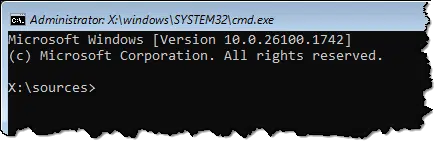
There are several commands and options available.
bootrec /fixmbr
If all you need to do is fix the MBR, then "bootrec /fixmbr" is the command to run.
bootrec /fixboot
This command attempts to fix the Boot Configuration Data (BCD), which is used by newer boot processes and GPT-configured disks.
bootrec /rebuildbcd
This one rebuilds the Boot Configuration Data (BCD) used by newer boot processes with the operating systems found on the hard disk74.
Unfortunately, errors in these steps are beyond the scope of this article, though as I said, perhaps additional diagnostic information might be made available.
77: I believe this will report "0" installations found if only one was found. My theory is that it's reporting additional installations found.
Accidentally run or opened something suspicious? We've all done it. I’ll walk you through the options from scans to resets, and consider what to learn from the experience.
Worried? Probably.
This is exactly the scenario security folks warn against so strenuously: running or opening something you shouldn't and bypassing warnings from your security software.
Let's look at your options.
If you run something you shouldn't, the only 100% safe fix is a full reset or a complete restore from a backup image. Scans may show the computer is clean, but malware can hide. If the risk feels manageable, run complete scans with two tools (like Windows Security and Malwarebytes). Then watch for odd behavior.
If what you ran could be malware, there's only one true solution to the situation: a factory reset. (There's one more answer that I'll share below, but it involves preparation.) Back up your machine completely so things can be recovered as needed later, and then reinstall Windows from scratch.
It's brutal, I know.
The problem is that once you allow it to run on your computer, malware can do anything — even hide itself so your security software doesn't see it. In a real sense, once malware is on your computer, it's not your machine anymore.
The only way to be completely, 100% certain that the malware is removed (if, indeed, it was malware) is to erase everything and reinstall.
To be clear, the answer above is what most would call The One True Answer. When in doubt, that's what you should do.
However, depending on what you know about what was run and the amount of risk you're willing to take, we might be able to start with something less daunting than a factory reset.
Consider where the download came from. If it's from a site you know or at least recognize, that's less risky than what the original questioner experienced: being redirected to a URL you've never heard of.
The same thinking applies to an emailed attachment. If you're certain you know and trust the sender, that's less risky than having opened an attachment from someone you've never heard from before.
It's usually a bad sign if your security software complains when you download something or run something.
I say usually because the specific wording of the security software's complaint matters when assessing risk.
For example, Windows Defender SmartScreen might object to a download because it doesn't recognize the application or its digital signature. That doesn't necessarily mean the application is malware; sometimes we ignore its advice when downloading something we know is safe. In situations like this, it's a data point.
However, if your security software tells you something along the lines of "This is malware!", that's a clear sign that something is amiss. Think twice about bypassing that warning.

In this situation, the risk is never zero. But if the risk seems low — perhaps you know where the download came from and your security software said nothing (or something amounting to a simple warning) — then you might consider sidestepping the nuclear option.
That looks like this.
If both come up clean, proceed with caution. Watch for unexpected behavior, but you might have dodged a bullet.
If either scan detects malware, then what happens depends on the tool's ability to remove and/or quarantine the malware. If it's successfully dealt with, you may have dodged a bullet again. If the scans have difficulty removing the malware, then the nuclear option may be your only path to recovery.
If all this causes you concern, that reset might be worth the effort anyway. Back up your machine first (to preserve data). Reinstalling will help you sleep at night.
There's no shame here; we've all made these kinds of mistakes at least once. I know I have75. So let's focus on making sure that it remains a one-time thing.
Based on the description, I'd encourage you to:
You can avoid a factory reset by doing one thing: restoring your machine to the most recent full image backup taken before you downloaded and ran the questionable software. It's the ultimate undo. It restores your machine to the state it was in before anything happened...
...without spending hours reinstalling and recovering everything.
The catch?
You need to be backing up regularly. Specifically, you need to be taking full image backups regularly. I recommend a process that gets you daily snapshots76.

78: A long time ago.
79: Specifically, monthly full image backups with daily incremental backups.
Sometimes, moving on to the most recent version of your software is the most sensible thing to do.

Not everyone will like this tip. It comes from my experience listening to people who waste amazing amounts of time trying to keep older versions of software or operating systems working.
Sometimes, it's most efficient in the long run to bite the bullet and upgrade to the current version. Yes, there may be frustration or a learning curve, but it's often less than you'll get by continuing to bang your head against whatever it takes to keep your old software running.
I'm not saying you should always submit to an upgrade. What I'm saying is that you should seriously consider it. Sometimes you need to cut your losses and move ahead to get your work (or whatever) done.
I don't say this frivolously, nor do I believe in blindly upgrading for upgrading's sake. I understand "If it ain't broke, don't fix it." I also understand that staying with what you have may be the only practical option.
But sometimes it really is "broke" in the sense that it takes more work and effort — not to mention frustration — to maintain the status quo than it would to move forward.
P.S.: That the republication date of this tip aligns with the Windows 10's end-of-support date is a pure coincidence. Honest.
Time zones are important and easily overlooked, particularly with online services.

Time zone information may need to be set correctly in two locations: on your PC, of course, but sometimes also in your online accounts.
As you might expect, the software running on your PC uses this information. Email programs, for example, use it to properly timestamp your outgoing email as well as to interpret the date and time of messages you receive.
However, if you use an online mail server like Gmail, Outlook.com, or others, you may need to locate a separate setting within those services that specifies your local time zone. The information is used in the same way as on your PC — to set and interpret emailed dates and times correctly. If your time zone is set incorrectly, you may find that your email has the wrong times associated with it.
The location of this setting depends on the online service you're using. For larger services, it might not be associated with email specifically, but your account with that service. For example, the time zone setting shown above isn't really part of my Outlook.com account; it's found in the settings of the Microsoft account associated with the Outlook.com account.
What’s the difference between your email service, account, address, and program? I'll break it down so you’ll know what each term means, why it matters, and how not to get tripped up next time you want to change your email or ask a question.

I'm going to use this as an opportunity to clear up some confusion I see all the time. You might not believe me, but the confusion is extremely common. (And Microsoft isn't helping any, as we'll see.)
An email program is not at all the same thing as an email service, or an email account, or even an email address.
In technology, terminology is important. Time for some definitions, so you won't be confused.
An email service is something like Outlook.com, Yahoo! Mail, Gmail, or the services provided by your ISP, domain registrar, school, or place of employment. The service they provide includes the servers and software that:
To begin a metaphor, think of an email service as an apartment building in which you live.
An email account is a relationship you establish with an email service, and all the storage, features, and functionality it provides. This may include more than email services. For example, Microsoft and Gmail accounts include not only email, but cloud storage services, messaging services, calendaring, contacts, and much more.
An account is often, though not always, identified by a single email address.
In our apartment building, this is equivalent to the apartment where you live.
An email address uniquely identifies your mailbox as provided by your email service. When someone sends a message to your email address, it's collected by your email service and placed in a mailbox, which you access through your email account.
Email addresses are always in this format:
name@domain
The domain — the part after the "@" — is used to route email to the email service. The service is often obvious from the domain — such as outlook.com, gmail.com, and so on. The domain is used to identify the mail service77 handling its email.
As an email message is on its way from sender to recipient, the name — the part before the "@" — is completely ignored until it reaches the email service handling the email account. Once it arrives, the name is examined to see which account should receive the mail.
In our apartment building, the domain is like the street address: it gets the mail to your building. Your email name is like the apartment number. In the mailroom, the mail clerk uses your email name to place the message in the correct mailbox.
As soon as you say program, you're talking about computer software. An email program is software you run on your computer or device to access your email. Examples include Microsoft Outlook, which is included in Microsoft Office (but not Outlook.com), Thunderbird, emClient, and many more.
An email program must be configured with your email account information, including your email address(es), password, and more.
There are two basic ways to access email: using an email program on your computer or visiting a website online. The latter is often referred to as web-based email.
When you use an email program, email is downloaded to your computer.
When you visit an email website — like gmail.com, outlook.com, or others — you're not using an email program. Instead, you're using your web browser (like Edge, Chrome, Firefox, or others) to visit a website where your email is displayed to you. The email is not downloaded to your computer; it remains on the service's servers in the cloud.
An email program is like a person you hire to run and get your mail from the mailroom and bring it to your apartment. Using your web browser is like running down to the mailroom yourself and storing all of your mail there.
So, is gmail.com, for example, an email service? An account? An address? A program? A website?
Some of the above, depending on what you're talking about.
As you can see, "Gmail" can mean many things, depending on the context.
Of course, Microsoft makes things even more confusing.
Outlook is not an email service. Outlook is not a website. There's no such thing as an "Outlook" account.
Outlook — now "Outlook (classic)" — is a program that is part of Microsoft Office, which you pay for and run on your computer. Outlook — or more formally, Microsoft Outlook — is an email program you use to access email from almost any email service by downloading it to and managing it on your computer.
Outlook (not "classic", sometimes labeled "(new)") is also an email program. It's the default email program included in Windows 11. Even though it shares the Outlook name, it's significantly simpler and has fewer features than Outlook (classic).
Outlook.com (not "Outlook", but "Outlook.com" — the difference matters) is a web-based email service. Outlook.com is a website you visit to access the email associated with your Microsoft account. Email addresses ending in @outlook.com are Microsoft accounts provided by the Outlook.com email service.
The ".com" matters A LOT. Why? Because Outlook (without the .com) and Outlook.com are completely unrelated to one another — other than both being Microsoft products and both being called Outlook! (Thanks, Microsoft. You have no idea what confusion you've created down here in the trenches.)
Say you get a new computer. To get your email on the new machine, what do you need to move from one machine to another?
If you're using an email program, you need to:
The only thing that really "moved" is your collected email and contacts. Everything else is just configuration to properly access email from the new machine.
If you're using web-based email, things are simpler.
There's really nothing to move from one computer to another because it's all stored online.
The original question was, "I want to change my email program from Hotmail to something else."
By now, we know you're not changing your email program; rather, you're changing your email service, which means getting a new email account on a new service and then getting a new email address.
At a high level, changing email accounts means you'll take these steps.
It's really no surprise people get confused. There are several layers of complexity here, and many of the terms aren't always used accurately.
Unfortunately, when it comes to computers — and particularly when seeking help for computer problems — terminology matters a lot.
80: Technically, it is used by the DNS service to identify the specific server or computer designated to accept mail for the domain.
81: Kids, ask your parents.
82: Using your web browser, which is a program you run on your computer.
Wondering why Microsoft charges for Extended Security Updates when Windows Defender will get updates through 2028? They're not the same. I'll explain the difference between malware database updates and actual Windows fixes, and what you really need to know to stay protected on Windows 10.
There's no shortage of confusion around Windows 10's end-of-support date. This question has been asked a few times: What's the deal with paying for ESU until 2026 if Windows Security will continue to be updated through 2028?
It's an apples-and-oranges kind of comparison. Even though they have similar names, they're two different things.
Let me explain.
Windows Defender will keep updating its malware database until 2028, but that's not the same as fixing flaws in Windows itself. Extended Security Updates (ESU) cover those fixes, pushing updates to Windows until 2026. Defender protects against new malware; ESU fixes Windows bugs.
In Microsoft's How to prepare for Windows 10 end of support by moving to Windows 11 today article, they include the following statement:
Microsoft will also continue to provide Security Intelligence Updates for Microsoft Defender Antivirus through at least October 2028.
This means that one program — the anti-virus tool in Windows Security called Windows Defender — will continue to receive updates to its database of known malware through 2028. This will allow it to detect new malware that's released between now and then.
This only affects Windows Defender, and only its database of malware80 (AKA Security Intelligence Updates).
The reference to 2028 refers only to Windows Defender.
If a bug is discovered that creates a severe security vulnerability, Windows Update will receive a patch to fix the software and presumably remove the security vulnerability.
This is what Windows Update normally does. This is what is scheduled to end a few days after this article's posting in October 2025.
The ESU program simply extends that date by one year to October 2026.
It's free if you meet certain conditions, or $30 for one year. If it's available to you, you should find the offer in Windows 10's Settings -> Windows Update.
83: I refer to it as a database, though I suspect it's more complex than that.
If you find free software useful, consider supporting its creator.

In the preceding tip, I suggested that when available, the free version of a software program may be sufficient for your needs.
Particularly when you find such software useful, I recommend supporting the manufacturer with a donation or upgrade purchase if you can.
Put another way: if you can, reward the creators of useful software. Either:
Individuals create free software for a variety of reasons, but it's not done without cost. When possible, show your appreciation.
Worried about your data if your computer goes missing? Whole-disk encryption can keep prying eyes out. I’ll show you simple, practical ways to encrypt your entire drive so your information stays safe even if your computer doesn’t.
Whole-disk encryption is an important aspect of security for many people. If you encrypt a disk properly and your computer falls into the wrong hands, those hands won't be able to access your data.
The average computer user may or may not need to use whole-disk encryption; it depends on the type of data they store and their level of concern. However, encryption is an important tool for business and government users, particularly for portable computers such as laptops and tablets.
Encrypting your whole disk keeps your files safe if your computer is lost or stolen. Windows Pro users can use BitLocker. Everyone can use VeraCrypt. Both require saving a recovery key or passphrase; without it, you risk losing your data. Once set up, encryption works quietly in the background.
If you're running a Professional edition of Windows or better81, and your disk is formatted using NTFS (most Windows hard disks are these days), Windows can encrypt your disk using BitLocker.
Much like encrypting folders, the technique is simple. Right-click on the drive in File Explorer and click on Turn on BitLocker.
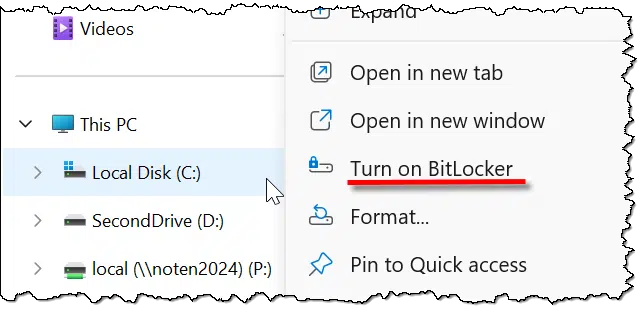
This next step is critical. You must save a copy of the recovery key somewhere. Should you ever forget your password (or lose that USB key, if that's what you select below), having a recovery key is the only way you can regain access to your encrypted data. Exactly how you save it is less important than that you save it somewhere, so that some days, months, or even years from now, you'll have it should you need it.
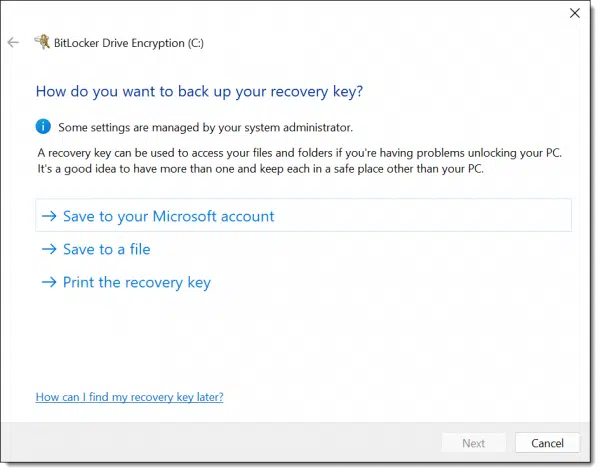
I elected to save to a file.
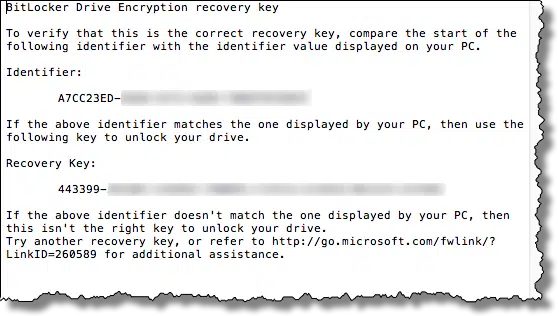
Note: this is sensitive data. Keep your recovery key in a secure location. Anyone who has access to it can decrypt your drive.
BitLocker then gives you the option to immediately encrypt only the existing files on your system or all of the files and currently free space.
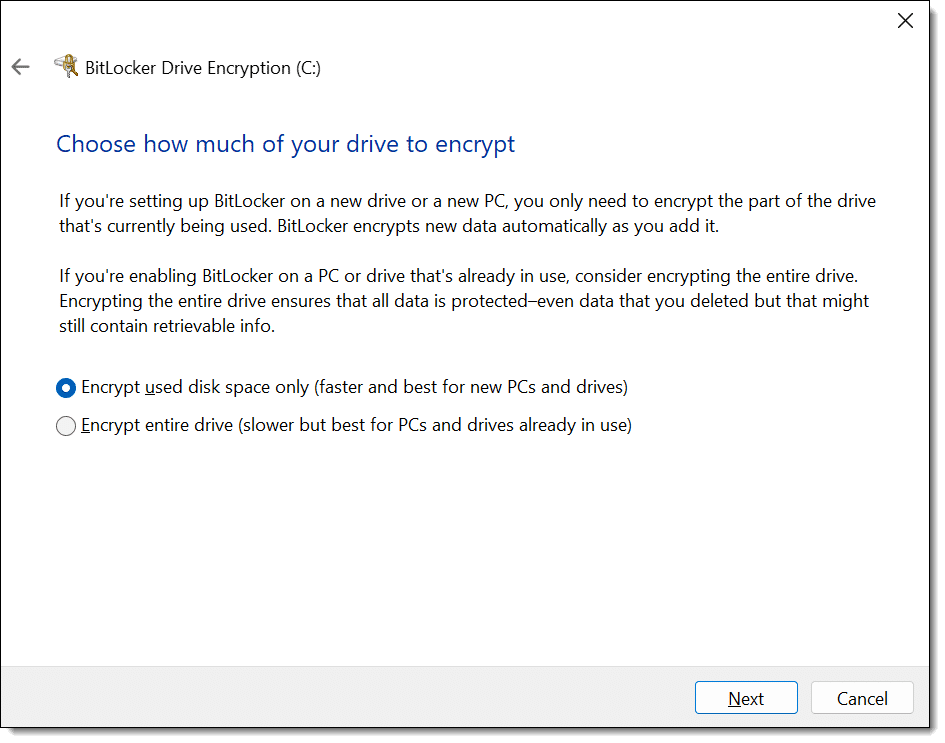
The issue here is that when you delete a file in Windows, the data for that file is not actually removed from the hard disk. It's marked as free space and doesn't go away until sometime later, if and when new data is written on top of it. That implies that if you've used your machine for any length of time, the free space may include fragments of sensitive data. If you're unsure, select "Encrypt entire drive". Regardless of which you choose, all data written to the drive from here on out will be encrypted.
Next, BitLocker asks another question: the "mode" to be used.
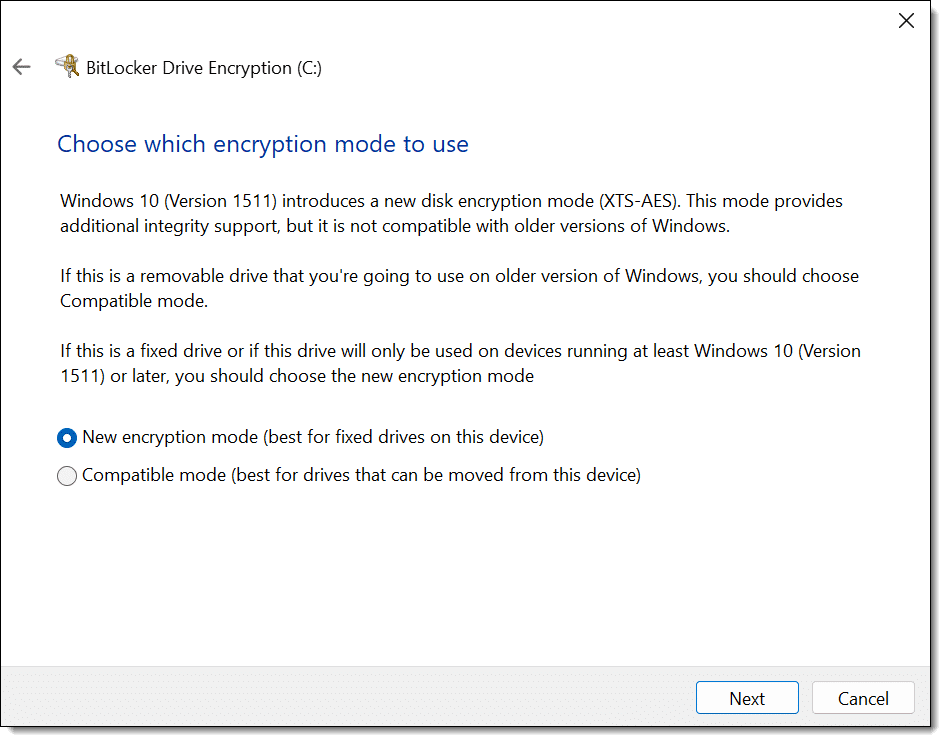
This is basically an improved encryption algorithm. If you're encrypting your internal hard drive, I recommend selecting this new mode. If, as the prompt indicates, this drive might be taken to other machines, use the older, compatible mode.
Finally, it's time to encrypt the drive.
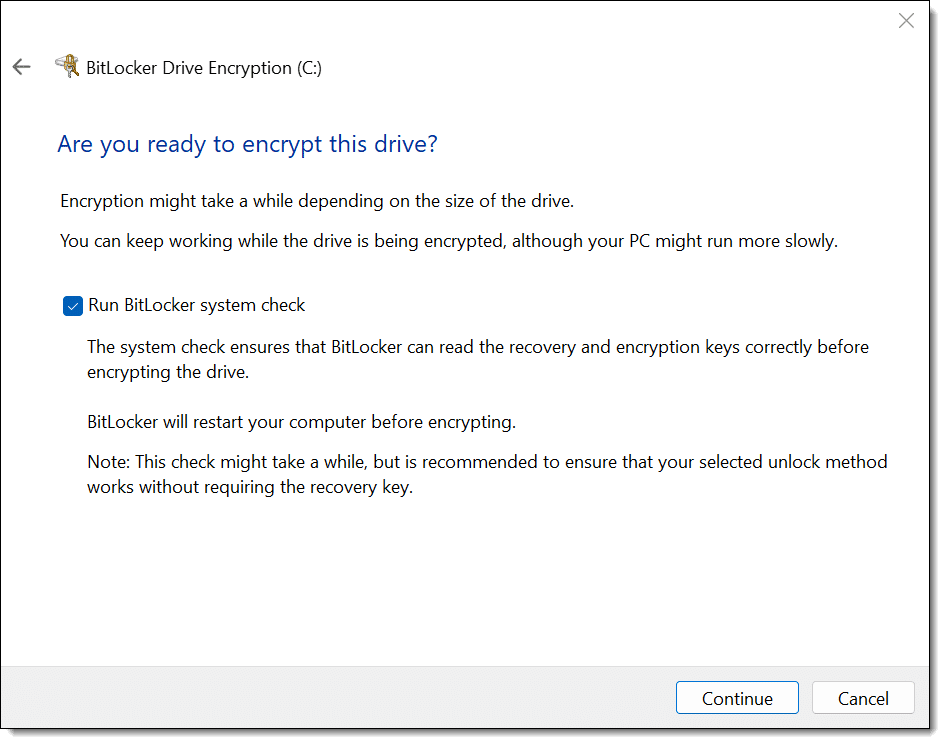
A reboot is required to begin the process. After rebooting, you'll return to Windows as normal, with a notification.
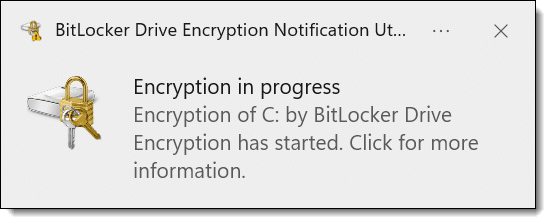
How long the encryption process takes depends on many factors, including the size of your disk, the speed of your computer, and what else you're doing on the device while the encryption proceeds. You can continue to use your computer while the disk is being encrypted.
The good news: BitLocker is a strong, secure encryption tool built into Windows. Once encrypted, other than specifying the password to unlock the drive at boot time, it's completely transparent.
The bad news: BitLocker is for Windows only, and not available for Windows Home editions82 or for drives formatted using anything other than NTFS. While it can encrypt disks to be shared with others, only machines running a compatible edition of Windows (Pro or better, supporting the same encryption mode) can decrypt the drives. Using BitLocker assumes you trust Microsoft, particularly if you use the option to store a backup of your recovery key in your Microsoft account.
VeraCrypt83 is a free third-party tool that supports, among several other things, whole-disk encryption.
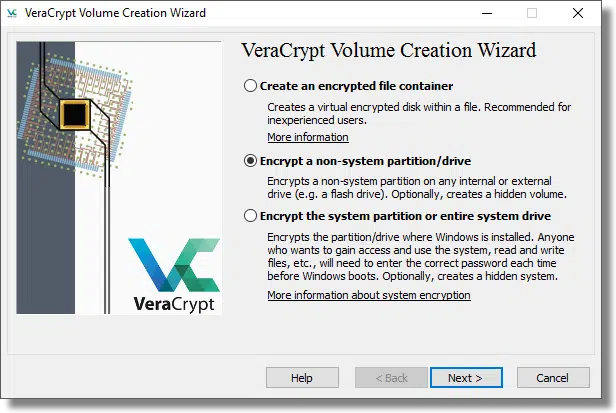
I'm not going to cover this option in detail, as the VeraCrypt documentation is quite good.
The good news: in many regards, VeraCrypt works almost exactly like BitLocker. Once you specify the passphrase to gain access to an encrypted disk, its operation is transparent. VeraCrypt is free. Volumes encrypted using VeraCrypt should be inherently portable to any system, including non-Windows systems on which VeraCrypt has been installed. VeraCrypt works with all editions of Windows.
The bad news: As with BitLocker, if you lose or forget your passphrase, your data cannot be recovered. There is no back door. There is no recovery key. VeraCrypt is third-party, open-source software, which may raise trust issues for some.
Another approach is very similar to the approach I outlined in How Do I Encrypt a Folder? Rather than using whole-disk encryption, create a VeraCrypt container that is as large as possible on the disk you want to encrypt.
Let's say the disk you want to use is 100 gigabytes in size and is empty. You would use VeraCrypt to create a container as large as possible, approaching 100GB84. That container would appear on the drive as a single, large file. When you mount it using VeraCrypt, another drive letter appears on your system. Files you read and write on that drive are transparently encrypted in the VeraCrypt volume. When it is dismounted, the drive letter goes away, and your encrypted data cannot be accessed.
The good news: VeraCrypt container volumes can be copied to other hard disks, or even other operating systems, and can be accessed as long as VeraCrypt is installed and you know the passphrase.
The bad news: This approach does not work for system drives (the drive containing Windows and from which you boot your system).
84: Essentially, this boils down to anything but the Home or Starter editions. In File Explorer, right-click on My Computer or This PC, select Properties, and look for "Windows Edition" to see what you have.
85: Windows 11 Home edition now includes device encryption.
86: The successor to the now-defunct TrueCrypt.
87: Due to overhead, it can never be exactly as large as your hard disk's capacity. You may need to experiment with sizes that work, or just plan on leaving a little unencrypted space left over. For example, you might create a 99GB volume on a 100GB disk.
Many programs offer free versions that may completely meet your needs.

Someone recently complained that he wouldn't use a popular tool because the annual price had doubled. In reality, the annual price has remained exactly the same: $0. By focusing on the price, he hadn't noticed that the free version of the software would address his needs completely.
While it's not true for all software, many valuable tools and packages come in two flavors: free and premium. Usually, the premium version offers additional features. The hope is that you'll like the free version of the product, see value in those premium features, and be willing to pay for them.
But it's not required.
You're welcome to use that free tool for as long as you like. Be it free versions of popular backup tools or whatever else, if they meet your needs, keep using the free version until you discover a reason to either upgrade or move to a different tool that fits you better.
"Free trial" is not free. A free trial is software you are free to try for a period before a purchase is required. Truly free software is free forever. Be careful when visiting sites to download software; they often push the "free trial" in ways that might make you believe otherwise.
And as I covered in a previous tip, "free download" also doesn't mean the software is free.
Passkeys promise more security and less hassle, but is syncing them across devices safe? Learn how password managers handle passkeys and what happens if a device is stolen.
Passwords are easy. We understand what it takes to make them more (or less) secure. Passkeys are a little harder to understand, partly because they depend more on behind-the-scenes security measures we don't see.
Fortunately, the benefits and risks of sharing passkeys across multiple devices via a password manager are almost identical to doing the same with passwords.
Syncing passkeys with a password manager is about as safe as syncing passwords with one. A thief would need to break into both your device and your vault to get them, which is extremely unlikely. With good security habits, syncing makes passkeys safe and easy to use.
Passkeys are designed to be unique to, and stored on, each device. So, for example, if you use passkeys for your Google account, then:
You need to set up a passkey for each device, typically by signing in some other more cumbersome way85 and then responding "Yes" when the process completes and you're offered the option to set up a passkey.
Some password vaults now allow you to store your passkey not on each device but in your password vault instead. As a result, you have one passkey for that account that you can use on any device (assuming your password vault is installed and unlocked on each device). This means:
It's quite convenient... exactly as convenient as letting your password vault hold usernames and passwords for accounts that don't use passkeys.
That doesn't mean there aren't risks, though.
Let's say you use your password manager to store passkeys and share them across devices, as I do using 1Password.
And let's say that your laptop, which has your password manager installed, is stolen.
The thief would have to:
There are scenarios where your own behavior can compromise both of those. For example,
then you've arranged a potential perfect storm. But the laptop and the password vault would both need to be compromised, or access couldn't happen.
It's all pretty darned unlikely.
Here's the thing: nothing about what I've just described is unique to passkeys.
The compromise I described above applies equally to accounts that use passwords. In other words, it applies to all the accounts you use today.
If someone somehow gains access to your password vault, they've got access to everything, passkeys or not.
In fact, passkeys may offer additional security because, unlike a password, passkeys generally require authentication, usually as biometrics or a PIN, at the time they're used. If the thief can't supply your face, fingerprint, or PIN, the passkeys remain secure.
But the security hygiene you're already following to secure your password vault secures your passkeys as well.
Personally, I feel 1Password itself and my setup are sufficiently secure. I'm not concerned about this specific threat should my laptop ever be stolen.
88: Not necessarily using a password, but more often responding to an SMS message or emailed link.
89: This applies equally to the hard disk being stolen from the machine. The database is strongly encrypted and realistically uncrackable given today's resources.
90: Unsurprisingly, I have multiple devices.
Event Viewer is a powerful tool. However, if you don't know what you're looking at, it becomes a powerful tool for scammers.

Unless you're a technician or computer professional and know what to look for, please ignore the Event Viewer.
The problem is that while its intent is good — a repository for Windows and applications to keep a log of interesting activity, or "events" — the results have become such a confusing mess, it's simply not meaningful to the average computer user. There's a lot of valuable information if you know what you're looking for. Software developers, for example, can use the Event Viewer to great effect as they monitor how their software is operating.
Scammers often direct unsuspecting victims to look at the Event Viewer for evidence that their system is misbehaving and needs fixing. Those fixes are usually unnecessary and costly software or even malware. Even a properly operating computer has Event Viewer logs chock full of errors, warnings, and other events. This is normal and not a sign of a problem.
Ignore the Event Viewer. It's not telling you what you think, and certainly not what that strange-sounding gentleman on the phone is trying to make you believe.
Not sure if your Windows network should be public or private, or even what that means? I’ll show you what each means, when to use them, and the simple steps to switch.
One of the most confusing aspects of Windows networking is the concept of private and public networks. When you set up a network (typically when installing Windows or the first time you make a connection on a new network adapter), Windows makes an assumption about which you want.
Sometimes that assumption is wrong.
Depending on what you do later, Windows may offer to change it. Or not.
I'll review what these network types mean and how to switch from one to the other.
Switching your Windows network between public and private is easy. A public network keeps you safer on coffee shop Wi-Fi, while a private one allows home devices to share files and printers. A quick PowerShell command changes the setting, helping you stay secure and connected depending on where you are.
The easiest way to switch your network type is to use Windows PowerShell87. You must run it as an administrator. First, enter:
Get-NetConnectionProfile
and press Enter. This will display information about the current configuration of your network.
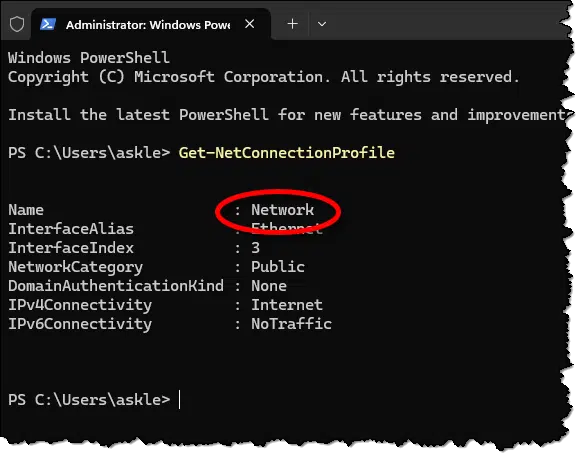
Note and save the name of the network. In the example above, the name is "Network".
Note that in this example, the "NetworkCategory", as Windows calls it, is "Public".
To change it to private, enter:
Set-NetConnectionProfile -Name "Network" -NetworkCategory Private
If yours is different, replace "Network" with the name displayed by the previous Get-NetConnectionProfile command.

You can then re-run the Get-NetConnectionProfile command to confirm that the Network Category has been changed to private.
Of course, if the network is already private and you want it to be public, use "public" instead of "private" in the Set-NetConnectionProfile command.
Now that we know how to change them, let's understand what they mean. This is important for making the correct choice.
Think of the terms as defining not whether you want your computer to be private or public, but rather defining what kind of network you're on.

When you're on a private network, the implication is that you can more readily trust the other machines on the same network.
Your network at home is a good example. All the machines you have connected to the same router are on the same network, and you can usually trust that all are well-behaved. This is a good candidate for a private network.
When you're on a public network, the implication is you shouldn't trust other computers on the same network.
Connecting to a (literally) public network — say WiFi at the airport, a hotel, or a coffee shop — is a good example of a public network. You don't know who else is connected to the same network you are, so you don't know whether they've been practicing good security hygiene or even if they might have malicious intent.
When Windows treats a network as public, the firewall blocks connections from external sources. This means that a random person can't find and connect to your computer and, say, steal files from it.
When Windows treats a network as private, the firewall allows those connections.
The most common time this comes up is when trying to access a network share or network printer on one computer from another. If the network is configured as public, it won't work.
The choice is simple.
Note also that if you have multiple network adapters — say an Ethernet and a WiFi connection — they can be of different network types. For example, if you connect your laptop via Ethernet at home and use WiFi only when out and about, you can set the Ethernet network as private and the WiFi as public. This allows you to share files and printers with other devices at home while keeping your computer more protected elsewhere. You don't have to remember to switch between the two types.
91: There are ways to do this in the Settings app, but it's different between Windows 10 and 11, and I have no faith that it won't keep changing. The PowerShell approach just works.
When it comes to wireless connectivity, distance and interference can impact signal strength.

As you might expect, I get a fair number of questions relating to wireless networking.
When the problem is intermittent connectivity or slower-than-expected speeds, one of my first recommendations is to move closer. Move the computer or mobile device closer to the WiFi antennas, and see if or how that impacts the problem.
All wireless communications are subject to interference and signal-strength issues. The closer you are to the source of the signal, the less interference and the stronger the signal. If you move closer and your problems suddenly resolve, you have a pretty clear sign that it's a wireless signal issue. Solutions depend on your situation, but could include moving your device, moving the antenna, getting stronger or better WiFi equipment, or switching to a wired solution.
Sometimes changing position without changing distance can affect the issue. For example, if there's an electrically noisy device sitting between your computer and the WiFi antenna, moving to a position where it's not directly in between may help.
These issues apply to anything wireless, and that includes Bluetooth. Bluetooth devices are designed to operate at shorter range, but that doesn't mean they don't suffer from signal strength and interference issues. If you're having problems, try moving closer, even if it's just to diagnose the problem.
One thing unique to Bluetooth that's also worth trying: replace or recharge the device battery. Bluetooth connectivity is one of the first things to go when a device's battery is close to exhausted.
People want to know if someone’s opened their email. I’ll explain why features and tools claiming to do that can't work most of the time. I'll share the only way to know for certain your message was read.
I'm amazed at the number of questions I get that boil down to people not trusting each other. Not that there isn't cause, I suppose, with spam, phishing, and malware running all over the place. But this seems like the simplest case of all: was your email read or not?
The answer to your question is no, there is no way to tell for sure that your email was delivered, opened, or read. You might as well have dropped it into a black hole.
I always get a lot of pushback on that.
You can't know for sure if an email was read. Period. Tricks like delivery confirmations, read receipts, or hidden images mostly don't work because modern email programs block them. At best, you might get lucky. If you hear nothing, it means nothing. The only proof is a reply.
There are solutions that work sometimes, or in some situations, or if the stars align just right.
When they work, they can tell you that an email was delivered and even that it was opened... but they cannot tell you for certain that an email was not delivered or not opened.
If you hear it's been opened, great, you know it's been opened (though not if it's been read). But if you hear nothing, you know nothing. It could have been opened and read, or not.
And hearing nothing is the norm.
Delivery confirmation is a feature that requests an automated return email when a message is delivered.
Almost all email clients now ignore delivery confirmation requests for privacy reasons.
They may occasionally work, but most often do not. If you request delivery confirmation but get no confirmation in reply, it means absolutely nothing.
Like delivery confirmation, a read receipt is a request to the recipient's email client: "Please email me when this message has been opened."
Again, almost all email clients ignore read receipt requests for privacy reasons.
They may work occasionally, but generally they do not. If you request but get no read receipt, it means absolutely nothing.
One approach to seeing if an email has been opened is to include a picture and then notice when that picture is fetched. I might create an HTML email that includes a picture of my dog. That image file is stored on my server. When you open the mail, the picture is fetched from the server, and I can use server logs to see that you opened the mail.
Most email clients don't display images unless you explicitly ask for them. Many people don't.
If the pictures aren't displayed, the server isn't notified, and there's no way to tell that the email was opened. While this might work more often than other techniques, hearing nothing (once again) tells you nothing.
For the record, every service that claims to tell you whether an email has been opened with 100% accuracy uses this technique or something similar and is misleading you about their accuracy. There's simply no way of being 100% accurate. If they require additional infrastructure, like a special mail-viewing program, or if they send people to a website to read your message, then it's no longer email. Those techniques also act as an obvious disincentive to getting your message read, as they're also used by spammers, phishers, and hackers.
So, all our techniques thus far to see if email was delivered or opened fail most of the time. There's simply no 100% accurate way to tell if an email has been delivered or opened.
Let's say for a moment there was. Let's say we could tell that email was delivered and opened. Even then, how could you possibly tell that a person actually read it?
You can't.
Even if the person has it open on their computer, there's no way to tell that they've actually read it. Unless, of course, they take the time to reply to you and tell you they did. (Though even then, they could be lying.)

When you get a new machine, you have a unique opportunity to create an important safety net.

When you get a new computer, take a backup image of its hard drive as soon as you can.
That way, should you ever need to revert to factory settings because of a hard disk problem (or any other problem), you can restore the image. All will be as it was on the day you got the machine.
There are two approaches to doing this, one easier and one technically more accurate.
The easier approach, and the approach I recommend: after setting up the machine, immediately install a backup imaging program like EaseUS Todo, Macrium Reflect, or others, and use them to create an image backup of the machine's hard drive. That image will be of the machine as it was set up and with the backup tool installed, so technically it's not quite the exact image of the hard disk as delivered, but it's pretty darned close.
The technically more accurate approach is this: before you set the machine up in any way, boot from the rescue or emergency media that tools like Todo or Reflect can create. (You'd create that media on a different PC.) Using those tools, make a backup image of the computer's hard disk. This will be an image of the hard disk exactly as it was delivered. This is a more cumbersome approach, but if you feel that the true factory-original image is of value, this is how to capture it.
Regardless of which approach you use, save the backup image somewhere safe. As I said, it's the ultimate safety net should you ever want to return the machine to its pristine initial state.
Ever notice that the same file can show up as different sizes depending on where you look? It’s not a mistake; it’s how disks and online services handle storage. I’ll explain why your files can look bigger or smaller, what clusters have to do with it, and why it’s nothing to worry about.
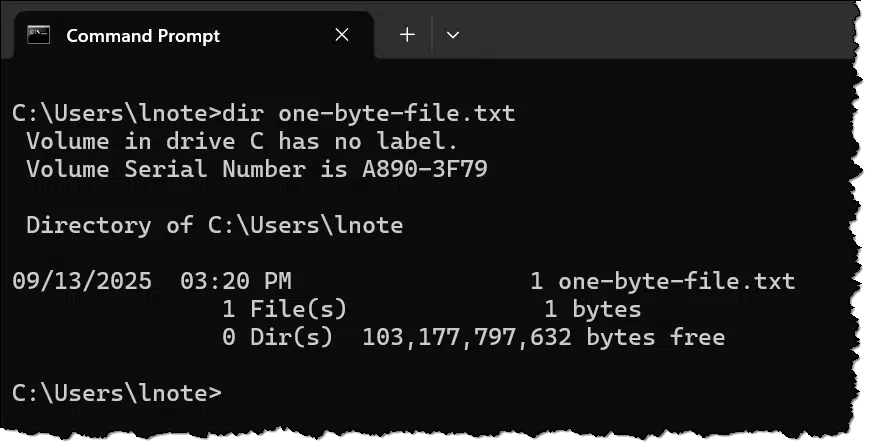
This is something that's confused computer users for many years: the same file can show as taking up a different amount of space depending on where you look and the characteristics of different disk drives.
Copy that file online and things get even more confusing.
This is not something to worry about. Fortunately, no matter where it's stored or how much space it's reported to be taking up, your file is still your file.
I'll use a one-byte file as my example: one-byte-file.txt, shown at the top of the page.
I used Command Prompt specifically because it clearly shows the file size as exactly one byte — unlike Windows File Explorer.
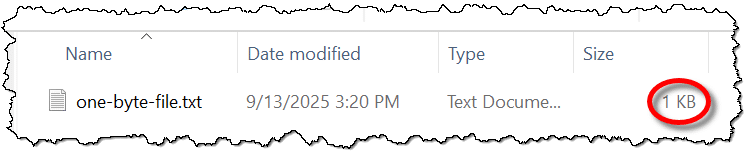
Explorer lists the file as "1KB" (1024 bytes) in size.
So, what is it, one byte or over a thousand?
Well, in a way, it's both.
To understand why, we need to look at how disk space is allocated.
Data on hard disks is stored in sectors of 512 or 4,09688 bytes at a time. This physical organization maximizes the amount of data stored on the media while providing the ability to recover from errors, access data randomly, and do all of it quickly.
File systems, or more accurately, file storage systems, keep track of all the information about files stored on a disk, including the sectors in which data is stored. Rather than track one sector at a time, however, most file systems group multiple sectors in clusters.
Clusters are groups of 1, 2, 4, 8, 16, or more adjacent sectors89. A file system then tracks the location of a file's data by keeping a list of the clusters assigned to it.
CHKDSK (run with no parameters) displays the cluster size used on a drive as "bytes in each allocation unit" at the end of its report.
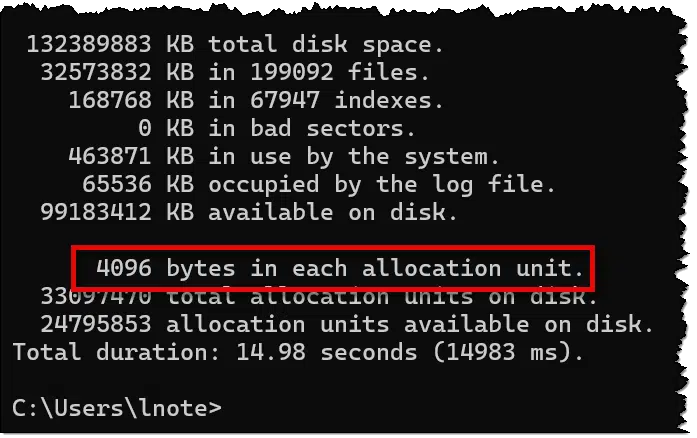
You can see that my hard disk has 4096 bytes per cluster90.
Conceptually, when I created my one-byte file, the file system had to do a few things:
The file was given an entire cluster — 4,096 bytes of disk space — even though the file size is only one byte.
A one-byte file takes up 4KB of space because that's how disk space is allocated: one cluster at a time. Should the file grow to 4,097 bytes in size, an additional cluster will be allocated; the 4,097-byte file will take up 8,192 bytes of disk space.
Depending on where you're looking, either number might be reported.
Note that I said conceptually above. In reality, that's not quite what happened.
A file system tracks more than just your file's data. It also records its name, the list of clusters allocated, time stamps, attributes, permissions, and more. All that metadata (data about your data) takes up disk space in the file's directory listing.
In the NTFS file system directory listing, space is allocated one chunk at a time. Regardless of the actual amount of metadata, the space it's given grows 1,024 bytes at a time.
The optimization is simply this: if the file is small enough, and there's enough space in the directory listing to also hold the file's data, it's placed there instead of being allocated any clusters at all. In a sense, the file takes up no additional space on disk beyond its directory listing.
When that happens, Windows File Explorer lists the size as 1KB — the size of the directory listing — rather than the size of the zero clusters allocated to the file.
Now let's look at how the cloud reports file sizes. Cloud storage services use hard disks just like you and I do. Those hard disks are formatted with file systems, and those file systems allocate space in various ways that probably behave much like I've just described. I expect that Microsoft's OneDrive uses NTFS-formatted hard disks to hold your files.
However, it's different in the sense that none of that matters because the hard disks are hidden from you completely. All OneDrive and other cloud storage providers only show you the files and their actual file sizes.
While you need to know how much space your files are consuming on the hard disk on your machine, that information is irrelevant for online storage. It even changes, as cloud storage providers transparently update their infrastructure and may move your data from hard disks formatted one way to hard disks formatted another way.
The result of all this? The pictures that take up 88 gigabytes on your hard disk may only be 65 gigabytes of actual data. Chalk up the difference to a) file system overhead, and b) that disk space is allocated in increments of clusters.

92: 512-byte sectors are most common in older hard drives.
93: A choice typically made when the disk is formatted. And yes, one sector per cluster is often an option.
94: Which is one sector per cluster or eight, depending on the sector size used by the underlying physical disk.
Emailing a link is much more efficient and polite than including a large attachment.
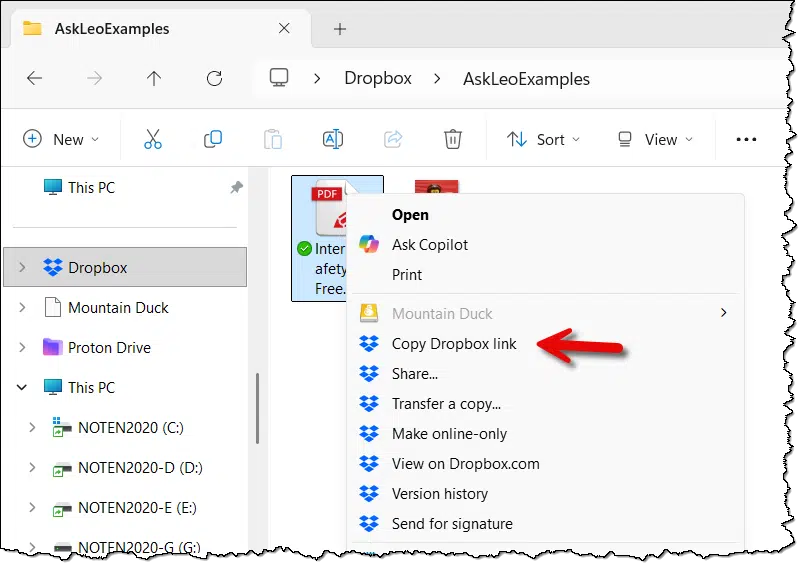
One thing easily accessible cloud storage gives us is an alternative to the overused email attachment.
Attaching files to email, while useful for getting a document from one person to another, suffers from various problems. Emails with attachments are often large, take a long time to be delivered, and can be erroneously flagged as spam. The attachment takes up a lot of space in the recipient's mailbox.
Send a link instead. It's short, quick, and easy to do.
Using a service like Dropbox, OneDrive, Google Drive, or several others, if you put a file into your cloud storage folder, you can immediately create a link to that file to share with anyone. Above, I'm using Dropbox as an example, but other services are similar. Right-click on the file to see an option to "Copy Dropbox link". That link is placed on the clipboard and can then be pasted into your email message.
Emailing that link allows the recipient to download the file themselves if they want to, rather than having to deal with the email attachment. And they don't need a Dropbox account to do so.
Your email will be smaller, faster, and more likely to make it through. Your recipient will appreciate that they can choose when, if, and how to download the file on their terms.
Want to keep your folders private? This article shows three ways to encrypt everything inside a folder. Each method has pros and cons, so you’ll learn which one best protects your files while balancing ease of use.
Sometimes encrypting a single file isn't enough. Sometimes you want to encrypt all the files in a folder and its subfolders.
As you might imagine, there are several solutions, depending on your particular needs.
I'll review some alternatives, as well as their pros and cons.
Encrypting a folder keeps all its files safe from prying eyes. Windows Pro can do this with a simple right-click, VeraCrypt uses secure "containers," and Cryptomator is great for cloud storage. Each has pros and cons, but all protect your data with encryption and a password.
If you're running Windows Pro Edition and your disk is formatted using NTFS (as most are these days), then Windows can encrypt your files and/or folders for you using EFS, or the Encrypting File System.
Right-click on the file or folder you want to encrypt — my example here is a folder called "Sensitive Documents" — and click on Properties.
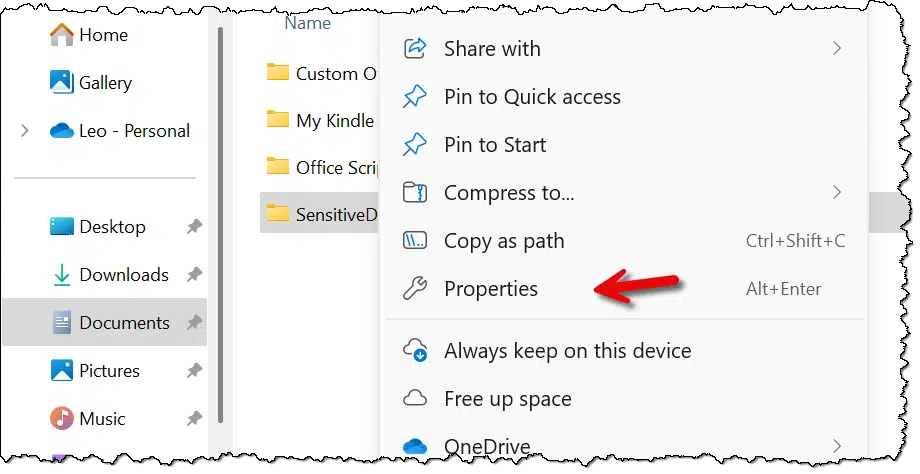
In the resulting dialog, on the General tab, click on Advanced.
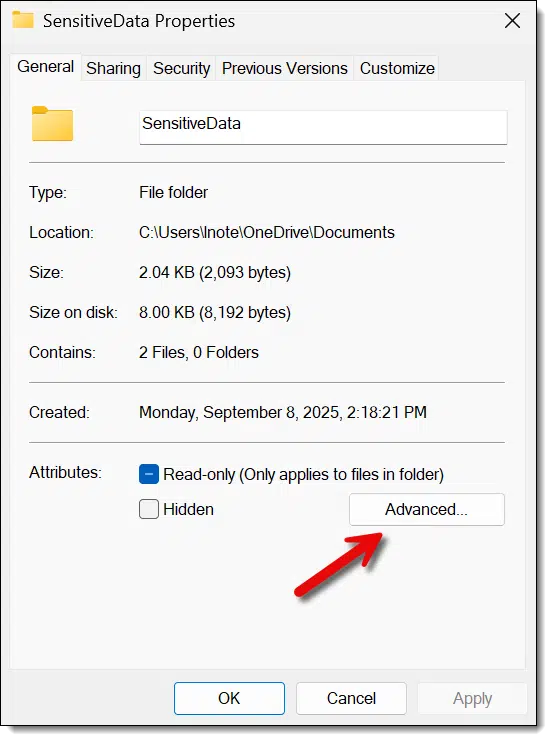
In the resulting Advanced Attributes dialog, make sure that "Encrypt contents to secure data" is checked.
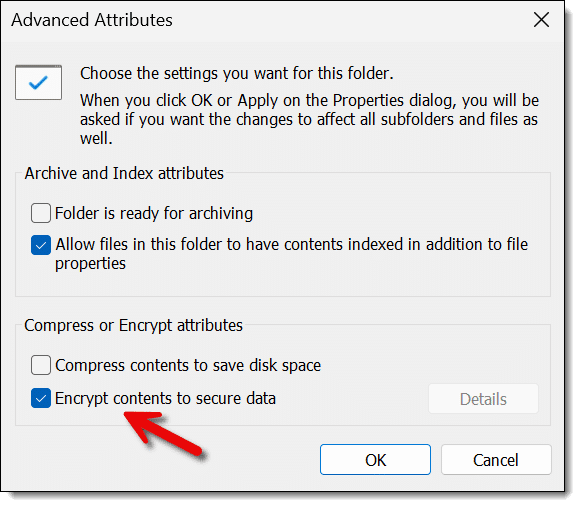
Click OK. You may be asked whether you want a single item or more than one item encrypted.
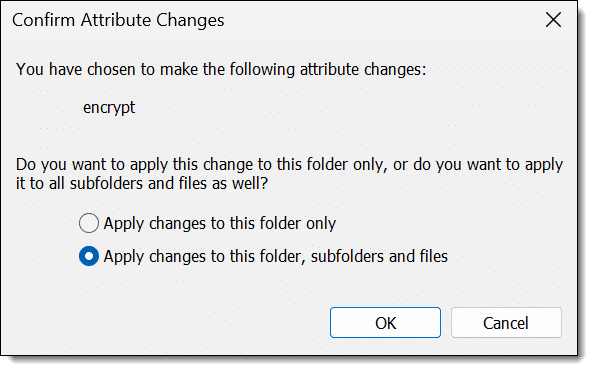
With folders, show above, the second option is to encrypt the folder and everything within it. When encrypting a file, the second option is to also encrypt the folder containing the file.
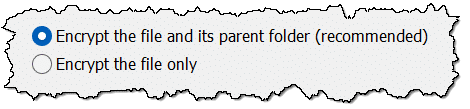
The choice is yours, depending on what you're attempting to do. (I find encrypting a folder and everything within it the most straightforward choice.)
The good news: It's simple, easy, and almost completely transparent to encrypt a folder. Your folder is encrypted, as are the files it contains. As long as you're not logged in, anyone who steals or otherwise gains access to your hard drive cannot gain access to that folder.
The bad news: Anyone (including malware) who can access your computer while you're logged in can access your files.

VeraCrypt is a successor to the once-popular TrueCrypt. It has a couple of different approaches to high-quality encryption, one of which we can use to encrypt a folder — or at least we can do something very similar.
You can use VeraCrypt to create an encrypted container secured with a passphrase. This is a single encrypted file kept on your computer's hard drive. You then "mount" that file using VeraCrypt, supplying the passphrase to decrypt it. Once mounted, the unencrypted contents of that file appear as a separate drive — often called a virtual drive — on your system. Reading data from and writing data to that virtual drive transparently decrypts and encrypts the data stored in the container file. Once the drive is unmounted, the data is once again inaccessible without re-mounting the container and providing the passphrase.
The specific details are beyond the scope of this article, but as an example, you might create a container C:\Users\%username%\Documents\MySensitiveDocuments and give it a nice, secure passphrase. When you mount MySensitiveDocuments using VeraCrypt and type in the passphrase, you can then assign it a drive letter — I'll use "S:" for this example. Now any program can read and write files and folders to drive "S:", and when doing so, the data is stored inside the file MySensitiveDocuments in encrypted form. Once you unmount the container, drive S: disappears, and the data is no longer visible in unencrypted form.
Using VeraCrypt to manage an encrypted container in this way is very similar to having an encrypted folder.
The good news: VeraCrypt provides high-quality encryption and is available on multiple platforms. Containers created by VeraCrypt are not tied to your login, but are secured by a passphrase. The containers can be copied from machine to machine and opened anywhere. Once mounted, encryption and decryption are transparent to any program reading and writing data on the virtual drive.
The bad news: Containers are monolithic, meaning that regardless of how many files they contain, they are still a single container file. The container size is specified when you create it. The only way to move encrypted data from one place to another is to copy the entire container.

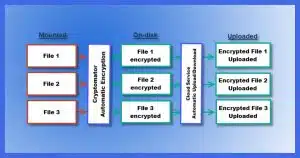
Cryptomator uses a model similar to VeraCrypt but is designed to work optimally with online/cloud services. Rather than storing everything in a single container, Cryptomator maintains individually encrypted files.
When you install and configure Cryptomator, you point it at an empty folder on your machine, which will contain your encrypted data, and specify a passphrase to use for encryption.
You mount that folder using Cryptomator and your chosen passphrase. Much like VeraCrypt, a virtual drive appears. Files and folders transparently written to and read from that virtual drive are encrypted and stored within the folder you originally specified. Once you unmount the folder, only the encrypted copies remain accessible.
The major difference between Cryptomator and VeraCrypt is that Cryptomator maintains the encrypted files and folders as individual files and folders rather than using a single, monolithic container. The article Cryptomator: Encryption for Your Cloud Storage goes into the differences in more detail.
The good news: Cryptomator provides high-quality encryption and is available on multiple platforms. It's highly suited to storing encrypted data on online storage services. Like VeraCrypt, your data is protected by a passphrase and is not tied to your login. Once mounted, encryption and decryption are transparent to any program reading and writing data on the virtual drive.
The bad news: You cannot easily copy individual files encrypted using Cryptomator to other machines in encrypted form. The entire encrypted folder is designed to be replicated to other machines and cloud storage providers.
"Free download" is attention-grabbing but often misleading.

Advertisers know that "free" is a magic word. Who doesn't like things for free?
As a result, we often see ads full of free offers: free newsletters, free trials, free samples, and so on.
The one to be wary of is the free download.
Consider that phrase. What it means is that the act of downloading something is free. That's exactly and only what it means.
It does not mean that the product is free. It means that downloading the product is free. They may charge you for anything after that. You may need to pay to install the program, you may need to pay to use it, or you may need to pay after some kind of trial period.
Of course, the product may be truly and completely free.
But the phrase "free download" doesn't mean that at all. It's just used to fool you into thinking so.
It's frustrating when email previously marked as "not junk" continues to get sent to the Junk folder. Let's look at your options.
Outlook.com does not make this fix obvious, but it is fairly easy. In fact, it's gotten easier in recent years.
Let's take some steps in Outlook.com to stop emails we want from going to the junk mail folder.
There are steps you can take to stop email from landing in the junk folder.
There is a feature designed specifically for this purpose: the Safe Senders list.
Click the gear icon in Outlook.com's upper right. Click Mail (if not already selected), and then click Junk email.
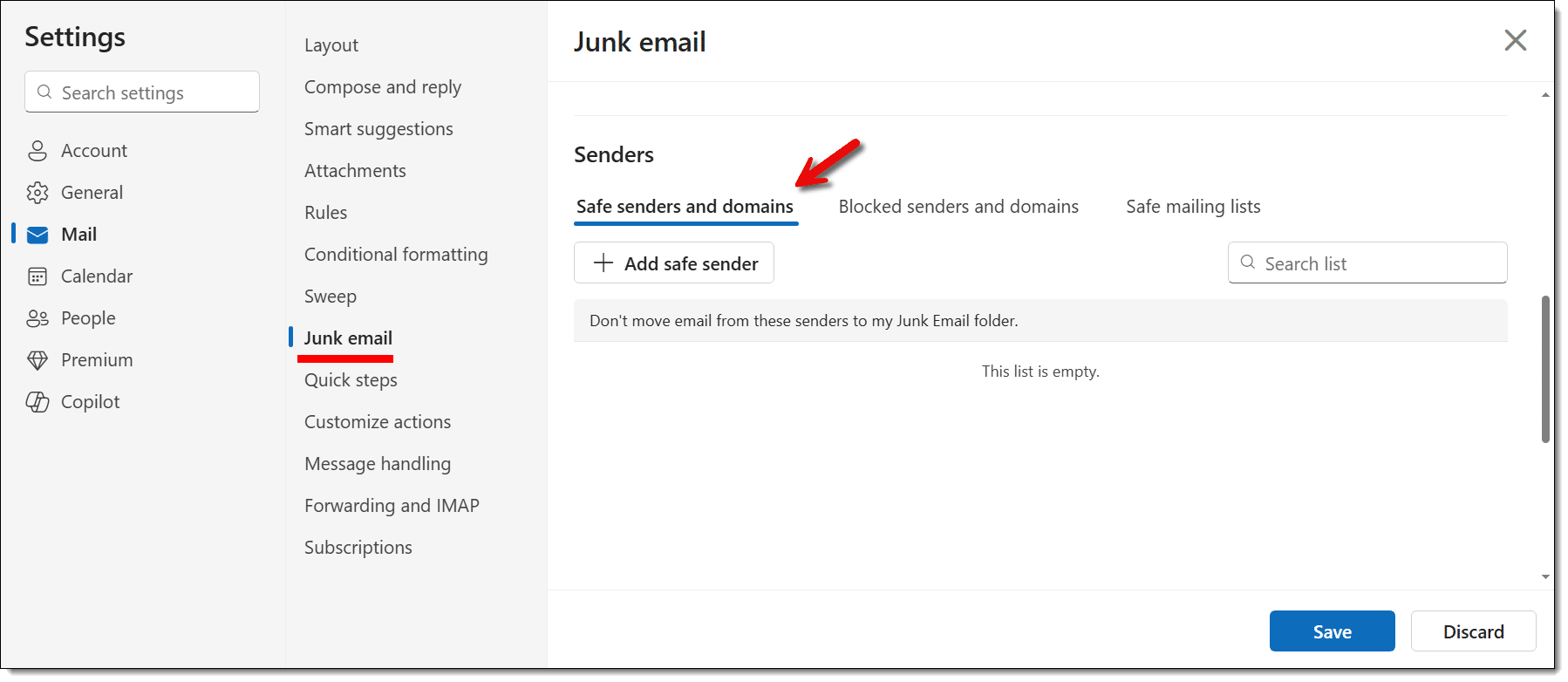
You may need to scroll down to find "Safe senders and domains". Underneath that, click Add safe sender.
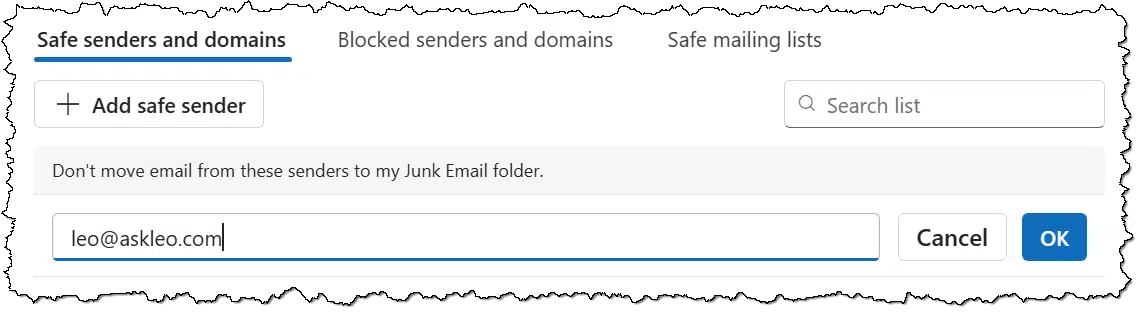
You can add either specific email addresses or domains.
Your contacts can also be used to prevent accidental junking.
When viewing a message in Outlook.com, hover your mouse over the "From" address. Outlook.com displays a small card with information about the sender. If you don't move the mouse, the card will expand to include more information.
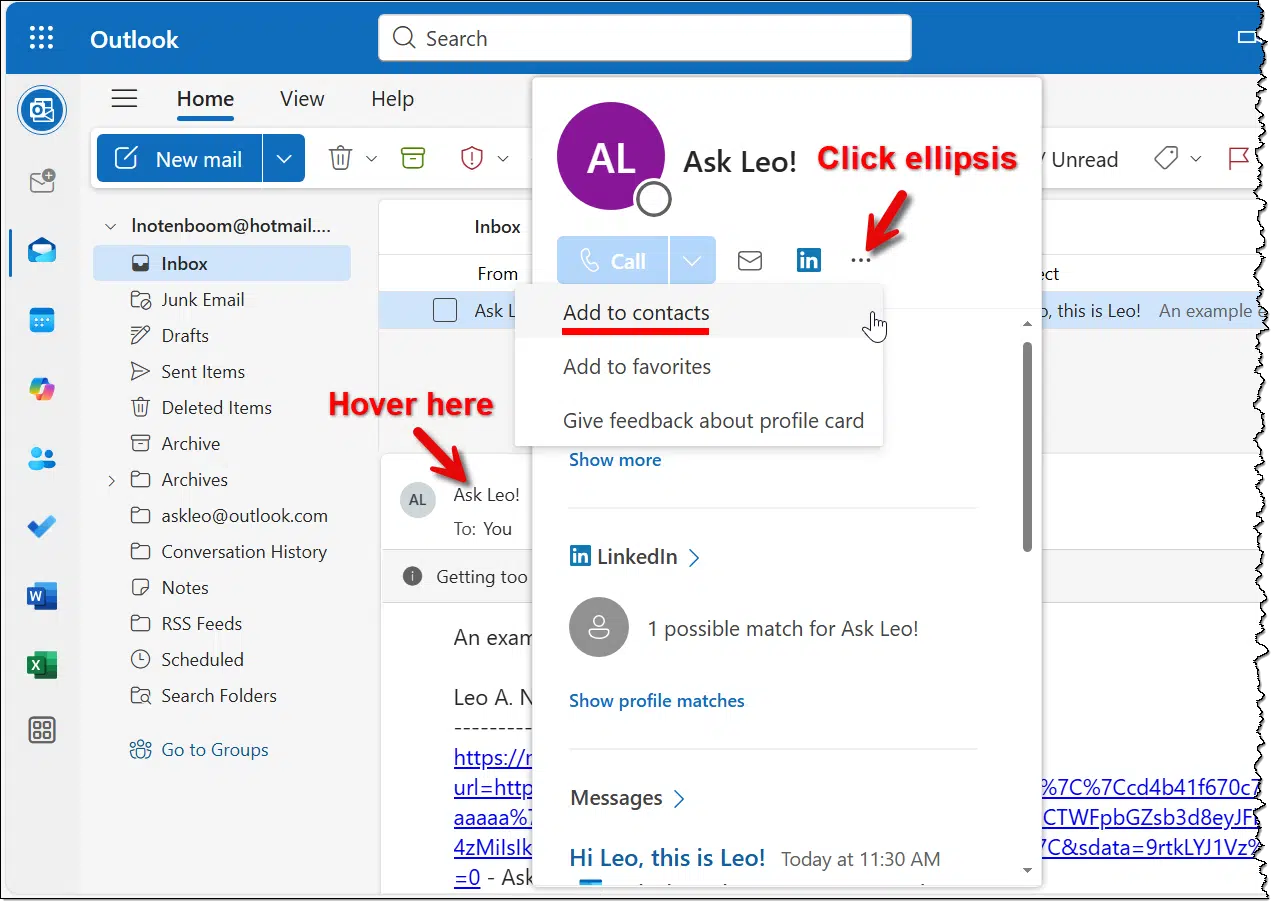
Click on the ellipsis near the top of the card, and then click on Add to contacts. That will add this email address to your contacts list.
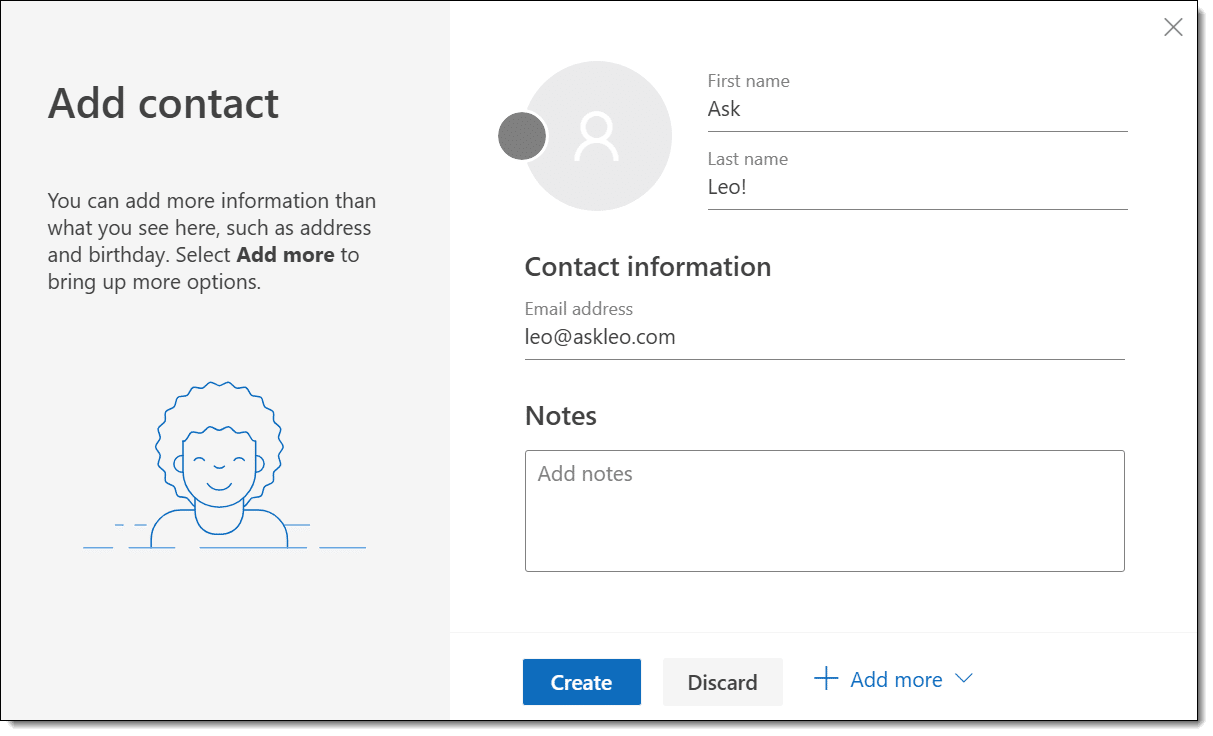
You can supply additional information if you like, but all you really need to do is click Create to create the contact.
You're not done!
Click the gear icon in Outlook.com's upper right, click Mail (if not already selected), and then click Junk email. Scroll down to find "Security options".
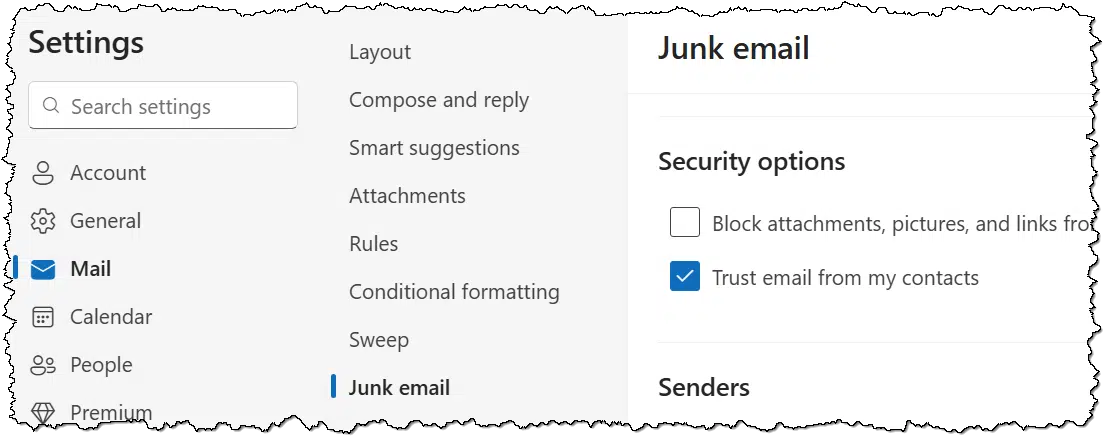
Make sure that the "Trust email from my contacts" is checked, and click Save. Now, email from anyone in your contacts will bypass the junk folder. Consider all the various newsletters, marketers, and other email addresses that end up in contacts before you do this.
For a variety of reasons, mostly related to fighting spam, a newsletter might come "from" a different address than is displayed in the From: field. For example, for a long time my newsletter:
It's now back to only "leo@askleo.com". For now.
Each of those other email addresses might be ones you'd want to add to your safe senders list, or contacts.
Here's the catch: it's difficult to determine if one of those other email addresses is being used. Outlook.com, which also keeps changing, has displayed them in the past, so it's fairly obvious, but it's also possible that they're hidden. The only way to know for certain is to look at the email's full headers for entries related to From, Sent-by, Reply-to, and similar.
I know that's beyond what most people are comfortable doing.
The good news in my example above is that simply adding my email provider's domain — aweber.com — to the safe senders list would address them all, whether they're used or not.

The newer .docx format is more capable and creates smaller files.

Many years ago, Microsoft Office programs were upgraded to use a new file format by default — the "x" or "extended" format — signified by the filename extension ending in "x". ".doc" became ".docx", for example. Other Office applications went through a similar transition: ".xls" became ".xlsx", ".ppt" became ".pptx", and so on.
Existing documents were not changed, however. If you have a Word document in ".doc" format, it stays in that format unless you explicitly perform a "Save As..." and manually save it in the new ".docx" format.
A couple of decades after the change, we're still seeing documents in the older formats being used and shared.
I suggest you switch.
Unlike the older formats, the "x" formats are compressed to take up less disk space. They also use new features and functionality in newer versions of Word. But most importantly, the file will get smaller — often significantly smaller.
The compression used in the Office "x" files is plain old "zip" compression. That means you can do some interesting sleight-of-hand, although it may not be particularly useful.
Take a Word ".docx" file and rename it to ".zip". Now use your favorite zip tool to examine the contents. You'll find many obscure files and folders that make up your Word document.

It's not terribly useful — except perhaps in some data recovery or extraction scenario — but I find it an interesting glimpse behind the scenes.
Windows 10 support ends October 14, 2025. Should you move to Windows 11? I’ll walk you through the pros, cons, and options: upgrade now, wait for new hardware, or even stick with Windows 10 safely. The choice is yours, but it’s time to decide.
Updated September/October 2025.
The time is here. October 14, 2025, is upon us. Windows 10's end of support is imminent.
With Windows 10 support coming to an end, it's time to consider what you want to do.
Windows 11 is a stable, usable system. It feels more like what we used to call a "service pack" to Windows 10: a feature refresh more than a completely new version of Windows. With Windows 10's end-of-support date approaching in October, it's worth considering the switch if your hardware supports it.
Before anyone takes this the wrong way, I am in no way saying you must upgrade to Windows 11. I recommend you do so if you can, but that's all it is: my recommendation.
As I've said in multiple places and times, Windows 10 will keep working beyond its end-of-support date. You can continue to use Windows 10 safely by taking more responsibility for your security. You can also consider enrolling in the Extended Security Update program (ESU) to, in a sense, push the end-of-support date out one additional year.
Eventually (though not immediately), some of your third-party applications may also end their support for Windows 10.
If you don't want or can't upgrade to Windows 11, keep calm and carry on in Windows 10.
Windows 11, now four years old, is a fine version of Windows.
I've been using it daily almost since the day it was released, and I've been happy with it from the start. I have it on both my primary desktop PC and my laptop.
Honestly, it feels more like a large feature update to Windows 10 than a completely different version of Windows. The taskbar was moved, and there's a somewhat different look and feel to it, but it's pretty much the same operating system. I know not everyone feels this way, but from my perspective, there wasn't much to get used to when I switched. It, and I, just kept on working.
Until now, though, my take was that Windows 11 rated a big "meh". There wasn't any compelling reason to switch.
However, since Windows 10's end of support is getting closer, I think it's time to consider the change — as long as your hardware supports it.

One frustrating aspect of Windows 11 is its system requirements. Many machines — even some newer ones — fail the compatibility test.
There are workarounds for installing Windows 11 if your machine isn't up to the requirements.
(Microsoft has disabled many of the previous workarounds, and those mentioned in the article above may be disabled as well at some point. Microsoft has also indicated that machines updated to Windows 11 through those workarounds may not receive updates or may have other issues Microsoft won't address.)
New machines are likely to have Windows 11 pre-installed.
Keep it. It's fine.
There's no reason to run away from Windows 11. As I said, I use it every day, and it's just as fine as Windows 10.
This is not a reason to avoid Windows 11, but some may take it as one. It's at least interesting.
| Windows XP | Popular |
| Windows Vista | Not so much. |
| Windows 7 | Popular |
| Windows 8/8.1 | Not so much. |
| Windows 10 | On over a billion machines. Very popular. Still. |
| Windows 11 | ??? |
It's as much superstition as anything else, and by itself, it's not a reason to avoid anything, particularly since there's been no word about any successor to Windows 11.
And yet. There does seem to be a pattern.
Make of it what you will.
To say Windows 11 elicits strong opinions in some people is perhaps an understatement. I want to address some of the more common ones.
No. Here's the thing: you're only likely to hear from people who are experiencing issues. They look for help (or just vent) in various public forums. The people who like it — the people for whom it's working just fine — are quietly getting on with their work. I'm convinced there are many, many more of them than there are haters.
That's not a Windows 11 problem. I know some feel Windows 11 is worse in some "Microsoft is evil" kind of way, but I don't see it. Windows 10 introduced much of the telemetry people complain about. To the best of my knowledge, Windows 11 hasn't made that significantly worse.
That's not a Windows 11 problem either. Seriously, every version of Windows includes features and functionality that many (though again, not all) people object to. Sometimes people grow to like the features, and sometimes the features disappear.91
In addition, many of the current complaints aren't about Windows 11 per se but about specific features being introduced and pushed hard across both Windows 10 and 11. What's worthy of your ire is how Microsoft is pushing the features. (*cough* OneDrive *cough*)
Oh, hell no. Honestly, this conspiracy theory frustrates me to no end. No one is forcing you to purchase a new machine. Stick with Windows 10. Switch to Linux. Use one of the hardware requirement bypasses. None of those options requires you to spend a dollar92.
Yes, eventually you're likely to get a new machine, not because anyone forces you to, but because it's time. That's been the case since PCs were invented. As a side effect, you'll have a machine that meets the new hardware requirements.
I often get accused of being on Microsoft's payroll (I haven't been for decades, long before Ask Leo!), getting paid to endorse them (I have yet to see a check), or some kind of Microsoft apologist. When I recommend you consider Windows 11, it triggers the anti-Microsoft crowd something fierce.
I'm a realist. I have lots of complaints about Microsoft and Windows. Lots. But I also realize that leaving Microsoft and Windows behind isn't in the cards for many people, including most of my audience. Railing against all of Microsoft's evils — of which I agree there are many — wouldn't be helpful. Helping people switch to something else would benefit only a small portion of my audience.
Instead, I try to help people make informed decisions and work within the system they have.

95: Cortana, we hardly knew ye.
96: Or whatever your local currency might be.
Sometimes replacing or upgrading your old hardware or software is the easiest solution to a problem.

I often counsel folks that hardware rarely needs to be replaced because of a software problem. If your machine is full of malware, for example, you don't need a new machine; you need to wipe it and start over with clean installs of everything.
There are scenarios, however, where replacing hardware and/or software may be more realistic.
For example, you might need new software — an application or an operating system — that pushes the limits of what your hardware can do. You could spend a lot of time trying to tweak settings and make changes, trying to shoehorn the system into place so it's functional...
...or you could get a new machine. If your budget allows, it's a quicker and longer-lasting solution than whatever you cobble together.
The same is true for software. You may be happy with the 15-year-old version of an application, but there's a good chance that eventually it won't be supported on current versions of your operating system or on newer hardware. Again, you can spend a lot of time and effort looking for tweaks and workarounds or alternatives... or you can upgrade the application to the most current version.
This requires learning the new version's nuances, but again, it may be the most realistic solution. It's quicker and likely to last longer than whatever you do to keep the old version afloat.
I'm not saying you always need to replace or upgrade, but I am saying that you should consider it when things get too tenuous.
Replying to spam is tempting but pointless. It often gets you more spam, not less.

It's a comment I hear frequently: "I replied to the spammer, telling him to stop..."
Don't do that!
The only effect it might have is that you will get more spam.
In most spam, the "From:" address that you would reply to is fake. Your reply will either:
The net effect is that nothing changes.
Some spam actually has a "From:" (or "Reply-To:") address that works, but messages sent to it don't go to anyone who cares, if it goes to a real person at all. When you reply to this address, the person or spambot notices that your email address is real and knows you got their spam and read it. They'll ignore whatever you say to them. Instead, you'll get more spam.
Spam is a pain — I get that — but replying to it is not the solution.
Instead, use the "this is spam" button in your email program or service to automatically filter the spam into your spam folder, where you need not look at it.
Is your once-speedy computer crawling? From hidden malware to too many background apps, there are plenty of reasons your PC might feel sluggish. I’ll walk you through the most common causes and what you can do to get things running smoothly again.
Perhaps when you purchased it, your computer ran like a champ and quickly did everything you needed. Now, well, not so much. Perhaps it takes forever to boot. Or starting applications is slower than molasses. Or maybe the machine just acts sluggish when you try to use it for just about anything.
Regardless of the specifics, the underlying theme is simple: It's slow.
There are so many reasons a machine could slow down. I'll list a few of the most common reasons here, along with some advice on what steps to take.
A slow PC can be caused by malware, misbehaving programs, too many apps running, aging updates, or failing hardware. Check for viruses, trim unnecessary startup programs, add RAM or an SSD, and, of course, back up in case of hardware failure. Small fixes can often bring big speed improvements.
An assumption I'm making here is that it's your entire computer that is slow, not just one or two applications.
For example, if Edge has slowed down while the rest of your software runs just fine, you need a different approach than what I'll outline here. Instead, you'll need to focus on the specific applications that are behaving slowly. The solutions may be the same, but arriving at those solutions and choosing one will depend on investigating the issue with that specific application.
Here, we're talking about a slow computer: just about everything seems slow.
If the slowdown is sudden and severe, the first thing that comes to mind these days is malware.
Different malware does different things, and it behaves differently on different machines. One symptom of malware can be a suddenly slow or sluggish system.
Your security software is your first line of defense. Make sure it's up to date, and run full scans. Here's How to Run a Full Scan Using Windows Security.
Another step I take when my computer seems to slow down, particularly if it's sudden and unexpected, is to fire up Process Explorer. Very often, the source of a system slowdown can be attributed to a single program running on your machine that is attempting to use all available processing resources. When that happens, other programs (often including Windows itself) aren't able to respond to your actions as quickly.
How Do I Find Out What Program Is Using all My CPU? walks you through the steps to identify any processes in this state.
Similarly, a program that's using the disk heavily (i.e., the activity light isn't even flickering, it's just on), or even using the network heavily, can manifest as a slow system. Why Do I Have Constant Disk Activity in Windows? and How to Monitor Network Activity and Speed up Your Machine's Connection will help you identify those culprits, if present.
This isn't as common, but it definitely happens.
We normally think of most hardware failures as sudden and catastrophic. Sometimes, they're a little less catastrophic than we think.
For example, if a sector on a magnetic hard disk is going bad, that may first manifest as a slowdown whenever that sector is accessed. The disk drive will try multiple times to read a marginally bad sector before giving up, and that takes time. If multiple sectors are affected (which is common if it's an area on the disk media that's been damaged, for example), then this might happen for more than one sector, and that time adds up. The system keeps working because the sectors aren't so bad that they actually fail, but they take additional time to be read because they're going bad.
Back up, of course. Impending failure can quickly become actual failure and data loss.
In situations like this, when dealing with traditional magnetic hard disks, I start by running CHKDSK /R, and/or SpinRite to diagnose and possibly repair the hard disk in question.

In my experience, the #1 cause of a system gradually slowing down over time is that it's being asked to do too much.
Many software packages install components that run all the time, whether or not you're actively working with the software in question. Install enough of those types of packages, and you may have a small army of components all starting automatically and running in the background, using resources constantly.
To be clear, some software needs to run all the time. But I see many that don't really need to, but run all the time anyway. Examples include:
Those are all legitimate, depending on how you use your computer.
I've also seen applications install tools that load the application when you boot your computer, whether you use the application or not. The reason? It makes your eventual use of the app seem faster, since it's already loaded. Unfortunately, it's at the cost of a slower boot or sign-in time.
There are two approaches to resolving the "too much stuff" scenario.
In a sense, this falls into the "too much stuff" category, but it applies even if you haven't made a single change.
It's commonly understood that systems get bigger over time. That's more or less the nature of software evolution and our expectations of ever-increasing functionality and support.
While we normally associate that with major version updates (i.e., Windows 11 is larger than Windows 10), it can actually happen — slowly — at the system or application update level as well.
Years of updates slowly increase the resource requirements of your operating system and applications. Particularly if your system is already somewhat marginal, that increase can be enough to affect your overall performance.
Note that I'm not talking about files left behind after an update (unless, of course, your hard disk is full), but simply the scenario where the patched version of an application might need ever so slightly more RAM than before. Repeat that for all the applications you have installed and the updates your system receives, and it adds up.
Once again, adding RAM or uninstalling programs you don't use can help if this is the case.

Been asked to spot bicycles or click “I’m not a robot”? That’s CAPTCHA at work. Here’s why websites use them, how they’re changing, and what it means to be asked to prove you’re human.
We've all seen them and been frustrated by them. Click on all the images that contain a bicycle. Or a bridge. Or stairs. Or click this slider and move it to the right until the image is properly aligned. Or pick the two things shown in different orientations that are the same.
Those are all CAPTCHAs, which is an acronym for Completely Automated Public Turing test to Tell Computers and Humans Apart. It's even trademarked by Carnegie Mellon University.
As frustrating as they are, they exist for an important reason.
CAPTCHAs confirm that you're human, not a bot. They stop spammers from flooding websites with junk. While sometimes annoying, they keep the internet usable. As AI gets smarter, CAPTCHAs keep changing too. Next time you click "I'm not a robot," remember it's there to protect us all.
As with so many things these days, it's all about spam and spammers.
There are several scenarios in which CAPTCHAs stem the tide of spam.
Without CAPTCHA, it's easy to use a computer program to open thousands93 of free email accounts and start sending spam from them. Sure, the accounts would eventually be blocked, but the program just keeps on creating thousands more.
Without CAPTCHA, it's easy to use a computer program to leave thousands of spammy comments on Ask Leo! and other blogs and websites. It's easy to overwhelm just about any website that has an input form that even looks like it might be a comment-submission form.
Spammers are responsible for untold millions of dollars in additional costs and burden on website owners and internet users.
CAPTCHAs are one way to keep that from growing out of control.
One of the oldest challenges in computer science is to build a computer (or software) that mimics "thinking" like a human and does it so well you can't tell the difference. Asked a series of questions, you wouldn't be able to tell whether the responses came from a real human or a computer.
That's referred to as a Turing test, named after the computer scientist Alan Turing.
You've probably heard more about it of late with the rise of AI. Many AIs can pass various forms of Turing tests. More on that in a moment.
A CAPTCHA is a kind of Turing test. It's a test to prove you're human.
Until recently, the old-style distorted letters style of CAPTCHA stymied computer programs.
And then this happened.
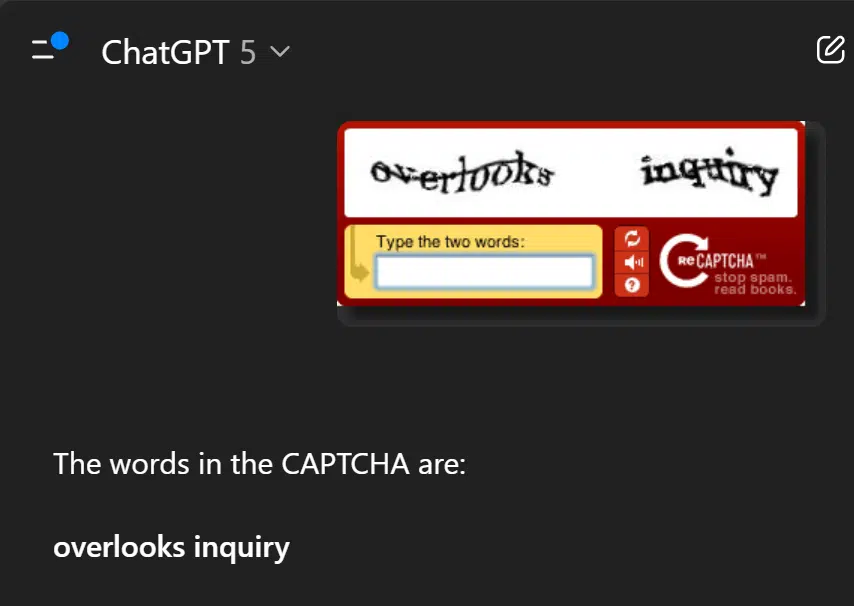
I didn't even tell ChatGPT what to do. I just pasted in the image that I used to use in this article — an example of what was once impossible for computers to decipher — and it simply returned the result.
Yikes.
And I'll bet you haven't seen that style of CAPTCHA for some time.
Even the ones we do see — distorted image identification and matching — are slowly becoming things that current AI can figure out.
The result, of course, is an arms race. You can expect to see more and different forms of CAPTCHAs in the future.
CAPTCHAs have one huge drawback: they assume you can see.
Blind computer users — of whom there are many — cannot complete a visually oriented CAPTCHA.
As a result, there are alternatives. Some use audio (asking the person to type a series of characters), or even simple math expressed as a sentence ("What do you get when you add two and seven?"). The goal is the same: answering these types of tests is surprisingly difficult to automate, so a correct result is reasonably possible only if you're human.
Of late, an even simpler CAPTCHA has become popular: the "click here" CAPTCHA.
As simple as this seems, it's apparently fairly effective. The "trick" is that you can't click the checkbox right away. It's replaced by a spinning disk until it's ready for your input. Current automated spam bots aren't capable of something as simple as detecting that a delay is required.

Some employ other behind-the-scenes tricks, such as monitoring mouse movement while they wait, to determine whether or not the entity at the keyboard is a human or not. Many CAPTCHA techniques now rely on behavioral analysis rather than on your ability to identify bicycles in a grid.
My website takes comments, but I currently don't use CAPTCHA. How's that possible? I do get a lot of spam.
I pay for a service that attempts to block spam. That number above — 381 — represents a little over half a day's worth of blocked comment spam attempts. I'm sure it'll pass 600 attempts by the end of the day. We're looking at something like a quarter of a million attempts to post spam comments here every year.
Because spammers aggressively and constantly change their approach, I'm not ruling out requiring CAPTCHA sometime in the future. But for now, things seem to work well.
Except things are getting worse.
A few days ago, one of my servers — fortunately not the one housing Ask Leo! — bogged down to a crawl and finally crashed. The culprit? Bots and scrapers. Specifically, a new genre of spiders that are scraping websites for content to feed AI large language models. There are so many, and they are so persistent and overwhelming, that they can bring websites to their knees.
Not to mention copying all their content.
As a result, many websites now present a CAPTCHA before you can even view their content.
It's no longer only about spam, but about protecting the servers and the content that the websites present.
In my case, I just beefed up the server specs a little, and all seems well. For now. I'm not as concerned about content "theft", as some see it, as I am about just keeping my servers online.94

97: And by "thousands", I mean hundreds of thousands, if not millions.
98: Not as concerned, or perhaps simply resigned to the current state of AI.
Want to send a file safely by email? I’ll show you how to use the simple .zip format with a strong passphrase so your private documents stay protected across Windows, Mac, or Linux platforms.
Sending an encrypted document as an attachment is a reasonable approach to securely sending information in what is otherwise an insecure medium: email. Even though there are approaches to encrypting email messages themselves, they're either obscure or complex (or both), and not widely known.
Encrypting individual files can also be an important step in secure data management.
I have a specific recommendation that should be easy and work just about everywhere.
Encrypting a file is easy with 7-Zip. Put the file in a .zip archive and set a passphrase. The result works across Windows, Mac, and Linux. Share the file securely, but give that long-and-strong passphrase separately.
The .zip file format, formally referred to as an "archive", lets you bundle multiple files together into a single file that is compressed to save space.
Password-protecting a zip file encrypts its contents.
There's nothing that says you must include several files in the archive; you can also use .zip to encrypt single files.
I'll use 7-Zip for my example, but the .zip file format is widespread, and zipping tools are available on every platform, including Windows, Mac, and Linux. You should be able to decrypt a zip file encrypted on one platform on any of the others.
Open 7-Zip and navigate to the folder containing the file you wish to encrypt. Right-click on the file, select 7-Zip, and then Add to archive.
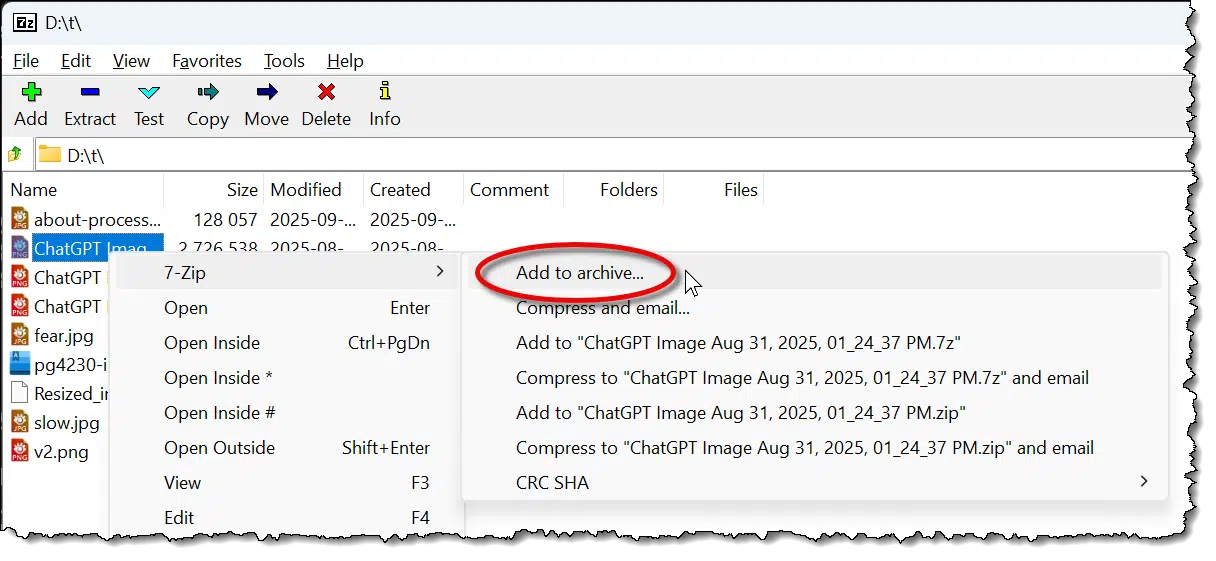
The other quick options, like "Compress to ‘<filename>.zip' and email" look convenient, but they don't encrypt; thus, our use of the "Add to archive..." option.
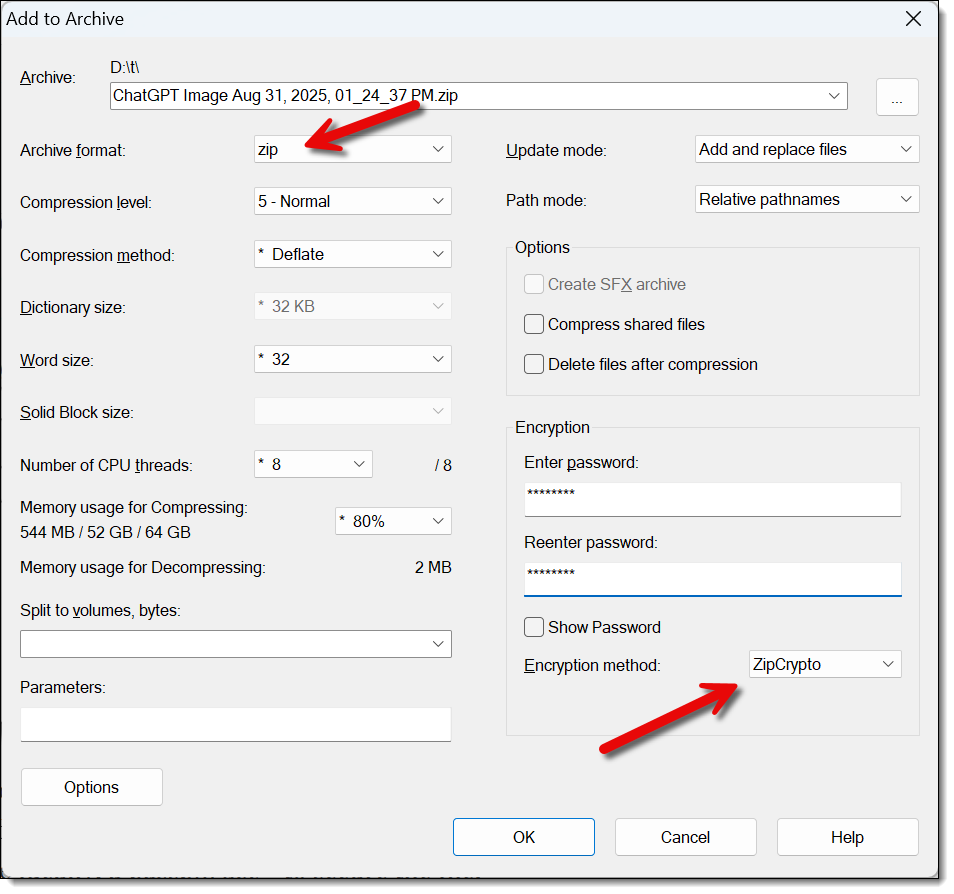
The first field lets you name the output file. By default, it'll be the name of the file you selected, with the extension changed to .zip.
Settings to pay attention to:
Click OK, and 7-Zip will create your .zip file.

In this example, I encrypted a random ChatGPT .png image. Note that most zip utilities leave the original alone. You may want to delete that if you don't want an unencrypted copy of your file to remain.
You can now send that file to others, and they can use their zipping program to extract the contents of the file. (Be sure to share the passphrase separately — ideally via a method other than email.)
I'll be honest and say that I'm not a big fan of the graphical interfaces of most zipping utilities. They're too confusing and cumbersome for me.
Here's what I really do to zip a file: in a Windows Command Prompt, where the file I want to encrypt is in the current directory, I type:
7z a -tzip -p example.zip example.doc
Where:
To decompress and decrypt the zip file back into its original file or files, the command would be:
7z x example.zip
Where the "x" command simply stands for extract.
One characteristic of the zip file format is that even when encrypted, the list of filenames it contains remains readable. The net effect is that in our example, someone without the password may not be able to see the contents of our file, but they can still see its name.
The traditional solution to this is to rename the file to something obscure before zipping, or to zip twice. Zipping twice has the added benefit of preserving the original filename for the intended recipient.
The net effect of this approach is that the contents of the files, as well as the names of the files contained within the original zip, are protected.
Windows File Explorer includes .zip file support.
Except.
It's not possible to create a password-protected zip file. You can use Windows File Explorer to open password-protected zips, like the ones we created above, and you can use it to create zip files that are not password-protected, but that by itself doesn't solve the problem at hand: encrypting a file.
There's a lot of discussion about which encryption technology is the "best" and thus least susceptible to cracking. This is an important discussion, and I believe the scenarios above are sufficiently secure for all but the most demanding applications.95
However, hackers rarely gain access to encrypted files by cracking the algorithm.
Instead, they simply hack the password.
Picking a weak password makes that kind of discovery easy.
Unlike hacking passwords online, in this case, an attacker can spend as much time with your encrypted file as he or she would like to. In fact, they can throw as much computational power at it as they want to perform a brute force attack, trying every possible password.
An eight-character password is nothing to an offline brute-force attack these days.
That's why most of these programs don't use the word password but default to passphrase.
Rather than using a short eight-character password, use a longer phrase comprising four or five words that total at least 20 characters or more. No matter how you do the math, this is virtually uncrackable using current brute-force techniques.
99: Depending on your needs, you can delve deeper into different algorithms used in most zipping programs, or dive into public key encryption with PGP/GPG.
Set-up programs rarely get the respect they deserve. As a result, they may not handle your cancel request as well as they should.

Installation and setup programs have a checkered history. They're tasked with installing important software, yet they are not actually part of that software. They're often developed by a different team and frequently with less-than-ideal resources.
Put another way, they rarely get the respect they deserve.
The result is that they're often not as robust as we want them to be.
For example, sometimes they don't react well to being cancelled partway through. Aborting an installation can leave remnants of partially installed components behind. In the worst case, those remnants can interfere with subsequent attempts to install the same software.
I'm not saying all setup programs are like this; only some, and perhaps only a few. The problem is we can't know beforehand which is which.
As a result, two pieces of advice in today's tip:
I realize that letting it complete isn't always an option, depending on the situation, but if you can, do.
Local folders are a way to copy email locally to your PC and out of reach of IMAP deletions, accidental or otherwise.

One of the legitimate concerns about connecting a PC-based email program to an online email account using IMAP is the fear of email loss.
IMAP synchronizes email across multiple machines. For example, if you read an email on your mobile device, it's marked as read on your desktop. Delete an email on your desktop, and it disappears from your mobile device. It's a great way to manage multiple devices accessing the same email.
The concern is the delete scenario: what if your email provider accidentally deletes your messages, or your account gets hacked and the hacker deletes them? That deletion would happen on all of your devices using IMAP.
Most email programs like Thunderbird, Microsoft Office Outlook, and others provide local folders. These folders aren't connected to any of your email accounts; they reside only on your PC. Copying email into local folders moves the messages out of the reach of any IMAP-initiated deletions or changes, intended or otherwise.
I'm not suggesting you copy all of your email to local folders as some kind of backup. Regularly backing up your PC, as you should, will back up your locally downloaded IMAP folder well enough. But local folders are an additional tool that, when used properly, can reduce your risk of losing emails should you, for example, lose access to the account for some reason.
Want to know what’s really going on in your PC? Process Explorer is a free, powerful tool that digs deeper than Task Manager. I’ll show you how it works, what you can discover, and why it’s one of the best utilities you should have on your computer.
You may not need, or even want, to know what's going on under the hood in Windows. Most computer users shouldn't have to. Computers are supposed to just work, and you should never need to be bothered with things like processes or resource utilization.
And yet, there are times when we want, or even need, to know.
This is where Process Explorer comes in. Process Explorer — also called "procexp" — provides a window into all the programs running on your computer at a level of detail that Task Manager doesn't.
Process Explorer is a free, powerful tool that shows everything running on your computer in detail. It beats Task Manager with features that dive deeper, even showing system trends over time. It's a must-have for troubleshooting and understanding your PC.
Task Manager in Windows 10 and 11 is a good tool, and it's gotten better since its earlier incarnations.
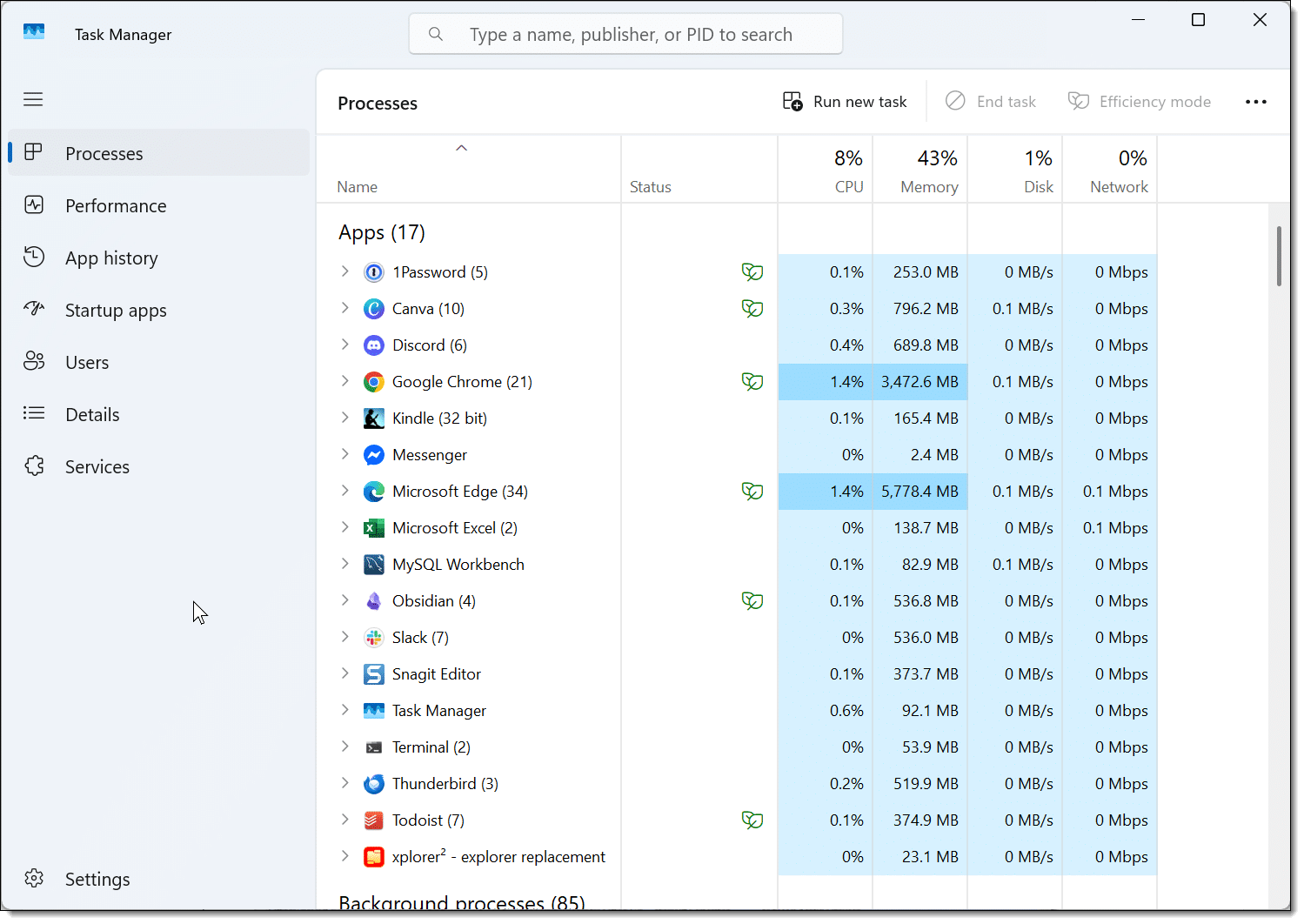
While past versions of Task Manager were woefully inadequate for diagnosing system activity, the current versions do provide more visibility into just what programs are running — both the foreground programs you see, and the background programs you don't. Often that's enough.
But sometimes we need more.
Process Explorer is included in the SysInternals suite of tools, which can be installed for free from the Microsoft Store.
It's hard to list all the types of things you can do with Process Explorer. It's like a Swiss-Army knife of system utilities, and it has many, many potential uses.
When you fire it up, you'll get exactly what you might expect: a list of the processes running on your machine.
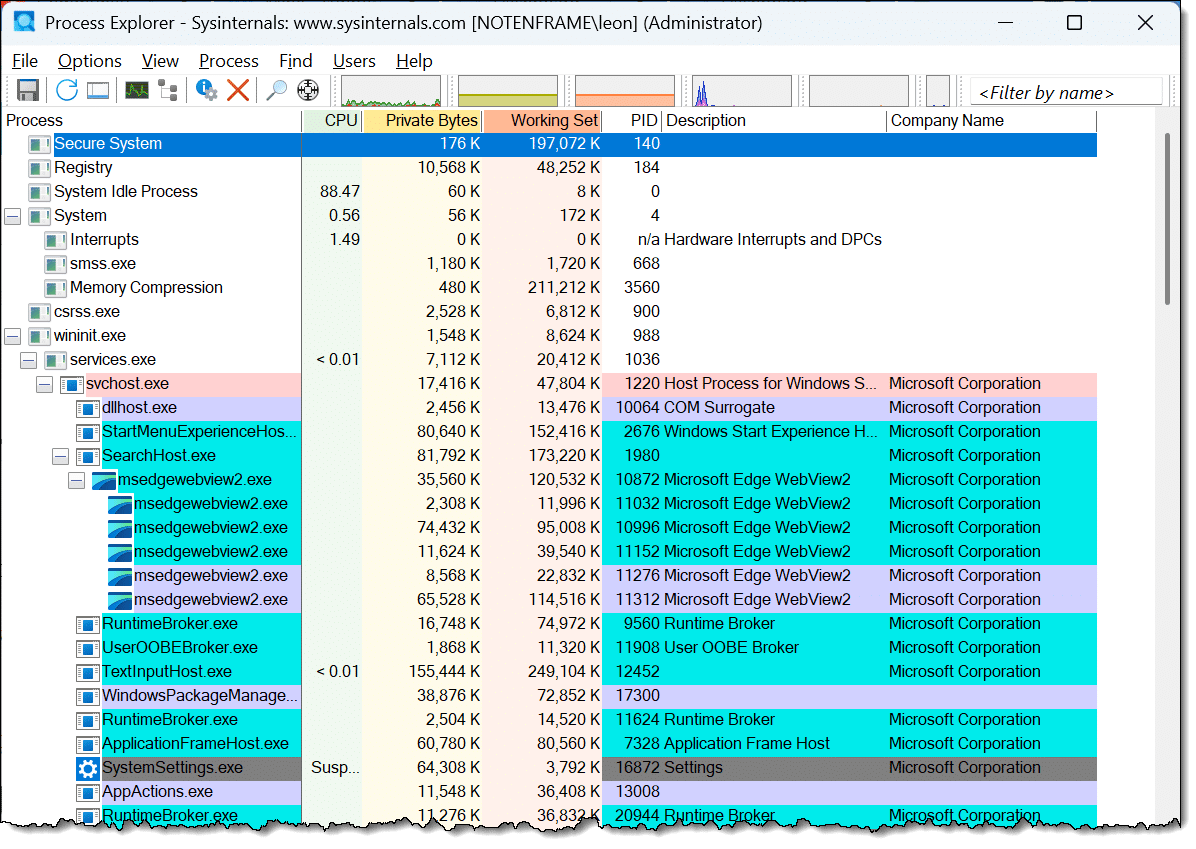
The list includes all tasks, or "processes", running on your system. The "hierarchical" view (click on the "Process" column header to change the view from alphabetical to hierarchical) shows which processes started other processes, which can be a very interesting way to understand how they all relate to each other.
Click on the "CPU" column header, and the processes will be listed in order of which program is using the processor most heavily. This is updated every few seconds and is perhaps the single most common use of procexp: to answer the question "What's using the CPU the most?"
Click on the "Working Set" column header to list processes in order of physical memory (RAM) used. As you might expect, this is the next most common use: to answer the question "What's eating up all my memory?" The "Private Bytes" column does roughly the same, but includes memory that may have been swapped to the system paging file.
CPU and memory are probably the most commonly used columns. You can find out more about the others (and, indeed, a list of additional columns you can monitor) in Procexp's help.
The "Find handle or DLL" function is a quick way to see, for example, which process is using a file. Enter a partial filename, and procexp will list all the processes that are referencing a handle (typically a file) that includes that name.
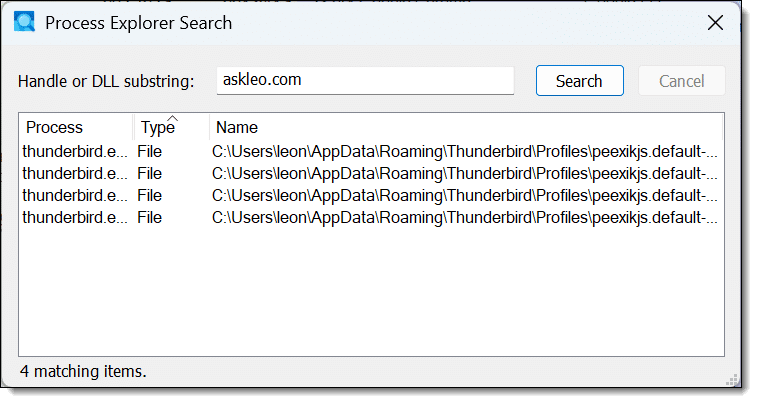
In the example above, I searched for "askleo.com", which returned the fact that Thunderbird has several files open that include that as part of the filename (not visible, but off to the right in the dialog) as it accesses my askleo.com email.
Process Explorer also lets you dive into individual processes for more information. Right-click on any process and click on Properties for more details.
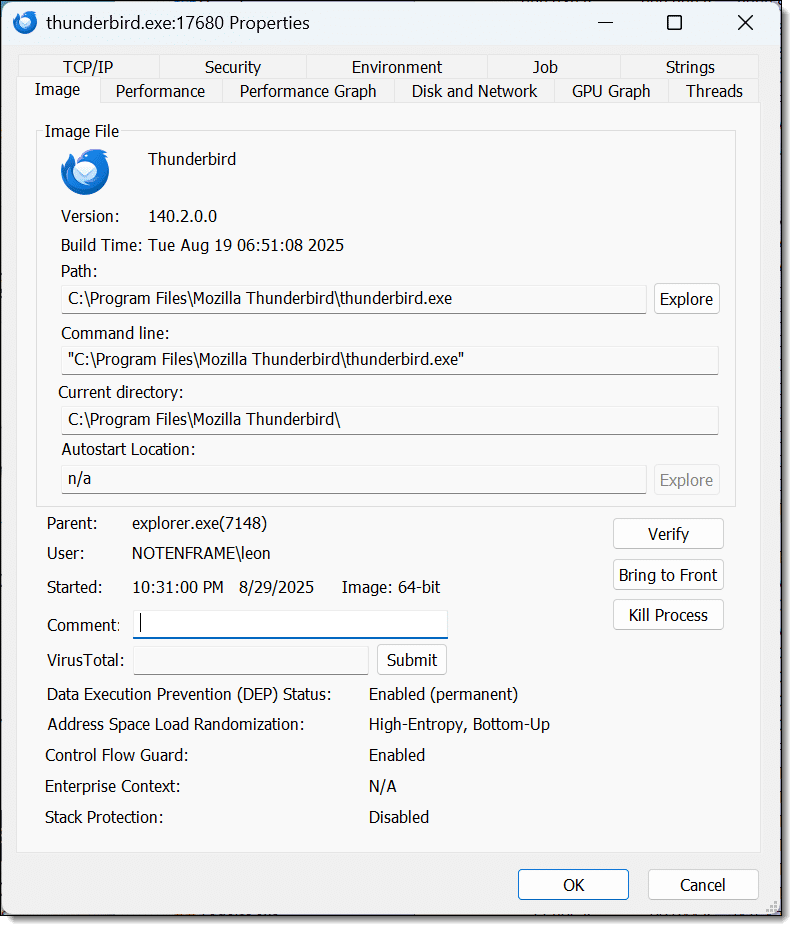
As you can see, the Properties view of a process — thunderbird.exe, in this case — shows a lot of additional information. Explore the various tabs on the dialog, and you'll be able to see network usage, security attributes, the resource usage of the process, the command line used to start the process, and even anything that looks like a readable string within the process image or memory space.
Finally, click anywhere on Process Explorer and type CTRL+I. This opens the "System Information" display.
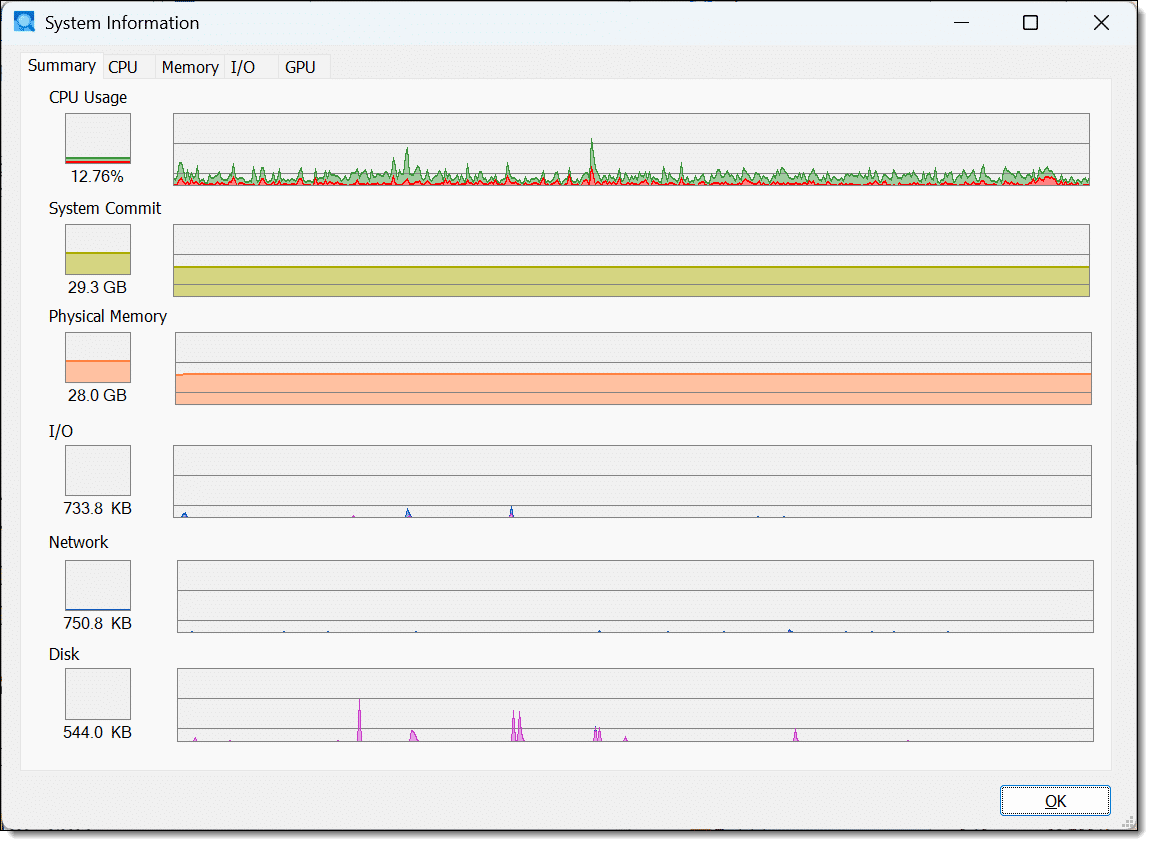
System Information presents an overview of what your system is doing and updates in real time. It's great for watching trends over time as your computer goes about its work. Hover the mouse over any point in a graph, and you'll see a tooltip with information about which process was at the top of the list then.
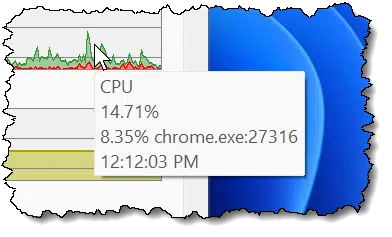
You can also click on the tabs shown at the top of the System Information dialog to get even more data about that specific topic.
It's tempting to remove the additional partitions you find on your hard drive. Don't.

I am asked frequently about the additional partitions that appear on many modern hard disks, particularly on computers running Windows 10 and 11. Most commonly, they're recovery partitions, original Windows images, UEFI information, or other manufacturer-specific data repositories.
Some people want to eke out every megabyte of disk space, so they want to know whether they can remove the partitions and free up the space for normal use.
Don't.
Typically, these partitions are small, so the space you would recover is insignificant compared to the rest of the drive. More concerning, they're often critically important.
Save yourself the grief and the time. Leave these partitions alone. If you need more space, get a larger hard drive or an additional one.
And if you just can't stand it and must remove a partition, make absolutely sure to take a complete image backup first... just in case you end up regretting your decision.
Worried about Windows 10 after support ends? Don’t be. I'll show you the simple steps -- good habits and reliable security software -- that will allow you keep using your Windows 10 computer safely.
I know it's a controversial position that not everyone agrees with, but I believe it's quite possible to keep using Windows 10 safely after Microsoft ends its official support of the operating system.
There are two things you need to do. Both are things you should be doing already.
You can still use Windows 10 safely after support ends by doing two things: practice safe computing and use good security software. Even without new updates from Microsoft, with smart habits and good tools, your PC won't suddenly become unsafe.
This is the single most important thing you need to do to keep using Windows 10 safely.
In fact, it's something you should already be doing and should represent no additional work on your part. Windows 10 end of support is simply a reminder not to drop your guard.
What does that mean? From my most important article:
I'll go one step further and say that your actions are much more important than anything Microsoft might fix in the operating system, regardless of the version of Windows. Why? More people are compromised by skimping on those things than they are by some random unpatched vulnerabilities.
In fact, most unpatched vulnerabilities require that malware make it past you to be exploited. In other words, if there is something that Microsoft doesn't patch, your good habits are what protect you.
I continue to recommend Windows Security (aka Windows Defender) as a solid security solution built right into Windows. It's already there, and you may already be using it.
Microsoft has stated that they will continue to provide security definition updates for Windows Security until at least 2028. Thus, even on Windows 10, where Windows itself will not be updated after the end-of-support date, the security software will remain current.
There are also several other good security suites that you can switch to (Windows Security will step out of the way when you install them) that will continue to provide protection long after Windows 10's end of support.
The result is what I'll refer to as two-step protection:
If you intend to continue to use Windows 10 past its end-of-support date, consider signing up for Extended Security Updates.
The ESU program is nothing more than an extension of the end-of-support deadline for one year. After that year is up, you'll simply continue as above, relying on yourself and your security software once again.
Keeping all your software as up to date as possible has always been important, and that hasn't changed. However, "important" doesn't mean "can't live without".
Security — all security — is about playing the odds and stacking the deck in your favor. There's no such thing as perfection, even with Windows security updates.

Looking at it a different way, all these things have to be true for something bad to happen to your computer96:
Thwarting any of those items means that the malicious vulnerability will not affect you. Ongoing security updates deal only with #1, and even then, only if #2 is deemed "important enough".
Malware still has many hoops to jump through before it impacts you.
Your job: keep your guard up for the steps you control. That means not allowing malware onto your machine to begin with and using good security software.
There are two primary objections to what I suggest.
I don't think hackers are disciplined97 enough for the first to have any merit. Windows 7's end of support faced the same fear, and nothing came of it. In a way, it's merely a subset of the second point.
As for the second, I don't buy it. Sure, there's a constant stream of bug fixes to Windows — we see it every "patch Tuesday" — but by and large, those a) aren't security issues, and b) those that are rarely affect broad swaths of Windows users.
On top of that, most bugs are introduced as software is changed. Windows 10 isn't changing anymore. The rate at which Windows 10 vulnerabilities are being introduced should be at a near standstill. The only potential concern would be vulnerabilities that have gone undetected for a long time, which by definition should be nearly none.
As I've said in a few places, we've been here before. We have experience with exactly this scenario in two interesting and different ways.
First, when Windows 7's support ended, there were dire predictions of both of the objections above: a previously known vulnerability to be unleashed after the end of support, and dire consequences to follow. Neither materialized.
Just as there are people who want to stick with Windows 10 today, some folks kept on using Windows 7 safely after its end of support. How? By following the two-step protection I outlined above. Some are still using Windows 7 today!
Second, some people have been running Windows 10 without updates for some time already. For various reasons — often the perception that Windows Updates are more disruptive than they're worth — individuals disable updates. That means no updates at all, security or otherwise. They're apparently happy with their result.
I also hear from others looking forward to the cessation of Windows 10 updates for that very reason.
I'm not one to jump onto conspiracy theories, and while I don't think this is intentional, it's worth pointing out.
It's in Microsoft's best interest to let all the FUD (fear, uncertainty, and doubt) about Windows 10's end of support go unchallenged. The more people feel they must update to Windows 11, even if that means getting a new machine, the better Microsoft (and PC manufacturers) make out.
That you can keep using Windows 10 safely isn't a message you're going to hear from Microsoft.
One fly in the Windows 10 ointment might not be Microsoft at all. At some point, the software you use from other sources may stop supporting Windows 10.
This is another path we've been down previously. After Windows 7 support ended, most software from other sources kept right on working. In fact, many continue to work and be updated on Windows 7 to this day.
But not all. At various points in the years since, some software vendors have decided to stop supporting Windows 7. In most cases, though, it was several years after Microsoft's Windows 7 support ended.
There's every reason that the same will happen to Windows 10. In fact, I've heard reports of at least one software package already requiring Windows 11 for future versions.
There's little you can do about that other than move to Windows 11, find an alternative that still supports Windows 10, or keep using the last version that still supports it.

100: Not including non-operating-system-related stuff. For example, "something bad" could still involve phishing, which has nothing to do with Windows or Windows Security Updates.
101: Some, maybe, but relying on so many to keep a secret for that long, particularly when exploiting such a vulnerability could lead to some short-term gain, just doesn't seem reasonable.
The option to "remember me" is convenient, but it can open you up to additional risk.

When logging in to a site, it's very convenient to check "remember me" so you don't have to log in again, or at least not as frequently.
I use it all the time. I log in to so many sites and services throughout the day that my world would become significantly more complicated if I had to log in over and over.
However, I don't use it everywhere, and I recommend you don't, either.
For example, never use "remember me" on someone else's computer or on a public computer. Unless you remember to log out every single time, you risk someone else coming along and being able to access the account you're still logged in to.
Less obvious: I don't use "remember me" on my laptop — or at least I try not to. The risk here is that my laptop could be lost or stolen when traveling. The finder or thief could then access the sites I was logged in to. Not good.
You'll note I said I try not to. It's darned convenient, and it's hard to avoid the habit.
But it can be important.
It's possible for CHKDSK to lose data when it fixes problems. If you're at risk, the solution is simple: back up first.

Appearances to the contrary, CHKDSK doesn't cause disk problems. If a problem becomes apparent after running CHKDSK, it's because that problem was already there and CHKDSK's repair efforts made it visible.
While we think of CHKDSK as a cleanup and repair tool, it's important to realize it's not a recovery tool. Its job is to find and fix errors in the information about where files are stored. In rare cases, these fixes can cause data loss.
The solution, of course, is simple: back up first.
Ideally, you've been backing up all along, but particularly if you suspect errors, it is wise to back up immediately prior to running CHKDSK, just in case.
The very errors that CHKDSK repairs can prevent some types of backups from completing, but that's no excuse not to back up somehow. In fact, it's another strong sign that you should do something to back up critical files before moving on, even just manually copying them somewhere else.
CHKDSK with the "/F" parameter "fixes" problems. That's what I'm discussing above.
CHKDSK without the "/F" (or without "/R", for "repair", which implies "/F") is simply a reporting tool. It scans for errors without attempting to fix anything.
Tired of changing your email every time a service shuts down or your ISP changes? Learn the smartest way to secure an email address that’s truly yours for life, and why relying on free or “lifetime” promises could leave you stranded.
Help you get your account back? No.
Help you avoid this situation again in the future? Absolutely.
It's frustrating when a service promising to provide something forever goes away. Apparently, "forever" isn't what it used to be, and "lifetime" turns out to be the company's lifetime, not yours.
The only way to keep one email address for life is to own a domain. Free services like Gmail or Outlook may last a long time, but only a domain you control guarantees permanence. Your address never changes, even if you switch email providers.
Having a single email address you can count on for the rest of your days is pretty appealing, mostly because changing your email address is such a pain.
You'd never have to tell all your friends that your email address changed, and you'd never have to hope that they updated their address books.
You'd never have to run around to all the online services and shopping sites you use to manually update your email address.
You'd never lose important email because someone didn't have your updated email address.
If you own your own domain, your email address is what it is and will not change (unless you want it to).
There are a few ways to make that happen.

One thing I can tell you not to do is this: don't rely on the email address your ISP gives you as part of your service.
Regardless of the reason, one thing I can tell you: the email address assigned to you by your ISP will need to be changed at some point.
There are almost no exceptions.98
Google and Gmail will probably be around for a while. Hotmail email addresses will probably work for as long as Microsoft exists, even though the website has changed to Outlook.com.
Yahoo? Your guess is as good as mine. AOL? Probably good for a while, but who knows? Both of these companies have gone through corporate changes that could have easily impacted their email product.
You can count on some of the existing general-purpose email services to be around for a long time, and you can probably guess which ones I consider the safest in that respect: Google and Microsoft.
Paid email services are a little more difficult to judge because their existence is predicated on making money. Should that change, priorities might change, and you could someday get that unwelcome message that the service is closing.
Special-purpose email services run an additional risk: their purpose. ProtonMail, for example, is a fully encrypted email service that could someday be at the mercy of various governments for whom encryption is so offensive. Such services have been shut down in the past either in response to government requests or in reaction to government threats.
But using a service like Gmail or Outlook.com is a pretty reasonable solution, as long as you don't lose your account to a hack.
The best solution is not the simplest, but it puts nearly everything under your control.
Own your own domain.
Just as I own "askleo.com", you can purchase (or more correctly, lease) a domain on the internet that is completely and only yours. You control all the email addresses on that domain (as many as you like!), but more importantly, you control how and where that email is handled, and you can change it any time.
Email on your own domain can be handled in several ways.
Domain registrars (the companies that sell internet domain names) often offer email services. They become your email provider for the email addresses on your domain.
Your domain host is the company that stores your website's files and makes them accessible on the internet. They almost certainly offer email services. If you choose to host a website with your domain, your domain host can become your email provider for the email addresses on your domain.
Any other email account anywhere. Even if your registrar doesn't offer email services directly, they usually offer email forwarding. Email sent to your email address on your domain is automatically forwarded to any other email address. For example, all email might be forwarded from your domain registrar to an Outlook.com email address, and you then deal with your email using Outlook.com.
Any other email service that can import POP3. Most of the major email services (like Gmail and others) support what I refer to as POP3 pickup. If your registrar does offer email services, these services act like an email client program, picking up your email from the registrar or host. For example, while your registrar might support full email access if you like, you can instead configure Gmail (or other services that support it) to fetch the email periodically via POP3. You then interact with your email using Gmail.
There are other options; these are just the most common.
Here's why this option is best: you can change the approach at any time without changing your email address. As long as you own your domain, your email address need never change, even though the way it's handled can be changed as needed.
For example, let's say:
In other words, you use your Gmail account to send and receive email as leo@yourveryowndomainname.com.
One day, your Gmail account is hacked, or Google makes you angry enough to want to leave, or (long shot here) Google goes out of business.
No problem. You set up the same system, only this time you use your account at another online provider in place of Gmail. Your email address never changes. It's still leo@yourveryowndomainname.com; you're just using a different provider to access it.
Email sent to any email address that's destined for me @askleo.com is handled by a Google Mail account. My replies? Usually typed in the Gmail web interface.
The same is true for my personal email, except it's all handled by ProtonMail.
If I ever want to change, I can. If I ever want my registrar to handle it, they can. If I ever want to handle it myself, I can.100 If I want to switch it all to a different online service or something else, I can...
...all without changing my email addresses @askleo.com or @ any of the other domains I own.
As long as I own those domains, the email addresses need not change.
And I intend to own most of them for the rest of my life.
102: Two things have to be true: you never move outside your ISP's coverage area, and they never change their email service. Ever. Both are highly unlikely.
103: You don't; I do. It's an example domain. You would use whatever domain name you like and can purchase.
104: This requires that I run my own mail server, which I have available to me.
Frustrated when a window just flashes and disappears when you use Start-Run? It’s not an error; it’s how Windows handles certain programs. I’ll explain what’s happening, why it’s confusing, and show you the simple trick that lets you see what’s going on.
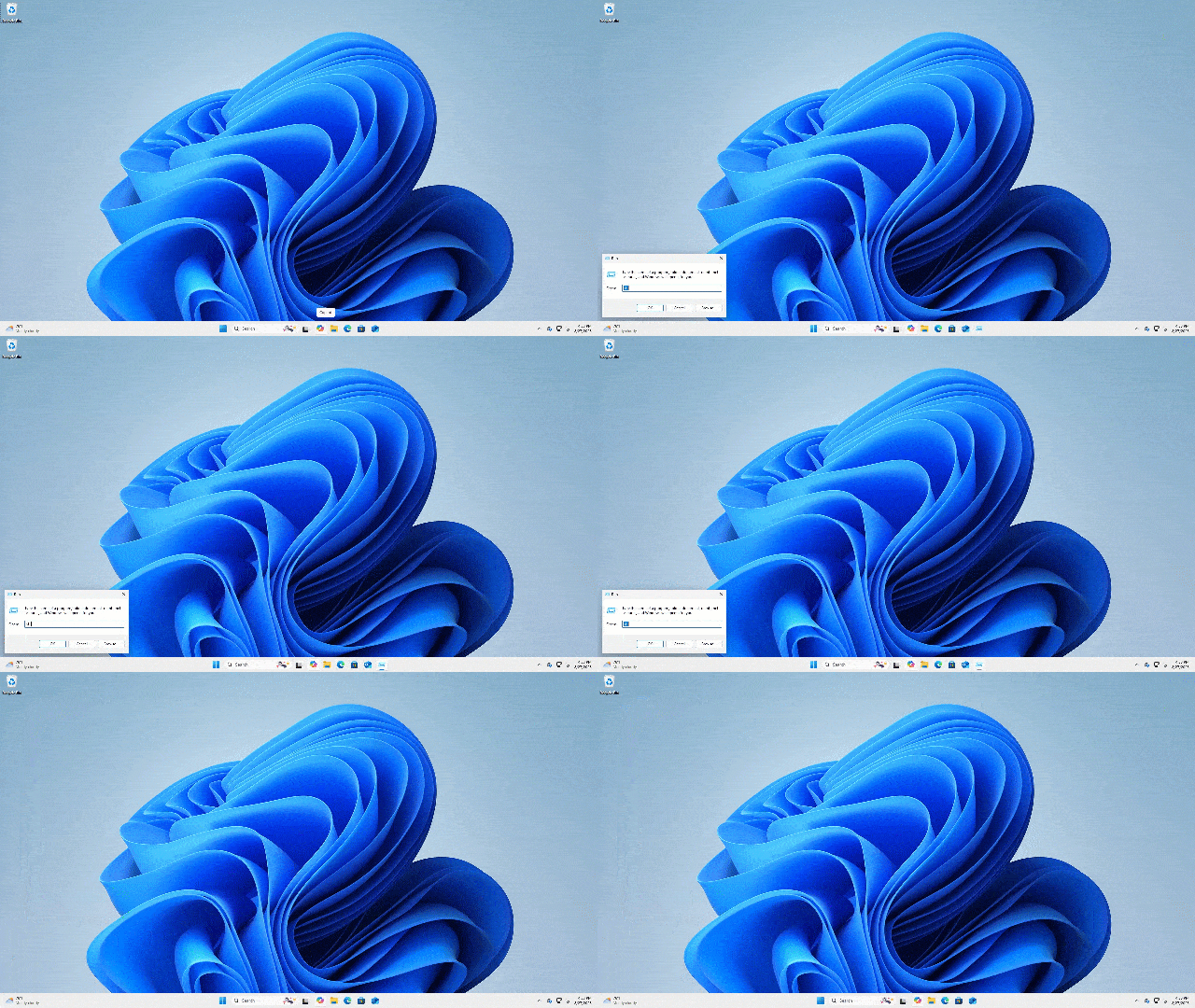
Not really. It's only obvious if you've been using PCs since before there was Windows and its graphical user interface, or GUI.
Start-Run is incredibly useful, but it's not appropriate for everything. The good news is, there's a simple trick that fixes what you're seeing.
When you use Start-Run for a command that runs in character mode, Windows briefly opens Command Prompt, runs it, and closes it right away, making the window flash and disappear. The fix: open Command Prompt yourself and run the command there so you can see the results.
The fundamental problem here, if you want to call it that, is that there are two types of programs.
You're most familiar with programs that sport a Graphical User Interface, or GUI. Your mail program, web browser, word processors, and more all display various graphical user interface components, including fancy icons, colorful images and controls, and just about anything that can be drawn on the screen.
Before there was a GUI, there was what we now call character mode. A character is a letter, number, or special item, including punctuation marks. In character mode, the only things that can be displayed on the screen are characters. Character mode does not support pictures or graphics of any kind.
MS-DOS, the precursor to Windows, used only a character-mode user interface.
Without graphics, character mode has no icons to click on to run programs.
Instead, you type in commands, or the name of the program you wanted to run, press Return, and MS-DOS locates the program and runs it. To start the old character-mode version of Microsoft Word, you'd type "Word" followed by the Enter key, and MS-DOS would run Word.
Windows supports both GUI and character-mode applications. When you double-click an icon, select a menu item, or use Start-Run, Windows looks at the program, determines what kind it is, and operates accordingly. For a GUI application, that means "run it normally" in Windows.
For a character-mode application, though, Windows first starts up a character-mode environment for the application to run in and then runs the program in that environment. That "environment" is the Windows Command Prompt.
When the character-mode program you've run exits, Windows automatically closes the Command Prompt it started.
The window you're seeing flash and disappear is a Command Prompt window. What happened is this:
The "flash" you're seeing is just the Windows Command Prompt opening and closing quickly as all that happens in a flash.
It's easy to make happen. Hold down the key and type "R" to bring up the "Run" dialog box. Into that box, type "sfc" to run the System File Checker.
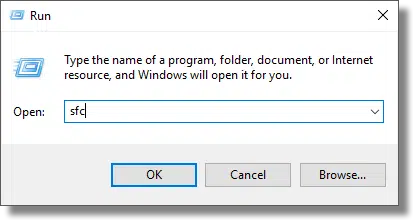
Click on OK. You should see a window come up and disappear quickly — in a flash — and not much else.
Now, run the Windows Command Prompt. You can once again use key + R and enter "CMD" followed by clicking OK, or you can locate the Windows Command prompt in the Start menu. These days, I'm partial to right-clicking the Start menu and clicking on Terminal.
The Windows Command Prompt is a character-mode interface you can work in.
Now, click in the command prompt and type "SFC" followed by Enter.
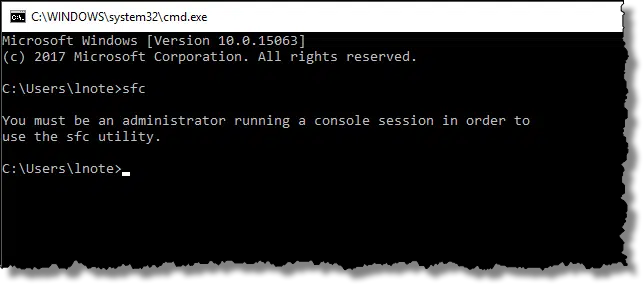
You can see that SFC has run, printed a message, and exited. We lost this message when we ran SFC from Start-Run because the Command Prompt was opened and quickly closed when SFC finished. By starting your own Command Prompt, you control when the window closes.
In this specific case, SFC requires that it be run with Administrative privileges enabled. The correct way to do so is to run Command Prompt "as administrator" and then run the command.
Your account is safer -- much safer -- with two-factor authentication enabled. Learn about it and turn it on.

If you haven't enabled it and your account supports it, I strongly recommend you enable two-factor or multi-factor authentication (2FA or MFA).
Note that I didn't say what kind of account — email, bank, data storage, or whatever. You should protect any account that would cause you pain and inconvenience if hacked.
The short version of how it works is this: any time you log in to a new device for the first time, you'll be asked to provide proof that you have the second factor. That could be responding to an SMS or voice call, it could be punching in a code displayed by a two-factor application or device, or it could be something else. After that, you can usually specify that two-factor confirmation not be required on that device again, or for some amount of time.
You need to log in once successfully using two-factor in order to then bypass two-factor on future logins on that device.
Hackers won't be able to do that.
I bring this up to reinforce the concept because there have been reports of hackers being able to bypass certain forms of two-factor authentication. This is extremely rare.
Let me be extra clear: adding two-factor authentication only makes your account more secure. Not having it leaves your account less secure.
It's worth learning about (you must set it up properly) and using for any account you consider important.
Losing access to Gmail can mean losing years of email, contacts, and memories. Learn the most common pitfalls, from outdated recovery info to ignored warnings, and how to avoid them so you never risk losing your account.
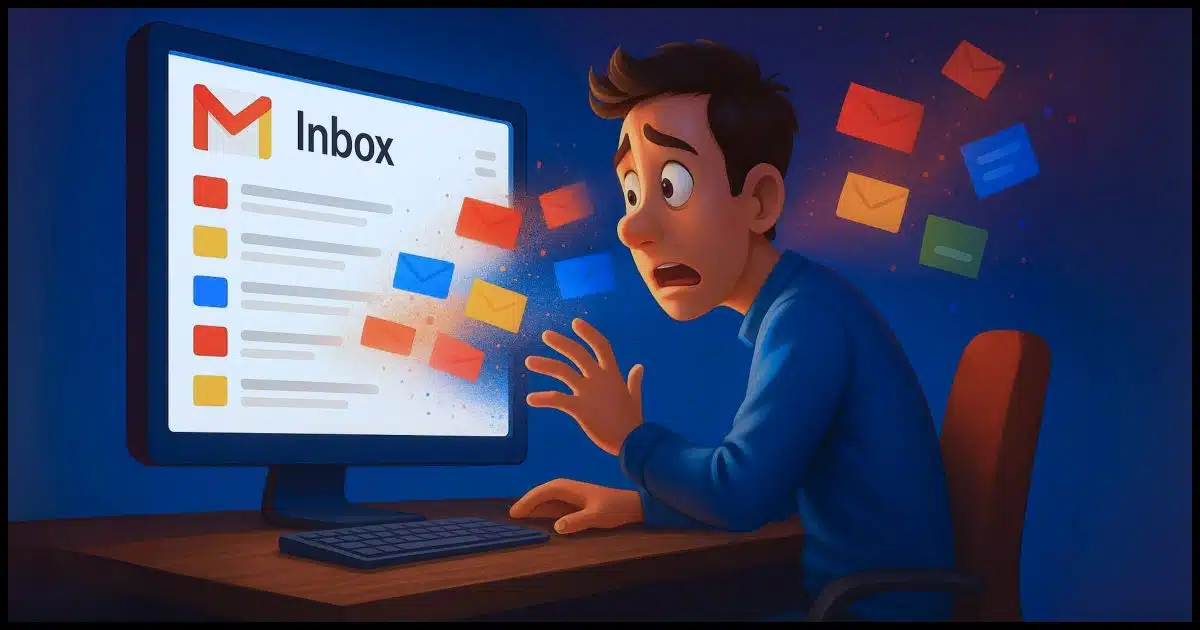
By far the most common topic throughout the history of Ask Leo! has been account loss and recovery. Originally, it was all about Hotmail, but these days, it's Google. People lose access to Google and Gmail accounts all too often.
The result, of course, is the loss of years of email, contacts, files, and whatever other Google services they used along the way.
Lockouts and loss happen not because Google's broken (even though thinking so is a common knee-jerk reaction), but because of preventable mistakes and oversights.
Let's review what can go wrong and how you can prevent losing your account forever.
Most lost Google accounts are due to simple mistakes. Outdated recovery info, weak or reused passwords, ignored warnings, and not enabling two-factor authentication are the biggest risks. Stay signed in, keep details updated, and use sound security practices to make sure your Google account isn't lost forever.
This is the single most common reason I see that accounts are permanently lost.
For whatever reason, you have a problem signing in. "No problem", you think, and you head off to the Google account recovery process. As part of that process:
You get the idea. All the points of recovery that you once supplied have fallen out of date. The result? Google has no way to differentiate you from a hacker trying to break in. There's no way to prove that you are you and should be allowed back in.
Review and update recovery info regularly.
We've all heard the word about weak or easy-to-guess passwords. Creating and using a long, strong password is something everyone is doing these days... right? RIGHT?
There's another drum that's been beating that I don't think people are paying as much attention to: stop re-using passwords. Industry reports indicate this is currently the most common form of simple account compromise. A password is discovered because of a problem with service A, and people find shortly thereafter their accounts at services B, C, and so on are also compromised because they'd used the same password at all of them.
For all accounts, of course, but particularly for your Google account, make absolutely certain not to use its password anywhere else. Use a password manager to keep track of 'em all.
We all get so many warnings — legitimate, accidental, and spam — that it's tempting to ignore them all. At a minimum, it's easy not to give them the attention they deserve.
And they do deserve attention — at least enough to confidently determine whether they represent an early warning sign of a problem with your account or are just so much noise and spam.
Take the time to learn what matters in these warnings and what a legitimate warning from your provider — like Google — looks like. Then take the time to examine them when they arrive. Acting on a legitimate warning could save your account.
I've noticed this myself of late: online services are seeing and using the fact that you're signed in to multiple devices. It's almost a form of second-factor authorization. You sign into a new device, and you're asked to confirm that sign-in on another computer or a mobile device where you're already signed in.
I know not everyone has multiple devices, but if you do, it's worth signing into more than one of them. Not only can it make signing in to a new device easier, but it's another mechanism services can use when confirming you are who you say you are. You may need to poke at the account from the other device occasionally to keep the sign-in active — perhaps check email occasionally — but it's another way to increase the odds of retaining access to your account.
If you are signed in on only one device, and that device breaks or is lost, getting into your account on a replacement device might be more difficult than it needs to be otherwise.
Tech-help folks like myself, as well as most of the computer security industry, have been beating this drum for a while. Two-factor authentication means that even if someone gets your password — say through a breach of some sort — they still can't sign into your account.
Two-factor authentication also acts as a form of recovery confirmation. The process of setting up two-factor almost always includes setting up additional backup information, such as recovery codes, that can help get you back into your account in a variety of situations.
Enable two-factor authentication and keep backup codes in a safe place. It's not nearly as intrusive as you might think.
AKA: panicking.
It goes without saying that some of the people I hear from in situations like this are in a full-on panic. Understandable. Unfortunately, panicking leads to some terrible decisions.

The most common error is guessing at the information you're asked to provide, whether it's your grandma's maiden name or the name of your first teddy bear. The problem with guessing is that each wrong answer could be a strike against you, making it even harder to recover your account. Supplying incorrect or inconsistent information is indistinguishable from a hacker trying to get in. When that happens, Google sets the bar — the burden of proof you have to provide — higher.
First: don't panic. Second: keep a record of important account details. Your password manager is the perfect place for this kind of information.
As I hope you know, not signing into an account for a long time — two years, in Google's case — will cause the account to be closed and its contents deleted.
While you and I might know this, not everyone does. I occasionally get requests to help access accounts that haven't been signed into for five years or more. (I think the longest was 12 years.) Perhaps these are folks who know but are grasping at straws. The result is the same: that account's forever gone.
The solution is simple: sign in to your account periodically to keep it active.
Why can’t I just give you a straight answer? Because things are rarely that simple. Learn why “It depends” is sometimes the only honest answer I can give you, what details really matter, and how giving better clues can help you get clearer, faster, and even simpler solutions.

It's a fair question.
I wish I could.
Honestly, I truly wish I could give everyone a simple, step-by-step, here's-how-to-fix-your-problem answer. When possible, I try. Unfortunately, it's rarely possible for me to be that specific.
There's a reason my most common answer is "It depends."
Computer problems don't always have one clear fix. Like people, every computer is unique. They have different setups, symptoms, and issues. Good answers require details, clues, and patience.
I don't want to sound like I'm trying to shift the blame, but the reality is I rarely get enough information to determine the exact cause of a specific problem. I'm often not told of the symptoms at all beyond the ever-popular "It doesn't work."
Without detailed information about the problem, there's little hope of getting detailed information about an answer.
I get that it's not always possible to know what information to provide. That's why I wrote an article on the topic: What Information Should I Provide When Asking for Help? It's a great place to start.
Step-by-step answers often require step-by-step instructions to reproduce whatever problem is at hand. And while not all problems are of the step-by-step variety, I can say this for sure: it's better to provide too much information than too little.
When you experience a computer problem, you see symptoms. A symptom might include an error message, unexpected behavior, or a lack of expected behavior.
The symptoms are not the problem; symptoms are clues to the problem.
What does it mean if your leg hurts? Most commonly, it's simple muscle strain, but it might also be an insect bite, infection, blood clot, cancer, or a variety of other things I can't begin to think of. We need more information. As TV doctors might say, "We need to do more tests."
The same is true of computer problems. When you report symptoms, you're reporting clues I use to diagnose the cause of the problem. Sometimes, the clues are enough. More often, though, they are not. The same symptom might have hundreds, if not thousands, of different possible causes.

Since I can't sit at your computer and diagnose your specific problem, I can't "run more tests". Like a doctor, I need to ask you more questions about the symptoms you're experiencing to clarify what is happening.
I might also give you suggestions to further diagnose or repair the problem yourself.
Much like that leg pain, resolving your computer's problem involves understanding more about what was happening prior to the symptoms' onset. Many people experience similar symptoms — or there might be a situation I've never encountered before.
In understanding more about what's happening, I'll probably suggest things to try or look at.
Computers, like people, are incredibly complex. No two are exactly alike, no matter how you configure them.
Different hardware, operating systems (and versions thereof), applications, customizations, ways of connecting to the internet, and methods of using the computer make each computer as unique as the individual user.
As a result, blanket solutions to specific problems are rare. Obviously, I try to find them when I can, but often, what works for one machine will not for another, and certainly not for all.
What to try and how to go about further diagnosing the problem yourself, however, does work, as evidenced by the many people who take that guidance and resolve their issues.
Unfortunately, computers are not yet like toasters: they don't "just work". That means that at some point, each of us will face the responsibility of some diagnostic detective work.
There are lots of folks like me available to help, but ultimately, it'll take someone at your keyboard to collect the information we need to perform the final diagnosis and repair...
...and that someone is you.

If you have a backup drive, make as much use of it as you can.

I know this is counter-intuitive, but bear with me for a moment.
I'll put it another way that is perhaps less jarring: keep as many backups as space allows.
You never really know when you'll need something from your backups or how far back you'll need to go. You may find that you really want that file you deleted accidentally three months ago, but if you only keep two months' worth of backups, it's long gone.
The right length of time for you is impossible for me to say, just as it's impossible for me to say how often you need to back up. The rule of thumb, however, is that more is better than not enough.
Many backup programs support deleting the oldest backups to make room or using some other space-defined condition. Some even do it automatically. One way to increase the probability that you'll be able to find what you need when you need it is to make sure your backup strategy, whatever it is, fully uses the space available.
Worried Microsoft is peeking at your files in OneDrive? The truth is more complicated and perhaps surprising. I’ll look at what scanning really means, why avoiding OneDrive may not be enough, and how trust in Microsoft’s products comes down to risk, reality, and choice.
That's a synthesis of comments I see frequently when discussing OneDrive.
Some people are adamantly against cloud storage of any sort. They are convinced that large companies like Microsoft use it as a way to slurp up content for nefarious purposes.
I have bad news for those folks. Microsoft can do that whether you use OneDrive or not.
If you don't trust Microsoft with OneDrive, why trust Windows? Both give Microsoft full access to your files. While scanning for illegal content or legal demands is possible, there's no proof of anything further. If you truly don't trust Microsoft, avoiding OneDrive alone won't help.
I want to be clear before I go any further.
I apologize if I get repetitive on that point below. People seem to insist on taking my words to mean they are. They are not.
I can think of exactly two reasons they might examine your data, and both make sense. They're important to understand, and I'll talk about them below.
What Microsoft does or does not do with your OneDrive data isn't the point of this article.
Here's the thing: you've already given Microsoft access to everything on your computer by running Windows.
It's Microsoft Windows, after all.
Scanning can mean any number of things. What most people worry about is that the contents of their documents or photos are being examined and copied for other purposes, or, in some cases, judged (say, for legal reasons).
Scanning can also mean tracking only the metadata: filenames, file sizes, file properties, and, in some cases, computed file hash values for comparison against other known files.
Some also worry that an actual person does the scanning — i.e., looks at your photos — rather than a computer program. The only way scanning could happen at scale, of course, would be via automation.

People can be surprised to read in a TOS101 that they've granted the software or service the right to read their files.
Well, of course. How could it be otherwise?
Think about it. If Windows can't read your files, you wouldn't be able to do something as simple as copying a file from one folder to another.
The ability to read, write, and manipulate your files is fundamental to any operating system's ability to do what you ask it to do. That's why it's often part of the TOS.
It's so fundamental that we don't even think twice about it.
What that means, of course, is that any operating system could scan all your data for whatever reason it wants.
If Microsoft wanted to scan your data for AI training or anything else, they don't need OneDrive to do it. It's already within their grasp to do so from within Windows and send the information back to Microsoft.
Again:
But they could. We trust that they don't, but they could.
And that's where things get weird.
If you don't trust OneDrive with your files, why do you trust Windows with them?
I'm not trying to be a jerk about this; I'm trying to make a point. If you trust Microsoft to handle the data on your computer with any modicum of privacy, it makes no difference whether you put your files in OneDrive or not.
In theory, your concerns should apply equally to both.

I hear regularly from people who don't trust Microsoft or have become so annoyed at the company's behavior that they walk away completely.
They don't use OneDrive. They don't use Windows. Most have switched to Linux for its transparency and lack of corporate shenanigans or gone with other open-source alternatives.
I get that, I truly do. If you don't trust Microsoft (or Apple or Google or whoever), it makes complete sense to take all the steps you can to avoid using their products. It's not always easy, but it makes sense if that's your belief.
OneDrive and Windows are both Microsoft products. If you don't trust one, you probably shouldn't trust the other.
But that makes this an all-or-nothing decision, and, as we know, life is never that simple. Life is full of risks, risk management, and probability. So, no, it's not necessarily all-or-nothing. It's more complicated than that.
The perception is that the risk of Microsoft scanning what's stored in OneDrive is higher because it's already on their servers. It would be difficult to detect at any technical level. To prove it would take a data leak of some sort that a) could only be traced back to Microsoft actions and not some randomly hacked account, and b) could only have come from someone's files stored in OneDrive and nowhere else.
There's been no proof that I'm aware of, but the fact that it's conceptually easier for Microsoft to pull off makes some believe it's a higher risk. Hence, they feel less exposed keeping their data on their own Windows computers while avoiding "somebody else's computer" — a popular definition of the cloud — when that other computer belongs to Microsoft.
I mentioned there are two reasons your data might be scanned that, to me, make a certain kind of sense.
I'm not saying I necessarily agree with either, and Lord knows they're both subject to abuse, but conceptually, at least, they make sense. Those two cases seem inevitable and are covered publicly in Microsoft's Terms of Service and other official documentation.
Here's the thing: they can do all that for files stored in OneDrive, of course. They could do it for any internet-connected PC running Windows.
Again:
But they control technology that would allow them to do whatever they want. We trust that they don't.
The backlash of any actual content scanning, copying, or re-use that goes against the terms of service you've agreed to would be a legal and PR nightmare for Microsoft. While it's true they have had those in the past, this would be particularly egregious, and, most importantly, costly.
It would quickly put them at a greater competitive disadvantage compared to other companies that make privacy a top selling point.
What's also often overlooked is that corporations — Microsoft's largest customers, after all — would throw an absolute fit if it came to light that their sensitive documents were being used for anything not formally agreed to in a corporate contract.
The cost of failure is too high, and the potential benefits for Microsoft are too low. They can use other things to train their AI without poking around in what people are storing in OneDrive.
105: Terms of Service, License Agreement, or AUP, Acceptable Use Policy.
106: I don't trust them not to hold my OneDrive files for ransom, for example.
Blocking an email sender is ultimately ineffective in most cases.

Some email programs allow you to block senders. This adds their address to your personal list of undesirable contacts, causing their emails to go to your spam folder instead of your inbox. It's tempting to use this on annoying spam, but the bottom line is, it doesn't work. Not in the way you want it to, at any rate.
Here's the problem: "block senders" works based on the email address in the "From:" field only. Spammers constantly send from different ones. They'll fake, spoof, or just use literally millions of different email addresses as the "From:" email address. You may block one sender, but you'll have done nothing to block the next.
The same is true for "block domain" (the part after the "@" in an email address). Because spammers use otherwise legitimate email addresses they've stolen or faked, if you block an entire domain, you'll block legitimate email from that domain as well.
Instead, just mark the message(s) as junk or spam and move on. Your email program should learn what spam looks like and eventually start filtering it to the spam folder automatically. If it doesn't, it might be time for a different email program or service that does.
I've written about this in more detail in the past: Why Doesn't Blocking Email Senders Work?
Having an incorrect time zone setting can result in major or subtle failures. It's worth a check.
(Video: askleo.com)
If your time zone setting is incorrect, it can cause problems or odd behavior. That's why I recommend you confirm it on your PC. (Right-click the clock in the taskbar and click on Adjust date/time.)
If it's set improperly, problems range from missed notifications to websites that refuse to connect. While the latter is pretty serious, the former — and many side effects like it — can be subtle and difficult to diagnose.
While you're there, confirm that "Adjust for daylight saving time automatically" is set the way you want it. Normally, leaving it on is the most appropriate.
Finally, the definitions of which time zones apply where or when daylight saving time should apply change from time to time. Windows Update keeps this all up to date, so make sure it's running.
A VPN can keep your online activity private, especially on open Wi-Fi, but it’s not magic. I’ll show you what a VPN hides and what it doesn’t, so you can decide if it belongs in your security toolkit.
A VPN, or Virtual Private Network, is one approach to connecting securely to a remote resource. Depending on the VPN, that privacy can extend from one end of the connection to the other or can protect you only for a certain portion.
I'll describe the different scenarios, and how you are — and perhaps are not — protected by a VPN.
A VPN encrypts your internet connection so hackers, hotspot owners, and your ISP can't see what you're doing. It's great for open Wi-Fi, but not perfect. Your VPN provider can still see your traffic. Some sites block VPNs.
I'll use this scenario as the base. Say you're at an open Wi-Fi hotspot, connecting to a remote resource like your email or your bank.
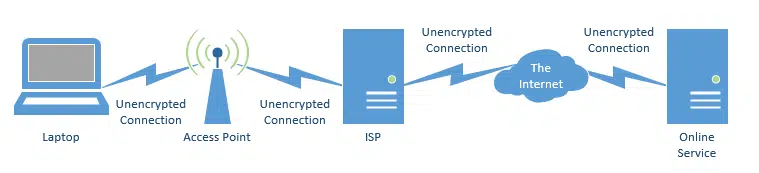
All the connections are unencrypted. (This assumes no https is being used. More on that in a moment.)
The largest area of concern is the connection from your laptop to the Wi-Fi access point. That open Wi-Fi signal traveling through the air can be "sniffed" (or read) by anyone in range with a laptop and the software to do it.
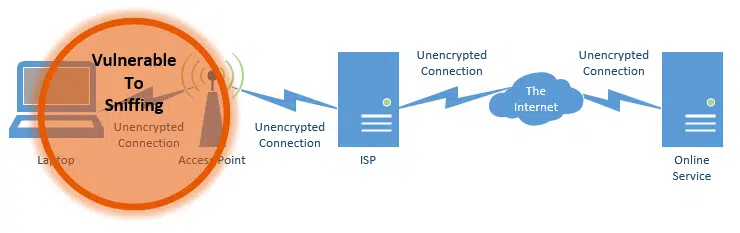
Lately, however, there's been additional concern about the fact that your ISP can monitor what you're doing. Specifically, they can see every remote site or service you connect to and examine all unencrypted data you exchange with those servers.

The traditional approach to protecting yourself from open Wi-Fi sniffing is to use the WPA102 encryption built into Wi-Fi.
This secures the path between your computer and the Wi-Fi access point. Hopefully, that's how your home Wi-Fi is configured; that prevents nearby homes or others from connecting to your Wi-Fi, and through it, to your network.
There are problems with using Wi-Fi.
That last point is important, because all the traffic is visible to the hotspot's owner, should they care to peek, and to the internet service provider to which that hotspot is connected.
To protect yourself further, a VPN is a common solution.

A VPN securely encrypts the entire path from your computer to the VPN provider. No one along that path can see your data: not other Wi-Fi users, not the people managing the hotspot, and not the hotspot's ISP.
For open Wi-Fi or other situations with questionable security (such as connecting to the internet at a hotel), a VPN can be a great solution.
But it's not perfect.

There are some things to note.
Using a VPN, the ISP you're connecting through can't see that you're using BitTorrent (for example), but the VPN service can. Your ISP would still see that:
True privacy is achieved with end-to-end encryption. Unfortunately, that isn't possible in many cases, since the service you are connecting to must support it.
HTTPS is end-to-end encryption.
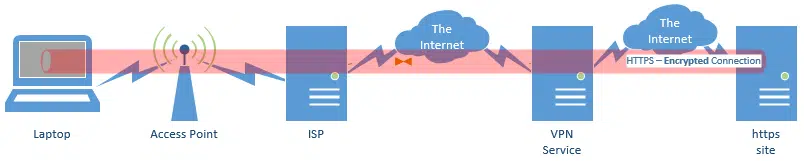
Connections you make via HTTPS are completely encrypted along the entire path from your machine to the remote server you're accessing. That's why banks (and other services that allow you to access sensitive data) should use HTTPS.
Similarly, when configuring a POP3, IMAP, or SMTP connection in your email program, choose SSL or TLS. That's the underlying encryption protocol used by secure connections like HTTPS. That way, your email uploads and downloads — as well as your log-in information — are completely encrypted along the entire path to your mail server.
Note, however, that even when using HTTPS, your ISP can still see which sites you connect to. Only a VPN can hide that information from them.
Just to complete the picture, if you're using a VPN and you connect to an HTTPS website, your data is doubly encrypted for part of the trip.
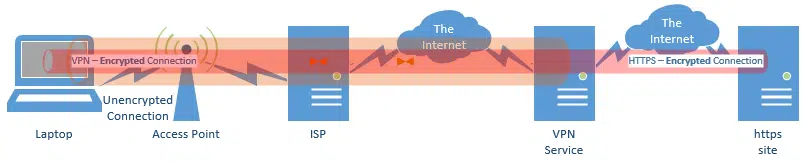
There's really no practical harm. One benefit is that the VPN prevents your ISP from seeing which site you're connecting to.

107: Ideally, WPA2 or WPA3, but that's a detail that doesn't affect our conceptual discussion.
When a USB device begins to fail, it's logical to blame the device. Logical, but not always correct.

It's not uncommon to hear of USB drives and devices that fail.
It's also common to assume it's the drive or device causing the failure.
Don't. Before you give up on that device, try a few things.
The key here is to realize that it's not just the device that might have a problem. It could be the cable, a hub, or even the computer that's interfering. Do a little more research before discarding or replacing what may be a perfectly good device.
Running out of disk space can be frustrating, especially when you don’t know what’s eating it up. I'll show you how to track down the culprits with a free tool so you can see exactly where your space is going.
(Why "memory disk space"? I'll address that below.)
No matter how much we have, disks never seem to be large enough. As we collect pictures, videos, and programs (and the programs themselves collect data), more and more disk space is consumed. With so much happening on our computers these days, it's difficult to understand what's taking up the most space.
Fortunately, I can recommend a free tool that can give us some very helpful data.
Disk space can disappear fast, even if you think you're saving files elsewhere. A free tool called TreeSize shows you exactly what's taking up space on your drive. With that information, you can decide what to delete, back up, or move to keep your computer running smoothly.
TreeSize Free is a free tool that shows you what's taking up all of the space on your machine. (A paid version is available with additional features, but for what we're doing, the free version will suffice.)
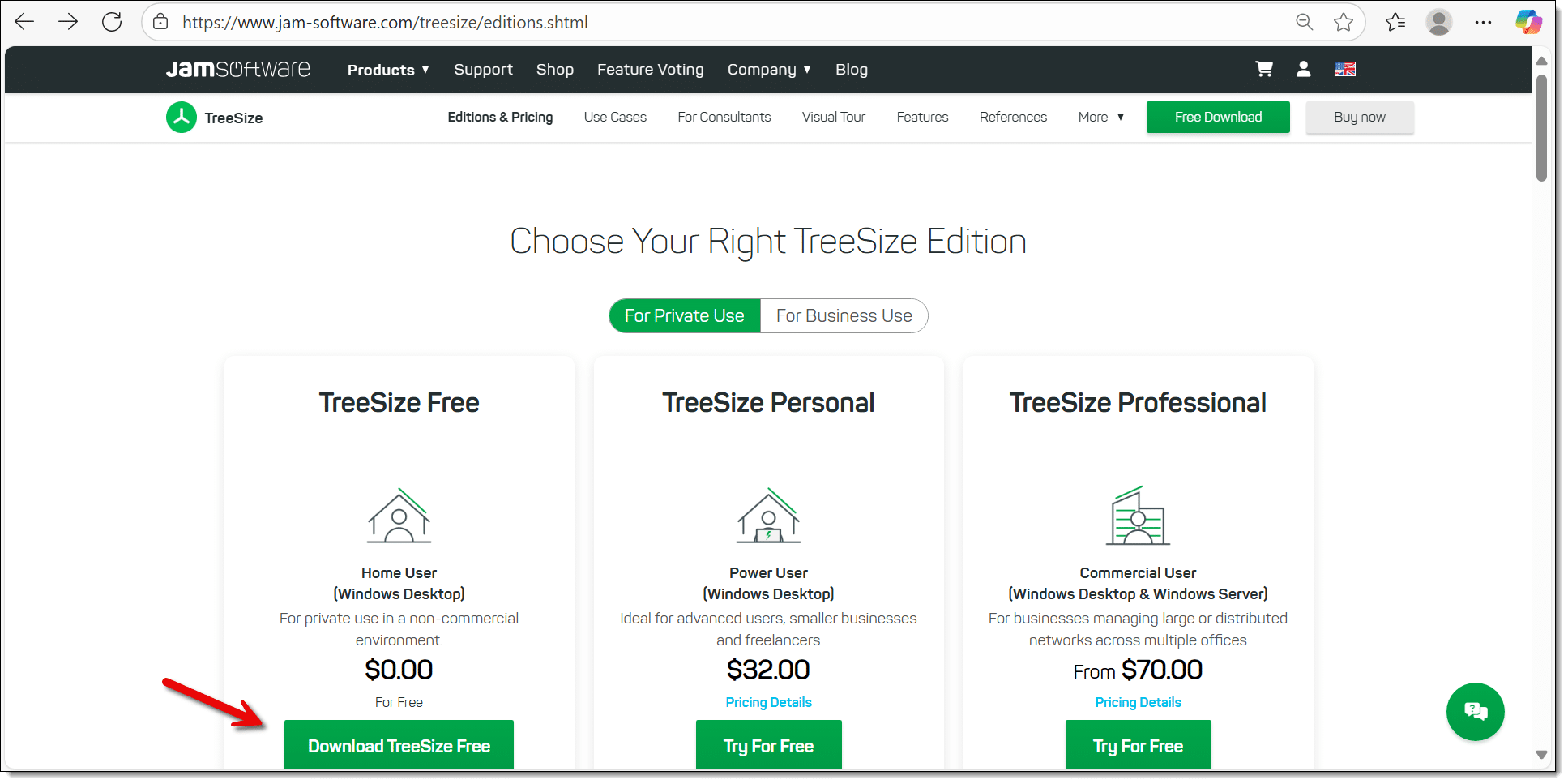
Download TreeSize Free from the JAM Software page and install it.103
Upon completion, run it. You'll be asked if you want to restart the program as administrator.
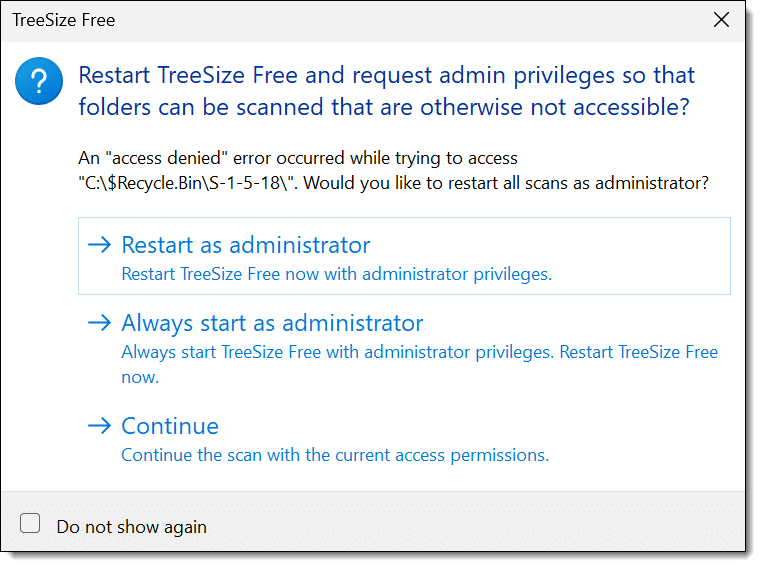
I recommend choosing "Always start as administrator". This allows TreeSize access to everything and will generate more accurate space usage reports.
As TreeSize scans your hard drive, it updates its display in real time. Once the circular progress bar disappears, the results are complete.
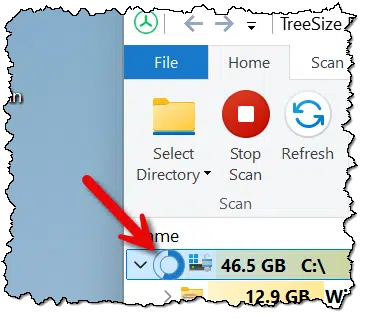
This is the result of running TreeSize on C:\ of a basic Windows 10 installation.
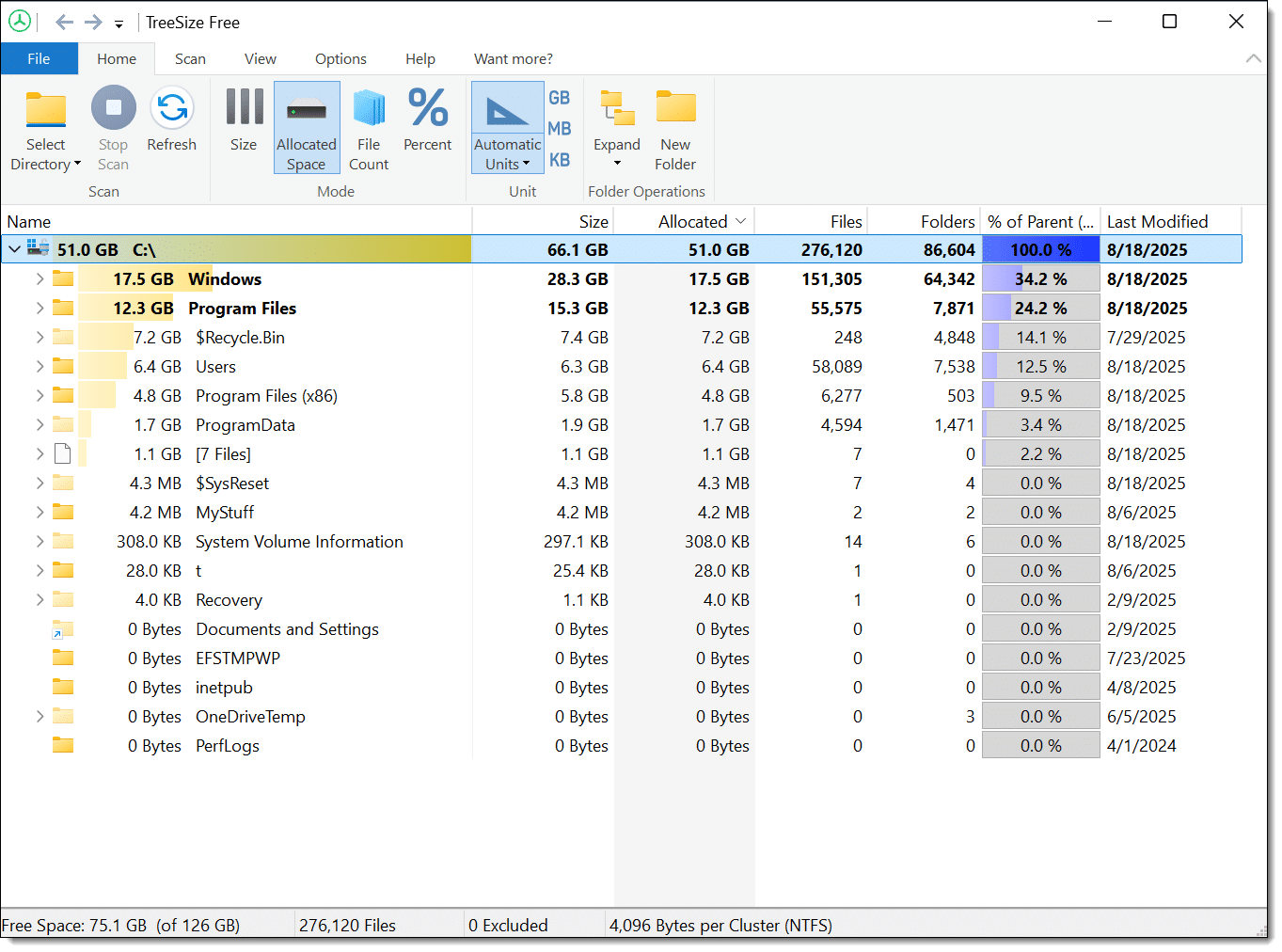
The primary information here is a list of all of the top-level folders on the C: drive and the amount of disk space they consume. It's sorted by decreasing disk space, so the biggest space consumers are at the top.
Unsurprisingly, it shows that the Windows folder and everything it contains uses the most space.
You can see the contents of the next level of folders by clicking the greater-than sign (">") to the left of the folder name. Here's the Windows folder expanded.
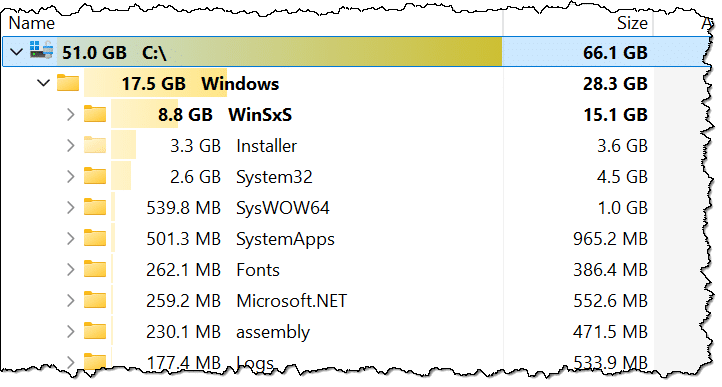
You can see right away that the "WinSxS" folder contains the most data of all the subfolders within C:\Windows. (This is normal, by the way.) You can also see the relative size of the other folders within Windows. If you want to drill down deeper, keep expanding subfolders.
It's useful to see what's stored in your user account folders. In Windows, that means looking at the contents of "C:\Users\%USERNAME%." In my case, that's C:\Users\leon.
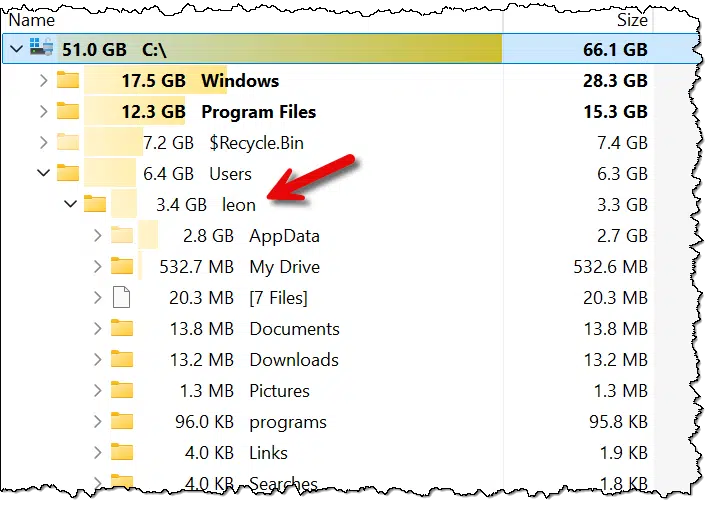
You can see that AppData and its contents take up the most space in my account.
Now, as to what's eating up the disk space on your machine, there's no way for me to know. However, using a tool like TreeSize, you should be able to see what's taking up all that space and take appropriate action.
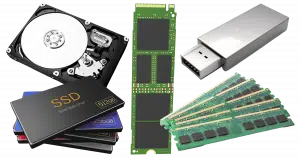
People confuse these terms a lot, and it's very important — particularly when asking for help — that the terms you use accurately reflect what you're talking about. To oversimplify a little:
Another good difference to note is size. My laptop, for example, has 16 gigabytes of memory, but a terabyte (1024 gigabytes) of disk space. Disk space on a machine is much greater than its RAM.

108: Yes, this does make the somewhat ironic assumption that you have enough space to download and install the tool. Fortunately, it's not large.
Most of the time, Windows does what you want.
(Video: askleo.com)
I've been asked how to get a program to open to a specific size and position on the screen.
The answer? Set it to the size and position you want and then close it.
The next time you open the program, it should open the way you left it. If you then change the size and position or the maximized state of the window and exit again, the next time you open the program, it should open to the last size and location.
Windows usually remembers the on-screen position and size of a program's primary window when you exit the program, and will open it to that state or size the next time you run it. It's not 100%: even in the example above, the second size change retains the size, but not the position, of the window.
Naturally, this can be affected by things like your hardware or screen resolution changing after you exit the program and before you start it again, at which point Windows makes a "best effort" to approximate how you left things the last time.
I did have to say "usually" above. This works for most programs, but not all. Programs can override this behavior and do whatever the heck they want. If you run into a program that isn't behaving as described, check that program's documentation (or complain to that program's creator) to find out if it's possible to change that behavior.
Is pasted text the same as typed text? Usually yes, but not always. Hidden clues, formatting quirks, and even spyware can reveal the difference. Learn when copy/paste is truly invisible, when it’s not, and why it matters if you’re tempted to take shortcuts.

On the one hand, the answer seems obvious. (Spoiler: no.) However, there are possibilities we need to consider. (Spoiler: maybe.)
The devil, as they say, is in the copy/pasted details.
Copying and pasting usually looks the same as typing, but sometimes hidden details, formatting, or OCR mistakes give it away. In most cases, no one can tell. But spyware, intentional errors, or assignment rules might expose you. Don't cheat. Follow instructions.
Pasting text into a document should be no different from typing it in.
Highlight this sentence, copy it, switch to Notepad, and paste it. The result will be exactly the same as if you had carefully typed it in by hand.
That's the theory behind the clipboard and copy/paste: it's a shortcut to make life easier by saving us keystrokes.
However.
Highlight this sentence, copy it, switch to Notepad, and paste it. The result will be different. The word "this" will not be italicized, because Notepad doesn't support rich text.104
This is an example to show that in some applications, copy/paste can copy and paste more than the text you see: it can include "metadata" — the data about the data.
What the metadata is, what it says, or even whether it's there at all depends on where you are copying from. It could be visible, as in "this word should be in italics", or it could be invisible, as in "these words link to that website".
What happens to metadata depends on the program you're pasting it into. It could be ignored, as Notepad ignores the instructions to italicize a word; it could be copied verbatim, as in preserving a hidden link as a hidden link, or it could be changed, perhaps unhiding that hidden link by applying default formatting for links to it.
As a result, more could be copy/pasted than you think, and some of that data could give away the fact that it probably hadn't been typed in by hand.

In the original question, an OCR of an image of text transformed a picture of text into a series of individual characters that can be copy/pasted.
Even though it's constantly improving, OCR is rarely perfect. If you are supposed to type what you see, and OCR sees something different, then pasting the OCRed text will not match, since the OCRed version may include errors.
For example, is this the number one or the lower-case letter L: l?
Depending on the font, they might be virtually indistinguishable. Only through context might you be able to know. (And even then, in this example, there's no context to give any clues.) OCR errors like this are common and have patterns that are easy to look for and detect.
As we'll see in a moment, the error might be intentional. If I purposely misspell a word, give you an image of the text containing the word, and tell you to type what you see — do you take that literally and include the typo? Or do you fix the typo? A copy/paste will never fix a typo — it'll copy exactly and only what was there to begin with.
The difference can be telling.
Again, for reasons that will become apparent shortly, I have to include spyware of some sort in the mix. Spyware can tell exactly what you did, right down to the keystroke. It will make it glaringly obvious that you didn't type something, but copy/pasted instead.
If you're using a school or business computer, they have every right to monitor your activity with spyware.
They can tell.

In this case, I believe that students or employees have been given an assignment to specifically retype text given to them as an image, and they're trying to cheat by using OCR and copy/paste instead.
The worst case, I suppose, would be a typing class where you're supposed to be practicing your typing. Copy/paste isn't practice, but it might seem a lot easier.
Regardless of the reasons, my gut tells me people are trying to take a shortcut where they're not supposed to and are concerned about being found out.
I have two pieces of advice for those folks:
As we've seen, while in theory copy/paste isn't detectable in most cases, it could be accidentally exposed by various means.
As I revisit this article, I see an interesting parallel to the increasing use of AI.
Currently, it's generally easy to determine that something wasn't written by a real person. However, just like OCR, AI is getting better and better, and it's getting more and more difficult to tell.
Whether that's acceptable in the workplace for getting a job done is one thing. Clearly, OCR has its role, as does AI-written content. But particularly in educational environments, they seem like inappropriate shortcuts — more colloquially known as cheating.

109: Well, it didn't used to. My experiment with the current Notepad seems to show that formatting is still removed on paste, even though you can then add the formatting manually.
Your video chats are usually private and encrypted, but nothing is foolproof. The real risk isn’t hackers; it’s the person on the other end, who can record everything. Learn why interception is rare, where the real danger lies, and the one rule to follow if you’re unsure.
It's impossible to prove that it can't be (or wasn't) recorded: you can't prove a negative. Ultimately, if this is something that really concerns you, then don't do that!
I don't think there's going to be a problem here. In practical terms — with one exception that most people don't think about — it's highly unlikely.
Video chats are hard to intercept since they're usually private and encrypted. The biggest risk is the person you're chatting with, who can record the call and use it later. If you're not sure you can trust them, do nothing on camera you wouldn't want shared publicly.
If you look through the comments on this article, you'll see person after person (after person) ask what is essentially the same question. What's scary is that they're asking after the fact, and most are scared out of their wits that the answer is, "Yes, your intimate chat could have been intercepted and recorded."
It's also scary how many don't bother to read the article they're commenting on, which answers the question. (Which is why comments on this article remain closed.)
Most (but not all) video chat is over a direct machine-to-machine connection. To deliver the video stream as efficiently as possible, the data goes directly from your computer to theirs. There's no server or service in the middle processing (or capturing) the video stream.
Depending on the service you use, the data is likely to be encrypted. Even someone who could intercept the data — like your ISP, for example — probably can't decipher it.
I'm sorry to disappoint you, but you and I just aren't that interesting to the people who would have to spend time and effort intercepting and watching whatever you did on video.
Yes, all three of those points are qualified: "probably", "most", and, of course, you could be "interesting" if you're in a position of power or have some other sensitive role. But it's extremely unlikely someone would take the time and effort to try to intercept your video chats.
The most common reason videos get recorded has nothing to do with technology, intermediaries, or your position in life.
It's simple for the person at the other end to record your video. Screen-recording software does it easily. The only requirement is that it be running on the computer at one end of the video conversation, and there is nothing you can do to prevent that.
That's a scenario I hear about. Someone is lured into an intimate video session that is captured by the person at the other end. That person then uses that video for blackmail.
The only other scenario where video recording is theoretically possible is if you or your video partner has malware on your machine. I've never heard of this happening.

Accessing email by web browser vs. email program are not the same thing. Sometimes you want both.
Using your web browser to access your email is convenient. Fire up Chrome, Firefox, or Edge, and you can access your Gmail, Outlook.com account, Yahoo! mail, and many others from any machine you like, including your mobile devices.
It's how I live. Nearly all of my PC email time is spent in my browser viewing my email accounts.
There's one drawback, however: you can't use your computer's "Send to mail recipient" function from a web browser.

If you're working on something on your computer and want to send it to someone via email, you can do so through a menu like the one pictured above. This function requires an email program to be configured on your machine. Not the web browser you use to access your email, but an actual email program.
There are a variety of solutions to this problem, but the simplest is to configure the email program already installed on your computer with your email account credentials. That way, when you "send to" a mail recipient, this program will send the mail.
It's not perfect. Depending on the email program and account you use, the contact list you maintain in the online web interface may or may not be available to you in the PC-based email program. But you'll at least be able to quickly and easily send the message.
There's a strong argument to configure only the SMTP (sending) component of your email account. That way, the email program will not accidentally download your email when you're not expecting it. Whether this is possible and how you would do so depends on the email program you're using and the email account you're connecting to.
The bottom line: continue using your online web email access as you like. But by having an email program configured and ready to go on your PC, you'll be able to use more of the email-sending features offered by Windows and other applications.
AI or search engine? Both promise answers, but in very different ways. From accuracy and freshness to bias and even energy use, each has trade-offs you need to know. Before you pick one over the other, find out why the smartest choice might be both.
Google was once the go-to search engine for the internet. "Google it" even became a generic term for looking up something online. But there's been a big shift to a different type of answer engine: AI chatbots like ChatGPT and others.
Let's review the pros, the cons, the risks, and the impact of these choices.
First, we need to review the differences between the two.
AI and search engines work differently, and each has strengths and weaknesses. Search is good for fresh, direct lookups, while AI is better for questions, summaries, or creative tasks. Both can be wrong or biased, so check sources. The best answer? Use both and always stay skeptical.
Search engines like Google, Bing, and others work by amassing huge indexes of information from having crawled (AKA read) all the webpages on all the websites they can access. These indexes, which consider hundreds of different factors, are used to answer the question, "Which pages on the internet best represent the terms being searched for?"
AI services, on the other hand, are "trained" on massive datasets that range from specific sets of training data to the same "all the webpages on all the websites they can access". The goal of all this training is to answer the question, "What words would best follow the words that have been typed in by a user?"
Put simply, a search engine is basically a lookup — get pages that relate to a word or phrase — while AI (specifically large language models) is glorified auto-complete — return the best next word, and the next, and the next, and so on.
That AI works in place of a search engine is because generally, the "best next words" to follow any question or term are often the very answer we're looking for.
Now that we have an idea about how each works, we can compare the accuracy, citation, timeliness, bias, and environmental impacts of both.

I'm sure you've heard of AI "hallucinations" — an AI response that is completely wrong. That whole "best next word" model has nothing to do with accuracy. If the most appropriate response to a question doesn't exist, AI can make it up. AI doesn't know how to say "I don't know".
This is all a function of the training data. The more data AI gets trained on, the more likely it is to have an appropriate and correct answer. Yet, if the data the AI has been trained on is wrong or misleading, the AI wouldn't know.
Search isn't perfect either, though. It relies on the way a search is phrased, so ambiguous and incomplete search terms can lead to wildly off-topic results. In addition, search engines are constantly being "gamed" by individuals trying to get their pages (often poor quality, irrelevant, or even malicious) to rank higher.
Both require us to maintain a healthy level of skepticism and independent confirmation. Unfortunately, many people skip this step for either search or AI.
AI prioritizes giving you an answer to your question or search terms. It may or may not include references to where the answers came from.
A search engine prioritizes giving you references to webpages that presumably contain what you're looking for. Many search engines also include an AI-generated summary that may or may not suffice as the answer you're looking for.
Most search engines constantly scour the web for up-to-date information. Websites that change often or produce timely information, such as news sites, are crawled more frequently to include their latest information in search results.
AIs typically train on a snapshot of data, meaning that what they ‘know' is only as current as when that snapshot was taken. To overcome this limitation, some AIs augment their responses with searches that are then factored into their responses.
Search results are heavily influenced by ads (particularly when those ads are difficult to distinguish from organic search results), SEO tactics used by people trying to game the system, and general website and page popularity.105
More than anything, AI is a product of its training data. If that data is limited in scope or biased in some way, then the AI will be similarly limited and biased. AI is also subject to "guardrails" implemented by each provider attempting to prevent it from generating responses that would be considered inappropriate.
Perhaps the most controversial topic when it comes to AI (well, next to whether or not it's making us dumber or will lead to our extinction) is its impact on the environment. AI uses a lot of energy. Sure, the Google data center powering Google Search uses a lot of energy as well, but depending on what you measure (electricity use, CO2 generation, or something else), AI is somewhere between ten and hundreds of times more energy-hungry.106
Why? Because a search is a lookup: take the search terms and look up the most appropriate pages from the index of pages crawled. An AI response is a computation, and that takes more work. It's the difference between looking up a word in a book's index versus having to write a paragraph about the word from scratch.
Here's what I do.
In other words, I use both search and AI for what I feel each is best at right now.
More important than anything else, though, is that I remain skeptical of what I'm told, regardless of where it comes from. I try very hard not to let any of these tools (or any others I might try) lull me into complacency. The answers have to pass the sniff test, and I check references if I'm not 100% certain.

110: Normally, when I mention "bias", I get a lot of commentary about political bias from people who believe that a search engine has been explicitly tailored to exclude results that don't agree with some assumed political agenda. This amuses and frustrates me because I get it from both sides: the left believes search leans right, and the right believes that the same search engine leans left. I think it's more likely that the individual doesn't like or agree with the results that are, on the whole, relatively objective. Nonetheless, people will yell at me, convinced it's otherwise.
111: I acknowledge this as a current issue. I think it's an issue that will diminish over time as more and more renewable energy sources come online.
112: Kagi is a paid service. I do not get any compensation from them for mentioning them.
113: I pay for Perplexity as well, and they also do not compensate me for the mention.
114: I pay for ChatGPT. They don't pay me.
Catching errors early with CHKDSK makes recovering from issues easier.
(Video: askleo.com)
It's not terribly common, but it happens more than people realize. Disk errors can lie dormant for a long time before they raise their ugly head to cause problems.
One day, on a properly operating computer seemingly without problems, you might have cause to run CHKDSK and be surprised to find that there are errors on the disk. These errors are often things CHKDSK can fix (albeit with a small risk of data loss).110
Rather than risk this — having errors that haven't been exposed yet — I recommend running CHKDSK every so often. You can run the command line version in an administrative Command Prompt, as shown above, or by right-clicking on the drive in Windows File Explorer and selecting Properties and Tools. Under "Error checking," click on Check.
You may get a clean bill of health. If not, CHKDSK may attempt repairs, which will work most of the time.
This is worth doing not only on your system drive but on external drives as well, especially any that were disconnected without the "Safely remove hardware" process first.
Of course, the other protection from data loss is to make sure that everything on those drives is backed up.
But you already knew that. 
115: To be clear, the data loss has already happened. CHKDSK doesn't cause the data loss; it simply makes it apparent.
Missing files can be a sign of malware, but they're not a sign you can rely on.

Someone asked me if they would notice if someone had maliciously deleted any of their files.
The answer? It depends.111
If the deleted files are something you rely on and they're suddenly gone, it's pretty likely you'd notice. This applies not only to your data files but to support files used by your software and the files that make up Windows. If any of those are deleted, maliciously or otherwise, you'll probably notice pretty quickly.
However, if the files are things you rarely access, you won't notice anything is amiss until you try to use those files. If that doesn't happen until a month after the deletion, that may be the first you learn of it.
The good news is that most malware with malicious intent will probably damage, delete, or encrypt something important, and you're likely to notice it quickly.
The bad news is that not only will the deletion of infrequently used files go unnoticed for some time, but there's also malware that deletes nothing: for example, malware that installs a bot on your computer.
The bottom line is simple: you can't rely on detecting file deletion or other types of malicious damage.
That's why:
116: My most common answer of all time.
Leaving a job and worried about what’s on your work computer? From browser history to email accounts, traces of you remain. Learn what you can (and can’t) erase, and the smartest way to protect your privacy before you walk out the door.

The scenario is this: you're ending a long and successful relationship with your employer (or maybe a not-so-long or not-so-successful one).
At that workplace, it was acceptable to use your work computer to check your personal email, use an instant messaging client, check in on Facebook, and even surf the web for non-work-related things — all within reason, no doubt.
Now, on your way out the door, you'd like to make sure your personal account information isn't left behind. Perhaps you'd like to clean up a few other traces of your activities as well.
You can't completely erase yourself from a work computer. The only sure way is to wipe the drive and reinstall Windows, which you usually can't do. You can clear browser history, email, and messaging accounts, but traces may remain. Best protection? Never mix personal and work use.
Before I begin, I must caution you: there's simply no easy way to ensure that all traces have been completely and irrevocably removed.
The only way to do that is to reformat the machine you're leaving behind, taking care to erase everything on it. I'm going to assume you're not allowed to do that. Even if you were, had your organization installed spyware or been monitoring your network activity — both of which are allowed in most workplaces — the traces you might want to erase might not even be on your computer.
The steps below will make it difficult (but not impossible) to recover your personal account information. Should someone have enough interest and resources, it's possible to recover a tremendous amount of supposedly deleted information. It's not always easy or cheap, but it is possible.
Before you ever use someone else's computer — even "your" computer at work — be aware that you will leave a trail, and behave accordingly.
IM software seems to be a particularly convenient and not terribly intrusive way to stay in touch with friends, family, colleagues, and even coworkers. Recent years have seen the rise of dedicated tools like Slack, which are specifically designed to enable workplace communication.
There are several things you'll want to do before you leave.
Exactly how you do each of those things, or whether they even apply, will vary depending on the specific program you've used.
In an effort to be helpful, most web browsers remember a lot of information you've supplied as you've used them. Some things to do before you leave include:
There's a strong argument that you should clear everything your browser allows you to clear.
This will vary a lot based on the email client you use, but here are things to look at.
In the future, consider using only a web-based email reader to access personal email on your work computer.
Spend time reviewing My Documents or similar folders, including all the subdirectories therein. The Downloads folder is one example where items you've long forgotten about could remain. Be sure to copy any files you want to (and have the right to) take with you.
If you're allowed to download and install apps, consider running CCleaner, the Windows general-purpose clean-up tool. It has options to delete a lot of history, temporary files, and saved passwords, not only for Windows but for several common applications as well. When you're leaving a work machine behind, this is a case where it makes sense to let CCleaner be quite aggressive. It also has a free-space wiping function, which I recommend you run after you've deleted everything you can from the computer.
Cloud storage apps are convenient, but they use bandwidth. Pause them when bandwidth is at a premium.
(Video: askleo.com)
Cloud storage services like OneDrive, Dropbox, Google Drive, and others are popular and provide convenient data storage and backup features.
They all use internet bandwidth. As they synchronize what's on your computer(s) with what's on their servers, they upload and download files as well as communicate to find out which files they should transfer. Normally, this isn't a big deal, and it's what we expect of these services. Keeping our files in sync is exactly what we use them for.
There are times, however, when it's not such a great idea for the synchronization to happen.
I found this out while I was using in-flight Wi-Fi on a recent trip. The internet is (much) slower because of the technology used to get it to the aircraft, so everything counts. I had all three running — OneDrive, Google Drive, and Dropbox — and it brought my connection to a crawl. I assume it affected anyone else using the internet on our flight as well.
Fortunately, all three services include an option to pause synchronization.
Whether it's OneDrive's option to pause for a predetermined amount of time, as shown above, or others to pause indefinitely, it's the right thing to do when you're on a bandwidth-constricted connection.
Later, when you're back home or wherever the bits flow more freely, you can unpause, and the tools will pick up any changes that happened in the interim to the files they contain.
Worried a reset won’t wipe out malware? While it’s technically possible for some infections to survive, it’s extremely rare. Learn where malware can hide, which reset options are safest, and the extra steps you can take to ensure a truly clean and secure Windows reinstall.

Technically, yes, certain types of malware can survive a reset.
Pragmatically, though, these types of malware are rare, especially if you take a couple of additional steps as you "remove everything".
Most malware won't survive a Windows "Reset this PC" command, but a few rare kinds can hide in partitions, rootkits, or even firmware. Use "Remove everything," "Cloud download," and "Clean data" to make a reset safer. For true peace of mind, start with a clean installation media and wipe the hard drive along the way.
I'll say there are three places malware could, in theory, survive the default "Remove everything" option in Windows' "Reset this PC" process.
A rootkit is malware that takes additional steps to hide its existence from the operating system. This means that when "Reset this PC" deletes the existing files on a hard disk (or moves them aside into Windows.old), the rootkit could survive to re-infect the resulting clean installation of Windows.
Malware could install itself, or a copy of itself, into one of the reserved partitions, including the recovery partition from which Windows will be reinstalled. The "fresh" copy of Windows could then come with malware.
Some malware infects the firmware on your machine, such as your BIOS or UEFI. By definition, this is the software that runs on every boot and manages access to certain hardware. It's not affected by "Reset this PC".
When you reset your computer, one option you select is whether to remove your files.
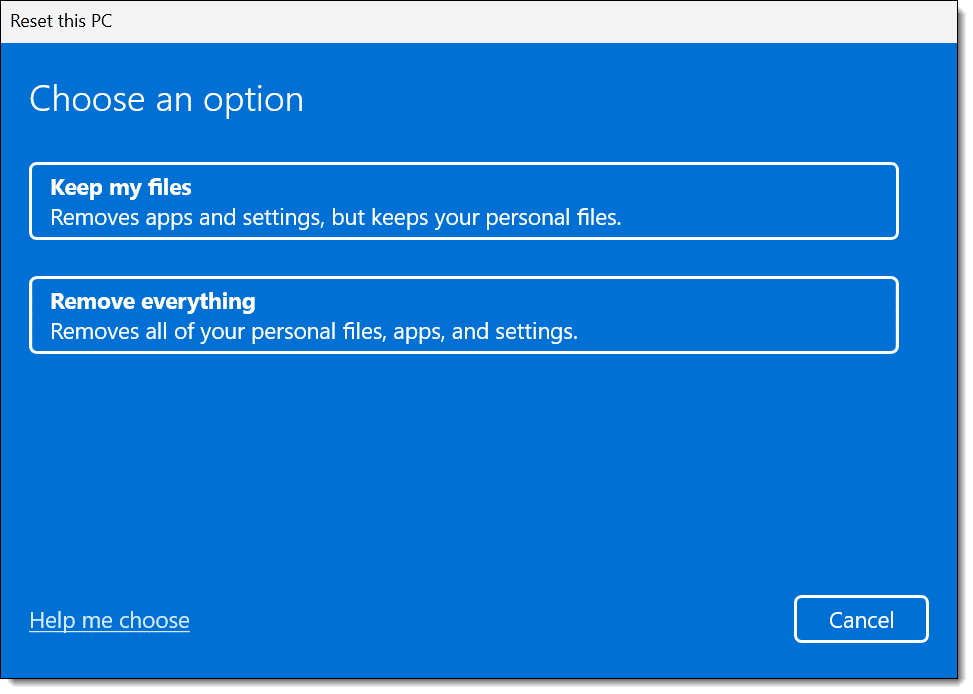
The default is to keep your personal files. Presumably, this means the files in your "Documents" folder and similar locations, but it's unclear how much is kept. Regardless, if one of those files is infected, then this presents an opportunity for that infection to persist.
So, choose "Remove everything". This does imply that you've got your data backed up or copied elsewhere to restore after the process is done.
Next, you'll be asked if you want Windows to be downloaded or if a local copy should be used.
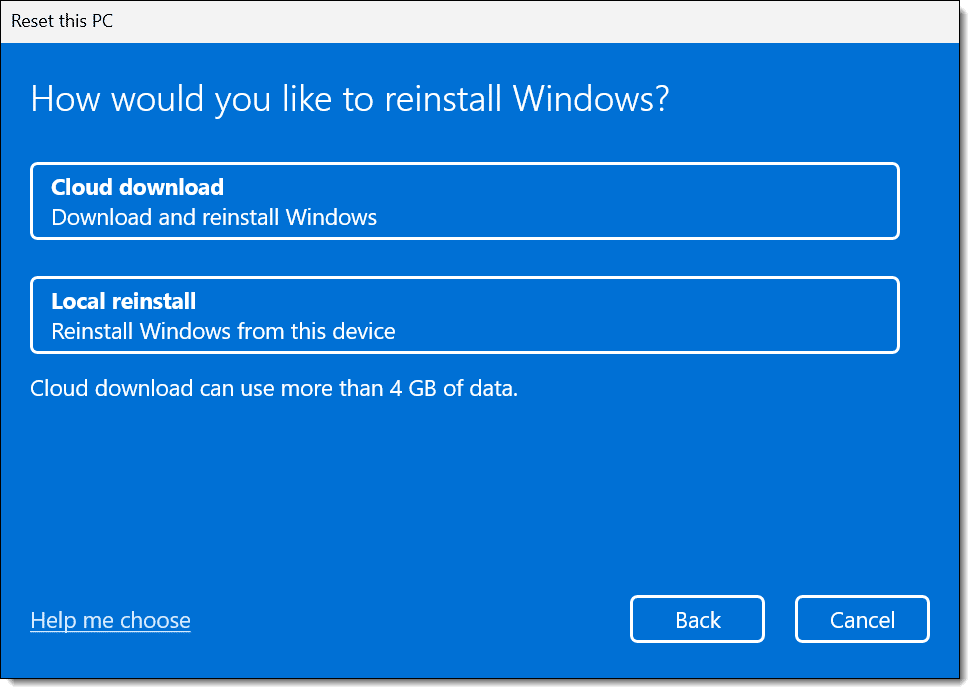
A local reinstall would be faster, but as I noted above, there's an extremely slim possibility that the local copy of Windows used for this reinstall could have been compromised by malware.
If that's a concern, choose a cloud download.
Next up is a summary of what's been decided so far.
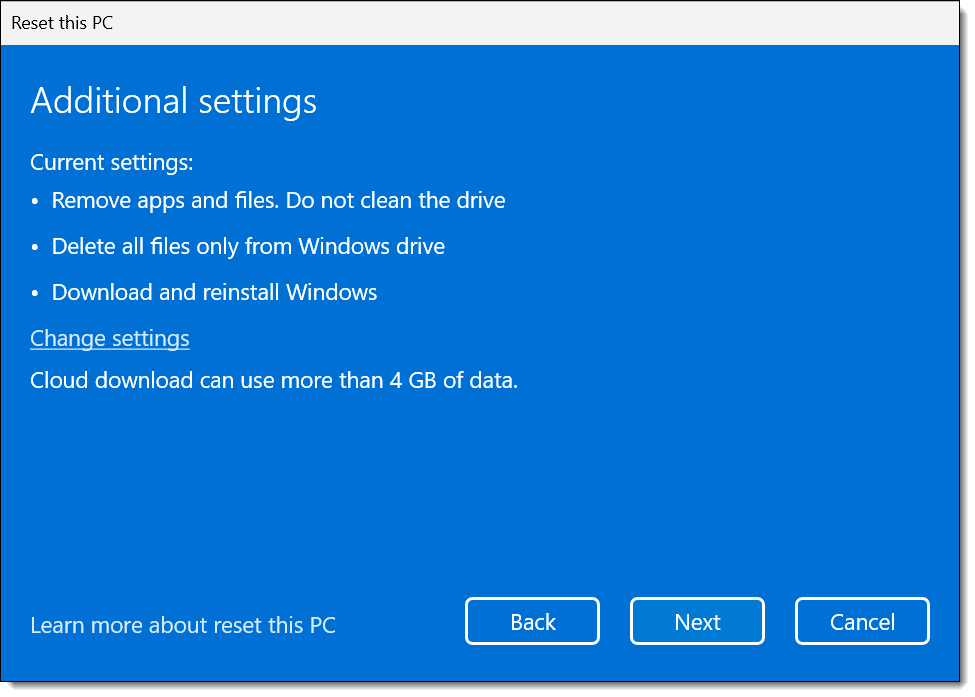
Note the phrase "Do not clean the drive". We want to change that.
Click on Change settings.
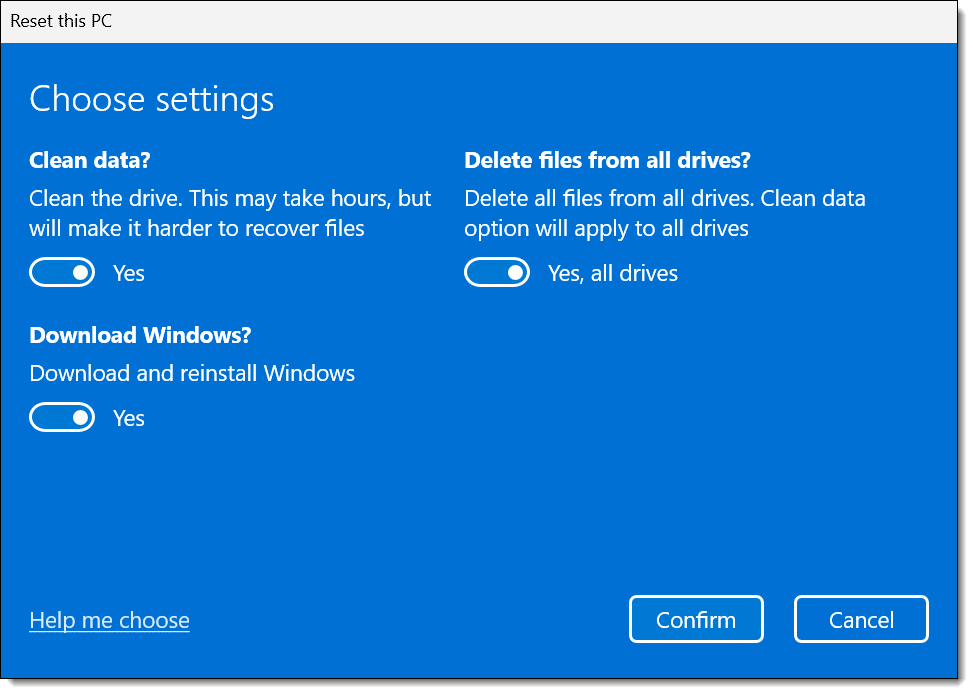
Make sure that "Clean data?" is selected. "Delete files from all drives?" is also a good idea.
But that still doesn't cover all the possibilities.
The only way to be sure that everything on the hard drive is truly removed is to boot from a Windows Setup disk and reinstall Windows from scratch. In other words, don't use "Reset this PC" at all, because it relies on possibly compromised software in those hidden partitions.
Even then, there are additional steps to take.
As part of the setup process, you'll be asked what type of installation you want.
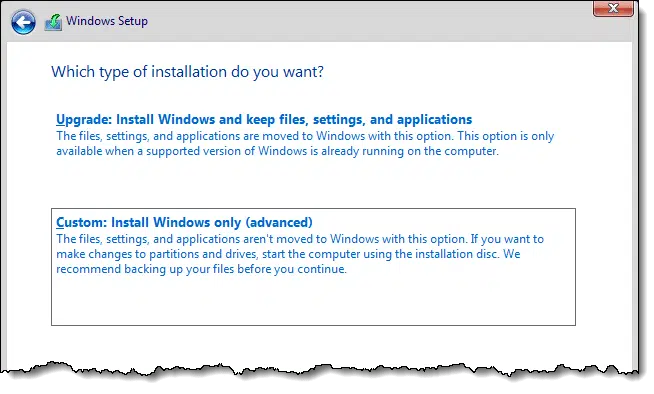
Choose Custom, which presents a list of partitions on the disk.
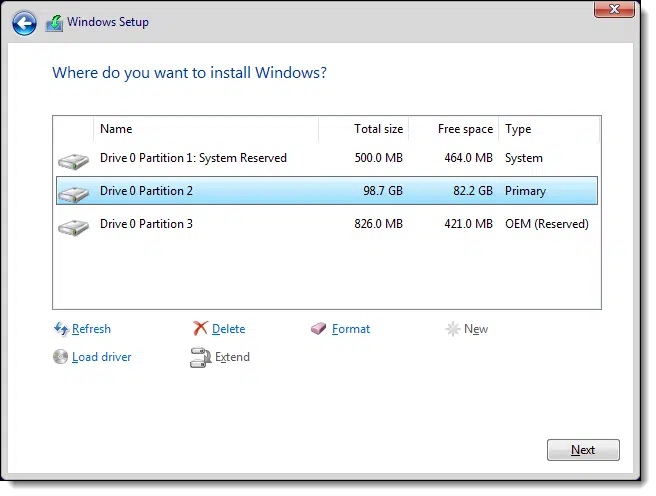
My recommendation is to delete each listed partition (click on each in turn, and click Delete).
Then continue to install Windows normally. Windows Setup will create new partitions and format them as needed.
But even that doesn't cover everything.
Again, it's extremely rare, but malware entrenched in firmware is significantly more difficult to remove.
You can try the procedure outlined by your computer's manufacturer to update your UEFI or BIOS, even if you're "updating" it to the same version as already installed.
Other devices that could be compromised may or may not have similar procedures for updating or replacing their firmware. The problem here is knowing which are installed on your system, and whether this is an option for them.
There's just no easy answer when it comes to firmware.

Getting a PIN for your credit cards before you travel can be the difference between being able to use them or not.

If you live in the United States or Canada (and possibly other countries), you're used to using a PIN for your debit card but not for your credit card. While the traditional swipe-and-sign credit card use is seen less and less in favor of chip readers and tap-to-pay, most people don't need, use, or have a PIN for credit cards.
If you're about to travel — particularly to Europe — check with your credit card provider and see if you can get a PIN for your credit card. Many businesses there are exclusively chip-and-pin. If you can't provide a PIN, you can't use that card.
And yes, this is the voice of experience.
I recently returned from a short trip to Europe where I could not use my credit cards at most retail establishments. I had no PIN. I had to use cash or my debit card.
I contacted one of my credit card companies to set a PIN — which was mailed to my home address. It arrived three days after I returned home.
You'll have greater fraud protection if you're able to use credit cards rather than debit cards, and that could be valuable as you travel. (Also, remember to check your statements and online activity to monitor for unexpected transactions.)
Spammers want to send email that looks like it’s coming from someone who can be trusted. They want it to look like it’s coming from you -- and you may end up getting the bounce notifications.
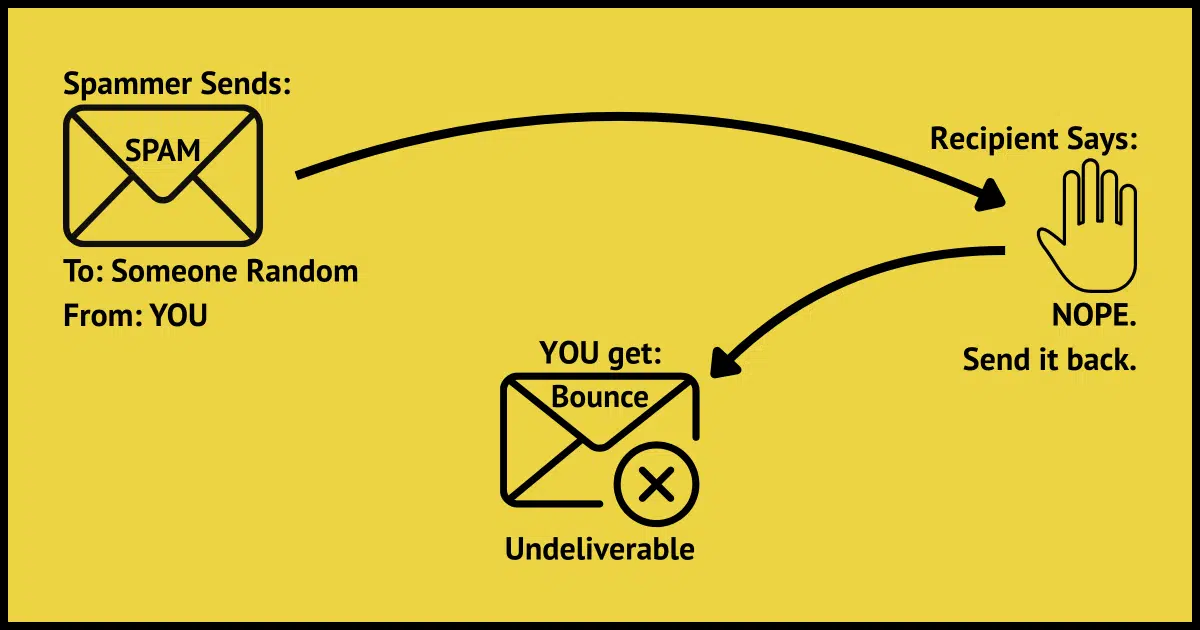
What do you do? Nothing. There's nothing you can do.
I've been seeing an uptick in this scenario recently, and it's very frustrating, not just for individuals like you, but for those of us who manage mail servers as well.
Why is it happening? In a word: spammers. Let's look at what they're up to.
Spam often appears to have come from someone who did not send it. If that's you, you may get bounce messages when that spam is identified as spam by its recipient or when it is sent to invalid email addresses. There's nothing to be done, as it was never your doing to begin with.
Bounces for emails you didn't send are just a form of spam. They're the result of spammers trying to get people to open the spam and click on the links in the spam message.
Spammers want their email to look like it's coming from someone the recipient might trust. In other words, they want it to look like it's coming from you. "From: spoofing" allows them to do exactly that. They write messages appearing to come from your email address and maybe even your name. It's easy to do; they don't even need to compromise your account. This From: spoofing has been going on for a long time.
If the email address the spammer sent it to belongs to a real person, they see email that looks like it came from you. They often have no idea who you are and may mark it as spam.
Since spammers are simply blasting email out to huge databases of email addresses, they have no idea whether those addresses are legitimate or not. If they send email to an address that no longer exists, never existed112, or recognizes the message as spam, it bounces automatically.
The email delivery system says, "Hey, I can't deliver this email; I'm going to return it to the sender." Because the sender information on the "From:" line looks like it was you, you get the bounce message.
None of this happened on your computer or your account. In fact, it had nothing to do with you other than that your email address appeared in a spammer's database.
Imagine you run a mail server, like I run the server that sends mail for askleo.com. Now imagine a spammer sends spam that looks like it comes from one of the email addresses on your server; say, leo@askleo.com.
Some of those emails generate a bounce. Some will be identified as spam. All will negatively impact the email reputation of your domain (in my case, askleo.com).
Your domain's reputation may suffer so that when you send legitimate email, it's slightly more likely to be flagged as spam...
...not because of anything you did. There's little you can do other than ensure you have properly configured your domain.113
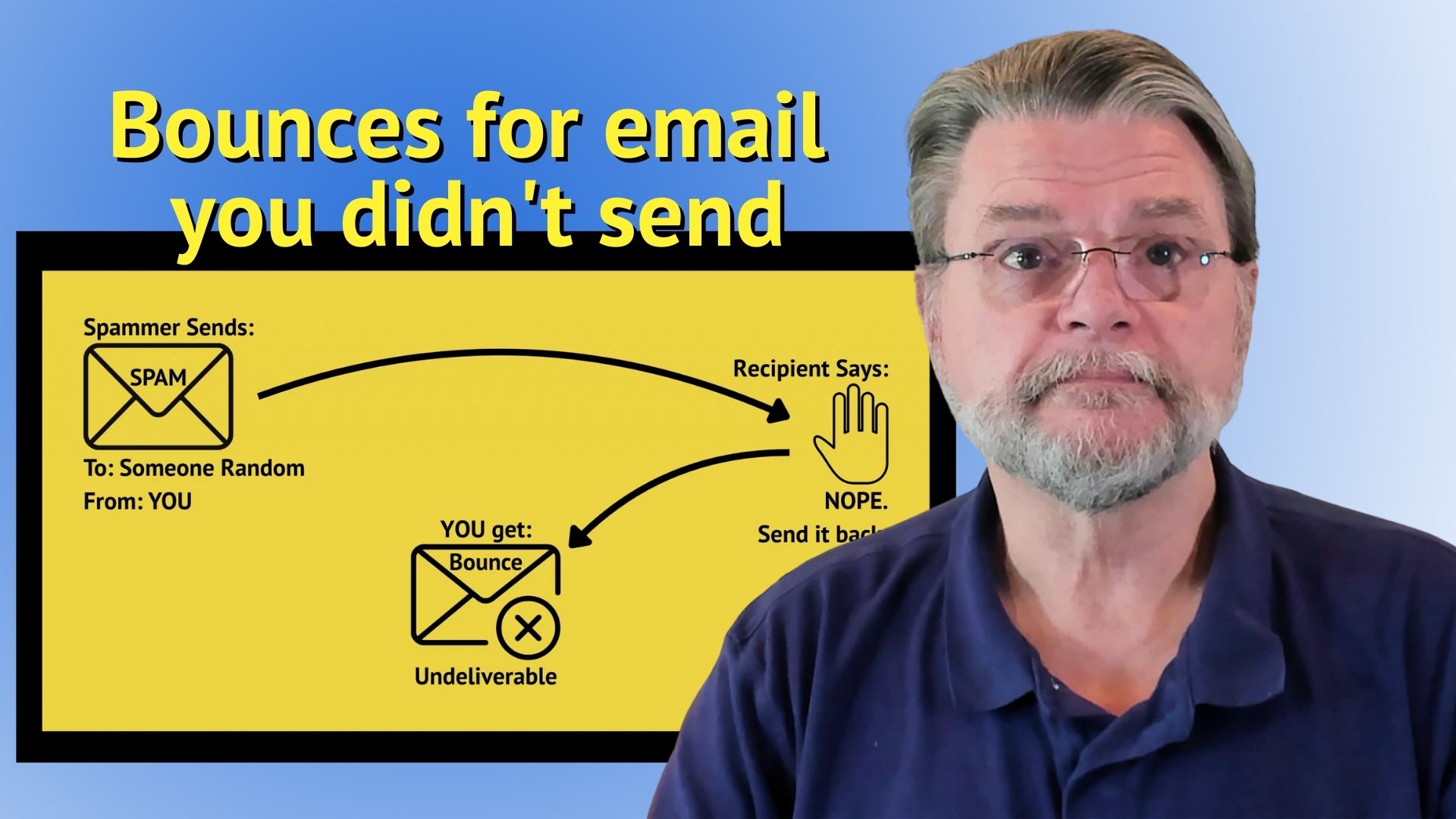
117: This is often the result of a dictionary-style approach to generating email addresses to send to: tom@somerandomservice.com, dick@somerandomservice.com, harry@somerandomservice.com, and so on — whether or not those accounts actually exist.
118: Meaning that you have SPF, DKIM, and DMARC properly set up for the domain you own and are using to send email. While they do somewhat help preserve your reputation, they're not perfect.
Checking for updates manually can remove the delay and get you everything currently available.
(Video: askleo.com)
Every time a major (or even not-so-major) Windows release is announced, people ask me, "How do I get it?"
There are two approaches. The most common is to wait. Based on whatever criteria Microsoft has established, you'll get the update eventually. I've seen it take days, weeks, and even months for major updates to arrive.
I'm nowhere near that patient.
With current Windows releases, manually checking for updates will typically trigger it. (Go to Start > Settings > Windows Update, as shown in the video above.) Even if there's no major update available, checking for updates should cause all currently available updates to be downloaded and installed.
Remember, if you're behind on updates, you may need to run "Check for updates" multiple times before the most recent major update becomes available to you.
Here’s what really happens when you delete a file and how to make sure your backups protect you without bringing back things you don’t want.
It depends on the specifics of how you back up. In general, though, once you back something up, it remains in the backup until the backup itself is deleted.
That's important, as we'll see shortly.
If you delete a file from your hard drive, the file is not present in future backups.
A backup keeps whatever was on your computer at the time it was made — which is good, since you might delete something by mistake. New backups taken after the delete won't have the file, but older ones still will.
One thing that backups protect you from is an accidental delete. What if you didn't mean to delete that file from your hard disk? Don't laugh — it happens all the time. I'd say that backups are used to recover accidentally deleted files more than any other purpose.
Even if you intentionally delete the file today, you might change your mind a week, a month, or even a year from now.
My backups have saved me from both scenarios more times than I can count.
You said you wouldn't want the deleted file to be restored.
Exactly how you go about that depends on the specifics of your backup approach.
For example, if you're taking regular daily image backups114, then you need to restore to a backup image taken after you'd deleted the file. The file will be present only in the backup images taken prior to its deletion.
If you don't have such an image, avoiding that file could be as simple as deleting it again if it shows up after a restore.
If you're using a different backup technique, how you handle this will vary. Sometimes, the file will not be restored; in other cases, you may need to delete it again.
Many folks are concerned about this for a different reason: they want a deleted file to be deleted everywhere so that others — perhaps law enforcement — can't recover it.
And indeed, one place from which files are often recovered is old backups. The only way to make sure it doesn't happen is to delete the old backup(s) that may contain the file.
If you can. More on that in a second.
I don't recommend doing this unless you have a very specific, important reason for wanting to be sure that the file is no longer recoverable. Otherwise, you're throwing out a lot of backed-up information you may want someday just to get rid of that single file.
Further complicating matters are online services.
If you store a file in a cloud service, it may have taken backups that you cannot access.115 If you need a file, they will not recover it for you from their backups, and if you need to ensure that a file has been completely removed, they will not help. And yet in response to court orders, they may be required to recover a file you thought was completely deleted.
Even if you email a file to someone, the email may have been backed up by email service providers while en route. Once again, the same issues apply: you have no access to this backup, so you cannot recover or remove things from it, while with a court order, law enforcement may be able to access it.
119: In most cases, that means periodic full and more frequent incremental backups.
120: In addition to features like online recycle bins and file history that you are allowed to access.
Ever wonder where Windows puts all your stuff? From drives to folders to files, the “normal” Windows hierarchy has a logic, though it’s often hidden by shortcuts and misbehaving programs. Here’s a look at how it works and how to keep your files organized.
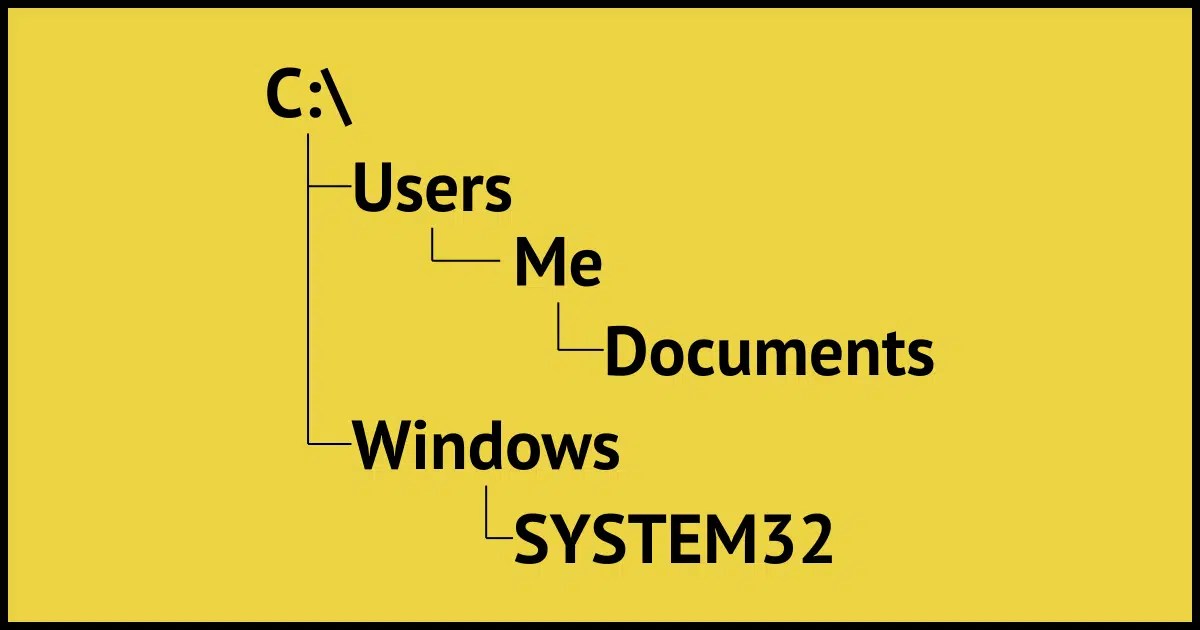
It's surprisingly simple in concept. In practice, though, applications, including Windows itself, often conspire to make the file hierarchy confusing. That, in turn, can lead to a lot of lost, misplaced, or duplicate documents.
Let's take a walk down the standard structure of files and folders that Windows assumes, encourages, and, in some cases, enforces.
But first, we need to make sure we understand some terminology.
In Windows' typical file setup, drives hold folders, and folders hold files. Your main drive is usually C:, with key folders like C:\Windows, C:\Program Files, and C:\Users. Each user gets their own folder with subfolders (Documents, Pictures, etc.). However, programs and shortcuts often make things look confusing.
Let's take a quick refresher on the basic building blocks of data storage.
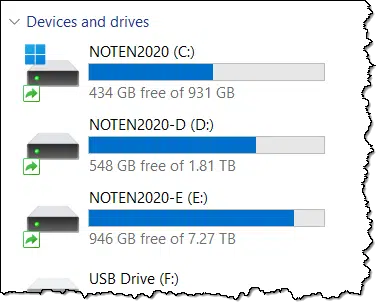
Drives, AKA volumes or partitions, generally represent physical disk drives. These include the hard disk in your computer (whether HDD or SSD), parts (partitions) of the hard drive on your machine, USB thumb drives, network-connected drives, and more. Each drive typically represents a different physical entity.
Drives are most commonly referred to by letters of the alphabet followed by a colon. The most common is "C:", the system drive (and often the only drive) in your computer.
Drives can contain folders and files.
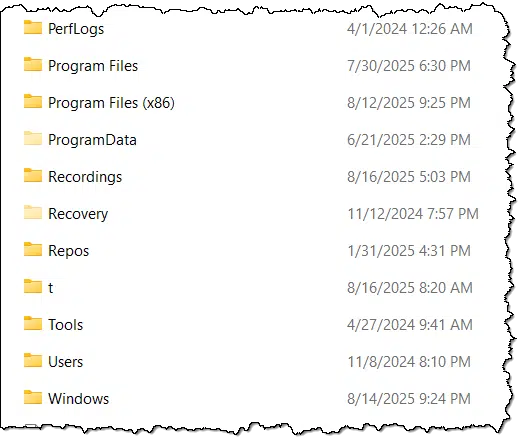
Folders are a way of organizing the data stored on a drive. The metaphor is that of an old-style paper file folder into which you might place paper documents.
On your computer, folders can contain other folders (if you've ever used paper folders, you've almost certainly put a folder within a folder at one point or another), and files. Folders have names, not unlike what we might have written on a paper folder tab to identify its contents.
Files contain actual data. The image above is a collection of files that each contain a single image. Files are given names to indicate what they contain. The characters after the last period in a file's name is called its extension, and indicate what type of data the file contains. For example, .jpg indicates a JPEG-encoded image. Microsoft Word-formatted documents have a .docx extension. There are thousands of different file types, but they're all just data collected on disk and organized into a single entity: a file.
Drives, folders, and files... that's a lot to keep track of. There's a model that makes it easier to conceptualize: the tree. You can see this represented graphically in Windows File Explorer.
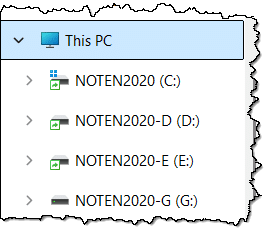
"This PC" is kind of the base of our tree. In the example above, it contains four branches, each representing a drive on this machine. If I expand one of the branches by clicking on the ">" to its left, it displays more branches contained within.
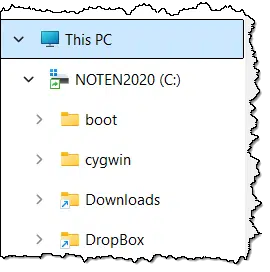
Each folder or branch of the tree can be opened to expose its contents, and so on and so on. Folders can contain both more folders (referred to as subfolders) and files, but eventually you'll reach a folder that contains only files.
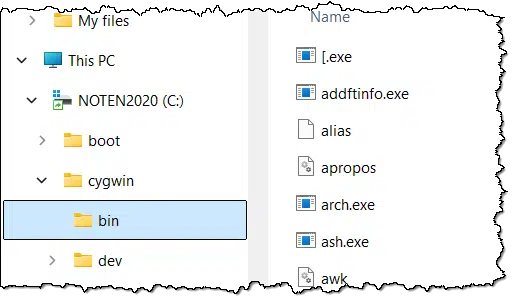
You might consider files to be the leaves of the tree.
Those images are handy when navigating in Windows File Explorer. It's a great graphical way to conceptualize how your files are organized and how to locate them. But it's cumbersome when typing or otherwise referencing a single folder or file on your computer.
Instead, we use a path, or tree notation. It's built like this:
Each of those elements is separated by a backslash ("\").
So, looking at that last example image, the file "ash.exe" would have a full path notation of:
C:\cygwin\bin\ash.exe
On the C: drive, in the cygwin folder, in the bin folder, is the file "ash.exe". That's the full path to the file, often referred to as the canonical path.
Now we can answer your question about the "normal" file hierarchy.
By default, Windows installs to drive C:.
It creates the following folders (among others):
If you look inside of C:\Windows, you'll see many more standard folders (for example, SYSTEM and SYSTEM32) and many files.
C:\Users is where we want to look next.
Each account capable of signing into the machine is given a subfolder within C:\Users.
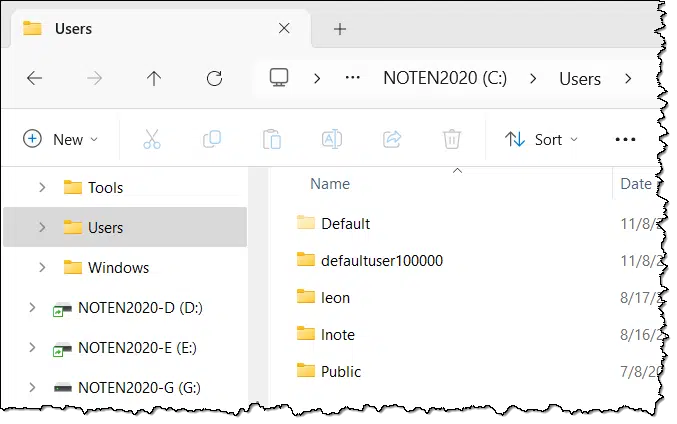
My machine, shown above, has two login accounts: "lnote", which is the first five characters of the email address associated with my Microsoft account, and "leon", which is a local machine account. The other folders are used by Windows for various purposes. (The Default folder, which is normally hidden, includes default settings for new accounts, Public is a folder for sharing things between accounts, and so on.116).
This allows different users to have separate collections of files that only they can access. By default, for example, the user "lnote" cannot access the files stored within the "leon" folder.
I often refer to your login ID as "%USERNAME%", which, if used literally, is replaced by Windows with your current username. In my case, C:\Users\%USERNAME% is exactly the same as C:\Users\lnote.
If you open your user folder (sometimes referred to as your "home" folder), you'll see a long list of folders and perhaps files. (In my case, that's my Microsoft account folder, or "lnote".)
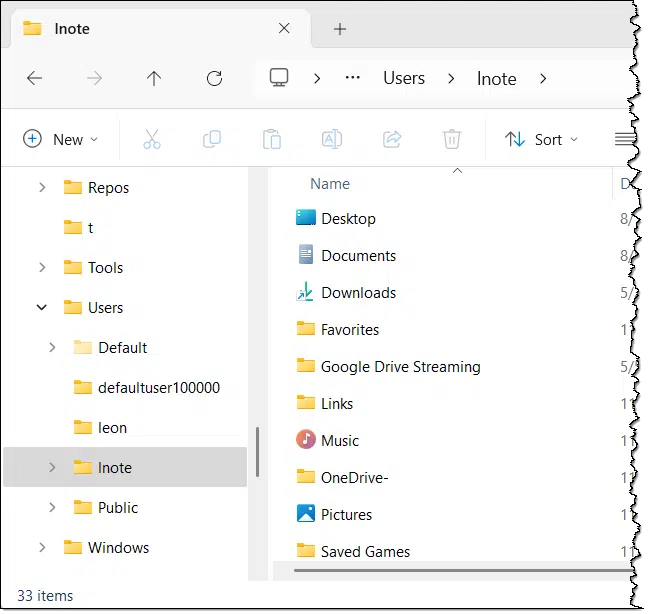
There are several interesting aspects to this folder.
It contains your default folders, such as Desktop, Documents, Music, Pictures, and the like. It contains additional folders, perhaps created by the software you've installed ("Google Drive Streaming" is a good example here), and more.
It also normally contains a folder called OneDrive that contains the files you have stored in OneDrive. On this machine, I uninstalled OneDrive and renamed the folder "OneDrive-" to see if anything would break.117
When I talk about standard or default folders, it's these that I'm talking about:
And that's where any standard organization or hierarchy ends.
It's completely up to you how you organize information within each folder. Some programs may have their own ideas, but that's not a Windows standard as much as it is a particular program deciding how it wants to keep its data organized in your folders.
One common source of confusion is when Windows tries to be helpful by hiding everything I've just described. The default setup of Windows File Explorer includes shortcuts to all those standard locations I've mentioned above.
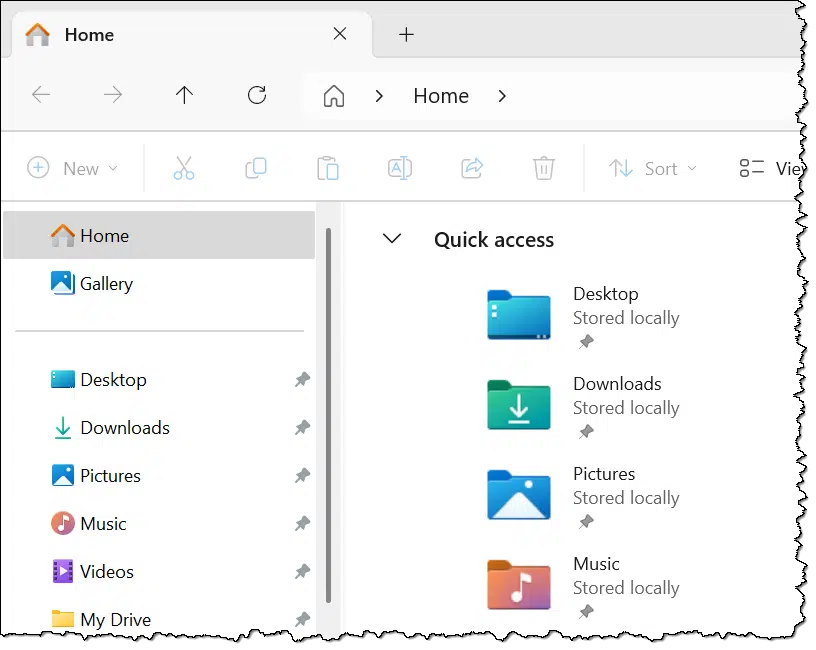
These shortcuts completely obscure where the folders live on your disk. If Libraries are involved, they further confuse by referencing multiple different locations.
These shortcuts are also updated to be correct for the currently signed-in user. If "leon" is signed in on my machine, then the Documents shortcut refers to "C:\Users\leon\Documents". If "lnote" is signed in, it's "C:\Users\lnote\Documents".
These shortcuts exist because in Microsoft's mind you don't need to know or care where your Documents folder is on your hard disk. Windows is trying to make your life easier. Unfortunately years of experience say otherwise: you really are better off and better organized if you know where things really are.
In theory, you should never need to know or care about one specific folder in your user folder: AppData.
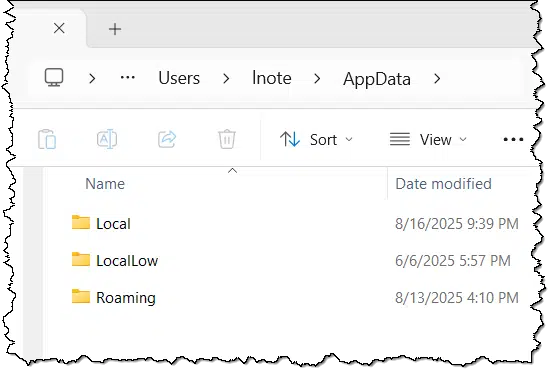
It's hidden by default. (There are options on the View menu to let you see hidden items.)
The intent is that programs running on your machine (AKA apps) store their data within this folder. This means that each user of your computer has a collection of data separate from other users.
Depending on what you have installed on your computer, AppData is a deep and complex collection of folders and sub-folders. Mine has over 100,000 folders and 250,000 files. I have a lot installed.
The most common question, of course, is what's the deal with Local, LocalLow, and Roaming?
Applications tend to be inconsistent about which of these folders they use. The good news is that for most of us at home or in small businesses, the distinction is irrelevant.
As I said above, in theory you shouldn't need to care about AppData. Unfortunately, it comes up just often enough when configuring programs, or diagnosing problems, that it's something worth knowing about.
121: To be honest, I have no idea where "defaultuser100000" came from. One of the unfortunate realities of Windows is that not everything has an obvious explanation.
122: Nothing broke, and I'll be deleting that folder.
You can change a major setting on your computer.
(Video: askleo.com)
The usual way to select or open things in Windows File Explorer is to:
Windows File Explorer has a setting to change that to:
This can be a huge improvement for individuals who find double-clicking difficult or just don't like it. To switch, follow the steps in the video above.
If you're looking for documentation about Linux commands, use the "man" search.

No, not "man" as a concept, and not even "the man", whomever that might be.
A man page is a concept in Linux. It generally contains the documentation, or manual, for a specific command. So in the Linux command line, you might enter a command like:
man git
to get the reference manual information about the "git" command.
Not using Linux? Haven't even opened a command prompt? No problem. Use an internet search instead. Enter "man <command>" into your favorite search engine. The image above shows my search for man git, and indeed, the first result is the git documentation page online.
There's one caveat: when run on a Linux (or other) system, "man" will return the manual page for the specific version of the tool you have installed. A generic search won't have that additional context, so it provides the best general result it can find.
Sharing what you know with others is the best way to learn even more yourself.

This isn't a technique to apply to Windows or your computer; it's something you can do for yourself.
Share what you learn. Help others. Teach.
I'll be honest: I've learned more doing Ask Leo! for over 22 years than I ever would have just poking around on my own. By helping others, answering questions, and trying things out as a way to research answers, I gain a better understanding of how things work and more tools in my toolbox.
The best way to learn something is to teach it.
You may feel you're not up to the task, but I'm here to tell you that you are. Choose a friend or a family member and become their go-to tech person. I guarantee you'll learn more than you can imagine. Volunteer to teach or help others at senior centers, libraries, and other facilities, and you'll be helping the people you interact with and helping yourself as well.
There are lots of ways you can take the knowledge you gain and share it with others. You'll find you have more than you think and will gain even more in the process.
If sending an email bounces but replying works, the culprit is usually a wrong address hiding in plain sight. Learn how display names, typos, and auto-complete can fool you, and how to fix the problem so your messages get through every time.

You're probably sending to the wrong email address.
I know, I know, you're absolutely convinced you're sending to the right one — but the bounce message would indicate otherwise. I've had it happen to me. I was absolutely convinced... until I saw my error.
Let's look at why the two scenarios are different.
If a new email you send bounces but a reply works, you're probably using the wrong address. Typos, bad contacts, or auto-complete mistakes are common causes. Check the actual email address, not just the name, and fix or delete wrong entries so your messages go to the right place.
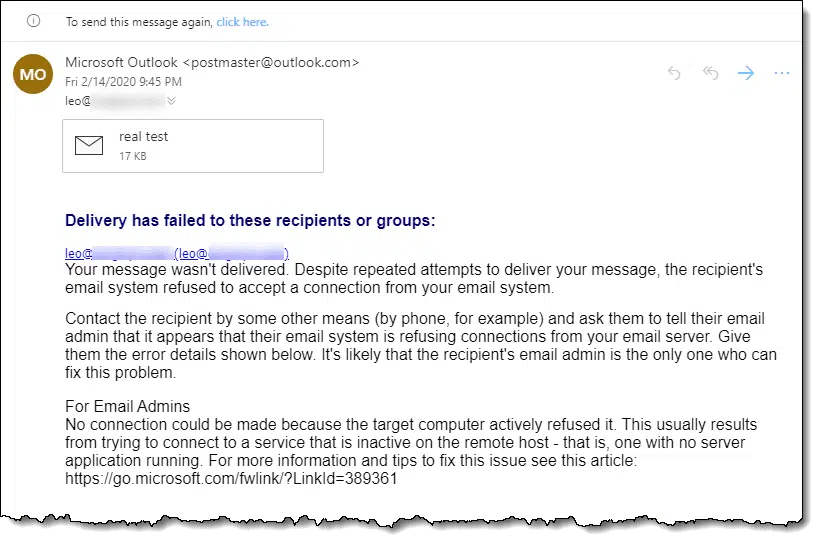
When you send a new email to someone, the email address you send to comes from either of two places:
Errors can come with either method and can be very subtle.
When you reply to a message, however, the email address you're sending to comes from the email message you are replying to and nowhere else. It can still be wrong, of course, but because it's the email address of the other person, they're the one who typed it in, and presumably, it's correct.118
Before we get to the details of how things can go wrong, we need to review what makes up an email address.
There are two parts: the display name and the email address. They're often displayed together:
Ask Leo! <leo@askleo.com>
The display name is, as its name implies, the text we see and recognize as someone's name. The email address follows it in angle brackets.
The first source of confusion is that the display name can look like an email address:
leo@askleo.com <leo@askleo.com>
There's nothing wrong with that, but it's important to realize that even though it looks like an email address, the display name is not the email address. Consider this one:
leo@askleo.com <leeo@askleo.com>
The display name looks correct, but the email address — the email address used to send your message — is wrong.
Finally, in an effort to keep things simple, many email programs only display the display name and hide the email address. Hover over the link below with your cursor, and you'll see the email address displayed in the lower part of your screen.
You won't know if the email address is wrong without looking deeper. Even worse is when the display name looks like an email address, but the actual email address is different and incorrect:
It looks right, if you hover over it, you'll see that the actual email address has that pesky typo and won't work.

Email addresses must be exactly correct, so it's pretty easy to get one wrong by accident.
It's easy to mistype. A keyboard bounce, a slipped finger, and suddenly you're sending to something like "leeo@askleo.com" instead of the correct "leo@askleo.com". Even more subtle might be "1eo@askleo.com", where the initial ‘L' is the digit 1 by mistake. The result will be a message that doesn't make it to where you intend. It may or may not bounce back to you, so you may or may not ever know that it didn't go through.
It gets even more subtle: in some email systems, once you email an address, right or wrong, it's added to the auto-complete suggestion list. As soon as you start typing, say "le", the system suggests "leeo@askleo.com" — an error — which is easy to miss and accept by mistake. The only solution here is to remove the auto-complete suggestions using whatever options are available in your email program or interface. (This is what happened to me.)
It gets worse. Some systems add email addresses to which you've sent email to your address book. These entries define which email address is supposed to be used for what person. If you somehow have a bad entry for "Leo" with a wrong address of "leeo@askleo.com", then as soon as you type "Leo", the email program may enter the incorrect address automatically.
The only solution here is to carefully examine the address book entry for that contact and make absolutely certain their email address is correct. While you're in there, it's worth looking to see if your contact has more than one entry and one of them is wrong.
Since your emails go through when you reply, look carefully at the email address used when you reply. Make sure you're looking at the email address and not the display name.
Make careful note of it. Perhaps even copy/paste somewhere like Notepad to make it easier to see.
Search your address book to see if you have an entry for this recipient. Then, either:
OR
Then, compose a new message and start typing the email address you intend to send to. Pay extremely close attention to the suggestions made by your email program. Delete any that are incorrect. (Exactly how to do that depends on what email program or interface you use.)

After you've entered the email address and the email program has placed it in the "To:" field, hover over it, click on it, or take whatever steps necessary to confirm that it's sending to the exact email address you think it is.
One of the more frustrating aspects of dealing with email delivery problems is that saying "the email bounced" is equivalent to saying "it didn't work" — it gives me no information.
The contents of the email bounce message, such as that shown at the top of this article, have a lot more information about why the email bounced. Read the entire bounce message. Look for clues and pass them on to whoever you're reaching out to for help. (In fact, always provide lots of information when asking for help.)
While an incorrect email address is usually the culprit, other things can go wrong. The contents of that bounce message hold clues as to what to do next.

123: No one would be able to reply to them if they got it wrong, so that generally gets fixed pretty quickly.
The back button does more than revert to the last page you were on. It can show a whole history of visited pages.
(Video: askleo.com)
Right-click (or, on some systems and/or browsers, click and hold) the back button in your browser. You'll be presented with a list of recently viewed pages within the current tab.
This represents the pages your browser would take you to if you just hit the back button repeatedly. This way, you can jump directly to that page five pages ago without having to go through all the intermediate steps.
In most browsers, there's also a convenient link to access your full browser history.
Bonus tip: If you do go back in your history, then the Forward button (usually next to the back button) will show you the list of pages you could move forward to as well.
Worried that too many apps will wreck your PC? Learn the real risks, how “software rot” happens, why portable apps aren’t always harmless, and why backups are your best defense.
In theory, installing lots of different programs shouldn't destabilize the system regardless of how they're installed.
Reality says otherwise.
The real answer is, it depends more on the specific software than on how you install it.
Today's systems are incredibly complex. Installing lots of software can destabilize them. In addition, uninstalling software also contributes to instability (or software rot). Avoid experimenting with lots of software. Try portable versions if available, and, of course, back up regularly. Within reason, install and evaluate what you need and use.
What you're talking about has a name: software rot. It refers to the gradual decrease in quality and performance of software, and thus of your system, over time.
Today's systems and software are so complex. Installing software — even if it's just the first run of a portable application (the kind that requires no setup program) — is also complex.
Subsequent updates and uninstalls all add to the complexity.
As a result, it's easy for settings — both the settings you see and the thousands of internal settings used only by the applications and Windows — to get confused. Depending on the software you're running, that confusion can do nothing — or it can cause the software, or even Windows, to misbehave.
The most common culprit in generating software rot is installing and uninstalling software you just want to try out.
It's important to evaluate software to see if it meets your needs. To do so, you typically install it and run it. If you decide it's not what you need, you uninstall it.
If you do this often, it's a bigger cause of system destabilization or software rot than simply installing and keeping the software you use regularly up to date.
The good news is that things have improved dramatically in recent years. I frequently install and uninstall software and rarely suffer because of it. Don't stop trying things out; your machine should meet your needs.
I have one recommendation, though.
Before you install something you're just trying out, back up your system completely. Ideally, you're already doing this by virtue of having a daily backup solution in place.
That way, if something goes wrong with the trial or its uninstall, or if it includes PUPs, malware, or worse, you can quickly, easily revert to a state prior to the installation.
Besides, things can go wrong for reasons unrelated to software installations, trials, or software rot. Backups protect you from it all.
I want to share a thought about portable apps.
A portable app is an app that requires no setup or installation process. You copy it to your machine and start using it. To uninstall it, you delete the files or folders you copied.
In theory.
But portable apps often install or configure things the first time you run them. In a sense, there's still a setup process; you just don't see it.
Portable apps do little in the way of setup, but there are no guarantees. That's why I fall back to being more concerned about what software you're installing, not how much or whether it's portable or not.
Unfortunately, it's nearly impossible to determine how an application will behave prior to installing it. But if your portable, no-install-needed app includes a link or instructions to uninstall, chances are it has done something in the way of installation.
Changing two-factor authentication apps isn’t hard, but doing it incorrectly can lock you out of your accounts. Here’s a safe step-by-step approach to make the switch smoothly, protect your access, and keep your accounts secure.
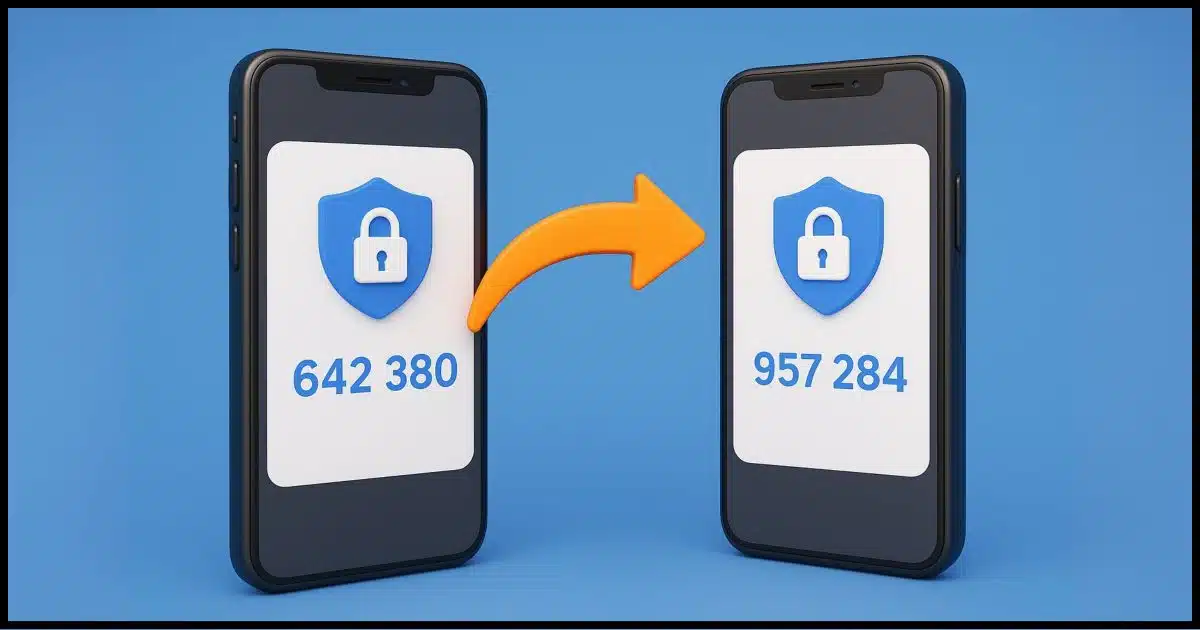
Safety, or more specifically not getting locked out of your account, is a common concern when it comes to switching your two-factor authentication app or technique.
Sometimes you can move an app-based 2FA from one app to another, but a) it's not terribly common, and b) not everyone uses this type of two-factor app. When using SMS or other forms of two-factor authentication, there's no secret key or anything to share even if you could.
The good news is that my approach is conceptually simple and works with all forms of two-factor authentication.
You just need a little preparation.
To safely switch two-factor apps, sign in first, prepare recovery options, and be at a trusted location on a familiar device. Turn off your old 2FA and then turn it back on with the new app. Always save recovery codes so you're never locked out.
Here's the approach I recommend.
But wait!
Before you run off and do that, there's some important preparation to do so that nothing trips you up along the way. We do want to do this safely, after all.

I can't stress this enough. Many people want to change their two-factor authentication method specifically because they can't sign in; they've lost the old one, or it's not working.
That's not how this works. Your ability to sign in proves you have the right to make the change. If you can't sign in, then for all the service knows, you're some random hacker trying to break in. You know and I know you're not, but the service has no way to confirm it unless you are able to sign in.
If you're having trouble signing in, particularly due to your existing two-factor not working, you'll need to use the account recovery techniques offered by whatever service you're using. Once you're signed in, you can (and should) set up a new two-factor mechanism.
This might seem counterintuitive, but having successfully signed in may not be enough, at least to remove the existing two-factor authentication. Some services ask for additional confirmation that you are who you say you are.
Similarly, if you're trying to make this change while traveling, the service may also think that suspicious and throw up additional authentication challenges.
My recommendation:
When you remove the existing two-factor, either of two things will generally be required:
Or, if you don't have that available:
If you can't confirm that you are who you say you are with one of those techniques, you may not be able to remove the second factor. That could put you at risk of being locked out of your account.
I recently went through this exact scenario. Proton introduced its own two-factor authentication application that works on both desktop and mobile. My prior tool, Authy, ended desktop support some time ago.
I'd moved all of my two-factor codes to 1Password (the convenience far outweighs a teeny tiny decrease in security, and it makes two-factor much easier to deal with). Unfortunately, I faced a chicken-and-egg scenario. My 1Password account is itself protected by two-factor authentication, but that's one code that, while I can (and do119) store in 1Password, it's impossible to use from there (the chicken and egg: you need the code to open 1Password, but you'd need 1Password to already be open to get the code). So, in addition, I'd kept Authy running on my phone specifically for that.
So, I:
The move went smoothly, and I can access the codes from my desktop once again if I need to.
124: I store it there anyway, but clearly not for actual use. It's just another way for me to securely save the 2FA secret key.
A quick setting allows you to be alerted when you accidentally press the Caps Lock key.
The Caps Lock key is controversial to say the least. Many people love it, and many people hate it. (Personally, I rarely use it.)
For the haters, there are two approaches. You can disable Caps Lock, but it requires third-party software or a registry hack (the subject of a prior tip).
Another approach is to have Windows play a sound each time you press the Caps Lock key so you are alerted when it is enabled, rather than typing a paragraph and then noticing is in in all caps.
In Windows Settings, search for "caps lock". You'll be taken to "Keyboard Ease of access" (Windows 10) or the Accessibility keyboard (Windows 11) settings. Scroll down to find the setting "Play a sound when you press Caps Lock, Num Lock, or Scroll Lock", and turn that on.

Now when you accidentally (or on purpose) hit the Caps Lock key, at least you'll hear about it.
Switching from Outlook (classic) to Thunderbird? You don’t need to buy tools. With a little time and a free email account, you can move your messages yourself. I’ll walk you through the steps to transfer your email safely and reliably.
This is a question I get from time to time from people who use Outlook (classic)120 (aka the big, powerful, Outlook email desktop client included with Microsoft Office/365/CoPilot) and are looking to switch to a different email program to run on their PCs. Typically, they're moving to Thunderbird, but there are, of course, many options.
Getting your email from one to the other? Well, that takes a little effort.
You can move email from Outlook to Thunderbird without buying a converter by using a free IMAP transfer account. Upload messages from Outlook to the transfer account and then download them in Thunderbird. Contacts and calendars require separate exports.
PST and OST are file formats used only by Outlook (classic) to store email. The formats are complex and proprietary (though they are documented), making moving your old email more difficult than it is between other email services.
There are third-party tools available to do this, both paid and free, of varying reputation and quality. For what is typically a one-time conversion, I'm reluctant to purchase anything. With just a little legwork and time, you can do the conversion yourself.
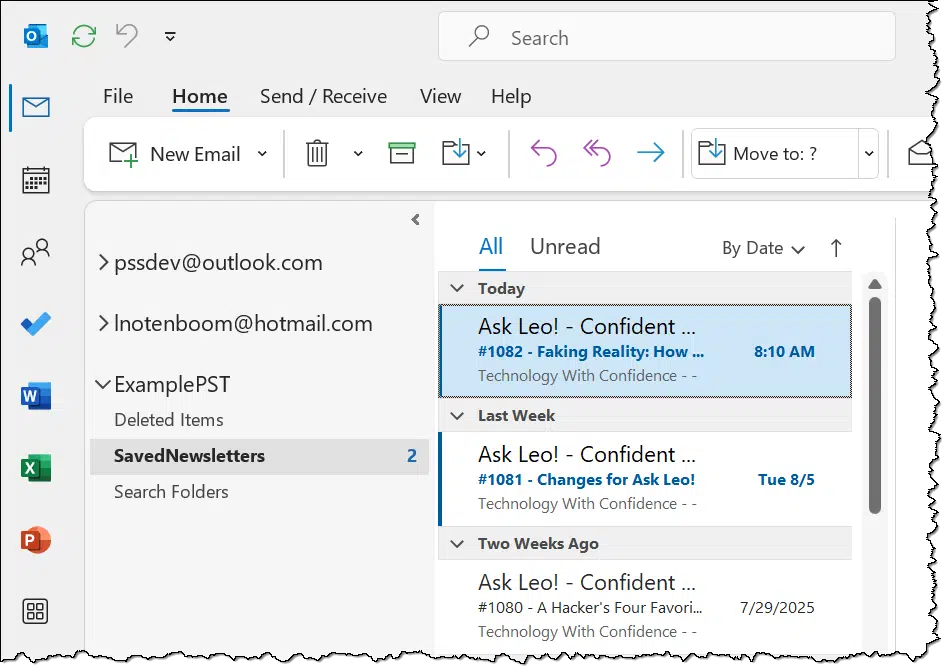
The example above shows two email accounts I've configured in Outlook(classic), both connected via IMAP, and both whose email is stored in OST files.
Below them is "ExamplePST", which is a PST file representing local storage on the PC only. It's not associated with any email account.
In Account settings, you can see their respective locations.
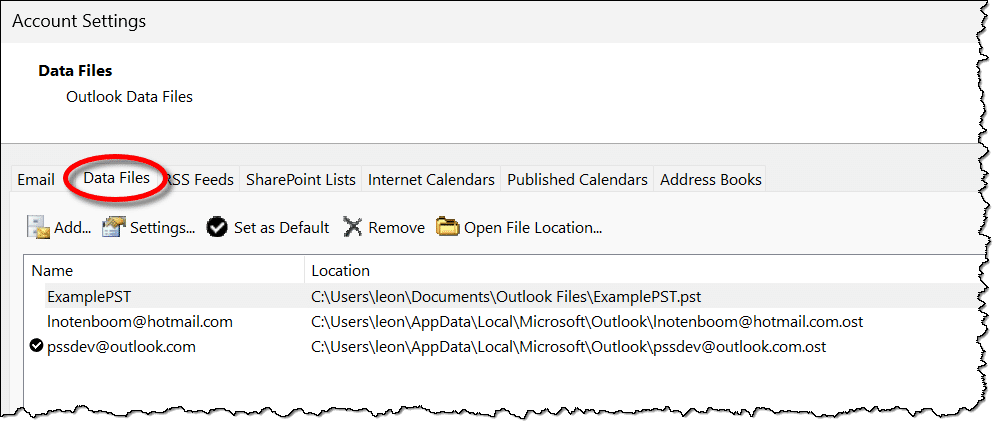
It's the contents of this PST file we want to move to Thunderbird.
Without using a third-party tool.
There is no direct Outlook (classic) to Thunderbird copy. Instead, we need to use an intermediary email account to perform the conversion.
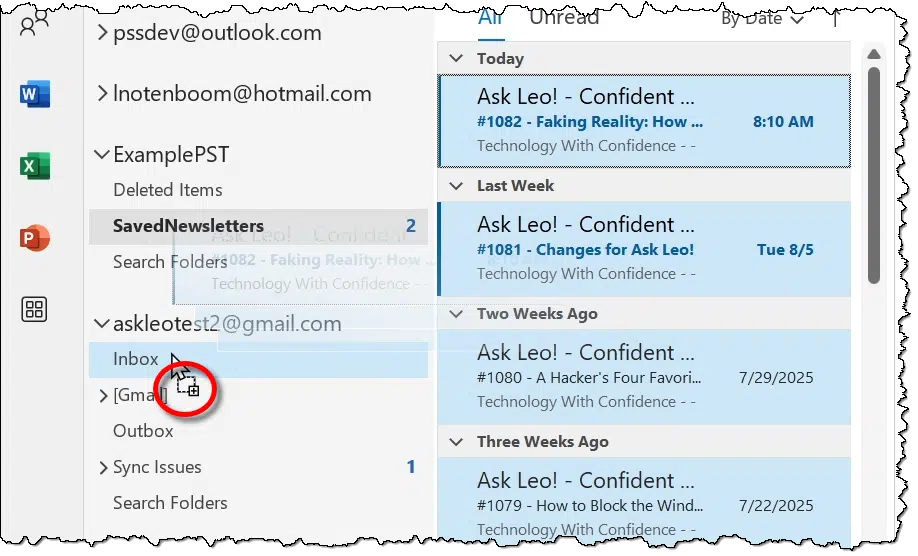
In the example above, I've selected all the messages in the folder "SavedNewsletters" in my ExamplePST and am about to drag them to the Inbox of my transfer account, askleotest2@gmail.com. NOTE the plus sign circled in red as part of the pointer icon: this indicates the operation will be a copy, as opposed to a move. Hold down the CTRL key and ensure that the plus sign appears before releasing the mouse pointer.
Because the transfer account is connected via IMAP, any email you copy into its folders in Outlook (classic) will be uploaded to the account online. You can confirm the upload by signing into the transfer account in your web browser.
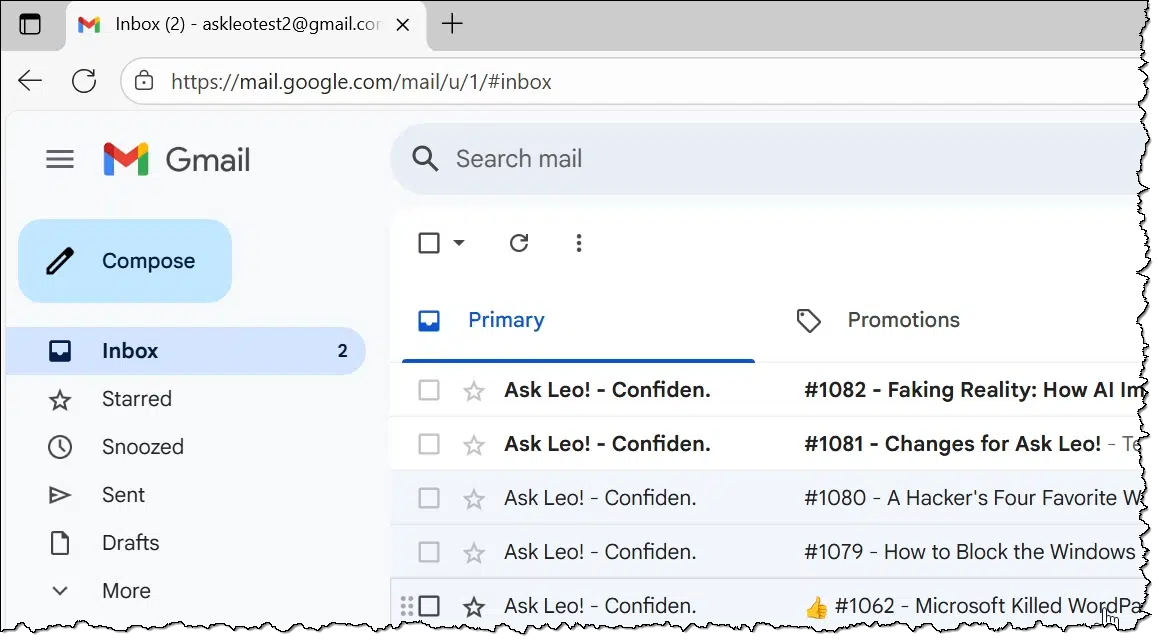
The only "catches" here are:
It's that simple.
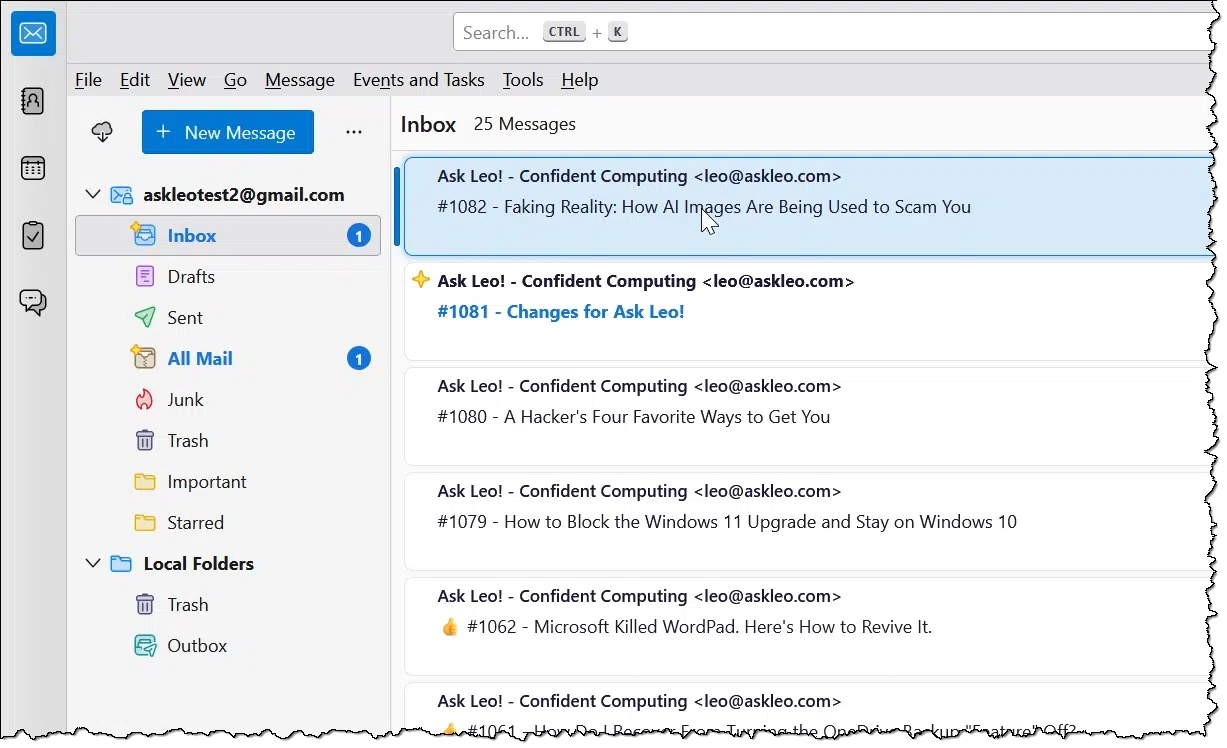
Now all the messages that were in your PST are available in Thunderbird.
Depending on your intent, there are several cleanup steps you might consider.
There are two elephants in the room when it comes to moving things from Outlook to Thunderbird. (Actually, these are very common account management issues regardless of where or how you're moving email data.)
Contacts. There's no seamless way to move contacts other than to export them from one program and then import them into the other (Thunderbird, in our example). There will almost certainly be some form of data loss, as not all contact applications keep track of the same information in the same way.
Calendar. I have yet to encounter any reliable approach to transferring calendar information except for specific services (like Proton) being able to copy from specific other services (like Gmail). For calendar data stored in a PST, I've yet to find a viable option.
OST files represent an IMAP "window" on the master copy of email stored online. To move an OST file to Thunderbird, start at step 2 using whatever account you have in Thunderbird.
The difference is that when PST files are used, the email typically resides only in the PST, and we need a way to get it out. OST files are typically a copy of a master email repository that is stored and accessible elsewhere.
You can move email from Outlook (classic) to any desktop email program you choose. I tend to prefer Thunderbird because:
But any email client (ideally one supporting IMAP, as most do these days) will do. My only advice is to double-check that you're not locking yourself into proprietary storage formats. When standard formats are used, you can avoid the hoops we just jumped through should you ever need to move to a different email program again in the future.
125: I'll continually refer to this as "Outlook (classic)" so as to differentiate from the other programs also called Outlook which are nothing like the original Outlook email program that comes with (or came with) Microsoft Office 365. Only Outlook (classic), for example, deals with PSTs.
126: PST is a portable data file format. You can copy PSTs and open them in other instances of Outlook (classic) easily. They're also the default format for POP3 connections. OST, while similar, is less portable in that it's often encrypted and tied to a specific Outlook instance. OST is used for IMAP connections.
127: In theory, you could use POP3, but IMAP is safer in case anything goes wrong with a download.
Phone scams are on the rise. One easy solution? Don't answer.

I know this seems harsh, especially if you were raised to be well-mannered and always answer the phone politely, but it's become a necessity in today's scam-rich world.
Don't answer the phone.
At least, don't answer it unless you know who's calling. If the caller ID on your landline or mobile phone displays a name or number you recognize, then answer if you feel like it.
But if it's someone you don't recognize? Just... don't.
My logic works like this:
This does require some kind of caller ID feature as well as an answering machine or voicemail. Honestly, I can't imagine living without either in today's environment.
You'd be shocked at how many leave no message. That's fine by me; it must not be important to them. And for those who leave a message, it's also surprising how many are obvious scams.
Just copying your entire drive is not a safe backup, Learn why a real backup program is safer, faster, and more reliable when disaster strikes.
Sure. You can do that; just copy everything. It provides a level of protection, and it's way better than doing nothing at all.
But your safety net has some big holes in it.
The problem is you can't really "copy everything". You'll miss some things that a traditional backup program would catch — things you'll care about when the worst happens.
Copying everything seems simple, but it misses key files (like the Windows registry), skips files in use, and can overwrite older versions you might need. A real backup program captures it all, keeps past versions, and can restore your entire system quickly after a crash.
The scenario proposed here is to back up C: by copying all of it to an external drive, like F:. If you're familiar with Windows Command Prompt and the xcopy command, it might look something like this:
C:> xcopy /e /h c:\ f:\
There may be other options that would make sense, but I've included the important ones to copy the contents of all files and folders from the root of the C: drive to the root of the F: drive, and copy hidden and system files as well. It would have to be run "as administrator" to pick up files that normal accounts don't have access to.
In theory, it seems simple, and it's conceptually close to what a backup program does.
But it misses some very important things.
Many important files are not backed up by this approach.
Most importantly, many122 files open in running programs at the time of the backup will not be copied.
And some files are always in use.
The most notable may be the Windows registry — the storehouse of settings and configurations used by Windows and installed applications. If Windows is running, files containing the registry are locked from outside access.
Without the registry, if your hard drive were to die, you're still looking at a complete reinstall of Windows, followed by a complete reinstall of your applications, onto a replacement drive.
The registry is just the tip of the iceberg. Windows has many other files open when running, and they therefore won't be backed up with a simple copy procedure. Other applications may also be running with locked and uncopiable open files.
Backup programs are specifically designed to have access to protected files and files in use.
In other words, a backup program really can copy everything.
There are a couple of other less-critical yet handy benefits to using a backup program.
Most backup programs are easy to set and forget. Once configured, they run and back up automatically. Yes, test your backups, but you won't have to waste much energy thinking about them regularly; they just happen.
But there's an interesting scenario in which a backup program can save the day that doesn't involve a hard-disk crash or other catastrophic failures.
Imagine this scenario.
You really want version 1 back, but it's gone. It's been overwritten everywhere, including your backup, by version 2.
Had you been using a good backup program, that scenario might have had a different outcome.
Imagine this scenario instead.
In this scenario, you can. An incremental backup has two important differences from the "copy everything" approach:
That means that version 1 of your file is still there, ready to be recovered with your backup software.

I configure my backup software to:
That means I can revert any file to the state it was in on any day in the preceding 60 days.
Now, aside from the "files in use" problem I talked about earlier, you could probably devise a system using batch files and copy operations to mimic much of this. But a backup program is more reliable, easier to use, and worth every penny.123
To be fair, there are scenarios where simple file copies work well enough.
For example, I have some drives that contain only data, and no files are in use in the middle of the night. I just copy or "mirror" those drives to other drives nightly using a simple file copy operation, much like the command line example shown above. There's no need for a more sophisticated backup, and the mirrored drive is simply there, on my network, ready to be used at any time.
Copying files to back up can also be a space saver under two conditions:
and
It's a completely valid way to back up, as long as you know it's sufficient for your situation. For many people, a complete reinstall would mean a couple of days of lost work, whereas a backup program could have taken care of it in an hour or so.
And that brings me to my final point about using copy operations as backups: restoration.
As we've seen from our original example, a reverse copy of the entire backup on F: back to C: would not restore your system. Certain critical files, such as the registry, would be missing. Your restored drive could not boot. You could recover data files from your backup, and perhaps some other files, but that's about it. It wouldn't restore your entire system.
128: Some will be, but many will not. It depends on the restrictions placed on the files when they are opened by the programs involved.
129: Which can often be no pennies at all, since there are free solutions.
Got a mystery file with no extension or an ambiguous one? You may be able to uncover what it is by checking its signature. I’ll show you how to peek inside with a free tool and match the clues to known formats.
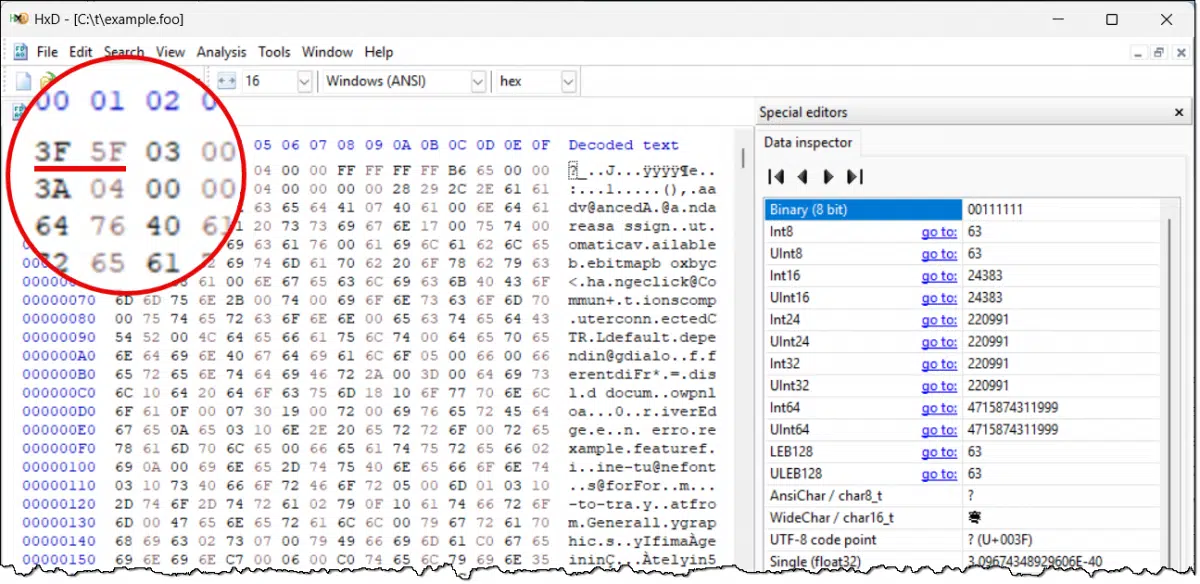
For video files, my gut answer is to say, "I don't know". Video file formats are a complex maze of twisty passages.
But we can get a few clues — not only about your video files, but about other types of files as well.
You can figure out a file's type by looking at its "signature" ' the first few bytes of a file, which identify it. Use a hex editor like HxD to see those bytes and then match them to a file signature list. It's not foolproof, but it can give strong clues.
Many — though certainly not all — files begin with a series of fixed values that identify the type of file they are. This is referred to as a file's "signature", or sometimes its "magic number".
A great example is the .exe file. All .exe files begin with two bytes: 4D and 5A. That's the hexadecimal (or just hex) value for the uppercase letters MZ, which are the initials of the Microsoft engineer who defined the original file format124. If the first two bytes of a file are MZ, then you're looking at an .exe file or one of its derivatives, like a .dll file.
The approach is to examine the first few bytes of a file and then use what we find there to see if we can determine the file format.
The MZ example happens to use printable characters. If you open an .exe file in Notepad, you'll see MZ at the beginning. But signatures aren't always printable characters.
That means we need to look at the contents of the file in hexadecimal. The tool I use is the freeware HxD.
Caution: HxD is a Hex editor, meaning you can modify files with it. Be careful not to accidentally make changes. You could corrupt files, your system, and/or your hard drive by modifying the wrong things. Fortunately, HxD makes it obvious that you're changing things by displaying changes in red, and it includes proper confirmations and backup files by default.
Let's say that we're looking at a file called "example.foo". The image at the top of the page shows it open in HxD.
Here, we can see that the file begins with the hex character values 3F, 5F, 03, 00, 00, and so on. The first two happen to be values for the question mark character and the underscore character. We don't yet know if that's intentional, but it doesn't matter. What we care about are the values in hexadecimal.
There's no definitive list of file signatures, but the Wikipedia page List of file signatures is pretty good.
We simply scan down the table to look for an entry that begins with the first character: 3F.

In fact, there's only one. As you can see, files that begin with the characters 3F and 5F are typically associated with the old Windows Help utility. I can confirm that because I was on that Microsoft team. 3F, 5F represents a question mark and underscore (?_), and that's not a coincidence.125
As if the hexadecimal search and display weren't geeky enough, I have to caution you to take care when scanning the table of signatures for matches. Make sure that what you have matches what you see; if there is more than one possibility, choose the longest candidate that matches.
The file format you need may not be there.126 I haven't found an exhaustive list.
The file format you need might be ambiguous. Several signatures list more than one application. Perhaps the additional knowledge you have of where the file came from will help distinguish among the possibilities.
Knowing the file format might not be enough. .AVI files are a great example; they're container files that can contain audio and video in many encodings.
130: And, coincidentally, the first person to interview me when I applied to Microsoft.
131: They were a crude attempt to mimic the WinHelp program's icon: a question mark and its shadow. 
132: My personal favorite, 4C 4E, is not listed. That's LN, the signature for the character-mode help files I created in the days before Windows.
Windows.old can take up a lot of space. Back it up first and then free that space.

If you've upgraded your computer from one version of Windows to the next, you may have a folder called "Windows.old", usually found on your C: drive. It contains your previous Windows installation and many of the files that were contained in your account folder (for example, C:\Users\%USERNAME%\Documents).
It can take up a lot of space. If it's been a while since you upgraded Windows, you can free up that space, as it's unlikely you'll need anything within it.
Back it up anyway!
I honestly don't care how you back it up — make a copy elsewhere, use your backup program, realize it's been in your image backups all along — the important thing is that you back it up and save that backup. Just because we probably won't need something someday doesn't mean we definitely won't. (And yes, that's the voice of experience talking.)
Then use Windows Disk Cleanup to clean up system files. On its opening screen, look for "Previous Windows installation(s)". That's "Windows.old" by another name. Check the checkbox to its left, click OK, and that space will be freed.
Tired of feeling left behind by today’s tech? It’s not your fault. I'll look at why computers aren’t getting any simpler, what basic devices exist, and how the right attitude and support can make all the difference.

I have good news, and I have bad news.
The good news is that you are absolutely right. Seniors — or, since it's not really an age thing, those with different priorities than the more technologically inclined — are underserved. I totally agree.
The bad news is that it's extremely unlikely to change.
But I do have a couple of options to share.
Big tech doesn't always care about making computers easier for people who struggle, especially older folks. But that doesn't mean all hope is lost. With the right tools, a little help, and a good attitude, it's still possible to make technology work.
From a tech company's cold, bottom-line perspective, addressing an older audience is by definition a shrinking market. It's certainly less lucrative than the next shiny thing they want to invest in.
From my perspective, it's not an age thing as much as an interest or ability thing, and those things cross all ages. In my recent article, Too Old for Tech? Nonsense, I address my feelings on the matter. There are many legitimate reasons to be overwhelmed by or have difficulty with technology, and most of them are unrelated to age.
Nonetheless, most big tech companies seem indifferent to the issues regardless of their origin.
That means it's up to us.
I am in no way criticizing your question or your approach. Your frustration is completely warranted and quite common — as are bad and even sometimes embarrassing past experiences.
But the reality is that the only thing we have true control over is our willingness to adapt and cope.
From my perspective, this isn't just Stoic platitudes or theory; I see it play out all the time: people with even a slightly more positive attitude have better luck overall. They experience fewer problems than their less positive counterparts.
It's not that the problems are easier or harder; it's that there are fewer problems. It's the weirdest thing, and I'm sure there's some deep psychological reason for it all, but that doesn't matter. I can confirm that a better attitude leads to fewer problems.
The good news? Our attitude is within our control.

Jitterbug is a mobile phone designed for and marketed as "simple cell phones for seniors". Their smartphone has a larger, simplified display and applications customized for its target audience. They also have a bigger-button flip phone.
Even with the aggressive marketing to seniors, the phones might make great devices for anyone who struggles with technology, regardless of age.
So far, there is no Jitterbig laptop, but I do have three products you can investigate.
The Chromebook. I think of Chromebooks as an Android phone with a real screen and keyboard (or larger touchpad) and no phone. It's a fine solution for people who just want to surf, email, watch YouTube videos (or even stream), and more. Many of the apps in the Android Play Store are available, or there's an equivalent. I find it much less complex than Windows or macOS.
The iPad and other tablets. I know several people who use tablets almost exclusively. This can be a comfortable middle ground. They're very smartphone-like (iPads run iOS, the same as iPhones, and most other tablets run a version of Android, the OS on most non-Apple mobile phones), and can run a wide variety of available applications — or not, if you want to keep things simple. You can add a keyboard, if you prefer, and make use of voice-to-text to dictate email or documents.
The GrandPad. I have an 84-year-old relative using one of these, and it's been a good experience. It's limited, simple, and designed to be administered by a more tech-savvy family member to gate what the user can and can't do for their safety. It includes email, YouTube, and the like, but not, say, completely open web surfing. I never expected my relative to do email, for example, and yet they've been communicating with my wife regularly that way for a couple of years now. The GrandPad has been a great, if somewhat limited, solution for them.
I think of Jitterbug as being somewhere between these options. I don't know of a more comparable computer equivalent.
Whether a device is useful to tech-challenged users also depends on what kind of support is available. I mean support in two ways: from the manufacturer and from your personal network.
Jitterbug phones, for example, have a variety of support options, some of which include direct, personal contact with an individual to help you. Grandpad includes similar levels of support. The support for more generic devices, like iPads, tablets, and ChromeBooks, varies based on where you purchase them.
That next level of support, though, is all about who you can reach out to for help within what I'll call your personal network. That can include anyone from your more technically inclined family members to support options at local senior centers and libraries.
How you will get help using the device can sometimes be even more important than which device you use. In fact, one piece of advice I often give is to factor in who can help you into your initial purchase decision. If you have several iPad owners in your circle of friends, for example, that might tip the scales a little towards buying the same device.
Even if you avoid OneDrive, using standard Windows folders might not be as safe as you think. Microsoft’s been known to make changes you didn’t ask for. I’ll explain why I don’t trust those folders or Microsoft, and what I do instead to keep my stuff organized and safe.
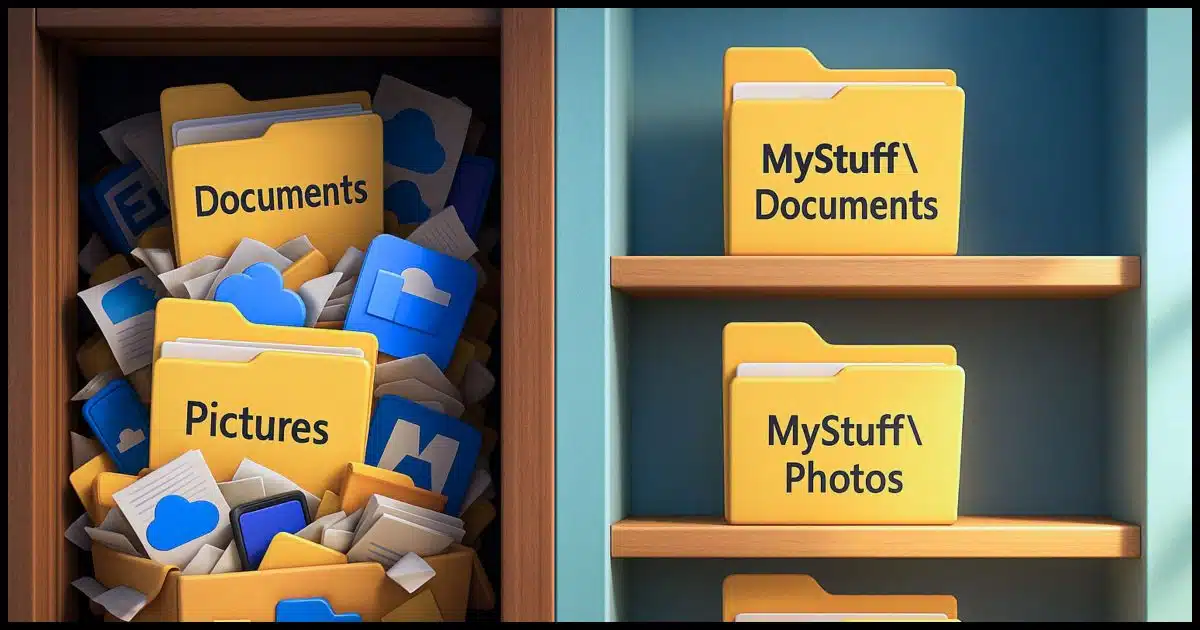
I advise against using the standard Windows folders.
I have a couple of reasons for doing so. One is just a matter of how I like my data organized, and the other boils down to trust... or lack of it.
Even if you don't use OneDrive, Microsoft might mess with your files in the standard folders, like Documents or Pictures. Apps clutter them, and Microsoft could sneak changes in later. It's safer and cleaner to make your own folders somewhere else, and stay in control of your data.
The issue is that the OneDrive backup "feature" may move the contents of your Windows standard folders (Documents, Pictures, etc.) into OneDrive. On the surface, the advice is simple: don't use that feature. Unfortunately, it's easy to turn the feature on without realizing you've turned the feature on, and at that point, the damage is done.
The next level of advice is not to use OneDrive at all. Ideally, that means uninstalling it completely. Unfortunately, that's not an option for everyone. OneDrive is, after all, a useful tool when used properly. Even the backup "feature" can be useful if you know what it does and are okay with how it operates127.
Signing in with a local account and never using a Microsoft account is another way to sidestep the issue.
However, as strange as it sounds, that might not be enough.
Even if I turn off or avoid the OneDrive backup "feature", I don't trust that Microsoft won't turn it back on (or fool me into turning it on) in the future.
If I've uninstalled the OneDrive app on my computer128, I don't trust that Microsoft won't reinstall it in a future update.
If I don't sign in to the OneDrive app on my computer with a Microsoft account — one way to keep it from doing its job — I don't trust Microsoft not to sign me in anyway if I use a Microsoft account for any other reason on my computer. Signing in with a local account is protection, to be sure, but I worry that signing into anything else — say, a Microsoft service online — might connect OneDrive as a side effect.
Even with OneDrive completely out of the picture, Microsoft has shown that it's willing to alter how the standard folders work in confusing and potentially destructive ways with the OneDrive backup "feature". I don't trust Microsoft not to do something unrelated to OneDrive but involving the standard folders in the future.
So, yeah, there's a theme. I don't trust Microsoft not to do something destructive in the future.
The other issue I have is less conspiratorial and more pedantic.
One thing that's come to light with the OneDrive backup "feature" fiasco is that so many applications also use those folders for their default storage — sometimes in ways that cannot be avoided.
That's fine for them, I suppose. Some have suffered from OneDrive's shenanigans, but that's not my real issue.
Even though I'm not using it myself, my Documents folder is a mess. There are over a dozen folders created by applications I use (or have used), all containing who-knows-what. In checking the folder as I write this, I find many files I don't even recognize.
Like I said, it's a mess. And, again, that's fine for the programs that end up using it. There are certainly some legit reasons to do so.
I just don't want my stuff to be part of the mess.
It's an easy thing to avoid. I create my own "standard" folders.
For example, you might create:
C:\MyStuff
C:\MyStuff\Documents
C:\MyStuff\Pictures
Etc.
Of course, the name is completely up to you.
Many people have been doing this for a long time as a way to move their working folders to a different drive. For example:
D:\MyStuff
D:\MyStuff\Documents
D:\MyStuff\Pictures
This allows them to reinstall Windows or wipe the C: drive without affecting their data.
One comment I've gotten suggests that people move their standard Documents (and other) folders to a different drive.
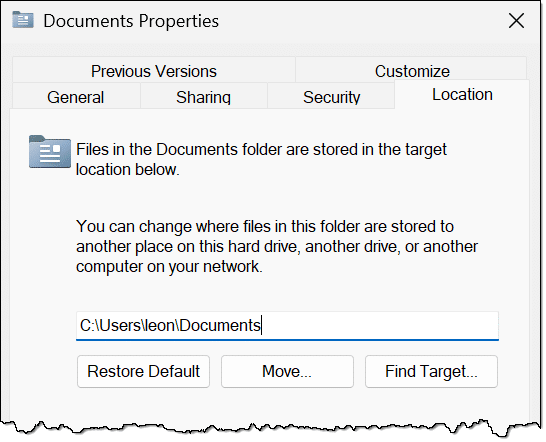
This is certainly a way to put the folder on a different drive. However, it remains the system's default documents folder. That means:
The bottom line is that it doesn't address either of my concerns.
If I don't trust Microsoft to handle my default folders correctly, how can I trust them not to muck about with my files regardless of where I place them?
It's a valid point. In fact, it's a point I've made to many people who are concerned about exposing their data to Microsoft via the cloud. You don't need to put your files in OneDrive; Microsoft already has access to everything on your computer; it's Microsoft Windows, after all. If you don't trust them with files in OneDrive, then why do you trust them with the files on your PC?
I'm in a similar position, but about organization, not privacy.
My rationalization is simply this: I can kinda understand the design decisions that went into the OneDrive backup "feature". In no way do I come close to agreeing with them, but I can understand the misguided path that led them there.129 One key aspect is that all machines have a "standard" layout that they could assume and rely on for the feature to be implemented. It would be easy for them to use that standard layout for other misguided adventures in the future.
I'd rather not risk that. Hence, my decidedly non-standard approach to organizing my files myself works for me. Could they stomp on it someday? I suppose they could, but it seems significantly less likely than their making assumptions about an organization they can find on every machine.
Time will tell.
133: For the record, I know what it does, and I'm not OK with how it operates. I'm also not OK with the dark patterns Microsoft uses to get people to turn it on unintentionally.
134: As I have.
135: I'm sure it seemed like a good idea to someone at the time. Heck, maybe it still does, measured against priorities we're unaware of.
Using Windows Command Prompt can be a quick and easy way to view and clean up temporary files.
(Video: askleo.com)
Windows maintains a few folders (also known as "directories") specifically for temporary files. Occasionally, it's interesting to view the contents and clean out leftover files.
I find it easiest to do so in Windows Command Prompt.
In Windows Command Prompt, type:
CD %TMP%
followed by Enter. Your "current directory" will be changed to the temporary folder for your login account.
Type DIR followed by Enter to view the files currently stored there. As in the example video above, you'll likely find many with obscure names and random dates and times.
One way to clean up the Temp folder is to try to delete everything in it. While you have it as your current folder (as shown within the prompt), type:
RD /S .
This is actually from a previous tip. It says, in essence, "remove the current directory" (the "." option), and everything in it (the "/S" option to include subdirectories).
After asking for and getting confirmation from you... it will fail.
There are two types of failures:
That's ok, because it will also succeed. Everything that can be deleted in the current directory will be.
You'll have cleaned up your Temporary folder.
Here's an easy way to open a command prompt for the folder you're viewing in Windows File Explorer.
(Video: askleo.com)
You're viewing a folder in Windows File Explorer. For whatever reason, you decide what you really need is a Windows Command Prompt opened with that folder as its current folder.
For example, let's say you're looking at the contents of a folder at C:\MyStuff\Documents.
One common (yet slow) approach would be to open Windows Command Prompt (or Terminal or PowerShell) and carefully type in:
CD C:\MyStuff\Documents
Even with command completion, that's tedious. Other approaches aren't much better, including:
Instead, click in the address bar so the entire path is highlighted (most easily done by clicking just past the end of the displayed location).
Type "cmd" followed by Enter.
A Windows Command Prompt window will open to whatever folder you were viewing in Windows File Explorer.
BitLocker could be running on your PC without your knowledge. Without the recovery key, you risk losing everything. I'll show you three ways to check, find, and save your key.
In some pre-configured Windows Pro or Home editions, BitLocker may encrypt the system drive without your knowledge.
Unfortunately, when encryption is on by default, you're not prompted to save the recovery key. You need to find it and save it before you need it.
You can find your BitLocker Recovery key:
Regardless of how you get it, save it somewhere safe.
If you explicitly turn on BitLocker full-disk encryption, at some point in the process, you'll be encouraged to save the recovery key.
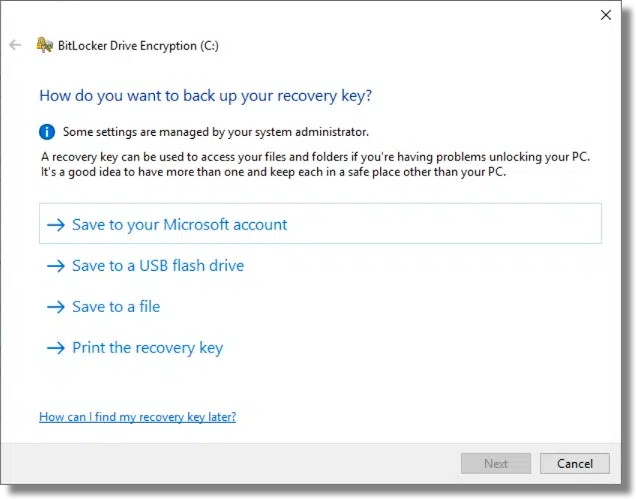
It's important to take one or more of these options. The recovery key is your way back in should you lose the ability to sign in to Windows or should you ever need to move the drive to a different machine.
It's important to keep the recovery key somewhere safe to avoid losing access to everything on that drive should something go wrong.
Great. But what if you didn't take this path?
There are a few ways that BitLocker could be enabled by default. Who knew?
That has several implications.
The last point is the most concerning. Without a recovery key, you could lose everything on the drive. Let's explore three ways to find and save it.
Visit this URL and sign in, if needed, to your account.
https://account.microsoft.com/devices/recoverykey
This page lists all the BitLocker keys associated with the Microsoft account used to set up your computer(s), or the account that was in use when BitLocker was turned on.
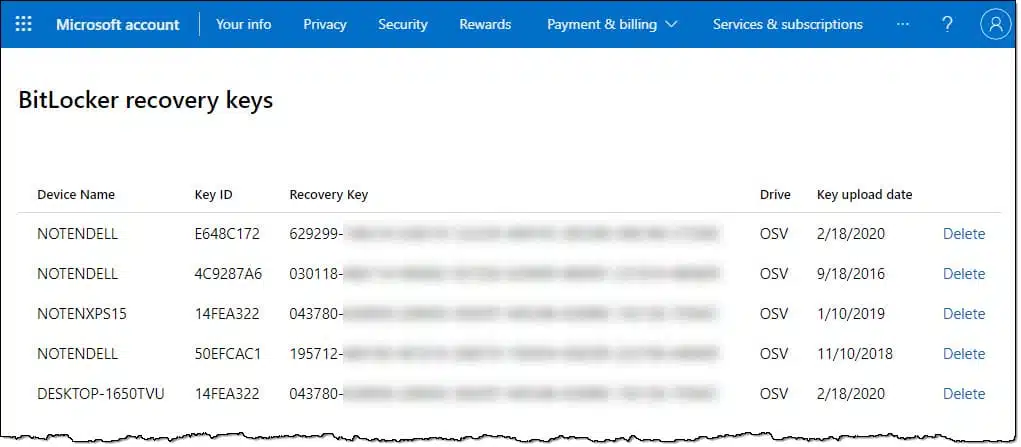
Above is the list shown in my personal Microsoft account. There are a couple of interesting things to note.
If you see keys listed here, back up this information to an additional location for safety. Take a screenshot of the page and save the image in a safe place, for example.
This is great, particularly if you suddenly need a recovery key for a drive you didn't realize BitLocker has encrypted.
My question, though, is how do I know if these recovery keys are up to date? Like my machine listed twice above, how do I know of if the keys listed are current, or that I haven't somehow created a new key?
I don't.
Windows File Explorer is sure to have the current recovery key. Right-click on the drive and look at the options in the resulting pop-up.
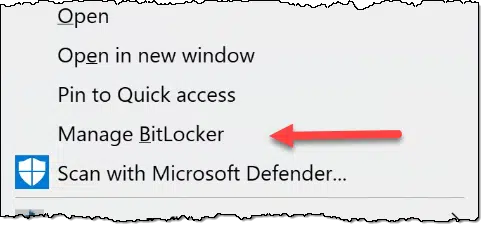
If the menu includes "Turn on BitLocker", then BitLocker is not enabled for this drive. There's nothing you need to do. (If the menu has no BitLocker option at all, then you probably have the Home version of Windows without explicit BitLocker support. See below.)
If, however, there's an option to "Manage BitLocker", click on that.
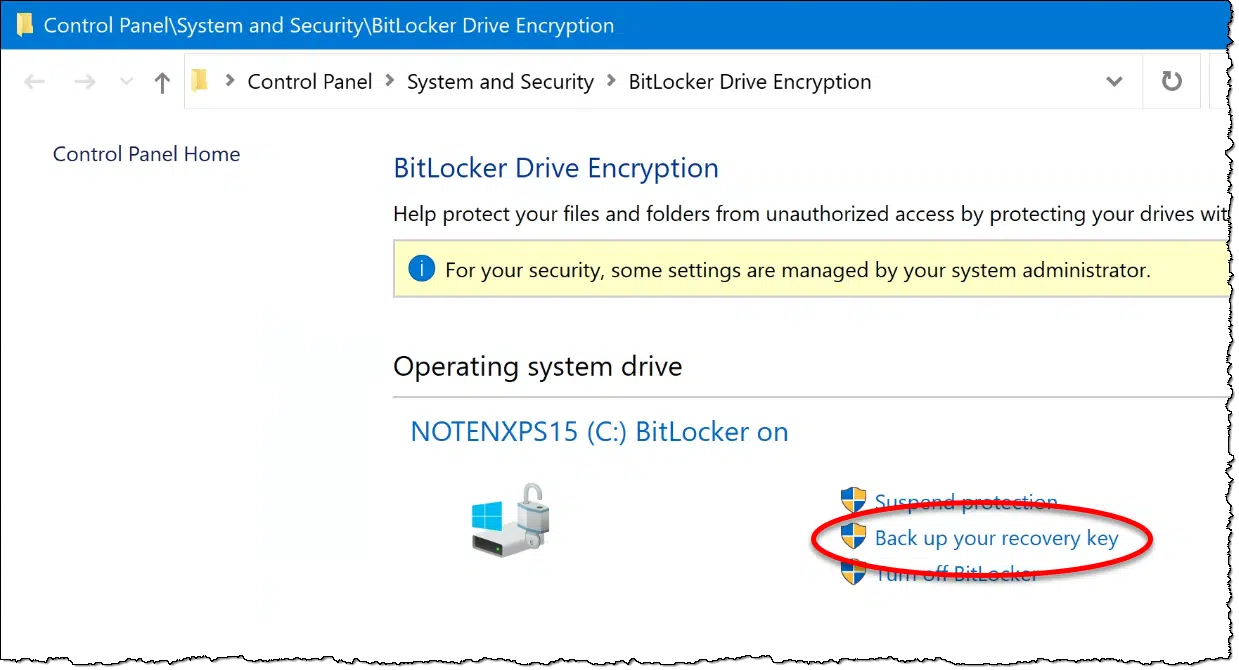
Click on Back up your recovery key, and you'll have options to do exactly that. My suggestion is that you back up the key to both your Microsoft account (to be listed online, as shown above) and in some other form. Once you have that other form, store it somewhere safe where you can find it if needed.
Third option: if the drive is currently accessible, you can see the recovery key via the Windows Command Prompt. This is useful if you don't use a Microsoft account, you're running Home Edition, or if your machine isn't shown in your account online.
In an administrative Command Prompt or PowerShell, run:
manage-bde -protectors -get C:
Replace "C:" with the drive letter of interest. If the drive is encrypted, it'll display something like this:
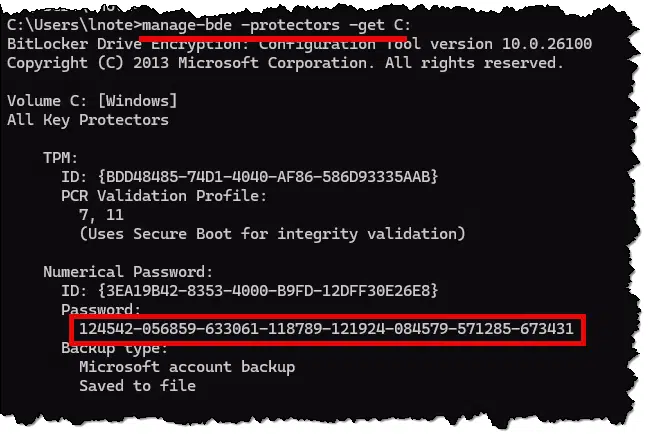
The "Password" shown under "Numerical Password" is your BitLocker recovery key. Save that somewhere. Again, you can take a screenshot and save the image, or you can select the text on the screen and copy/paste it into a simple Notepad document to be saved somewhere.
You may get the message, "No key protectors found."
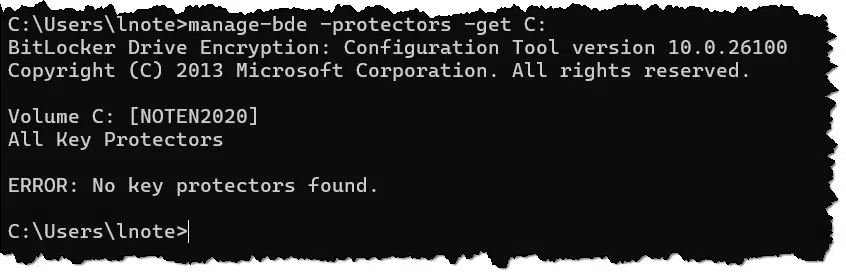
This means the drive is not BitLocker encrypted, so there's no recovery key to save.
Regardless of the tools you use, YOU are your biggest risk factor.

I don't mean this to come across as harsh or as an accusation, but it's something many people seem to forget.
Your security is your responsibility. Period.
No hardware or software, anti-malware tool, firewall, or system protection feature can protect you from yourself.
Too many people rely on getting the "best" tool or set of tools to keep themselves and their data safe.
Then they let down their guard.
That's when disaster strikes.
We certainly don't have to run scared — I know I don't — but we need to be aware of the risks of using technology and how easily all the tools we so carefully select can be bypassed.
They're not bypassed directly by hackers; they're bypassed by us. We ignore warnings, we disable tools, we download random things, we don't back up, we don't research the safety of sites and services; we even call unknown numbers or click on unknown links where unknown individuals will help us "fix" unknown problems if we give them unfettered access to our computer.
You are ultimately responsible for dealing with the results.
You must take responsibility for dealing with safety and security up front to avoid those negative results.
Have suitable tools in place, but don't absolve yourself of the responsibility for being both the weakest link and the most important factor in your online security.
Windows can indicate which keystrokes work as shortcuts for various menu and ribbon items. Here's how to turn that on.
Here's a tip for people who like to operate from the keyboard. In Windows Settings, search for shortcut, and click on the result referring to underlining access keys or similar. (Unfortunately, the terminology seems to change from update to update.) The resulting page includes a simple setting.


Turn that on.
Programs with traditional menus will now have the shortcut keystroke for each menu item underlined.

For example, in Notepad, ALT+F opens the File menu; hence, the "F" is underlined. With the menu open, typing "N", "O", "S", or "A" will open the "New", "Open...", "Save", or "Save As..." menu items respectively; thus each letter is underlined.
For apps using a ribbon interface, it's often enough to simply type the ALT key once to display the shortcut keys.

With Windows File Explorer open, the ALT key will cause (among other things) a "V" bubble to appear near the View menu item. Typing "V" then opens the View ribbon, with bubbled letters indicating the respective keyboard shortcuts to the available controls.
Worried your computer is secretly saving everything you type? It’s not. While there are hidden files and places keystrokes can live temporarily, there’s no master file of your entire typing history (unless malware is involved). Learn what’s real, what’s myth, and how to truly erase your data.
This is a relatively persistent family of questions that come around from time to time, particularly in times of concern about individual privacy.
These questions exhibit several misconceptions.
However, those misconceptions are based on kernels of truth. I can't just say, "That's wrong"; instead, it's more a case of "It's not like that, it's like this."
Let's see if I can clear up the confusion. To do so, we need to talk about keystrokes, loggers, hidden files, erasing files, and really erasing files.
No, your computer isn't secretly saving every word you type. Some programs and parts of your computer remember things for a short time, but nothing keeps it all forever... unless, of course, you've got malware. Stay safe, and you don't need to worry. Just erase things properly when you're done.
Let's start with this: There is no hidden file containing every keystroke you've ever typed on your computer.
If every keystroke were being recorded somehow, there's no way it would still be some kind of secret. We'd be hearing about a lot more successful prosecution of cyber criminals, along with a plethora of lawsuits regarding privacy concerns.
So no, there is no hidden permanent record of every keystroke recorded by the operating system, drivers, or other official software.
However, there are a few kernels of truth in the question.
It's also worth remembering that all bets are off if you have malware such as a keystroke logger.
Keystroke loggers, or "keyloggers", are a type of malware that hackers use to gain access to your usernames and passwords. As its name implies, keyloggers record or "log" every keystroke and send them off to the hacker, typically over the internet. Once sent, of course, there's nothing you can do.
I often hear from people asking if one technique or another will somehow "bypass" keyloggers so they can log in safely without the keylogger logging anything. The answer is no. There are two important points to realize about keyloggers.
From my perspective, malware, including keystroke loggers, is the only practical reason for concern about keeping any record of your keystrokes.
The good news is that since keyloggers are just malware, the techniques you already have in place to avoid malware will keep you safe.
The amount of data that would be collected by recording every keystroke is no longer a reason why it couldn't be done.
Let's say you're a prolific typist, and you type 100,000 keystrokes a day (that's over three keystrokes every second for a solid eight-hour work day). In a year, that adds up to 36 megabytes of data. Keep your computer for 10 years, and that's 360 megabytes. On today's hard disks, that's next to nothing. You'd probably never notice it.
So are all your keystrokes being written to some hidden file? No.
But there are hidden files on your machine.
As you can see, there's a potential for a lot of hidden information on your PC.
But none of them contains every keystroke you've ever typed. ðŸ'‚
We also need to understand how files are deleted, because that can cause a different type of "hidden" file: remnants of previously deleted files.
When a file is deleted, its contents are not removed. Instead, the space the file formerly occupied is marked as available for another file to be written to later. Until the overwrite happens, the original deleted information is still there.
This is how many undelete and data-recovery utilities work. It's also why most of those utilities recommend you stop using your disk if you accidentally delete something; that avoids overwriting the deleted area with something new. So just deleting something doesn't mean it's immediately or completely gone.
The article How Does Secure Delete Work? goes into this in more detail, including the steps to take to make sure that your deleted files are really gone.
Which brings us to DBAN.
The utility you mention, DBAN, doesn't find files at all.
But once again, there's a kernel of truth: it erases your files — all of them.
How? It securely erases everything. Paying no attention to what's stored on it, DBAN overwrites the entire contents of a hard disk — every sector, whether used or not.
Your phone holds the keys to your digital life. If it’s lost or stolen, things can get messy fast. I'll show you simple steps like locking, tracking, and backing up that protect your data and give you peace of mind before the worst happens.

As more and more of our digital life moves online, much of it ends up in our pockets in our mobile phones or smartphones.
And while hacking and malware make the headlines, the biggest risk is something much more mundane: losing your phone or having it stolen.
Let's prepare for that.
Losing your phone can mean losing access to your digital life. Lock it with a PIN or biometrics, turn on tracking, and back up your data to the cloud. Set up recovery info for accounts with two-factor authentication. Take simple steps now to prevent a disaster later.
Unlike our desktop computers and more so than our laptops, phones are small, portable, and all too easy to misplace.
Not only are more people doing more things with their mobile devices, but many have only a mobile device. This means that this small, easy-to-lose device carries potential access to your entire digital life.
Everything. In the hands of a stranger who picks it up is one thing, but in the hands of a thief who's explicitly stolen it? That's a whole ‘nother matter.
It's critical to plan ahead before something happens.
All it takes is using two simple features. Additionally, back up your phone and use two-factor authentication for important accounts.
First things first: set a PIN, configure biometrics, or whatever else is offered by your phone's operating system to lock the phone when not in use. Make sure you have a short auto-lock time, after which one of those security techniques is required to gain access to the contents of your device.
Locking your phone:
In addition, many phones can be configured to erase all data after too many failed PIN attempts.
Make sure the Android Device Manager or iPhone's "Find My" feature is enabled and working. Using them, you can:
This does require that location services are turned on.
There are also third-party tracking and management tools like Prey, Cerberus, and others that may offer more robust control than built-in tools.
So many people keep their photos on their phone and only on their phone. As a result, when their phone gets lost or stolen, the photos are lost and gone forever.
It's about more than just photos, of course; this also applies to whatever data is stored only on your device.
Tools like OneDrive, Dropbox, iCloud, and others all offer automatic cloud backups for your photos and videos. I strongly recommend you choose one and make sure it's backing up your information.
Fortunately, most email/contacts/calendar apps are simply interfaces to online services where the information is kept. Make sure you can access all those on the web without your phone. If you find you cannot, investigate tools or alternatives to back them up as well.
I strongly recommend you enable two-factor authentication for all accounts that support it. In most cases, that means using your mobile device to receive a text message or running a TOTP130 app.
So what happens if your device is lost or stolen?
When you set up two-factor, it will ask you to configure account recovery information for the account. Do it. At a bare minimum, make certain to save any recovery codes provided by the service.
If your 2FA is SMS text message-based, be prepared to reach out to your mobile provider to port your number to a replacement device.
Here are a few steps to take after you discover your phone is lost or stolen.

136: Time-based One Time Password, aka "Google Authenticator Compatible" second-factor app.
Loosely based on a previous video: Are You Ready to Lose Your Phone?
AI might feel sudden and overwhelming, but it’s not the first fast-moving, world-changing technology we’ve faced. I'll compare AI to the rise of the automobile and explore why understanding and engaging with AI, rather than dismissing it, is probably the smartest move we can make.

You may not like the approach I'm going to take. I'm going to draw a comparison.
Hear me out, as I start by rewriting your question.
We don't need AI now any more than we needed cars in the 1920s. But AI is here, growing fast, and could change everything. It'll bring problems, sure, but it could also improve life in ways we can't yet imagine. The key? Stay curious, get informed, and help shape what comes next.
I am asking about the modern "horseless carriage" that is suddenly a worldwide phenomenon that is attracting hundreds of millions of dollars of investments in huge multi-acre manufacturing plants with thousands of employees and huge power requirements that almost demands we start drilling and drilling for more oil to run them all. Why does the world suddenly need all of this?
That's a question I'm certain was asked by many shortly after the turn of the previous century — say the 1920s. The automobile was the New Big Thing, and it was changing society forever. Many, I'm sure, were asking why we needed this newfangled contraption. We seemed to do just fine without it.
The answer to this turn-of-the-previous-century version of your question is the same as my answer to your question about AI.
We don't.
We don't need any of it. We could have lived without the automobile. Heck, there are plenty of folks who would say it would even be a better world if we hadn't adopted it so thoroughly.
We could live in a world without AI.
The question we don't yet know the answer to is: Do we want to? Would it be a "better" world?
In hindsight, there's a pretty powerful argument that we'd be better off with automobiles than we would be without them.
Yes, there are plenty of downsides: pollution, industrial waste, massive acres of pavement, accidents, and more. I won't sugarcoat it. And while we're making progress on some of these, the fact is that the automobile continues to harm society all these years later.
And yet it's offset by massive positive effects. That we can drive anywhere at any time, and that it's even marginally affordable, is absolutely amazing. It enables us to live a life we simply could not have imagined pre-auto. Quick trips to the grocery store131 and cross-country road trips to visit family and friends, or to take part in activities we might never even have heard of in the past132, are just the tip of the iceberg.
Expand that vision to include the increased commerce and trade, and once again, we find we're living in a world our 1920s counterparts could not have imagined.
Much of what the automobile has enabled is so core to what we are and how we live that we take it all for granted now.
We didn't need it, but we're better off because of it.
I'm not saying we'll be better off with AI than without it. We don't know. It's still happening, and we don't yet know the impact it will have.
What the world will look like in just a few years is uncertain for a variety of reasons; AI is just one of them. Will it help or hinder? Will the changes it makes and the impact it brings be net positive or negative? We just don't know.
There are people at both ends of the spectrum who believe strongly that AI will bring salvation or doom. Back in the day, I'm certain some felt the same way about the automobile.
It's impossible to say what the future truly holds.
There will be downsides to AI. There already is environmental and societal impact, "accidents", and more. Just as with the automobile, there will be some massive mistakes and spectacular failures.
The automobile, while continually being refined to this day, is an assumed staple of society and something we all now take for granted. Its massive mistakes have passed into history.
My expectation is that AI will eventually fall into this category. I don't know what it will look like, because again, it's too early to say. But I believe it will continue to be refined and improved upon, including actions to mitigate the negative impacts we've already identified.
I expect that someday, AI will be something we take for granted too.
Do we need it? No. Could our lives be better because of it? Very possibly so.
Only time will tell.

137: Which I literally did just before writing this article.
138: Indeed, there's a possible road trip in my future as well.
Command-line tools can examine more accounts on your machine than are normally displayed.

The Settings App or Control Panel will show you most of the accounts on your machine, but in fact, there are more. Some accounts — like the true Administrator account — are hidden; others are utility accounts used by Windows or other installed programs.
To run an Administrative Command Prompt, right-click on Start and click on Command Prompt (Administrator), or right-click on a shortcut to Command Prompt and click on Run as administrator. In that command prompt, type:
net user
followed by Enter. This will display a list of all the accounts configured on your machine.
You can get more information about a specific account by entering:
net user account-name
For example, "net user leon", from the example above, returns additional details about the account.

Items like the creation date can help you understand why an account exists — for example, that date might coincide with the installation of some software.
I'll help you decide if having a spare computer makes sense, what your backup options are, and how to prepare without spending more than you need to. Peace of mind might be easier than you think.
There's no single answer to this other than my old standard: "It depends."
There are two things to consider: the alternatives you might already have and the impact of not having a computer.
If losing your computer would be a big problem, having a backup, or at least a backup plan, makes sense. You might use an old machine, a phone, or just borrow a computer temporarily. Even a cheap spare could be enough. What matters most is being ready so you're not stuck if something goes wrong.
As you pointed out, we're tied to our computers and all the online conveniences that we now take for granted.
A few things that at least become more difficult should your computer fail include:
The underlying concept is increased isolation and the stress of being cut off.
Understanding your alternatives can be important to your peace of mind. This means you should consider either a backup computer or having a backup plan for what you might do without one.
Before deciding on a second computer, it's worth exploring the alternatives you might already have available. They vary in capability and inconvenience, but they could come in handy in a pinch.
Friends or family. Especially younger family members may already have spare or lesser-used computers they could part with for you to use. This could be a quick solution that could gain you some time to make more permanent plans.
Libraries and senior centers often have computers available for public use. They aren't as convenient, as you have to travel to them, and you may be limited in how long you can use them since they're shared with others.
Computer repair facilities. While not common, it's not unheard of for computer repair shops — particularly local, independent operators — to have loaners available. If your primary computer fails, you may be able to borrow something while it's being fixed.
Computer stores. Here in the U.S., and likely elsewhere, big-box stores can provide a replacement computer the same day. That could be a viable safety net without needing to purchase anything beforehand.
Your mobile device(s). If you have a smartphone or a tablet, that could be enough to tide you over, at least for many common tasks like email or basic web surfing.
All these options rely on some amount of flexibility in your situation.

If losing access to your computer would be only an inconvenience, the alternatives I've mentioned so far might be enough.
But what if it's more than an inconvenience? If you need immediate access after a computer failure, then having a spare might make sense.
For example, I have backup computers, plural. This is my business, after all. One is my laptop, which I sometimes refer to as Ask Leo! World Headquarters when I travel. Since it's capable in its own right, it would work as an instant (albeit temporary) replacement for my desktop should that suddenly fail.
One easy way to get a backup computer is to keep your old one when it comes time to replace it. I do this and refer to it as the trickle-down approach to hardware obsolescence.
Assuming it's functional, your older computer can serve as a temporary replacement should something happen to its replacement. If it's not functional, it might make sense to have it repaired (if that's cost-effective).
Of course, if you're not at the point of replacing your computer because it's working fine, then realizing you need a backup computer could serve as your excuse to get a new one anyway.
There are two types of backup computers to consider. I'll call them "cold" and "warm" backups.
A cold backup computer is one you never touch until you need it. When the time comes, you bring it out, hook it up, and spend some time bringing it up to date and up to speed.
A warm backup is one that's connected and more or less ready to go. You might fire it up on occasion to make sure it's working and up to date. If you have tools that synchronize — your browser sync accounts, OneDrive/Dropbox tools, password vault, etc. — this is a good time to make sure the data they manage is up to date as well.
You certainly don't need to keep it running all the time, or even often. Just fire it up once in a while.
Everything you have stored in the cloud will be available to you regardless of what happens to your computer or which machine you use.
Email is a great example. If you're using online services like Gmail, outlook.com, Yahoo Mail, or others, it's all there online as soon as you sign in.
Similarly, services like OneDrive, Dropbox, and Google Drive make sure you can access your documents from any computer.
And, of course, password managers like Bitwarden or 1Password maintain your credentials and let you log into important services from a borrowed or replacement machine.
One common objection to having a spare computer is the cost.
Here's the thing: as a temporary replacement, it doesn't have to be high-end. Your old computer, for example, might feel somewhat underpowered if you press it into service, but it'll work and it won't cost extra.
If you're specifically shopping for a backup computer, consider second-hand machines or machines with lower specifications than you'd get if you were purchasing a new, primary machine. For example, a less expensive Chromebook might tide you over if your needs are mostly online or primarily in the Google ecosystem.
A desktop shortcut to quickly lock your computer.

+ L is a quick and easy way to lock your computer. But if your hand is on the mouse rather than the keyboard, a desktop shortcut can be easier.
Create a new shortcut with the "location of the item" set to:
rundll32.exe user32.dll,LockWorkStation
You can then name this shortcut whatever you like. "Lock" seems an obvious choice.

Double-click on that icon, and Windows will lock your machine.
CTRL+ESC brings up the Start Menu.

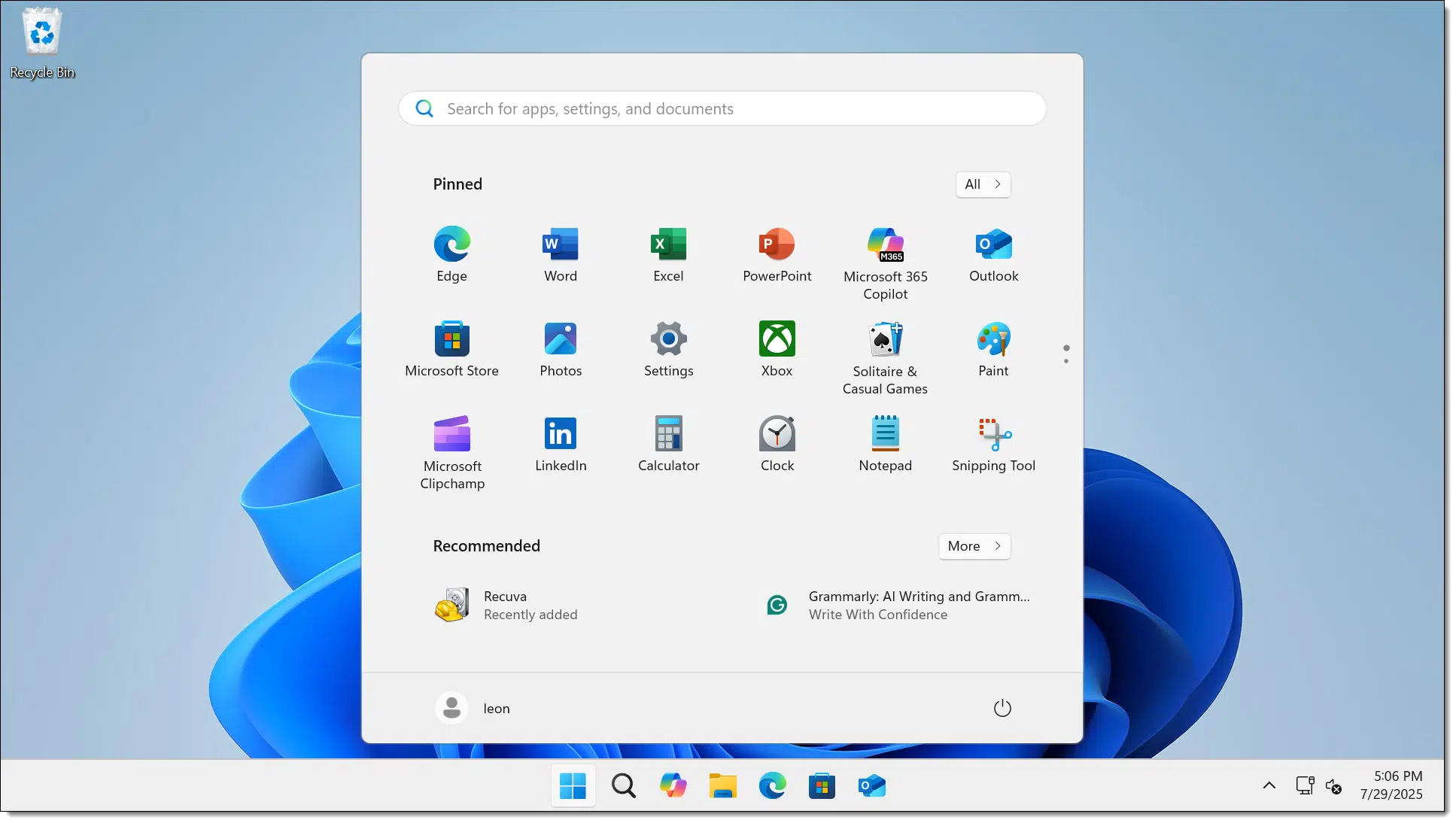
Possibly the shortest tip ever: hold down the CTRL key and type the ESC key to bring up the Start menu.
Bonus tip (so it's not SO short): after doing so, the arrow keys can move around in the displayed menu. The Enter key will then run or open whatever is currently highlighted.
Reusing passwords on sites you don’t care about might feel harmless, but it still can open the door to bigger problems. I’ll look at why even “unimportant” accounts matter more than you think, the risks of cutting corners, and simple ways to stay safe.
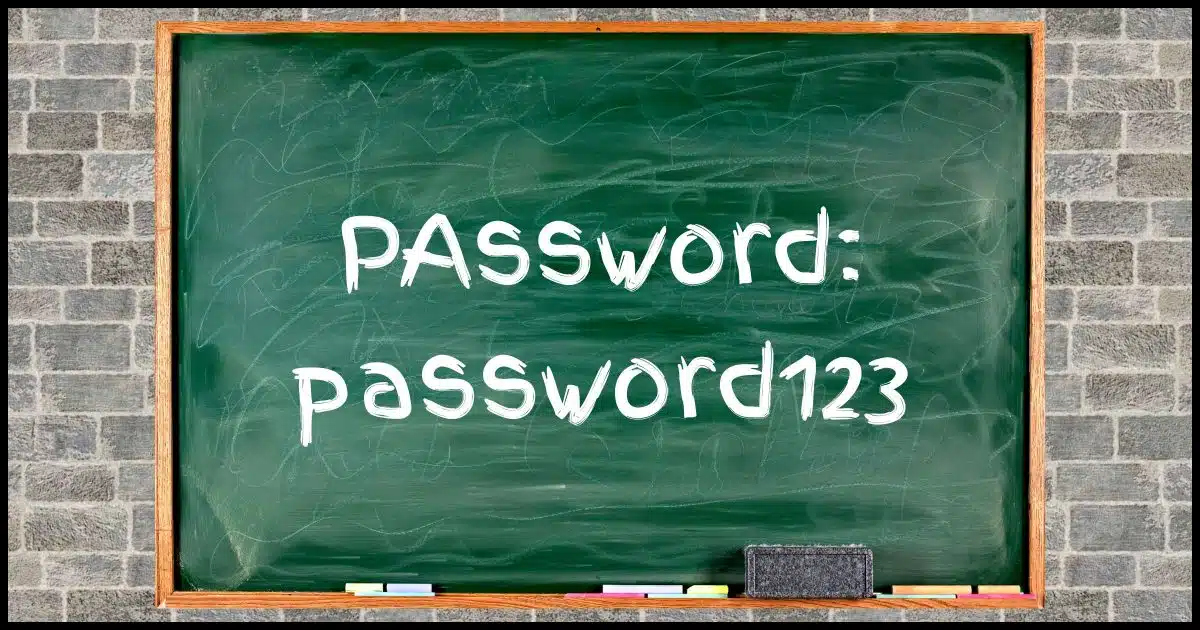
I will question some of your assumptions, but I'll also admit that yeah, I do it too. And it's not great.
We all have gazillions (technical term, that) of accounts we need to manage. It can be a pain to manage all the associated passwords.
It might be OK, in some situations... but even then, it comes with risks.
Reusing passwords on "unimportant" sites might feel harmless, but it's risky. Hackers reuse leaked passwords everywhere, and even so-called "unimportant" sites may reveal too much information about you. A password manager helps you stay safe by enabling you to use unique, strong passwords everywhere, even for the stuff you don't think matters.
There are several arguments in favor of reusing passwords or using weak passwords.
The justification, as you point out, is that not all accounts are equal in importance. Some are so unimportant that we don't care if that account gets hacked.
Some sites just don't matter.
Or do they?

Once a password is discovered in a breach, hackers try it everywhere. They do "bother", to use your terminology.
If a password is revealed somehow (Pwned Passwords will tell you if yours is known to be "in the wild"), they absolutely will try that password across a wide variety of sites and services to see if it works. It's all automated, so it's trivial for the hackers to do.
If that password is used for another account that is or has become even marginally "important" to you, you risk losing it.
Of greater concern, and easier to overlook, I think, is the fact that even "unimportant" sites have information hackers can use. Your name, birthdate, email, links to your social sites, and more are all things they can harvest and use for targeted phishing emails or even identity theft. So even if account A has none of that information, if it gets hacked and exposes your password, hackers may use that to access account B (or C, or D, etc.), where more sensitive information might be present.
Even if that doesn't happen, any account that is compromised can be used to post spam or promote scams under your name. Ultimately, it can affect your reputation and trustworthiness.
Even if it's "just a forum."
While I'm vocal about password hygiene and security, I realize that no matter what security experts suggest, people will continue to reuse passwords and set weak ones. As I said, I'm guilty of it myself at times.
So, here are some suggestions to make life a little easier.
Use a password manager. You knew this was coming. It's one of the most important things you can do; it makes it easy to use long, strong passwords that are unique for every site. It makes proper security easier.
Have tiers of importance. You're already kind of doing this (important versus unimportant sites), but I want you to rethink it. It's too easy for an account we consider "unimportant" when we set it up to become more important than we thought. Even then, don't reuse passwords. At worst, maybe dial back the complexity.
Use email aliases. One additional level of security is to use a different email address for some accounts. You might use a throwaway Hotmail account for less important things or use a unique email address for every important account. The key here is that by varying the email address, you're making it harder for hackers to discover the correct email address/password combination for any specific account. It's not completely effective, but it makes it more difficult to hack, even if a password is weak or reused.
Never reuse passwords, and always use a strong password, for:
When in doubt, use a strong, unique password.
And use a password manager to keep track of it all.
A quick way to learn which version of Windows you're running.

This is a quick way to see what version of Windows you're running.
The result will be a dialog displaying the current version of Windows, as shown above.
When you need to know which build of Windows you have, this is a quick and easy way to find out. It also works in previous Windows versions.

Just because something’s old or unavailable doesn’t mean you can make copies of it. I'll explain why copyright still matters, how technology complicates things, and what you need to know before making that backup or download. It’s simpler and more important than you might think, even if you don't like the answer.

Before I dive in, I need to be super clear: I'm not a lawyer. Never have been, and don't plan on becoming one. This is not legal advice; use it at your own risk, no animals were harmed, some objects may appear smaller, your mileage may vary, and so on and so on.
That being said, I have a clear opinion which I believe to be relatively accurate.
The bottom line: copyright is most definitely an issue.
Even if something's not available anywhere, it's still protected by copyright. You can't legally copy it without permission, no matter how rare it is. Copyright gives the creator control, not you. Just because it's easy to copy doesn't mean it's legal to copy.
A copyright says that the person (or entity) who creates an original work has the right to say what can and cannot be done with it. They control or own the "right" to "copy."
Pretty simple.
Copyright law codifies that: those rights are protected by international law, and violating those rights — say by making copies of someone's work without their permission — is illegal.
Also pretty simple.
Sometimes copyright can seem pretty silly. For example, as I understand it, if I own a DVD of a movie, it is illegal for me to make a backup copy of that movie to protect my investment in the DVD, or for me to copy that movie to my laptop's hard disk as a convenience to watch elsewhere.133
It's important to realize that copyright law didn't make that rule — the owners of the media did. It's the law that allows them to do so. Whoever owns the copyright on a particular original work decides what you're allowed to do. In the case of my DVD, they said, "No copies of any kind, for any reason, period."
Seems silly. But it is what it is. It is their right to assert that restriction on the content they've produced.
Let's clear this up from the original question also: availability and copyright are completely unrelated.
Just because there may not be a legal way to get a copy of something does not magically remove copyright or copyright restrictions. Copying copyrighted material without permission is illegal, whether or not it is otherwise available.
If there's no legal way to get a copy, then you can't get or make a copy without breaking the law. Period.
There's no rule that says things must always be available. Some things just aren't. If I choose to produce something in limited quantity and then stop making it available, that's my right. In fact, it might even be my intent.
Even if the copyright owner doesn't have the resources or inclination to make something available in a format you prefer, unless they say otherwise, it's still not legal for you to make the copy yourself.
And yeah, sometimes that sucks. I agree it would be nice if everything previously available on VHS tape were now available on DVD, but it's not. "Would be nice" means nothing.
Technology is often used in an attempt to enforce copyright. "Copy protection" schemes are widespread. The example in the question, known as Macrovision, is a technology used to prevent analog VHS tapes from being copied to other media. (There are probably devices to circumvent it.)
Encryption is another technique; you'll find most DVDs and Blu-Ray disks have copy protection using encryption. As I understand it (insert my "not a lawyer" statement here again), the act of circumventing those copy protection schemes may be illegal.
Here's a hard one to grasp: technically, copyright and copy protection are completely unrelated.
If there's a copy protection scheme in place, that's certainly a pretty good sign that the copyright owner doesn't want that material copied and doing so is probably illegal. But the copyright owner could — for reasons I can't envision — decide otherwise.
More importantly, copyright does not require copy protection. Audio CDs, for example, are not encrypted, but they are still typically copyrighted and illegal to copy. Same goes, for example, for the ebooks I sell: they are not encrypted, but it's still illegal to make copies134.
I was tempted to call this section "BitTorrent and copyright", but that would miss the point. At its core, BitTorrent has nothing to do with copyright.
BitTorrent and other peer-to-peer file sharing programs are file-copying programs — nothing more, nothing less. It's fairly nifty technology, but ultimately, it's just about copying files from one place to another.
Any technology used to download or copy a file can be used legally or illegally. The technology you use to download a file has no relationship to copyright.
Yes, BitTorrent is used for a lot of illegal file sharing. But BitTorrent itself isn't illegal. What's illegal is sharing copyrighted files without permission. And it's illegal no matter what technology you use to download them.
The "problem", if you want to call it that, is that computers have made copying digital media trivial. On top of that, the broadband connections have made transferring files trivial. It's not unrealistic for many people to download a 4.7 gigabyte file — the size of a DVD.
All that makes downloading copyrighted material extremely easy. Not legal; just easy.
Knowing what is and is not copyrighted is both simple and really, really ugly.
In the U.S., at least, anything created is copyrighted immediately, with no action needed by the creator. They don't have to say, "This is copyrighted" with some year for the copyright to be in place; it's in place by default. The additional statements, and even registering copyright with the U.S. Copyright Office, are simply steps that remind honest people to remain honest and make the results of any legal actions clearer, and sometimes more costly, to the offender.
When downloading something for free, the best rule of thumb is: if it's too good to be true, it's probably illegal.
You can see where I'm going.
Here's where it gets ugly.
There's a lot of stuff that really is free. Media shared under what's called the Creative Commons license is free with varying degrees of usage limitations. Public domain is free. Individual and independent artists often make some or all of their work available for free for a variety of reasons.
One great example: I give away a free edition of my Internet Safety ebook when you subscribe to my newsletter, and you are free — encouraged, even — to share copies with others. My other ebooks? Not free. If you get them for free from anywhere that isn't my site, someone's ripping me off.
Sometimes it's hard to tell. I get that. But most people asking already know the answer.
It might be confusing (though most often it's not), and we might not agree with all the ramifications — I know I don't — but it is what it is.
139: As I understand it, this potentially breaks a couple of laws by breaking the encryption as well as making a copy.
140: Here's where I differ from the movie industry: I don't care if you make a copy for your personal use and convenience, and (of course) to back up. Just don't make one for your friends; they should buy their own copy. Or you could buy one for them.
Another scare about two-factor authentication being hackable? DO NOT let that stop you from using it.
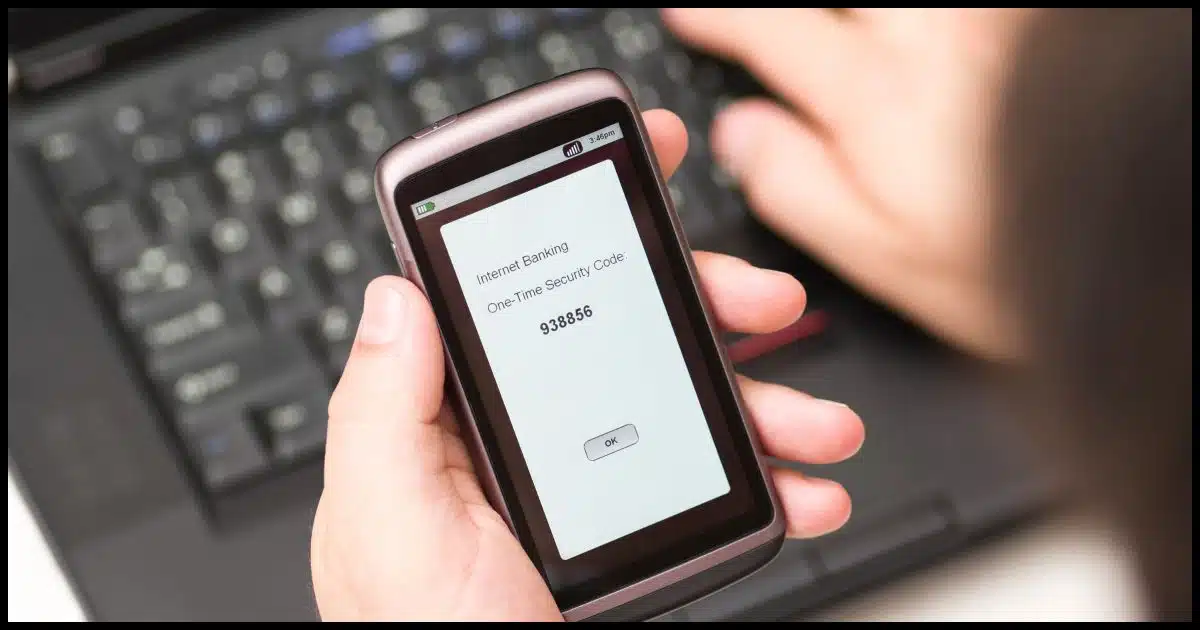
Not long ago, I wrote about SMS two-factor authorization being hackable and why you should use it anyway.
It's an important enough topic that when I saw another article discussing a potential two-factor exploit — ˜You can't relax': Here's why 2-factor authentication may be hackable — I just had to jump in to reinforce my message.
Use two-factor authentication anyway.
Even if two-factor is technically hackable, it's essential.
The short, simple answer is this: Two-factor authentication erects another barrier to unauthorized individuals seeking to access your account. It's a barrier most hackers won't bother trying to penetrate. Instead, they'll move on to other, less protected accounts.
Seriously, that's all it takes to add significant value to your account security. Make it harder for the hackers, and they'll go find an easier target.
That alone should convince you to use it. It keeps hackers out even if it is technically hackable.
I stand by the position I took in my previous article: your account is less secure — potentially significantly less secure — if you protect it with only a password.
You're relying on that one piece of information remaining a secret forever.
Ask anyone whose account was compromised because the service they were using was hacked how well that worked for them. They did nothing wrong. They used long, strong, secure passwords and never shared them with anyone. Something completely out of their control exposed their password, and — poof — their account was in the hands of hackers.
Two-factor authentication could have prevented that, even if it is technically hackable.
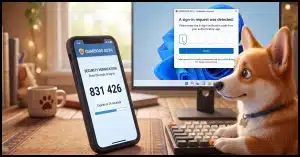
That two-factor authentication can be hacked doesn't surprise me. These are complex systems we're dealing with. Bring enough firepower to bear, and I suppose anything is possible. There's no such thing as perfect security, after all.
But that doesn't mean it's easy or commonplace.
The previous "OMG! Two-factor can be hacked!" scare required access to the telephone company systems that process SMS text messages for the targeted account. Read that again: it required access to a telephone company! Possible? Sure. Easy? No.
The scare that got my attention for this article requires your participation. You need to be targeted for and fall for a phishing scam that uses the two-factor information you type in to access your account. Let's face it, two-factor or not, all bets are off if you fall for a phishing scam.
Another type of scam, SIM swapping, requires fooling your mobile provider into reassigning your mobile number to a scammer. To protect you from this, most providers allow you to set up a PIN that you have to give them before they will make any changes to your account.
The objections above apply almost exclusively to SMS-based two-factor authentication. Other forms of 2FA, including email, Time-based One-Time Passwords (Google Authenticator compatible), and hardware keys, are more resilient. They aren't perfect, but they are much more difficult to hack.
So yes, if you have the option to choose something other than SMS text-messaging-based two-factor, do so.
But if SMS is the only option, it's still better than not having two-factor at all.

By planning for the worst, you can assess your security and be prepared for the multitude of smaller issues that are more likely to happen.

This is a thought exercise I go through when I'm about to go on a business trip.
What would happen if I lost everything I had with me? I mean everything: technology, wallet, perhaps even clothing.
How would I start over while on that trip? Sure, after seeing to my physical safety, I might borrow a computer — but then what? My digital world is locked down so tight that it would be difficult for me to gain access without my second factor (as used for two-factor authentication), or my mobile phone (often used for the same thing), not to mention my password vault, since the vast majority of my passwords are beyond memorization.
How would I bootstrap my digital life?
By bootstrap, I mean to gain access to one key piece of information (perhaps a one-time passcode in a safe location secured by a very strong yet still memorable passphrase) that would allow me to bypass a two-factor authentication requirement and gain access to the next level (perhaps a password vault, at which point I could access my critical accounts).
To be clear, I'm not suggesting you weaken your security for this "just in case" scenario. For example, don't turn off two-factor; just make plans for how you might securely bypass it in an emergency.
It's a worthwhile scenario to run. You will not only confirm your overall security but also provide yourself with a safety net.
You know... just in case.
Where do you store an .exe file so it works best? I'll break down your options and show you the smart, safe ways to store and use portable programs on your PC.
It's such a simple question... so you know the answer won't be.
Or rather, answers, plural. It all begins with "It depends". ðŸ'‚
Depending on your intended use, .exe files (or portable programs) can be stored in different places.
Usually, when we download software, we're downloading a setup or installation program. When that program runs, it copies files to proper places, adds shortcuts and menu items, and otherwise makes sure that the program you've installed can be easily run.
"Portable" programs need no setup. You just download them, perhaps extract them from a .zip file, and run them. The question is, where should they live? With no setup program to set up the "proper places", we decide where to put the file(s).
I'll use "incontrol.exe", from the GRC website135, to illustrate the examples below. It's a portable program comprised of a single, small .exe file. The concepts apply to almost all portable programs.
Where we store it depends on our plans for using it.
If this is a one-time thing, you can leave it wherever you downloaded it. More often than not, that'll be in your Downloads folder.
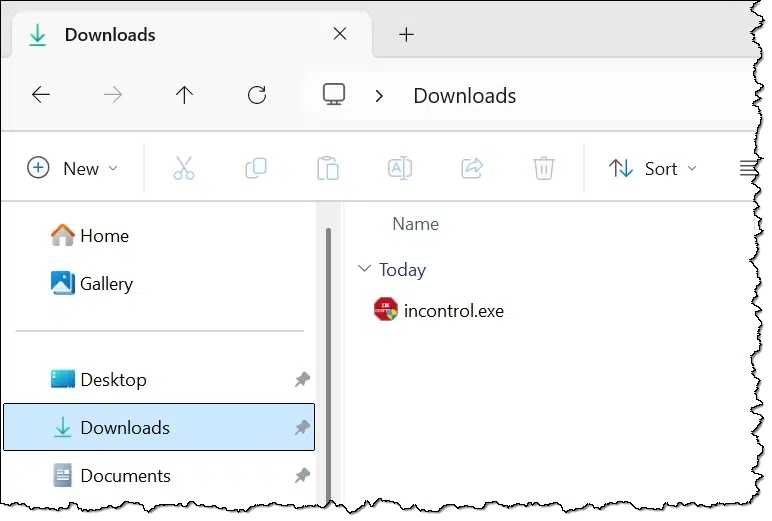
In the example above, I've downloaded "incontrol.exe" to my Downloads folder.
Navigate to that folder in Windows File Explorer, and double-click the .exe file to run it. That's it.
Alternatively, if this is a command-line utility or you just want to use the command prompt, "CD" to that folder, type the name of the .exe, and type Enter.
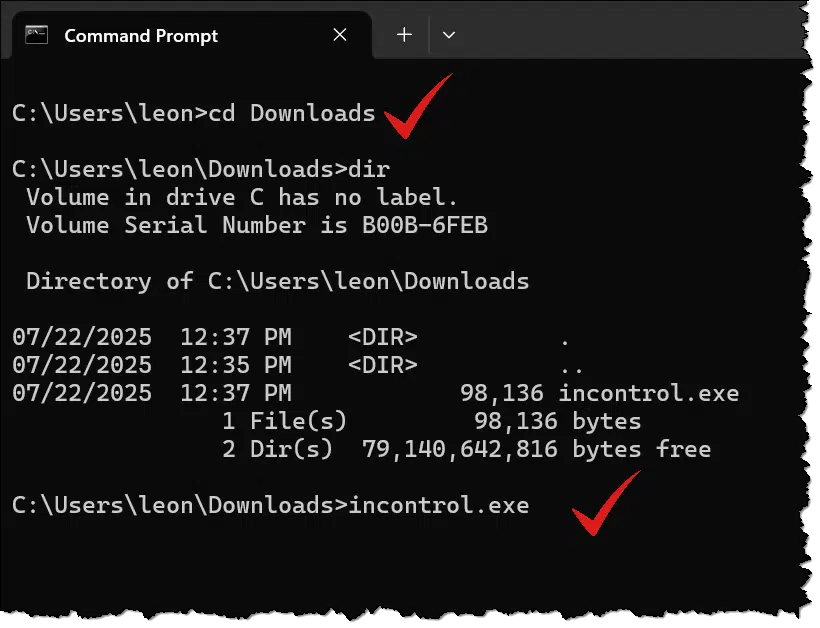
In the example above, I've "CD"ed (Changed Directory) to the Downloads folder and run "DIR" to list the Directory contents showing incontrol.exe. Typing "incontrol.exe", or even just "incontrol", followed by Enter, will run the program.
Since this was a one-time thing, you can delete the .exe file when you're done with it, or archive it somewhere if you like.
If it's a multiple-time thing — meaning you'll be running the program periodically — I recommend creating a folder.
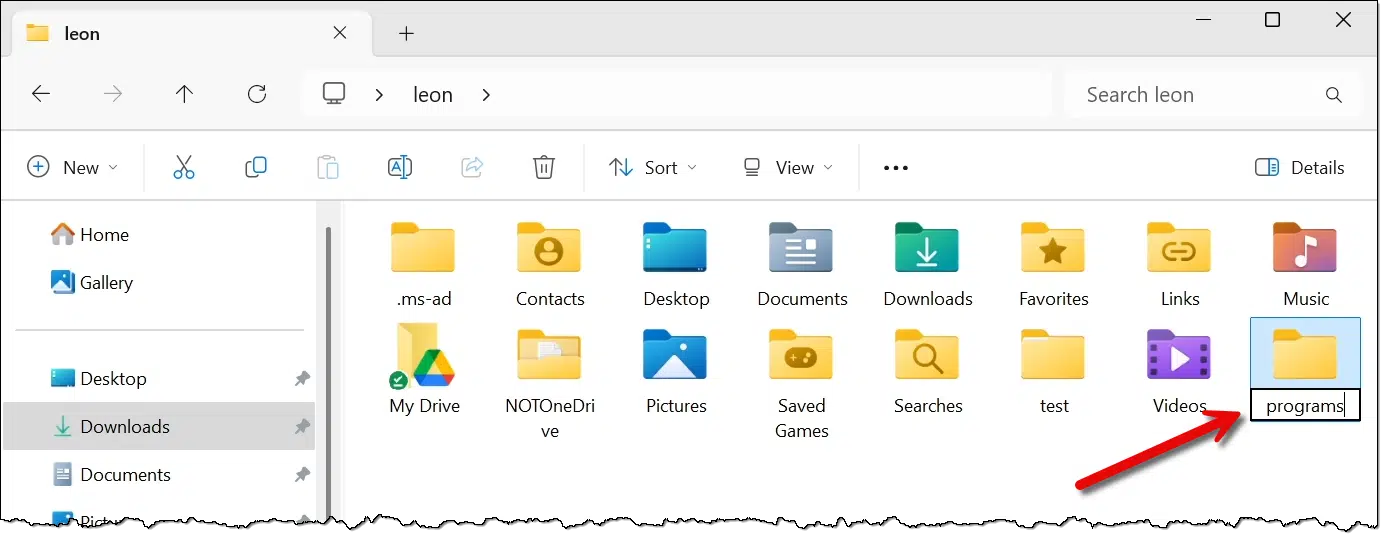
Above, in Windows File Explorer, I:
I then cut and pasted (AKA moved) the incontrol.exe file from the Downloads folder to this newly created folder.
To run the program from Windows File Explorer, I navigate to this folder and double-click on incontrol.exe. To run the program from the Command Prompt, I would CD to C:\Users\%username%\programs and then type "incontrol" followed by Enter. In either case, the actions are the same as before; we're just operating from our new Programs folder instead of the Downloads folder.

There are a couple of reasons I suggest you create a new folder for programs like this that you want to keep.
As we'll see next, that folder enables something convenient.
If you use Start-Run (or +R) to open the Run dialog box, all you need to do is type in the name of your command for Windows to find and run it. For example, entering "notepad" and clicking on OK will cause Windows to locate notepad.exe and run it.
We can add our newly created folder to the list of places Windows will look. That list is called the PATH environment variable.
In Settings, search for PATH. Click on Edit the system environment variables when it appears. In the resulting dialog, click on the Environment Variables button near the bottom.
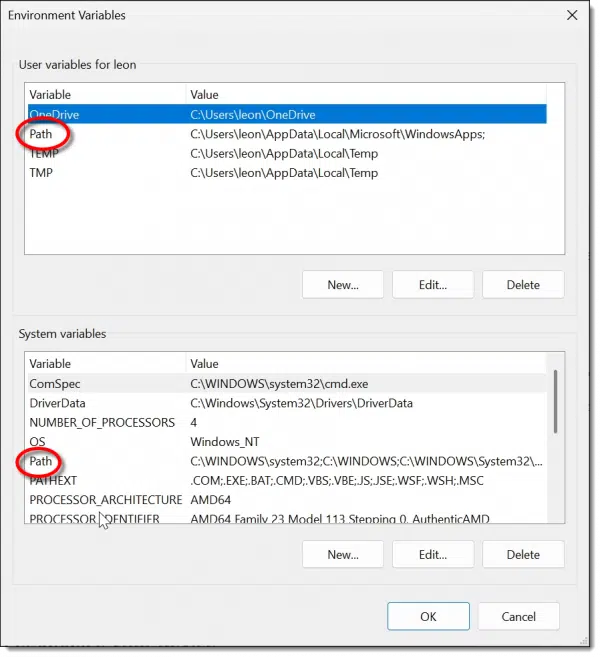
There are two sections:
There is a PATH136 variable in each section. This contains a list of folders Windows searches when looking for a program by name. Folders listed in the System PATH are checked first, followed by folders in the user PATH. As soon as the program being looked for is found, it's run, and the rest of the folders are ignored. "Notepad.exe", for example, typically lives in C:\Windows\System32, which is the first folder in the system PATH; thus, Windows doesn't need to look further.
We want to add our folder — C:\Users\%username%\programs — to our user path.
Double-click on the PATH item in the user section to open an editing interface. Click on New to add a new entry.
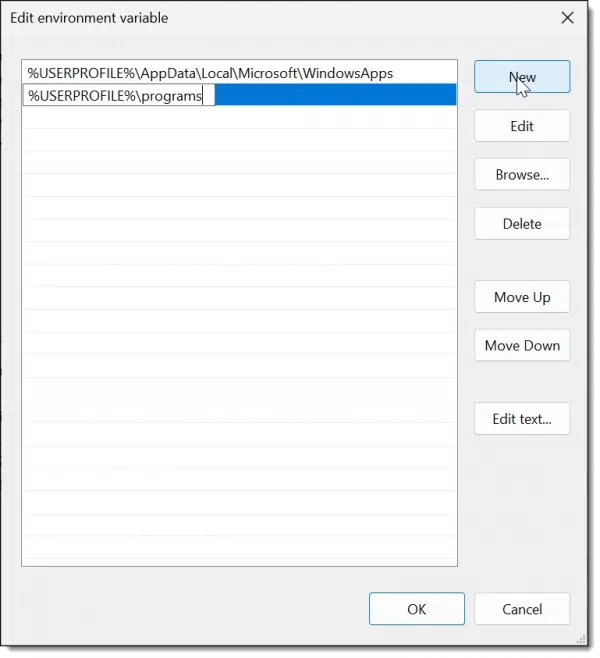
Enter the path — C:\Users\%username%\programs — or, to maintain consistency with what's already there — %USERPROFILE%\programs. %USERPROFILE% is equivalent to C:\Users\%username%.
Click OK to save the change. Close the dialog with another OK.
Now typing "incontrol" in the Run dialog will cause Windows to locate incontrol.exe in the folder we've created and run it.
If you're in Command Prompt, you may need to close and reopen it to refresh its knowledge of the PATH. Once you do so, you can just type "incontrol" followed by Enter.

Using the PATH, Windows will locate incontrol.exe in our custom folder and run the program.
Since we have created a folder to hold these portable programs, we can easily have them appear on all the machines we use. All it takes is a file synchronization tool like Dropbox or OneDrive.
I'll use OneDrive as my example.
First, instead of creating C:\Users\%username%\programs, put it in OneDrive, or C:\Users\%username%\OneDrive\programs. This will upload the contents to OneDrive.com, but more importantly, it will also automatically download the files to all the machines signed into the same OneDrive account.
Second, on each machine, instead of adding C:\Users\%username%\programs to your user PATH, add the OneDrive folder (C:\Users\%username%\OneDrive\programs) to it instead.
As I said, it doesn't have to be OneDrive. I use Dropbox for this. Any file synchronization program will do. The upshot is that placing your portable .exe file into your programs folder on one machine makes it available on all.
Another option is to place all of these files on a thumb drive you take from machine to machine. This is essentially the origin of the term portable as applied to these programs.
There's one approach I need to mention so you avoid it.
Some people download their .exe files into c:\Windows\System32. That's where most of Windows itself lives. It's a fairly convenient folder, and it's already in the PATH. Drop your .exe file there, and it'll just work...
...until it doesn't.
This is Windows territory, and there's no real guarantee that what you place there will stay there or will always run there. Much better to do things correctly from the start.
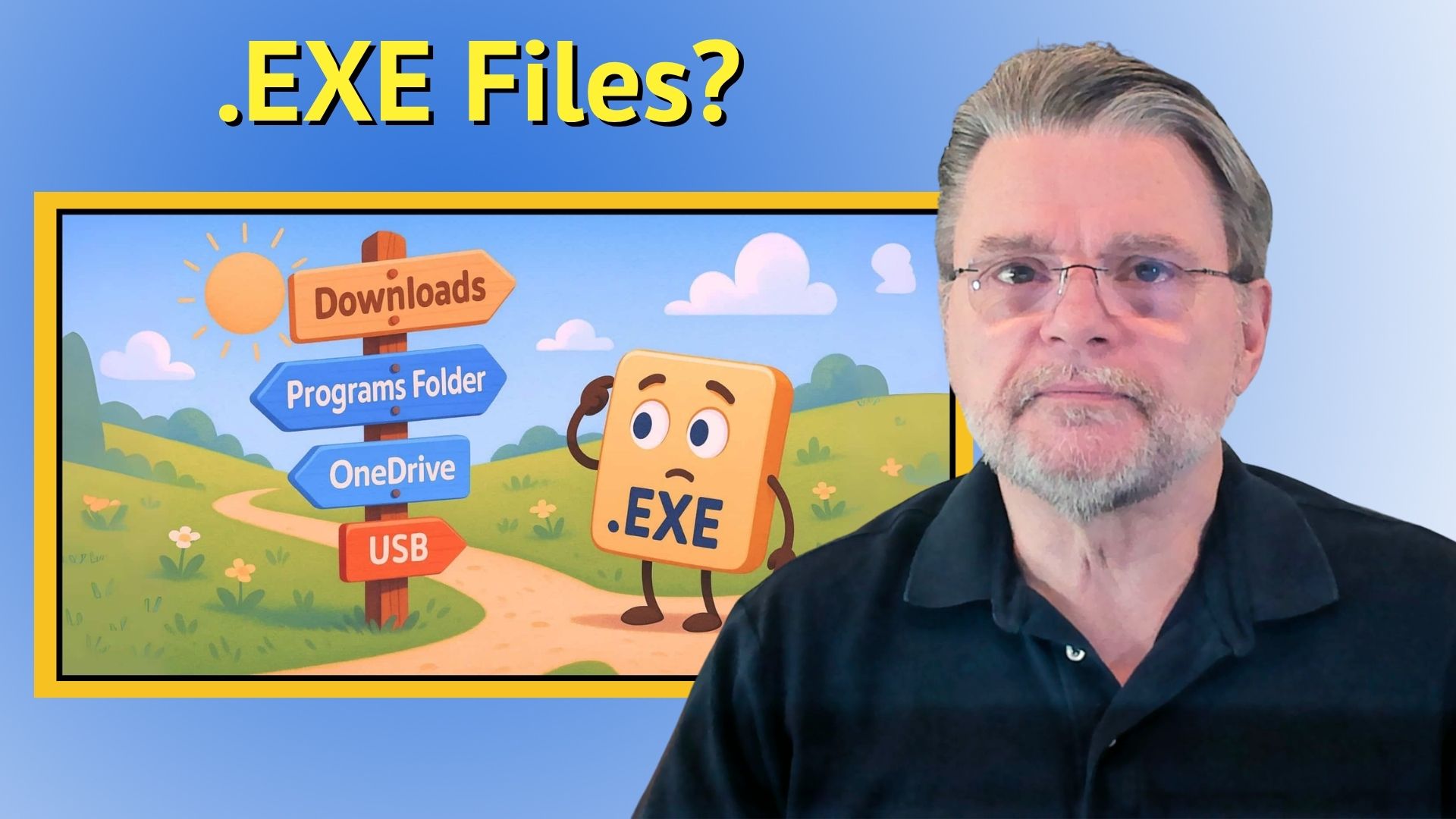
141: It's a utility I discuss in How to Block the Windows 11 Upgrade and Stay on Windows 10.
142: It's actually case-insensitive, but using all uppercase is a useful way to remember that this is an environment variable.
Backing up your password vault can save you an immense headache should you ever lose access to its contents.
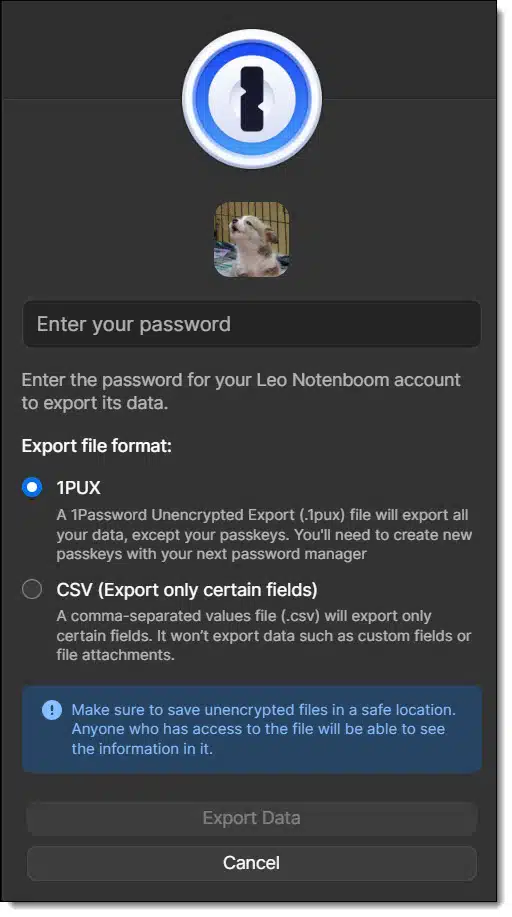
I don't care which password vault you use, but if you use one (and you should), back it up.
Back it up now.
And then back it up regularly.
Ideally, back it up in a format that is not encrypted — like a plain text CSV file — that you can then secure in some other way. Why? I'll answer that with the story that prompted this tip.
I heard from an individual who could no longer access their LastPass vault. It's unclear what happened, but it had all the hallmarks of forgetting or losing the master password. Without your master password, you cannot get in. Period. Even LastPass cannot help you, as they designed their security such that they don't know your password, and they have no back door from which to retrieve it.
That is as it should be. But.
The contents of the vault, even though stored on their machine(s), were inaccessible. They lost it all and had to start over.
A simple backup to a CSV file securely stored elsewhere would have instantly and completely bypassed this disaster.
Back it up. Now.
Choosing between Google Docs and Microsoft 365? They look similar, but there are differences in cost, features, and how they work. I’ll help you decide which fits your needs best.
Next to email and content consumption like YouTube or social media, word processors, spreadsheets, and other applications may be the most common ways we use our computers. We might call them "business" apps, but they serve a wide variety of roles, ranging from personal to corporate.
Microsoft Office (AKA Office 365, Microsoft 365, and Microsoft 365 CoPilot) has long been an industry standard, but Google Docs is an equally compelling and popular toolset.
Google Docs is free, simple, and works well online for everyday tasks and easy sharing. Microsoft 365 is more powerful, works offline, and is better for complex work, but costs money. The right choice depends on what you need and whether you're working alone or with others.
Technically, Google Docs refers to the Google word-processing application called "Docs". This means Google Docs would compare to only Microsoft Word.
In practice, though, most people say "Google Docs" to refer to the full suite of applications available, which is what I'll be doing. I'll compare them to Microsoft 365 suite counterparts.
Speaking of Microsoft 365, it's gone by several names over the years.
Aside from typical version-to-version differences, they're all the same and refer to the Microsoft suite of productivity applications that includes Word, Excel, and more.
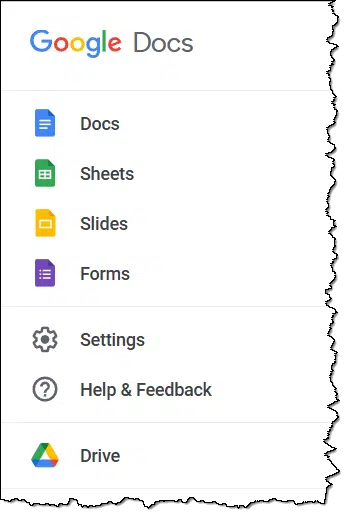
Google Docs (docs.google.com) is the place to start exploring.
Find Microsoft 365 at office.com.
Here are some of the most notable differences.
| Feature | Google Docs | Microsoft 365 |
|---|---|---|
| Platform | Web-based only | Primarily desktop, web available |
| Offline Use | Limited using browser extension | Full-featured in desktop apps |
| Storage | Google Drive | PC and/or OneDrive |
| Collaboration | Real-time sharing | Real-time sharing using OneDrive |
| Cost | Free (upgrades available) | Subscription (desktop) / Free (web) |
| Features | Basic to moderate | Full-featured |
| Compatibility | Best with Google Docs | Best with Microsoft applications |
In general, Google Docs has fewer features. Even so, the feature set is rich enough that many users may not miss anything.
Microsoft 365 is, in some ways, the gold standard. It includes an extensive set of features and tools. It's perfect for power users and business settings, and has become an industry standard across the corporate and educational world.

When it comes to collaboration and sharing, differences become more apparent.
Since Google Docs is web-native, it's well optimized for real-time collaboration and sharing. Multiple users can edit the same document at the same time. Users can see each other's edits as they are made, and even see caret and selection movement being made by others. Since documents are stored in Google Drive online, sharing is also easily handled by creating links to the online document with view/edit permissions as desired.
Microsoft 365 also supports real-time collaboration and sharing, but only if the documents are stored in OneDrive online. The older default behavior of storing and working on documents stored only on a PC doesn't allow for this.
Microsoft file formats, like Word's ".docx", Excel's ".xlsx", and others, have become the standard many businesses use. They are perhaps the most commonly exchanged file formats regardless of the tools being used.
Google Docs saves in its own format, but it can be exported to Microsoft 365 formats. It's important to realize that Google documents are never saved on your computer, even in Google Drive (which saves only a shortcut to the online file). To save the document on your computer, it must be exported from Google Docs.
Like many Microsoft 365 alternatives, exporting in Microsoft file formats does not guarantee complete compatibility. The exchange is relatively easy, since both will read and write both Microsoft and Open Document formats. However, when exchanging a file between Microsoft 365 and Google Docs users, there are usually differences in layout and formatting. The severity of the differences varies depending on the complexity of the documents involved.
Both platforms offer mobile apps for your phone or tablet.
Google Docs works best, of course, in the Google Android ecosystem, though it's available on iOS as well. Microsoft apps are also available on both Android and iPhone. You'll find the apps in the respective platform app stores. In both cases, it's easier to start at the cloud storage app (Google Drive or OneDrive, respectively) and open the documents from there.
As always, features vary between free and paid accounts.
Google Docs, being a web-only tool, works on almost any browser on any operating system. That means Google Docs is available on Windows, Mac, and Linux. All you need to do is fire up your web browser and visit the site.
The same is true for the free version of Microsoft 365 apps. Since they are also web-only, they should work well from any of those platforms. I say should because Microsoft, of course, prioritizes Windows and its Edge browser.
The downloadable and installable apps for Microsoft 365 are available for Windows and Mac OS. There are no Linux versions.
As I mentioned above, Google documents exist only in the cloud, not on your PC. If you want to ensure your data is backed up beyond Google's servers, make sure to export the documents periodically to your PC.
Microsoft Office files are on your PC as long as:
Both cloud services have a Recycle Bin (Microsoft) or Trash (Google) folder from which recently deleted files can be recovered.
Microsoft's OneDrive also has a "large number of files changed" detection feature intended to provide additional protection from large-scale accidental deletions or ransomware. This feature requires a paid subscription of some sort.
First, if you're working with others in an organization, I strongly suggest you use whatever that organization uses to avoid compatibility issues and prevent confusion.
That being said, use Google Docs if you:
Use Microsoft 365 if you:
143: OK, it was clear. The reason was marketing.
You don't need to download additional tools to wipe the free space on your hard drive.
(Animation: askleo.com)
We use free-space wiping utilities to make the deleted files unrecoverable. They work by overwriting all the free space on a drive so no remnants of previously existing files remain.
In the past, we've turned to CCleaner (or Secure Delete, a utility you can download from Microsoft) to do this job.
It turns out you don't need either. The cipher utility — a command-line tool included in Windows to manage file and folder encryption — has a free-space wipe function.
In Windows command prompt, make the drive you want to wipe the "current" drive (by typing the drive letter, colon and ENTER), and then enter the cipher command.
C:
cipher /W:.
This will take time — possibly a long time, depending on the amount of free space you have. The third-party utilities mentioned above might be faster, but Windows already has the cipher tool, so there's nothing to download or install.
Scammers take advantage of AI's ability to create fake photos that look very real. From phony images of your car to completely made-up situations, it’s easier than ever to be fooled. Learn how they're made, why they’re dangerous, and what you need to do to protect yourself.

The image above is not my car.
It looks like my car. The color is close, the model is correct, and the license plate is mine.138 But I've never parked outside The Golden Banana strip club. I have no idea if such a strip club even exists.
That the AI-generated photo looks so real, however, is cause for concern. Deep concern.
AI can create fake photos that look real, and scammers are ready to use this to trick you. If an image shows something shocking or too perfect, think twice. It might be a fake made to fool you — perhaps even specifically you. You can't believe everything you see. Always be skeptical.
I think we've all come to be slightly suspicious of photos because of the rise of Adobe Photoshop and similar tools. In the hands of the right person, Photoshop can generate amazing things, ranging from altering existing photos to creating "photos" of things and situations that never happened. With talent and time, a Photoshop artist can create just about anything.
Emphasis, of course, on both talent and time.
AI removes both of those requirements. The image above was created by asking ChatGPT:
Please create a 16:9 photorealistic image of a blue 2025 Rivian R1S, Washington license plate "N7LEO" parked in front of "The Golden Banana" strip club at night.
Two minutes later, the image above appeared. It's plausible enough to pass for real to the casual observer.
Scammers know this.
A scam posted on Reddit's r/Scams subredit brought this to my attention.
The original poster (or "OP") asked how the scammer was able to identify his license plate to use in the photo. It turns out that an assortment of information, ranging from vehicle type and characteristics to the name of the owner, is often available. It might be publicly available through shady services, or it might be illegally available to hackers knowing where to look (perhaps on the dark web).
But looking up a license plate associated with a specific person is apparently not that hard for those so criminally inclined.
And as we've seen, using that information to craft a fake yet plausible image to use in an extortion scam takes all of a couple of minutes.

Using your car's information to create a realistic photo to attempt to scam you is only an example. Scammers don't have to extort you personally; perhaps they use fake images to sway public opinion. There's a range of uses:
It's now trivial for anyone to create images that look real and are completely fake. Scammers, hucksters, and others with less than altruistic intentions are more than happy to use this new technology to fool us.
And fool us, they do, especially if the fake image is of something we want to see or confirms our preconceived ideas.
It all boils down to paying attention, and that's very difficult in today's fast-paced, attention-grabbing world.
For example, consider the photo above. There are signs it's fake. The most obvious is that the shadows are wrong: there should be a shadow to the right of the car caused by the bright strip club sign. A close look at the license plate shows it's "fuzzier", for lack of a better term, than the quality of the photo would imply it should be.
Of course, if you can compare it to reality, it becomes even more obvious: the vehicle color is off, and my roof rack is missing.
Yes, those all seem like small, even subtle clues, but they're easy to overlook, and scammers are counting on you to do exactly that. And yet they're exactly the kinds of things you should look for the moment there's any question at all.
And these days there should probably always be a question.

144: A Washington State "vanity" license plate with my ham (also known as amateur) radio call sign: N7LEO.
Marketing Wi-Fi speed when selling internet connectivity is largely misleading.
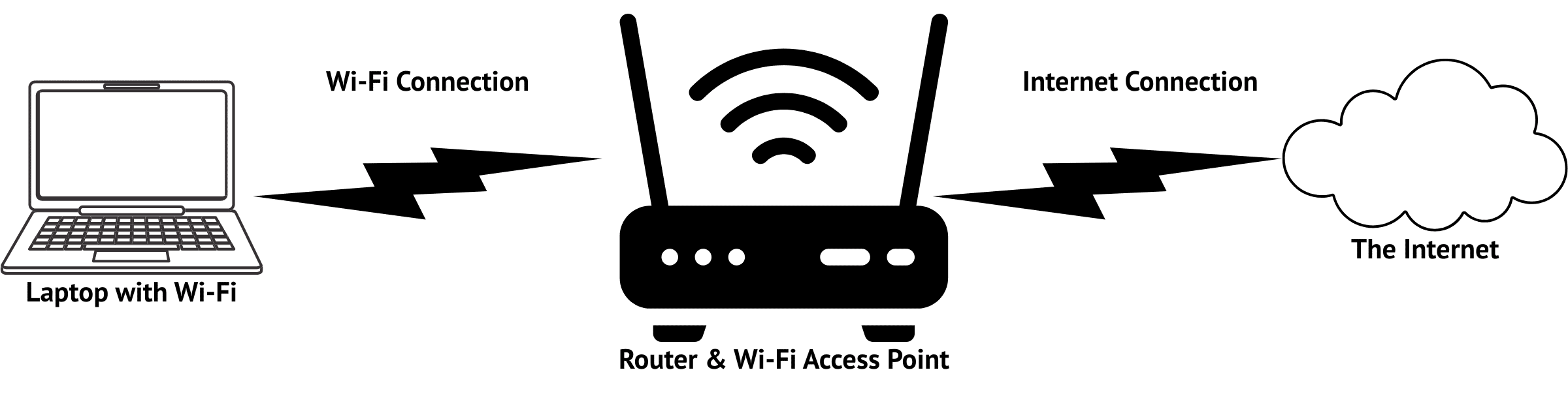
This is a combination tip and pet peeve.
Internet service providers (ISPs) often claim to offer the fastest Wi-Fi. The problem is that your Wi-Fi speed is completely separate from your internet service. They are two different things.
What I want from my ISP is fast internet service. I want the connection they provide from my location to the internet to be as fast as possible (within the constraints of how much I'm willing to pay). That's what I'm paying them for: my internet connection.
There's no Wi-Fi involved in that equation. None.
ISPs often provide equipment that includes Wi-Fi capability. That's convenient and nice and all that, but it's separate from your internet connection. Wi-Fi is used to connect your computer to the box the ISP provides, and that's all. The connection from there to the internet is separate and different technology.
Here's the kicker: the speed of your internet connection and the speed of your Wi-Fi are unrelated. What's more, if the speed of your internet connection is slower than typical Wi-Fi speeds — which is common — the speed of your Wi-Fi is irrelevant as you access the internet. It's your internet connection that's the bottleneck.
Bonus tip: You get your internet from your ISP, but you can always provide your own Wi-Fi connectivity.
Understanding the difference is important when ISPs aggressively market their services in what is, to me, a misleading way.
Was your email exposed in a data breach? Don’t rush to get a new address. I'll discuss what really matters, like strong passwords, staying alert, and simple steps to keep your account secure.

As long as you can still log in to your account, there's no need to get a new address just because your email address was included in a breach.
There are steps you should take, but getting a new account is not one of them.
If you can't log in to your email account anymore, though, you may have no other choice.
If your email address shows up in a breach, you rarely need a new address. Just change your password for the site that was hacked, and turn on two-factor authorization if you can. As long as you still have access, you're fine. Stay alert, but don't panic.
If you can't log in to your email account and you've pursued all the approaches to recover access, it's not your account anymore. Email Hacked? 7 Things You Need to Do NOW covers the steps you need to take.
Whether or not it's related to any reported breach doesn't matter. Regardless of how it happened, you've lost access to your account.
When that happens, you have no other option; you'll need to get a new account and let your contacts know you have a new email address.
If you learn that your email address is part of a breach, and you know which service was breached, the most important step to take is simple.
Change your password with that service.
Change it to a long, strong password you don't use anywhere else.
It's the bare minimum you need to do, but many times, it's all you need to do. You don't need a new email account or address because of it.
This is a more difficult scenario:
When this happens, I do two things.
That last point is frustratingly vague, but it's the best we can do.
And, honestly, it's what we should do whether our email addresses show up in breaches or not.
I generally don't panic when news of yet another breach appears because I apply strong security to all my accounts.
I strongly recommend you do the same, starting with your email account.
But there's no need to get a new email address because of a breach.
Your computer needs to do a lot when you turn it on.

A common complaint is that a machine is dreadfully slow to boot up after it's turned on.
A lot happens when you turn on and sign in to your machine. Several programs all attempt to do their jobs. Your anti-malware tools might run a scan. Windows Update might download and install the latest updates. The content indexing service might decide it's time to update its database. Cloud tools like Dropbox, OneDrive, or others might download updates from online servers or upload files that have not yet been copied there.
You can spend a lot of energy trying to control all of this, but not all of it is controllable. A simpler solution is to get in the habit of turning on your machine before you need to work on it. Sign in and walk away for a while. Give it time to do what it needs to do. Hopefully, when you return, it'll be peacefully idling and ready to go to work.
When you leave your machine running 24 hours a day, as I do, this is rarely a problem. However, I still face it. Besides my computers, I have several virtual machines; that's how I can run other versions of Windows without a dedicated machine for each. But those don't run continuously. I have to remember to turn them on and let them update if what I'm about to do requires that they operate speedily.
Do you worry that ransomware might lock up more than your files? It can. I'll show you how to better protect your cloud storage and backups using tools like Macrium Reflect, OneDrive, and Dropbox. Even if malware strikes, you’ve got a way to recover.
In a previous article, I wrote about how ransomware is nothing special when it comes to prevention — it's just malware. The same steps you take to protect yourself against malware are the steps that protect you from ransomware.
Because of ransomware's devastating consequences, however, many people want additional assurance they're protected even if they accidentally allow such malware to reach their machine. In particular, two questions come up often:
There are approaches to specifically ease those concerns.
Ransomware can lock up your backups as well as your files. Tools like Macrium Reflect and features in OneDrive or Dropbox won't stop an attack, but they can save your data after one. Stay alert and back up smart.
I'm a big believer in regular, automated image backups. Automation requires a destination for the backups — typically an external drive — that is always connected and ready.
The concern is that ransomware might encrypt files on your backup devices as it encrypts your data. This makes the typical ransomware protection advice — just restore a recent backup — impossible.
Macrium Reflect has a feature called "Image Guardian" in its paid version to protect against just such a situation.
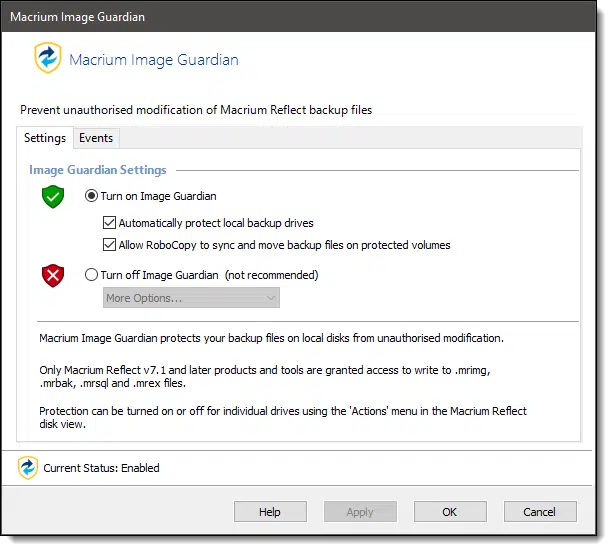
The concept is simple: only authorized applications — Macrium Reflect itself and a couple of very specific exceptions — are allowed to do anything to the backup images.
Even attempting to delete such an image in Windows File Explorer will generate an error and a notification.
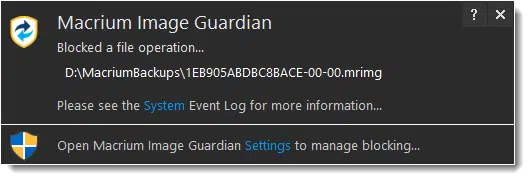
This blocks your backup images from unauthorized modification by malware. (You can delete the file from within Reflect, of course.)
I appreciate this feature because it allows you to safely leave your external drive connected (and your backups running automatically) without having to remember to reconnect the drive.139

Cloud storage and synchronization services automatically back up the files you place in specific folders on your computer to the cloud. For example, if you regularly work in a OneDrive folder, those files are automatically copied to OneDrive.com online each time they change.
This is an effective form of near-real-time backup. Every time you save the file, it's copied to the cloud, and possibly also to any other computers connected to the same OneDrive account.
The concern here is that ransomware comes along and encrypts your files. Because they've changed, those (now encrypted) files are automatically uploaded to the cloud, effectively overwriting your backup.
Both OneDrive and Dropbox have had a form of file history for some time.140 What this means is that if a file has been changed or deleted, you can go to the website and restore the file to a previous version before the change was made. Both also have recycle bins.
This can be burdensome, however, if ransomware encrypts hundreds or thousands of your files.
OneDrive allows you to restore your entire collection of files to a state prior to a given date.
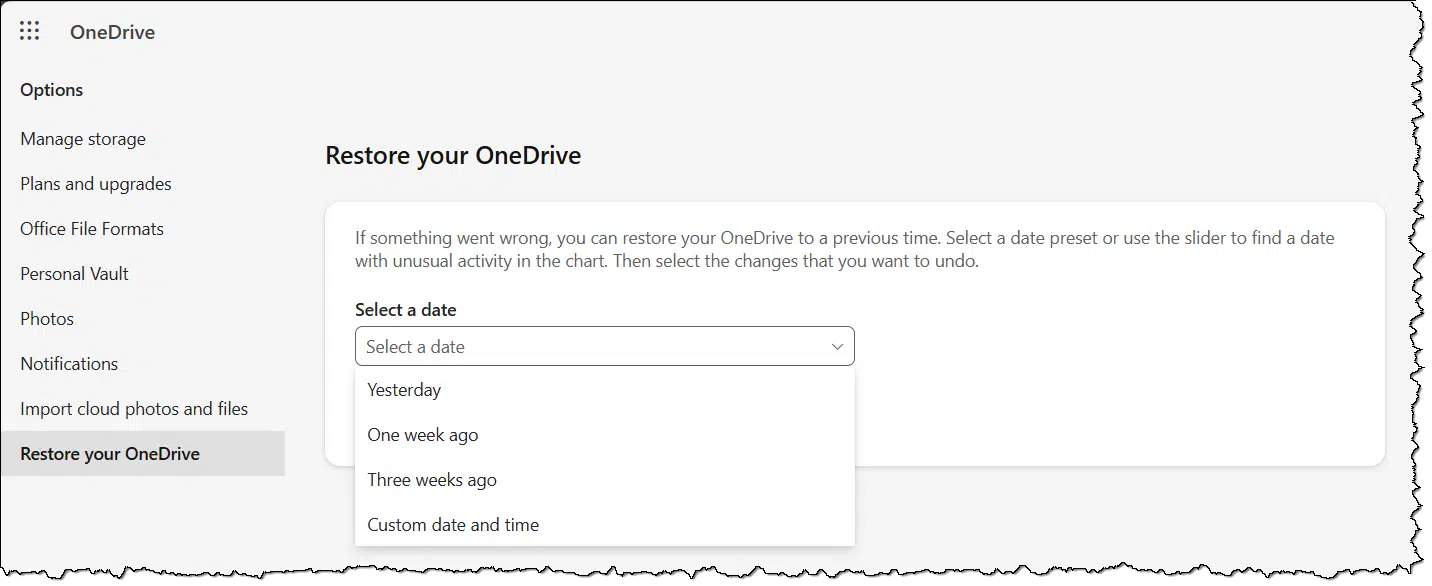
Was your machine infected by ransomware on Tuesday? After you've cleaned your machine of the malware, reset your OneDrive to the state it was in on Monday.141
Dropbox includes a similar feature called Rewind in its paid plans.
It's interesting to note that both OneDrive and Dropbox refer to things "going wrong" in their messages. While lots of different things can go wrong, the most likely cause for these features' appearance and popularity is the threat of ransomware.
145: Paid versions of EaseUS Todo now also include a similar feature called Backup Protection.
146: Paid versions of these services may be required to enable these features. The product offerings do change from time to time, so check to make sure.
147: How far back you can reset to depends on your plan. My advice is not to delay.
Think you're too old? You're not. It's not your age; it's a plethora of other things, ranging from society's expectations to bad software design, waging war on your self-confidence. Let me show you why you’re more capable than you think.
There's a theme across many questions I get. It has nothing to do with the question; it has to do with the person asking the question.
That theme is age.
More specifically, the person indicates that because of their age, they struggle with technology.
That's. Just. Wrong. And it makes me sad.
Saying "I'm too old for tech" is just holding yourself back. It's not your age; it's self-doubt, bad design, or lack of interest. None of that means you can't learn. Please don't let age be your excuse. Keep learning. Keep trying.
The phrase I hear often is "I'm too old."
In a sense, I get it.
Many cultures are obsessed with youth. We get the message that we should delay signs of aging for as long as possible. The implication is that getting older is a process of slow decay and growing inability. Our relationship with technology seems to be a particularly common stereotype.
You are not a stereotype.
"I'm too old" is usually followed by "to understand this" or something similar. The feeling is that because you've reached a certain age, you're now incapable.
Pardon my language, but bullsh*t.
More often than not, you are very capable of "getting it" if you give yourself a chance. It's only your lack of self-confidence that's in the way. When that happens, it becomes a self-fulfilling belief. You're "too old to get it" only because you believe you're too old to get it.
Now, other reasons may be making things more difficult for you.
None of that is about age. In fact, those reasons and more — all legitimate — can apply at any age.
But age itself is not a reason. If anything, it's an excuse.

I often see people blame age when something else is at play.
None of these issues is age-specific. All of them affect users of any age. It's the issue you're facing, not the age at which you're facing it, that matters.
I won't claim that aging isn't a process of change. Our mental and physical processes slow or change as we get older. But none of this is guaranteed to occur just because you've reached some threshold number of years.
If you're not interested, you're not interested, not old. If you're being forced to use a poorly designed website for some service, that's not because you're old; it's because a) you're being forced to do something you don't want to do, and b) the website design sucks. If written explanations are full of incomprehensible gobbledygook, it's incomprehensible gobbledygook, not your age, that's the problem.
Your age alone is often irrelevant. It's your priorities and capabilities that matter, and that's true at any age.
"I'm too old" is giving up without even trying.
This frustrates the heck out of me. I don't care what age you are; I can point to others your age and older who are not only quite tech capable, but even thriving. My favorite example is the 95-year-old gentleman teaching Android and mobile phone use at the local senior center. Older than everyone in the room, his age doesn't stop him. It is irrelevant.
Your age should not hold you back.
A common response (though less so as I age myself) is "Just you wait, Leo! When you get older, you'll see! It really is all about age!"
I'm still waiting. I'll turn 68 in a couple of months. I'm older than many of the people who already claim they're too old.
I expect to be doing this and playing with technology for years to come.
It's well known that muscles atrophy with disuse. Exercise and movement are important to stay fit and healthy and mobile for as long as possible.
The same is true here. It's one reason I love my career: there will always be something to keep my brain busy and "exercising". It's an important part of my mental health and my efforts to keep my brain as sharp as I can for as long as I can.
Don't let technology, and especially not your age, intimidate you.

Loneliness can leave us vulnerable, and scammers know it. I'll cover how romance scams work, the tactics scammers use to build trust and steal thousands, and the red flags to watch for, both for yourself and your loved ones. If you think it can't happen to you, think again.
Loneliness is an epidemic. The COVID pandemic made it worse, but it was already on track.
Besides the negative health impacts, there's a little-discussed yet important side effect: loneliness makes us more vulnerable to being scammed. Scammers are busily at work exploiting this vulnerability to the tune of $1.3 billion in 2024.
Let's review how these scams work and how to keep yourself and your loved ones safe.
Romance scams trick lonely people by pretending to care, slowly gaining more and more trust, and then asking for money. Scammers build fake relationships online, never meeting in person. They use guilt, lies, and even AI tools to scam you out of your money. If someone you've never met asks for money, stop. Talk to someone you already know and trust first.
Romance scams are a form of pig butchering: a "long con" (long confidence) game or scam. This means that the scam takes place over weeks, months, or even longer. The scammers use this time to build trust, after which they finally scam the victim, often multiple times. Once the well runs dry, the scammer disappears.
It's common for romance scams to result in thousands of lost dollars.
It starts by targeting a vulnerable individual looking for connection.
These scams have a common sequence.
After creating fake personas and fake online profiles, the scammer reaches out to a target victim. It might be via a supposedly misdirected text message, an email harvested from a public forum or public records, or many other ways. The goal is to engage the person in innocent, innocuous conversation; there's no hint of malicious intent.
The target may never learn how the scammer found them. It could be targeted, or it could be random.
Depending on how they initially connect, most scammers suggest moving the conversation to somewhere more private — perhaps one of the more secure chat services. This allows them to avoid detection by more public or monitored communication methods.

Over days and weeks, the scammer maintains frequent contact. Eventually, the conversations turn affectionate. Sometimes they employ a technique called love bombing, sharing excessive and extreme compliments and declarations of affection.
To deepen the connection, the scammer may also do some homework and pretend to share values, hobbies, and experiences that they've discovered apply to their target (whether or not that's true).
When people are lonely to begin with, these attempts to build trust and a relationship — even without ever having met — are more likely to succeed. They're more likely to fall for the attention they're getting and the connection they're hungry for.
At one point or another, the target is likely to suggest that a real-life meeting occur. Either of two things will happen.
The scammer will respond with a variety of excuses why they can't meet right now. Perhaps they're working abroad, in the military, or dealing with other random issues that prevent an in-person meeting.
Or they'll transition right to the scam and ask or hint at the need for money to help make the meeting happen. They'll say they're unable to pay for something required to meet — a passport, a visa, a plane ticket, or even a bribe. More on that below.
What distinguishes romance scams from other scams is the type of influence the scammers choose to exploit. While many scams are based on fear (fake IRS scams, technology misdirection, and so on), romance scams target the heart.
Scammers work to make the relationship as deep as possible. Some even propose marriage. Creating future plans deepens the sense of commitment between the target and the scammer.
And if the target balks anywhere along the way? Then the scammer applies guilt to imply that the target doesn't care for them as much as they care for the target; otherwise, the target would engage with them more deeply (i.e., give them the money they're asking for).
Asking to meet is an easy way for the scammer to turn to the topic of cash, but there are many other techniques. Almost all involve starting small and scaling up and up and up.
The scammer might ask for money, citing some urgent scenario such as an unexpected medical bill, travel expense, or customs fee. Often, they don't ask directly; they just explain the need. They count on the target being a generous soul, particularly now that they're in this trusting, albeit long-distance, relationship. Some targets offer to pay without being asked.
The first request usually isn't large. If money is sent, the requests become larger and more frequent. Urgency, pressure, and emotional blackmail often escalate along with the amount.
The scammer will not stop until the target does. They'll continue asking for and extracting more and more money as long as the target supplies it. This can go on for months or even years. Every time the target expresses concern, the scammer applies increasing amounts of emotional blackmail — something lonely people are particularly susceptible to.
Eventually, the target stops sending money (sometimes when they've run out of it), and the scammer vanishes, leaving emotional and financial devastation behind.
Particularly when we're vulnerable, and particularly when emotions, time, and effort have been invested, it's hard to admit that we've fallen for something.
Here are some red flags that should always raise concern.

One of the saddest aspects of romance scams is when we see it happening to others, especially family members, before they see it themselves.
Some things to watch for.
If you notice several of these signs, try to discuss your concerns with your loved one and encourage them to pause communication, verify the person's identity, and seek advice from truly trusted sources.
Via the AARP's excellent Perfect Scam podcast: Romance Scammer Poses as Keanu Reeves Using AI
A relatively new twist in the romance scam is the use of AI. There are several ways AI can make the scams more believable and successful.
The bottom line is that you may not be able to believe what you read, what you hear, or what you see.
148: It happens. Reverse image search is an excellent tool to try.
Stack the deck in favor of being able to recover your account in the future.
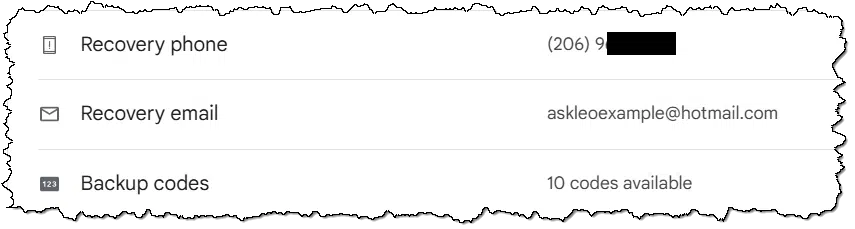
The number one topics I deal with on Ask Leo! are account security and account recovery. All too often, a compromised account or an account for which the password was lost is lost forever.
One way this happens is when the recovery method set up for the account becomes invalid. Perhaps you set up a recovery phone that you no longer have access to or an email address that's no longer valid. Come recovery time, you have no way of proving you are the rightful owner.
Always keep recovery information up to date. However, another technique is to make sure you configure multiple recovery alternatives for accounts that support it. The example above shows a Google account with three different recovery techniques: email, phone, and backup codes. As long as one of those works, you should be able to recover the account if you need to.
And then be sure to update the techniques that have fallen out of date.
Changes are coming to Ask Leo!, including the removal of outside ads. I’ll explain why this (very) scary step is necessary, how search engines and AI are changing the game, what it means for the future of the site, and how you can help.

By the time you read this, I'll (hopefully) have implemented a couple of technological changes at Ask Leo!.
The big one?
No outside ads.
And that scares the pants off of me. But it's time.
Ads are gone from Ask Leo! because they don't work like they used to. Fewer people visit the site, and search engines now show answers without sending folks to my pages. It's very risky, but it's time for a change. You can help by signing up for the newsletter or becoming a patron.
You know what I'm talking about before I even say it: websites are plastered with ads that all too often obscure the content you went to the website to see.
And, yes, Ask Leo! has been guilty of this in the past.
The worst offenders, of course, entice you with clickbait headlines to get you to click. Hopefully, this is something I've avoided.
But it paid the bills. Website advertising allowed Ask Leo! to come into existence almost 22 years ago and has kept it a viable business ever since.
But the industry is changing.
The other part of the equation that has allowed Ask Leo! to operate is what's called SEO, or search engine optimization.
In short, by writing quality content and structuring it in a way that was easy for the search engine(s) (OK, mostly Google) to understand143, Ask Leo! articles appeared in results when people searched for an answer to a question. They'd come to the site and hopefully get the answer they were looking for. The ads displayed alongside that answer were the "cost" that paid for me and my staff to do what we do.
Then Google started summarizing answers directly in search results. Rather than clicking through to the websites that ultimately provided the information, people did not need to go further: the answer was right there. This pre-dates AI, but AI, and the use of AI in lieu of traditional search, has exacerbated this.
It's a great user experience — one fewer click for your answer! — but it removes the primary mechanism that sites like Ask Leo! use to pay the bills. If there are no visitors to the site (other than the Google or AI bots), there's no ad revenue. It's come to be referred to as the "traffic apocalypse".
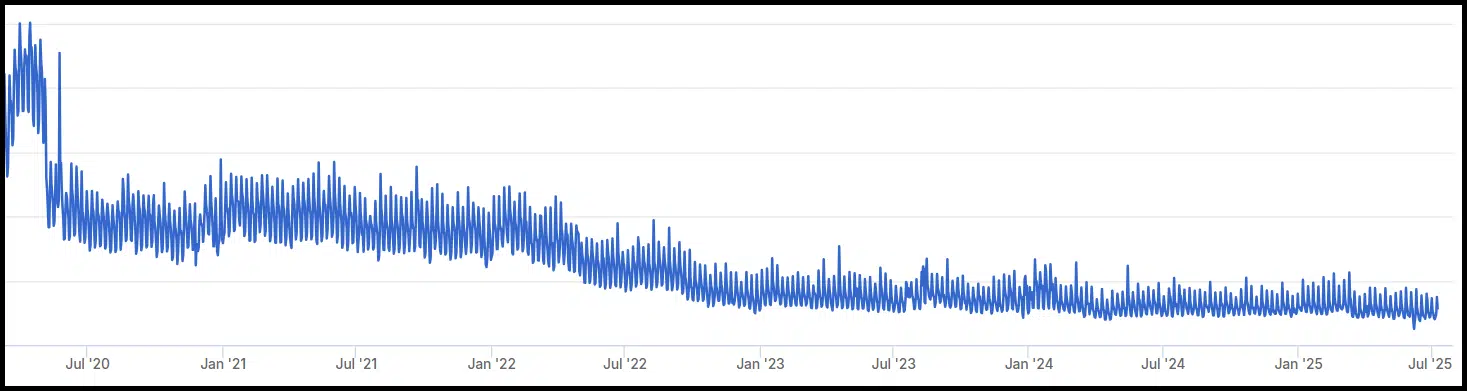
Fortunately, YouTube isn't as far down this path and remains viable. But traffic on written articles on websites is clearly declining.
So, if site ads aren't working and are on the decline, why have them at all?
By the time you read this, I'll have removed the advertising network used by Ask Leo!. Even if you visit the site without being signed in, you won't see a wall of ads.
This is a huge risk. While advertising revenue is down significantly, it's not zero. I'm hoping we'll make up for it in other ways, but it's scary. Advertising saved Ask Leo! from shutting down completely around five years ago, so it's not an easy decision to walk away from it today.
But for now, no ads (other than a few ads for patronage or my own products). I may opt to accept sponsorships with simple, single box ads. Should revenue not meet what's needed to run the site, I may rejoin a less aggressive ad network. (Of course, just as before, patrons will not see any ads no matter what I elect to do.)
But the oh-so-common and oh-so-in-your-face wall of ads should be gone for good.
While I'm at it, I'm streamlining the Confident Computing newsletter a little to make it easier to put together. If you're a subscriber, you may have already seen that reflected in the most recent issue. Nothing drastic, just a little simpler.
Once the dust settles a little, I'll embark on my next course, tentatively titled Linux Without Tears.
I'm also hoping to increase the rate at which I produce ebooks. That's an idea in progress, though.
As I come up with ideas to make patronage more valuable, you may see some changes there as well.

149: It's more than just "structuring it", of course. There's a lot at play.
These days, the answers to secret questions are far from secret.
(Animation: askleo.com)
For decades, "secret questions" or "security questions" formed a standard account-recovery technique. When you created the account, you'd set them up (mother's maiden name? favorite teacher?), and later, when (not if) you forgot your password, you'd answer them again and be allowed back in.
The problem is that they're just not that secret or secure anymore. Given how much of ourselves we share online these days, the answers are often available to someone willing to put in the effort to search for them. Even if we don't post the information ourselves, it can often be divined by the information shared by our friends and family.
If you have the option to use something else — anything else, like an alternate email address, a phone number, anything — use one of those alternatives instead. Avoid secret questions unless they're the only option available.
Choose something else if you can. (And if you must use them, check out How to Choose Good Security Questions.)
Scan 'em and back 'em up.

It's no secret that I'm a huge fan of going digital.
It's also no secret that I'm a huge proponent of backing up.
To me, they're two sides of the same coin: go digital so you can back up, and back up everything digital.
Photographs are some of our most prized and irreplaceable possessions, yet often we have only one copy144. Of course, it's not backed up if we have only one. If that photograph disappears, it's gone forever.
Scan it. Carefully take a digital photograph of it if you must, but make a digital copy of the physical photo, and of course, back that image up.
If the hard copy original is ever lost or destroyed, you'll be glad you did.
150: Because it's the only copy of a photo in existence. It's not a duplicate of a photo kept elsewhere.
And yes, that's me — "Little Leo" — in the middle.
Online advertising is the equivalent to the wild west. Advertisers use every technique they can get away with to get attention and sales. I'll review what you can do about it and what steps I'm taking as a website owner.

The practical answer to this specific question is: no one. There's not an agency in charge of or actively policing online advertising.
In the United States, there are state Attorneys General, but practically speaking, they're rarely going to step in and help unless it's something really serious and widespread.
Besides, most of these ads have some very slippery wording that keeps them out of trouble.
No official agency watches online ads closely unless they're really bad. Ads can trick you with sneaky wording like free download that doesn't mean what you think. Unfortunately, it comes back to you. Be careful, question everything, and never trust something just because it says it's free.
What I call "weasel words" are words that can be interpreted to mean more than one thing or nothing at all.
The phrase free download is an example. All free download really might mean is that the download is free; you pay nothing at all to download the file.
The advertising is counting on a misunderstanding. You might think free download implies that the program you just downloaded is itself free — but that's not what they said. It meant that the act of downloading that file was free. What happens next may or may not be free. You could download it to your computer without paying anything. Using or running it? That's another matter.
Other examples are things like FREE System Scan or FREE system cleanup analysis (often with the same emphasis on the word free). Again, you can download the program for free. You can even run the program for free, and it will scan and analyze your computer for free. But if you read the offer carefully, it does not offer to fix anything for free.
I would love for these advertisements to be clearer.
The examples above are at least honest, albeit with misdirection. And you know why the misdirection is there? Because it works.
If the ads were as clear as we want, then not as many would click, and not as many people would buy.
And enough people do get duped into paying at the end that it makes it worthwhile for these companies to continue to do what they do.
One scam that really bugs me is the misleading download button.
These are ads (again, to be clear, these are paid advertisements) that look like download buttons. The wording is typically vague enough that it feels like it could be a legitimate download for something related to the site the advertisement appears on.
Yet when you click on them, either you get taken to some website trying to sell you something, or you download something you don't want that then installs and is malicious, costly, or both.
One of the underappreciated facts of online advertising is that the websites you visit are rarely in control of the advertisements that appear there. The website owner signs up with an advertising network and trusts it to display ads appropriate to that website's audience.
Pragmatically, there's just no way a website owner could vet all the thousands of different advertisers that might be displayed, particularly given that the ads differ dramatically from one visitor to the next and are based on where the visitor is located.
Some advertising networks are better at filtering out the noise than others. But that noise works: the network and the website make more money when buckets of misleading ads are displayed.
Unfortunately, there is no practical recourse for individuals to respond to these ads other than being skeptical and vigilant.
You can complain to various agencies (like I said, your state's Attorney General might apply in the US), but my belief is that unless it's a horrific lie, they'll slip through on the technicality that they were, in fact, telling the truth: you just misunderstood. Even when it is a horrific lie, most of the watchdog agencies are so overwhelmed that it would have to affect a lot of people over a long period of time to get their attention.
You can complain to the website owner. They may or may not have the resources to act, which usually involves complaining to the advertising network they use. That network then may or may not care to take action.
I'm dropping my current advertising network at the end of my contract.
My reasons for doing so are more complex than just misleading ads (website advertising is in a state of disarray right now), but it's time to flip the switch.
I'll be switching to one or more of:
(Of course, patrons of Ask Leo! see no ads anyway, when they are signed in.)
By walking away from my advertising network, I'm walking away from a chunk of advertising revenue that helps keep Ask Leo! viable.
And that's the conundrum every website owner faces.

Browser extensions are powerful, but they add risk and can impact performance and functionality.
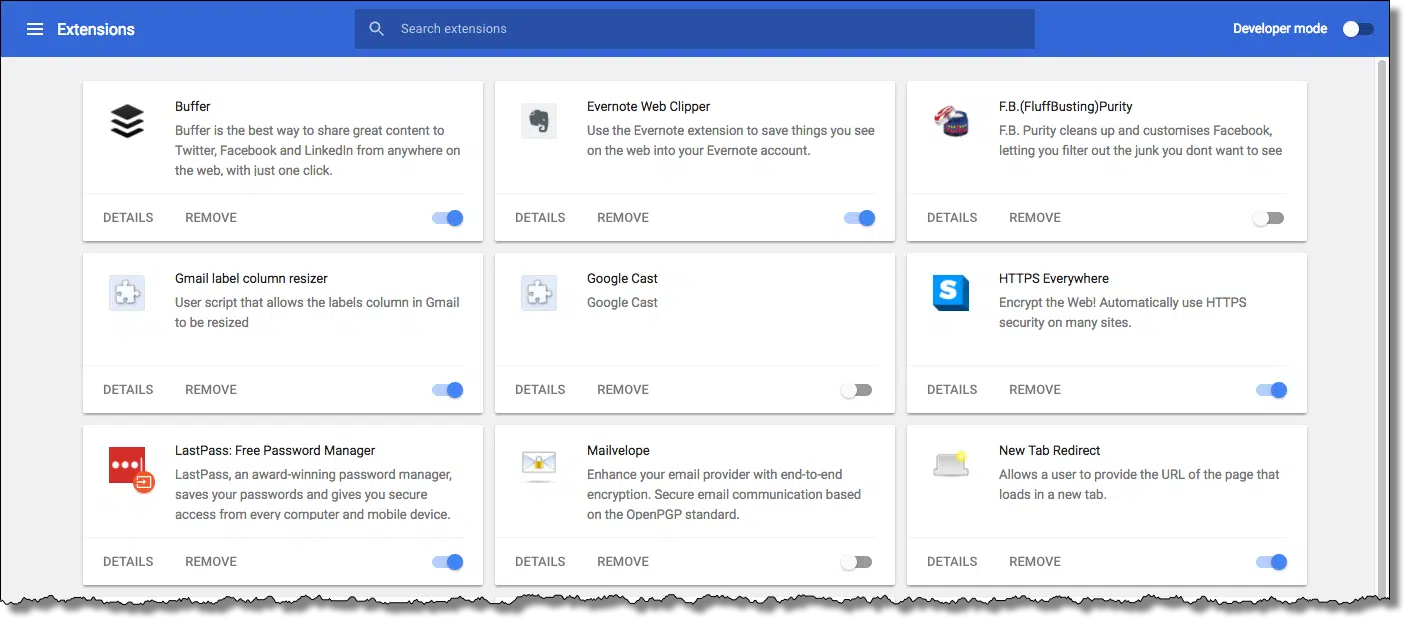
Browser extensions are wonderful things. They can add features and functionality that make little sense to incorporate directly into the browser, aren't needed by the vast majority of browser users, or enable functionality in other products.
The downside is that each extension adds risk and potentially affects performance.
We've all heard of malicious extensions. They might silently use your CPU to mine digital currency or actively intercept and steal your personal or sensitive information.
Even well-intentioned extensions can adversely affect performance or browser behavior. One of the first reactions to "My browser is painfully slow" or "This site doesn't work" is almost always "Try it with all extensions disabled." It's not uncommon for that to resolve the issue.
Rule of thumb: think twice about every browser extension you add. Use extensions when they're valuable, but avoid them when you're just not sure.
Error message boxes include titles that are important to pay attention to.

Message boxes have three distinct areas:
The error message is, of course, the most important part, but it's not the only part. The title bar — the bar of information across the top of the message box — frequently has additional important and relevant information. It's easy to overlook, but it's important not to do so.
The confusion comes from the fact that programs use the title bar inconsistently. Some include the name of the program generating the error (the title bar's intended use, as I understand it). Some include the beginning of the error message. Some include the error message in different words (as in the example above). Some include additional information about the error.
It's a confusing mess, but what isn't confusing is that you shouldn't overlook the information, whatever and wherever it may be.
It's often a clue that helps bring clarity — and occasionally even answers — to whatever the message box is trying to tell you.
Turning off remote access in Windows might feel safe, but it doesn’t block the kind of access scammers use. I’ll show you why those settings aren’t enough, how remote scams really work, and what simple habits will actually keep your computer secure.
That's a comment I received from a reader relating to the pernicious tech support scam, where scammers call you, say they've detected problems originating from your computer, and offer to fix it for you — perhaps even for free — if you just give them access to your computer.
Disabling remote access in Windows does not disable this kind of remote access. It does nothing to prevent remote access scams.
I'll review the setting in Windows and compare it to the remote access more commonly used by scammers.
And, of course, I'll review what you need to do to stay safe. There's a good chance it's something you're doing already.
Turning off remote access in Windows doesn't stop scammers because that's not the tool they use. They trick you into using tools that ignore those settings. The real fix? Don't give access to anyone you don't know. Be skeptical. Only use remote access tools with people you absolutely trust.
As outlined in "What's the Difference Between Remote Desktop and Remote Assistance?", Windows Home editions don't support being accessed remotely by Remote Desktop, so this section doesn't apply to computers running Home edition.
In other editions of Windows, search for "remote access" or "remote desktop settings" and click on the latter when it appears.
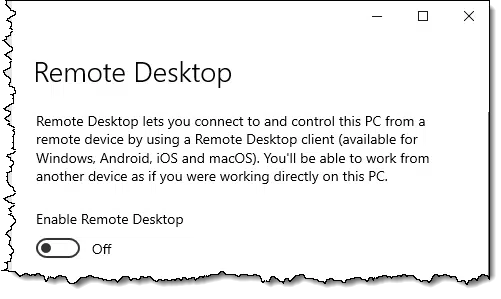
Remote Desktop allows someone to remotely use your computer as if they were sitting in front of it.
It works most seamlessly on local area networks, so if you have multiple machines behind a single router, it can be a very useful tool for that as well.
If it's not something you know you need, leave it off.
Either way — on or off — it's unrelated to the scams we hear about. Scammers rarely use Remote Desktop.
Remote Assistance is similar to Remote Desktop because it allows someone else to access and control your computer. However, you must initiate each remote assistance session, and you can watch and interact with whatever the other person is doing.
To find it, search for "Remote Assistance" and click on "Allow Remote Assistance invitations to be sent from this computer".
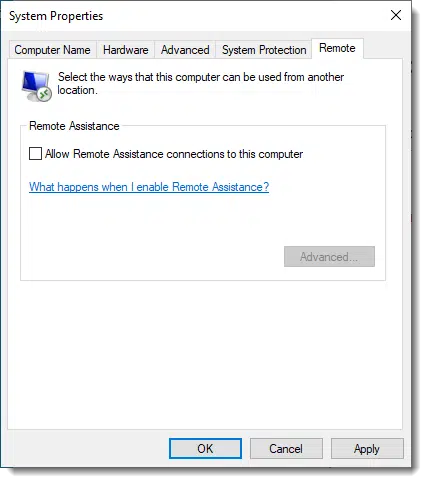
I recommend you leave this option off unless you're about to use the remote assistance feature, and then turn it off again when you're done.
Or leave it on. Once again, this is rarely a tool used by scammers.
There are a myriad of other tools to access computers remotely. I happen to be partial to Google's Chrome Remote Desktop, but tools like TeamViewer, LogMeIn, GoToMeeting, Zoom, and others are all valid and useful tools to access someone's computer remotely.
Scammers try to convince you to install or otherwise use these tools. To be extra clear, the tools themselves are not scams or malicious. Like most tools, though, they can be used for good or evil.
The bad news is that none are affected by the Remote Desktop or Remote Assistance settings I just described. They'll work regardless of those settings.
The good news is that these tools don't start themselves; like Remote Assistance, you have to take steps to let someone into your machine.
And this is exactly what scammers try to get you to do.
151: Since you've been reading Ask Leo! regularly, you probably already are. But for everyone else...
Think clearing your browser or deleting files keeps your work computer activity private? Nope. I’ll walk you through the ways employers can recover or track what you’ve done, sometimes even after you’ve “erased” it, and why you should always assume they’re watching.
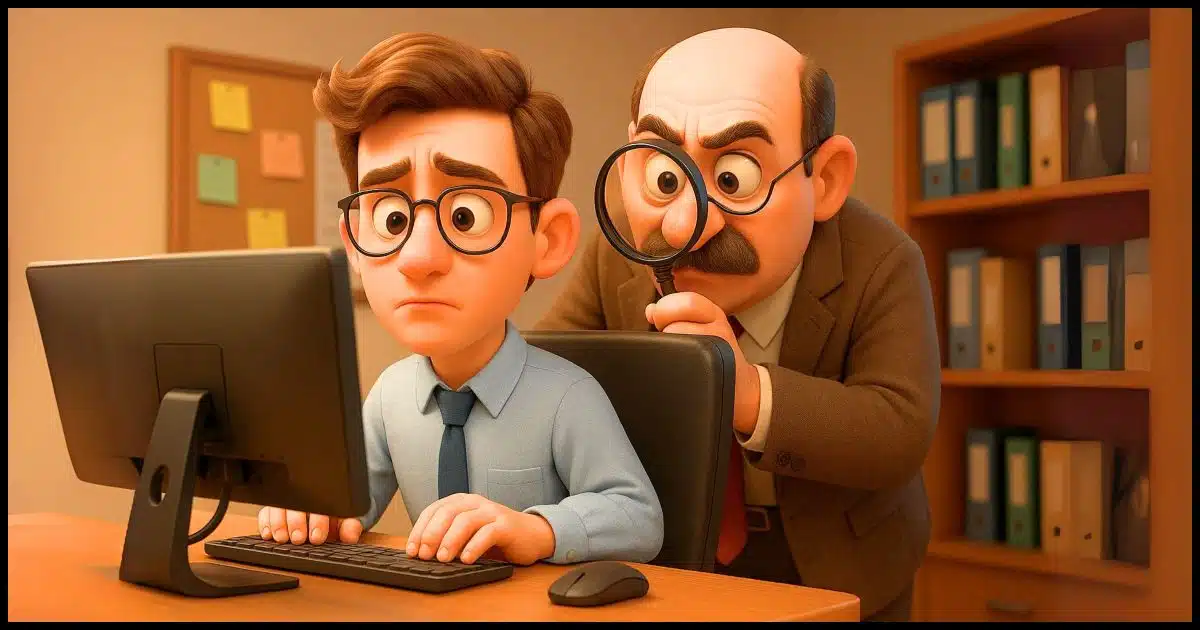
There's so much more to your computer, as well as your activity history, than just cookies and tools like CCleaner can clean.
So much more.
I'll review a few of the more obvious ways employers can recover or collect information about your activity. I'm not doing this so you can hide things better, but to illustrate the futility of trying.
Even if you delete files or clear your browsing history, your employer can find out what you've been up to. Deleted stuff can be recovered, other hidden info might still exist, and they can track you through network activity. If it's their computer, assume they can see everything, because they probably can.
Cookies are small files left on your computer by websites you visit. The contents of the files might not be useful, but their presence shows that your web browser has at some point visited that site. It's a way to see where you've been.
Tools like CCleaner can easily and quickly clear cookies.
These tools can also clear other traces of activity, like your browser history, temporary files, the contents of your browser's cache, and much more that can hold information about what you've been up to. They are an easy first step in removing traces of your activity.
But they're not complete.
Deleting a file on your PC doesn't delete its contents. Unless you take steps to overwrite the data, there's a possibility someone could recover and restore it. This is what undelete tools are all about: trying to recover deleted files.
Clearing your cookies or history, or whatever else a data-cleaning tool might remove, does nothing more than delete the file(s) containing the information. The files could still possibly be undeleted.
The only way to avoid this is to overwrite the data after a delete. CCleaner and similar tools have a "free space wipe" tool that overwrites all the free space on your hard drive with random data, rendering what was there practically145 unrecoverable.
That may still not be enough to erase all of your tracks, however.

No, not your backups — your company's backups.
In corporate environments, the company should have some kind of backup solution in place for all the equipment used there.
That's great if something goes wrong and your computer dies, or you lose something important. It's a safety net for both you and the company.
But depending on how often backups are created and how long they're kept, they're also a potential source of digital data coming back from the grave to haunt you. Even if you carefully and securely delete a file today, if it was on your PC prior to the most recent backup, it can still be recovered.
Windows is a complex operating system, as are the applications that run on it. Programs store information in places you might not know about, or in places you know about — like the registry — but have no way to remove. Even so-called registry cleaners only remove or correct certain types of information. They are more about the health of your system than removing evidence of your activities.
For example, someone knowledgeable could analyze the paging or hibernation files to collect or infer information about what you've been up to.
There's simply no way to know that there isn't some amount of evidence of your activities left somewhere.
The only way to remove all evidence of activity from your computer is to erase it completely. There are two approaches. One is to use tools like DBan to erase the hard disk. The other is to reinstall Windows from scratch, reformat the hard disk as part of the process, and perform a free-space wipe when the install is complete.
Both are likely to act as warning signs to an employer.
And both may still not be enough.
When we think about tracking and evidence of our activities, we immediately think of all the data that's stored on our devices. Your company may not even need access to that.
Remember, they provide your internet connectivity and local networking. That means they can monitor where you go and what you do.
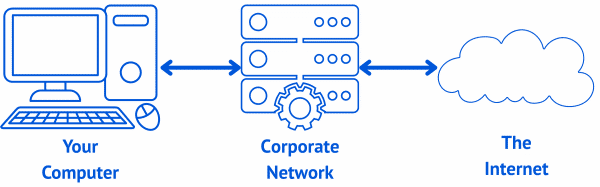
They don't need access to your machine; all they need to do is monitor your online activity through the devices they control.
When you use a computer provided to you by your employer, it's not your computer. In most jurisdictions146, you don't have a right to privacy on workplace-provided equipment.
The most obvious implication is that your employer has a right to snoop on what you're doing by examining your computer or monitoring your internet traffic.
More concerningly, though, your employer could legally install spyware on your machine or interfere with the "privacy" implied by HTTPS-secure websites. That means that even if you completely erase what's on your computer, they may have already collected information about your activity and sent it to their own servers for storage and analysis.
152: Sadly, there are no absolutes. For example, there's a tiny chance that data overwritten on magnetic material could still be recovered through extensive (and expensive) forensic analysis.
153: Remember, I'm not a lawyer, and none of this is legal advice. If you need legal advice, get an attorney.
Dozens of Edge processes in Task Manager? Not to worry. It’s not a bug, it’s a feature. I’ll show you why modern browsers split tasks across multiple processes and how it actually helps things run faster, smoother, and more reliably.

I was tempted to respond with my Why Ask Why? article, but this is deserving of a little more explanation because it's a common question and an occasional concern.
Nope, nothing's wrong. This is how software is designed these days.
And it's a good thing.
Edge shows lots of processes because it splits its work into smaller parts to run faster and smoother, like helpers in a kitchen each doing one job. It's normal, it's smart, and it helps your browser work better. Nothing's wrong, and there's no need to worry.
With only the Edge browser running and displaying a single webpage, Task Manager's process list shows the running programs.
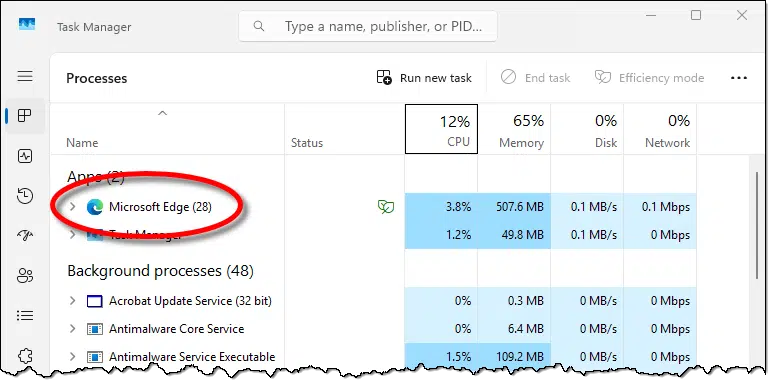
Note the number 28 in parentheses (it may be different for you, and it may change as you watch). That's the number of separate processes that comprise the running program, Edge.
If we expand the item (by clicking on the ">" to the left of "Microsoft Edge"), we'll see the full list — or at least what will fit in the window (scroll to see the rest if it doesn't fit for you).
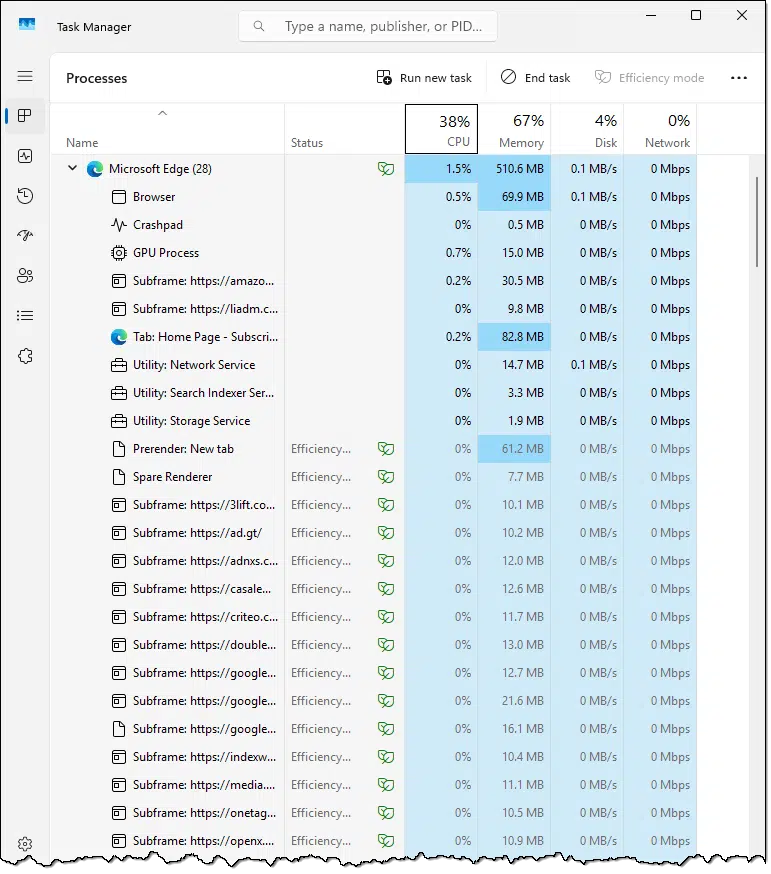
As you can see, there's a lot going on.
Each subprocess — sometimes referred to as a thread — represents a separate mini-program running on your PC. It runs independently of the other subprocesses, though it coordinates its work with the other subprocesses as needed.
I won't speculate on Edge's design147, but I can generalize.
Multi-process (or multi-threaded) programming is now common. A single program might be implemented as 28 separate subprocesses; that's simply a design choice by those writing the software, who want the software to do its job as efficiently as possible.
As an example, one subprocess might be responsible for all network interaction — sending requests to a website and getting responses. Another might update what you see on the screen. One task might have to wait for the other; for example, your screen might not get updated if the network had an interruption or was slow.
Multi-process software avoids that interaction. The subprocess in charge of updating the display can move ahead regardless of what the networking subprocess is or isn't doing. The result is more efficient use of the CPU and a better overall experience for the user.
Let's say you're in charge of preparing a meal. By yourself, you can do only one thing at a time. You prepare the main course; you prepare the side dishes; you prepare dessert; you set the table. While you might switch from one task to another for efficiency, you're still only doing one thing at a time.
Perhaps the recipe for the main course can be divided into two separate tasks that don't need to be combined until just before you throw something into the oven. Perhaps it's wet ingredients and dry ingredients. By yourself, you must first do one and then the other.
If you had help, though, then you could do one — say the wet ingredients — and your helper could do the other.
That's multi-processing. You're both working on a single program (Dinner), but you've divided up the work into two parts (Main course, wet and Main course, dry) that can be, at least for part of the process, done simultaneously.
Edge has a very, very busy kitchen.
Many people look at the multiple processes spawned (as it's called) by running Edge (or many other software packages running on their PC) and think there's something wrong. Or they think that the software designers are crazy and horribly inefficient.
Just the opposite.
Multi-process or multi-threaded software can be complex, for sure, but it's also an important characteristic of software that does what it does efficiently.
I've used Windows Task Manager in the example above, but most browsers now include their own Task Manager that focuses specifically on the processes involved in running that browser. In Edge, for example, click on the ellipsis in the upper right, then More tools, and then Browser task manager.
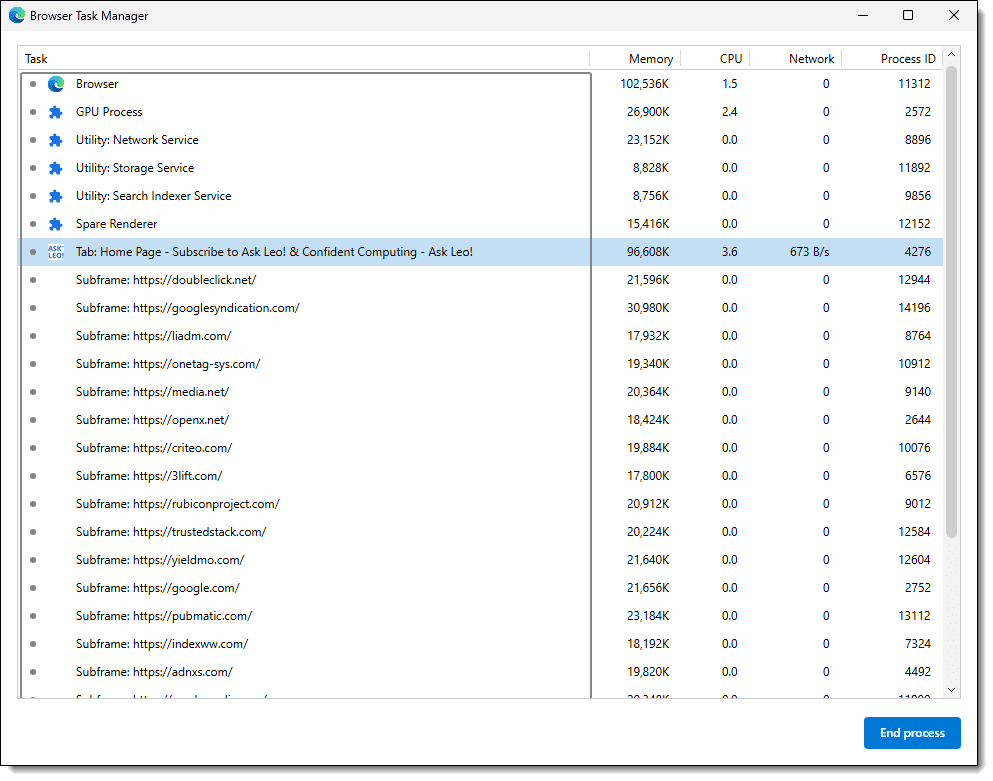
This shows roughly the same information as Windows Task Manager, but only on the browser itself. It's a useful way to focus your attention only on browser performance and/or issues.

154: In this case, Chromium's design, since Edge, like Chrome and other browsers, is based on the Chromium browser engine.
Make sure your password isn't known to hackers with this useful tool.

Normally, when we think of checking for hacked accounts, we start with our email address. Services like Have I Been Pwned?148 take your email address and tell you if it's appeared in any known large-scale data breaches. If it has, you know to change the password on any other accounts for which you use the same email address and password.
Checking your password is another good idea.
Pwned Passwords, also by the Have I Been Pwned? folks, tells you if the password you enter has been discovered in any breaches.
This matters because it means the password is known to hackers. They're likely to try it in other offline brute force attacks in the future. If you continue to use that password anywhere, you're at greater risk of getting hacked.
In the example above, the password "password" has been seen over three million times. Clearly, that's a password to avoid.
Make sure your passwords aren't in the list, and if they are, change them right away.
Yes, you are, kind of. Technically, the password never leaves your browser. Only a hash is uploaded, which cannot be reverse-engineered into the original password.
But, of course, if you don't trust Pwned Passwords, you shouldn't use it.
I trust it. I trust that it (and the people behind it) is doing exactly what it says: keeping no record and using what you enter only to see if it's in the breach database. I've trusted it many times over several years with no adverse impact.
155: Generally pronounced as "owned" with a "p", or "poned".
The desktop can be a convenient place for shortcuts. Creating one is easy.


Many people find it convenient to keep links to commonly used items on the desktop. Let's use your Documents folder as an example of how to place a shortcut on your desktop.
Start in Windows File Explorer, not maximized, so it doesn't completely cover your desktop. Using the mouse, click and hold on the Documents folder, drag it to an empty area on your desktop, and release the mouse. Windows will create a shortcut to the folder.
When you want to open the Documents folder, you can simply double-click on the shortcut.
You can drag and drop shortcuts to almost any file or folder. Be careful, however: before releasing the mouse, be sure that the text underneath the icon you're about to drop says "Shortcut".

If it doesn't, a drop might move or copy the file, which is generally not what you want for your desktop. Usually, your desktop should only have shortcuts (pointers to where the files live). If you don't see "Shortcut", hold down the ALT key. "Shortcut" should appear, and then you can release the mouse button.
A security professional shared the top four most successful hacks that compromise business accounts. I'll walk through them and show how they all apply to you and me as well.
Rachel Tobac, CEO of SocialProof Security, recently posted about four specific hacking attacks she sees impacting businesses these days. From her perspective, "phone-call-based" hacking has the highest success rate.
Since her focus is on business, I want to describe those same four techniques from a consumer's point of view. These techniques have a high success rate among "normal people" as well as businesses.
Let's identify them, the things you need to watch for, and the steps you need to take to stay safe.
Hackers trick you by pretending to be someone you trust, asking for your info, or getting into your computer. They might wear you down with 2FA pop-ups or even steal your phone number. Don't share codes or passwords, don't allow remote access, and always double-check unexpected requests.
You get a call or a text from someone claiming to be from an IT support helpdesk of some sort. It may be vague, or they may claim to represent an online service you use, such as Microsoft, Google, or other popular platforms.
They present a scenario where, for one reasonable-sounding reason or another, you need to give them your password or your two-factor code. Maybe, rather than explicitly asking for these things, they'll direct you to a link where you can clear up an issue without them needing direct access to anything.
Of course, it's all a scam. If you give your password or 2FA code to someone, they immediately hack into your account. If you visit the link they give you, you'll be asked to sign in, and in doing so, you'll hand over your credentials to a hacker.
This is a variation of the impersonation scam above. Rather than asking you to take some action, they'll helpfully offer to take care of it for you by accessing your computer remotely. They'll ask you to download and run a remote access tool149 and then give them access to it. They then have complete access to your computer.
It's all a scam. Once in control of your computer, they can install malware, steal credentials, and much, much more. This often happens faster than you can follow and is sometimes hidden behind crafty software they install.
This is a new one to me, and I have to say that I haven't encountered it personally.
The concept is simple: a scammer attempts to sign in to your account, which is protected by two-factor authentication (2FA) or multi-factor authentication (MFA). The specific type of authentication used means you get a notification — perhaps via email or via another device you're using. Of course, you decline it since you are not attempting to sign in.
So they repeat it again and again and again, until finally, in exasperation or by accident, you allow it.
The attacker now has control of your account.
This is one you can't see coming.
The attacker calls your mobile provider pretending to be you or your employer. They claim you've lost your phone but have a replacement in hand. All the mobile provider needs to do is move (transfer, or "port") your mobile number to the replacement device.
If they successfully fool the mobile provider's customer support agent, your phone number is then assigned to the hacker's phone. They start getting the two-factor codes and other messages needed to access your account.

The steps you need to protect yourself are simple yet easy to overlook.
Tobac recommends the Be Politely Paranoid Protocol. In other words, be skeptical and paranoid. Politely confirm the veracity of an unexpected request by confirming that they're legit via another channel (one that is not provided by the requestor). For example, if someone claiming to be from your bank calls you and starts to ask for sensitive information, let them know you'll need to call them back using a number you already have for the bank. If the caller balks, it's a strong sign there's something amiss.
If you have the option, use 2FA techniques that don't involve your phone number. That means choosing TOTP (Google Authenticator compatible) techniques or a hardware key like a YubiKey, rather than SMS (text)-based 2FA.151
Of course, that assumes you're using two-factor authentication. 2FA remains the most important thing you can do to protect your online accounts, so be sure to use it if it's available.

156: Which in itself is a legitimate tool.
157: Of course, never say never; there are rare cases where it might be the right or expedient thing to do. But only if you are absolutely, completely, 100% positive that you know the person you are communicating with and trust them completely.
158: SMS 2FA is still better than no 2FA at all, though.
AI can deliver more complete and understandable information than traditional whois services.
(Animation: askleo.com)
"Whois" is the generic term (as well as a specific online protocol) for determining the owner of a website and information about that owner. Typical whois services, like whois.domaintools.com, return a generic list of random information about the specific domain requested.
Try AI instead.
Asking ChatGPT (no account required), for example, "whois askleo.com", returns a fair amount of understandable information about the domain — sometimes even more than a traditional whois lookup.
It's another tool to research the sites and services you interact with online.
It's important, yet sometimes hard to tell, if a website is safe. You can stack the odds in your favor. I’ll show you simple tools and smart habits to help spot shady sites before they cause trouble, even if there’s no way to always be 100% sure.
There is no simple solution to this problem. There's no single service or tool you can rely on to keep you completely safe. There is no such thing as "safe", after all.
I understand that can be frustrating. You want to know that you're not about to be ripped off by a shady business, or worse: hacked by a malicious site.
You can use tools and techniques to stack the odds in favor of safety, but the ultimate safety tool remains yourself.
There's no perfect way to know if a website is safe, but you can check with tools like VirusTotal, Norton Safe Web, and Web of Trust. Use good security software, and trust your gut. If something feels off, stay away.
There's no canonical list of what is or is not safe.
One problem is that the word safe has different meanings depending on who you ask.
For some people, safe means you won't pick up malware by visiting the site. For others, safe means there isn't any risqué humor. For still others, the site represents a company safe to do business with.
There are probably as many definitions of what it means to be safe as there are people answering the question.
I don't believe it's possible to get an absolutely safe/not-safe decision from any service or tool. But you can get data to help you make that determination yourself, based on your own criteria.
When faced with an unknown site or questionable link, you might consult three online services that rate websites.
At Virus Total (owned by Google), you can upload suspected malware or URLs and have multiple security scanners analyze them.

The focus here is on security and malicious behavior as reported by a collection of security vendors.
I'm particularly interested in the Details page, which includes technical details of what was found.
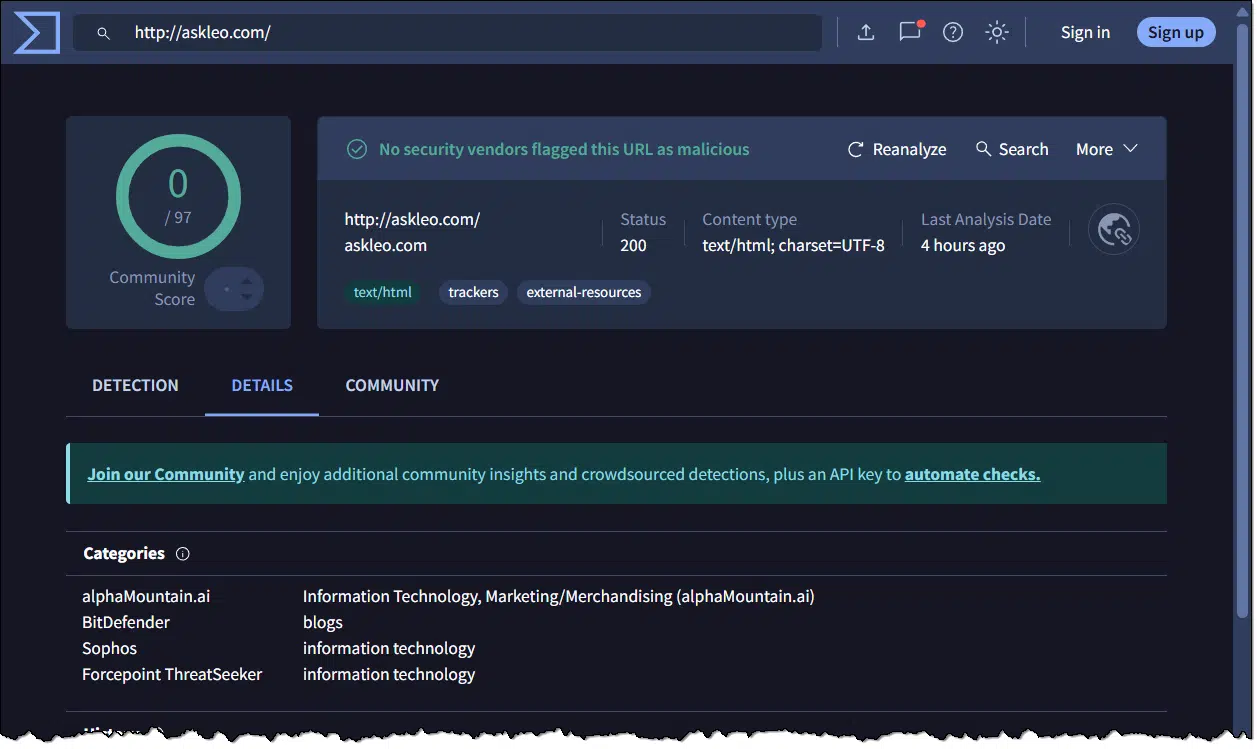
This can be useful for understanding where URLs redirect to, what trackers are present, and much more technical information about the website being analyzed.
While Virus Total has a community aspect, Norton SafeWeb relies on it a little more.

It's unclear exactly what "Norton Safe Web has analyzed..." means (its results are apparently not included in that of Virus Total), but you'll see a "community rating" section that can be useful.
Web of Trust became controversial several years ago when it was discovered that they were selling data collected by their toolbar. The solution is simple: don't use their toolbar.
Their online service remains a valuable source of data. The information is crowdsourced: it's generated from internet users, not from some central authority.

This will tell you if others have found the site to be safe and trustworthy or not.
You do not need to register, sign in, or download the extension, even though it may be offered multiple times.
Some of the information provided by the services I've listed above is user-provided: crowdsourced. There is value, but also some concern, in that.
Anyone can post anything. That means crowdsourced information can be abused, primarily in either of two ways.
There are processes to minimize this activity, but like any spam filter, it's impossible to be 100% accurate. View all information on crowd-sourced review sites with a skeptical eye. It's not authoritative, but it can be valuable, additional data.
Aside from online tools, there are several other techniques that may help you determine your online safety: DNS blocking, website blocking, and browser blocking.
When you access a website, webpage, or download, DNS looks up the mapping from the domain name (like "askleo.com") to the IP address of the server where that domain is physically located (like 54.85.8.229). Since every domain you access goes through this look-up, it's an opportunity for the DNS service to block access to domains known to be malicious.
Unfortunately, most DNS services don't do that.
OpenDNS, now owned by Cisco, is a replacement for the DNS service provided by your ISP. OpenDNS was originally created to be a faster, independent DNS service, but they support malicious filtering as an option as well.
Changing your DNS is best done at your router, though you can do it on each individual device as well. To use OpenDNS, visit their setup guide to get started.
Many anti-malware scanners and security suites include malicious website detection as part of the service they provide. The quality and intrusiveness of this detection vary based on many things, including not only the specific security package you run but the browser you use, as well as other aspects of your system. I don't have a specific recommendation.
The security package I recommend — Windows' own built-in Windows Security — includes SmartScreen to protect your system from malicious sites and downloads.

A final class of tools for assessing website safety are toolbars and add-ons to whatever browser you use.
As one example, uBlock Origin is a browser plugin most people think of as a pop-up or ad blocker. It also blocks many malicious or questionable sites.

I've been running it for a while and consider it a fine addition to the toolset.
Archiving (rather than deleting) email allows you to retrieve emails from the past.

Google's Gmail introduced a feature I find exceptionally helpful. By giving you multiple gigabytes of storage for your email, it becomes practical to keep your email rather than deleting it all.
That's the difference between the Archive and Delete buttons in Gmail. Other mail systems have similar options.
I much prefer to archive my email so I can access it again in the future if need be. More importantly, I don't try to decide in the moment whether or not I should archive or delete — I just archive everything that isn't spam. Why? My "in the moment" decisions are often wrong, and sometimes I find myself wishing I'd kept an archive copy of some message I deleted.
Archiving everything solves this problem.
There is one caveat: you need to trust your email provider with your email over the long term (that's why I picked the particular email message in the example above ðŸ'‚ ). But, honestly, you already trust them daily, so having them keep something they've already handled for you shouldn't be a huge issue.
None of this negates the need to back up your email. Should you lose access to your online account, you'll lose access to your archives as well.
If a website makes you re-enter your email just to unsubscribe, it’s bad design, or worse, a shady tactic. I’ll explain why this happens, what it means, and how to spot when it’s just spam trying to trick you.

At best, it's because they're lazy.
At worst, it's because they want to make it more difficult to unsubscribe.
I suppose there's an even worse case: it's spam, and you never subscribed to begin with.
These days, there's no excuse for any of those situations.
If a site makes you type your email to unsubscribe, it's either using outdated tools or trying to make leaving harder. That's lazy, sneaky, or both. Good services let you unsubscribe with one click. And if you never signed up in the first place? Don't click'it's probably spam.
The most common reason is outdated or ineffectual mailing list software that doesn't encode your email address into the unsubscribe link.
It's not that hard. For example, while an unsubscribe link might be coded as a link to:
https://somerandomservice.com/unsub.php
There's absolutely no reason it couldn't be:
https://somerandomservice.com/unsub.php?email=leo@askleo.com
The latter link includes the email address as part of the request.
One click and you'd be done.
Almost all legitimate mailing list providers include this functionality. The unsubscribe links in my Confident Computing Newsletter are encoded in a way that may not look like an email address, but the information to identify which email address should be immediately unsubscribed is there.
If the organization sending you email doesn't have or use that capability, the only recourse is to ask you to re-enter your email address.
Instead, they should update to more capable software.
This is borderline conspiracy thinking, but I'm convinced it happens at least occasionally: by forcing you to re-enter your email address, they're hoping it's too much work or that you type it incorrectly. They're making it harder to unsubscribe on purpose.
The result is that you stay on their list.
This typically backfires, of course, as the next approach to get off the list is to mark those messages as spam. The sender can still claim a higher subscription number, but does it really matter if the only way to get off the list is to mark it as spam?
If you never subscribed in the first place, don't click on an unsubscribe link.
If you didn't ask for them, those messages are spam.
One way spammers harvest email addresses of real, live people is to include an unsubscribe link that asks for an email address. Any email address you give them is immediately "subscribed" to more spam.
Thinking about closing your email account? You might want to think again. From lost data to unexpected lockouts, and even someone else ending up with your old email address, I’ll walk you through what happens, and why keeping the account might be the smarter move.
Annnnnddd we're back to the most common answer on Ask Leo!: it depends.
It depends on the email service, of course.
But it also depends on your behavior after you indicate you close the account.
Closing an email account starts a countdown. At first, nothing happens. After a while, all your emails, contacts, and other info are deleted. You may lose access to other services, too. Later, someone else might get your old email address. My advice: don't close it, just in case.
In most cases, when you close an email account, the account is not closed right away.
What actually happens is... nothing. Typically, that's quite literal: nothing changes at all. Your account continues to receive email, and everything in your account remains in your account.
The only thing that really happened is that a timer has started. This timer, or grace period, allows you to change your mind. If you do anything with the account at all, the account closure is canceled. The assumption is that by using the account, you're saying you don't want to close it.
The length of the grace period varies from service to service. In some cases, it's zero days; in others, it can be several months.
Unfortunately, "doing anything with the account" can be quite literal. For example, if your email account is with a company like Google or Microsoft, which provides other online services, then using those services may be taken as an indication that you want to keep the account. And you probably do, since closing the email account would cancel all the other services associated with it. For example, do you want to lose the YouTube account associated with that Gmail account you just closed?
Be certain that you really want to close everything associated with the account before you do anything.
After that grace period, which varies from provider to provider, all content associated with the account is deleted.
This includes all email and all your contacts.
It also includes any other data associated with the service, such as calendars, online storage, photos, or whatever other services that are associated with this account.
Once deleted, this data cannot be recovered. You may still be able to sign in to the account and cancel its deletion, but everything within it is gone forever.
If the service sends bounce messages because the account no longer exists (which it may or may not), that function likely starts now.
Particularly if you've had the account for any length of time, you've probably used the email address at a plethora of online accounts, either as a primary identifier or login ID, or as a backup "alternate" email address.
Those stop working. Eventually, services like banking, shopping, and social media that still use your old email for sign-in or password recovery will lock you out.
Make certain you change your username everywhere before closing your account.
After that grace period, which varies from provider to provider, the account is completely deleted and is no longer recoverable.
You cannot sign in. Email sent to it will probably bounce.
The account is well and truly closed.
This is a step many people overlook. At some point (which, again, varies), the email address associated with your account may be made available for re-use.
Let's say your email address was joey@randomisp.com. You closed it, and all the steps above took place. If someone else creates a new account with that same service, they could choose your old address: joey@randomisp.com.
None of your old data would be present (it was deleted in step 2), but any new email sent to your old email address would now go to them. Any account you failed to update with your new email address risks being accessible to the new owner of your old email address. While you might not think they'd know which accounts to try, if a malicious individual was the new owner of your old email address, they could try using it at lots and lots of different popular services. That's exactly what hackers do, and there's a high likelihood you'll have an account one or more.
Not all services allow email address re-use, but even if they don't today, I expect most will eventually.
Crop, resize, edit, and play with your images to your heart's content. Just be sure to save the unaltered originals.

When we share or save photos, it's not uncommon to crop, alter, or resize an image before sending it on.
Save the original. You may find in the future that you really want the full-sized original, not a resized or cropped version of it.
As I write this, I'm working with a client on a website. Originally, the photos were 640×480 pixels in size. Ten years ago, that was a pretty reasonable size; it represented a sizeable area when displayed on the screens of the day.
Today, they look downright tiny. There are two options:
What we need are the original images, which were presumably taken at a higher resolution and resized for the common screen sizes of that day.
You may have other uses and needs for your own photos. But I can tell you that what seems like a large image today will be tiny someday. By saving the original, unaltered image, you maximize future possibilities.
Ransomware is scary, but don't let it blind you to more likely threats.

There's no doubt about it: ransomware is scary.
Unfortunately, because it makes for so many headlines and can be so devastating when it strikes, people focus too intently on ransomware to the exclusion of other threats.
Here's the not-so-big secret about ransomware: it's just malware. There's nothing special about it other than what it does when it arrives. Before it takes its devastating actions, it's just like any other piece of malicious software.
Focusing explicitly on ransomware can mean that more common threats — the forms of malware you're more likely to encounter — go ignored.
The bottom line? Protecting yourself from malware — using all the tools and techniques we talk about so often to keep your computer safe — will, as a side effect, also protect you from ransomware.
File History doesn’t let you limit how much space it uses, but there’s a workaround. I’ll show you how to partition your drive so File History stays in its lane, protecting both your backups and your disk space.
File History is a nifty feature in Windows 10 and 11 that allows you to designate a disk — typically an external disk — to act as a not-quite-real-time backup of the files you're working on. Every time you change the file, that file is backed up within some period of time. If you're working on a file continuously throughout the day, for example, File History might contain a snapshot of that file taken every hour all day long. You could recover any one of them if you wanted to.
There are many options you can set in File History, but limiting how much disk space it uses is not one of them.
We can work around that.
File History can't limit how much space it uses, but you can. By creating a separate partition just for File History, you can stop it from taking over the entire disk. It's a simple trick that sets boundaries where Windows won't.
File History has several approaches to controlling what and how much is backed up.
Regardless of those settings, though, it's still possible to completely fill the drive you use for File History. If you're also using that drive for other things, filling it up with File History will impact those other things.
By giving File History a dedicated partition, you limited its ability to impact what happens elsewhere. Here's how.
The old Control Panel is still around. Just click on the Start button, start typing control panel, and click on it when it appears in the results.
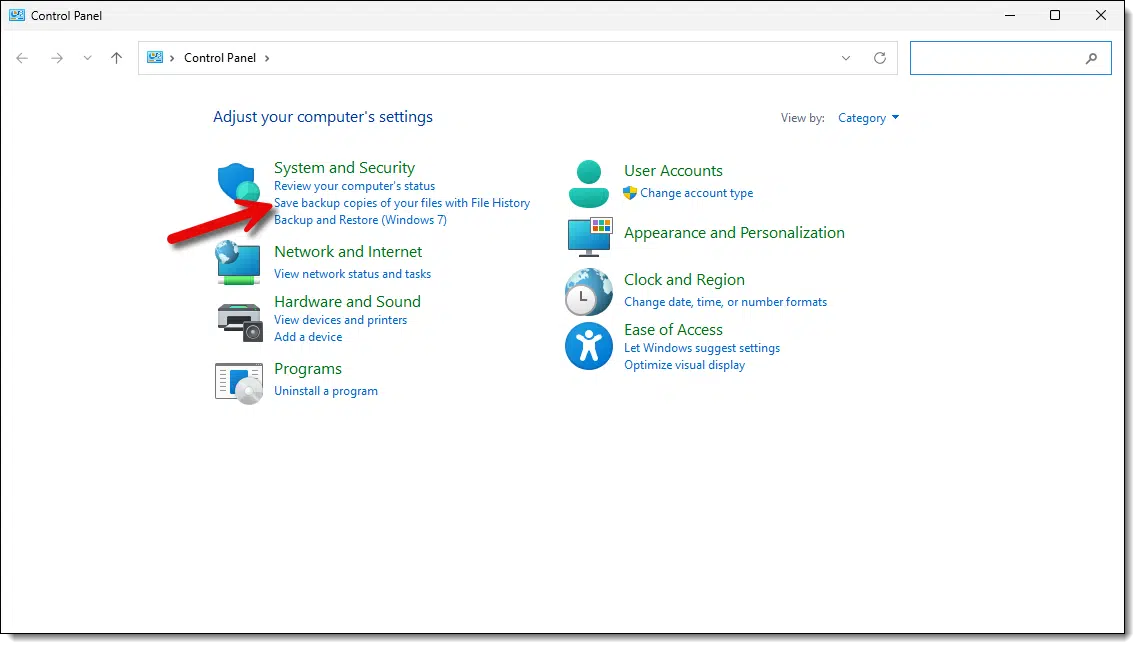
Under "System and Security", click on Save backup copies of your files with File History.
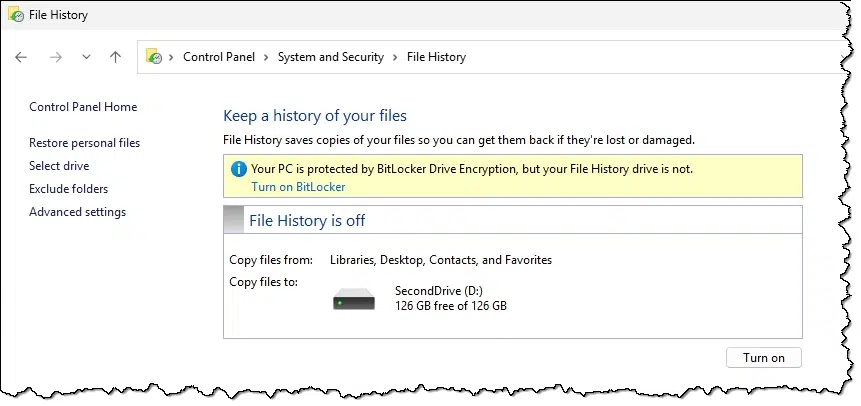
This machine has a second drive — drive D: — and File History shows that by default. It could be internal or external.152
This is the drive I want to use, but I would like to prevent File History from potentially filling it up completely and leaving me no room for anything else.
The solution? Partition the disk.
I've discussed disk partitioning — specifically splitting one partition into two — before, so you'll find step-by-step details at that link.
First, in Disk Manager, shrink the existing partition by the amount you want to reserve for File History.
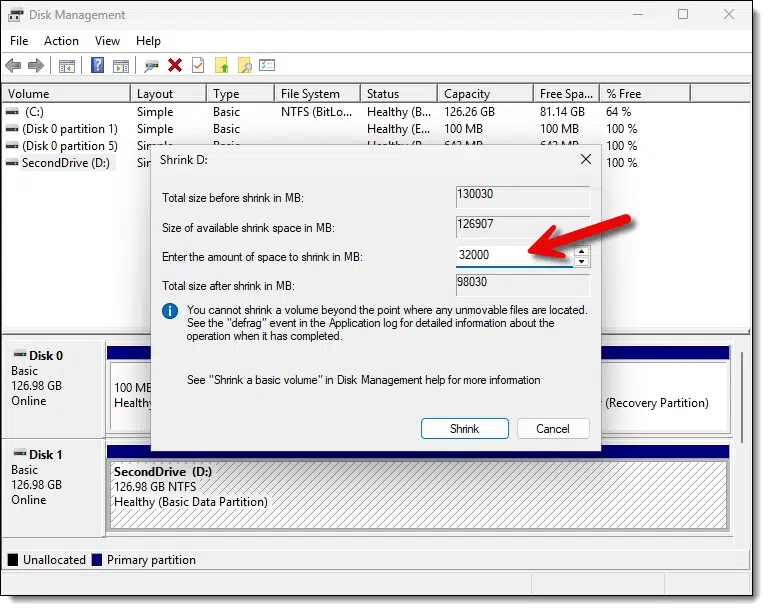
In the example above, I've selected "32000" megabytes, or roughly 32GB. The existing partition — the D: drive — will be reduced by that amount, leaving 32GB of unused space on the drive.

Then we create a "new simple volume" in that unallocated space.
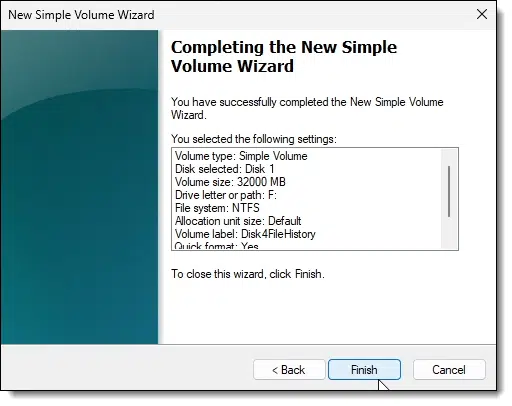
When complete, the original 128GB physical disk now appears as two separate drives.

Now we can use that F: drive for File History.
Back in Control Panel's File History setting, click the Select drive link on the left. This will bring up a list of drives available for File History to use.
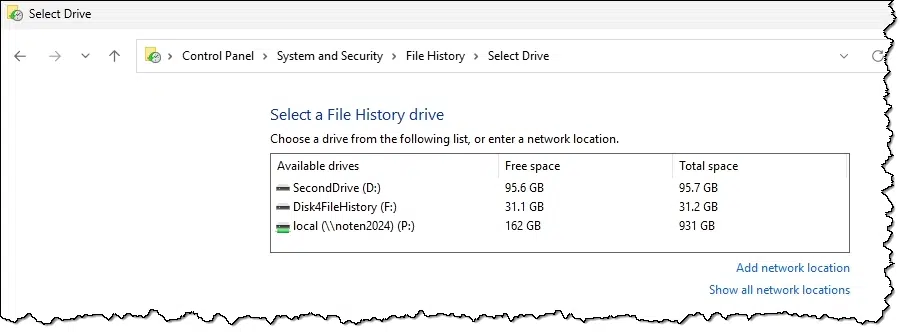
In my example, I'll click on the newly created drive F:, followed by OK.
Then I'll turn File History on.
159: The warning about BitLocker is because my primary drive is BitLocker encrypted, but the File History drive is not. This would imply that files backed up would not be protected by encryption. The solution would be to enable BitLocker on the drive we eventually choose as our File History drive.
Want to stick with Windows 10 and avoid the surprise of waking up to Windows 11? You have options. I’ll show you a simple, free tool that puts you back in control of system updates, keeping Windows 11 at bay until you decide otherwise.

I often hear from two groups of people concerning Windows 11.
And now there are rumors that people have been upgraded from 10 to 11 regardless of their desires, without being asked! I don't know if it's true, but these days I wouldn't put it past Microsoft to do something like this, either directly or by using dark patterns153. The cost the consequences — waking up to Windows 11 instead of 10 on your machine — is pretty high.
This article is for those who want to stay with Windows 10 even though their machine could support Windows 11, regardless of what Microsoft thinks.
Use GRC's InControl app to prevent Windows from automatically upgrading your current release. Run it and click "Take Control," and your system will stay at its current version and release until you choose otherwise. You might still see upgrade notifications, but they can be ignored.
The solution is a simple app from GRC154 called InControl.
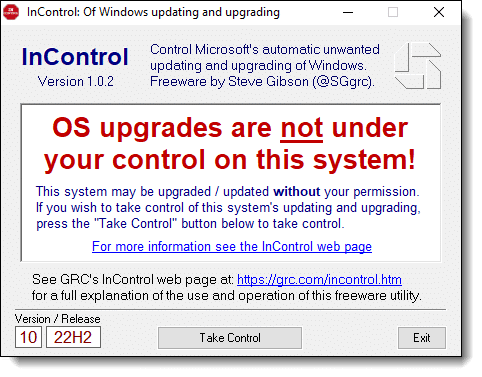
This app prevents an upgrade beyond any specific Windows version/release.
By default (without the app), you are not in control — meaning you're not in control of what happens to your system. Your operating system can be upgraded without warning.
In the lower left is a "Version / Release" entry that displays your current Windows version (10, in the example above), and release (22H2, the last Windows 10 release).
Click Take Control.
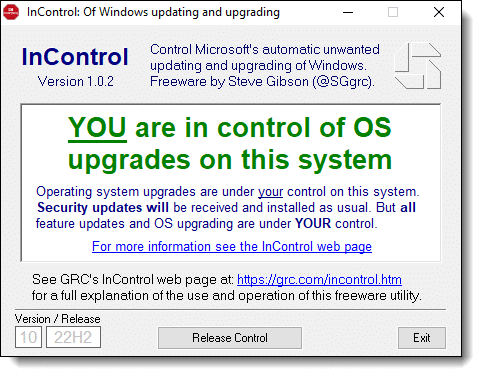
The Version/Release entry fields are now greyed. Windows will not be upgraded past this specific combination.
If you're on Windows 10, you're on Windows 10 until you say otherwise.
InControl isn't about staying on Windows 10 specifically; it's about any upgrade. For example, here's a screenshot of a machine running Windows 11.
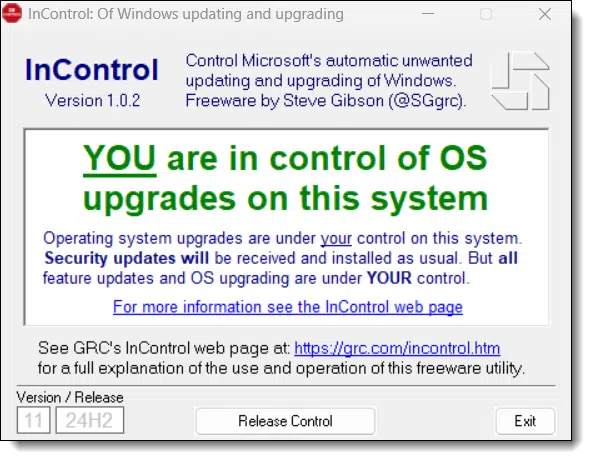
This Windows 11 machine will now not upgrade beyond Windows 11 24H2...
...until you click Release Control, after which Windows will do what Windows does.
InControl prevents your system from being upgraded past a specified release.
However, Windows may still encourage you to upgrade. You can safely ignore those notifications.
160: In my opinion dark patterns are more likely, since it gives them plausible deniability, and it's a technique they've been using to get people to "accidentally" enable the OneDrive backup "feature".
161: Almost all apps from GRC are small and simple.
You regularly mark spam as spam, but it's equally important to mark misclassified, legitimate email as not being spam.
(Animation: askleo.com)
I hope we're all used to finding spam in our inbox and marking it as spam (or junk, or whatever term your email interface or program uses). This is an important step in training the junk mail filter. Marking messages tells the filter what you consider to be spam; the filter then uses the characteristics of that message to better identify spam in the future.
The opposite is just as important.
If your spam filter makes a mistake and places a legitimate email into your spam folder, it's important to mark that message as not spam.
Once again, exactly how you do this varies depending on your email interface or program. It may be enough to move the message back to your inbox, or you may need to click a button that's visible on the message.
Regardless of how, it's an important step of continuing to train the spam filter, this time telling it that mail like this is not spam, and it can use the characteristics of the message to help it not misidentify spam in the future.
Copy/paste is one of the most powerful time-saving devices in computerdom. Understanding and using it pays off immensely.

I cringe whenever I see someone intentionally bypass one of the most basic timesaving computer shortcuts and make things harder on themselves.
Consider this URL:
https://somerandomservice.com
You'll note it's not hyperlinked. You need to do something if you want to go to that site.
Most people type the URL into the browser's address bar by hand, hopefully without error, and press Enter. Frequently, there are typos, so they repeat the process more slowly this time, once again by hand.
Ugh.
Instead:
Not only is this easier and faster, but it's not subject to typing errors.
I strongly recommend getting familiar with all the ways you can copy/paste. It'll make your life much, much easier.
A quick digital copy of important (or even not-so-important) documents can save time and stress if the original gets lost.

This isn't about me being over-the-top digital (though I admit I am); this is common advice: photograph or scan important documents, and save those images in a safe place.
While this applies to more situations than travel, having images of the original documents can speed up their replacement in an emergency when you're far from home. Even though they might not be accepted in place of the original, the images provide important reference information, such as ID numbers and other items that would help fill out forms or assist in what can be a stressful situation.
I am not a lawyer, so this isn't legal advice. I believe there are documents you cannot legally copy. Whether a scan or a photograph would count as a "copy", of course, I don't know. Check with authorities if you're at all concerned.
And don't limit yourself to "official" documents. Copies of your itinerary, lodging and car rental confirmations, and just about anything else on paper that would be an annoyance if lost are all candidates for a quick digital snapshot.
And yes, this is absolutely another manifestation of my favorite topic: backing up. 
Yet. Another. Breach. Don’t panic, I'll walk you through what you really need to do next. From checking if you’ve been exposed to strengthening your account security, it’s all here in simple terms.
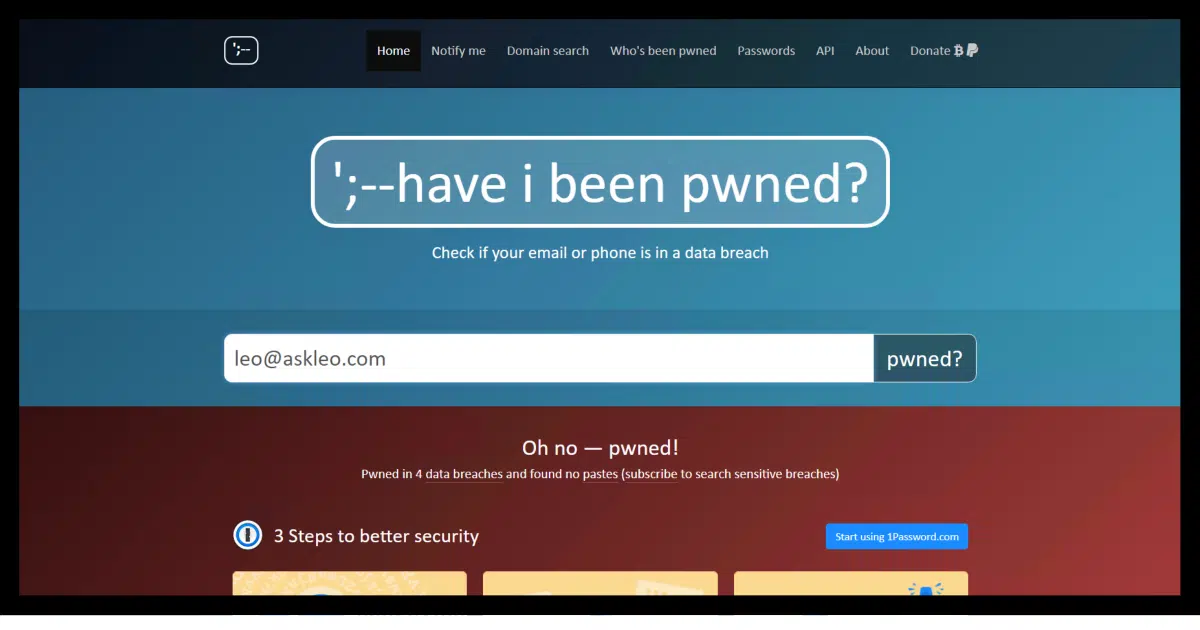
When I originally wrote this in January of 2019, there had been a breach (referred to as the Collection #1 breach) containing something like three-quarters of a billion email addresses and plain-text passwords. It was newsworthy because it was huge and contained passwords for anyone to see.
As I update this in June 2025, we have yet another report of 16 billion passwords exposed in a record-breaking data breach, opening access to Facebook, Google, Apple, and any other service imaginable.
Naturally, the question I (still) get most is: what should you and I do?
The same thing we do for every breach, my friends: the same thing we do for every breach.
In most cases, there's little you can do in response to a specific breach other than changing passwords if you know the services involved. Use every breach you hear about as an opportunity to review your account security to ensure it's as tight as you can make it.
Breaches happen so often that it's hard to take them seriously. A more likely reaction is "Oh, another one", with little attention paid to the specifics. The most recent breach is worthy of a closer look for a variety of reasons.
We don't really know where the breach came from.
We can infer from some data what service or services are included and what accounts all those email addresses represent, but we don't know how they were collected. Current theory is that this is an amalgamation of the results of several info-stealers, meaning malware that somehow scooped up credentials on individual machines.
If you find your email address is part of this breach (haveibeenpwned may155 tell you; more on that below), what then? What concrete action can you take?
Here's what you can and should do for this and any breach.
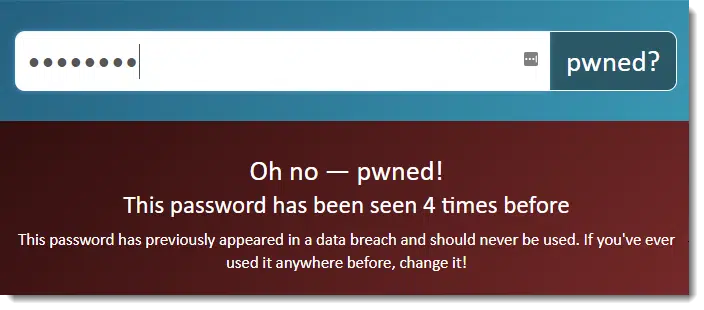
If you're comfortable doing so, run passwords you're worried about being breached through Pwned Passwords. I realize not everyone is OK with giving their password to a third party like that. I trust them, but you don't have to.
It's simple, really: if you have any concern about a password being compromised, change that password! Change it to something long, strong, and unique.
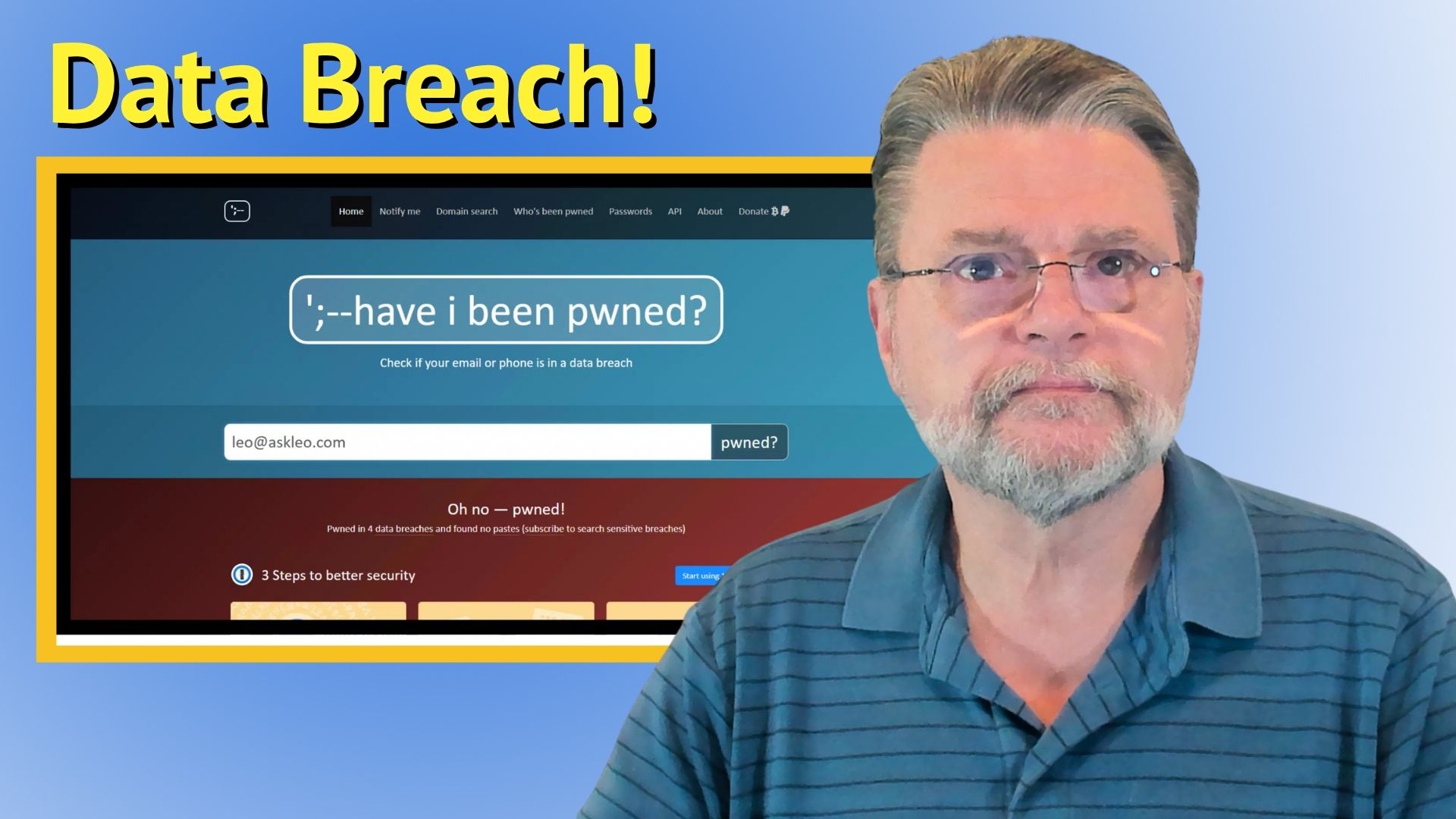
162: As I update this, it doesn't appear to include the results from this most recent breach yet.
I'll explain why searching for a tech-support phone number is one of the most dangerous steps you can take when you're looking for help.
Say you've been locked out of your outlook.com or Gmail account. Maybe you forgot the password. Maybe you were hacked. Your recovery attempts have failed, and you're desperate to regain access to your account.
So, you search online for outlook.com or Gmail "support phone number", hoping to talk to a real, live person to get help from the source.
Unbeknownst to you, things are about to go from bad to worse.
Searching for a tech support number for a free service like Gmail or Outlook.com? Don't. They don't offer phone support. What you'll find instead are scammers, fake numbers, or costly "help" you don't need. Always go directly to the service's official website. Never trust a number you found by searching.
I want to be very clear about something.
For the majority of free services, there is no official telephone support.
There just isn't. It's part of the cost of using a free service. Hiring live human beings to answer the telephone is much too expensive. If they hired customer service reps, your email wouldn't be free.
That cost should be a clue as to what you find when you search for a support phone number.

I did a Google search for "outlook.com support phone number" and got some interesting results.
At the top was an ad. A company paid to appear first in searches related to outlook.com support.
It was followed by what's referred to as "organic" or "real" search results.
First were two entries to Microsoft support webpages that were legitimate but ultimately unhelpful, since Microsoft provides no phone support for Outlook.com.
Additional entries included results from Microsoft support forums that listed phone numbers. Some of those could be scammers pretending to post legitimate numbers.
However, many of the remaining entries on the first page of search results appeared to offer phone numbers you could call for Outlook.com phone support.
What's up with that?
It's an alarming scenario: people call these numbers in desperation, thinking they're legitimate, official support numbers (they're not). One of two things happens:
It's much like the Microsoft support scam, where so-called support engineers call you claiming your computer is "causing problems on the internet" — except you've made their job easier by calling them!
After listening to your concerns, a scammer offers to take remote access of your machine to "fix" things, only to install malware or worse. Or they'll insist you purchase expensive software you don't need.
Even if they're legitimate (albeit not from the free service, because free services have no phone support), they can't do anything you can't do yourself. They have no special access or magic wand to help you with your account problems.
All they can do is make your wallet lighter.
When I mention this scenario to people, their first reaction is to blame Google (or whatever other search engine they used) for allowing these sites to appear in search results.
It's not that simple. Not even close.
There's still more complexity to it.
I've been using Outlook.com as my example here, but in reality, this issue applies to any popular free online service, most notably Yahoo!, Gmail, and others.
Here's the kicker: I took one of the phone numbers that appeared in the search result for "outlook.com support phone number" and Googled that phone number. The results, as a clickbait headline might say, will surprise you.
Of course, that number appeared for entries associated with Outlook.com, as well as other Microsoft products.
However, that phone number also turned up for Yahoo! and Gmail support. If there was any question before, it should be clear now: this number isn't provided by any of those services, as there's no way they'd do tech support for each other's services.
At best, it's a third party trying to get your business.
At worst, it's a scammer.
So, what to do?
There is no telephone support for free email services like Outlook.com, Hotmail, Yahoo! Mail, Gmail, or others.
No amount of searching will make it otherwise, and no amount of search results means otherwise.
There is no official number for you to call.
You need to get help through other means.
Always — and I do mean always — start with the official website for the service. That's outlook.com for Outlook.com, gmail.com for Gmail, yahoo.com for Yahoo!, and so on. If there is help to be had, you'll be directed to it from those sites.
There is no need to search further and every reason not to.

Computers are great at automating things. Let one of those things be your backups.

It's a mistake for us to rely on ourselves to perform backups.
The problem is, we get busy and we forget. It's too easy to overlook something you need to start manually. It can also be inconvenient: if your backup software affects performance while it's running, there's a disincentive to run it while you're using your computer.
Let the backup software handle it for you.
Every backup utility worth its salt includes the ability to automate the process. Use that ability. Backups are too important to leave to our faulty memories.
If that means leaving your computer running overnight so an automated backup can run without affecting you, so be it. If that means leaving an external hard disk connected so the backup has a place to be stored, do that, too. Backups need to be so easy that they happen without the need for you to do a thing.
Current partition style won't work? I'll walk you through what that means and two ways to convert between GPT and MBR partition styles.
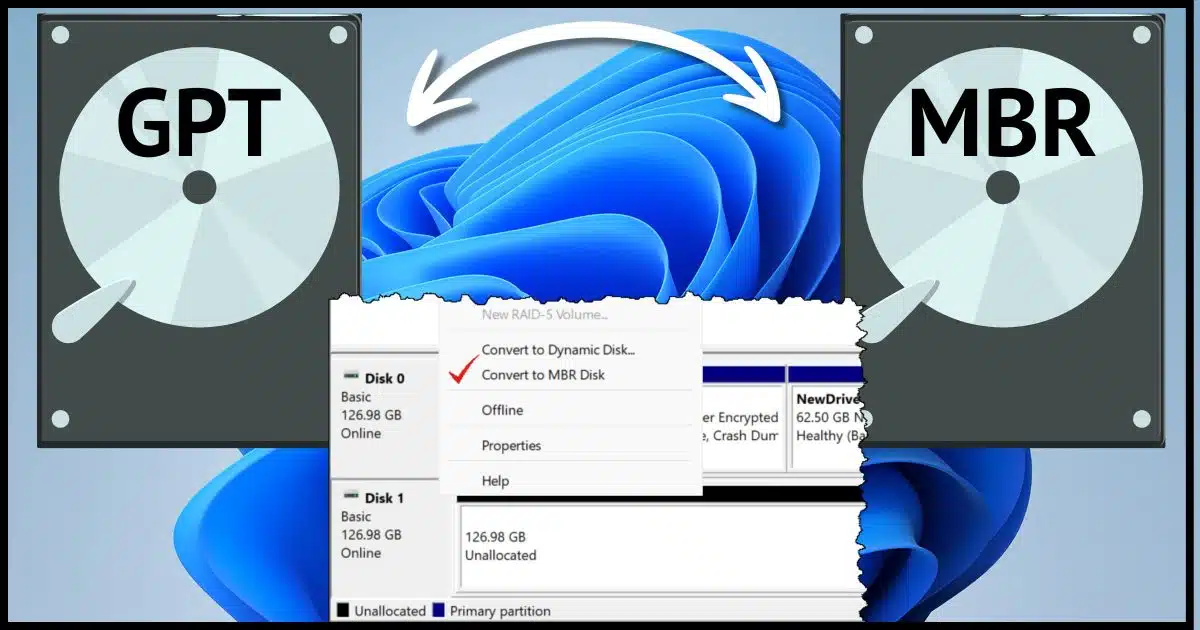
I'm somewhat surprised that Macrium Reflect didn't just re-initialize the disk for you, but I know it's not the only program that might require MBR over GPT (or perhaps even vice versa).
Let's look at what those are and a couple of ways to convert between them.
I'll answer three questions:
Let's start with some terms, since there's some ambiguity, or at least some common confusion.
MBR, for Master Boot Record, and GPT, for GUID Partition Table (where GUID stands for Globally Unique IDentifier), are two different approaches or "partition styles" for managing the information on a disk that records where the partitions on that disk live and how large they are.
If you've ever been instructed to initialize a disk, it's because no partition style was found.
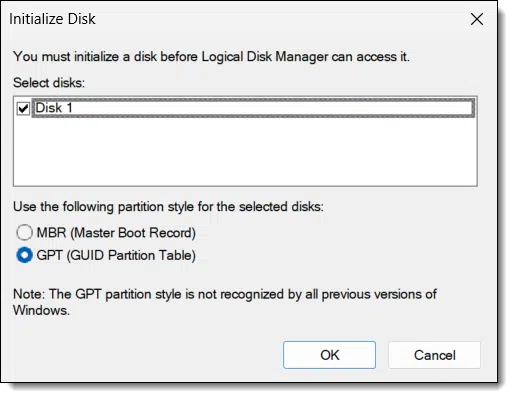
You can see that you're given the choice of which should be used.156
GPT is more common of late, as it supports larger disks than MBR, so it's not surprising that a random disk — even a USB stick — would come set up to use GPT.
Switching isn't difficult; it's just inconsistent.
Right-click on the Start menu and click on Disk Manager.
In the lower pane, right-click on the left-hand information box of the drive in question.
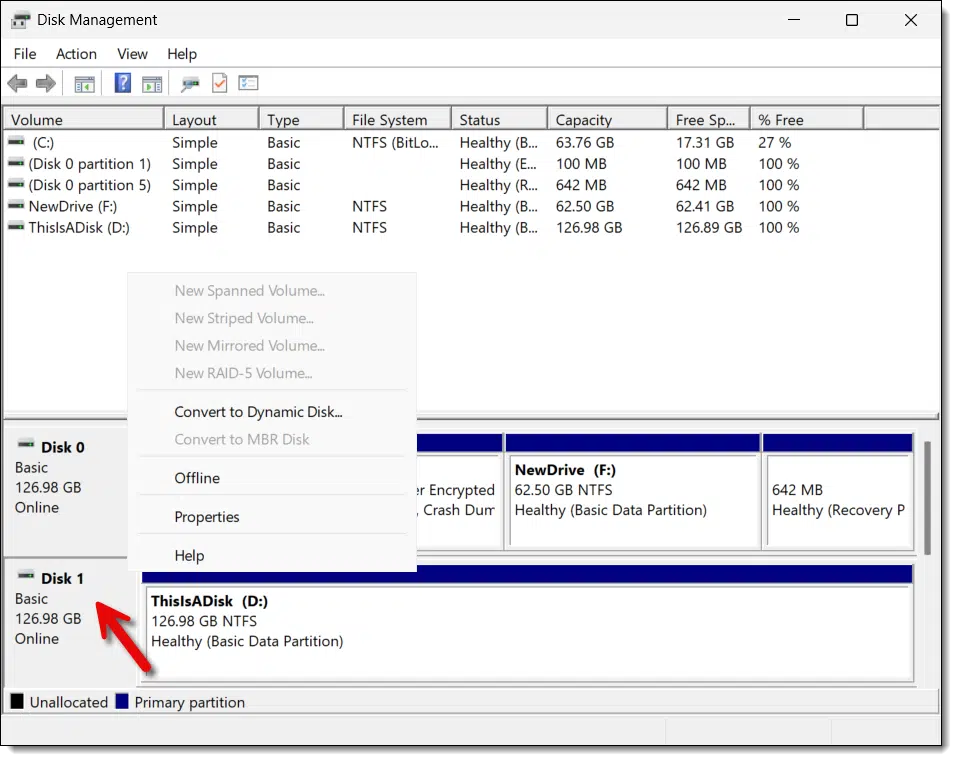
You'll notice a "Convert to MBR Disk" in the pop-up menu, though it's greyed. All partitions on the drive must be removed before you can convert it. Right-click on each partition, and click on Delete Volume... to remove it.
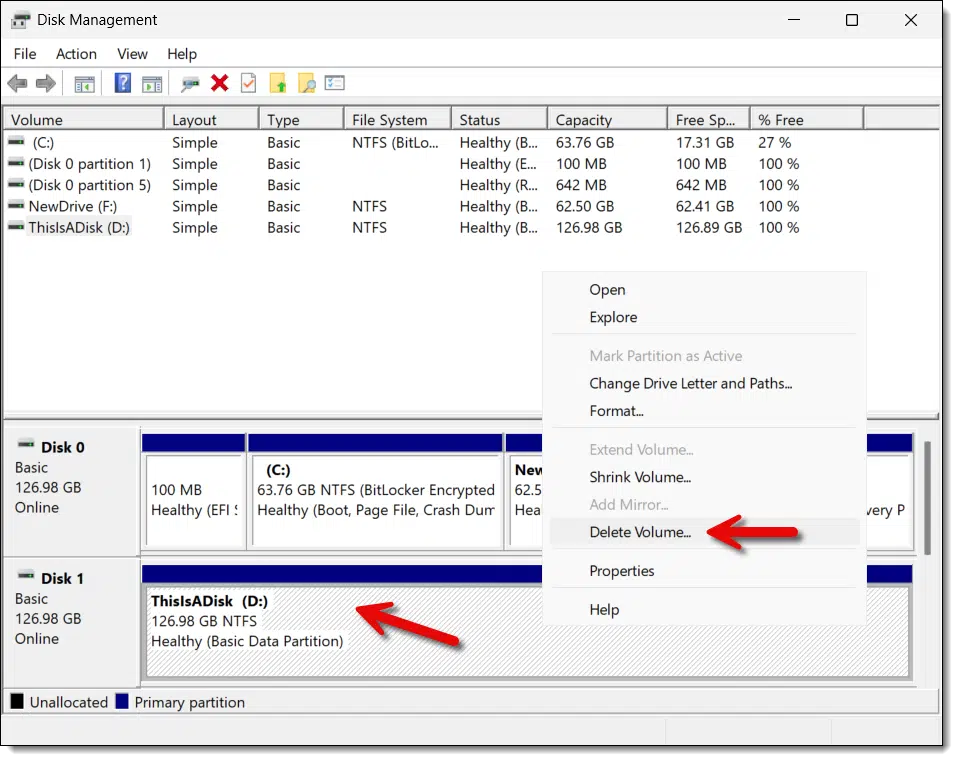
Note: Removing a partition deletes all data. Make sure there's nothing here you want to keep.
Once you've removed all the partitions, right-click on the left-hand drive information box again, and this time, Convert to MBR Disk should be available.
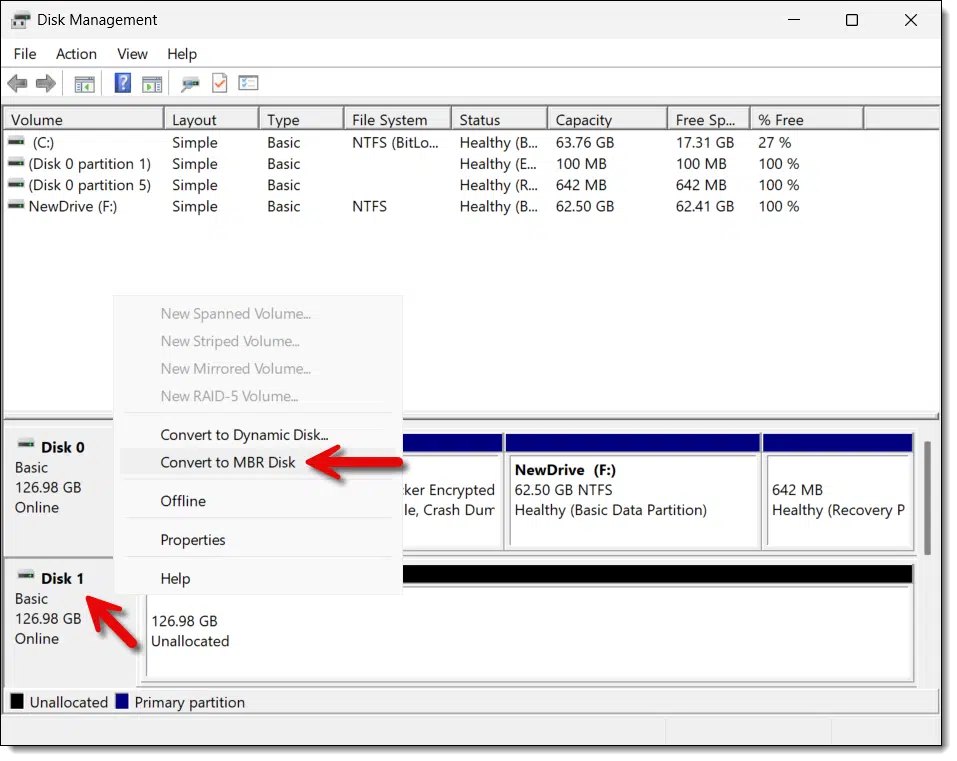
Click it to make the conversion.
If it says "Convert to GPT Disk", then your disk is already in MBR style.
I have encountered scenarios where the option isn't just greyed but is not present at all. When that happens, we need to resort to the command line.
Run an administrative command prompt by right-clicking on the Start menu and clicking on the "(Admin)" version of the command processor listed (Command Prompt, Powershell, or Terminal).
Type "diskpart" followed by the enter key. (The enter key is assumed at the end of every command we type from here.)
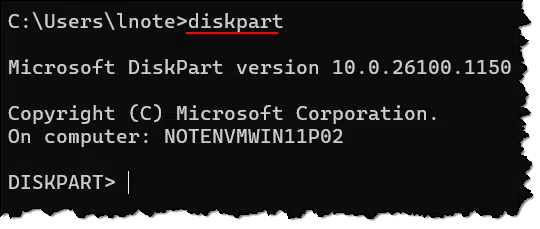
Next, enter "list disk".
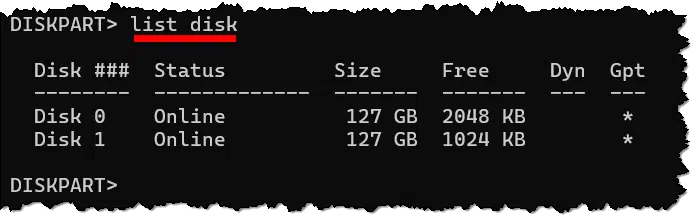
Note the disk number for the disk you want to convert, ensuring you identify the correct disk. It should be the same number as in Disk Manager, but be sure to double-check. In our example, it's disk 1.
Enter "select disk 1" using the disk number you've identified.
Next, enter two commands, one after the other: "clean" and then "convert mbr".
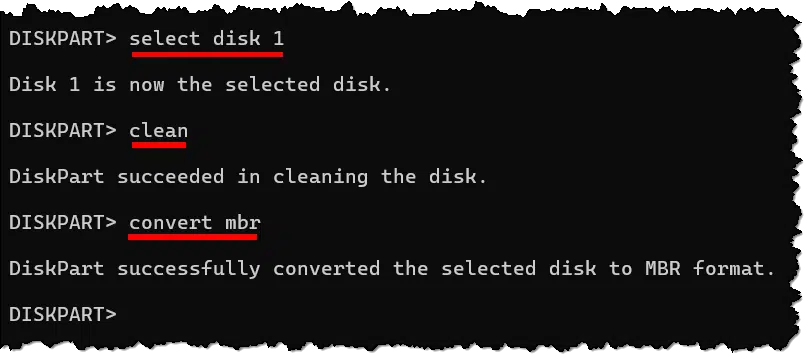
Your disk is now MBR partition style.
It also has no partitions. In the case of the original question, that's fine, as Macrium Reflect should now be able to create the partition(s) it needs. If you're planning to use the disk in some other way, you'll want to use Disk Manager to create at least one partition so you can use the disk.
163: If you're ever asked to initialize a disk unexpectedly, understand that doing so will erase everything on the disk. If this is not what you want, do not initialize the disk and troubleshoot why you're being asked to.
Closing or abandoning an email account can have unexpected and perhaps unwanted side effects. I'll explain what those are and what options you have.
Could that person try to impersonate you? Certainly.
Would that person see everyone on your contact list? Certainly not.
This is an important aspect of account ownership that applies to all services, not just Yahoo.
When you close or abandon an email account, it's possible that after some time, your user ID or email address could become available for someone else to use. While they would not have access to the previous contents of your account, they would have access to email still being sent to that email address, and could use it to try to impersonate you. It's safer not to close or abandon email accounts, but rather check in just often enough to keep them from being reassigned.
When you close or abandon your account with any online service provider, they typically make your abandoned username and email address available again after a period of time. To anyone. As if it had never been used before.
All someone has to do is sign up and ask for it.
For most services, if you log in again before time runs out, it tells them you're not abandoning the account and resets the clock. Even if you go through the provider's steps to cancel an account, there's often a grace period during which you can change your mind, log in, and "un-cancel" the account.
Things get a little confusing when people use multiple services from the same provider. For example, your Microsoft account is at once an email account, your OneDrive account, and perhaps your computer's login account. Using any of these services keeps the entire account active. You can't close only your Microsoft email account while keeping your OneDrive account with the same email address. The same is true for all multiple-service providers, including Google and Yahoo!
If you abandon or explicitly close your account, exactly when it's returned to the pool of names varies greatly.
For example, if you close your account with your ISP, they could make your ID available again the very next day if they wanted to, and I'm sure some do.
Most free services like Yahoo! and others wait at least 30 days, and most wait much longer.
I believe that closing and abandoning an email account are similar processes and follow the same general sequence of events; but remember, this is up to each service provider and can change without warning or notice.
We begin by abandoning the account. That means you don't use it in any way. You don't log in to the account or any service related to the account. Not even once.
After some period, the service notices that you haven't logged in and considers your account abandoned. At this point, typically:
Your account is effectively gone. You may be able to re-open it by logging in again, but all of your previously stored data will be gone.
After some additional period, the service removes the "login to re-open" option completely. You cannot get the login ID (i.e., email address) back once this happens.
At the same time, or perhaps after some additional time, the service will release the email address or ID back into the available pool. Now someone — anyone — could come along and request your old email address and get it.
It's important to realize that when someone comes along and requests your abandoned email address, they get a completely new account. There is nothing in that account that relates to your old account except the email address/login ID.
As part of the closing process, the service deleted all your stuff before they close it. It's gone. You can't get it, and neither can the person who now has your old email address.
However.
What they will get is any new email sent to your old email address. Deleting your account did nothing to tell the world that the email address isn't yours anymore. Even if you tried to broadcast the change, it's likely that not everyone got the message or updated their records. Chances are that your old email address is still in someone's address book or included on some mailing list somewhere.
The new account owner will get anything sent to your old address. And they will be sending "From:" your old address.
I hope that's all OK because there's nothing you can do about it.
OK, there is one thing.
If the possibility of someone else getting email intended for you but sent to a long-abandoned email address bothers you, the solution is simple.
Don't abandon it. Don't close it. Keep the account open. Check in every so often so it stays open.
Keep it yours, and you won't have to worry about a thing.
The support sites provided by your computer or software manufacturer should be the first place you look for help.

I'm honestly surprised at how often folks reach out for help when what they need is readily and clearly available at their software or hardware manufacturer's support site.
Why not start there first?
The manufacturer is the most authoritative resource for dealing with whatever problem you're having.
It's true that not all such sites are helpful or even understandable. I've often joked that my job is as much a translator as anything else. If that turns out to be the case, then by all means, perform a more general search across the internet, or visit helpful sites like Ask Leo!
But at least start with the support offerings from the manufacturer of the hardware and/or software you're having trouble with. It might well save you time and get you a more accurate answer than the alternatives.
Two factor authentication is one of the most important things you can set up to protect your accounts. Even so, it's possible to share certain 2FA types with multiple authorized people. I'll show you how I do it.
Yes, it is.
But there's a good chance that it's not needed.
Using a specific type of two-factor authentication, you can set up both your phones as allowed two-factor devices for the same account.
You can share two-factor authorization by using an authenticator app that supports TOTP codes. Set it up once; then scan the same QR code on both phones. Or use a shared password manager like 1Password that includes the code. That way, either person can log in without extra hassle.
TOTP stands for Time-based One Time Password, which I often refer to as Google Authenticator-compatible two-factor authentication, or just authenticator-based. Once configured, your device (typically an app on your smartphone) displays a six-digit code that changes every 30 seconds. Your ability to present this code correctly when requested acts as your second factor.
Unlike other forms of two-factor authentication, we can set up TOTP on more than one device.
If you don't have a smartphone or a TOTP app you can use elsewhere, or the service you're using doesn't offer TOTP authenticator as a second factor, then this option isn't available to you.
But if it is, we can remove this annoyance for you.
The process is pretty straightforward.
Both devices should now show the same changing six-digit number associated with this account.
Either device should now act as an accepted 2FA for that account.
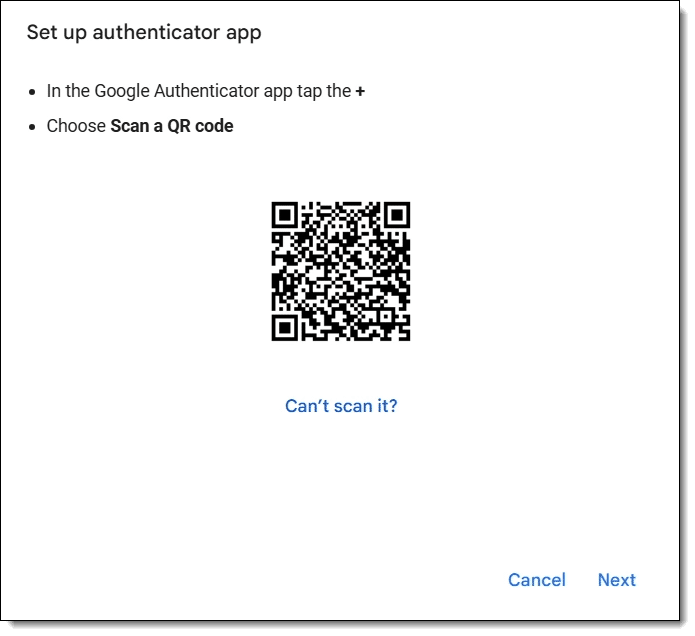
That QR code contains all the magic. By saving it, you can set up multiple 2FA devices for the same account at any time. Should you ever lose your device, it's also a great way to set up 2FA on a replacement without needing to turn 2FA off and back on again on the account.
Save the QR code in a secure place in case you need it later. Maybe store it offline, in an encrypted vault, or somewhere else that's accessible only to you.
Some password managers can also serve as your second-factor authenticator. When you do this, then:
I do both using 1Password.
For example, my wife and I share an online shopping account that has two-factor authentication enabled. The information is stored in 1Password.
It's probably the most convenient way to manage two-factor on a shared account.
Some websites or services offer a dedicated app you can install on your smartphone. Sometimes it's this app that can act as a second factor.
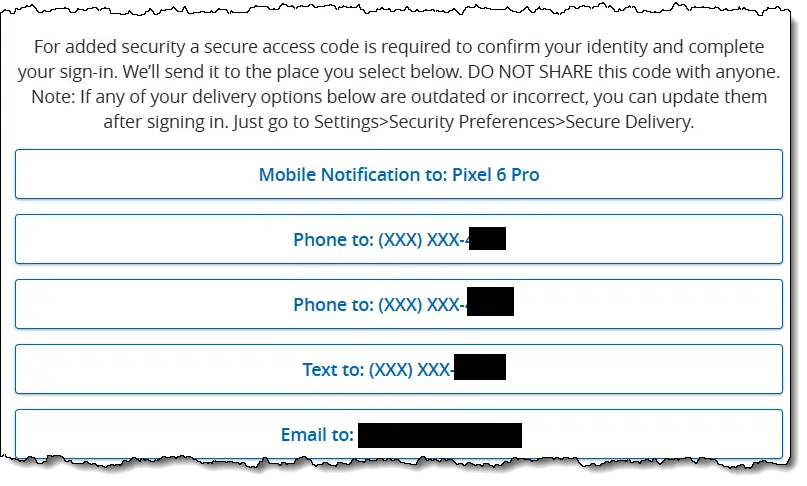
For example, when signing into a bank that has such an app:
Sharing that second factor is as simple as installing the bank's app on both of your phones and signing in at least once. The next time two-factor is required, both devices will get the notification, and either device can approve the sign-in.
Not all services offer this, but it's another convenient approach when they do.
I'll review the security protection for Windows 10 beyond its official end-of-support date: what it means, pros and cons, and what we know about how to get it -- perhaps even for free.
Microsoft has announced something new: the ability to keep getting security updates to Windows 10 after its end-of-support date.
June 2025 update: They've shared some specifics for how to get it and how you might even get it for free.
Let's look at what's happening, what this offer may be good for, and whether I think it's worth it.
Microsoft will offer an extra year of paid security updates past the October 2025 end-of-support date. This Extended Security Updates (ESU) option for Windows 10 Home and Pro users will cost $30. While this adds protection, users can safely continue using Windows 10 with vigilant security practices. Microsoft Defender updates will continue until 2028.
Microsoft's published end-of-support date is not changing. On October 14, 2025, Microsoft will stop supporting Windows 10. That means no more feature updates, bug fixes, or, perhaps most concerning, security updates (with one important distinction regarding Microsoft Defender that I'll discuss below).
In the past, corporate customers have had the option to sign up for Extended Security Updates, meaning that for some (large) amount of money, they continue to receive security-related updates after the end-of-support date. There were still no feature updates or bug fixes other than those relating to identified security issues, and even then, presumably only those of significant enough impact.
I believe this program has been in place for prior versions of Windows as well. As you might imagine, large corporations with a large investment in a specific version of an operating system are loath to take on the expense of upgrading; they are typically willing to shell out the money for security updates instead.
For the first time, Microsoft is making the Extended Security Updates (ESU) program available to consumers who use Home and Pro editions.
From Microsoft's How to prepare for Windows 10 end of support by moving to Windows 11 today article:
And for the first time ever, we're introducing an ESU program for personal use as well. The ESU program for consumers will be a one-year option available for $30. Program enrollment will be available closer to the end of support in 2025.
For $30, you get one year of security updates beyond the October 14, 2025, cutoff date. One year. After that, you're once again on your own.
Again, this includes no feature updates and no bug fixes other than sufficiently serious security issues. What's a "sufficiently serious" security issue? Good question. We don't know Microsoft's criteria. My sense is that it's something that would put significant numbers of Windows 10 users at risk of compromise if left unfixed.
I think of the ESU as buying an extended warranty for your car. For an additional fee, you're getting one year of additional protection. You may never need it, but if you do, it's there.

While not available yet slowly being rolled out, Microsoft has announced how ESUs will be made available along with some surprising options on possibly getting it for free.
For individuals: An enrollment wizard will be available through notifications and in Settings, making it easy to enroll in ESU directly from your personal Windows 10 PC. Through the enrollment wizard, you'll be able to choose from three options:
- Use Windows Backup to sync your settings to the cloud at no additional cost.
- Redeem 1,000 Microsoft Rewards points'at no additional cost.
- Pay $30 USD (local pricing may vary).
The first one is, to me, a complete non-starter. Windows Backup is not the backup you think it is, and it involves the horrific OneDrive backup "feature". To me, this is clearly a ploy to get more people to put more data in OneDrive and pay for more space when they run out.
For people in countries where the Microsoft Rewards program is enabled, redeeming 1000 points might work best. These points are easy to accumulate (just use Bing search for a long enough). You may already have more than you realize. I checked rewards.bing.com (signed in with my Microsoft account, of course) and discovered that for reasons unknown, I have over 5,000 points. Yay?
Or, of course, you can pay the $30 fee. As of now, it's a one-time fee covering only one year. (Educational and other programs may have the option to extend further; pricing is likely to increase each year.)
But the answer to the most common question is clear: "An enrollment wizard will be available through notifications and in Settings." So keep your eyes peeled for that if you're on Windows 10.
Support for Windows 10 security issues ends on either October 14, 2025, or a year later if you sign up for ESU.
Windows Security — more specifically, Microsoft Defender, the anti-virus software running on your Windows 10 machine — is on a different schedule. Again, quoting the original Microsoft post:
Microsoft will also continue to provide Security Intelligence Updates for Microsoft Defender Antivirus through at least October 2028.
This means that, while Windows itself will no longer get fixes for most security issues, the anti-malware software will continue to get database updates, allowing it to detect current threats through 2028.
Maybe.
On one hand, I've long said that you can continue to use Windows 10 safely after the end of support as long as you pay attention to what you're doing and take responsibility for maintaining proper security. My response to people who believe they're being forced to purchase a new computer? You're not. Just keep on using Windows 10.
On the other hand, $30 doesn't seem a horrific price for an extended warranty to increase your protection for an additional year. The free options might make the decision even easier. (Just use the rewards points, not the backup offer.)
On the other other hand, $30 per machine could add up if you have multiple Windows 10 machines. (This hasn't been made clear yet, but my assumption is that the fee is per installation.)
I don't have a strong opinion either way. I'll certainly sign up for it on at least one computer just to test and experience it.
Gmail tries to guess how to categorize your email. Unfortunately, it's often wrong.
(Animation: askleo.com)
As an email publisher, one of the common support issues I deal with is missing email.
If my subscriber is a Gmail user, inbox tabs are an all-too-common culprit.
Turn. Them. Off.
Please. ðŸ'‚
The idea is, Google pre-sorts your email into categories. Presumably, this makes your email easier to manage and thus more effective for you.
The reality is, Google gets it wrong. Even when it gets it right, many people don't remember to look in those other tabs. Even after all this time — I'm updating this tip since it was first published years ago — Google still gets it wrong. Often.
Click on the gear icon and scroll down to "Inbox type". Click on Customize.
UNcheck everything except "Primary" and click Save.
That'll bring you back to a single inbox, where you should find everything you're looking for.
If you manage a Facebook page, make sure you're not the only one.

This isn't about your Facebook account; this is about the Facebook pages you have created. For example, I have a personal Facebook account, but I have created and/or manage several Facebook pages, such as Ask Leo!, HeroicStories, Not All News is Bad, and others.
Pages are not accounts. When you sign in to Facebook, you're signing into your account (after which you can act as if you were signed in as a page).
Here's the thing: if your Facebook account is lost, you may lose access to all the Facebook pages you've created unless there's another Facebook account that has administrative access to your page. In my case, for example, losing my personal account would be bad enough, but losing the Ask Leo! Facebook page, or having it defaced by a hacker, would be devastating. A backup admin gives you a chance to retain control.
No one may be targeting you specifically, but malicious activity is out there. Don't pretend otherwise.

"You're just not that interesting."
I say that frequently to folks who are unduly concerned about being spied on or specifically targeted by malicious entities. Rarely is anyone looking specifically for you with harmful intent.
While they're not looking for you, that doesn't mean they aren't looking for anyone who falls into their traps. And you are definitely part of anyone.
Assuming bad things will never happen to you is just bad security.
You may not be the target of a specific threat, but the vast majority of malicious software and related activity has a general scope. The bad actors fish for anyone (or any machine) they can get their hands on.
If you think it'll never happen to you and behave accordingly, it's likelier that it will happen to you.
You're probably not that interesting in any specific sense, but you should probably act as if you are.
Fortunately, that's as simple as adhering to the usual litany of steps to stay safe online and never letting your guard down.
Here's my step-by-step guide on how to run a complete malware scan using Windows 10 and 11's built-in Windows Security.
On occasion, it's a good idea to run a complete anti-malware scan of your computer. It's advice I often give when someone suspects that there may be malware on their machine.
It's easy to do using Windows Security (previously known as Windows Defender).
Consider a full scan when your machine is acting up or you suspect malicious behavior.
We start in the Windows taskbar notification area. Click on the Windows Security icon (you may need to click the caret in the taskbar — "^" — to expose the icon).
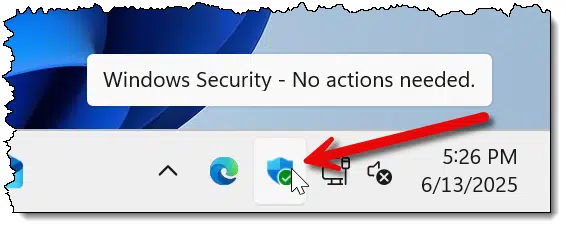
Click on Virus & threat protection.
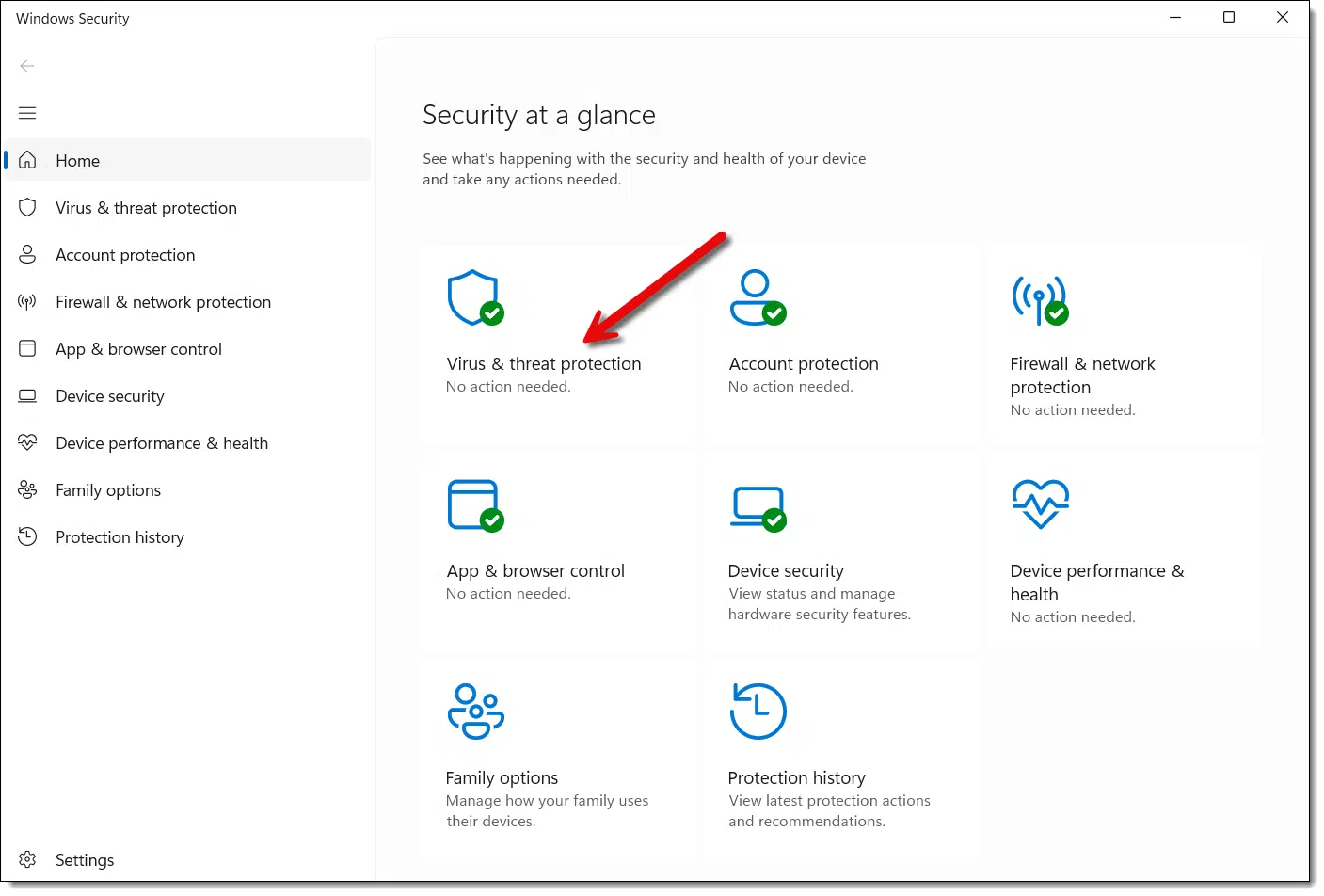
Click on Scan options.
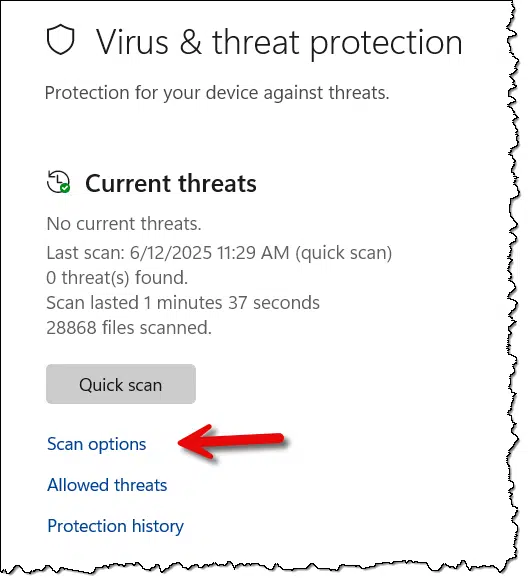
In Scan options, click on Full scan and then click on Scan now.
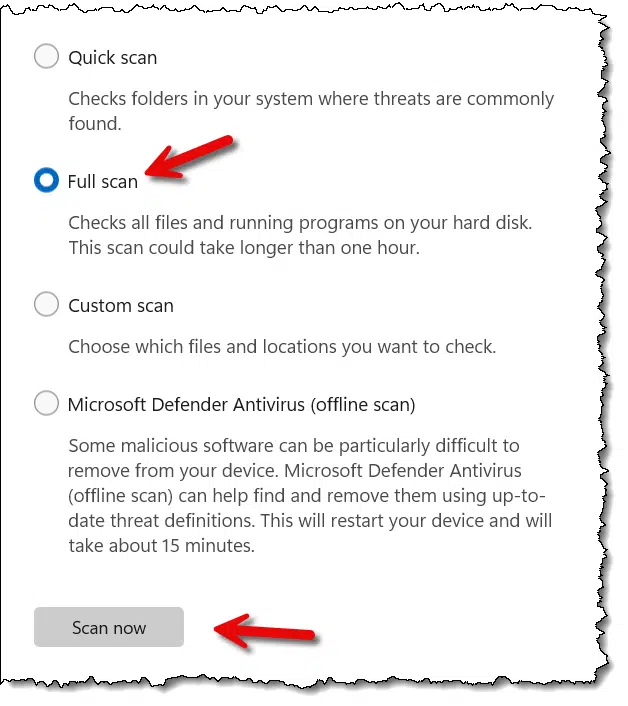
The anti-malware scan begins.
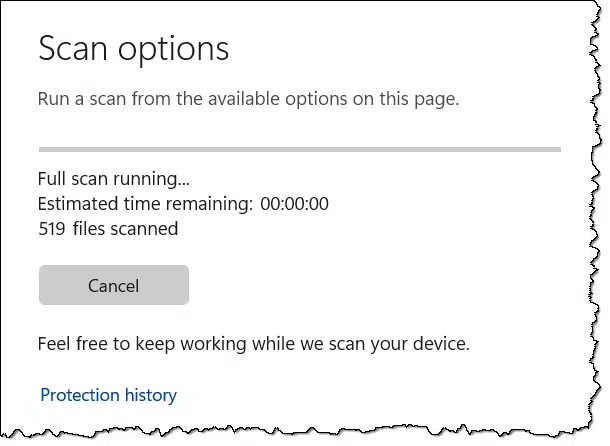
Exactly how long this takes varies based on what else your computer is doing at the time, how fast it is, and how much data is stored on it. As usual, the estimated time remaining can be wildly inaccurate.
Full scans are not something you need to do often. Most of the time, Windows Security's automated periodic quick scans and real-time scans as things change or are downloaded are enough.
Sometimes you need more. "Quick scan" is quick because it doesn't scan everything. It limits its scope to files and folders on the disk that are the most common targets of malicious software. Other areas where malware rarely lives are bypassed.
But rarely isn't never.
I recommend a full scan if you suspect malware has made it to your machine. If your machine is misbehaving, slow, or there are odd things happening, a full scan is a comparatively quick way to rule out malicious software as the cause.
You'll note that in addition to "quick" and "full", there's also "custom" and "Microsoft Defender Offline scan".
Custom scans allow you to specify the folder to be scanned. This is a fine option if you've just downloaded something and you want the additional reassurance of a manual scan. Point Windows Security at the Downloads folder using a custom scan.
Microsoft Defender Offline addresses the case where malware is undetectable or unremovable because it has somehow incorporated itself into Windows system files. The only way to deal with malware of this sort is to scan when Windows isn't running. The only way to do that is to boot into something other than Windows to perform the scan.
That's Microsoft Defender Offline. It reboots your machine into a dedicated recovery mode to run the anti-malware software without Windows running. It's a useful tool if you find you have malware that can't be removed or still suspect malware is present even when a full scan reports none to be found.

Https is important, but now that it's ubiquitous it's not really protecting you as much as you might think. I'll explain what I mean and why that is.
For years — decades, even — we've been told to make sure that we're using an "https" connection when connecting to sensitive websites like banks or email providers. That provided a specific level of security that was particularly important and not always present.
Today, it's ubiquitous. Https is almost everywhere.
As an interesting side effect, the significance of that little https "lock" icon has decreased dramatically.
The tiny lock icon only shows that your browser uses HTTPS, which encrypts your data and proves that the site owns that name. It doesn't prove the site is legit. Pay attention to a cracked lock icon or error message. Trust the lock for privacy, but judge the website for yourself.
Http is the protocol or computer conversational language used for transferring webpages from web servers to your browser.
Https adds two things to http:
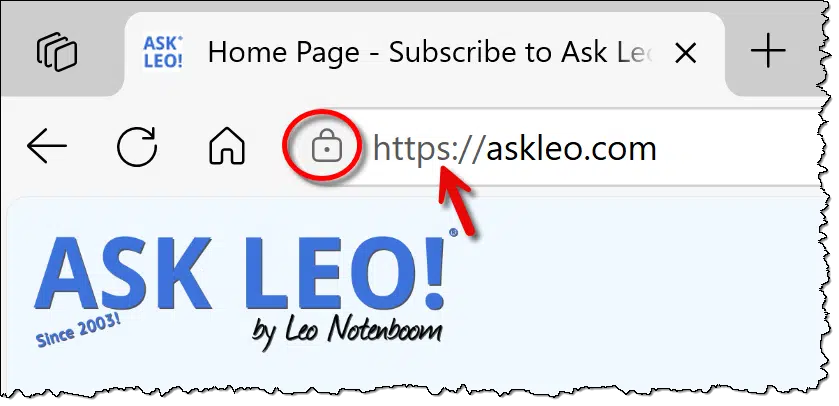
By definition, http is unencrypted. That means anyone with the ability to monitor an http conversation can see what it contains. This might include your ISP, someone within range of the open Wi-Fi hotspot you're using, or the infrastructure of the internet anywhere between your computer and the website you're accessing.
Before an https conversation starts, your computer and the remote website agree on an encryption key that is then used to hide the contents of your conversation. Only your browser and the remote website can see what data you're exchanging, regardless of who might have access to the stream of data.
Before the conversation even begins, though, https also confirms that the remote site is the site it claims to be. Setting up https involves getting a digital certificate from a third party that is assigned to the specific website domain you claim to be.
For example, when you visit askleo.com using https, your browser first confirms that the digital certificate on the server it connects to is the certificate for askleo.com. This protects your conversation from being intercepted and redirected to an impostor site.
Https confirms you're connected to the site you asked to connect to, not an impostor.
The padlock icon is typically at the far left of your address bar, though fewer and fewer browsers bother to display it anymore.
It indicates two things:
The mere presence of the icon, or some variation of it, tells you that the https protocol is being used. At a minimum, this means your data is being encrypted between your browser and the remote website you've connected to.
While encryption is good, it isn't enough to consider the connection truly secure.
The icon can indicate normal or some "broken" form of https security.
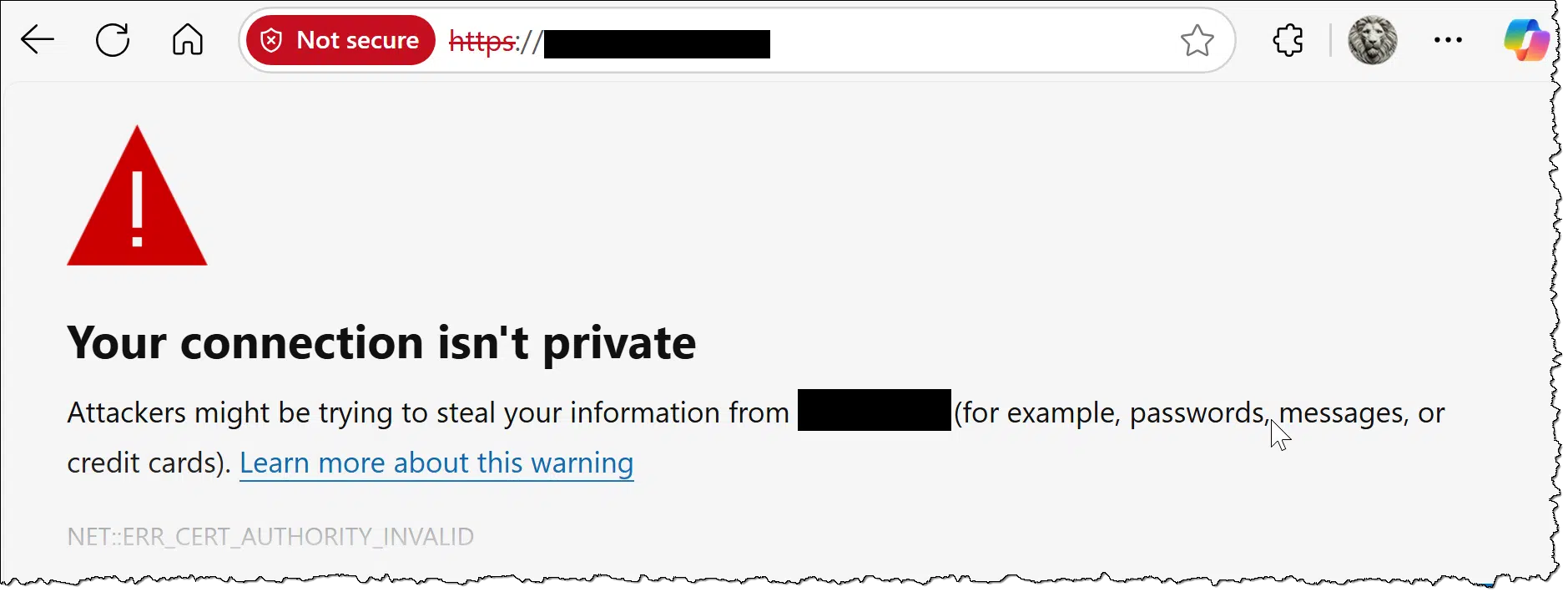
When the normal icon is displayed, all is well. Your connection is encrypted, and the site you're connecting to is the site it claims to be.
When the icon has a line through it, is displayed in red, or is replaced by "Not secure" or similar indications, something's amiss. The primary reasons this happens include:
At face value, this error means you can't trust the website you've connected to. (In practice, if you know what to look for, it's not uncommon to use additional information to confirm whether the error is truly significant. For example, we often ignore the error about a certificate having expired if that expiration is less than a day or so. Webmasters occasionally forget to renew.157)
I chose my words above very carefully:
"...https also confirms that the remote site is the site it claims to be..."
This is not the same as:
"....https confirms that the remote site is the site you think it is." Https does not do this.
Here are two examples of sites that may have valid https certificates and show a normal https lock icon:
The first is legitimate. The second might be a scammer trying to fool you, but the status of https will not tell you that anything is wrong.
Why?
Originally, https certificates cost money. This acted as both a barrier to entry and added a level of accountability.
To improve privacy and other aspects of online security, https certificates can now be acquired for free. This is great for website owners with several websites, who would otherwise have to choose between the privacy and security https provides versus the recurring cost of a certificate for each site.
Now, anyone can easily set up https for their websites for free.
And anyone, of course, includes scammers.
Since most websites now use https, its significance has faded. Many browsers don't bother to show the padlock unless there's a problem.

164: I can speak to this with the voice of experience.
Windows comes with a useful system information tool already built in.
(Animation: askleo.com)
There are a variety of both free and paid system information utilities out there. These tools summarize your system, presenting what software is installed, hardware configuration, running processes, and more.
You also already have one on your machine: Windows' own System Information.
Click the Start button and type Run (or Windows Key + R). Type in msinfo32.
Click OK to run the program.
The Windows System Information tool will present a variety of data about your computer. The initial summary is perhaps the most useful, but diving deeper into the various categories listed on the left gives all sorts of geeky and esoteric information about your PC. This information may come in handy when diagnosing issues or providing information to those who are helping you.
The drivers that come with Windows are usually good. Downloading them directly from the manufacturer is often better.

Windows does a pretty good job at locating and installing drivers (the software that knows how to control the hardware) for just about any device you attach to your computer. Sometimes those drivers come from Microsoft; sometimes they're written by others and provided by Microsoft at installation or update time.
However, if that's all you rely on, for many devices, you may miss out.
If the device comes with a disc, install the software from that disc. If the instructions tell you to download the latest utilities and drivers from the manufacturer's website, do that.
The drivers and software that come with or through Windows are sometimes basic and lack additional features or useful utilities for your hardware. The device will work, but with the manufacturer's software, you may be able to do more or have more control. A great example is webcams, where the additional software may include significantly more camera control than Windows provides natively, as well as recording and special effects utilities.
If you're experiencing problems with a specific device, one of the most common first steps is to check for current or updated utilities and drivers directly from the manufacturer.
Email bounces from messages you didn't send can be disconcerting. I'll explain what's happening, why you probably don't need to worry, and what steps you might take anyway.
Delivery has failed to these recipients or groups:
fo3mYnOuj2E1HXM@google.com
The format of the email address isn't correct. A correct address looks like this: someone@example.com. Please check the recipient's email address and try to resend the message.
Does this mean I've been hacked? I changed my Google password after the second one but this arrived today.
It's extremely unlikely that you've been hacked.
What you're seeing, believe it or not, is just run-of-the-mill spam. You can safely ignore it and/or mark it as spam.
Let me explain what I think is happening.
Spammers use your email address, so error messages bounce back to you even though you're not the one who pressed Send. It's a spam thing called from spoofing, and it doesn't mean you've been hacked. Just mark spam as spam, keep a strong password, add two-factor authorization, and relax. There's nothing else you can do.
Spammers often use a technique called from spoofing to send email that looks like it came from someone it did not come from. It's easy to craft an email with a fake "From:" address.
From: Ask Leo! <leo@askleo.com>
To: you@youremailprovider
Subject: Dear Valid Shortlisted Beneficiary, You Have Money!
...
That made-up example looks like it came from me — except I had nothing at all to do with it. Nothing. My account was not hacked. My account wasn't even involved. My email provider was not involved. I was not involved.
A spammer can just fake it.
And there's nothing you or I can do about it.158
So when spammers send email that looks like it came from you to email addresses that are invalid, guess who gets the bounce message?
You do.
You didn't send the message, but you get the bounce. It's annoying. But again, there's nothing you can do about it.
It does raise the question: why are spammers sending to bad email addresses?
I have two theories.
One is that they're using a shotgun approach. They don't have a list of known good email addresses to work from, so they're just making up email addresses and sending out messages. Particularly on a large service like Gmail, <something>@gmail.com is likely to work often enough if you keep guessing millions and millions of possible "<something>". And each guess costs the spammer nothing. Some will work, some will fail. Some will bounce. Some will bounce to you.
The other is that they're trying to reach you. You did get the bounce, and the bounce message came from Gmail. Email from the Gmail system is less likely to be filtered as spam, so it stands a higher chance of getting to you. Your curiosity might be piqued, and you might look at the original message — the spam. And you might even act on it, which is the goal.
Of the two, my money's on the first one. And, of course, there could be other possibilities.
There's a tiny chance your account has been compromised and the spammer is sending spam from it directly. I say tiny because generally there would be other signs of compromise: messages in your sent folder, notifications that you signed in somewhere, and more.
Changing your password is great. Adding two-factor authentication virtually eliminates this as a possibility.
And, of course, if it continues after a password change, it's even more unlikely that your account was involved at all.
165: Technically, setting up spam-fighting techniques like SPF, DKIM, and DMARC should reduce that email's ability to make it to your inbox, but it does nothing to prevent the spammer from trying.
There are some persistent myths about two-factor authentication that stop people from adopting it. I'll clear them up so you can use this simple yet powerful security feature with confidence.

You mean I have to do this every time I sign in?
If someone gets my second factor, does that mean they can just waltz into my account?
If I lose my second factor, doesn't that mean I'm locked out forever?
Can't a second factor be faked/spoofed/intercepted, and doesn't that make it worthless?
I don't have or want a mobile phone, so I can't use two-factor.
There's a lot of misinformation around two-factor authentication. This can lead people to avoid it, even though it's one of the most effective ways to secure their online accounts.
I want to clear up some of the myths around two-factor authentication. It's not nearly as confusing or as scary as you might think it is.
Two-factor authentication (2FA) adds a second check (something you have) to your password (something you know). You only use it when signing in on a new device or browser. Losing the second factor isn't fatal: backup codes, recovery options, or spare keys get you back in. 2FA blocks almost all hacks. I encourage you to enable it everywhere.
First, we have to define what we mean by two-factor authentication (2FA), which is sometimes referred to as multi-factor authentication (MFA).
Traditionally, you sign into an online account with a username and password. These are things you know. By keeping the password secret, your ability to provide it theoretically proves that you are you and should be allowed into the account.
A second factor is typically something you have.159 For example, after 2FA is set up, after entering your username and password, you might be asked to prove you have access to your mobile device by entering a code that was sent to it. (I'll discuss other forms of 2FA below. Not all require a mobile device.) Your ability to provide the code that was sent to your device proves you possess the physical device, your second factor.
Two factors got you into your account: something you know (your password) and something you have (your device).
Requiring that second factor adds security because even if a hacker somehow learns your password, they still can't get into your account because they don't have your second factor.
Two-factor authentication is used only once160: the first time you sign in to an account on your computer. After that, your device becomes "trusted", and signing in later requires only your password, as before.
Of course, it's not quite that simple. Two-factor may kick in:
Those are rare, though, so in practice, you need to use two-factor only occasionally; certainly not every time you sign in.
Every sign-in from a hacker meets the "first time you sign in on a different browser/machine" criteria. Thus, they'll always be asked to provide your second factor, which they don't have.
Remember, it's two-factor authentication. You need both your password and your second factor to sign in that first time.
That means having your second factor fall into the hands of a hacker is an issue only if they also know your password.
The people who might find (or steal) your second factor are rarely the same people who might gain access to your password. The former, of course, need to be close enough to get their hands on the factor, and the latter are typically overseas working their scams.
If you lose your second factor, you can quickly disconnect it from your account by signing into the account and turning off or changing the existing two-factor configuration.
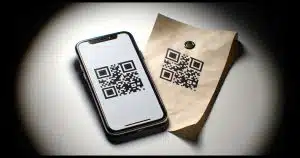
If you lose your second factor, you will not be locked out of your account.
There are two safety nets in place, plus a third if you take additional steps.
Backup codes. First, when you set up two-factor authorization for an account, you'll be prompted to create and/or save a set of backup codes. Each of these codes can be used once in place of your second factor. Once you sign in, you can temporarily turn off 2FA or change it to a replacement device. The backup codes need to be stored securely, but as long as they're accessible to you, you can always get back into your account.
Account recovery. Second, services offer many account recovery techniques (AKA "I forgot my password") to confirm you are who you say you are without your second factor. They may send an email message to an associated recovery account, a text message to a different recovery phone number, or any of several pre-configured recovery options. After you jump through these additional hoops, the service may accept your sign-in without the second factor. This doesn't invalidate 2FA as a security measure, because a hacker would have had to jump through all those hoops as well, which is extremely unlikely. Your ability to do so proves you are you.
A second second factor. There's a third safety net you can set up yourself ahead of time: an additional second factor. When using hardware keys as 2FA (see below), it's common to set up two keys, keeping one in a safe place as a backup. In that same vein, you could set up both SMS and app-based 2FA such that either could be used in the event the other is lost.
In all cases, and as long as you prepare (which most services require), losing your second factor is an inconvenience at worst.

There is no such thing as perfect security. Period.
That means that it is possible for hackers to spoof or bypass two-factor authentication in some situations. The two most common:
#1 requires you to be individually targeted, and you can set up a PIN with your mobile provider to prevent unauthorized reassignment. For #2, you can pay close attention to signs of phishing to avoid being lured down this path.
Both of these spoofing techniques are rare and preventable. Any two-factor authentication is better than no two-factor authentication.
By using 2FA, you are stacking the odds in your favor, making it significantly less likely your account will be compromised.
You don't always need a mobile phone or a smart device.
This varies based on the online provider with which you're setting up two-factor authentication, but often services allow a variety of devices to be used. These may include:
I've seen each of these act as a second factor on various services. Which ones are offered is up to each service.
To be clear, 2FA is very little bother. The only thing that really changes after you set it up is that the first time you sign in to a new device or browser, you need to use your second factor. After that, it's the same sign-in process as before.
Password-based compromise happens daily. Due to bad passwords (which of course you don't use — right?), malware, brute-force attacks, breaches, or other forms of compromise, accounts are hacked often. Two-factor stops 99%161 of these attempts dead in their tracks.
2FA provides peace of mind.
166: A different type of second (or third) factor can be something you are, meaning some physical characteristic about you, such as your face, fingerprint, iris, or something else.
167: As always, there are exceptions. "Never say never" and all that. But in general, and especially for consumer accounts, 2FA is required only the first time.
168: OK, I made that up, but honestly, I expect the real number to be more like 99.99%.
To sleep or not to sleep: that is the question. Truly shutting down is the only way for some machines to remain stable over time.

Someone once told me I should let everyone know about the sleep mode in Windows and how it makes starting your computer quicker as compared to completely shutting it down.
I wish it were that simple.
The first problem is that sleep mode does not work reliably on all machines. While it's certainly gotten better over the years, there are still some computers that simply don't handle sleep (or its cousin, hibernate) well at all. It's been such a problem over the years that I avoid both.
The second problem is that you do want to reboot Windows every so often. Windows is a lot better than it once was, but when you sleep a computer rather than shutting it down, you're leaving all the programs, including Windows itself, in a running state. Any flaws (like memory leaks or other behaviors) that would be cleaned up by a reboot aren't. The longer you avoid a reboot, the slower and less stable your system may become.
Aye, there's the rub: I have to say "may become" because on some systems and with some software, sleep is perfectly fine. You can go for weeks without rebooting, and all will be well.
On other systems, you may find that in a day or two — or even immediately after attempting to wake up the machine — something won't be quite right.
All I can suggest is to try it and also be skeptical. When a system misbehaves, sleep mode is one of the first things I look to eliminate in the search for stability.
Windows' "Recent Files" folder can help you remember where files and other recently-accessed objects are.
Ever forget where you put something? Maybe you've downloaded or scanned something and can't recall which folder it was placed in.
Even if it's not displayed directly in Windows File Explorer, Windows' "Recent Files" folder of shortcuts might help.
You can navigate there by going to:
C:\Users\%username%\AppData\Roaming\Microsoft\Windows\Recent
In my case, that happens to be a folder full of shortcuts to files I've recently accessed.
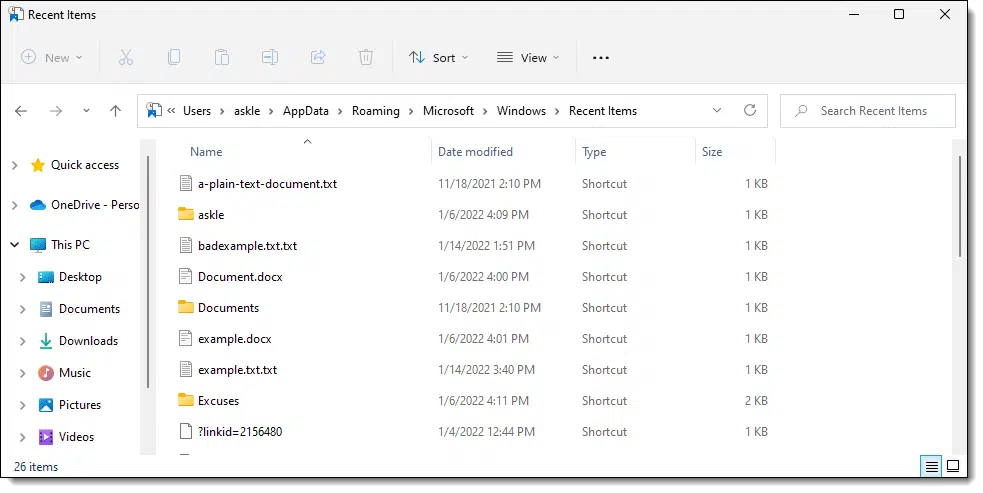
It's convenient to sort the list by time (just click on the "Date modified" column header once or twice) to put the most recent at the top.
If this is something you do often, you might consider creating a desktop shortcut to the folder.
Note: If you have the "Show recently used files" option turned off for privacy, this folder will likely be empty.
There's a deeply hidden last resort if your machine refuses to shut down or restart properly.
(Animation: askleo.com)
We've all been there: your machine won't shut down no matter what you do. Something is preventing shutdown somehow.
If
Then try this:
That initiates emergency restart.
If that doesn't work? Then it's time to reach for that power button.
Extracting data from a hard drive in a dead computer shouldn't be too difficult (unless it's the drive itself that caused the problem). I'll walk you through some of the options and steps you can take.
This is a pretty common scenario. Depending on what caused the computer's demise, there's a relatively good chance you can retrieve the information off that hard drive.
Of course, if it's the drive itself that caused the failure, things get a little more challenging.
There are several approaches to this problem. I'll start with my favorite: not needing to do it at all.
If your computer dies, you can often get your files by removing the hard drive and placing it in a USB enclosure to connect to another computer. If that fails, you might try repair tools or data recovery services. Backups are the best way to avoid this mess in the first place.
By far the simplest solution to this problem is not needing to solve it at all.
A good backup strategy can almost eliminate the need to recover anything from a hard drive in a dead computer.
Using another computer, or after the dead computer has been repaired:
Unfortunately, most people don't have a comprehensive backup plan in place. There are also other reasons — like a last-minute change that was important but not yet saved online — that might still require retrieving data off the dead drive.
So we'll give that a try.
If you can boot the machine into safe mode, then the place to start is to run CHKDSK /R on the drive. That will scan the disk for surface errors that can cause the disk to become inaccessible.
If you can't boot at all or if CHKDSK doesn't help, and this is a traditional magnetic hard drive (i.e., not a solid-state drive), it might be worth buying SpinRite to see if it can repair the drive. (If not, you can get your money back.) SpinRite boots from its own media and can attempt to both diagnose and possibly repair errors on the disk surface.
If those options don't work or don't help, it's time to try something else.
Perhaps the most flexible way of dealing with a hard drive in a dead computer is to purchase a USB drive enclosure. These are almost identical to any external USB drive, except there's no drive inside.
You need to get the correct size of enclosure for the physical size of your drive.
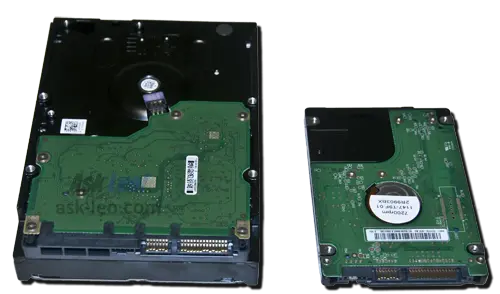
Current traditional magnetic hard drives are either 3.5 inches or 2.5 inches wide, and the enclosure must match.
SSDs come in two form factors as well: one that is physically the same as a 2.5-inch traditional hard drive, and the newer m.2 format.

Once you have the right size, it's relatively simple to install the drive into the new drive enclosure. Not only do you have a way to access the drive, but it's portable: you can access your data on whatever computer you have available.
After you've recovered the data you care about, that drive can have a useful second life as an external drive. Perhaps you can use it to create the backup strategy that might have saved you from this pickle to begin with. ðŸ'‚
If the drive fails to work in the external enclosure — perhaps it shows up as unformatted when you connect it to another computer or doesn't show up at all — then it's probably time to consult a technician or data recovery service.

When moving a drive from system A (which had a problem) to system B (where you're trying to recover the data), you may connect it to system B only to find that, although you can see that the drive is there and has files, you're not allowed to see any of them.
Not to worry.
As long as you can log in to system B with an account that has administrative privileges, you'll be able to take ownership and/or change the permissions associated with the files so you can read, copy, back up, or do whatever you like with them.
This applies to any drive moved from one system to another, whether it's installed internally or externally, regardless of the reasons you've moved it. The permissions on the drive are relative to its original system and must be adjusted for the new system.
How Do I Gain Access to Files that Windows Says I Don't Have Permission to Access? shows you how.
Knowing where your files are stored can make the difference between being able to access them or not.

With internet connectivity so widespread, particularly with mobile devices, it's often unnecessary to know or care whether a file you're looking at is on your device or somewhere in the cloud.
Until it matters.
If connectivity suddenly disappears — after a natural disaster of some sort162, or if you travel to an area where there is no internet163 — you may find that files you expect to find on your device are inaccessible because they were never on your device.
For example, your email is probably not on your mobile device. Certainly, not all your email is there; instead, it is downloaded from the online mail server as needed. Perhaps more urgently, if you keep, say, a medication list in a note-taking application that you need in an emergency, you may find it's not stored on your phone but fetched from the cloud as needed.
As long as the cloud is there, of course.
Depending on what applications you use and what information you're concerned about, there are often options or alternatives that store your information on your device rather than relying on the cloud. That way, should your internet disappear for any reason, that information remains accessible as long as your device has power.
How do you set that up? I can't give you a general "do this" set of instructions because it varies based on your devices, apps, and files. What I suggest is that you put your device into airplane mode or otherwise disconnect the internet, and then see if you can access the files you think you can.
It's great to have important documents available on your mobile device, but you need to make sure that those files are actually on your device.
169: Here in the Pacific Northwest, the major disaster scenario we plan for is the big earthquake. Regardless of what your risk might be, plan for the scenario when your landline phone, mobile phone, mobile data, and home or business internet will all fail, and you will have no internet connectivity.
170: Or just really, really bad internet, as I experienced when trying to update this tip.
Your computer's CPU is a complex piece of circuitry trying to maximize how much it can do and how quickly it can do it. I'll outline one of the techniques that makes a single CPU core look like two.
The CPU, or Central Processing Unit, in your computer is amazingly complex. That 11th-generation i7 CPU has over 19 billion transistors. I realize that's mostly meaningless unless you know what a transistor is or does, but it's kinda like having 19 billion tiny on/off switches in a space less than half of a square inch (276 mm²).
Some of those switches set up a feature that defines the difference between a core processor and a logical processor.
A core processor is a real hardware engine that runs a set of steps in sequence. Hyper-threading lets a core juggle two tasks at once, fooling Windows into seeing two "logical" processors. CPUs often have more than one core, and many (though not all) cores are hyper-threading capable, making it look like your computer has more logical processors than it has cores.
Before I dive in, we need to talk about a little ambiguity in terms: specifically what "CPU" means.
CPU, or "Central Processing Unit", can refer to:
One thing it is not is the computer as a whole. Regardless of the ambiguity above, "CPU" never refers to a box. It's always a chip, or a part of a chip, on the motherboard of your computer.
I'll try to stick to "CPU chip" when I mean the physical chip, and "CPU" when the distinction is less important.
A core is (normally) a single processing engine that takes a sequence of instructions and executes them one step at a time. A core might be given instructions such as:
And so on. Boring, but this level of granularity — simple math, logical operations, RAM access, and so on — is what makes your computer do all the fantastic things it does, even though it's just doing one thing at a time. Doing one thing at a time is referred to as being single-threaded.
Needless to say, it does these tasks very, very quickly. While CPU clock speed isn't one-for-one (some steps take longer to carry out than others), a reasonable visualization is that a 3Ghz processor is capable of performing three billion simple operations (like addition) every second.
Of course, that's not fast enough.
Also known as "simultaneous multi-threading"164, hyper-threading is a technique where a single core can sometimes do two things at once. A metaphor might be a single person with two hands. Often, you need both hands to do one thing, but sometimes you can do two different things with each hand.
For example, here are two sequences of operations, or threads, running at the same time on a single processor.
| Step | Thread 1 | Thread 2 |
|---|---|---|
| 1. | Take the number 23. | Fetch the number in RAM location 45,000,001 |
| 2. | Fetch the number in RAM location 1,033,000. | Increment it by 1 |
| 3. | Add these two numbers. | Store the number in RAM location 45,000,002 |
| 4. | Store the result in RAM location 4,442,223. | *idle* |
| 5. | Add 23 to the result. | Fetch the number in RAM location 45,000,003 |
| 6. | Store the result in RAM location 5,444,234. | *idle* |
| 7. | Subtract 14 from the result. | Store the number in RAM location 45,000,001 |
In this example, the "store and fetch things from RAM" part of the CPU and the "perform simple arithmetic" part of the CPU are two separate things.
In single-threading, we can use only one at a time. In hyper-threading, we can use both at the same time, simulating two completely separate things at the same time. The two threads of execution above, for example, do two completely separate things at the same time by coordinating how the CPU's resources are used.
It's not perfect. Note that Thread 2 had to stop at step 4, and again in step 6, and wait; it wanted to fetch or store something in RAM, but Thread 1 was using the "store and fetch things from RAM" part of the CPU at that same time. Once Thread 1 moved on to an arithmetic operation, Thread 2 could move on to the RAM fetch.
It's a single CPU, but it's doing two things at once. Sort of.
The operating system views this as two separate logical processors, even though there's really only one, allowing it to use them for true multi-tasking.
Your computer can have multiple cores. In fact, these days it almost certainly does. The desktop computer I'm using right now has 16 cores. Using the original definition of a simple, single-threaded core, it can do 16 things at once.
These cores are also hyper-thread capable. Thus, while my desktop has 16 cores, it "looks like" it has 32 logical processors.
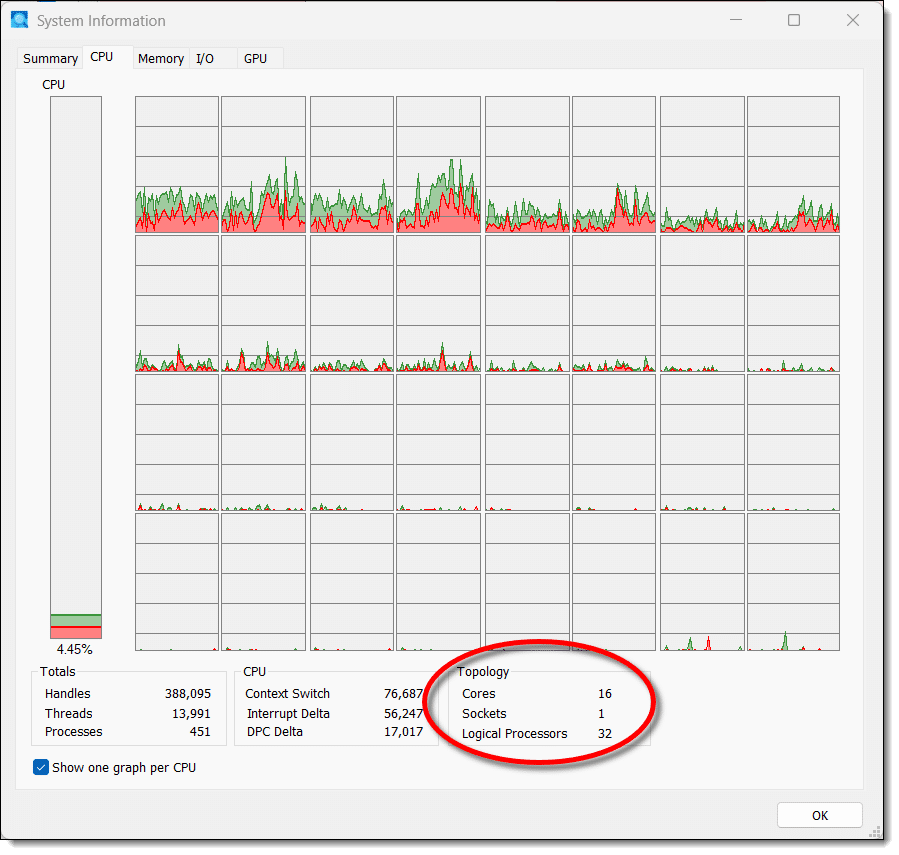
Here's an interesting "catch", though. You pointed out that your 12th-generation I7 processor has 10 cores and 12 logical processors. Not all cores are hyper-threading capable. It looks like only two of the 10 cores on your processor are, and thus you end up with 12 logical processors.
So far, I've referred to cores and logical processors that all live on a single chip in your computer.
A single physical chip can contain multiple cores. If hyper-threading is involved, it can contain more logical processors than there are cores. For example, my 16-core, 32-logical processor machine contains a single CPU chip.
A computer can also contain multiple physical CPU chips. This is uncommon for home and small businesses, but not that uncommon at an industrial data-center scale. While the operating system sees all chips and cores, it primarily operates on what it sees as a large collection of available logical processors.

171: Hyper-threading is technically an Intel term. I'll use it throughout, though, to refer to the concept generically, regardless of CPU manufacturer.
Accidentally clicking a malicious link might be benign if you catch it soon enough. I'll review what makes the difference, and what steps you need to take next.

It depends on exactly what happened, and, more importantly, what you did next.
The most common result of clicking on a malicious link is that you'll be taken to a fake site asking you to sign into one of your online accounts. As long as you don't, chances are you'll be fine. If you do mistakenly provide your credentials, your account could be hacked in moments. Complex phishing attempts may attempt to download and install malware. In all cases, take steps to recover and secure your accounts and your device.
Most of the time, clicking a link just brings up a webpage.
In a phishing attempt, the webpage may look like a site you recognize, but it won't be that site at all. For example, the link may claim to be PayPal, and the page you land on may look like PayPal, even though it's not PayPal at all.
Nine times out of ten, it'll look like a sign-in page, and you'll be asked to sign in to the account the page is trying to look like. With our PayPal example, that means you'll see what looks like a PayPal sign-in page, and you'll be asked to enter your PayPal credentials.
DON'T.
As long as you don't try to sign in, not much has happened. Your browser's displayed a webpage, and that's all.
Immediately close the tab containing the fake page. Most phishing attempts merely ask for your credentials. As long as you don't enter them, all is usually fine.

If, on the other hand, you did attempt to sign in to the fake site using your credentials for the site it was attempting to impersonate, things are much worse.
As soon as you attempted to sign in to the fake page, you essentially handed over your login credentials to the hacker.
The moment you realize what happened:
If you can't sign in, the hacker behind the (now successful) phishing scheme may have already changed your password. If so, your account has been hacked.
You'll need to follow the account recovery instructions provided by the service and attempt to get your account back. If you do, change your password and review your account recovery information in case the hacker changed it.
Once you're in the account, you also need to review several critical things.
If the hacker downloaded copies of whatever is in your account, you need to consider how much of a problem that might be. There's no way to know if they actually did this, but you should be prepared. It could be as simple and as common as downloading your contacts. However, if your account has access to private data, consider the possibility that this data is now in the hacker's hands. What you do next will depend on your situation.
Check your account for emails you didn't send, transactions you didn't make, or other activities you did not initiate. Particularly with financial accounts, like our PayPal example, all the hacker needs to do is transfer money out of your account before you notice. The sooner you do notice, the greater the chance you can recover.
Review whether having access to the contents of your account would alert the hacker to other accounts you have, and what might be valuable in those other accounts. Your email account can be a gateway to many other accounts, including financial ones. For example, they might perform account recovery ("I forgot my password") on other accounts you have, hacking into them because they have access to the account recovery email.
It's rare these days, but accidentally clicking on a phishing link can cause malware to be downloaded and run on your computer.
While it's serious, it's not something I worry about a lot. Normally, you'll get plenty of notices from your browser or security software.
However, if you suspect this might be the case, run a complete anti-malware scan to see if there's anything out of place on your machine.
Hopefully, nothing will turn up.
Yes, you can get hacked by clicking on a malicious link. It's not clear how common this is, but it's possible. The most common scenario is that you don't recognize it's malicious until after you've entered login credentials on a fake phishing site, giving a hacker your information. Other possibilities include the link being a download of malware or a browser-based exploit. This is why it's so important to not click on links in emails you're not sure of.
It can be difficult to know if you've clicked on a phishing link. The most common way is to compare the URL that appears in the browser's address bar with your expectation of the website you would be taken to by the click. If the displayed URL is not what you expect, and especially if the resulting page is asking for sign-in credentials, close the browser tab immediately.
In general, the most common signs that suggest you've been hacked include not being able to sign in to an account or seeing explicit pop-up messages from ransomware. In the former case, a hacker has somehow gained access to your account and changed the password. In the latter case, your machine has been compromised by malware that has encrypted your files and is holding them for ransom. It's important to realize that there may be no immediate or outward sign of your account or machine being hacked. Hackers often try to hide the fact that they have access.
[/al_cta]
Three different places to re-enter your password are controlled by three different settings.
(Animation: askleo.com)
There are three different situations in which you might have to enter your password on a desktop computer:
Each of those situations is configured in different places.
To control whether you need a password when you boot your system, see the article How Do I Sign in to Windows Automatically?
To control whether you need to re-enter your password after sleep or hibernation modes, open the Settings app and search for "Sign-in options".

Set that to "Never" if you don't want to be forced to re-enter your password after sleep or hibernation.
To control whether you need to re-enter your password after your screensaver has kicked in, open the Settings app and search for "Screen saver" as shown in the video at the top of the page. Click on either of the resulting options — change screen saver or turn screen saver on or off — to open the Screen Saver Settings dialog.
Uncheck the option to "On resume, display the logon screen" to avoid having to re-enter your password to dismiss the screensaver.
Copying text from error messages or images can be difficult. OCR tools like Text Extractor make it easy. I'll show you how.
In a previous article, I discussed using the Snipping Tool in Windows 11 to copy text from images. OCR, or Optical Character Recognition, is built into the Snipping Tool.
Unfortunately, not so in Windows 10.
In this article, we'll look at an alternative built into the PowerToys collection of tools that can be installed in Windows 10 or 11.
PowerToys' Text Extractor lets you copy text from your screen in both Windows 10 and 11. After you install and enable it, press Windows+Shift+T and drag over the text, and it's copied to the clipboard. It's fast and useful when you can't highlight text normally, such as in pictures or error messages.
PowerToys is an open-source project hosted on Github. You'll find releases here.
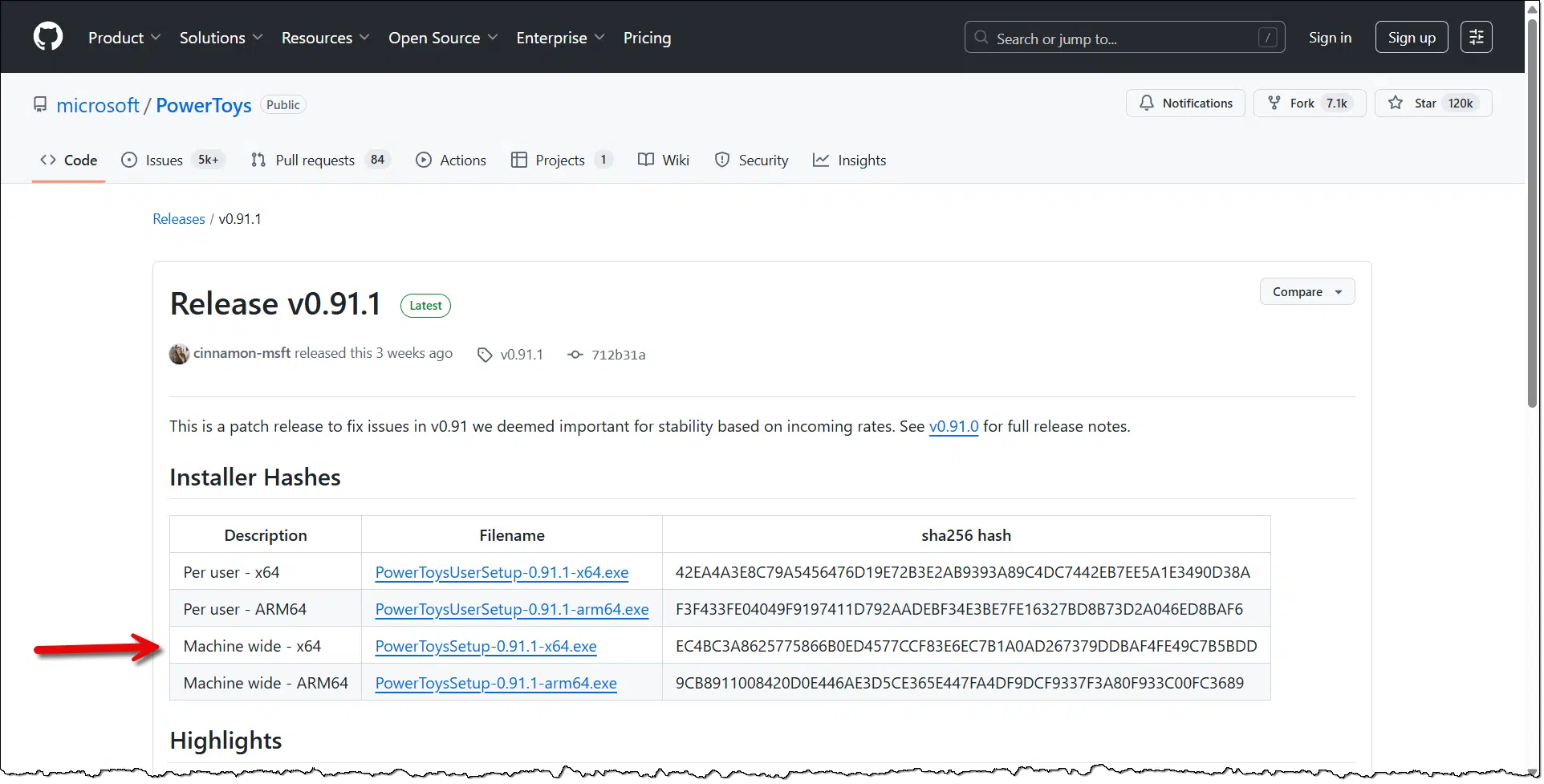
If you haven't yet installed PowerToys, download and run the installer appropriate for your system. In the example above, I've highlighted the "x64" version, "Machine wide" (AKA "install for all users") installation.
Once installed, PowerToys will appear as an icon in the notification area of your taskbar.
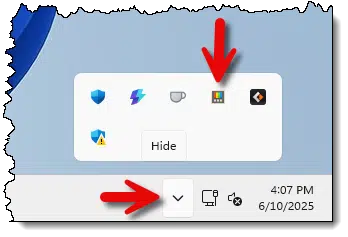
Right-click on the notification area icon and click on Settings. The resulting Dashboard contains a list of modules available in PowerToys.
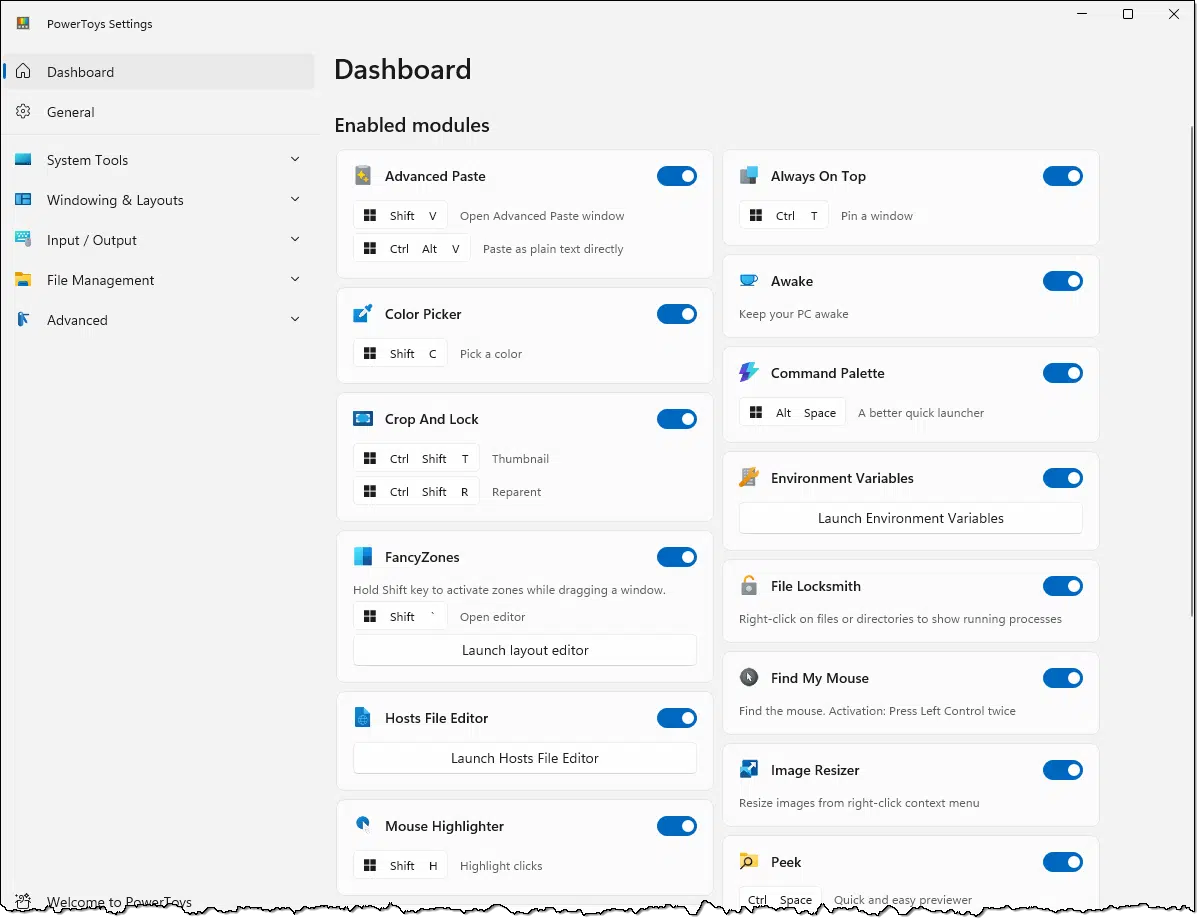
There are many modules, each representing a functionality that PowerToys provides.
Scroll down to locate Text Extractor.
Make sure it's enabled.
In addition, make note of the key sequence to activate it. (By default, +SHIFT+T.)
With the text you want to extract (copy) on the screen, press +SHIFT+T.
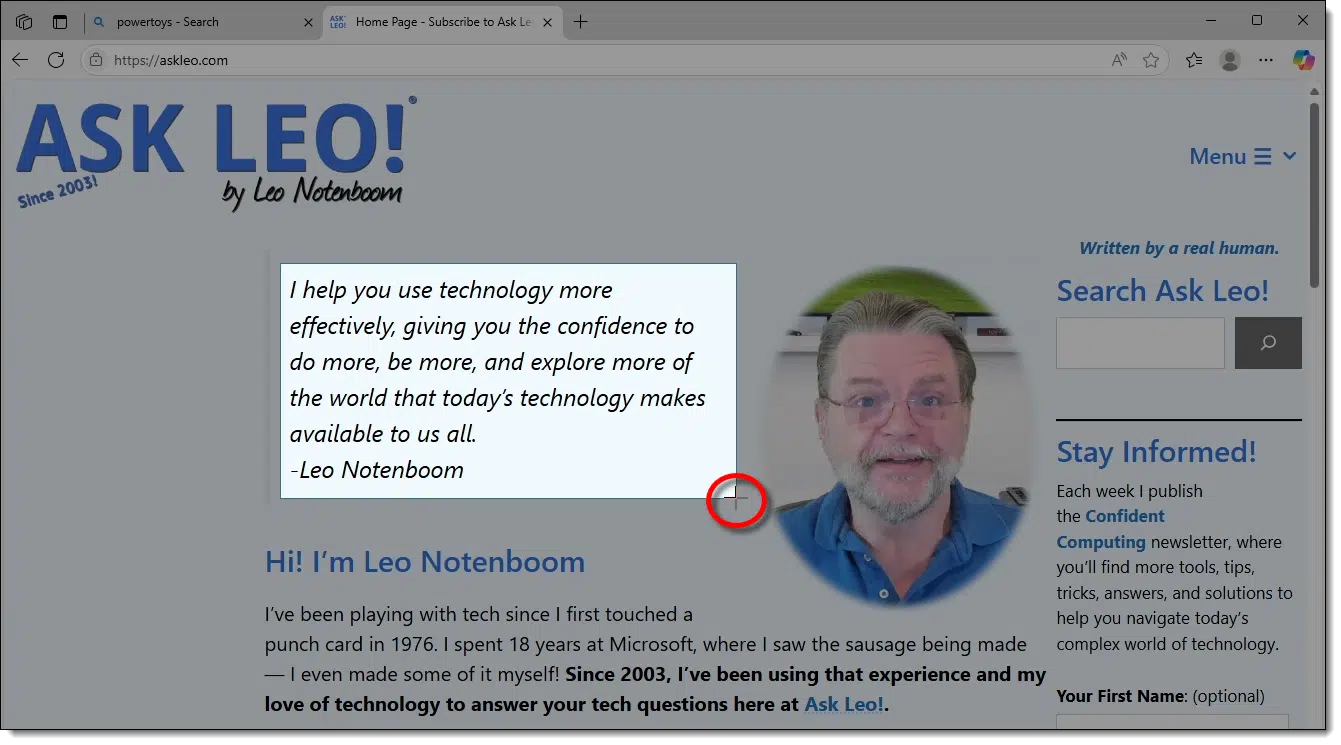
The screen will darken, and the mouse pointer will turn into a crosshair. (  ) Using the crosshair, make a rectangular selection of the text you want to extract. In the example above, I've selected a paragraph on the Ask Leo! homepage.
Release the mouse pointer.
You're done. The text has been OCRed and copied to the clipboard.
The easiest way to confirm that you got what you expected is to paste it somewhere. Here's the example above, pasted into Notepad.
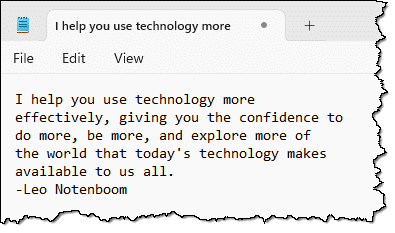
You can paste the text wherever you like.
All OCR is not equal.
Once installed, Text Extractor is quick and easy to use, but it can be sensitive to the quality of the image of text being extracted.
Windows 11's Snipping Tool takes a few more keystrokes but seems to recognize a wider range of character styles, including even a font based on my handwriting.
The capabilities and ability to capture text accurately vary in other OCR tools. Uploading images of handwritten notes to ChatGPT, for example, has proven to be a surprisingly effective approach to converting the written word to text that you can use on your devices.

I've been missing an opportunity in my examples, and it's something you might be able to use.
(Animation: askleo.com)
I have been missing an opportunity for decades.
In most of my articles, when I reference, say, the full path to your default Documents folder, I'll write something like this:
C:\Users\<username>\Documents
In these examples, I expect (or occasionally instruct) you to replace "<username>" with your actual username.
Had I written this path instead, no instructions would be necessary:
C:\Users\%USERNAME%\Documents
It looks similar, and yet:
%USERNAME% is what's called an environment variable that is set by the system for you. When used, it's replaced by the username of the account that is currently signed in. (FYI: upper case is by convention only, and highlights that this is an environment variable.) In the example above, it's replaced by "askle", the currently logged-in user on this machine.
There are many environment variables. They are often used in command-line scripts. USERNAME might be the most helpful for day-to-day use.
If you find yourself switching between sound output devices often, this keystroke may help.

As you can see, I have a lot of output devices on my computer. To switch between them, I used to click on the speaker and then click on the control next to the volume control to see the list above and make my choice.
There's a faster way to get there that uses the keyboard.
+ CTRL + V
Typing those keys simultaneously gives direct access to the list of possible sound output devices. I just click the one I want to switch to, and I'm done.
What OneDrive does with your files can be both frustrating and confusing. I'll walk through two important issues: what's really on your computer (or not) and the impact of using OneDrive's horrid backup "feature".
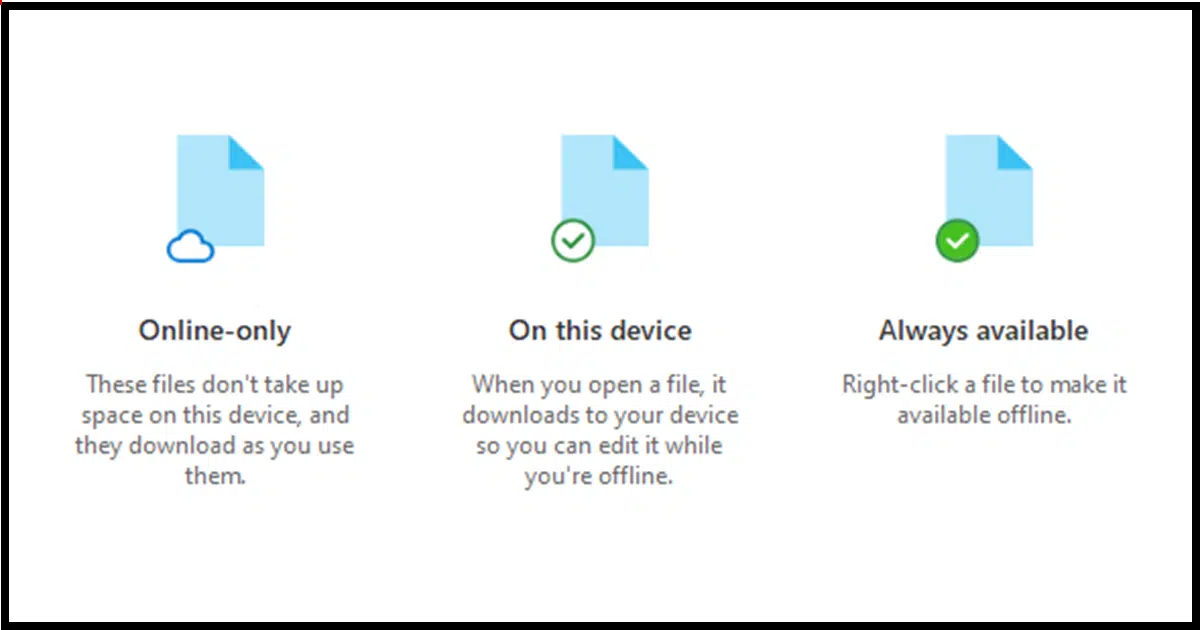
Sometimes, OneDrive tries so hard to be both helpful and flexible that it ends up shooting itself in the foot. Files can show up in different places in different ways or seem to disappear altogether.
I'll cover some of the variations and their impact on where your files live.
OneDrive files can live in different places and be fully or only partly downloaded. They might be on your PC, online only, or completely hidden. OneDrive's backup "feature" complicates things by moving files without telling you. If your file is in OneDrive, check OneDrive.com online.
1. On your PC, OneDrive works on one and only one folder: the OneDrive folder. On my machine, the path to that folder is:
C:\Users\LeoN\OneDrive
On your PC, "LeoN" would be replaced by your Windows username.
Anything not within that OneDrive folder is unaffected by OneDrive. That means if you want files to be free of OneDrive's interference, make sure those files are not within the OneDrive folder. That means "C:\Users\<username>\OneDrive" is nowhere in the path to that file.
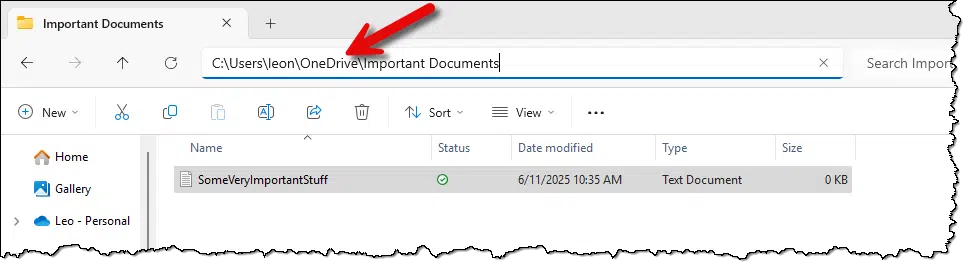
Unfortunately, as we'll see shortly, OneDrive takes steps to confuse even this simple concept.
2. The other important thing to realize is that everything in OneDrive is also stored and available at OneDrive.com online.
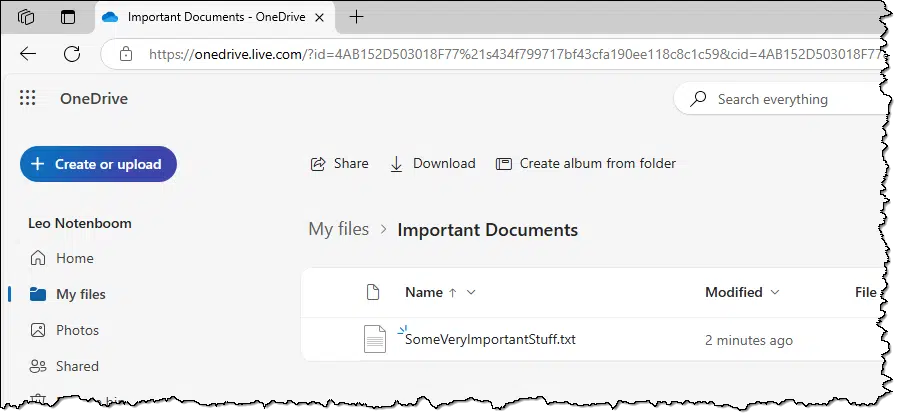
Regardless of what shows on your PC, if your file is in OneDrive, it's available online at OneDrive.com. If you can't find a file on your PC, look online.
The rest of this article is all about the location and state of the OneDrive files on your PC: the space-saving features and the three states your files may be in; how files disappear completely; and the terrible backup "feature" OneDrive aggressively provides.
When we talk about where your OneDrive files really live, this is the first feature to understand. Technically, it's a feature to save space on your PC, but it also sidesteps the possibly huge initial download the first time you connect a new PC to your OneDrive account. For example, say I have half a terabyte in my OneDrive. When I set up a new PC, I don't want all that to be downloaded. That's a lot of space and potentially a lot of time.
As a result, OneDrive files can be in one of three states.
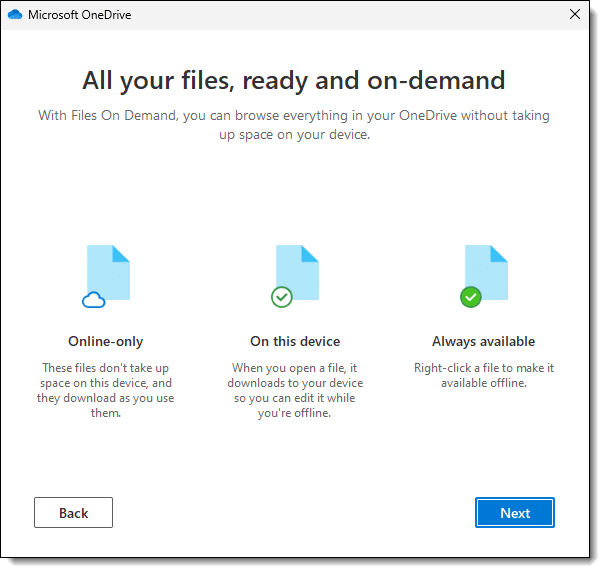
When you look at a OneDrive file in Windows File Explorer, its status is displayed with one of three icons (shown in the images below).
This is perhaps the most confusing status because:
When you open the file, its data is downloaded right then. For a large file, this means there could be a delay while the file's data is fetched.
I find "online only" misleading because it's not a restriction, it's a state. I like to think of it as "Online only right now, but it'll be on the PC if you try to use it."
This state is represented by the hollow cloud icon in the Status column in Windows File Explorer.

Since it needs to be downloaded before you can do anything, you must have a working connection to the internet before you'll be able to open and work on the file.
This file is not completely on your PC and will not be backed up by your computer's backup.165
What happens when you download an online-only file? Its status becomes "On this device."
In other words, the file is completely on your PC because it's been used.

This state is represented by a hollow circle with a checkmark in it in Windows File Explorer.
This file is on your PC and will be backed up like any other.
Though it's possible that OneDrive may elect to return this to its original "online only" state at some point in the future. To avoid that we have a third option: always available.
The third possible state of OneDrive file is "Always available." It means exactly what it sounds like it means.
There's no "downloaded if" or "downloaded because"; an always-available file is always completely downloaded and available on your PC whether you use it or not.
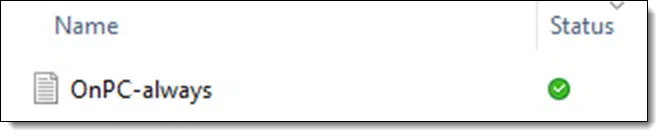
This state is represented by a solid circle with a checkmark in it in Windows File Explorer.
This file is on your PC and will be backed up like any other.
You can assign the status of any file. Right-click on a file or folder in OneDrive to see a context menu that includes options to apply one of the three states to that file.
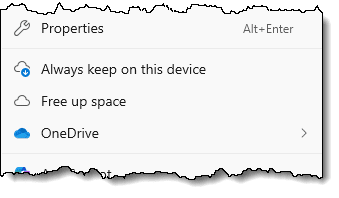
Always keep on this device downloads the file's data and ensures that the file and its data always remain on your PC.
Free up space removes the file's data from your PC while keeping that data online in OneDrive.com. The file is listed on your PC but takes up no space until it's downloaded if you use it again later.
If you make either of those changes to a folder, it applies to all files and folders within.
And, of course, if you want to download an online-only file, all you need do is open it. It'll be downloaded and its status will change to "On this device".
There's one more space-saving feature in OneDrive that can be confusing: "Choose folders".
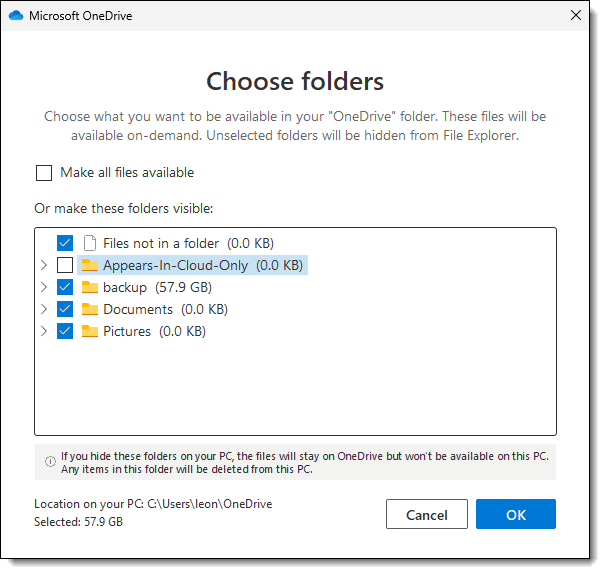
This is a selection you can make via OneDrive settings. (Right-click the OneDrive icon in the notification area, click on the gear icon, click on Settings, click on Account, and finally click on Choose folders.)
This OneDrive account has a folder called "Appears-In-Cloud-Only". It's unchecked in the list, meaning that, as its name implies, this folder will not show up on my PC at all. It's nowhere to be found. However, the folder and its contents remain:
You can make any OneDrive folder "disappear" from your PC by unchecking it in this settings dialog. It's as if the folder doesn't exist until you visit OneDrive.com. Besides saving space, it also avoids confusion: for example there are scenarios where accidentally accessing a folder can cause all of it's "online only" data to be downloaded. By not even being visible on the PC, that won't happen.
What I've discussed so far is basic OneDrive functionality for any files stored anywhere within the OneDrive folder. As a reminder, that means any file or folder whose location begins with:
C:\Users\<username>\OneDrive
Any file or folder elsewhere on your PC is not affected by OneDrive.
Microsoft could not let this stand. Enter the infamous and, in my opinion, horrid OneDrive backup "feature".
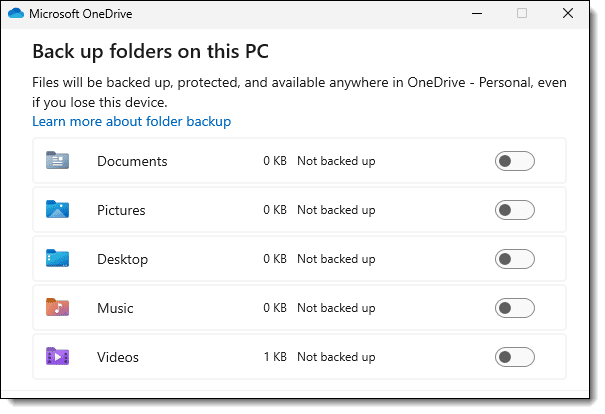
As you can see, this is available for your Documents, Pictures, Desktop, Music, and Videos folders.
I'll use "Documents" for my example, but these concepts apply to all five.
Normally, the Documents folder lives in
C:\Users\<username>\Documents
As you can see, this has nothing to do with OneDrive. It is completely separate.
When the backup "feature" is turned on:
The contents of your Documents folder become part of your OneDrive and are uploaded to OneDrive.com (and downloaded to any other PCs connected to the same OneDrive account). Microsoft calls this a backup. (Which it both is, and is not.)
The files are still there; they've just been moved into a new Documents folder now located underneath your OneDrive folder.
Things get extra confusing if you happen to turn on the backup "feature"166 and then turn it off.
You are now left with:
In other words, you now have files in two folders both confusingly called "Documents".
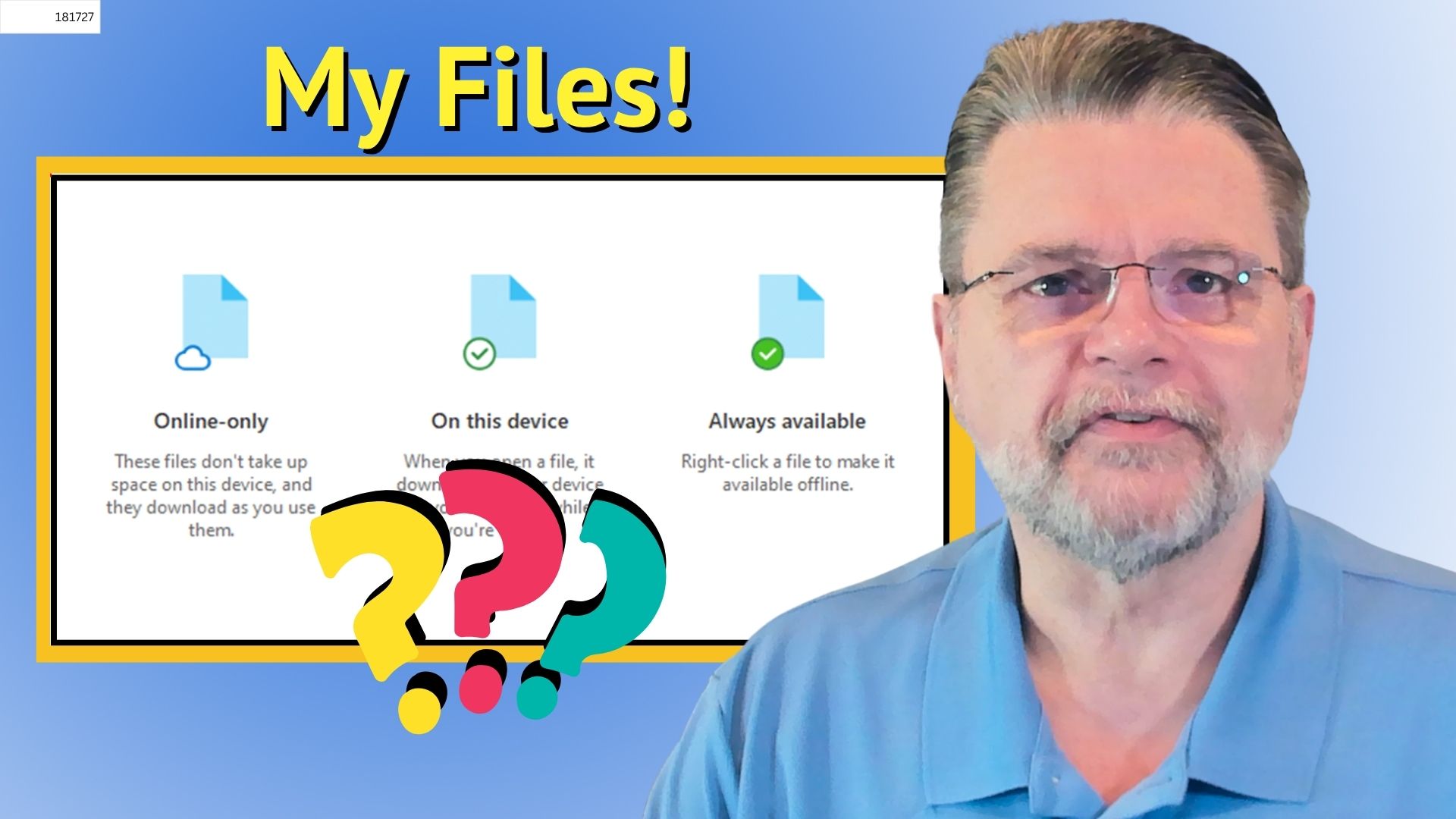
172: Technically, its name will, but the data will not be.
173: Frustratingly easy to do by accident.
AI can get things wrong, but a good AI will show its work. Use that to confirm what it's telling you.
(Animation: askleo.com)
AI is amazing. It just is. Regardless of whether you feel it's a good thing or a bad thing (and of course it's much more nuanced than that), it's capabilities are unquestionably remarkable.
For example, its ability to get things wrong.
That's why I rarely look to AI (any AI) for actual answers. Yes, it'll give you one, and it'll read as if it's an authoritative answer, but that's no guarantee.
What AI search is great at, though, is scouring the web and finding things related to what I'm looking for. In other words, it's great at finding sources. While those sources still need to be vetted, they don't make things up the way AI can.
So today's tip is two-fold:
It's easy to configure how much disk space the Recycle Bin uses.

Depending on how (or if) you use the Recycle Bin, its default size may not be ideal.
Right-click on the Recycle Bin icon on your desktop and click on Properties.
Change the "Maximum size" entry167 to a number that is:
Of course, if you never use the Recycle Bin, or you're concerned about making it too easy for the wrong people to recover files deleted but not yet overwritten, consider selecting "Don't move files to the Recycle Bin" to turn the feature off.
And finally, if you don't see a problem right now, change nothing. Just know that should the issues above ever arise, the Recycle Bin is easily configured.
174: Note that the Recycle Bin is a per-drive setting. Each drive has its own Recycle Bin for files deleted on that drive.
Any security software can miss something, no matter how good. It's important to understand why this is and what you can need to about it.
Most people believe they're completely protected because they have an anti-malware program or additional security software.
Unfortunately, that's just not true.
The answer is partly the nature of anti-malware software and partly the nature of "the race".
Malware creators are always one step ahead of the tools designed to stop them. Once malware is discovered, it takes time for anti-malware tools to be updated. There really is no "best" anti-malware package. Who is "in the lead" changes often, and any tool can miss something. Of course, no tool can protect you from yourself. Use up-to-date security software, follow best safety practices, and back up regularly.
I use that term — "the race" — on purpose. Combating viruses is a four-way race.
As you can see, virus writers are always in the lead. You and me? We're dead last. Hopefully close to the pack, but even so, last.
As a result, the first answer boils down to simple bad luck. It's possible to be doing security as well as you can and still get infected, if:
There is no "best" anti-virus or security software. Almost all the name brands are good, but there isn't one that detects absolutely, positively everything.
In other words, no matter what security software you run, it may miss something. Different packages may miss different things, but there's no single package you can count on to catch absolutely everything. So it's possible to get infected even though your anti-malware tools are completely up to date.
All malware is not created equal, which is why there are so many terms to describe the variations. Some exist merely to propagate. Others exist to do damage. Some exist to silently send spam. Still others start to blur the line between virus and spyware as they install monitoring or additional vulnerabilities on your system. Some travel by email. Others travel by downloaded applications. Others can travel from unprotected168 computer to unprotected computer directly through the internet.
No anti-malware tool can protect you from yourself. For example, if you open an email attachment that you don't recognize and run it, you may install a virus before your security software has a chance to act. When downloading a file, if you choose to ignore a warning that your security software or firewall displays, you're telling the software that you know better than it does what is or is not safe.

175: If you're behind a router, as you very likely are, then you're protected.
The Windows clipboard is a fundamental and exceptionally useful feature that many take for granted. I'll review what it is and what it's good for.
The clipboard is another one of the small but powerful little items that we often take for granted.
It's such a simple thing, yet we never talk about what it is or why one would care.
We just use it. Constantly. Every single day.
The clipboard is a hidden spot in Windows that holds something you've copied or cut'like text, pictures, or files'so you can paste it somewhere else. It only holds one thing at a time (unless you turn on clipboard history, which lets you see and reuse stuff you copied earlier).
The clipboard isn't so much a thing as it is a place. But place isn't exactly accurate either.
The clipboard is where Windows remembers something — exactly one thing, by default — for you.
That's all.
But as simple as it is, it's extremely powerful.
You place things into169 the clipboard using the copy or cut commands in various applications and in Windows itself.
Great. But, once it's in the clipboard, what then?
The opposite of copying something into the clipboard is to copy something out: the paste operation.
Paste copies whatever is in the clipboard and places it at the current cursor or selection location. The contents of the clipboard are unaffected. You can paste multiple times, for example, and each paste will be a paste of the same thing.
The clipboard is available for many, many things.
You can select some text in a document using your mouse, then right-click it and select copy or cut. You can then click elsewhere in the same document, right-click, and select Paste to put the contents of the clipboard where you clicked.
Windows File Explorer uses the cut/copy/paste metaphor and the clipboard to allow you to move or copy files.
But the real power of the clipboard isn't in simple file or text manipulation.
The real power of the clipboard is that it's a Windows service provided to all applications choosing to use it.
Copy text from one application and paste it into another.
Copy a file in Windows Explorer and paste it into an email, where it becomes an attachment.
Copy a photo from a website and paste it into a graphics program to save or modify.
Copy a file from one disk drive and paste it to another to make a backup copy.
You get the idea.
It's in Windows. That's as close as we can get to answering the question.
Where the clipboard lives and how Windows keeps track of it is completely hidden within Windows itself. And we don't need to know, as long as it works.
Most folks wondering where the clipboard is are looking to see what it currently holds.
Windows XP included a tool called "clipbrd.exe", which displayed the current contents of the clipboard.
For some reason, Windows 7 and later versions don't include this tool. There are a variety of different third-party clipboard viewers in the Microsoft Store and elsewhere, though, that provide the functionality and often more.
I don't bother. If I forget what's in the clipboard, I run Notepad and hit paste into an empty document. This is a very quick way to see what's in it.
However, Windows 10 added a feature that makes most of this moot.
Previously, without third-party tools or additions, the Windows clipboard could hold only one thing at a time.
Enable "Clipboard History" in Windows settings, and that limitation is removed. Kind of.
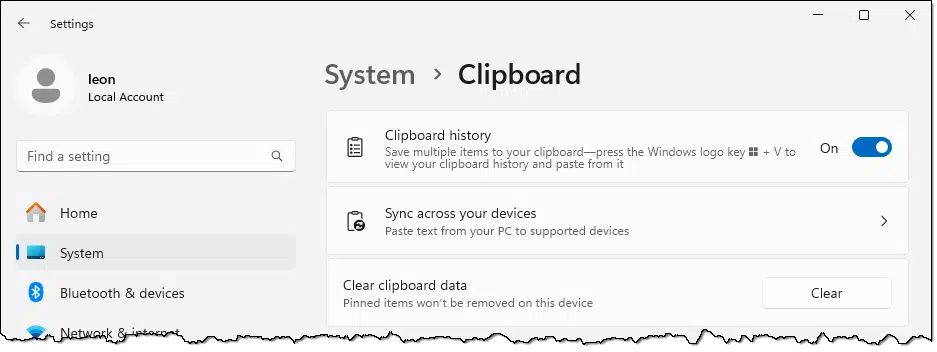
With this enabled, after you use the clipboard for "a while", copying several different items to the clipboard, +V will bring up a list of things recently copied to the clipboard.
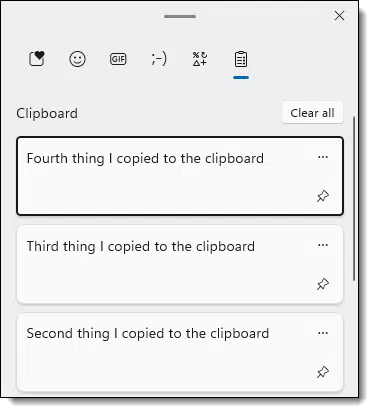
The topmost item shows the current contents of the clipboard.
You can:
+V, which is similar to normal paste: CTRL+V).The clipboard still really holds only one thing, meaning that CTRL+V will paste only the most recent item from the clipboard, but clipboard history gives you access to much more.

176: Often you'll hear "in" or "into" the clipboard as well as "on" or "onto" the clipboard. "In" is much more common, but "on" more accurately matches the physical clipboard metaphor. Both are correct.
Word documents are not intended as a distribution or publication format. PDF is the answer.

I readily admit that this is as much a pet peeve of mine as it is a tip for you.
Quit emailing Word documents!
Unless you actually want someone to edit the document and send it back to you, .docx is not the format to use.
If all you want to do is give someone a document to read, save it in PDF format, and send that instead.

Here's the problem: not everyone has Word, and not everyone wants Word (or a Word-compatible program) on their machine. By sending a .doc or .docx file, you're requiring them to solve that problem in order to see what you sent.
Solve it for them by using PDF. Almost everyone has a PDF reader on their machine.
Besides, depending on the recipient's machine, it's possible — even common — that your Word document won't look the same on someone else's computer. Again, that's not what Word documents are intended to do.
You're doing them a favor with consistent and predictable content and a simpler and easier-to-navigate user interface.
The concept of phishing has spawned a variety of "ishing" terms. They represent different ways scammers try to achieve a common goal: to scam you. I'll review what they all mean.
Scammers gonna scam.

Gotta love technology, where not a day goes by that we don't make up a brand new word.
What matters most is that you understand the technique each word represents, since they are all attempts to fool you into giving up your accounts, your identity, and/or your money.
Let's define the "ishings".
Phishing, smishing, vishing, quishing ' they're all sneaky scams trying to trick you into giving up personal information, money, or account access. Whether it's by email, text, phone, or QR code, the key to staying safe is to remain skeptical and double-check before you click or reply.
This is probably the one you're most familiar with.
A phishing attempt tries to fool you into clicking a link that takes you to a malicious website. It typically includes several characteristics.
Phishing refers to scam attempts via email.
In general, phishing is a game of numbers. The scammer casts a wide net and captures anyone who falls for the scam. There's no effort to choose who gets scammed.
Spear phishing uses the same techniques but targets a specific individual or group of individuals.
This is more common in corporate or similar environments. Spear phishing allows the message to be highly personalized to help fool the intended recipient. It's one of the ways data breaches happen. An unsuspecting employee falls for the bait, and the scammer gains access to corporate resources.
Smishing is SMS170-based phishing. In other words, it uses text messages to fool you.
Once again, the goal is typically to get you to click or tap a link taking you to a malicious website. On mobile devices, it can also be an attempt to get you to download and install malware.
The single most effective approach to dealing with smishing is to ignore any text from someone you don't know. This also protects you from a variety of other text-based scams.
Quishing is QR-code-based phishing.
For example, if there's a QR code posted in a public place — perhaps to get more information about an upcoming event — scammers can print their own QR codes on stickers and paste them over the original. The replacement QR code leads you to a malicious fake website that collects data from you.
A more specific example I heard of recently is on-street parking. Some parking lots have you scan a QR code on the parking meter to download the associated app, which you then use to pay. Scammers replace that code with one of their own, which behaves exactly the same way... except they take the money, and you get a ticket for not having paid for your parking.
Unfortunately, quishing can be difficult to detect and avoid.
Vishing is voice-based phishing.
You get a call from someone claiming to be from a trusted authority. The goal, like any of the "ishing" attacks, is to get your personal information, including credit card information, and steal your money or worse.
The so-called "tech support scam" is a great example of vishing. You get a call from someone claiming to be from your ISP or Microsoft or some other computer-related company, telling you that your computer is causing problems. They trick you into giving them access to your computer, at which point they harvest all the personal and account information they can.
177: Short Message Service
I want to explain why I have more than one recommendation for a backup program. Talking about one doesn't mean I've stopped recommending the other(s).
This comes up often enough that I want to address it and explain why. It's simple:
These two things can both be true at the same time.
I recommend both Macrium Reflect and EaseUS Todo because they meet my requirements for a backup program. They're different, but both are good. Pick the one that works best for you. I don't care which tool you use as long as you back up.
Both programs meet my requirements for securely and completely backing up your machine.
My requirements? A good backup program is able to:
There are bonus features that I could add to the list (for example, I love Image Guardian in Reflect and Security Zone and Backup Protection in Todo), but that's my bare minimum.
While both programs meet those requirements, they differ in ways that matter to some people.
And, of course, their user interfaces are different.
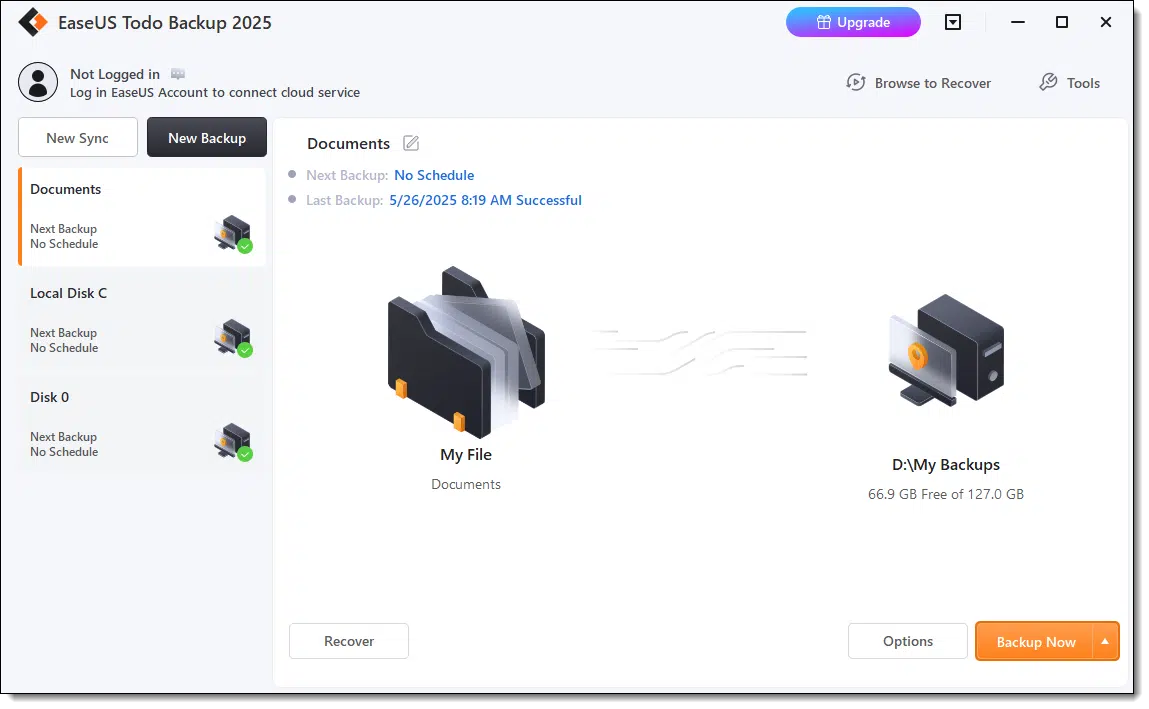
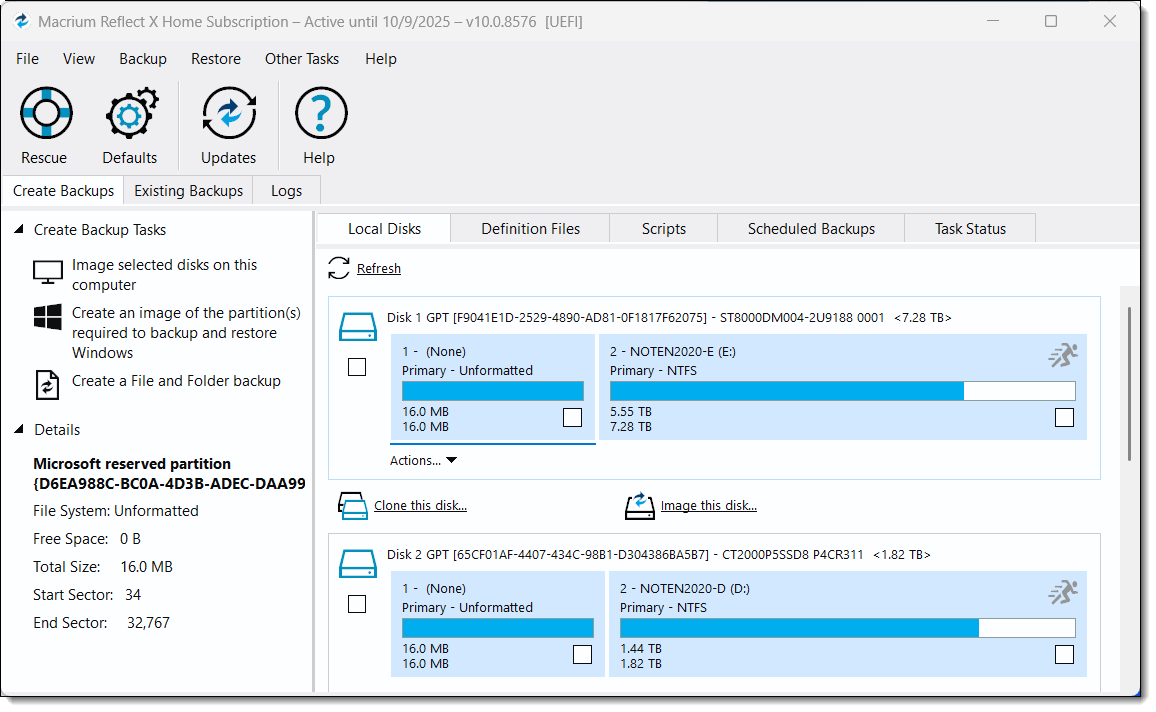
People find one preferable to the other for a variety of reasons, ranging from perceived simplicity to perceived professionalism.
I don't care which one you use. Backing up is so important that if having multiple recommendations means you're more likely to select one and actually back up, then I've done my job.
If there were more hours in the day and it meant more people would back up, I'd probably have a third or even a fourth recommendation.
I hear regularly of many other backup solutions. Some meet my minimum requirements and some do not. Those that do all have pros and cons along the lines of the differences I've mentioned already: location, user interface, reputation, etc.
But given that I have two available recommendations that I believe in, I feel like I've got ya covered.
Long pressing on mobile devices is similar to right-clicking with a mouse.

I recently wrote an article on how to hover over a link to see where it's about to take you. A common question I got in response was, "What about my phone?"
Hovering implies you have a mouse pointer to hover with. Touch-based devices like phones and tablets don't have that.
Enter the long press. Press on the link without releasing until "something" happens. In an email program on my phone, for example, I eventually get the pop-up menu shown above, where I can copy the link to the clipboard or open options to share that link with someone else. Either approach lets me see the link without actually tapping (or "clicking") on it.
Long pressing is worth experimenting with in different places. It's the mobile equivalent of a right-click and can expose additional functionality you might not be aware of.
I wanted to see if I could live without OneDrive and avoid the risk that OneDrive would make changes I didn't request. Turns out, it's not that hard. I'll walk you through what I did and how I did it.
It's not news that OneDrive has become a problematic mess for many people. The two biggest issues include:
It's a mess. And while I have a course on OneDrive and plenty of articles on it, I decided to see if I could live without OneDrive actually running on my computer.
Turns out I can. Quite nicely, in fact.
I said goodbye to OneDrive and set out to see if I could live without it. I backed everything up, moved files elsewhere, uninstalled the app, and kept access to it only through the web and rclone. It's been weeks, and OneDrive hasn't come back. So far, so good.
You know I have to say this: before making any of the changes I outline below, I made certain I had backed up my machine configuration as well as the existing contents of my OneDrive folder.
In my case, my nightly image backup handled both seamlessly.
I've mentioned before that I use many different cloud storage services, including OneDrive, Dropbox, Proton Drive, Google Drive, and of course the storage available on my online servers.
Before doing anything with OneDrive, I started with an inventory and then reorganized.
I moved some files out of OneDrive to Dropbox, particularly those my team collaborates on, such as my publishing schedule. (This backfired; more below.) This meant simply moving the files on my PC from within the OneDrive folder to my Dropbox folder. This removed them from OneDrive on all my PCs and from OneDrive.com online and made them appear in Dropbox on all my PCs and Dropbox.com online.
I moved other files out of OneDrive to a local hard disk shared on my network, removing these files from the cloud and other PCs completely. I decided these files didn't need to be accessed online but would remain accessible to all my machines here at home via home networking. (Which I acknowledge is hard.)
I disconnected a different OneDrive account shared with my primary account. This is a common way to get more storage, particularly if you have Microsoft 365. Each account you share 365 with gets a full terabyte of storage of its own. You can share that storage with your primary account to accumulate up to 5TB of storage. I'd been using an alternate Microsoft account to create 1TB of storage for certain backups. The backups are still there; they're just accessed differently now. More below.
I deleted some files I no longer need. I'd accumulated stuff. What can I say? I'm a digital packrat.
I left some files that I had shared publicly in OneDrive. For example, I shared a file of scanned Microsoft memorabilia for other former Microsoft employees to see.
I made sure that my OneDrive folder on my PC (and by extension the contents of OneDrive.com online) contained only the few items I still wanted there.
My next step was to unlink my OneDrive account from the OneDrive app on my PC.
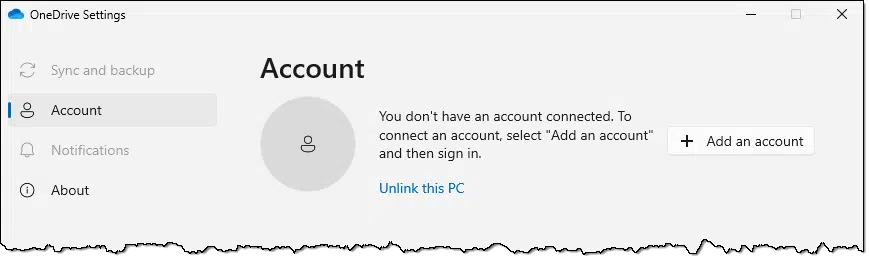
This disconnected the OneDrive app on the PC from the OneDrive.com account online. This is important because it prevents any further synchronization of files between the two. Changes made on the PC will no longer be reflected online.
I used Revo Uninstaller to remove OneDrive.
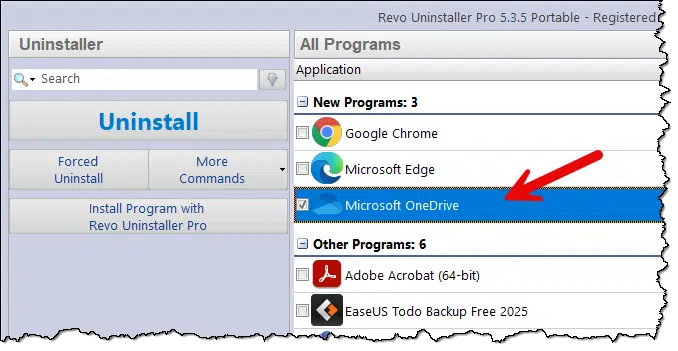
In theory, a normal uninstall via the Settings app should be enough, but I wanted to let Revo scan for additional leftovers.
After Revo did its thing, OneDrive was gone from my system.
I took the additional step of deleting the OneDrive folder (C:\Users\<userid>\OneDrive) and everything it contained.
Having removed OneDrive from my PC,171 I could still access OneDrive to manage files I elected to leave there in either of two ways:
So even though OneDrive was no longer on my PC, I could still access the storage online.
I mentioned that there were issues relating to my team's document collaboration in Dropbox. Specifically, the publication schedule Excel spreadsheet kept getting "conflicted copies" as two or more of us made changes at the same time.172 This quickly became annoying.
Rather than mess around173, I moved the spreadsheet back to OneDrive. However, rather than accessing the file on my PC, we access it online only, using the free online version of Excel.
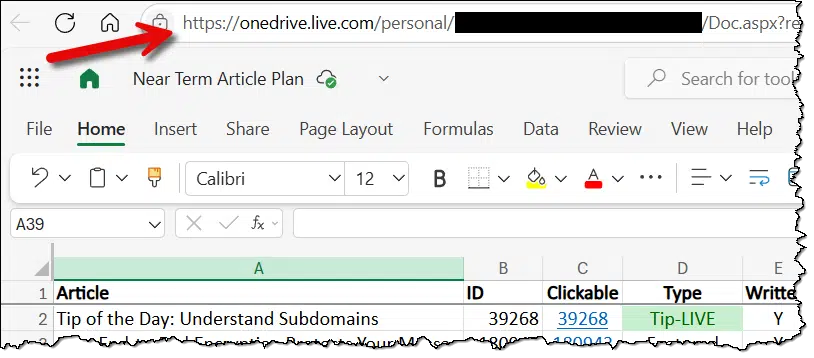
This allows all of us to access the spreadsheet at the same time and see the changes being made by others without running anything on our PCs other than a web browser.
And, since I had my OneDrive online connection via rclone, if I ever felt the need to access the actual file, all I had to do was look at my virtual drive "L:":
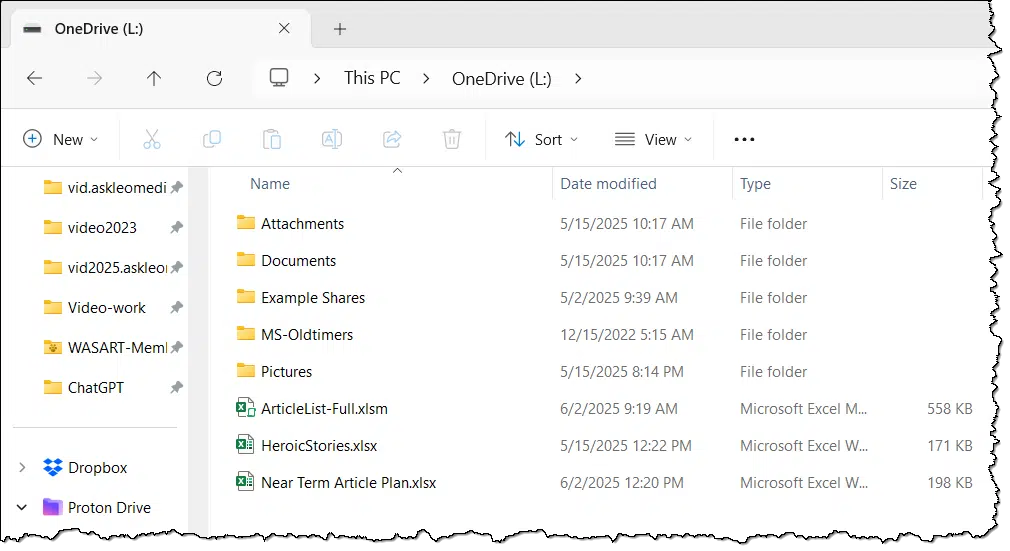
My biggest concern is that Microsoft will undo what I've done in some future update. I worry that one day, the OneDrive app will reappear on my computer and somehow be reconnected to OneDrive.com online. In the worst-case scenario, OneDrive's backup "feature" would also surreptitiously get turned on, uploading things from my PC that I Do Not Want uploaded.
However, so far so good. It's been over a month since I disconnected OneDrive from my laptop and several weeks for my desktop. In that time, I've taken a few Windows Updates, some even requiring a reboot, and OneDrive remains banished.

178: Both my main desktop machine and my laptop.
179: In the database world, it's known as the "simultaneous update" problem: when two people make changes to the same file at the same time and then hit "Save", what do you do about potential conflicts?
180: There's probably a solution, but we had work to get done. Microsoft's Excel was likely to work best in Microsoft's OneDrive.
Tariffs are just one more thing for scammers to exploit.

Regardless of how you feel about tariffs, one thing is clear: scammers love them. More specifically, scammers love the confusion surrounding the tariffs levied in the last few months by the United States. The frequent changes in how tariffs are applied, their rates, and who they're applied to have created what might be a scammer's dream.
Given that the average consumer has never had to be concerned about tariffs only makes the problem worse.
Scammers are reaching out and claiming that tariffs need to be paid by consumers when in fact that's not how tariffs (generally) work. Tariffs are paid before you ever see the item. The only part you see is that the price is likely higher.
The fact that I have to say "generally" above reflects the confusion and inconsistency.
The bottom line: if you're ever asked to pay a tariff, be extra skeptical. It's almost always a scam. Research it deeply before taking any action.
"Home" is not where your files are.
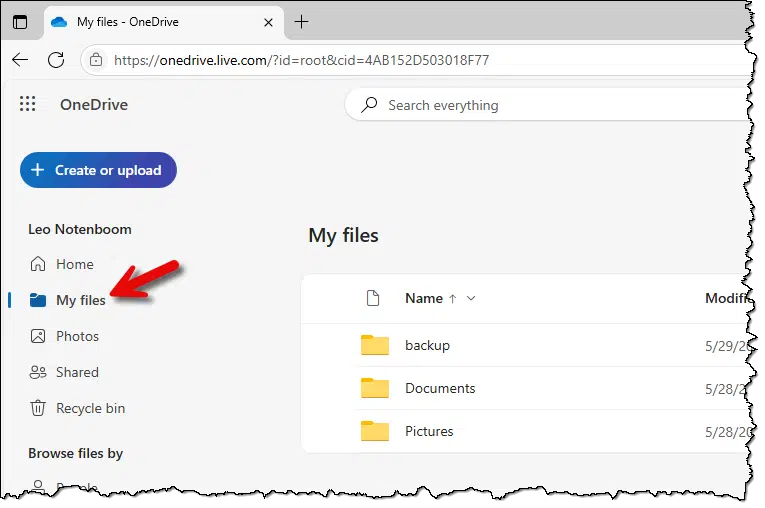
When you visit OneDrive.com, it opens to the Home tab/section. The Home tab can be confusing; not all your files are displayed there, and files you've removed from OneDrive may be listed.
Instead, click on My files to see the complete folder layout of everything in your OneDrive.
Personally, I find the Home tab mostly useless at best and distracting at worst. I wish there were a setting to default to "My files", but no such luck. Therefore, it's usually the first thing I click on when I visit OneDrive.com.
Alternativeto.net is a handy online resource when you're looking for alternatives to software.
Alternativeto.net is a website that crowdsources information about programs that can be considered as alternatives to others.
If there is software that doesn't work on your system, isn't available for your platform or operating system version, or you simply want to avoid, you can look it up and see what other people consider to be alternatives to it.
For example, looking up alternatives to Microsoft Word results in a long list, including LibreOffice, Google Docs, and many more.
I use Alternativeto.net in either of two scenarios.
You can refine your search by platform as well as cost. The results are ordered by crowd-sourced visitor feedback, which is both good and bad: there's generally a consensus about what applications are worth considering, but your opinions might not match those of the reviewers.
Whatever your reasons, alternativeto.net is a convenient resource.
A BIOS password provides a surprising amount of security on a computer -- so much that if the password is lost, chances for recovery are slim.
You probably can't.
BIOS (and now UEFI) passwords — which you enter before booting to allow the process to proceed — are tough items to crack. That's (mostly) great news if you're trying to protect your computer.
Unfortunately, it's pretty bad news if you don't know the password.
Let's review the options.
BIOS passwords protect your system from unauthorized changes and unauthorized booting. In most cases, you need to know the password to change the password. If you don't know that password, some motherboards may have a physical reset switch that will reset a BIOS to its initial state without the password; some require that you ship the motherboard back to the factory; and some cannot be changed at all.
The BIOS (Basic Input Output System) or UEFI (Unified Extensible Firmware Interface) is software stored in a memory chip on your computer's motherboard. It performs many functions. We're most familiar with it as the software that controls your machine from the moment you turn it on or reboot it. It's responsible for locating the boot device and loading the software that takes over the next stage of the boot process. I often refer to them as UEFI/BIOS to show that I'm talking about either or both. Throughout this article, I'll just use BIOS174.
Many, if not most, BIOSs can be configured to require a password before you can boot your machine. It's a strong security measure to prevent unauthorized access to your machine.
If you don't know the BIOS password, you can't boot, can't alter any BIOS settings, and, of course, you can't reset the BIOS password.
A BIOS password is strong security if that's what you're looking for. Given how often people forget passwords, it's almost too strong, because if you forget it, you are likely to be SOL: Severely Out of Luck.
There are a few things to try if you forget your BIOS password.
A few computer manufacturers provide the ability to reset the BIOS password by setting a switch or connecting a jumper on the motherboard.
The only way to know if this will work for you is to contact the manufacturer of the computer or its motherboard.
The reason this is infrequent is that it defeats the purpose of the BIOS password. A thief who has stolen your machine can just open the machine, flip the switch or connect the jumper, and get right in.
The CMOS battery on the motherboard is typically used to provide just enough power to keep the clock running and preserve your BIOS configuration when the machine is not running or plugged in.
In some cases, you can reset your BIOS (including all settings and the password) by unplugging the machine, removing the CMOS battery for a few minutes, and plugging everything back in.
Once again, this should be a rare case because it's horrible security. A thief can do the same thing to gain access to your machine. All it does is slow them down a little.
I'd not heard of this myself, but I'm told it's a possibility.
Some BIOSs apparently have a master or backdoor password that the manufacturer can use to override the password you and I might set. Clearly, step one is to contact the manufacturer of the motherboard, but how they proceed from there is unclear.
If this is true, it seems like another security hole. Either they'd share the master password with you (or the thief), at which point you could share it with the public, or they'd need some secure way to access your machine that I can't fathom.
I have heard scenarios where the computer manufacturer will reset the BIOS password for you (possibly for a fee). That means shipping your computer back to the manufacturer. They then perform whatever magic it takes to unlock it. Perhaps this is where they can use that master password securely.
This is a good theft deterrent because a thief isn't likely to bother sending a machine to a manufacturer where it can be traced back to him.
Nonetheless, I believe this is also an uncommon practice.

If there is no way to reset the password, there is no way to unlock the BIOS.
One alternative, then, is to replace the motherboard, BIOS and all. With a new motherboard (and an un-passworded BIOS), you'll have access to everything once again; data on the hard drive is unaffected by switching the motherboard.
Sometimes a machine with an unknown BIOS password is unsalvageable. It's essentially been "bricked"175. This might be the case on an older machine if the BIOS can't be reset and new motherboards are no longer available. It's a shame, but it's occasionally an unfortunate reality.
If the hard drive is not password protected (see below), getting a completely new computer and either installing the old hard drive or attaching it as an external drive is perhaps most expeditious.
Occasionally, it's not the BIOS that has a password but the hard drive. For example, if you use whole-disk encryption with a third-party tool such as VeraCrypt, you'll need to provide a password (or passphrase) before the hard disk can be read.
This is completely unrelated to the BIOS.
It's easy to confuse this with a BIOS password because they both ask for passwords at roughly the same time: before the system boots. It's difficult to know which you're dealing with; pay attention to the wording of the password prompt and any information that precedes it.
The good news about a lost hard disk encryption key is that your computer is just fine. You may lose all the data on the hard drive176, and will perhaps need to reformat it, but the computer itself remains fully functional.

181: Mostly because it's easier to say.
182: The size, shape, and all the utility of a brick.
183: In some cases, the hard disk itself implements the password. If you lose the hard disk password, it may be unrecoverable.
Printer problems can be frustrating. I'll show you a quick, safe, easy technique to try first.
Printers and printing are a special source of frustration in Windows. From the early days to the present, printers can behave oddly, and even occasionally stop working completely, for no apparent reason.
It's gotten better — especially installation — but random and frustrating things still happen too often.
I don't have a solution for every situation, but I want to share the first thing I do when a printer goes awry. I'd say it resolves between half and 80% of the problem cases I'm asked about.
Use the Windows settings app to remove your printer from Windows and then add it back again. Doing so reinitializes much of the printer's configuration information. While this approach doesn't solve all problems, it's a safe and easy first step to fixing printer issues.
Note: most images below are from Windows 11, but the same technique applies to Windows 10.
As counterintuitive as it sounds, the first step is to uninstall the printer from Windows.
Find your printer in the Settings app.
Click on your printer and then on Remove or Remove device.
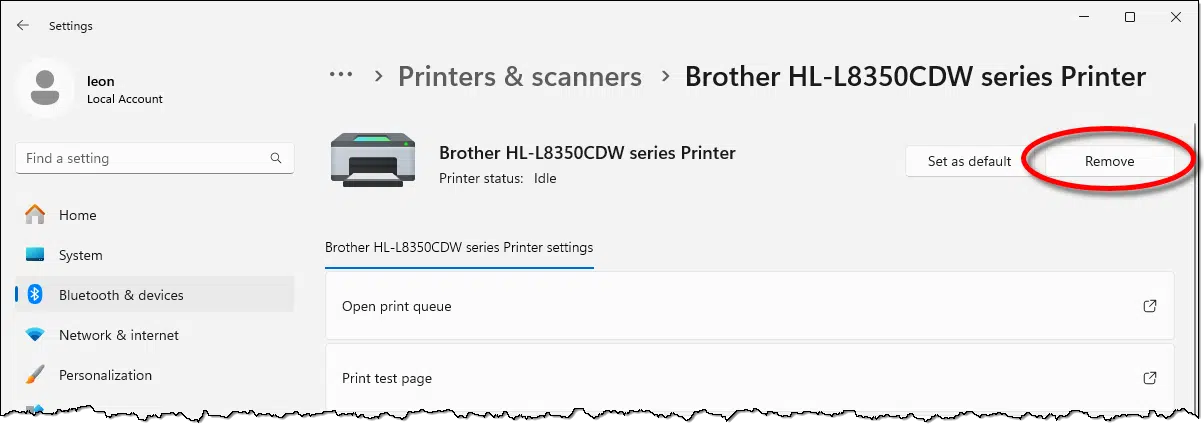
You may be asked to confirm.
Click on Yes, and the printer will disappear from the list.
Return to the Printers page in Settings and reinstall the printer.
Windows will scan your local network for printers as well as any physically connected to your computer.
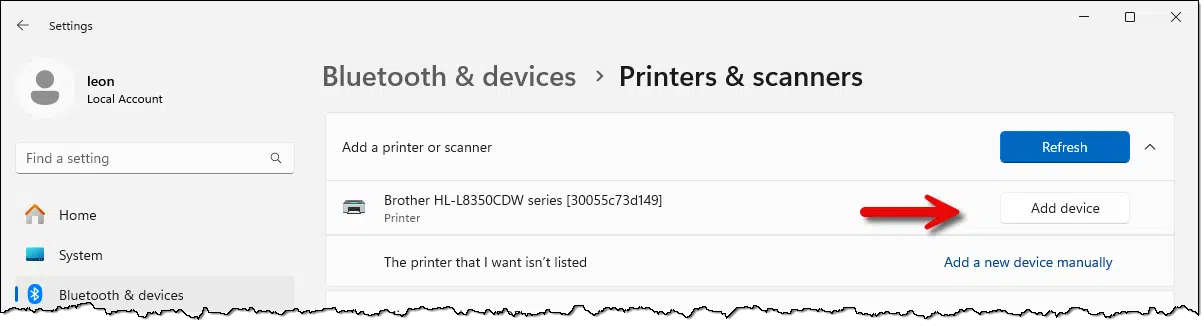
When your printer appears, click on Add device. Windows will reinstall it.
Try to print what you were having trouble printing. Hopefully, your problem has been solved.
If, Windows does not find your printer automatically, click on Add a new device manually (Windows 11) or The printer that I want isn't listed (Windows 10) for a list of alternative ways to install the printer.
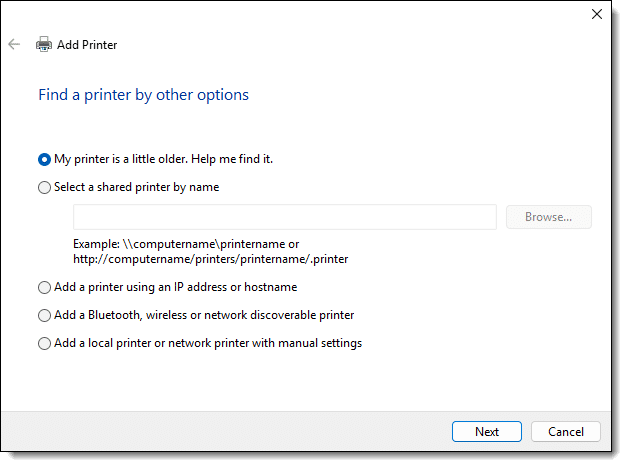
These are more advanced techniques and may require that you have additional information (such as specific printer names or IP addresses) or skills (understanding manual settings).
There's an easier approach that is not listed: visit the printer manufacturer's website for the latest drivers and/or installation program for your specific printer. If available, it's as simple as downloading the file, running the program, and answering a few questions (remember, never choose default installations).
Don't click on email links. Type the URL into your browser yourself or use a bookmark you create.

"Never click a link in email."
We hear this so often that it gets old and easy to ignore.
It isn't 100% correct177. And yet, with so much malware and so many phishing attempts sent via email, you shouldn't take risks. Email that seems to be from your bank, PayPal, your ISP, or even your email provider may be a devious attempt to ensnare you.
So what do you do instead?
In either case, you avoid clicking links in the email. If you can't find what the email was talking about, perhaps that email was fake, and you've saved yourself a phishing attack.
Sadly, some uneducated organizations set it up so the only way you can respond is to click the link in the email they send.
You can reduce the risk by following the instructions above: type in or use your own bookmark to log in to the site in question first. Then click on the emailed link. If it asks you to log in again, it's time to get very suspicious. Sometimes they get this wrong too, and the link they send requires you to log in again. If that happens, it's time to be extra cautious — double-checking the domain you land on as it appears in the address bar, for example.
184: Better: "Never click a link in email that you aren't expecting, that you aren't 100% certain of, or from someone you don't know." If you're expecting it ' like a newsletter subscription confirmation ' clicking is the right thing to do.
Adding a BIOS or UEFI password to your computer provides an additional layer of security.

One approach to computer security is to add a password to the boot process. This is called a BIOS or UEFI password because its security is implemented in the firmware installed on your computer.
The advantage of a BIOS password is that no one can boot the computer without it. Before accessing the hard drive and loading the operating system, the BIOS waits for the proper password to be entered.
In some cases, the BIOS password (or another password entered at boot time) is also used for hardware-level disk encryption. That means even if the drive is removed, its contents cannot be deciphered without the proper password.
One caution: depending on the manufacturer of your computer, there may or may not be a method to reset a BIOS password if you forget it. Techniques range from none at all (you're out of luck) to a jumper on the computer's motherboard (anyone with physical access could do this) to sending the computer back to the manufacturer for a reset. In short: if you set a BIOS password, don't forget it.
Finally, if this sounds familiar, it is. Whole-disk encryption is another approach that requests a password at boot time to decrypt the disk before you can use the computer at all. The distinctions are subtle, but a BIOS password is typically implemented in hardware and has less impact on performance than software solutions like full-disk encryption. Full-disk encryption, on the other hand, doesn't depend on hardware support and may be more flexible or easier to use once put into place.
Particularly if you regularly travel with sensitive data, consider adding this level of protection.
I share my rule of thumb for choosing the size of an external backup drive.
It's a common question. There are several things to take into consideration, including how much data you have to back up, how many backups you will keep and how long you will keep them, how you will use the external backup drive, and price.
It's also something that changes over time for a variety of reasons.
Let's look at what you should consider. I'll also share my rule of thumb.
You don't need a backup drive as big as all your hard drives combined. Focus instead on how much data is being used. As a rule of thumb, start with a backup drive about four times bigger than all your used data. Bigger is better if your budget allows.
In your question, you mention the size of your drives. That's one good measure, but it's often overkill. We rarely fill up our hard disks to capacity. More often, we end up upgrading to larger drives or changing what we store on them.
There's a different number I'd consider instead: the space used on each drive so far.
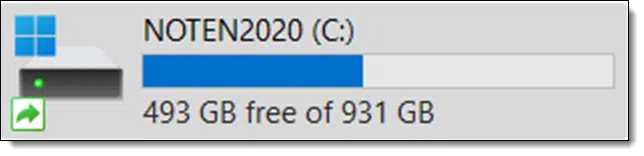
My C: drive, shown above, is a 1TB disk178. I'm only using a little less than half of it: 438GB. That's the number that matters. The unused space doesn't need to be backed up.
If you're going to rely on any single number, consider the amount of data currently stored on your hard drive.
Different backup programs use different techniques to store — and most importantly, compress — the images they take.

For example, through compression, Macrium Reflect creates an image file that takes up less space than the original data.
The size of the image file is interesting, but not the primary number I'd have you pay attention to.
If you take incremental backups instead of only full, your backups will take up even less space.

Note that this incremental backup image, taken the day after the preceding full-image backup, is dramatically smaller. It contains only things that changed that day.
With a monthly full-image/daily incremental backup schedule, a month's worth of daily backups could take less than 600GB in space, as opposed to a month's worth of daily full backups, which would take closer to 1.5TB.
How long do you expect to keep your backups?
In general, the rule is "until you're certain you won't need them", but that's a pretty ambiguous guideline. It's not helpful.
My approach is to keep three months of daily backups (full and incremental, as described above). I discard the incremental backups older than that so I have another three months of monthly snapshots. I cherry-pick some of those to save (perhaps the quarterlies or just the January 1 backup) and discard anything else.
But I'm an anomaly. And I can tell you I've rarely needed a backup older than a few days or weeks.
Unless you have other requirements, I'd advise you to keep at least a month's worth of daily backups, and ideally two or three. Let your backup program manage this for you.
Will your drive be dedicated to only backups, or will it also serve other purposes?
Those "other purposes" could include backups of a different form, like Windows File History. Or it could be manual archives of your own. Or it could be something else entirely.
My preference, however, is that a backup drive be dedicated solely to the task.
Larger drives cost more. While prices have steadily declined over the years, so has our appetite for data usage.
Larger is generally better since it gives you more breathing room, but it comes at a cost. And while I strongly believe that backing up is worth it, that's not practical for everyone.
So, with all those factors in mind, what to do?
My general rule of thumb is:
Get a drive at least four times as big as the amount of data you intend to back up.
Remember, that's just a rule of thumb. Depending on your situation, you may want or need to do something different. But it's at least a starting point if you're not sure.
Note that I'm referring to the amount of data, not the size of the existing drive(s). If you're backing up multiple drives, add up the amount of data used on each for this calculation.
With all the competing aspects of the size of the backups you might accumulate over time, I feel this represents a reasonable compromise.
Of course, there's nothing wrong with going even larger if your budget allows for it.

185: Yes, that maps to 931GB of actual space. See Why Doesn't My New, Empty Hard Drive Show All the Advertised Space?
Don't believe the FUD; your PC won’t suddenly collapse into chaos when Windows 10 support ends. With updated security tools, smart habits, and backups, you can keep using Windows 10 safely long after Microsoft stops updating it—without fear, hype, or panic.
When I tell people it's quite possible to continue using Windows 10 safely after the end-of-support date, I often receive variations of that comment in return.
While I don't expect to change anyone's mind, I want to explain why I feel that way and why the hype over an impending Windows 10 apocalypse is incorrect.
Windows 10 won't suddenly become unsafe when support ends. It'll keep working fine, and security tools like Microsoft Defender will still get updates. If you're careful with what you click, download, and run, and keep your security and other software current, you can stay safe without panicking or rushing to upgrade.
What happens on that end-of-support date? Nothing. Seriously, your Windows 10 machine will run just as well the day after support ends as it did the day before.
"End of support" means that there will be no more updates to the operating system itself. No new features (though that's supposedly been the case for a while), no bug fixes, and, perhaps of greatest concern, no security fixes. If Microsoft discovers a security vulnerability in Windows 10 after the end-of-support date, that vulnerability will (probably) not get fixed.
That last part, of course, is what has many people's knickers in a twist.
Windows Security/Microsoft Defender will continue to be updated through 2028. From the Microsoft page How to prepare for Windows 10 end of support by moving to Windows 11 as of this writing:
Microsoft will also continue to provide Security Intelligence Updates for Microsoft Defender Antivirus through at least October 2028.
This means that as new malware inevitably evolves, Microsoft Defender will continue to be updated to recognize and act on any new or old malware that might make it to your system. Even though Windows 10 itself won't be "fixed", should there be a vulnerability for the malware to exploit, Microsoft Defender will continue to protect you from that malware.
The same is true for many other third-party security packages. Their support is not tied to Windows 10's schedule, and many, if not most, will continue to do their job for some time after Windows 10's end of support.
Some folks speculate that malware authors have a collection of existing vulnerabilities in Windows 10 that they're waiting to exploit until after the end-of-support date. The theory is they can then release malware exploiting those vulnerabilities without concern that the vulnerabilities will be fixed.
It's possible, but not very likely. Counting on the restraint of malware authors to delay their activity seems like a weak justification for panic.
Will there be vulnerabilities exploited after Windows 10 end of support? No doubt. Will it be a flood? Highly unlikely. And even if there was, other approaches to safety will work to keep you safe.
Most malware arrives in one of three ways.
This isn't about blame.
In fact, it's great news. The common thread here is you, and that means you are in control.
You can avoid most malware by:
And, of course, backing up.
You should be doing all that already. If so, you've already taken the most important steps to keep yourself safe, regardless of whether your operating system is being updated or not.
While I recommend keeping your system as up-to-date as possible, not everyone feels the same way.
Some people explicitly disable or avoid Windows 10 updates for months, if not years. In other words, Windows 10 support ended for them long ago when they did whatever they did to prevent automatic updates.
They've been doing just fine. In fact, many of them consider Windows updates themselves riskier than whatever threat an unpatched operating system might pose. Some are even looking forward to the end of Windows 10 support so they can stop being concerned about which update will break what next.
I don't agree with their position, but that doesn't mean it can't work. And it's a good example of being able to use Windows 10 safely without security updates.
I have a strong sense of déjà vu. We've been here before. Twice, in fact.
Windows XP's end-of-support date came and went. While many people continued to use it past that date, there was no "XPocalypse", even though there were dire warnings from the naysayers. The article How Do I Protect My Windows XP After They Stop Sending Updates? should seem very familiar.
Windows 7 had the same kerfuffle. How To Keep Using Windows 7 Safely After Support Ends should, again, seem familiar.
In both cases, people elected to continue to use XP or 7 beyond its end-of-support date, and did so safely. Indeed, some continue to use those older operating systems even today.
There's little reason to believe Windows 10 will be any different.
"But Leo, there could be problems! How can you advise people not to protect themselves?"
Let me correct you: there will be problems. There will be problems with unsupported Windows 10, and there will be problems with supported Windows 11. There will be problems with their alternatives. None of them are perfect. Perfect security does not exist.
And I am advising them to protect themselves. I'm advising them to do so in ways that will allow them to stay safe when running Windows 10 beyond its end-of-support date.
Security is a spectrum, and our job is to adopt behaviors that stack the deck in our favor. Coupled with appropriate security habits, sticking with Windows 10 is not the disaster many make it out to be, just as moving to Windows 11 is not the nirvana some might have you believe.
Getting security fixes from Microsoft is only one piece of a very complex security puzzle. Would I rather that people use supported operating systems? Of course. But that's a myopic wish and ignores the practical reality, which is that many cannot or do not want to update to Windows 11. That doesn't mean they're doomed.
"Click" versus "right-click."

I had someone call me out on not specifying which button I mean when I say "click the mouse".
OK. The default mouse button is the left button. Unless there's additional information, "click the mouse" means "click the left button of the mouse".
There is one important case where that's not true: Windows allows you to swap the left and right buttons in mouse configurations. If you've done that, then the default button for you is the right mouse button. But you'd know that because you had to configure Windows specifically to make that change.
So "click" means "left-click", and, of course, "right-click" means clicking the right button (unless you've swapped the buttons in Windows settings).
The results are in for last year's most common passwords. The implications are depressing.
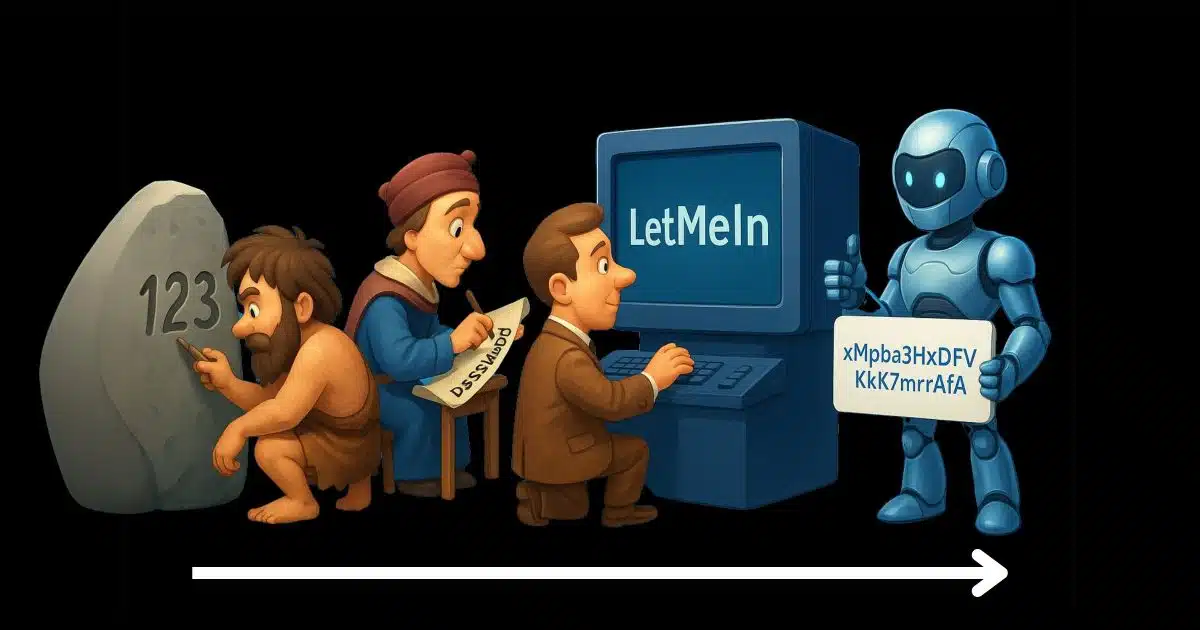
Take any password you think is strong and make it stronger.
Seriously. There's a good chance that what you think is strong isn't, or it won't be in the near future.
Unfortunately, many people do the exact opposite, opting for some of the worst passwords you can think of. Don't do that.
According to NordPass's Top 200 Most Common Passwords, the top five include:
The rest of the list is more diverse but just as obvious, including passwords like "iloveyou", "qwerty", "charlie", "donald", and many more horrific choices.
Not only are they simple, easy to guess, and clearly on the list of the very first passwords hackers try, but they also suffer from the greatest sin of all, in my opinion.
They're short.

When it comes to passwords, length trumps everything. For example, let's take that #1 offender above.
123456
A six-character password. Ugh. But adding a simple pattern to turn it into a 20-character password makes it a pretty reasonable choice.
****** 123456 ******
All I did was add six asterisks before and after, separated by a space on each side. And yes, as simple as that pattern appears to be, it's a strong password. Much stronger than 123456 and just as easy to remember. (Caveat: it's a weaker password because I just published it here as an example. Don't use this exact password; use it as an example of a simple technique to lengthen otherwise poor passwords.)
Today, your goal should be 12 characters at a bare minimum, but preferably something like 16 or more. Using a password manager makes it trivial to use lengthy passwords. Personally, I've standardized on 20 character passwords.
Again, length trumps everything.
I'll admit that throwing asterisks before and after a password doesn't feel secure, even though it is. It just doesn't feel like we did enough work.
But to build on perhaps the most quoted XKCD comic of all time — Correct Horse Battery Staple179 — combining unrelated words can be both strong and memorable.
I recently set up an account for a friend and did exactly that. When it came time to generate a password, I looked around my desk, picked three random items I saw, combined them with a fourth item this friend and I had in common, and — poof — a password that was long, strong, and easy to remember.
Here's a different example using that technique.
SpeakerCoffeeMixerFacebook
That's a 26-character password. If you need special characters, add spaces, or an exclamation point in what, for you, might be a "standard" location, like at the end or after the first word.
As easy as that password is to create, and as memorable as it may be, if you have a lot of different passwords (and who doesn't), it can be difficult to keep 'em all straight. Enter the password manager, which remembers them for you. That way, you only have to remember one password of the long and memorable variety, and the password manager does the rest.
Because I use a password manager (1Password), I don't bother combining words for most of my passwords. I go all-in and let the secure password generator do the trick. For example, most of my passwords look like this:
xMpba3HxDFvKk73mrAfA
That's 20 characters of completely random alpha-numeric data. If I need a special character, I'll throw one in somewhere, making it a 21-character password.
I can't tell you any of my passwords except the one to my password vault.

186: Which I did not have to look up ' it's that memorable.
Keep a spare keyboard handy for when (not if) your keyboard breaks.
"My keyboard stopped working!"
It's surprisingly common. More surprising is that many people expect a software fix for what (more often than not) is a hardware problem. Considering how keyboards are used and abused, it's to be expected that they'll physically break at some time.
Keep a spare USB keyboard lying around.
There are two reasons.
Diagnostics. Sometimes, it really is the software. By plugging in an additional or replacement keyboard, you can see if whatever problem you're experiencing is unique to the keyboard you started with or if it happens to both. If it's both, it's likely a software issue, but if it's only one of the two, hardware is more likely.
Replacement. If your keyboard breaks, your computer can become useless. Particularly if you have a laptop, the ability to quickly grab a spare keyboard and plug it in can mean the difference between coming to a complete stop or being able to continue working.
It doesn't have to be the best keyboard, but a spare for testing and as a substitute can be useful.
Sometimes, a picture is worth a thousand words, but sometimes you just want the words! I'll show you how to use Windows built-in Snipping Tool to extract the text from an image using its built-in OCR.
When people ask me questions, I frequently ask them for the exact text of the error messages they're facing. "It said something like" is almost never enough.
My go-to solution is the screenshot. A picture really is worth a thousand words when it comes to troubleshooting.
But what if you don't want to (or can't) send a picture?
There's a solution for that.
If you see text on your screen but can't copy it, use Windows' Snipping Tool. Press Shift + Windows + S, select the text area, and click "Text Actions" to extract the words. You can copy and paste the result into a message or search. While not perfect, it's very good (and getting better) and saves a lot of typing.
This is useful for much more than capturing the text of an error message to send to someone like me; this technique applies to any text you can see on your screen. In fact, the example we'll use is not an error message.
The process begins with the Windows Snipping Tool.
With the text you want to capture on the screen, type SHIFT++S to run the Snipping Tool.
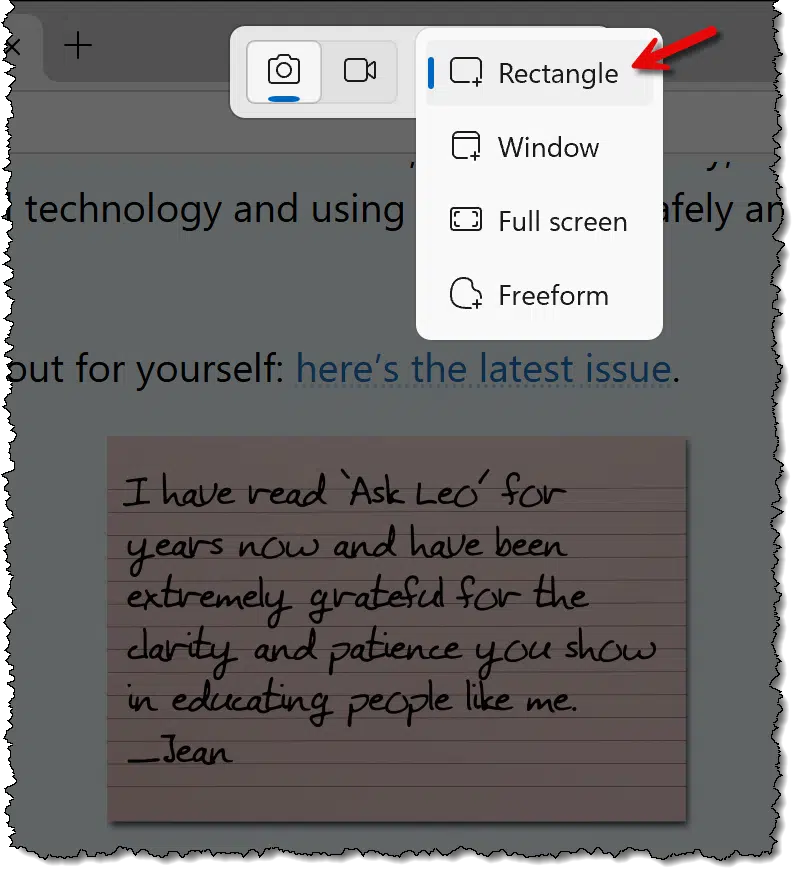
Make sure that the camera is selected to take a photo. I recommend you use the "Rectangle" mode to select the area to be snipped.
Draw a rectangle around the area containing the text you want to capture.
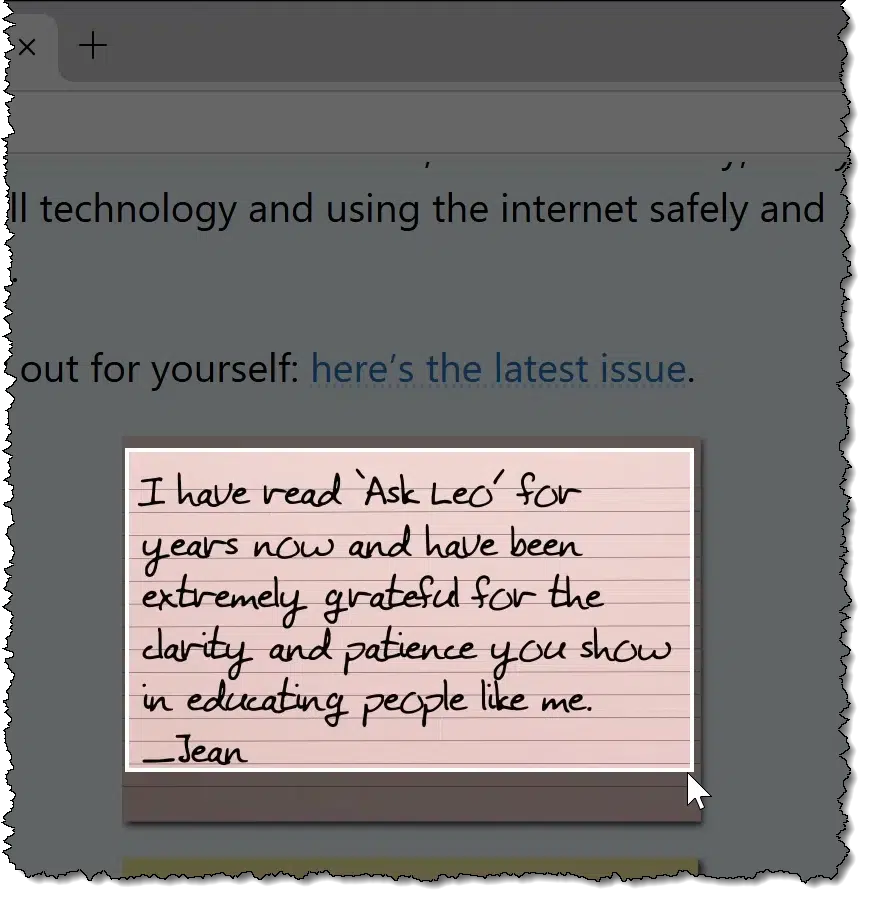
Try to avoid including areas that aren't part of the text you want, though this is sometimes impractical.
When you release the mouse after creating the rectangle, the Snipping Tool takes the screenshot.
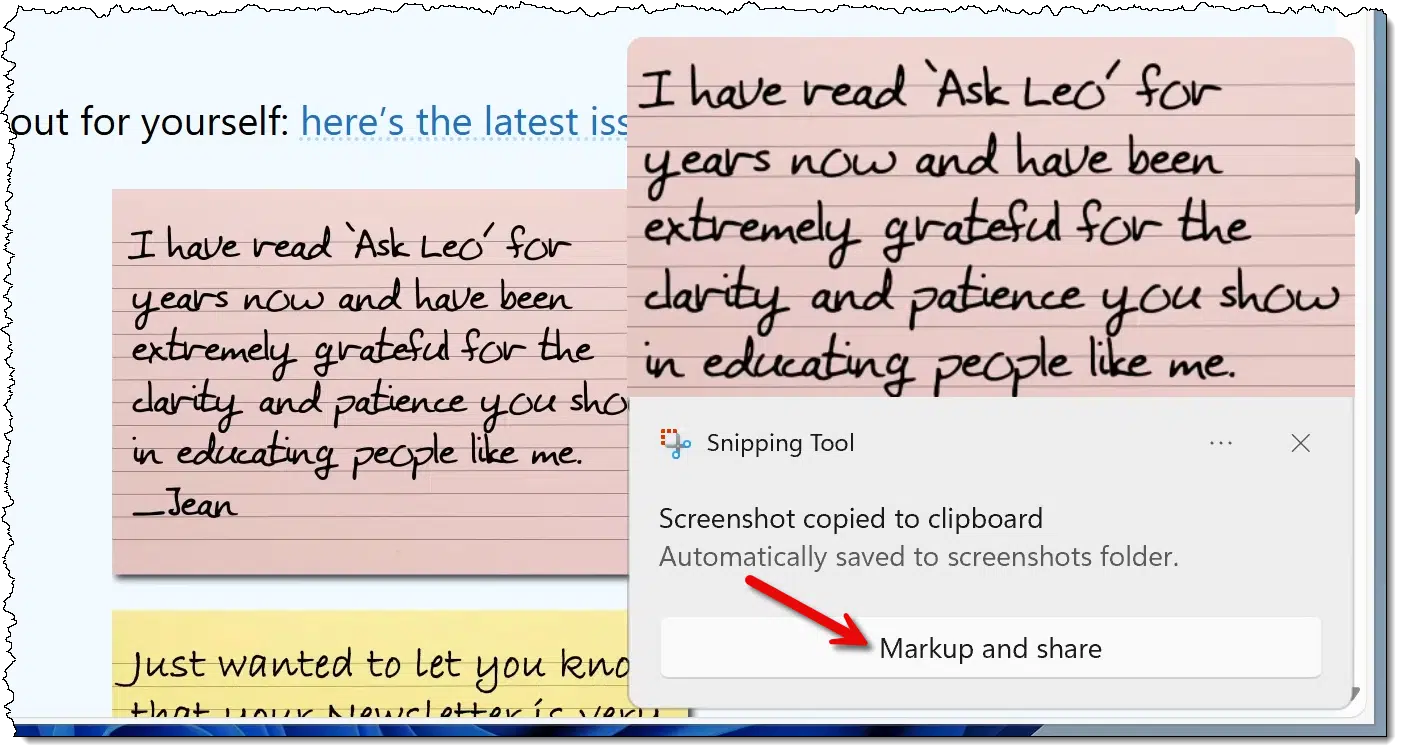
The screenshot has been placed in the clipboard and saved to the screenshots folder. That's not really what we want this time. Click on Markup and share to take the next step.
The Snipping Tool editor is displayed. Near the bottom is an odd-looking icon for Text Actions.
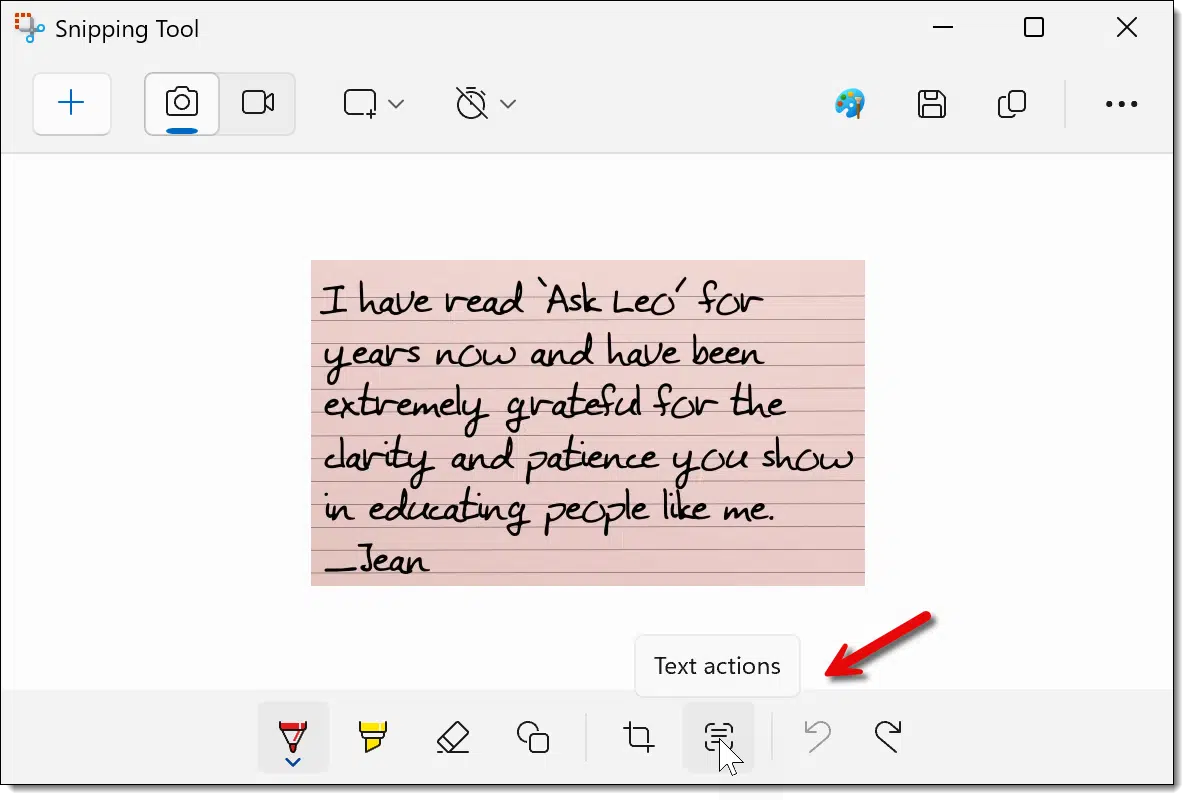
Click on that button. Using OCR, or Optical Character Recognition, the Snipping Tool will attempt to recognize the text in the image.
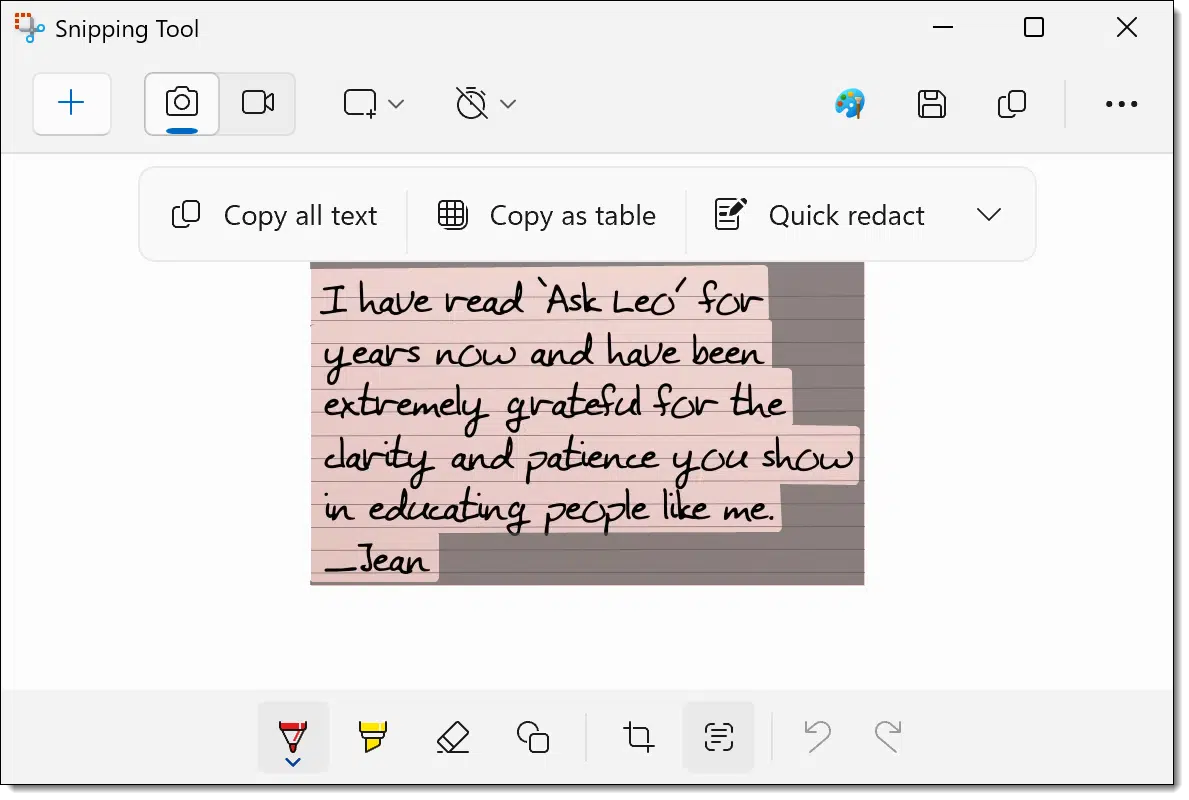
The text it recognizes is highlighted. In the example above, all the text in the image has been recognized.
Click on Copy all text to copy the text (not the picture) to the clipboard.
Now what?
What happens next depends on what you need the text for. You might:
Here's an example of that last one.
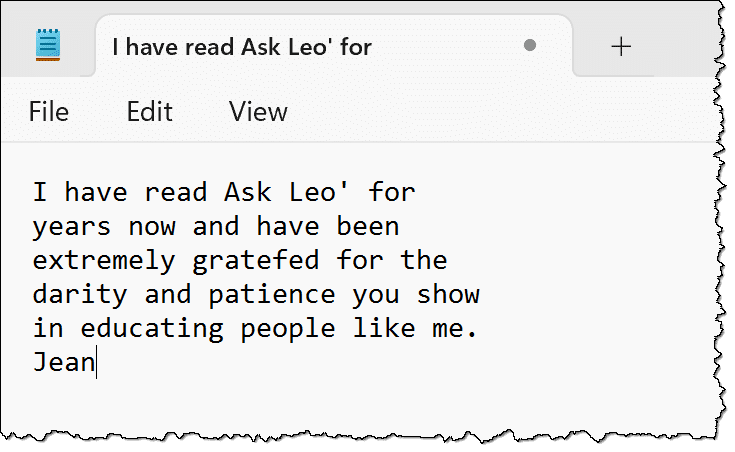
Notepad doesn't support images, so you know that's only text — the text that Snipping Tool extracted from the screenshot you took.
OCR has come a long way, but it's not perfect.
I chose the example image I did because it's not "clean" text. It's a handwriting180-style font, which means it's harder to recognize. And while Snipping Tool did a pretty good job, it wasn't perfect: it missed an opening quote mark, misrecognized "grateful" and "clarity", and lost the underscore in front of "Jean".
The lesson, of course, is to proofread what's been captured. The good news is that typically needs a simple edit or two rather than retyping the whole thing.
The bigger the text, the better OCR results will be. Thus, this line of text is easier to scan than this line of text. While it's not always an option, if you can make something bigger before a screenshot (like CTRL+ and CTRL- in your browser), do so.
And finally, if the text recognition just isn't working for you, remember: you still have a screenshot you may be able to share instead.
The Snipping Tool isn't your only approach; here are a few others.
There are many, many ways to extract the text you can see on your screen.

187: Literally: it's a font based on my handwriting of ~20 years ago.
Passkeys and hardware authentication keys are completely different but partially related. You can use some, but not all, hardware keys as passkeys. I'll clear up the confusion, and tell you what to look for.
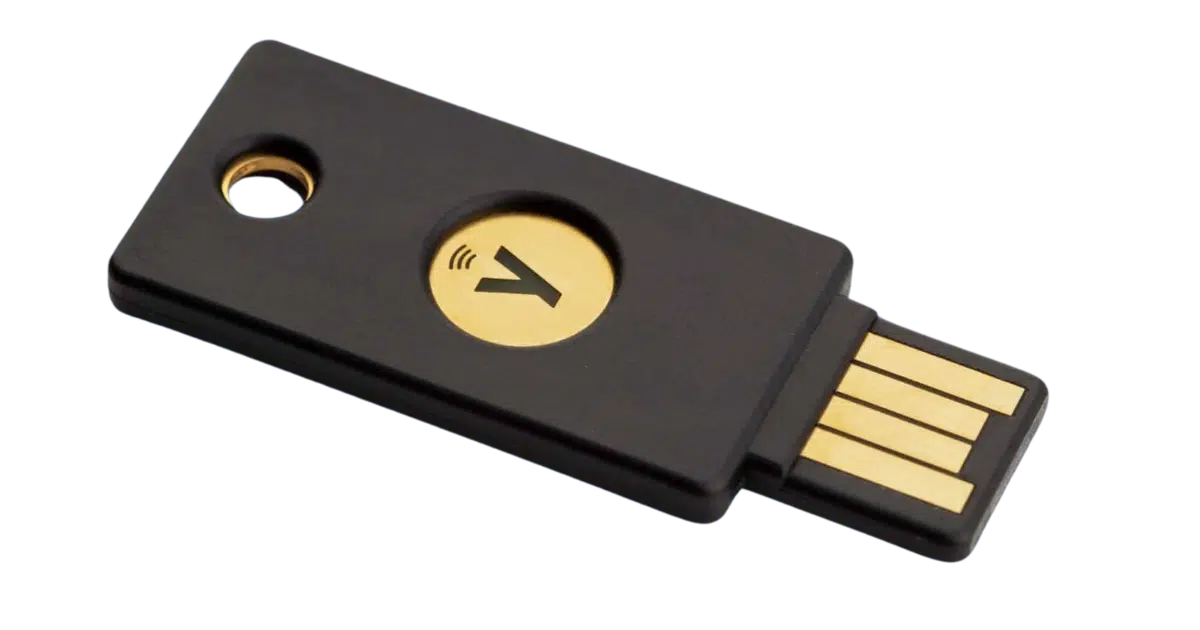
There's no shortage of confusion around passkeys. I recently updated my article What Is a Passkey? to try to further clarify what they are and how they work.
Originally, I got one aspect of passkeys wrong: the confusion between passkeys and hardware keys (like the Yubico YubiKey). I thought they were completely unrelated.
Not necessarily so.
Passkeys are secret codes used to sign into websites your device keeps safe and only uses after you unlock it. Some hardware keys, like certain YubiKeys, can also store passkeys if they're FIDO2-ready. Hardware keys can act as two-factor authentication, portable passkeys, or both. (Older hardware keys work only for two-factor sign-ins.)
What Is a Passkey? has a more complete overview, but the issue relevant to what we'll discuss here is that a passkey is a cryptographic secret — a blob of data — stored securely on your device. When you need to use that key — say to authenticate with a website when signing in — you'll likely be asked to authorize the device (by entering a PIN, providing your face or fingerprint, or something else specific to that device) to fetch and use that secret key.
For example, when you sign into a site using passkeys, on Windows you might need to provide your Windows Hello PIN. On your phone, you might need to unlock it with your fingerprint, even if it's already unlocked.
The key concept here is that your secret key is stored by your device securely, and you need to authenticate with the device to allow the key to be used.
To date, we've talked about hardware keys like the YubiKey only in the context of two-factor authentication, their original and perhaps most common use.
When you set up two-factor using a hardware key, you establish a cryptographic relationship between that key and the account you're setting it up with. The hardware key contains a pre-programmed, unique cryptographic key. Once set up, that, along with some magical math and synchronization, means that key, and only that key, will be recognized as your authorized second factor.
Typically, when you sign in for the first time on a new machine181, you'll enter your username and password, and then be prompted to prove you have the hardware key by inserting it into a USB port. Its cryptographic code is confirmed to be correct, and the second factor is confirmed.
That's one use of hardware keys.
Turns out there's another I was unaware of.
Some — but not all — hardware keys can be used as passkeys as well.
As I mentioned above, a passkey is a secret key that is stored somewhere secure, typically on your machine. It turns out it can also be stored on a FIDO2-certified hardware key. FIDO2-certified is just a fancy way to say that the device has the functionality required to do this securely.
Not all hardware keys are FIDO2-certified.
Hardware keys that can act as passkeys typically have limited storage. Per YubiCo: "Currently, YubiKeys can store a maximum of 25 passkeys." (This applies to their series 5 FIDO2-certified keys.)
The advantage of using a hardware key as your passkey is that you can use your key anywhere to sign in to the account(s) associated with it. It's considered the most secure form of passkey storage. It's also the most inconvenient because, unlike other passkey storage techniques, the key must be physically present for use.
I'm not going to dive into the process in detail because honestly, hardware keys are overkill for most folks, and the process can be confusing. I also expect (or, rather, hope) that the setup process will be streamlined at some point to make it easier and clearer.
As just one example, though, after asking Google to Add a Passkey to my account, I'm faced with this dialog.
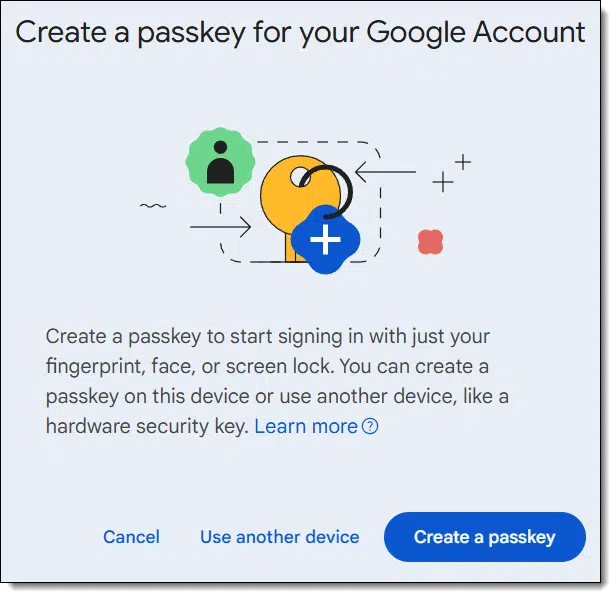
"Create a passkey" will create a passkey on Windows that is stored in Windows secure credential storage182. Any hardware key will be ignored.
If I want to use my YubiKey instead, I need to choose "Use another device". This will bring up dialogs relating to inserting and setting up my particular YubiKey as a passkey.
The most popular hardware keys are made by Yubico. They have a nifty app you can run in Windows to examine and manage your YubiKey: the Yubico Authenticator.
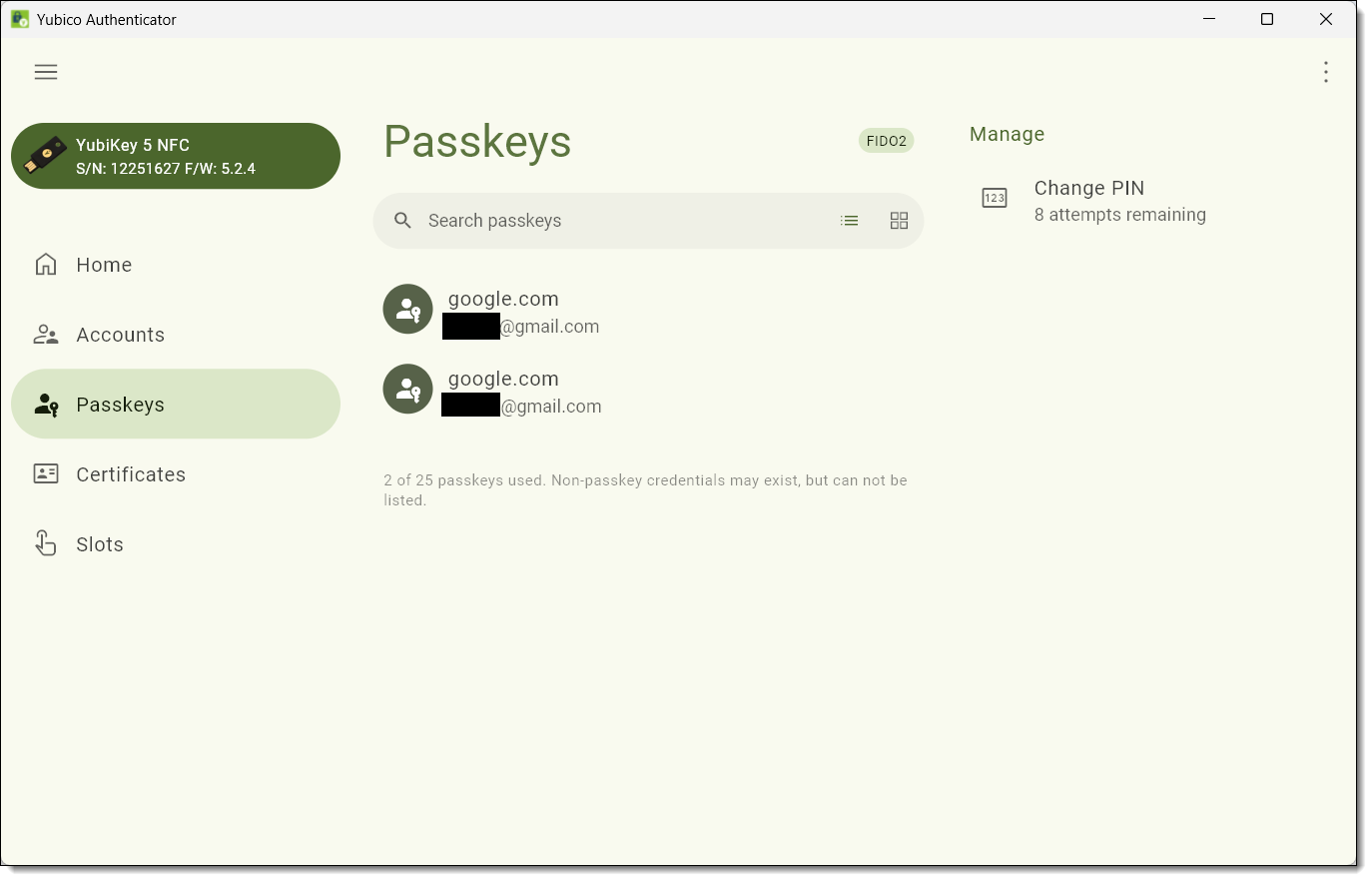
In this example, I have my FIDO2-compliant YubiKey inserted. You can see that it currently has two Passkeys, one for each of two different Gmail accounts.
Even though the keys are listed and you can view some data about them, there is no way to export or view the actual secret key.
Note also the notification: "2 of 25 passkeys used."
If I remove this YubiKey and insert my older, non-FIDO2 compliant key, passkeys are nowhere to be seen.
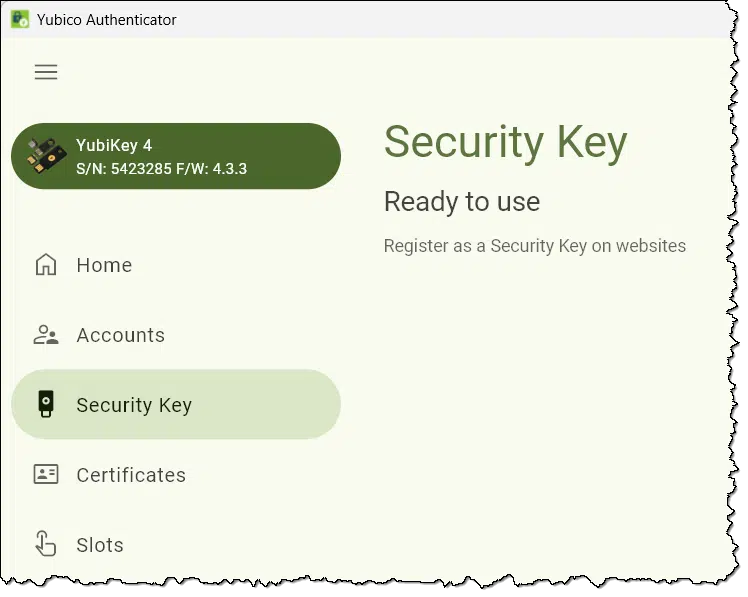
Naturally, it's important to protect your hardware key from loss and theft, but neither is quite the disaster you might think it would be.
Theft: the thief would need to know everything else required to sign in to your account and know what account the passkey applies to.
When used as a passkey, there's typically a PIN you set up that the thief would also need to know. In addition, if the thief attempts to sign in on a machine you've never used, they'll likely have to provide a second factor. If not... if you, for example, can sign in on a different machine with only the security key and its PIN, I strongly recommend you enable two-factor authentication.
Loss: There's always another way in. It may be less convenient or more time-consuming, but you can typically sign in using an emailed or texted code, confirmation on a different device already logged in, or something else. Once in, you can then visit the security settings for that account and disable the passkey you've lost.
Some people recommend always using hardware keys in pairs: always set up two, and store one in a safe place in case you lose the first. That feels like overkill to me unless you're in a highly secure environment where passkeys truly are the only way to sign in.
188: Or a different browser.
189: Or if you have a password manager installed that supports passkeys, as I do with 1Password, it may be stored in your password vault.
Windows 12 isn't even a glimmer in anyone's eye yet. Anyone that says different is misguided and/or misleading. I'll review what we do and don't know, and who you should and shouldn't pay attention to.
In recent months, there has been an uptick in discussions and mentions of Windows 12.
Normally I wouldn't dedicate space to the topic (for reasons that will become clear), but there's been so much speculation and misinformation that I want to set a few things straight.
Windows 12 isn't real. Yet. Microsoft has said nothing. Every video or article claiming details is just speculation fishing for clicks. Don't plan on 12 or worry about 12. Until Microsoft says something about it, ignore the noise.
At this writing, not only does Windows 12 not exist, but Microsoft hasn't said anything about whether it ever will.
There is no information whatsoever about whether Windows 12 will exist, when it might exist, or what it might contain if it ever does exist.
None.
I know I'm being repetitive, but it's a critical point: there has been no official word about Windows 12. Period.
Anything you hear about Windows 12 is pure speculation. Or manure. Or both.
I'll say it again: at this point, anything you hear about Windows 12 is nothing more than speculation.
I've seen a few videos, and some — perhaps even most — admit this. They say upfront that they're just guessing or making stuff up.
There are some interesting videos about what the creator would love to see in Windows 12 — and there's no shortage of ideas. The Windows 12 wishlist is lengthy. Some are creative visualizations or discussions of what Windows 12 might be or could be, and those can be fascinating as well.
But anyone who isn't Microsoft and claims to know if, when, or what Windows 12 will be is lying. Probably for clicks.
My theory is the impending end of Windows 10 support in October 2025, and the Windows 11 update and hardware requirements, are pushing people to think or talk about a possible Windows 12 in a few different ways.
All are based on speculation and nothing more.
Trying to print to PDF can help you narrow down what the problem is.
(Animation: askleo.com)
A powerful printing diagnostic tool is built into Windows: Print to PDF. It's not intended as a diagnostic, but it certainly serves as one.
Next time you're having printer problems, print your document to PDF first. If this fails, you'll know the problem is not with your printer but probably with the program trying to print.
If the PDF looks good, try to physically print it. If that fails, then the problem is likely to be your printer. If it works, however, then it would appear there's something special about the original program you started with and its ability to print to your specific printer.
While this doesn't present an answer per se, it narrows the scope and can help you focus on finding a fix for the right thing.
Shortcuts to frequently used folders and other items can be handy. Let's make one.
(Animation: askleo.com)
In a previous tip, I commented, "You might consider creating a desktop shortcut to the folder."
That's not something everyone knows how to do.
Right-click on an empty area on your desktop, click on New, and click on Shortcut.
Type (or paste) the location of the item for which you want a shortcut. In the example above, I've browsed to a folder on my D: drive, "D:\My Backups".
Click on Next. Give the shortcut you're creating an appropriate name. Then click Finish. The result will be a desktop shortcut that, when double-clicked, will open the folder you specified.
There is so much speculation and misinformation about Windows 12, I want to take the time to talk about what we know, what we don't know, and perhaps most importantly, who you should and shouldn't listen to.

The Wall Street Journal recently published an article titled "Meta Battles an ˜Epidemic of Scams' as Criminals Flood Instagram and Facebook"183. While it's always been important to be wary when buying and selling online, apparently it's only become worse. I'm certain that these issues are in no way limited to Facebook and Instagram. Any and/or all online marketplaces require more caution than ever.
What makes this of even greater concern is that the platforms — Facebook and Instagram, in this example — are taking little to no responsibility for weeding out the scammers and cons. You're on your own, and if you get taken advantage of, they'll be of no help. It's unclear that they'll even take action against whoever scammed you.
And even if they did, the scammer would return elsewhere in a never-ending game of whack-a-mole.
The problem is so pervasive I don't even have specific, concrete recommendations other than to do business only with people or companies you already trust and to always be skeptical.
190: That should be a gift/free link.
Passkeys are a new form of signing in that promise to be easier and more secure. I'll walk you through some of the high level concepts and how they work, and how they keep you safer than passwords.
Everyone knows the frustrations of creating, using, managing, and forgetting passwords. But what if there was a way that once you signed in to your device, all subsequent sign-ins happened securely and automatically without your needing to remember a thing?
In the coming years, you're likely to hear more and more about passkeys.
Not passwords. Not passphrases. Passkeys.
You might already be using them without realizing it.
Passkeys use cryptography instead of passwords to authenticate your identity and allow you to access an account. Passkeys are more convenient and more secure than traditional passwords. There's nothing to remember and nothing for a hacker to steal.
Let's differentiate between these three authentication methods: passwords, passphrases, and passkeys.
As the name implies, passwords are an authentication method where, in addition to your user ID, you prove you are you by entering a "word" — a collection of characters you previously defined as the password — to your account. "Password" is a very bad password because it's short, simple, and easy to guess, but "jy9zdQbNsWQmuyciC2xw" is a pretty good one because it's long, random, and basically unguessable.
Passphrases are passwords made up of multiple words. "I Love Lucy" is a bad passphrase because it's a famous phrase all on its own. Until it was used as a popular example of a passphrase, "Correct Horse Battery Staple" was a good passphrase because it's lengthy and the words are unrelated. "John Snow You know nothing" is a decent passphrase because it's an erroneous184 mix-up of an easy-to-remember phrase.
Passkeys are something else entirely. They use what's called public key cryptography. They might be the safest and easiest to use but the most difficult to explain, so bear with me.
This is a high-level conceptual overview. It's not meant to be accurate at a detailed level. Actual passkey implementation details are difficult to get. I believe the concepts here are accurate enough to understand the basics of how the technology works. If I later discover inaccuracies in my assumptions, I'll update the article, of course.
Public-key cryptography is the workhorse of most online encryption. It's what's used, for example, to secure https connections, the "SSL/TLS" connections configured in your email program, and much, much more.
The concept is simple.
Two large numbers, A and B, are created using a special mathematical formula. Among many other things, they have the following relationship to one another.
That last point is very important. If you encrypt some data using the number A as the encryption key, then only B can be used to decrypt it. Similarly, anything encrypted using B as the encryption key can only be decrypted by A. A cannot decrypt A, and B cannot decrypt B. Only B can decrypt something encrypted using A, and only A can be used to decrypt something encrypted using B.
Think of it as two locks on the same box.
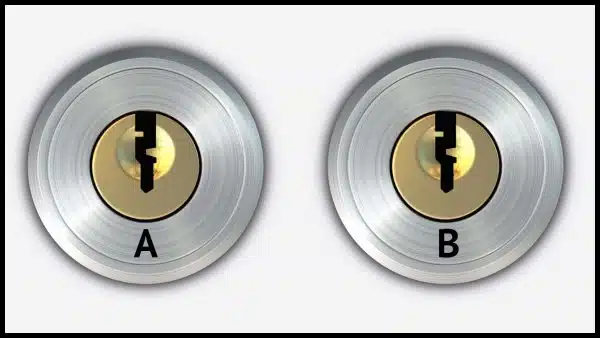
If you lock the box using key A, it can only be opened using key B.
If you lock the box using key B, it can only be opened using key A.
It's digital and mathematical magic, as far as I'm concerned. Beautiful magic at that, if you're into that sort of thing.
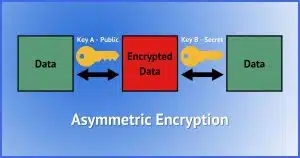
I did mention this is typically called public key cryptography. Here's why.
Public key encryption or authentication refers to the use of both keys in these magical key pairs. One of the two is referred to as the "public key", and the other is the "secret" or "private" key.
If I keep A secret and make B public, then two really interesting things are possible.
Indeed, I have a publicly available public key that anyone can use to encrypt a message to me. Given that only I have the corresponding private key, only I can decrypt it.
Public key encryption can enable authentication that doesn't use passwords (something that's been used on Linux systems for decades).
The server says, in effect,185 "I'm thinking of a number. I'll encrypt this number using your public key and give you the encrypted result. Now tell me what number I'm thinking of."
Since you are in possession of the corresponding private key (which you kept safe and secure), the tool you're using to sign in can decrypt the data the server sent you. It can then respond to the server, "No problem, the number is..." and provide whatever the number is.
Because you had the matching private key, only you could have decrypted the information, and only you could have responded with the correct number.
You must be you. And it all happened behind the scenes without you doing a thing.
I've been using this type of authentication to connect to my Linux servers for nearly two decades.
Passkeys are public/private key pairs that are automatically generated for you. The public key is kept on the service that supports passkeys — like Google, for instance — and the private key is stored securely on your computer.
When you sign in, the service responds with a challenge that is encrypted using your public key. Because your computer has your private key, it can correctly decrypt that challenge, proving that you are who you say you are.
Access granted.
And all of that is completely transparent to you, other than perhaps needing to unlock your computer's securely stored repository of private keys. We'll talk about that below.
Note that in its basic form, the passkey keypair is different for each machine you use. So, for example, I might have:
Once again, all of this is managed behind the scenes for you; there's nothing you need to keep track of yourself. The service keeps track of all the public keys associated with your account, and each device holds the private keys for the accounts that have been set up on that device.186
How passkeys are set up depends on when and where you're doing it. Let's look at two possibilities: creating a new account from scratch and adding passkeys to an existing account on a new device.
If you're creating an account from scratch using only passkeys for authentication, the setup process will create the key pair used for that service. The service will keep a copy of the public key, and the private key is securely stored only on your machine. You're signed in on that machine automatically as needed.
The process will also have you set up additional information so you can sign in to the account without a passkey. Usually, this is something like an email address or mobile number at which you could receive a confirmation code. This is used to sign you in on additional devices on which you've not yet set up a passkey.
Whether or not you're already using passkeys with an existing account, you can add a passkey when signing into a new or replacement device for accounts that support it.
First you sign in some other way: using a password, or, for passwordless accounts, using a code sent to an email address or mobile number; or conforming to a prompt on a different device where you're already signed in.
Once you've signed in (again, using something other than a passkey, since you haven't set one up yet), many services now offer to set up a passkey if they notice that there's no passkey for the device on which you're signing in. You can typically also visit the account security settings to set one up.
The passkey setup process creates a keypair to use for that service and stores the private key on your machine. You're signed in from that machine automatically as needed thereafter.
When you visit a site for which you have set up a passkey, you sign in by:
Even if your phone or computer is already unlocked, your attempt to use a passkey should require the unlock process to confirm you are who you say you are. This prevents someone from grabbing your unlocked phone and using the passkeys on it.
That's it.
Without a passkey, you can still sign in some other way, but the techniques are more cumbersome.
That last one is important because one of the goals of passkeys is to phase out passwords completely.
Passkeys are often confused with two-factor authentication. They're similar but separate things.
Conceptually, passkeys replace passwords. What that means is that if your account has two-factor enabled, then the first time you sign in to a new device:
The confusion is that the "some other way" techniques are similar to two-factor authentication mechanisms.
Passkeys protect you from the most common ways that passwords are compromised. (That's why eventually, passwords will become a thing of the past.)
| Compromise | Impact using passkeys | Impact using passwords |
| Data breach | No impact. The public key is useless anywhere but at the legitimate service. | Low impact unless the breached service has poor security. |
| Phishing | No impact. Passkeys cannot be phished. | High impact when you hand over your password to a hacker. |
| Malware/keylogger | No impact. There's nothing secure to type or log. | High impact, as merely typing your password can cause it to be captured. |
| Lost device | Low impact. Passkeys are protected by your device-unlock process and can be revoked remotely. | Moderate impact, depending on how you store your passwords. |
| Re-use | No impact. Passkeys are unique to each device and each account. | High impact. Using the same password for multiple accounts is a common way accounts get compromised. |
| Brute force attack | No impact. While technically brute-force is possible, the amount of time required is so ludicrously long (centuries) that it's impractical. | Moderate impact. Poor password choice can often be easily brute-forced, as can poor storage techniques on the part of an online service. |
It's your possession of the corresponding private key that allows you to confirm you are you.
That's a sensitive piece of information, not unlike a password. It's stored securely in one of several ways.In all cases, the private key is stored securely. While we can never say never, it's extremely unlikely that a passkey's private key would ever be compromised — much more unlikely than security associated with other authentication techniques.
191: The correct spelling in this context is "Jon", I'm told.
192: Totally making this up, but it gets the concept across.
193: Password managers are getting into the game as well and may act as the secure repository for your private keys, allowing them to be automatically synchronized across your devices if you so desire.
Even the cars record our personal data now.

I recently sold two cars: a 15-year-old SUV and an eight-year-old Tesla. The SUV had an entertainment center and what we'd now consider a rudimentary navigation system. The Tesla, of course, was a rolling computer.
Both had my personal data embedded onboard. The SUV's navigation system, for example, had a pin on its map identifying "Home". There's likely additional personal information stored as well, as it was paired to a couple of our mobile phones. The Tesla has a more extensive nav system and likely kept quite a bit of performance, history, and other information in addition to the same "Home" and mobile phone pairings.
The tip is this: before handing over the keys to your car to someone else, take the time to locate and use the Reset to Factory or Remove Personal Data options for your vehicle. It'll be in different places, of course. The Tesla even required connectivity to remove the car from my online account.
This is important to avoid exposing more of your information than you expected to the car's next owner.
Before giving away a machine or returning a loaner, it's important to remove your personal information from it. That may be both harder and easier than you think. I'll show you where traditional suggestions fail, and what you need to do instead.
You can't.
Not completely and definitely not securely.
I'll describe a few steps that will delete a lot — perhaps enough for your concerns — but it depends on how paranoid you are about the various traces that will still be left on a machine you've been using for a while. Then I'll give you my recommendation.
While you can't securely delete everything, you can get close.
Alternately, reinstall Windows from scratch, erasing all data as part of the process.
The process starts by deleting your data files and uninstalling all the programs you've used or added and don't want to be part of the machine when it's reused by someone else.
For your data files, that means deleting things from My Documents and wherever else you kept data files.
A good start for programs is to take a look at Add/Remove Programs, Programs and Features in the Control Panel, or the Settings App, and just start uninstalling.
For extra security, you might want to use Revo Uninstaller instead. Revo not only lists more things but also uninstalls more thoroughly. It uses a couple of levels of "aggressiveness" to determine what to remove, and this is one case where it makes sense to be as thorough as possible.
If your machine has more than one user account, remove all except for a single account that has administrator privileges. This should delete a plethora of files and settings associated with each account.
Run the built-in Disk Cleanup Utility, or, better yet, grab a copy of CCleaner (a free download — you do not need to buy support), and let it clean up as much as it can.
The goal here is to remove traces from browser caches, temporary files, and a host of other things. Much of this might be benign, but some may contain things you'd rather not share with your machine's subsequent owner.
Consider running a registry scan. I'm not a big fan of registry cleaners, but this is a case where they might remove additional information you don't want left behind, and the cost of failure (an unbootable machine) is relatively low. Take an image backup prior to the cleaning in case you want to recover from that worst-case scenario.
Set your virtual memory to zero and delete the paging files. Turn off Hibernation and remove the hibernation file. These are hidden files in the root of your system drive, typically C:\.
Turn off System Restore.
All of these files could contain private information and can be turned back on by the machine's new owner should they so desire.
Using a tool like CCleaner's "Drive Wiper", securely erase unused space on your hard disk.
Merely deleting files doesn't overwrite the data, so it could still be recovered. Tools like Drive Wiper overwrite the unused space on your hard drive with random data to remove all traces of what had been stored there before.
That's about as good as you can get using this approach.

The problem with this approach is that you don't know what you might have missed.
Even after all the deleting and cleaning above, there might be system files left showing something about who you are or what you used the machine for. For example, registry settings that contain settings for programs (perhaps even programs no longer installed) could remain.
You just don't know.
That's why this is not an approach I recommend.
Here's the approach I recommend: boot from Windows installation media and install Windows from scratch, making sure to erase everything in the process.
Erasing the hard disk completely is the only way to be absolutely sure you haven't left personal information on the machine before handing it off to someone else.
Connectivity is becoming an added perk in some housing situations. Make sure you know the risks and alternatives when someone else provides your internet connection.

"Internet included" is a nice perk, but it comes with risk.
Because they have administrative access to the router providing your internet access — be it an open WiFi hotspot, a hotel, your place of employment, or even your ISP — the provider can monitor your usage. Accidentally or on purpose, they may also allow others on the network to sniff your traffic. If your landlord is your internet provider, this applies to them as well.
Free internet from your landlord is handy, but it's risky. They (and your neighbors) could see what you're doing online. Use secure websites (https) and get a VPN to protect your privacy. Consider paying for your own connection so you stay in control.
We usually trust our ISP, and perhaps even our employer, but it's a bad idea to trust hotels and open Wi-Fi hotspots. Both are easily abused by network administrators or by those willing to sit quietly in a corner and capture internet traffic passing by. It's also easy to misconfigure the connection without fully understanding the security ramifications.
As generous as your landlord's offer is, it falls into the same boat.
If this sounds familiar, it's because it is: it's the same risk you run when using an open Wi-Fi hotspot at your local coffee shop or elsewhere.
The good news, then, is that the same solutions apply.
Secure connections. This has changed dramatically in recent years. Almost all web connections are encrypted with https. Others might see which sites you are visiting (e.g., gmail.com), but the data (e.g., your email) is encrypted and inaccessible to them.188
VPNs. A VPN, or Virtual Private Network, is a fully encrypted connection to a VPN server that then connects you to the internet. These are typically meant for people who travel and use open Wi-Fi hotspots and hotel connections a lot, but they're useful in many other situations. This hides everything you're doing from your internet provider as well as anyone else able to snoop in on the connection.
Anonymous web surfing. If you use a service like TOR, snoopers might know that you're using the service, but they cannot tell where you're surfing; it's all encrypted.
194: Of course, this applies equally to whoever the landlord may have hired to do the work; they, too, could be malicious or incompetent.
195: In theory, a hotspot owner or ISP could perform a man-in-the-middle attack and possibly intercept the encrypted traffic. This is extremely difficult and rare and typically generates warning signs, including error messages of various sorts.
When it comes to links on webpages and HTML email, what you see is not always where you go. Hovering over a link is an important technique to look before you leap.

There are several ways to hide where links go. But the good news is, the most common approaches are the simplest to detect. There are several ways to look at a link (both in email and on webpages) before you click on it to make sure it is what it claims to be.
So let's go about disrobing those cloaked links.
What you see isn't always where you'll end up. Hover your mouse pointer over a link to see its true destination (usually shown at the bottom of your browser window). If it looks weird or doesn't match, don't click. Copy/paste if you're unsure. Always look before you click, especially in email.
First, a little refresher on what a link is. There are two parts: the part you see and the part you don't. For example, if I give you this link:
The part you see is "Ask Leo!". The part you don't see is the URL the link will take you to, called the target: "https://askleo.com". To get a little geeky for a moment, that link is encoded in HTML. It looks like this:
<a href="https://askleo.com">Ask Leo!</a>
In HTML, you can see exactly how both parts, seen and unseen, are encoded.
Now take a look at this example:
That looks like a link to eBay, doesn't it? Here's how it's really encoded:
<a href="http://buyleoalatte.com">www.ebay.com</a>
The part you see is "www.ebay.com", but the target you don't see is something else entirely: "http://buyleoalatte.com". When you click on it, it looks like it'll take you to eBay, but it will instead take you to buyleoalatte.com.
This is a basic component of phishing: making it look like you're going to one place when instead you're taken somewhere else entirely. Usually (though not with our example) it's with malicious intent, taking you to a site that looks just like the one you expect but is not.
Hovering your mouse pointer over a questionable link is one way to determine its validity. All that means is you move the mouse pointer over the link but don't click.
Using the example above:
In the Edge browser, I've moved the mouse pointer over the "www.ebay.com" link. When I do, Edge changes the mouse pointer to a pointing finger and displays the target link in the lower left of the window.
Most browsers show you the target of the link somewhere near the bottom of the window. Sometimes it appears as a pop-up or tooltip.
You can see that my mouse pointer is hovering over the link that says "www.ebay.com", but Edge is showing you the URL you'll really be taken to: buyleoalatte.com.
This isn't just about webpages and web browsers. Email often contains links, and that's where a lot of scams happen.
If you view your email in a web browser — say by visiting outlook.com or gmail.com — everything I've described above should work for the links displayed in messages. If you're using an email program like Thunderbird, Microsoft Office's Outlook, or others, most behave just like web browsers: if you hover the mouse over a link, somewhere it'll display the true destination of the link — most likely in the status line at the bottom of the email program's window.
Another excellent approach to validating a suspicious link is to use copy/paste.
Rather than just hovering over it, right-click on the link you're uncertain of.
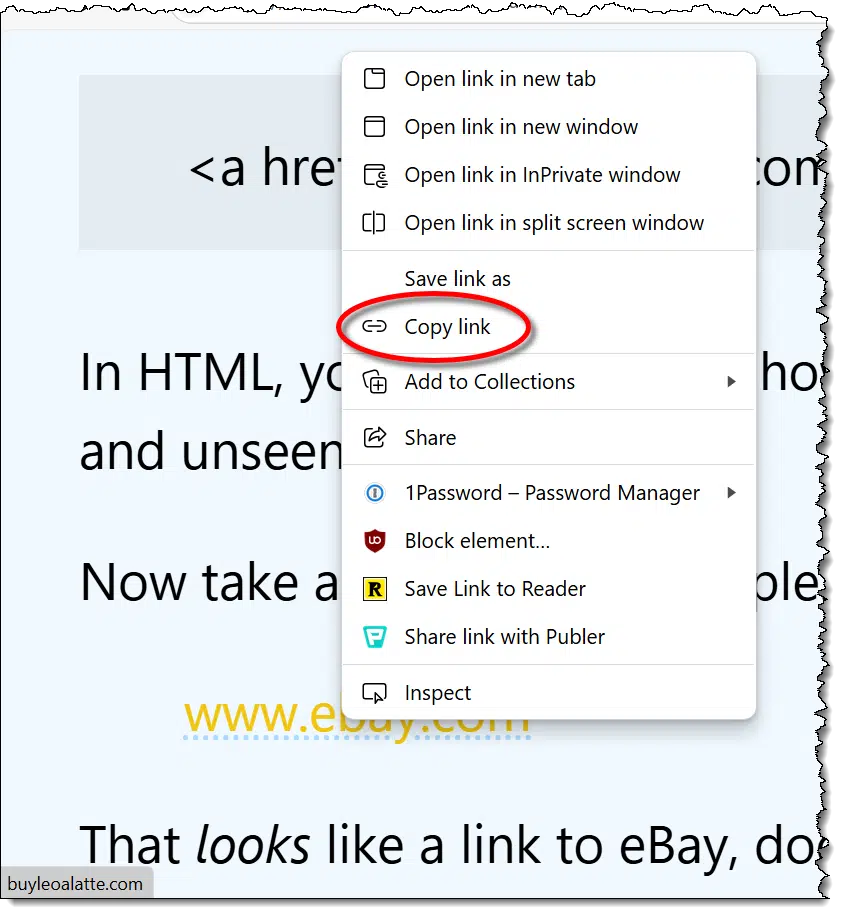
In the resulting pop-up menu, click on "Copy link" (or its equivalent) in your browser or email program. This copies the target — the part you don't see — to the clipboard.
Now, right-click on the address bar in your browser.
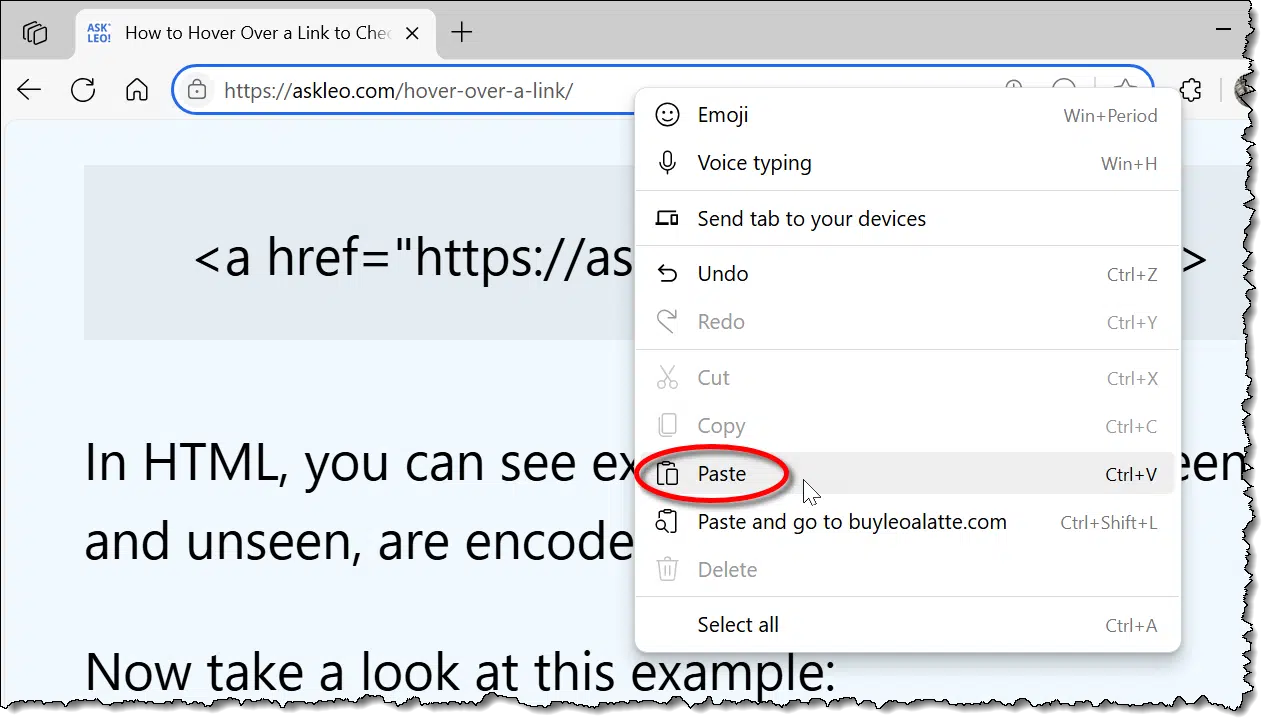
Click Paste (not "Paste and go", if that's available) to paste whatever was copied. Don't hit the Enter key, which will take you to the webpage; just read the target link.
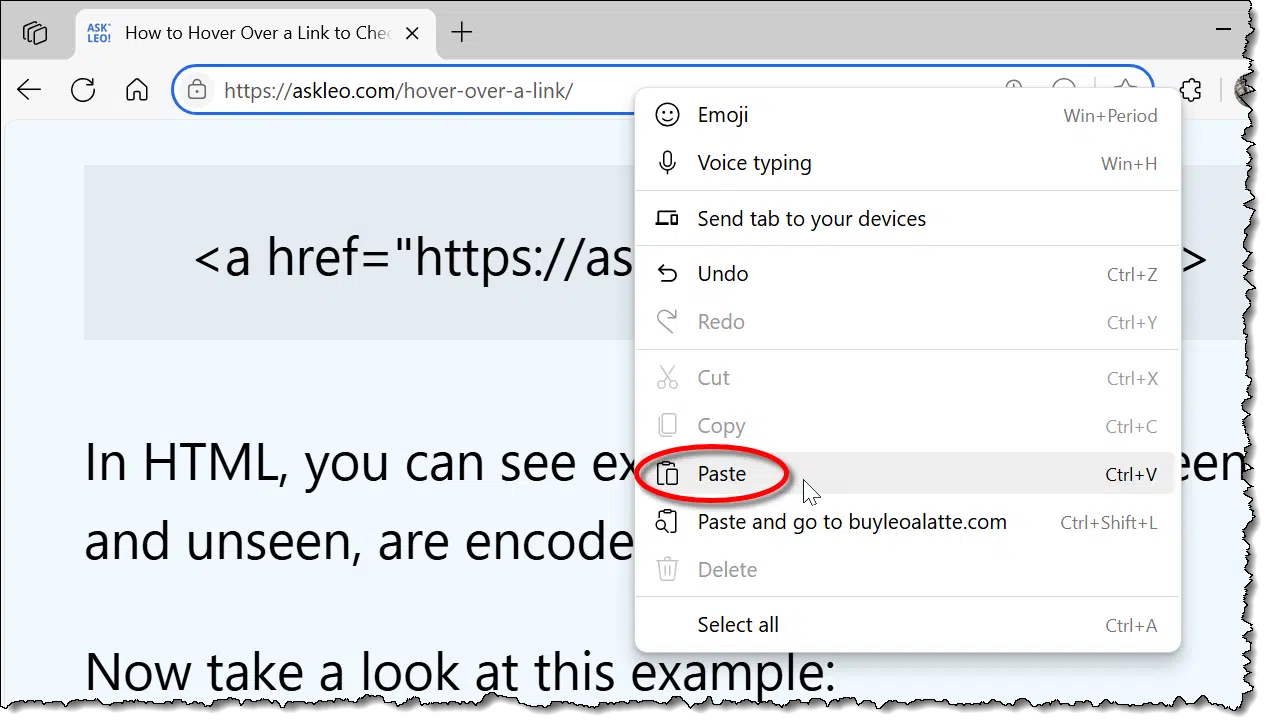
You can now see what was pasted. This is the true target or destination: the part you normally don't see and the site you would have been taken to had you blindly clicked the original link. In this example, it's fairly obvious this link wasn't going to take you to eBay at all, but to some other site.
You can, if you prefer, paste that URL wherever you like. Pasting it into Notepad is one option. That way, you can see exactly what the destination is without risking accidentally going there in the browser.

All this is to get you information from which you can make a decision. It doesn't mean that every time things don't match it's a scam or something nefarious.
Here's one example of my own:
That looks like a link to the Amazon Kindle, and if you click on it, that's exactly where you'll land: the Kindle product page on Amazon.com.
However, if you hover over that link using the techniques we've discussed here, you'll see it actually goes to "https://go.askleo.com/kindle".
So what's the deal?
If you've ever used a service like tinyurl.com or bit.ly to make an excessively long URL into something shorter, this is the same idea. I have a private equivalent of a bit.ly. In these cases, there's a database that maps a short URL or token (like "kindle", in my case) to the original, longer URL.
When you click on the shorter URL, the service automatically and transparently redirects you to the longer destination URL.
So in this case, these two are identical:
Hover over each and you'll see that they're quite different, but click through and you'll end up at the same place.
I point all this out because it's extremely common, particularly in newsletters and other legitimate marketing emails. Links are often routed through third-party services, not just for shortening. Additional uses include:
It's not always easy to tell what is or is not a legitimate link or an attempt to fool you. I'd claim, though, that most of the time, it's not hard.
Suspicious signs include:
There are others, but those are the most common.
And again, any one of those doesn't mean the link is a scam; it just means that it fits the characteristics of links that are. It means you should pay a little more attention before clicking through.
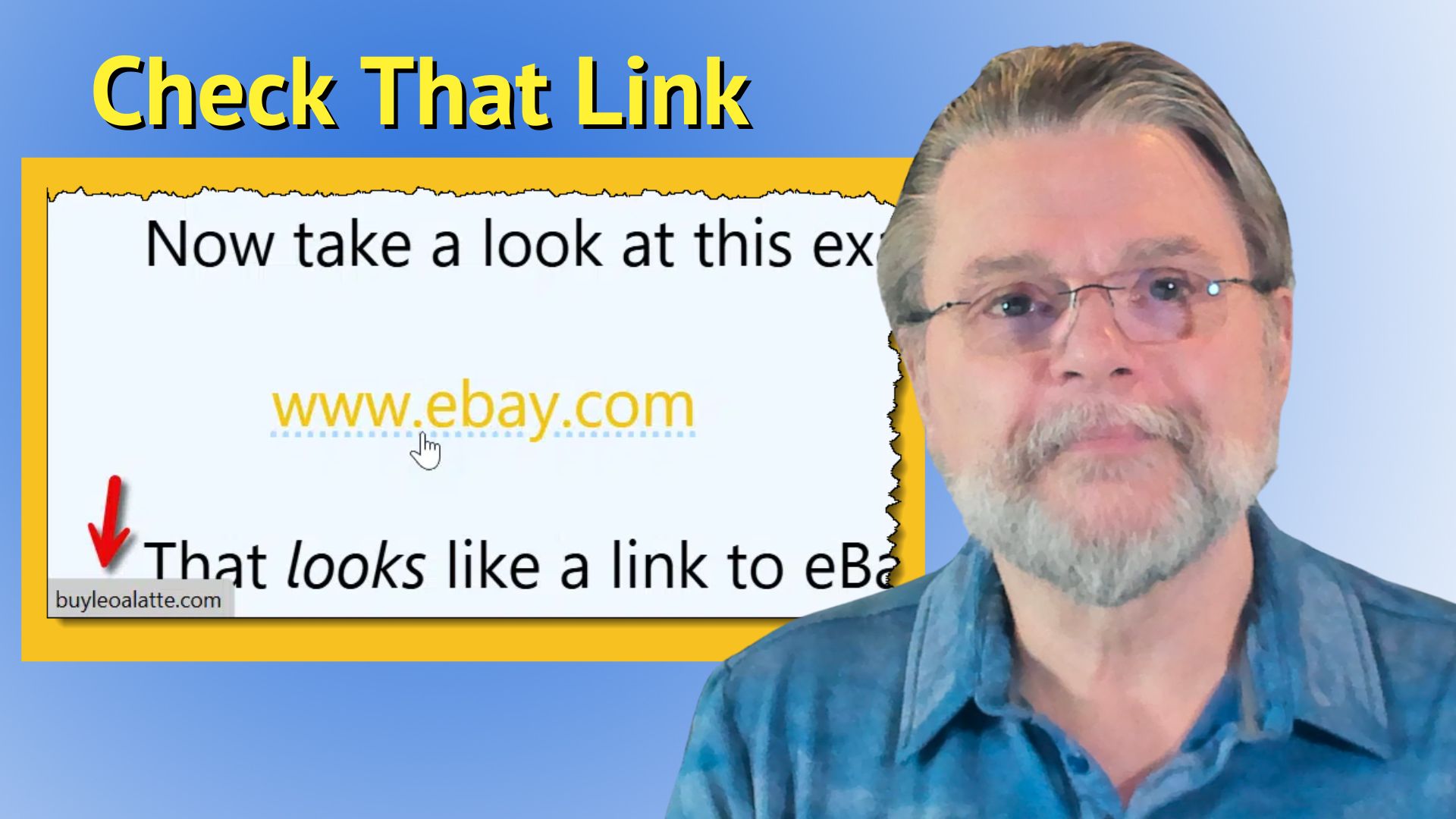
Formatting a drive is the quickest way to erase everything on it.
The fastest way to empty a disk is to quick-format it. It doesn't matter if the disk doesn't need formatting; the process erases everything on the disk quickly and efficiently.
Right-click on the drive in Windows File Explorer. In the pop-up menu that displays, click on Format.
Generally, you can ignore everything in the resulting dialog, as it will default to the current settings of the drive.
Make sure that "Quick Format" is checked and click on Start.

You will get a warning that you're about to erase everything on the disk.

There are two caveats to this approach:
But if all you need is to empty a disk drive quickly, Quick Format is a convenient option.
Don't fall for fake news and satire and then spread it further.

It used to be that recognizing satire and parody online was as simple as noticing that the source was a website like The Onion.
Those were simpler times.
These days, the number of misleading information sources seems overwhelming. Often the satire is so close to the truth (or perhaps the truth is so close to satire) that it can be difficult to recognize parody when you see it.
Now add AI into the mix, generating realistic images and sound bites of things that never happened, and it's even worse!
Don't be the person who spreads more misinformation by treating intentionally fake stories as if they were real. At best, your friends will politely point out your error, and at worst, you'll look silly for believing a lie.
Before sharing, check the source. Always.
Only share from sources you know to be legitimate (whether or not they agree with you). At least check to see if what you're about to share is from a source on a list of known satirical websites.
Sharing humor and satire as such is fine, but sharing it thinking it's real only makes things worse.
Disaster planning includes thinking about your technology and online access.
I live in the Pacific Northwest region of the United States. It's considered part of the Ring of Fire that extends around the edge of the Pacific Ocean from the west coast of South America up through Alaska and then down along the eastern coast of Asia. It's called the Ring of Fire because it contains an above-average number of volcanos.
I'm not terribly concerned about volcanos, but the Ring is also known for earthquakes. And we're overdue for "the big one", as many call it.
Even if you're not at risk of a huge earthquake, plenty of other disasters could wreak havoc with your online life. Let's talk about your online presence and data.
Disasters happen. Being ready means backing up your data, protecting your power, having backup internet, and making sure you can access your online accounts. Think ahead now so you're not stuck later. By being ready for the worst, you're ready for the smaller disasters and inconveniences that are more likely.
I prepare for earthquakes — specifically the big ones, meaning 7 or greater on the Richter scale, which can result in major infrastructure damage.
Your big one might be different; it could be tornados, hurricanes189, wildfires, or some other natural disaster. It could be non-natural disasters like terrorist attacks, invasions, pandemics, or governmental overthrows.
It could be something as simple as your house burning to the ground. Of all the risks, that might be the most likely for all of us.
It doesn't matter what you prepare for as long as you prepare.
When I talk to people about emergency management in general190, I point out that preparing for the big one might seem like overkill, but it also means that you're prepared for all the "little ones" that are much more likely to occur, like:
By planning for the worst, you automatically have plans for the inconvenient.
So, if you were to prepare for the big one, what would that look like? Let's look at backing up, protecting your power source, and online access.
You knew this would be first on my list. Equipment can be replaced, but data is often precious and irreplaceable.
More than that, though, it's important to adopt the 3-2-1 rule of backing up:
Cloud storage services like Dropbox and OneDrive make it easy to achieve those last two in one stroke.
Make sure you're taking backups of everything (I prefer image backups) on a regular automated schedule. If it's not automated, you're relying on your memory, and that's a recipe for forgetting to do it at exactly the wrong time.

This comes in two flavors: short and long-term.
For short-term interruptions — say under 30 minutes — a good Uninterrupted Power Source will do. Even more than protecting from outages, a UPS safeguards your devices from damage should the power fluctuate, spike, or become intermittent.
For longer-term power outages, things are a little less clear. We have a generator, for example, that we recently ran for three days during a storm-related power outage. It wasn't for my tech; it was primarily for our fridge and freezer. In a convenient side effect, it kept select computers running and phones charged.
Whether a UPS or generator is appropriate for you depends on your own situation, risk assessment, and, of course, budget. Not everyone needs a generator, for example.
But everyone should at least have a plan.
It's not uncommon for the internet to go down during storms and other weather-related events. When our cable internet went belly up during that three-day storm, it was my mobile plan to the rescue. The speeds were nowhere near the same, particularly as everyone else around us did essentially the same thing, but it worked. It allowed us to check and provide status updates and remain knowledgeable about what was happening around us.
Your mobile plan may be enough to replace your home internet, but it may not. Beware of things like data caps and speed limitations that kick in after a certain amount of usage. If you switch to your mobile connection as your primary, I can pretty much guarantee that you'll chew through your allocation quickly.
There's a more serious scenario that's worth considering. It's not uncommon for mobile networks to fail completely during major events. In my neck of the woods, the expectation is that it won't survive the big one, and we've certainly heard stories from hurricane-affected areas as well. I don't have a blanket recommendation, as it once again depends on your situation. Solutions could range from being prepared with satellite internet to becoming a ham radio operator191.
One of the often-overlooked aspects of disaster planning is online account access.
Consider this: as part of a disaster, you lose access to your mobile device, computer, and/or the notepad you write your passwords in. When you get or borrow a replacement device, you try to sign on and...
Nothing. Access denied. You're signing in from a new device and you don't have your second factor or even your passwords in order to access your primary or alternate/recovery accounts.
My favorite way to prepare is:
Depending on the nature of the requirements, that first-time sign-in could require jumping through a few hoops. Make sure you know what those hoops are in advance. That way you can prepare. Sometimes it means having access to an alternate account. Sometimes it means having backup codes available. Sometimes it means something else. What's important is that you know what those are and have a plan.
For example, I have enough recovery information to get my 1Password vault open hidden behind encryption and obscure online access. After that, all my accounts will be available to me. In addition, I have specific people I could reach out to who live out of the area and have designated emergency access to that vault as well.

196: I find it funny: people who live in earthquake prone areas are often terrified of tornados, and those in "tornado alley" find the concept of earthquakes absolutely horrible.
197: A not infrequent topic among ham radio operators.
198: It's not an internet replacement, but at least you'll be able to reach out and talk to others in an emergency.
You would think that for such an important concept as end-to-end encryption there's be some agreement on exactly what it means. Sadly, not so. There's the correct definition, and then there's the marketing definition. One protects you, the other not so much.
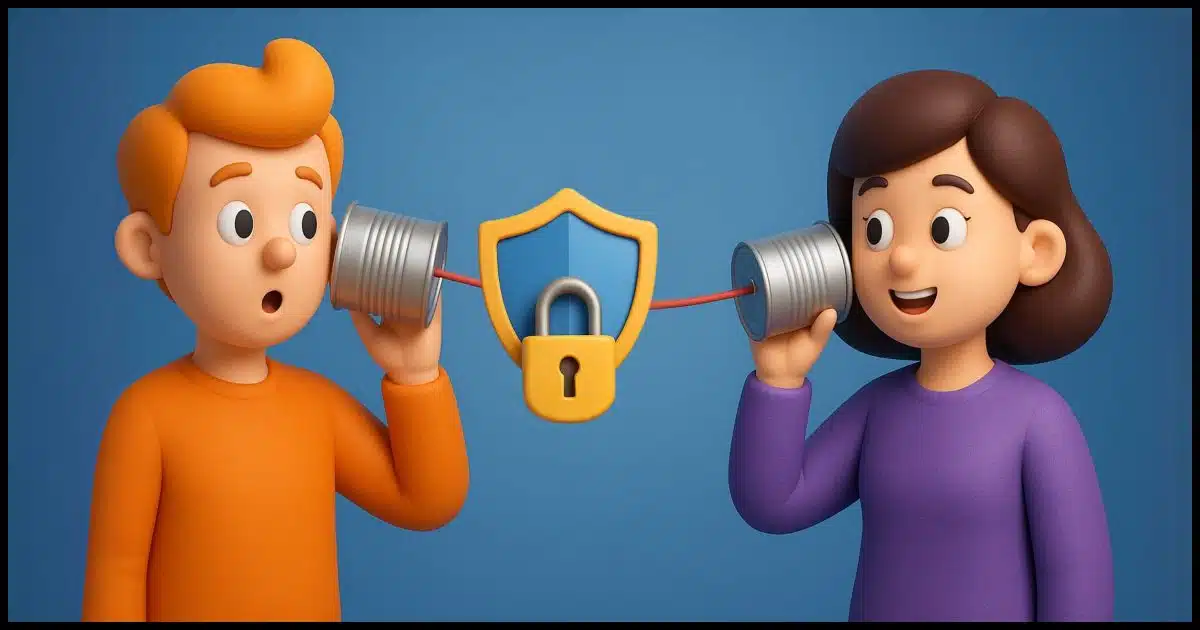
End-to-end encryption is a term we hear often. Whether it be the latest claims from a messaging app, or the kerfuffle about how a particular conversation was leaked because it wasn't really end-to-end encrypted, the concept gets a lot of press.
Much of that press exposes how easy it is to either a) confuse, b) mislead, or c) both around this topic.
Let's look at what end-to-end encryption means. Spoiler: there's more than one definition.
End-to-end encryption means that only the sender and receiver — and no one in between — can read a message. Period. Some apps claim to use it but don't. If the messaging service can see your messages, it's not truly secure. Also, if your device isn't secure, the encryption won't matter.
What is end-to-end encryption? Let's start with a high-level definition of encryption. There are two types.
Basic or symmetric encryption is pretty straightforward.
The result is scrambled data that can't192 be unscrambled without knowing the large number. That large number is what you and I might call a password, passphrase, or key. They all boil down to numbers inside your computer. Symmetric refers to the fact that you use the same large number to decrypt as you do to encrypt. Knowing that large number gets you access to the data.
Asymmetric, encryption — also called "public key encryption" in some usages — refers to using a pair of keys: one to encrypt the data and another to decrypt it. Each key is just another large number, but they share a special relationship: while either can be used to encrypt, the data encrypted by one can be decrypted only by the other193. That makes things slightly more complicated.
Once again, the result is scrambled data that can't be unscrambled, this time without knowing the other key. Knowing the other key gives you access to the data.
The proper and pedantic definition of end-to-end encryption is that only the individuals at either end of the communication can view the communication.
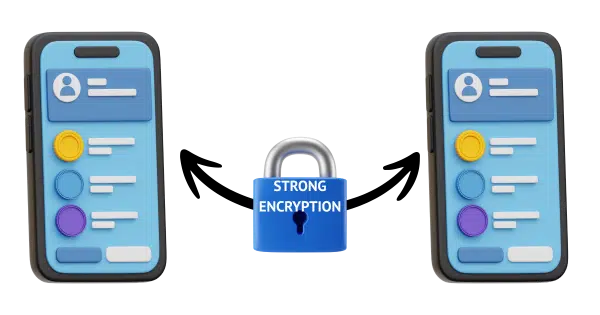
A simple example: I encrypt a file with a password and then share that file and password with you. Only you know the password, so in theory, only you can decrypt the file. This requires that I somehow tell you the password first, ideally via a different communication path so that the password isn't right there with the encrypted data for anyone to see.

A more common scenario for messaging is that I (or the tools we use) share one of a pair of asymmetric encryption keys with you and encrypt a message using the other. Then only you can decrypt what I send to you. This tends to be more common for communications tools because the tools can handle all this transparently without our having to decide on or manually share a password.
In either case, it doesn't matter how the message gets from point A to point B; it's impossible to examine along the way. It remains securely encrypted from one end of the conversation (me) to the other end (you).
There's one risk: key compromise. If the key I give you — either the password, in the first example, or the first key of a pair, in the second — somehow lands in the hands of someone else, then they, too, can decrypt and examine the message I sent to you.
I put it in quotes because this isn't really end-to-end encryption. The problem is that some messaging services claim it is.
Many services act as an intermediary for your communications. Rather than your message going from you directly to the person you're talking to, it goes to the service, which relays it to you.
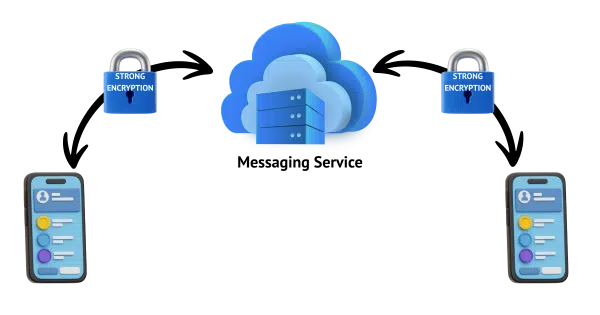
Either of two approaches may happen here.
#1 remains true end-to-end encryption. #2 is not.
Messaging services may claim that the second is still end-to-end encryption because it never travels across the internet in unencrypted form. It's always encrypted and is thus safe from snooping... except from the service itself.
There are valid reasons to use the second approach. For example, group chats are extremely complex to set up fully end-to-end encrypted (not impossible, just difficult). By using the second style by default, the messaging app only needs to manage its encrypted connection with the service rather than trying to manage an entire mesh of encrypted communications.

As you might expect, some communications services are less than clear about which approach they use.
Honestly, for most of us, it doesn't matter. We and our messages are not that interesting.
But if you are "interesting", or even think you are, here's the risk: you're trusting both the app and the intermediary. Specifically:
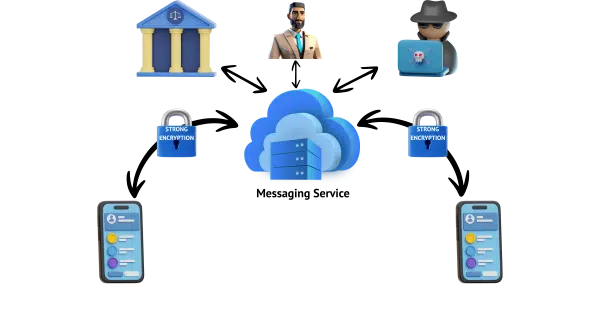
You get the idea. If the intermediary has access to your unencrypted conversation, you're trusting that they won't abuse it.
Even if they are trustworthy, though, they may be required to respond to government requests. Since they have access to the unencrypted conversations, they're able, and perhaps even required, to do so.
If, on the other hand, the conversation is truly end-to-end encrypted, the intermediary is only passing on encrypted data they can't themselves decrypt. They don't have access to your conversations and thus have nothing to hand over, even when requested.
As many people seem eager to point out, end-to-end encryption is not absolute security.
It means no one can intercept your communications as they travel across the internet from your device to whomever you're talking to. Intercepted data is only so much noise that can't be understood if it's truly end-to-end encrypted. That's great, but...
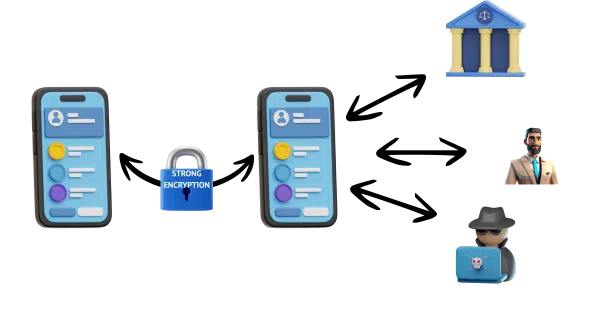
That leaves your devices as the next point of vulnerability. If your device is compromised194, then even though a message might be securely transmitted to or from that device, while on the device it can be captured. You have to be able to see or type it — that's the point, of course — but while you see or type it malware could be doing things like capturing your keystrokes or taking screenshots of the messages.
That has little to do with end-to-end encryption. It's just important not to assume that end-to-end encryption is all you need. You must keep your device secure as well.195
199: "Can't" is technically wrong. More accurate is "Can't be unscrambled in a reasonable amount of time using current technologies". Today's encryption would take hundreds of years at a minimum to be unscrambled as long as a suitably large number was chosen (i.e., you picked a strong password).
200: Literally. Data encrypted by one key in a key pair cannot be decrypted by that same key. The other key in the pair is required to decrypt. As I said, it's very fancy math.
201: Though I don't subscribe to this way of thinking, some believe that all devices are compromised due to untrustworthy operating systems, vendors, and manufacturers.
202: And, of course, avoid adding the wrong people to your chats.
Putting the vault password inside the vault itself seems nonsensical, but it can be a useful safeguard.
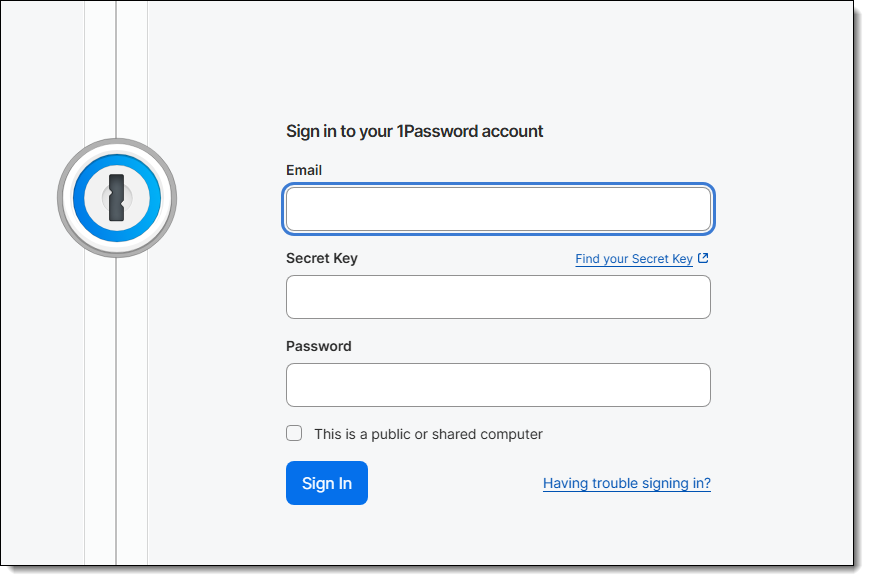
I know this sounds nuts, but bear with me.
Users of password vaults may fear losing their master password — the password that opens the vault itself. Ideally, it's the only password you need to remember. The problem is that if you forget it, you're locked out of everything the vault contains. Particularly since it's such an important password, that master password is often long and complex.
Perhaps long and complex enough that it's easy to get it wrong even if you "know" it.
Store it within the vault itself.
How can this even make sense? It seems like a chicken-and-egg problem! If the password to get into your vault is in your vault, how do you get in to see the password if you can't remember it to start with?
There are (at least) two scenarios.
Multiple devices. If you're having trouble logging in to your PC's vault but you have the vault open on another device — perhaps an iPad or your mobile phone — you can confirm the master password by looking in the vault on that other device.
Backups. If you follow my recommendation and regularly back up your password vault in an unencrypted form (securing it some other way), you can review the content of that backup should you ever need a refresher on your master password.
It's a simple and secure safety net.
It's just not obvious.
It's important to understand the difference between a domain and a subdomain because they can take you to completely different places.

Understanding subdomains can be an important part of understanding where you're headed when visiting websites.
Using Ask Leo! as our example:
askleo.com
is a domain. You may think of it as a website, but it's also a domain used in email addresses and other things.
Anything you put in front of "askleo.com", with a period separating it, is called a "subdomain". For example,
newsletter.askleo.com
is a subdomain of askleo.com.
Here's the catch: they're related in name and ownership only. With one exception, a subdomain is generally something completely separate from its associated domain. (The exception is the "www." subdomain, which only by convention is almost always the same as the parent domain.)
In my case, for example, askleo.com and newsletter.askleo.com are two separate websites that have no technical relationship to one another. They're both related to Ask Leo!, and I own and manage them both, but they could have completely separate and unrelated content and could be housed on completely different servers (in this case, they are) on completely different continents (they're in the same data center).
The best way to think of a subdomain is as if it were completely separate from its parent domain...
...because it usually is.
Scammers, phishers, and malware authors often rely on this confusion to try to fool people. For example, they might create something that looks like:
www.ebay.com.something.something.something.somerandomservice.com
They hope you'll only notice the first part and not realize it's not eBay at all, but something else controlled by whoever owns "somerandomservice.com"196.
203: In this example, that's me, but that's because I own that domain for example purposes.
CHKDSK, short for Check Disk, is a utility that checks the integrity of the files and file structure of your hard disk. I'll walk you through it.
Fair enough. It's easy for us computer geeks to take things for granted that we shouldn't.
CHKDSK is a command-line tool that checks disks. I'll talk about what the command line is as well as what it means to check a disk.
I'll also show you how to run CHKDSK step by step.
CHKDSK checks your hard disk for problems and tries to fix them. You run it using Command Prompt. It can find missing info, fix file errors, and even look for bad spots on the disk. It's useful if you suspect disk-related issues.
Files on a disk live in folders; folders can live in other folders; and everything lives in your disk, which might be a partition on or portion of a larger disk. On top of that, there may be security information about who is allowed to access what and in what ways they're allowed to access it.
That's pretty confusing. All you care about is getting what you expect when you access a file.
All that confusing stuff is information — data — stored on the disk keeping track of your files and folders. CHKDSK's primary job is to make sure all the administrative information about the files, folders, permissions, and more is correct.
Normally, all of that information is correct. The system keeps it correct from startup to shutdown.
Unfortunately, a variety of errors can cause it to be incorrect. Things like not shutting down your computer properly, software issues, and hardware errors can cause problems and damage the administrative information on the disk.
CHKDSK's job is to try to repair those errors.
Most programs in Windows appear as or in a window.
Command-line tools do not. They don't know about on-screen windows and don't display their results in them. They rely on the Command Prompt, which is nothing more than a non-windowed environment that mimics the days before Windows, when all programs were command-line tools under MS-DOS.
So to run CHKDSK, we start with a Command Prompt.
You'll find either Command Prompt, Power Shell, or Terminal in your Start menu. Any of the three will do.
Right-click the Start menu, and it should be listed. You'll want the "(Admin)" version so it runs with full administrative privileges.
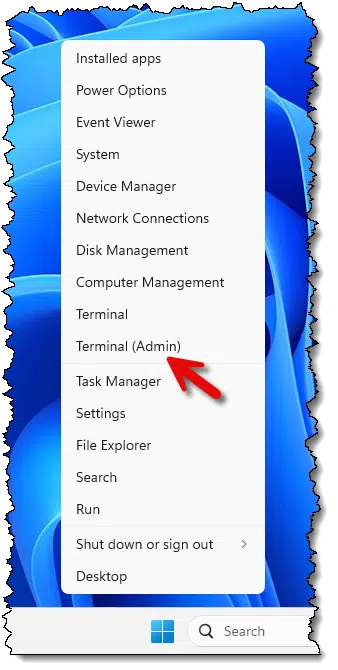
After a UAC prompt (since we're running "as" administrator), a new window opens that looks something like this.
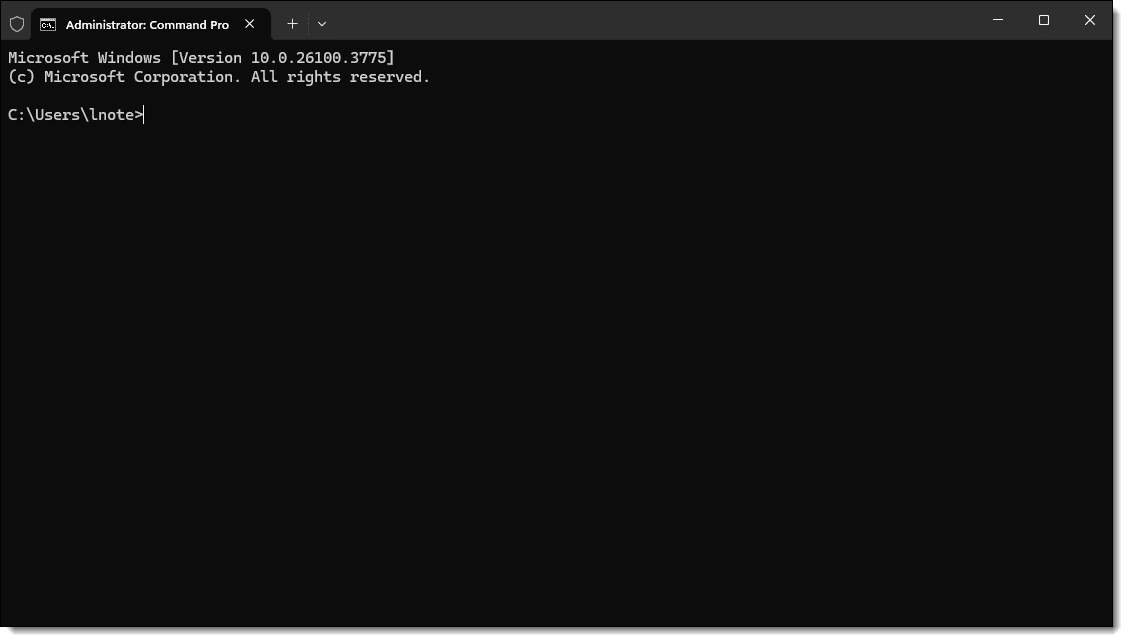
Command-line tools are run by typing the command (you may need to click on the Command Prompt window first to ensure it gets your keystrokes) and pressing the Return or Enter key. Any output the tool generates shows up in the window below what you've typed.
Try it now: after opening a Command Prompt window and/or clicking it to make it active, type CHKDSK followed by the Enter key.
You may see something like this.
Access Denied as you do not have sufficient privileges.
You have to invoke this utility running in elevated mode.
That means you haven't run Windows Command Prompt as administrator. Close the Command Prompt (either by clicking the "x" in the upper-right of the Window or typing "exit" followed by the Enter key), and start it again, this time being sure to select the "(Admin)" version listed (see image above).
Without any parameters (I'll describe a few in a moment), CHKDSK does nothing more than check the disk. It won't try to fix anything; it'll simply report any problems it finds.
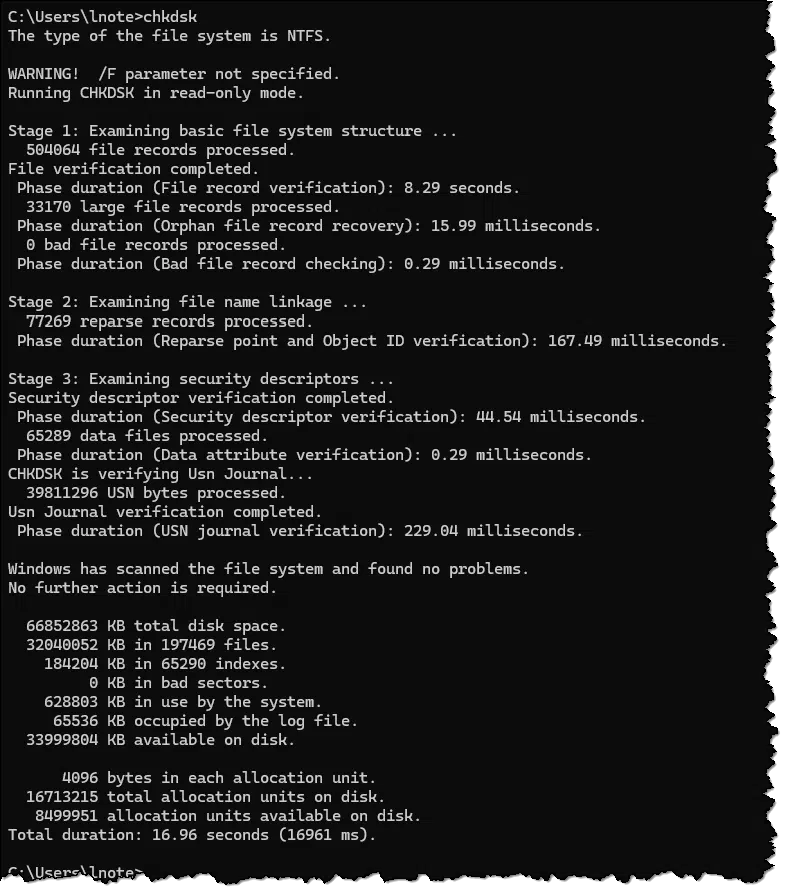
"Windows has scanned the file system and found no problems" is good news.
By default, CHKDSK operates on the "current" disk, which in almost all cases is C:. (If you run into problems, see the next section below.)
To have CHKDSK check a different drive, simply follow the CHKDSK command with a space and then the drive designator.
CHKDSK D:
This directs CHKDSK to check your D: drive.
To have CHKDSK fix any problems it finds, include the "/F" (Fix) parameter.
CHKDSK D: /F
This command checks the D: drive and, if any errors are found, CHKDSK attempts to repair them. The results are relayed to you via on-screen output.
The next most common way we use CHKDSK is to check for bad physical sectors using the "/R" (Repair) option.
CHKDSK D: /R
When running /R, CHKDSK checks the entire disk surface for bad sectors and attempts to repair or work around any it finds if it can. Running /R accomplishes /F as well.
C: is special. CHKDSK can't repair drives that are in use, and if Windows is running, C: is in use. If you try to run CHKDSK /F on drive C:, you're likely to see this.
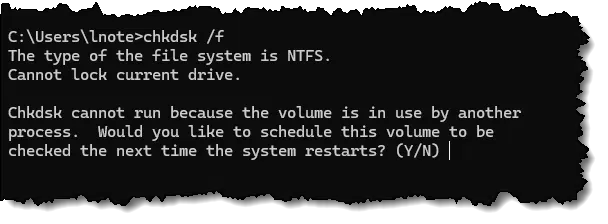
Answer Y followed by Enter and then reboot your system. CHKDSK will run before Windows starts so it can repair the drive before Windows starts using it.
You can't take it with you -- except for passwords. Those, you may want to carefully leave behind with someone who may need them.

Not to be too morbid, but I originally wanted to title this tip "Prepare to die", since that might get your attention.
Death is perhaps the most obvious cause, but what happens to your online accounts should you become unavailable for any reason — permanently or temporarily? Will someone you trust be able to take over your accounts? Will they be able to access your email? Will they be able to get at and preserve your online assets?
Do you want them to?
I talk often about not ever sharing your online account information with anyone. But there are situations where it might be important for someone to have access to your digital world.
This is something you must prepare for. Unfortunately, I often hear from families of those who have not. Depending on the situation, this can range from the permanent loss of sentimental data to the inability to access important financial and other types of information.
What you need to do varies depending on your circumstances, but I urge you to put some thought into it and consider establishing a contingency plan for any situation in which you might not be immediately available.
Check out Preparing for the Ultimate Disaster for more considerations.
There are many ways accounts can be compromised. There are also many simple ways you can protect yourself.
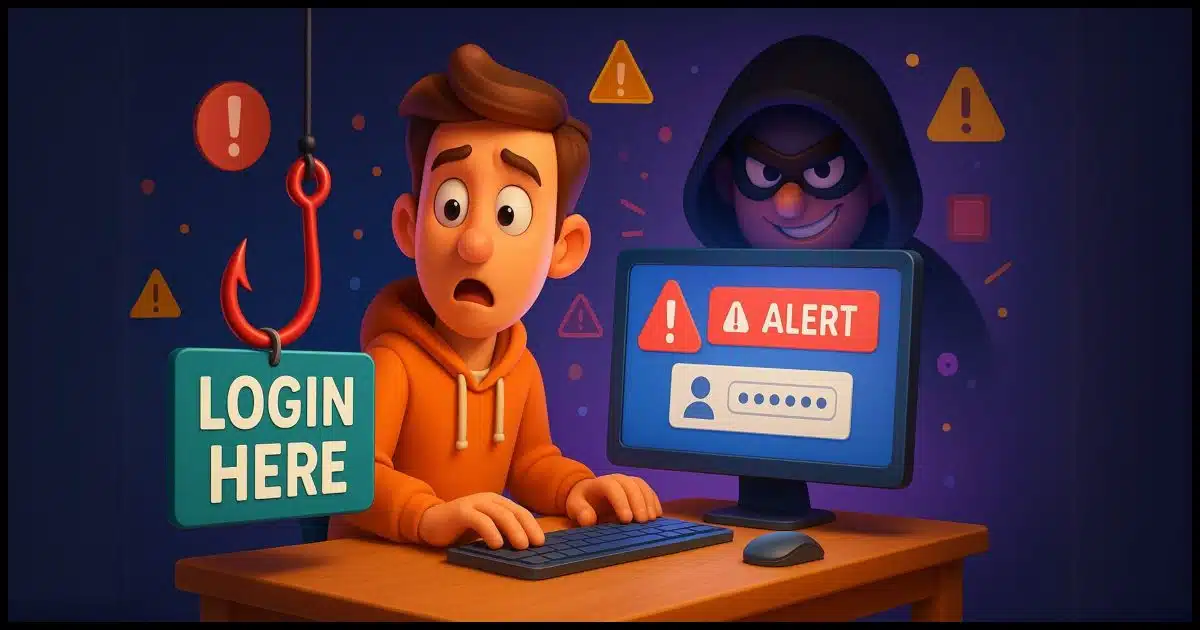
Not a day goes by that we don't hear about some kind of account compromise or attack. Sometimes it makes the news; sometimes it's just a friend who mentions account loss in passing. And, of course, if you're the tech person in your circle of friends, it's often someone coming to you for help.
Account hacks matter because they lead to things like financial loss, identity theft, and more. And, of course, you lose access to everything that was in the account at the time.
The good news is that there are steps you can take. The even better news is that there's a good chance you're already taking many of them.
Bad guys try many tricks to steal your accounts: fake messages, cracking passwords, sneaky software, and more. But you can stay safe by using strong, different passwords, turning on two-factor login, and keeping things up to date. Most of all, be smart, skeptical, and pay attention.
While they're not targeting you, specifically, (you're not that interesting, after all), they do target anyone and everyone. While not limited to this list, these are the most common approaches to account theft.
Phishing might be the most common attack vector right now.
You might get an email, text, or even a phone call pretending to be from a person or organization you trust. They send you to a webpage that looks like the real and expected site, into which you need to sign in. Unfortunately, it's not real at all, and you've just handed over your credentials to a hacker.
This is similar to phishing but with a different target. Social engineering is when hackers use psychological influence to get people to do something (like give them a password) or divulge confidential information.
The attacker contacts an organization where you have an account and pretends to be you. If they have enough information about you, or the organization's security standards are more lax than they should be, or perhaps the customer service rep is just having a bad day, they can convince them to reset your password. This, then, locks you out and lets the attacker in.
SIM swaps are typically social engineering attacks targeted at gaining access to your mobile phone number.
By convincing the mobile provider's customer service representative they are you, a hacker can have your mobile number assigned away from your device and to theirs. This gives them access to things like 2FA codes and other recovery methods associated with the number. They use this to "recover" access to your account and set a new password.
Malicious software, and specifically keyloggers, can harvest sensitive information from your computer.
They arrive like any malware (through malicious downloads or attachments) and set up shop on your computer. Then, as you type in account information onto a website, the malware records the keystrokes and sends them on to the attacker, who can then use the information to attempt to log in to your account.
This approach allows one compromised account to act as a gateway to compromise additional accounts.
One approach is if you've used "login with Google" or similar mechanisms. If your Google account is compromised, then the attacker has access to all the accounts for which you've used Google to sign in. Similarly, if your email account is compromised, then the attacker can use access to that account to compromise other accounts where that email address was used as a user ID or as a recovery email.
Weak and reused passwords are a common attack vector.
Obviously, easy-to-guess passwords are, well, easy to guess. Passwords are easier to guess than you might believe. More critically, though, is that re-used passwords — using the same password for multiple different accounts — are one of the most common forms of password-based account theft today. If the password is exposed anywhere, it's exposed everywhere.
I list this last because it's rare, though not completely unheard of, that a data breach will result in account compromise.
More pragmatically, the information stolen in a data breach can be used for identity theft or to enable many of the social-engineering-based attacks listed above.
With all those approaches to getting in, we need several tactics to lock down and protect our digital world. Hopefully, you're already doing most of these.
Using a password manager is more than just a convenience: it enables you to use complex passwords you could never memorize yourself, and use a different password on every site you visit. There are many other conveniences, of course, but enabling those two aspects of password hygiene is by far the most important reason to use a password manager.
The next most important thing you can do is to enable two-factor authentication (2FA) on every account that supports it. Even if someone knows your password, they'll still not be able to get in. 2FA need not be a burden, as it's only required the first time you sign into a site on a new device or browser. The fear of losing your second factor is also overstated, as you'll establish recovery information when you set it up.
If your account does get compromised, you'll want to get back in as soon as possible. That's where your recovery information — additional phone numbers, email addresses, and codes — comes into play. Your ability to access, respond, or provide recovery information is that additional layer of proof that you are the rightful account holder and should be let back in. Without it, a compromised account can be lost forever.
Whenever you get a message or phone call from someone or someplace you don't recognize or didn't expect, always be extra skeptical. Double-check that the sender is legitimate (confirming things like email addresses used or even contacting the "real" person via another channel) and that any links involved go exactly where you would expect for the situation.
I know, I know, we keep hearing about machines and devices having problems after an update. (Remember, news is news because it's uncommon.) I've even said that you can keep using Windows 10 safely after updates stop. But staying up-to-date remains an important part of your overall strategy, and you're safer if you do than if you don't. (Just take a backup before major updates, just in case.)
If your online accounts offer it (most do not), check to see where it thinks you've signed in from in recent weeks or months. The location won't be terribly accurate (mine is dozens of miles off), but if it lists you as having signed in from a different country that you've never been to, it's time to take action and secure your account. Similarly, check your credit card accounts periodically to ensure all the charges listed are charges you recognize.
Setting an additional PIN or password with your mobile account helps prevent SIM swaps. This is separate from your online account sign-in password and would need to be provided before any account change (possibly with the exception of in-person changes with appropriate ID). For example, if you do get a new phone, it won't be enough to sign into your account to move your number to it, you'll need to talk to a customer service representative and provide this additional PIN.
Browser extensions add functionality but also add risk. It's a good idea to review what you have installed and consider whether you still need all of them.
(Animation: askleo.com)
People often ask how to keep their web browsers stable and fast.
The first diagnostic step is to disable browser extensions. If things improve when all extensions are disabled, then start enabling extensions one by one to see which is responsible for the difficulty.
Why enable them at all?
Even if you're not having a problem right now, every so often it's a good idea to review all the extensions that have accumulated in your web browser and decide whether you need them. Removing extensions can improve performance and stability. Since we need to trust extensions completely — they have access to what you're viewing and typing, after all — removing them also reduces security risks.
In some browsers, you can disable individual extensions (without uninstalling them) to see if you notice their absence. If you come back later and realize you never missed a disabled extension, it's probably time to uninstall it completely.
Floppies come and floppies go, but C: is apparently forever.
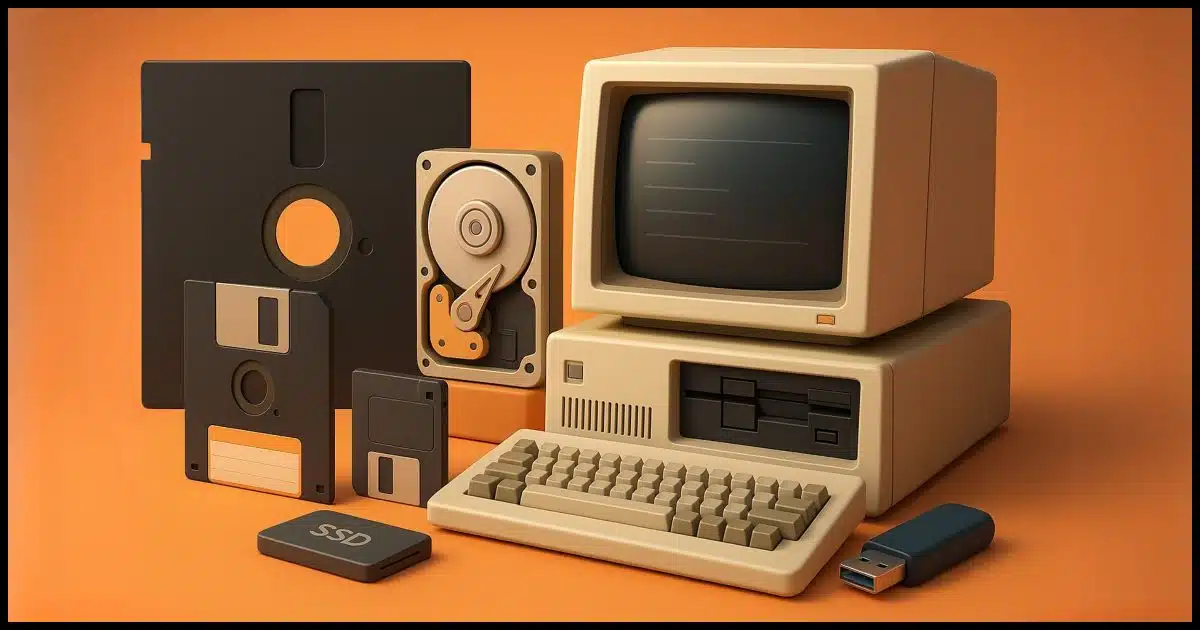
Those who've been using computers for more than a couple of decades will know this tale. I got asked the other day, so I thought I'd capture my response for posterity.
It's a decades-long story.
Back in the day, computers used "A:" and "B:" to name floppy disk drives. When hard drives arrived, they became "C:" because floppies still existed. Even though floppy drives are obsolete now, "C:" stuck as the default drive letter since so much software assumes it. "A:" and "B:" remain unused but assignable.
The existence of a "hard" disk implies the existence of a "soft" disk, right? And indeed, the first disks used with PCs were flexible disks in a protective case known as floppy disks.
The most common capacity was 360KB — that's kilobytes. (It would take dozens of these to hold a single high-resolution image today.) Subsequent floppy disks were smaller physically, though they had greater capacity.
Even though they were encased in a protective shell, the media inside was the same floppy magnetic material.
The original personal computer, the IBM PC, had at least one and usually two drives into which floppy disks could be inserted.
At the time, floppy drives were the only storage available.
These two drives were designated "A:" and "B:" respectively.
Even the largest-capacity floppy disk was no match for the hard drive. The smallest initial hard drive — 10 megabytes (not quite one hi-res photo yet) — was at the time a huge amount of space.
The floppy disk drives "A:" and "B:" remained. The new hard drive became drive "C:", the third drive in the system.
Floppies more or less stagnated in size, but hard disks continued to grow. Soon enough, the floppy disks were more of an afterthought, and the hard disk took on the role of primary storage device.
When Windows and other larger operating systems came along, they installed to the first hard disk because they needed the room. Drive "C:" became the system drive.
Current machines no longer have floppy drives. For a variety of reasons (their small size and the appearance of other media, such as CDs, DVDs, USB sticks, and more), they've outlived their usefulness.
But the hard disk remains, and it remains drive "C:".
Here's the catch: even though floppies are long gone and drives "A:" and "B:" are no longer in use, drive "C:" remains the system drive. It's baked into too much software that's made that assumption over many years. To suddenly attempt to, say, call it drive "A:" would have dire consequences for any software that could never conceive of it being anything other than "C:".
So "C:" it remains, even if it's the only disk drive on your machine.
There's nothing special about "A:" and "B:". You can use them if you like. For example, using the Windows Disk Management tool, you can assign them to represent existing drives.
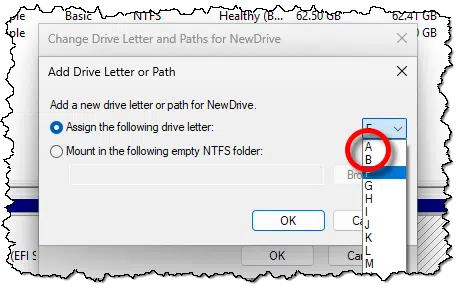
Since drives can have only one letter at a time, you may need to un-assign an existing letter to re-assign it to "A:" or "B:". Don't try to re-assign "C:". If it works at all (it shouldn't), it's a recipe for disaster — if not immediately, then on your next reboot.
It's common to want confirmation your machine hasn't been compromised in some way. We can get close, but we can't prove it.
The harsh reality is there's no way to prove your computer is not infected or somehow compromised.
Even running multiple scans using multiple tools, you still cannot be completely, absolutely, 100% certain.
You can't prove a negative.197 It's a philosophical reality we must apply to our systems and to the possibility of malware.
You can never be 100% sure your computer is malware-free, even with scans and tools. However, using up-to-date security software, avoiding suspicious sites and links, and practicing safe habits greatly reduces the risk. Follow best practices to keep your machine as safe as possible. Remember, you are your own best defense.
Even though 100% certainty is, by definition, unachievable, we can certainly get close.
Pragmatically speaking, a clean scan using an up-to-date anti-malware tool usually means that the machine is clean. If you're concerned, an additional scan with a different tool increases that confidence dramatically.
If you follow the common advice to run a complete anti-malware scan on your machine, and that scan comes up clean, that's a good sign your machine is probably clean.
It's not absolute proof — that doesn't exist — but it shows a high likelihood of everything being OK.
So how do you know if you have malware or have been hacked? There's a relatively common list of signs that might indicate malicious activity.
It's just not a helpful list.
Here's the thing: each one of these signs can happen for legitimate, non-malicious reasons. Some are more likely than others to indicate a problem, but once again, there are no guarantees.
So the "symptoms" tell you that you may have malware, or not. And if you don't have these symptoms? You may still have malware. Or not.
There's always uncertainty.
What you need to do is stack the deck in your favor.
It all comes back to my litany of safety.
204: Yes, I know, philosophy majors love to jump on this statement. Pragmatically, in situations like this, it's true.
If it happened to me, it can happen to you: installing programs you didn't ask for.
(Animation: askleo.com)
I'll admit it: it happened to me.
After installing something (I don't know what since I'd installed several "somethings"), I acquired a PUP, a Potentially Unwanted Program. I probably wasn't paying attention as I ran an install program and inadvertently "asked" for this package I didn't want.
I didn't recognize it as an addition at first, thinking it was a newly added app included with Windows, but on investigation, that wasn't the case.
I went into Apps & features in Windows and uninstalled it.
My tip today: every so often, visit that "Apps & features" settings page to see what's there. If you find things you don't recall asking for, do a little research and then consider removing them.
Even if you don't find PUPs, it's a good time to review the "legitimate" software installed on your machine and decide whether you need all of them. In the video clip above, I removed XBox-related items because they're unnecessary on this machine.
One way you should not back up.
(Animation: askleo.com)
Windows persistently recommends that you back up. As you know, I'm a huge fan of backing up.
When Windows asks, suggests, cajoles, and even shames you into backing up, don't do it. Just don't. Do not turn on or enable the backup processes offered by Windows.
Why? Because it will enable the horribly designed OneDrive backup feature. Turning on that feature has actually resulted in data loss for some people and mass confusion for most others.
Don't do it, no matter how persistent Windows gets.
Back up, for sure. Just do it yourself. Don't let Windows try to do it for you.
It's a trap.
Some people are afraid to leave their external backup drive connected. They're trading a small risk for a much, much larger one.
There is a risk, yes.
But:
Let me explain.
The risk of leaving your backup drive plugged in is much smaller than the risk of forgetting to back up at all. Use good security tools, practice safe habits, and let backups run automatically. Some backup programs have additional features to protect your backups from malware (specifically ransomware).
Let's say your machine becomes infected with malware. That malware is designed to harm not only data on your machine's primary hard drive but also any connected drives (internal, external, or in some cases even networked).
Ransomware, for instance, is malware that encrypts all the data it finds and then holds it for ransom. Many people are concerned that ransomware could thus encrypt your backups.
The reasons I characterize this as a "small" risk include:
"Most" is not all, of course. I'm not saying there's zero risk. I'm just saying that in the grand scheme of things, it's not a big risk.
Ransomware is just malware. There's a good chance you're already mitigating the risk significantly.
That's it. Do the things you know you should be doing anyway.
A small risk of a small risk of a small risk means it's a very small risk.
I have one more mitigation, but first, we need to talk about the more critical risk.

As you probably know by now, I'm a huge believer in backups. To be more specific, I believe strongly in automated backups: backups that, once set up, happen automatically without much further effort on your part.
Automated backups, of course, require that the external drive on which your backups are to be placed is connected to your computer.
The alternative is to connect the external drive only when performing a backup. This implies that the backup process, and that physical connection and disconnection, are performed manually. You have to do it.
More concerning, you have to remember to do it and take the time to do it.
The risk is simple: you'll forget. Trust me, you will forget, or something else will come up to prevent you from performing the backup.
And while I'm not a huge believer in fate and Murphy's Law, it does seem to happen that you'll find you desperately need your backups immediately after having forgotten to create them.
That, to me, is a much higher risk than malware coming along and trashing the backups you've created because you left the drive attached.
The good news is that backup software manufacturers understand that people have this fear, regardless of the practical risk it really represents. As a result, some offer additional mitigation.
Macrium Reflect calls it Image Guard. EaseUS Todo has what it calls Security Zone. Other tools have similar features.
The common thread is that backup images and files are protected from tampering. Period. Even the owner of the backup can't modify, or perhaps even see, the backups created with these features enabled. And if you can't, malware can't. The only way to access the backup files is to use the tool that created them.198
Whether it be a file permissions setting, some kind of fancy partition setup, or something else, the important thing about these features is that your backups are inaccessible to malware.
205: Occasionally, the backup software includes specific exceptions. I've not tried it, but my understanding is that Macrium Reflect allows the Windows tool RoboCopy to copy backup images.
In case you ever have problems signing in to your machine using your regular account (particularly if it’s a Microsoft account), it’s good practice to have a “spare” account you can use. The video above shows how to use the command line (run “as administrator”) to create a new local account with the username “leon”. ... Read more
(Animation: askleo.com)
In case you ever have problems signing in to your machine using your regular account (particularly if it's a Microsoft account), it's good practice to have a "spare" account you can use.
The video above shows how to use the command line (run "as administrator") to create a new local account with the username "leon".
net user leon * /add
(You can create this in the Settings app as well, but only after you repeatedly side-step Microsoft's desire to use a Microsoft account. The command-line approach also bypasses the need to set up recovery questions.)
Once created, I then switched to the settings app and made the newly created account administrator-capable.
This way, no matter what happens to your Microsoft or other login account, you have this backup account allowing you entry.
You can so something similar by enabling the built-in administrator account and setting a password for it.
net user administrator /enable:yes
net user administrator *
The first enables the account and the second prompts for a password to set.
Many Windows components log messages and use Event Viewer to display them. Sadly, the messages are often cryptic and inconsistent, and the result is a mess that scammers take advantage of.
In an ideal world, you'd never care about Event Viewer. In fact you'd never even have heard of it.
In an ideal world, software and hardware would always work. In a slightly less ideal world, we'd be able to rely on Event Viewer for clear and consistent information about our system.
Sadly, we do not live in an ideal or even slightly less-than-ideal world. While Event Viewer can be a source of excellent clues into system failures and behavior, it can also be a frustrating, incomprehensible mess.
And scammers leverage that confusing mess to their advantage.
The Windows Event Viewer allows you to view the contents of the event logs maintained by Windows. Event logs contain information about how your system is functioning. Event logs are a mess and are intended only for the very technically aware. Event logs are full of errors and warnings even on a properly functioning machine. Don't let a scammer tell you otherwise.
Windows has an event log. Intended for software engineers and technicians, it's a repository of information about how your system is running and what's been happening.
The implementation is complex, but at the highest level, a log entry includes information like:
Event Viewer is the application used to display the contents of the event log.
There are several ways to run Event Viewer.
In Windows 10 and 11, click the Start button and start typing "event viewer". One of the results will, not surprisingly, be Event Viewer (as shown at the top of the page). Just click on that.
In all versions of Windows, you can also click on Start and then Run (or type the Windows Key + R), and then type eventvwr and click OK.
Depending on your version of Windows and the additional software you have installed, there may be several logs visible.
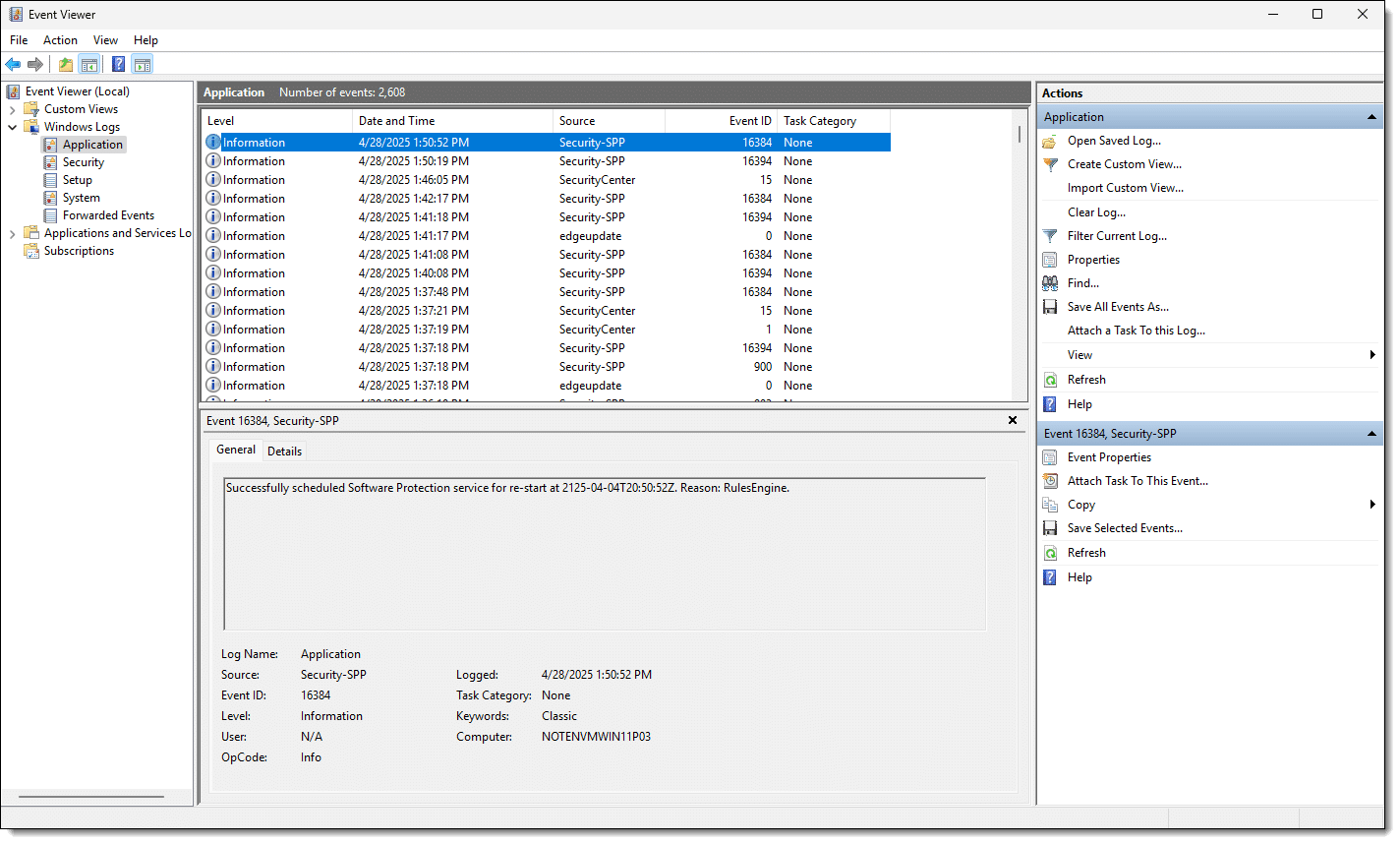
You may want to resize the window, and the panes within it, to make the contents more easily visible.
If you click on the ">" in front of Windows Logs, you'll find five Windows logs.
If you click on one of those five logs, you'll see a window with lots of logged information.
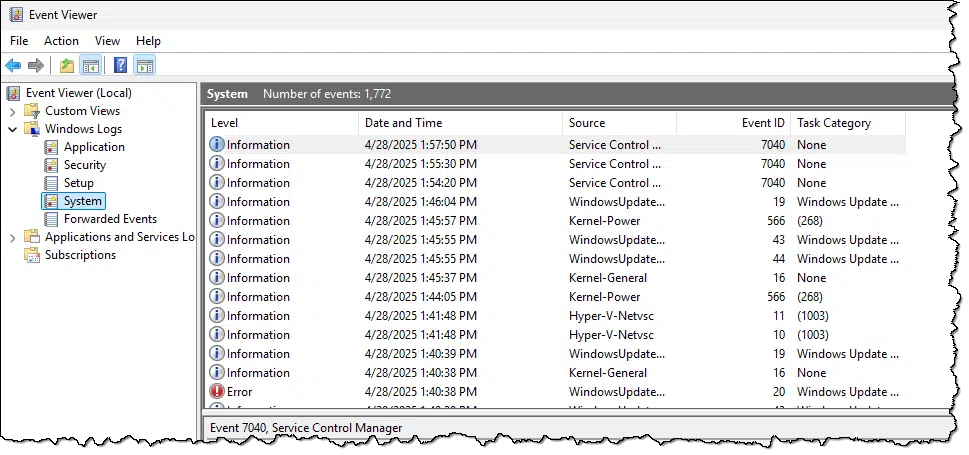
Each line corresponds to one event logged by the system. If you click on one of the lines, the information contained in that event will be displayed in the pane below.
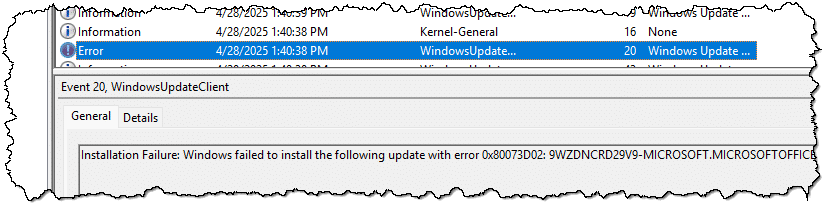
Looking at the pane containing information about a specific error can sometimes garner useful information.
As one example, Windows Update logs successful virus definition updates. Normally, you would never need to see it, so burying it in the event log is somewhat reasonable. However, if there's ever a question, you can come here to see if that's been happening as it should.
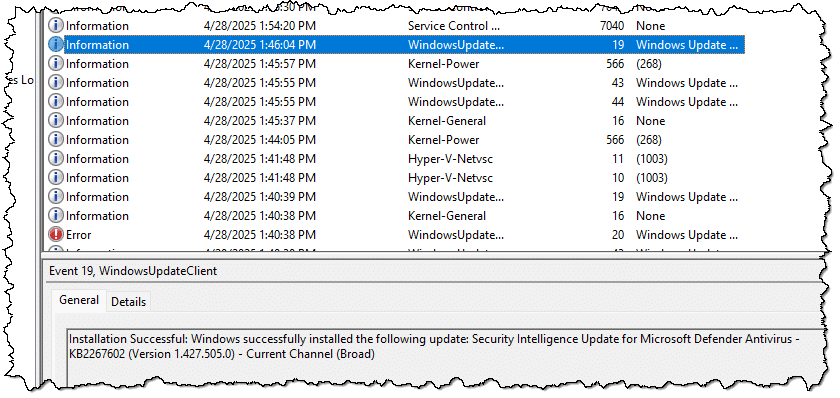
As you look through individual entries, you can see that things quickly get disorganized and confusing.
That's just the tip of the iceberg. The important takeaway so far is this: There's no consistency in what gets logged or how it's expressed.
Unfortunately, less-than-helpful log entries are common. Frequently, entries are completely indecipherable to normal people, and often even to technical folks who aren't familiar with the component logging the information.
What's worse, it's normal for the Event Log to contain errors.
I'll say that again: it's completely normal for the Event Viewer to show entries that are marked as "Error", even on a completely healthy system.
I'll even say that an event log without errors just doesn't happen.
Applications — including Windows itself — commonly log inconsistently, log things that are meaningless or misleading, or fail to log events correctly or at all.
As I said, it's a mess... which is why scammers love it.
Event Viewer has become a key component of the so-called tech support scam.
You get a phone call from someone telling you they're from some important-sounding company or service you use, and that your computer is causing problems. Then they direct you to Event Viewer. They have you look at an event log and show you it has errors in it.
Because it does.
I said it earlier and I'll say it again:
On a machine that's working well, Event Viewer will still be full of errors and warnings.
The scammer knows this. The scammer also knows you likely don't know this (at least not until now), and will instead believe that Event Viewer is confirming their claim that you need their help to "fix" your machine.
It's a scam. Your machine is fine. The event log always has errors in it. Hang up on the scammer.
First, remember that the event log is meant for software engineers writing and debugging their software and technicians trying to diagnose what's going on with your machine when it really does have a problem. For people who know what to look for (and more importantly, what to ignore), it contains valuable data.
Task Manager's Startup listing is a convenient place to examine, and even experiment with, what Windows starts for you.
(Animation: askleo.com)
Windows 10 and 11 made looking at your startup items a little easier.
Right-click on the Start button and click on Task Manager, on More details if displayed, and then on the Startup tab. You'll see a list of all the programs configured to start automatically when you sign in to your computer.
The not-so-deep-dark-secret is that you probably don't need all of them to start every time, and they're just slowing down your computer's start-up.
The problem is that I can't tell you which ones you do and don't need. It depends on your personal preferences, your system configuration, and how you use your machine.
The good news is that turning off a startup item isn't fatal. At worst, you'll reboot and discover that something's not working; then just turn it back on. And, of course, a few things — like your security software or password manager — are obviously things you want to leave enabled.
To disable a startup item, right-click on it and click on Disable. As you can see from the video above, I have several items disabled with no real effect (other than my machine starting up a little faster).
My favorite question? You'll never guess. Hint: it makes my job super easy, and you don't want that.

I want to share my absolute favorite question with you.
It's a question I get in one form or another all the time. Not a day goes by that I don't.
It's super easy for me to deal with.
Variations of "It doesn't work" are frustratingly common and easy for me to deal with: I can't, so I don't. Regardless of whom you're asking, it's critical to provide them with enough information to be able to help. If you don't, they can't.
My favorite question of all time is, "It doesn't work."
I'm sure that's not what you expected. I mean, it's not even a question, is it?
Why is it my favorite?
Because there's nothing I can do. There's nothing for me to answer. And since there's nothing I can do, I can move on — quickly.
"It doesn't work" equals "Leo doesn't answer." Nor will many other people.
Now, you're probably thinking, "Leo, no one asks that question."
Do I get those exact words? No. But I get questions that boil down to that question in spirit all the time.
Some examples:
I get variations on this theme all the time. Seriously.
There's no question. Just a statement that something doesn't work, with no information to help me understand more.
Of course, I am using the word "favorite" sarcastically. In reality, questions like this frustrate me because either of two things has to happen:
or
Since going back and forth trying to tease out more information is frustrating for both of us, and since I'm usually short on time and long on other questions, you can guess which of those two options is more likely to happen.
I click and move on.
Even though it saves me a lot of time, I guess it's not really my favorite question at all. I'd rather be able to get you an answer.
So, how do we tip the odds in favor of getting you the answer you need?
There's a long list of things I could say, but I'll prioritize three things that greatly increase the chances of my being able to answer your "It doesn't work" question. (And this applies to asking a tech question of just about anyone you can think of.)
First: Tell me what software you're running. What version of Windows? What program are you running that's giving you difficulty? Is it a program on your PC, or something you're accessing online via your web browser? And if so, which browser are you using?
Second: Include the exact text of any error message you get. If you tell me, "It said something like-" that's not good enough. Computers are darned picky, and the devil is in those details. "Something like" could mean hundreds of different errors or problems. The exact text of the exact error is a huge shortcut to understanding a lot of issues.
Third: Tell me what you were doing when you had this problem. More than just running your computer, exactly what actions, what keystrokes, and what specifically were you doing when it didn't work? Step by step, if at all possible.
Sometimes one or more of those things won't apply to your question, and that's OK. But at least think about each one in turn, and include the information if it makes sense to you.
I could go on, of course.
As I said, I could go on.
Focus on the top three — the software you're running, the error messages you get, what you were doing — and you'll be miles ahead of a lot of questioners.
And I can promise you that anyone attempting to answer your questions will appreciate that you took a little extra time to provide the information we need.
Let's face it — anything is better than "It doesn't work."

Can we apply AI to the problem of spam? We're already there.
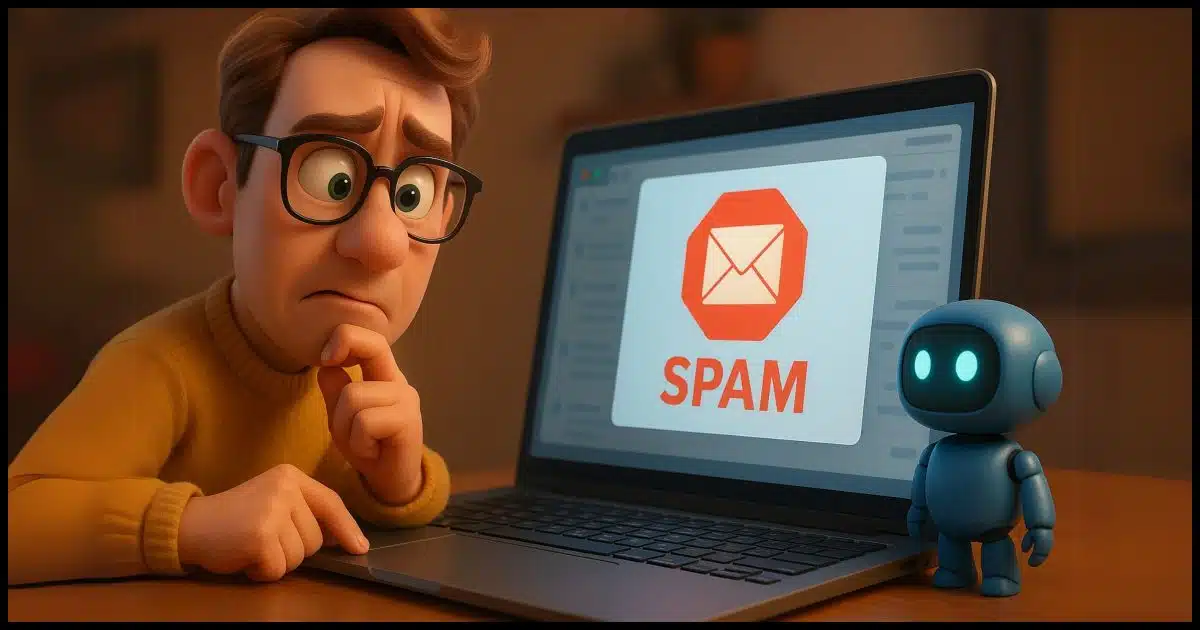
This question caught me by surprise.
My reactions ranged from "Of course not" to "Oh, wait, maybe it could" to "Hey, it probably already is" to "Oh, darn, there's a catch".
Like much of the discussion around AI, there are so many possibilities it's difficult to answer the question with a simple yes or no. But it's definitely an interesting dive into the capabilities of AI and what it might mean, not only for spam but for other technologies in the future.
Let me make some semi-educated guesses.
AI already plays a big role in fighting spam; many email services already use it to filter unwanted messages. However, spammers also use AI to improve their tricks, making it harder to detect spam. It's an ongoing battle. Marking spam properly helps AI learn, but spam won't vanish completely.
My first reaction was a hard no. Of course AI can't block spam because that's not what it's about. AI, by itself, is not a spam-blocking tool.
It can be used in many ways to generate, convert, and perhaps analyze email, but deciding what is and is not spam seems off-target for AI.
But then I realized how AI has already been applied to many things we'd never thought of. Almost anything can be a target for the application of AI.
Besides, that "analyze" I just mentioned seems right up the spam-blocking alley.
Then I realized it already is being used to block spam.
Spam filters already look at spam and attempt to determine whether an email message is or is not spam. They use a variety of different rules (aka heuristics) to evaluate the characteristics of a message.
Bayesian spam filters use incoming spam and the signals from "This is spam" and "This is not spam" indications from users to improve the rules and make themselves better over time.
Given that the definition of AI is already kind of fuzzy, there's a strong argument that AI has already been on the job: spam filters are a form of artificial intelligence attempting to make value judgments on incoming email.
But that's not what you meant, I'm sure.
Current AI technology will almost certainly be incorporated into spam filters. In fact, I'd be surprised if this isn't already happening.
I've no idea if they're doing it, but as one example, I could easily see Google using Gemini (or the AI technology behind it) to augment existing spam-filtering technologies.
Will it be perfect? Will it block all spam? Sadly, no. It'll likely get better, but won't reach 100% accuracy. Not only is the definition of "spam" kind of fuzzy at the edges (something that's clearly spam to you might be annoying but legit to someone else), there's something else at play.
Spammers have access to AI as well. This has been seen in action already.
Spam messages are getting "better" in the sense that they're becoming more difficult to distinguish from otherwise legitimate emails. A lot of spam is now better written, more highly targeted, and more clearly formatted.
AI makes spam more difficult to tell apart from something that might be legit.
Ultimately, that's the catch: spammers and anti-spam tools both have access to improved technology. Today, that improved technology is AI. Both will use it to their advantage as best they can.
Spammers use it to create better-looking spam.
Anti-spam tools will use it to create better, more effective spam filters.
Each will "win" and pull ahead in the race for a while.
In the meantime, we'll still get spam.
I asked ChatGPT (4o), and it was a little more direct:
Yes, AI can help block spam ' and it already does in many cases. Email services like Gmail, Outlook, and Yahoo use AI-powered filters to analyze patterns, language, sender reputation, and even images to decide what's likely to be spam. It's not perfect, but it's much better than older rule-based systems. AI also adapts over time by learning from what you mark as spam or not.
So there you have it: as far as AI is concerned, it's already on the job.
After that answer above, ChatGPT also asked me:
Want to know how to make AI spam filters work better for you?
What the heck! Let's see what it has to say and how that lines up with my advice. Here's what ChatGPT said.
To make AI spam filters work better for you, here are a few simple things you can do:
- Mark spam as spam ' When you get a junk message, don't just delete it. Hit the "Report Spam" button. This trains the AI on what you consider unwanted.
- Rescue good messages ' If something lands in your spam folder by mistake, mark it as "Not Spam." That helps the AI learn what should reach your inbox.
- Be consistent ' If you subscribed to a newsletter but never read it, unsubscribe instead of marking it as spam. That keeps the AI focused on true junk, not stuff you just don't want anymore.
- Avoid risky behaviors ' Signing up for shady sites or clicking strange links can expose your address to more spam. AI will still try to catch it, but prevention helps.
- Create rules or filters ' For persistent annoyances, most email services let you set up filters to move or delete messages automatically. AI handles the rest, but a little manual help can boost accuracy.
This is essentially the exact list of steps I typically suggest.
It doesn't fix everything, but using the same login credentials across your networked machines can make networking just a little easier.
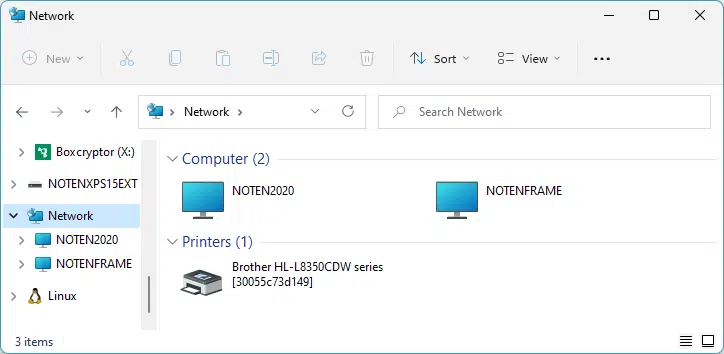
I log in to all my Windows machines with the same username and password.
Since Windows 10 and 11 use a Microsoft account, this is almost second nature, but even when using local accounts (as I must for other Windows versions), it just makes my networking life a little less frustrating.
When performing network operations, Windows often uses the credentials of the currently logged-in user in its first connection attempt. Only after those credentials turn out not to match anything available on the remote machine will you be prompted for identification.
The result? By using the same username and password on all my local machines, it's easier to log in, and networking connections are much more likely to work without requiring additional identification.
The only time this becomes somewhat unfeasible is when my new machines use my Microsoft account and my older ones use local accounts. Within each of those two collections of machines, this applies, but connecting between Windows 10 and older machines gets complicated.
Losing a device with a passkey to one of your accounts will not lock you out.
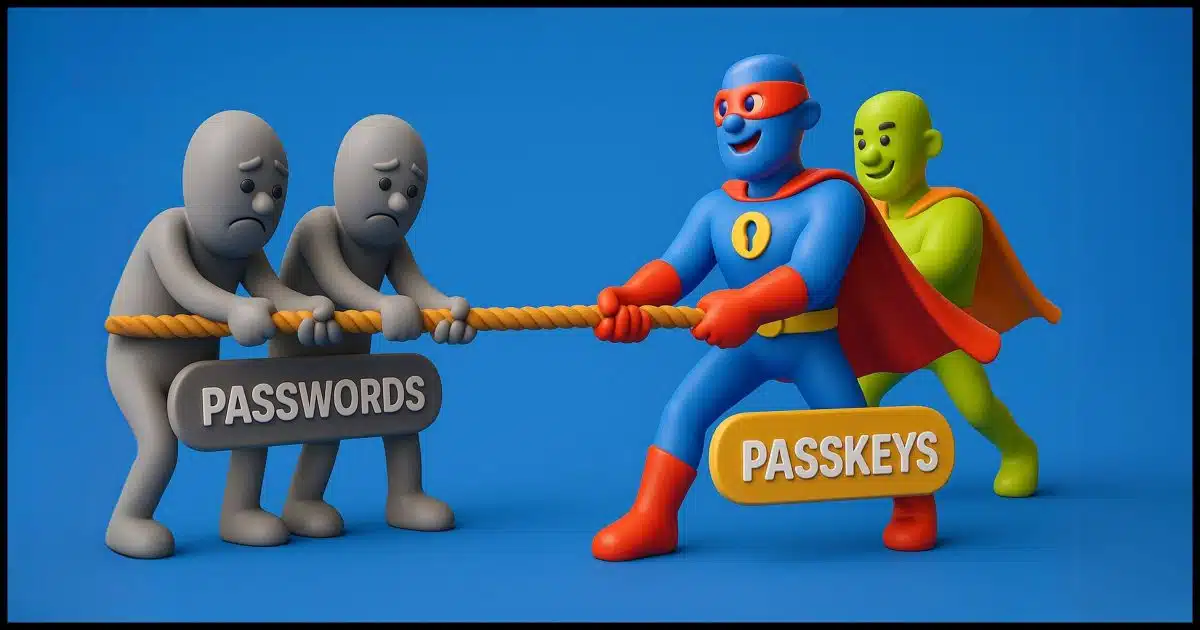
One of the most common questions or comments I get about passkeys is along these lines.
No. Hard no, in fact.
Passkeys aren't tied to one device, and accounts allow other ways to sign in, like passwords or email codes, so losing your phone doesn't mean you're locked out of your account. You can also deactivate passkeys for lost devices anytime, keeping your account secure. Passkeys are simpler and more secure than passwords.
Let's start by remembering how you got a passkey on that device in the first place. The process for setting up a passkey on your phone (or any device) is generally:
In other words, you had to sign into the device in order to set up a passkey in the first place.
How'd you do that? Generally, with a few more steps.
Before a passkey has been set up, signing in typically uses one of these approaches.
Each of these is more cumbersome than a passkey. They don't require a passkey to have been already set up, but all of them authorize account access.
Once you're authorized, the system may offer to establish the passkey, which you can use from then on.
While a passkey is kinda sorta like a password, and is part of a plan to phase out passwords, it is not exactly the same.
You have one password for one account, no matter where you sign into it, but you don't have a single passkey. Each device you sign into has its own passkey for that account. If you sign into your account on a dozen different devices using passkeys, you have a dozen different passkeys for that account. Each passkey is set up using the process above — first signing into each of those devices without a passkey. Then you can choose to set up a passkey on that device to make future sign-ins easier for you.
There are two interesting side effects of this approach.
First, your account keeps track of all the passkeys created for it. If you lose your phone, you can sign in to the account from another device (using its passkey if you had set one up, or signing in without a passkey as described above). Then you can visit that list of passkeys (or, rather, the list of devices for which passkeys have been issued) and tell it the equivalent of "the passkey on the device I lost is no longer valid".
Second, many password managers offer to store passkeys for you. This is a convenience, but it does mean that instead of each device having its own passkey, the same passkey, as kept by your password manager, is used everywhere.
It's at least as safe as a password, with the added benefit that there's no way to see or export the actual passkey.
If you lose your device containing a passkey, you have the following options:
"Another device" can, of course, be the new device you get to replace your lost one.
I sometimes hear from people who confuse hardware keys like YubiKeys with passkeys. They are not really related.
If you lose your hardware key for two-factor authentication, you use backup codes (created when you set up two-factor authentication) or other two-factor backup methods.
If you lose a device containing a passkey to an account, you can still sign into that account normally on other devices, and/or sign in without a passkey, as described above.
206: One of the goals of passkeys is to eliminate passwords completely, so this is likely to fall out of favor over time.
Download or display? You can choose.
(Animation: askleo.com)
If someone shares a link to a file stored in Dropbox with you, there's a good chance that link will be very long and unintelligible. For example, here's a link to my free Internet Safety PDF.
At the very end of this URL is something very interesting: "dl=0". I think of it as "DownLoad No". If you click on this link, you'll be taken to a Dropbox.com page that displays the PDF.
However, if you manually change that "0" to a "1", it becomes "DownLoad Yes". Enter that link, and your browser will download the PDF to your computer.
Conversely, if you're given a link that ends in "dl=1" but you don't want to download the file, then change it to a 0, and if Dropbox knows how to display that file type, it'll do so.
Some additional notes:
If you end up on the dl=0 Dropbox page displaying your file, there's a download link near the top of the page. You do not need to create a Dropbox account to download the file.
Some file types can only be downloaded, not displayed. Common ones, however, like PDFs, images, and such, can be displayed if you so choose.
Want your old Start menu? We can do that. Want to tweak the taskbar in useful ways, including its position? Start11 can do that too.
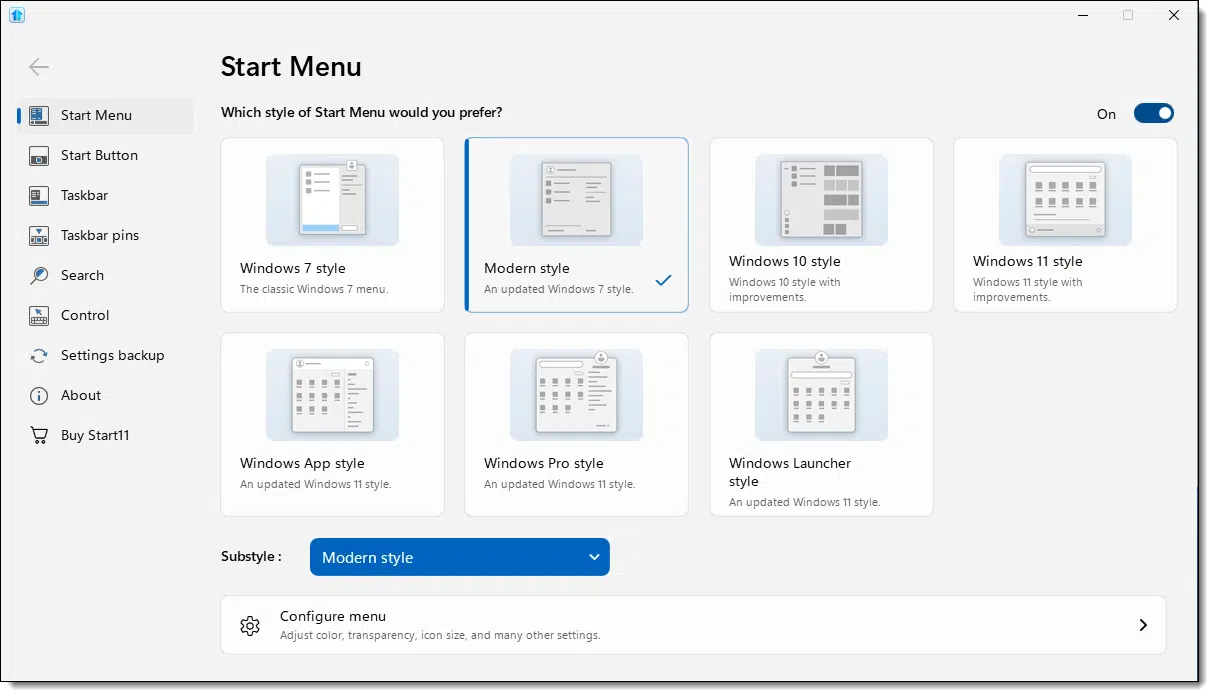
To say that Windows 11's Start menu and taskbar changes are controversial is a slight understatement. It's consistently one of the top issues I hear of when folks transition from Windows 10 to 11. In a way, it's not new, since Windows 10's Start menu had its detractors as well.
Heck, every Start menu since Windows XP has had complaints. The result? There are Start menu replacements.
In a previous article, I discussed the free and open-source Open Shell.
Today I want to introduce you to a slightly more powerful tool, Start11. It has the one feature I hear people missing most in Windows 11.
Start11 lets you customize Windows 11's Start menu and taskbar to look and work more like older versions of Windows. You can choose the style, change the taskbar's position, and tweak settings easily, making Windows 11 more user-friendly and familiar. It's a paid tool with a free 30-day trial.
Start11 is a commercial product developed by a company called Stardock. It's been around a long time ("11" wasn't its original name).
It's not free, but it's not expensive.200 Of particular interest is a fully functional 30-day trial; you can make sure it's what you want before you spend a penny.
Download and run the installer from the Start11 website.
I'm not going to dive deeply into Start11's many options, but I will highlight what I consider the most useful or exciting. You should spend some time playing with its many configuration options.
Like OpenShell, you have the choice of several different Start menu styles. Unlike OpenShell, those choices include Windows 10 and 11 styles, as shown at the top of the page.
I selected a Modern style.
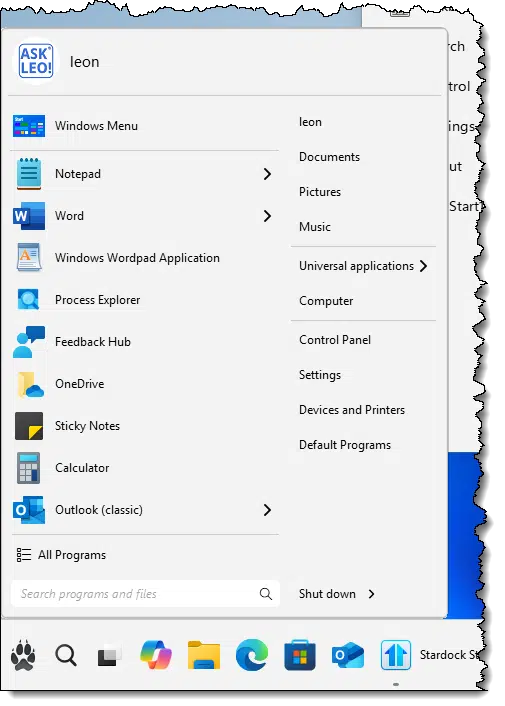
Note the paw replacing the traditional start menu icon. That's a separate configuration option.
In addition to a selection of pre-defined buttons, you can also provide your own image files, though they need to be a specific format.
The taskbar and Start menu are technically two different things. Start11 has several options for customizing the look and behavior of the taskbar.
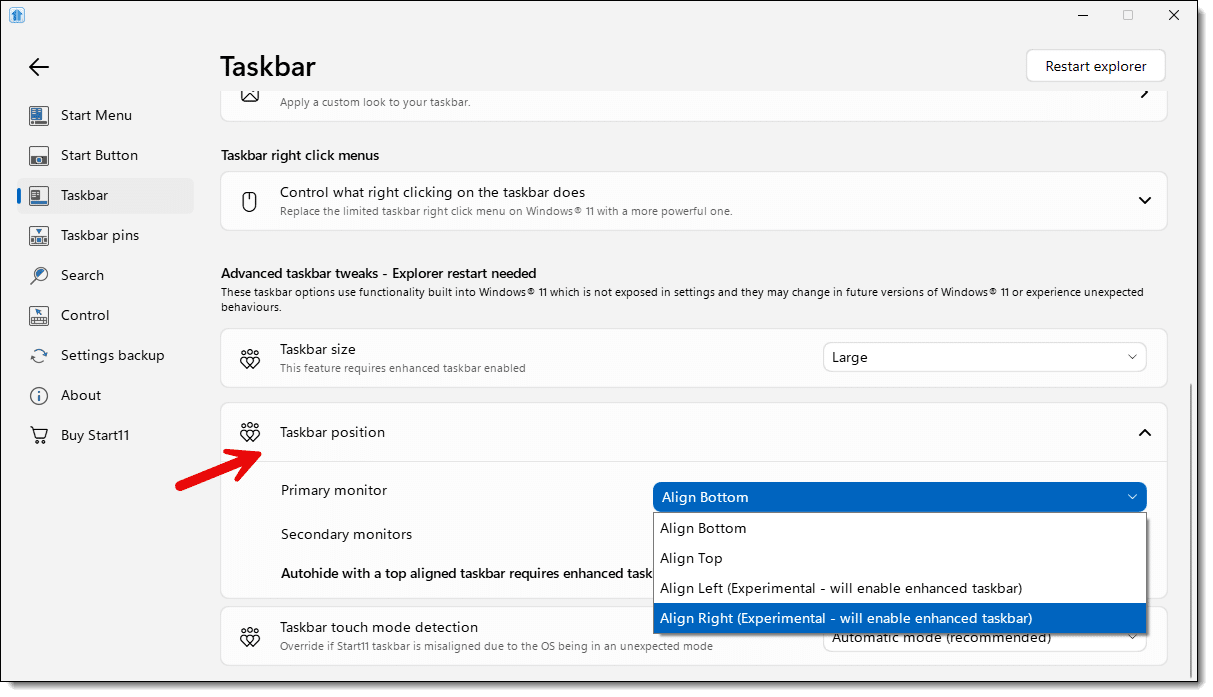
Perhaps most interesting is this: you can now place the taskbar somewhere other than the bottom.
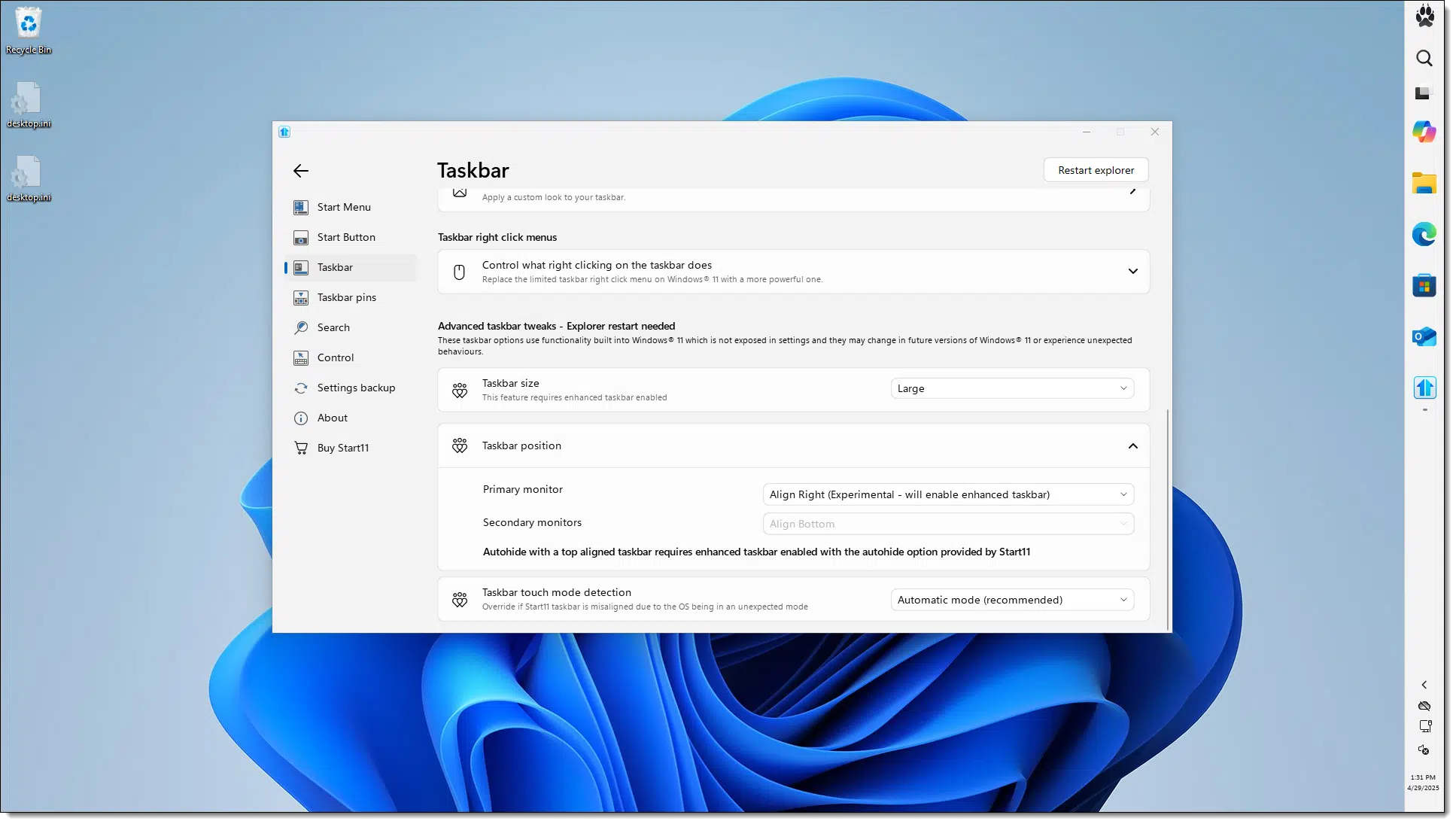
A few other things you can control include:
You'll probably want to explore and tweak many of Start11's settings. Once the configuration window is closed, you can access it again by holding down SHIFT while right-clicking on the Start11 Start button.
207: I paid ~$15 one time for a five-seat license. Note that the price may change and may be different in your locale.
URLs can deliver you to specific text on a webpage.
(Animation: askleo.com)
In recent years, a new pseudo-standard was added to URLs: the ability to link to a specific place on a webpage. Rather than just linking to the page and dropping you at the top, these links automatically scroll down to the location of specific text.
In the video above, I:
The article — Where Do You Get Your Answers? — was displayed, and immediately scrolled down to the location of the original text selection — "I don't know everything".
Caveats:
This is all based on on-page search. The browser goes to the page and does the equivalent of a CTRL+F search for the requested string. That means that if the highlighted text moves on the page, it'll still be highlighted when referenced. If the text is removed from the page, then the search will fail, and you'll be left at the top of the page as if no search had been specified.
What works in one place may work in another.
(Animation: askleo.com)
In the video above, you'll see that the same navigation skills work in two different places.
Today's tip isn't about using your keyboard to navigate either of those tools. It's about noticing that the same keystrokes expand, collapse, and navigate what are called "trees" in similar ways.
Today's tip is about generalizing.
Windows uses common metaphors to expose functionality. Files and folders are one example; the concept of a "tree" is another. Even though they may be used in completely different situations — navigating the files stored on your hard disk or the devices installed on your system — the metaphor is the same.
And when the metaphor is the same, the tips, tricks, and techniques you've learned to use on one can often be used on the other.
This isn't always true, but it's true often enough that experimenting with what works for one concept should be one of your go-to techniques for learning how to work in similar situations.
Close a tab accidentally? There's a keystroke for that!
(Animation: askleo.com)
Let's say you run your browser — Google Chrome, Firefox, Edge, or something else — with multiple tabs open. With so much of what I do being online, I rarely have just a single tab open at a time; I usually have many more.
Close a tab (not this one!) by clicking on the little "x".
Whoops! You closed the wrong tab and want it back.
Not a problem: type CTRL+SHIFT+T, and your browser will re-open the most recently closed tab.
Think of it as "undo" for tabs that's faster and easier than going into History.
It can be difficult to get wireless network coverage throughout your home.
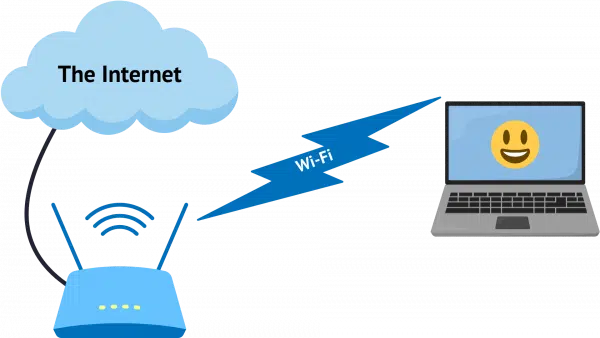
There are a couple of approaches to extending your wireless network for your laptop or other wireless devices. Depending on the characteristics of your home, adding one or more wireless access points may well be the best approach. It's something I've done myself.
On the other hand, it's not appropriate for all situations. I'll look at a couple of common alternatives that I've used in different situations.
One or more of these techniques can help extend your Wi-Fi range and coverage.
The common setup is shown above.
The internet comes into a wireless router (which is nothing more than a combined router and access point), and the wireless connection is available to any device in range.
The most common problem is either distance — when the laptop you want to connect wirelessly is too far away from the router — or some kind of obstruction that blocks the wireless signal.
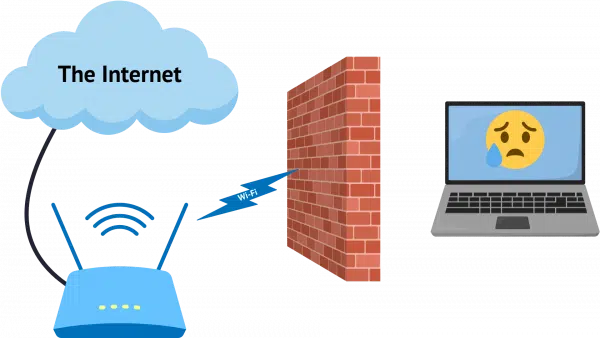
That block could be a wall or electrical equipment that interferes with the wireless signal.
The traditional and typically best solution is to add an additional wired access point (not a router).
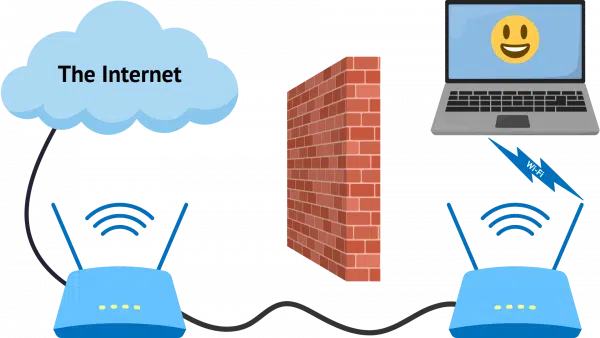
The access point connects to one of the router's wired connections via a cable, and that cable bypasses the interference or bridges the distance, placing an additional access point closer to the device that needs it.
The preferred and most robust solution is putting a cable in place. You can, for example, place a switch at the end of that cable and hook up additional wired equipment like a desktop computer as well.
To address your plan, opposite ends of the house sound good, but keep in mind where you expect the computers to be used the most and optimize placement for that. For example, my wireless access point sits in my family room, where my wife and I frequently use our laptops.
A wireless repeater is nothing more than a wireless device that hands off communication between two points.
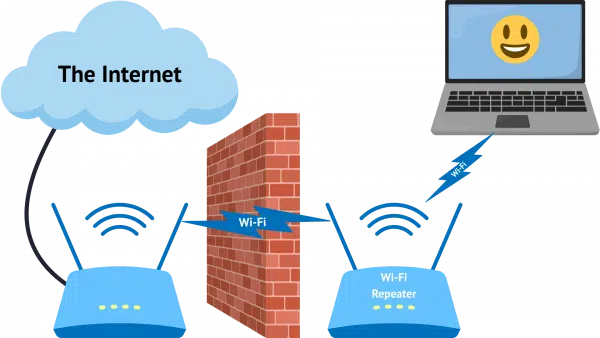
The repeater is placed somewhere between the wireless router and the computer you want to connect wirelessly. I say "somewhere" because this can get tricky; it needs to be close enough to the wireless router to get a good signal, yet close enough to the wireless devices to provide a strong signal. In the diagram, I've placed the repeater on one side of the wall or interference, but in reality, it could be anywhere that those two "close enough" criteria are met.
I carry a Wi-Fi repeater with me in my travel trailer. Wi-Fi connectivity at campsites and elsewhere can be tricky, depending on where we park in relationship to the campground's access point.
Another approach is to get better antennas for the wireless router, the remote device, or both.
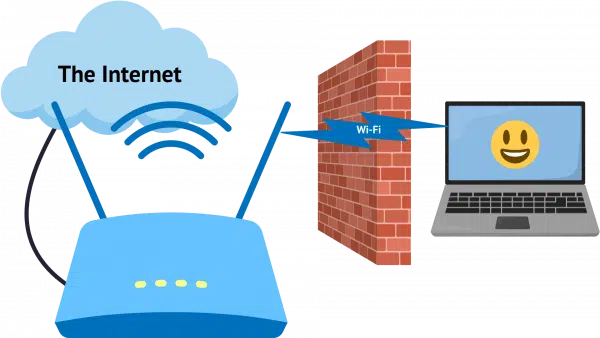
By replacing or adding larger or directional antennas on the equipment involved, you can increase the range of the wireless signal. A larger or directional antenna on the wireless router can produce a stronger or clearer signal. A larger or directional antenna on the remote device gives it bigger "ears" with which to receive the signal.
This solution works well in many circumstances, as it increases the range of unobstructed wireless signals. But like the repeater, it can be somewhat difficult to set up.
The specifics of what's available will depend on your router, devices, and ability to get creative. (A commonly cited example is a "can-tenna" made out of a potato chip can, which creates a highly directional homemade antenna).

Networking is hard. Dropbox is easy.

I was helping a friend with a new computer, and we needed to copy a few files from one machine to another. While we'd copied the majority using a backup image, there were a few files that arrived on the old machine after the image was taken and needed to be copied over.
But networking — linking computers so they can talk to one another — is hard. Harder than it should be.
And Dropbox is easy.
Instead of trying to get all the stars to align properly for networking, I used my friend's Dropbox account to install Dropbox on both machines.
Now files placed in the Dropbox folder on one machine quickly appeared in that same folder on the other: machine-to-machine copy without any frustration or drama.
Here's the kicker: DropBox does a machine-to-machine copy if it can. From what I can tell, other equivalent services (OneDrive, most disappointingly) actually copy the file up to their cloud storage and then down to the other machine. Depending on your internet speed, that can take significant time.
The Dropbox app is smart enough to look for other instances of itself on the same network logged into the same account. If it finds other instances, it does a direct machine-to-machine copy and only a single upload to the cloud.
Windows 11 Home vs. Pro: which should it be, and why?

For consumers and small businesses, Windows 11 comes in two flavors or editions: Home and Pro. (Other editions are targeted for educational and corporate use. I'll focus on the consumer choices.)
The Pro edition comes with a few additional features that you may or may not care about. We'll go over those. The Pro edition also costs more than Home.
The ultimate question we'll try to answer is whether those additional features are worth the cost.
Windows 11 Home edition works great for most people. Pro costs a bit more but adds features like better encryption controls, remote access, and virtual machines. Most folks don't need these extras. Choose Home if you're a casual user or gamer. Pick Pro if you need the advanced tools or like tweaking your system.
Whether you have Home or Pro isn't obvious by looking at your computer. The core features of Windows 11, including the Start menu, taskbar, window behavior, default apps, gaming features, Windows Update, Windows Security, and more are all present in both.
You need to dive into the Settings app to determine which edition you have.
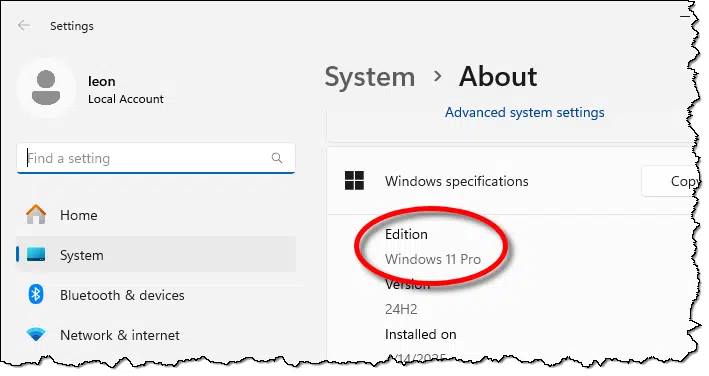
The difference revolves around features included in the Pro edition and not Home. From a consumer point of view, the most relevant features are BitLocker, Group Policy Editor, Remote Desktop Host, and Hyper-V.
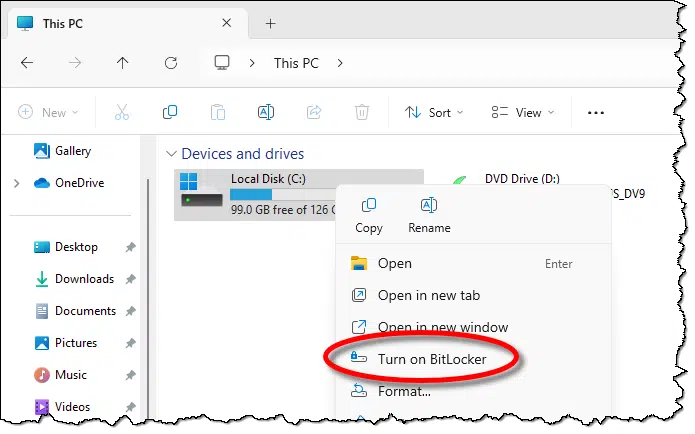
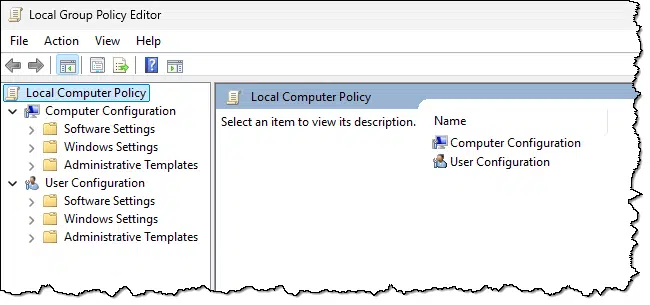
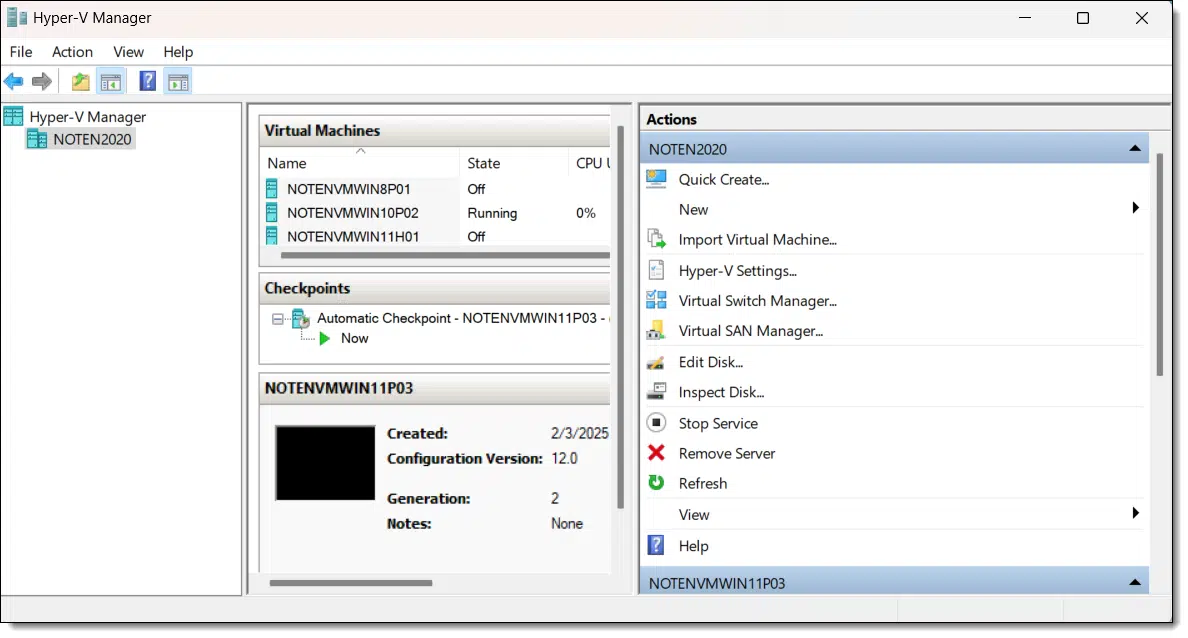
Less common or applicable features for consumers available only in Pro include:

If your needs are simple, as they are for most average consumers, then Home might be for you. Home is plenty for casual home use, family use, gamers, and the like.
As long as you don't feel you need extra control over things like BitLocker or remote access, and you don't expect to make many system tweaks that might be made easier by the Group Policy Editor, Home should be plenty.
And, of course, if you're price sensitive (and who isn't these days?) Home is also cheaper.201
Consider the Pro edition if:
Hyper-V is perhaps the most relevant for me, though being able to fire up the Group Policy Editor at times has been convenient.
If you have Windows 11 Home and want to upgrade to Pro, it's not difficult.
In the Settings app, visit the activation page.
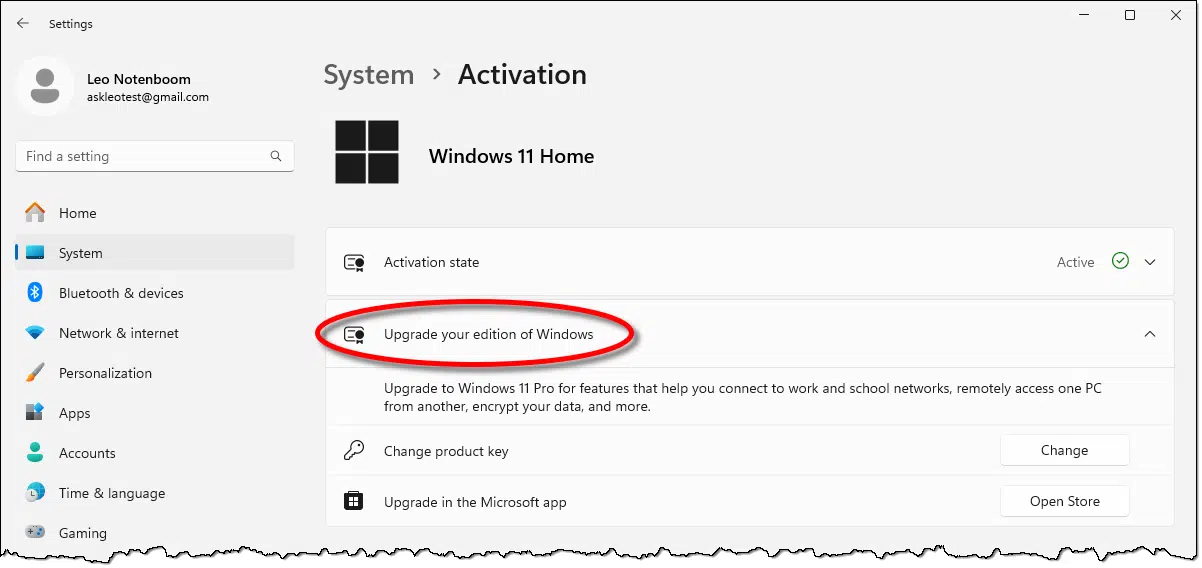
You can either enter a product key you've purchased or visit the Microsoft Store to purchase the upgrade in place. In either case, Windows will reconfigure itself and switch from Home to Pro.
If you have Windows 11 Pro and want to downgrade to Home, there's no similar path. A reinstall is the only approach I'm aware of.

208: I'm not going to quote prices because a) they'll change, and b) they're different in different parts of the world. Visit Microsoft's website to see their retail cost for a comparison.
"One strike and you're out" is not a valuable approach when it comes to choosing technology.

This is a combination tip and pet peeve.
Some time ago, a major software vendor202 pushed out an update adversely affecting the vast majority of its users. Needless to say, users were upset. The vendor fixed the problem quickly.
That didn't stop a rather vocal subset of users from immediately abandoning the product. It was no consolation that the vendor quickly fixed the problem; these users were intolerant of even a single failure.
To cap it off, this vendor had a track record of years of problem-free updates, providing a tool many computer professionals reference and recommend regularly.
One strike and you're out, apparently. Don't be that person. Don't be the person who is so intolerant of honest errors that a single mistake is all it takes to get your ire up and stomp off in a huff.
Trust me: if you expect perfection from technology (specifically computers and computer software), you're in for a miserable experience. Stuff happens. Often.
Instead, expect and plan for the occasional failure. Protect yourself with a backup and whatever other redundancies might be appropriate for your situation.
And, yes, if a vendor begins to experience a rash of failures or build a questionable reputation, it's time to consider alternatives.
But one mistake is not a pattern.
209: Notably, not a vendor one normally associated with mistakes.
These days, you don't need to worry about leftovers unless you're tracking down a specific problem.
It rarely matters at all.
On top of that, the cure can sometimes be worse than the disease.
But yes, uninstalling programs is messy for a variety of reasons.
Most files left over after uninstalling programs don't matter. They take up little space and don't slow your computer. Cleaners and uninstallers can do more harm than good. Unless you're fixing a specific problem, don't worry about it. If things get messy, reinstalling Windows is the ultimate reset.
Seriously, it rarely matters if uninstalling a program leaves things behind. The program is gone as far as you're concerned. There might be some registry settings or files left lying around, but most commonly, that's completely inconsequential.
People like to dunk on the Windows registry as the source of most of its problems. While the registry is a complex beast, unused or leftover registry entries don't affect performance appreciably. The technology implementing the registry is pretty efficient.
Even leftover files have minimal impact. Leftover files rarely use a significant amount of disk space. When I diagnose a nearly full drive, it's almost always something else that turns out to be the space hog.
When you uninstall something, there's usually no way to tell the uninstaller whether you're uninstalling this forever, never to be used again, or uninstalling it for now and might reinstall it later.
The difference can be important.
If you're uninstalling it forever, it makes complete sense that all traces of the program be removed. There's no point in keeping anything for software you'll never see again.
However, if you might reinstall it, then things are less obvious. You might want to preserve settings you've made, for example. You might want things like templates or other configuration files to be saved as well, so that when you reinstall the program, your prior configuration and customization work isn't lost.
Sometimes an uninstaller will ask. Great.
Sometimes it doesn't, and just makes an assumption. Most often that assumption is to leave things behind in case you reinstall later.
I've long been anti-registry cleaner. What's the Best Registry Cleaner? What to Use and Not has my thinking, including which cleaner(s) to use if you must. If it helps you make the decision, I can't recall ever running a registry cleaner on my now five-year-old primary desktop machine.203 It's always run just fine.
I don't consider registry cleaners as a solution to any practical problems.
Uninstallers, on the other hand, are tools that I do use from time to time. I use Revo Uninstaller, but there are several good equivalent tools.
I don't use uninstallers as part of any kind of routine clean up, though. When I'm diagnosing a problem with a specific application, sometimes a more aggressive uninstall — cleaning out more than the default uninstall might — can resolve issues.
The risk, of course, is that registry cleaners and uninstallers accidentally remove things that turn out to be important. It's one reason I always recommend a full backup prior to running either kind of tool.
With registry cleaners, overcleaning can manifest in completely random ways, from the system no longer booting (thankfully very rare), to minor features, either in Windows or specific applications, no longer working as they should. There's no way to predict; the impact is random.
When uninstallers uninstall a little too much, the damage is usually (though not always) limited to other programs on your computer no longer working (perhaps a shared component was accidentally removed), or information in some other program no longer being available. It's usually benign but often requires that the original or the affected application be re-installed or data files be recovered from backups.
The counterargument to everything I've just said is something called software rot.
Software rot is the slow decline in performance and/or stability of your system. It's most often associated with installing and uninstalling lots of different applications over time. Each uninstall leaves something behind, and over time, all that cruft has a noticeable impact on your system.
Installing and uninstalling lots of software is the most visible cause, but there's a strong case to be made that updates — both system and application updates — can lead to the same result.
Software rot isn't the issue it once was. I no longer believe it's anything most of us need to be concerned about. The software has improved to a point where software rot eventually gets dealt with naturally by something we'll do for other reasons: reinstall Windows.
The ultimate cleaning is reinstalling Windows from scratch (or getting a new machine), followed by reinstalling only the applications you actually use.
A reinstall begins by erasing everything. All the leftovers — the cruft — is gone.
Then, by setting up Windows afresh and installing only apps you actually use, your machine will contain only what's needed.
Of course, at this point the cycle begins anew: you'll start getting updates and installing and uninstalling software.
210: Full disclosure: I did reinstall Windows from scratch once. I guess that's the "ultimate" clean, registry and all.
Windows File Explorer left-pane navigation: no mouse required.
(Animation: askleo.com)
If you're a keyboard jockey, like I tend to be, navigating in the left-hand pane of Windows File Explorer can be quite efficient if you know just a few keystrokes.
In the left-hand pane:
It's a quick and easy way to move around.
You'll often find testimonials and offers of amazing account recovery success. It's a trap.
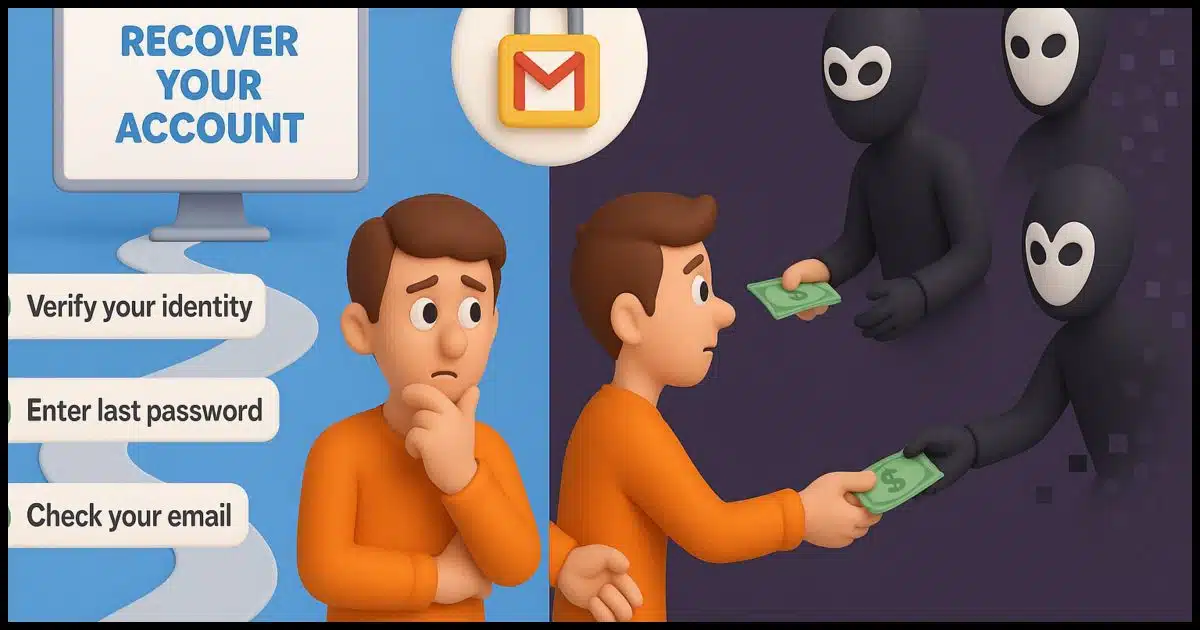
We rely on our email for so many important things. To have your Gmail account vanish — potentially forever — can be heartbreaking.
Scammers know this, and they are absolutely prepared to jump in and help... themselves.
Let's review why these scams are so common, and what to do instead.
Losing your Gmail account is super frustrating, and scammers know it. They post fake success stories, promising they can help recover your account. Don't fall for it! These scammers just take your money and run. Only Google's official recovery tools can help you. Protect yourself by setting up recovery options.
Have you seen posts similar to this?
My page recovery would never be successful without your support and hard work. I feel blessed to work with such an incredible and talented person like you, <name redacted>. I knew that you could do this. Keep up your excellent work in the future. You are a perfect example of a good, dedicated person.
Or this:
Hello there, wonderful souls! I was a victim of crypto scam and lost a lot. I am beyond elated to share my profound appreciation for the remarkable efforts of the team <email address redacted>. Their unparalleled expertise paved the way for me to recover a substantial $82,000 in lost cryptocurrency. If ever faced with the daunting prospect of lost crypto funds, look no further.
These comments, posted on articles and videos discussing account recovery, claim to be from individuals who have been helped by someone ("<name redacted>" above) and are thanking them and praising their efforts. These fake testimonials are intended to lure desperate folks to reach out to the named individual for assistance.
Sometimes a link takes you to the individual's page, but more often there'll be instructions to search for <name redacted> on WhatsApp or Telegram or any number of other communications platforms.
I understand the appeal. It looks like there's a stream of satisfied customers who've managed to get their accounts back due to the efforts of "<name redacted>".
Except, of course, it's all a lie.

Hackers have no more access to Google than you do. Google doesn't provide extra assistance to third-party so-called account recovery services.
In other words: hackers can only do the things you could do yourself (if they were to even bother trying to recover your account; they don't). There's nothing more they can add to the process.
Only you can recover your Google account. Using Google's recovery tools, you, and only you, need to prove that you're the rightful account holder.
If you contact one of these hackers for account recovery, 99 times out of 100 they'll do exactly three things:
They may also use your desperation to collect additional personal information from you, allowing them to hack more of your accounts or commit fraud in your name.
Your desperation is the key. It's unfortunate, but we often make ill-informed decisions because we're so desperate that any offer of help represents a lifeline to grasp. Unfortunately, there's no one at the other end of the rope who will help.
These scams have common red flags.
Even though it's difficult in such a desperate time, give your gut time to absorb what's being presented, and trust your intuition if things feel even the slightest bit off.
The only way to recover a Google account is to carefully follow Google's instructions, making use of all the options those instructions might make available.
I've read you can improve your chances by using devices you'd previously used to sign in to the account in physical locations from which you've accessed the account before.
But you and I are limited to what Google offers. If the recovery process can't be made to work, your account is lost. Move on and start over.
If nothing else, please learn from the experience. You, and only you, are responsible for the security of your Google account.
Online or off, information needs to be backed up.

Here's a simple rule of thumb:
If it's online, make sure there's a backup offline.
If it's offline, make sure there's a backup online.
Backing up some of your data online is important because the backups are off-site. That means you're protected from any catastrophe that impacts your location. The common example is a fire that destroys your home, including your computer(s) and backup(s).
Why do I recommend offline backups of online information? If data is only online, it's easy to lose without chance of recovery. One compromised account, and all your email, photos, or cloud storage contents could be gone in a flash.
Back up each using the other.
Surprisingly, disabling remote access on your computer doesn't actually disable all remote access.

Windows has long had two settings relating to remote access of your computer:
The first allows Microsoft's remote assistance program, which is intended specifically for help sessions, to be used. The second enables the more general "Remote Desktop Protocol", which allows the computer to be used from a remote location.
They can both be disabled.204
However, disabling them both does not disable all remote access.
Disable (or enable) these settings as is appropriate for you, but be aware that your machine can still be accessed remotely in other ways if you allow it.
211: I generally enable remote desktop because I use it frequently here at home.
Backing up your computer's data is critical. The best program is whatever you'll actually use.
Backing up is kind of like eating healthier: everyone knows we should, and few of us actually do. Much like the heart attack victim who no longer binges on French fries, when it comes to backing up, the most dedicated are those who've been bitten hard by a failure in their past.
Asking what backup program to use is very much like asking, "What's the best exercise program?"
The best program for exercise — or backup — is the one you'll actually do.We'll look at seven questions to ask yourself and my recommendations.
The most important thing is to select a backup strategy that will work for you. If you're not sure, get an external drive and a copy of EaseUS Todo, and configure them to take image backups monthly and incremental backups daily. Consider adding online backups of some sort to the mix, and you'll be well protected.
If this isn't something you want to spend time learning about — and to be honest, most people don't — then prepare to spend a little more money for some additional disk space and get a good dedicated backup program.
In other words, just do this:
There's some work involved in getting things set up, but once it's in place, you're mostly done.
This is a comfort-versus-space tradeoff.
If you're okay with reinstalling your system from scratch — meaning your operating system and all applications and customizations, and you can clearly identify what does and doesn't need to be saved — you can save a lot of disk space by backing up only your data. This requires a great deal of diligence on your part, because anything you don't specify to be backed up will be lost in the case of a catastrophic failure.
Either way, you need to use a technique — either home-brewed or in the form of a backup or automated copy program — to make sure this happens automatically. Relying on your memory to back up isn't the best choice.
You might not have to get additional hardware for backup purposes.
Hard disks are so large these days that simply having another machine on your local network with enough free space can be a quick and easy solution. Many backup programs allow you to back up across a network. Having two machines back each other up is a quick way to ensure that if either has a problem, your data is safe on the other.
This means you'll have to set up your local network and enable file sharing on it — something that isn't always the easiest to accomplish or maintain.
What if your computers and all of your backups disappeared in a fire?
If the potential data loss just sent a shiver down your spine, you should consider offsite storage for your backups. That could mean periodically taking an external disk with your backups on it to some other location, or, if the sizes are small enough, backing up across the network to a server not in your home.
When my wife had a retail store, I had an external drive for backups at her store and another in our home, and would periodically swap the two. Each location then had "offsite" backup at the other.
Another approach developed in recent years might be even easier....
If the amount of data you're backing up is manageable and your internet connection is relatively fast, an online backup system may be worth considering.
These programs back up your critical files to secure servers on the internet, giving you data and offsite backup at the same time. In addition, some services allow you to access your backed-up files from any machine connected to the internet. This approach is impractical for large backups (such as full image or complete system backups) due to upload speed and storage size limitations.
You might also consider services like Dropbox, OneDrive, Google Drive, and others. Data placed in folders managed by these services is automatically backed up to their servers (and to any other computers you install the software on, should you choose).
How important is it that you be able to recover a file from a specific day — not a day before or a day after? If you simply back up all your files on top of previous versions, you'll only have the most recent version. Many times, that's enough. Sometimes, it's not; for example, if you need to recover an older version of a file that became corrupt at some point.
Have you thought about all your computers? All the drives therein? How about external hard drives you're not using for backup? Do you have a website? Do you have a backup of it? What would happen if your ISP "lost" it? (It's happened.) If you're a small business, do you have databases that need backing up? Are your books online and only online? Do office computers belong to everyone but no one? What about email? Your operating system?
There's a lot to think about.
Notes for things to be done to a video posted to YouTube.
AI: "Please create 5 clickable descriptive titles for this YouTube video:" feeding in the transcript
Test Using TubeBuddy
AI: "I want you to please write me a short 1 paragraph description for this video transcript written in the first person that is fully optimized for SEO. I am targeting people who are not terribly computer literate, but want to take advantage of what technology offers, with more confidence:" followed by the transcript.
AI: (‘5' is artibrary)
As always, evaluate the result.
All the many things that ideally should be thought of as an article is created.
The internet has a very long memory. Removal from search engines is pragmatically impossible, and I don't think it's what you really want anyway.
Search engines are amazing. They've collected and indexed billions and billions of pages of information on the internet, making them available for us to find, review, and use.
Getting into search engines is not terribly difficult. Getting out?
The news is not good. In fact, in my opinion, it's a lost cause.
Once something goes online, it's almost impossible to completely delete it. Search engines only point to websites, and there are too many to contact. Even if you remove your information from one place, copies exist elsewhere. The internet has a very long memory. What is public once stays public forever.
We think of Google, Bing, and maybe a couple of other name brands as being the search engines, but in reality, there are hundreds or thousands of search engines indexing pages on the web. Some have a special purpose or limited audience, but all have the potential to index and list the pages you're concerned about.
The number only skyrocketed when AI services entered the picture.
Any of them could have a listing for your name.
Reaching out to all of them is somewhere between impractical (there are too many) and impossible (there's no master list).
Even among the search engines you reach out to, most will not respond. There are several reasons for this, but perhaps most importantly:
They ignore all such requests.
This is perhaps the part that frustrates me the most, as it represents a fundamental misunderstanding of exactly how the internet works.
Search engines don't hold information about you; they merely index and point to websites that do.
Even if you successfully remove yourself from a search engine, you have not removed that information from the internet. It's still on the original site waiting to be found by other means, such as other search engines.
For example, let's say I post an article about you here on askleo.com. Eventually, you search for your name on Google, and sure enough, the results include my article.
Now let's say you successfully petition Google to remove that entry from their search results. When you google yourself, my article about you no longer appears in the search results.
But it's still here. You have not removed the information about you that was publicly published on my site. At best, you've made it a tad harder to find, but it's still quite findable — perhaps via Bing, perhaps via a foreign search engine — but the information is still there for anyone to see.
It sounds like what you really want is to ask the site owner — me, in this example — to remove the posting about you. That, too, has issues.
Rather than removing yourself from the search engines, it seems to me that you want to use those search results to identify the websites that have your information. Then you could reach out to each of those sites and ask that your information be removed.
If they did, then over time, the search engines would update to reflect that your information has disappeared from the source.
That's what you really want. You don't want to be removed from the search engines; you want to be removed from all the sites they point to.
Unfortunately, there's no requirement for any of those sites to honor your request. They could ignore you, they could reject your request; heck, they could even take your request as a reason to highlight your information, rather than remove it.
Here on Ask Leo!, I've occasionally responded to requests to remove comments people have left in the past. There's no requirement that I honor those requests, but I see no reason not to.
But it's still not enough.
Websites, particularly popular websites, are constantly being archived and copied.
There are two types of duplication at play here.
Archiving. Sites like The Internet Archive actively scan the internet regularly, and, as the name implies, archive copies of websites and pages. It's a great way to look back and see what a website looked like in the past, for example. Many search engines also maintain older "cached" copies of pages that they've scanned.
Plagiarism. The fact is, there are bad players out there who copy steal content and re-purpose it for their own uses. Any moderately successful website faces this issue.205
The net result? Even if a website removes your information at your request, archived or stolen copies of older pages may still be found. And while archives may or may not be responsive to your requests for removal, thieves rarely are.
The brutal fact is this: Once something has been published publicly on the internet, you lose all control over it.
You can't un-ring a bell.
There are too many ways information can take on a life of its own. Between various forms of information duplication and indexing, it's pragmatically (and quite possibly literally) impossible to guarantee removal of anything from the internet.
The internet never forgets.
If it's so hard to make things disappear from the internet, then why is it so difficult to find what I'm looking for?
It's a reasonable question. Sadly, the two are only loosely related.
Looking for something means searching through billions and billions of pages on the internet. Your success depends on how well you use search engines and how "findable" the information is.
Removing something also means searching through those billions and billions of pages and asking the owners to delete whatever you're trying to get rid of. Even if one trace is left, it might not be easily findable, but it's still out there ready to be stumbled onto.
Just because you can't easily find something doesn't mean that someone someday won't.
With all that as background information, I hope you understand how misguided the so-called "right to be forgotten" laws are.
The "right to be forgotten" legislation aims to require search engines to remove entries from their search results based on whatever criteria the law spells out.
Not only does the internet never forget — via archives, caches, and hundreds of different search engines — but on top of that, the laws don't have global reach. A law requiring that a search engine result be removed in country A has no bearing on country B.206
That the laws are "misguided" is putting it mildly and politely.
But wait! It gets worse!
In 2003, actress Barbra Streisand attempted to suppress photos taken of her home. The net result was that those photographs got even more public attention than they would have had she just said or done nothing. This unintended consequence of bringing more attention to something by the act of trying to suppress it has become known as The Streisand Effect.
It happens all the time, particularly online.
The currently most common example? A public figure publishes an embarrassing tweet or photo and then deletes it. Within moments, archives or screenshots of the item — often taken from individual browser caches — appear and replicate all over the internet.
You can't un-ring a bell. Attempting to do so can unintentionally create more noise.

212: I have alerts set on my name and phrases like "ask leo", so I get reports of my content being duplicated on random sites almost daily. Fortunately, Google is good about acknowledging that mine is the authoritative and original source.
213: Nor, I think, do we want it to. Do you really want another country telling yours what you can and cannot find online?
I just don't see it happening.

The concern is that Microsoft will eventually start charging an annual subscription fee for Windows itself.
The fear rose when Windows 10 was originally released. With Windows 10's end of life coming up shortly, I'm starting to hear it again and again.
I'll be clear: there are no signs — none — that this is happening now or any time in the foreseeable future.
Microsoft charging for Windows monthly or annually is a recurring myth with no evidence. Fears were fueled by poor messaging and confusion over "software as a service" when Windows 10 was released. Subscriptions don't always mean payments, and Windows itself likely won't need one. Remember, rumors aren't facts.
Back in the run-up to Windows 10's release, someone at Microsoft used the phrase "software as a service" when speaking of Windows 10.
What they meant was that the software would be delivered as an ongoing series of downloaded updates with some possible online components, much like Windows Update and many other online services we use today. This is/was/will be nothing new.
Consider your ability to subscribe to my free newsletter, Confident Computing.
Software as a service you subscribe to can work this same way. You can consider yourself as having subscribed to Windows Updates, which have been arriving free of charge periodically since you installed the operating system.
As we've seen above, subscriptions can be completely free. Nothing about the word subscription implies a cost.
However, many people assume that a cost is involved as soon as they hear the word. I still get asked, "How much does your newsletter cost?", for example, even though it's free.
Some subscriptions are not free. Your local newspaper, your favorite streaming service, your coffee-of-the-month club might all represent:
A subscription to a service can be free.
A subscription to a service can cost money.
The words subscription and service don't tell you which it is. "Software as a service" doesn't imply anything about how you pay for it.
Microsoft is known for some colossal messaging blunders. (No, Windows 10 was never going to be the "last version" of Windows.)
When questioned about whether "software as a service" would have a cost, Microsoft representatives said there were "no current plans" to make Windows a subscription. They didn't say never. They didn't say "no". They left the door open a crack.
To be fair, they need to have that option. Maybe someday they'll determine that a monthly fee for Windows is the way to go.
Unfortunately, the rumor mill took "no current plans" to imply "real soon now". That's totally unjustified, but unjustified speculation is what creates rumors, and what makes rumors turn into viral topics.
And of course Microsoft elected not to clarify anything, as is typical.
Microsoft benefits by having Windows in as many places as possible. The upgrade from previous versions to 10 was free, and the upgrade from 10 to 11 is free. Windows comes on nearly every new PC.
They can and do make plenty of money on other services that the popularity of Windows enables.
They would be foolish to put barriers like a subscription fee in the way.207 Anything that would cause the average consumer to flee to less expensive alternatives would kneecap Windows' dominance.
Putting a paywall in front of the huge Windows ecosystem that Microsoft already profits from enormously just doesn't make sense.
I think one source of fear is that this kind of transition has happened already. Microsoft Office, for decades a one-time purchase, is now promoted primarily as an ongoing paid subscription. The thinking, of course, is that if they can do it to Office, what's to stop them from doing it to Windows?
Well, Windows is the gateway to that Office subscription and others, like OneDrive storage.
It would not surprise me if new features or programs were made available primarily via subscription — enhanced CoPilot comes to mind, though that feels very much like an experiment in progress.
But Windows itself? No.
I do not believe that Microsoft will ever make Windows a paid subscription. I just don't see it, and there's zero indication it's being considered at all.
But what if they did?
Like Microsoft Office before it, it's likely they would throw in a lot of features and functionality to try to make it worth your while; maybe OneDrive space, maybe the ability to share your subscription, or maybe other things I can't think of.
And, like Microsoft Office before it, I suspect they'd still offer a one-time purchase plan without all the additional bells and whistles.
But I just don't see it happening. Period.

214: There's a strong argument they are being similarly foolish by enforcing Windows 11's additional hardware requirements.
But wait! There's still another way to display the Control Panel.
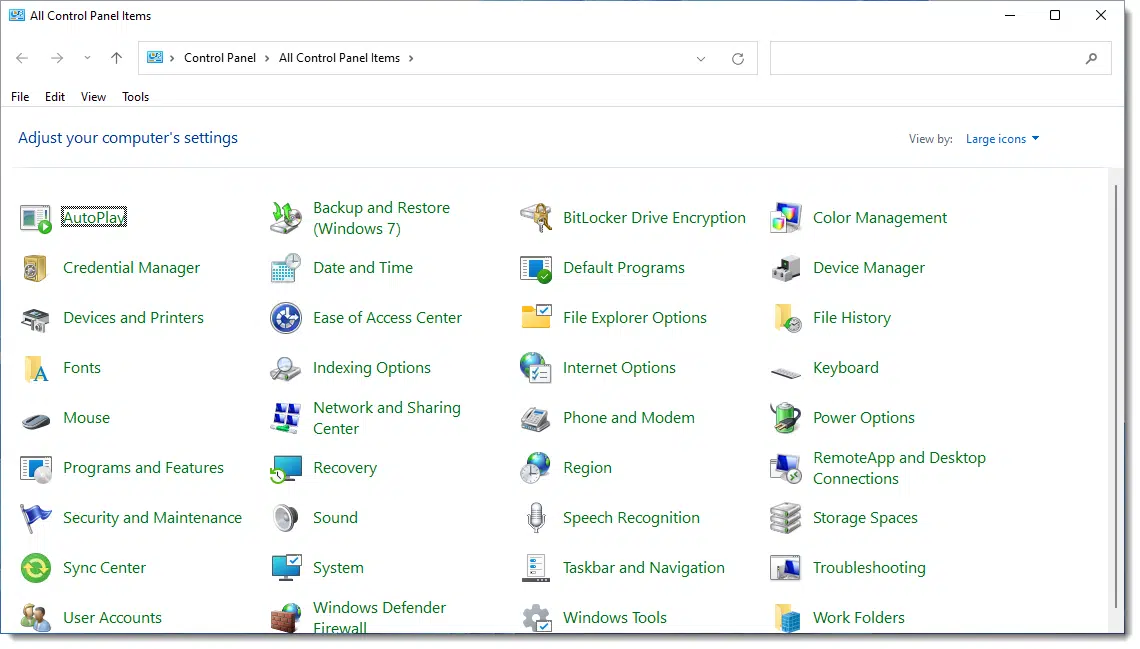
There's no shortage of different ways to accomplish tasks in Windows. Even though Control Panel is being deprecated (still available but no longer recommended for use) — and even hidden — I listed several ways to open it in a previous tip.
Here's another I discovered. Run:
shell:ControlPanelFolder
Open the Run dialog, type in shell:ControlPanelFolder, and click OK.
The result will be Control Panel, as displayed above.
If this is something you use frequently, you can create a shortcut to "shell:ControlPanelFolder" and put it on your desktop, taskbar, or Start menu as you see fit.
Even though Control Panel is somewhat easier to get to in prior versions of Windows, this tip should work there as well.
It seems like every online service provider includes some kind of cloud storage as a perk. It's easy to feel overwhelmed.
Cloud storage was at first an interesting concept, then a rare but useful commodity, and then a differentiating feature between services.
And now? Not only is it ubiquitous to being almost expected, but some aspects are almost, dare I say it, annoying.
Cloud storage allows you to save files online, making them accessible anywhere. It's great for backups, sharing, photos, and portability, but comes with risks like hacks and data loss. Organize your options, back up your data, secure accounts with strong passwords, and encrypt sensitive files.
Cloud storage is really just using someone else's computer. Or rather, someone else's hard disk. You access cloud storage online by interacting with a website where your files are listed or by running software on your device that automatically uploads or downloads files.
There are many cloud storage providers these days. They differ in not only in price and capacity but in the additional services they offer.
There are so many providers. Here's a list of the providers I use myself:
I also have Flickr Pro, which gives me unlimited storage for photos and videos.
And that's just me.208 There are plenty of other storage providers out there willing to give you free cloud storage. You can even have multiple free accounts (like Google or Microsoft accounts) to get additional free storage.
What's it all for, anyway? I have three broad categories that I think of when I think of cloud storage.
As you might expect, one of the biggest reasons I'm a fan of cloud storage is the opportunity it gives us for quick, seamless and ubiquitous backup of important data.
That's how I use syncing apps like DropBox. I work on documents stored on my computer, as always, but every time I save the document, it's replicated across all the devices that are hooked up to that same account. Even if there are no other devices, the file is at least replicated to the DropBox cloud servers. It's cheap and easy cloud backup for your most important and current work.
This is also how I make sure my wife's documents are backed up without her needing to do a thing.
The second most useful aspect of using cloud storage, to my mind, is the ability to share something with anyone else. It's one reason I have a Flickr account: to upload and post all the photos that I care to share in a single location. I can post and email links so that just about anyone can quickly and easily see my photos. And I can search terms within my photostream to easily find individual photos.
I also use Dropbox heavily for this, particularly for the nonprofit organization I support.
Here at Ask Leo!, we also use OneDrive to share our production documents, such as the article and video publication schedule.
I was going to call this portability, since in many ways that's what it is, but I realized that it's more than that.
The files I have stored in Dropbox, OneDrive, Flickr, and elsewhere are available anywhere I am as long as I have an internet connection. As I update this article, for example, I'm travelling with only my laptop. And yet all of my files — multiple terabytes of files — are at most just a few clicks and a download away.
I've written a lot already about the risks of cloud storage. I'll direct you to Is My Information Safe in the Cloud? for more detailed information, but in summary, here are the main risks.
Not a risk:
Cloud storage is easy to protect.
That protection is called encryption. If you upload only encrypted data, then no one — not hackers, not lawyers, not even the service providers themselves — will be able to access your data.
While you can use any good encryption tool, Cryptomator is designed specifically for use with cloud storage providers. I use it heavily.
Right now, I could have no fewer than five different applications on my mobile phone automatically upload every picture I take to their cloud storage.
One is helpful. Five is just annoying.
And it's potentially a problem. If I'd said yes to each of them — which is easy to do accidentally — then the amount of data my phone would use would increase five-fold for each photo, and as they all competed for the connection, the upload time would probably be at least five times longer.
Now, I am all about backing up. I think the automated upload concept is fantastic. A few minutes after taking a photo with my phone, not only is it backed up in cloud storage, but it's downloaded to my computer, ready for me to do whatever I want with it.
I just have to be careful not to do that with five different services.
The real trick to understanding cloud storage options is to have a plan. My plan is a little chaotic, since I keep seeing new options and I'm tempted to try each new one out.
My plan's a little skewed from what the average consumer might do, since I have resources available that most people don't need.
Here's how my cloud storage is organized.

My public photos are in Flickr. As I mentioned, I have a pro account. They have a fine user interface, a very nice presentation of uploaded photos, and I've got a bunch out there. It's my go-to place for uploading photos I want to share.
All of my photos, public or not, edited and original, are stored in Dropbox. They take up over a terabyte. I also use Dropbox for some document sharing, including PDFs and reference documents I want available on my phone.
My music collection is in OneDrive210, and that's also where I share documents for collaboration on Ask Leo!
Other documents that I want to share or collaborate on are in Google Drive. For example, the show notes for The TEH Podcast live there.
With so many options, it's easy to get overwhelmed. I suggest you start small.
Then explore the possibilities. They already seem endless, and more show up every day.

215: I'm not including the cloud storage I use and have available on the servers and services I use to host my websites.
216: In fact, I can't recall a single instance of this ever happening. I'm sure it's happened at least once, but it's not something I worry about at all when using reputable providers.
217: I have an instance of Plex music server that uses my OneDrive collection as its source.
Don't give away your data when you give away your computer.

Every so often, I hear about discarded computers or hard drives found to contain massive amounts of personal data that hadn't been erased prior to the device being taken out of service. Be it recycling centers, secondhand stores, or even that hand-me-down laptop from a family member, personal information is left for anyone to find.
When you're done with a machine, a hard disk, a thumb drive — any form of data storage — take the time to erase your content from it. You want to erase everything: your data, but also the programs and operating system, which are typically not allowed to be given to someone else.
Here are three approaches for PCs.
For solid-state drives (SSD) and thumbdrives, the jury is out on whether or not a quick format is enough or whether a full format will have the desired results without causing excessive wear. My approach is simple: if the drive held truly important data, then a full format or full encryption it is. Otherwise, a quick format should be enough.
There's also the option to destroy the disk physically, if you're really serious. (Pro tip: Wear goggles. ðŸ'‚ )
Regardless of which approach you choose, ignoring the issue and giving your data away should never be an option.
The latest workaround allowing you to set up Windows 11 without a Microsoft account.
Microsoft really, really, REALLY wants you to use a Microsoft account for Windows 11 — so much so that they make it difficult to set Windows 11 up without one. Apparently they are quashing all the workarounds we've come up with in recent months and years to do it anyway.
People choose local accounts for a variety of reasons, from not being continuously connected to not seeing a need to keep that extra connection to Microsoft for personal or privacy reasons.
So, we have another workaround. It's obscure and perhaps esoteric, but as of this writing, it works.
Microsoft really wants you to use an account for Windows 11. Here's a workaround: Start setup with no internet. When asked to connect, press SHIFT+F10 and type ‘start ms-cxh:localonly'. Create a local account instead. Connect to the internet after setup is finished.
This applies to a fresh installation of Windows 11. That typically means booting from installation media (which you can download from Microsoft) and running the setup program.
If you've already set up Windows 11 with a Microsoft account, it's kind of too late. You can switch to using a local account, but that's not quite the same as never having associated the machine with a Microsoft account in the first place.
What we're doing here is starting from scratch.
Before you boot from the installation media, disconnect your computer from the internet. We'll leave it completely disconnected until Windows 11 has been set up.
Boot from the installation media, and begin the setup process. Proceed normally, including having it reboot once or twice along the way.
Stop when you get to this screen.
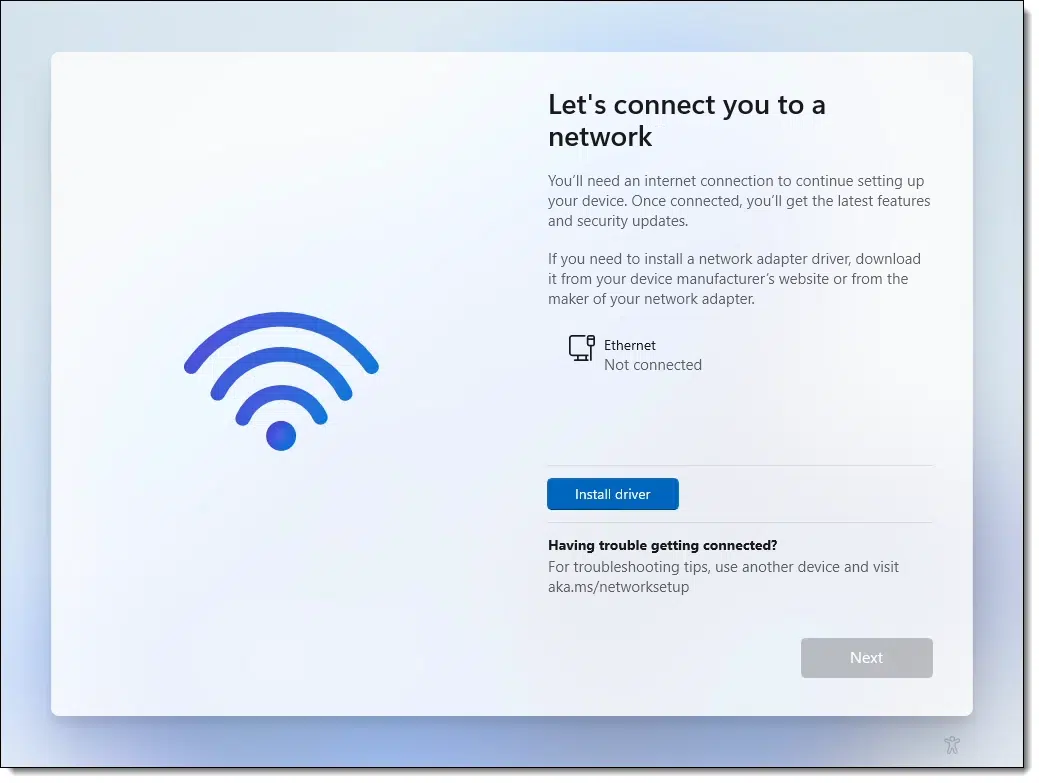
As you can see, this machine is not connected to a network. If we were to connect, Windows 11 setup would proceed with the Microsoft account setup.
Instead, type SHIFT+F10211 to open a command prompt window.
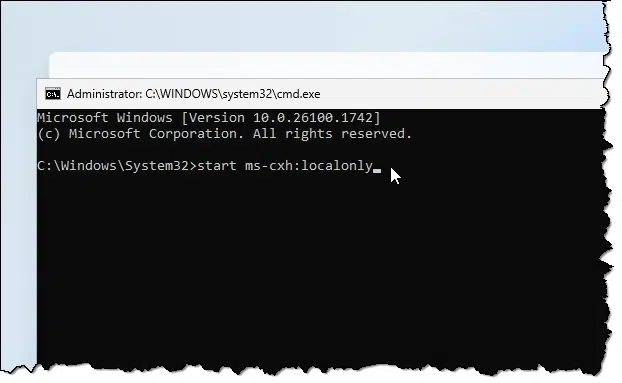
Click anywhere within the command prompt window and type the following command:
start ms-cxh:localonly
followed by the Enter key.
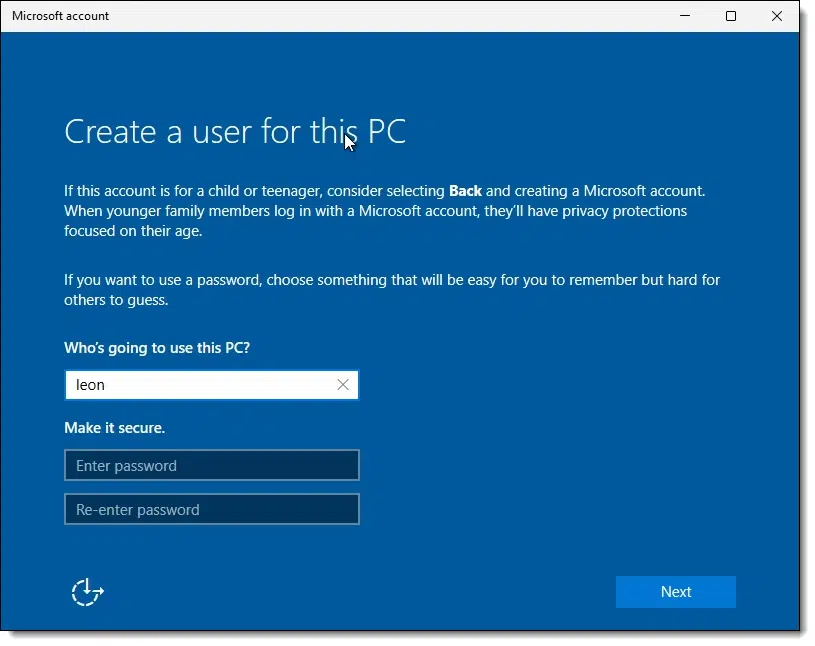
This is the interface to create a local account. Enter a local account username ("leon" in my example above), create and enter a password twice, set up answers to a few security questions, and it's done.
Complete the rest of Windows 11 setup normally.
Once setup is complete, you'll be dropped into Windows 11 with the Start menu showing.
Note that many of the icons for Start Menu items are grey. This is because they will be downloaded from the internet, and we're not connected.
Connect your computer to the internet. Plug in that cable or set up Wi-Fi. As soon as you do, you'll see the icons magically refreshed with their proper appearance.
At this point, you might also want to visit Windows Update in Settings. A normal, connected setup of Windows 11 would have downloaded updates along the way, but since we were not connected until now, you should find many available to be installed.212

218: I sometimes take the extra step of clicking on an empty area in that dialog — perhaps the big Wi-Fi graphic — to ensure that the correct window is receiving the keystroke. I've heard of SHIFT+F10 not working in some cases and think it might be related.
219: Even if it says the computer is up to date, click on "Check for updates". There are likely to be many.
Grab your Windows 10 ISO while you can.

Windows 10's end of support date is coming: October 14, 2025.
If you're running Windows 10, especially if you're planning to continue running it beyond end of support, I recommend downloading an ISO of the Windows 10 installation media before the date arrives. It's unclear if Microsoft will continue to offer the ISO after the end-of-support date (Windows 8.1 was available for sometime after its demise), but grabbing a copy now protects you.
This can be important if you ever need to recover, repair, or reinstall Windows 10 after Microsoft washes its hands of it.
Where Can I Download Windows? has the download links.
A quick keystroke can help you locate your most recent downloads.

After downloading a file from the web, do you ever wonder, "Where did that download go?" Fortunately, all major browsers have a simple keystroke that will show you exactly where your recent downloads have been stored.
Type CTRL+J while in your web browser.
Results vary depending on the browser you use. The image above is taken from Microsoft Edge. In Edge, you can right-click on the download for more information.

"Show in folder" will open Windows File Explorer to wherever the download was placed.
If you're ever uncertain where that file you just downloaded went, CTRL+J is the first place to check.
There are many ways to find information on the internet. Here are a few tricks of mine that can work for you.

Unlike search engines such as Google or Bing, Ask Leo! is a real person: me, Leo Notenboom. That means when I get a question (and I get lots of questions), I take various steps to come up with the answers I post here.
Did I mention I get lots of questions? Unfortunately, that means I can't answer every single one. However, I can outline some of the resources I use when I need them.
Ask Leo! is a real person — me! — who answers tech questions using experimentation, search engines, and AI tools. I encourage you to try things yourself, as most "experiments" won't harm you computer. Learning to search effectively and use trusted resources can help you solve issues without waiting for expert help — mine, or anyone else's.
Here's something I'm completely open about, but people rarely realize: I don't know everything. (And anything I may have known, I stand a good chance of having forgotten.)
Fortunately, knowing everything isn't what makes or breaks a service like Ask Leo! What's more important is knowing how to find the best answer.213
How I find the answer falls into one of two buckets: experimentation, search, or some combination of the two.
Lots of questions that can be answered just by experimenting: trying whatever the question is about.
"What are these three dots over here?"
"I don't know. Why don't you click on them and find out?"
Indeed — why don't you click on them to find out?
For a surprisingly large percentage of the questions I get, I do exactly that and report back the answer.
The reason I point this out is that you don't always need me to fiddle around for you. You can try things yourself and save yourself a lot of time.
Scared of breaking something? I have two answers for that.
You will not break your computer. It's much more resilient than that. Sure, you might confuse it, but 99% of the time, you can quickly undo whatever you did and be on your way. Seriously. (And you will not break your computer's hardware unless there's a screwdriver or hammer somehow involved in your fiddling.)
Restoring a backup is the ultimate undo. Let's say you do something that turns out to be so incredibly confusing to your computer that it no longer even boots. (I can't think of anything that would easily do that, but let's just say there is.) Fine. Restore your most recent image backup, and it's as if what you tried never happened (except now you know not to try that specific action again).
My sense is that many people are more afraid of their computers than they need to be. It won't break easily, and if it does, you can fix it.214

If you're willing to spend a little time learning how to use them well, Google and other search engines can be your best friends. What do I mean by learning? Anyone can throw some words at Google and press Search. But there are several aspects to Google that most people overlook.
By becoming proficient at using search engines and other web-based tools, you can frequently get the answers you need very quickly on your own.
If I don't know the answer, and even sometimes when I do, I turn to search. Google (actually now Kagi) is my best friend. (For this stuff, anyway.)
AI gets things wrong. We know that, so we know to look for that. But AI is much better at figuring out the intent of your question than a traditional search engine might be.
As a result, it does a better job of understanding what you meant (as opposed to what you said or how you said it). You'll still need to double-check the results, but you'll likely have some well-targeted answers to start with.
Sometimes, just pasting in an error code or an error message into an AI like Perplexity.ai can be enough to send you toward the solution you need.
When I'm running low on ideas or I know there's a solution I just can't think of, I often use AI to supplement my standard searches. (And definitely watch this space. AI is getting better and better at this stuff.)
You may find that depending on your searches, search engines send you to some sites repeatedly.215 If it turns out to be a common source of good information, sometimes it's easier to go straight to that site and use the search functions there.
If you already know some basics about what you're searching for, you can get an answer more quickly by focusing on specific resources.
Sometimes, the search options offered by various websites are less than ideal.
Not to worry! There are techniques you can use to search even the specific resources I've mentioned using general-purpose tools like Google and other search engines. Sometimes — though not always — the general-purpose tools are more effective than the search provided by the sites themselves. For example, using Google to search for
site:askleo.com windows 10
causes Google to return results only from the site askleo.com. Sometimes searching microsoft.com using Google will return different results than the Microsoft website's own native Bing-powered search.

220: In my opinion, most education isn't about learning specific facts; it's about learning how to learn and find the things you need.
221: Assuming you're backing up regularly, which you should be doing anyway for this and many, many other reasons.
222: Hopefully, Ask Leo! is one of them.
223: One valuable service I've often described myself as providing is nothing more than translating indecipherable geek-speak into more commonly digestible English.
With the end of Windows 10 support in sight, it's important to understand that every available choice comes with risk. I'll cover those options.

We'll look at how to display hidden files and folders in Windows Explorer.

Windows is trying to be helpful by protecting you from yourself. Or perhaps it's trying not to confuse you with too much data. Or maybe it's trying to protect itself from you.
Whatever. Windows is hiding that folder.
Since we know what we're doing, we'll tell it to stop.
Windows hides files like "AppData" to keep them safe and avoid confusion. To view these, go to Windows File Explorer's settings to show hidden files and uncheck "hide protected system files." Or, in the Command Prompt, use "dir /A:H" to reveal hidden files. Once visible, you can access and manage the files.
Windows217 has an attribute called "hidden" for files and/or folders. When a file is set to be hidden, many programs do not display its existence. There's also a "system" attribute with similar effect.
In Windows' defense, there are files and folders you shouldn't play with. It makes sense that Windows might hide them by default.
Sometimes, though, we need to be able to see them.
Fortunately, for Windows File Explorer at least, there's a simple fix in settings. And if Windows File Explorer isn't your thing, well, there's always the Windows Command Prompt.
Here's a view of "C:\Users\askle" in Windows File Explorer on my example machine.
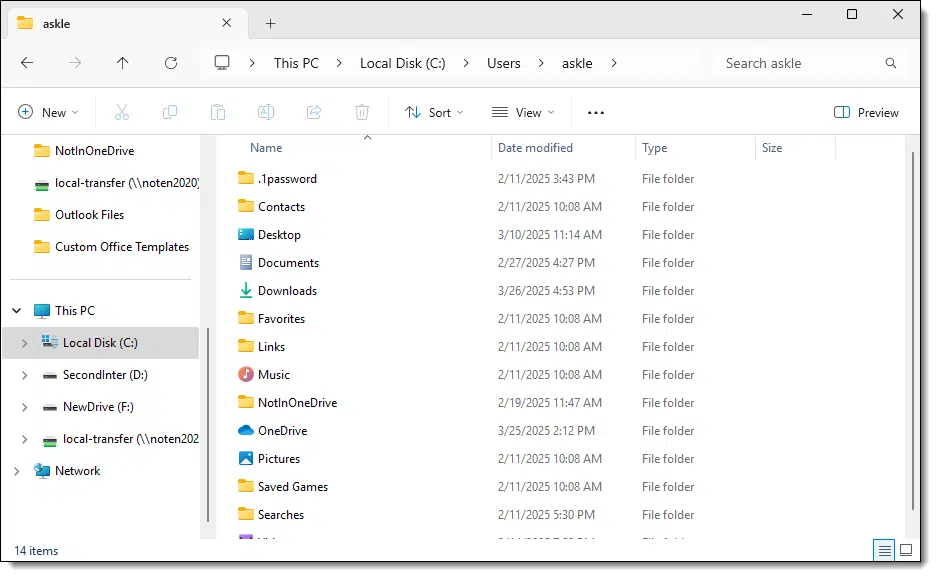
You'll note there's no AppData folder.
In Windows 10, click the View menu, the Options button, and then the Change folder and search options item.
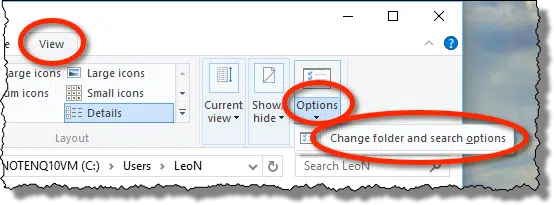
In Windows 11, click the ellipsis and then Options.218
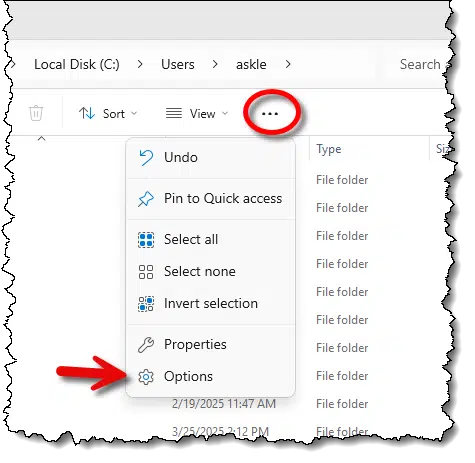
In the resulting dialog box, click the View tab.
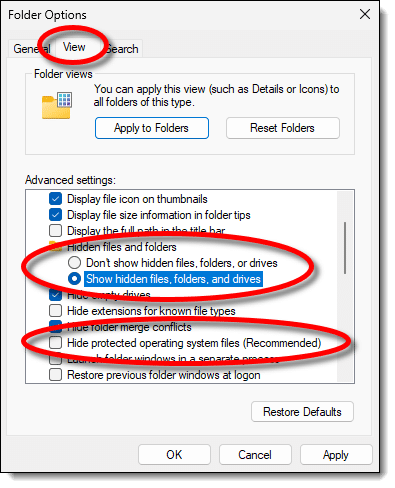
Make two changes:
Click OK.
If we go back to Windows File Explorer, lo and behold, there's the missing folder.
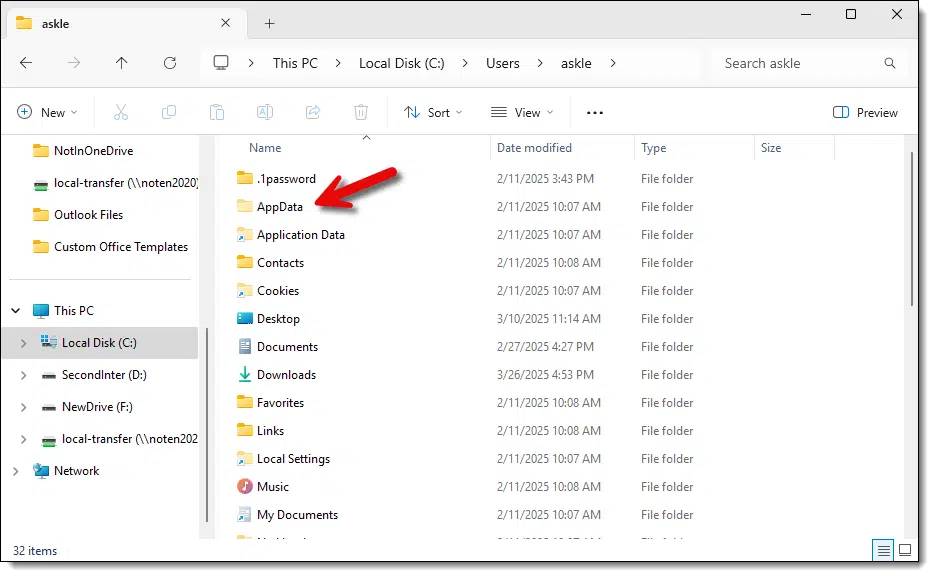
If you look closely, you can see that the folder icon for the AppData folder is slightly lighter than the others. That indicates that the folder is marked as hidden.
For the record, I always have "Show hidden files, folders, and drives" set to be visible. I don't feel I need Windows' help to protect me from seeing files and folders on my machine.
The bottom line: now that you can see the AppData folder, you'll be able to view everything you'll find within.
This setting is permanent unless you go back in and change it back.
In Windows Command Prompt, use the "Dir" command to see the files in the current folder (also referred to as a directory).
Here are the results of a "DIR" while in C:\Users\askle:
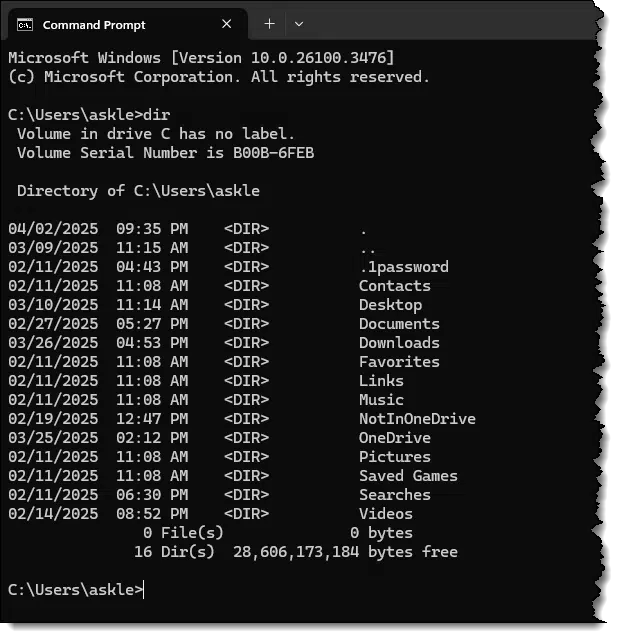
Once again, no AppData folder is visible.
There is no simple setting to always make the Command Prompt show hidden files. Instead, we add an option to the DIR command to tell it to display only the hidden files: dir /A:H.
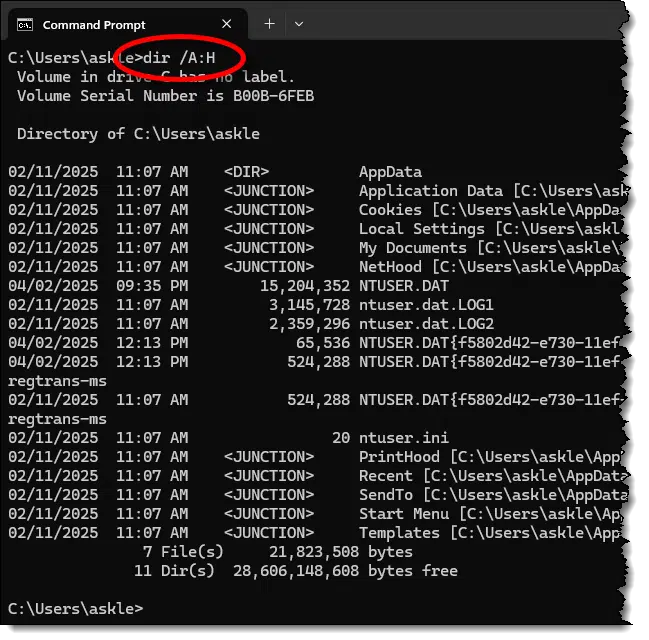
Now the AppData folder displays at the top of the list.
By default, the Command Prompt will display all hidden files, including system files and so-called "protected operating system files" – hence, the "<JUNCTION>" items and "NTUSER.DAT", the file containing the user-specific registry.
The result is the same as before: now that you can see the AppData folder, if you're command-line savvy, you can use command-line tools to do what you need to do.

224: In Windows' defense, the concept was inherited from DOS and probably pre-dates even that operating system.
225: Windows 11 also includes the option to view hidden files directly off of the View -> Show menu. I'm using the options here to expose system files as well.
Security updates and security software have different jobs, and that difference matters.

That's an excellent and important question. After Windows 10's end of support, you'll get no security updates for Windows itself. But most security software, like Defender, Malwarebytes, and many others, will keep working and being updated for a long time thereafter.
Do they solve the problem?
Solve? No. Reduce the risk? Definitely.
Security updates fix vulnerabilities (holes in your computer's "walls") to stop attackers from getting in. Security software acts like guards, catching the threats that try to exploit those holes. After Windows 10 support ends, no more holes will be patched. You'll depend more on your security software and your own habits to stay protected.
I think of this as my silliest metaphor ever, but I think it helps get the point across.
Think of your computer as a bathroom. You have some expectation of privacy and security while you use it. You probably even consider privacy and security very important when you're in there.
A vulnerability is like a hole in the bathroom wall. It could be a small hole that just allows someone to peek inside, or it could be a larger hole allowing someone to reach inside and do something, like flush the toilet when you're not around. You may have holes in your bathroom that no one knows about yet.
Malware is like those creeps actively trying to use the holes they've found. Malware bugs try to peek into your bathroom or worse.
An exploit is when malware (a creep) actually finds a hole (a vulnerability) and does something malicious.
Security updates are the construction workers that come around to your bathroom every so often and plug or patch the holes (vulnerabilities) they know about.
Security software is like the security guard patrolling your home to watch for suspicious creeps (malware) who are up to no good.

At a product's end of support, the construction workers (the security updates) go home, never to return. Any holes left in your bathroom walls will be there as long as you have that bathroom. If a creep can find a hole and get to it, they can do their malicious things.
If you're not actively patching the holes in your bathroom walls, you're relying much more heavily on your security guards to keep the creeps out.
Or, in computer terms: if you're no longer getting security updates to patch the vulnerabilities in your computer's software, you're relying much more heavily on your security software to keep the malware out.
You're also relying on your own behavior more. You don't allow strangers into your home, for example, because they might be creeps, and you don't trust the salesperson or overexcited messenger at your door claiming to be something they're not.
In other words, you don't download and install software or open attachments you don't absolutely trust, and you know to keep an eye out for spam and phishing.
You become even more skeptical of anyone you let into your house. Or your bathroom. Or your computer.
Some day, your security company is going to say "Sorry, your house is too old, we can't keep it secure any more", and stop coming around. Given that your security software has become extra important since security updates stopped, that will be a problem.
You have two choices when that happens.
It's important to realize that this is completely separate from the original end of support we talked about above. Using Windows 10 as an example:
Pragmatically, many (if not most) folks will have moved (gotten a new computer or installed a new operating system) by that time and already be living in a more modern house with a shiny new bathroom that their security company is more than willing to keep an eye on.
Open Shell and Start11 are viable alternatives for those who can't make peace with the new Start menu in Windows.

When Windows 8 completely revamped the Windows Start menu, I began recommending Open-Shell (originally called Classic Shell), a utility that replaces the Windows Start Menu with a more customizable version. While I encourage people to adjust to the newer, modern interface, Classic Shell is an alternative when that's not an option for whatever reason.
The topic reappeared when Windows 11 made more changes to the Start Menu that some are unhappy with.
Using Open-Shell, you can select between Windows 7 or earlier versions of the Windows Start menu, as well as additional configuration options to make Windows File Explorer and other aspects of Windows more like previous versions.

Another alternative I've used is Stardock's Start 11, which works in both Windows 10 and 11. It's a commercial product with ongoing development. While it's not free, it's not terribly expensive, and it allows you to customize much more.
If you find yourself frustrated and confounded by the newer Windows Start menus, perhaps one of these shell replacements is right for you.
A pop-up with a scary message suggesting you call a phone number is scary indeed -- but not for the reasons you think.

It's possible to bypass even the best security software in the world if a scammer convinces you to do something you shouldn't. That's why skepticism is a common thread in much of my security advice.
At the risk of repeating a previous tip, an acquaintance reminded me of this when they shared another variant of the telephone support scam with me.
This variation is a message box that pops up — or even takes over your entire screen — claiming there's an error and giving you a phone number to call immediately. The message box can be created by a cleverly crafted webpage or when malware somehow makes it onto your machine.
If you call — which, again, you should not — you'll be talking to a scammer. They'll either:
Don't call that number.
Run up-to-date anti-malware scans. If you're still concerned, reach out for help from sources you already trust.
But a pop-up box with a phone number is a red flag you should never, ever trust.
Even running Windows Home edition, your hard drive might be BitLocker-encrypted without you realizing it. If you don’t have the recovery key, you could lose everything. Learn how to check, why it matters, and the simple steps to protect yourself before it’s too late.
Your hard disk might be BitLocker encrypted, and you might not even know it.
On one hand, that might seem OK. Encryption is good, right?
Well, it's good until it's not.
Let's figure out whether your hard disk is encrypted, discuss why it matters, and explore what you might need to do about it.
Your computer's hard drive might be encrypted with BitLocker without you knowing it. In Windows Pro, you'll see a padlock icon. In Windows Home, check "Device encryption" under Privacy & security settings. Make sure you can access your recovery key at aka.ms/myrecoverykey, or you could lose everything!
If you're running Windows 11 (or 10) Pro, it's obvious. Just look at the drive in Windows File Explorer.
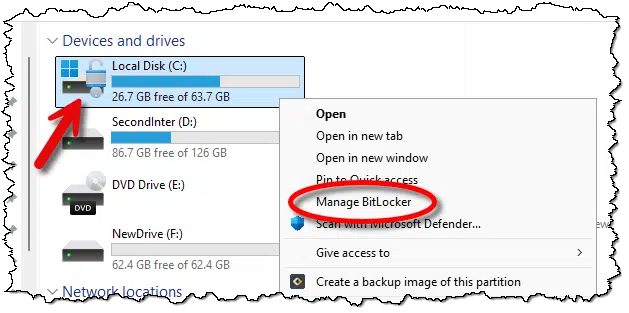
If it's encrypted, there will be a padlock on the drive icon. If you right-click on it, as I've done above, you'll also see "Manage BitLocker" in the pop-up menu.
If it's not encrypted, the padlock won't be present (as the D: drive shows above), and right-clicking will include the option to "Turn on BitLocker".
Pretty clear.
Technically, BitLocker isn't available in Windows Home, so the icons and pop-up menu items we saw above aren't present.
And yet, the drive may be encrypted in Windows 11 Home.
In the Settings app, click on Privacy & security in the left-hand pane.
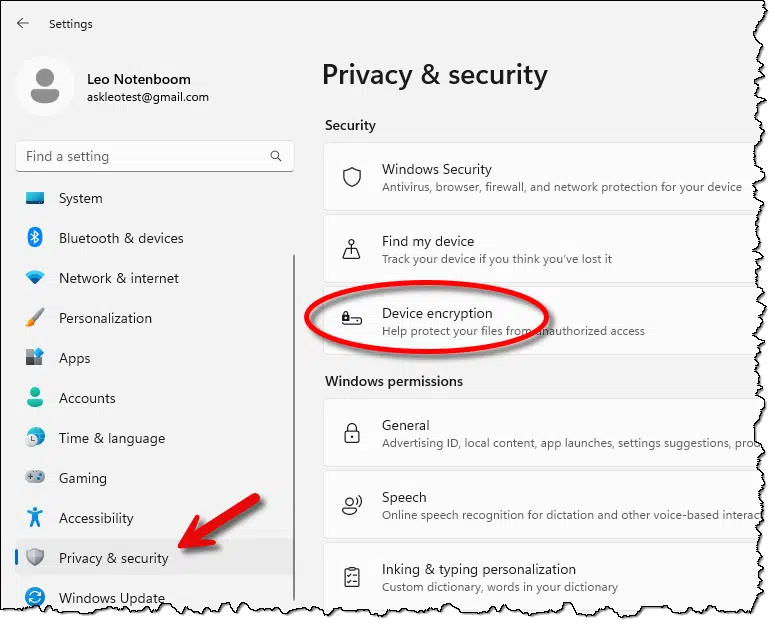
If "Device encryption" is listed on the right, your device may have its hard drive encrypted. If it's not present, your machine doesn't support device encryption219, and your hard drive will not be BitLocker encrypted.
Click on Device encryption.
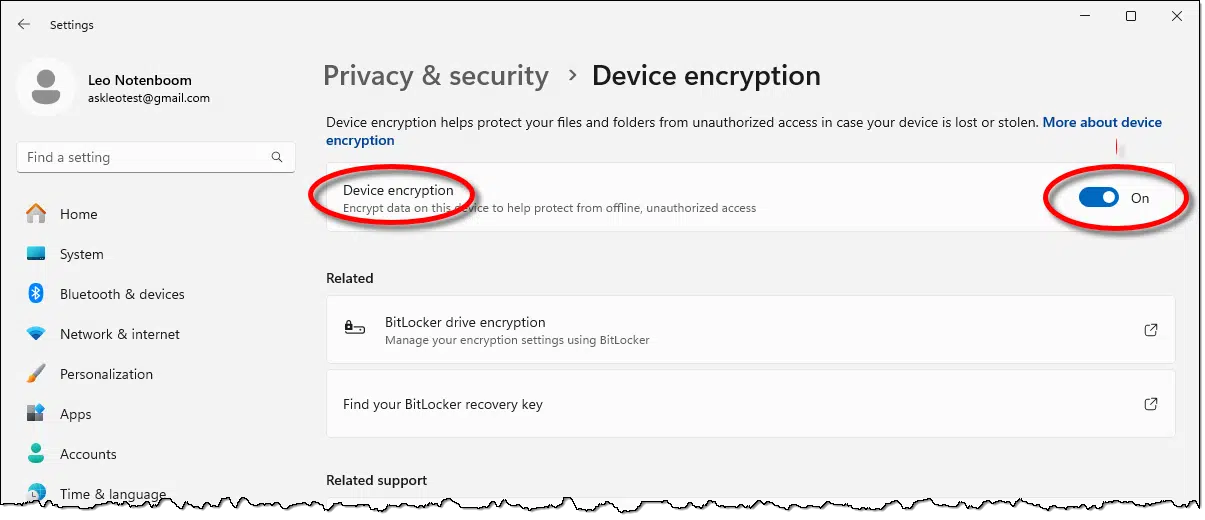
On this machine, device encryption is turned on. I did not turn it on; it was on from the start. I was neither asked nor warned that this would happen.
More importantly, I was never offered the opportunity to save my encryption recovery key.
Clicking on Find your BitLocker recovery key (at the bottom of the image above) will take you to a support article, which I suppose can be useful.
More directly, though, visit:
This will take you to the BitLocker recovery key page of your Microsoft account. To visit this page, you must be able to sign in to your Microsoft account, and it needs to be the same Microsoft account that was used to encrypt the drive — typically the first account you specified when setting up the machine.
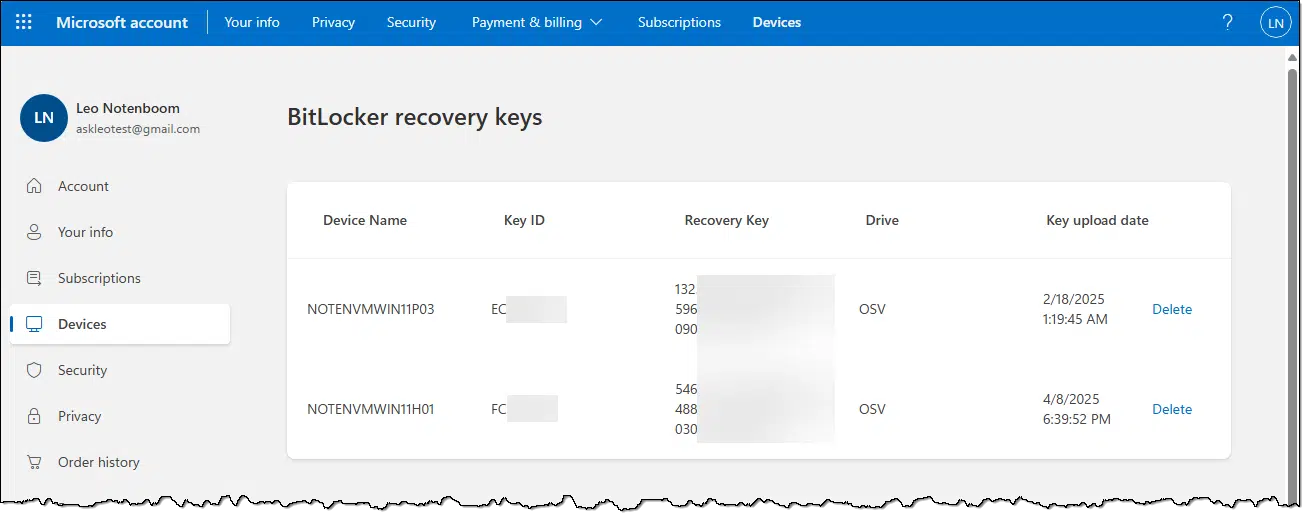
Here, you should find the key you can use to recover access to your encrypted drive should you ever be unable to sign into the machine normally.
Microsoft has done the right thing in automatically adding the key to the Microsoft account when the drive was set up, but it did so without warning or notification. I strongly recommend you visit the recovery keys page online to ensure your keys are listed there. Consider copy/pasting them to another secure location for safekeeping as well.
If you find that Device Encryption has been enabled without your knowledge, the other option is, of course, to turn it off.
I can't tell you whether that's the right thing for you or not. It depends on how you use your computer and what your security concerns are. Having it on means that even if your computer (or the hard drive) was stolen, your data would remain secure. The "cost", if you will, is that it's more difficult to access the hard drive for things like repair or recovery.
With encryption turned off, attaching the hard drive to another machine or even booting your existing machine from a bootable USB stick should allow the disk's contents to be accessible.
226: Device encryption requires certain hardware, including a Trusted Platform Module (TPM). If your computer doesn't have a TPM, device encryption won't be available.
If your password manager doesn't work as usual, it's time to stop and check things out.

This can happen when you're not visiting the site you think you are due to a phishing attempt. It may look like the site you expect, but if your password manager acts like it's never seen the site before, you might be being phished.
Password managers work based on URLs. So https://askleo.com is a completely different site than, say, https://askleo.com.somerandomservice.com. Phishing attempts often use the latter style to make it look like you're accessing a webpage you trust when you're not. Your password manager knows the difference. It won't autofill unless you're at the proper website.
Sometimes, password managers fail to autofill for other reasons, so this warning isn't 100% accurate.
That's OK. What's important is that you stop to confirm you're visiting the site you think you are.
Discover how AI can actually make your life easier. From summarizing long articles to rewriting tricky text, answering vague questions, or even helping you write better emails — these eight real-world examples show how tools like ChatGPT, CoPilot, and Perplexity can save time and boost confidence every day.

AI agents or chatbots are all the rage. Names like CoPilot, Gemini, Claude, and ChatGPT are likely to be familiar.
These tools use artificial intelligence to mimic human interaction. As they have access to a huge corpus of training data and often have direct access to the web, they manifest amazing abilities.
Some of those abilities can be extremely useful even to the casual computer user.
AI chatbots like CoPilot, ChatGPT, and Perplexity offer practical applications you can use, including summarizing content, simplifying complex text, interpreting videos, answering technical questions, improving communication, and providing patient responses to multiple inquiries. Start by just asking.
Throughout this article, I'll be using the free versions of Microsoft CoPilot, ChatGPT, and Perplexity.ai for most of my examples. For ChatGPT, you don't have to create a free account, but in my experience, the results are better if you do.
In general, the concepts below apply to most of the current crop of AI chatbots and agents, but this is a quickly evolving space, and things can and will change at any time.
This is probably 75% of how I use AI. I'll take a lengthy article that I don't want to take the time to read and ask for a summary I can use to make my decision of whether or not to read the whole thing.
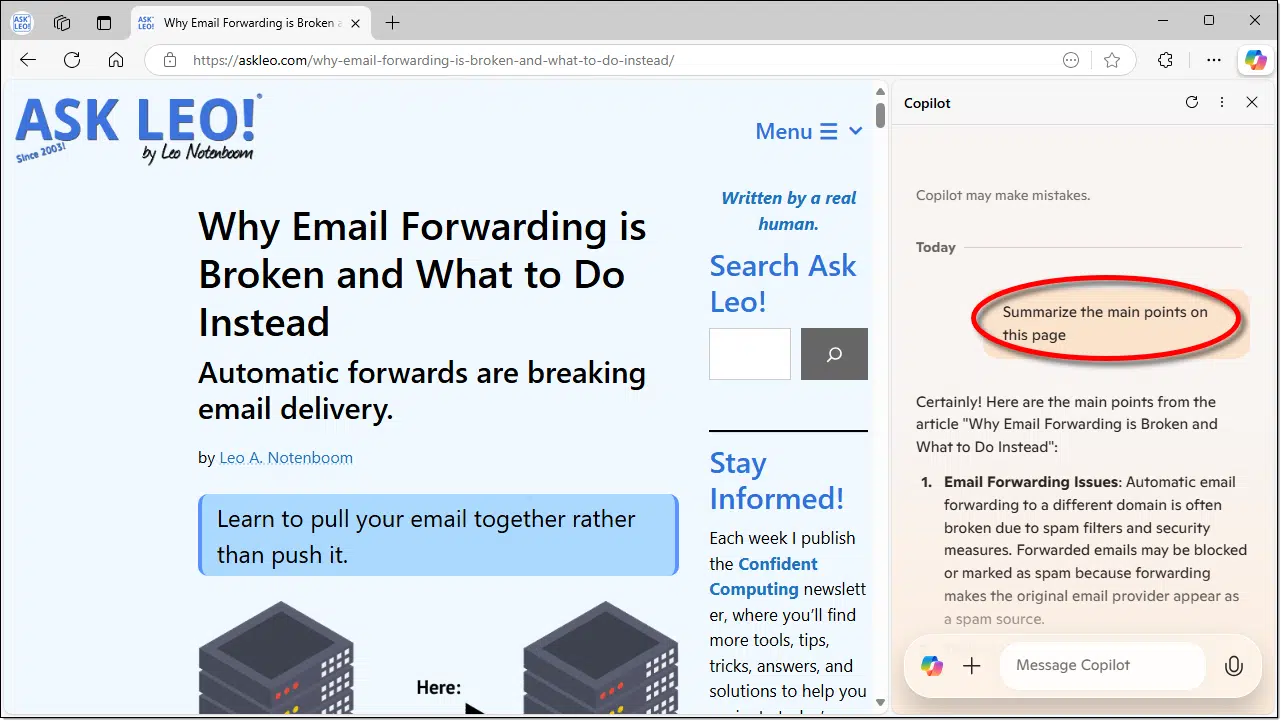
I'll use my email-forwarding article as an example. I opened CoPilot (which is ever-present in Edge) and clicked on its "Summarize this page" button, which is the equivalent to asking the question circled: "Summarize the main points on this page." The response is 217 words.
That's a bit long. So I asked, "Please summarize in 50 words or fewer."
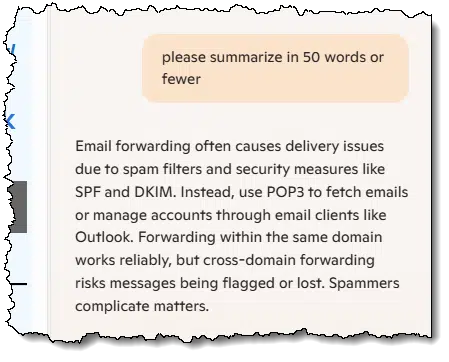
That would be a little more useful to my decision-making process.
This is a use I don't think many people are aware of.
Normally, in my CoPilot chat session above, I'd next ask, "Please rewrite the article using an 8th grade vocabulary." Unfortunately, CoPilot won't do that due to copyright concerns. Even a copy/paste of the article into the copilot.microsoft.com website won't work.
So I switched to ChatGPT.com. I typed the following:
Please rewrite this article using an 8th grade220 vocabulary:
and then copy/pasted the text of the article into the chat.
The result was a slight re-write to meet an 8th-grade vocabulary level. I went further and requested it in a 4th-grade vocabulary level. You can read the result here.
Have you ever heard or seen of ELI5, or "Explain it Like I'm 5"? I also asked, "Please rewrite this article using vocabulary appropriate for a five-year-old." The results were impressive, though there are some unavoidable tech terms: probably not many five-year-olds have "POP3" in their lexicon.
If you run into content on the internet that seems too dense or complex, AI summaries and rewrites can help make things more understandable.
This is similar to the preceding point, but it's worth calling out.
I don't always have the patience to sit through a video to see if it's what I want. AI to the rescue.
There are several services that summarize YouTube videos (Krisp.io and Readwise Reader are two I use). But even without those tools, we can do it for free.
Visit your favorite video on YouTube and copy its transcript. Now, in your AI chatbot, enter "Please summarize this video transcript in 50 words or fewer", followed by the transcript itself. I did this for my video on removing OneDrive and got this from ChatGPT.
Leo Notenboom explains how to safely disable or uninstall OneDrive from your PC without affecting your online files. He recommends first unlinking the account, then uninstalling the app if needed, and clarifies that the OneDrive folder remains as a regular, harmless folder.
Let's say you're not a video-watching person, but you'd still like the content from the video. In your AI chatbot, enter, "Please turn this video transcript into a full article with correct grammar and remove any verbal static."
The result begins with "Sure! Here's a polished and grammatically correct article version of the video transcript with filler words and verbal static removed", followed by a full article you can read here. It's pretty decent.
ChatGPT then offers more: "Let me know if you want a downloadable PDF or a version with screenshots added!"
One of the neat things about AI is that it does a much better job of "understanding" vague questions or questions where terminology is off the mark. This makes it a great place to ask questions and get answers.
In a random made-up example, I asked Perplexity:
There was a character on a sci-fi show that lasted only one season but had a single movie sequel that was killed suddenly by some kind of alien pincer through the chest. Who was that, and what were the show and movie titles?
Perplexity answered my question and corrected my memory in the process (spoiler!).
Based on your description, it seems like you might be thinking of a character similar to Hoban "Wash" Washburne from the TV series "Firefly" and its movie sequel, "Serenity". However, Wash was not killed by something through the chest while piloting a spaceship; he was impaled by a Reaver spear after crash-landing the Serenity near a broadcast tower.[3]
Note the "[3]", which is a link to a citation for the source Perplexity used for this answer.
Not only is that the correct answer to my horribly worded question, but I also learned Wash's first name.
This might be a niche use, but it relates directly to what I do for a living: answering questions.
Every so often, I get a question that can most politely be termed as a missive, including paragraph after paragraph of backstory with lots of details sprinkled in. Sometimes there's an explicit question, but often there's not. The person asking has put a lot of effort into it, thinking they've expressed their needs, but if you look closely, there's nothing phrased as a question.
I don't have an example I feel comfortable sharing, but it's not uncommon for me to head over to ChatGPT and ask:
What is this person trying to ask, and what are the relevant details?
followed by the lengthy "question". ChatGPT is good at sifting through the word salad to give me what I need: the question in a form I can answer.
In theory, this could put me out of a job, but AI is pretty good at answering technical questions. In fact, I've gone so far as to copy/paste error message text into Perplexity and have it summarize what the error means with suggestions as to what to do about it. As one example, I just "asked" Perplexity:
0xc00000e
That's it. No question, no context, no nothing. It responded beginning with:
To resolve the 0xc00000e boot error in Windows, follow these structured troubleshooting steps:
This was followed by eight things to try and a short list of common causes of the problem.
You can ask AI questions without worrying if the terms you're using are correct or even sensible. AI has shown an amazing ability to make sense of it and at least get you pointed in a helpful direction.
You can use AI chatbots to polish and clarify your communications with anyone. For example, I gave ChatGPT the question I asked about a sci-fi character's death and asked it to "Make this question clearer". The result:
"Which character from a one-season sci-fi TV show was killed by an alien pincer through the chest in a movie sequel? What were the names of the TV show and the movie?"
Note that it didn't try to correct me — the alien pincer is still in there — it simply improved the wording and clarity.
Another approach is tone. For example:
Please write a polite but sternly worded short email asking someone for the TPS report they have due. I've asked them repeatedly and they've completely ignored me, and it's getting frustrating.
Perhaps my tendency would be to throw some inappropriate profanity in my email, but knowing that's probably not a great idea, I'll let ChatGPT take the wheel. Its suggestion:
Subject: Final Reminder: TPS Report Due
Hi [Name],
I've followed up multiple times regarding your TPS report, and I still haven't received it. This report is overdue and your lack of response is becoming a serious concern.
Please send it to me by the end of today without further delay.
Let me know if there's a problem, but silence is no longer acceptable.
Best,
[Your Name]
Definitely better than my version would have been.
AI can be useful any time you're trying to communicate complex ideas to someone else or need help with tone (or just about any other characteristic of your communication). Just make certain that the result says what you intend to say.
When you're learning to understand something, it's not uncommon to have lots of questions. If you're dealing with a real person, they may get frustrated and impatient.
Not so with AI. AI doesn't get tired or impatient.
Want to learn how to do something? Start with a question. Don't understand the answer or uncover something that has you puzzled? Ask more questions.
Keep asking.
In fact, that might be the key to it all: don't be afraid to ask AI questions — including questions about itself. I asked Perplexity, "What else can you do?", and got even more ideas. Perplexity responded:
I can assist with a wide range of tasks and provide information on various subjects. Here are some examples of what I can do:
- Answer Questions: I can answer questions on history, science, technology, literature, and more.
- Provide Definitions: I can define words and explain concepts.
- Translate Text: I can translate text from one language to another.
- Summarize Content: I can summarize articles, books, or other written content.
- Generate Text: I can generate text based on a prompt or topic.
- Offer Suggestions: I can suggest books, movies, or other media based on your interests.
- Explain Concepts: I can explain complex concepts in simple terms.
- Provide Recipes: I can share recipes and cooking tips.
- Help with Language Learning: I can assist with language learning by providing grammar explanations and practice exercises.
- Create Lists: I can create lists of items based on specific criteria.
- Provide Study Tips: I can offer tips for studying and learning more effectively.
- Discuss News and Trends: I can discuss current news and trends in various fields.
If you have a specific task or question in mind, feel free to ask!
There are so many AI offerings right now that it can be hard to know which one to use for what.
For general chat, any of the most common will do. ChatGPT, CoPilot, Gemini, Claude, and others are all, I'll just say, similar. You may find one more to your liking than the others based on how you use it.
That being said, here are the AI tools I currently use most.
An honorable mention goes to Straico, which allows you to use multiple AIs at the same time. For example, when I summarize an article, I can run the same operation against ChatGPT and Claude simultaneously and pick the result I like the most. Straico has access to dozens of different AIs and is a great tool to use if you want to experiment with them.
I have paid plans for all of these, but most have free tiers as well.

227: 8th graders in the U.S. are roughly 12-13 years old.
A UPS can save your data, and even your equipment, should your power go out.

In a recent Ask Leo! article, I discussed why pulling the plug or forcing your computer to shut down is a bad idea.
But what if it wasn't your choice? What if the power just goes out?
A friend of mine lives in an area where that happens on occasion. The last time, it took some over-the-phone support on my part to figure out why the computer wasn't coming back after the power glitch. (Turned out to be a flaky monitor switch that also didn't appreciate the power fluctuations.)
The solution is a UPS: an Uninterruptible Power Supply. You plug your computer into the UPS instead of the wall, and it's the UPS that connects to the main power. The UPS contains a heavy-duty battery and electronic circuitry that allows it to take over instantly and run your computer for "a while" should the main power go away. "A while" varies depending on the battery capacity and your equipment's power needs.
A good UPS will also kick in if the power just gets a little flaky for some reason.
A UPS protects your equipment from disappearing power. Many connect with a USB cable and notify your computer that the power has gone away. You can then configure your machine to shut down automatically — and cleanly — should that situation last too long.
I have two of these and just ordered one for my friend. Regardless of which you choose, it can be a wise investment if you live in a problematic power area.
There are many reasons you're more likely to be directed to online and self-help resources than be able to talk to a real person.

It's a common frustration. You have a problem, concern, or complaint, and you want to reach out to the company or service involved. Try as you might, you can't find a phone number. If you do, you find an endless phone tree of automated options — or worse, a scam.
As far as you can tell, there's no way to access a real person.
There probably isn't, and the reason is simple.
People are expensive. Even when they're overseas, human labor is still costly. It's also often unreliable compared to automated or self-service alternatives.
Let's explore the alternatives.
Offering technical support is a business decision and nothing else. Part of the cost of free services is that there may not be direct tech support. Sometimes, you need to pay for the level of support you need or expect. Set reasonable expectations when you sign up for a free service, and consider opting to pay for better service.
People get frustrated when they don't get the support they feel should exist. This is particularly true if they're looking for support for a product they paid for.
And yes, from time to time, I'm one of those frustrated people.
But I want to be clear: this article isn't about whether the decisions made by these companies are right or wrong. It isn't about what you do or don't deserve as their customer. It isn't about how company Z should provide real support from real people accessible by real phone numbers.
This is about understanding why things are the way they are, setting realistic expectations, and making informed decisions.
This is about becoming more self-reliant.
Nowhere do I hear this complaint more than about free online services. Be it free tiers of services that include paid options, services provided free in exchange for your information, or the opportunity to show you advertising, free apps and services often have little to no live customer support.
I've said this often, and it's critical to remember: having no customer support is a price you pay for free services.
A "good" free service has online information available, knowledge bases you can search, and even forums where users help one another221. While there's a cost involved in those options, they're often minimal or one-time costs, whereas human support staff costs money continuously.
If they had to pay for support staff, the service would not be free.
If the service wasn't free, you probably wouldn't use it.
Having no live support keeps costs down and the number of users high. In order to survive, the service can only be provided without live support.
Many services provide what's called a "freemium" blend of products. One tier is completely free but limited in its offering. More functionality — often including additional support — is available at paid levels of service. There may be multiple paid levels, and each level has additional product or service benefits.
Users of the free version of a service often complain that they're "pushed" into purchasing the paid product in order to get even basic support.
While I can certainly name products and services that work that way, my experience is that it's not that widespread. Most often, the offering is clear: a free version you can use with no support at all versus paid versions with more features and support.
It's your decision. If you stick with the free version, your expectations should be clear from the outset: there will be no support. A paywall is nothing more than how a business structures its offerings.
Businesses make these decisions based on marketing. They hope the free product or service will show the value of their offering and that people will pay for additional value.
If you want to keep using the free version, you're welcome to do so. Without support.
It's all about money.
Regardless of whether it's a business attempting to make a profit222 or a not-for-profit organization trying to pay the bills, customer support options are costly.
And the options for raising revenue are limited.
Display too many ads, and you lose customers. Display too few, and you don't make enough to run the service. Patronage and other donation-based models are marginally effective but rarely work for larger companies. Selling product Z in order to fund product Y results in product Y getting less and less attention until it withers and dies.
And nothing changes the fact that hiring people (often termed a company's "most important asset") is its most costly expense.
Companies measure labor costs against the alternatives. Self-service options like knowledge bases and peer-to-peer support forums generally provide a more cost-effective solution.

228: Referred to as "peer" or "peer-to-peer" support.
229: Particularly with larger companies, it's typically not about showing a profit for the whole company, but that the divisions or smaller organizations within the company must demonstrate that the service can be viable and turn a profit on its own.
230: ...which is itself an incredibly valuable service that is provided free and without live support.
Let's say you want to partition your C: into two drives. I'll show you how.
Partitioning is a way to divide up the space on a single physical hard disk into what looks like more than one disk. There are varying opinions on whether or not partitioning a hard drive is worth it. Some see it as unnecessary and even a potential waste of space. Others see it as a great way to separate data from the operating system for backup and update purposes.
Let's say you're pro-partition.
Let's set that up. Let's split the system drive (C:) into two.
If you have enough free space on your C: drive, you can split it. Use Disk Manager to shrink C:. Then, create and format the new space as a new drive. It's handy for keeping data separate from Windows, but make sure you leave enough room on C: to keep things running smoothly.
Our first step is to make sure we have enough space to do the deed. You can't create a partition and move data at the same time.
What this means is that you need enough free space on the existing drive from which to create the new partition. Here's an example.

I can split this drive in two, but the "new" partition can be at most 90.7GB in size. Pragmatically, you always want some breathing room on the C: drive, so I'd never go that far, but the point remains: you need enough free space to be used for the new partition.
If you don't have space, you'll have to go about making some. That could mean running disk clean up, moving data to other drives, or deleting data you no longer need.
However you do it, freeing up space is step 1.
Run Disk Manager by right-clicking on Start and clicking on Disk Manager. Then, right-click on the drive you want to split (probably the C: drive).
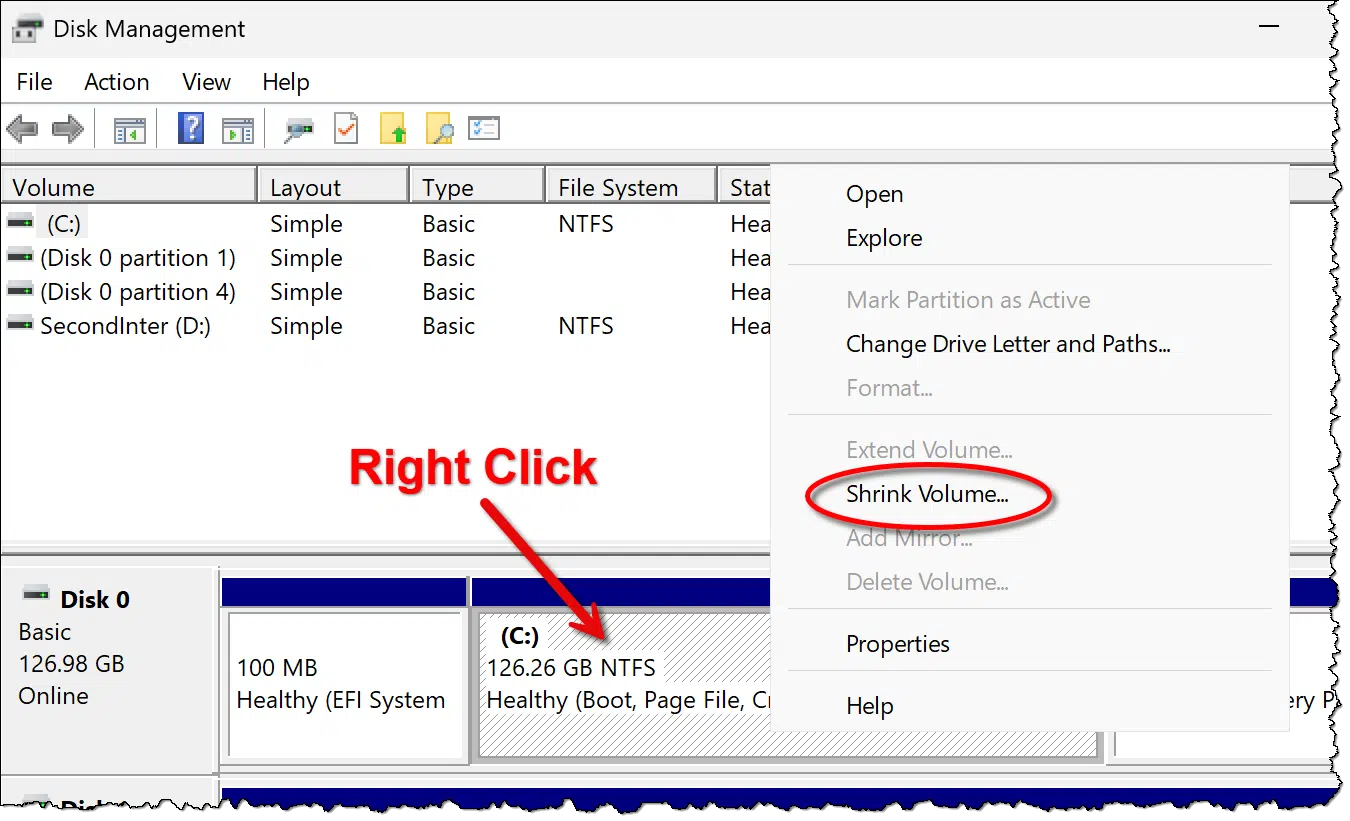
In the resulting pop-up menu, click on Shrink Volume.
You'll then be shown a dialog in which to specify how much to shrink the drive.

In the example above, the maximum amount I could shrink this drive would be 87,361 megabytes, but that would leave the C: drive with almost no room. I'm electing to shrink by 64,000, which will become the approximate size of the new partition.
Click Shrink.
Disk Manager will take some time to perform the operation. When it's done, you'll see a new "Unallocated" partition next to the original, now-smaller one. It's called unallocated because you haven't yet formatted it, so it can't store any data.

Right-click on the unallocated partition and click on New Simple Volume. Click Next on the first page of the wizard. You'll be asked to specify the size of the new volume.

The default is to use all of the available space, which is likely what we want. (If you wanted to split this unallocated space into multiple partitions, you might specify something less, but for our purposes, we'll use it all to create a single partition.)
Click Next. You'll be asked to assign a drive letter.
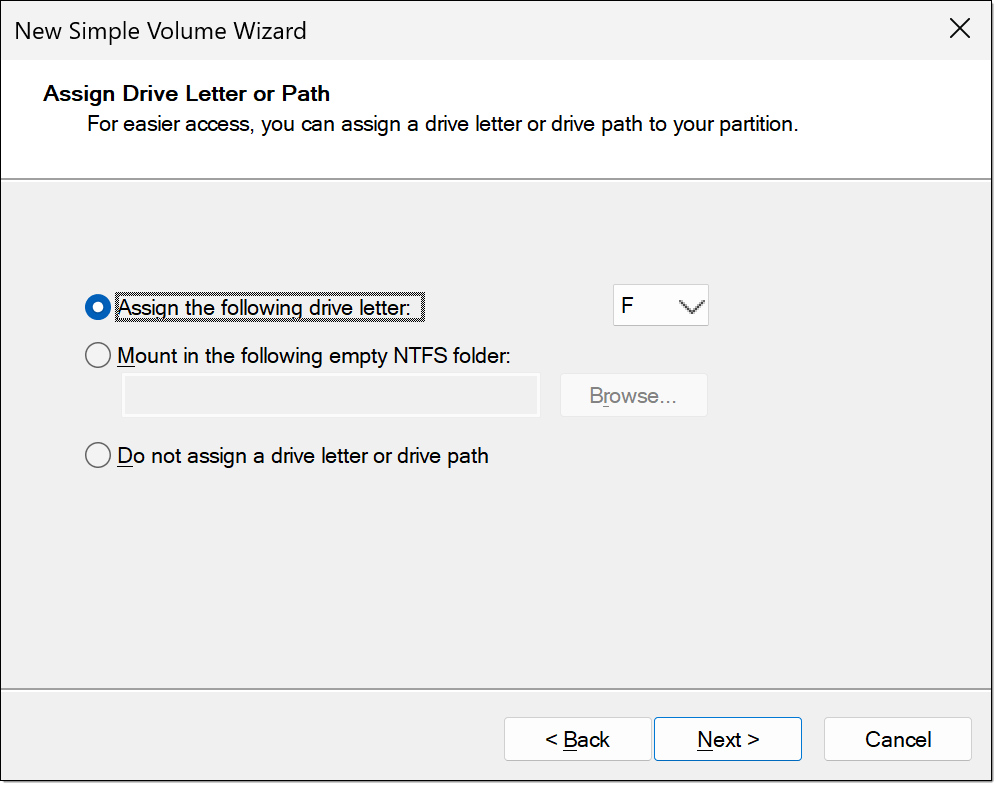
The default will be to assign the next available drive letter on your system. You can select any letter not currently in use. (You can change it later if you like.) Click Next, and you'll be asked to format the new partition.

The defaults are typically appropriate. The only thing I'd recommend is naming your Volume label something that will help you easily identify the drive later. In the example above, I've called this "MyNewPartition".
Click Next. You'll be shown a summary of what's about to happen. Click Finish. Drive Manager will format the drive, and you're done!
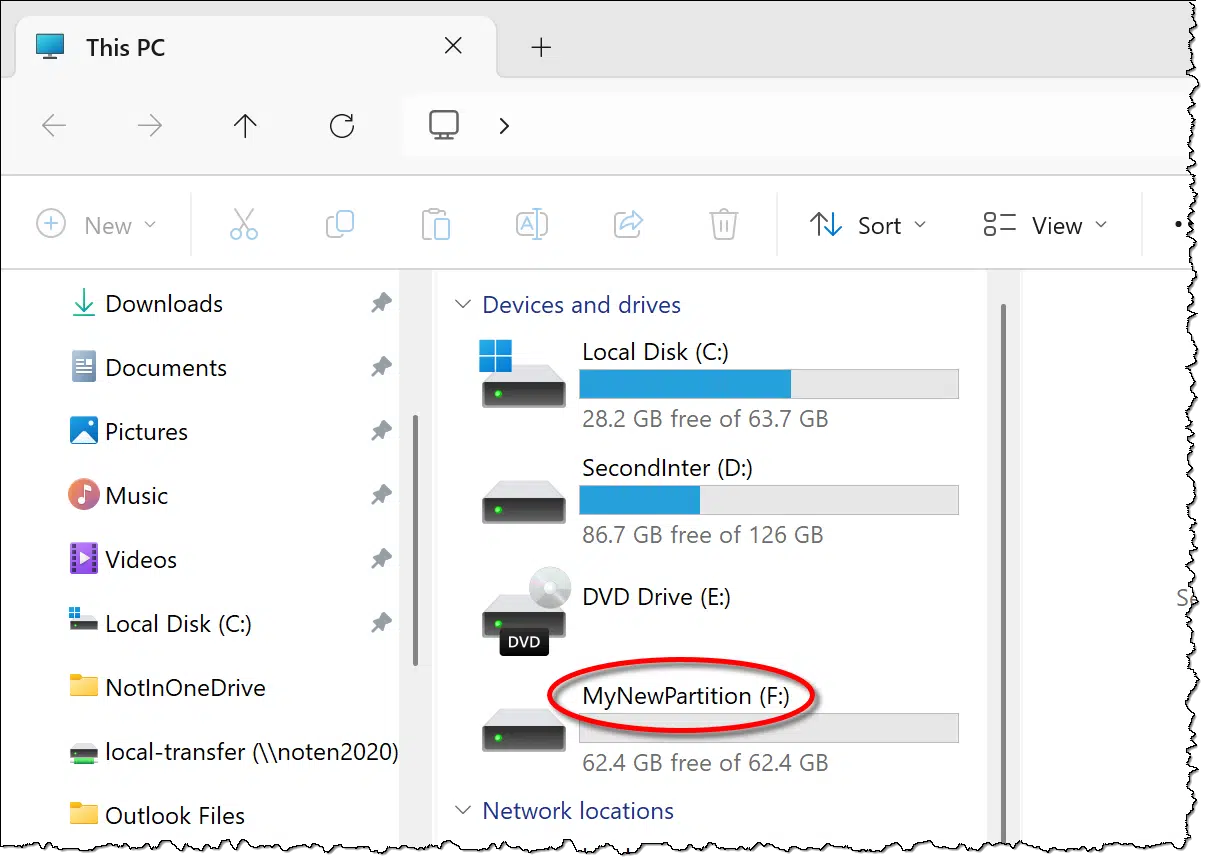
Your original C: drive remains, and your new partition is visible and ready for use.
There's rarely a reason to type "www" any more.
This is a combined tip and rant.
The rant is that "www." is almost never required. The sites "google.com" and "www.google.com" are exactly the same site. You don't need to type the "www." part. In fact, when typing in your browser's address bar, you don't need to type the "https://" part, either. So instead of typing the lengthy:
https://www.google.com
instead type:
google.com
to exactly the same effect.
The tip is that there's an even shorter shortcut for many sites. This time, type:
into your browser's address bar. No "https://", no "www.", and this time, not even a ".com".
Now hold down the CTRL key and type the Enter key. Your browser will add the "www." at the beginning and the ".com" at the end automatically. This works only for ".com" addresses, of course, though holding down both SHIFT and CTRL will add ".org" instead of ".com".
A well-developed website has a preference as to whether "www." should be included in its URL, and it handles that transparently.
For example, go to "google.com" (without "www.") and you'll land on "www.google.com", Google's preference. Similarly, attempt to visit "www.askleo.com" and you'll be taken to "askleo.com", my preference.
The same is true for "https". A well-developed website automatically sends you to the right https-supporting destination regardless of whether you specify https or not.
In all cases, though, it pays to double-check that you've landed where you intended to go. You know... in case those well-developed websites weren't quite so well-developed.
I hear of free email accounts being lost constantly. Here's how to reduce your risk and use free email accounts safely.

I hear from people who lose their email accounts permanently with alarming regularity. It applies to social media accounts too, but here, I'm going to focus on email. Email seems to be the most lucrative target for hackers and the most important to the account holder.223
It's quite possible to use free email accounts like Outlook.com, Gmail, Yahoo Mail, and others safely.
Let's dive into exactly how.
Free email accounts like Gmail, Yahoo Mail, and others are risky because there's no customer support and they're bigger hacking targets. Back up your data, set up and keep recovery info up to date, and turn on two-factor authentication. If you want better security, consider paying for services with more reliable customer support.
You need to be aware of several risks that come with free email: a lack of customer service, being a target for hackers, and difficulties accessing your account while traveling.
More correctly, the lack of customer support. If something goes wrong, you are on your own. The problem is that any customer support, particularly good customer support, is expensive. The result is that free services don't provide any. Instead, they may offer online knowledge bases and forums, which offer varying levels of usefulness in emergencies.
Think of no customer support as the "cost" of using a free service.
Hackers know that first point: there's no help for victims of their hacks. That means that once they gain access to an account, it's likely they'll keep access to that account forever. In addition, they get access to your address book, meaning they can send spam and scam emails that look like they came from you.
Your free account is very valuable to hackers.
One of the biggest causes of temporary (and sometimes permanent) account loss not due to hackers is travel. Because email services constantly fight hacking attempts, they treat sudden access from locations you don't normally frequent as a sign of potential concern. This means they may throw additional security steps in your way to confirm it's really you. If you can't respond to those additional challenges — which is common if you're not prepared — they may lock you out.
It's an accident that happens all too often.
Even in the face of the risk, it's quite possible to use free email accounts safely. I do it myself. Here are four essential steps to take.
You probably saw this coming. In order to protect yourself from potentially losing your account and everything in it, you should back up everything in it. Normally that means your email and contacts, but it could include anything else related to the services provided by the account provider. As a start, use a desktop email client like Thunderbird to download emails to a PC that you back up separately as well. Other content (like contacts) might need to be backed up manually, so maybe set a reminder.
I'm shocked at how many people refuse to give their free email service a phone number. I'm not shocked at how many of those people then end up losing their account because they have no recovery information associated with it. Set up a phone number to get a text, an alternate email address to get a code, or whatever other recovery information might be requested. It could mean the difference between recovering the account or losing it forever.
I include this as a separate step because it might be the #1 reason accounts are lost. Account recovery information has been set up (good!), but when the time comes to use it, too many people find out that they no longer have that phone number or have access to the email account they listed for account recovery. Keep that recovery information up to date or risk losing your account forever.
I used to say "consider" it, but my recommendation is much stronger these days: just do it. Two-factor authentication protects your account from hacking even if the hacker figures out your password. It's not nearly the hassle many people think it is, and it's a powerful level of additional security. Just be sure to add and keep recovery information up to date, and keep any recovery codes that the two-factor setup process offers in a safe place.

If all that is too much effort, or you don't trust free email accounts after hearing about the risks involved, that's fine.
Pull out your credit card.
Paid email providers should offer a much better level of customer support. In addition, they have an additional "second factor" of sorts: your credit card. Your use of and ability to provide your credit card information is another way your paid provider knows you are you and should be authorized back into a compromised account.
When shopping around for a paid email service, be sure to check out their support options to make sure they meet your needs.

231: Losing your social media can be extremely painful. Lose your email, however, and you could lose other accounts — as well as suffer financial loss as hackers get into your financial accounts and more.
You may choose to wait on that.

The "bootable flash drive" we're talking about here goes by several different names: emergency disk, rescue disk, recovery disk, and perhaps others. It's the drive you would boot your machine from in order to perform a full restore of an image backup.
There are several approaches as to how often you should create one, but I'll give you one clue as to my strategy.
I don't have even one.
Yet.
You don't need to make new copies of rescue media regularly. Most backup programs let you create it on demand on another computer when needed. If you only have one machine or use old software, keep a copy handy. Update it during major software changes.
For the vast majority of backup programs, as long as you have another machine around, you can create the rescue media at the moment you need it. You don't have to have one lying around, and you don't have to worry if the one you have is the current version or not. Just run the backup software on a different machine224 and create the rescue media right there and then.
Then you can take it to the other machine, boot from it, and restore the image.
In most cases, it doesn't even matter if you're using a free or paid version of the same software; the rescue media is often the same, or it's at least capable of performing the restore you need when you need it.
As I said, this is what I do.
What I've described above applies to most backup software packages and to most situations. There are cases, though, where you might want to make a copy of rescue media to keep on hand.
In cases like these, I would make rescue media when installing the backup software for the first time. If you're already past that, make it as soon as you think about it.
Then save it somewhere you can easily find it if and when you need it.
There's no hard-and-fast rule for updating rescue media either, other than you do not need to make new rescue media every time you back up.
I would create new rescue media under two circumstances.
But that's about it. You don't need to spend a lot of time re-creating rescue media.

232: Or the current one, if it's still running.
Your computer manufacturer's support site is different from their sales site.

As I attempted to help someone recently, I suggested they search their computer manufacturer's website. They reported that their older model computer was no longer listed.
It dawned on me that they were looking at the sales site, not the support site. Many manufacturers have two completely different websites with completely different content — and different sets of results if you search. As you might imagine, the sales site has only the currently available equipment. The support site offers much more information, stretching back many years and covering older machines and devices.
Not all manufacturers make it easy to find. Look for a "support" link in the main site's menu bar or other navigation alternatives. If you can't find it, try replacing "www." with "support" when visiting the manufacturer's website. For example, rather than "www.dell.com" — where you'll find all the latest Dell computers for sale — type "support.dell.com" to visit Dell's support website. (If you watch carefully, you'll see it redirects to an obscure page back on "www.dell.com", but "support.dell.com" is much easier to remember.)
Remember: things are always changing. Today, "support.dell.com" redirects to the Dell home page, which now contains a clear menu of support options.

If your computer has a service tag of some sort — as Dell computers do, for example — take a picture of that tag and save it for use later. The tags can wear off and be hard to see, and having a picture of it can be a quick and easy way to identify exactly what machine you're dealing with when you need service.
Gain focus with one keystroke and a click.
(Animation: askleo.com)
I typically run a lot of programs at the same time. As I type this, there are icons representing 21 different running tasks on my taskbar.
Focus can be a problem. I have a solution: +M. This keystroke minimizes all windows.
Once all windows are minimized, I click on the single taskbar item on which I want to focus all my attention. I often maximize that program as well (double-clicking on the title bar on its top), so there's nothing else distracting me on the screen.
Give it a try.
It's your data, so it's your responsibility to back up the information you keep online.
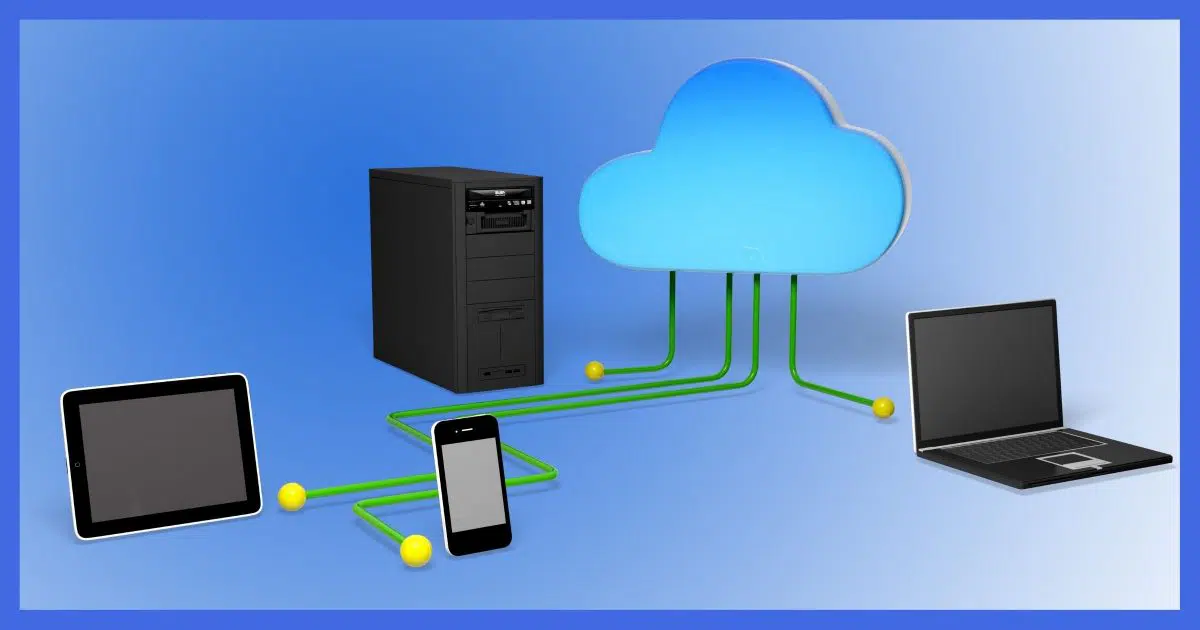
It's no surprise that we rely on online services (or "the cloud") more than ever these days. From email to photo sharing and even social media, an amazing amount of information is being shared and stored online.
Sometimes it's only online, and that's a problem. Remember, if it's in only one place, it's not backed up.
And, no, the cloud services themselves are unlikely to help — particularly the free services.
Your online data isn't safe just because it's in the cloud. Those services back up for themselves, not you! Your data is at risk of hacking, accidental deletion, service shutdowns, and account lockouts. Take responsibility: download your emails, keep original photos, and regularly export important information. Remember, if it's only in one place, it's not backed up.
"But Leo," I hear you saying, "Cloud services have backups!"
Indeed they do. It'd be a pretty poor service that doesn't.
Here's the deep, dark secret: those backups aren't for you. Those backups exist to protect the service from issues they experience. They're almost certainly not there to act as a backup for you.
If the service suffers a catastrophic or even minor problem, they can restore their services from their backups. If you accidentally delete a file or lose access to your account, those backups aren't going to help you. If you ask, the service will politely tell you that you're out of luck. If you get an answer at all.
Backing up is your responsibility. I'll bet that's even called out in the terms of service. Or, more likely, "it's not our responsibility" is clearly stated.
We're on our own.
Start by taking inventory of what you have online.
Anything that you store primarily online is at risk.
At risk of what?
How vulnerable are you? Very.
"But Leo, I hate the cloud. I don't trust the cloud, and I don't use the cloud, so none of this applies to me!"
I often hear that kind of reaction via email. You know — email that's run by online service providers in the cloud. Sorry to say, but as much as you think you're avoiding the cloud, you're still soaking in it. And if you're not backing up your email, you're risking everything I listed above.
The solution is simple: download and install a desktop email program, configure it to access your email via IMAP, and make sure it's downloading everything. You can ignore the desktop email program if you like; just make sure it's running. It's downloading your email to your PC, which, of course, you're also backing up, right?
Desktop email clients you can use for this could include:
You might even use one online email service to act as a backup for another. There are also email-specific backup utilities and services.
There are, of course, a plethora of cloud services providing a variety of features. If you use them, ask yourself how you're backing up that data.
For these and more, I strongly recommend either of two backup methods, depending on the service being used.
How do you keep your backups safe?
One of my recommendations is to back up data that's kept encrypted in non-encrypted form and then secure that backup some other way. That could be physical (based on its location being secure, such as placing a backup copy in a safe) or technological (using a different encryption method to reduce the chances of both encryption mechanisms failing at the same time). If backups are kept online, make sure their storage is appropriately secure.
But the concept is simple: your backups of sensitive data are themselves sensitive data. Treat them that way.
Test your backups. A backup that fails when you need it is just as good as no backup at all. I recommend you test any newly created backup scheme soon(ish) after creating it and then periodically thereafter. At home, that might be once a year. For a business, perhaps you'd want to test more often.
Understand that data migration can be lossy. If you take data from one service — contacts from one email provider, for example — and attempt to import them to another, you may find that not all fields or information make the transition. You'll still have whatever is in that import, of course, but getting the missing pieces into the new destination could take additional effort. Contacts are my most common example, but this can apply to just about anything.
Do you know where your backups are? It's oh-so-tempting to "set it and forget it" with too much emphasis on the forgetting part. This is particularly crucial for businesses, as the person who "set it" might not be the person who needs it down the road. That means, of course, documenting what you've done so you can find what you need when you need it.
233: I recommend keeping the pre-edited original media. You can't un-crop a photo to get the original back. You can't un-edit a video to get the original back. So keep those originals before any editing has happened.
234: This is a case where it's definitely "good to be a geek". I do have a few things automated via batch files. For instance, once a week, I zip up the contents of the Dropbox used by a nonprofit I support.
Safe words are for more than you think.

Say your son, niece, grandchild, uncle, spouse, or close friend calls you. They're in trouble, and they need your help. More specifically, they need money, and they need it now.
Because the phone shows their number or name, and it's clearly their voice on the line, you don't doubt them.
Except it's not. It's a scammer.
You already know caller ID can be spoofed easily.
Well, voices can be impersonated just as easily. That voice you're having a convincing conversation with could be completely synthetic. It might sound like someone you know, but it's not.
Have them prove they are who they say they are by telling you a pre-arranged safe word or phrase.
If you haven't prearranged a safe word, then ask them a question only they can answer (e.g., "Hey, where did we last have lunch?" or things like that).
If it makes you uncomfortable, explain that scams are common and you need to keep everyone safe.
If they can't or won't respond, hang up. Contact the person they claimed to be via some other method. You'll likely find out that it wasn't them at all.
Inspired by: Why Your Family and Coworkers Need a Safe Word in the Age of AI
The single biggest complaint about Windows 11 is the Start menu. Don't like it? There's an app for that.

Microsoft can't leave the Start menu alone.
It changed between Windows XP and Vista, Vista and Windows 7, 7 and 8 (dramatically!), 8 and 10 (tamed down a little), and again 10 and 11 (removing functionality, no less).
Just when we get used to what we have, the next version of Windows pulls the rug out from underneath us.
It doesn't have to be that way.
Open-Shell (formerly Classic Shell) is free software that gives you your favorite Start menu back.
Microsoft constantly revamps the Start menu, yanking familiar layouts just as users adjust. Open-Shell, a free program, brings back your favorite menu style from earlier Windows versions. It works alongside Windows 11 without removing features.
This is what most people react to.
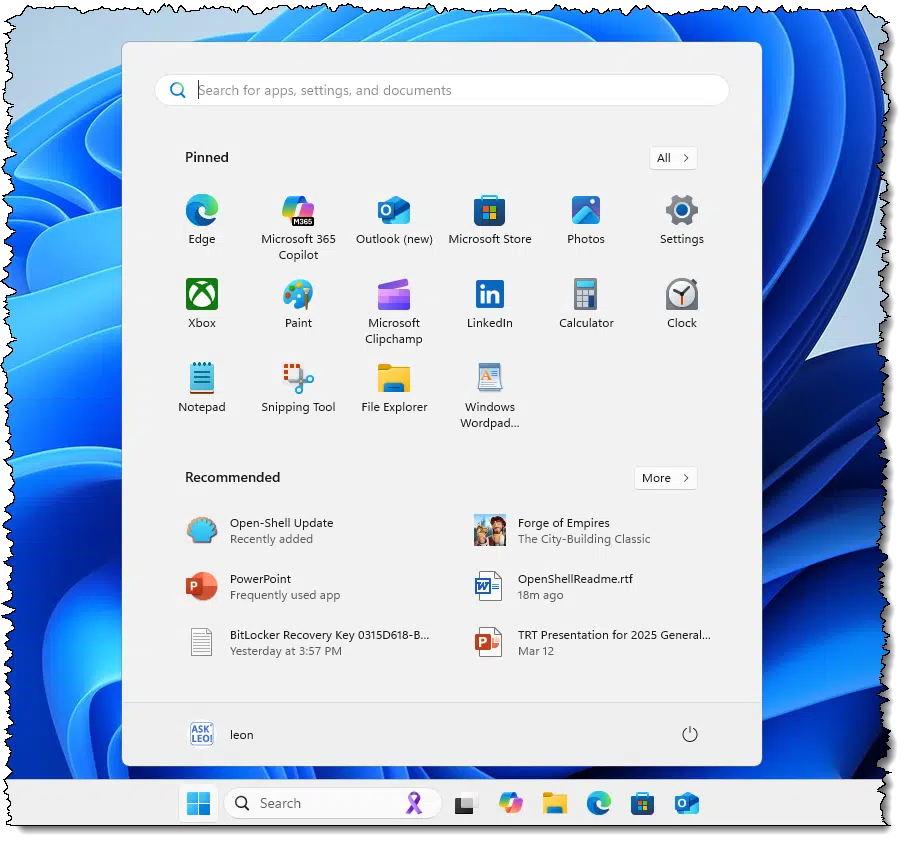
This shows pinned programs across the top and "recommended" items below. If you look closely, you can see an "All >" item that opens a list of installed programs, not unlike "All Programs" from years past.
It's different than Windows 10 and less flexible to boot.
With Open-Shell — also known as Open-Shell-Menu — you can get the old-style Start menu back.
Open-Shell is free open-source software available on GitHub.
Visit the Open-Shell homepage and look for the release button.

Click on that. On the resulting page, scroll down until you see the installer — OpenShellSetup_xxx.exe.
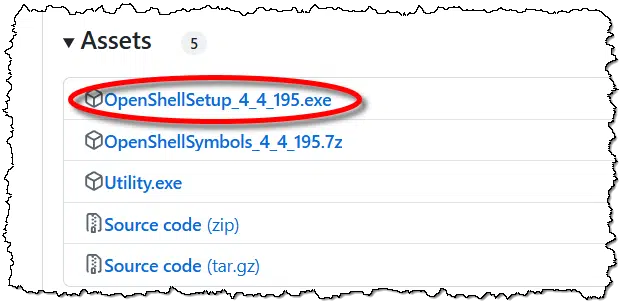
Click on that to download the installer and select "run" if prompted.227 You'll be presented with a welcome message.
Click Next to view and agree to a license agreement; click Next again to view a menu of installation options. Click Next and then Install to complete the installation.
After installing Open-Shell (and making a choice or two, which I'll cover in a moment), my Windows 11 Pro edition now has a Windows 7-style Start menu.
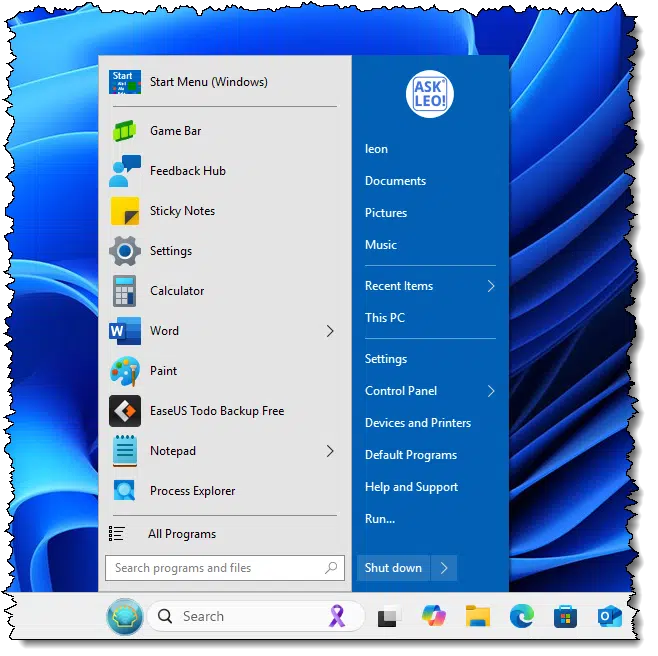
Open-Shell integrates into Windows very well. It feels very natural and familiar in almost every circumstance.
Of particular note, however, is that Classic Start hasn't removed anything. In fact, if you want to revisit your old Start menu, just hold down Shift as you click on the Start button. If you want the old alternate Start menu, hold down Shift as you CTRL+Click the Start button.
And, of course, if you decide you'd rather not use Open-Shell and want to run with the native Windows 11 interface, you can simply uninstall it.
I've only scratched the surface of Open-Shell's capabilities.
Right-click on your Open-Shell start button and click on Settings; then make sure that the "Show all settings" checkbox is checked.
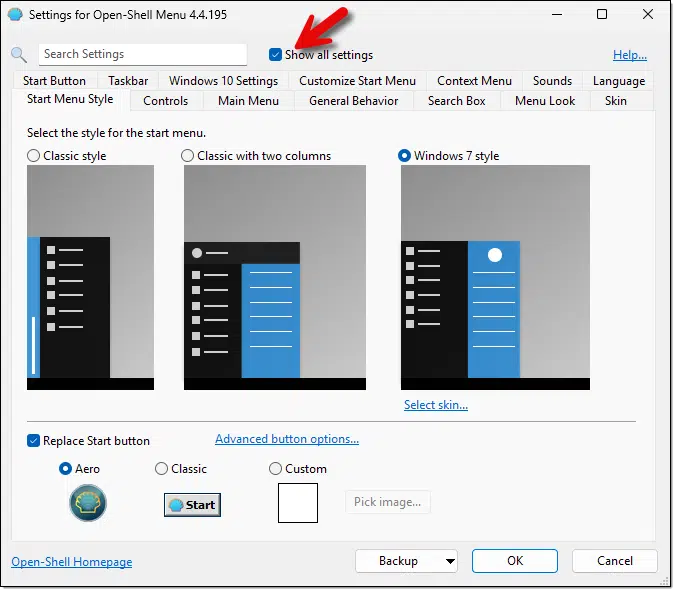
The options available allow you to customize just about every aspect of the Start menu.
Open-Shell doesn't change the taskbar, so the Start Button remains in the center by default. We can complete our Windows 7 makeover by changing that in the Windows Settings app.
Right-click on an empty area of the taskbar and click on Taskbar Settings. The Settings app will open. Click on Taskbar behaviors.

Change "Taskbar alignment" to "Left".

235: You may need to jump through a hoop or two to allow your browser to "keep" the downloaded file due to Windows/Edge download protection. The file indicated for download above is safe. (The accompanying video shows the steps in action.)
It's not difficult to save a copy of a password-protected PDF so that it doesn't require a password.

As I collect information for my annual taxes, I want to remove the boilerplate instruction pages from my bank's tax forms while retaining the pages with actual information. While the paid version of Adobe Acrobat allows you to edit and remove pages, it won't if the document has been password-protected, and naturally, that's exactly what my bank had done (presumably to prevent alteration).
However, as I've said so many times before, if it can be seen, it can be copied — or, in this case, edited.
The process looks like this:
It seems nonsensical to create a PDF from a PDF by printing a PDF, but there are important differences in the resulting output, among them that it's no longer password-protected. I can now open this new PDF in Acrobat, remove the pages I want to remove, and save the resulting document. It's this shorter, smaller document I will send to my accountant.
If all you're attempting to do is remove a few pages, this works quite well. As mentioned, it can also be used to remove any password required to open it. This is a convenience if it's a document you open often (though of course, this removes the security afforded by the password in the first place, so use with caution).
It's important to realize that it also changes what the PDF contains. The original PDF can contain a "description" of the document — the actual words, paragraph layout, formatting information, and the like. The (re)printed PDF is best thought of as containing a "picture" of the document, and some or all of that semantic information may well be lost. (I have to say "may" in both cases. PDF files and print-to-PDF printer drivers are complex, and they often save things in complex ways.)
Tip suggested by Chris Sinclaire (and I really did use it the day before writing this tip ðŸ'‚ ).

Disposable email addresses are convenient for some things, but it is important to understand what they offer and what they don't.
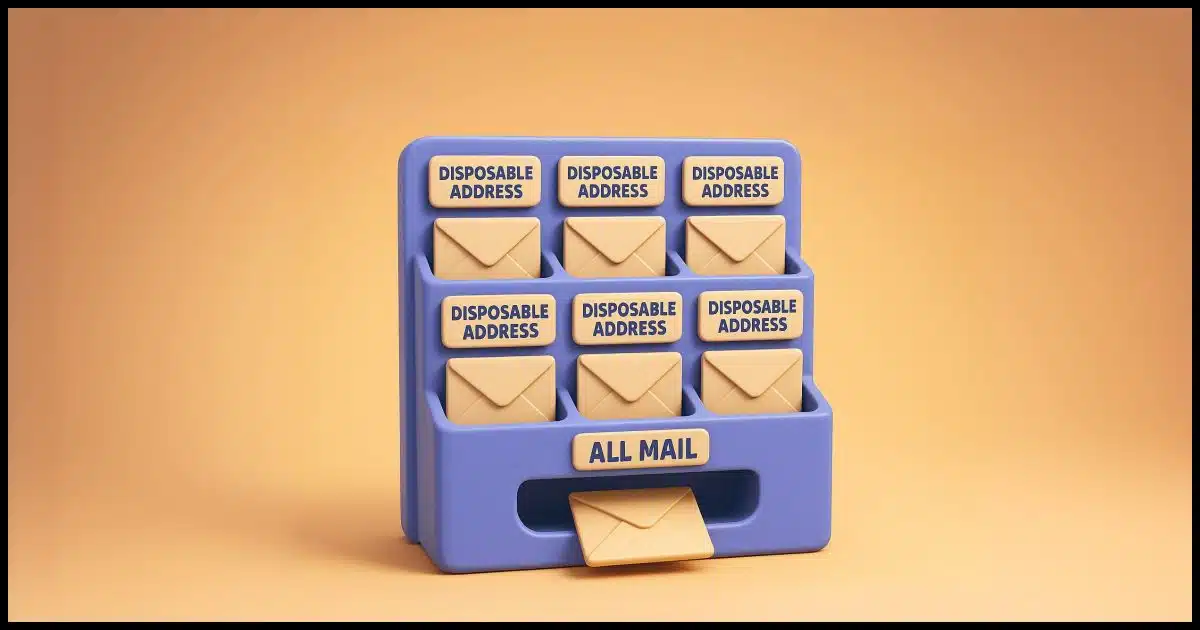
Security? No, not really.
Privacy? Sure, some.
Spam management? Definitely.
Disposable email addresses provide minimal security benefits, but they're excellent for privacy protection and spam management. You can create them through subaddressing, aliases, or forwarding services. Just remember, securing your main email account with a strong password and two-factor authentication remains essential.
Disposable email addresses come in various forms.
They start with your main email address. I'll use "you@randomisp.com" as my example. This email address would be your "real" email address where you receive your email.
Subaddressing allows you to add an arbitrary string to your email address. Those characters are ignored by your email service.
If you were to subscribe to a newsletter with the email address you+askleo@randomisp.com, the newsletter would still be delivered to you@randomisp.com, ignoring the "+askleo" part.
You can create as many of these as you like in services that support it. Create one for every store you visit online, for example: you+amazon@, you+walmart@, you+costco@, and so on.
If any get abused, are inappropriately shared, or fail to respond to an unsubscribe request, you can create a filter to route that specific subaddress to Trash (or Spam), and never have to see email from that source again. In the meantime, the other subaddresses, as well as your real email address, continue to work just fine.
The catch is that not all email providers support subaddressing. Check with your provider. (If they do support it, check which character they use. Most, but not all, use "+".)
One downside of subaddressing is that it exposes your real email address to anyone who understands the syntax, and it's another complication for you to keep track of.
Aliases are other email addresses you create that deliver to your real email address. They differ from subaddresses in two important ways:
So even if your email address is you@randomisp.com, you might set up an alias costcoshopping@randomisp.com to use when shopping at Costco online. All email sent to it would arrive at you@randomisp.com.
Like subaddresses, if any alias accounts get abused, you can then disable them completely. In the meantime, the other aliases, as well as your real email address, continue to work just fine.
The catch is that few email services provide this feature. (Though if you own your own domain name, like I own "askleo.com", it's quite easy to set them up. I do this a lot myself.)
Forwarding services are like aliases but are provided by a third party. You register a new email address — say you@somerandomservice.com — and forward all email sent to that address to your real email, you@randomisp.com.
The terms, lifespan, and possible cost vary depending on the service you use.
Like aliases, if any get abused, you can just turn the forwarding off.
These aren't quite the same thing, but I need to include this to be complete, especially since it's what you're comparing against.
You could create a completely new free email account instead of a subaddress, alias, or forward. This is quite a bit of work per address, of course, but it ensures there's no relationship between your real email address and the free email accounts you set up.
You also have to check a lot of email accounts unless you forward all these email accounts to your email address or fetch email from all these accounts to a central location, perhaps a desktop email program.
And, of course, they are ultimately disposable when you're tired of them: just stop checking email at whichever free accounts you no longer find useful.
There are many reasons you might set up a disposable email address. I'll address the three most common reasons — security, privacy, and spam — and how well they accomplish the desired result.
Disposable email addresses don't do much to increase your security. I suppose disabling an email address that's become a magnet for spam and malware helps a little, but in the long run, disposable email addresses aren't particularly helpful. That most are tied to a single real account and password seems a negligible risk.
Disposable email addresses can help improve your privacy. Providing disposable email addresses limits how much information you're sharing about yourself. Coupled with other fake information, it can be a part of keeping more of your information out of the hands of strangers.
I view disposable email addresses primarily as a spam-management technique. If you're about to hand over an email address to someone you don't (or don't yet) trust, a disposable email address allows you to quickly and easily avoid the spam they might send if they turn evil.
Here's one possible disadvantage of using a disposable email address. Let's say you have an account at a major retailer, using something like you-retailer@randomisp.com. Email they send to you will land in your real you@randomisp.com email inbox.
What about email you then send to them?
Remember, to the rest of the world, you@randomisp.com and you-retailer@randomisp.com are separate and unrelated email addresses. If you reply to email sent to you-retailer@randomisp.com, but your reply comes from you@randomisp.com, you may have issues. Or you may not, since it all ultimately depends on the specifics of who you're contacting.
But it's important to be aware that it might matter.
After setting up one of my retailer@askleo.com-style addresses, I discovered that I then had to configure my mail program to be able to send from that email address as well in order for "retailer" to pay attention to me.
Those words are: it's critical.
Regardless of whether you use disposable email addresses, you must keep your email account secure. It's the gateway to so much you do online that you don't ever want to risk it being compromised.
That means the usual checklist:

You can navigate the UAC dialog using your keyboard, but you need to know a secret.
(Animation: askleo.com)
While Windows technically requires a mouse, its user interface guidelines require keyboard equivalents for almost everything.
Unfortunately, this isn't true for the UAC dialog; you can't just type the "Y" key to indicate yes. (The User Account Control dialog is a security feature in Windows. It asks you to confirm actions that require administrator-level permissions, like installing new software.)
That doesn't mean you can't use the keyboard; it's just not obvious how.
Once the UAC dialog pops up, it's a two-step process.
So, to respond yes to a UAC, you can type Left Arrow followed by Enter.
Or, if you like, type ESC to dismiss the dialog box, meaning no.
It's important to understand when backups of encrypted drives are encrypted and when they're not.
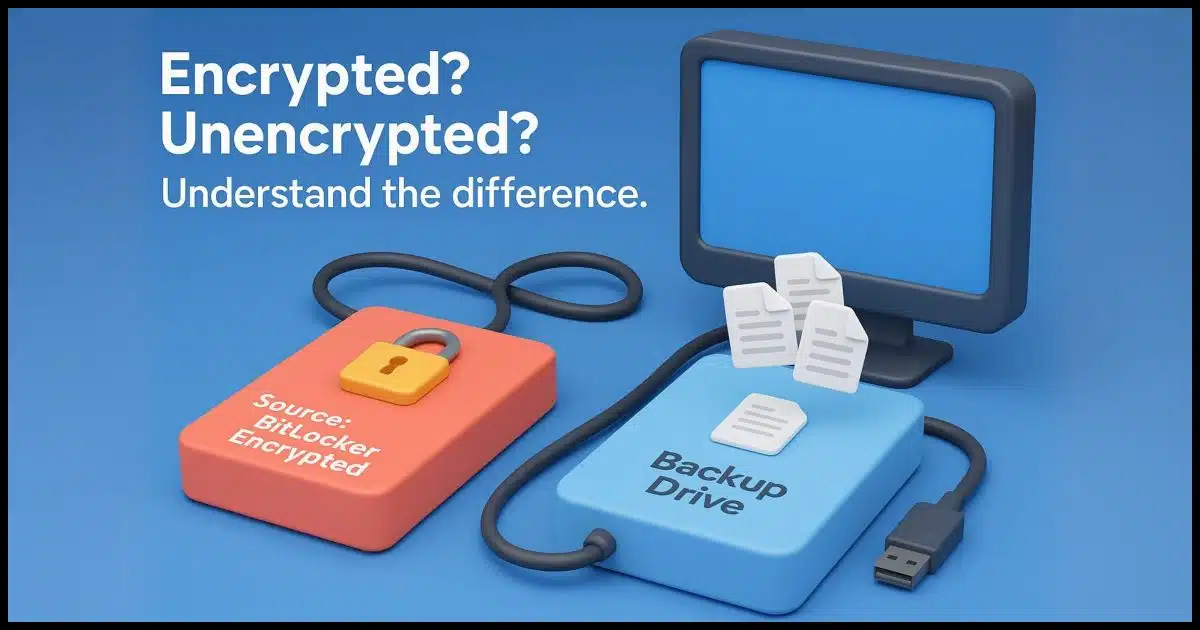
This can get confusing quickly. Most backup tools back up files in their unencrypted form. That's what I recommend, and the tools I recommend do it that way by default. However, some situations and choices can cause data to be backed up in encrypted form.
Encyrption can happen to entire disks or individual files. Let's look at how that happens and what you might want.
Most software operates on files as they appear to you. Therefore, backups from a BitLocker-encrypted drive typically store files in an unencrypted form. Exceptions include sector-by-sector backups and backups made without signing in, both of which can only back up as encrypted. Make sure your backups are accessible, and then choose secure storage or program-specific encryption to protect them.
A disk is comprised of sectors of information. A sector is just a fixed-size block of data — say 512 bytes. When information is written to a disk, it's broken into sector-sized pieces.
The example above shows a 22-sector disk. If each is 512 bytes in size, the disk has a capacity of 11,264 bytes of data.
The nine red squares (2, 3, 4, 7, 16, 17, 18, 21, and 22) indicate sectors to which data has been written. This represents 4,608 bytes of space used by data228, leaving 6,656 bytes of free space.
Note that the disk itself has no idea what those sectors contain other than that they contain "data". This will be important in a moment.
Now let's look at our disk, this time identifying individual files.

There are four files on this disk.
When you access a file — say by opening up that file in a program like Microsoft Word — the operating system locates the various sectors containing the file and provides it to the program as a single file.

While the sectors are technically still there, the program using the file sees only a single file full of data.
With that out of the way, we can talk about encryption.
BitLocker (and other forms of whole-disk encryption) do their work by encrypting every sector on the disk.
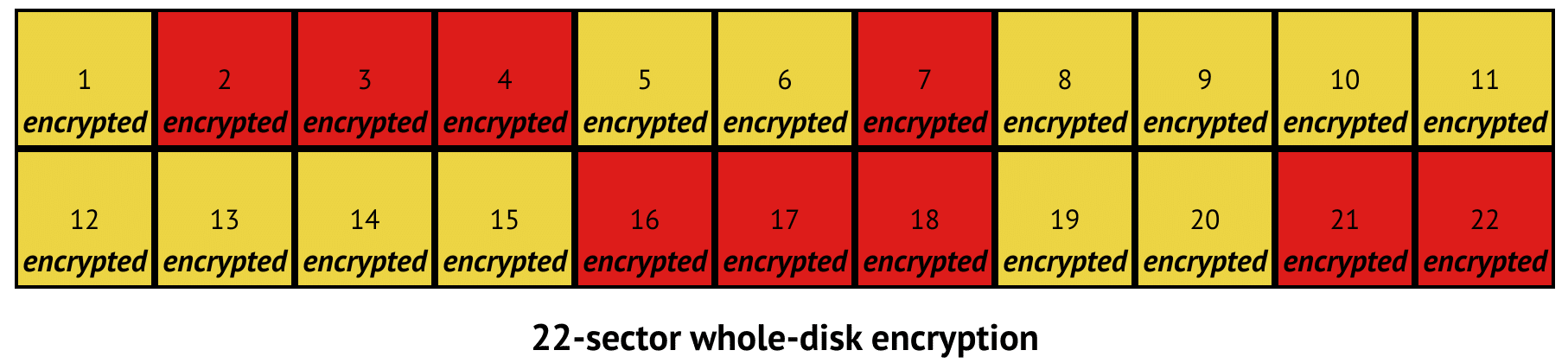
BitLocker has no knowledge of which sectors hold what or even if they're holding files or not229; each sector is simply encrypted.
Again, when you access a file, as we did above, the operating system:
Similarly, if you write the file to a Bitlocker-enabled disk, the operating system:
From your perspective, the file is unencrypted; all the decrypting and encrypting happens at the sector level as the file is read and written from and to the disk.
Finally, we can talk about backing up.
As you use your computer, you see only unencrypted files. The data on disk is decrypted before you see it when reading the file and encrypted after you save it (when writing). This makes it easy for all programs to access the files on your hard disk whether the disk is encrypted or not. Those programs are just operating on files like they always have.
Most backup programs behave the same way: they operate on files that appear unencrypted. Even an image backup program operates without knowing or caring that data on the disk might be encrypted. It sees files, just like you do, in their unencrypted form. Hence, it backs up the files in their unencrypted form.
There's one exception to this rule.

To read the files on your disk, your backup software needs to understand how the disk is structured. That means it needs to understand the file system used, also known as the "format" of the disk, such as NTFS, FAT32, or others.
If the backup software doesn't understand how the data is organized on the disk — perhaps something's been corrupted or it's a file system the backup program doesn't understand — it may offer to do a "sector by sector" backup. This backs up the entire disk surface without regard to what it contains...
...or whether, or even how, it's encrypted.
This type of backup is also called a "clone", and you can also choose to perform this type of backup. It's often used for forensic data recovery since it includes unused sectors as well as the exact sector-by-sector layout of the disk.
In this case,
So far, I've assumed you're signed into and running your backup software from within Windows. If your drive is BitLocker-encrypted, because you're signed in, the files on it are accessible in unencrypted form.
If you boot from your rescue media (which launches a copy of your backup program) and attempt to make a backup image of your BitLocker-encrypted drive, we have a problem. You haven't signed in to your PC, so the drive has not been mounted and cannot be decrypted.230
There are two options:
The first gives you unencrypted backups. The latter results in an encrypted backup.
If you have an unencrypted backup, you can do what you like with it. You can restore it, extract files from it, whatever. The results will also be unencrypted.
But what happens if you have a sector-by-sector backup containing an encrypted BitLocker drive?
There's little you can do with it other than restore it in full. That's usually enough (for example, when swapping out a failed hard drive). Once you reboot and sign in, the BitLocker drive is mounted, and you can access it normally as before.
Unless your backup program can accept the BitLocker recovery key to decrypt the image, you cannot mount it using your backup tool to extract individual files.
The easiest way to determine what sort of backup you have is to try to look inside it. In many cases, that's as simple as double-clicking the file containing the backup.
Many backup packages allow you to password-protect your backups. This encrypts the contents of the backup files created by the backup program. This has nothing to do with BitLocker or other types of encryption on the disk you're backing up. It's just a way to secure the backups themselves.
You'll need this password to access the backup later and either restore it or access its contents.
If you have individually encrypted files — say a password-protected zip file or files encrypted by Cryptomator — nothing really changes.
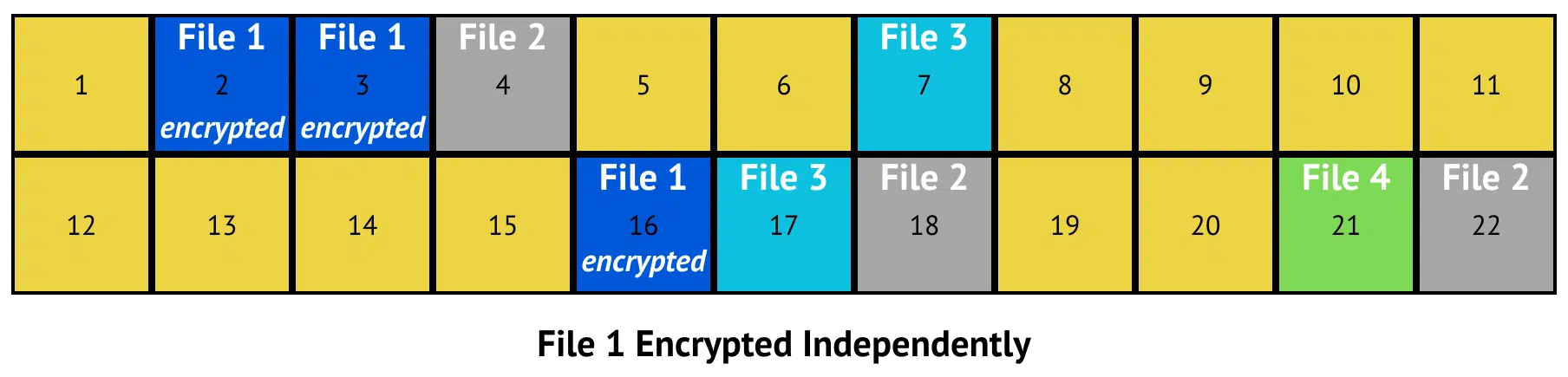
In the example above, File 1 has been encrypted by some external program. That each sector says "encrypted" is somewhat misleading because in this case, it's the file, not the individual sectors, that have been encrypted. The entire file was encrypted before being written to disk, and it'll be encrypted when it's read from disk.

Everything discussed so far remains the same. If your backup program performs a sector-by-sector backup, you'd have to do a full restore in order to access the files. If your backup program is doing a more traditional file-by-file backup, then all the files are accessible, but the files that have been encrypted individually remain encrypted individually.
Those encrypted files have the distinction of being encrypted twice: once by whatever tool you used to encrypt them (Zip, Cryptomator, etc.) and again by BitLocker when written to disk. This is harmless.
236: Ignoring partial sectors.
237: At least conceptually. There are occasional optimizations where the knowledge might be used.
238: This is good. It's your ability to sign in to Windows that "proves" you should be allowed to access the drive.
The ability for websites to push notifications at us is annoying. Let's turn that off in Edge.
(Animation: askleo.com)
It seems every website wants to show notifications. It also seems like my answer for every website is a resounding no.
And, of course, heaven help you if you accidentally say yes; you don't even have to be visiting the website to get more notifications!
Let's turn that off.
In Edge settings:
The result: no more requests and no more notifications.
I see the appeal of slipping a little SD card into your computer for backups, but the safety of your data on that card has me worried.
My gut tells me that this is a bad idea.
There are a few things about it that make me uncomfortable.
SD (Secure Digital) cards and thumb drives are convenient, but not really safe for full backups. They can fail without warning, taking your data with them. Warranties replace cards (or money), not lost files. For more safety, use an external hard drive or cloud service. Still — any backup is better than none.
First, focus on what a lifetime warranty really means. If the SD card dies, you get a free replacement for the card. But if the SD card dies, it takes whatever's on it. Poof! All the backups you may have stored on it are gone, typically with no hope of recovery.
Of course, you can say the same of any external hard drive. They also die — though technically, the data stands a somewhat higher chance of recovery should that external drive be a traditional hard drive.
The difference here is what lifetime we expect from the hardware.

A $25 256GB SD card or USB memory stick falls into the category of what I typically call cheap flash memory.
Flash memory wears out more quickly the more often you write to it, and periodic backups write a lot of data. I would not trust my backups to a cheap SD card.
However, an SSD (Solid State Drive) is a different beast, and per-terabyte prices look comparable.
While it technically uses flash memory, it's of a higher quality. It's not a card; you can't just insert it into an SD slot; it's either designed to be a hard disk drive replacement or an external drive (the thing you're trying to avoid).231
While an SSD lifespan is likely to be much longer than the cheap flash memory card used in an SD card, I still wouldn't use SSDs for backups.
Why? Well, it's a waste. The big advantage of Solid State Drives is their speed — specifically their reading speed. When used as a primary system drive, you'll often notice significant improvements in your overall system speed.
But for a variety of reasons, you don't need that much speed for a backup. For the same money, you can get much more traditional hard disk storage that is perfect for backing up.
SD cards (and USB sticks) are convenient, it's true. I see the appeal of being able to insert an SD card into the side of your laptop and back up.
And perhaps for some kinds of backup, like making a quick copy of the files you've been working on while on the road, it might be a pragmatic approach. (Though online services like Dropbox, OneDrive, Google Drive, and others are even better for doing this automatically.)
But for large image backups (as I continue to recommend), cheap flash memory is not yet something I'm ready to trust. Backing up is too important. I would much prefer:
239: Confusingly, apparently there are now SSDs that come in the form of a USB memory stick or thumb drive. I'd look for the acronym SSD, the capacity, or the price as clues to differentiate them.
Many machines reported as not having a TPM have one that's simply not enabled.
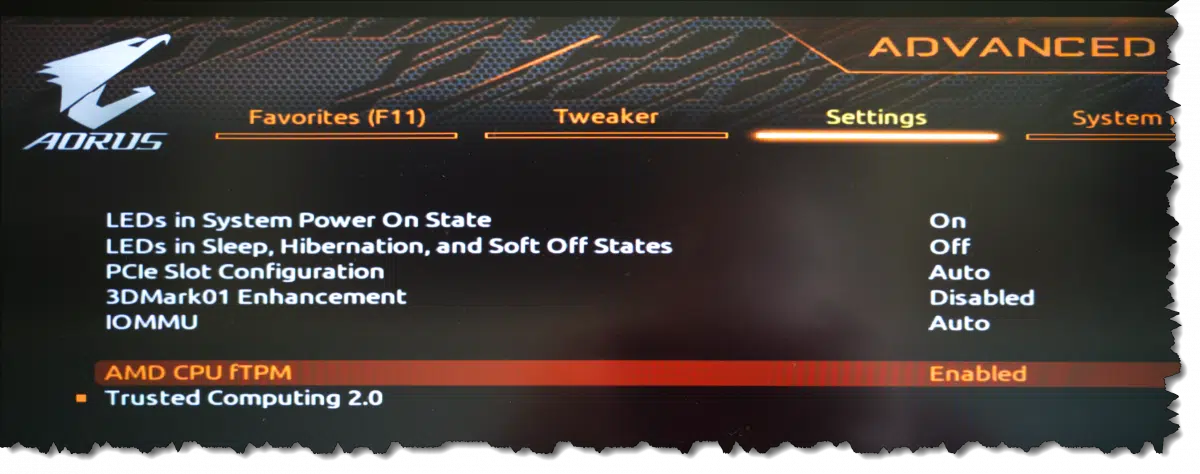
One of the more common complaints I see about upgrading to Windows 11 is the following:
I have a relatively new, powerful machine, but Microsoft tells me it's not compatible with Windows 11!
Particularly if you have a newer machine — say within the last five years or so, perhaps even somewhat older — it's possible your machine does include a TPM (Trusted Platform Module), but it's just not enabled.
It's worth a check.
If Windows 11 setup says your PC doesn't have a TPM, it might just be turned off. Check your UEFI (or BIOS) settings — often under "Advanced" or "Security" — and if it's there, turn it on. Many machines have TPM that is disabled by default. Once enabled, you should be good to go.
Pictured above is a setting to turn TPM support on or off in the UEFI (formerly known as BIOS) settings for my current desktop machine.
Here's the catch: it was originally turned off. Apparently, that's often the default setting. I was unable to install Windows 11 until I turned it on. I've been running Windows 11 for years.
I can't really tell you where to look for the TPM setting in your UEFI. Unfortunately, there are several different UEFI interfaces. Even how to get into your UEFI settings (for me, it was pressing F12 as I rebooted) can be different from one machine manufacturer to the next.
The TPM setting is typically found in an Advanced or perhaps Security-related area.
Check your machine's documentation or reach out to the machine's manufacturer for the details specific to your situation.
If you do find the TPM setting in your UEFI, check for additional settings that might be required to ensure you're using TPM 2.0, the Windows 11 required version.
Once you reboot into Windows, run tpm.msc ( + R) to confirm it's available. Note that if tpm.msc reports no TPM, that does not mean you don't have a TPM at all. You may still have one that has not been enabled, as described above.
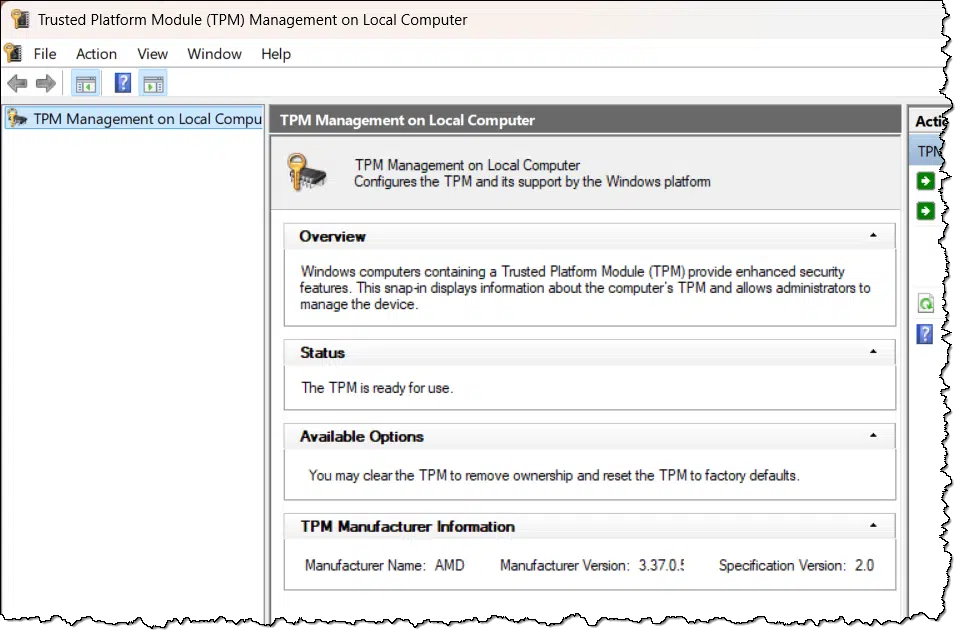
Note that "Specification Version: 2.0" is the version we care about; version 2.0 of the TPM specification, as required by Windows 11.
At this point, you should be able to successfully install/upgrade to Windows 11 (unless your machine fails other requirements).

Guarantees are great, but it's critical to understand what they do and do not do.

I'm updating an article this week where an individual asking a question points out that their storage comes with a lifetime warranty.
This bothers me.
Warrantees and guarantees can give us a false sense of security. They don't mean what we unconsciously feel they mean, and that can be dangerous.
A lifetime guarantee does not mean something will never fail.
What it really means is that when the device fails, it'll be replaced without cost, or you'll get your money back. While this acts as an incentive for the manufacturer to create quality equipment that is less likely to fail, failure always remains a possibility.
What a guarantee doesn't do is replace any data lost due to a failure or compensate you for the time you spend re-creating that data.
A guarantee, no matter how strong, is still no substitute for a backup.
Human error can make the best technology fail.

Recently, we had a glaring example of how incompetence can bypass all the security you might think you have.
Put another way, the technology you use is only part of your safety, security, and privacy. Do not assume that you're safe, secure, or private because you're using a safe, secure, or private tool.
The issue is this: a private, sensitive, government chat using Signal was compromised not because of some flaw in Signal but because someone invited the wrong number232 to join the chat. No tool will protect you from misuse.
Always pay attention to the non-technological (human) action needed to remain secure.
240: I'll assume it was an accident. That the wrong number was a reporter might indicate it was accidentally on purpose, but that's not the point here.
Home networking can be very difficult. I have a few tricks that work well for me.
Question: Leo, I recently purchased an Asus tablet running Windows, and I've tried just about everything to connect my other Windows machine to the tablet. Both computers are set to use the same workgroup name, namely MS Home, but the tablet asks for a password when I'm setting up the home network. Can you help?
Networking is hard. It can be tricky to get set up and get working. It's much trickier than it needs to be. I've written a couple of articles venting about that in the past.
The good news is that I think we can get it to work.
Networking can be complicated, but this approach simplifies authentication across Windows devices.
I have a plethora of different versions of Windows, and they all talk to each other without too many hiccups. I'm going to walk you through how I set up a Windows machine I intend to network with other Windows machines.
To be clear, we're talking about file-sharing here. While "networking" encompasses much more, the ability to easily copy files from one computer on your network to another is perhaps the most valuable use for the average user. On one computer, you create a folder and share it, and then on another machine, you attempt to connect to (or network to) that folder so you can access the files or place additional files in it from any of the networked devices.
Make sure both machines are on the same network. I know this sounds obvious, but it needs to be said. If you have more than one router in your system, for example, it's easy to have more than one network without realizing it.
The problem is that one of the router's jobs is to protect what's on one side of the router from what's on the other side. I refer to this as the router acting as a firewall because it's a layer of protection against the wilds of the internet. If you have a couple of different routers, you may have two different networks, one of which is being "protected" from the other. That means file sharing across the router won't work.
Make sure both computers are in the same workgroup. Our questioner has already done this with MS Home. (I use a different workgroup name because "MS Home" or "Workgroup" is the default. If I have guests using my network, a different name makes it's a little harder for them to go spelunking on my network to see what they can find.)
This is where things get interesting. Use the same login name on both computers. I create the same login name on each of my Windows machines and I log in to the same account name on each.
Interestingly, it doesn't have to be the account you sign in to normally. For example, I regularly sign in to my machines using my Microsoft account, but I also have a local account with a specific username and password set up on each. This makes it easier to authenticate if necessary, and in my case, also makes sharing with non-Windows machines a little less painful.
I set up that same login account on each machine with the same password. This minor item is one of those easy-to-overlook things. The local account I mentioned above has the same username with the same password on every machine.
For websites, we talk about using different passwords everywhere even if you use the same login name. At home, if you have several machines and you're sure nobody's going to walk up and start using them, or you've got some level of physical security associated with them (even if it's just the fact that you know who is in your home), using the same password for machine sign-in is okay. Having the same login name and password makes several things easier, and networking is one of them.
If you're prompted for a username and password when attempting to make a connection, this is the username and password to use and to let your system remember.
The accounts I've created on all of my computers are administrator-capable accounts; they all have administrator privileges. Limited user accounts can add a layer of security, particularly if you have concerns about the users of your machines. Using an administrator account makes life a little easier at the cost of a small security risk, depending on how you use your machine and your level of expertise.
If Windows can assume you're on a "private" (or safe) network, it allows more connectivity more easily. If your network is configured as public, for example, Windows will not allow Windows file-sharing connections from other computers — which is exactly what we don't want.
The easiest way to make your network private is to use Windows PowerShell run as Administrator. First, enter
Get-NetConnectionProfile
Note the "Name" of the network. In the example above, the name is "Network".
Now enter:
Set-NetConnectionProfile -Name "Network" -NetworkCategory Private
where "Network" is replaced with the name displayed by the Get-NetConnectionProfile command.
You can then re-run the Get-NetConnectionProfile command to confirm the Network Category has been changed to Private.
You may have already been asked to turn this on as part of attempting to make connections, but you'll find it in Settings -> Network & Internet -> Advanced Network Settings -> Advanced Sharing Settings.
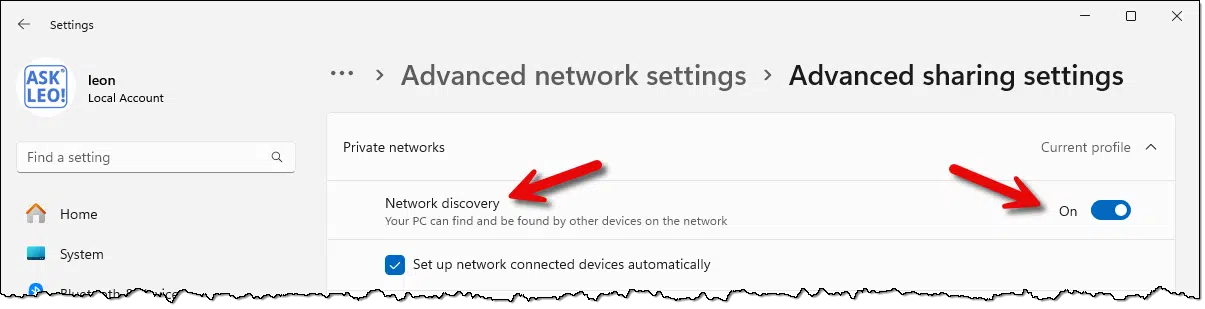
This allows your machine to find and be found by other machines on your local network.
When it comes down to it, the things that I've mentioned so far (using the same username and password on all of your machines and setting up administrator accounts on all of them) are tiny security issues. That's why I say you're assuming different security in some ways, and any issues will be small. For example someone discovering the username and password you use on one machine would have access, then, to all. In the home environment that's a tiny risk, and worth the tradeoff in slightly easier networking.
When you connect from machine A to machine B, machine B needs to authenticate you somehow. It needs to confirm your permission to connect to the share you're trying to connect to. How Windows does this is complex. Even people who understand networking deeply get confused by all the different options, techniques, and things that happen when those things don't work.
Fortunately, your system will use your current login credentials on machine A as confirmation that you have permission on machine B. If those same credentials exist on machine B, things just get easier.
Differing opinions can be annoying, but they're also an opportunity to learn and understand.

You have questions. I have answers... with some confidence along for the ride.

Some time ago, in an article called The Deep, Dark Secret Behind Ask Leo!, I shared a secret that isn't that deep or that dark.
I answer people's tech questions and sneak in some education when they're not looking.
In that statement, there's an opportunity for you.
You have problems; I have answers — and a little education on the side. You want solutions, but what you need is understanding. A little learning today means fewer problems tomorrow. No lectures; just helpful advice to make tech less frustrating and more empowering. The more you know, the easier it gets.
In my experience, there's a fundamental conflict when anyone tries to help you with technology: what you want and what you need may be two different things.
Often just a little bit of education will not only get you a solution to your problem, but you'll be less likely to need help with similar issues in the future.
Ultimately, you'll be more self-reliant.
You'll need me, or people like me, a little less. And for the record, I'm okay with that.

The education I'm talking about doesn't have to be overwhelming. It could be as simple as learning a term or understanding the difference between confusingly similar things. It could be learning how to clear a browser cache when you experience a certain type of problem.
There are plenty of opportunities.
And therein lies my challenge.
People resist education, often strongly. "I just want it to work" often comes with the implication that "I shouldn't have to think about it to make it work."
Sadly, that's not the world we're in. And while it's easy to point at computers as the culprit, it really never has been the world we live in. Beginning with the wheel, every new technology has required some amount of education to get it to do what we want it to do. In that sense, computers and modern technology are no different.
We can try to reduce the amount of education needed, but it'll never be zero.
Of course, no one wants to be lectured at. That's my challenge (and the challenge of anyone trying to teach anything anywhere).
While "sneaking in" some education while you're doing something else is nice, it's not enough. Sometimes education needs to be explicit. The challenge for me and people like me is to make it understandable and palatable.
The challenge for you is to be open to it.

241: Heck, learn enough to put people like me out of a job. I challenge you!
Windows changed the default setting for Quick Removal of external drives. I'll look at why, and what it means.
In Windows 10, the default for what's called the "Quick removal" setting was changed. The result is that you should not see or need to use "Safely Remove Hardware" as often.
Let's look at why that is.
Windows 10 changed the default setting for many removable devices to "Quick removal," which disables write caching. This makes it safer to unplug USB drives without using the Safely Remove Hardware dialog. While removing a drive mid-write can still cause data loss, the risk of thinking the data has been saved when it hasn't is lower.
Removing or unplugging an external drive or USB stick while your computer is turned on can be risky. If anything is being written to it at the same time you unplug it, you risk corrupting the data stored on the drive.
Unfortunately, this is directly at odds with a speed optimization that can make it look like your computer has completed writing data to the drive when it has not.
Pull the plug at the wrong time, and bad things could happen.
Write caching is a speed optimization designed to make your computer more efficient.
You might see this when you perform a save operation with a large file. You click on "Save" and it seems to happen quickly — perhaps almost instantly. But if you look closely, the light on your drive (if it has one) might still flash for a while as the data is transferred in the background.
Write-caching collects data in your computer's RAM memory to be written to a disk later in the background. The application writing the data sees it complete faster than the device could handle. The application moves on to other things while the system actually writes the data from RAM to the physical disk at a speed the disk can handle.
RAM is faster than your disk and especially faster than your USB drive. By not forcing the program to wait until a write has been completed, the program — and the entire computer — operates more quickly.

"Quick removal" turns write caching off.
That means that a program writing data to disk must wait until the data has been written to the device before it can move on to other things.
With write caching turned off, when you click "Save" on that large file, it'll take longer. You'll have to wait until the file has been saved before you can move on. You'll likely see the lights on your external drive stop flashing right around the same time the save operation completes.
Quick removal is safer because you're less likely to think that data has been completely written to disk when it's still underway.
The Safely Remove Hardware item in your Windows Taskbar notification area is, in concept, very simple.
By clicking on "Safely remove" for a specific device, you force Windows to:
Once complete, you get the familiar "You may now remove..." message.
When you connect an external drive, Windows has to decide whether to enable write caching.
In the past, for many (if not most) drives, the default was to enable write caching and therefore require the use of "Safely Remove" before the drive could be removed.
Windows 10 changed that default. Now Windows does not enable write caching in most situations, opting instead for what's called quick removal.
You can see (and change) what Windows has selected for your drive. With the drive attached, right-click the Start Menu, click on Disk Management, right-click on the disk representing the drive, click on Properties, and then click on the Policies tab.
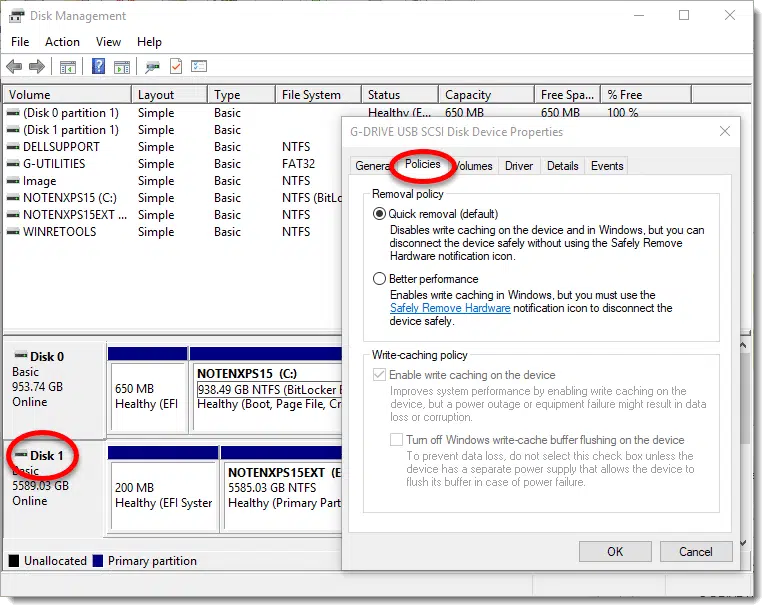
"Removal policy" shows the current setting. You can change it if you like and click OK.
On modern machines, the benefits of write-caching on external USB drives have become minimal. With USB 3 (and even USB 2 to a large degree), data is written fast enough for the additional caching to have little practical effect.
Not having to worry about "Safely remove" is probably of more benefit, as it reduces the risk of data loss by pulling the plug at an inopportune time.
To be clear, pulling out a device while it's being written to is always a bad idea and can cause corruption and data loss. "Quickly remove" just makes it less likely for the device to look like it's done when it's not.
If you see Safely Remove Hardware" present for a USB device, that device probably does not have "Quick removal" turned on234. If "Quick removal" is enabled, you'll not need (or see) Safely Remove Hardware.
242: "Considered harmful" is almost a meme in computer circles and dates back to 1968.
243: I have at least one device that still appears in "Safely remove" even though it's marked as "Quickly remove". I do not get a warning if I remove without using "Safely remove", however.
Random crashes are annoying and difficult to diagnose. I'll review common causes and steps you can take to determine what's happening on your computer.
By "crash", we mean things like random blue screens, black screens, reboots, freezing up, or shutting down, all without warning.
I find one cause to be the most common by far.
The most common cause of random crashes is an overheating computer caused by blocked airflow or a failing fan. Pay attention to how hard your computer is working at the time of a crash — high usage can exacerbate heat problems. Other causes include hardware failure of RAM or disks, and — much less commonly — malware.
The most common cause of random crashes is an overheating computer.
The most common cause of an overheating computer is blocked airflow.
The most common cause of blocked airflow is an accumulation of dust and debris.
Fans in your computer blow air through its components to cool them down. Your computer's CPU, hard disk, and other components all generate heat — sometimes a lot of it. If the components become too hot, they can fail and cause a crash.
Particularly in laptops, it's easy to accidentally block the air vents allowing air to flow through the device. I recommend not putting a laptop on your lap — use a table or "laptop desk" to ensure proper airflow.
Desktop computers are more vulnerable to dust and pet hair, which can clog the vents. It's worth unplugging your computer and looking inside. Carefully clean it if you find a lot of dust and dirt.
After blocked air vents and dirt, the next most common cause of an overheating computer is a failed fan. Fans have become complex over the years. To reduce noise, computer fans often operate at variable speeds, running quietly at a slow speed when things are relatively cool and speeding up to move more air as the computer heats up.
The temperature inside your computer can change depending on what you're doing.
The harder the computer's CPU works, the more heat it generates. That's why variable-speed fans make sense — if your computer is idling, you don't need the fans to run at full speed. On the other hand, if the CPU is working hard, the fans speed up to cool things down as the internal temperature rises.
Listen to or watch your computer's fans as you use your computer. If they never turn on, there's almost certainly a problem with the fan or its control circuitry.
Your computer should be designed to handle the maximum heat its CPU can generate. Even if your CPU is at 100% usage, the fans should keep up. A machine crashing randomly the longer it is used or the harder its CPU is put to work is a warning that there's an overheating problem.
Check for overheating first.
After that, it gets more difficult.
Malware is no longer a common cause of random crashes. These days, malware is more interested in keeping your machine running so it can do its malicious work. Certainly look for malware, but don't be surprised if you don't find any.
Failure is always an option. Hardware can fail. We think of hardware failure as being instant, total, and catastrophic, but various components can have intermittent, delayed, or random types of failure.
Next to the fan, failing RAM is the most common hardware-related cause of random crashes. Programs don't always get loaded into the exact same place in memory, which means you might sometimes access bad RAM, causing a crash immediately or afterward.
Software is what people think of first, but the vast majority of software errors do not cause your computer to crash. More commonly, a program may crash or terminate unexpectedly, but Windows itself will keep running.
The exception is device drivers. A bug or other unexpected error in a driver could cause it to fail and crash the entire system. If you've recently added hardware involving new or additional drivers, or if a recent update included drivers, then it belongs on your list of suspects.
The hard disk (either HDD or SSD) deserves special mention. A disk with bad or damaged information affecting any of the software — including Windows itself, drivers, or your applications — might cause a crash. You'll usually get warning signs, such as significant disk slowdowns or even "bad sector" or "CRC" errors before the crash.

Your old machine won’t suddenly become useless. I'll explain why Microsoft’s hardware rules aren’t a conspiracy, and what real options you have, from keeping Windows 10 to exploring Linux, without wasting good hardware.
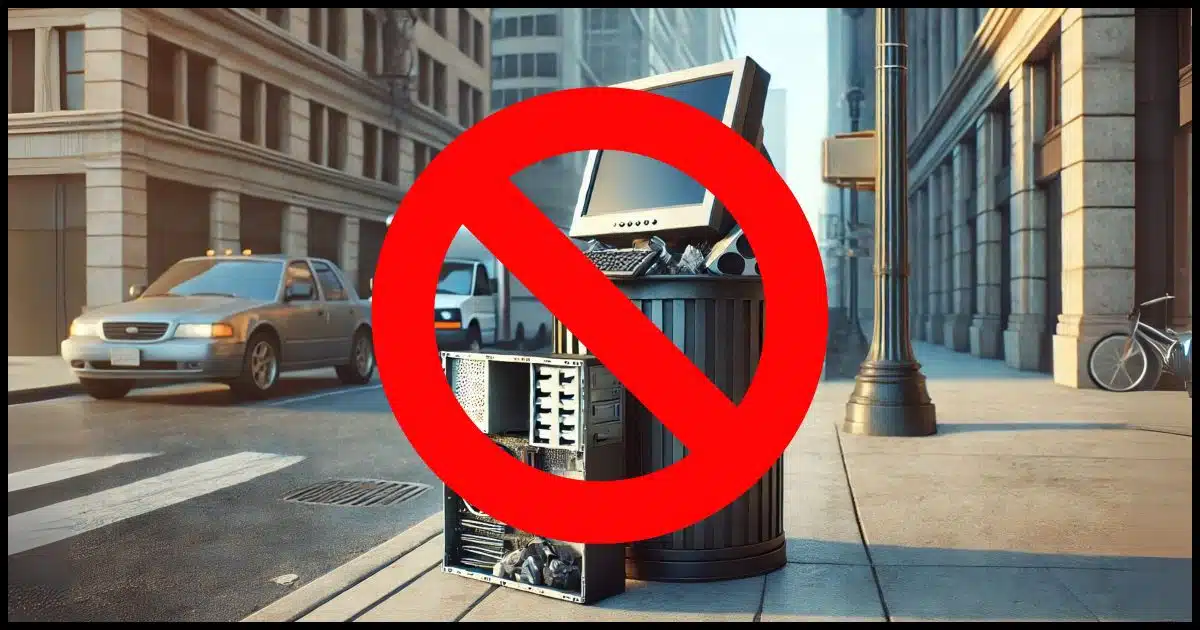
"It's all about Microsoft wanting to sell new computers... and creating more ewaste."
"MS is working with PC manufacturers to force new hardware sales."
"All about forcing more expensive computers on us."
"My graveyard now has a perfectly good XP, Vista, and soon to be two Windows 10 computers. I'll be forced to buy a new computer when I already have four perfectly good computers."
All of the above are examples of comments relating to Windows 11's new hardware requirements. The perception is that if our existing computers aren't capable of running Windows 11 we're being forced to throw them away and buy new ones. Some even believe it's a conspiracy to sell more PCs.
No one is being forced to do anything. You do not have to get a new machine. You do not have to throw away your old machine.
And there's no conspiracy.
Windows 11's hardware requirements aren't a conspiracy to force new computer sales. You don't have to upgrade or throw away your old machine. Windows 10 will keep running after support ends, and you can stay secure with good practices and extended updates, or even switch to Linux. Panic, or even irritation, is not required.
This is my most common recommendation when I see people complaining about being forced to get a new machine.
Don't.
Stay with your existing machine running Windows 10. It'll keep running just fine.
Here's a complete list of everything that happens at Windows 10 end of support:
That's it. Period. The machines will keep running. More importantly:
How long that will all be true is an open question and will vary depending on the specific hardware/software involved, but it will most assuredly not all come to an end on October 14. In fact, much of that may continue for years — just ask folks still using Windows 8 and Windows 7.
The only thing you might need to do is realize that "Windows 10 will receive no further bug fixes, even if security related", meaning that you'll need to be extra security conscious as you move forward. Do all the things to keep yourself and your technology secure.
That includes everything you should already do anyway, so even that represents little (if any) change.
Microsoft has announced that you will be able to purchase one year of extended security updates to Windows 10 for $30.
For people who purchase the "ESU", as it's called, it changes this statement:
To this statement:
That's the only thing that changes. Everything else I discussed above remains the same.
At this writing, Microsoft has not released any further details, and the ESU is not yet available for purchase.

This is perhaps the single most common comment made on my YouTube videos discussing a variety of Microsoft and Windows 11-related issues: switch to Linux.
Many of those commenters either have or plan to switch to Linux when Windows 10's end-of-support date rolls around.
It's a legitimate, reasonable option...
...and it may not work for everyone. Oh, it'll definitely install and run on your existing Windows 10 machine. But... it's not Windows.
But depending on how you use your computer, Linux can most definitely be an option. No new machine required.
I have mixed feelings on this one.
There are techniques to install Windows 11 on hardware that technically doesn't support Windows 11. I have written articles on a couple of techniques, and they appear to work.
The issue is that Microsoft, of course, doesn't like this. They have suggested that Windows 11 installed on hardware that isn't supported by Windows 11 will not receive updates. Right now, that doesn't seem to be the case. It's also unclear which updates Microsoft is talking about: only Windows 11 updates? Updates for Windows Security and Windows Defender? Anything that's updated via Windows Update?
We just don't know at this time.
If this is a risk you're willing to take, I'd rather you stick with option #1. Sticking with Windows 10 seems less risky than not getting updates to an operating system in active development.
I know I said you don't have to buy new hardware, but you can, of course, choose to buy new hardware.
There are generally three options that people consider at this point.
Or you could keep using your Windows 10 machine running Windows 10.
244: Some Linux users will jump in and say "WINE!", but in my experience, it's hit or miss on compatibility and speed, and not something I'd recommend as a panacea or safety net for average consumers leaving Windows. It's worth playing with, for sure, but not something I'd recommend relying on.
245: I know: support for Windows isn't that great either, but it exists, and because of the much larger user base is typically more extensive.
Controlling what updates your machine takes might be a problem, but examining which ones have been taken is relatively easy.
(Animation: askleo.com)
It's sometimes helpful to know exactly which updates have been installed on your Windows machine. Fortunately, finding the update history is a simple matter.
Search the settings app for "update history" and click on View your Update history when it appears.
You'll be presented with a list much like that shown in the video at the top of this page. "See what's new" or "Learn more" links will take you to Microsoft pages for that specific update. Those that have no such link will typically reference a "KB" number. KB stands for "Knowledge Base" and is the repository of information (about updates and more) maintained by Microsoft. Generally, just googling a KB number will get you relevant links, but to quickly narrow to just the official results, visit the Microsoft Support site and use the search facility there.
Incremental backups can be larger than expected, and that's okay.
The size of incremental backups often surprises people.
All you do is edit one small document, and the next day your incremental backup ends up being gigabytes in size — that doesn't make sense, right?
Well, Windows is a very busy operating system.
Incremental backups can be bigger than expected because Windows is always changing in the background. System updates, logs, caches, and temporary files all count as "changed" data. While you can manage backup size with cleanup tools, backing up everything — including system changes — ensures a more complete and reliable recovery.
We think in terms of our own data: the documents we edit, the pictures we upload, or the work we do on our computer.
Backing that data up daily is a critical part of what it means to back up. These are all files we don't want to lose that we expect our backup regimen to take care of for us.
But it's easy to overlook that there's lots more going on than what you and I do.
Windows itself does a lot.
Even if you do nothing with your computer all day — say it's running but you never touch it — Windows is still hard at work.
Programs that are part of the operating system itself are running. Programs that auto-start when you log in are running. Windows and other software programs are checking for and downloading updates.
Your security software is running and scanning periodically as well as checking for database updates and more.
There's just a lot going on and a lot of files being changed. Files like:
This may represent more day-to-day change than anything you may have done yourself.
Besides the operating system, the software you run often changes much more than just the files you work on. Some apps change files even if you didn't actually "work on" anything at all.
If you fire up, say, a word processing program, you would expect that your document would change, of course. But in addition, that program may also cause changes in:
If you browse the web, everything you view is downloaded to your machine and placed in your browser's cache. This cache then appears as a changed file and would be included in the next incremental backup.
Even for programs where you didn't "change" anything, things can change a lot.
It's important to realize that this is how your computer works. You really want to back all that up. When something goes wrong later and you want to restore to a backup taken on a particular day, the changed information might be critical to getting your system back to the state it was in when you took the backup.
Aside from getting a larger external disk for backups, what else can you do to manage the size of your backups?
Choices fall into two buckets: back up less data or back up less often.
One thing I recommend doing is running Windows Disk Cleanup. It will allow you to remove things you may not need that contribute to the size of your backups. Similarly, CCleaner, while overlapping some with Windows Disk Cleanup, will clean more things, particularly for many applications that aren't part of Windows.
Many of the things that Windows Disk Cleanup and CCleaner remove may come back as you use your computer, but much of it will not. For all that doesn't come back, your backups — particularly the initial full image — will be smaller.
While this wouldn't be my first choice, you can also alter how often you take incremental images. If you take them every day, you might schedule them every other day instead.

I find myself reacting more to those who are less then pleasant when they leave their feedback.

In which we use the world's bestselling book to make gigantic numbers a little more tangible.

People often have difficulty grasping large numbers.
Do you know the difference between a megabyte, gigabyte, terabyte, and petabyte? If you have a grasp of the definitions of each, do you really "get" just how large those numbers are?
We often see visual representations of bigger numbers — representations like the megapenny project, which illustrates large numbers using one-cent U.S. coins. For example, what would a billion pennies look like? (Spoiler: bricks the size of five full-sized school busses.)
There is one unit of measurement I think might make computer data a little more conceptually tangible.
A Bible is about five megabytes of data. A microSD card can hold thousands of Bibles, and cloud storage can store millions. Even internet speeds can be measured in Bibles per second. Using the Bible as a reference makes huge numbers — like gigabytes and terabytes — slightly easier to grasp. So. Many. Bibles.
I choose the Bible not out of any religious significance, but because it is the world's bestselling and most widely distributed book. Regardless of your faith, location, or your take on its contents, chances are you've at least seen a Bible at some point in your life.237
Like a penny, it's something tangible that's easy for us to relate to. You probably have a sense of how big it is. Physical books vary in size and shape to a certain degree, especially if they include illustrations or ancillary information. But you likely have a frame of reference for the size of that book at a visceral level.
So let's use it as a measure of some of the common rates and capacities we throw around in the tech world.
First we have to understand how big the Bible is.
I downloaded the plain-text version of the complete King James Version of the Bible from Project Gutenberg. It includes the Old and New Testaments plus a bit of additional information from Project Gutenberg, all formatted simply.
It comes in at 5,218,805 bytes. That's approximately five megabytes.238239
Since there are eight bits in a byte, that means it comprises 41,750,440 bits. That'll become important in a moment, since some things we care about are measured in bits (a single one or zero), while others are measured in bytes (a collection of eight bits).
This is a photo of a two-gigabyte microSD flash memory card on my finger.
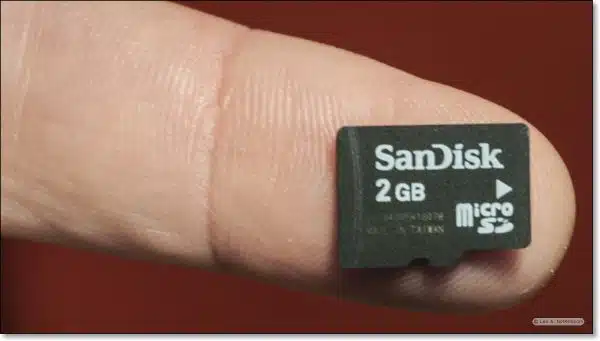
These tiny memory cards are fairly ubiquitous, particularly in mobile devices. So, let's do the math: two gigabytes typically refers to 2,147,483,648, or just over two billion, bytes.
It can hold 411 copies of our text-only Bible, all on the tip of my finger.
More recent microSD cards with the same physical characteristics have larger capacities. I could, if I wanted to, store 52,670 copies of the Bible on a 256GB (274,877,906,944-byte) card.
I often speak about backing up and recommend that you have an external drive for the purpose.
Since I started making that recommendation, I've purchased several 500-gigabyte external drives.
Over 500 billion bytes is difficult to comprehend, so what if we compare it to over 100,000 Bibles?
My most recent external drive clocks in at a whopping240 eight terabytes241. That's 1,685,461 Bibles – or just over 1.6 "megaBibles", if you will.
It seems fitting to measure some of the cloud storage we have access to in terms of the number of Bibles it could hold.
You get the idea. You can store a lot of Bibles in the cloud.
Most internet and network connection speeds are measured in bits per second, not bytes. That's why we need to know that our example Bible is 41,750,440 bits long. How long a download is that?
| Speed | Time per Bible | Bibles per hour |
| 33kbps, dial-up speed | 21 minutes | 1/3 |
| 768kbps, basic DSL | 53 seconds | 60 |
| 10mbps, basic ethernet or fast DSL | 4 seconds | 900 |
| 100mbps, fast ethernet or "broadband" | 0.4 seconds | 9,000 |
| 1gbps, high speed ethernet | 0.04 seconds | 90,000 |
Naturally, all of these are approximate, theoretical maximums for each speed and don't reflect overhead or other factors.
But that's not the point.
The point is to get a better sense of what some of these numbers mean.
"A terabyte of storage" or "a gigabyte per second speed" are both just phrases until you have a frame of reference. Since you probably have some sense of how big the Bible is, storing 210,000 copies or transferring 90,000 Bibles in an hour might give you a better feel for how much data we're talking about.
At least it's been an entertaining thought exercise.

246: If you prefer alternates, the Gutenberg Project's copy of the Koran is 1,153,822 bytes in length, approximately a megabyte; and War and Peace — generally regarded as a really big book — is 3,291,648 bytes, or around three megabytes.
247: For the pedants, five megabytes is 5 * 1024 * 1024 or 5,242,880 bytes: pretty darned close. (This assumes the common computer-related usage of the term megabyte.)
248: It also turns out that the Bible is highly compressible. A simple "gzip" compression of the text file turns it into a 1,460,547 byte file — just under a megabyte and a half. But doing so invalidates the point of this exercise, since it plays with your sense of just how big the Bible is. The book on your shelf, for example, isn't compressed.
249: By today's standards. I'm sure that someday, someone will laugh in wonder at how we managed with so little storage.
250: 8,796,093,022,208 bytes.
Windows File Explorer: the tool designed for examining and managing the contents of your computer. It's worth getting to know!
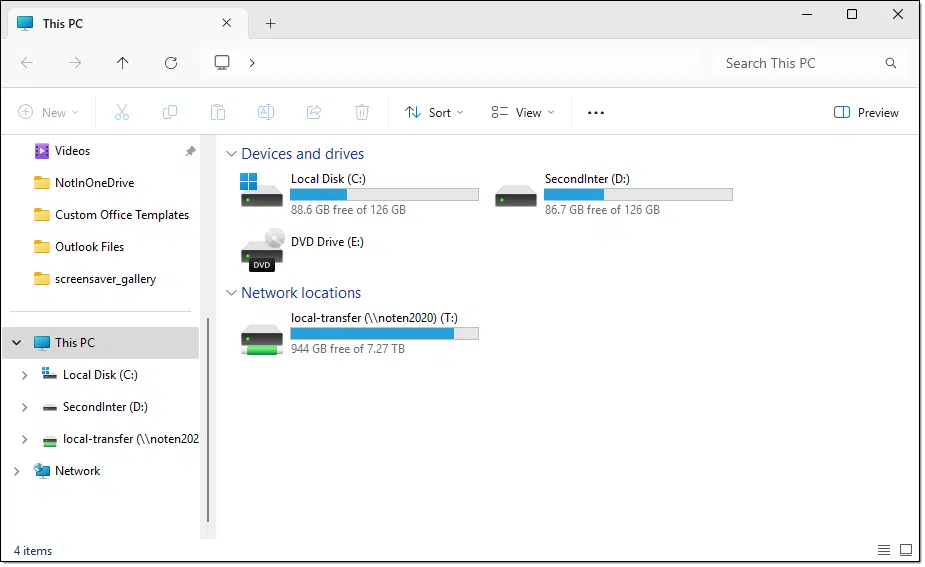
I was showing a friend how to copy files from their old computer to a new one. It dawned on me that I should ask a fundamental question: did they recognize the program I was using — Windows File Explorer — and had they used it before?
The answer was a surprising "No." Even after many years of using Windows on multiple computers, Windows File Explorer was something they didn't know about.
We were copying files from machine to machine across the network. I asked how they copied files before. Their answer was to open the file — say a Word document — in its associated application — Microsoft Word, for example — and then use File/Save As to save it to a new location. Not the most efficient solution, but it worked. ðŸ'‚
Windows File Explorer is a program specifically designed to allow you to examine and manipulate the contents of your hard drive as well as any connected external drives, thumb drives, or network drives. Its primary purpose is to locate and manage the files on your system.
It is probably the best way to copy a file from one location to another, which is usually a simple drag-and-drop operation (without needing to open any additional programs).
The easiest way to run Windows File Explorer is to hold down the Windows key () and type E. You'll also find it on your Start menu (usually as just "Explorer" or "File Explorer"), or on the right-click Start menu as File Explorer.
The details of all the different uses of File Explorer are more than a single tip can hold. You'll find many prior tips that reference it in the Tip of the Day archive.
But rather than assume that everyone knows about it, today's tip is to remind you it exists. It's a valuable tool to get to know.
External hard drives often come with security and backup software. I'm not convinced it should be used.
I usually avoid the third-party tools that come with external drives, though I do have a couple of exceptions.
Securing the data in an external drive is important. To me, that means two things: first, understanding the tools we're using; and second, not going overboard.
Stick with well-known encryption tools like VeraCrypt or BitLocker rather than the random software that comes with external drives. Unless the included software unlocks special hardware features, it's not worth the risk. Double encryption is overkill; pick one trusted tool and back up your data instead.
I rarely recommend the software (backup, encryption, whatever) that comes with external drives. More often than not, it's software I've never heard of with an unknown reputation. Since there are well-known alternatives, there's no reason to use it.
I do, of course, have exceptions.
But in most cases, I choose a solution I'm already aware of and familiar with.
It's not that uncommon to be using two levels of encryption and not realize it. For example, if you place an encrypted zip file or use an encryption tool on a file on any hard disk that is using whole disk encryption, you've got two levels of encryption: the tool you're using plus the whole-disk encryption.
Depending on the tool that came with the hard drive, the result might be the same.
But it does seem like overkill if you're intentionally encrypting everything twice for no real reason. I could see it making things a little more fragile. In any case, make sure your data is backed up somehow.
Ultimately, I don't recommend double encryption unless it's a side effect of encrypting things one way for one reason (like full-disk to protect everything on the disk) and also encrypting things another way for a different reason (say using Cryptomator to encrypt files that are copied to the cloud).
My preference when it comes to security backup, and encryption software — any software providing an important level of protection — is to use known tools. The only exception is if the software enables something that's hardware-specific.
Known software like Veracrypt or Bitlocker has known characteristics and is generally more secure than random software that comes with an external hard drive. This is too important to leave to chance.
I suppose doubling up could technically be more secure, but it's not worth it. Instead, choose a reputable single tool.
Use the compatibility tab to make adjustments for older software having difficulty with newer versions of Windows.

Sometimes you move to a new version of Windows and your programs don't run properly. First, see if an updated version of that program is available. If that doesn't help, or no update is available, the next step is Windows' built-in compatibility options.
This requires you to find the ".exe" file for the program. If you originally used a setup or other installation program, you'll probably find it in an appropriately-named sub-folder in either "C:\Program Files" or "C:\Program Files (x86)".
Right-click on the .exe file, click on Properties, and click on the Compatibility tab. The result should look similar to that pictured above. Click on Run compatibility troubleshooter, and Windows will examine the program and make recommendations.
If that doesn't help, or you have a good sense of what system the program last worked well with, you can try setting individual options manually. This can take a little experimentation and depends on the type of problem you're running into. For example, if the program doesn't run at all, you might try running it in a mode compatible with an older version of Windows. Display problems, on the other hand, might be resolved by adjusting display-related settings.
The compatibility tab is another tool when you're trying to get that favorite old software to run.
The change to the Windows 11 right-click menu is annoying to many people. We can fix that (for now).
I originally published this as an Ask Leo! Tip of the Day, but in a recent article discussing the differences between Windows 10 and 11, it came up so often that I've done a full article and demonstration.
Let's get the old (and apparently much missed) Windows File Explorer right-click menu back.
Miss the old right-click menu in Windows 11? A simple registry tweak brings it back. Run the provided command in Command Prompt and restart Explorer or reboot. The result: the classic right-click menu you're used to. But be warned: Microsoft may remove this workaround in future updates.
In a Windows Command Prompt, run the following command242.
reg.exe add "HKCU\Software\Classes\CLSID\{86ca1aa0-34aa-4e8b-a509-50c905bae2a2}\InprocServer32" /f /ve
You can copy-paste it directly from this page into Windows Command Prompt. You may be given a UAC prompt and/or a warning about making registry changes.
After the command has been run, either reboot or kill explorer.exe and re-run it. You should now have the old, lengthy right-click menu back.
The problem we're attempting to fix is this. If you right-click on a file without the modification, you'll get the Windows 11 version of the right-click menu.
There are two major issues with it:
After applying the registry setting, the right-click menu returns to its older look and feel.
Many people find this much more familiar and comfortable. It's one less change they need to deal with.
251: At your own risk, of course. Make sure you're fully backed up before running this.
Wireless is convenient, but it's typically the slowest kind of connection.

I was configuring a new system for a friend and was surprised to find their printer — which I'd done nothing to connect — magically appear as available on the new Windows 10 computer. It just worked! The confusing part was that I could see the printer was physically wired to the old computer.
What I discovered was that the printer was both wired and wireless-capable. The old computer used the wired USB connection, but as soon as the new computer was connected to the router, it used the printer's wireless Wi-Fi interface via the network to connect.
The catch? The fast new computer printed (and scanned, as this was a multi-function device) significantly slower than the old.
The difference came down to the connection type.
Regardless of whether you're connecting to a printer, copying files from computer to computer, or simply surfing the internet, a wireless connection is typically the slowest. While the various Wi-Fi standards often claim a data rate faster than your wired connections may be able to provide, in reality, this maximum is rarely reached. The speed is significantly impacted by equipment, antenna type, position, and radio interference.
Perhaps most surprising to some, if you have truly high-speed internet — 100mbps or faster — it's possible that the wireless connection to your device could be the slowest part of your online experience.
Learn to pull your email together rather than push it.
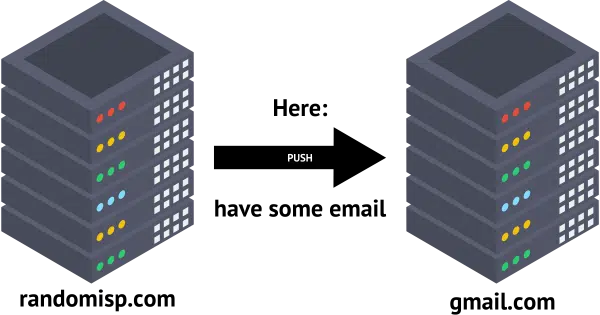
For years, it's been common to get email on one email address and automatically forward it to another. You could have several email addresses, either on your own email domain or on free services, and send it all to a single email account.
These days, it's a quick way to lose it.
My pal Randy Cassingham discussed this recently in respect to the impact it's having on his newsletter, and I want to expand on the topic because it applies to so many situations.
Email forwarding used to be a simple way to manage multiple addresses, but now it can lead to lost messages. Spam filtering and security measures mean forwarded emails may be blocked or marked as spam. Instead, use POP3 to "pull" email or a dedicated email program like Thunderbird or Outlook.
The concept is simple. Perhaps you have an email address at you@randomisp.com. Maybe you have more than one: newsletters@, banking@, stores@, and so on.
Instead of having a full email account at you@randomisp.com or any of the others, you configure them all to automatically forward to your Gmail account — I'll use askleotest@gmail.com as my example. When someone sends email to you@randomisp.com, then:
This has been a common approach to email for a long time, mostly because Gmail is likely to have a better spam filter and more powerful user interface than randomisp.com.
This approach has broken, and here's why.

Every email sent to you@randomisp.com is forwarded to Gmail.
Every email.
Including spam.
Unfortunately, this makes randomisp.com look like a huge source of spam to Google (or whatever service you're forwarding to). As a result, Google may decide that randomisp.com's reputation is in the toilet. Eventually, it will assume that most, if not all, email sent from randomisp.com should be treated as spam.
Your forwarded email may land in your spam folder, or it may not be delivered at all.
It gets worse.
Let's say I send a newsletter. (Spoiler: I do.)
That newsletter comes "From:" leo@askleo.com, and it's sent by my newsletter-sending service, Aweber.
SPF, or Sender Policy Framework, allows me to tell the world who is allowed to send email on my behalf. DKIM, or Domain Keys Identified Mail, can also be used to confirm that an authorized sender is indeed the originator of the message. Between the two, the following are authorized sources of email from askleo.com:
You know what's not in that list? The domain of your forwarded email address. And yes, forwarding "counts" as a sending source checked for authorization.
So if you subscribe to my newsletter using your you@randomisp.com email address, here's what happens:
Email forwarding is broken. Don't use it.
What should you do instead?
In a word: POP3. In a few more words: change the direction of email retrieval.
Using a forward, randomisp.com forwards or "pushes" the email from itself to Gmail.
If, instead, we configure Gmail to "Check mail from other accounts" using POP3, we are requesting to "pull" email from randomisp.com to Gmail.
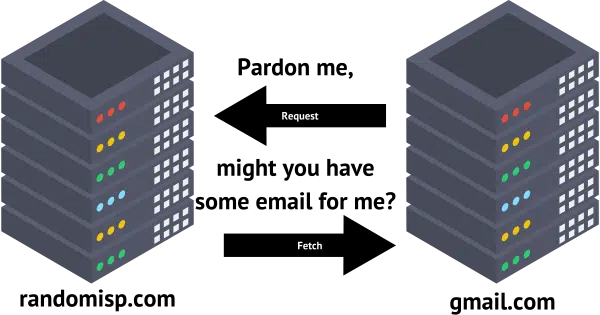
It makes all the difference. In the second scenario, randomisp.com isn't "sending" the email; it's simply holding it until someone comes along and asks for it. That someone — in this example, Gmail — can then fetch the email, pulling it into its own email service.
When pulling email in this manner, none of the obstacles I talked about above — SPF/DKIM or even server reputation — come into play, since randomisp.com isn't independently sending anything. Gmail is acting just like a desktop email client fetching email using POP3.
I've used Gmail throughout this example because Gmail's implementation is clear. Other online email services may also fetch email from other accounts, but the ramifications are less clear. The important difference is that these services fetch from your email address. Your email address does not forward to them.
Remember how I said Gmail acted like a desktop email client? That's another solution.
Another way to avoid this entire scenario is to use a "real" email program like Thunderbird, Microsoft Office's Outlook, or any of several others.
You can configure that program to:
It's the most powerful solution. Using IMAP to connect to your email, you can even do this on multiple devices, like your computer, your tablet, and your phone, all simultaneously.
Forwards are still useful in one specific scenario: if they're forwarding to another email address on the same domain.
For example, let's say that your primary email address is you@randomisp.com.
But let's also say you want to have a separate email address for someone you do business with to use to contact you. If you create "biz@randomisp.com" and have that forward to "you@randomisp.com", that'll work just fine. The email transition from one to the other is all handled internally on the randomisp.com server.
This is something I do often. All email sent to several of my email addresses land in the same inbox, but I can tell where they came from based on which of my email addresses they were sent to. It's a great way to determine, for example, if that business you gave "biz@randomisp.com" to passed it along to someone they shouldn't have, such as a marketing list.
Networking is difficult. Choosing a consistent workgroup name makes some scenarios easier.
(Animation: askleo.com)
Networking is much more complex than it should be. Over the years, I've developed a number of habits to remove some common stumbling blocks.
Your computer has a name identifying it on your network, and it's probably a member of a "workgroup". (Large corporate networks use "domains" rather than workgroups.) Workgroups specify a certain collection of computers that relate to and interact with each other.
It varies based on what tools you use, what operating system version you run, and what approach you use (as I said, networking is complex), but computers can often be found more easily on the network if they're all in the same workgroup. I recommend configuring all computers on your home or small business network as part of the same workgroup.
You'll find it in System Properties/Computer Name dialog. To locate this dialog in Windows 10 and 11, it's easiest to search for "workgroup" and click on the first result relating to the workgroup setting.
The dialog also includes a Change... button if you want to change the name of your computer or workgroup.
While Windows (or your computer manufacturer) may set a default workgroup name, I find it handy to give all my computers a unique workgroup name of my own choosing. In some scenarios, it can help keep visiting computers from easily viewing your own computer's contents, and it may make your computer a little harder to find should you connect to other networks.
As you can see, I choose descriptive computer names. While the workgroup name is rarely seen or used directly, your computer name is often the first thing you see or type when trying to make connections between devices, so make them easily identifiable.
There's a better way.

When something goes wrong on or with your computer, don't panic.
When the news reports some horrific-sounding security vulnerability or other technological catastrophe, don't panic.
When you can't find the file you're looking for, don't panic.
When your computer crashes in the middle of what you're doing, don't panic.
You get the idea by now: don't panic.
Panic leads to bad decisions made in haste. Without taking the time to gather and evaluate the information at hand, or even consider the ramifications, panic always makes the situation worse.
The media loves to make every technical issue sound like the end of the world as we know it — and it hasn't been yet. So why get worked up about it? Why make poor decisions based on it? Why let someone's clickbait headline ruin your day?
Scammers love to make their schemes sound like you need to take immediate action to avoid some calamity. Rarely is that ever the case.
Be skeptical. Take a breath and research the issue. With knowledge comes confidence.
Be prepared. Backups are an amazing safety net. So is having a knowledgeable friend or resource you can reach out to when you need to.
But above all, remain calm, take a moment, take a breath, and carry on.
You'll remain safer, make better decisions, and have a more pleasant experience with your technology.
We often want confirmation that an email has been opened, delivered, or read. In the age of spam, it's not possible with any accuracy.
I have searched for things like "emails opened" and asked questions, but all that has been futile.
I am certain I am not the only person unable to find an answer to this problem.
There is no answer to this problem.
And you're quite right — you're not the only person wishing otherwise. As a result, many (many!) companies offer so-called email tracking services claiming to do it. The problem? They overpromise and underdeliver.
I'll explain why.
There's no 100% reliable way to know if an email has been opened or read. Read receipts and tracking images are blocked by most email programs due to spam and privacy concerns. If your business depends on confirmation, consider alternative communication methods like requiring recipients to visit a webpage.
I want to start by making this very clear: there is no 100% reliable way to tell with certainty that an email you sent has or has not been received, opened, or read.
None.
If your business relies on it, find different approaches to communicate with your clientele.
I get a lot of pushback when I make those statements, but that's the way it is. No magic tool or technique can make it otherwise.
There are a couple of reasons for this reality. You can choose one or the other depending on your level of cynicism.
We can argue about the first all you want; it's the second statement that rules.
Spam made everyone realize just how important privacy is. Spam is the reason email programs disable the methods that can track email reception.
So you can blame spam, if you like, for making this impossible. Whether that's part of "email is broken" or "right to privacy", it is what it is, and at the risk of repeating myself, it means you cannot track with certainty whether a specific email has been opened or read.
Period.

Traditionally, there have been two methods used to track what happens when we send an email.
The email protocol allows email messages to include a request for a delivery receipt and/or a read receipt.
Most email programs no longer respond to either and ignore them completely. You'll get no notification even if you ask for one. At best, the program may ask the recipient whether to send the receipt. Most recipients, of course, say no.
The reason is, as you might have guessed, spam. Spammers try to use receipts to validate that they're sending to a valid email address and thus should send even more. No one wants that, so the features are disabled by default.
Images can be included in HTML or rich-text email messages. Those images can be included with the message or can be fetched from some location on the internet to be displayed.
A good example is my newsletter. It includes at least two images: a logo at the top and my signature at the bottom. The images themselves are not included in the email. When you open an email with those images (and have image display enabled), your email program fetches them. It requests them from my web server — an action that my web server can log.
The request for an image can even be tailored to the specific email address it was sent to. For example, this is a link to an image.
https://askleo.com/wp-content/uploads/2023/01/logo2019-2003.png
If it's clicked on (or if it's used in an email to display an image), I can tell that the image has been fetched. This might allow me to say "Ten thousand people fetched this image."
This, on the other hand, tells me more.
https://askleo.com/wp-content/uploads/2023/01/logo2019-2003.png?src=leo@askleo.com
This displays the same image, but the request includes additional information. It tells me that "leo@askleo.com" fetched it. (It doesn't have to be quite as blatant as an obvious email address. Any kind of encoded information — in some cases even the name of the image being fetched — can be unique to each recipient.)
It sounds like a perfect tracking mechanism to determine whether a specific recipient has opened an email... so spammers started using it. If the image was fetched, the spammer knew they had reached a real person who looked at it and thus should send them more spam.
And that, in turn, is why email programs no longer display images by default. If image display is disabled, the entire approach to tracking via image references fails.
As I said, I get pushback from individuals or services who provide open and delivery tracking services, telling me that their service is special in that it works.
The techniques they use fall into two buckets.
Most companies offering to track email use image references. Since many people enable image display for emails from people they know and trust, it can still work. However:
The technique is not 100% reliable.
The most common alternative boils down to using a private messaging system.
The technique works like this: you place your message on an online service — perhaps your own web server — and then email a link to the message instead of the message itself. In order to read your message, the recipient must click on the link and visit the web server holding the message. That visit can be logged.
An exchange server is another kind of private messaging system. People on an exchange server-based system sending to others on that same system (for instance, at a business) can get reliable notifications that the email has been read or opened.
But if the email message can simply be read on its own without requiring external resources — just by showing up in someone's inbox — there's no way to know with 100% certainty whether or not the message was delivered, opened, read, or ignored completely.
As I mentioned, I use open tracking on my newsletter. You're probably wondering why I do so if it's so unreliable.
To begin with, I don't care about specific opens. For example, I don't know with 100% certainty whether you've opened my newsletter.
What I care about is trends, and I don't need 100% open tracking for that. If this week's newsletter shows that 50% of my subscribers opened their newsletters (meaning my logo and/or signature were displayed), and next week that drops to 25%, I care about that. I care about that a lot.
To be extra clear, if it shows that 50% of recipients opened my newsletters, it does not mean that exactly 50% did so. Some may have opened the newsletter with images disabled and thus were not tracked. A 50% result means that at least 50% of my recipients opened the newsletters, and probably more that were untracked.
Open rates are great for this kind of trend analysis. Almost every newsletter you receive has some form of it enabled. Again, we're not looking at you, specifically; we're looking how our subscribers as a group are reacting to what we provide. A sudden drop in open rates can mean many things, ranging from uninteresting content to filters that have decided our email was spam.
What it means is that the email publisher needs to pay attention and address the issue. Hopefully, we learn what you find most engaging and what is more likely to be delivered to your inbox instead of your spam folder.
And that all leads to better newsletters for everyone. ðŸ'‚
Why ask and wait, when you could just experiment?

In this video, I talk candidly about experimenting with technology and the fear that often holds us back. From trying out a new microphone to encouraging you to just "click and see what happens," I share my own real-world mishaps and how they're part of learning. Fear of breaking something or losing data is real, but with a good backup and a little confidence, you'll be surprised how much you can do on your own. My goal is to help you feel more comfortable exploring, experimenting, and ultimately gaining confidence with your tech.
Anti-spamming measures complicate email. This makes sending "from" your custom domain a little trickier.
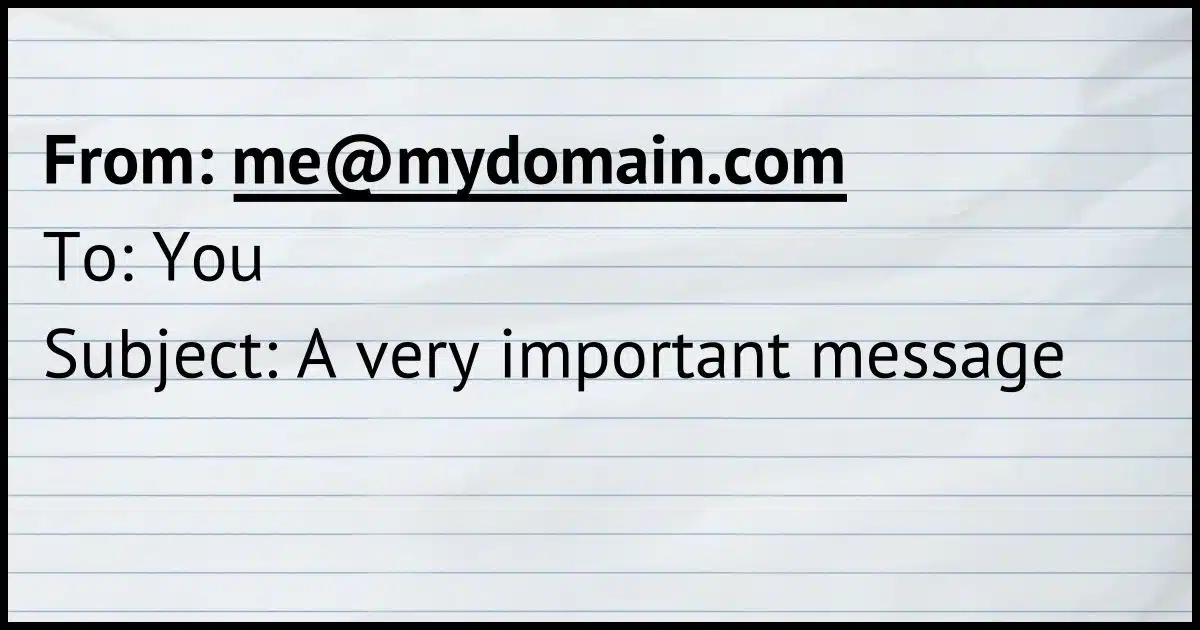
This is one of those areas that spammers have made intensely difficult. It's something I help others with often.
Even when we're using Gmail or other email services to manage our email, and perhaps even when we're primarily using our gmail.com email address, I've long held it's important to be able send "from" your own domain name for a variety of reasons.
There are at least three ways to do it, ranging from simple but problem-prone to complex but more reliable.
Spammers have made email tricky. To send from your domain, you can 1) fake it (won't work well); 2) only send through your domain's SMTP server; or 3) configure a full send/receive email account. The last is the most reliable; it's the most common, and your email comes directly from your domain's server.
It's important to realize that for many email systems, your email address and your account ID are two different things. They may have the same value, and often do — typically the email address — but they don't have to.
So, when you configure an account using some other provider, you can just... lie.
For example:
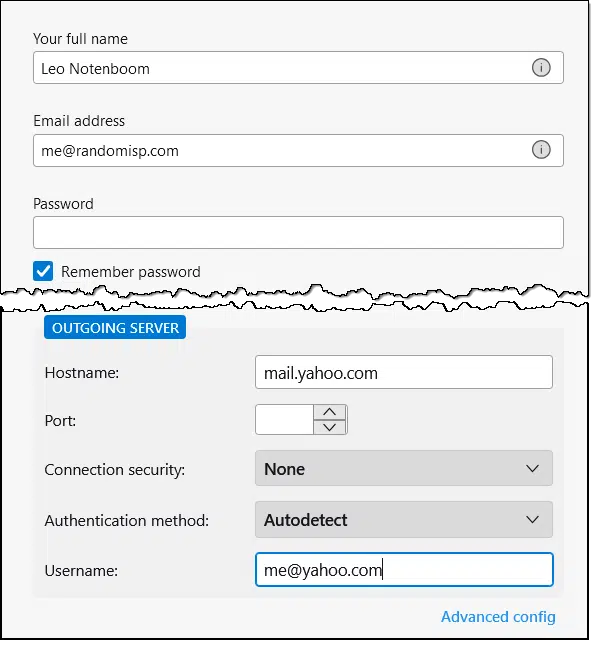
In this example, I've specified that my email address is "me@randomisp.com", and that my "outgoing mail server" (used to send email) is that of Yahoo! If this were to work, I would send email from my email address using Yahoo!'s mail servers.
It's unlikely to work. Yahoo!'s mail servers should not allow email to be sent from domains it does not control, even if you're signed in with a Yahoo! account.
Even if it worked, recipient email services are likely to consider the messages spam because the domain in the email address (randomisp.com) doesn't match the domain(s) owned by the sending service (yahoo.com and others). This is a huge red flag for spam filters. It's the reason I refer to this as "lying"; in effect, you're saying "Yahoo! is okay with this" when they're not. (While I'm using Yahoo! as my example, this is true for any other email service.)
This requires that your domain — in this example, randomisp.com — has email support of some sort. Most specifically, it must support your use of SMTP, the protocol used to send email.
You could configure your email program to send using that service. For example, this time, I've used Gmail's "Send mail as" functionality (Found in Settings -> Accounts and Import).
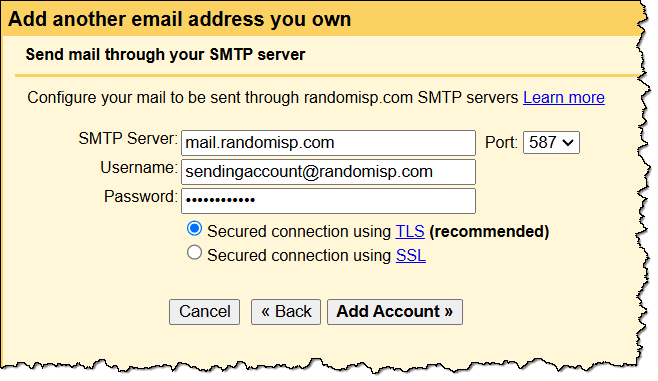
I've still specified "me@randomisp.com" as my email address in a prior step, but now I'm asking Gmail to send the mail on my behalf.
In this scenario, Gmail doesn't actually send the email itself; it connects to the randomisp.com server to send it on. In order to do that, I need to specify credentials to prove I'm allowed to send through that server. There are two typical approaches to providing those credentials.
The second scenario is common if you don't have a full email account at randomisp.com. (There are valid scenarios for this.)
Now, when I send email "From:" me@randomisp.com, the following happens:
This ensures that email "from" randomisp.com really comes from that server. The password requirement ensures that only allowed individuals can do this, not spammers.243
The simplest and most reliable approach to sending email "From:" any specific email address is to configure it as a complete email account for both sending and receiving. That way it's completely separate and doesn't depend on other email services.
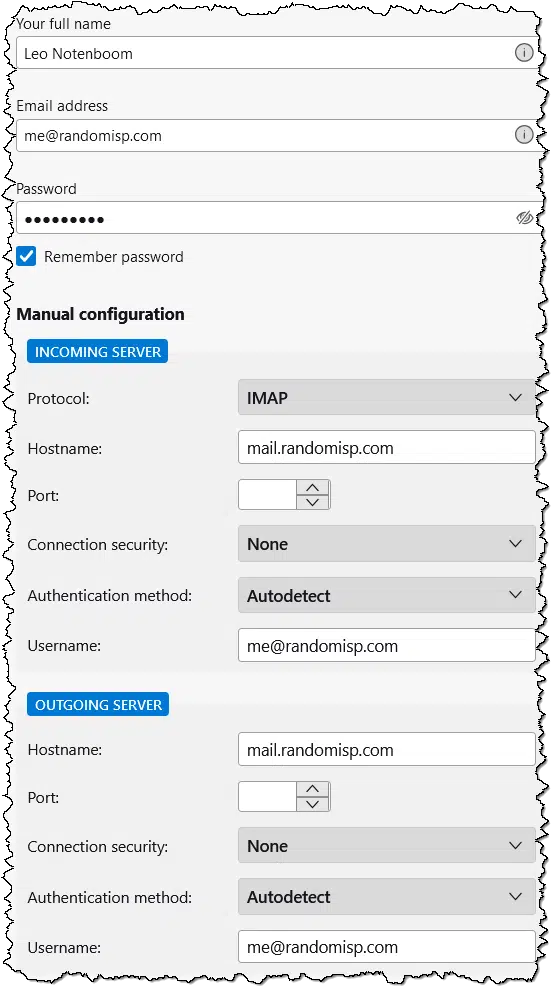
In this example, I've set up a complete account in my email program for me@randomisp.com. The account is configured to send and receive email directly to and from randomisp.com's mail server.
This is the simplest and by far most common solution. In fact, even though I've displayed the configuration details above, many email programs fill in that information for you, and they're often correct with perhaps a little tweaking on your part.
It's the most reliable approach because it's the most direct. Your account sends email through your email provider. There's no secondary "sending" account needed, and you're going through the provider associated with your email address.
This is the approach I recommend. (I've used an email program for my example above, but you can often configure web mail services, like Gmail, to send and receive email from other accounts in the same way.)
252: When no password is required, it's referred to as an open relay, which is ripe for abuse by spammers.
Uninstalling software is a click or two easier in Windows 10 and 11.
(Animation: askleo.com)
Windows has made it a tiny bit easier to uninstall software.
Click on the Start menu, locate the program you want to uninstall, and right-click on its Start menu entry.
For many — though sadly, not all — applications, there will be an "Uninstall" item in the resulting pop-up menu.
Clicking on this item will not always immediately uninstall the application. In some cases, you'll be taken directly to the Add/Remove programs list in Control Panel instead, where you can click on the application in the list and choose Uninstall. Even so, it's a handy shortcut to get there.
Use different tools for different purposes.
I do use BitLocker.
While it's safe to use everywhere, I use it only in some places.
Don't take the fact that I use other encryption tools as well, like Cryptomator, to mean I'm not using Bitlocker. They're different tools for different purposes.
BitLocker encrypts your entire disk, making data safe if your device is lost or stolen. I use it on portable devices but leave it off on desktops for easier data recovery in case I ever need it. Cryptomator, on the other hand, encrypts specific files in the cloud. Different tools serve different needs.
While you can use it in other situations, BitLocker is primarily known as full-disk encryption.
This means that everything on your hard disk is encrypted, including all your files, temporary files, swap and paging files, the registry, and so on. When you're signed in to Windows, this all happens automatically. You use the files in their unencrypted form; encryption and decryption happen as the system writes or reads files to and from your disk.
Note, though, that when you're signed in, there's no sign that files are encrypted. Everything is readily available in unencrypted form. It's only when you've signed out, or when the disk is stolen or removed, that encryption makes the files inaccessible to anyone.
The frustrating news is that you may use BitLocker and not even realize it. Normally, if you right-click on a drive in Windows File Explorer, you'll have an option to turn on or manage BitLocker. If the latter, the state is obvious.
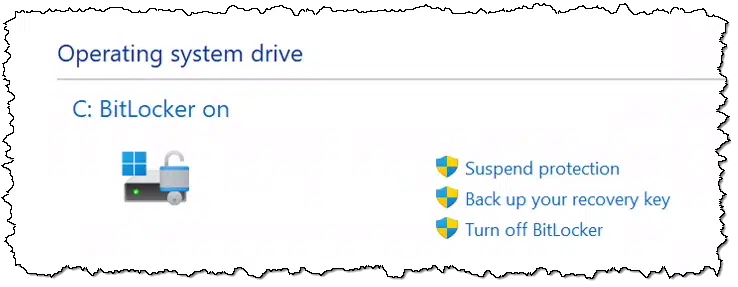
If, however, you're running Windows 11 Home edition, where BitLocker is technically not available, your hard disk may still be encrypted. Quoting Microsoft:
Device Encryption is a Windows feature that enables BitLocker encryption automatically for the Operating System drive and fixed drives. It's particularly beneficial for everyday users who want to ensure their personal information is safe without having to manage complex security settings.
When you first sign in or set up a device with a Microsoft account, or work or school account, Device Encryption is turned on and a recovery key is attached to that account. If you're using a local account, Device Encryption isn't turned on automatically.
Unlike BitLocker Drive Encryption, which is available on Windows Pro, Enterprise, or Education editions, Device Encryption is available on a wider range of devices, including those running Windows Home.
The highlights are mine.
The only way to see if this encryption has been enabled is to visit the Settings app. Within Privacy & security, look for "Device encryption". If that setting is not present, your device doesn't support it. If it is, it may show that your disk is encrypted whether or not you want it to be.
My rule of thumb is simple: I use BitLocker on portable devices and turn it off everywhere else.
Here's my thinking.
Portable devices (like my laptop) are subject to loss and theft as I travel. BitLocker provides an additional layer of protection for all the data on my laptop. My data is visible only if I'm signed in. Otherwise, there's nothing a thief can do to access what's there.
Other devices, like my desktop, aren't subject to the same risk. One thing BitLocker (or any whole-disk encryption) prevents is forensic data recovery. I leave it off because the threat of theft is low, and I'd like the possibility of other forms of data recovery — even as simple as connecting the drive to a different machine244 — to remain.
The only exception: I choose a different, platform-independent solution (like VeraCrypt) if:
I also use Cryptomator.
While it is certainly possible to use Cryptomator only locally, I use it specifically to encrypt some data I put in the cloud. I use it to encrypt a single Dropbox folder where I place all my sensitive stuff (although it's equally appropriate for OneDrive, Google Drive, or any of the other cloud providers that use an app to synchronize files between your computer and their cloud services).
This ensures that should someone ever gain access to my cloud storage, they would not be able to view the contents of those securely encrypted files.
And, yes, this has the odd side effect of having those files doubly encrypted when stored on my laptop hard drive:
There's no harm in this little bit of redundancy.
253: This is technically still possible to access if you have the BitLocker recovery key, but it's an added complication that I see no real reason to take on.
Backup programs occasionally tell you that a partition will be backed up sector by sector. We'll look at why and what it means.
Your backup will work.
This message (or variations on it) can be benign or can indicate a problem with the disk itself. Exactly how it's reported depends on the backup software you're using, but the concept is fairly consistent.
To understand the error, we need to understand a little about how your files are placed on disk and how that disk is typically backed up.
A sector-by-sector backup copies every part of a disk regardless of what is stored there. This happens if the software doesn't recognize the disk's format or finds errors. It's usually fine, but if it's unexpected, let the backup complete and then check the drive for problems.
At the lowest level, disks are organized as a collection of empty boxes, or sectors, into which the operating system can write data.
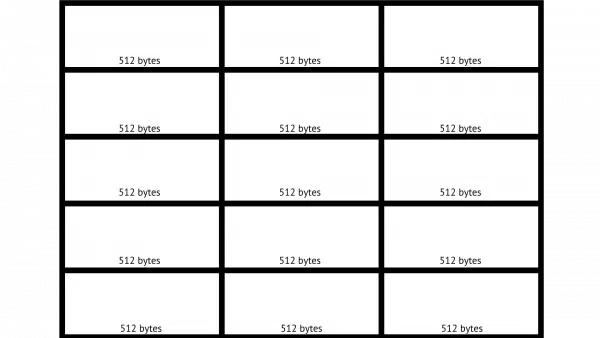
In the over-simplified example above, we have a tiny disk containing 15 sectors, each 512 bytes in size245. That means our disk holds 7,680 bytes.
Files written to a disk are allocated one sector at a time. This means a file that is 1025 bytes in size — 512+512+1 bytes — will occupy three sectors.
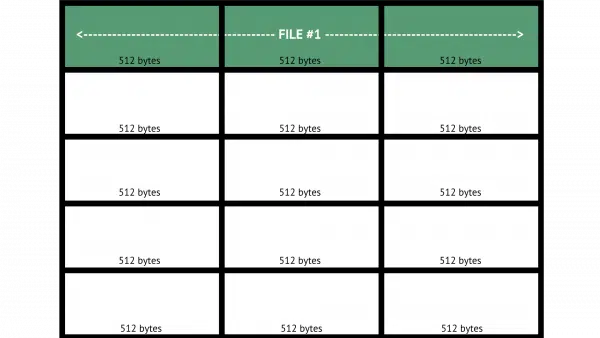
If you recall the concept of fragmentation, you'll understand that the file doesn't have to be organized in sequence, as shown above. Parts of the file can live anywhere on the disk.
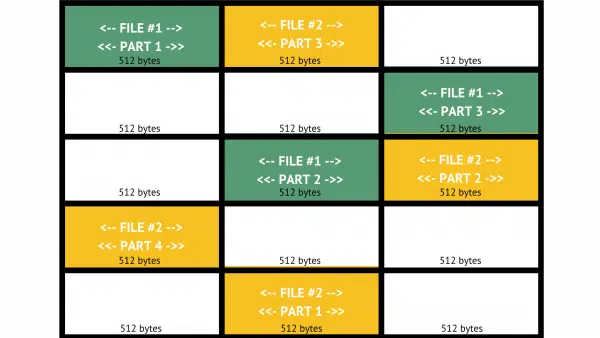
Not only has our example file been scattered into three disjoint sectors, we've added a second file 1600 bytes in size (512+512+512+64, thus requiring four sectors), similarly distributed randomly.
Keeping track of where all those parts are is the job of the file system format. In Windows, that's most commonly NTFS, but can other formats include exFAT, FAT32, or ext4 (used in Linux systems).
A normal backup understands file systems and backs up files one file at a time. This is true for simple file-copy style backups as well as for system-image backups.
A system image of the second example above might look something like this:
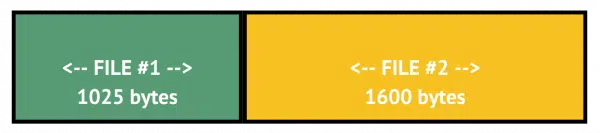
The backup doesn't reflect how the files were laid out on the hard disk. There's no "wasted" space; each file takes only the room it needs within the image.
This requires that the backup tool understands how the files are laid out. In other words, it has to understand NTFS, exFAT, FAT32, and so on.246
When backing up sector-by-sector, the backup tool ignores what the disk contains or how things are organized. As the term implies, a sector-by-sector backup backs up each sector on the hard disk in turn.
A sector-by-sector backup of our example disk above might look something like this.

I've colored the sectors containing files, but it's important to realize that the backup software doesn't know or care what is in those sectors. The sectors containing data, as well as the unused (white) sectors, are all written to the backup without any regard for what the layout means.
With that understanding under our belt, we can finally answer the question.
Backup programs elect to perform a sector-by-sector backup in several situations. Here are the two most common.
Unknown disk format. Recall that I said the backup program needs to understand the underlying disk format organization like NTFS. If the disk doesn't use a format that the backup program recognizes, then sector-by-sector is the only option. A Windows backup program trying to back up a disk formatted with Linux's ext4 could cause this error, since Windows doesn't understand ext4. This can also be the case if the disk isn't formatted at all.
Errors. In the original question, the backup program reported an error on the disk being backed up. Usually, though not always, this is the equivalent of CHKDSK reporting an error. Because there's an error, the backup program cannot trust that the disk formatting information is correct. As a result, the only safe thing to do is to backup the disk sector-by-sector.
A sector-by-sector backup is sometimes referred to as a "forensic" backup. This is because in addition to backing up the data on your hard disk, it backs up:
This type of a backup can then be used to undelete files or perform other types of data recovery without affecting the original disk from which the backup was created.
So, you're setting up a backup, and your backup program informs you that one of your disks will have to be a sector-by-sector backup. What should you do?
Let the backup proceed. What happens after the backup is complete depends on a few things.
Sometimes it makes sense for a backup program to choose a sector-by-sector approach. In fact, it's so normal that some programs might not even mention it (other than in a log). For example, consider the following disk layout.
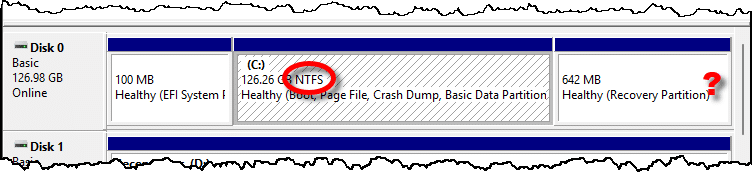
The "C:" partition is NTFS, and backup programs will recognize it. But the "Healthy (Recovery Partition)" has no format indicated. It's common that a backup program may revert to sector-by-sector when backing up this partition.
Sometimes it's the result of an error of some sort, as in the original question. Particularly if the error is in a data partition (like the C: drive above), then further investigation into the state of that drive is called for. That most commonly begins with a CHKDSK for diagnosis.

254: Modern hard disks have larger sector sizes, but this is fine for our example.
255: It can understand these formats itself or rely on the operating system to handle it. It's up to the backup program, but the impact is the same.
WordPad is being removed from Windows 11. We can get it back.
WordPad is a powerful little word processing program that's been part of Windows for decades. Unlike Notepad, which acts only on plain text, WordPad allows you to edit rich text, meaning you can do things like bold, italics, use different fonts, colors, formatting, images, and more.
Microsoft has removed it from Windows 11. While it remains present in existing installations, it's nowhere to be found on new setups.
I have theories about why Microsoft is removing it, but for now, let's get that handy lightweight program back, shall we?
Microsoft is removing WordPad from Windows 11, but you can get it back. Copy the WordPad files from another Windows 10 or 11 PC and place them in the same folder on your machine. Avoid risky downloads; stick to safe sources. WordPad remains a fast, simple option for basic documents.
Find another Windows 10 or Windows 11 machine that still has WordPad installed. On that machine, copy the contents of the following folder to a USB stick247:
C:\Program Files\Windows NT\Accessories
If you're curious, that folder appears to contain the following files that relate only to WordPad:
C:\Program Files\Windows NT\Accessories\wordpad.exe
C:\Program Files\Windows NT\Accessories\WordpadFilter.dll
C:\Program Files\Windows NT\Accessories\en-US\wordpad.exe.mui248
Now, go to the machine that doesn't have WordPad. Locate the "C:\Program Files\Windows NT\Accessories" folder. It may be empty or have only an "en-US" folder.
Copy the WordPad files into this folder in the same layout as you found them on the other computer. You may need to do this in a Windows Command Prompt running "as" administrator.249
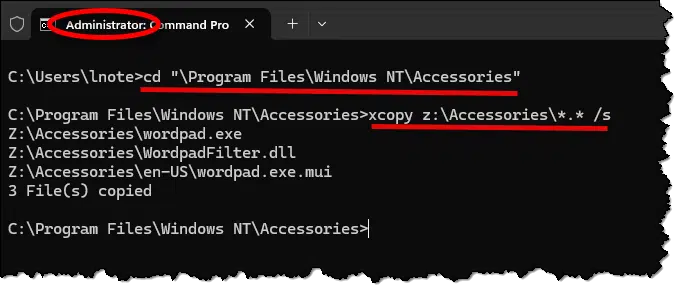
You're not quite done.
Return to Windows File Explorer and view the folder "C:\Program Files\Windows NT\Accessories".
Double-click on Wordpad (or Wordpad.exe if extensions are shown) to run WordPad.
Right click on the WordPad icon in the taskbar.
You can, if you like, click on Pin to taskbar.
Alternatively, right-click on the Windows Wordpad Application in that menu, and you'll get an additional menu that allows you to:
Finally, if you're so inclined, you can create a desktop shortcut as well. Right-click anywhere on the empty desktop and click New followed by Shortcut.
Enter the location of the item as "C:\Program Files\Windows NT\Accessories\wordpad.exe". Click Next and then Finish.
The result will be a shortcut item on your desktop to run WordPad.

If you've been taking regular image backups of a machine on which WordPad once existed but has since disappeared, you can recover it.
Just select an image backup that was taken before WordPad disappeared. Mount it and copy the WordPad files needed from there.
I've seen and heard of download sites that claim to let you download WordPad. The catch is in that claim. The download may be WordPad. It may be WordPad plus malware. It may be just malware. We just don't know.
Given how easy it is to get WordPad from a working Windows 10 or 11 installation, there's no need to risk it.
WordPad, which is free, competes with Word, which makes Microsoft money.
I know, it's a cynical theory, but given how hard Microsoft has been pushing Microsoft/Office/365/CoPilot, it kinda fits. WordPad can view many documents with no need to go online or buy anything. It was probably cutting into Microsoft's marketing efforts for OneDrive and Microsoft 365 CoPilot.
But it's just a theory.

256: Or any other way of copying files from one computer to another.
257: My assumption is that all references to "en-US" will be replaced by the appropriate language/locale for your installation.
258: Technically, any approach that will allow you to perform the copy "as administrator" will work. Command Prompt is easiest, in my opinion.
Given the size of hard drives, it's easy to make sure you haven't forgotten any files when migrating to a new machine.

I recently helped a friend move to a new computer. The old machine was well past its prime, and it was time to migrate to something more current.
One constant in the industry is that hard disks only get bigger; the hard disk on the old machine was significantly smaller than that of the new. On top of that, my friend isn't a heavy hard-disk user, so the old disk wasn't even close to being full.
Here are the steps I took.
This copied everything from the old machine to the new, including a lot of stuff we'll never use (like Windows itself or the programs installed on the old machine). But more importantly, it copied everything we might use or need someday: all the data files and all the random little tidbits we might not think of. Everything is in that "C:\Old_HP" folder.
And the new, larger, hard drive has oodles of space to spare.
(In case you're wondering, yes, the old machine also had a "C:\OldMachine" folder in it from the migration that happened years earlier. Like I said, hard drives only get bigger. )
Terms used to measure disk space can be ambiguous. A megabyte may mean one thing to you and another to your computer.

They were never there.
Believe it or not, there's no agreed-on definition of what a gigabyte is.
Let me clarify: there are different definitions, and which gets used depends on how you think.
Disk space terms can be misleading because computers use binary (base 2) math while humans think in decimal (base 10). As a result, a 1TB drive is marketed as one trillion bytes but shows as 931GB in your system. This confusion comes from differences in measurement, not missing storage.
The problem stems from the fact that computers think in powers of two (1, 2, 4, 8, 16, and so on) while people think in terms of powers of 10 (1, 10, 100, 1000, and so on).
To a computer, a kilobyte is 1024 bytes (two to the 10th power). A megabyte is 1,048,576 bytes (1024 times 1024, or two to the 20th). And a gigabyte is 1,073,741,824 bytes (1024 times 1024 times 1024, or two to the 30th).
To a computer, a terabyte would be 1,099,511,627,776 bytes (1024 * 1024 * 1024 * 1024, or two to the 40th).
People don't think that way.
We think of a kilobyte as around 1,000 bytes. That's close enough for most casual conversations. But when we think of a megabyte as around 1,000,000 bytes, a gigabyte as around 1,000,000,000 bytes, or a terabyte as around 1,000,000,000,000 bytes, we're getting less and less accurate at each step.
To a computer, 1,000,000,000,000 bytes is really 931 gigabytes.
And sure enough, my own one-terabyte drive shows exactly that:
Here's where it gets messy.
If you're going to sell a hard drive that holds 1,000,000,000,000 bytes, and you can call it either:
Which would you choose? "One terabyte" sure sounds like you're getting a bunch more for your money than "931GB", doesn't it?
You're getting a terabyte drive — unless you're thinking like a computer.
The problem is that the terms kilobyte, megabyte, and so on are ambiguous250. The same term can mean different things depending on context or even just depending on a whim.
Because of this confusion, new terms have been created: "kibibyte" (and the mebibyte, gibibyte, tebibyte and so on). (Note the spelling with a "b".)
These terms define the "think like a computer" value.
These terms are abbreviated slightly differently: while KB refers to a kilobyte, KiB refers to a kibibyte.
In contexts where these terms are used, kilo, mega, and so on are all assumed to take on their "human" values, based on powers of 10.
In other words, the salespeople weren't lying when they sold you a terabyte drive that has only 931GB on it. If anything, it's the manufacturers' failure to use the new, more accurate terms that leads to confusion.
Because 931GB is not the same as 931GiB.
To be fair, I can't blame the OS designers for not wanting to throw even more generally unheard-of geeky terms at us.
What I just described is the major reason for the discrepancy in total disk capacity, but other factors contribute to less space being available than you expect.
On a completely empty hard disk, the operating system reserves some amount of space for its own use. For example, the top-level directory structure, even if empty, takes some space. Security information, the Recycle Bin, and other information are on the hard disk before you create your first file. How much space is used for this depends on how the disk is formatted.
And, of course, if this is your system drive, the operating system may also have large hidden files, including swap and hibernation files. Many hard disks include hidden partitions that eat up even more space.

259: Technically, they are not at all ambiguous. The prefixes kilo, mega, and so on specifically mean factors based on powers of 10, not powers of two. In other words, they are specifically human-based numbers. A kilometer is unambiguously exactly 1,000 meters, for example. The computer industry has caused the confusion by using the terms inaccurately for numbers based on powers of two. For decades.
It can seem like your Microsoft account has a split personality. We'll examine when that might happen, why, and what to keep in mind when it does.
You have one email address that you use to identify yourself to Microsoft. That's your Microsoft account. As you might expect, it has a password or some other form of authorization. It might be what you use to sign in to your PC, for example.
When you use that email address to read email, though, you might need to use a completely different password.
Huh?
Buckle up. It's easy to get confused on this one.
You can set up your Microsoft account with a non-Microsoft email, like Gmail, which can lead to two passwords: one for Microsoft services and another for Gmail. Always use the password tied to the service you're accessing. To avoid confusion, consider using a dedicated Microsoft email for your Microsoft account.
We normally think of a Microsoft account as being a Microsoft-supplied email address and the credentials251 associated with it. You use the same credentials to sign into your email as you do to sign in to other Microsoft services or your computer.
The Microsoft account I use for many of my examples is "askleoexample@hotmail.com", for example.
Your Microsoft account is both an email account and an "everything else Microsoft" account. You use the same credentials for both actions because it's a single account.
Very simple. Thankfully, it's the most common scenario.
This is where things get a little confusing. I just created a Microsoft account using my Gmail address252.
My Gmail account has its own email address — say askleotest@gmail.com — and its own password. That's how I sign in to Google services and read email sent to that address.
When I used that email address to set up a Microsoft account, I was asked to create a new password for that account. I could have used the same password as I did for signing into Google, but that's not good security253. So I specified a different password.
It appears that this email address — askleotest@gmail.com — now has two different passwords: one for Gmail and one for Microsoft.
Here's the thing to remember: different passwords for different services.
It's just the same as using your email address as your user ID on any other service. For example, if you set up a Spotify account with that email address, then:
Microsoft is just another service where I used my Gmail address as my user ID.
Except... there's still confusion ahead.
Let's say your Microsoft account uses a non-Microsoft email address as its identifier, as above where I've used askleotest@gmail.com to identify my Microsoft account.
Now let's say you're configuring Outlook (any version) to access your email. It asks for your password. Which one do you specify?
The answer is the second. To understand why, we need to pay careful attention to what we're asking for.
In this case, we're asking an email interface to access our email. To access email from a Gmail account, I need to specify my Gmail password. That we happen to be using a Microsoft program to access that email has no bearing on which password we use, because we are not signing into a Microsoft service; we're signing into a Google service.
Use the password for the services you're attempting to access. That means the Microsoft password for Microsoft services like OneDrive, Office, or signing into your PC, and the Google password for Google services such as Gmail, Google Drive, YouTube, and others.
260: I say "password or credentials" because, of course, you can have passwordless Microsoft accounts and can use other forms of identification when you sign in. None of that really makes a difference here, so I'll use "credentials" to mean passwords or however you confirm your identity when signing in to your Microsoft account.
261: I used a Gmail address/account as my example, but this applies to any email address not provided by Microsoft.
262: If either account is ever compromised and the password revealed, both accounts are compromised. Unique passwords prevent this scenario.
Microsoft Authenticator is not necessarily two-factor authentication, but the two do share one important characteristic: the need to prepare for loss.

I regularly revisit several topics because as often as I talk about them, I keep hearing from people who haven't got the message. I tend to go on about backing up, password managers, two-factor authentication, and so on.
Today's topic: account recovery information. A little preparation can save you a world of hurt in certain situations.
Situations like losing your Microsoft Authenticator app.
Microsoft Authenticator simplifies website logins, but losing it could lock you out. Always set up backup recovery options, like phone numbers or emails, and keep them updated. Without them, account recovery could be difficult or even impossible. Preparation is key to avoiding frustration or permanently losing access to your account.
My Microsoft Authenticator app254 looks like this.
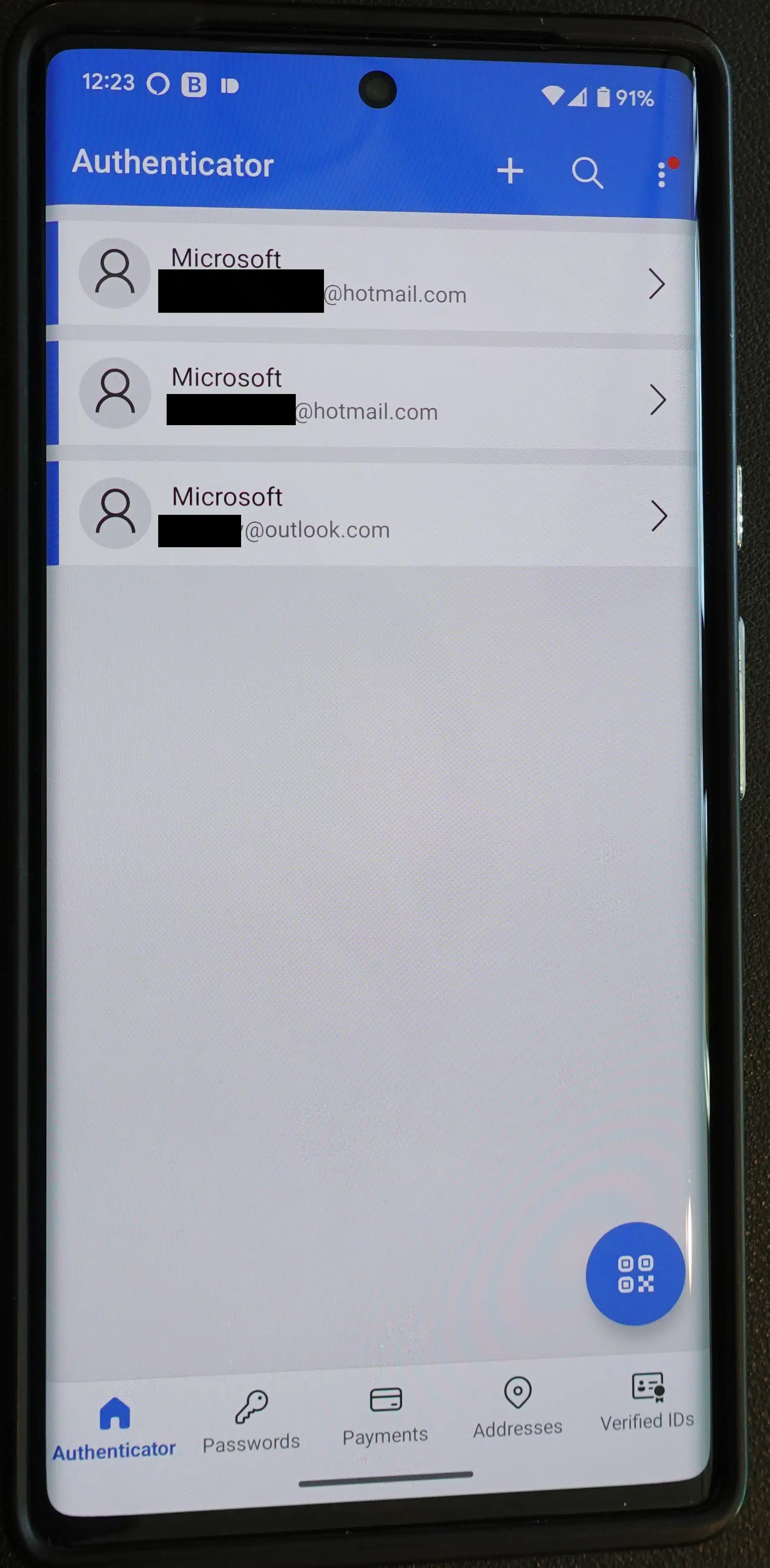
Per Microsoft:
Microsoft Authenticator is a free app that helps you sign in to all your accounts without using a password – just use a fingerprint, face recognition, or a PIN.
The "fingerprint, face recognition, or a PIN" are the security selections offered by your mobile device. When you use Microsoft Authenticator, you first authenticate with your device using one of those techniques.
The scenario I run into most often is this255.
A few seconds after this sequence is complete, the website I'm signing into updates, and I'm in.
The scenario that concerns most folks is what happens when they lose the device on which Microsoft Authenticator is installed.
Fortunately, the system is designed to handle this situation, albeit with a little more inconvenience.
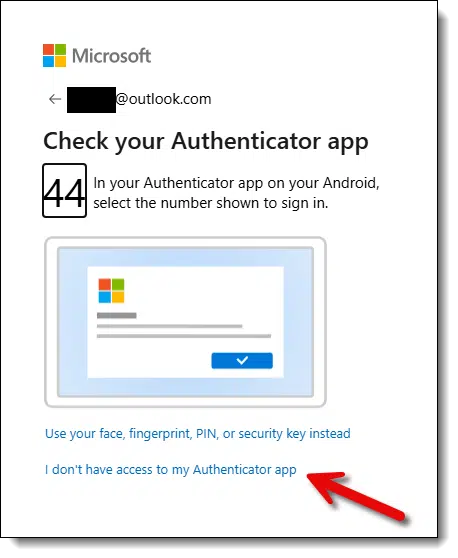
Note the two links at the bottom:
The alternate approach should seem very familiar: you'll be shown a partial email address or phone number (or both), and asked to select one to receive a code.
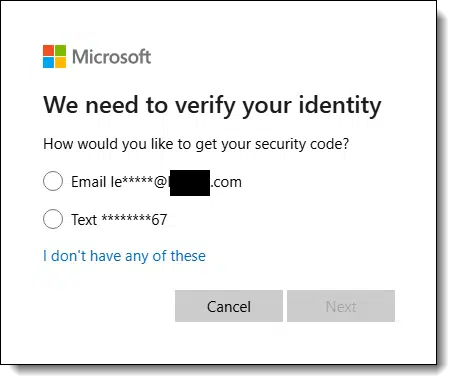
Select one option and you'll be asked to confirm you know its value. For example, if I were to select "Text" above, I would have to enter the full number that ends in 67 to prove that I know it. Once I've done so, a code is sent. Entering that code then signs me in.
Once you've signed in, you can:
But the bottom line is that you're in without using the Microsoft Authenticator.
This system relies on one huge assumption: you've previously configured email addresses or phone numbers on which to receive security codes, and you've kept them up to date.
Too many people fail this assumption. Either they never set up this information in the first place or the information they originally configured is now out of date. If you no longer have access to the configured email account or phone number, it's no better than never having set one up.
When this step fails — notice the "I don't have any of these" in the "We need to verify your identity" request above — Microsoft will take you through a more convoluted advanced recovery sequence. This can be very frustrating and can include delays of up to 30 days before regaining access to the account. Even worse, it can fail.
If it fails — if you are unable to prove you are who you say you are and should be granted access to the account — you will not be granted access. The account will be lost forever.
263: Proof, by the way, that "if it can be seen, it can be copied". The screenshot function on my phone is disabled for "sensitive" apps like authenticators. So a camera does the trick. I left it obviously looking like a photo to make the point, but some photo editing could have made this look nearly indistinguishable from a screenshot.
264: This list of steps seems much more daunting than it is. I've laid it all out explicitly, but in practice, it's a quick few taps and you're done.
Your mouse is a powerful selection tool. Combined with the keyboard, you can easily select exactly and only what you need.

If you want to act on multiple items — say you have a collection of files you want to copy to another location — the mouse may be your best selection tool.
Click, hold, and drag the mouse to create a rectangle that encompasses the items you want to operate on. When you release the mouse button, those items will be selected. Right-click on any of them and click on Copy, for example, to copy all of them. Similarly, click on any of the selected items, hold, and drag to move the selected items as a single unit.
What if you don't want everything in the list you've selected?
Hold down the CTRL key and click on the items you want to remove from your selection. What remains selected can be operated on as a single unit.
The "This device is currently in use" message can be annoying and confusing if you're not using the device. We'll look at how to proceed safely.
I have some external hard drives that Windows 11 does not eject properly. This pop-up appears when nothing else is using it: "This device is in use. Close any programs that are using the device, then try again."[/al_question]
Well, it's not wrong. There is something using the device...
...it's just not you. It's also not obvious.
We need to dig a little deeper.
When trying to eject an external drive, Windows may claim it's "in use" even when you're not actively using it. Use Process Explorer from SysInternals to identify which programs or system processes are accessing the drive. Close those programs. If that's not possible, unplugging it anyway is usually okay. Have backups just in case.
You have connected an external drive to your computer. When you're through using it and attempt to "Safely remove hardware" or right-click the drive in Windows File Explorer and click "Eject", you get a pop-up message with the following text.
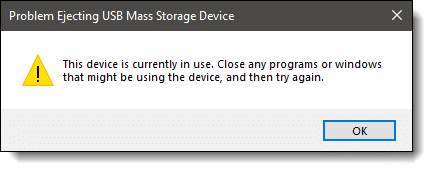
None of the programs you have running are accessing anything on the drive. From your perspective, the drive is most certainly not "in use".
And yet Windows claims it is.
Because... it is.
If you haven't already installed the SysInternals toolkit, I recommend you do so. For this problem, we're going to use Process Explorer (not Process Monitor), which is one of those tools.
Run Process Explorer, and in its File menu, click on Show Details for All Processes.
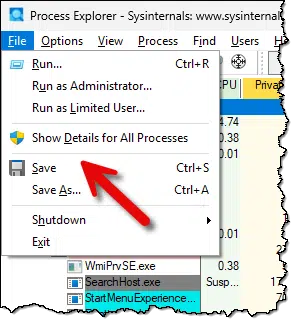
Confirm a UAC prompt.
Now click on the Find menu and Find Handle or DLL... under that.
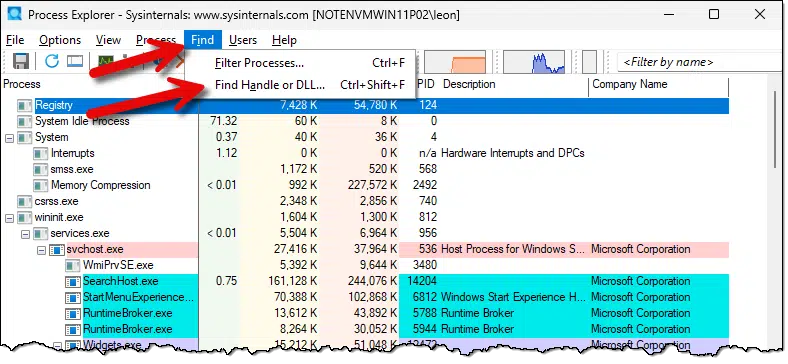
This will open a simple search box.
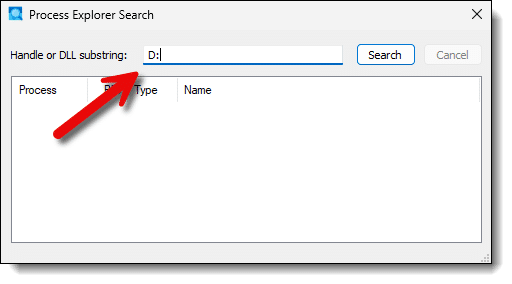
Enter the drive letter of the drive you're attempting to eject, including the colon. In the example above, I've entered "D:".
Click on Search and wait. This search can take a little time.
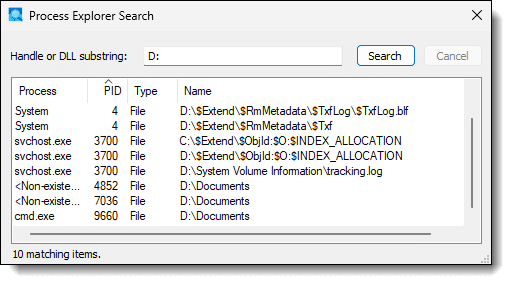
The results display the offending process(es) that are accessing the drive and preventing you from ejecting it.
There are several results that may appear, ranging from obvious to informative to completely unhelpful. While we hope not to see the latter, it happens.
Let's explore the results from our example above.
In my case, this is the obvious offender. In order to have something to find, I ran the Command Prompt and made "D:" the current drive and "Documents" the current folder. All I need to do is close Command Prompt and this usage will disappear.
This is an example of a system service accessing the drive to perform its task. Svchost is just one example. Other common offenders here might include the search indexer or your anti-malware scanner.
The ideal solution is to wait until the service has done whatever it was doing. Eventually, the indexer will stop indexing or the scanner will complete its scan, and in both cases the drive will be released.
We'll deal with the situation where that doesn't happen (or you can't wait) below.
This is similar to the system service we just discussed, except with less information. The only real information in the example above is that the "Name" field for the System process appears to indicate it has NTFS file system overhead information open; we don't know why.
This means we have no clear solutions.
This was new to me as I wrote this article. I believe it's a process that had something open on the drive when the scan began, but the process itself terminated before the search results were displayed. But that's just a theory.
Running the search again may or may not remove the item or replace it with a more easily identifiable culprit.
If you gather enough information from what we just did to be able to close a program or wait for something to complete, then retry your Safely Remove Hardware or Eject command. If it works, you've resolved your issue.
If, however, the message persists, you have two options.
Option #1: The completely 100% safe option.
But... what a pain, particularly if this happens often.
Option #2: The pragmatic, almost-always-safe option.
Using Process Explorer as we have above, confirm that the drive isn't being used for anything.
Then unplug it anyway.
Particularly in recent versions of Windows, external drives automatically have "quick removal" enabled. This means that it's almost always safe to unplug the device. The only practical risk is if you're writing to it heavily at the time, and using Process Explorer, we've done our best to ensure that's not happening.
I have to stress that there's no guarantee this will work out okay, and you should, of course, always have your data backed up.
But pulling the plug is almost always what I do myself.

Backing up email is easy to overlook yet critical.

We keep a lot of information in email. Even if you think you're above email — using texting, social media, or other approaches to communicate — your email account continues to be an important repository for account setup and recovery at various sites and services. Many official entities now communicate with you only (or primarily) via email.
No matter how much you use it — a little or a lot — email is critically important.
Are you backing it up?
If you're using an online email service — especially a free email service — and you're not taking additional steps to back up your email messages and address book, you're at risk of losing it all in an instant. Should your account ever get hacked or should you be unable to access it for any reason, it could all disappear.
There are several approaches. Using a desktop email program to download everything or a different email service to replicate your primary one are the two most common, but what matters is that you do it now, before you run into problems.
I hear regularly from people who have. Please don't let me hear that from you.
Your downloads folder is not a garbage can, but many people treat it that way.

I can't count the number of times I help someone with their computer and find their Downloads folder full of dozens or hundreds of files spanning multiple years. Files they downloaded once and never looked at again. Files they may not have even realized they were downloading. Multiple copies of the same files, with (1), (2) and so on added to make the file names unique.
It's no surprise they can't find what they're looking for.
There's no technical reason that mess makes you less effective. But from a practical point of view, you'll be better off if you do just a couple of things when it comes to downloads.
Think of the Downloads folder as a temporary place to keep transient files: a place to hold files you've just downloaded until you decide whether to file or delete them.
Sure, you can keep things there for decades if your machine lasts that long.
But... why?
OneDrive's backup "feature" is confusing even when it comes to turning it off.
I've talked a lot about how the OneDrive backup "feature" is not a feature at all, but rather a confusing configuration change that risks data loss.
Turning it on (accidentally or otherwise) makes changes you might not expect.
Turning it off, however, does not undo the changes you would expect.
OneDrive's backup "feature" can cause confusion and risk of data loss. Enabling it moves files to OneDrive without clear notice. Turning it off doesn't restore files to their original location; you must manually move them back. Avoid this "feature" to keep control of your data.
I'll use the "Documents" folder for examples throughout this article, but this applies equally to Documents, Pictures, Desktop, Music, and Videos folders.
Your Documents folder typically lives at:
C:\Users\username\Documents
It resides on your system hard disk and nowhere else. Its contents are limited in size only by the amount of space available on your system hard disk.
It is frighteningly easy to enable the OneDrive backup "feature" by accident. Answer "yes" to any of the questions Windows asks you about backing up — even if they don't mention OneDrive — and it's likely the feature will be turned on.
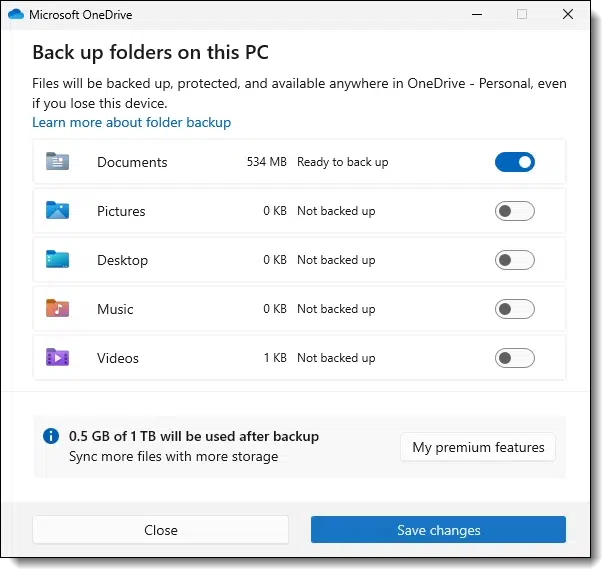
When the OneDrive backup "feature" is turned on:
Since your documents now live within the OneDrive folder, they're automatically uploaded and synchronized with OneDrive.com online (as well as any other computers signed into the same OneDrive account). That acts as a kind of backup.
Its contents are limited in size by the amount of space available in your OneDrive subscription. If you have a free account, that's 5GB.
It might seem obvious that to avoid all this, we can just turn the feature off. And, indeed, that's the first step.
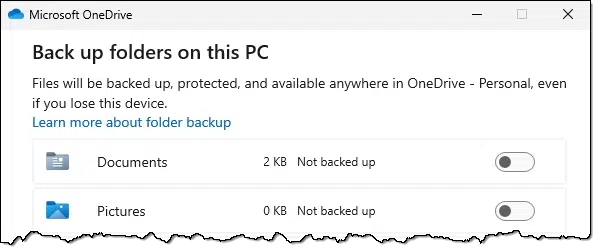
If the OneDrive Backup "feature" was on and you turn it off, this happens:
That's pretty much it.
Note what's missing: your files are not moved back. They remain in the OneDrive Documents folder, where they will continue to be synced with OneDrive and be vulnerable to several of the issues involved in that "feature".
In order to complete the process, you must manually return your files from the OneDrive Documents folder to your original Documents folder.
C:\Users\username\OneDrive\Documents ‡' C:\Users\username\Documents
Note that moving (not copying) the files will remove them from the OneDrive folder. OneDrive will see this as a deletion and will delete the files from OneDrive.com as well as any other PCs signed in to the same OneDrive account.
When you're done, the files will live only on your PC in the original Documents folder, unrelated to OneDrive. If you're so inclined, you can delete the now empty OneDrive Documents folder.
265: I consistently put "feature" in quotes to make a point: I don't consider this a feature at all. It's more of a bug as far as I'm concerned.
Use a password vault. Just do it.

You are more secure using a reputable password vault than if you don't. Period.
So why aren't you using one?
Pick from any of several reputable tools: closed or open-source, cloud or local only, PC, Mac, or mobile — there are many good options.
There are two essential reasons to use a password vault.
Those two items are critical best practices for online security today. They're difficult to accomplish without help. Without a vault, people create simple passwords and reuse them, which are both frequent causes of account compromise.
A good password vault gives you other security and safety features, but enabling long, complex passwords and avoiding password reuse are the most important features any vault provides.
It's safer than every practical alternative.
One tool on two machines makes copying files a snap.

I've been a big fan of Dropbox for a long time. I was reminded of one of the reasons why when I helped a friend migrate to a new computer some years ago.
The migration was from Windows Vista to Windows 10, so it was a non-trivial move — it wasn't a case where we could simply upgrade Vista in place and have everything that was there before still be there after. We had to install applications from scratch and then copy over the data.
After configuring the operating system to a basic level, I installed Dropbox on both machines, using a free account created specifically for my friend.
That created a Dropbox folder on both the old and new computers.
The magic thereafter was simple: files placed into the Dropbox folder on one machine would, in a few seconds, appear in the Dropbox folder of the other. It was a quick and easy way to transfer files from machine to machine without needing USB sticks or setting up a network (as long as both machines have internet connectivity).
Other services can be used for this — most notably OneDrive — but I find Dropbox the simplest to set up and the easiest to use for this purpose.
I created a sub-folder in my friend's Dropbox folder (which then immediately appeared on her "other" machine). I then used Dropbox's sharing capabilities to share that folder from her account to mine. Once I accepted the share from my own Dropbox account, the sub-folder appeared in my Dropbox installation across all my machines.
Files placed in this shared folder appear on both my friend's machines and my own. To copy a file to her machine, I place it in this shared folder. If she wants to get a file to me, she places it in that folder on one of her machines. Voila: no need to email files between us.
You can download some versions of Windows from legitimate sources. If you have a legal retail product key, this can be your replacement media.
First, take a full system-image backup of your computer to use as a fallback. You can always restore to that image instead of reinstalling, and you'll be back to where you were at the time you took the backup.
You could also get in touch with the vendor who sold you the computer. They provided you with a copy once; perhaps they'll give you a replacement copy.
You could buy a new copy of Windows. Most people aren't interested in doing that because they don't want to pay for something they feel they've already purchased.
That's when most people resort to finding a place from which to download Windows. Depending on the version of Windows and where you find it, it might be legal or it might not.
Windows 10 and 11 can be downloaded from Microsoft directly. With a product key, you can upgrade any machine already running a licensed copy of Windows to Windows 10 or 11 for free. Otherwise, you'll need to purchase a license key.
It's been my understanding for years that downloading a copy of Windows from just about anywhere was illegal. Even if you had a product key to activate it, simply downloading a copy of the software would break copyright law.
I believe that's still true for versions before Windows 8.1. I know of no legal places to download Windows XP, Vista, or 7.
Beginning with Windows 7, Microsoft made full ISOs of the operating system available for download.
But you still need your product key. The product key cannot be downloaded for free; you need one that works (and not all do), or you need to purchase a new one. (There are some exceptions around upgrading Windows 10.)
Legal issues aside, I will say this: in my opinion, downloading Windows is ethical if and only if you already have a valid, purchased product key, or the machine you are installing on already has a digital license from a previous installation.
So I must cover my assets and include this bottom-line caveat: if you elect to get this download from anywhere other than Microsoft itself, you assume all risk and potential liability relating to its legality. (Not to mention its security.)
Download Windows 11 here.
That's a download of the US-English version directly from Microsoft.
Even though Windows 11 may automatically download on some machines, downloading the ISO or running the installation assistant is often the fastest, most reliable way to perform an upgrade or reinstall.
Download Windows 10 here.
Once again, that's a download of the US-English version directly from Microsoft.
These versions are no longer available for download from Microsoft. They have been unsupported for many years. While there may be third-party download sites offering images for these operating systems, be extremely cautious. They often include unwanted extras like malware.
It's big — really big. You're looking at a download of several gigabytes for most Windows editions. Depending on your internet speed, that could be anywhere from an hour to several days' worth of download. This is true whether you download an ISO file to be burned to a DVD or run the Media Creation Tool to create a bootable USB.
It's not OEM. These downloads are the generic, retail versions of Windows. If your machine came with a copy customized by your Original Equipment Manufacturer (OEM), then those customizations will not be present and your product key may not work. Product-key issues aside, this typically means that after installing this copy, you need to get any missing applications and drivers from the computer manufacturer directly.
Again, make sure you download the edition of Windows for which your product key was originally issued. That means matching the Windows version (10 or 11), the edition (Home, Pro, etc.), and possibly bit-ness (32 or 64).
If your product key is an OEM product key, it may not work with the retail version download. There's no legal way around this I'm aware of other than to return to your computer manufacturer and ask for a replacement Windows disc or purchase a retail Windows product key.
You can, of course, download Windows without having a product key at all. Windows 10 and 11 will run, but an assortment of features will be disabled until you activate the product with a key.
I reflect on Microsoft, and some of their many disappointing decisions that would indicate average consumers aren't really on their radar.

I worked at Microsoft for over 18 years; it was exciting but far from perfect. Nowadays, Microsoft prioritizes corporate interests over everyday users, making frustrating product decisions. I'd love better alternatives, but Linux, Mac, or Chromebooks may not suit everyone. I'll keep helping Windows users practically, despite my concerns.
Why they happen, and what to do about them.

All I can say is maybe.
I might even say probably, but I can't say yes, since there are other explanations.
Let's review what's going on.
Confirmation messages with a link or code are sent to prevent others from changing your password. You might get a notification if someone is trying to break into your account, or if they mistype your email address instead of their own when trying to reset their password. As long as your associated email accounts are secure, you can ignore the notification. Enable two-factor authentication for even more Facebook account security.
First, we need to understand how Facebook password recovery works.
If you forget your Facebook password, the first step is to click the "Forgot password?" link on the Facebook log-in screen.
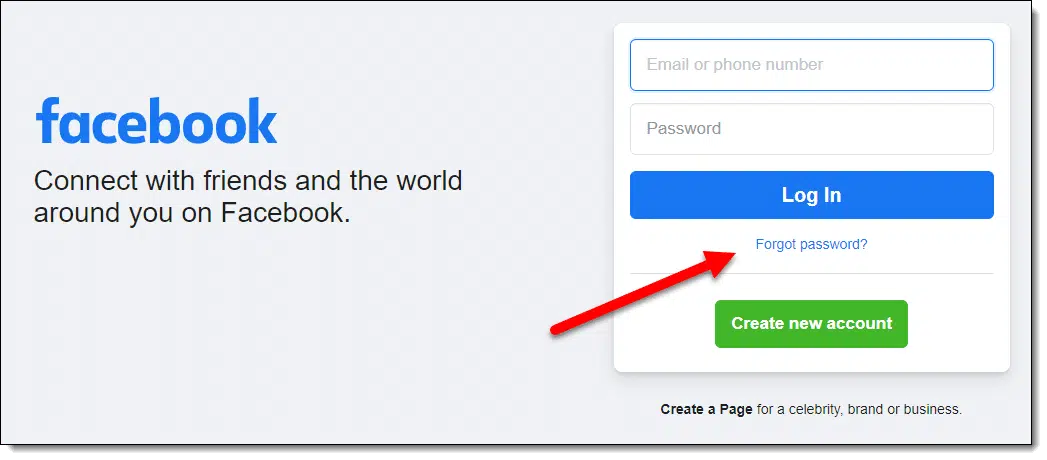
That walks you through the process of account recovery, using information you know about the account to prove that you are the rightful owner.
One of those pieces of information is your email address. You enter the email address associated with your account, and Facebook emails a code to that address.
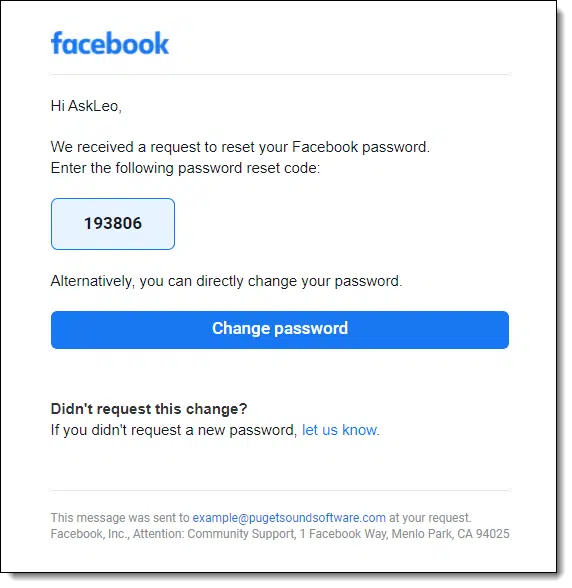
Since you don't know your password and a secure system won't tell it to you, the option is simply to set a new password. You prove you are the rightful owner of the Facebook account with your ability to access the account's email address. You do that by clicking on a link in that email or typing in the one-time password reset code provided in that email.
That you got two notifications sent to two different accounts is a good thing. It means you have an alternate or additional email address associated with your account. Facebook sends a password-reset notification to all email addresses associated with your account.
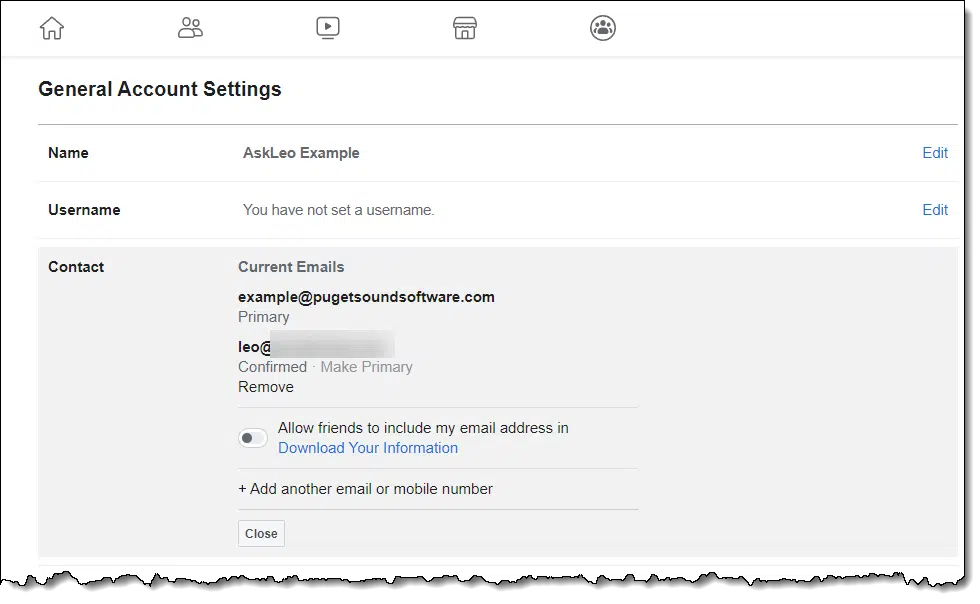
That way, if one of those email accounts gets hacked or you lose access to it for some other reason, you'll still get notifications at the other account.
I strongly recommend everyone have at least one alternate email address associated with their Facebook account (and keep them up to date).
Now let's look at how those notification emails might be triggered.
Say someone knows your email address and they want to hack into your Facebook account. This happens to me frequently with the example accounts I use here on Ask Leo!257
One approach is for that person to enter your email address into the account recovery process and see if Facebook will let them set a new password for your account.
Naturally, Facebook notifies all the email addresses on your account so you know what's going on. As long as that hacker doesn't have access to your email accounts, they can't get in. They won't be able to receive the email message. They won't be able to fool Facebook that they're you.
You can safely ignore the message; your account is secure. Technically, you don't need to change your password, though there's no harm in doing so if it makes you feel safer.

This one isn't really a hack, since no one is trying to get into your account. They probably have no idea what they're doing.
They're trying to log in and typing in their password or email address wrong. Facebook isn't letting them in. As a result, they try account recovery. They enter their email address, and once again Facebook sends the account-recovery email to all email addresses associated with the account.
The problem? They typed their email address in wrong. What they typed was your email address, not their own. That's probably why they couldn't log in in the first place.
It sounds far-fetched, but it's amazing how often people get their email address wrong.258 Repeatedly. Or they just don't use it often enough to remember exactly what it is.
They may try several times before giving up or realizing their mistake.
You can safely ignore the message; your account is secure.
It's uncommon, but spammers sometimes send a fake password reset request or confirmation.
The spammers are counting on you to panic and quickly click the "it's not me" or "let us know" link in the notification. That link takes you to a fake website where you're prompted to sign in to Facebook. Even though it might look like Facebook's sign-in page, it's not, and you mistakenly hand over your Facebook credentials to a hacker.
As long as your email accounts are secure — you have proper security in place, including two-factor authentication when offered — it's safe to ignore these notifications. If you choose to click on the "let us know" link,259 take extra care to confirm that the link truly goes to Facebook, and not a scammer: hover over the link and make sure it goes where you think it does.
Don't let this scare you too much. As you can see, Facebook has a security system in place. As long as your email accounts are secure, your Facebook account is likely to be secure.
This happens to me all the time. When it happens, I choose to click the "let us know" link to let Facebook know that, no, this was not me trying to change my password. My assumption is that they use this method to identify repeat offenders.
I admit it's all a little unnerving, but I try not to sweat it — mostly because I have a not-so-secret weapon.
Facebook supports two-factor authentication, and I have it turned on. You should too.
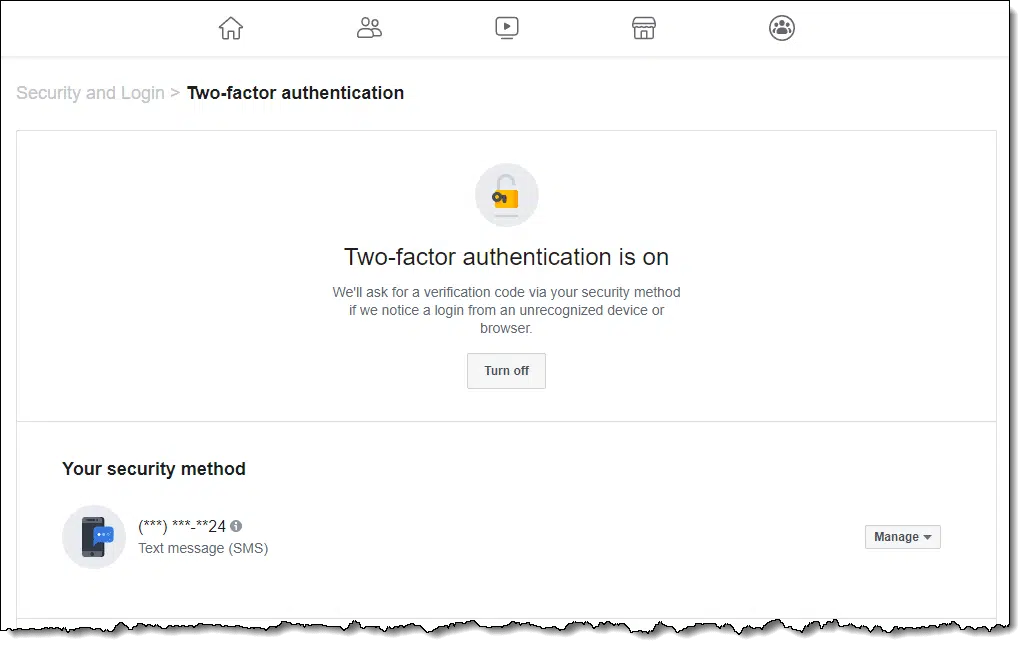
Facebook supports several forms of two-factor. In my case, even if someone got my password, they'd have to also enter a code texted to my mobile phone.
Without that second factor, they can't log in.
Enabling two-factor authentication is something I recommend for all your important accounts that support it. Facebook certainly qualifies as important for most people.
Ultimately, there's no way to know whether the attempt to reset your account password was deliberate or accidental. Perhaps you're a target, or perhaps your email address is similar to that of others.
We'll never know.
266: I always envision some bored, immature child or tween in a basement somewhere trying to prove something.
267: This is exactly why so many forms have you enter your email address twice.
268: I'll be honest: I usually do.
I got an email saying I requested a new Facebook password but I didn't make this request. — Facebook
Seeing emails that look like they’re from you but aren’t? Spammers are probably “spoofing” your address. Learn why it happens, how to tell if your account is truly hacked (probably not), and what, if anything, you can do about it. The solution may be simpler than you think.
It's highly unlikely someone has hacked your account. This is typically something more benign. Annoying, but benign.
Sadly, it's something you can do almost nothing about.
So-called "From: spoofing" is rampant. Spammers fake emails to look like they came "From:" email addresses that have nothing to do with the emails. If that happens to be your email address, there's nothing you can do.
Spammers forge the "From:" address for the email they send. We refer to this as "From:" spoofing.
Spammers are constantly trying to worm their way past spam filters. If the email came from a consistent email address, those messages would be easily identified and blocked.
So spammers collect and use random "From:" addresses to make blocking ineffective.
Spammers rely on people taking action on the contents of their messages. Sadly, enough people do to make spam worth it to the spammers.
What's important is this: spam messages lie about who the sender is.
Spammers use any email address they can find. That could include other email addresses they're sending to, email addresses fed to them by a botnet, email addresses harvested online, or the addresses in the address books of infected machines. Some email programs automatically collect email addresses included on messages received or from forwarded email.
If they can, spammers try to make it look like the email comes from someone you know, often by discovering who your friends are on social media and other sites. If it looks like it's from someone you know, you are more likely to pay attention to the spam.
In short, spammers may use all this information to create and send email messages with your name and email address in the "From:" line — email you never sent and have nothing to do with.
As you might imagine, one of my email addresses is well known: leo@askleo.com. It gets a lot of spam.
Not that long ago, I started getting hundreds of bounce messages for emails I'd never sent. (I also got a few abusive responses from people who didn't realize I had nothing to do with the messages.)
The spam generally included a "From:" line of the form:
From: Someone's Name <leo@askleo.com>
"Someone's Name" would be a random name unrelated to anything, and of course "leo@askleo.com" was the email address used in the forgery. Spammers made it "look like" it came from me. Needless to say, it did not.
I had nothing to do with it.
If someone accuses you of sending spam and you are positive you did not, there's little you can do other than to educate them about how spam works.
Point them at this article if you like.
But let's be clear: your machine does not need to be infected with malware, and your account does not need to be compromised, for this to occur. If this kind of spam is the only symptom, then both are highly unlikely.
It's just a third party — the spammer — making all this happen.
There's nothing you can do.
Welcome to the world of spam, where you can get blamed for something you have no control over.
Drag-and-drop is powerful in Windows File Explorer. It's even more so when modified by the SHIFT or CTRL keys.

The basic drag-and-drop operation in Windows File Explorer can perform at least three different actions on files.
Click on a file in one location, drag it to another folder, and drop it.

Click on a file in one location and drag it to another folder while holding down the CTRL key on your keyboard. Release the mouse to drop the file. The file will be copied to the destination and the original left in place.

Click on a file in one location, drag it to another folder while holding down the SHIFT key on your keyboard, and release the mouse to drop the file.

As you can see, the tooltip accompanying the mouse pointer changes to reflect the operation that's about to occur.
VPNs don't impact data tracking or collection. We'll look at why that is and what you might want to do about it.
It's not surprising that privacy concerns are on the rise. Every time we turn on our computer, we're sending data somewhere.
A VPN, or virtual private network, protects against some types of data leakage... but not the data leakage you're worried about.
A VPN protects your internet traffic from being intercepted and hides your location by masking your IP address. It does not stop telemetry or data collection by operating systems, apps, or websites. To reduce telemetry, opt out during setup, choose privacy-respecting tools, and adjust browser settings for tracking protection.
From Wikipedia:
Telemetry is the in-situ collection of measurements or other data at remote points and their automatic transmission to receiving equipment (telecommunication) for monitoring.
Here are some examples of telemetry as it occurs in our computers.
Basically, any data that is silently collected and sent back to a central location for analysis is considered telemetry (a fancy word for data collection).
Not all telemetry is bad. Some companies really do use the information to improve their products. Sometime the telemetry is what makes services remember things like the fact that we're logged in, or our progress in the most recent video we watched online.
Depending on your level of trust in the organizations involved, data collection on your computer may be of great concern or no concern at all.
For example, information claimed to be collected anonymously might not be. Sometimes this is intentional deception; sometimes it comes to light after the fact that correlation between anonymous data and personal data can be derived with enough analysis.
You may or may not believe that the software creator is using the information only to make their software better. Some people are concerned that information being relayed to Microsoft (or Google, Facebook, or others) is used to train AI models.260
In the worst case, data could be turned over to law enforcement or oppressive regimes with potentially severe consequences.
I don't necessarily believe most of the concerns, but I understand that some do.
A VPN encrypts communications between your computer and the VPN provider. No one along that path can see your data: not other Wi-Fi or network users, and not the people managing the network between your computer and the provider.
The connection between the VPN provider and the rest of the internet, however, is unaffected. A VPN only adds encryption as far as the provider's servers, not beyond.
A VPN can also mask your location, making it look like you are something other than you truly are and connecting via an IP address that is not your actual IP address.
None of that has anything to do with telemetry.
One way to look at it is this: a VPN provides additional security to the telemetry data that continues to be collected regardless.
Without a VPN, we might envision the information flow like this:
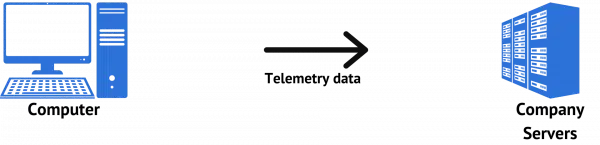
As you use your computer, telemetry information is sent to whoever is collecting it.
Now let's add a VPN to the mix.
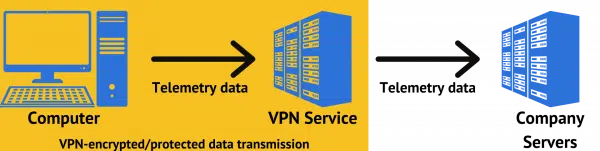
Once again, as you use your computer, telemetry information is sent to whoever is collecting it.
The only thing that has changed is that the transmission of that data between your computer and the VPN service has an additional layer of protection from being snooped on261.
That's it. A VPN doesn't affect data collection at all.
The best thing you can do to avoid data collection is to opt out. By that, I mean when you install Windows (or any other operating system) or set up a new app, pay attention to all the options offered along the way. If they mention sharing data, turn that off.
To see many of these options, you need to select a custom rather than default installation. I recommend you do this for several reasons, and the ability to opt out is one of them.
The next thing you can do is to choose tools that don't collect data or that respect your decisions about data-sharing. This is harder than it seems, since you're trusting that the tools are being honest about what they do and don't collect.
Windows gets a lot of bad press for the amount of data it appears to collect that is not under your control. If that's a concern (and to be clear, I don't consider it one), the best way to deal with that is to not use Windows. Yes, there are tools, registry hacks, and other techniques that claim to cripple Windows' ability to collect data, but I'm not a fan. I consider them risky, and they're likely to be subverted by each subsequent version of Windows.
Web browsers are a special case. There are a few things you can do to limit the amount of data being collected by the websites you visit.
Ultimately, some data sharing is inevitable. It enables much of the functionality we expect online. But that doesn't mean we have to share more than we want to.

269: I know of no credible confirmation of this concern.
270: It's probably already secured from snooping because the connection between your computer and the company servers is likely encrypted to begin with.
You can control the size of many data-entry forms.
(Animation: askleo.com)
Even though it's not available in all browsers, I find this such a useful thing that it's worth sharing.
Pictured above is a typical data entry form on a webpage (the comment form on an Ask Leo! article, to be precise). I've highlighted the lower-right corner of the form because it has a resize indicator in it.
Click and drag that indicator to change the size and shape of the entry form.
You can see in the video above that I've made the form taller. Resizing makes it easier to enter data, particularly if what you're entering is longer than the form was originally designed for.
The bad news is that this isn't available in all forms (it can be overridden by the page author), and it doesn't appear to be available in all browsers.
As we approach the end of Windows 10 support, it's worth asking the question: what's the difference, anyway?
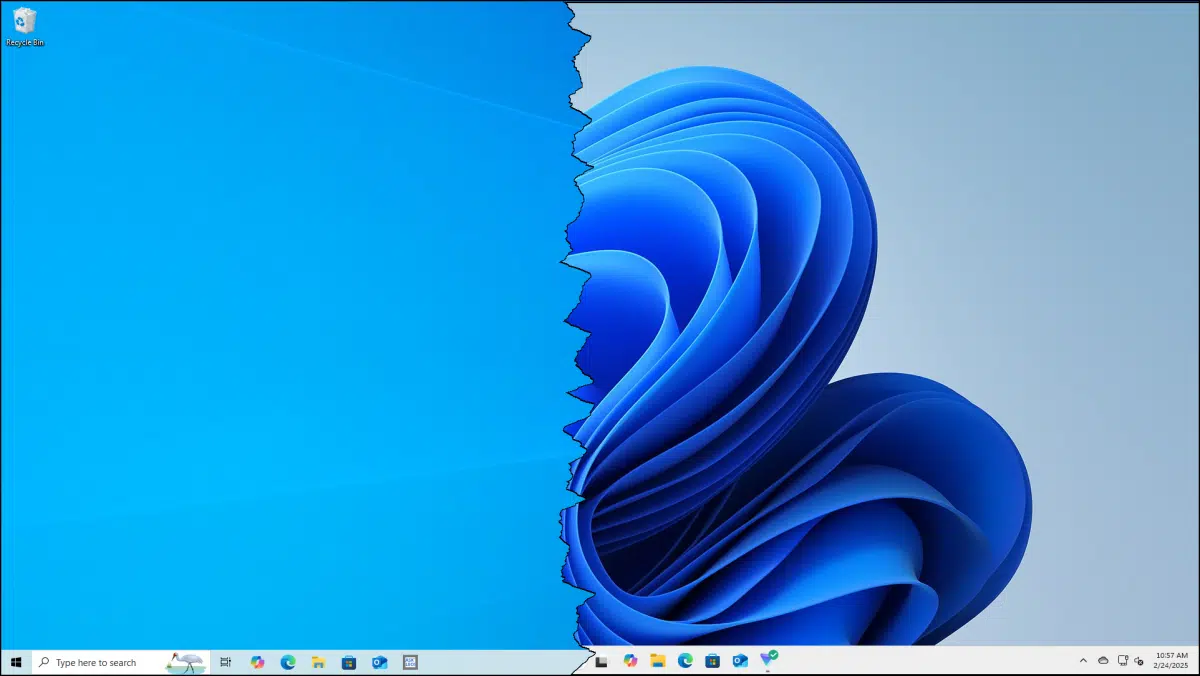
It might seem like an odd time to ask the question. After all, Windows 11 has been out for several years now.
However, the end of Windows 10 support is coming up, and it's still used all over the world. The question is more relevant than ever. If you have Windows 10 and are considering Windows 11, you might well ask: what's the difference?
Let's compare, contrast, and complain a little.
Windows 11 is a significant update to Windows 10. It has stricter hardware requirements and visual changes like a centered Start menu. While maintaining familiar functionality, it removes some features (like Cortana) while adding others (like Widgets). The biggest practical difference is that Windows 10 support ends in 2025 while support for Windows 11 continues.
By far the most controversial difference is Windows 11's new security-related hardware requirements:
Other baseline requirements have changed as well:
The latter set of changes is more typical between one Windows version and another. The restrictions imposed by the first list, however, have generated a fair amount of controversy, as they preclude many existing older machines from running Windows 11.
Once you fire up Windows 11 for the first time, you'll note that it looks somewhat different.
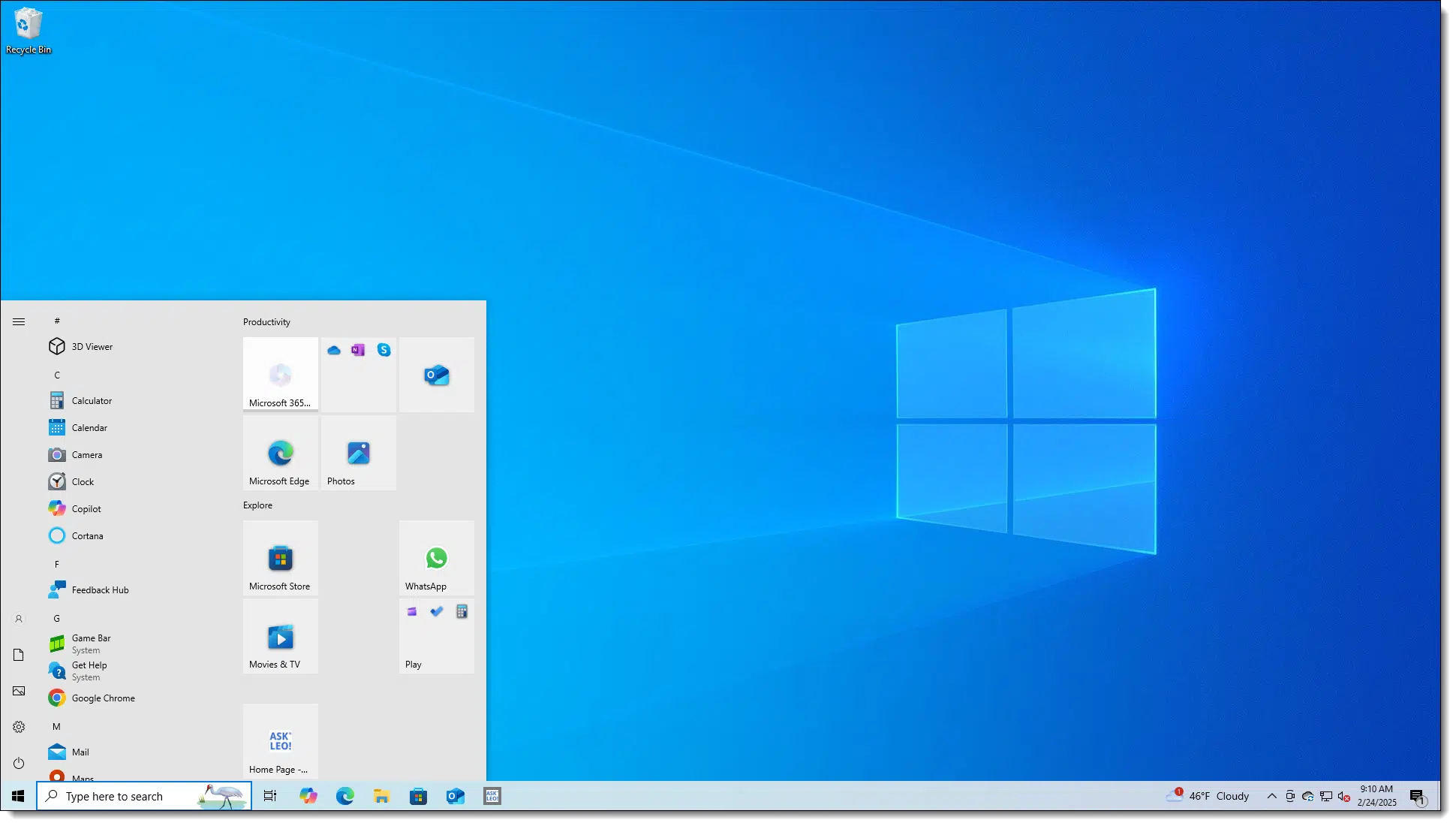
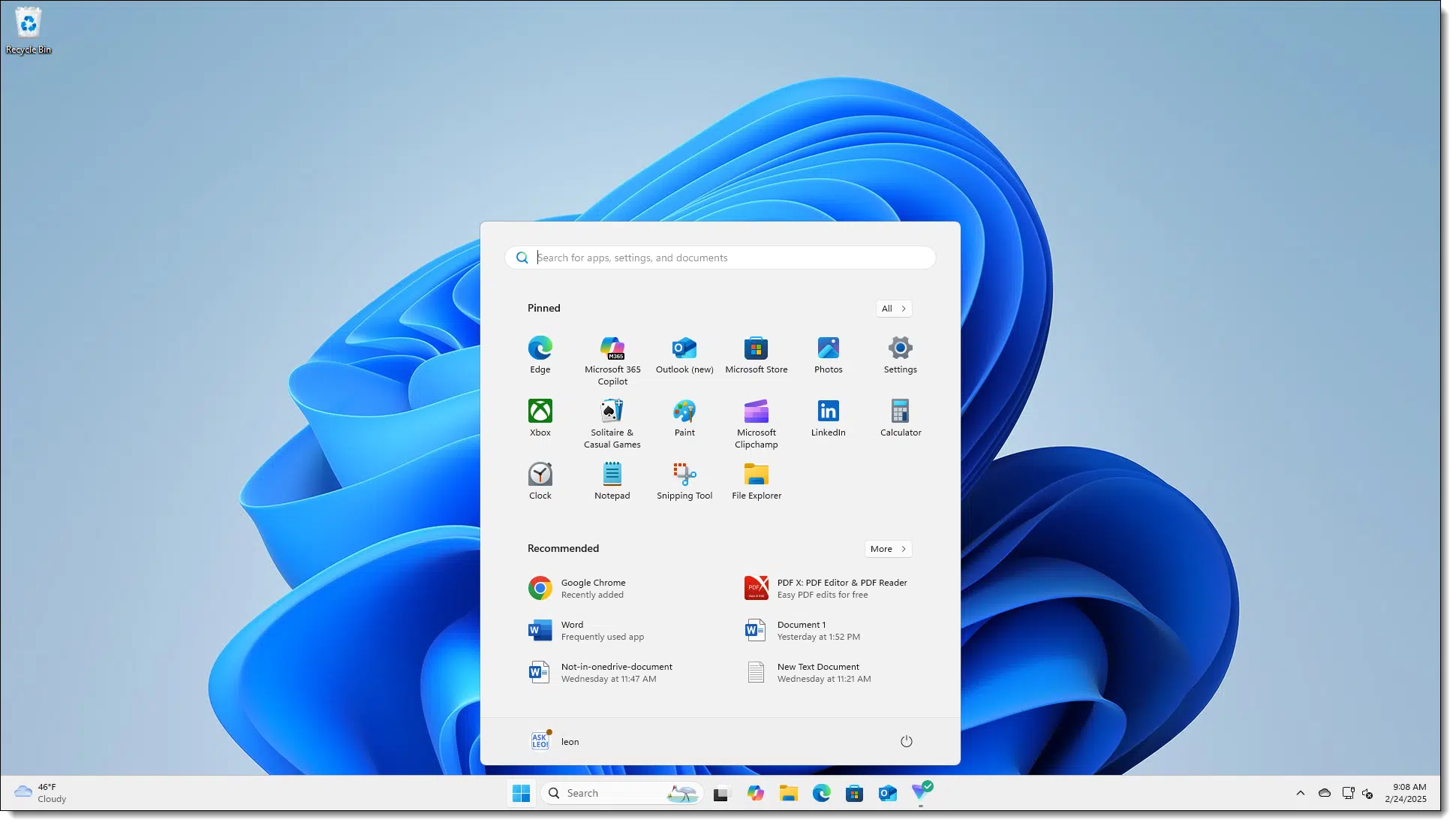
Another controversial, though perhaps less impactful, change is that the Start Menu is in the middle of the taskbar by default. It can be moved to the left if desired. In addition, the taskbar cannot be repositioned from the bottom, unlike Windows 10 where you could place it on the top, bottom, left, or right edge of the screen.
As is also traditional with Windows version changes, there are a variety of cosmetic changes: rounded corners, softer colors, new animations, and transparency effects.
A selection of other differences via the Microsoft Windows 11 specifications page:
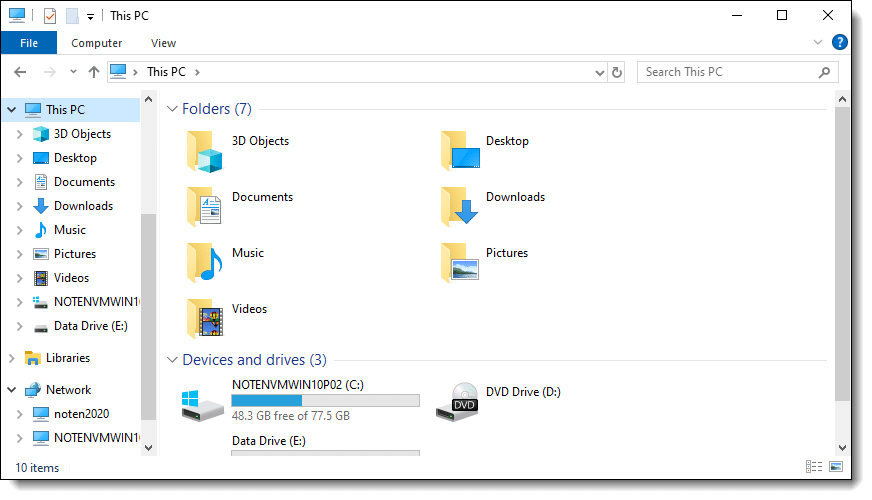
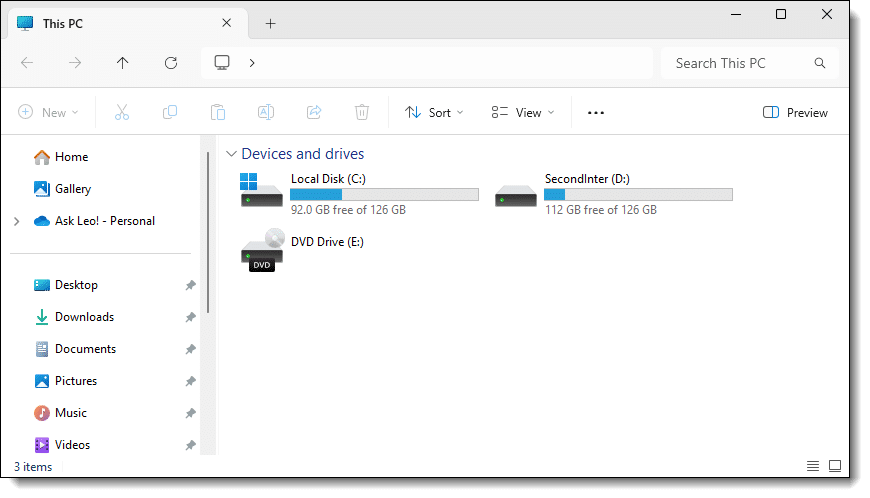
The list is somewhat longer (and occasionally esoteric). The items above represent what I think most average users might notice or care about.
Many changes under the hood don't necessarily change how you see or interact with Windows 11 but improve its overall performance and/or security.
Many of these changes are positioned specifically as relating to gaming, gaming interaction, and gaming performance. It's unclear whether the improvements impact non-gaming activities. I expect that while some might, many will not. In my experience using both Windows 10 and Windows 11, performance appears similar for non-gaming tasks.
Other changes, like Virtualization-Based Security, kernel DMA protection, and others, add security.
I have also seen claims that Windows 11 has made an assortment of changes to improve both boot time and performance of the application(s) currently being used (aka "foreground apps"). Much like the gaming improvements, it's unclear if these are noticeable to most users.
Complaints about the apps below get bundled into Windows 11 complaints, but they're not really about Windows. While they are from Microsoft and might be interwoven into Windows 11 more tightly than we'd like, they're separate from Windows.
Although these are independent of Windows, you may experience some of their changes and updates regardless of which version of Windows you're running.
From the start, my take on Windows 11 has been that it's less a major new version of Windows than it is a substantial upgrade. In years past, we might have called it a service pack. I suspect that the change in hardware requirements, more than anything else, drove Microsoft to call this Windows 11 rather than Windows 10 Service Pack 1.
I say that to make this point: Windows 11 isn't that huge a leap from Windows 10. While it looks a little different at times, it's just Windows. As long as your machine is capable, the differences are manageable and not that difficult to get used to.
The biggest difference might be this: while it will keep working, Windows 10 stops being officially supported in October 2025. While no official, final, end-of-support date has been announced for Windows 11, it will be supported for many years to come.
Windows File Explorer has many display options. Here's how to see more of them.
(Animation: askleo.com)
Windows File Explorer is a surprisingly powerful tool with many hidden features. One is the ability to control which columns you see when using the List or Details views.
In Windows Explorer, open any folder in Details view (as pictured above). Carefully move the mouse pointer to one of the dividing lines in the column header until it turns into a line with arrows pointing both right and left.
Normally, this indicates that you can click, hold, and then drag that column boundary to resize the columns manually.
Instead, right-click on it. This will display a context menu with a couple of interesting options.
Size Column to Fit resizes the column to the left of the boundary to the smallest it can be while still displaying the longest item in the column if possible.
Size All Columns to Fit resizes all the columns to the smallest they can be while still displaying the longest contained item completely. If this can't be accomplished because there's too much to fit, File Explorer will make its best effort.
The list below those two options lists more columns that can be displayed. Checkmarks indicate which columns are currently displayed. The list may vary depending on the type of content contained in the folder.
More... opens a dialog of even more possible columns.
In my experience, "Size All Columns to Fit" is the single most useful item on the list, but as you can see, you have many options to customize your display.
Videos don't have to be small. You can often take them to full screen in a single click.
(Animation: askleo.com)
Just because a video happens to be embedded on a web page at a certain size doesn't mean you need to view it at only that size. Most video players include a control that will, with a single click, take the video to full screen.
In the example video above, I start playing the video associated with a previous tip and then click the box icon to enlarge it to full screen. Of course, the reverse is also possible; if you're viewing a video at full screen, you can click the cross control in this case to return to the embedded size. (The ESC key will often do this as well.)
Almost all embedded players have this ability. If you ever find yourself squinting at an online video, see if you can't locate a full-screen control and give it a try.
If we listen to the news, we might never leave the house, much less go online. I'll review why that kind of thinking is opportunity lost as well as how to stay safe.
It seems like every other day there's a report of some new compromise somewhere. It's hard not to wonder if we shouldn't share personal information at all.
I have a slightly different perspective.
Scary news about data breaches makes it seem like sharing info online isn't safe, but breaches aren't as common as they sound. Most happen in ways you and I can't control. Be careful, choose trusted services, and follow basic safety steps. Avoiding the internet won't help, but smart use keeps you safe and connected.
It's important to understand what makes the news "news".
Commonplace, average, expected, and routine things don't make the news.
By definition, news is something that is exceptional, unusual, or sensational.
If something is being reported on the news, that means it is out of the ordinary. It might be big, exceptional, important, or affect many people, but the reason it's news is that it's unexpected, unlikely, and uncommon.
People pay attention to the uncommon and sensational, so that's exactly what gets reported.
When data breaches are reported as news, they are by definition uncommon.
In current media, if something isn't sensational enough, the news outlets do everything they can to portray it as such.
Media outlets compete to get the most viewers, the most readers, and the most clicks with overstated sensationalistic headlines and stories. The true severity, importance, and practical impact of the story is left by the wayside.
So what do we see? News outlets, social media sites, and forwarded emails parrot the over-sensationalized story, making it out to be much worse than it really is, simply to attract your eyeballs.
I've talked about the echo chamber before.
When the same story from the same source is repeated (or echoed) by many channels of information, it appears as if it were many independent sources all arriving at the same conclusion.
It's not. One source repeated in many places is still just one source.
If you saw only one report of an incident, you probably wouldn't give it much thought. Seeing that same single report from several venues, however, gives the impression it's more important (and more true) since everyone's reporting it. It's not, necessarily; it's still one story from one source.
It's almost impossible these days not to get that same story thrown at you from dozens of different venues. Radio and TV, sure, but throw in online technology and social media, and suddenly we're inundated by everything — both important and trivial — with no real distinction between the two.
My point, of course, is that data breaches aren't happening as often as you think.
They do happen, of course, and they do impact individuals. But it's not hackers gone wild262 — at least not yet — no matter how many times you hear it.
People seem quick to blame the internet (or the cloud) when breaches happen. Many people might think both are things to be avoided.
No. Not at all.
First, "the cloud" has been there all along. That thing we call "the cloud" is nothing more than online service providers and the servers used by the companies we do business with. For example, if you've been using email for any length of time, you've been using "the cloud" since the day you created your first account.
You might think that filling out paper forms and taking them physically to your bank or other institution would be safer. It's not. Guess where that information goes once you hand it over or (snail) mail it in? It goes onto their servers — the same servers it would have gone to had you provided your information online.
Most breaches we hear about aren't from any path you or I have control over. It's the back end — the internal systems — that most commonly get compromised when a hack is successful. Your choice of how to provide information wouldn't have made any difference whatsoever.
That puts the onus on each company holding our data to do it securely.
And most do. If it were otherwise, compromises would become commonplace and get reported in the equivalent of the local police blotter every day. Much of the commercial infrastructure would collapse or come to a halt if hacks were that prevalent.
But some companies get it wrong — sometimes embarrassingly so — at least from a technical perspective.263 And those companies should be held accountable.
When that has happened, however, most companies are quick to remedy the situation and follow up with various forms of support to the individuals affected, the most common example being free credit monitoring for some period.
Hacks do happen; just not as often as it might seem.
As you know, I'm all about technology and the opportunities it offers.
So it should not surprise you that I'm pretty much all in for online services, both personal and business.
I don't do so recklessly. I pick the companies and services I do business with based on their reputation and my experience with the technologies they use. I select or avoid services offered based on what I feel is their potential for getting it right or getting it wrong.
As an example, when my American Express card was compromised some years ago (while I was out of town, no less), I heard about it from American Express. They overnighted me a replacement card in time for me to pay my hotel bill. That kind of experience leads me to feel comfortable using their services.
Of course, I take sensible precautions: the same precautions I outline in The Ask Leo! Guide to Staying Safe on the Internet. Those steps apply to me just as much as they do to you.
271: Current U.S. government incursions and coup attempts notwithstanding.
272: For some hacks, when the technical details become public, you'll occasionally hear the technical and security community exclaim, "What the heck were they thinking?" about implementation decisions that put the system at risk.
When updating drivers, the first stop is the Device Manager in Windows.
(Animation: askleo.com)
Long-time readers will know I'm not a huge fan of random driver updates. So-called driver update tools and utilities rarely help and can make things worse. Unlike the rest of the system — which I recommend you keep as up-to-date as possible — for drivers (aside from letting Windows Update update whatever it wants), I take an "if it ain't broke, don't fix it" approach.
But what if it is broken? What if you are having a problem with a specific device you suspect might be driver-related?
My first step is to let Windows search for updates, and that's done in Device Manager.
In Windows 10 and 11, right-click on the Start button and select Device Manager. Expand the device category to which your troubled device belongs by clicking on the ">" to its left. Then right-click on the device in question and click on Update driver.
In the resulting dialog, click on "Search automatically for updated driver software", shown at the top of this page.
This uses Microsoft's master repository of drivers to locate any updates, which will be downloaded and installed if they're available.
It's possible that none may be available.
In this case, you can either continue investigating other possible causes for your issue, or try to locate drivers elsewhere — typically directly from the device manufacturer.
Thoughts on AI, and plagiarism, in a first, less formal ... Ask Leo! chat? Coffee talk? Ramble? ¯\_(ツ)_/¯

Windows 10 and 11 setup want you to log in with a Microsoft account. I'll show you how to restore a local account sign-in.
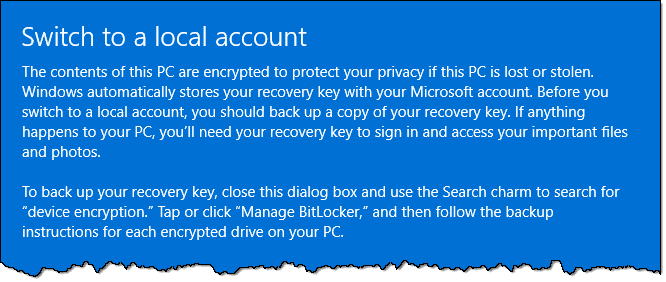
The Windows 10 and 11 set-up processes really encourage you to associate your computer with a Microsoft account and use it to sign in to the computer from then on.
Many people find this inconvenient and a potential invasion of privacy. They would prefer to use a local machine account for signing in.
While it's difficult to disassociate the computer from a Microsoft account once set up, it's fairly easy to return your sign-in to a more familiar local machine account.
Setting up Windows 10 or 11 asks you to use a Microsoft account, which many people don't want. To switch back to a local account, go to Settings > Accounts > Your Info > "Sign in with a local account instead," and follow the prompts. Your Microsoft account will still be associated with the machine for certain apps.
A Microsoft account is any account you've used for Microsoft-provided email or other online services. Your outlook.com, hotmail.com, live.com, webtv.com, msn.com, or other Microsoft-provided email address is already a Microsoft account.
It's pretty easy to check: if you can log in to outlook.com, you have a Microsoft account.
It's that account that many people use to log into their machines after running Windows setup.
Type +I to open the settings app.
Click on Accounts in the left-hand pane.
In Windows 11, click on Your info in the right pane (you may need to scroll down). In Windows 10, click on Your account in the left pane.
Locate the Sign in with a local account instead link. (In Windows 11, you may need to scroll down to find it.)
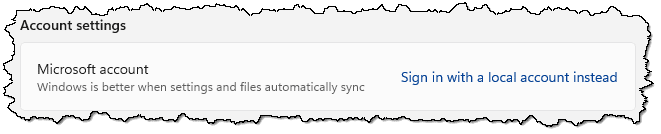
Click it.
If your disk is BitLocker-encrypted, you may get a warning.
If you have not already saved your BitLocker recovery key, be sure to follow the instructions outlined to do so.
Next, you'll be asked to confirm that you're certain you want to do this.
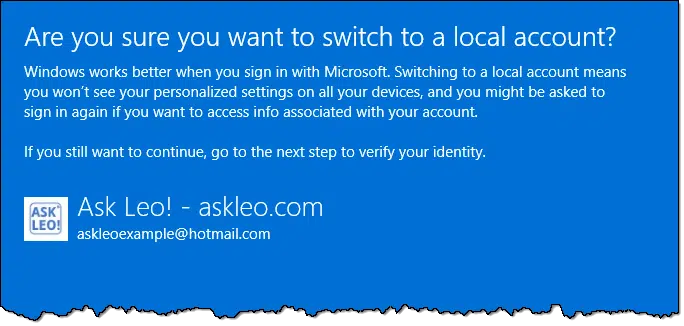
Assuming you're sure, click on Next.
You'll be asked to confirm your identity by signing in to your account. This could be as simple as entering a PIN, a password, or responding to a confirmation on another device.
You'll then be asked to provide the specifics for the new account.
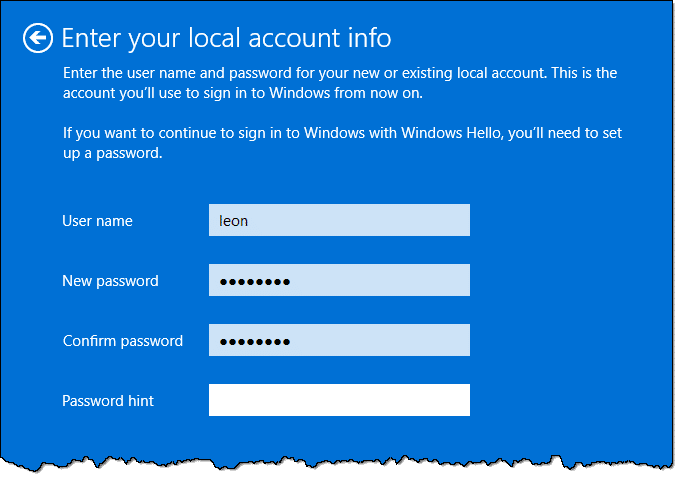
That's it. The final step is to sign out.
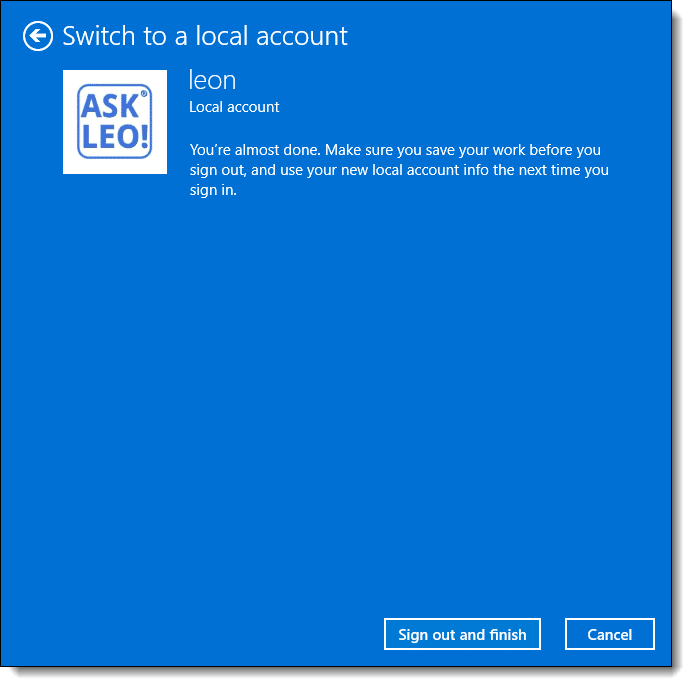
Click on Sign out and finish.
The next time you sign in, the credentials that appear will be for your local account, not your Microsoft account.
Your Microsoft account information is still on your machine and is still associated with it. The only big change is that you now use the local account to sign in rather than the Microsoft account.
A few other things don't change.
Regardless of how you sign in:
Ultimately, the best time to make sure your Windows computer is not associated with a Microsoft account at all is at set-up time. Unfortunately, it's easy to overlook that option when setting up Windows 10, and it requires complex workarounds (that keep changing) in Windows 11.
At least we can easily return to logging in as we used to.
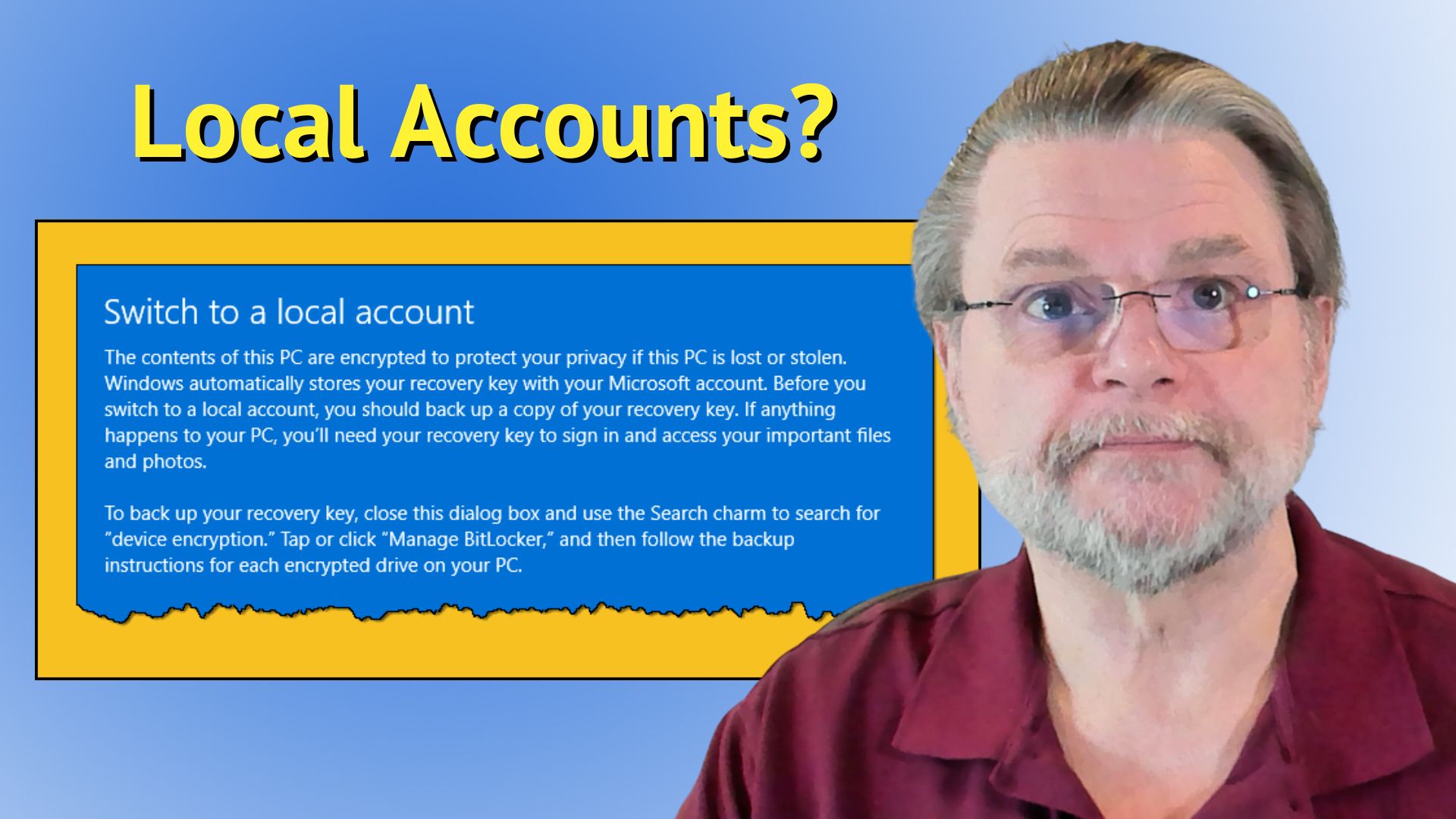
The processing power of your computer is a resource that malware authors can use to make money.

Explaining Bitcoin and other cryptocurrencies is well beyond the scope of this tip or even this website. However, cryptocurrency can affect you — and not in a nice way.
One characteristic of most cryptocurrencies is that they are "mined" using extremely computationally intense algorithms. A successful miner is rewarded with a new unit of the currency, so there's a significant incentive to bring lots of CPU resources to bear on the effort.
As of late, that might include your computer's CPU.
Malware has been found in the wild that, while not destructive to you or your computer, heavily uses your computer's CPU to take part in this mining activity. The author of the malware is attempting to get that cryptocurrency reward by using perhaps thousands upon thousands of infected machines to work on the computationally complex problem.
Often the only sign you see is your computer's fans kicking in when you're otherwise doing nothing or your computer just getting hot as the CPU is used to its maximum capacity by malware performing the calculations.
Fire up Task Manager. Make sure it's displaying "More details" if that's an option. Look at the CPU usage of your browser. If it's close to 100% even as you are not using the computer for anything else, an up-to-date malware scan may be called for.
Unfortunately, 100% CPU usage isn't an absolute indicator — websites can also use CPU while they appear to be doing nothing — but it's rare. At a minimum, the situation merits investigation.
An image backup is the best protection you can have. Here's how to do it using a reliable, free program.
I frequently recommend creating an image backup prior to major events like a Windows upgrade, hardware replacement, or anything that might put your machine at risk of something going wrong. A backup image is a great bit of insurance.
Of course, the question I get then is "Great. How do I do that?"
It's not hard. Let's download EaseUS Todo Free, install it, and use it to make a backup image.
Creating a backup image is smart insurance before major changes (like upgrades or adding new hardware). Use EaseUS Todo Free to do this easily. Download it, install it with custom install option to avoid extras, and follow simple steps to select what to back up.
Start by visiting https://www.easeus.com/backup-software/tb-free.html.
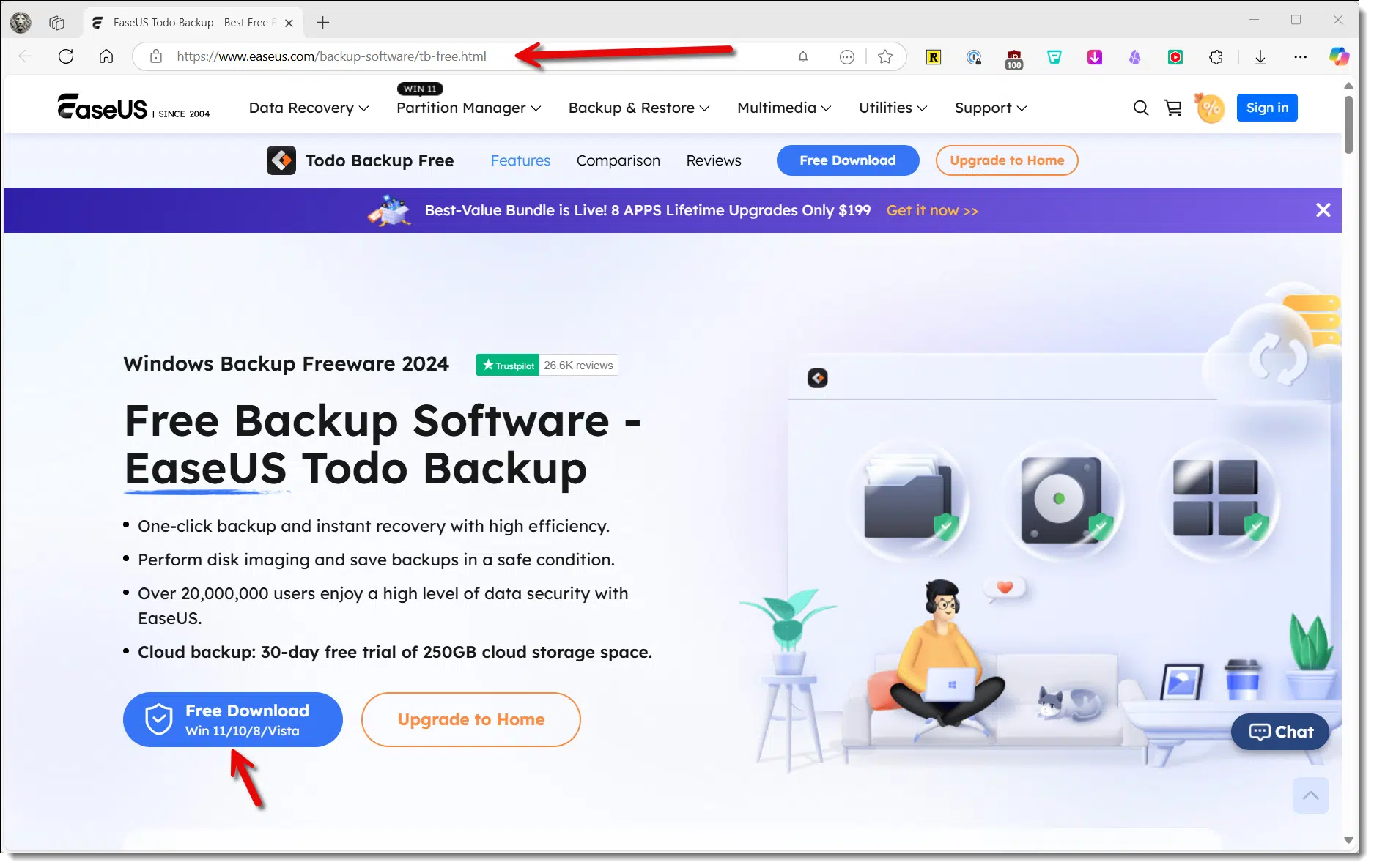
Click on the Free Download button to download and run the installer.
You may get several offers to upgrade. You do not need to upgrade. Choose the completely free version at each step of the path.
After running the installer, you'll be presented with an Install page.
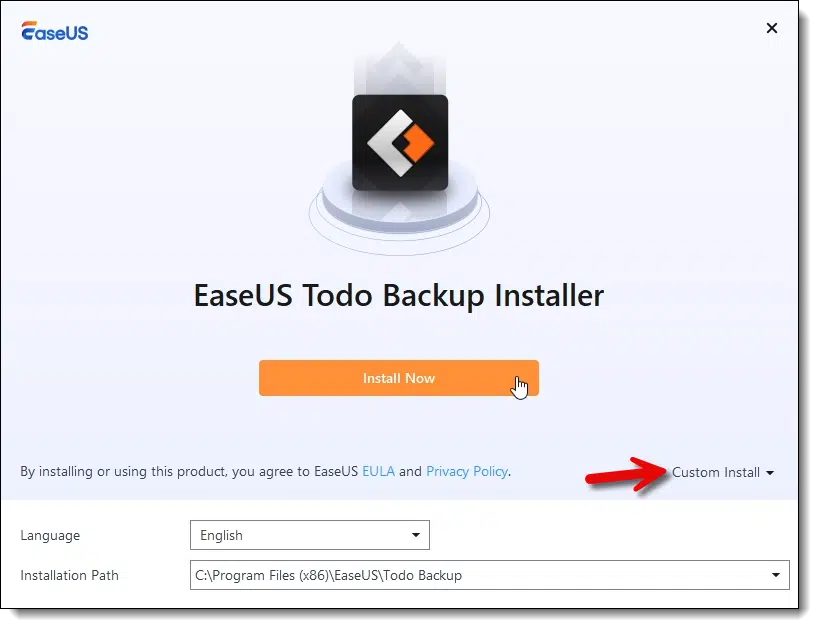
I've highlighted the "Custom Install" item in the image above. Regardless of what you're installing, always choose custom. While it's never been an issue with EaseUS products, sometimes the custom install option exposes additional choices (or at worst, PUPs) that you can de-select. It's an important habit you should get into.
Click on Install Now.
When the program has been installed, you'll be given an option to Start Now.
Click on Start Now. (Again, decline, ignore, or bypass any offers to upgrade to a paid version.)
You'll be greeted by a welcome screen.
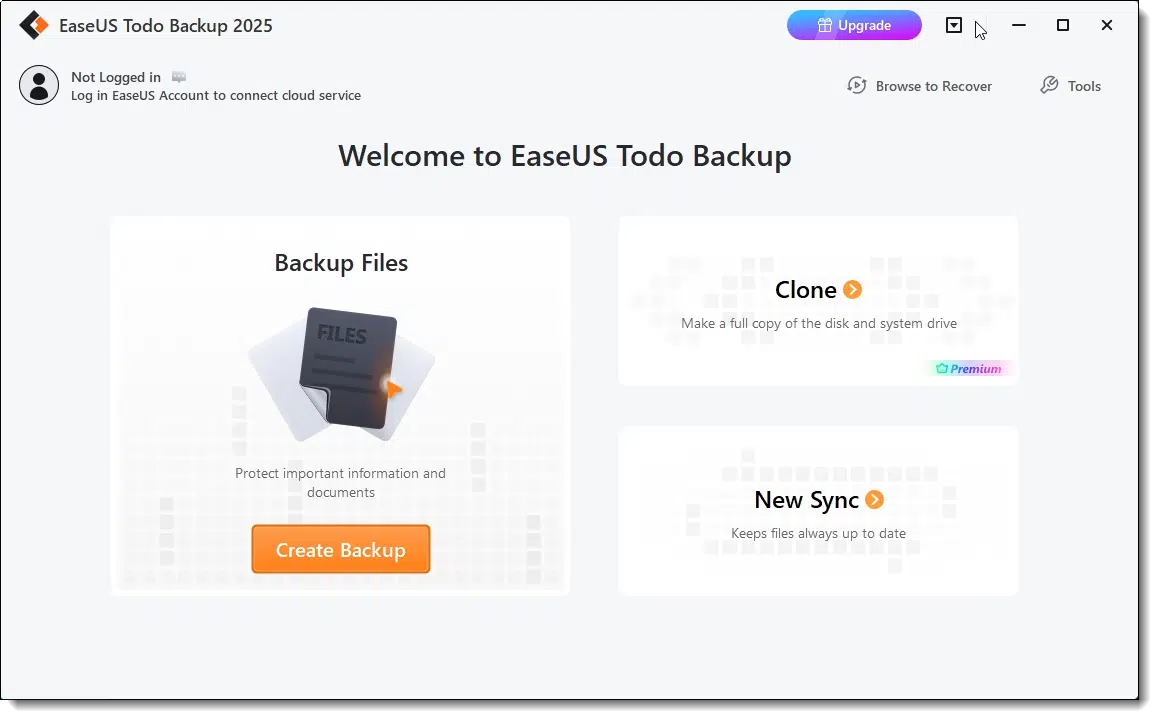
Click on Create Backup.
You'll be asked what you want to back up.
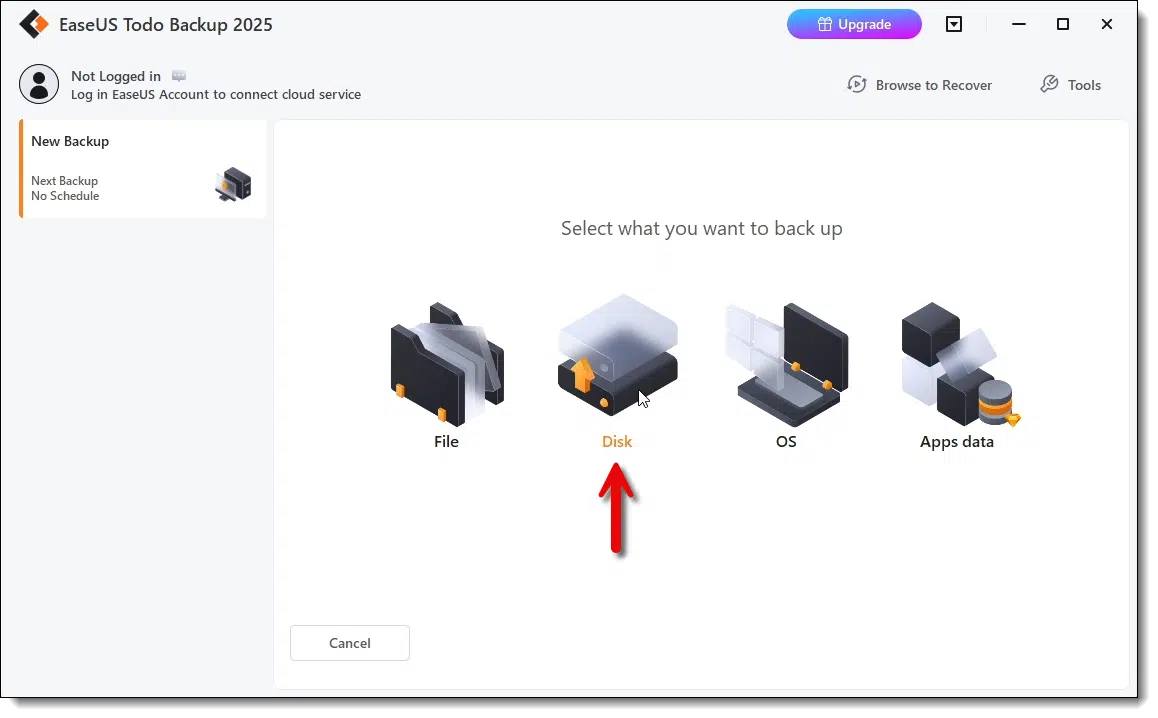
Click on Disk. An image backup is, by definition, the complete contents of a disk, including all partitions and overhead information.
You'll be asked which disks to back up.
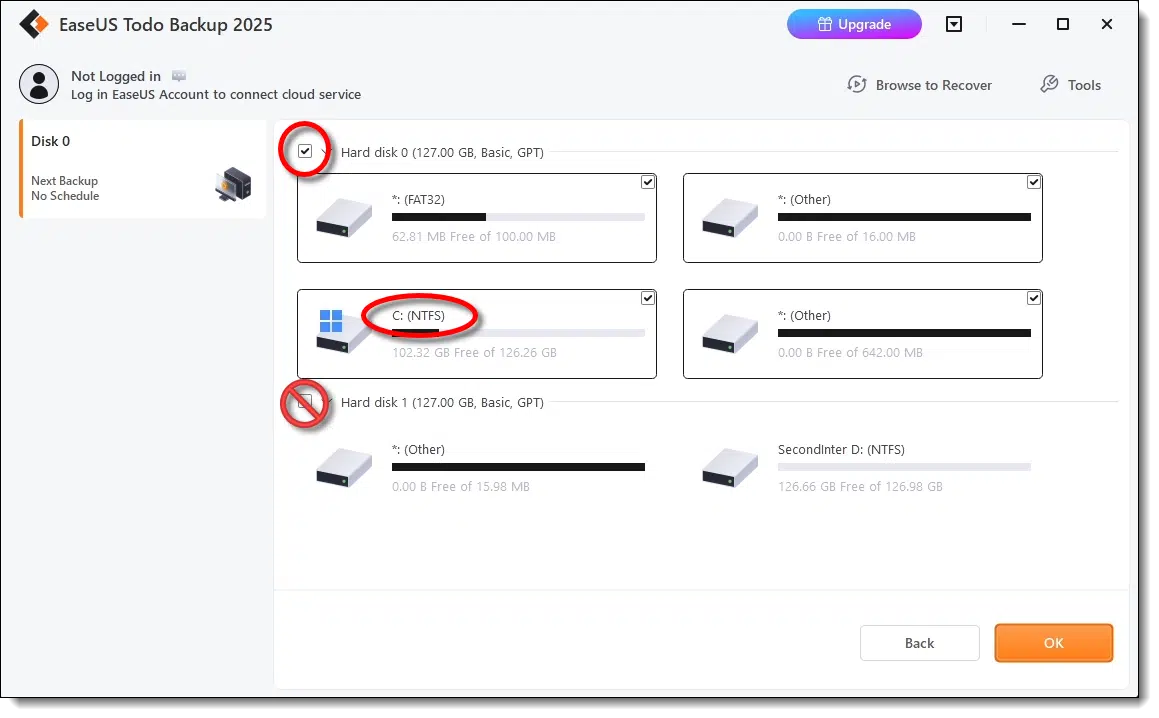
Click on the checkbox in front of the hard disk that contains your C: partition. This will cause the entire disk, including additional partitions such as EFI and recovery partitions, to be backed up. In my case, that's "Hard disk 0".
You may also click on any additional internal drives you have if you want to include them in the backup.
Do not click on the checkmarks in front of the disk (usually the external disk) where you plan to place the backup image.
Click OK.
You'll be asked where you want the backup image to be saved.
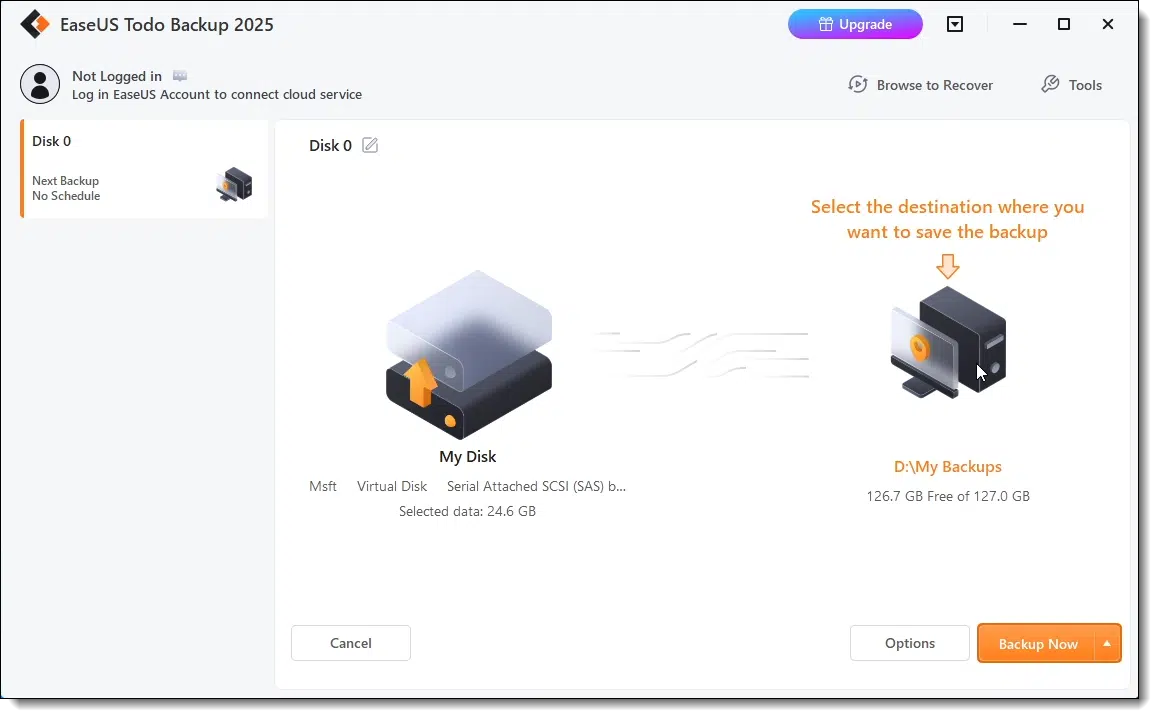
In the example above, EaseUS Todo has "guessed" that "D:\My Backups" is where I want my backup images to be placed. If that's not where you want your image, click on the icon above the location and select a different location. Typically that should be the drive letter of your external drive. You cannot save to the drive you're backing up (C:); it must be a different disk drive entirely.
Click on Backup Now.
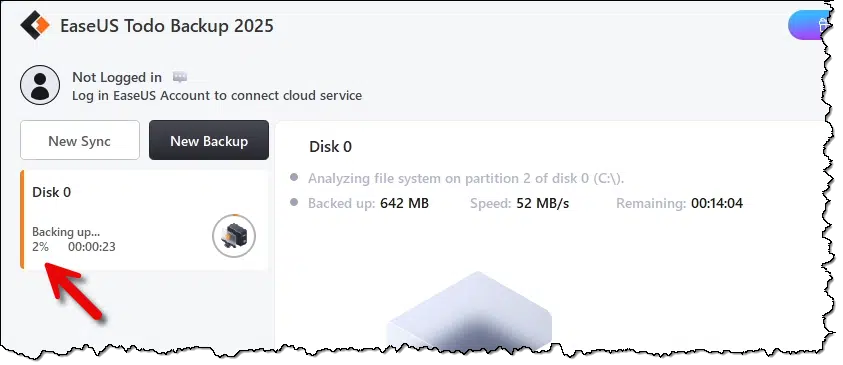
Once your backup is completed, you can examine the result. I visited "D:\My Backups" in Windows File Explorer.
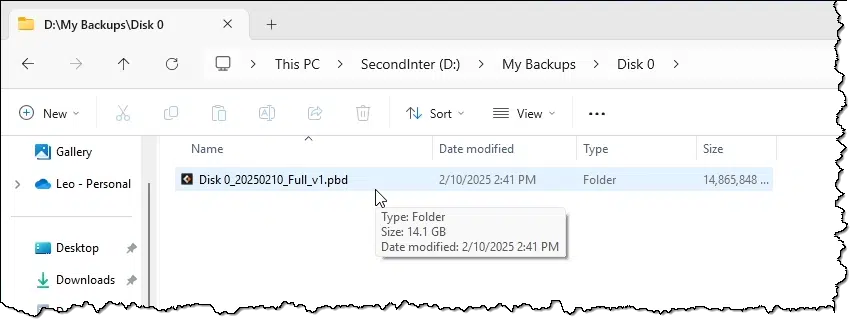
Within that folder, I found "Disk 0", a folder representing the disk I backed up, and within that folder, "Disk_0_20250210_Full_v1.pdb", the EaseUS Todo file containing the image backup.
"Great, so what do I do with this backup image? And how do I use it when I need it?"
Those questions don't need to be answered right now. Why? Because you have your safety net. Come the time you need something from the backup, you can look for and get the answers then, but you don't have to worry about this now.
As long as you have the backup image, you're protected.
However, when the time comes, AskLeo! has your back. Each of those articles also includes a video explaining the process as well.
Cryptomator and VeraCrypt are both excellent encryption tools. We'll look at how to choose the right one for your situation.
There's encryption, and then there's how you organize what you've encrypted. While the two tools both encrypt your data, where they differ is how they organize your encrypted data on disk.
VeraCrypt and Cryptomator both encrypt files, but they differ in how they organize those files. VeraCrypt bundles data into a single encrypted container while Cryptomator encrypts individual files, making it better for cloud storage. Use VeraCrypt for offline data or entire drives. Remember: "lose your password, lose your data." Always back up unencrypted files!
VeraCrypt is what I'll call a "monolithic" encryption tool. It takes all the files you want to encrypt and places them in a single encrypted file.
You create a special container file (called a vault or volume) using VeraCrypt. You choose how large the volume will be based on the amount of data you want to encrypt. For example, I might have 80GB of data that I want to keep secure, so I might create a 100GB VeraCrypt volume to have a little extra room.
When you create the volume, you assign it a passphrase that encrypts its data. The vault itself, however, is just a large file that, to all appearances, contains random data.
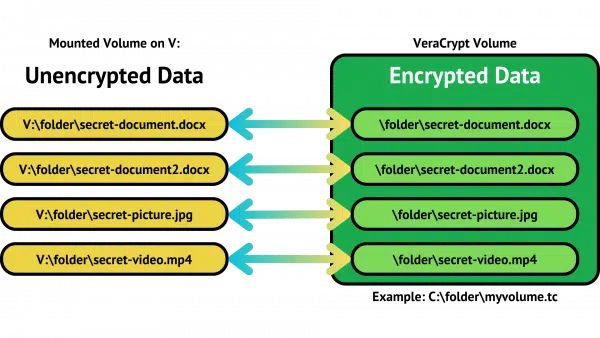
In the example above, drive V: has appeared after mounting the VeraCrypt volume "C:\folder\myvolume.tc".
The contents of the encrypted container appear as unencrypted files on the V: drive in Windows File Explorer. As long as the container is mounted, the contents are directly accessible to all programs running on your machine. You've opened VeraCrypt's one big encrypted file to access all the individual files inside it.
If you don't mount or when you dismount the container, all that remains visible is the volume itself — "C:\folder\myvolume.tc" — which appears to contain only random noise.
I call Cryptomator an "incremental" or individual encryption tool. It stores encrypted files as individual encrypted files.
To use a Cryptomator vault, you specify a folder that will contain the encrypted data. The folder itself isn't encrypted, but rather will contain the individually encrypted files. When you create that vault, you specify a passphrase used to encrypt the data you place into the vault.
Much like VeraCrypt, you "mount" the volume, specifying the passphrase to unlock it. This creates a virtual disk drive that exposes the encrypted contents of the volume in unencrypted form.
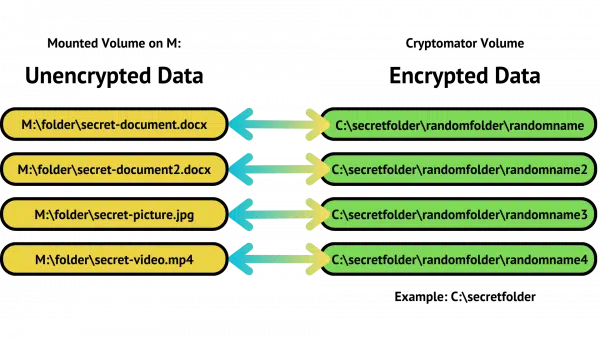
In the example above, drive M: has appeared after mounting the Cryptomator volume "C:\secretfolder". There is no single encrypted container file holding all the files; the files themselves are individually encrypted, and stored within this folder.
The contents of the encrypted container appear as unencrypted files on the M: drive in Windows File Explorer. As long as the container is mounted, the contents are directly accessible to all programs running on your machine.
If you don't mount or when you dismount the container, all that remains visible are individually encrypted files with random names organized in random sub-folders.264 Each file's contents appear as random noise, and the filenames and folder structure are completely hidden.
You can use either encryption program, of course, but there's a big difference between monolithic and incremental storage.
Let's say you want to encrypt the data you're about to place in a cloud storage service like OneDrive or Dropbox.
Using VeraCrypt, you place the monolithic vault somewhere in your PC's cloud storage folder. Now any time anything changes within the VeraCrypt vault, no matter how small, the entire vault is synchronized to cloud storage (and possibly replicated to other PCs sharing the storage265).
If you make any change to a single file, like "V:\folder\secret-document.docx", then the entire C:\folder\myvolume.tc vault needs to be uploaded. If that vault is 100GB, even the smallest change requires the entire 100GB to be uploaded.266 This can take a long time.
Using Cryptomator, you specify a folder in your PC's cloud storage folder as the vault. Any time anything changes within the vault, only the files that were changed need to be uploaded.
For example, if you make a change to a single file, like "M:\folder\secret-document.docx", then only the encrypted file representing that document — "\secretfolder\randomfolder\randomname" — is uploaded, not everything else.

273: This is an oversimplification. I believe Cryptomator's storage is more complex, but the concept remains.
274: Note that this makes it difficult for other PCs to have the same vault open at the same time. Cloud synchronization may either fail or confuse the system that sees the vault magically change while open.
275: This requires a specific setting in VeraCrypt to ensure that the vault's timestamp is changed whenever a file within it is changed.
276: The ".tc" extension is a callback to the old TrueCrypt, which VeraCrypt replaced. In reality what you call the file is irrelevant.
As long as the bin hasn't been emptied, getting a file back out of the Recycle Bin is simple.
(Animation: askleo.com)
There are two ways to recover things from the Recycle Bin: the hard way and the easy way. ðŸ'‚
The hard way is to open the Recycle Bin folder, locate the file you want to restore, and drag and drop (or cut and paste) it back to its original location.
The easier way? Right-click on it and click on Restore. Done.
The Recycle Bin remembers where things came from when they were deleted. Restore is just a quick way that says, in effect, "Put this back where you found it."
Much easier than the alternatives.
Undo works in Windows File Explorer. If you delete a file, sending it to the Recycle Bin, immediately pressing CTRL+Z for "Undo" will restore the file to its original location.
I'm not too proud to admit that I use this myself more often than I'd expect.
Pinned tabs are a convenient way to keep pages around without using excessive tab space.
(Animation: askleo.com)
Almost all web browsers support a concept called browser tab pinning. Pinning reduces the tab to an icon and moves it to the far left of the browser's tabs.
Open a browser tab on a site you expect to use or return to often. Right-click on that tab. Your browser will probably include a "Pin" option, as shown in Microsoft Edge above.
Click on that. The tab will move to the left and get much smaller.
It's a convenient way to keep pages you use frequently around without consuming a lot of tab real estate. In this example, I've pinned udm14.com, a good search alternative. Another common use might be to pin your password manager interface or vault page.
OneDrive complicates an otherwise straightforward situation.

This question should have a simple answer. And for the most part, it does.
However, Microsoft is not one for simple answers, and they've set up OneDrive in ways that can easily confuse users.
To avoid having OneDrive manage your files, save them outside the OneDrive folder on your computer. Files within the OneDrive folder sync online automatically, while those outside it stay on your PC only. To control where files go, double-check the save location and adjust app default settings if needed.
It seems so simple.
This rule is simple and accurate.
Files you place anywhere within the OneDrive folder will be managed by the OneDrive app on your PC. That means they will be synchronized with OneDrive.com online and to other computers using the same OneDrive account. It also means changes made on computers using the same OneDrive account appear on your computer. Since deleting a file in one place will delete it in all places, deleting a file within your OneDrive on another machine or online will cause it to be deleted on your PC.
Files not placed within the OneDrive folder — in other words, anywhere else — are not affected by OneDrive. Period.
So if you want your files to be unaffected by OneDrive, don't put them in the OneDrive folder. Easy peasy. Right?
We need to be clear about what I mean by "the OneDrive folder" on your PC.
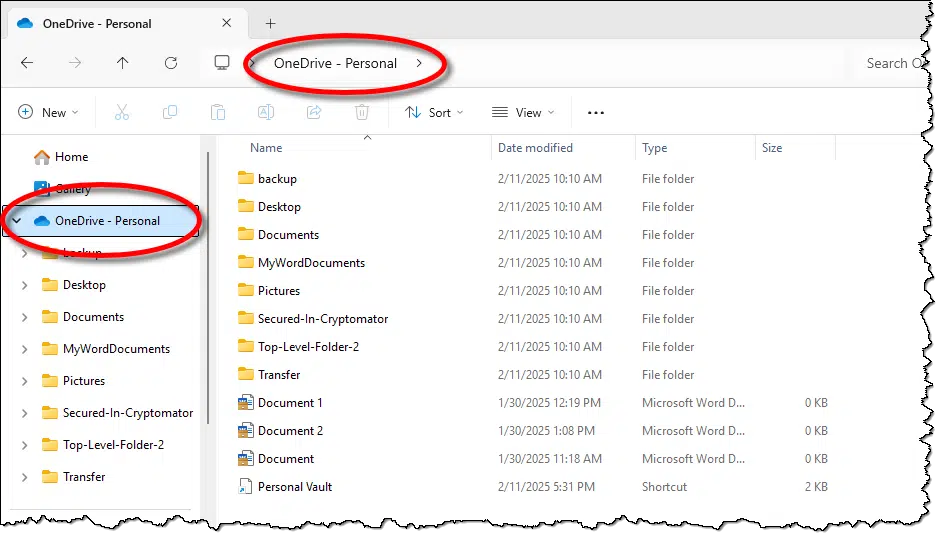
The OneDrive folder is like any other folder on your computer's hard disk. While its full path is typically hidden by Windows File Explorer, as shown above, you'll always find it in a normal location like any other folder. For example, the location of the OneDrive folder in the example above is:
C:\Users\askle\OneDrive
It's just hidden by the "OneDrive – Personal" shortcut. If you click on "OneDrive – Personal" in the address bar, you'll see a tool-tip displaying the full physical path of OneDrive on your hard disk.
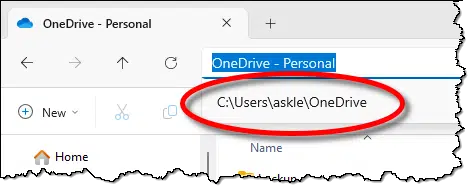
When I refer to your OneDrive folder, that includes any folder, sub-folder, or sub-sub-folder that lives within the OneDrive folder.
Full paths make this a little easier to understand. My OneDrive folder path is:
C:\Users\askle\OneDrive
Any files I place there will be acted on by the OneDrive application.
C:\Users\askle\OneDrive\MyWordDocuments
"MyWordDocuments" is a folder within my OneDrive folder. Any document I save in MyWordDocuments will be managed by OneDrive because it is inside my OneDrive folder.
Any file whose location begins with the path to my OneDrive folder is within my OneDrive folder.
C:\Users\askle\OneDrive – my OneDrive folder
C:\Users\askle\OneDrive\MyWordDocuments – a folder within my OneDrive folder
C:\Users\askle\OneDrive\MyWordDocuments\adocument.docx – a document within a folder within my OneDrive folder
These are all examples of files and folders that will be synchronized with OneDrive.com online because they all live within my OneDrive folder.
The opposite rule of thumb, then, is this: any file whose location does not begin with the path to my OneDrive folder is not within my OneDrive. OneDrive will not touch, copy, modify, or delete these files. They are completely outside of OneDrive's sphere of influence.
Thus, these are all examples of files and folders that are not within my OneDrive:
C:\Users\askle\NOTOneDrive
C:\Users\askle\MyWorkingDocuments
C:\Users\askle\MyWorkingDocuments\adocumentononlymymachine.docx
C:\MyData
D:\MyWorkData
That's all it takes. Just don't put your files anywhere within the OneDrive folder, and OneDrive will leave them alone.
Or will it? This is where Microsoft takes extra pains to confuse something simple.
You'll note that I did not use the popular "Documents" folder in my examples above. That's because if you turn the OneDrive backup "feature"267 on, the Documents folder is moved from outside your OneDrive folder to inside your OneDrive folder.
Before the backup "feature" is turned on, "Documents" refers to:
C:\Users\askle\Documents
After the backup "feature" is turned on, "Documents" refers to:
C:\Users\askle\OneDrive\Documents
This simple rule still applies:
Microsoft has moved the location of your Documents folder from a location OneDrive doesn't operate on to one that it does.
Just looking at "Documents" in Windows File Explorer doesn't tell you where it lives. However, if you click on "Documents" in the address bar, the true location is exposed.
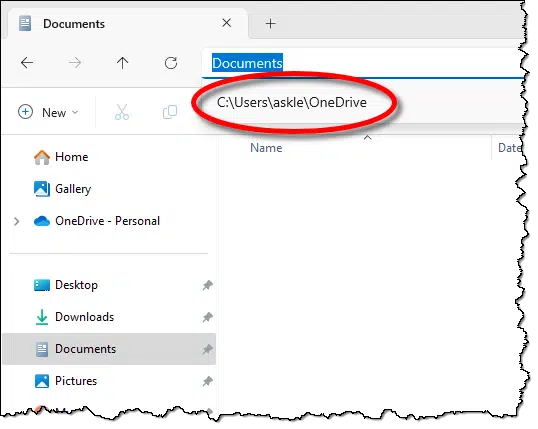
The upshot is that if the OneDrive backup "feature" is turned on, then the files you place in your Documents folder (and possibly your Pictures, Desktop, Music, and Videos folders, depending on the choices made in the OneDrive backup "feature" configuration) live within OneDrive and will be synchronized to OneDrive.com.
It's incredibly easy to overlook.
It gets worse. Even if you turn the OneDrive backup "feature" off, files and folders are not moved back to where they came from. What was placed within your OneDrive folder remains within your OneDrive folder.
It's a confusing mess.
Microsoft Office apps have become increasingly aggressive about storing things in your OneDrive folders. For example, saving a newly created document defaults to the OneDrive folder.
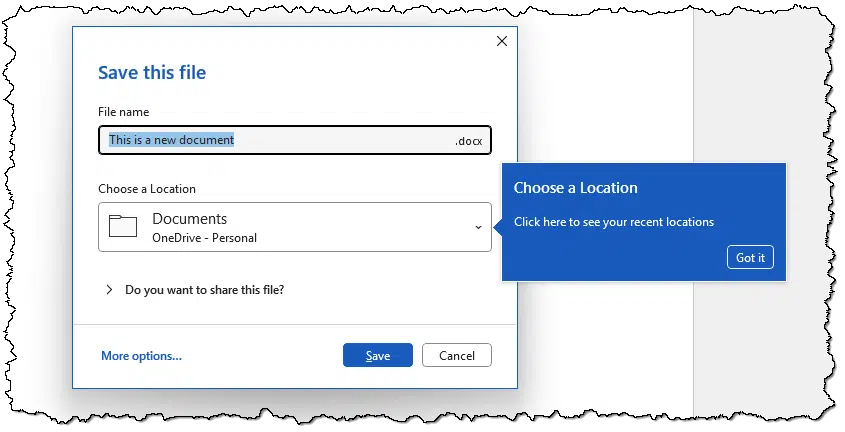

You can explicitly choose a different location, but it's often an inconvenient sequence of the dialog above followed by:
"Browse" brings up the traditional Save-as dialog that allows you to specify the file's location and name.
Instead of awkwardly choosing a non-OneDrive location each time you want to save a new file, you can typically change the default save location in your application settings. How Do I Disable OneDrive in Office 365? includes the steps for Office apps.
277: I purposely place "feature" in quotes because I don't consider it a feature at all — particularly since it has the potential for data loss.
How Do I Get Rid of OneDrive? – If you follow the rules above, you don't really need this information, but it may help you feel more confident about OneDrive's role in your life.
OneDrive Backup Versus Using OneDrive for Backup, Even Though OneDrive Isn't Backup – The word "backup" is used in confusing ways when it comes to OneDrive. It's worth understanding how it all works so you can choose what's best for you.
Task Manager can display some very useful additional information -- if you know where to click.
(Animation: askleo.com)
Task Manager in Windows 10 and 11 is a powerful tool — perhaps more powerful than most people realize. By default, it doesn't display everything it's capable of displaying, and sometimes that hidden information can be useful.
Run Task Manager (right-click on the Start button and click on Task Manager), and then click on More details, if it's displayed, to get the complete Task Manager display shown above.
Now right-click on any column header. Task Manager will pop-up a list of the types of information that are available. Currently displayed columns — the defaults — have a check mark.
You'll note several interesting items not displayed by default. Click on one to add it to the currently displayed task list. For example, I find "Command line" useful to see which programs are running and where their files live.
The next time you're diagnosing a problem of some sort, check out the various options.
Device Manager is a useful diagnostic and maintenance tool. There are several ways to get to it.

As they say, there's more than one way to skin a cat, and nowhere is that more true, it seems, than within Windows.
Device Manager is a utility that displays the hardware devices on your system. It allows you to scan for misbehaving devices and update device drivers. You can, of course, right-click on the Start menu in Windows 10 or 11 and click on Device Manager. In all versions of Windows, however, there's a somewhat easier way to run it.
Type the Windows Key + R to open the "Run" dialog, and type in:
devmgmt.msc
Click OK. That runs the Device Manager directly.

If it's something you use frequently, you can even create a shortcut that runs devmgmt.msc and place it in the Start menu or on your desktop.
IMAP is a protocol that makes dealing with email on multiple devices much easier.
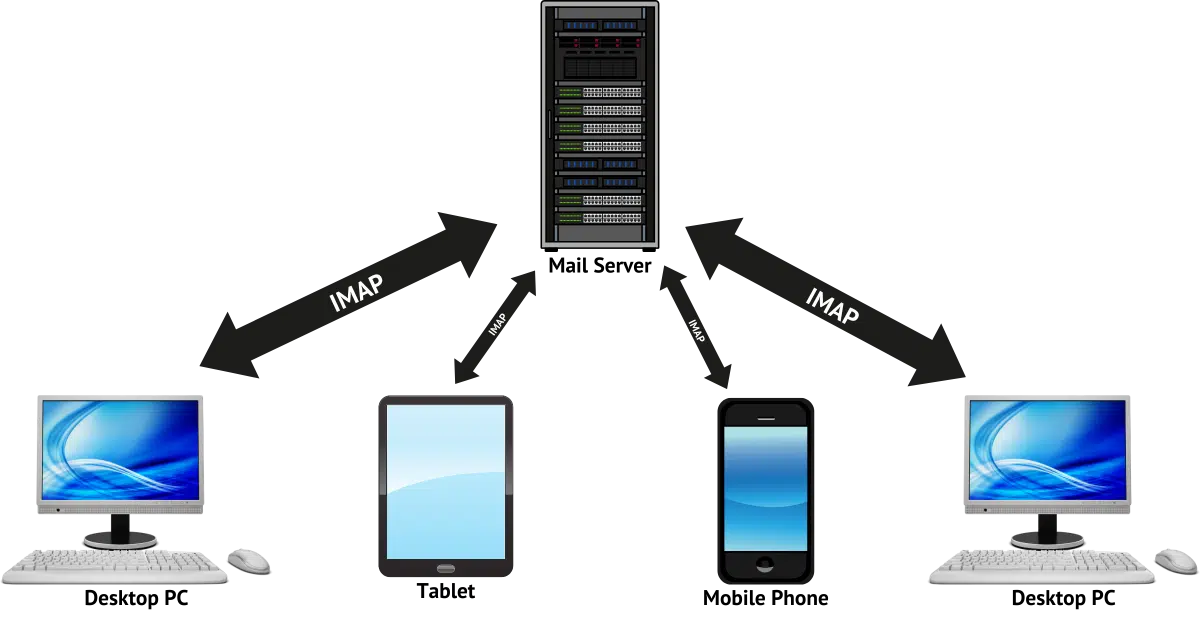
IMAP stands for Internet Message Access Protocol. It's a fancy name for a protocol used by email programs like Outlook, Thunderbird, and others to access your email.
IMAP is an alternative to POP3 (Post Office Protocol 3), and it works in different ways.
I'll examine IMAP, how it compares to POP3, and when you might want to consider using it — which is most of the time these days.
IMAP, unlike POP3, keeps your email stored on the server as a master copy, enabling access and synchronization across multiple devices. It supports folders, uploads for easy migration, and acts as a backup solution. IMAP works well with fast, always-on internet connections, making it the preferred protocol for most users today.
The biggest single practical difference between IMAP and the older POP3 is that with IMAP, your email stays on your email service provider's server. Think of it as the official master copy of your email.
The software you use to access your email is just a way of looking at that master repository.
Whether you set up an email program like Thunderbird (or Outlook or another email program) to access your email via IMAP or connect your phone or mobile device to your email (which typically also uses IMAP), the best way to think of what's happening is that the program is showing you what's on the server.
And that's it.
At least conceptually.
Your email program may download a copy of the email to your PC.
You're still looking at your email as it lives on the mail server's repository, but your email program has optimized the experience by downloading the email so you can access and display it more quickly.
You can access email downloaded by IMAP even when you're offline if your email program is appropriately configured.
That's more or less the same as POP3. But there is one important difference.
When IMAP downloads your email, it copies the email onto your computer. The original email remains in the email server's master repository of your email. Downloading it puts a copy of it on your PC for quick and easy access. (Or backup, as we'll see in a moment.)
When POP3 downloads your email, on the other hand, it moves the email from the email server to your PC. By default, when a download is complete, the email resides only on the PC to which it was downloaded.
This "copy, not move" difference between IMAP and POP3 enables a couple of very interesting things.
Since using IMAP is only a "view" of the master copy of your email stored on a server, you can have more than one computer open up that view.
In fact, if you've got a mobile device accessing your email, you might be using IMAP already, as it's a very common default configuration for mobile email programs.
Each program using IMAP to access your email is simply keeping itself in sync with the master copy. So if something happens to the master copy — say an email is deleted or marked as "read" — then that change will be reflected in all the email programs.
Delete a message here, it's deleted there. Mark it read there, it'll show up as read here. IMAP enables cross-device synchronization.
Unlike POP3, IMAP supports folders.
If you create a folder on one machine connected to your email account using IMAP, then that folder becomes visible in all email programs connected to that email account via IMAP. And, of course, if you move a message into a folder, that message is moved into the folder in all email programs connected to that account.
The only common point of confusion is Gmail. Gmail doesn't support folders at all, but instead provides roughly equivalent functionality through the use of labels. Check out my article How Do Gmail Labels Relate to Folders? for more.
This is an under-appreciated feature of IMAP.
If you place a message in your inbox on a machine that is connected to your email account via IMAP, that message is uploaded and placed in the master copy on the server.
In fact, that's true for any folder, but the inbox has special significance, I think.
Why?
It's what most people want to move when they're changing email providers.
Moving from Yahoo! to Gmail? Set up a PC-based email program with an IMAP connection to each, and simply drag and drop the contents of the old inbox to the new.
Conceptually, it really is nearly that simple.
Let's say you access Gmail via the web and only via the web. You have everything you need on any computer by logging into your Gmail account.
What about backup?
A machine running a desktop email program connected to your email account via IMAP makes for a great solution.
In fact, that's exactly what I recommend these days. Most of your email access may be via your email provider's web interface, but a machine running an email client like Thunderbird, connected to your accounts via IMAP, will download email as it appears.
As a backup.
The POP3 email protocol was developed in the days of dial-up modems and temporary connections.
Connecting to the internet, downloading all your email, and disconnecting was a common way of life, particularly when no one could use the telephone while you were connected.
IMAP leverages a faster and more continuous connection to the internet. It's more or less constantly checking for updates and synchronizing between your PC and the master email repository.
Both work in either scenario. POP3 works just fine if you're always connected with a fast connection, and IMAP works if connectivity is not always present and synchronization actions need to be deferred until it is.
But if you are always connected and you are on something faster than a dial-up modem, IMAP might well make for a convenient approach to managing your desktop email.


Go ahead. Plug it in. External keyboards are useful for many things.
I've been there. Adapting to a new keyboard, especially after years of being attached to a comfortable ergonomic one, can be a pain. I often avoid using the keyboard on smaller laptops because they don't work well for my large hands.
External USB keyboards are the way to go.
Struggling with your laptop's keyboard? Plug in your favorite USB keyboard. Consider disabling the touchpad and even covering the laptop's built-in keyboard. Add a stand for more comfort and you've got a setup that feels more like home.
In most cases, you can absolutely use your old ergo keyboard with your laptop. Just plug it (or its wireless receiver) into a USB port on your laptop. No additional setup is usually required.
Modern laptops are designed to support external devices out of the box. When you plug a USB keyboard:
I often connect my laptop to an external keyboard for a more ergonomic and comfortable typing experience.
Both Windows and macOS allow the use of multiple keyboards at the same time.
The running joke is that you can use one keyboard with one hand and the other with the other hand. While certainly possible, if awkward, sometimes having access to both is useful. For example, if my laptop keyboard has volume control keys that my external doesn't, as long as it's within reach it's easier to just hit those buttons on that keyboard.
You mentioned accidentally brushing against the touchpad while typing. Most laptops allow you to deactivate the touchpad. Here's how:
Of course, you can also connect an external mouse via USB or Bluetooth. This way, you can fully ignore the laptop's built-in touchpad. (And, yes, you can use both the touchpad and the mouse, or even additional pointing devices like trackballs or more mice, at the same time.)
If you want to avoid accidentally pressing keys, you could cover it up. While cardboard might not be the most elegant solution, you could place some kind of a keyboard cover or silicone protector (an oversized mousepad, perhaps) over the built-in keyboard.
Even if you don't plan to use your external keyboard long-term, I do recommend you keep a USB keyboard around.
If you experience a problem with the built-in keyboard, my number one recommendation is that you first see if the problem happens with an external keyboard as well. If it does, you'll know you're likely dealing with a software problem. But if the external keyboard works where the internal doesn't, then you know you're probably dealing with a hardware issue.
Consider elevating your laptop on a stand. This allows you to position your external keyboard exactly where you want it, keeping the built-in keyboard out of the way, while also adjusting your screen height to reduce neck strain.
This mimics the desktop experience you're used to.


I'll look at why some bugs might never get fixed -- even those you consider important.

First, to be clear: I'm not talking about a specific bug.
This is about folks who discover something that is a horrible, terrible problem to them, and they just can't understand why it's not fixed immediately.
The question above is a composite of questions, comments, and rants I've received. Every time, someone is convinced they're dealing with what they consider the Most Important Bug ever, and Microsoft — no, Bill Gates himself — is ignoring them.
There's usually no satisfying folks who've landed in this extreme position. I often suggest — and it's an honest suggestion — that they might be better served by using Mac or Linux because they're so dissatisfied with Microsoft and Windows.
For those who are interested, I'd like to discuss how companies decide which bugs get fixed and why a bug you consider important might not be one of them. I'll also discuss why Bill Gates is not only not ignoring you but probably doesn't know that you — or the bug you care about — even exists.
Fixing even simple bugs is costly, risky, and time-consuming. Design decisions aren't bugs no matter how much we dislike them. Other bugs lie with third-party software. While frustrating, workarounds or alternate solutions may be the best path forward for issues you can't live with. Blaming Bill is pointless.
This isn't about making excuses for Microsoft. They do screw up and miss important things from time to time. More often than not, it's a case of not clearly understanding the priorities of their users, but even that is no excuse; sometimes, they just get it wrong.
This is about understanding the process and the incredible complexity of fixing bugs. Hopefully, we can gain a little understanding of why a bug might not get resolved in a timely fashion (or at all).
I'm not only not making excuses for Microsoft; this information applies industry-wide. Even though I'll use Microsoft in the discussion below, it applies equally to any of a hundred other software manufacturers.
I also don't want to minimize or gloss over the impact of whatever you're experiencing. These problems can have a significant impact on how you use your computer every day. I am taking your experience seriously — as does Microsoft, believe it or not — but I also want to be pragmatic.
My goal is for you to understand the realistic chances of getting your issue addressed. Let's look at how companies make decisions about how things work, how they prioritize fixing bugs, how difficult it is to fix bugs, and who we should blame.
Just because you don't like something doesn't mean it's a bug. It may annoy the heck out of you, but that doesn't mean that it's wrong or accidental.
Microsoft does research (called usability studies) to determine the best way for things to work — lots of research. They update and refine their products based on feedback from real people who are using the proposed changes long before the change ever sees the light of day in public. Based on that feedback, many changes never make it into the product.
But there's no pleasing everyone.
If 990 people really like a proposed user interface and 10 hate it, Microsoft will choose the one that pleases the most. If you're one of the 10, you're out of luck.
It's not a bug; it's a decision appealing to the majority of users — a majority of which you, unfortunately, are not a part.
I'm certain there are bugs in Windows that are decades old and will never be fixed.
Why?
Because the number of people affected by the bug, or the severity of the bug's impact, is so small it's just not important enough to fix.
Let's say you find 1,000 people who agree with you on the bug that bugs you the most.
The number of Windows installations exceeded 1 billion machines sometime in 2014. It's even higher now. Your 1,000 people represent 0.0001% of Windows users. The fact that 1,000 is a tiny fraction of Windows users isn't enough to get the bug ignored, but it is one factor.
Data loss is a more significant factor. One classification assigned to problem reports is the concept of data loss: whether the bug could cause the user to lose data. That could be as simple as a crash that causes you to lose what you were working on just now, or a failure unexpectedly wiping out all or part of the data stored on your hard disk.
Data loss matters.268
If a part of the screen isn't re-drawn as it should be, or a mouse pointer disappears, or an information window closes unexpectedly, those are all less serious than something that causes a user to lose data.
So even if thousands of people are experiencing the same problem, that might be tiny compared to all the users who are not. If the problem is mostly non-destructive, you can see that it might not get as highly prioritized as other issues, including future product and new feature development.
One of Windows' most interesting features is its ability to be extended by third-party hardware vendors. Today's version of Windows can work with hardware that hasn't even been dreamed of yet because when that hardware comes into existence, the manufacturer can write software (aka drivers) that integrates with Windows to support that new device.
The key phrase there? "The manufacturer can write software... that integrates with Windows".
Microsoft doesn't write and isn't necessarily responsible for every bit of software used by Windows to run your machine. What that means is that some bugs users perceive as being in Windows aren't in Windows at all. They are in the software added to Windows by other vendors.
Microsoft can and does pass along reports of issues with third-party software, but they always don't control how, when, or even if those bugs get resolved. They, like you, are at the mercy of those third-party software authors.
This isn't limited to drivers. There are third-party applications and add-ons often perceived as part of Windows even though they are not. Their failure is often reported as about Windows when the fault lies elsewhere.
Fixing a bug — even a simple one — is neither simple nor cheap.
Because of the unimaginable complexity of the systems that we take for granted these days, the ramifications of even the smallest bug fix are often impossible to predict. It's not at all uncommon for a bug fix here to break something else over there.
Hence, a good software vendor tests even the smallest fix thoroughly. What that means is that the software needs to be run through a complete testing cycle to make sure the fix broke nothing.
Imagine what it means to test every single feature in Windows. Now imagine doing that for every different edition of Windows (Home, Pro, whatever). Now imagine doing that again for every edition in every language.
Now imagine trying to do all of that quickly.
The upshot is that the cost of even the simplest of fixes is surprisingly high.
There's an old software engineering maxim that says:
The earlier bugs are found, the less expensive they are to fix.
So you can imagine that there's a lot of pressure to fix bugs as early in the development cycle as possible. There are untold thousands upon thousands of bugs that get fixed before the product is ever released.
And yet some make it through regardless. That is the nature of software development. There's no such thing as bug-free software. Period.269
It's also the nature of the complexity of the system. There are days when I'm amazed that it works at all.
This puts software vendors in a no-win situation.
We complain about software that takes forever to arrive, and then we complain that the software has bugs.
In the real world, those two things are directly at odds with each other.
It takes time and discipline to write and test software so it has as few bugs as possible. Conversely, software that is rushed to market because people are clamoring for it (or because the press is pointing fingers) is likely to have more than the average number of bugs.
We can't have it both ways.
Every software release — every software release, I don't care who it's from — is a compromise. Engineers plead for just a few more days to fix a few more bugs270 and marketing and salespeople complain that every delay results in massive market share or revenue loss.
The reality is somewhere in between. Some releases strike the right balance; others do not.
I'm not trying to say that bugs never get fixed. Bugs do get fixed; just not all of them.
If you encounter something that isn't working as you expect, look for solutions. There's a tremendous amount of information and resources available on the internet (I hope Ask Leo! is one). If there are no solutions to be found, report the problem.
Just don't get overly frustrated if no fix is forthcoming. And don't immediately jump to the conclusion that your feedback is being ignored — that's highly unlikely.
Instead, focus on finding workarounds or ways to avoid the problem. If it really is a bug that is terribly impactful to you, that might mean switching to different software from some other vendor.
I scratch my head when people rail against Bill Gates for perceived issues with Microsoft or its products. I'm not sure what it is about Microsoft that causes people to blame Bill personally for all its faults and failings.
Bill hasn't worked directly at Microsoft since 2008, and he left the board of directors in 2020. While he may still be advising folks at Microsoft, it's most certainly not at the level of individual features and bugs.
In other words, Bill Gates is not (and never was) personally responsible for the features you don't like or the bugs you encounter.
Your ire at him is completely wasted.


278: Unless you're the OneDrive backup "feature", apparently.
279: For some reason, someone always pushes back on this statement. I stand by it for even the simplest of meaningful programs.
280: I have been that developer in the past.
Pay attention to where you're headed on the web. Don't fall for fake websites.

One of the most common ways scammers succeed is by creating a fake website that only looks like a popular website. For example, they might make a website that at first glance looks like eBay.
They trick you into visiting their fake site, and if you don't notice it's fake, you might attempt to log in. Doing so gives the scammer your username and password to the real eBay website. They can even make it look like your log-in succeeded and string you along even further, perhaps tricking you into entering your credit card information.
One way they trick you is to host their fake sites at URLs that look similar to the URL of the site you trust.
A URL is a website's location on the internet. eBay's URL, for example, is https://www.ebay.com. When you visit eBay, you'll see that, or perhaps the shortened but equally legitimate "www.ebay.com", or just "ebay.com", in your browser's address bar.
https://www.ebay.com is legitimate.
https://www.lowest-prices-on-ebay.com is not. "ebay.com" must be preceded by a period to be legit. This is not.
Why do these fake URLs work so often? Well, when the browser address bar is narrowed on the screen, the URL may not be fully displayed. Often you only see the last part. That means that
https://www.lowest-prices-on-ebay.com
could be displayed as
...ebay.com
That's when it's even more important to click in the address bar and examine the full URL to make sure you are on the website you think you are.
I've used eBay as the example here, but this applies to all websites, especially those that legitimately ask for sensitive information, like your online email, bank, or social media accounts. Check the full URL for your safety.
Windows File Explorer will display the full path to a folder you're viewing in one click.
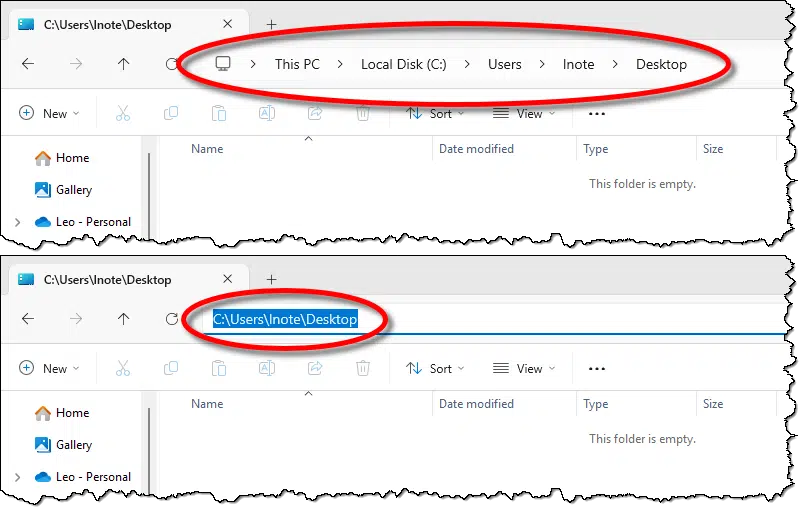
As Windows has matured, it's slowly hidden more and more of the arcane attributes it inherited from its predecessor, MS-DOS. One of those is the syntax used to specify what's called a "full path" — the complete description of a file's location.
If you navigate to a folder within Windows File Explorer, you'll see the location displayed in what I'll refer to as a "pretty" format, with each component separated by a greater-than sign (>).
While completely accurate and fairly informational, this format is only useful as something to be read. It's not something you can copy/paste into another program to tell that other program which folder you have in mind.
Fortunately, that's just a click away. Click in the empty area immediately to the right of the last component of that displayed location — in this example, immediately to the right of the word "Desktop".
The location is immediately re-displayed in what I'll refer to as "MS-DOS" format. More correctly, this is the full path to the folder. In this example, that's C:\Users\lnote\Desktop.
It's even selected for you, so should you want to copy it to the clipboard, you need only type CTRL+C.
See also the previous Tip of the Day: Copy as Path.
Signal's the current gold standard in keeping your conversations truly private.

There are many messaging apps out there. Whatsapp is extremely popular around the world. Telegram has made inroads. Facebook Messenger is extremely popular since it's "just there" for all those Facebook users. SMS/RCS text messaging remains popular.
There are dozens of others as well.
While I'm not uninstalling any of them, I'm definitely switching my preference to Signal. I want to explain why and encourage you to evaluate your situation and consider it as well.
Signal is my new messaging preference for its privacy, end-to-end encryption, and zero data storage. Unlike others, it safeguards your communication from any interception or misuse. As privacy concerns grow globally, Signal is a great, free alternative worth considering for anyone valuing secure and private conversations.
Throughout this article, I'll be quoting this blog written by a federal employee and posted by Matthew Haughey: A guide to using Signal for government workers.
Signal messages are always end-to-end encrypted between your device and the recipient's device
Note the "always". The only people able to see your communications are yourself and the person(s) you're communicating with. There's no one to intercept, record, or report your messages.
The only information Signal has is when a user signed up and when they last used Signal; they have no information about who you chat with or call, your contacts, or even your profile ID.
This means that even if asked or demanded, Signal has nothing to offer. With zero data storage, they simply don't have the information.
They publish every single subpoena they receive as well as their response.
For some reason, this tickles me. You can't provide information you don't have.
Signal is a free app that lets you securely communicate with anyone, run by a trusted non-profit that has had an excellent track record since 2018.
It's the communication app of choice for embedded journalists, whistleblowers, and just about anyone who's concerned about malicious surveillance.
Signal has the features most people care about.
It's basically everything you could want out of a messaging app.
The only limitation I've discovered so far is that Signal assumes you have an SMS-capable telephone in order to set up initially. I've found some workarounds, but they all have side effects, some of which potentially affect the privacy we're after.
To once again quote the essay:
Once you switch to Signal, it really is no different than other text apps. But it comes with the added safety and security of knowing everything you've said can't be intercepted along the way and no one at Signal stores your messages anywhere. I'll likely move to Signal for texting with most people eventually, since I don't know if I can trust Apple or Google or any other company to protect my personal data in the years ahead.
(Bolding mine.)
Besides Apple, Google, and Microsoft, I'd add any of the popular messaging carriers to this concern. Facebook (Messenger & WhatsApp) has an abysmal record in so many ways. Telegram, while laudable, apparently keeps more information and has provided it in response to legal subpoenas. And the telephone companies behind SMS and RCS are almost always at the whim of the authorities.
If you've followed me for any length of time, you'll know that one of my common responses to people who seem overly concerned about privacy and surveillance is that you and I just aren't that interesting. Microsoft, Google, or any other cloud provider doesn't care what's in your documents. Hackers care about your credit card number, not your private messages. We're simply not that important in the grand scheme of things.
I still believe that. And yet.
I have always included an exception: "...unless you're living in a repressive or authoritarian regime".
Without getting deeply into political and social topics, I'll just say that portions of the world we used to consider "safe" seem to be on the brink of what could be a very concerning change. While I don't believe there's an issue today, it's a future possibility. As a result, I want to prepare and shift my communications with others into more secure, private forms.


The word "backup" is used in confusing ways when it comes to OneDrive. It's worth understanding how it all works so you can choose what's best for you.
In previous articles, I've outlined how you should avoid the OneDrive backup "feature" like the plague and how you can use OneDrive for nearly continuous backup (even though OneDrive by itself is not really a backup).
It's confusing because these are all different things. I might even say they are completely different and unrelated things.
The source of confusion is that they all use the word backup.
OneDrive is a file synchronization tool, not a backup service. While it can act as a kind of backup function, its misleading backup feature can cause data loss and confusion. For a robust backup strategy, use tools specifically built for backing up and avoid enabling OneDrive's so-called backup feature. Use OneDrive, but use it with care.
At its core, OneDrive is a file synchronization application271. That means its primary job is to keep files in two locations in sync with one another.
"Change" here means adding, editing, or deleting a file. Do any of those in one place and it will be mirrored in the other.
That's it. That's all. Make a change here, that change is made over there. That's OneDrive in a nutshell.
I'll go into each in more detail, but in summary:
Let's look at each.
Imagine the following scenario: you're working on an important document that is saved somewhere within your OneDrive folder. Each time you change that document, OneDrive automatically uploads the changes to OneDrive.com, where they're reflected in the file's copy online.
Now imagine your hard drive dies or you lose your laptop when you're traveling. You lose everything.
Except you don't. The document you've been working on is still at OneDrive.com online. You replace the hard drive or the computer, download the file, and resume where you left off. It's as if nothing happened to the document at all.
Because nothing did. OneDrive file syncronization was acting as a backup, copying your file online.272
That's using OneDrive for backup.
Imagine you're working on an important document stored somewhere in your OneDrive folder. As before, changes are continuously reflected in the copy of the document online.
Now imagine that your Microsoft account is compromised. A hacker gains access, and before you know it, they delete everything in your OneDrive. Since OneDrive is synchronized with your PC, everything is deleted there as well. All the copies of your important document are gone.
In this scenario, OneDrive is very much one place, and as we know, if it's in only one place, it's not backed up. OneDrive did not protect you from losing your data. That's not a backup.
To add to the confusion, Microsoft heavily pushes a OneDrive feature that is called backup.
When you allow this feature to be turned on:
That's it.
Microsoft calls this a backup because once these folders are within the OneDrive folder, OneDrive synchronizes their contents with your OneDrive.com storage online. This is how OneDrive serves as a kind of backup, as I described above.
The problem is that this happens regardless of how much online storage you have and whether your existing files exceed that capacity. What's worse, if you turn the feature off, the contents of those folders are not moved back. You'll still exceed your online capacity and risk actually losing your data.
I keep calling this the OneDrive backup "feature" (in quotes) because it's not a feature at all. It should not be turned on273 no matter how strongly Microsoft suggests it, and they do suggest it strongly. It's simply too risky and too confusing.
You can use OneDrive as a kind of backup, as I outlined above, but you don't need this additional backup "feature" to do it.
This "kind of" backup and the thing that Microsoft calls a backup only makes things confusing. It could even lead to data loss.
What to do?
Here's my suggested recipe for a healthy backup strategy including OneDrive.
Full protection against almost any disaster.
An alternative is to avoid using OneDrive completely, of course. Given how hard Microsoft is pushing OneDrive, you might think it can't be done, but in reality, it's possible.
Seriously, that's all you need to do. If files aren't within the OneDrive folder, they are not affected by OneDrive. Keep everything in other folders.
Instead of files somewhere within "C:\Users\<username>\OneDrive" (the default location of your OneDrive folder), create your own folder like "C:\Users\<username>\NOTOneDrive". Avoid the "standard" folders like Documents because of the risk that OneDrive's backup "feature" could accidentally be enabled, moving them into OneDrive.
You can also take the following additional steps.

281: As are tools like Dropbox, Google Drive, Proton Drive, and many others.
282: An offsite backup at that, which is also considered an important part of a backup strategy.
283: Unless you really know what you're getting yourself into.
Moving the location of default folders to a second drive is quite easy.

In a previous tip, I discussed the benefits of adding a drive to your system.
If you add an internal drive, you may be able to rearrange the data stored on your disks by changing the location of the default Documents, Pictures, and other standard Windows folders.
For example, let's say the many documents in my Documents folder are taking up excessive space on my C: drive (the default location), and I'd like to free up that space by moving the Documents folder to a different drive.
In Windows File Explorer, right-click on Documents underneath This PC, and then click on Properties.
In the resulting dialog box, click on the Location tab. Replace the existing location, which should be similar to "C:\Users\<username>\Documents", with a folder on your second drive. In this case, I've specified "D:\Documents".
Click on OK, and you'll be asked:
That last question is where the magic happens. Answer "Yes", and the existing contents of the original folder will be moved to the new location. In my example, that means that the contents of "C:\Users\<username>\Documents" are moved (not copied) to "D:\Documents". This frees up space on the C: drive and begins to make use of the new one.
Most programs that access the files will continue to work properly without needing to be told of the move. A few will need to be told that the documents are on D:\Documents now.
This same technique can be used for the Pictures, Movies, and Music folders. It's not uncommon to move them all to the new drive.
Just make sure that the new drive gets backed up regularly.
Note:
The end of support for Windows 10 means Microsoft will no longer issue security updates. Here's how to continue using it safely.
No, you won't be forced to upgrade.
You can keep using it, but it's important to understand the risks involved.
One thing we've learned from being here before (and before that) is that the risks may not be as horrific as some make them out to be.
Windows 10 will continue to work after its end-of-support date (October 2025). Applications running on Windows 10 may get updates for some time but eventually will stop supporting Windows 10 as well. To continue to use Windows 10 safely, make extra sure you maintain good security practices and back up regularly.
Windows 10 22H2 will be supported until October 14, 2025.
The only thing that happens when support ends is that no further fixes are available even for security-related issues. In fact, even now, as the date draws closer, security-related issues are the only fixes you'll get.
It'll keep working, but whatever Windows 10 looks like on October 14 is what it'll be from then on. No changes, no fixes, no ‘nuthin.
Should You Sign Up for Extended Security Updates (ESU) for Windows 10?I'll review the security protection for Windows 10 beyond its official end-of-support date: what it means, pros and cons, and what we know about how to get it -- perhaps even for free.#175852 |
For the first time, Microsoft is making the Extended Security Updates (ESU) program available to consumers who use Home and Pro editions. Sort of.
And for the first time ever, we're introducing an ESU program for personal use as well. The ESU program for consumers will be a one-year option available for $30. Program enrollment will be available closer to the end of support in 2025.
For $30, you get one year of additional security updates beyond the October 14, 2025 cutoff date. After that, you're on your own.
You've essentially punted the deadline one year further downfield.
Just because Windows stops being updated doesn't mean the applications you use will stop sending updates. That depends entirely on the application vendor and when they decide to stop supporting Windows 10.
Some may stop on Microsoft's date. Others may stop sometime thereafter. You need to monitor updates for the programs you care about.
Someday, those updates will probably stop as well. It'll be up to you to decide if you care.
Think of Windows Security as separate from Windows itself. Just as if it were a third-party application, the scanner may continue to get updates for some time, and the database of malware that it relies on will keep getting updated as well.
Security bugs in Windows itself will not be fixed (unless you've signed up for Extended Security Updates), but the security software looking for malware will stay current for some unspecified amount of time.
Good question. The gloom and doom scenario is that there's an unpatched vulnerability waiting to be found. Hackers will exploit it, and Microsoft won't fix it.
The more pragmatic risk is that eventually your other software will no longer be updated. You'll have to figure out whether you can live with it or find alternatives.
The other risk is that when your computer dies, you won't be able to get Windows 10 for its replacement. Once again, you'll face the decision of whether to move to the latest, most current version of Windows or switch to something else entirely.
Perhaps the most important step to keeping yourself safe is to make sure you're following proper security practices and that your security software continues to work and be updated. If your security software is no longer supported, find an alternative immediately.
Windows Security should continue to receive updates for "a while". In the past, the Windows security software continued to be updated for some time after Windows itself passed its end-of-support date.
The other important step I recommend is my old standby: regular and complete backups. If something goes wrong, you'll want to restore to a backup. This will also protect you to some extent when Microsoft eventually takes existing Windows 10 updates and activation offline. That action would prevent you from downloading Windows 10 from scratch, but if you have a backup, you can still restore it.274
If what we're experiencing sounds hauntingly familiar, that's because it is. This is exactly what happened with Windows 7 some years ago and Windows XP before it.275
And in the light of many dire predictions of catastrophe and doom... nothing happened. There were no catastrophic malware outbreaks targeting Windows 7 or Windows XP. There was no list of known vulnerabilities that hackers kept secret until they knew they wouldn't be fixed.
Nothing.
Windows 7, Vista, and XP users were probably more affected by the decreasing hardware and software support for the applications they cared about.
I expect Windows 10's "death" to be very similar: a slow fade into obscurity.


284: I believe Windows XP is in this state right now.
285: To the extent that I began this article by duplicating the Windows 7 version of it.
A quick solution to running out of space is to add more space.

If you're running short of space on your computer's hard drive and you've removed everything you can safely remove to make room, you have three options:
The first is the most common because USB drives are relatively inexpensive and easy to attach: just plug it in and it appears in Windows File Explorer.
Adding an internal drive (typically only an option on desktop machines that have room inside the case) requires more research and work; exactly what to get and how to install it varies depending on your specific machine. You'll need to be comfortable opening up your computer or having someone else add the drive for you. Being attached internally, however, the drive will often be significantly faster than an external drive.
Of course, you could replace the existing internal drive with a larger one (again, some research may be required). Doing so requires that you carefully back everything up,276 replace the old drive with the new, and then restore everything. It's a time-consuming process that leaves you with an unused old hard drive, though it's an approach you can use when replacing a traditional hard disk with a new, faster, solid-state disk (SSD).
Adding a drive can be a quick and easy way to resolve a space crunch on your machine. Just make sure to add the new drive to your overall backup strategy.
286: Of course, you should be doing this regularly already, but you'll want to take an additional image backup immediately before replacing your drive.
Reporting spam in your email program with the spam button is critical. Reporting it by forwarding it somewhere isn't going to do any good.
Yes.
I don't believe reporting spam to these sites and services is worth the time and effort. I don't see any harm in doing it; I just don't think it helps.
I do want to be very clear, however, that a different type of "reporting spam" is very important, and we should all be doing that.
Mark spam using your email program's "spam" button. This crowdsourced reporting helps improve spam filters. Forwarding spam to agencies or anti-spam services, however, is ineffective because of modern spam tactics like botnets. While it won't hurt, it has little impact. Focus on marking spam locally.
Spam is more than an annoyance: it's a battle. For every step you and I and our email providers take to stop or block spam, spammers come up with new tricks and techniques to bypass them. As the recipient of a fair amount of spam — perhaps more than most, since I have several "public" email addresses — I see the magnitude of the problem firsthand.
You should definitely report spam using the "spam", "junk", or equivalent mechanism in your email program or web interface.
Particularly for web-based email services, our collective feedback is how the system learns what is and is not spam. Think of it as crowdsourcing. This information is collected and used to tune what the email service looks for when deciding whether something is spam and whether to automatically place it in your spam folder.
The more you report spam in this manner, the better the spam filter gets.277
This does nothing to reduce the amount of spam targeting your email address, but the result is that less of it ends up in your inbox. More gets deflected into your spam folder instead.
Keep doing that. (Just don't use the "spam" button to unsubscribe from things you asked for; doing so hurts other recipients.)
The type of spam reporting I feel is useless is when you either forward the email to a specific email address or copy/paste the email body or other information into an online submission form.
There's nothing wrong with doing so; it will not harm you or cause you to get more spam. It's just not going to help you get less.
The addresses you listed278 already get so many reports that whatever you're reporting is just a drop in the ocean. It would be rare for you to pass along something that hasn't already been submitted.
Besides, the nature of spam has changed such that these services no longer work reliably. Let me tell you why.
In the past, most spam came from specific servers that were owned by or had been compromised by spammers. These servers sent out millions of spam email messages.
When the email came from consistent servers, it was possible to track them down, and, depending on where they were located, shut them down or block them.
That's when most of these reporting services come into being. By forwarding spam to them, you were helping to identify specific sources of large amounts of spam. The services then tracked down the owner or the owner's ISP and had the spammer shut down. If they couldn't shut them down, they added the IP address of the server to a "black list" which other ISPs then used to block that server.
Unfortunately, this approach is no longer effective.
Why?
Botnets.

Botnets are created by installing malware on millions of computers worldwide, and they have replaced individual mail servers for sending spam. Rather than sending 10,000,000 emails from one server, a spammer might now send 100 emails from 100,000 infected machines.
Your machine could be one of them, and you might not even realize it. (Make sure your security software is up-to-date and scanning!)
One hundred thousand machines is an impractical number of machines to track down. Even if it could be done, tracking them down wouldn't help; spammers would just use other infected machines to continue to send out spam.
As a result, the reporting services you're asking about can no longer help.
We do hear of botnets occasionally being brought down, but identifying the spam emails doesn't play a role. Instead, the malware that infected machines in the first place must be tracked down and defended against.
A relatively new entry in the "report spam" arena is the ability to forward a copy of spam to a service that promises to waste the spammers' time by using a different bot to engage them in a fake conversation for as long as possible.
This is another waste. It's akin to fighting spam with spam — you're causing the internet to be flooded with even more fake email. You've contributed to the problem.
I'm also convinced that spammers will catch on to that quickly and recognize the bot for what it is: ineffective and easily ignored.
Before I write off reporting completely, though, I do have to add that some agencies — in particular, the U.S. Federal Trade Commission — may do more than just track down servers and IP addresses. The FTC may also look at the content of the message and see if what's being hawked violates federal law. With enough instances of an issue, I would hope they'd go after the merchant.
Unfortunately, they may not do much even then. Many or most of these scams originate overseas, where the FTC has no jurisdiction.
The bottom line: depending on the spam and the service, forwarding spam to these services has only a tiny chance of helping.


287: In theory. This varies dramatically across providers, but it's all we have.
288: The original, full question included several example email addresses that I elected not to republish here.
Here's another way to use OneDrive online storage without ever installing it on your PC.

In a previous article, I described how you can use OneDrive without running the OneDrive app (by visiting the OneDrive.com website).
In another article, I showed how you can use OneDrive as a dumb hard drive, again without needing the app.
I've discovered a command line tool that is the best of both worlds, and I've started using it extensively: rclone. It allows you to access your OneDrive online storage without the OneDrive app, and without needing to visit OneDrive.com. In fact, it makes your OneDrive online storage "look like" just another external drive.
You can access OneDrive storage without installing its app by using rclone, a versatile command-line tool. Configure it for OneDrive and use it in the command prompt directly, or use it to mount your OneDrive as a virtual drive. Bypass synchronization confusion while retaining full control over your files.
You do not need to run the OneDrive app on your computer. You can disable it, uninstall it, or sign out of it. Any of these prevent the OneDrive app from trying to synchronize or otherwise manipulate any files on your computer. Without the OneDrive app in use, there won't be any confusing manipulation behind the scenes.
However, that doesn't mean you can't benefit from using OneDrive. Using a program called rclone, you can copy to and from your OneDrive storage, and even treat your OneDrive storage as if it were connected as another disk drive.
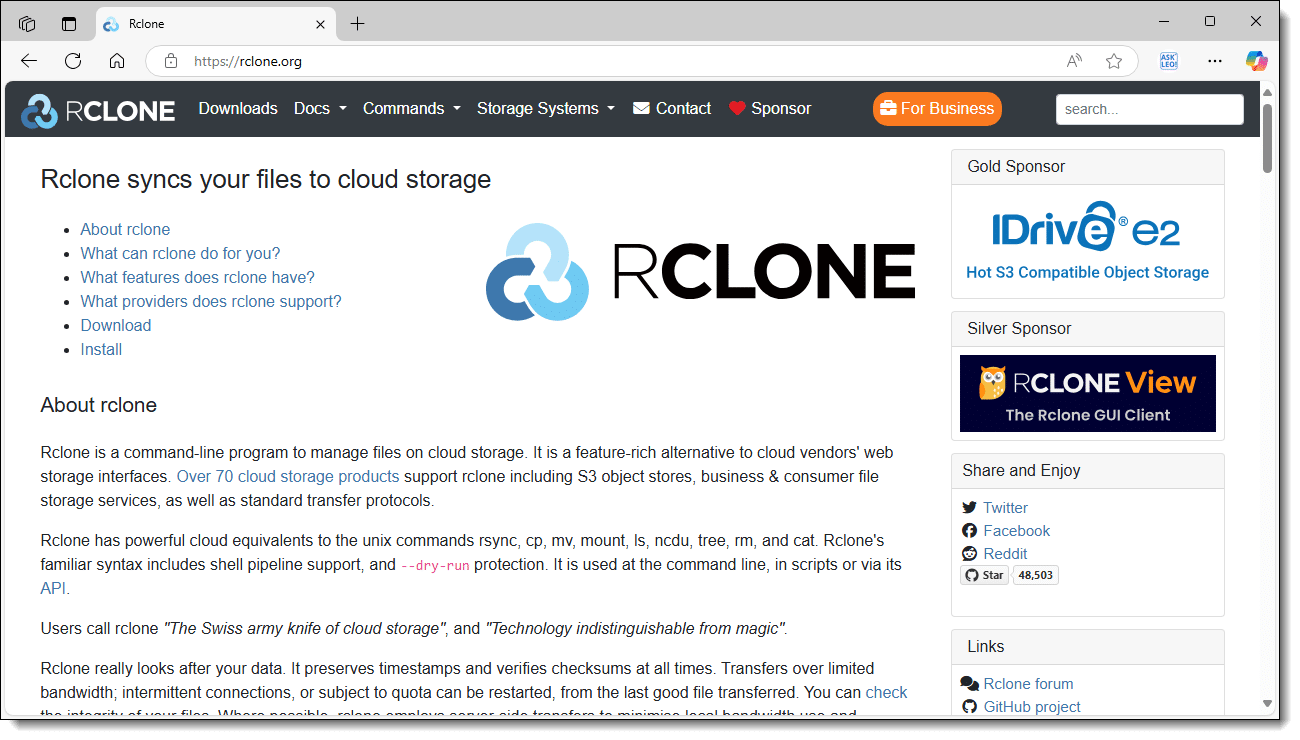
Download rclone.exe from https://rclone.org/downloads. You'll get a .zip file. Open that and copy "rclone.exe" to a folder. While frowned upon, I suppose, I dropped it in c:\Windows\System32, since that automatically makes it available in the command prompt without any additional fiddling.
To use rclone, first you must configure your connection to a remote service like OneDrive. After that, you can use that connection transparently.
In Windows Command Prompt, run rclone config followed by Enter.
2025/01/29 16:31:38 NOTICE: Config file "C:\\Users\\askle\\AppData\\Roaming\\rclone\\rclone.conf" not found - using defaults
No remotes found, make a new one?
n) New remote
s) Set configuration password
q) Quit config
n/s/q>
Since this is the first time rclone has been run, it'll notify you of the new configuration file and give you the option to create a new "remote" (the term for a remote connection).
Enter n followed by Enter.
Enter name for new remote:
name>
This allows you to identify this connection should you use rclone to make additional connections in the future. Be aware that rclone is case-sensitive, meaning that "OneDrive" and "onedrive" are not seen as the same.
Enter onedrive followed by Enter.
You'll be presented with a long list of possible remote storage providers. Scroll through that list using the Command Prompt scroll bars (or mouse wheel) to locate Microsoft OneDrive.
...
35 / Microsoft Azure Files
\ (azurefiles)
36 / Microsoft OneDrive
\ (onedrive)
37 / OpenDrive
\ (opendrive)
...
Storage>
In my case, it's entry #36. (The list is sorted alphabetically.) Enter 36 followed by Enter. (The list may change, so make sure you enter the correct number for Microsoft OneDrive.)
You'll then get a series of prompts that you can leave blank, or for which Enter will select the correct default. Just press Enter to move on for each.
client_id>
client_secret>
region>
tenant>
Edit advanced config?
Next, we begin the authorization process.
Use web browser to automatically authenticate rclone with remote?
* Say Y if the machine running rclone has a web browser you can use
* Say N if running rclone on a (remote) machine without web browser access
If not sure try Y. If Y failed, try N.

y) Yes (default)
n) No
y/n>
We will use your web browser to authenticate, so press Enter.
Your web browser will open and you'll be asked to sign in to the Microsoft account for the OneDrive you want to use. This may involve username, password, two-factor authentication, or other steps as configured for your account. If you've previously signed into your Microsoft account, it may involve no steps at all.
When complete, you'll get a confirmation message in the browser.

Back at the Windows Command prompt, respond to new prompts with Enter.
config_type>
config_driveid>
And then:
Found drive "root" of type "personal"
URL: https://onedrive.live.com/?cid=ec7a51ef52142c03

y) Yes (default)
n) No
y/n>
Assuming you see something similar, press Enter again. You'll be presented with a summary.
Configuration complete.
Options:
- type: onedrive
- token: {"access_token":"a-very-long-random-string","expiry":"2025-01-29T17:46:18.7596568-08:00"}
- drive_id: ec7a51ef52142c03
- drive_type: personal
Keep this "onedrive" remote?
y) Yes this is OK (default)
e) Edit this remote
d) Delete this remote
y/e/d>
Press Enter, and you're done.
You can then enter q followed by Enter to exit the configuration.
The most complicated part is over. You can now use rclone as if your OneDrive is an external drive.
The commands below are only the tip of the iceberg. I encourage you to run "rclone" with no arguments for a list of commands. You can then get additional help on each as needed.
To list every file in your OneDrive, enter the following in the Windows Command Prompt:
rclone ls onedrive:
where:
To list all the directories (folders) in your OneDrive, type:
rclone lsd onedrive:
To copy a file to OneDrive:
rclone copy copy.txt onedrive:Transfer
This example copies the file "copy.txt" to the "Transfer" folder within my OneDrive online.
To examine the contents of that folder:
rclone ls onedrive:Transfer
The results list the files in that specific folder; in my case:
3388054 InternetSafety-v6-Free.pdf
2004 copy.txt
213780 example.xlsx
15602 list.txt
59 t.txt
This matches what we see when we visit OneDrive.com online and examine the same folder.
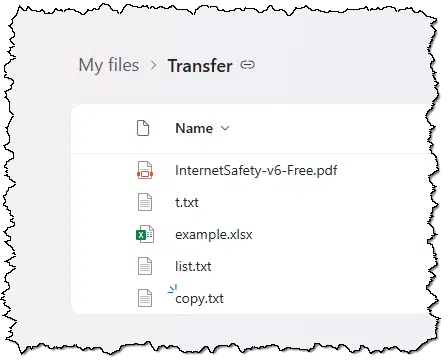
Copying files from OneDrive to your local computer uses a similar command.
rclone copy onedrive:Transfer\InternetSafety-v6-Free.pdf .
Note that you must specify a destination. In the example above, the destination is ".", which signifies the current folder. This example copies the file InternetSafety-v6-Free.pdf from the Transfer folder in my OneDrive to Command Prompt's current folder.
One command merits special attention: the "mount" command. Mount creates a persistent connection that makes your OneDrive cloud storage appear as if it were another disk drive.
In order to use rclone mount, you will first need to install "winfsp" from https://winfsp.dev. It's a simple download and install.
Once you've done so, you can then run:
rclone mount onedrive: o: --vfs-cache-mode writes
The "o:" is an available drive letter you've selected. ("–vfs-cache-mode" is an obscure setting dealing with how data transfers are or are not cached. It'll work if you omit this, but it'll complain.)
Note that this command doesn't complete. It'll keep running until you type CTRL+C. It mounts the remote as if it were a disk drive, so while it's running you can access your OneDrive by the drive letter you've selected.
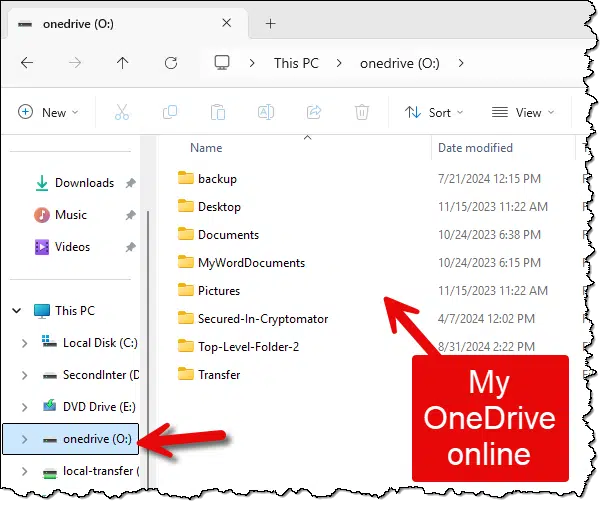
You can now access, copy, paste, and otherwise manipulate the contents of your OneDrive online just as if it were a local external drive. The only real difference is that you're limited in speed of access by the speed of your internet connection.
Return to the Windows Command Prompt and type CTRL+C to terminate rclone and unmount the drive.
This is similar to what we did in a previous article using a tool called Mountain Duck. I'm finding rclone to be faster and have switched to using it for most of my remote connections.


If they don't know enough to address you by name, it's time to get skeptical.

It's not an absolute rule by any means, but it's an important clue. If you get email that doesn't address you by name — perhaps without any salutation at all — look at it with skepticism.
Lack of personalization is one clue that what you're looking at might be spam. Certainly formal publications, like newsletters and other things you've signed up for, rarely include your name, and we all know that conversations with frequent or close contacts don't always include the formality of a greeting. But if the message appears to be a personal one-on-one conversation without mentioning your name, it warrants additional doubt.
Yes, spammers can get your name. That's why this is just one additional clue, not an absolute rule. But it's a useful guideline when evaluating messages.
If you're offered an .exe file or an .msi file when downloading, I'll help you choose the one you really want.
Unfortunately, the file extension alone doesn't tell me enough to make the decision between .msi and .exe formatted files. There's a little more data needed before making the decision.
It's about more than file formats; it's about what those downloads do.
.Exe files are executable programs, while .msi files install software using Windows Installer. If both are offered, they likely do the same thing. However, if the .exe is a portable version, it skips installation, offering on-the-go use. Choose based on your need for installation convenience or portability.
.exe, for EXEcutable, is the most basic file format that contains Windows programs (also called apps or applications). Most (though not all) of the programs running on your machine start with an .exe file somewhere.
.msi, for MicroSoft Installer, is, as the name implies, an installation file. It contains information used to install a software package in Windows. While not technically a "program", it certainly behaves like one. It can be something you "run" in order to begin the installation process. The program that processes the instructions is the Windows Installer service, which is part of Windows itself.
If you're given the option of either an .exe or a .msi in order to install a program, they're probably going to do the exact same thing. In fact, it's likely that the .exe actually contains an .msi, which is extracted and then passed on to the Windows Installer service.
It's rare, though, that you would be given the choice of a .exe or a .msi to do exactly the same thing. There's no real advantage of one over the other if both are available. Typically, only one will be offered.
Unless there's a difference.
If you're offered only a .exe file to set up a program, it could be an .msi contained within an .exe, as I described above. Run it and you set up the program.
It could also be a setup program that doesn't use Windows Installer at all. While application vendors are encouraged to standardize the use of Windows Installer, they're not required to. There are many installation toolkits that can be used instead.
The one characteristic they share is that almost all begin by running an .exe — often setup.exe.
If you're presented with both an .msi and an .exe for download, there's probably an important difference between the two.
The .msi installs the software on your machine. That means putting all the right files in all the right places as well as adding or modifying registry entries and possibly other things.
The .exe, on the other hand, is likely to be a "portable" version of the application. By that I mean there's no setup involved at all. The .exe is the program. To run the program, you run the .exe and nothing more.
That's the missing piece of data. When this is the case, the download page will indicate that this is the portable version. Your choice of .msi versus .exe is really a choice between installing the software regularly or not installing it at all but running it directly.
In addition to the lack of an installation process, differences between regular (.msi) and portable (.exe) versions include:


290: I have to say "usually" don't because of course they could. It's bad behavior for a portable program, though, as it violates one of the reasons for it to be portable.
Microsoft Word's AutoCorrect is a powerful tool.

In Microsoft Word Options, click on Proofing. In the resulting dialog box, choose the AutoCorrect tab. This will present a variety of options, including a list of sequences that, if typed, will be replaced with something else.

By default, it's set to make some of the more obscure symbols easier to type, like the copyright, Euro, or trademark symbols.
But it's also a powerful tool to create text macros. In other words, you can replace any text typed with almost anything you like.
For example, I'll type my normal email signature into Word.

Note that it has formatting in the form of active hyperlinks. Now I'll select the text I want to be the replacement text for my macro.

Now we return to Microsoft Word Options and click on Proofing and then the AutoCorrect tab. The text we've selected will automatically be present as the proposed replacement text. All I need do is enter a key sequence to be the trigger. I'll choose "(ln)" — a sequence I'm unlikely to type intentionally for any other purpose.

After entering that, I'll click Add (shown at the top of this page) to add my replacement, and then OK to close the dialog.
Now every time I type "(ln)" in Microsoft Word, it'll automatically be replaced with my signature — formatting, hyperlinks, and all.
You can do the same with any text you type repeatedly.
There's an easy way to turn off Copilot in some Office apps. Others require a harder way.
Microsoft is (slowly) adding a setting to its Office apps that makes turning CoPilot off relatively easy. Until that setting rolls out everywhere, it requires a more convoluted approach. The potential bonus, though, is that this more difficult method may increase your privacy beyond what Copilot sees.
To disable Copilot in Microsoft Office, you can adjust Privacy Options to block connected experiences like content analysis, effectively deactivating Copilot's functionality. This method, while intricate, enhances privacy by limiting data sent to Microsoft.
Run Microsoft Word (or any other Office app that will expose the settings we're about to change) on your PC. Click on Options at the lower left. (If it doesn't appear because a document is open, click on the File menu.)
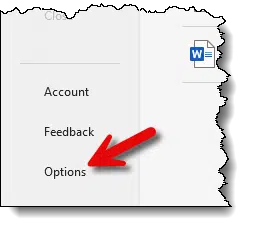
In the resulting dialog, click on Trust Center.
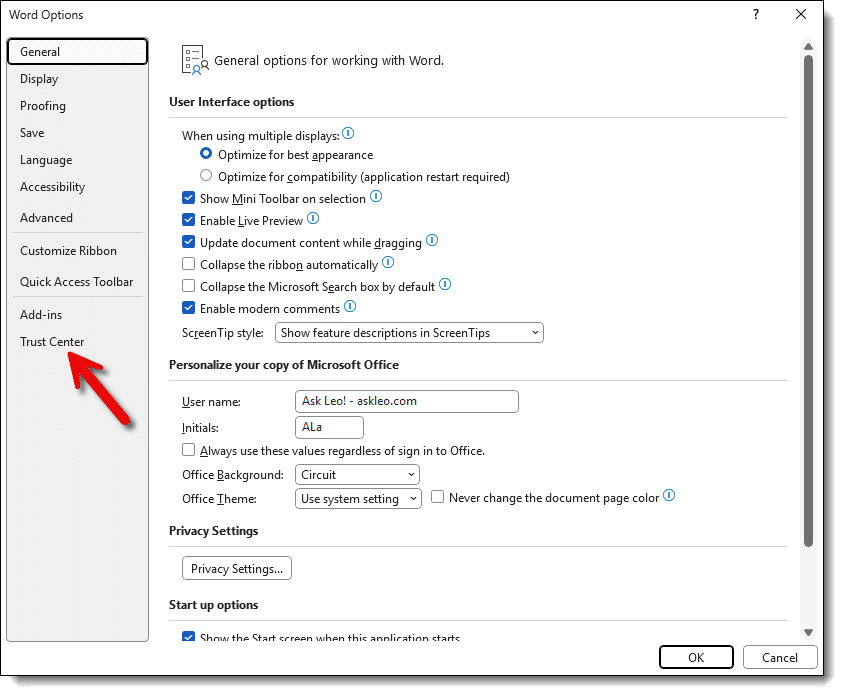
In the next dialog, click on Trust Center Settings.
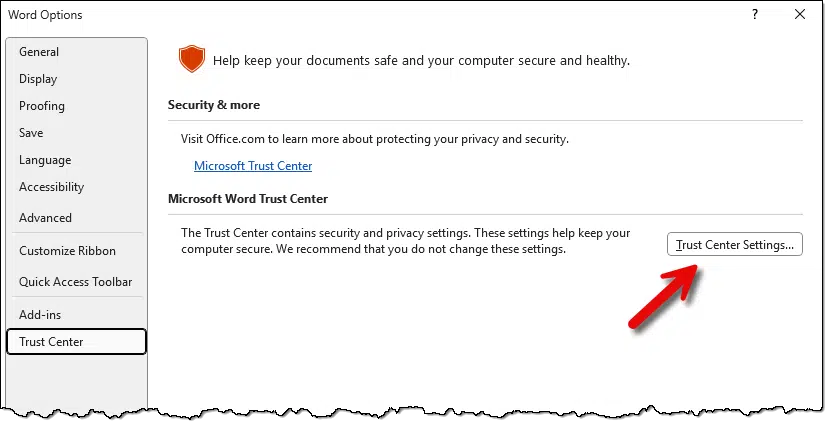
In the next dialog, click on Privacy Options.
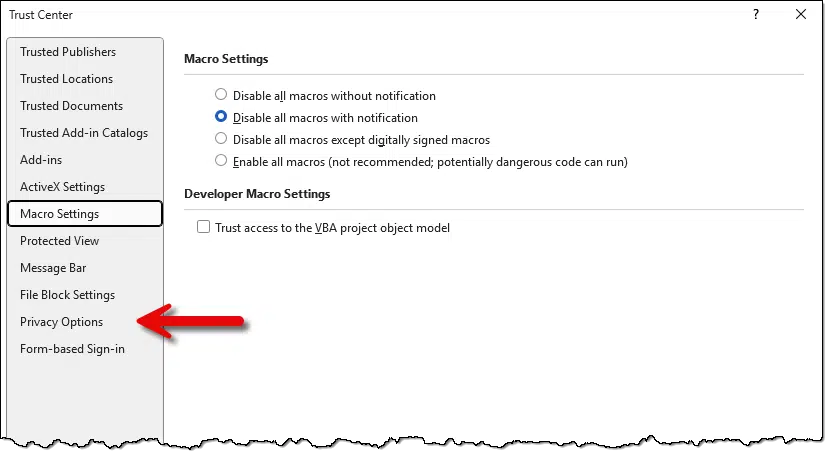
In the next dialog, click on Privacy Settings.
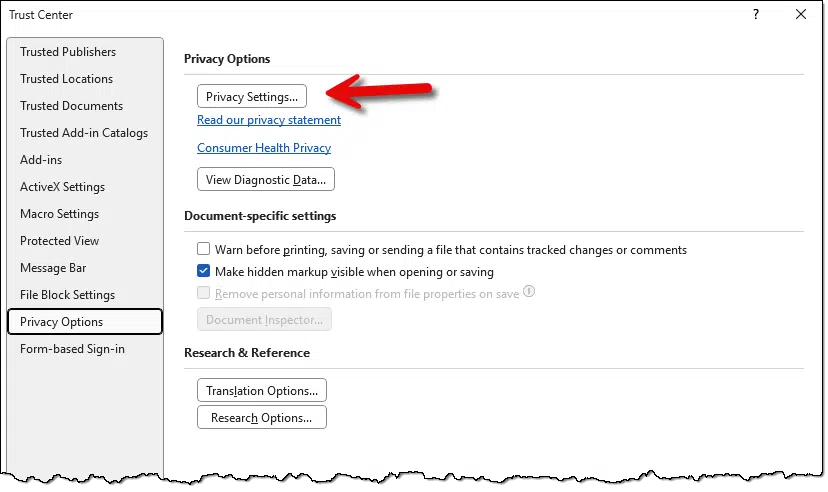
In the resulting dialog, scroll down and make sure that "Turn on experiences that analyze your content" is UNchecked.
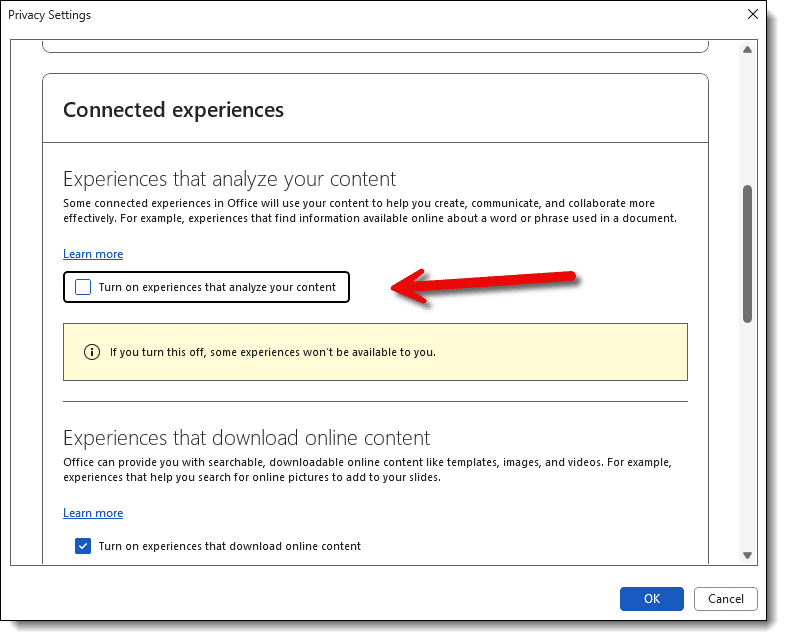
Click OK. You will need to restart Word for this setting to take effect.
This should apply to all Office apps, but I had a heck of a time getting Excel to take the updated setting until I rebooted my machine. So perhaps reboot if things aren't having the effect you expect.
Copilot may still be visible (the ability to remove it from the ribbon remains disabled), but now when you try to use it, nothing should happen. Other approaches to invoking Copilot functions may generate a benign error.
In a sense, we disabled more than Copilot.
Copilot does some of its work by communicating back to Microsoft servers as needed. As the final dialog said,
Some connected experiences in Office will use your content to help you create, communicate, and collaborate more effectively. For example, experiences that find information available online about a word or phrase used in a document.
We've told Office apps not to do any of that. That means Copilot, of course, but it also includes additional analysis features. The good news is that, particularly in the home setting, these features are rarely used and unlikely to be missed.
And it means less content being sent to Microsoft for "analysis".


291: Meaning "Microsoft pushed without your consent" feature.
Every so often, run a full malware scan of your machine. Malware likes to hide.

Most anti-malware tools default to doing a "quick" scan on a daily or more frequent basis. A full scan is offered only as an option if you're running a scan manually.
A quick scan only scans the places malware is most likely to be found, such as within the Windows folders, program folders, and the like. A full scan examines every file in every folder on your hard disk. Needless to say, a full scan takes longer — often a lot longer — than a quick one.
But it's worth doing periodically. Exactly how often, I can't say, since your risk depends on what you do with your computer. Once a year might be enough. Once a month, or even more often if you're someone who actively downloads random things a lot or makes use of a lot of non-standard locations on your hard disk, might be better.
Exactly how you run a full scan varies depending on your anti-malware tool, of course. Pictured above is Windows Security in Windows 10.
What's most important to know about keeping your computer secure?
Some years ago, I was asked to give a short talk about computer security. I was given five or ten minutes, which forced me to distill exactly what I think about when I think about computer security.
The way I approached it was to think to myself, "If somone walked away from my five-minute talk remembering only one thing, what would I want that one thing to be?"
So I gave the talk. I was invited back a second time, so I repeated the process: "If I could have you remember only two things I say about computer security, what would those two things be?"
I gave that talk, and it led me to a talk about five things in priority order relating to computer security.
Today, I want to give you that list in reverse order — kind of Top 5 list.
If you remember nothing else, let it be this: backing up protects you from malicious activity as well as hardware failures. Your backups are the foundation of your overall computer security.
I mean this in a couple of different ways.
Of course, it means to keep learning about how to use your computer and technology, but more importantly, when it comes to security, it means to keep abreast of what's happening. Stay open to security- or computer-related news. You don't need to understand the current threats and vulnerabilities in detail, but hearing about current tech security issues will help keep you more aware and secure.
A good example is paying attention to the various types of scams that are currently making the rounds. Just hearing about them will help you avoid them if they ever cross your path. A good resource is The Perfect Scam podcast from AARP.
So many people are in a rush to get something done that when they encounter a problem, they blow right through it, often making the wrong choices when it comes to computer security.
Take the time to do a little research or ask a question and get an answer. That patience will save you a lot of grief in the long run. Spending a little time upfront can often save you a tremendous amount of time later if things go wrong.
I see people make the worst possible choices out of panic.
They click on anything. They install or even purchase anything that even hints about solving their problem. Many times, those solutions make things worse. Often much worse.
Don't panic; think it through. There's very little you can do that will permanently physically damage your computer, so just be ok with it.
Take your time. Don't panic. Calm down enough to read error messages, make notes about what happened in what order, etc.
We all want to assume the best of humanity, and mostly, we can. But when it comes to promises made by software vendors, pop-ups, or unsolicited phone calls, absolutely question the source. Make sure you understand where the information is coming from. See if you can't corroborate with some other information from an already trusted source.
And yes, that means you should invest some time developing trusted sources — people you can reach out to locally or online resources you know you can rely on to steer you straight.
The most important tip I have for computer security may surprise you. It doesn't feel like a security thing at all.
Back up. Back up your data and back up your computer.
Things are going to happen. Hardware's going to fail, and in the realm of computer security, you're going to miss something. You'll end up with malware, ransomware, or a virus of some sort. You can protect yourself against all of these things and more with a good backup in place.
For example, if you get malware or ransomware, you restore to the previous backup you took the night before, and the malware is gone. It's like it never happened. How much more secure and stress-free can you be?


Save yourself occasional embarrassment by specifying the recipients of your email after you write.

We've all done it: accidentally sent an email before it's complete. I've even sent completely blank emails accidentally because I mistakenly clicked on "Send" or typed its keyboard equivalent in an email program.
At the least, it's embarrassing, but it's worse if what you had written wasn't exactly what you intended to send until after you proofread it.
A habit I've developed as a result is not to fill in the "To:" line (or the "Cc:" or "Bcc:" lines) until I'm done and ready to hit Send. Without a recipient specified, the email program will refuse to send the message. And yes, that's saved me a time or two after accidentally hitting Send.

Even though "To:" might be the first thing on the screen, make it the last thing you fill in. It might save you the occasional embarrassment.
(And yes, in case you're wondering, I've sometimes taken the extra step of temporarily emptying the "To:" line that's automatically filled in when I reply to or forward an email.)
Marking spam as spam is an important tool in the war against it. Exactly what happens when you do so is clouded in mystery.

For reasons I'll explain in a moment, there is no definitive answer on exactly what happens. However, some general concepts apply when you mark something as spam.
The first thing we need to know is whether you're marking it as spam in
or
The answer for each is quite different.
What happens when you mark an email as spam varies depending on whether you're using a local email program or an online service. The system learns from your input, potentially filtering similar messages in the future, but the exact mechanism remains intentionally opaque to thwart spammers.
An email program is software that runs on your computer and downloads messages from your email service to your local hard disk.
Examples of these kinds of email programs include Microsoft Office's Outlook, Thunderbird, and the Mail program included with Windows (now also called Outlook). There are dozens, if not hundreds, of others.
When you mark something as spam (or junk, as it's sometimes called) while using an email program, you are typically telling only that program that the email message is unwanted. Particularly if your email account uses the POP3 protocol, the information about what you've marked as spam does not make its way back to your email service provider.
The result is that it does not affect what email will be downloaded in the future. It will affect what messages the email program on your PC considers spam.
Mobile devices have added a couple of twists on whether marking something as spam in a computer-based email program makes it back to the email service.
Some email services now provide dedicated email programs. On my mobile phone, for example, is an app I use to access Gmail. Technically, that's an email program (app) running on my computer (the phone). However, since it's dedicated to handling Google Mail, when I mark something as spam using the program, the information is transmitted back to Google's servers. Similarly, I have the Outlook mobile app, and when I mark something as junk in my Hotmail account, that information also makes its way back to Microsoft's servers.
Desktop email programs can use IMAP instead of POP3 to allow you to access your email from multiple different devices and keep everything in sync. IMAP does this by always considering the email on the server as the master copy. Each email program that connects using IMAP maintains a synchronized copy of your mail on your computer. Change, delete, or move mail around in folders on your PC, and those changes are reflected in the master copy.
When you mark an email as Spam, some email programs simply move it into a Spam (or Junk) folder. If you're using IMAP, when the move is reflected on the server's master copy, that may be enough to notify the service that this message is spam.
There are no blanket rules, and (aside from dedicated apps like the Gmail and Outlook apps) it's difficult to make assumptions about how your email program works with your email service when it comes to spam. The best I can suggest is to check the help information available for each.
An email program may use the fact that you've marked something as spam in several different ways.
As effective as it can be, the problem with looking for characteristics is that it's difficult to predict what does or does not constitute spam. You might get an email that is clearly spam to you, mark it as spam, and then later get another nearly identical message that was still not filtered.
These types of learning (or adaptive) filters don't act immediately. They build up statistical characteristics. The more email you identify as spam, the more those characteristics are updated. It might not be until the second or third (or fourth or tenth) time you mark a particular type of spam that the filter will have enough confidence to kick in and automatically identify similar messages as spam in the future.
"Similar" is, after all, a fuzzy concept.
Great, your email program has successfully identified something as spam. Now what does it do with it?
Most email programs do nothing more than move the email to a Spam folder. That's it. Period. There's no notification back to the sender and no notification to the email service. Everything happened on your computer and only on your computer.
This type of spam filtering is nothing more than placing email detected as spam into a different folder as it's downloaded to your computer. At least it gets it out of your way.
If you're using a web browser (like Edge, Chrome, Firefox, or others) to read your email, you're using an online email service. Your email is stored in the cloud, not on your PC, and you're simply viewing it via a web-based interface.
Examples of web-based email services include Outlook.com, Gmail, Yahoo Mail, and many, many others. Your own ISP or email service provider may also have a web-based interface for your email besides the services that allow you to access it via your PC.
The important thing here is that you're using your web browser to interact with your email stored on your email service's server online.
When you mark something as spam on an online service, you're doing essentially the same thing you did above with a PC-based email program: you're telling the service, "I think email that looks like this is spam."
The difference is that every other user of that service is also telling the provider what they think is and is not spam.
Exactly how the service provider uses that information is a mystery, and that's on purpose.
They don't want spammers to learn the details of the mystery; that would make it easier for spammers to know how to work around it. Also, how service providers use that information is constantly changing in response to the ever-changing nature of spam.
There are several approaches email service providers may or may not use.
My sense is that most services use the hybrid approach, but as I said, it varies from provider to provider and changes over time.
Much like the email program on your PC, when spam is filtered by an email service, it's moved to a spam folder in your account. You can usually safely ignore and/or periodically check the folder for false positives.
No notice is sent to the sender. The email has, in fact, been delivered; it's just been delivered to your Spam folder.
Some services take things a step further.
Some services identify spam at a global level — perhaps based on content or source or something else — and block it from being delivered entirely. You never see it in your inbox or your Spam folder. From your perspective, it's like the email was never sent.
In rare cases, the service may send a bounce message to the sender.

Regardless of whether you use PC- or web-based email, spam detection is an inexact and ever-changing science. We all see email that we consider spam — perhaps even obviously spam — delivered into our inboxes.
Mark it as spam, and your email program or service learns a little more about what you consider spam. Occasionally, however, legitimate mail gets marked and filtered as spam. We call this a false positive.
You can correct false positives. For anything filtered and placed into a Spam folder, you can say "This is NOT spam." This is perhaps even more important than identifying spam.
Once again, this teaches the program or service that email like this should not be considered spam.
That's an important step to take. Every so often, spend a few minutes in your Spam folder looking for things that were filtered and should not have been. Mark those as "not spam" to reduce the chance of similar mail in the future also being filtered.


Secure delete is one approach to making sure your files can't be recovered.
When you delete a file, its contents aren't actually removed. Instead, the space the file formerly occupied is marked as available for another file to be written to later. Until that overwrite happens, the originally deleted information is still there.
This is the basis for many undelete and other data-recovery utilities. It's also why most of those utilities recommend you stop using your disk if you accidentally delete something and want to recover it — so it doesn't get overwritten.
But what if you really want it gone? That's where a technique called "secure delete" comes into play.
Deleting a file doesn't necessarily mean it's gone; it's just marked for overwriting. Secure delete ensures data is unrecoverable by overwriting it with random data. For sensitive cases, extended secure delete uses multiple passes to erase data completely. Tools like SDelete have options for securely deleting files or wiping free space.
At its simplest, a secure delete overwrites the area on the disk where the file's data lives (or used to live) with random data. Once securely deleted, the previous data is no longer recoverable.
Secure delete utilities delete existing files and overwrite the space they once occupied.
A free space wipe writes data to all areas of your disk that aren't currently in use (free space). The net effect is the same: the contents of all previously deleted files are overwritten. This can take time depending on how much free space your disk currently has.
A basic secure delete renders your data unrecoverable to the most common forensic and data-recovery tools.
Unfortunately, I did say "most", and that's where what I'll call extended secure delete comes into play.
If you delete a file and you can find it in your Recycle Bin, it hasn't really been deleted. It's been moved to a different folder called the Recycle Bin.
Secure deletion involves what is usually referred to as a permanent delete, or what happens when you empty your Recycle Bin.
The best way to grasp this concept is to grab a pencil with an eraser.
At this point, there's a good chance you can still sort of see what you had written before.
The same is true for magnetic media like hard disks. With the right equipment — which typically means taking the hard disk apart in a clean room and using some high-powered analysis tools — it's possible that even overwritten data can be partially recovered, just like you could kind of make out what you had written in pencil and then erased.
Let's continue with the pencil and eraser example.
At this point, if you haven't erased the paper into oblivion, it'll be impossible to decipher the original line of text you wrote.
That's an extended delete. A good secure delete utility writes and overwrites the data several times before calling it erased.
Most people don't need secure delete at all. No one is coming to examine your previously deleted files — except maybe you, if you mistakenly delete something and want to recover it.
If there is some concern, be it privacy, security, or something else, an every-so-often free space wipe is probably more than enough for most people.
If you regularly deal with exceptionally sensitive, highly valuable data that is subject to theft or espionage, an extended multiple-pass secure delete may be what you need. My understanding is that some businesses and governments require this.
Note that extended secure delete applies to traditional magnetic hard drives only. SSDs don't suffer from the same issue, and overwriting an SSD multiple times regularly runs the risk of shortening its lifespan.
While I'm sure that there are many secure delete apps, the tool I recommend for this is SDelete. It's a command-line tool that's part of the SysInternals Suite of tools, and it allows you to do everything discussed above: securely delete a file, securely wipe free space, and do either with multiple passes.
Here are the command-line functions.
Securely deleting a file:
sdelete file.txt
Securely deleting a file with multiple overwrites:
sdelete -p 3 file.txt
Securely wiping free space:
sdelete -c C:
There are more options, of course, but those are the basic operations.


Your video display can impact how you perceive your system's performance. There are options to control that impact.

Particularly if your machine is slightly older or if it has a mediocre video card, the time Windows spends making things "look pretty" on your display can impact its overall performance. The various visual effects — everything from transparency, menu animations, shadows that make windows look like they're "floating" above other windows, and more — all take CPU and graphics resources to create.
Fortunately, Windows has a way for you to make a speed-versus-pretty trade-off.
Click the Start menu and search for "performance." When it appears, click "Adjust the appearance and performance of Windows." (In older versions of Windows, you'll find this in the Control Panel under Performance and Maintenance or Performance Information and Tools, where you click on the Adjust visual effects link.)
The result will be a dialog box similar to that shown at the top of the page. You can control a variety of performance characteristics, but it's probably easiest to click on "Adjust for best performance" and then click OK. You'll notice several visual differences from Windows' "Let Windows choose..." default behavior. If you determine you want something that's gone missing, you can return here to turn on that item.
Here's a simple clue that the email you're looking at might be spam.

Spammers try hard to fool you into clicking the links in the emails they send.
One approach that caught my eye was an email that was clearly spam but came "from" a friend of mine.
Except it didn't.
Spammers can associate our names with one another (think Facebook friends and other public information). So, for example, they might know that Leo Notenboom is a friend of Joe Blow. So they send me email that looks like it came from Joe. They think I'll trust it and click on the link.
The clue is in the email address. The "From:" line of the email contained information similar to this:
From: Joe Blow <definitely-not-joe@randomisp.com>
It was Joe's name, but not his email address. It was a completely unknown email address. This email was spoofed. It was definitely not from Joe. Whether it was from the email address listed is also unclear; that's also easy to spoof.
Still, checking the email address can help you identify spam and malicious phishing attempts.
By the way, if the email address does match, it doesn't necessarily mean anything either.
But when the name and email address don't match, that's a pretty clear clue.
Backing up is important, and that includes your password vault.
You likely already know I'm a proponent of backing up. There's one program that I hope you're using that you may not think to back up: your password vault.
Yes, you should back up your password vault.
I'll describe how to do so in 1Password, and review why it's so important.
You rely on your password vault, so back it up! In 1Password, export your vault to both 1PUX (for re-importing) and CSV (for versatility) formats. Save the backups securely: encrypt the files or store them offline. Back up monthly or quarterly to avoid losing critical data.
Open the 1Password desktop application on your PC. Click on the vertical ellipsis near the top and then Export.
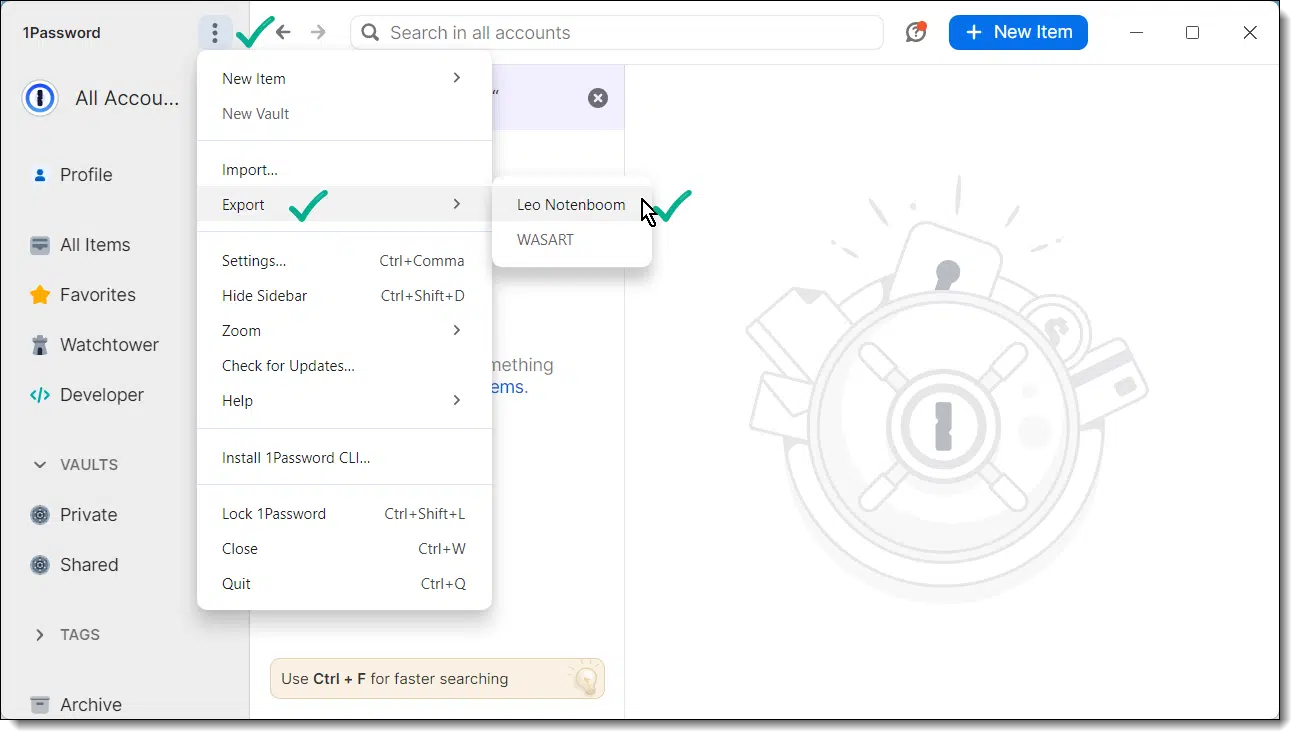
If you have more than one vault (as I do), click on the vault you want to back up.
You'll be asked to enter your master password.
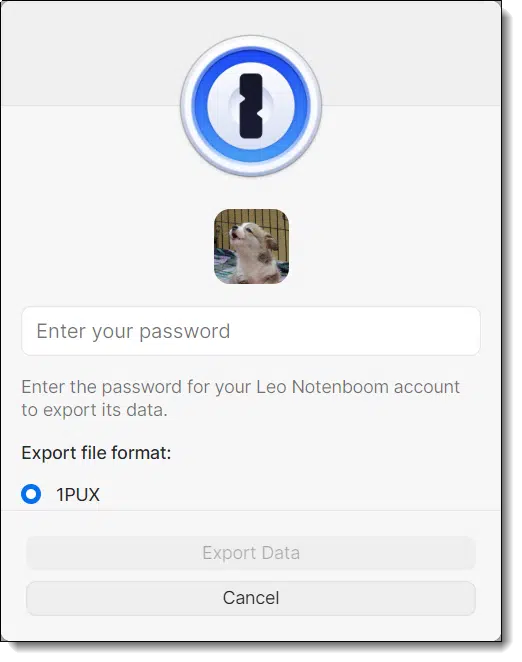
Once you do so, click Export Data. You'll be asked where you want to place the exported ".1pux" file. Click on Save once you've selected a location.
Repeat that process. After entering your master password, scroll down to expose the "CSV (Export only certain fields)" option.
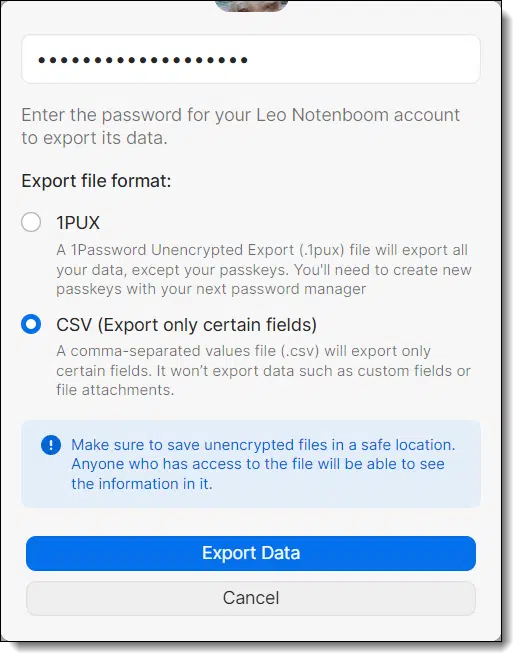
Select the CSV option, click Export Data, and save the new ".csv" file to disk.
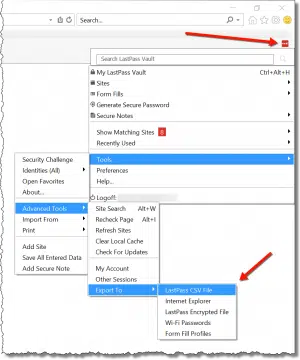
Yes. Yes, it is. In fact, the 1Password dialog points that out. It says:
Make sure to save unencrypted files in a safe location. Anyone who has access to the file will be able to see the information in it.
"Save in a safe location" is the key concept. It need not be convenient, but it must be secure. Typical approaches would be to:
Also, if you are particularly concerned about tidying up after you've secured the files someplace safe, be sure to delete the encrypted copies you downloaded. Consider wiping free space to remove the possibility of recovery.
We export in two formats to cover two different scenarios.
We back up to both formats to cover different future scenarios in which we might need our backups.
It depends on how often you change the content of your vault. New accounts and password changes are the most common things, of course, but vaults can contain so much more, including two-factor codes, credit cards, and more.
I use 1Password heavily. I back it up at least once a quarter, but ideally every month.
Just remember that if you ever need your backup, you'll lose all changes made since that most recent backup.
If you've been backing up your machine as I recommend, with a periodic full image backup, then a full restore will restore your vault as it was at the time you took the backup. That's great for many scenarios, but not all.
For example, it's effectively impossible to locate the vault within the image and restore it separately, should you ever want to . The only way to get a copy of your 1Password vault from within a full backup image would be to restore the complete image, boot from it, run 1Password, and then export the vault as described above. That's a tricky path at best.
By backing up separately, you've made one of your most important resources significantly easier to recover should the need arrise.
To put it bluntly, stuff happens. Even worse, we can't predict what will happen to us or when.
Since we put so much critical information into our password vaults, it would be a serious pain (though not a complete disaster) should we lose access to it for any reason. That could happen through forgetting our password, a problem with the vault itself, or some other random event.
By backing this information up periodically, we create a safety net that means we can recover gracefully no matter what happens.


It is safe to stay signed in to your online account as long as you're protected from a few specific scenarios.

It depends on the physical security of your computer.
Here's what you need to consider.
As long as no one else can access your machine while you're not around — or those who can are trustworthy — then staying signed in is generally safe. If you're not certain or know that others pose a risk, sign out before you walk away.
I don't.
I'm signed in to email — and all my other accounts, for that matter — all day long. I'm probably signed in to my Gmail accounts for days at a time across multiple machines here at home. The same is true for my Microsoft account.
I can make some assumptions about my machines, however, that allow me to feel safe doing so.
Could someone else walk up to your computer and start using it? More pragmatically, of the people in your home who can, would they cause trouble by poking around in your signed-in accounts?
If the answer is yes, it's a good idea to sign out when you're done. At least sign out when you know you'll be stepping away for a while.280
On the other hand, if you know no one would try to do anything inappropriate, there's really no need.
It's the latter scenario at my house: no one else is going to cause problems.
The obvious counter-example is public or shared computers.
This is the clearest example of other individuals accessing the same computer you've used. If you walk away leaving yourself signed in, someone else could compromise your account or at least cause trouble.
Closing the browser may not be enough. Recent reports281 seem to indicate that Microsoft is doing away with the "Stay Signed In?" question, always assuming you want to stay signed in. This means that anyone walking up to the computer and firing up the browser might find themselves still signed into your account.
There are two ways to avoid this:
It all comes down to how much you trust the people with access to your computer when you're not around.
If you trust them, great. Don't bother signing out.
If you don't, can't, or just aren't sure, then signing out is the safest thing to do.


292: Or lock your machine.
293: There's some confusion. The Microsoft support article they point to doesn't contain what the news reports say it does. My guess is that Microsoft may have made a statement to this effect and then walked it back. Nonetheless, we can at least assume it's a real possibility.
AutoPlay can be useful or annoying. You can turn it off, as I do, or you can configure it to fit your needs.

AutoPlay is a convenient feature if you like things to happen automatically when you insert an optical disc, memory card, or USB stick.
Depending on how you use your discs and devices, it can also be an annoyance.
In Settings, search for "AutoPlay" to bring up the related options, as shown above.
If you prefer not to have things happen automatically when you attach a drive or disc, you can turn off AutoPlay completely. That's how I roll, as I tend not to do the same thing with every device I attach to my system.
If you leave it enabled, however, you can control what happens depending on the software installed on your machine.
If you always do the same thing — for example, insert a memory card from your camera — then having the system automatically copy the files using cloud storage software might be a suitable option. Another option is to launch Windows File Explorer when the card is inserted so you can view the contents and decide what to do yourself.
The sound mixer is a useful application. Here are a couple of quick ways to get to it.

Windows can mix the sound generated by multiple applications at the same time. You can control the volume of each independently, regardless of whether the application generating the sound has volume control. It's called the Volume Mixer.
To access the Volume Mixer quickly, right-click on the speaker icon and click on Open Volume mixer.
An alternative for the more keyboard-oriented is to type the Windows Key + R (to open the Run dialog box), and enter sndvol followed by OK.

If you're so inclined, you can even make a shortcut to sndvol.
Sometimes the best (and safest) place to compose text and email is in a different program.

One of the most frustrating scenarios I hear plays out like this.
Browsers don't have "Save" buttons for work in progress. Some email services (like Gmail) save your work in progress to a "Drafts" folder, but not all do.
This can happen with things other than email as well. Anytime you're typing something significant into a web-based application or service (including online chats), you risk losing everything in a flash because it doesn't save your work as you go.
Notepad to the rescue. (Any text-editing program will do.)
Instead of typing lengthy correspondence directly into a web form, type it into Notepad.
No matter what happens, you'll always have your work in progress saved to disk as of the last CTRL+S.
When you're done:
Notepad has "Save", and that can be an important way to keep your work from disappearing unexpectedly when things go wrong.
Free email services and accounts are convenient and ubiquitous. They can be used safely if and only if you take responsibility for that safety.
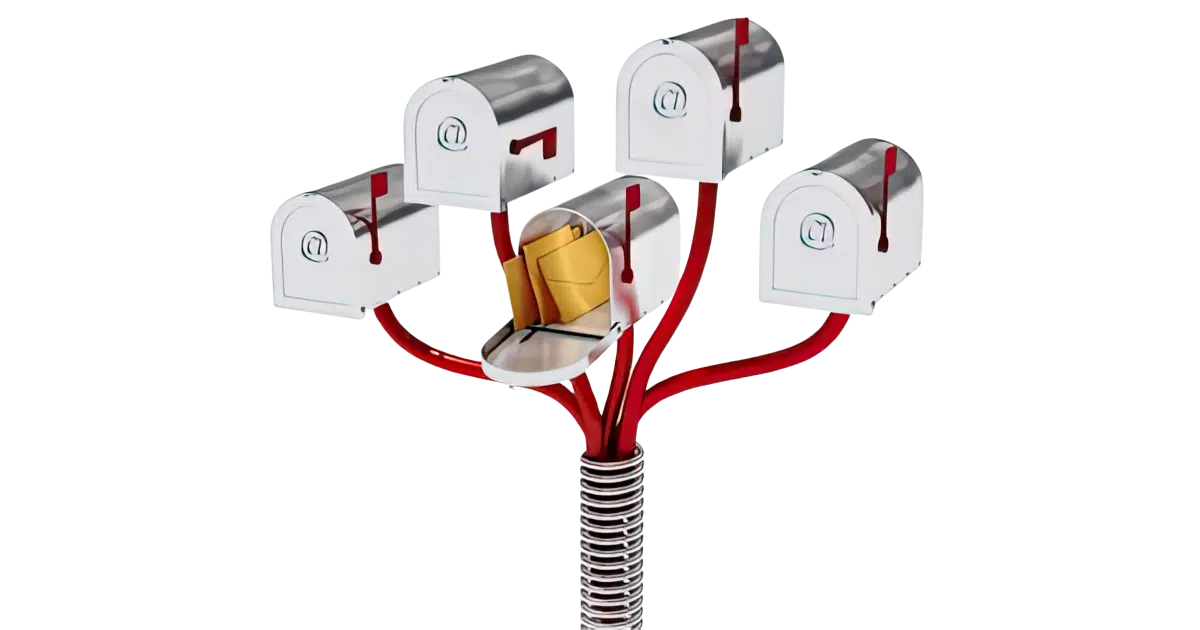
This is one of my more important articles from its original posting back in 2004 (with intermediate updates in 2010, 2013, 2018, and now 2025).
My answer has changed from "mostly no" in 2004 to "mostly yes", with the following important caveats:
I'll dive into each of these, but first, I'll share one concrete data point: all of my email is currently being processed using free email accounts. Clearly, I believe it can be done safely.
Free email accounts can be viable, but only if you acknowledge the hidden costs (privacy, spam, poor/no customer service) and risks (potentially permanent account loss). Mitigate these risks by securing your account properly, backing up your data, and preparing for disaster. Ultimately, you must take personal responsibility to use free email accounts safely.
I'm sure that by now you know there's no such thing as "free". Everything has a cost. It may not be money that comes out of your wallet, but there's always a cost of some sort.
Here are some costs associated with free email services.
Based on questions I receive and problems I see almost every day, the lack of responsive customer service is the single biggest cost that people "pay".
Not a day goes by282 that I don't hear of problems with one of the major free email providers. It's never a problem with the service itself; the problem is almost always the inability to sign in to an account because it's been lost or somehow compromised.
I can easily identify the single biggest risk for anyone using free email in any way, at any time, and for any reason: lack of customer support. There is none.
Someday, somehow, you'll run into a problem for which you need help, and there will be no one to help you. Period. You will not get help. You're on your own. If you can't figure it out, tough luck. And yes, that often includes losing your email or losing access to your account completely, forever.
You might think I'm being alarmist, but please trust me, I'm not. This is what I see and hear from people desperately asking for help almost every day — help that, in most cases, neither I nor anyone else can give.
That being said, it is possible to use free email accounts quite safely. I do it.
You just need to prepare.
Being prepared boils down to a list of do's and don't's you've probably heard before.
All the recommendations apply to any email service regardless of how you access it. In fact, those recommendations apply to any online service, not just email.
Here's a quick rule of thumb to help judge if any of this matters: if your free email account went away completely tomorrow, along with all the mail and contact information it contains, would it be an inconvenience or a catastrophe? If the latter, you need to prepare. Now.
As mentioned, I use free email — specifically Google's Gmail — for all my email. I do this mostly for the spam filtering and the ubiquity and power of the Gmail web interface.
However, you'll rarely, if ever, see my Gmail address. All of my email addresses are on domains I control. For example, email sent to leo@askleo.com will eventually end up in a Gmail account. Replies will come "from" leo@askleo.com. It's likely my correspondents don't know Gmail is involved at all.
In the unlikely event that I lose my Gmail account, I simply set up a new one and route my askleo.com email through or to it. In fact, it doesn't even have to be a Gmail account; I could use a Microsoft account, a Yahoo! account, or even start handling email directly on askleo.com without using a free email account at all.
Most of what I mean by being prepared is taking personal responsibility for the security, integrity, and reliability of your email.
It's your responsibility to maintain your account securely. It's your responsibility to back it up in case of data loss. It's your responsibility to have the information and procedures in place to be ready to deal with account lockouts, theft, or just about any hiccup that might come along.
It's your responsibility to deal with all problems that come up.
Always assume there will be no help. It's all on you.
If that's not acceptable, you shouldn't be using a free email account at all. Look for alternatives that, at a minimum, offer more comprehensive customer support.
Free email accounts can be used with less concern for purposes that are less important than "real" email.
Throw-away accounts: Free accounts are perfect when you really don't care what happens. They're great when you need an email address for a company that might spam you later. They're useful if you need or want to remain anonymous or otherwise separate that email from your important stuff.
The risk is that while you might think it's unimportant, it often turns out to be significant. Back to the rule of thumb: if the email account went away completely and without warning, would it matter? If the answer is anything other than a hearty and well-considered "No!", it's not a throwaway account.
Spam filters: In an ironic twist, Google Mail (Gmail) turns out to have a very robust spam filter. Yes, your Gmail account will get tons of spam, as all the free services do, but Google's spam filters are (as I write this) the best I've seen at filtering out spam. In fact, it's what first attracted me to using Gmail for most of my email.
Service access: Sometimes you need an email address with a particular service to access certain functions. My Hotmail account is my Microsoft account, and my Gmail account is how I access Google-related services. Even if I never use these free accounts for any email at all, those services are important and need to be treated responsibly.


294: Honestly. In over 20 years, as of this update.
People often complain that the latest update to their favorite software is just "change for the sake of change". No. Just... no. Nothing could be further from the truth.

I find I revisit this topic frequently, so I'll try to capture my thoughts here once and for all.
When people discuss the latest change they don't like in software — typically Windows — I frequently hear, "They're just changing things for the sake of changing them!"
No. Just... no. In my opinion, nothing could be further from the truth.
Software changes aren't made "for the sake of change". There's always a reason, such as competition, user experience, or new features. You might not like it or benefit from it, but it's not random. If it truly doesn't work for you, the power to switch remains yours.
When changes happen — whether it's a redesign of a favorite app, an update to a product, or a new unasked-for feature — people can get frustrated. Sometimes they assume there's no good reason for the change.
Some even think it was done randomly or because someone just felt like shaking things up.
No. Every change happens for a reason.
That doesn't mean you'll always agree. You might think a change is unnecessary, a mistake, or downright awful. I know I have! But the one thing you can assume is that there was a reason behind the decision. It might not always be well thought out or correct, but it's there.

Change isn't random. Companies don't make changes "just because." Behind nearly every change lies some kind of business justification. A few common ones are listed below.
Competition: Companies are under constant pressure to innovate so they stay relevant and competitive. If they don't evolve and keep up with trends (perceived or otherwise), they risk losing their place in the market. This is one reason AI is being shoveled into so many places. Whether or not it makes sense, it's seen as a requirement to remain competitive.
User experience: Sometimes testing suggests there's a better or easier way to do something. Even if you don't initially understand or like the change, the goal is to make things more intuitive and easier to use over time.
Consistency across platforms: Some changes try to unify the way a product or service works across different platforms like mobile devices and computers. This makes the experience more consistent for users, and in some cases reduces the complexity of the underlying software.
New features: Companies often add new features to stand out or provide more value to a specific group of customers, such as businesses.
Catering to specific users: Sometimes changes are intended to appeal to a particular audience or customer base. For example, features might be added or changed based on what business customers — both business users and the IT departments responsible for them — need.
No matter the reason, it's almost always about staying competitive and meeting the demands of a fast-changing world — even if you're not the one changing.
While there's always a reason behind a change, it might not be obvious to you or it might not apply to you.
For example, if a product changes to better serve business customers, regular users like you and I might not see the benefit. In fact, the change might even get in our way.
Ideally, companies should explain why they're making changes, but those explanations might not always satisfy283. They also won't necessarily fix something you dislike just because you dislike it.
Sometimes the reason turns out to be completely wrong; no company makes perfect decisions all the time.
But even if it doesn't make sense to you or doesn't improve your experience, there's a reason.
Not everyone likes every change. No amount of explanation will make a new feature or updated design work for or be tolerable to you. You might just not like it, plain and simple. It happens. A lot.
If that's the case, it could be time for you to make a change. Switching to a different product or service that better fits your needs is always an option.
At the end of the day, the best thing you can do is focus on finding a solution that works for you.


295: I'll go so far as to say they rarely satisfy, which is unfortunate.
Mice are nice, but the keyboard is often quicker. Use the TAB key to quickly move around in data entry forms.

For a variety of reasons, many people struggle with the mouse. That's one reason Windows has a keyboard interface. In theory, you should be able to drive Windows without a mouse at all. (In reality, some keyboard-alternative operations are quite obscure, and many third-party applications don't follow the rules.)
Sometimes the keyboard is just faster.
For example, when faced with a data entry form, I don't mouse-click from one field of the form to another. Instead, as I complete each field, I press the TAB key to move to the next and keep on typing.
TAB moves forward from field to field, and SHIFT-TAB moves backward.
Exactly what a "field" is varies. In the example above, we're tabbing through the fields in a web form. When we tab off the end of the form, we tab into the browser's own controls — menu, toolbars, and the like. When an application displays a dialog box with entry fields, tabbing off the bottom will generally circle you back to the first field on the form.
Regardless of what happens before or after the form itself, tabbing is a useful way to move easily within the fields of a form.
At the end of the form shown above is a drop-down selection box presenting a list of items from which you can make a selection. The keyboard works here too!
I'm often asked if backup images are more susceptible to failure than storing the contents as individual files. My take: not really.

So my concern is that if you have one huge backup image (which for me could be 2TB+) or even one logical backup file split into say 1GB chunks, it's relatively easy to corrupt that single file/backup set. If each file (or folder or some subset) is backed up individually, corruption is likely to take out a small subset of your backups, not the whole backup.
Interested to hear your thoughts on this and if you know any programs that can do something along these lines.
Individual-file backups can be useful. However, I don't think the solution you're proposing solves the problem you think it does.
This concept isn't limited to just backups, believe it or not. Let's consider.
Backing up one large image file or individual files each has pros and cons, but the risk of corruption and/or data loss depends more on the software's design than the storage method. Reliable tools can typically recover data from corrupted backups. A layered approach combining image and file-based backups is even more resilient.
For simplicity's sake, let's describe the problem this way: you have 10 gigabytes of data. You can store it as:
or
Both represent the same data. In one case, it's stored in one massive file; in another, it's stored across a collection of 10,000 small files.
Which is more resilient to corruption?
As usual, it depends.
I take issue with the comment that "It's relatively easy to corrupt" a file.
These days, it shouldn't be that easy. If a system is working even moderately well, the chances of random file corruption are low. Not zero, of course, and this is one reason we back up, but it should be infrequent.
If it's happening "often" (however you'd like to interpret that), it's more likely a sign of a problem that needs to be fixed rather than some inevitable circumstance.
A larger file does represent a larger target.
If you're going to have a problem somewhere in those 10 gigabytes, by definition it will happen inside that single 10-gigabyte file, if that's the way you're storing the data, or it'll happen in only one (or a small number) of the 10,000 files.
What happens next depends on what that data represents and how the software reacts to corruption.
But here's the thing: it could just as easily be the other way around.
What happens to your data is less dependent on how it's stored than it is on the software that subsequently reads it.
If a single, large, image file becomes corrupted, most backup programs attempt to recover what they can.
For example, Macrium Reflect is typically still able to extract individual files from a single .mrimg image file even if corruption somewhere in that file prevents a full restore. Most files are unaffected.
That's more or less the same result if you were to store everything as individual files. Isolated files might not restore, but most files would be unaffected.
Backing up individual files isn't enough.
A full-image backup includes things like partitions, partition information, boot information, file system overhead, and more. That's the stuff you need to ensure you can restore to an empty disk when the time comes. To work as a backup, your collection of individual files needs to include more than just the files on the system.
And that's the stuff that, if corrupted, could also prevent you from performing that restore — whether it's stored as a single massive image file or as a collection of individual files.
The reason I say this issue isn't specific to backups is that backup image files are just one example of a larger collection of information being bundled into a single file.
For example, we regularly distribute software in .zip, ".iso", ".msi" (Microsoft Installer) files, or many other "archive" formats. Each type combines many files into a single, larger file. Depending on the file format and robustness of the specific tools being used, these files can be just as vulnerable to corruption. In fact, corruption (at least in the wrong place) in these archive files can render them unreadable.
And when you think about it, isn't your hard disk just a file container as well?
You don't have to be using image files or archive files or anything like that for corruption to render your entire hard disk instantly unreadable. Corruption in the wrong place on your hard disk can do exactly that.
Hard disks and file systems are designed to be resilient — to tolerate a certain amount of corruption before giving up completely — but there's always a point where things can get bad enough that recovery isn't possible.
This is why we back up.
What I look for in a backup program includes:
Ultimately, what I believe you're asking for is this:
You want a program that, instead of collecting all the information into a single file (like a backup program's image file), copies individual files as individual files and then includes overhead information as some kind of additional "special" file that your backup software could recognize and use during a restoration.
It's possible, but I'm not aware of a backup program that works this way.
Either scenario deals with the same data stored differently. If a file is corrupted, it's corrupted, regardless of whether it's inside a larger image file or directly accessible on its own.
If the overhead information is corrupted, then the full-restore process is impossible — again regardless of whether it's inside a larger image file or directly accessible as a separate "special" file.
I honestly don't believe that this buys you anything. Corruption is corruption, and if it happens in a benign place, you may never notice. If it happens in the wrong place, your entire backup could be invalidated, regardless of how it's stored.
I recommend tools like Macrium Reflect or EaseUS ToDo for creating full-image backups.
They're not perfect, but they're good.
If there were one thing I would change, it would be this: I would have them be significantly more resilient to image file corruption. They're good, don't get me wrong, but I would have them try even harder when something is determined to be in error. I would have them offer a "best effort" restoration in the face of detected corruption rather than just throwing up their digital hands and giving up.
Ultimately, the same problems that could keep that from working are the same problems that would prevent the suggested comprehensive file-based backup from working.
In both cases, your un-corrupted files are accessible; in either case, it could be impossible to do a complete restore.
I do agree that individual file-based backups are useful. When your backups are accessible in their original form, retrieving them is simple: you locate the backup of the file you want and copy it back.
There's no need to fire up a backup program to retrieve a file or even look to see what's in the backup; just navigate with Windows File Explorer and copy the file like you would any other.
It can be useful. And it's why I do both — sort of.


296: Within reason, of course. For the sake of keeping things conceptually simple here, I don't want to devolve into the particular pros and cons of overly specific implementation details.
You want a phone number to call. Scammers known this and try to insert themselves in the process.

One of the more consistent stories I hear about goes like this:
The issue, of course, is that this person didn't talk to anyone at Some Random Service at all. They fell victim to a scam.
It's an easy one to fall into. Fortunately, it's also easy to avoid.
Searching for a support phone number can easily lead you to scammers, especially if the real service has no phone support. Scammers buy ads or game SEO hoping you call them instead. The best approach? Go directly to the official website for contact info to avoid fraud.
If you use a search engine (Google or any of the others) to search for a support phone number, there's a high risk that what you find will be a scammer's phone number. Particularly when the service in question doesn't have an actual phone number to call, scammers are more than happy to try to intercept your desire that there be one.
There are a couple of ways this happens: spammers buy ads, and they abuse the SEO system.
(Throughout this article, Some Random Service refers to the name of the example company we're dealing with, and https://somerandomservice.com represents its real, legitimate, website.)
Google is driven by advertising (other search engines may also be, to varying degrees). Anyone can purchase ads that appear in search results. If they're willing to pay enough, the ads even appear above the normal (also known as "organic") search results.
So if you search for "Some Random Service customer support number", you might get results such as:
Right next to the first two results — the ads — there is an icon that is easy to miss: a small "ad" symbol.

The symbol is typically tiny — not much bigger than a single character. Many people don't notice it, and they mistake the advertisement for a legitimate, organic search result. They call the number listed there not knowing it's a scammer, not the real service.

Website owners want to appear at the top of the page of search results so you're more likely to click and visit their website. SEO, or Search Engine Optimization, is the collection of techniques website owners use to try and make that happen.
For example, I can create some information — both off-page that you don't see and on-page that you do — or I can structure what I've written to optimize this page for the phrase "search for support phone". My hope is that someone searching for that phrase will find a link to this page high in the search results and choose to visit.
Scammers do this too. In fact, they abuse SEO techniques to achieve the result.
For example, let's say you have a webpage that offers telephone "support" for Microsoft Windows, even though you're not related to Microsoft, and your page is a scam. If you can somehow create 1,000 links on 1,000 different web sites to point to your page using the phrase "Microsoft Windows support phone", this could fool a search engine into thinking you have a Very Important Page when it comes to "Microsoft Windows support phone", and as a result place your page very highly in the search results for that phrase.
Scammers use compromised sites and comment spam to create thousands of those links around the web.
Let's assume scammers have done this kind of dirty work for our "Some Random Service" search. Now if you search for "Some Random Service customer support number" you might get results such as:
Of course, scammers can and do use both techniques (buying ads and gaming SEO) at the same time.
When both techniques are in play, if you search for "Some Random Service customer support number", you might get results such as:
As you can see, it's a misleading mess.
The bottom line: you cannot trust search results unless you're very observant and know what to look for. Period.
Given everything we've just learned about how scammers poison search results, it's not safe to search for contact information like this.
Instead, go to the website directly. In my fictitious "Some Random Service" example, I would type in "somerandomservice.com" to visit the website and then look for contact information directly on that website. Not the search results, but on the actual "somerandomservice.com" website.
That way, you know you're getting the information directly from the source. If there is no phone number listed for support, then you know that Some Random Service probably doesn't offer support by phone. Any phone numbers you see in search results are almost definitely scammers.
There's an odd side effect from the way many people go to websites.
Instead of typing in askleo.com, many people type "ask leo" into their favorite search engine and then click on the first result. This is one reason terms like "Facebook", "Outlook", and "Hotmail" are some of the most searched-for terms: people are just using search as a way to get there from here.284
Those results can be poisoned by scammers, too. It's not common, but it can happen.
If you use this technique (it's an easy habit to get into, I'll admit) then make sure you have landed where you intend to go. If you expect to visit Ask Leo!, make sure "askleo.com" appears in the browser address bar.


297: One reason people do this is the proliferation of top-level domains like ".ai", ".io", ".guru", and even ".coffee". It's often easier to search for the company than it is to keep track of what their domain name is. (And yes, leo.coffee exists.)
Friend requests on social media are no threat at all... as long as you ignore them.

It's not uncommon to get a friend request from someone you've never heard of. (I'll use Facebook examples and terminology here, but the concept applies to all social media services.)
What should you do?
One thing not to do is panic.
This is extremely common for a variety of reasons. It is not a sign of a problem of any sort. You've not been hacked or exposed or who-knows-what. It's just how these systems work.
It's the equivalent of someone walking up to you on the street and saying "Hi! Want to be friends?" — with one important exception: on social media, they don't know whether you've seen their request. In fact, the only way they find out anything is if you accept the request.
So, don't.
Ignore the request. "Delete request" is a perfectly legitimate thing to do. It tells them nothing and gets the request off your screen. Problem solved. Nothing more to see here. Move on with your life.
Repeat as necessary for future requests from people you don't know. That's all you need to do.
You may have an option to "Mark as spam" or "Report abuse". It's unclear if or how these actions help. If you notice repeat offenders and you're certain they're not people you know, then by all means, avail yourself of these options. I would not expect much to change, however, so keep your expectations low and be prepared to keep on ignoring.
Many social media services make suggestions of other users you might know and want to become friends with.
Unless you discover someone with whom you really do want to connect, just ignore the suggestions.
Since these suggestions are made by the social media service itself, there's typically no way to turn the feature off. All you can do is keep on ignoring.
There's no harm in getting unexpected requests and suggestions. Just ignore the ones that don't apply.
The Recycle Bin is a useful safety net, but it's not always reliable.

Sometimes people use the Recycle Bin as a storage folder from which they expect to retrieve deleted documents at will.
You should never rely on the Recycle Bin. It's meant as a safety net against accidental deletions, nothing more.
More importantly, the Recycle Bin isn't always used.
Most consider Recycle Bin to be a feature of Windows, and in a way, it is. In reality, however, it's more clearly understood as a feature of only Windows File Explorer and a handful of other programs. Programs with the ability to delete files must explicitly enable this ability if they want to use it. Most do not.
Scenarios that bypass the Recycle Bin and delete files permanently (often without warning) include:
In addition, the Windows Recycle Bin automatically deletes the oldest files it contains if it's full and needs to make room for a newly deleted file.
And, of course, disk clean-up utilities within Windows and third-party applications often empty the Recycle Bin as part of their work.
Use the Recycle Bin for what it's meant for — a safety net. Remember it might not always have your back.
Sometimes getting your machine completely up to date is an iterative process.

I advise you to let Windows Automatic Updates do its thing. In fact, I recommend enabling all updates to be as automatic as possible. While there are occasional reports of update-related issues, they are less common than the news would have you believe. Even if there is a problem, it's rare that you can't recover by reverting to a recent backup.
The timing of automatic updates is somewhat random. For many reasons, updates — especially Windows updates — trickle out over time.
Sometimes that's not what you want. Sometimes you want all available updates and you want them now.
In the Settings app, in Update and Security, you'll find the Windows Update settings page. Click on Check Now. Windows will check for updates and begin installing them.
Even if the machine reports it is up to date, there may still be more recent updates available.
Each time Windows Update completes installing updates, and after any reboots that are part of that process, check for updates again. Repeat the process until there are no new updates available. Particularly after reinstalling Windows from scratch, you'll often find several rounds are required.
After you've brought your installation completely up to date would be a fine time to take a complete backup of your system. If you ever need to, you can revert to this point in time and not have to re-install all those updates again.
A screenshot -- an image of your computer screen saved as a picture -- can eliminate a lot of frustration.
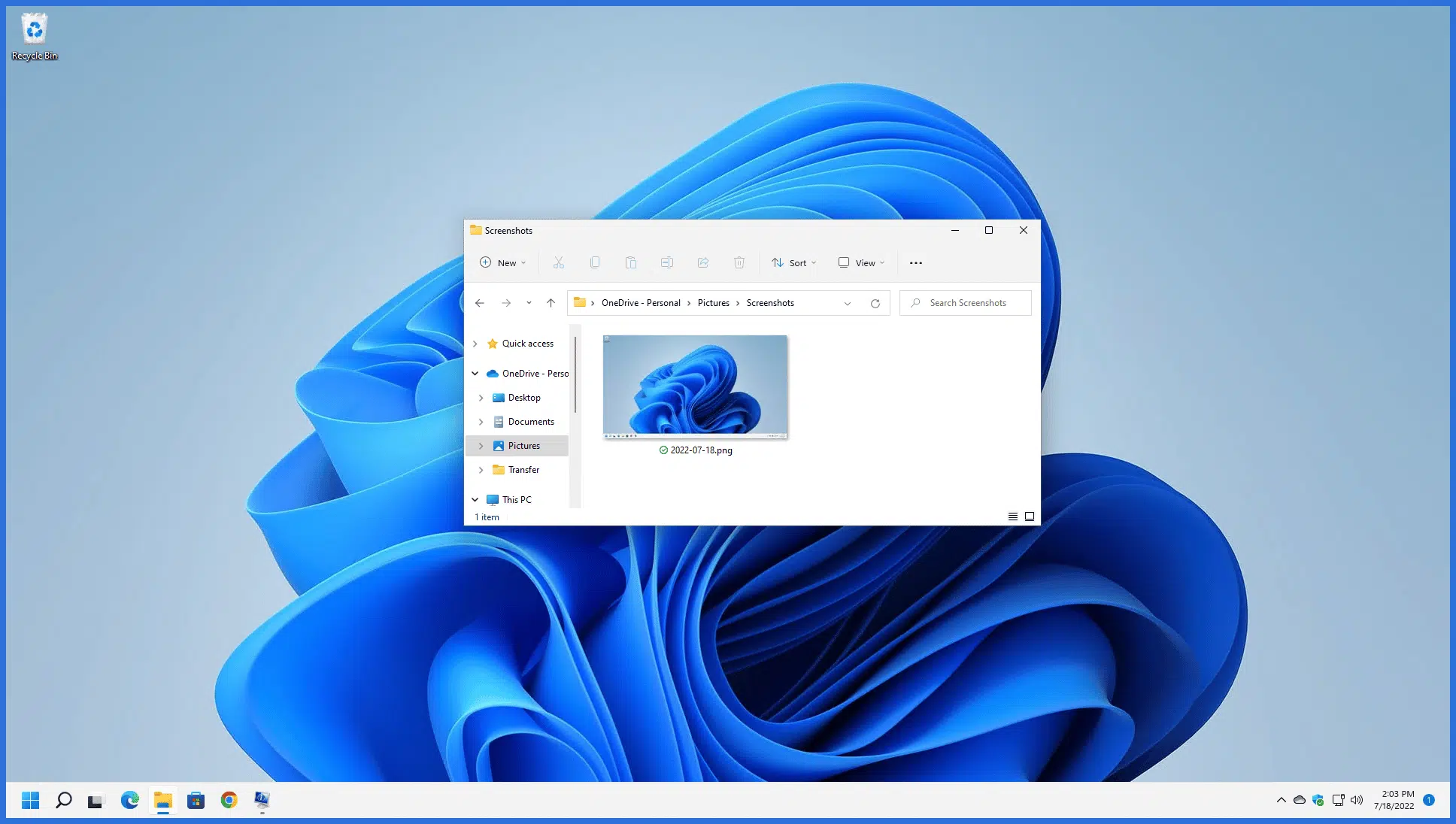
A screenshot or screen capture is a way to take a picture of your computer screen (or a portion thereof).
Let's say you're trying to explain a computer problem to a technical friend of yours, and you're trying to describe what you see on the screen: the dialogs, buttons, messages, whatever. You're not sure of the terms to use, and your friend is having a tough time understanding your description.
And of course, your friend insists that the exact wording of everything you see is incredibly important (and for the record, he or she right.)
Send them a picture.
+PrintScreen and ALT+PrintScreen are two quick ways to take screenshots. The image is placed automatically in your Pictures\Screenshots folder. For a little more power and flexibility, including the ability to annotate your screenshots, run the Snipping Tool.
The quickest way to take a screenshot is to press +PrintScreen, which takes a picture of your entire screen and saves it to the Screenshots folder. (Depending on your keyboard, "PrintScreen" may be shortened several different ways to fit on its key. My keyboard, for example, has "PrtScrn".)
Alternately (so to speak), press ALT+PrintScreen. This will take a picture of only the current application. For example, if you're working in Microsoft Word, ALT+PrintScreen creates only a picture of the Microsoft Word window, whereas +PrintScreen would include everything on the screen.
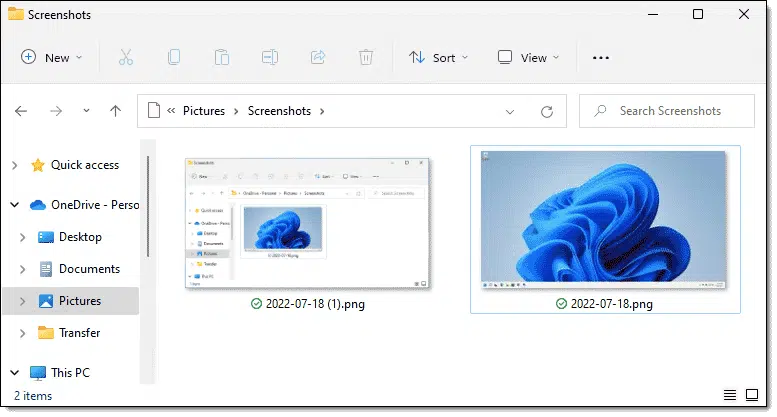
By default, the PrintScreen function places your images in a folder called Screenshots within your Pictures folder. Pictured above is my Screenshots folder with two screenshots:
+PrintScreen.The first time you make a screenshot using this method, Windows may ask if you want to store your screenshots in OneDrive.
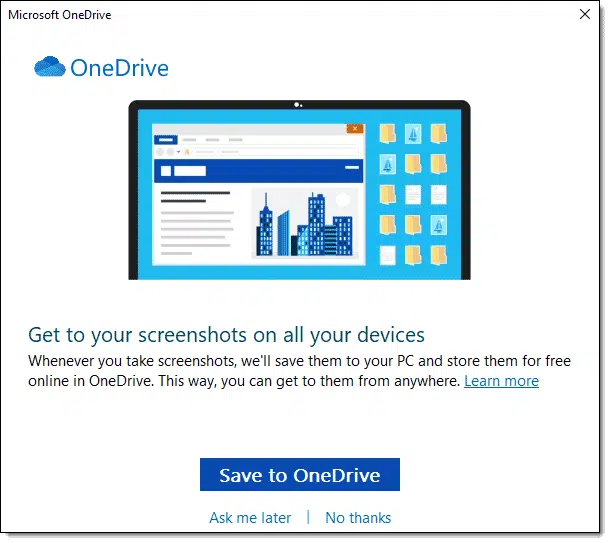
If you save to OneDrive, the Screenshots folder will be inside the Pictures folder within OneDrive. In my examples above, that means "C:\users\<username>\OneDrive\Pictures\Screenshots". If you don't, the local folder outside of OneDrive is used: "C:\users\<username>\Pictures\Screenshots".285
Which you use is up to you. I find it convenient to have the screenshots replicated to my other machines enrolled in the same OneDrive account.
The Windows utility that allows us to take screenshots is called the Snipping Tool. It offers more functions than the keyboard commands described above.
Click on the Start button and start typing "snip". One of the first search results will be the Snipping Tool. Click on Snipping Tool to run it.
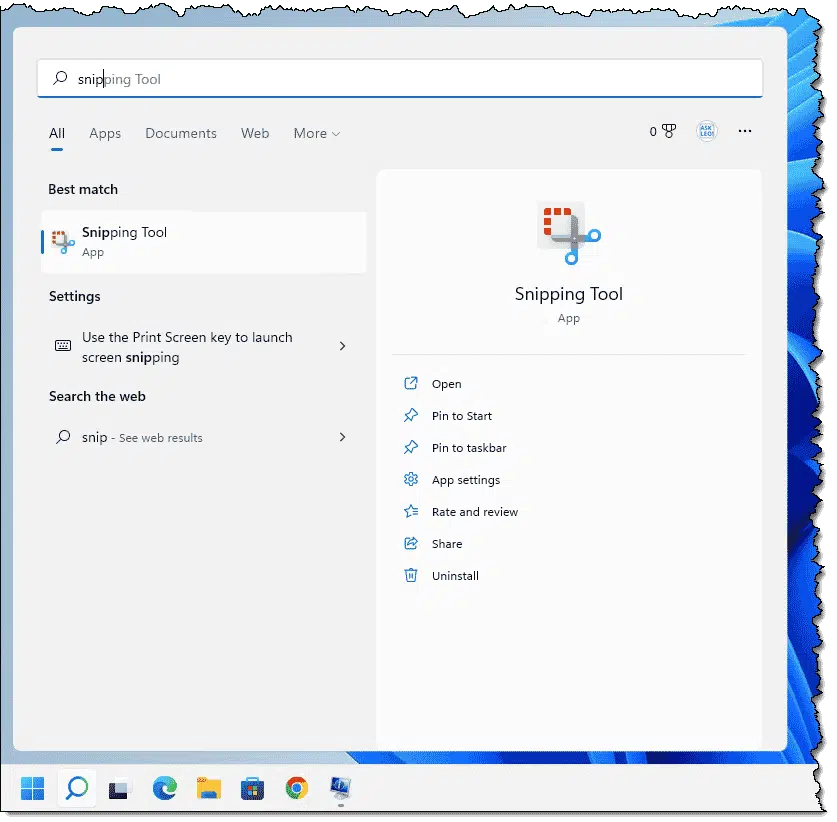
Alternately, typing +Shift+S (or in Windows 11, pressing the PrintScreen key) will immediately begin a screenshot using the Snipping Tool.
The tool has several modes, including Full-screen Snip (a picture of your entire computer screen), Window Snip (a picture of a specific window you designate), Rectangular Snip (a picture of an arbitrary rectangular area on the screen), or Free-form Snip (a picture of a shape you draw on the screen with your cursor). In the example below, I've selected Window Snip.
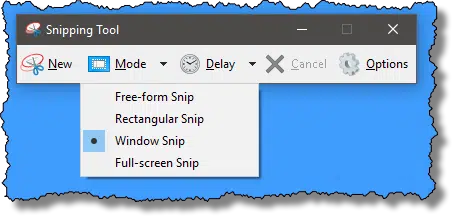
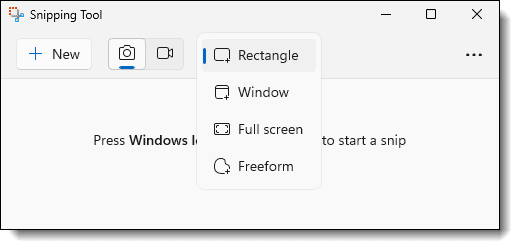
Next, click on New to begin the snip. The screen dims until you click on the window you want to capture. The Snipping Tool takes the picture and presents a notification, or, in Windows 11 opens the Snipping Tool editor, where you can edit or mark up the screenshot before saving it.
I don't allow attachments to be submitted with initial questions on Ask Leo! (because someone could attach malware). Should the need arise, we'll make arrangements to get your screenshots to me.
Important: There is no need to place your images in another file like a Word document. It creates a larger file and can degrade image quality, making small text unreadable. I don't open unsolicited Word documents because of the risk of malware. Use the original PNG (or JPG) formats saved by the Snipping Tool.
Macintoshes have screenshot capability as well. Check out Learn How To Take a Proper Screenshot On a Mac In One Minute over on MacMost.com.
The Snipping Tool provides a basic yet powerful approach to getting screen captures. It's free and included with every copy of Windows.
I use something else.
I use Snagit.
When run, Snagit replaces the PrtScn functionality with its own. It allows for full-screen, partial-screen, full-scrolling-window capture, video capture, and a number of capture-time options. It also comes with a powerful image editor that allows me to quickly add call-outs, arrows, and the fancy "torn edge" effect I use in many of my screenshots.
Most folks don't need an additional screen-capture utility.
That being said, if you take screenshots regularly, as I do, a more powerful tool with options for capture and annotation might be a valuable addition, and Snagit is an excellent choice.


298: This can be further complicated by the OneDrive "Backup" feature, which will place them in the OneDrive\Pictures\Screenshots folder regardless of what you might want.
Rufus allows you to easily create a bootable USB thumb drive from an ISO image.
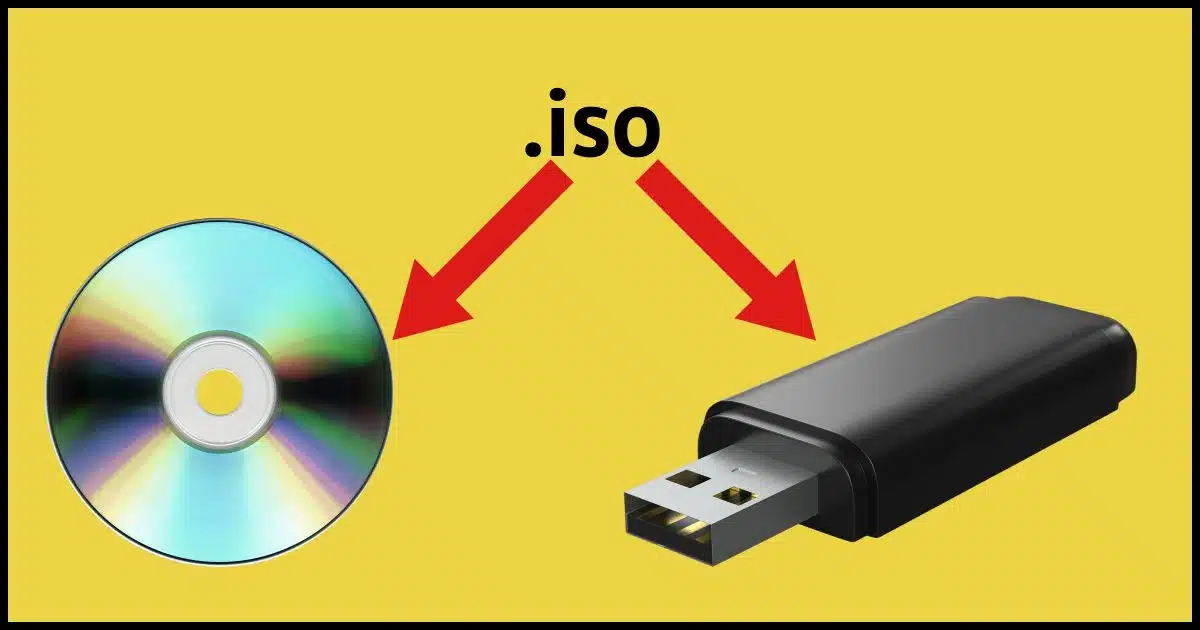
Sometimes, such as when your computer won't boot, or you're attempting to install a new operating system, you need a bootable thumb drive from which to start the machine. But you can't just copy an ISO file to your thumb drive and expect it to work.
ISO files286 contain a media image: a complete copy of a disc's contents, including the information needed to boot. If you were installing a new operating system, for example, you'd download the ISO file, burn it to optical media, and boot from that CD or DVD.
Downloading ISO files onto USB thumb drives is the replacement. But just like you need to "burn" an ISO to optical media, there's a process to putting an ISO onto a USB thumb drive so it will be bootable. While it's also often referred to as "burning", it's something completely different.
There's an app for that. Rufus to the rescue.
Just copying the ISO onto a thumb drive won't work. Use Rufus to "burn" an ISO onto a USB thumb drive so it can boot your computer. Rufus sets up the thumb drive with the structure needed to boot. Download Rufus, select your thumb drive, pick the ISO, and click START. Beware: all data on the thumb drive will be erased.
One of the first mistakes people make is to copy an ISO to a thumb drive they have lying around.
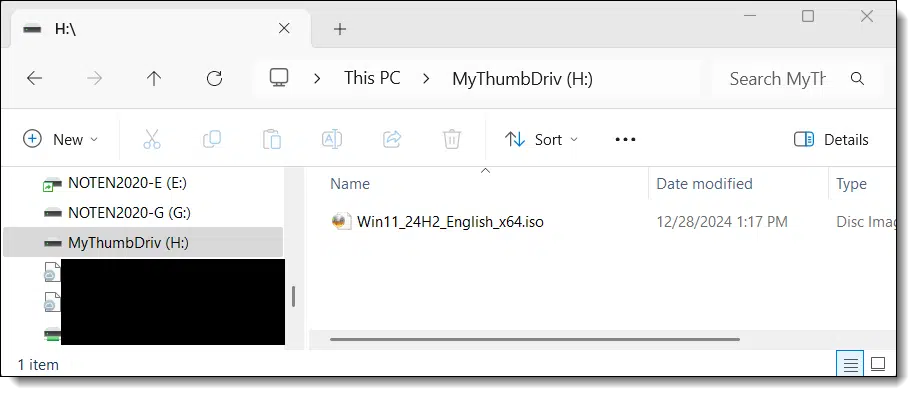
The problem is that copying a file from disk to a thumb drive (or from anywhere to a thumb drive) doesn't set up the additional overhead to make that thumb drive bootable. It's just a disk with a large file on it, nothing more. It's a fine way to copy the ISO file to another machine, but it's not something you can boot from.
That requires an additional step.
Rufus is available from https://rufus.ie.
Important: Ignore all the "Download" buttons. The vast majority are ads and will not download Rufus. (This is unfortunately true for many sites.)
Instead, scroll down until you find the list of "lastest releases" installation links.
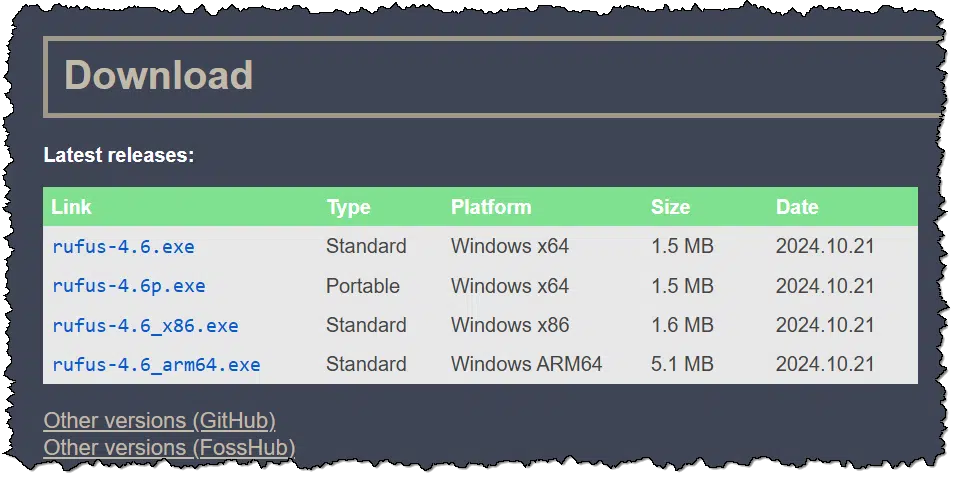
In most cases, the first one — Standard installation for 64-bit Windows — is all you need.
Download and run it.
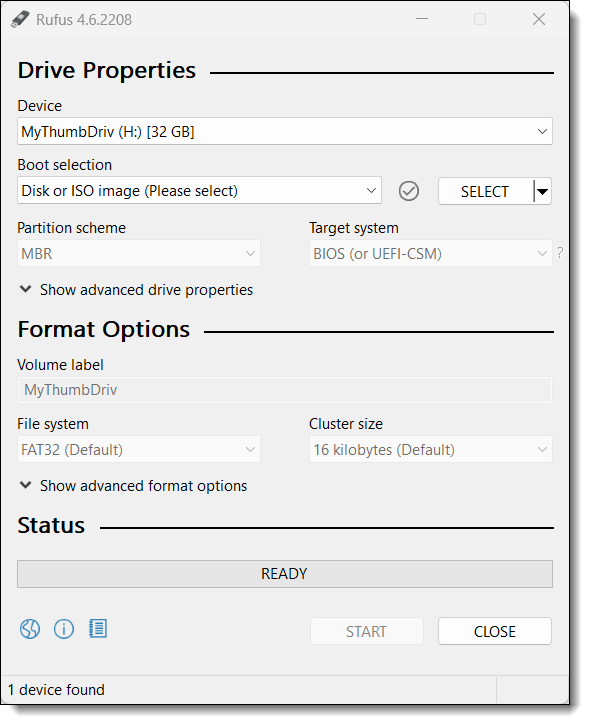
Under Drive Properties, click on whatever is listed under Device (if anything).
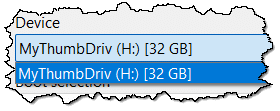
This lists all of the USB thumb drives Rufus has found that it could write to. In my case above, there is only one. If you do not see your thumb drive listed, make certain it's inserted. The list should update after you insert the device. Note that Rufus writes to thumb drives, not to external hard drives. The latter will not appear in the list even if an external drive is connected.
Select the thumb drive you want to write to.
Leave Boot selection unchanged as "Disk or ISO image (Please select)". Click the SELECT button.
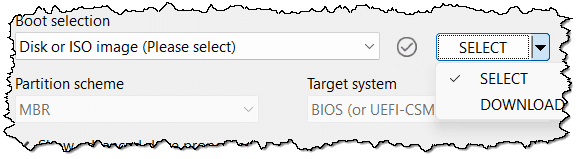
Your choices are SELECT and DOWNLOAD.
I recommend you download the ISO you want separately before running Rufus so you know exactly what you're getting.
You're ready to start.
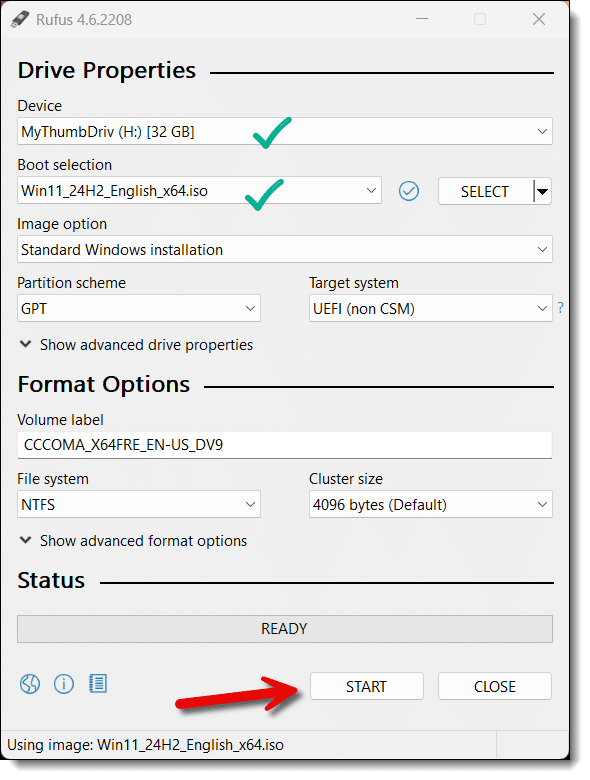
You have a thumb drive selected to write to and an ISO file selected to write. Click START.
If you're burning a Windows 11 ISO, as I show above, you may be presented with a dialog of enticing tweaks you can make to the installation.
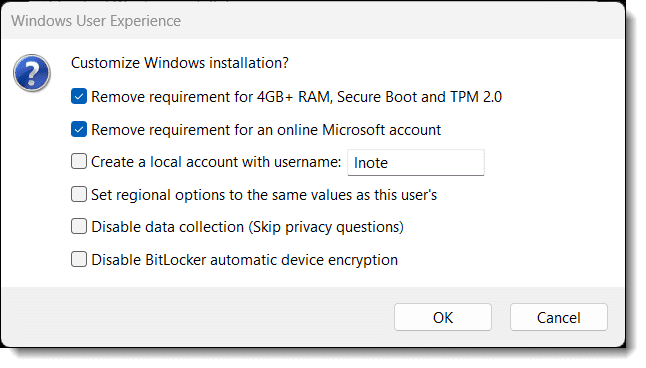
Many of these options are commonly requested changes for Windows 11 that can be difficult to accomplish after installation. Whenever you use this thumb drive to install Windows, these customizations will be made automatically.
Note that each of these changes the ISO as it's written. And, of course, Microsoft may change Windows 11 such that these stop working. As always, use such tweaks at your own risk; you needn't choose to use any of them.
If anything fails on the eventual Windows installation, repeat this process and deselect all the items before trying again.
You'll get a warning.
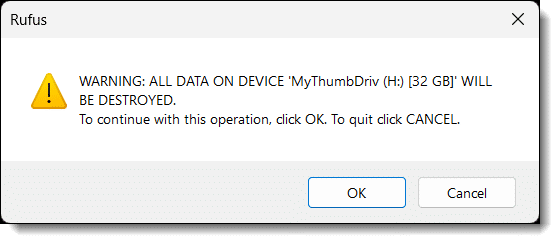
Make certain that the correct device is displayed and that there's nothing on it you need to save elsewhere. The entire thumb drive will be erased.
Click OK to begin the process. When complete, you'll have a bootable USB thumb drive based on the ISO you selected.
A quick view of the thumb drive's contents should show you what you would expect to find on normal installation media: lots of files.
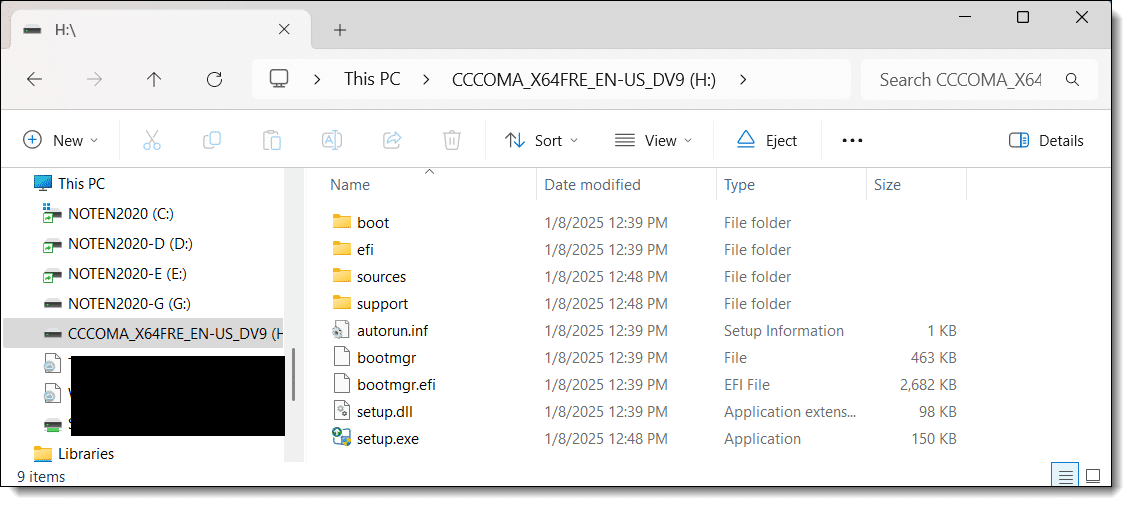
You can now boot from this USB thumb drive.287


299: ISO stands for International Organization for Standardization. Even though it's a very generic term, and is used in many other places and ways, "ISO" has become the standard way to reference a disk image in an ISO-specified format.
300: Exactly how you do that varies based on your machine. It's typically a UEFI or BIOS setting called "boot order". You can change it, if needed, to check USB devices for bootable operating systems before checking the hard disk.
Google is all about answers. Sometimes it provides answers to things that aren't strictly search queries.

This is a two-part tip.
Part one: Type just about anything that can be interpreted as an equation of some sort, and Google may perform the calculation and present the answer. Shown above, for example, is the result of typing in "square root of 2". 1.41421356237 is displayed as the answer.
It doesn't have to be in English or expressed as a formula. Google does a pretty good job of figuring out what you mean. "Three dozen + half a dozen + 5" returns 47, for example. (Tip: include spaces between words and operators to help Google know that they're not a single word.)
My favorite queries are conversions. Typing in "how many teaspoons in a tablespoon" or "10 miles in kilometers" returns useful results.
Part two: You'll notice that the result above is shown in an in-browser calculator. Once that's displayed, you can use it without needing to launch the calculator in your operating system or device. Similarly, when asking for conversions, Google displays a calculator optimized specifically for performing conversions.
You can make more Gmail space without losing data.
You're approaching the amount of space allocated to your Google account. If you're running a free account, that's 15 gigabytes (15GB).
It's possible you just have a lot of email saved online. That's common, and I'll show you what you can do about it.
But there are a few other possibilities as well.
If your Gmail is running out of storage, check your usage across Gmail, Google Drive, and Google Photos because they share your storage allotment. Free space by deleting or downloading files and emails; then make sure to empty the trash. Of course, you can throw money at the problem by upgrading to a Google One storage plan.
The storage you're allotted in Gmail is shared by several Google services. Specifically:
The storage all of them use is limited to 15GB (I'll be using the free allotment as my example).
Near the bottom left of your Gmail.com email interface, you'll see information about how much space you're currently using.
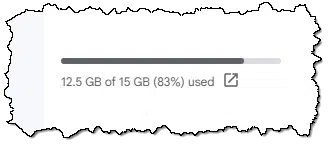
In this example account, I've used 12.5GB of my 15GB allotment. I'm not on the verge of a space problem, but if I left things unchecked, eventually I would be.
If you click on that line of information, you may be taken to a page selling you additional storage space. This is not what we want (at least not yet).
Instead, visit:
https://one.google.com/storage
"One" refers to Google One, the branding Google uses for its storage product. At the top of the page, you may see another offer to begin paying for additional storage. Scroll down instead, and you'll get a breakdown of how your Google storage is being used.
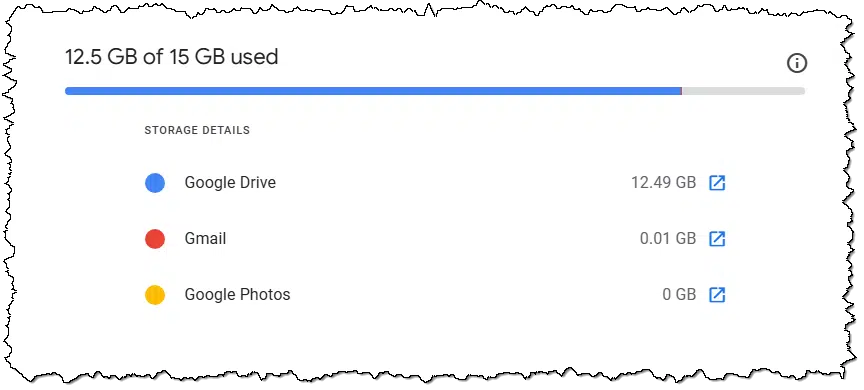
Above, we see that this account is using almost no space for Gmail. Files I have stored in Google Drive are taking up most of the space.
To be clear, it doesn't matter what is being stored; if this account reaches 15GB of space used, it can no longer receive email. To avoid that, let's look at how to free up space in your Drive, Gmail, or Photos.
You can do this either from your computer's files or from Google online.
From your computer: If you're running the Google Drive Desktop app on your computer, either:
Online: If you're not running the app or just want to do it this way, you can visit Google Drive online and either:
Important: Regardless of whether you're doing it on your PC or online, you must visit Google Drive online and empty the Trash folder.
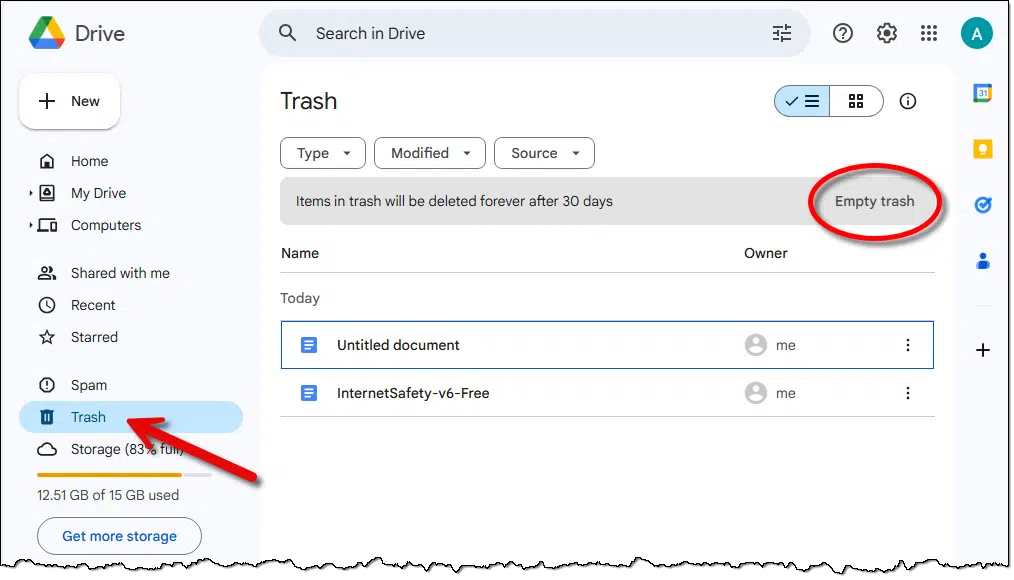
It's not until files are removed from the Trash that the space is released. (I note there's a spam folder as well. I have no idea how it relates to Google Drive, but check it out and empty it as well.)
If you want to save what you're cleaning out, it can be a little trickier to free up space taken up by Gmail.
If you just want to delete emails and you don't care about losing them entirely and forever, then delete away. Just remember to empty Gmail's trash folder when you're done to release the space.
Unfortunately, if you want to keep your email but remove it from your Gmail account to save space, things get slightly more complicated. My recommendation is that you use a desktop email program like Thunderbird.
Install and configure Thunderbird to access your Gmail account using IMAP288.
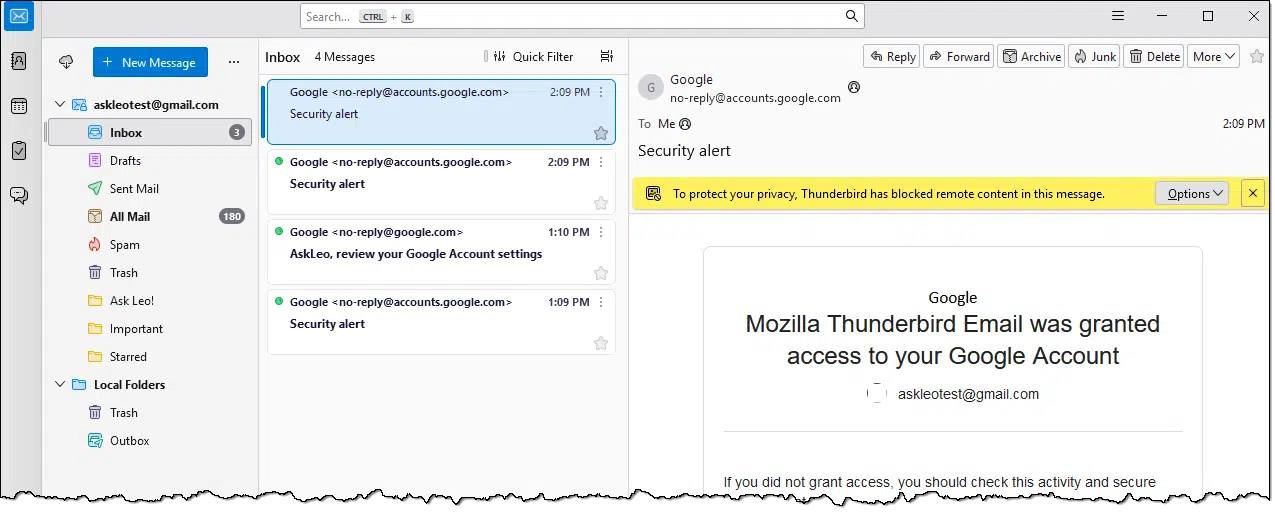
Thunderbird will download your email. Depending on how much email you have, this may take a while.
While that's downloading, create a new folder underneath Local Folders.
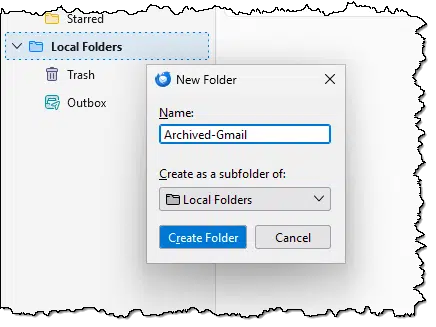
In the example above, I've right-clicked on Local Folders, clicked on "New Folder" in the resulting pop-up menu, and am about to create "Archived-Gmail" as a new local folder.
Local folders, as the name implies, means that they exist only on your computer and nowhere else (i.e., not online).
Select one or more email messages in your Gmail folder and drag and drop them onto the newly created local folder.
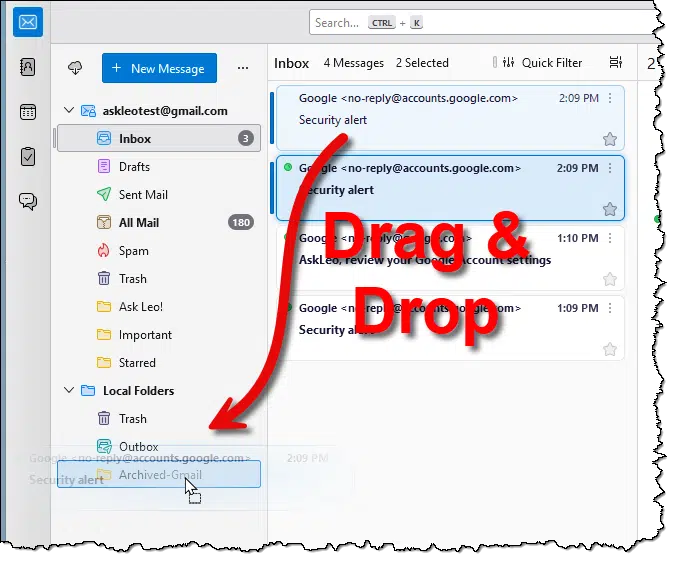
By default, this will:
(If you find that the email messages remain in the Google folder, you can safely delete them manually after confirming they appear in the local folder.)
After you've moved all the email you want to save, return to Gmail online and empty the trash folder.
Now you've freed up space in Gmail while still keeping the email on your PC.
The process for Google Photos is similar to that for Google Drive. Download the photos you want to save289, delete them from Google Photos online, and empty the Trash folder there.
You can solve the problem quickly and easily by applying cash. In my research not long ago, Google One turned out to be one of the more cost-effective approaches for online/cloud storage. Subscribing to a storage plan is another way to solve the problem without needing to do any of the tasks above.
I know that's not for everyone, but it can be a viable solution for many.


301: The article How Do I Move Emails From One Account to Another? shows how to configure a Gmail account in Thunderbird. In our example above, you only need to configure your Gmail account.
302: I recommend always saving your originals in their original resolution and quality (before any editing) elsewhere before uploading to any online service. Often these services alter the image in ways you'll not be able to recover. If you've done this, you probably don't need to download them from Google Photos again.
The Save As... dialog can be used for more than just saving.

A previous tip describing the difference between Save and Save As... prompted a reader to remind me of another use for Save As: to understand where Save is saving.
Perhaps you've been working on a document for a while and you forget what folder it's in. Or you just double-clicked a document icon to open it without paying attention to where it lives on your computer.
While there are other approaches to finding the document's location, I use File -> Save As... almost exclusively. That brings up the "Save As..." dialog, where you can easily examine the current location of your document. As shown above, the address bar includes the location on your computer — either the path to the file or to the Windows library containing the file.
You can cancel the dialog if you don't want to save or click Save to save the document to disk.
When the file doesn't live within a Library, the full path will be displayed in the dialog's address bar as a series of separated folder names.

Click within the address bar, and the display changes to a full-path representation of the current folder.

This is useful for copy/pasting elsewhere.
Bluetooth is cool, but it uses battery power and carries a little risk.

Bluetooth is awesome. It really is. As a short-distance replacement for cabled connections, I appreciate it.
I turn it off when I'm not using it.
There are two reasons I recommend turning Bluetooth off if you're not using it.
I love my Bluetooth headphones — particularly when I'm flying — and I happily use them as needed.
But when I'm not using it, I turn Bluetooth off to save power and be a tiny bit safer.
A quarantine keeps you safe from malware.
Almost all security software includes the concept of quarantining malware once it is found.
Let's dive into what happens when something gets quarantined.
Quarantining keeps suspicious files harmlessly locked away by your security software. The malware can't run or spread while in quarantine, but the files are still available in case of a false positive. The biggest risk? Accidentally releasing it yourself.
When your security software discovers suspected malware on your machine, it must take action. The two most important things it can do are:
But there's a third option between doing nothing and completely removing the malware: placing it in quarantine.
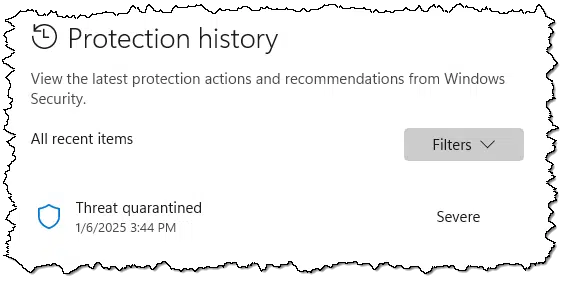
A quarantine is nothing more than a special location on your hard disk. Yes, the malware is still on your hard disk, but that's okay. This "special location" (which varies between security tools) has some important characteristics.
Anything in quarantine cannot be run. Malware is software, and in order to infect your computer, it must be able to be run. Any malware placed in quarantine is completely impotent.
Anything in quarantine cannot be accessed by anything other than the security software that put it there. If the malware is, for example, a component of something else on your machine that could try to run it, that can't happen.
Anything in quarantine is altered. By that I mean the file(s) that make up the malware could be encrypted or altered such that they look nothing like their original state. This is yet another way to ensure the malware can't run or be used by anything else on your machine.
If "get rid of it" is one of the two most important things that security software might to do once it has discovered malware, why doesn't it do that immediately?
In a word: undo.
Like so many things, malware scanning is an inexact science. It's good but never perfect. It's possible for security software to incorrectly flag something as malware and quarantine it even though it's not malware at all. Placing it in quarantine gives you the ability to restore the file should you find that's the case.
It's also a way for malware to be made available to researchers. Some security software even uploads discovered malware to their own servers for analysis and to improve future detection.
There's nearly zero risk in malware being quarantined instead of outright removed. Doing so acts as kind of a safety net.
However, "nearly zero" isn't zero.
The biggest risk in quarantining a file is the possibility that you or I might restore it — un-quarantine it — when we shouldn't. Doing so renews the risk of the malware as if the security software hadn't detected it at all.


A solid-color desktop can be less distracting and even a bit faster.

Having a picture as your desktop is the Windows default. Most people are used to it and even like it.
There are two arguments against using a picture as your background.
The first is not an issue unless you have an older computer. The second can be a significant issue for some.
Right-click on your desktop and click on Personalize. This will open the "Background" settings app.
Make sure that the "Background" drop-down has "Solid color" selected, and you'll be presented with a pallet of colors to choose from or the option to select a custom color of your choosing.
If you find it annoying, you can disable CAPS LOCK completely with a registry setting.

You either love it or you hate it: CAPS LOCK. When simply holding down the shift key isn't enough, CAPS LOCK LETS YOU TYPE EVERYTHING IN ALL UPPERCASE.
Online, CAPS LOCK is also known as shouting. (Avoid it when you can.)
In a previous tip, I discussed a setting that audibly notifies you if the CAPS LOCK key has been typed. But many people want an option to turn off the functionality of CAPS LOCK altogether to avoid accidental frustration.
Windows has no such setting. We need to make a change in the registry to do so.
The short version: in the registry key HKEY_LOCAL_MACHINE\SYSTEM\CurrentControlSet\Control\Keyboard Layout, add the value Scancode Map and set it to the value: hex:00,00,00,00,00,00,00,00,02,00,00,00,00,00,3a,00,00,00,00,00.
If you're not a registry jockey (and, no, you probably shouldn't be), that won't make sense. There are two alternatives.
Create a text file in Notepad with the exact following text:
Windows Registry Editor Version 5.00

[HKEY_LOCAL_MACHINE\SYSTEM\CurrentControlSet\Control\Keyboard Layout]
"Scancode Map"=hex:00,00,00,00,00,00,00,00,02,00,00,00,00,00,3a,00,00,00,00,00
That's exactly four lines. Save that file as "capslock-disable.reg".
Alternately, you can download capslock-disable.reg by right-clicking on this link and selecting "Save As" to save the file to your computer. (Important: this file is provided "as is" with no warranty or guarantee. Confirm that it's what you want and that it matches the instructions above before using it.)
Now that the file is on your computer, double-click on it in Windows File Explorer. You'll get a series of warnings, including this one:

As you probably know, you can render a system completely unbootable with a bad registry change, which is why I try to avoid making registry changes whenever possible. This registry setting shouldn't cause any problems, but it's always a good idea to back up either the registry (by creating a restore point) or your entire machine (with an image backup), before changing the registry.
Once the file is applied to your registry, reboot your computer. CAPS LOCK should no longer function.
As we use the internet, we need to be more vigilant than ever to separate truth from falsehood and recognize what's important over what's popular.

The internet is redefining what journalism means. It's become even more critical for online information consumers (you and me) to take on a burden we haven't had to concern ourselves with until now.
The burden of confirmation.
I've written about it before, but the sad fact is, you can't believe everything you read on the internet. It is now your responsibility to do the legwork and confirm whether something is or is not true.
Yes, I agree: it's totally broken.
But it's partly our fault.
Clickbait, sensationalism, and instant speculation now trump the accuracy of information. We're part of the problem, as we drive content through our clicks. The burden now falls on us as readers to question everything, verify sources, and resist sharing unconfirmed "news".
Most websites on the internet measure traffic. More visitors equals more success. Whether the success is measured in advertising revenue or product sales, the bottom line is that more eyeballs, meaning more visits, are critical to online success.
This is also true for Ask Leo! More visitors make my endeavor more successful.
So how does one get traffic?
My approach has been relatively straightforward: write helpful and informative articles, answer real questions asked by real people, sprinkle them with my editorial and other content, and hope that people discover me via search engines when they're looking for an answer to a problem.
Unfortunately, that approach isn't as effective as it once was. As search engines get less effective, it's only getting worse.
Perhaps as a result, more and more sites use different techniques to attract site visitors and their clicks.
A common approach to generating traffic these days is the sensational or salacious headline — one that says something so strong or outrageous you just have to click through to read more.
The article may or may not deliver on the headline's promise, but the headline served its purpose: it got you to click, the site got a page view, and perhaps an ad was seen. Mission accomplished. That the accompanying article was rubbish or content-free is immaterial.
The title to this post might be considered a clickbait headline, although I think it's fairly mild in comparison to many I've seen. I hope you find the content of this (and all) Ask Leo! articles valuable and worth your time.
Many sites continue with provocative and/or unsubstantiated information to get you to spend more time on the site, click through to additional pages, or, even better, share the article with your friends.
Nowhere does this happen more than on social media. Algorithms determine what engages people the most. Then they feed them more of the same.
All this effort is often at the expense of what we might commonly refer to as truth, accuracy, or balance.
The truth doesn't generate page views as dependably as clickbait. Hence, why post it?
When it comes to current events, however, there's another factor at play.
Because the internet is instantaneous, there's tremendous competitive pressure to get articles published as quickly as is technologically possible.
This often happens at the expense of facts. Confirming facts takes time and resources. The immediacy of internet publishing has removed the luxury of time and budget; other constraints erode the resources required to even do the work.
Websites that cover current events face a simple choice:
Getting something out today almost always wins, accuracy be damned. Facts are replaced with rampant speculation — speculation that is often presented or interpreted as fact.
The satirical news parody site The Onion nailed it with this 2013 article: Let Me Explain Why Miley Cyrus' VMA Performance Was Our Top Story This Morning.
The article is a fictitious "explanation" of why a major news site highlighted the antics of the singer at the previous night's music awards show on its homepage.
The only thing fictitious about the article is its attribution. Everything else is frighteningly accurate.
It's all about clicks and page views and time-on-site and advertising revenue and... well, you get the idea.
The fact is, you and I are much more likely to click stories about the outrageous antics of a pop singer than we are to click on stories about what one might consider "real news," such as atrocities happening elsewhere in the world.
We're also much more likely to click on headlines that appear to confirm what we already believe, regardless of whether it's true or not.
News sites give us what we want as measured by clicks.
The same is true for the salacious headlines, fact-free articles, and sensational speculation-as-truth littered all over the internet.
We don't click on boring, and we don't fact-check anything.

I'm not about to change journalism or human nature.
We'll click on what we're going to click on, and website owners will respond as they see fit for their business.
As an information consumer, however, I want you to be aware of two important things.
Your decisions and actions drive the internet. You may believe that it's big (or small) business doing whatever they want to make money, but the fact is, they can't do that without you. The more you visit certain sites, the more you implicitly endorse what they do and how they do it. As a result, they're going to do it more. The more you click on sensational stories on social media, the more they're going to feed you similarly sensational stories.
Seriously. That's exactly how it works.
When you reflexively hit the "share" button and spread unconfirmed "news" to the world — or even just click on that innocuous "Like" button — you are actively taking part in and rewarding the system that is breaking the internet.
You're making things worse.
You can't believe everything you read on the internet. This pains me deeply because while almost everyone says this, no one seems to act like they understand it. The wild and wacky stuff that people believe because it's published online is amazing. The fact is, even those sites we consider reputable fall into the trap of publishing inaccurate and misleading information290 — and yet people believe it all without question.
And that's what has to change.


303: I try really hard not to, but- it happens. I try to fix it when it does, but as I've stated in several places, I could be wrong.
It's so common to give away personal information, we don't think twice about it. Let's start thinking twice.
Someone got my email address from an online post I made, and now they're harassing me. What can I do?
Over the last 20 years, I've gotten regular questions on this topic.
Somehow, someone has managed to get some information about you — as simple as an email address — and started using it to stalk, harass, and otherwise threaten you.
Let's walk through a few things you can do if you're being harassed by email.
Online harassment via email can be scary. Take action: filter harassing emails, consider a new email address, and avoid clicking links or attachments in harassing emails. Consider documenting all communications and seeking help from law enforcement or professionals. And, of course, be cautious about sharing personal information to prevent future incidents.
Common advice is to block the email address of the person harassing you.
I would take a slightly different approach: set up a filter or rule in your email program or interface to automatically file those emails in a folder set up specifically for this purpose. If you can, automatically mark them as read so you never have to think about them.
The reason I'd save them is to document the harassment in case it escalates or in case you later need to reach out for legal help.
It can be painful, but consider changing your email address to one the harasser doesn't know.
This is similar to filtering their email, but it adds another layer preventing them from reaching you. Eventually, you might even close the old account, at which point emails to that email address would hopefully bounce back to the sender.
This can be a lot of work if you've used your email address for online services and shopping sites, so it might not be worth it unless things are severe.
Also, consider using throw-away email addresses for business relationships, newsletters, or whatnot. As long as you never use them for something "important", these are designed to be discarded at will, without major impact.
It can be tempting to view the messages being sent by the harasser. It might even be important to understand how concerned you should be.
Hopefully, it's obvious, but:
If you're being harassed, the harasser may want to cause you trouble, and malicious links and attachments are one way to do so.
This will vary depending on the specifics of your circumstances, but consider looking for help. (For the record, I'm not a lawyer, and none of this should be considered legal advice.)
Talk to law enforcement. Even if they can't do anything immediately, you'll at least get the case on record should any future action be necessary.
Talk to a lawyer. They may look into things like a restraining order, a no-contact order, or some other legal recourse to help you. They may also have related resources they can point you to.
If applicable, consider contacting support organizations such as the National Domestic Violence Hotline.
When you post something on the internet, it essentially becomes public information. It's easy to find. This is one reason I remove identifying information like phone numbers or email addresses from comments left on this site.
Even handing over your email address to someone privately — in a conversation, as part of a business relationship, or for some other reason — carries risk.
Be careful about what, where, and when you share or post something, and what personal information that post carries.
It may look like you can remove information from a comment or take down something you've posted publicly, but just like sharing your email address with a company or individual, once it's out there, it's out there.
For example, one thing many people find surprising is that Google caches information. When Google snatches a copy of a page to index, they keep that copy for some time. Even if that page goes away or changes, the cache of what the page used to be a week, month, six months, or a year ago may still be available.
Hundreds of search engines may be doing the same thing. There are even sites like archive.org; their servers' job is to specifically keep old copies of webpages.
And while there are services that claim to remove you from the internet, they simply cannot. At best, they can make you harder to find, but there's no way they can scour all the digital nooks and crannies that might have information about you.


Do you want sound to come from speakers, headphones, or other devices? Here's how to make it happen.

It's not uncommon to have multiple output devices for the sound coming from your computer.
Many applications — audio players and editors and the like — include explicit controls within their interfaces to allow you to choose which of the connected speakers, headphones, or other devices their sound should be played through. For all other applications, including Windows itself, you need to change the default output device.
In Windows 10, click on the speaker icon (usually in the notification icons at the lower left of the bottom of your screen) to get to the volume control.

If you have multiple output devices, a small upward arrow will be shown in the upper right corner of the control (see red arrow above). Click on that. A list similar to that shown at the top of the page will be shown.
In Windows 11, click on the speaker icon and then click on the adjustment icon to its right.

As you can see at the top of the page, I have so many playback devices that a scrollbar appears to move through the list. Click on the playback device you want Windows (and apps without a device selection of their own) to use by default.
Bonus: each playback device should remember its last volume setting, so there should be little need to re-adjust after a playback device change.
Imagine you're traveling overseas and all your digital "stuff" is lost. What do you do? How do you reconnect?

It is an interesting challenge: you're far away from home and your wallet, your mobile device, your laptop... everything... is all stolen or lost.
How do you reconnect to your life?
Lost everything digital while traveling? Don't panic, but do prepare beforehand. Store encrypted bootstrap info with a memorable password, keep 2FA recovery codes, and have a trusted contact. A tiny microSD card hidden securely (with encrypted data) can be a digital lifeline.
I went through this thought exercise some years ago when my wife and I traveled overseas. My "worst case" scenario was some kind of incident that had us alive but with literally only the clothes on our backs. Without money, identification, or a phone, how would we start to cancel credit cards, get some cash, protect airline tickets, or any of the hundreds of other tasks suddenly facing us?
It's a process of bootstrapping: you want to be able to regain access to one resource that in turn lets you access other resources.
But how do you get into that first account?
This kind of bootstrapping requires preparation. You need to answer the question, "What information do I need to keep, in what account, that would allow me to regain access to everything else?" This could be a cloud storage account like Dropbox, an email account, or a password vault.
For me, for example, that means in one of my cloud storage accounts, I keep an encrypted copy of my 1Password Emergency Kit. That kit allows me to access my 1Password vault, which contains all the information I need to get back into all my other accounts.
But there's a catch. This "bootstrapping" cloud storage account has a strong password and uses two-factor authentication. Even if I remember the password (which in this case I wouldn't, as it's a 20-character random password), I still wouldn't have my second factor (my phone).
So how to get started?
If everything really is gone, two approaches come to mind.
As part of disaster planning, designate a trusted contact to access your information should anything happen on your trip. Well, something just happened. Call them. This requires that you have their phone number memorized, know enough information to find their number, or be able to contact them in some other way.
An email address might be enough, assuming you have their email address memorized and can find a public computer to use. However, since you don't have access to your accounts, you'll need to create a new one. Your contact, then, will get an email claiming to be from you but using an email address they've never heard of.
Now might be a great time to establish a code word to confirm your identity.
Have them give you the appropriate information — account ID, password, and possibly a two-factor code in real time — that allows you to access that primary account.
I'm on the fence about this one, but if the above doesn't work for any reason, and you need to be completely self-reliant, we need to do something else.
Have one account — ideally email, cloud storage, or an account including both — that:
This feels "icky" (technical term, that) because only a password protects the account. The good news, though, is that another password protects your critical information — that of the encrypted file.
You need to remember only those two passwords: that of the online account and that of the encrypted file.
Relying on only your memory or on a very trusted friend covers the absolute worst-case scenario. One tiny bit of preparation, though, can really ease things, particularly if you haven't lost quite everything.
For example, you might place the encrypted file I talked about above onto a microSD card. You would then keep that in a secret but secure location — not your wallet (easily lost or stolen) or your other digital tools (ditto). I like the concept of belts that have secret pockets or some other way to make it part of your clothing. My goal would be to have it on my person at all times in such a way that it would not be a target for, say, muggers.
That way, as long as you have the clothes on your back, you have access to this important information. If it's lost, the contents of the microSD card would be protected by at least one strong password.291
Nothing above replaces the two-factor device — typically your mobile phone — that you may have lost. That means you'll be trying to get into accounts requiring your phone to prove you are who you say you are, but you don't have that phone.
Not to worry.
When you set up two-factor authentication for your essential accounts (banking, email, and others), you were likely given the opportunity to save one or more recovery codes. Make sure that your bootstrapping information includes these codes. (If you don't have these codes, take the time to generate them now. You don't have to be traveling to lose your phone.) These recovery codes can typically be used exactly once in place of your second factor.
Alternately, some accounts have you set up alternate email addresses to be used to regain access without two-factor. In a sense, your ability to access this recovery account replaces the two-factor authentication. The only catch here is to make sure you're not stuck in a loop where you need account A to authorize account B and also need account B to authorize account A.
Make certain you have recovery information, codes, or alternatives for two-factor authentication in place, and make sure that whatever information is required to activate them is stored in your bootstrapping information.
Once you regain access to the account, be sure to turn two-factor authentication off temporarily until you have a replacement two-factor device you can use.
I'm not going to lie; all the preparation in the world may not get you back in to some accounts.
The example I'm thinking of is your Microsoft account. Because so many scams and account theft happen outside of your home country, Microsoft may impose additional security steps to sign in that you wouldn't otherwise see. I've heard from people who could not sign in to their Microsoft account — meaning the couldn't access their email — from a foreign country, even without losing anything. It wasn't until they got back home that they could get back in.
While I kind of appreciate the extra security protecting my account, I'd prefer it not protect my account from me. But it's important to realize that it can happen.
The solution? Make certain you have at least one other account that isn't as paranoid about overseas sign-ins. Make sure they have good security, of course, but two-factor authentication, including the ability to use recovery codes, ought to be plenty.
And to be clear, while I use Microsoft as an example, other accounts may be affected as well. I don't know of a clear way to tell other than checking support forums full of people complaining that it happened to them.
Even though it's not technically about getting back into your online world, I do want to say a few words about your travel documents. If you lose everything, those will be among the missing as well.
Check with your local authorities on the legalities, but I have digital copies of all my important documents stored (securely) online. I add information about the trip I'm on, like itineraries, airline tickets, etc.
I wouldn't expect a randomly created digital copy of a passport to be accepted as identification. However, it could speed up the process of obtaining a replacement. At a minimum, you'll know your passport number.
OK, travelers, how about you? Do you have any nifty approaches to solving this problem? Leave a comment below!


304: For extra security, you could place the encrypted file into an encrypted VeraCrypt volume, thus requiring two passwords. For even more security, you could place the encrypted file into a hidden volume created within a VeraCrypt volume.
Open-source software is not necessarily free, though there is a high correlation.
Many folks see open source and think free. That's understandable because a lot of open-source software is free.
But it's not a guarantee. You need to find and understand the fine print.
Open source does not mean free; it means that the source code to a particular software package is available to the public for examination. While many (if not most) open source projects are indeed free, others are not, or are not completely free. Before you assume that what you're about to download is without charge, check it out.
Source code is the instructions written by computer programmers that tell the computer what to do. Every program you run — from the browser you're reading this in to Windows itself — has a corresponding collection of such instructions.
The programs you run — the ".exe" files, for example — are the result of processing human-readable source code into instructions more efficiently read and acted on by your computer's CPU.292 This is often referred to as building software or writing code. You and I never see the original source code; we just see the results of that build in the form of the programs we run on our devices.
Unless the program is open source.293
Open source means that the source code for a program is publicly accessible, and anyone can look at it. In fact, in most cases, anyone can make a copy of the source code, change it, and build actual software themselves.
Many projects are open source to allow collaboration.
Not only can anyone examine the source code and change it for themselves, but they can add changes to the master copy for all to see.
Naturally, this is a highly regulated process; programmers submit changes for approval before they're integrated into the master copy. The benefits are significant, though. Rather than being limited to an official team of developers, projects can accept contributions from motivated individuals around the world.
Many of the most successful projects operate in this manner. Dozens of developers all work on an open-source collection of software and contribute their changes to make that software better in many ways.
A lot of open-source software is free, but it doesn't have to be.
Many Linux distributions are completely free, but there are distributions that are not. While the open-source license might require that core components of the software are always freely available, individuals or corporations may add value by including their own software, modifications, or upgrades, which need not be free but can still be open source.
Companies may also choose to make their own completely proprietary software open source and available for examination.
Anyone may still be able to download and build the software (often a daunting task, to be honest), but it's not legal to distribute or profit from the non-free components. It's open source, so anyone can see it, but it's not free.
Linux is the largest, most commonly referenced open source project.
LibreOffice is another good example of a single open-source project. In fact, here are instructions to download and build LibreOffice from its official source code. While most of us simply download and use the built program, if you were curious or otherwise motivated, you could download, tweak, and build your own version.
BitWarden is another example of open-source software. It includes a site dedicated to defining how individuals can contribute to BitWarden's development. BitWarden has both free and paid versions.
FOSS — Free and Open Source Software — is exactly what it sounds like: both free and open source. By definition, FOSS projects are completely free to download and use, and their source code is always available to examine or modify.
305: Technically, things other than software can be open source, but I've limited the discussion here to the computer programs and software packages you might encounter, download, and run.
306: For those more versed in the details, I'm completely glossing over things like scripts, interpreters, intermediate languages, and whatnot.
Just ignore seed-phrase scams.
Excuse me, could you lend a hand with my problem? USDT TRX20 is kept in my OKX wallet, and my phrase is ({redacted}). Could you tell me how to move it to OKX?
What's this all about? I could help them, I suppose, since I'm familiar with crypto, but something seems fishy.
I had this question, too, when I started to encounter more and more comments on my YouTube channels.
"Fishy" is how they felt, and indeed, doing some research I discovered my suspicions were right: it's a trap.
Since it's kind of interesting, I'll share what I discovered.
Crypto "seed phrase" scams involve scammers posting their wallet's "seed phrase" (essentially a password) and feigning cluelessness to lure you in. If you engage, they may exploit you into depositing funds, which they'll steal. Ignore these comments and report them if you like. As always, stay skeptical and cautious online. If it feels off, it probably is.
You'll note I've redacted the phrase mentioned in the comment. That's because that's a seed phrase, a textual representation of an encryption key to someone's cryptocurrency wallet. Posting it publicly is like posting your password.
They also explicitly mention that their wallet is kept with OKX, a cryptocurrency trading exchange. That's telling where the password can be used.
Knowing those two things — the phrase and where the wallet is kept — gives you access to that cryptocurrency wallet.
It's called a seed phrase scam. The scammer hopes you'll want to help or that you realize how clueless the supposed poster is.
That's the lure.
Let's say you decide to connect to the wallet. You may find a small balance, making it appear legitimate.
What's odd, at least to me, is that the scammers seem to count on you putting money into the wallet. If you interact with the individual who posted the comment as you try to help them, they may ask you to add funds as a step to fix whatever "problem" they're having.
Of course, the scammer isn't as clueless as they appear. They still have access to the wallet, and they immediately abscond with whatever monies you deposit.
Apparently, some folks start using the wallet as their own, with no intent of helping anyone but themselves. Once again, the scammer still has access, and any money deposited shortly disappears.
Ignore these comments.
If you want to take an extra step, report them.
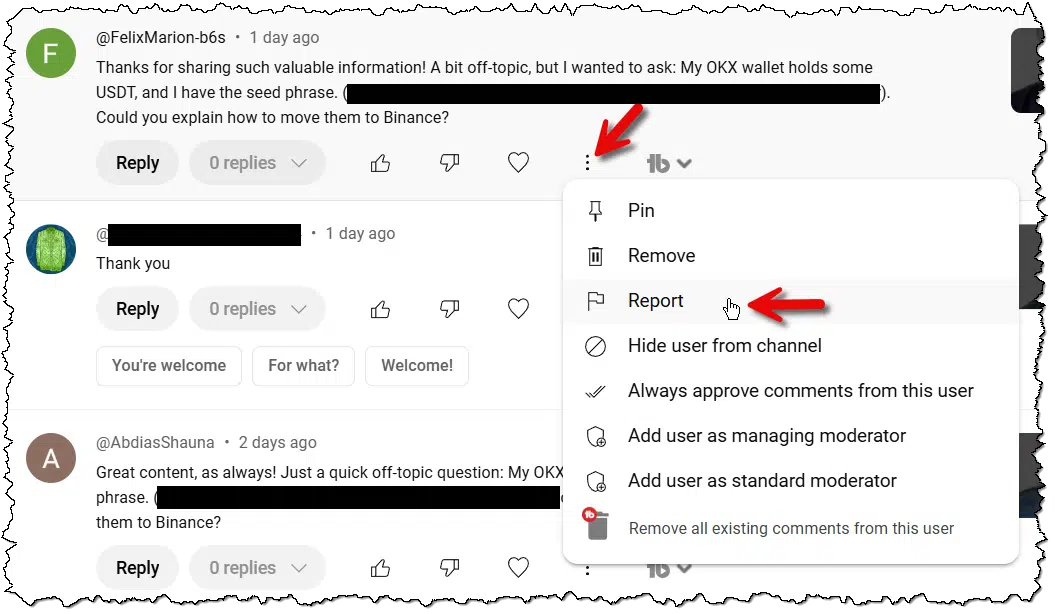
On YouTube, that means clicking on the vertical ellipsis to the right of the comment and then clicking on Report. You'll be asked to categorize it. Choose "Unwanted commercial content or spam", and the comment will disappear. It's unclear if it disappears for everyone or just you. I believe it to be everyone. At a minimum, YouTube uses the report to train their spam-detection algorithm.
Or, as I said, you can just ignore it.
As a YouTube channel owner, I try to report/block them as I find them, mostly because I don't want any of my viewers to be ensnared by the trap.


Use Save and Save As to preserve data and prevent data loss.

Both "Save" and "Save As" play important roles in file management. There are times you want one and times you want the other.
Both commands write the file you're working on to your computer's hard disk. The difference is what that file will be called and what happens to the previous version (if any).
The difference is important if you want to preserve the document you started with. Doing a "Save As" to a new filename, even if you've made no changes, causes most (but not all!) programs to use that filename for any subsequent save. Thus, a good habit to develop is to:
When you're done, you have two copies of the file: the original you began with, unchanged; and the new document with a new name and all your changes.
Windows has an easy way to insert emojis.

Type the Windows Key () plus a period (".") or semi-colon (";"). The emoji keyboard will pop up, as shown above. You can then click on the emoji you want to type into whatever application you are using. It's a little more intuitive than remembering that colon-hyphen-close-parenthesis is a smiley face. ðŸ'‚
Even when a program doesn't support emojis directly, this is a convenient way to find out what they do support.
And while we call it the "emoji" keyboard, as you can see in the video above, it also provides access to GIFs, "Kaomoji" (images made up of multiple characters like ¯\_(ツ)_/¯), symbols, and clipboard history (if it's enabled).
There are reasons to turn your computer off at night or leave it running. Getting hacked isn't one of them.
My article on turning your computer off overnight frequently prompts people to ask if (or emphatically state that) turning off your computer keeps it safer from being hacked.
While the answer is "yes" if you want to be pedantic about it, the more practical answer is "no".
Let me explain how you're protected by 1) your computer and 2) yourself.
Turning off your computer overnight doesn't significantly increase safety from hacking. Your NAT router already blocks unsolicited connections. Malware risks arise from user actions, like opening unsafe attachments. Focus on practicing safe computing and keeping your system malware-free. Leave your computer on or off overnight based on convenience and power concerns rather than worries about hacking.
Here's the thing: a random program out on the internet cannot connect to your computer on its own. Period. A side effect of the way your router handles internet addressing — sharing your internet IP address among all the devices you have connected — prevents unsolicited incoming connections.
A computer connected directly to the internet294 is at high risk. There are stories of such computers being infected with malware within moments of being connected. It's one reason I say we are all under constant attack.
A computer behind a Network Address Translation (NAT) router is safe from these incursions. Period. Day or night. Running or not. Chances are you already have one, and if you have more than one device connected to the internet, you almost certainly do.

You might be wondering, then, how tools like messaging programs, file sync programs, or even email programs on your computer get notified when there's something they need to do. Someone's trying to send you a message, a file has been updated in the cloud and needs to be downloaded, an email has been sent to you, and so on, and your computer needs to act on it.
Those services are not connecting to your computer.
They use a "man on the inside": the software installed on your machine that deals with those services.
Your computer initiates the conversation by reaching out to the messaging service, the cloud storage service, the email service, or whatever else. It might periodically check if there's something new (like email), or it might have created a conversation when the program was first run on your PC and kept that conversation going continuously so the app on your computer and the service online can talk to each other when needed.
But the connection is never295 initiated from the internet. It's always your computer reaching out.
Always.
If the only things that show up on your computer are things the computer asks for, that means these things come from one of exactly two places:
The second is where malware comes from. In fact, the most common cause of malware infections is probably people opening attachments they shouldn't.
You, of course, practice safe computing. You know not to do that.
There is a sliver of accuracy regarding turning off your computer and how it keeps you "safer". When you turn it off:
It's the second one that causes most people the most concern. If your machine is infected with malware and software on your machine can "reach out" and download more malicious stuff, then turning off the machine will prevent an existing infection from getting worse.
But for that to matter means you already have malware on your machine! Turning off your machine won't do anything about that; it'll still be there when you turn it back on. The very thing you're trying to prevent by turning off the machine has already affected you.
Focus instead on keeping yourself malware-free to begin with.


307: Which you should never do unless you know what you're doing. I'd use a router even if you had only one device. Besides — someday you'll have more.
308: I'm explicitly ignoring DMZ and advanced router configurations that allow pass-through. The average user never uses this.
Jump lists are application-specific menus of common or recent operations. See if they can save you time.

Right-click on a program in the taskbar — running or not — and it may display a jump list: a list of shortcuts defined by that program.
Each jump list varies depending on the program. In the Google Chrome example above, the jump list includes:
The list changes as the program runs — again, depending on the program, what it supports, and how you use it.
Next time you run an application you use frequently, right-click on its taskbar icon to see if there are some useful shortcuts in its jump list.
To free up additional screen real estate, have the taskbar hide itself.

In a previous tip, I covered how to make the taskbar larger. Today's tip is just the opposite: you can make more space available on your screen by making the taskbar automatically disappear when you're not using it.
Right-click on the taskbar and click on Taskbar settings or Properties, depending on your version of Windows. In the resulting page of settings, make sure that "Automatically hide the taskbar in desktop mode" is turned on.

Desktop mode refers to the traditional desktop computer mode that includes a keyboard and mouse. The taskbar will appear when the mouse pointer is moved to the bottom of the screen (as in the illustration above).
In the next setting down, you can hide the taskbar in tablet mode (optimized for touch screens without a mouse or keyboard), in which case you make the taskbar appear by swiping up from the bottom of the screen.
As a bonus, if you make your taskbar larger, that setting still applies. In fact, you can deal more easily with a larger taskbar because it'll be hidden when not in use.
Many people seem more than willing to give a complete stranger access their computer. It's safer to give them your wallet.

If a stranger were to walk up to you on the street and ask you for your wallet, would you hand it over?
I'm not talking about robbery here. I mean that someone you've never met walks up, gives you what sounds like a semi-plausible reason, and asks for your wallet.
Would you hand it over?
Of course not.
And yet I hear of people doing much, much worse almost every day.
Granting a stranger remote access to your computer is like handing them your wallet. It's actually worse, as you won't know what's been stolen or compromised. Always verify and trust anyone you grant access to, and never trust unsolicited offers to "fix" your computer.
I am, of course, referring to the scam where someone:
Don't do it.
It's a scam. It's a trap. These people are lying to you.
When we give someone access to our computer, we're placing a tremendous amount of trust in that individual.
In short, we trust that they're here to help us.
But the trust runs much deeper than that.
Scammers have done all these things to those who unwittingly trusted them.
Honestly, this applies to anyone. Be it the techie friend, the computer repair person, or the applications-support person you've contacted, you're placing all that trust in them as well.
Do you trust them?
Why?
Make sure you clearly understand the answers to both questions before you hand over the keys to your kingdom. If you waffle on either, consider looking elsewhere for help.
And for Pete's sake, if someone you don't know calls you and offers to "help", hang up!
It's safer to hand over your wallet to a stranger than it is to let a stranger take control of your computer.
Why?
You know what's in your wallet.
When you get it back, you immediately know what's missing and what to do. Credit cards need to be canceled. Replacement ID cards need to be ordered. A new photo of the spouse, kids, and pets needs to be printed.
You know your new wallet, with your new cards, is completely within your control.
That's not true if someone compromises your computer. Once they're done, you don't know what's missing, you don't know what's been copied, you don't know what's been added, and you don't know what's safe.
That's a lot of not knowing.


Windows 11 requires a TPM and a CPU with particular specifications. This approach should let you install Windows 11 on a machine not meeting those requirements.
Can you install Windows 11 on computers that don't meet Microsoft's published minimum requirements?
Yes. No. Sometimes.
The most commonly cited problems are the specific CPUs required (relatively new) and TPM 2.0. TPM stands for Trusted Platform Module and is a cryptoprocessor that provides a range of security features used by Windows 11 when present.
There have been a variety of workarounds to getting Windows 11 installed on machines not meeting those criteria, but they all seem to be eventually shut down by Microsoft... except for one. That one workaround, while not the simplest of approaches, could be around for a while (even Microsoft says so).
Microsoft's documentation notes a workaround for installing Windows 11 on unsupported hardware. Using DISM, you can apply a Windows 11 image directly to a disk, bypassing TPM 2.0 and CPU checks. While complex, this method provides a viable solution. Beware that unsupported hardware may face future issues.
On a page titled Ways to install Windows 11, near the bottom, after all the "traditional" approaches, Microsoft includes this statement:
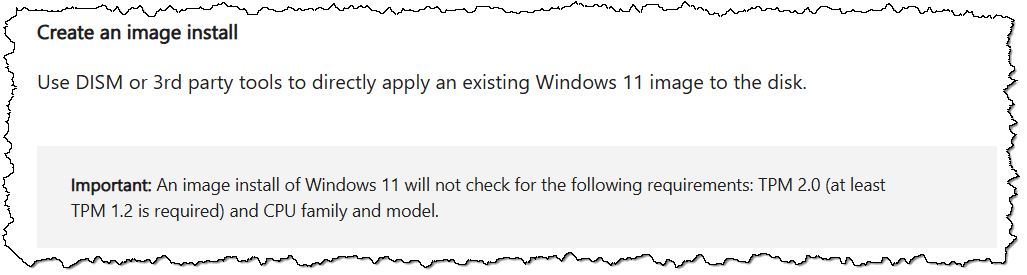
The key phrase in the important warning is:
An image install of Windows 11 will not check for the following requirements: TPM 2.0 (at least TPM 1.2 is required) and CPU family and model.
They call it a warning. I call it an opportunity.
Setting up an initial Windows 11 installation using an image install is complicated and somewhat arcane. But it's certainly possible.
Let's do it.
First, you'll need a Windows 11 installation ISO. You can download that from Microsoft.
You need to burn or copy it to something you can boot from. Typically that means burning it to a DVD or using a tool like Rufus to create a bootable USB drive.
Boot the target machine from this Windows 11 installation media.
The installer will start and present its initial screen.
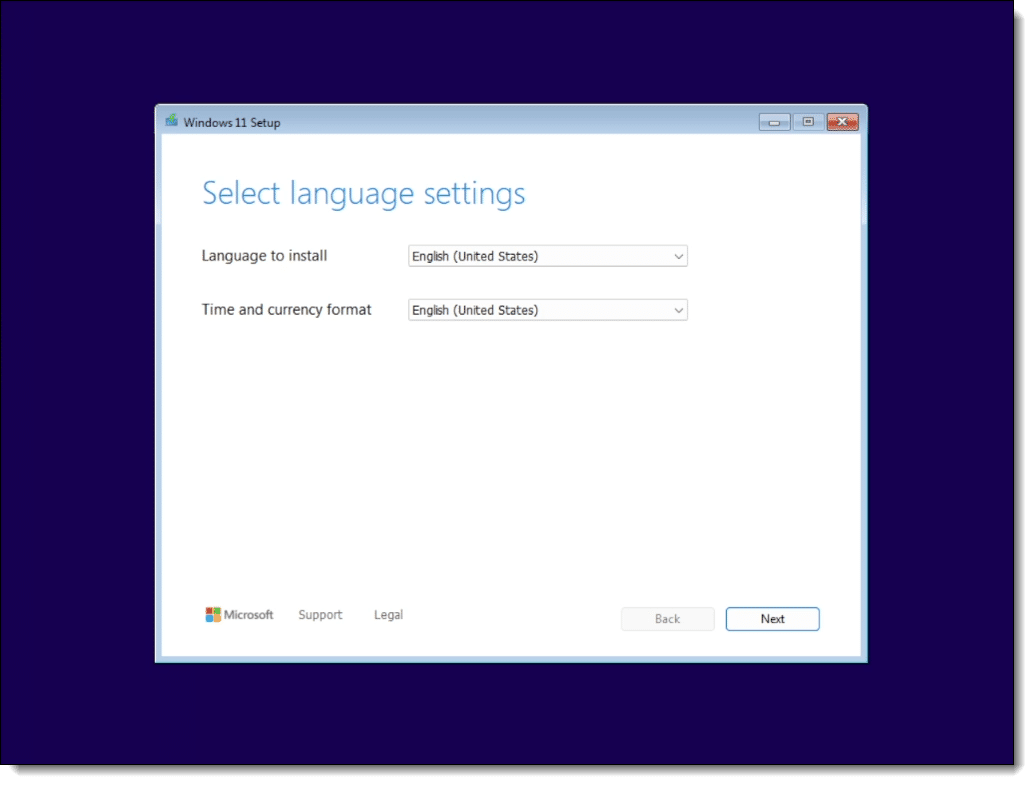
Don't click anything.
Instead, type SHIFT+F10. This will bring up a command prompt window.
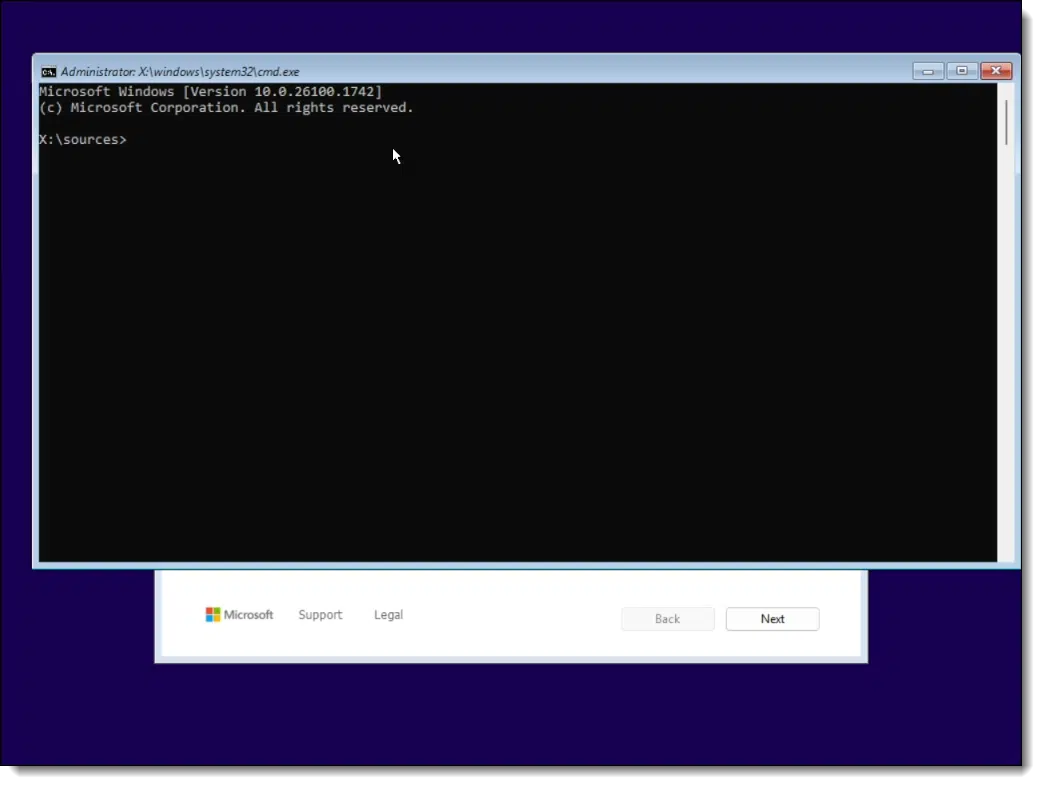
It's here that all the magic will happen.
Type the command diskpart (this and all commands below are followed by the Enter key).
Then type the command list disk.
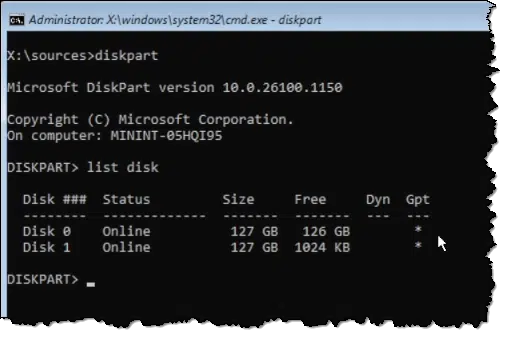
The hard disks in your machine will be listed by number. The example above has two disks.
Now type the following commands, each followed by Enter.
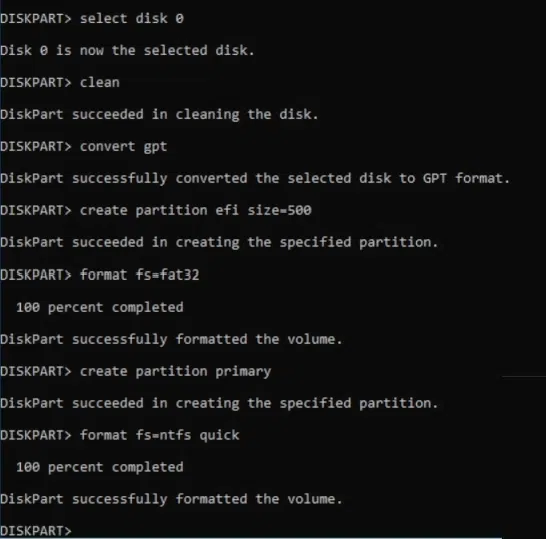
This sequence of commands:
Next, we need to assign our new partition a drive letter.
Still in diskpart, enter the command list volume.
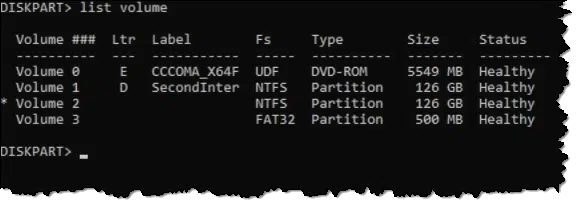
First, take note of which drive letter your installation media has been assigned. You'll do this by looking for the label and/or type. While yours may be different, in the example above my installation media, a DVD, is drive E:.
Also note that there's a volume with no label formatted as NTFS and 126GB in size. Yours will be close to the size of your hard disk. That's the volume we want to install on. It's also the volume we want to call "C:". Note the volume number assigned to it. In my example above, it's volume 2.
Now enter the following sequence of commands.
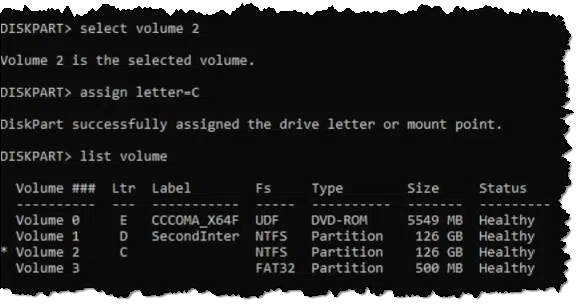
The resulting list now shows the drive with the assigned letter C.
You can now type exit to exit diskpart.
Now, with all the partitions ready, we can install Windows.
Still in the command prompt, run the following command.
dism /Apply-Image /ImageFile:"E:\Sources\install.wim" /Index:1 /ApplyDir:C:\ /CheckIntegrity
Take note that the "ImageFile" parameter uses the drive we identified as being the installation media above. If your installation media appears on a different drive letter, use that instead.
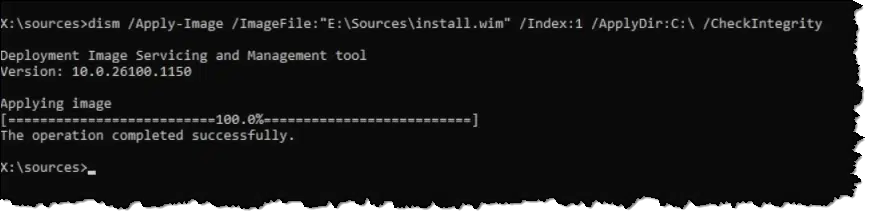
As you might infer from some of the command line options, DISM applies the Windows image stored in "install.wim" onto your C: drive. This is a large file and will take some time.
Finally, run these two commands.
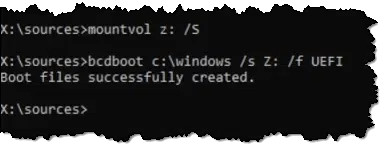
This configures the boot information on the disk.
And now we use it by rebooting. I believe CTRL+ALT+DEL may work, but it's also completely safe to just turn the machine off at this point. We don't want the Windows Setup program (which has been hiding behind the command prompt the entire time) to do anything, so a forced shutdown accomplishes that.
Booting into Windows 11 may take a long time depending on how many updates are available and what other configuration work is necessary. My feeling is that using this approach results in a longer initial boot than had we used Windows Setup normally.
When presented, complete the post-boot Windows 11 setup.
The result? Windows 11.
It's running without a TPM. We can confirm that by typing +R and running tpm.msc, the Trusted Platform Module manager.
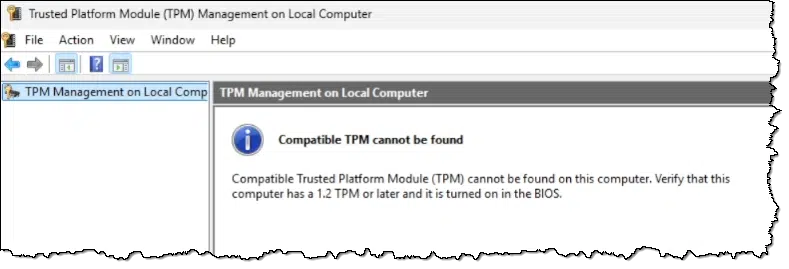
The "required" TPM is nowhere to be found.


309: Or — because I know someone will say it — install Linux instead.
File Explorer can behave in unexpected ways. One of those ways? Undo!

In a previous tip, I discussed the F2 shortcut in Windows File Explorer that allows you to rename a file.
You can (kind of) batch-rename multiple files.
Select multiple files (either CTRL+click on each or select the first and then shift-click on the last). Now type F2. As shown above, one of the filenames will switch into edit mode, allowing you to change its name.
In my example, I'll rename the file to "example.txt". The result isn't quite what you might expect.

All three files I selected have been renamed. In fact, Windows attempted to rename them all to "example.txt", but since each filename in a folder must be unique, it ended up doing two things:
(You may recognize the latter as what happens if you attempt to download the same file two or more times into the same download folder: each successive download is numbered, albeit without losing the extension.)
What if that's not what you wanted? Undo to the rescue! Type CTRL+Z.

All three files are restored to their original names.
In case you're interested, PowerToys includes a more powerful batch-rename function.
Windows Libraries allow multiple folders to be viewed as if they are one. They can be confusing unless you understand how they work.

Libraries were added to Windows 7 and persist to this day, though they're not as obvious as they once were.
In my opinion, libraries do little more than add confusion. I avoid them.
However, it's an interesting feature that can be useful if you understand what they are and are not.
Let's work on that understanding.
Windows Libraries, introduced in Windows 7, pull multiple folders into a single view for convenience. They can be confusing because they're not actual folders but a virtual view. While useful for organizing, they require proper understanding to avoid issues. They're safe to ignore entirely.
Libraries were in your face in Windows 7, but not in Windows 11. In fact, in Win11, you need to make them visible before you can use them.
Run Windows File Explorer, click on the ellipsis in the toolbar, and click on Options to bring up the options dialog.

Click on the View tab, scroll to the bottom of the list, and make sure Show libraries is selected. Click OK.
A "Libraries" item will be added in the left-hand pane.
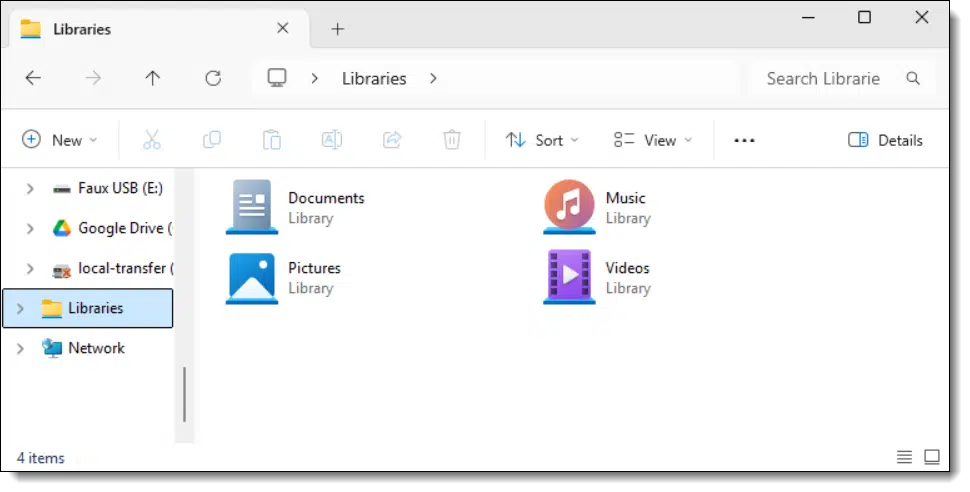
Click on that, and you'll see the four default libraries: Documents, Music, Pictures, and Videos.
I'll probably say this repeatedly: Libraries are not folders, even though they kind of act like folders.
A Library — say the "Music" Library in default installations — is a view of one or more folders.
Right-click the Music Library and click Properties. You'll get a dialog much like this:
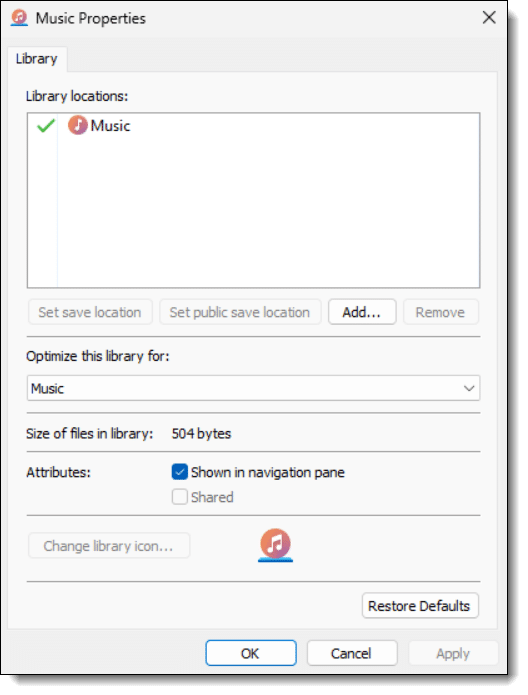
It remains unclear and confusing, but what this is telling us is that the Music Library contains a single folder: the "Music" folder associated with your login account. Its location is not shown (which adds to the confusion) but that folder is C:\Users\<login ID>\Music.
Clear as mud.
It'll get clearer if we click on Add... and add a second folder to the Library.

There are now two folders in the Music Library:
So far so good. But what does this mean?
I'll create two more files: "A-File-In-Default-Music.mp3" in "C:\Users\<login ID>\Music" and "A-File-In-My-Private-Music.mp3" in "C:\MyPrivateFolders\Music".
Now we'll look at three separate locations in Windows File Explorer.
First, "C:\Users\<login ID>\Music":
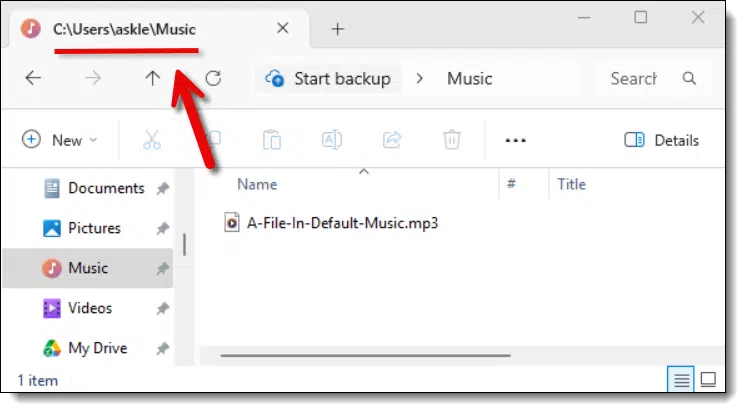
Now, "C:\MyPrivateFolders\Music":
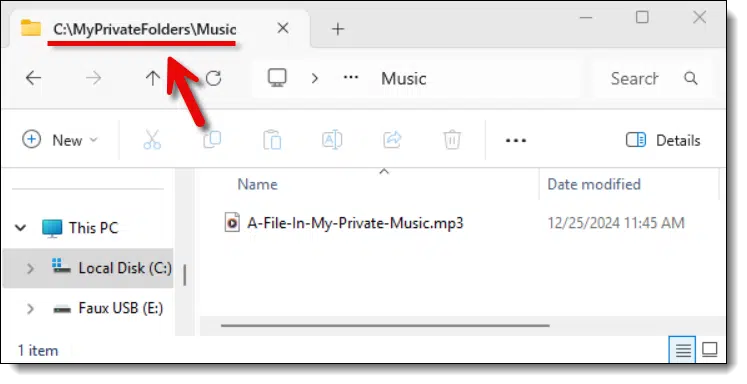
And finally, the Music Library:
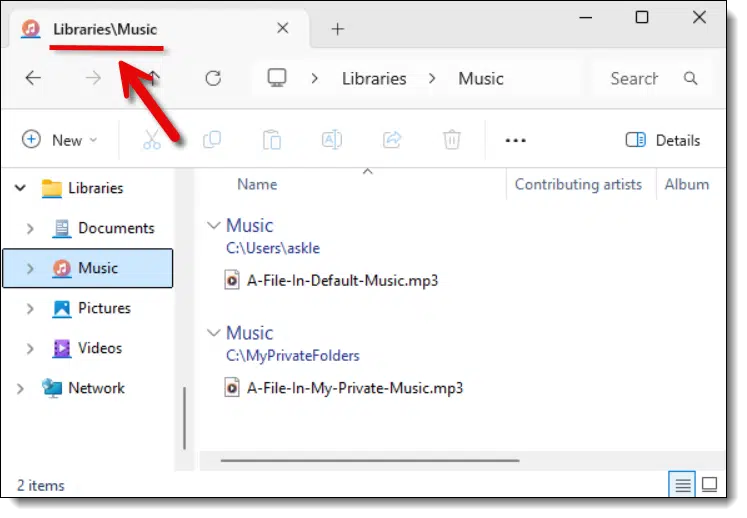
The Library shows the contents of both folders in a single place. Note that while the Windows 10 or 11 Library above explicitly shows the folders in which the individual files reside, this was not always the case. Before, the files were listed as if the Library was a folder... which it is not.
That, in a nutshell, is all a Library is: a single view of the contents of one or more folders defined as part of the library.
Whew!
What happens if I mistakenly place a file called "A-File-In-My-Private-Music.mp3" into the default folder instead of that private folder?
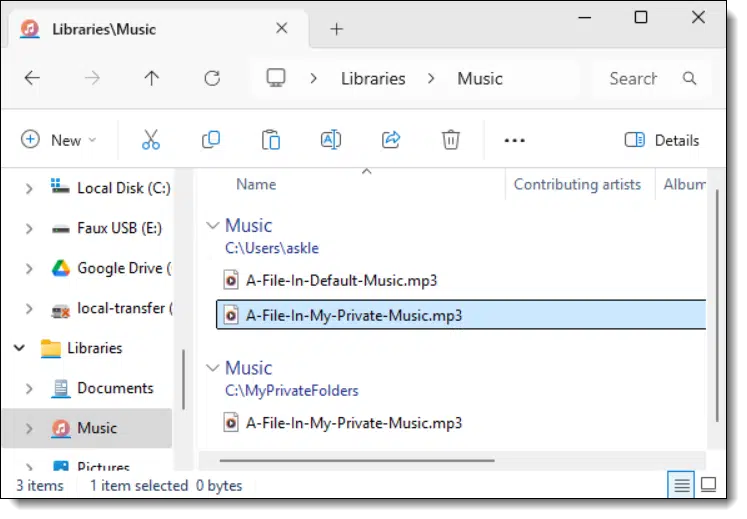
The Library will show two files with the exact same name.
Since Windows 10 and 11 show locations explicitly, it's not much of a problem, but previous versions of Windows didn't. They just listed the filenames one after the other with no explanation of why there were two files with the same name.
We've established that a Library is not a folder, but a view or a way of looking at the contents of multiple folders. But you can sort of treat a Library like a folder. For example, you can copy files into the Library.
But if a Library is not a folder, where do the files get placed?
Let's look at the properties of the Music Library again.

Note that each of the two locations has a checkmark in front of it.
You can designate any folder that's part of the Library as a default location.
With the configuration above, if I copy a file to my Music Library (say, by dragging and dropping it onto the Music Library icon), it'll be placed in the default save location, the "C:\Users\<login ID>\Music" folder.
I don't want to completely bad-mouth Libraries; they can be useful.
For example, if I have multiple Music folders all over my machine ' perhaps purchased from several sources — it might be convenient to create a Library or update the existing Music Library to reference all those locations. That way, the Library becomes a one-stop location for accessing all of my music wherever it might be.


Right-clicking is a powerful way to easily access additional functionality.

Right-clicking is a feature many users either take for granted or completely forget. If you're in the latter camp, you're missing out on a lot of easy-to-reach functionality in your favorite applications.
Right-clicking is a standard Windows user interface action that brings up what's called a context menu. Menu choices vary depending on the context in which you right-click; in other words, right-clicking in different applications gives you different context menus. More interestingly, right-clicking in different places within the same application is just as likely to present different context menus.

Right-clicking by itself doesn't do anything (in most cases) other than display the context menu. That means it's safe to experiment. Right-click in different areas of your favorite application or interface. Many times — perhaps even most times — you'll see the familiar Cut/Copy/Paste clipboard options, but you will also find a wide variety of functionality you didn't realize was just a right-click away.
Always back up before a Windows upgrade, update, or reinstall. Create a full system image backup of up your entire computer.
I'm about to reinstall Windows. How do I start?
Looks like I'm about to get the latest update to my version of Windows. What if it fails?
Simple: back up before that Windows update, upgrade, or reinstall.
By that, I mean take a complete system image backup of your entire computer before you begin the update or reinstallation process.
I'll explain what that is and how it protects you from disaster.
Before any major Windows change, create a system image backup using an image backup tool. Place the backup on an external hard disk and save it until you're satisfied your system is working properly. If something goes wrong with the update, you can "undo" by restoring the image.
A system image backup contains a copy of everything on your system, including:
There's no guesswork. Everything you could need is backed up.
Back up immediately prior to:
Just in case.
Any major change to Windows could leave you wishing you hadn't made the change.
Your image backup is your undo option. If you back up before a major update, you can restore that backup, and the upgrade will be undone. Everything will be as it was before you started.
The process is simple: tell your backup software to create a system image backup and where to place it.
Use a backup tool such as Macrium Reflect, EaseUS Todo, or any of several others. Creating a Backup Image Using EaseUS Todo Free walks through the process with that tool.
The free version is perfect for taking a complete system image backup, and that's all you need here.
I strongly recommend saving the image backup to an external hard disk.
Save the image until you're confident your newly installed operating system works and is to your liking.
As an alternative to an external drive, you could save the image to another computer on your home network, if you have that set up. Both EaseUS Todo and Macrium Reflect let you choose network locations for backup images. The backup may take a little longer, but you won't need any additional hardware.
The one place not to place the image, of course, is on a hard disk internal to the computer you're backing up.
If you need to restore your backup, the process varies depending on the software you're using. It typically boils down to this:
99% of the time, you will never need to do this...
...but that 1% is why I so emphatically recommend creating the backup image: you'll be able to revert to it if you need to.


Up-to-date recovery information can make the difference between recovering everything or losing it.

I rail on this at length in the Ask Leo! article A One-Step Way to Lose Your Account - Forever, but the basic tip is very, very simple:
Keep the recovery information associated with your online accounts up-to-date.
Make sure the phone numbers still work, that you still have access to the alternate email addresses, and that any recovery codes are still stored in their appropriate place.
Some online services periodically ask you to confirm the recovery information they have for you. That's fantastic. Don't be tempted to skip it as an annoyance; it's critically important. Make sure what's listed is correct and can be used right now if need be.
But especially for those services that don't proactively ask, set yourself a reminder — maybe once every six months or so — to ensure that should the worst happen and you lose access to an online account, you could recover it because the recovery information is correct and up to date.
If it's been a while, do it now.
Of course we want to be certain malware has been removed. Unfortunately, certainty is difficult to come by.
You don't.
I hate to say it, but there's an important adage that everyone needs to understand:
Once infected with malware, it's not your computer anymore.
And that holds true even after you believe you've removed the malware.
That's not to say there isn't hope of recovery, but it does point out the seriousness of the situation.
It's nearly impossible to be certain that malware is gone. Most scans catch most malware, but nothing guarantees removal except restoring a pre-infection backup or wiping and reinstalling everything. Regular image backups make this easy. Prevention through safe internet habits and backups is the best defense against these scenarios.
That's a strong statement, and I want to clarify what I mean by that.
Once on your computer or other device, malicious software can do anything it wants to. Not all malware does — and indeed, not all malware can — but there is malware that can, will, and does take over your machine in ways you might not expect and in ways that are difficult, if not impossible, to detect.
You don't want to place bets on whether you have the kind that doesn't take over your machine or the kind that does. They may look the same as you use your machine. The second, however, could lay in wait to do something nasty, it could be silently doing something nasty you might not notice (like collecting keystrokes), or it might cause unexpected behavior, like system slowdowns as your machine turns into a part of a botnet.
Once it's on your machine, malware can do whatever it wants. That means it's become the malware's computer, not yours.
The most common advice about removing malware is to scan. Specifically:
I've seen people repeat that last step until their machine is chock full of security packages that end up doing more harm than good.
Even after all that, there's no guarantee that malware won't remain.
To be clear, most malware will be caught, flagged, and removed. The tools do work and generally work well. It's just that nothing's perfect. All tools miss things.
And some malware tries very hard to be the malware that's missed.
Running those scans is enough 99296 times out of 100. It's that 1% left that's of concern. Remember, the question here is how to make sure that the malware is gone.
You want a guarantee.
You can remove malware and be sure you've removed it by restoring your machine to an image backup taken prior to the malware's arrival. After that, avoid doing whatever allowed the malware in to begin with.
This is one of the two most important things image backups are for.297 It's relatively easy, it's relatively fast, and it's guaranteed.
It's also something you must have been doing before needing it. This is why I so strongly recommend daily image backups.298
A little preparation goes a long, long way.
If you haven't been backing up regularly, the only way to know you've removed malware is to erase everything. "Everything" would, by definition, include the malware. Unfortunately, it also means erasing everything else, like your data, installed programs, and the operating system.
The process looks like this:
All that just to get rid of malware?
No. All that to make certain you got rid of malware.
I'm not suggesting you drop everything at the first sign of malware and reinstall everything from scratch. (I am, of course, suggesting you begin backing up regularly.)
Sometimes 99% certainty is enough. Sometimes 99% is enough to carry on unless there are other signs that you're part of the 1% (like whatever caused you to discover you had malware in the first place) and need to take more drastic measures.
But if you want or need a guarantee, you've got two options:
Whenever I talk about recovering from malware and how a full format and reinstall are the only guarantee, I get push-back that they're not. And it's true that if your BIOS or UEFI has been compromised, even the nuclear option won't help, since it doesn't touch them.
To begin with, there's no such thing as perfect security. None. It's a spectrum. The goal is to be on the "as safe as you can be" part of the spectrum.
Second: just because something might be possible doesn't mean it's happening to you or that it's likely to happen to you. BIOS/UEFI compromise is rare299. There are plenty of more common malicious approaches that represent a much greater risk, all of which are covered by the process above.
Put another way: I don't worry about BIOS/UEFI attacks specifically. I follow safe security practices that keep me safe from all malware, whether it's a keylogger, ransomware, a bot, or something else entirely, such as some kind of BIOS/UEFI compromise.
I recommend you take the same approach.


310: A number I completely made up. I'm pretty certain things are NOT as bad as that. One in 1000 or one in 10,000 is probably closer to reality, but a) we don't know, and b) I wanted your attention as I made a point.
311: The other is recovery from hardware failure.
312: Typically: Monthly full image backups and daily incremental backups using a tool like EaseUS Todo or Macrium Reflect.
313: Even if your cousin's friend's acquaintance heard about how it happened to someone they sort of know, those stories are usually a long string of misleading hearsay.
You can run anything from the Run dialog box. Here's why it's so handy.

If you ever wonder why geeks like me are so fixated on the "Run" dialog box (most often displayed by typing Windows Key + R), it's simple: you can run anything.
Several of those examples look more cumbersome than alternative methods since they involve typing or copying/pasting long file paths. For other items — particularly webpages — it's a quick way to open your browser to a specific site in a single operation.
The Run dialog pays attention to the PATH, a subject of a prior tip. For documents and programs, if you don't specify a full path to the item — for example, just run "example.docx" — Windows searches every folder listed in the PATH to find it for you.
Anything you can "run", you can shortcut: you can create a desktop or Start menu shortcut to anything that works in the Run dialog. Shortcuts work exactly the same way.
Creating a shortcut for a long path to a file you care about (such as "C:\Users\lnote\Documents\example.docx") suddenly becomes a little more useful.
If you visit a particular settings page frequently, make it easier to get there.

The Windows settings app is nice and all, but it's still a pain to navigate through its sections to find the one you need. Even searching for the setting is still a bit of a pain. It's doubly painful if it's a setting you visit often.
Fortunately, there are quicker ways.
For example, "run" this "program":
ms-settings:network-ethernet
It's not really a program; it's called a "URI" (Uniform Resource Identifier), not unlike "https:". This one tells Windows to run the settings app and open the Ethernet settings page.
You can run it however you like: you can use the Run dialog from the Start menu or create a desktop shortcut to run this URI when you double-click it. You can even pin the shortcut in your taskbar or add it to your Start menu.
You'll find a list of ms-settings available on this Microsoft page: How to launch the Settings app (XAML). If a particular URI isn't supported on your system, it will open the settings app to its home page.
Update: The Microsoft page is no longer updated, and the formatting is messed up. However, the content, including many, many ms-settings items, remains, and they appear to still work.
If you believe your machine is infected, first protect and preserve your data.
Yes and no.
When people think their machine is infected, I typically tell them to back up that machine right away. Yes, you are backing up a possible infection, but that's okay. You're never going to restore that infection because you know it's there.
So why back up?
Let's walk through the scenario.
Yes, back up your infected machine to preserve your data. Just don't restore the full system image. Clean up the infection and back up again. If malware persists, reinstalling Windows might be the only option. Note that regular backups can restore clean versions taken prior to the malware's arrival.
First, a clarification of terms. A malware infection is not the same as being hacked.
The article below deals with malware on your computer. That's what anti-malware tools remove and why you might be concerned about backing up the infection to your external hard drive.
On the other hand, if your account or computer has been hacked, that means somebody other than you has access and is "doing things". That may or may not rely on malware on your machine. Particularly if it's just your online account that's been hacked, it likely has nothing to do with your PC at all.
And yes, getting hacked can happen if you click the wrong link and log in to an imposter website.
When you create an image backup, you're preserving everything. Yes, the backup includes the malware, but it also has all of your data, your programs, everything. That means that no matter what havoc the malware (or your removal attempts) might wreak, you always have a backup of your machine and your data.
Think of it as an "It can't get any worse than this" backup.
However, you must be careful not to restore the entire backup to your machine300. You'd use this backup only for restoring specific files and pieces of data that you know aren't infected.
You can't predict what files you will want later, which is why you should back up the entire machine with an image backup.
It may or may not be simple to do, but you need to do this if you suspect someone has infected, hacked, or placed malware on your machine.
Ensure that your anti-malware tools are as current as possible, and then run a complete scan.
Then take another backup. Again, it's a safety net. This says, "Okay, this is the machine after I did everything I could to clean up the malware." That way, you have a snapshot of that point in time as well.
One of the grim realities of malware is that not all scanners catch all malware, and even if they do, not all scanners can get rid of all malware. This is one reason it's so important to avoid malware in the first place.
If you still see signs of an infection after that complete scan, or you just don't feel safe, there's only one option.
Once your machine is infected with malware, it's not your machine anymore. The only way to regain ownership is to erase it completely, reinstall Windows from scratch, reinstall your applications from scratch, and restore your data from your backup or elsewhere.
It's painful, but it's the only way to be as certain as you can be that the malware is gone.
Backing up an infected machine does not cause the backup drive to become infected. It's a carrier, nothing more.
This is similar to the difference between a setup program and the program it sets up. A setup program contains a program to install on your computer. It's not until you run the setup file that the program is installed and ready to run.
When malware is backed up, its files are collected into the backup, but not in a way that allows the malware to run. Now, if you restore the complete backup, the malware may be able to do things, but as long as it's just part of a backup sitting somewhere, it's benign.
The backup remains useful because we can carefully restore individual files without restoring the malware. Restoring a File From an EaseUS Todo Image Backup shows one example, but most all image backup programs include similar functionality.

There's another option that's much easier than any of the above, but it assumes you're backing up regularly — which you should be doing for this and so many other reasons.
Restore your machine to an image backup taken before the infection. That way, the malware isn't there yet. Moving forward, you know not to open that email or click on those links.
Back up regularly, of course. But also keep an eye on your security overall to make sure you don't get a malware infection to begin with. As you can see, the cost can be high. Prevention is much easier than the cure.
Subscribe to Confident Computing! Less frustration and more confidence, solutions, answers, and tips in your inbox every week.


314: There is a scenario where restoring an infected backup might make sense: if your attempts to remove the malware make your machine less stable or perhaps even completely unusable, you might consider restoring an infected backup so you can restart your cleanup efforts.
Computers make many things easier. I allow technology to help with many things that I used to have to remember or learn, freeing my time for other things.

I love these philosophical questions because they speak to the heart of what people are thinking and wondering about with respect to technology.
People are as smart or as dumb as they've always been. Some are smarter than others, and people have different strengths and weaknesses, but people are still people even with decades' worth of computer use under our belts.
One thing that has changed is where and how we spend our time, energy, and attention, and the myriad of things competing for each.
Computers don't make us dumber; they free us to focus on new things by handling tasks we once did ourselves. The challenge today is managing distractions in an attention-driven world. Used well, technology helps us do more, be more, and explore more; our intelligence shifts to new strengths.
Using computers, we no longer have to do certain things that we've done in the past, at least not how we used to. We're able to spend more of our time doing other things — things we would not have had the resources for in the past. Banking no longer requires a trip into town. Sending a letter is a simple job of typing it in and clicking "Send". Writing, revising, and publishing manuscripts and books is not only more efficient, but in some cases possible only because we use online services instead of traditional.
Personally, I can do more and be more than ever before. That's because I allow technology to do things I used to have to know and do myself, freeing up time and energy for other things.
It's part of my philosophy. It's at the top of my About page:
I help you use technology more effectively, giving you the confidence to do more, be more, and explore more of the world that today's technology makes available to us all.
And that's what I believe technology has to offer: the ability to do, be, and explore more than ever before.
That also means some things may fall by the wayside or be less important than they once were. Things like:
I don't think people are more or less intelligent than in the past. They're just leveraging this wonderful tool. The computer is taking away the burden of having to know some things they've had to in the past, making room for new and exciting knowledge and accomplishments.
One thing that has dramatically affected the appearance of intelligence is the rise of attention-based services, most notably social media.
The culprit du jour, social media is blamed for many things, most critically the shortening of its users' attention spans. As we consume mostly clickbait headlines without taking the time to dive deeper, we become less informed (or, tragically, more misinformed) than in years past.
Mike Maughan offered a different perspective on a recent episode of the No Supid Questions podcast.
I genuinely do not believe that our capacity has shrunk. I do believe that we're sitting at this endless buffet of distraction.
Consider that the individual constantly distracted by social media can still focus intently when engaged in some activities. A teenager immersed in an online game, for example, is completely absorbed.
It's not just that our attention spans have shrunk; it's that there's so much more distraction than ever before. Short-form content takes our attention and makes us more resistant to deeper, longer form content. Focus, as well as choosing what we should focus on, takes skills we don't currently teach.
It's not making us more stupid, per se, but it is making us less informed, and less thoughtful about what we do consume.
When I first published this essay, I asked this question of my Facebook audience. Some quotes:
As with any technology, we become stupider in some ways and smarter in others. ... It's not an either/or thing.
I'd say that people aren't necessarily any dumber than they've always been, but computers and the internet make it so much easier to display one's shortcomings quickly and to a much wider audience than in the past. (The bolding is mine, as this was an excellent point I'd missed. -Leo)
I love my computer and how this tool has helped me grow, but I also get out and live what I learn.
I find sooo much info on the Internet about thing I want to know, how could that possibly be making me more stupid?
Apparently in the 1400 & 1500s, the new mass technology, books, was suspect. As was writing in Plato's time when it began to spread beyond the elite scribe...
I stretch my mind daily.
This does not mean computers are bad. They are merely tools that can be used for good or evil.


We're all vulnerable to scammers. Learn the warning signs.
We regularly hear stories of people falling for online scans. One dramatic case written up in The New York Times detailed how a 76-year-old retired lawyer was scammed out of nearly three-quarters of a million dollars, draining his retirement savings.
This is not an isolated case. Authorities mentioned at least seven others pulled into the same scheme run by the same people. And there are hundreds (if not thousands) of such people working hard to scam us out of our money.
It takes many guises. In this article, I want to review some examples, identify some signs, and describe some of the steps you should take to keep yourself and your savings safe.
Thinking he was aiding a government investigation, a 76-year-old retired lawyer lost nearly $740,000 in an elaborate scam. Criminals use manipulative tactics to steal savings. Protect yourself by recognizing scam signs, avoiding unsolicited contacts, and seeking help if you have even the slightest doubt.
From The New York Times article:
For nearly three months, Barry Heitin, a 76-year-old retired lawyer, thought he was part of a government investigation that felt like something out of the movies. He was actually assisting criminals in stealing hundreds of thousands of dollars ' of his own money.
Last fall, he spent just about every weekday doing the legwork and making withdrawals from his bank accounts as part of an intricate scam: He believed he was helping the feds safeguard his money and catch thieves who were after it.
"They kept telling me, ˜This is a big case and we are going to stop a whole ring of people,'" Mr. Heitin said. "It was like a rabbit hole. I was going down the hole with them."
It cost him almost all of his retirement savings: roughly $740,000.
Scams like this are rampant. The details, amounts, and mechanics differ, but one thing is common: people place trust in others when they absolutely should not.
Every day.
One of the common excuses I hear from folks is that they have nothing to steal. For example, they don't have $740,000 in retirement savings. As a result, they feel there's no need to be cautious; they believe they have nothing to lose.
Most scammers don't know or care how much you have when the scam starts.
And you still have plenty to lose.
Scammers' goals can vary and shift depending on what they discover about you along the way.
If you think you have nothing to steal or be scammed out of, you are wrong. In fact, that attitude makes you particularly vulnerable.
Older adults are, indeed, targeted for many scams.
So, yes, older adults are seen as easier marks and are frequently targeted.
However, that doesn't mean younger folks are safe.
So older adults ' which they define as 60 plus ' and then younger adults, which is 18 to 59-year-olds. So older adults were more likely to fall victims to scams with a business imposter, tech support, [...] prizes, sweepstakes and lotteries. And then friend and family imposters. Younger adults are massively more likely to fall victims to scams in online shopping, investment scams, fake check scams.
– Mike Maughan, Why Do People Get Scammed? episode, No Stupid Questions podcast
Regardless of your age, you are at serious — I might say "massive" — risk.
One of the most heartbreaking scams is the romance scam. The scammer initiates casual contact online, and then over days, weeks, or even months, poses as a love interest, working the relationship to a point where you would do anything for them.
Anything.
And "anything", of course, usually involves sending them money.
There are many stories of individuals who have lost everything to a "lover" they've never met. Even in the face of strenuous objections from family and friends, these individuals persist in going down the path of trickery until all their resources have been drained and their online lover disappears.
Since the COVID pandemic, loneliness has become a pandemic of its own. Scammers know this and leverage that fact to lure unsuspecting victims.
And things are getting worse.
In March of last year, I played a little with that week's introduction to the TEH Podcast. At the beginning of that episode, the hosts — myself and Gary Rosenswieg — introduce ourselves. Except we didn't. I used voice-generating AI to mimic our voices. Unless you knew what to listen to and listened closely, you might not realize it wasn't us. (Current episodes use an AI voice for the introduction, though it's not an attempt to mimic anyone.)
Now, imagine you get a phone call from a family member who's pleading with you to do whatever the criminals want because they've been kidnapped, and if you don't follow instructions, your loved one will be killed. And it sounds exactly like your loved one. Particularly in the stress and heat of the moment, encouraged by the life-threatening situation, your skepticism flies out the window. You believe that person has been kidnapped because you heard their voice.
Of course, you did not. You're the victim of a scam. The scammers have synthesized the voice of someone you care about — training that can easily happen from a single social media post — and are using that to play on your emotions and encourage you to take action you otherwise would not... like stealing money or worse.
The fact is, AI is only getting better, and it's cheap and easy for anyone to use, including scammers.
Did I actually say that, or not?301
You can't believe what you hear anymore.
It feels like we can't believe anything anymore. While that's not absolutely true, I agree it's truer now than ever before.
So how do you protect yourself?
There are a variety of recommendations.
If you're just not sure, ask for help. I can't stress this enough. Most victims end up digging themselves deeper by being too embarrassed to ask a trusted friend or family member for help. There's nothing to be embarrassed about. Scammers are good and getting better, and they're rampant. I can guarantee you that your friends and family want you to reach out for help rather than fall victim.
315: I did not. I copy/pasted the preceding sentence into the ElevenLabs speech generator, which had been trained on my voice.
316: There's so much freely available audio of my voice out there that making a digital clone of me would be trivially easy. But this is surprisingly true for more people than you might imagine, including yourself.
You can benefit from OneDrive without ever installing it on your PC.
OneDrive is controversial, to be sure. Their backup "feature" is a mess while their storage management seems questionable at best and a ham-fisted marketing technique at worst.
Regardless, you get 15GB of free online storage (1TB if you have Microsoft 365), which is useful for sharing things if nothing else.
Let's see how you can utilize the storage without messing up your computer.
OneDrive can be used entirely through a web browser without installing its app on your PC. Upload, download, share, and even edit files directly online. This avoids issues associated with the PC app while leveraging free file storage and sharing.
You do not need to run the OneDrive app on your computer. You can disable it, uninstall it, or sign out of it. Any of these prevents the OneDrive app from trying to synchronize or otherwise manipulate any files on your computer.
This is the OneDrive you're not going to use.
Without the OneDrive app in use, there won't be any confusing manipulation behind the scenes.
Instead, use OneDrive via your web browser by visiting OneDrive.com303.
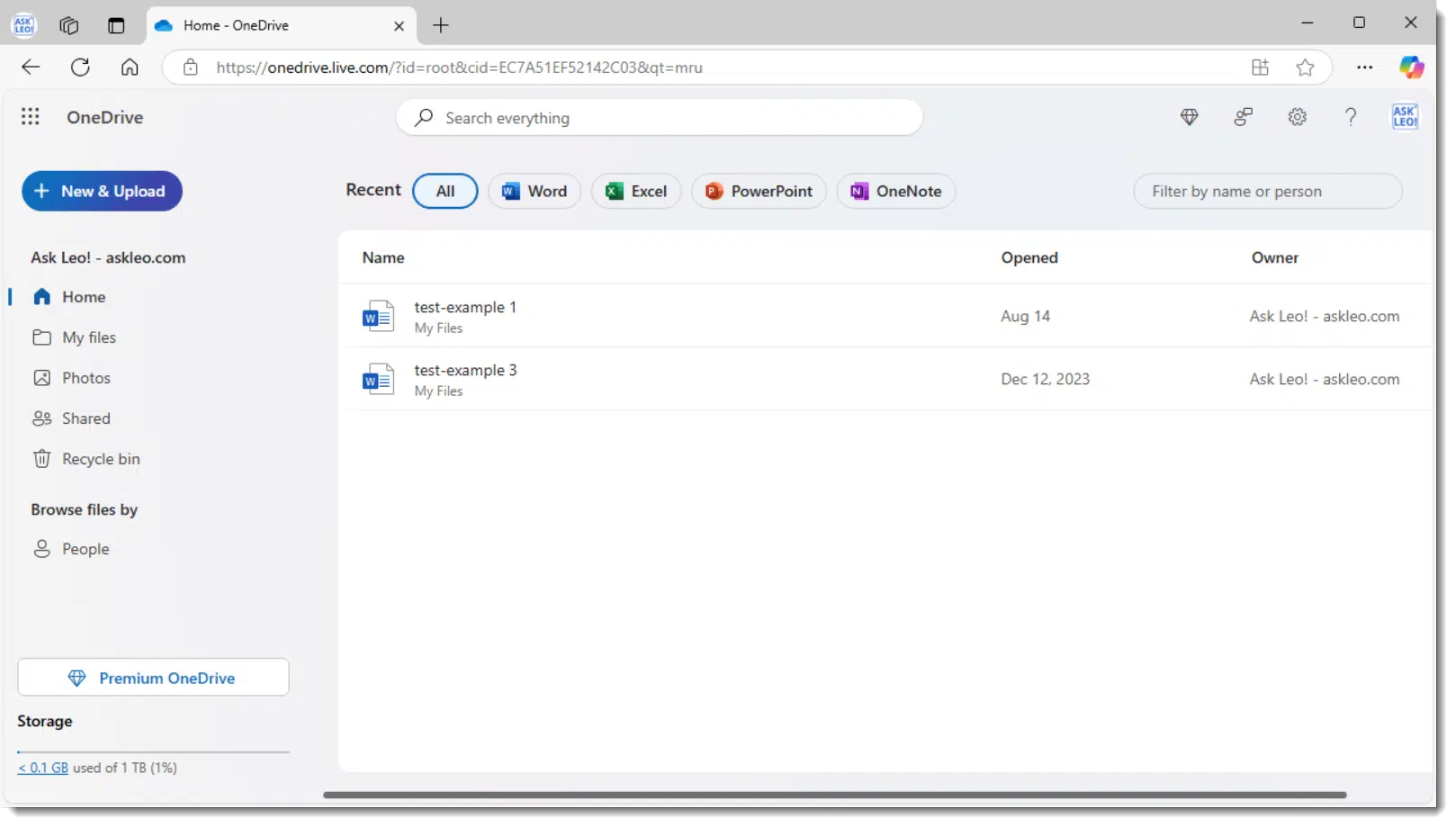
OneDrive is first and foremost a website. That there might be other tools that work with it — such as the OneDrive app on your computer — is nice, but not required.
Click on My files in the lefthand pane to see all the top-level folders in your OneDrive online.
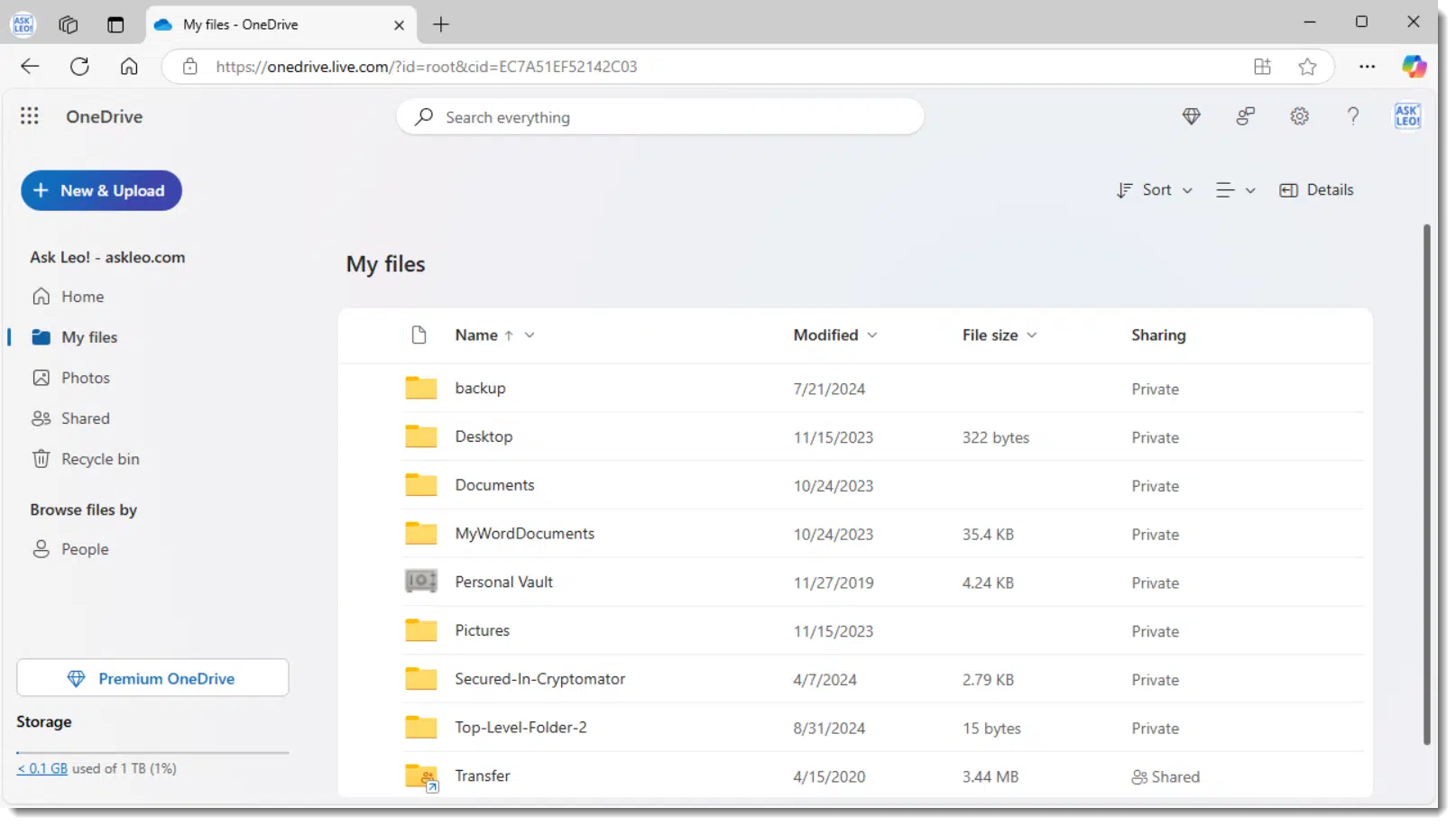
Now let's see how to download, upload, share, and edit those online documents.
Once you locate a file within your OneDrive online, the easiest way to download it to your computer is to right-click on it and click Download.
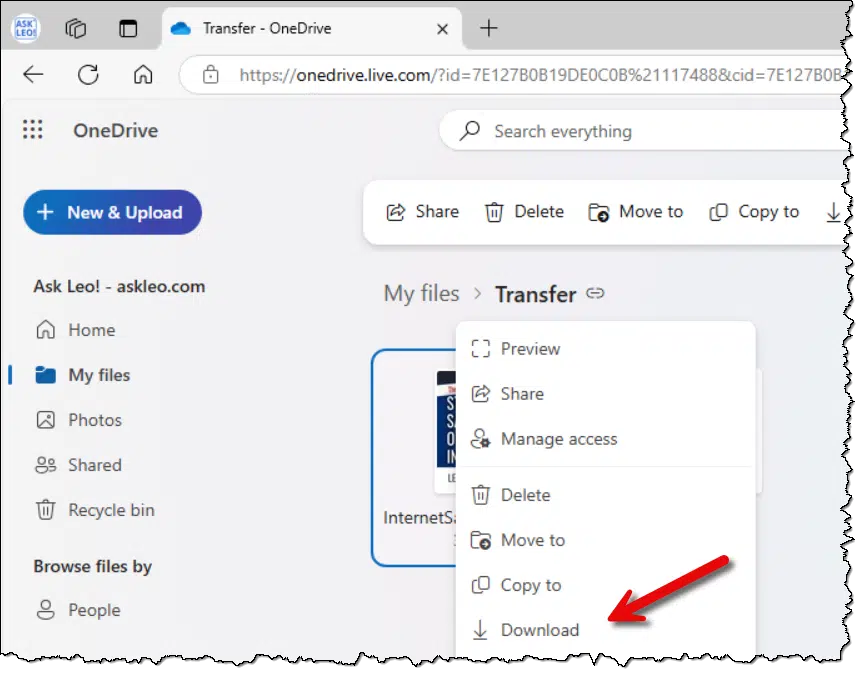
In the example above, I've moved into the "Transfer" folder in "My files", where I've right-clicked on a copy of my Internet Safety PDF. Clicking on Download will download the file from OneDrive.com online to my computer.
To upload files from your computer into OneDrive online: in OneDrive online, navigate to the folder into which you want to place the files (I've selected the Transfer folder in "My files"), and click the New & Upload button.
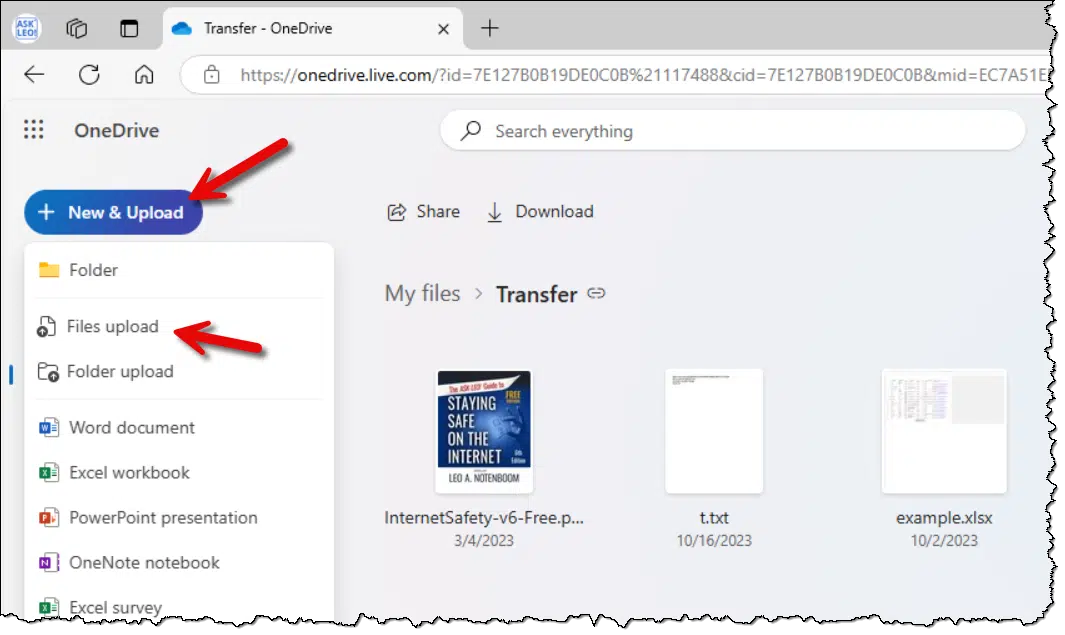
This will open a regular Windows File-Open dialog box where you can select one or more files. Once you do so and click OK, those files will be uploaded.
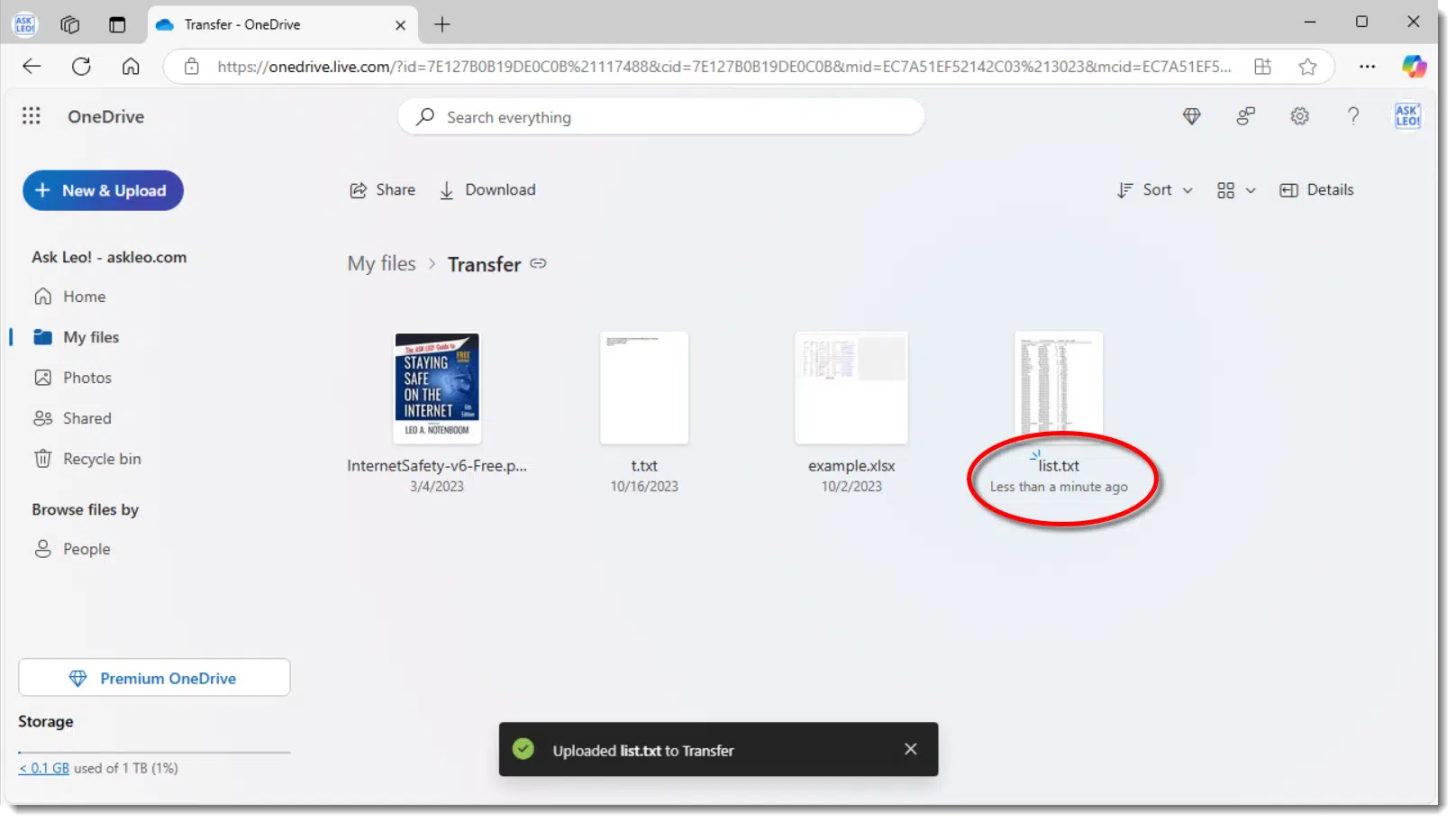
In the example above, I've uploaded a single file, "list.txt".
One of the reasons you might want to use OneDrive.com, even without the app running on your PC, is to be able to share a file or folder with someone else.
In OneDrive.com, right-click on the file and click on Share.
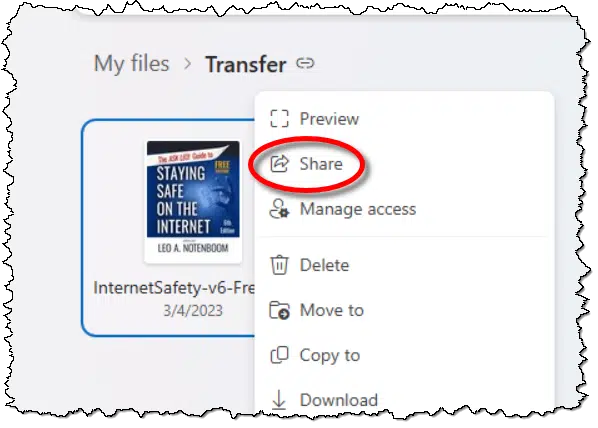
This will open a sharing dialog.
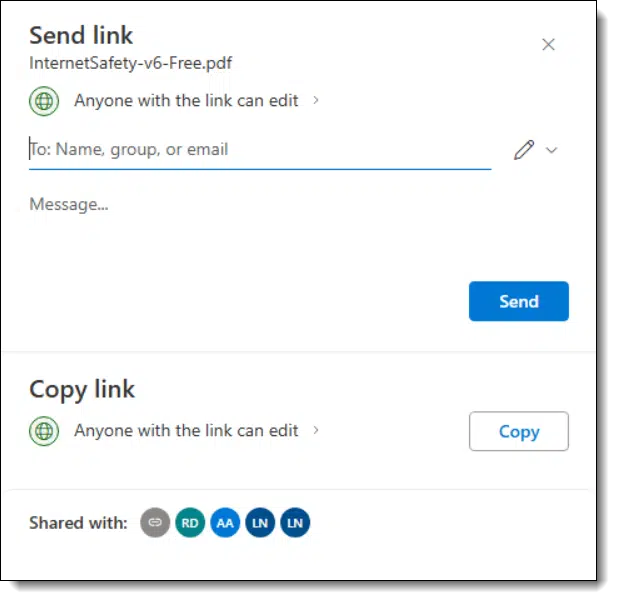
There are two approaches: you can have OneDrive send an email to specific people ("Send link"), or you can create a link that is copied to the clipboard for you to share with someone however you like. I prefer the latter approach.
Note that you can also control the permissions. By default, anyone with the link you create can edit (make changes to) the file you're sharing. This is great for collaboration. To change the permission, click on the ">" under Copy Link, and you can change it to "Can view", in which case the person can see, but not edit, your document.
Here's an example of such a link (to the PDF):
https://1drv.ms/b/s!AgsM3hkLexJ-i8V9H8mlHrHN8EU80Q?e=Deyb12
You can share individual files or entire folders.
In many cases, you don't need to download a file in order to edit it. OneDrive.com is integrated with the free online versions of Word, Excel, and other programs. Just click on the file and it'll open in its respective program online, without downloading.
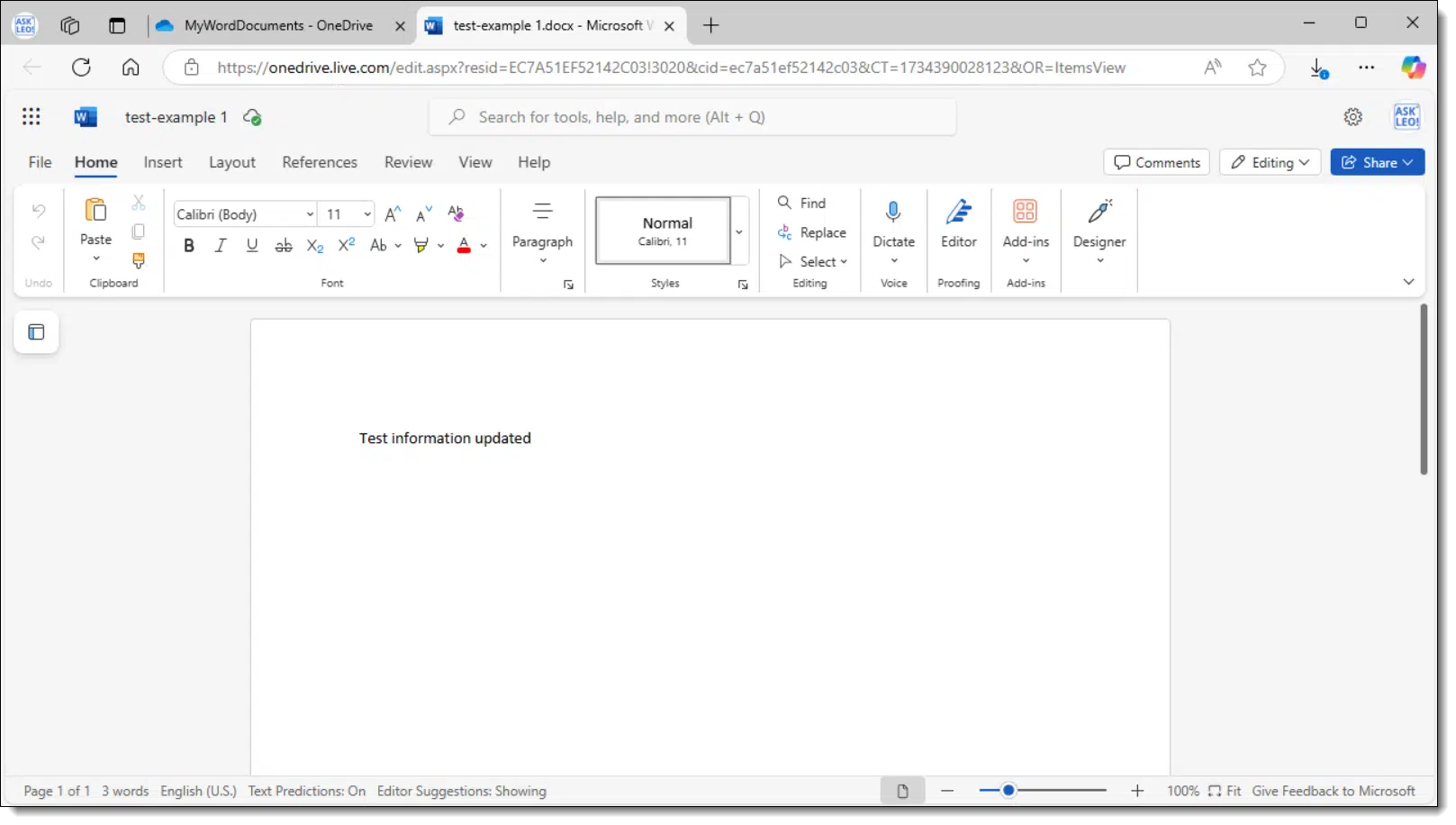
You can make all the changes you like, and when you save and close the document, the changes will be reflected in the OneDrive file. (If you need more functionality than the free online tools offer, you can still download, edit on your PC, and then upload as needed.)

You don't have to be signed into OneDrive.com online with the same account you use on your PC. This is a great way to deal with files kept in OneDrive associated with other accounts.304 For example, I sign on to my PC with my personal Microsoft account, but can sign into OneDrive.com in my browser using a different Microsoft account, such as that of my business.
This means that the PC you use doesn't even have to be yours. You can sign in to OneDrive.com from any PC (of course, make sure to keep your Microsoft account credentials secure; InPrivate or Incognito modes would be one approach).
There's also no requirement that this be a PC. You can visit OneDrive.com from a browser on any computer running any operating system: Windows, macOS, Linux, Google Chrome, etc.
If you're placing sensitive data in the cloud, I recommend encrypting it. My tool of choice is Cryptomator, but that's software that runs on your PC, not in the cloud. Cryptomator-encrypted files are not accessible via the web interface.
Another approach is to encrypt files manually, say with a password-protected zip file. You'll still need to download, decrypt, edit, re-encrypt, and upload to make changes, but it's at least feasible.


317: This may redirect to URLs like "onedrive.live.com". This is a side effect to how the old "Windows Live" tools were organized on the web years ago. Microsoft owns "live.com".
318: For long-term use, sharing the OneDrive folder of one account to another account can make this more seamless.
Relevant email subject lines make your message more likely to be read. It's just good etiquette.

On behalf of everyone to whom you send email, please:
When people are overloaded with email (including spam), they use the subject line of your message to decide whether to read your email now, later, or not at all. By writing a descriptive subject line, you help your correspondent manage their time better. Your email is more likely to get read, and it's easier to find that email later.
Changing the subject is just as important. If your ongoing discussion with someone (or some group) has moved to a new topic, take a second to update the subject line to reflect that fact. Once again, it'll help everyone prioritize their time more appropriately and increase the chances your message will be read.
(Every email program and interface allows you to edit the subject line on a Reply or Forward. You might have to look for it, but it's there. The image above is from Gmail, where you click on the icon immediately in front of the To: line in your composition window.)
Moving applications and data to a new machine isn't hard; it's just a fair amount of work.

This is a common question when managing multiple computers as well as when getting a new one.
Unfortunately, the solution I strongly recommend is the solution most people don't want to hear.
Moving to a new machine involves backing up the old computer, reinstalling applications from scratch, and manually transferring data. While some tools claim to transfer programs, the results can be unstable. The best result comes from installing only the programs, data, and settings you need.
Regardless of the approach you take, preparation to move to a new computer involves two forms of backup.
Step 1. First, back up the machine that currently holds your programs and data completely. That means taking a complete image backup of the machine so there's no question of what is and is not included: it copies everything. This backup is insurance. If anything goes wrong, you can always access your data from it.
Step 2. Next, copy your data to somewhere it can be easily accessed by the new machine. Technically, this is redundant with the backup we just took — and indeed, the backup could suffice. However, it can be easier to copy over rather than extract things from the backup image.
There are two way to do this:
The problem with either of these two approaches is that it assumes you know what "your data" means — that you can reliably identify every file you might want to move over. I know I'm not that reliable, which is why we started with a backup image of everything.
Locate the installation media and/or downloads for all the applications you have installed on the computer. If you know you can download them as needed, that's fine too.
The problem, of course, is that companies sometimes disappear or make the older version you rely on unavailable. This is why I save these downloads as I get them initially, in case I need them again later.
Assuming you already have Windows running on your new machine, the next step is to install the programs you use from scratch.
Yes, this is not a transfer, it's a re-install. From scratch. This is the most reliable way to get the software up and running and stable. I'll discuss transfers shortly.
My recommendation is that you install as needed: you wait until you need to use a program to install it. This is what I do after I get a new machine or reinstall Windows. It ensures that I install only the software that I actually need and use. I have the others available should I need them, but if I don't, why take up space and time?
Depending on how you saved your data above, this could be a combination of three approaches:
I know. I do. Most folks want a magic software or technique to transfer all of their installed programs and data from one machine to the other.
There are a few tools that do this305. I don't recommend using them.
Here's the deal: Windows is incredibly, unfathomably complex. And every single machine is incredibly, unfathomably complex in its unique way.
Setup programs exist for a reason. They install the program into this unique incredibly, unfathomably, complex environment. You'll note they often take some time, and that's why.
Reliably moving everything that's been installed — all the files, all the user settings, all the registry entries — is a fragile process. The tools that do this often appear to work, but eventually, you notice that something feels off, or they appear to work except for that one program you rely on.
Reinstalling gives you the most stable result by far. It'll give you the best odds of moving forward without trouble, and the bonus is that you only reinstall what you actually need.
Yes.
Unless an application has a mechanism to export its settings, you'll need to reconfigure your settings.
This is one of the reasons I use fewer and fewer customizations over the years. Living with many of the defaults saves me a lot of time and frustration with each new install.


319: One example is PCtrans from EaseUS. You'll also find some alternatives at alternativeto.net.
Don't reply to yourself to make a correction -- edit your Facebook comment instead!

This is almost a pet peeve: seeing people reply to their own comments to correct a typo or other mistake. The result is two comments: one with the error and one following with the correction. (Heaven help us if the second one also has a typo... the chain can get even longer. )
There's no need. You can edit any comment you post on Facebook.
On the website, click on your comment and then click on the ellipsis (...) that appears at its upper right. You may have an option to embed the comment (link to it from another website), but more importantly, you'll also see an option to delete or edit your comment. No need to reply to yourself.
In the mobile Facebook app, a long-press on your comment should also bring up a pop-up menu including, among other things, the option to edit your comment.
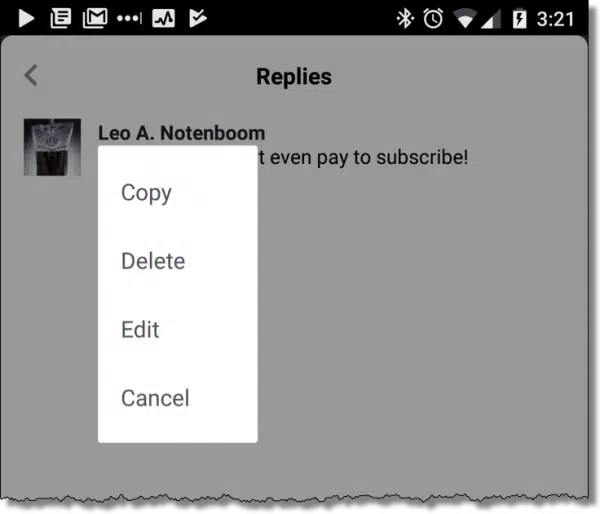
Press or click on Edit, revise your comment, and you're done.
SMS/text is an important security measure, but not everyone has it. I'll review options.
This is a common question when faced with services like Google and others that appear to insist you have a mobile number before you can create an account.
While I believe their reasons are both legit and important, not everyone agrees.
So, what can we do? I can think of a few options.
Mobile phone verification is a challenge for folks without a text-capable phone because some services require SMS verification for security. Alternatives include: choosing alternative services, getting a cheap flip phone and service, converting landlines to mobile, using third-party SMS-capable VOIP services, and using a trusted friend's number.
I know this is annoying as heck and not always an option, but the bottom line is: if a service requires you to have something you do not and will not have, then don't use that service. Find another without the same requirements.
For example, if it's email you're looking for, there are several providers that don't have the mobile number requirement. ProtonMail is one example, but there are others.
Unfortunately, this doesn't help if what you're looking for isn't provided elsewhere (Google has many services beyond email, for example) or need the account to collaborate or interact with others using the same service.
We need other options.

I get that this is "caving" to the requirement, but it's one practical solution.
Look at your local mobile provider for the cheapest phone and the cheapest plan you can get. Be sure to look at the smaller carriers as well, as they often have cut-rate plans and devices. Remember, you don't need a new or "smart" phone to receive text messages. An older flip phone will work just fine and are significantly less expensive.
With this approach, you'll be assigned a phone number that you can use for text messages as long as you own the phone and stay subscribed to the mobile carrier.
This does represent an ongoing expense, but hopefully, you can minimize it to an acceptable level.
If you are one of the 30% of American households (in 2024) who still have landlines, consider going mobile-only.
Usually, you can "port" your phone number so the phone number assigned to your current landline is reassigned to your new mobile. It then immediately becomes text/SMS capable.
Exactly how you do this will vary based on the carriers involved, but it's generally available and a great way to keep that phone number you've given to absolutely everyone.
One solution is to sign up for a service that gives you text messaging capabilities using the internet and doesn't require a phone at all.
There are, essentially, three types of these services. The first two tend to involve a subscription fee.
In both of these cases, you're assigned a phone number just as if you had set up a new account with a landline or mobile provider — hence the cost.
The third type is not something I recommend.
I don't recommend these. The reason the service wants you to have a text-capable number in the first place is so you can recover your account if you get locked out at some point in the future. Since the number used is temporary, you lose access to it after you've used it for the initial short period.
I include it because some people are willing to live with the possibility of losing their account later.
This might be the cheapest and quickest solution. If you have a friend you truly trust who has a phone number capable of receiving text messages, use their number (with their permission, of course).
You only need to coordinate with them when initially setting up the account that requires a mobile number, and then possibly later if you ever find yourself being asked for additional verification (such as when attempting to recover the account).
Do beware, though: they could take over your account. If you ever fall out of friendship or lose trust in them, make sure to change your mobile number to something else.


A note about Google Voice: you'll see it recommended often in discussions relating to VOIP and SMS services without needing a phone, but you need a phone to set up your Google account to begin with. It's a chicken-and-egg situation.
If a CAPTCHA asks you to type anything, don't do it.

I recently learned of a new attack vector. It works like this:
If you do so, you've just installed malware on your machine.
The technique works by the webpage loading your clipboard with a malicious PowerShell script. The keystroke sequence opens the Run dialog, pastes the script in, and runs it.
A legit CAPTCHA will never ask you to Run anything. In fact, it'll never ask you to type specific keystrokes.
If a CAPTCHA asks you to type the Windows Key + R, don't do it. Cancel it and get off that page.