Turning off BitLocker in both Home and Pro editions of Windows is easy.

I’m going to assume you’re talking about BitLocker’s full-disk encryption, which can be turned on unexpectedly in Windows Home and Pro editions.
It’s important to understand that with BitLocker turned off, anyone who steals your computer can access all the files on it, even without knowing your Windows login password. That said, not everyone needs the security of full-disk encryption.
Turning off BitLocker and decrypting your drive is a snap.

Turning Off Bitlocker
BitLocker encrypts your whole drive so a thief can’t read your files. Don’t want it? Turn it off. On Windows Pro, use Manage BitLocker in File Explorer. On Windows 11 Home, go to Device encryption in Settings.
Windows Pro editions
This applies to the Pro editions of both Windows 10 and 11.
Boot your device and sign in to Windows. Yes, this step is required. If you cannot sign into Windows, you will not be able to decrypt the drive; that’s the point of the security BitLocker provides.
Run Windows File Explorer and right-click on the drive you want to decrypt. If BitLocker is enabled on the drive, its icon will include a padlock, and the context menu will include a Manage BitLocker item. If these are not present, your drive is not BitLocker encrypted, and you’re done.
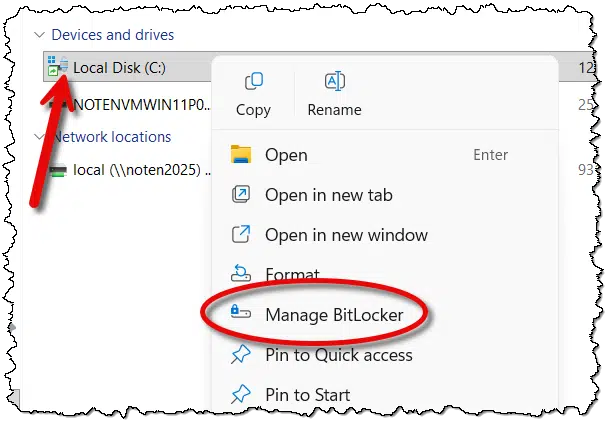
Click on Manage BitLocker.
In the resulting dialog, click Turn off BitLocker.
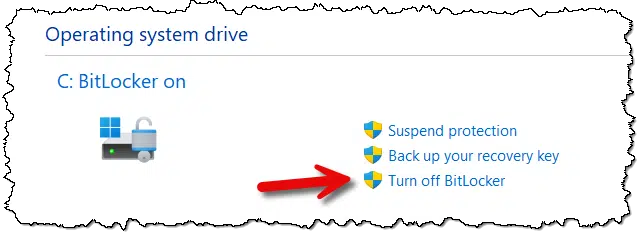
You’ll be shown a confirmation dialog with a Turn off BitLocker button. Click on that.
The system goes to work decrypting your drive. Decrypting can take a while; it depends on the speed of your hard disk, the speed of your computer, and the amount of data stored on that drive.
When the process completes, you’re done! BitLocker has been turned off on that drive, and the data decrypted.
Help keep it going by becoming a Patron.
Windows Home editions
This applies only to Windows 11 Home edition.
Boot your computer and sign in to Windows. Once again, this step is required.
In the Settings app, search for “encryption” and click on Device encryption settings when it appears.
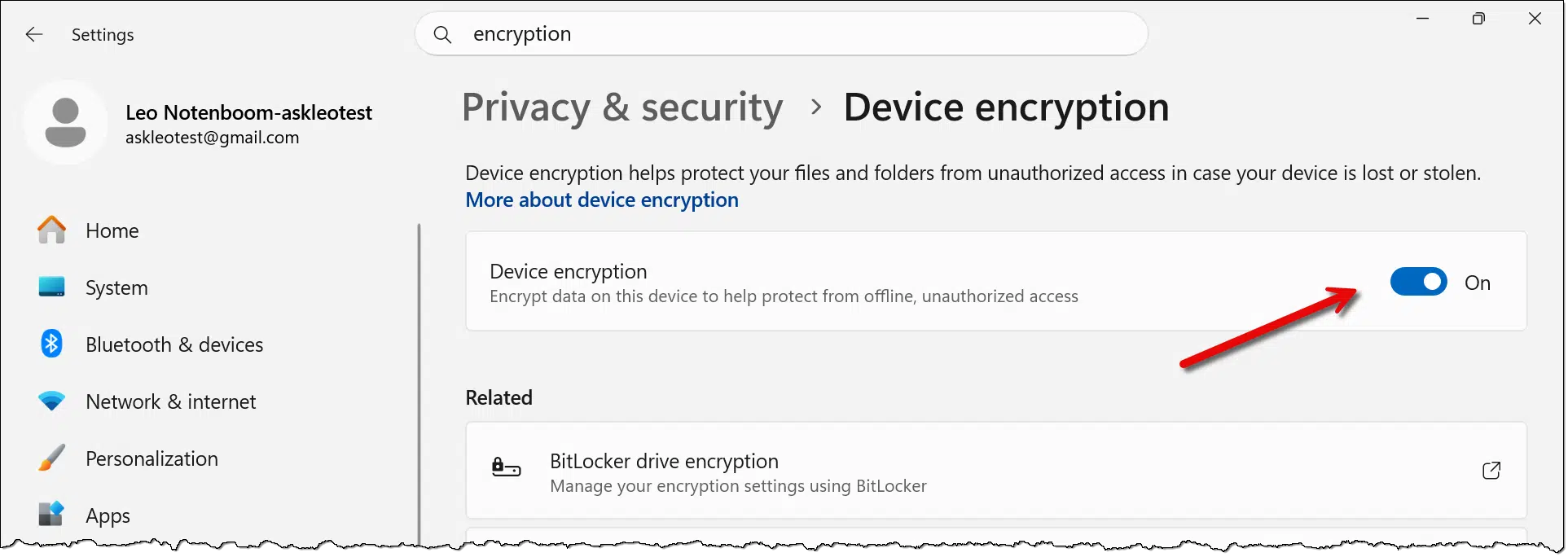
If Device encryption is turned off, you’re done. BitLocker is not enabled on your device.
If it is turned on, turn it off. You’ll be presented with a confirmation dialog.
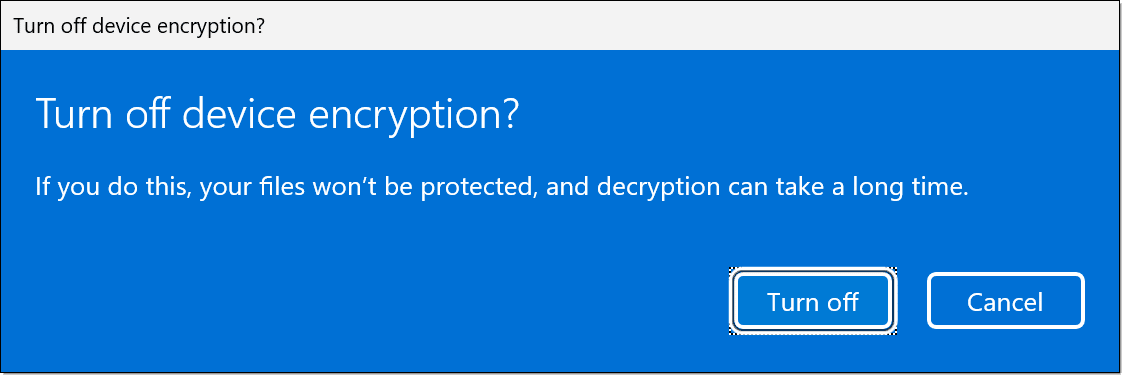
Click Turn off. Decrypting will take a while, depending on the speed of your hard disk, the speed of your computer, and the amount of data on the drive.
When the process completes, you’re done! BitLocker, in the guise of “device encryption”, has been turned off, and the data decrypted.
Related

How Do I Know If My Hard Disk Is BitLocker-Encrypted?
Even running Windows Home edition, your hard drive might be BitLocker-encrypted without you realizing it. If you don’t have the recovery key, you could lose everything. Learn how to check, why it matters, and the simple steps to protect yourself before it’s too late.#179885
What just happened?
With BitLocker turned on, all data on your hard disk is encrypted. You can continue to use the disk normally without concern for the encrypted state, but if your computer is stolen or its disk is removed, the data on that disk remains safely inaccessible1 to the thief as long as they can’t sign in.
By turning BitLocker off, you remove that protection. Anyone who gains physical access to your machine can access the data on it — most commonly by removing the drive and connecting it to a different computer, bypassing the need to sign in.
As some have somewhat sarcastically remarked, BitLocker has probably prevented more legitimate access than it has prevented malicious access. Typically, this is because folks haven’t backed up the recovery key associated with the drive. At some point, something happens2, and they need the recovery key they don’t have. The result is that they’re locked out of their own drive. If that data is not backed up, it is lost.
So, if you’re using BitLocker, back up the recovery key.
But not all scenarios need full disk encryption. For example, if your device is secure at home and you don’t travel with it, BitLocker may not be needed and can be turned off.
If you can’t sign in
As I said, the point of BitLocker is to prevent unauthorized access to your data. Signing in to your machine is what gives you authorization.
If you can’t sign in, you can’t decrypt the data on the hard drive.
If you can’t sign in, there is one straw to grasp at. Check out Find Your Lost BitLocker Recovery Key in Your Microsoft Account.
Do this
- Check to see if BitLocker is enabled on your drive.
- If it is, and you want it off, follow the instructions above.
- If it’s not, and you want it on, click “Turn BitLocker On” or turn on “Device encryption” and follow the prompts.
- If you use BitLocker, be certain to save the recovery key.
- Regardless, back up the contents of your drive.
Subscribe to Confident Computing! Less frustration and more confidence, solutions, answers, and tips in your inbox every week.
Podcast audio

Footnotes & References
1: I’m aware of the Yellow Key bypass, and I expect it to be resolved by Microsoft, if it hasn’t been already.
2: “Something” is intentionally vague. This scenario can occur in a wide variety of situations.

I was thinking to buy a TPM before trying to encrypt with BitLocker, but why I do not sell it in Japan.
Since it can not be helped, it was not amazon.co.jp but was about to create an account on amazon.com.
I felt BitLocker did not have to do it at all.
My main concern with BitLocker is that it would appear to me that Microsoft has a key to my machine stored under my Microsoft account which can be stolen by hackers or “shared” with others. I am not comfortable with anyone having any access to my machine. Am I wrong about this?
Stolen by hackers only if they hack into your account, at which point you’ll have much larger problems. In my opinion the safety of keeping it in your Microsoft account should you ever need it outweighs the risks that concern you.
I just set up a new Dell Inspiron laptop for a long time client.
It came with Windows 11 and BitLocker was already on.
I only discovered that when I set up the older Windows 7 backup and created in IMAGE.
I got a warning that the IMAGE would not be encrypted in spite of BitLocker being in use on the built-in SSD. That was my first clue that it was on.
I have VERY mixed feelings about this because generally my experience with clients and encryption is that they will EVENTUALLY lose all access to the encrypted information.
One client’s “solution” to this was to put the recovery key on a slip of paper and tape it to the laptop!
That sort of defeated the whole purpose but, who was I to (try to) tell this (very aggressive) person that! They were not much into critical thinking. I could say more. I won’t!
You couldn’t convince them to, at least, hide that password somewhere less obvious?
It appears that Microsoft is now making Bitlocker available on all Windows versions, including the Home versions of Windows 10 and 11. It used to be that to use Bitlocker one needed the Pro version of Windows or make changes in the registry of the Home version.
https://docs.microsoft.com/en-us/windows/security/information-protection/bitlocker/bitlocker-device-encryption-overview-windows-10
Or am I misreading the article? all my computers have the Pro version of Windows installed and I’ve been using Bitlocker for years.
Interesting:
What’s interesting to me is that this doesn’t match my experience — at least not with the available UI in Windows. I’ll double check.
What’s more interesting is that this also outlines the conditions under which Bitlocker might be enabled automatically. Thanks for the link!
I have a 500 gb SD card that I encrypted long ago. Bitlocker still accepts my password & unlocks, but when I attempt to turn it off on the drive I get an “Incorrect Function” message. Looks like I’ll have to copy it all to another drive, then format the SDCard. Sigh….
When I built this desktop PC, I decided that it should have more storage that I expect to ever need. I have a 1TB Sony M.2 drive and a 2 TB SSHD drive installed. I dual-boot Windows 10 with Neon GNU/Linux so the 1 TB drive has two partitions, 1 for Windows and the other for GNU/Linux.
The second drive also has two partitions, but both are currently for Windows. The first (labeled data) is used to store various image files for all the OS and utility installers (such as System Rescue, etc.) I usually use, installers for many of the Apps I use (Core-Temp, rufus, MD5 and SHA Checksum Utility, etc.), and many files I don’t want to store on OneDrive but that I still want to keep.
The other partition (labeled MacriumBackup) is for my backups. I use Macrium Reflect to create a full system backup monthly, and an incremental backup daily. I keep two complete backup sets so I can go back up to two months to recover an older version of a file if need be. I also sync my C: drive to OneDrive so most of my files are stored there too. I can access them from my desktop or either of my two laptops and if I have to re-install Windows on any of my PCs, my files will be accessible afterwards.
All my Windows partitions on my desktop and my newer laptop are encrypted with BitLocker. I have the recovery keys stored in my Microsoft account and I have hard copies stored in a safe in my office/computer-room.
My logic works something like this. I use Windows 10. I use Windows 11. I use Microsoft’s BitLocker to encrypt my Windows partitions. I use Microsoft’s Windows Defender as my antimalware suite. I use Microsoft’s Authenticator for 2FA to enhance the security of my Internet accounts. If I trust Microsoft enough to use all of these (especially Windows), why would I not trust them enough to store my BitLocker recovery keys in my Microsoft account which resides on one of their servers?
To understand how good Windows Defender really is, read this item:
https://www.neowin.net/news/microsoft-defender-beats-out-several-heavyweight-rivals-in-the-latest-av-test-ranking/
The odds are that my desktop PC will never get stolen, but if it is, the thief will not be able to rob me a second time by being able to access all my Internet accounts (especially my bank account) and other personal information.
At some point (after I settle on a GNU/Linux distribution – I keep changing my mind about which of several distributions I like the best) I will also encrypt my Linux partitions too (for similar reasons).
I know this post is not entirely on topic, but BitLocker is an important part of the larger discussion about computers and computer security. I’m sorry if I went to far off topic. I didn’t mean to,
Ernie
There’s a serious flaw in your backup regimen. You are not protected against a system drive failure. If that drive fails, your backup dies with it. Backups must be saved to an external drive, and the farther away the backup drive is from your computer, the safer it is.
Can I Back Up to an Internal Drive?
How Do I Back Up My Computer?
The only comment I have is that I’d still keep the BitLocker key locally somewhere, in addition to in the Microsoft account. If the account ever gets hacked, or you lose it for any reason, then you lose the key with it.
Its true, I have noticed BitLocker already turned on for boot partitions on many new PCs. I’m sure it could have slipped past me turned on for many others as well.
The first thing I do is turn the dang thing off. BitLocker creates many complications. For example, you can’t resize the encrypted partitions (or move them). Most disk imaging software will not work on BL drives. If the PC fails and you need to migrate the data from the old drive (which very often is good), it is not possible. You can’t access the drive on another PC to fix problems, remove malware, or save data. I’m not sure you can clone those drives with some tools (I haven’t tried that).
“Most disk imaging software will not work on BL drives.” -> Macrium Reflect and EaseUS ToDo will both work. They back up the UNencrypted contents of a Bitlocker encrypted drive.
” If the PC fails and you need to migrate the data from the old drive (which very often is good), it is not possible.” -> Not quite true. If you have the Bitlocker recovery key you should be able to access the drive’s contents on another Windows PC.
But yes, it’d definitely an added complication.
Life has been easy with True Crypt and am now finally using Vera Crypt on my newer machines. I also refuse to create a Microsoft Account. Now I am concerned that Bit Locker will encrypt without my permission.
Unless your computer comes with Bitlocker turned on, Microsoft will not turn it on automatically, but as long as you are using Veracrypt, you are equally protected.
And if you do find BitLocker turned on, turn it off. Simple as that.
I bought this Dell 8930 a year ago, and it came with Win 10 Home. I’ve searched (in the Win system) for Bitlocker and it just sends me to the Web so I assume it’s not on my machine. If Microsoft now permits using Bitlocker on a Home version, would it work on a year-old Win 10, and if so how do I get that and install it?
I don’t believe you can. Sorry.
I couldn’t find Bitlocker on my Win 10 machine, so I installed the free Veracrypt and set it up to encrypt the whole system drive. I have to type my password before starting Windows, but other than that, it’s completely transparent.
We recently got this question:
” . . . I could not find Bitlocker when I searched for it.”
I followed the instructions in this article, and I couldn’t find it either, so I tried the following which worked:
Right-click the Window Start icon and click ‘Settings’
Click ‘System’
Click ‘Storage’
Scroll down to and click ‘Advanced storage settings’ under Storage management.
Click ‘Disk & volumes’.
Click on the drive that you want to decrypt and click ‘Properties’.
Click ‘Turn on BitLocker’ and follow the instructions to configure Bitlocker
The question was about turning off Bitlocker, but the steps are the same until the last one.
I hate the way Microsoft rolled this into Windows Home and Pro and made it the default as “on”. I work with a lot of home users, and they ask, what is encryption, or what is BitLocker? On a laptop that travels a lot it can be a good thing and Microsoft needed to roll it out with proper basic documentation and tutorials and they did not.
Just a note: On Windows Home and Pro this is called “Windows Device Encryption” not BitLocker. I believe it is because BitLocker itself has more features other than just encrypting for C: drive.
Also, might want to point out not to store the BitLocker key on your laptop but save it on a USB drive or even print it and file it.
Thanks
Microsoft should have included a checkbox on installation, whether or not to enable encryption. Microsoft is famous for making incredibly bad decisions.
Or at the very least, added a text box informing the user that the C: drive’s encrypted and that the recovery key should be obtained from the user’s Microsoft account and stored in a safe, secure place, even if they don’t provide instructions for doing so
Windows Home: Device Encryption
Windows Pro: Bitlocker
Leo – I use Bit Locker on a separate HD which has financial, health, and personal information. I checked to see if I had my “Recovery Key”. Yes I do (on a removable USB stick). How do I test the recovery key?
If I click on “Back up your recovery key”, will it generate a new recovery key?
I know my BitLocker PW, but I want to keep all my ducks lined up.
I’d use a virtual machine or another PC, and temporarily connect the encrypted drive to that system and attempt to unlock it using the recovery key. This should confirm that the recovery key is valid without compromising your main system.
If you’re turning off Bitlocker because you don’t want nasty surprises then you should also turn off the service and set the flag in the registry. You cannot trust that Microsoft won’t change the game on you because it knows what’s good for you. Or it just messes up another update.
Before making any registry changes, make backups (restore point and/or right-click export the registry hive). In the registry set these and reboot:
[HKEY_LOCAL_MACHINE\SYSTEM\CurrentControlSet\Control\BitLocker]
“PreventDeviceEncryption”=dword:00000001
[HKEY_LOCAL_MACHINE\SYSTEM\CurrentControlSet\Services\BDESVC]
“Start”=dword:00000004
BDESVC is the Bitlocker service. The Start=4 disables the service.
You can disable the service either in the registry or in the Services utility.
After disabling it, go to the Services utility, find BDESVC, open it, go to the Recovery tab and set all 3 entries at the top to “Take No Action”.
I’m still trying to figure out how to get BitLocker turned ON with Windows 11.
As best I can tell (and it is all very confusing) when “manage-bde -status C:” says “Conversion Status: Used Space Only Encrypted” BUT “Protection Status: Protection Off”, the drive isn’t really “protected”. And that is the state that the computers were in when I got them.
Furthermore (contrary to what I read on the internet), My Windows 11 Home machines tells me what the encryption key is, but my Windows 11 Pro machines does not!
I wouldn’t mind using bitlocker, but I have it turned off until I can figure out what is going on (and how to get the encryption keys for Win11 Pro machines).
Since repurposing my Desktop PC as a Proxmox-powered home lab my Primary laptop is my daily driver for both Windows 11 Pro 25H2 and Garuda Mokka Linux, and I’ve been using Veeam Agent to generate daily incremental backup images, storing them in a container on my Proxmox server.
A few years ago I had Bit Locker enabled on this laptop, but after repeated issues requiring me to use my recovery key to ‘gain access’ to my computer, I turned it off, and since my laptop seldom travels anywhere, I haven’t been concerned about turning it back on, but if anyone has a valid reason for me to give it another try, I’d be willing to do so.
“if anyone has a valid reason for me to give it another try, I’d be willing to do so.”
How about, “Just in case”?
Your home could get broken into.
You might need to take it out of the house for some unexpected reason.
You’re right! I’ll give it another try – at least until it begins to duplicate its previous, aggravating behavior
Does Bitlocker slow up processing? I currently have it on, using Windows 11.
I use my laptop for Photoshop and Lightroom, and for most all other things. Most of my personal files and photos are kept separate on several SSD drives that I plug into my laptop when I need a need a specific file from a specific drive. As my laptop SSD is small (0.5TB), I primarily keep only programs and cache space on my laptop.
My SSDs are not bitlocked. Should I do that for them? Other than my photos, I suspect processing time because of bitlocking is minimal, though since photos are large, that might not be the same case.
Thoughts?
These days the processing overhead for almost any full disk encryption is minimal compared to CPU speeds and disk speeds. I’ve never noticed an impact myself.