Vet your visitors before inviting them in.
I was somewhat taken aback by this question. It’s a perfectly good question, and one that more people should be asking more often.
My reaction was due to the lack of a good answer.
It turns out it’s fairly difficult to tell whether or not a download is about to play havoc with your system without actually downloading it.
But it’s getting better.

Scan before you run
To tell if a download is safe, scan it with your own anti-malware tool or upload it to VirusTotal before you run it. No check is perfect, so stick with sites you trust, skip illegal software, and back up your files just in case.
Download, and then…
The general process is to download the file and scan it for malware.
Just downloading a file should not be dangerous. All it does is copy a file from an online server to your computer. It’s not until that downloaded file is opened or run that it has an opportunity to do malicious things. That means it’s important you don’t accidentally run or open it. Click on “Save” or “Save as…” but never “Open”, and don’t double-click the file before taking the steps below.
In some cases, downloading will be enough. Some anti-malware tools scan what’s been downloaded immediately and give a warning if the download has nasty content.
Unfortunately, not all tools work this way, so we need to take additional steps.
Scan it yourself
Hopefully, you have anti-malware software installed. Most can scan a specific file, or at least the contents of a specific folder, for malware.
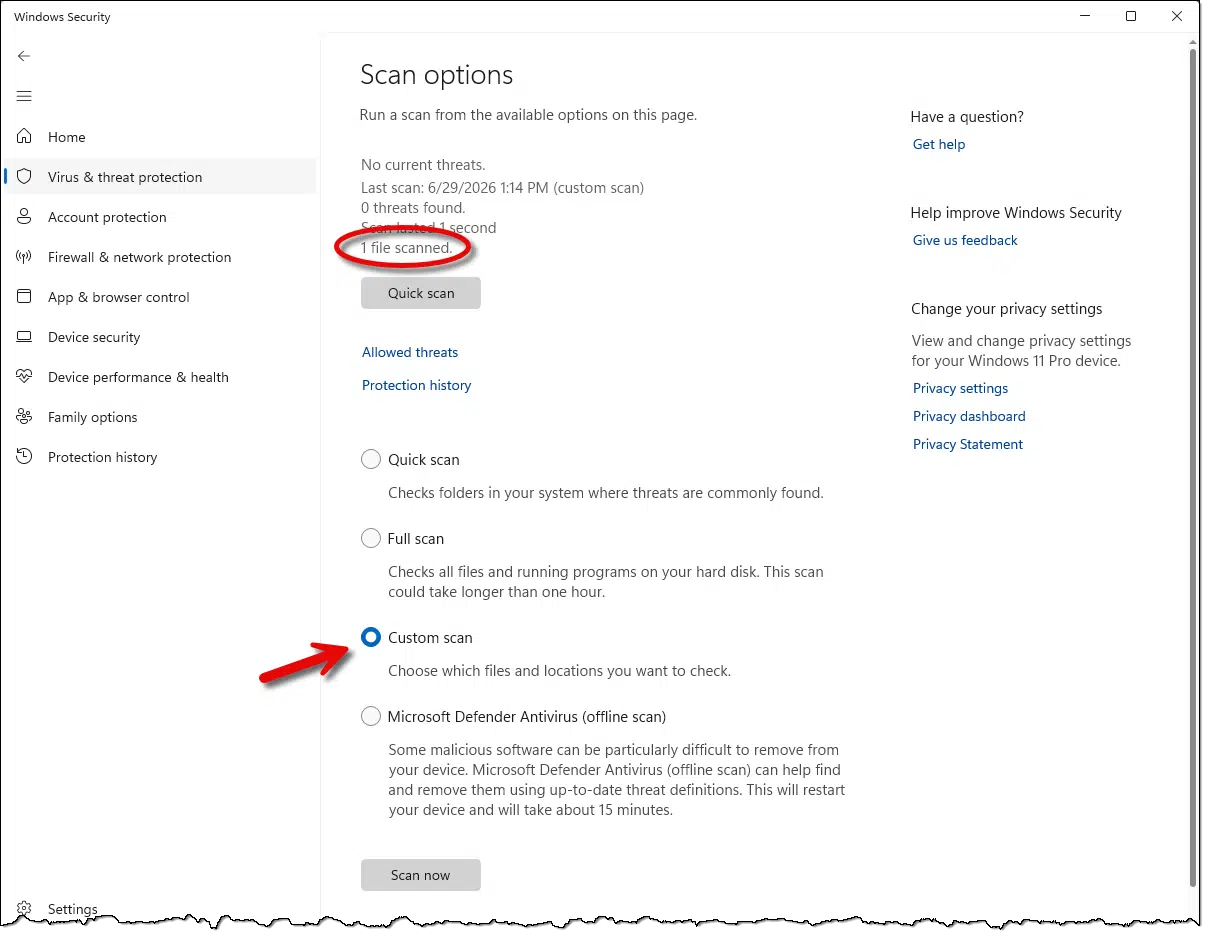
Windows Security’s “Custom scan”, shown above, lets you select a folder to be scanned. You might select your Downloads folder, for example, and whatever you’ve recently downloaded there would be scanned. Since there should only be a few things in your Downloads folder (it’s not a place for long-term storage), the scan should be quick.
If you run different security software, look for its option to scan a single file or a folder.
If you’d like more confidence, there’s another option.
Upload to VirusTotal
VirusTotal provides both free and paid plans to scan any download you’re worried about.
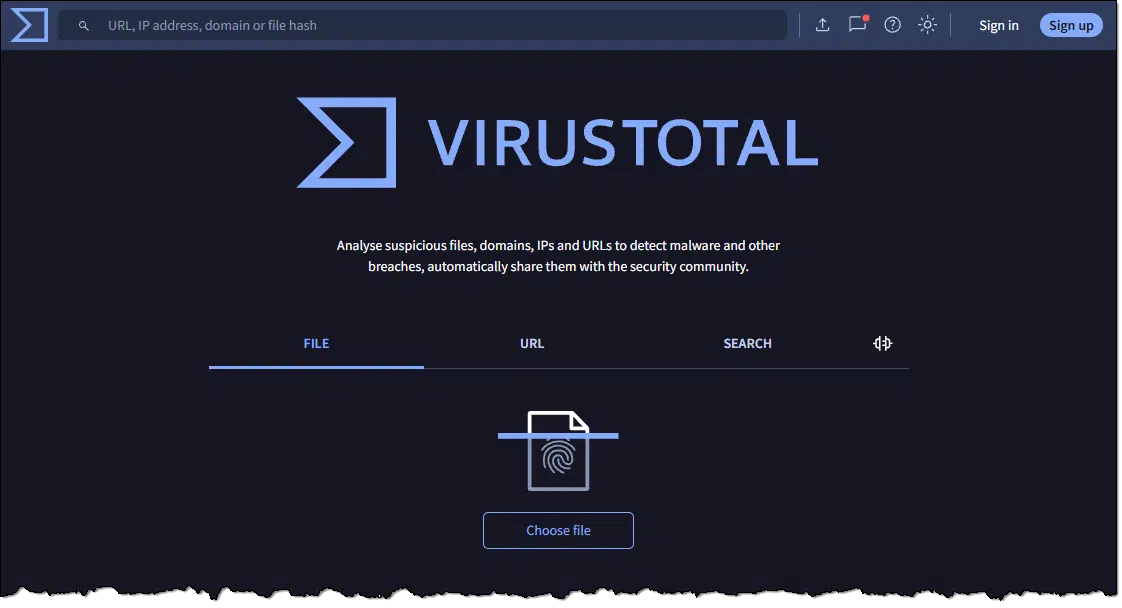
VirusTotal scans any file you provide with several different anti-malware tools and reports the results. This is a great way to get a level of confidence that what you’ve just downloaded is reasonably safe. (I’ll talk about why I say “reasonably” in a moment.)
Of course, if VirusTotal says it’s malware, immediately delete the file from your computer.
Windows Defender warnings
I recently downloaded an update to a (legitimate) program I use and received the following warning.
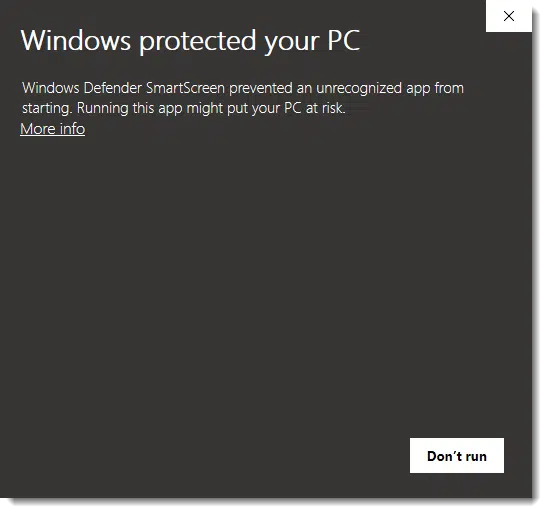
That was Windows Defender warning me that it didn’t recognize the application I was about to run.
That does not mean it’s malware or that there’s anything wrong with it at all — it just means that Windows Defender (meaning Microsoft) was unfamiliar with the vendor, or perhaps the software wasn’t digitally signed. All it really means is to take a breath and consider whether you recognize and trust the application and its vendor. (In this case, you can click “More info”, which will expose a “Run anyway” button, which is what I used.)
Other security tools use a more aggressive form of listing allowed applications, meaning only applications that have been pre-vetted and confirmed not to be malicious are allowed to run.
“Reasonably” safe?
I mentioned above that after scanning with VirusTotal, you can be confident that you’re “reasonably safe”. It’s important to realize that you are never absolutely safe.
VirusTotal, and all other malware scans, can miss things. It may not be common, but it’s absolutely possible, especially with recently created malware.
There is no such thing as perfect security. You can never be “safe”, only “safer”. And that’s the goal: to be as safe as is reasonably possible, knowing that perfection doesn’t exist.
The best advice? Skepticism
In some ways, it’s not surprising that malware is as common as it is. Absolute prevention is difficult at best. Even with the best tools, people often actively circumvent warnings and other blocks to download what they want.
Once malware arrives, most remedies are nothing more than damage control.
The best defense is you. You are both the weakest link and the strongest hope for your own security. Be skeptical. Take the time and make the effort to choose your downloads with care.
Do this
So, what do you do? What do I do, for that matter?
Our best defense is to fall back on common sense and best practices for avoiding malware in the first place.
- Only download from sites you trust. Knowing who to trust is a difficult problem. My recommendation is to avoid downloading from third parties. If a piece of software is created by XYZ Corporation, download it directly from XYZ Corporation’s website. If it’s available directly from the creator, there’s no reason to get it anywhere else. Avoid download sites if at all possible.
- Only download from companies you trust. Even if you download directly from the creator’s website, not all creators are ethical. If you’ve not heard of the company before, it’s worth a search to see if other people have experienced problems. A lot of free software is “free” because it’s loaded with Potentially Unwanted Programs (PUPs), for example. It might be legal, but it can certainly be annoying.
- Never download illegal software. You shouldn’t anyway — because it’s illegal — but even if that doesn’t stop you, the risks should. Illegal software is appealing because it’s free or dirt cheap. Malware creators know this, and often use it as an opportunity to distribute their wares.
- Scan your download. This is the easy one. As we’ve seen above, anti-malware tools can easily and quickly scan a downloaded file and tell you if it contains known viruses. Make sure to keep your virus program and its database up to date.
- Back up. Even though you may trust what you’ve just downloaded, prepare for the worst anyway. Assume that what you’re about to install will cause your machine to crash and become unbootable. Would you lose important data? Then you’d better make sure it’s backed up first.
Subscribe to Confident Computing! Less frustration and more confidence, solutions, answers, and tips in your inbox every week.


What if I download the file directly from my iPhone? I made the video myself, added it to drive from my iPhone, and then opened drive on my computer and tried to download it. It says the file is too large (it’s a ten-minute video I made on iMovie and downloaded to Photos) for a virus scan, and I’m wondering if it’s safe to download it anyway without a scan, since I know exactly where it comes from and I made it myself. Could a virus pop up out of nowhere, or is it safe since I didn’t download it from the internet? If it’s not safe, is there a way to download the video onto my computer? I am trying to send it to people but it is too big for email, text, Photo sharing, etc., so my hope is to get it onto drive and send a drive link to my friends. People have sent my drive links to videos over ten minutes in the past, so I’m trying to do that.
If you created it yourself, it’s safe. You can upload it to iDrive, Dropbox, OneDrive, Google Drive or other sharing site and send a link.
I actually do use download sites — I generally use them as specialized search engines, to see what programs are “out there” to do what I need or want done.
Having found a promising program, I then leave that download site, and go directly to the site of the program’s creator, and download or purchase it from there.
Only extremely rarely do I actually download software from download sites — usually, because a program I want turns out to be no longer produced, and is therefore available nowhere else.
Some software manufacturers upload their software to GitHub, Major Geeks, Softpedia or others and people there for the downloads. Those are safe because they have been put there by the developers. It’s safe to download from those sites when sent there from the developers’ websites.
I’d avoid sites like Softonic or CNET as they often bundle the software with PUPS. I’d only use FileHippo if I were sent there by the developer.
If the developer put the installer there, it’s safe. If they didn’t, I treat it as untrusted.
I also trust PortableApps.com
I’ve discovered UniGetUI, a graphical wrapper for WinGet and several other software repositories. When I want to try a new-to-me app, my first action is to search for it using UniGetUI. If UniGetUI can’t find it, my next move is to download it from its developer’s website, then scan it using Windows Defender, then Malwarebytes, and finally I upload it to Virus Total. If it passes all three tests, I feel safe enough to test it in my Windows Virtual Machine for at least two weeks. If I decide to install it on my bare metal system, before deleting it in my Windows VM, I run a full system scan, just to double check for malware.
Is all this needed? It is for me because I never blindly trust strangers, and if it comes from the Internet, it comes from strangers as far as I’m concerned, so I treat it as a potential threat until I can’t prove that its not (meaning until it passes all my tests).
Leo has recommended UnigetUI. https://askleo.com/unigetui-keep-almost-all-your-apps-up-to-date-automatically/
I’ve been using UnigetUI to keep my apps updated, but I’ve never used it to find and install new software.
Hey Leo nice article and video ! I was having the same questions recently and agree to what you mentioned in article and video. I have been using virustotal since earlier , but i am still skeptical about a package even after virustotal gives all green. I am not sure if it uses all the latest virus definitions by all vendors as its a free service, thats why i am extra careful. (ofcourse as you said nothing is 100% safe today). I don’t think i need to invest in another 3rd party virus tool right now, as windows defender should do its job.
One tip i can share is that using google chrome to download stuff automatically scans for malicious downloads. If you turned on its enhanced security settings it will add an additional layer of protection against malicious packages and usually google is on top of the security game. I am a power user , so i try to use winget to get most of my software. One thing i am worried about is that my laptop doesn’t support windows 11 due to cpu limitation , and after the extended updates are over for win10 in October this year, Microsoft will stop providing security updates which could leave my system vulnerable. The laptop works still fine and i cannot shift to linux as i need some windows specific softwares for my work. Not sure what strategy to use post october or try to force a win11 install on this.
Thanks 🙂