If it’s only in one place, it’s not backed up.

Many years ago, I received a panic-stricken email from an individual whose account had been hacked. He had lost all access. His panic stemmed from the fact that, for whatever reason, the account held the only copy of his master’s thesis.
It was gone, and there was no hope of recovery.1
Hopefully, you’re not keeping something as important as a master’s thesis only in your online email account. That’s wrong on many levels. But I’m sure there are things in your account you never want to lose, such as photos, correspondence, or other things you’ve exchanged via email.
The problem is, of course, that if it’s only in your email account, it’s not backed up.
Let’s fix that. Let’s back up your email.

Backing up your email
Configure Thunderbird to access and download your email using IMAP settings to back it up. Leave Thunderbird running (or run it periodically) to make sure your backups are up to date. Periodically, export and download your contacts to back them up as well.
Our example: Outlook.com and Hotmail
For this article, I’m going to use a Hotmail account: askleoexample@hotmail.com. I’ll continue to access that account as I usually do, using the Outlook.com website, but we’ll back it up to my PC using Thunderbird.
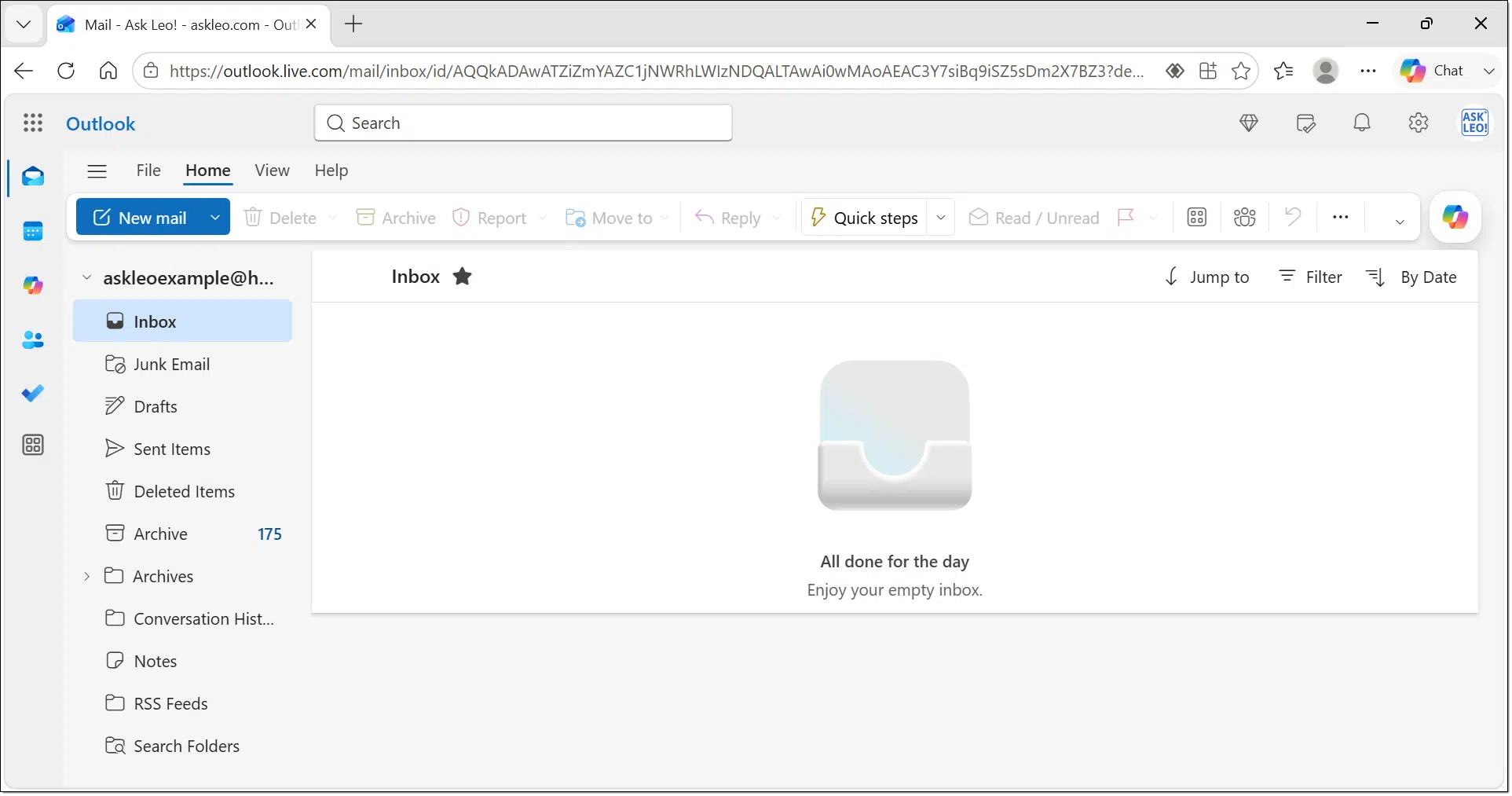
The technique I’ll use applies to almost all online accounts, including Gmail, Yahoo!, and others. For this technique to work, the account must support a protocol called IMAP. The good news is that almost all email services support IMAP.
In this example, I’ll use Thunderbird as my desktop email program, but any desktop program supporting IMAP can back up your email, including Microsoft Office Outlook and others.
Install Thunderbird
The first step is to download and install Thunderbird. Download Thunderbird from the official download site here.2
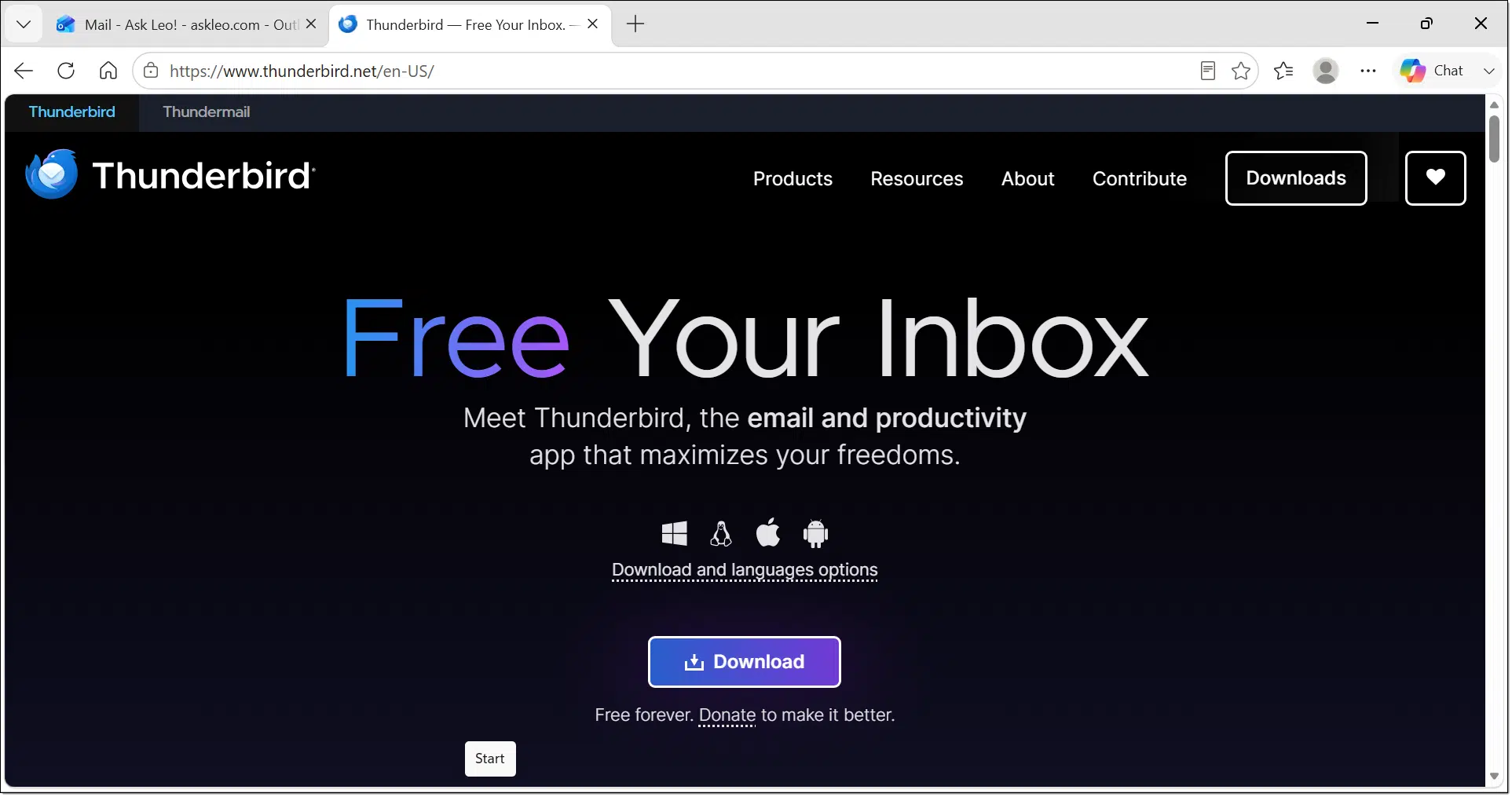
At this writing, the official URL is https://www.thunderbird.net.
Download and run the Setup Wizard.
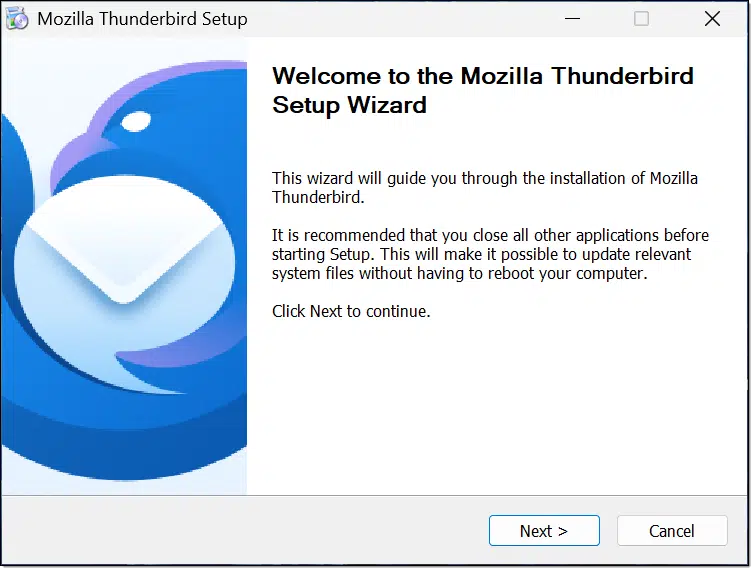
The first choice is whether to accept the Standard settings or use Custom.
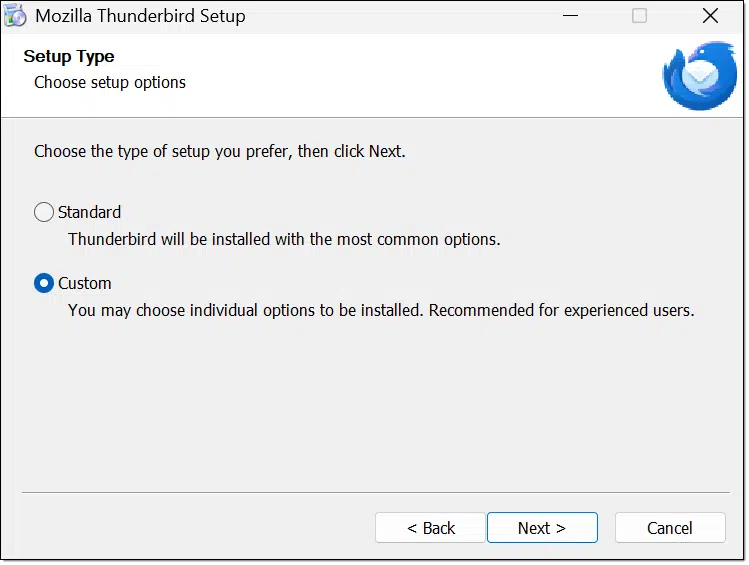
Always choose Custom. Even though we’re going to accept all suggestions made by the installer, choosing Custom installation is an important habit to avoid malware and PUPs. Click Next through the subsequent settings, and accept:
- The installation location for Thunderbird.
- Installation of the “Maintenance Service”, which will keep Thunderbird up to date automatically.
- Creating icons for Thunderbird as you choose.
If there are additional options, read them carefully to make sure you understand what you’re agreeing to.
Click Install on the last page of the Wizard to install Thunderbird.
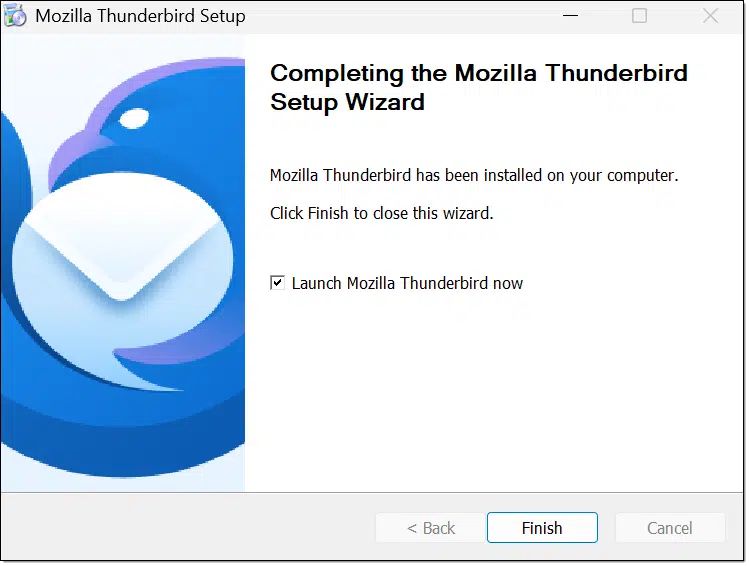
When the installation is complete, leave “Launch Mozilla Thunderbird now” checked and click Finish.
Thunderbird may offer to import settings from another mail program if one is installed. Our goal is to use Thunderbird simply for backup, so there’s no need to do that.
Configuring Thunderbird for a Hotmail account
When you first install Thunderbird, there are no email accounts configured. Thunderbird offers to “Add your email address”3.
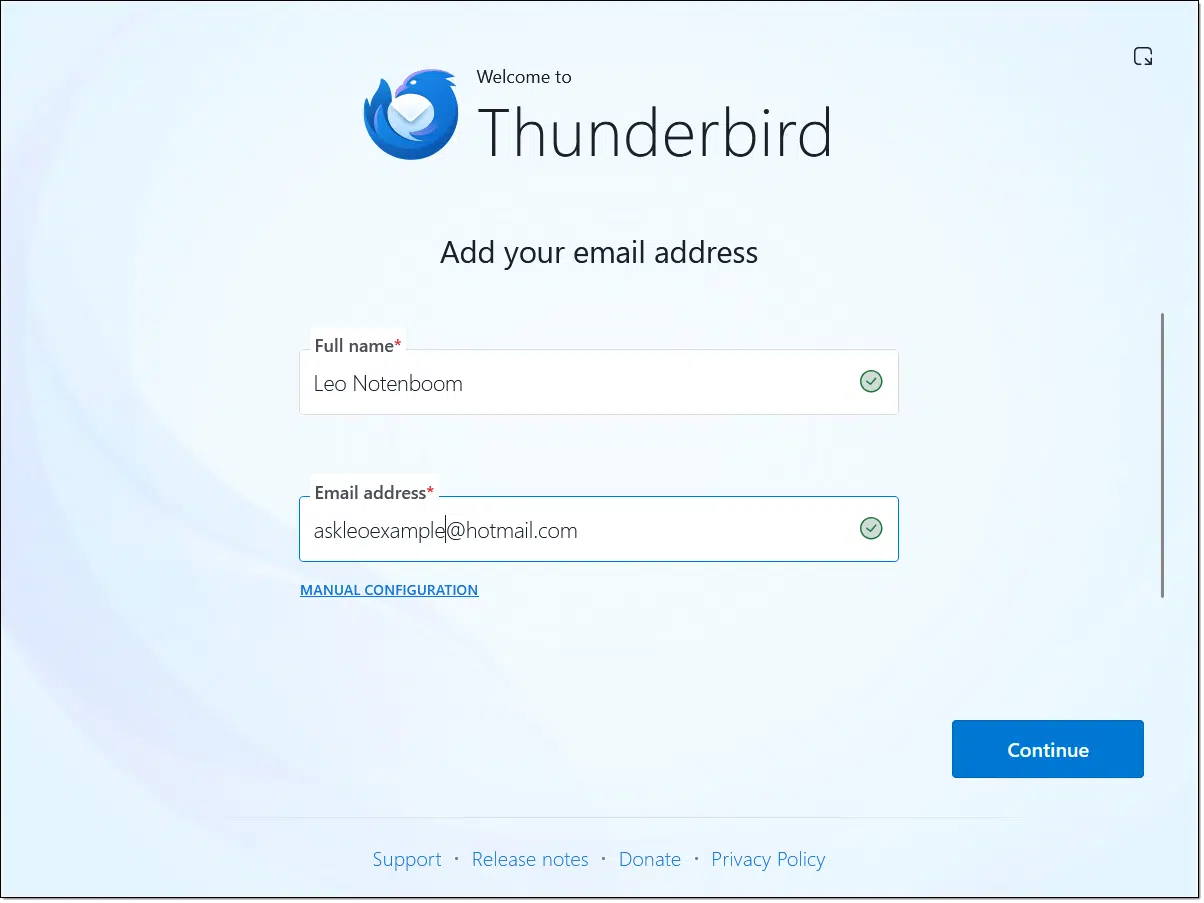
Enter your name and email address and click on Continue. It may bring up the Thunderbird donation page in your browser, which you can ignore. Back in Thunderbird, it’ll give a summary of the choices it’s making based on its knowledge of Hotmail (aka Outlook.com) accounts.
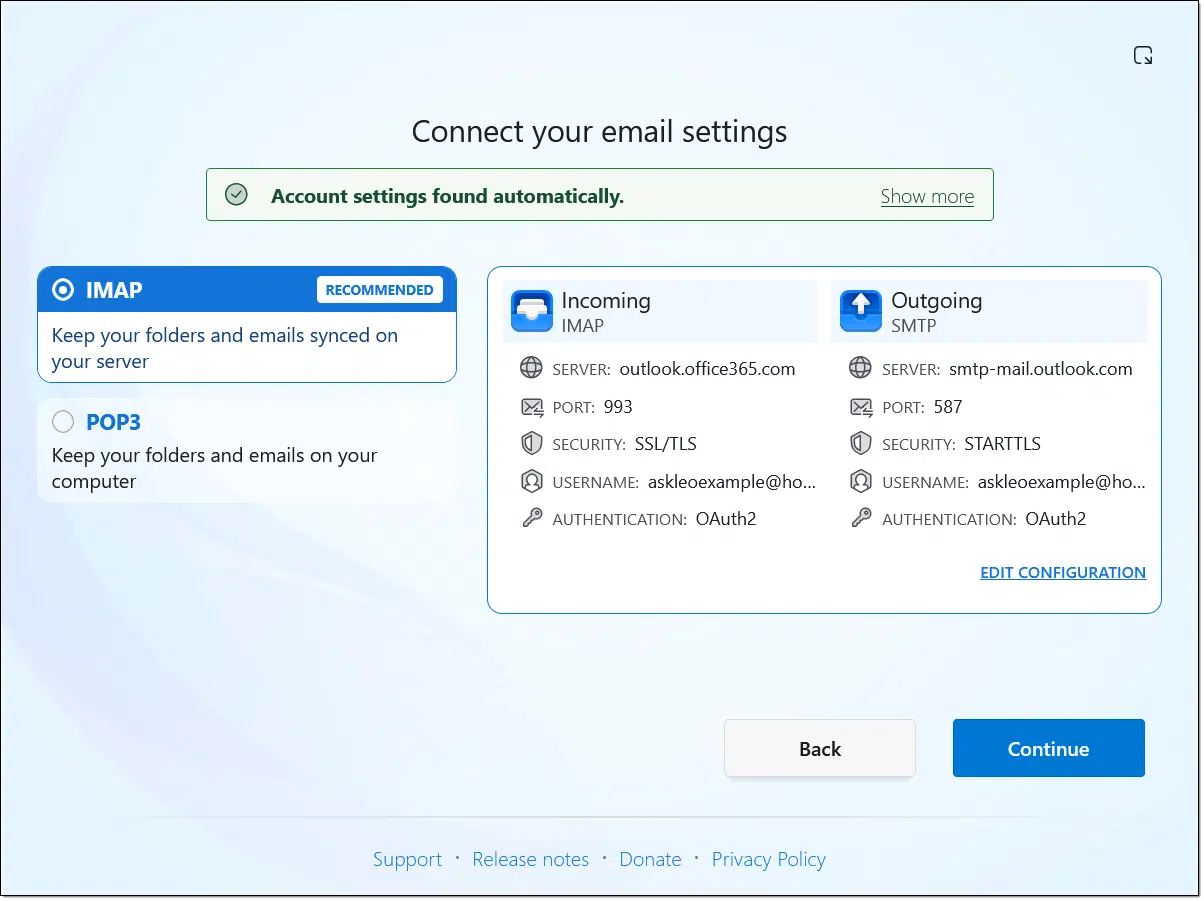
Make sure that IMAP is selected. This allows Thunderbird to access your email without changing anything about how you’ve been using your email elsewhere, such as online.
If you have an email address or account that Thunderbird does not have a configuration for, you may need to get the information from your email provider and enter it manually here. The good news is that most major providers, like Outlook.com, Gmail, and many others, will set up automatically.
Click Continue.
At this point, either of two things will happen:
- If your machine has a passkey for the account, Thunderbird will use it to sign in.
- You may be asked by Microsoft to sign in and authorize Thunderbird to access your email.
The second step is handled by Microsoft because we’re using “OAuth” as the security protocol. Rather than having Thunderbird ask for and use a password to sign in, the authorization process is handed off to Microsoft. This allows all the authorization techniques, including two-factor authentication, to work. Once you’ve successfully authorized with Microsoft, a secure token is returned to Thunderbird indicating you’re good to go.
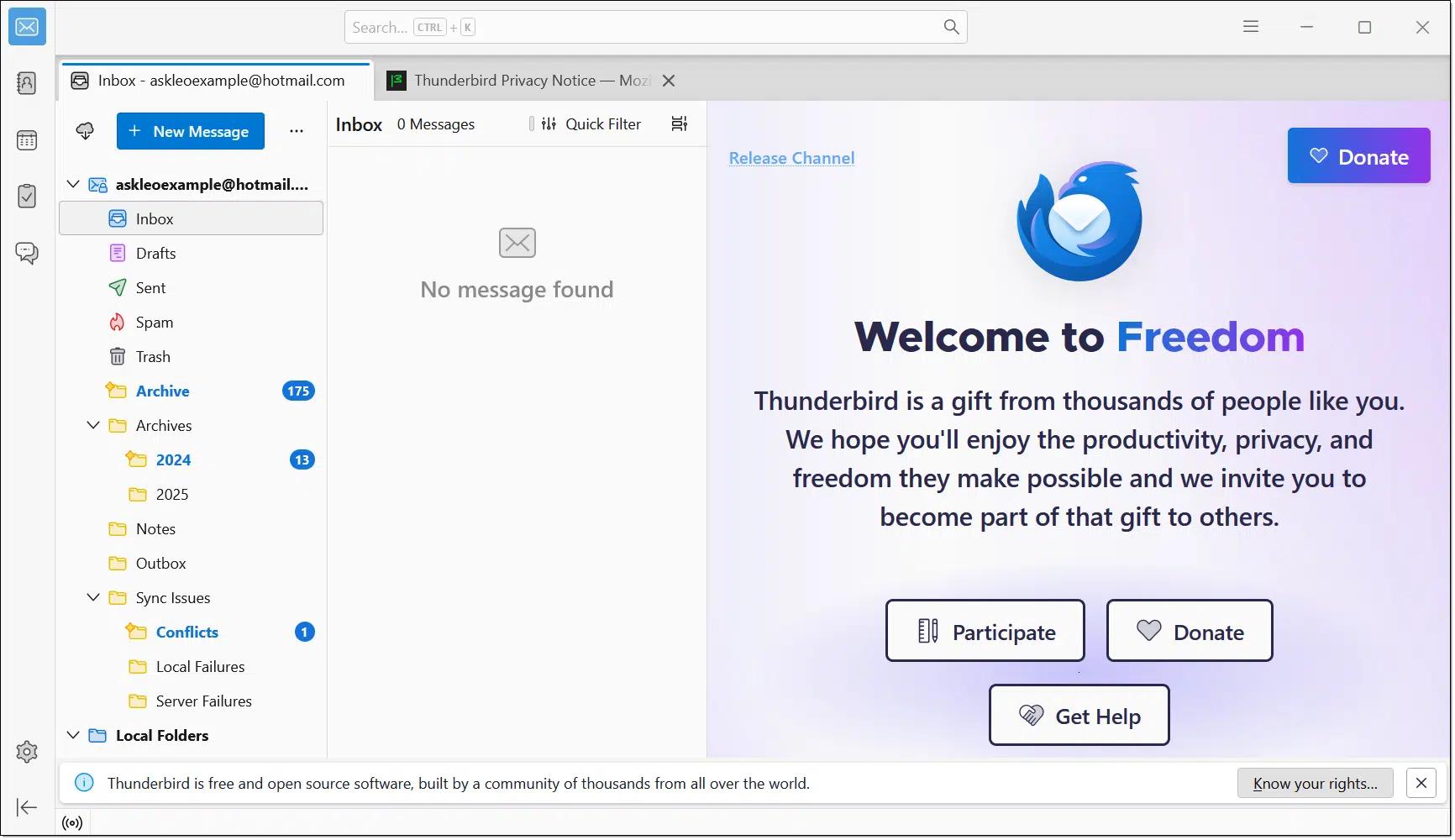
Thunderbird is now configured to access your Hotmail account and will begin downloading your mail.
Using Thunderbird
The benefit of using IMAP is that the email program downloads a copy to your computer, creating a backup of your email. You can continue to use your email normally via the Outlook.com web interface, your mobile device, or wherever else you’ve been accessing it.
You can, if you like, use Thunderbird to read, compose, and reply to messages. Email you read here will be marked as read elsewhere. Any change you make, such as moving emails to folders, deleting emails, or otherwise managing your messages, will show up in all the places you access your email.
Since IMAP mirrors the activity on your online account to your PC, it will mirror deletions as well. Delete a message online, and the next time you connect Thunderbird, the message will be deleted locally. Backing up your PC regularly4 provides an additional safety net, since Thunderbird is included in those backups as well.
Backing up contacts
Contacts are not included in the email protocol and thus are not included in anything we’ve done so far. To back up contacts, manually download them from your email provider.
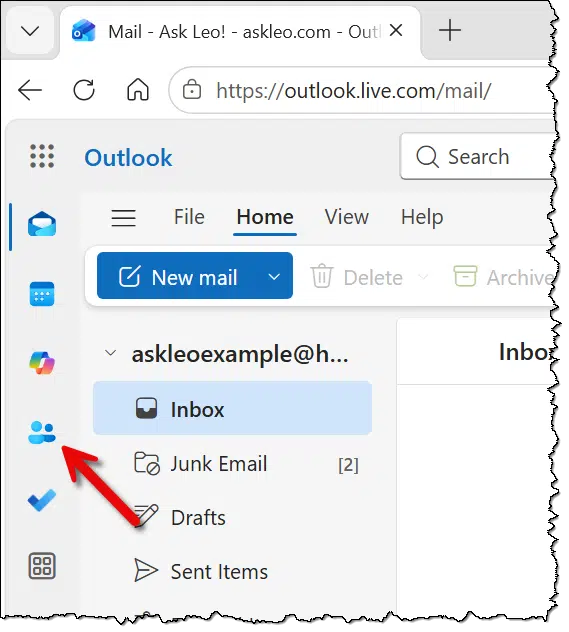
Click on the contacts/people icon on the left of the Outlook.com display online.
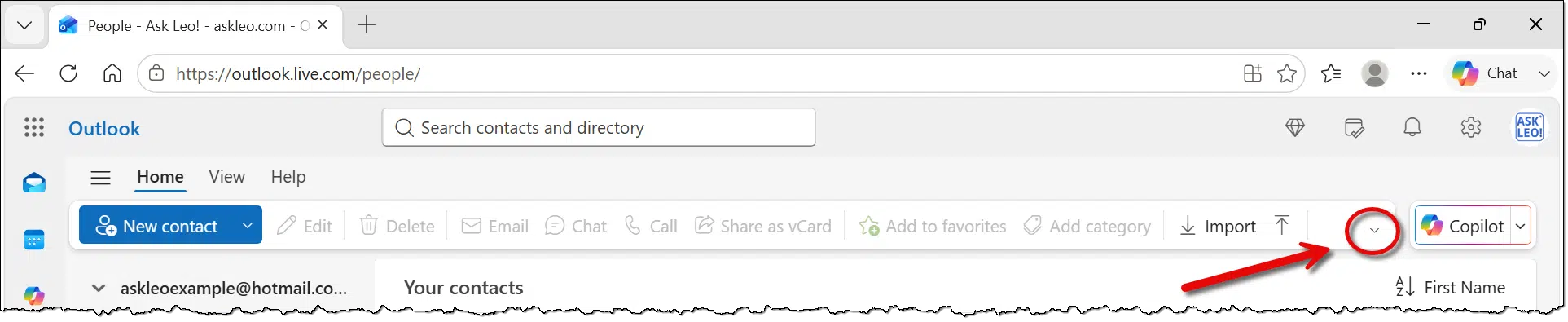
If “export” doesn’t show on the menu bar at the top, click on the small down-arrow at the far right of the collapsed ribbon to expose it.
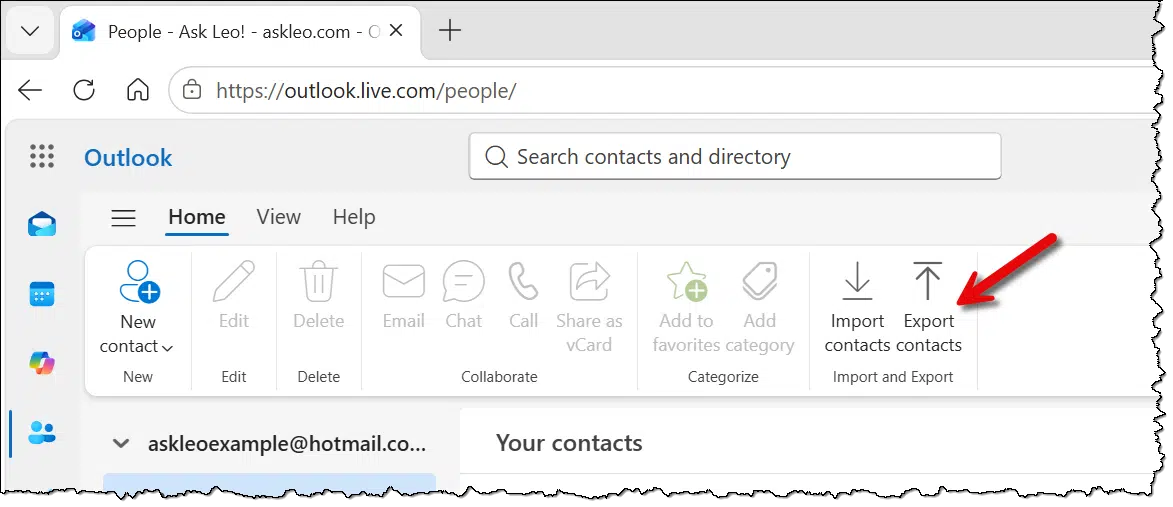
The expanded ribbon should have an “Export contacts” button.
Save the downloaded file somewhere on your computer, ideally in a place that will also be backed up by your regular PC backups.
You can, if you like, import these contacts into Thunderbird, but since our goal here is to back them up, just downloading the file to our computer is enough.5
Do this
Back up your email.
If you don’t use Thunderbird regularly, it’s important to run it periodically so it performs its backup. Once a day, once a week, or a couple of times a month, depending on how current you want your backup to be, run Thunderbird and keep it running until it’s downloaded a copy of all updates to your mail.
Since there’s no automated download of your contacts, you’ll need to do that regularly as well.
The good news is that your email is backed up! Particularly when used in conjunction with ongoing PC backups, you’re well protected against data loss due to account theft or other problems.
But I still wouldn’t keep the only copy of my master’s thesis there. That’s worth a few more copies in other locations for safekeeping.
Subscribe to Confident Computing! Less frustration and more confidence, solutions, answers, and tips in your inbox every week.
Podcast audio

Footnotes & References
1: My editor asked me, “If it was in his email account, he had either emailed it to someone or received it from somewhere else, so wasn’t there hope of recovery after all?” Perhaps. My assumption was it was probably saved as a draft email and hence never sent. Regardless, it was a bad way to “save” something, and by the time he came to me, he’d apparently exhausted any options and hope for recovery.
2: It’s critical to download only from the official site. Do not get Thunderbird (or any software) from download sites or aggregators unless explicitly instructed to by the official site. Almost all download sites now add unwanted software in addition to the program you want.
3: Recently, they’ve added something called “Thundermail” to the dialog as well. Since you have an existing email account and our example is about an existing email account, you can ignore that. Scroll down on this page if the email address field is not visible.
4: Which you should be doing already anyway. Right?
5: Importing contacts from one service or program into another, while possible, is notoriously error-prone and almost always results in some amount of lost data. This has to do with the lack of standards about what information is included in a contact and how that information should be represented.

I’m unable to send mail through Thunderbird (altho I’ve the same problem with other mail programs as well). The error message is that it doesn’t have the SMTP password and yet my ISP says they don’t have one for their server. I’s never been an issue before! I can receive emails and I can send through webmail but not through Thunderbird. This happened suddenly and with no apparent reason. One minute mails are going out, the next they’re not. I had rebooted in between but have done that always without an issue. Can you help?
All I can say is make sure your outgoing SMTP configuration matches what your ISP specifies it should be. I can’t believe they don’t require a password — that’s simply wrong.
In most cases, the SMTP password is the same as the IMAP or POP3 password.
In restoring a Macrium Reflect backup free latest version, using an image, my Thunderbird folders are not displayed.
What should I do doing to correct this fault please?
I’d have to know exactly what steps you’re taking to attempt to look at them in Macrium. There are many approaches,
Sorry I did not make myself clear, I do not wish to look at them in Macrium, rather to look at them in Thunderbird.
After a Macrium Reflect image restore, the thirty folders are not present.
The problem and issue I feel is that they are in a Macrium image, but when I go to restore that image on a hard drive, Thunderbird is present but not my folders.
Have you come across this specific problem before please?
If you restore the image, it should restore everything in that image. Make sure Windows Explorer is set to also view hidden files. I believe the profiles are stored within at least one folder that’s hidden.
“view hidden files” is activated.
My Thunderbird account was originally created as a Pop3 account on Windows 7.
Now I have transferred it to Windows 11, and in doing so changing the Authentication method from Password to OAuth2.
The folders on Local Folders do not appear.
Leo,
Thank you for your efforts to educate us.
I watched the video that this post is based on, and have some questions.
1) How does one handle backing up email coming from several email accounts, especially from one email server, ie, Gmail? Does Thunderbird (TB) co-mingle emails and folders?
2) Your video doesn’t mention it, so, I’m wondering if TB is adept at saving/storing email contacts from, say, Gmail. It seems that you make a copy of contacts in a (Gmail) account and save the records in a CSV file. Or, is this wrong? My experience with computers goes goes back to the 1980s, and I’ve long been frustrated with ‘matching’ fields in one software database to another software’s database. (Buttonware was better/easier than most other programs like Lotus 123 or others for setting up matching fields, but still a real chore.)
It would have been nice if your video had SHOWN US how TB saves emails stored in folders. Perhaps you could update your recommended steps/protocols if there are any.
Thank you.
1. Thunderbird can handle several accounts. They each have their own set of folders.
2. The contacts chaos hasn’t improved. Importing from .csv requires some field manipulation to get te contacts page labels correct.
I’m confused. Does the video above not do that?
I am 74 and was able to install Thunderbird because you laid out the procedure so clearly on this page. I have been telling others in my senior community to also back up their emails. Please make a page like this to show me how to do a complete back up of my system. I bought an external hard drive but get confused trying to follow a video. When you lay out procedures step by step with pictures like on this page which also includes links then I can follow and understand. Thank you.
Leo has a series of articles explaining the basics of backing up with EaseUS Todo. The articles are a bit old so there might be minor differences, but the principles are the same.
https://askleo.com/what_backup_program_should_i_use/
https://askleo.com/how-to-create-an-image-backup-in-easeus-todo-free/
https://askleo.com/restoring-file-easeus-todo-image-backup/
https://askleo.com/restoring-image-using-easeus-todo/
https://askleo.com/creating-easeus-todo-emergency-disk/
https://askleo.com/saved-backing-up-with-easeus-todo-choosing-a-backup-strategy/
https://askleo.com/saved-backing-up-with-easeus-todo-the-image-reserve-strategy/
Your explanation made it seem that it was easy to do.
It was EASIER!
Thanks for all the great tips.
I just backed up my gmail account which got full and google started its warning messages.
After backing up my gmail account can I now delete the emails from my online gmail account.. will it also delete the emails from the backed up Thinder bird email a/c
If Thunderbird is set to access your email via IMAP, removing emails from the Gmail website will remove them everywhere, including Thunderbird. Downloading them via POP3 with the leave mail on server option keeps the emails permanently in your email program even if they are removed from Gmail
Yes. In Thunderbird be sure to copy (or move) the email messages to local folders.
For anyone interested, this link explains how to find where Thunderbird stores user data. https://support.mozilla.org/en-US/kb/profiles-where-thunderbird-stores-user-data
It can be found in C:\Users\\AppData\Roaming\Thunderbird\Profiles\ which are hidden files normally. So if the computer is being backed up, those files get backed up also.
We also have a couple of articles on that:
What Is the Thunderbird Email File Location in Windows?
How Do I Move Thunderbird to a New Computer?
That scenario reminds me of With Honors with Brendan Fraser. He lost his doctoral thesis down a heating vent where homeless Joe Pesci was living. Pesci held the paper hostage and sold it to him page by page. The irony was that he was on his way to Kinko’s to make a backup copy.
I have my google contacts synced in thunderbird, so if I update it in thunderbird it updates in gmail and also updates on my android phone.
address Book Name = Address Book google
Carddav URL = https://www.googleapis.com/carddav/v1/principals/xxxxxxxxxx@gmail.com/lists/default/
and synchronize is set to every 15 minutes
I have thinking about doing exactly this for a while.
1. I noticed that Thunderbird started archiving (syncing) straight away.
I need to specify the location for the archive(s), as I have a small boot SSD (256GB) and large storage drives (2 x 2TB).
Presumably this configuration is best done (or possibly must be done) BEFORE archiving (syncing) starts.
Any suggestions?
2. I want to delete a lot of my older Gmail from my Google storage AFTER I have downloaded a copy to Thunderbird. Presumably I can copy these emails within Thunderbird, from the IMAP synced folder to a “non-synced” folder before then deleting them at Gmail?
I used to do this with the Office version of Outlook and I am hoping Thunderbird will work the same way?
If you copy the emails to a local folder, removing them from the email server won’t remove them from your computer.

Regular system image backups also preserve your emails.
To be clear:
MOVING email to a local folder will delete it from the online account if connected via IMAP.
COPYING email to a local folder will not.
Thank you Leo. I expected that was the case, but will take the conservative copy then delete once the copy is successful.
Did you have any thoughts about my first question, changing the location of the IMAP inbox before syncing commences?
I edited my comment to change it from move to copy to avoid confusion for people seeing my comment and not yours ;).
Thank you Mark.
I use Acronis True Image to do verified daily incremental backups to external disks.
Any thoughts on my first question about relocating the IMAP inbox before syncing starts?
Oops, Macrium Reflect, not Acronis True Image.
You can relocate Thunderbird’s IMAP storage before it starts syncing. Thunderbird stores all downloaded mail inside its profile folder. You can move the profile to your larger drive and point Thunderbird to it.
And if you’ve already run Thunderbird after adding the account, you can still move it.
What Is the Thunderbird Email File Location in Windows?
How Do I Move Thunderbird to a New Computer?
I read the updated article and comments. My main email and supplementary email messages are sent to different accounts, including Gmail and Outlook, and are copied to several devices both PC and iOS. All are routinely backed up. This has been my approach for many years. Does Thunderbird add anything to my belt and suspenders approach?
Great article. I have been using thunderbird for very long time. I have 6 accounts on it at present. I’ve never had any problems. I have my configuration files for it on a cloud service so the setup is available on multiple computers. What I’m waiting on now is the IOS version for my iPad.
I have thinking about installing Thunderbird to backup my Yahoo mail for a long time.
But every time I see this article, I am not convinced this would work without any problems.
I never saw anything about Yahoo mail for this method.
Are there things I have to consider to make a local backup of Yahoo mail?
Interesting, but wouldn’t another way to manage email be to use Thunderbird as your email client and do your emailing from TBird rather than from an email host online? Essentially you make the online email host your backup and TBird your email application and storage on your computer. I have found TBird to offer a much more pleasant emailing experience (especially if you attach files to an email) than emailing from an email host. Plus TBird’s MailMerge add-on enables you to send emails to scores, even hundreds of people on your mailing list that are personalized for them and look like they’re the only recipient (just like mailmerge in a word processing program).
We’ve been doing this for decades. And we use Macrium Reflect to automatically run a back up of our TBird profiles each evening (it takes about 2 minutes). Meanwhile the original emails sit online at our email host — although we delete them there each month (we still use POP3 accounts) since we’ve got them backed up on our computers and the monthly clones we make of our data drives that are stored off site. I’m not suggesting this approach is for everybody, but I suspect it provides a rather high degree of privacy and security.
That’s how I do it. I use Thunderbird to manage 5 accounts. I get all my emails in one place. Until recently, that was possible using Gmail to download email from other accounts, but that feature has been removed.
I use the POP server protocol in Thunderbird with Server settings set to:
Check for new messages at startup
Check for new messages every: 2minutes
Automatically download new messages
Leave messages on server
Until I delete them
So I don’t need to use IMAP to preserve them on the server.
Or am I misunderstanding?