It surprises many.

Your hard disk might be BitLocker encrypted, and you might not even know it.
On one hand, that might seem OK. Encryption is good, right?
Well, it’s good until it’s not.
Let’s figure out whether your hard disk is encrypted, discuss why it matters, and explore what you might need to do about it.

Is your hard disk encrypted?
Your computer’s hard drive might be encrypted with BitLocker without you knowing it. In Windows Pro, you’ll see a padlock icon. In Windows Home, check “Device encryption” under Privacy & security settings. Make sure you can access your recovery key at aka.ms/myrecoverykey, or you could lose everything!
Windows Pro editions: a snap
If you’re running Windows 11 (or 10) Pro, it’s obvious. Just look at the drive in Windows File Explorer.
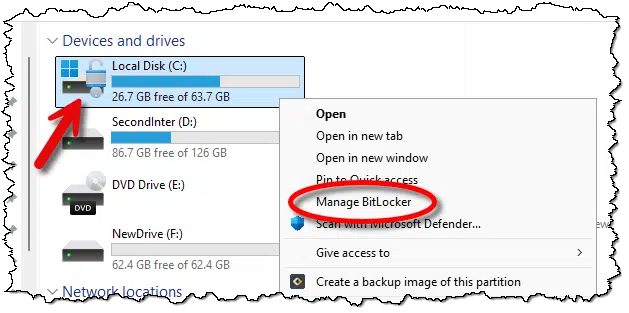
If it’s encrypted, there will be a padlock on the drive icon. If you right-click on it, as I’ve done above, you’ll also see “Manage BitLocker” in the pop-up menu.
If it’s not encrypted, the padlock won’t be present (as the D: drive shows above), and right-clicking will include the option to “Turn on BitLocker”.
Pretty clear.
Help keep it going by becoming a Patron.
Windows Home edition: stealth encryption
Technically, BitLocker isn’t available in Windows Home, so the icons and pop-up menu items we saw above aren’t present.
And yet, the drive may be encrypted in Windows 11 Home.
In the Settings app, click on Privacy & security in the left-hand pane.
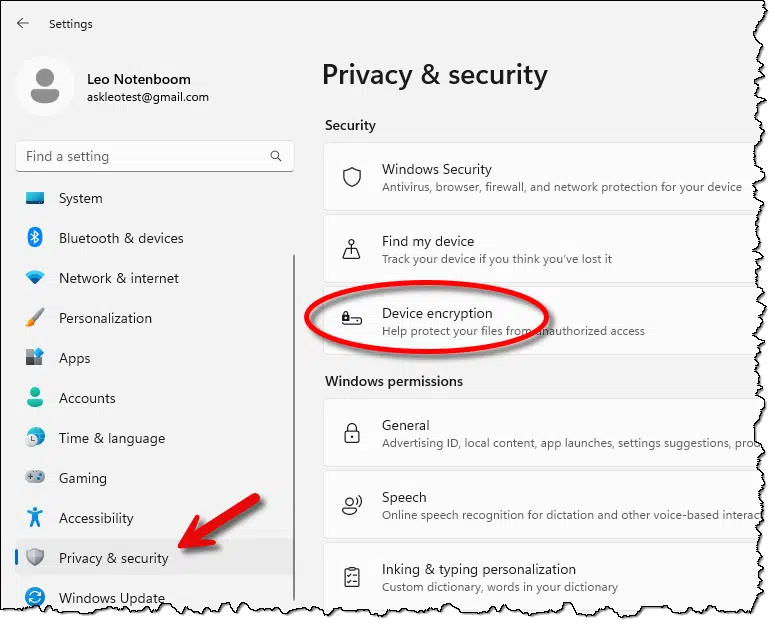
If “Device encryption” is listed on the right, your device may have its hard drive encrypted. If it’s not present, your machine doesn’t support device encryption1, and your hard drive will not be BitLocker encrypted.
Click on Device encryption.
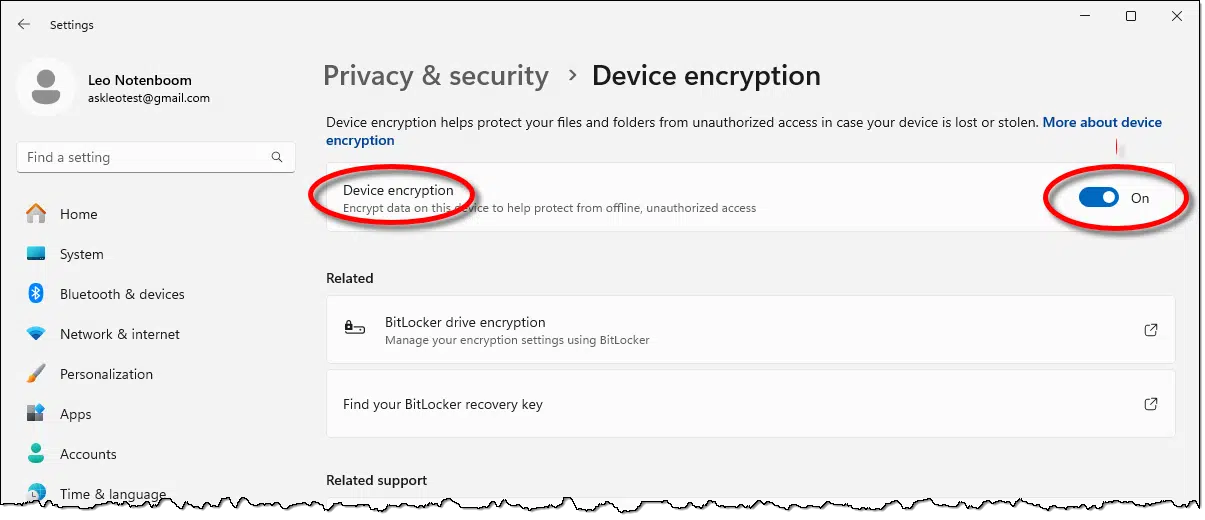
On this machine, device encryption is turned on. I did not turn it on; it was on from the start. I was neither asked nor warned that this would happen.
More importantly, I was never offered the opportunity to save my encryption recovery key.
Getting the recovery key
Clicking on Find your BitLocker recovery key (at the bottom of the image above) will take you to a support article, which I suppose can be useful.
More directly, though, visit:
This will take you to the BitLocker recovery key page of your Microsoft account. To visit this page, you must be able to sign in to your Microsoft account, and it needs to be the same Microsoft account that was used to encrypt the drive — typically the first account you specified when setting up the machine.
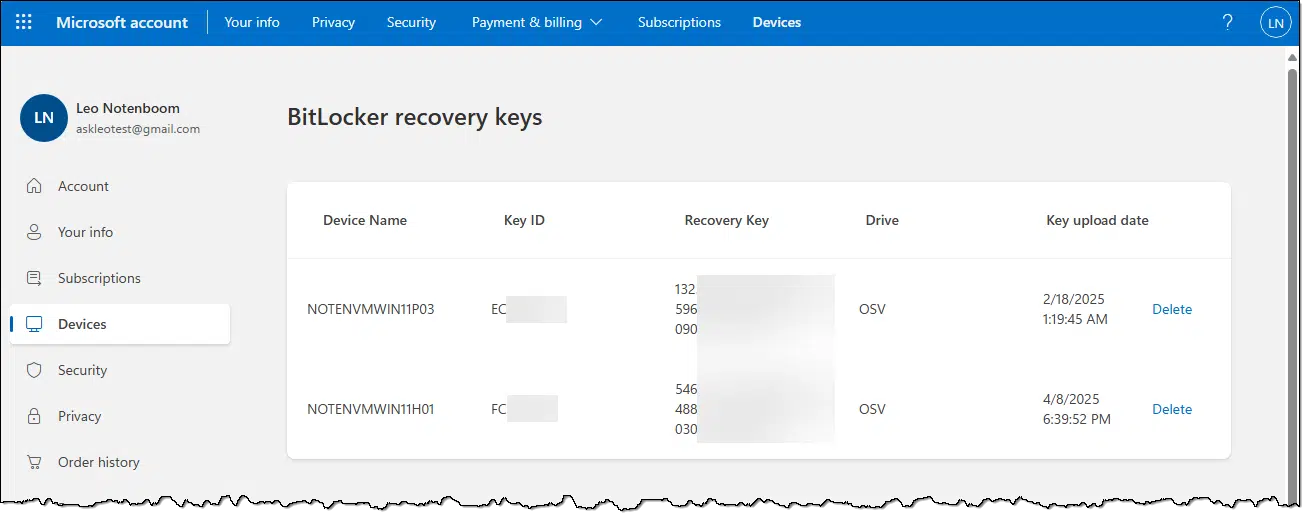
Here, you should find the key you can use to recover access to your encrypted drive should you ever be unable to sign into the machine normally.
Microsoft has done the right thing in automatically adding the key to the Microsoft account when the drive was set up, but it did so without warning or notification. I strongly recommend you visit the recovery keys page online to ensure your keys are listed there. Consider copy/pasting them to another secure location for safekeeping as well.
Or turn it off
If you find that Device Encryption has been enabled without your knowledge, the other option is, of course, to turn it off.
I can’t tell you whether that’s the right thing for you or not. It depends on how you use your computer and what your security concerns are. Having it on means that even if your computer (or the hard drive) was stolen, your data would remain secure. The “cost”, if you will, is that it’s more difficult to access the hard drive for things like repair or recovery.
With encryption turned off, attaching the hard drive to another machine or even booting your existing machine from a bootable USB stick should allow the disk’s contents to be accessible.
Do this
It remains your choice whether to have your drive whole-disk encrypted by BitLocker.
Even if Microsoft didn’t tell you.
Whatever the case, confirm that your BitLocker recovery key has been saved somewhere. If not, decrypt the drive immediately and then decide whether you want to encrypt it again, saving the recovery key as you do so.
Subscribe to Confident Computing! Less frustration and more confidence, solutions, answers, and tips in your inbox every week.
Podcast audio

Footnotes & References
1: Device encryption requires certain hardware, including a Trusted Platform Module (TPM). If your computer doesn’t have a TPM, device encryption won’t be available.

I manage a computer for an individual that is running Windows 11 Home. I checked it today and found that after the last update Device Encryption is available on the computer, but it is not turned on.
I know that this computer can run Bitlocker as I had been running Windows 11 Pro on it with Bitlocker enabled. When I was setting it up for this individual’s use, I had performed a clean install of Windows, but when I signed into the computer as part of the installation using his Microsoft account, Windows Home got activated not Pro.
Anyways, if someone does get Device Encryption enabled and decides to keep it, make certain to follow Leo’s advice about the recovery key. I keep two printed copies of each Bitlocker encrypted drive recovery keys in separate locations, on a USB drive, an encrypted file on my computer and my Microsoft account. Trust me when I say you don’t want to be caught needing it and not having it.
Thanks for the info. I am one of those who did not know the drive was encrypted, and consequently did not retrieve the recovery key.
After booting a demo of Linux Mint and rebooting to Windows 11 the drive could not be accessed. I suspect something in the TPM signature had changed.
I am just a home computer user, having enough knowledge to muck about with the things I need. Stumbled upon Ask Leo a few years ago, and while I find a lot of things above my need to know, I keep reading just in case… of things like this! I found my Windows 11 had this, and have immediately followed the advice. Very easy to do – do it now!
I run Windows 11 Pro on all three of my computers now, including my older Dell Inspiron 5555 laptop PC (inherited from my wife). None of them are Bit Locker encrypted at present. For a time, I had all three devices, but I encountered too many issues requiring my recovery key(s), so I removed Bit Locker encryption form all three computers.
I have an external or secondary drive installed on/connected to each of my computers that I use to store image backups, third-party software installers, ISO images, and other information/notes I want available, even when Windows won’t boot. These drives are split into three partitions each, one for Macrium Reflect image backup sets, another for RescueZilla image backups (GNU/Linux), and data (the non-backup items I mentioned above). I used Bit Locker to encrypt the Windows system partition(s) and the data partitions on all three computers. I kept a password for the data partitions, but Bit Locker didn’t offer the option to add a password for the system drives on any of my computers, and that’s probably by design. After encountering repeated boot-up issues requiring my Bit Locker recovery key, I decided to remove the encryption from all three computers, entirely. This isn’t to say that I won’t enable Bit Locker again. In fact, I’ll probably give it a try on one of my computers to see if thing have improved. If so, I’ll expand the effort to include all three computers, if not, I wait for some sign of improvement before trying it again.
Ernie
If you don’t have big secrets, turn it off. Otherwise – lose your password, lose your stuff. Or I’ve seen other glitches make the drive inacce
Everybody has secrets. Every password you save is sensitive and secret. If the chances are zero of anyone getting ahold of your computer, there’s no need for encryption. Bitlocker might be overkill for many. Using a password manager can password protect your passwords and you can if you have any financial or other information you need to protect, you can encrypt those files with Cryptomator, Veracrypt, Zip encryption, or other encryption profram.
If you have a laptop that you take out of the house, Bitlocker or other dydtem disk encryption is important.
If you have access to your Microsoft account, you can recover your encrypted files.
Find Your Lost Bitlocker Recovery Key in Your Microsoft Account
I’ve been using BL for years but ran into a problem I can’t resolve. I have an external drive that was encrypted. At some point I musty have disconnected it while it was processing something because now, even though the drive works perfectly fine UNENCRYPTED, I can no longer re-enable BL on it. I always get the same message that “BL can’t enable encryption because the drive bands couldn’t be enumerated?” I’d like to use this drive with BL enable.
I’ve searched far and wide for a fix and no luck yet. Does anyone have a fix for this that isn’t spitball guessing?
If an option for you, I’d just reformat the drive.
I’m confused. I see I have Bitlocker Turned ON, on my laptop, maybe by Windows 10 automatically?? However, I don’t understand how I am protected. On a full shutdown, the only password I am asked for is the Windows 10 login password (local account), which is easily bypassed (or is it with Bitlocker on?). Once I am in Windows 10 I have access to all files and folders.
My question is, if the laptop is stolen or lost, the system can easily be accessed by disabling Windows 10 login password & then everything on the drive is accessible. Or am I missing something here?
The Windows login password can’t be disabled. A thief cannot disable your Windows password and get in. BitLocker protects your data when the machine is off. Once you log in, Windows unlocks the encryption key and the drive behaves like a normal drive, but you must log in to decrypt the files. Logging in doesn’t actually decrypt the drive. The BitLocker driver decrypts disk sectors as they are read.
Thanks Mark. So what you are saying is that when BitLocker is “enabled”, there is no way for a thief or someone with tech knowledge to bypass the Windows login with a third-party bootable tool like Lazesoft Recover My Password. (This is what I have used in the past to remove/reset a forgotton password on Windows 10).
I guess I could remove the drive from my laptop & try reading it on another PC to check if its Bitlocker encrypted?
Cheers,
If your drive is encrypted by Bitlocker or other whole disk encryption method, removing it and trying to read it with another computer, the data will appear as gibberish.
If the Windows Login can be hacked, then the data will be visible.
Isn’t the only way to hack into a Microsoft Account WIndows installation to hack into their online Microsoft email account?
Tools like Lazesoft Recover My Password or other password reset tools won’t work on a Windows login which uses a Microsoft account. Of course, a short easy to guess PIN can get them in also. Allow some alpha characters in the PIN. Someone trying to break in will usually try only numeric characters.