Simple in concept.
I get it. In those articles, I went into some implementation details that, in all honesty, most people probably don’t care to know about. They ended up distracting from the important stuff.
Fair enough. Let’s see if I can simplify things further and use this opportunity to address some common questions and concerns.

Passkeys made simple
Passkeys are secrets stored on your computer for every account that uses passkeys. They prove you are you by using your fingerprint, face, or PIN to unlock them. This keeps you safe from phishing, hacking, and stolen passwords. You can also use a password vault to share passkeys across devices.
Passkeys, compared
Let’s start by comparing and contrasting the three different “pass-things” we regularly deal with.
- Password: A single word or collection of random characters. “password”, “HelloDolly”, and “iBms7Boi4a8kNQipqCtf” are all examples of passwords that range from poor to strong.
- Passphrase: Passwords made up of multiple words. “Hello Dolly”1, “Correct Horse Battery Staple”, and “use-the-force-Luke” are all examples of passphrases. They’re usually longer than plain passwords and easier to remember.
- Passkeys: A secret placed on your computer that you never see. The “trick”, if you want to call it that, is how and when that secret gets placed on your device in the first place.
Passkeys work on both Windows and Mac computers2, as well as your smartphone. I’ll be referring to computers throughout this article, but all these devices apply.
I’ll also be using Microsoft accounts in my examples, but the concepts apply across the board to any online service that supports passkeys.
Help keep it going by becoming a Patron.
Setting up a passkey
For services that support it, setting up a passkey is pretty much a one-step process:
- Say yes when passkey setup is offered.
Seriously, that’s it. Sometimes you don’t even have to say yes; the system sets it up for you.
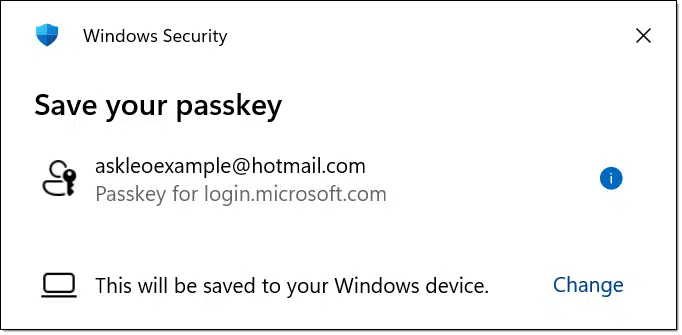
There are a couple of things to understand about this.
- It’s offered only after you’ve signed in some other way.
- Every computer you use gets its own passkey for every account. (There’s an exception that I’ll discuss below.) Note that in the message above, it indicates “This will be saved to your Windows device”, meaning the computer on which you are signed in.
What happens when you set up a passkey
The service you’re signing in to stores a complex secret on your computer. Conceptually, that’s it.
The secret is stored securely3 on your computer so it can’t be accessed by anyone else.
The service also keeps track of which computer(s) you’ve set a passkey.
What happens when you use a passkey
In order to access the secret stored on your computer, your computer asks you to confirm you are you. This can take several different forms.
- You may be asked to enter your computer sign-in PIN.
- You may be asked to provide your fingerprint, if you’ve set that up.
- You may be asked to pass facial recognition, if you’ve set that up.
- You may be asked to provide the computer (not the account) sign-in password.
Essentially, anything you can use to unlock or sign in to your computer can be required at any time to unlock access to your passkeys. If you can’t provide any of those, your passkeys remain securely locked.
When you sign in to an online service using a passkey:
- You unlock passkey access on your computer,
- The computer provides the secret to the online service
- The online service recognizes that as authorization to access your account.
All you do is unlock your passkey, much like you unlock your computer.
Related
What If My Passkey Doesn’t Work or I Lose the Device It’s On?
Passkeys are supposed to make signing in easier and safer, but what happens when it stops working or your device is gone? I'll show you what to do if your passkey fails or is lost and a technique that makes passkeys work everywhere.#190493
What happens when you lose your device
This is generally more of a concern with mobile devices, but it could be a stolen computer as well.
The only way passkeys could be useful to a thief or someone who finds your device is if they’re able to unlock it. If they can’t unlock the device, then they can’t access your passkeys.
This has been true of password vaults for years. Heck, it’s true for anything accessible on any device. It’s why we lock or auto-lock the devices to begin with.
Of course, you should consider remote-wiping a lost or stolen device. Passkeys, however, have an additional safety net.
How to revoke a passkey
Passkeys are:
- Unique to each device on which you sign in.
- Unique to each account you sign in to on that device.
You might have a passkey on computer A for your Microsoft account and a different passkey on computer B for your Microsoft account.
What happens if you lose computer A?
On computer B (or any other device you can sign in with), you sign in to your Microsoft account, go to Security settings, and in “Manage how I sign in”, you revoke the passkey assigned to computer A.
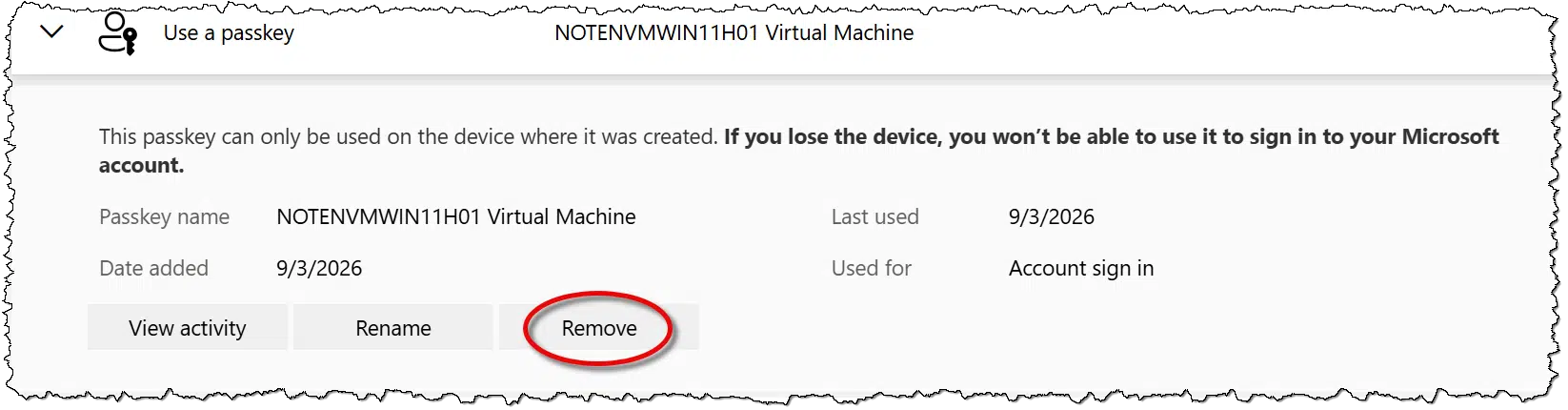
Once you remove the passkey from the account, the passkey stored on the missing machine will no longer work.
Your online account keeps a list of all passkeys that can be used to sign in. You can remove any of them at any time for any reason.
How passkeys are more secure than passwords
Passkeys protect you from the most common ways passwords are compromised. That’s why eventually, passwords will become a thing of the past.
| Compromise | Impact using passkeys | Impact using passwords |
| Data breach | No impact. Nothing in a data breach can be used outside of the original service. | Low impact unless the breached service has poor security. |
| Phishing | No impact. Passkeys cannot be phished. | High impact when you hand over your password to a hacker. |
| Malware/keylogger | No impact. There’s nothing secure to type or log. | High impact, as entering your password in any way can cause it to be captured. |
| Lost device | Low impact. Passkeys are protected by your device-unlock process and can be revoked remotely. | Moderate impact, depending on how you store your passwords. |
| Reuse | No impact. Passkeys are unique to each device and each account. There is no reuse. | High impact. Using the same password for multiple accounts is a common way accounts get compromised. |
| Brute force attack | No impact. While technically brute-force is possible, the amount of time required is so ludicrously long (eons) that it’s impractical. | Moderate impact. Poor password choice can often be easily brute-forced, as can poor storage techniques on the part of an online service. |
How passkeys are more secure than passwords even if you still have a password
One of the most common pushbacks I get is, “If I can still sign in with a password, what good is a passkey?”
Even if your account still has a password, by using a passkey you are bypassing any phishing attempts and keyloggers. Regularly using a passkey dramatically reduces the possibility that your password would ever be accidentally exposed.
In addition, it enables you to set long, strong, uncrackable passwords like “RPyDytZ6NaDwY9nzY2Wk”. You’ll only have to enter it the first time you sign in to a device on which you then set a passkey.
At some point, passwords as we know them are likely to go away completely.
Passkeys and password vaults
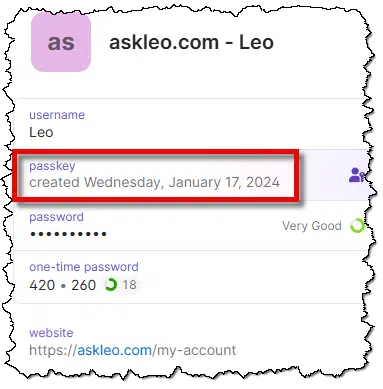
Many password vaults can act as a repository of your passkeys.
Related
Is Syncing Passkeys Across Devices Safe?
Passkeys promise more security and less hassle, but is syncing them across devices safe? Learn how password managers handle passkeys and what happens if a device is stolen.#185228
When you use a password vault to store passkeys, each passkey you set up for an account is immediately available across all the computers on which you use that password vault. You no longer store a passkey on every device.
The online service sees your password vault as if it were a single computer. The downside is that you can’t revoke passkeys per device. You can revoke the passkey kept in the password vault, but this affects all computers on which you use that password vault. You’d need to set up a new passkey.
Passkeys and two-factor authentication
Passkeys are not two-factor authentication (2FA). Think of them more as a direct replacement for passwords.
This can get confusing, because some of the techniques we use for 2FA can also be used as alternate sign-in methods when setting a passkey. For example, the first time you sign in to an account on a new device, you might need to respond to an email that contains a link or a code. That could be either single-factor authentication for a passwordless account or for 2FA.
If your account has two-factor enabled, then your passkey login flow typically looks like this.
- The first time you sign into a machine
- You sign in another way (password, texted or emailed code, confirmation on some other already signed-in device, etc.).
- You provide the second factor (key, authenticator app, texted or emailed code, etc.)
- You set up a passkey
- Subsequent sign-ins to the same account on that same machine
- You unlock the passkey by providing your device unlock PIN, fingerprint, or facial recognition.
A brief note about cryptography
In a previous article on passkeys, I spent a fair amount of time on public key cryptography. While the specifics aren’t required to understand or use passkeys, it’s important to understand at least three of the benefits.
- You can’t steal a passkey and use it somewhere else. Encryption ensures that a passkey is valid only on the computer on which it was issued.
- You can’t steal the online service’s information about a passkey and expect that to work anywhere else. Encryption ensures that the information stored at the online service to validate your passkey is useless anywhere else.
- You can’t perform a “man-in-the-middle” attack attempting to impersonate passkey usage. Encryption ensures that passkey information can be exchanged only between your computer and the service that issued it.
This eliminates almost all concerns about data theft, hacking, and breaches.
Do this
The reality is that passkeys are coming. They are universally regarded as significantly more secure than passwords by the security experts who live and breathe this stuff. Hopefully, now you understand them a little better, but please don’t let any lack of understanding stop you from using them wherever they are available.
Subscribe to Confident Computing! Less frustration and more confidence, solutions, answers, and tips in your inbox every week.
Podcast audio

Footnotes & References
1: Technically, the password example “HelloDolly” is also a passphrase. Generally, they are distinguished by how the words are separated, though it’s not a hard-and-fast rule.
3: This is one of the uses of a TPM on PCs: it provides exceptionally secure storage for things like this. Other devices use other forms of highly secure credential storage.

Is this Password Better than your original password protection?
Read the article. It answers your question.
One thing bugs me about this and your other videos on the subject of Passkeys. You never address the now unnecessary password within the password manager that may or may not contain the associated passkey. Should the password be deleted only if the passkey is within the password manager? What if I don’t use a password manager and throw away that post-it note on my monitor that has all my usernames and passwords, now that they all use passkeys?
Is there a situation where I should retain my passwords for those accounts that now have passkeys? What if I have only one device that is now stolen and I never set up 2FA on that (or any) account and don’t utilize a common username (like my email).
As always, I appreciate your expertise and guidance, Leo (and Team Leo). Thanks.
Keep the password wherever you keep it. It may be one of the “other ways to login” when you set up a passkey on a new device.
Only when the service itself stops using passwords does it make sense to delete your own, now no longer relevant, password.
Hi Leo, I found your video very helpful and it made me feel more confident about passkeys. What I find overwhelmingly confusing is the mix of options that have emerged for these types of protection. I use a good password manager (bitwarden) and I use 2FA for sensitive accounts and I include Yubikeys as a 2FA option usually. I also have some passkeys on my windows laptop. The problem is I have no idea how these interact and which apply to what and I don’t really know how to find out. You mention that windows keeps a list of them and also that they can be placed in the password manager. Can that be done after they have already been set up in Windows. I am sure a lot of people have this type of problem, how do we unscramble the mix of protections we have built up even if, as is true for me, we have worked quite hard to try to get it right.
All the best, Andrew
Terrific question – I’d be interested in a discussion on this as well.
(The passkeys article is also very helpful)
I have a good understanding of Public Key Cryptography but not the actual message flow of passkeys. I assume there is some challenge/response/signature sequence that occurs. How does that prevent man-in-the-middle arracks?
The passkey on your device is secure because it’s cryptographically bound to the website’s origin. Your device will only use the private key when the browser proves it’s connected to that origin over a valid TLS connection. A man‑in‑the‑middle can’t fake that, and the challenge/response exchange prevents replay attacks, so all they ever see is useless encrypted gibberish.
I’m setting up my computers as dual boot Windows and Linux. Is the passkey available and the same either way I boot? Thanks.
If you dual boot, you will have to set up a separate passkey on each platform as the sites you access see them as different devices. Even though it’s the same physical machine, the two operating systems have different cryptographic stacks, different secure storage, different device identifiers, and cannot access each other’s passkey storage.
So from the website’s perspective Windows is one device and Linux is a completely separate device.
So, what if I keep my passkeys in my bitwarden vault? Can I then use the same passkey on both Windows and GNU/Linux?
This is exactly what I do with Bitwarden for my dual-booting Linux Mint/Windows PCs, as well as my phone and tablets. All devices have access to by Bitwarden account vault, and any device can then use the passkey stored for a given site, regardless of which device I’m on at the time. Every once in a while it doesn’t work, because the mobile site URL is different than the PC browser URL. In that case, I have to create a different entry in my vault strictly for the mobile site URL login. But 95% of the time it is all transparent.
Hello Leo,
i find your videos very informative and thank you for taking the time to post them.
I am curious as to the effect of updating the OS, hdd-ssd, memory etc has on passkeys.
Thank you
Paul
Updates shouldn’t affect ’em.
I do not use anything, no password, no facial recognition, no fingerprints to enter my computer. I press the button to turn it on, and it’s on. My computer never leaves my house unless I’m traveling (two or three times a year). So do I have to go through the aggravation of setting up a password to enter my computer in order to migrate to passkeys, since they will eventually replace passwords, or is there some other way? How is a passkey any less aggravating than 2fa?
I forgot to mention, my old laptop does not do facial recognition or fingerprints, either of which would be easier than a password.
On your personal computer, with a local account, you don’t have to set up a passkey.
If you think 2FA is aggravating, you ain’t seen nothing yet with passkeys. Every website and every device can have a different way of doing things. And don’t worry about “since they will eventually replace passwords” because passkeys were introduced around 2022 and we’re still waiting for a functional and uniform approach. People barely understand passwords and 2FA, let alone some concept that no one can explain convincingly, other than by dumbing it down like this article.
As for passkeys being secure: that very statement is a major dumbing down. Passkeys are not a thing – they are a system of processes. Like any system of processes there are choke points – points at which the system can break down. These choke points haven’t been fully explored yet and the bad-guy hacker community hasn’t yet turned its full attention to passkeys. Passkey security will be tested when the bad guys get to it, and in their favor is the fact that users of passkeys don’t understand how things work.
Perspective: passwords in computing started being used in early 1960s. It is only now, around 2020’s, when someone decided passwords are no longer secure.
They are not “no longer secure”. They are less secure than many alternatives, including passkeys.
I certainly share the sentiments expressed by ‘aa1234aa’, about bewilderment and disarray of implementations that the community of site designers have thrust upon us. I’m a scientist and served about 15 years in computer tech support before retiring. I think I understand the theory of the passkeys fairly well, but I’m totally baffled by how to consistently implement them between a Win11 computer, Win11 laptop, Samsung pad, and Samsung smartphone. I guess the primary bit confounding me is that I carefully (and gratefully) followed Leo’s guidance on how to establish my Win11 installations to avoid a Microsoft-Windows account and to have the local account open directly without even a password prompt. And my computer use is old-fashioned enough that I need no camera, fingerprint scanner, or other recognition device. (Yes they are on the portables, but I use only a fingerprint sign-in there.) I do use BitWarden fairly successfully to carry my pass-whatever’s to the portable machines. But I remain convinced that Windows or Google is surreptitiously managing some pass-whatevers for some sites even though I believe I have turned off those options.
These articles are particularly confusing with their use of the word ‘account’ without some text attributing it to some particular activity. I have my Win11 account (bypassed as noted), my several Google accounts, my several banking accounts, accounts (aka, subscriptions) with a few newspapers, plus accounts with several software applications which I use (both online and local). Sometimes the word ‘site’ is used to suggest “on-line” locations/apps. To me, that’s a lot of accounts at a lot of different levels. The confusion of the different implementations leaves me pretty much baffled about controlling whether the passkey gets stored within BitWarden (and becomes portable) vs. tucked in some clandestine prison that Microsoft maintains. I welcome the passkey concept, but I want control and understanding of how it’s helping me, I’m befuddled by it’s implementation.
Hi
I love your articles and videos. In fact, a day after reading your warning telling folks NOT TO PASTE anything when proving you’re a human, I received malware attempting to lure me into pasting code so THANK YOU!
But I’m having trouble grasping passkeys.
I use different passwords everywhere and use Yubikey where ever they will take it (surprisingly lots of big name banks won’t take it.)
Currently:
—I don’t “sign in” to my Windows laptop, I turn it on and I’m “in.”
—I have a password on my iPhone but NEVER do any banking on my phone.
—I do not use facial recognition or fingerprint recognition on any device.
Sadly, I still don’t understand how passkeys would (or wouldn’t) work for me. Do they work across Windows laptops and iPhones?
Hey Peggy,
Passkeys only work on the device on which they are created. For example; a passkey created on a Windows laptop is specific to that laptop and cannot be used on any other device. The only way around this is to use a password manager, and the same password manager across all devices. The passkey is then saved/stored within the password manager and subsequently available on all devices that are using that same password manager.
Hope that helps.
I still don’t understand how to use them…. When I’m prompted to create a Passkey, it’s asking what device I want to put it on… I never understand that. I prefer to use bio or a password. The only thing worse than a Passkey to me is dual verification. I’ve failed at creating passkeys for several web sites and I think I was successful on one. If they were all that simple it would be ok.
I read the article, and I still don’t understand how passkeys are any more secure than a Google generated password. I have a 4 digit pin number that opens my computer. I have mistakenly touched the wrong number many times, but have never been locked out. I don’t even know how many times it takes. So why wouldn’t someone who somehow got my computer be able to hack that pin number and then the passkey would give them access to everything?
Thank you for trying to explain it simply to me, but this 90 year old brain takes longer than it used to.
Marlene
You can use a longer pin or even better, an alphanumeic PIN. I use my best friend’s childhood phone number 7 digits. For more security, I could add the area code or his name. Don’t use your phone number or any phone number you’ve had, it’s too easy to find out.
Hi – very interesting article, but I have a question….and it is probably me failing to grasp the main point!!!
If the passkey is put on my machine and I don’t need to do anything or know what it is, and I then log onto my machine by PIN number and it unlocks and is good to go, why do I need a passkey if by entering my PIN everything is opened. Further more, if someone somehow gains access to my PIN and can use my computer, then again a passkey is useless if the PIN opens up the computer….or
am I missing something?
One reason I store my passkeys in Bitwarden is that it has a different pin number than Windows, so even if my laptop is stolen, and the thief finds a way to crack my computer’s pin, in order to access anything else, the thief would then have to crack Bitwarden’s pin too.
Note that neither are my computer’s or Bitwarden’s pins are 4-digit values, making the cracking process potentially much longer. If I were you, I’d reset my Windows PIN, and enable the checkbox that allows longer PINs that include all alpha-numeric characters.
So now you have to remember two different pin numbers and longer ones to boot? I’m afraid I would be the one locked out.
Leo, I agree that Passkeys are in. Please clarify the following statement.
If the PASSWORD that enables you to login to your device, (laptop, phone etc ) is weak, then:
If your device is lost or stolen someone can SIGN-IN to said device and access your stuff using the PASSKEY on that device. Correct?
Therefore, it behoves one to use a strong password to access said device. Correct?
Yes
I am 72 years old. I am used to and comfortable with my passwords. My concern about using passkeys is that when I die, my middle-age son, who lives several states away, will have to deal all my accounts. Would having passkeys stop my son from accessing my accounts after my death?
Thank you.
It would not stop your son from getting into your account, but it would make it very difficult. Your son would need access to your physical devices, all your passkey pins, and your passwords anyway (because ultimately that’s what’s going to give him access to accounts and account recovery). If you use biometrics for your passkeys, well then ….
There is no reason to change your password approach if you use good (long) and different passwords for your accounts. These can be easily given to your son on a piece of paper and he can access your accounts from anywhere. Of course, he should first check out the legal ramifications of that.
Does the computer store the passkey in a place so that apps like CCleaner & BleachBit will not remove it or does the location need to be excluded from those apps?
Thank you!
Passkeys are stored on a chip (hardware) on your computer, and/or on a cloud account, such as Microsoft account. On some older computers passkeys may be encrypted within software (a file). But cleaners such as CCleaner can’t get to them. You can’t accidentally delete or corrupt your passkeys unless you become adventurous and mess with your BIOS/UEFI or get unlucky with a lightning stick on your TPM chip. But as with anything dealing with software, there can be other ways your passkeys can become invalid.
What happens to those passkeys if you reinstall the OS then?
If you reinstall the OS, typically your passkeys are lost – unless your passkeys are saved in a password manager in the cloud or you have a hardware-based storage method (not including the TPM chip). With a TPM the passkeys are not stored on the TPM chip, but they are encrypted by the TPM and stored on your local drive. The TPM is also associated with your OS installation, so when the OS changes, all passkeys are lost. Even is you’ve saved the passkeys with a cloud password manager, the process of re-establishing then on the new OS (or new computer) will be time consuming and frustrating.
Secure credential storage and/or TPM, so not available to those tools.
Leo, I use a password manager. I’ve started to use a few passkeys, and would like to do more. However, some websites refuse to set up a passkey unless I turn off the pw mgr. Am I doing something wrong, or is this a function of the websites not wanting to store the passkey in a pw mgr?
Never include your email address as your name on a public forum. It opens you up to more spam.
“Encryption ensures that passkey information can be exchanged only between your computer and the service that issued it”. I would have liked some info about these ‘services’. Some of our biggest corporations have been hacked and compromised over and over again. Who are these ‘services and why couldn’t they be hacked into like so many other ‘secure’ companies have been hacked
By “services” the article means any website or company that operates through a website. Such as Google, Microsoft, your bank, etc. That is, any company with which you now use a password to get access. As for hacking, the basic “security” concept behind passkeys is to pass the risk and liability of being hacked from the company to you, the user. If you get hacked when using passkey, the blame will be placed on you and your system. Nice, isn’t it?
Actually, passkeys help because the site never stores anything an attacker can use to sign in as you. What’s in the database is only a public key, which is useless on its own. Even if the site is breached, your private key never leaves your device, so there’s nothing for hackers to crack or reuse. And blame isn’t an issue — a passkey only works on the real site because your device verifies the site’s identity before it will respond.
Passkeys protect you in a database breach because the site only stores your public key, which is useless to attackers. The private key — the part needed to sign in — never leaves your device, and there’s no way to derive it from the public key. Even if hackers steal the entire user database, they still can’t log in as you.
I’ve read the article but I’m still confused. The following has happened to me twice. (Only twice because I’ve refused any more offers of setting up a passkey).
On a national retailer’s website (and another site that I can’t even remember), and I am likely paraphrasing:
“Would you like to set up a passkey?” I clicked on YES.
“Congratulations, you have successfully set up your passkey!”
And that was it. It didn’t ask for a fingerprint, or facial recognition or anything! I have no idea how to use it or what exactly I am supposed to do! Can you help me??
When you go to that website, you will either be automatically admitted, or be required to enter/use whatever you use to log in to your computer.
Let’s say that you log into your computer with a pin of “1, 2, 3, 4”. When you go to that website, you will see a dialog requiring you to authenticate. You enter your PIN (1, 2, 3, 4), and you’re admitted to the site.
By entering your computer’s PIN as required, you unlock access to your passkey so the authentication transaction process can proceed, with nothing from your computer being transferred other than the passkey authorization transaction that the website already knows.
I hope I’ve made this understandable for you,
Thank you! I didn’t realize that it (I assume) recognizes the device that I’m using, in this case my laptop. I’ve been getting log-in screens that ask if I want to use my passkey but didn’t understand that it was the PIN for the computer so I opt to log in using some other way. (Password using my pw manager.)
I just tried it with that national retailer that I mentioned in my email above and answered the passkey prompt with my computer PIN and it did work! I had no idea that’s what it wanted, so thank you!
Setting up a passkey doesn’t require a PIN, password, or biometric verification. When a website says: “Would you like to set up a passkey?”, and you click YES, your device already knows who you are.
To use the passkey, the website will display a “Sign in with passkey” or something similar. Click on that, and you will be prompted to enter your device PIN or verify your devices biometric to decrypt the passyey stored on your device. So the process to log in via the passkey is to simply click and enter yout PIN or biometric.
Thank you too Mr. Jacobs. As I indicated to Ernie (the Oldster) above, I now understand what is going on when setting it up and then using it.
I use a password manager, Bitwarden. I also have allowed a few passkeys. I am asking if the windows 10 computer is stolen, since passkeys reside on said device, are the accounts protected? I am assuming windows login is insufficient to keep the thief out. I assume if you leave windows logged in and a non allowed user uses said computer, you are toast.
I allow Bitwarden to store my passkeys, along with passwords, for any given sites. Even if my computer is stolen and the thief manages to log into my Windows (or Linux) operating system and access all my files and pictures and such (HORRORS!), they cannot get into my Bitwarden without my BW master password/phrase. For all my friends and family members whom I’ve recommended BW, I suggest they make a master phrase and pepper it with numbers, symbols, etc. So, for example, “Lassie was a smart collie” becomes “L@$$!3w@$@$m@rtC011!3” or something similar. Go ahead and steal my PC, but you won’t get into my BW vault. And I can still get into my vault from some other device, even a friend’s PC, and change my vault master password in the event my personal PC/phone/device is stolen.
Stop spamming. I removed the email address from your name. If you do that again, you will be permanently banned from commenting.
I read the article but am still a bit confused. Right now I have dozens of accounts, most of which with different passwords. (Guilty of reuse!) If I set up a passkey for the computer, do I still need passwords for the accounts? What happens to those accounts with passwords? Are the passwords dropped or bypassed since the password is set up? And what do I do if a new site requests me to set up a password?
Many thanks.
I mean, since the passkey is set up. Sorry.
Lets say you set up a passkey on Amazon, and you use a PIN number of 1, 2, 3, 4 to log into your computer.
When you go to Amazon, a dialog pops up on your computer requiring you to authenticate, perhaps using different phrasing.
You enter your computer’s login PIN (1, 2, 3, 4), which unlocks your passkey on your computer, allowing the authentication transaction to proceed, and you’re admitted to the site.
Note that nothing in this process is transmitted to the website, other than the content of your encrypted passkey, which the website already knows, and can decrypt, so your privacy is also protected. The authentication dialog is popped up by your computer, on your computer, in response to the website’s authentication request, and the only thing that entering your PIN does is to allow the passkey authentication transaction to proceed. The reason I call it a transaction is that before the passkey is transmitted, the website authenticates with your computer to prove that it should be given a copy of your passkey to allow you access to your account on that website.
I hope that I’ve kept all this clear enough,
If you have a dozen accounts, then you have to set up a dozen passkeys, one for each account, on the one computer. If you have two computers and a dozen accounts, then you set up 24 passkeys! If you also have a cell phone and a dozen accounts, then ….
But wait, there is more – you also have to set up an authentication method for each account on each device, such as a pin or fingerprint, or ….. (drum roll) … a password! And, there is still more: if you want to set up recovery a option in case you lose your device (or another calamity), then you have to set up a password for each account, at each account’s website.
Of course, you can use various tools such as password managers or some website to manage all this, but now you’re inviting a third party company into the crowded mess.
Bottom line is this, if you don’t understand a system, then stay away from it because what you don’t know can cause problems. In some cases, such as for passkeys, if you DO know a lot about it, then you really want to stay away.
Thanks for the primer on passkeys. it is simple enough that even I understand it.
But I am confused about one aspect of the process. Once passkeys become routine and passwords are no longer used, what if I “lose” my passkey, or the device/application that I used to store it? What would be the process to access an account that I have been locked out of, which no longer uses logins & Passwords? Thanks!
Websites will always have recovery methods. Even if they go passwordless, they’ll still have a recovery mechanism. Today most sites send a recovery link to your email address or a code to your phone, and passkey‑only sites will do the same or similar. The passkey is just your normal sign‑in method — recovery still happens through your verified email, phone, or other registered device.
OK so when my PC asks about logging in with a passkey, often the option of my PIN isn’t presented. I do not use biometrics on my PC (finger, face) so how can I get the PIN option to always show up? Secondly, I use LastPass for PW storage and it doesn’t usually prompt me to save the passkey.
So, I’ve been following the comments in this article, as well as those on the associated YouTube video. Even with a simplified explanation, what stands out is that many people don’t understand what the passkey process is, how it works, and how it’s better or more secure. Leo has tried to explain this “simply”, but that’s like trying to explain quantum physics simply by talking about a cat in a box, blah, blah, blah. It doesn’t work. The reason for the confusion and inability to explain (on any website or any AI summary) is because the concept is convoluted, multi-faceted, and not yet ready for prime time. When people start asking practical implementation questions and start digging into the real-world details and caveats, it soon becomes overwhelming. That’s especially true for the typical audience at AskLeo – older people don’t have the time or patience for gobbledygook explanations that don’t make good sense on the first pass, or the second or third passes.
aa1234aa is exactly right. I have a engineering degree and have been tech support manager and security office at the corporate headquarter of a fortune 500 company.
I have tried many times and still don’t “get it”.
The technology is complicated and evolving.
for instance let’s say I die in a fire that destroys all my computer equipment. Will my executor be able to use my password manager and distinguish my accounts from my wife’s. Some pw managerscan do some of it. But there are caveats like “if you use password manager abc you must disable password manager xyz”. Guess how many people have disabled chrome’s password manger, or apples?
It will be along time before I am comfortable with this stuff.
Hi Leo. Thank you for this article. It was easy to understand and alleviated my concerns about using a passkey. I will start using them now. Great article!
Thanks,
Judy
1. So this passkey lives on just one computer (mine). If I am using a computer at a friend’s house or at the library, how would that work?
2. Please don’t think I am being flippant, but this Fort-Knox security seems to make many things so much more difficult for me. If I want to do something absolutely legitimate for my husband or son, I can use their password to do it. This new system is certainly more secure, but it is every-man-for-himself. I won’t be able to help the way I can now. True?
3. Is it possible to be so secure that you have made way more work for yourself?
In a previous comment here I said that this article on passkeys isn’t sufficient, nor appropriate for the typical audience here. So I decided to challenge myself and see if I can do better. With some indulgence from Leo, below I’ve pasted my long description of passkeys. I try to answer some of the questions that have come up in these forums, with no sugar coating. Full disclosure: I’m not a proponent of passkeys.
————————————————————
Passkeys
If you ask Google AI how passkeys work, it starts its response by saying passkeys are more secure than passwords. That’s where the problem begins. That’s an opinion or AI hallucination. Passkey adoption and history is too new and untested to evaluate its relative security. Furthermore, passkey implementation has many details which vary across different websites (i.e. different accounts, companies or services), so you can’t just generalize some notion of security based on a theoretical concept.
Conceptually, the idea for passkey security comes from an implementation that does not send confidential data, such as a password, from a user’s device to a website. Additionally, the website is not supposed to store a database of passwords (in whatever form). These are good practices, but they are primarily theoretical and, as described here, the real world implementation has many holes.
The impetus for passkeys is to pass the risk and liability of being hacked from the website (company) to you, the user. If you get hacked when using passkey, the blame will be placed on you and your system. This makes better sense when you know that the concept for passkeys was cooked up by a collaboration of PayPal, Lenovo, Google, Microsoft, and Apple. Of course, we all know that these honorable organizations have your best interest at heart (sarcasm).
So, how do passkeys work, at a high level:
1. You log into a website, using the old fashioned password. You ask to create a passkey. What happens next, behind the scenes, is that the website creates a set of public and private encryption keys. The public key is kept at the website. The private key is stored on your device. These keys are used to encrypt and decrypt further communication between the website and your device. Enough said about keys.
2. So, the website does some processing and places some encrypted data on your device, which is unique to that device and that website account. The website may also install an application (a process) on your device to handle the encrypted data and future communications with the website. In detail, each website will work differently.
3. Depending on your device, operating system, and other specifics, the encrypted data may be stored on a hardware chip, or as software on your drive (like a, encrypted file), or on a separate USB authenticator component (such as Yubikeys). You may never know. Different websites may store their data differently. You can’t get access to this encrypted data, can’t see it or change it. If you set up a passkey on your device and later decide to use a password manager, you can’t even copy the passkey to the password manager. Storing passkeys in a password manager is a whole other topic, discussed later.
4. When you first create a passkey for an account, the website may ask you for another verification method on the specific device. This can be using a pin (like your phone’s pin), or biometric input, such as fingerprint or facial recognition, or a password. Yes, you read that correctly, an actual password. Each website will have different options for this authentication, or none at all. Again, note that this authentication method is unique to a device and a website account.
5. Now that you have created a passkey, how do you use it to log into a website account? When you go to a website (where you have a passkey), the website may ask you for the authentication you set up in step 4. After you provide the authentication, you’re immediately logged into your account. If you did not set up an additional authentication method, then you’re automatically logged into your account just by visiting the website (or using the website’s app). In other words, you’re logged into an account just because you are on a particular device on which you have a passkey stored. So, for example, the only “security” requirement to getting into your bank account is the possession of the specific device. If you’ve set up a passkey authentication, such as a pin, then there is that barrier also. But most people use a 4-digit pin, same as their phone pin, so it’s not difficult to breach that barrier. On computers, many people don’t even have a password login into the operating system, so as soon as your computer boots up you have access to your accounts!
6. So, what happens behind the scenes when you get onto a website and all the magic happens? The website sends a query, called a challenge, to your device. The software on your device matches the query to the encrypted passkey on your device and creates a response to the website, using the encrypted data to encode the response. This is referred to as “digitally signing the challenge”. This response is sent to the website, the website verifies that the signature is valid by decrypting it, and if all is OK, logs you into the account.
Let’s note something amusing here: The proponents of passkeys say it’s better than passwords because the encrypted password is not send from the user device to the website. What they conveniently don’t mention is that in the passkey system there is also some encrypted data sent from the user’s device to the website. It may not be called a “password”, but it is encrypted data being sent, therefore, presenting a useful vector for compromise.
The Dirty Laundry:
• The term “passkey” is not a single thing. It’s a process, involving your device, the operating system, the browser, possibly an application, hardware components, a website, and an account on a website. The number of possible combinations for how a passkey scheme is implemented is very large. No two companies (websites) will do passkeys the same way. The same website can do passkeys differently on different device types. It can be challenging to keep track of what’s going on.
• Let’s revisit the statement about a passkey being “unique to a device and a website account”. If you have a dozen accounts, then you have to set up a dozen passkeys, one for each account, on the one computer. If you have two computers and a dozen accounts, then you set up 24 passkeys! If you also have a cell phone and a dozen accounts, then you’re setting up 36 passkeys !!! Get the picture?
But wait, there is more – you also have to set up an authentication method for each account on each device, such as a pin or fingerprint, or ….. (drum roll) … a password!
And, there is still more: if you want to set up a recovery option in case you lose your device (or another calamity), then you have to set up a password for each account, at each account’s website.
What we’re talking about here is an overwhelming amount of setup, maintenance and bookkeeping.
• To somewhat manage the problem of passkey proliferation, you can use various tools such as password managers or some website service to manage all this mess. But now you’re inviting a third party company into the unwieldy scheme. A password manager may be able to store all your passkeys, or not, depending on the account passkey implementation and its requirements. Some website accounts will not work with a password manager, or not work with specific brands of password manager. If you use a local device password manager, then you may have to install more than one manager on each device. If using a cloud based password manager you may have to sign up for different ones to accommodate all your accounts. Of course, each password manager will need its own master password. And, of course, the more you spread you information around, the higher the risk of compromise.
• More about using password managers. When people complain about the burden of managing many passkeys on many accounts and many devices, passkey proponents suggest using a cloud password manager to synch all your devices and accounts. In other words, to address a basic flaw in the passkey design (inconvenience and lockout) they suggest using a third party tool to patch the shortcomings of passkeys. This is where the joke becomes the funniest. The original premise of passkey security was not to have a central database of passwords, not to keep password data on a cloud server, and not to have a single point of failure or vulnerability across all your accounts and/or devices. Using a password manager, whether cloud synched or local, defeats all the passkey security concepts. The password manager and its master password become a single point of failure and vulnerability – across all your devices and all your accounts. A password manager is a by-pass into how passkey security was supposed to work. When using a cloud based password manager you’re replicating effectively how passwords are handled now: encrypted data stored in a cloud database, associated with your accounts. The rest of the gibberish about using passkey pins or biometric inputs becomes a side issue.
• Passkey processing and communication. We’ve mentioned there being communication between your device and an account website to validate a passkey and allow account login. So, what is it that does this processing and communications? As with everything dealing with passkeys, it depends. This communication agent could be your OS, your browser, an application (or service), some firmware in a chipset (hardware), a USB authorization dongle (authenticator component), or a password manager. Are you going to spend time figuring this out for every device and account? Of course not. So, even if you’re an expert guru, you’ll have no idea what’s happening to get into your accounts. And as we know, ignorance is a vulnerability.
To put a very fine point on this, you’re depending on the security and reliability of your OS, your browser, or some other contraption to get into your accounts – such as your bank accounts! Do you trust the Windows operating system with your bank account security? Or, are you going to give the keys to your bank account to Google Chrome?
• What happens when things go bad? You can lose your device, your OS can get corrupted, or , sadly, you die. How do you, or anyone on your behalf, get back into your accounts? Not easily. As described above, it all depends of the passkey specifics, but very likely you’re going to have to handle each account separately – on each device. Most website accounts have a method of account recovery. These depend on the good-old-fashioned password and other verification information (such as secret questions). If you lose your device, you’ll need to set up all your accounts on a new device, or if you’ve synched passkeys using a cloud password manager, that may help. If you pass away, your executors will need access to your devices, your pins, passwords – everything – and if you’ve used biometrics, then they are out of luck and must do account recovery for every account – using passwords.
If you reinstall the OS (say, because you had a computer problem), typically your passkeys are wiped out, unless you have a dedicated hardware-based storage method (most people don’t). If you’ve saved your passkeys in a cloud password manager then you have to re-establish the passkeys on the new OS installation, which will not be easy, nor fool-proof. By the way, passkeys are not stored on the TPM chip, so that doesn’t matter.
Another way you can lose or corrupt your passkeys is if you go messing around in the BIOS/UEFI. Caution: there is a trend now to update the BIOS/UEFI for no damned good reason, other than there is a higher version number. Don’t do it.
Back to losing your device: If your device is stolen the least of problems is to re-establish access to your accounts – that’s because by the time you figure out how to get back your accounts all your accounts could be compromised. The loss of a cell phone with a numeric pin means all the bad guy has to do is crack your pin, which is easy to do. The loss of a laptop without a login password can be more devastating because as soon as your laptop boots up the bad guy has access to all your accounts.
• Unhackable? The marketing lingo says passkeys are not subject to phishing, key logging, malware, data breach, etc. Best thing since sliced bread. All of that conjecture is based on theoretical assumptions and expectations. Passkey implementation is new (since about 2022) and its adoption rate has been very low. There is not enough exposure or experience to say how passkeys can be hacked directly. As stated before, passkey implementation depends on many elements (device, OS, website, …), each with its own modes of failure or vulnerability, so, the combinations of hacking modes can be many. The bad-guy hacker community hasn’t turned its full attention to passkeys yet. Passkey security will be tested when the bad guys get to it, and in their favor is the fact that users of passkeys don’t understand how things work.
One complaint about passwords is that people use weak passwords, reuse passwords, etc. What’s yet unknown is how passkey users will abuse and misuse the system. We’ve already talked about the password manager work-around, which defeats any purported and theoretical passkey security scheme. Another glaring point of vulnerability is the fact that no matter how you justify passkeys, they are still dependent on the venerable password. Each account still has a password and anyone can log into an account, from anywhere, using the password. Without an additional password the passkey system fails completely.
• Shared accounts. Families or related people often share a single website account, with a single password. Each member of the group can log in using their own personal devices (e.g. cell phones), but using the same account password. Well, you can’t do that with passkeys. With passkeys each device must have its own account access setup. Similarly, if you travel or go to someplace where you don’t have access to your personal devices, then you can’t access your website accounts, unless and maybe if you have your passkeys on a cloud password manager. Of course, you can always use your password to get into an account.
“If you ask Google AI how passkeys work, it starts its response by saying passkeys are more secure than passwords. That’s where the problem begins. That’s an opinion or AI hallucination.”
If that’s a halucination, it’s the halucination of every security expert in the business.
“the website creates a set of public and private encryption keys.”
No. Your browser or device creates the key pair. That’s an important difference. The site only requests a key pair and stores the public key your device gives it.
“To somewhat manage the problem of passkey proliferation, you can use various tools such as password managers or some website service to manage all this mess. But now you’re inviting a third party company into the unwieldy scheme. “
Good password managers encrypt their vaults on your computer or device and the third-party that created the password manager sees nothing but an encrypted file. And if you don’t trust that, open source programs like KeePass keep everything on your computer and nothing is stored in the cloud.
“What they conveniently don’t mention is that in the passkey system there is also some encrypted data sent from the user’s device to the website. It may not be called a “password”, but it is encrypted data being sent, therefore, presenting a useful vector for compromise.”
Again not the case. That’s not how passkeys work. There is no encrypted secret sent from your device to the website. What’s sent is only a signed challenge, and a signed challenge is not a reusable credential.
“If you have a dozen accounts, then you have to set up a dozen passkeys, one for each account, on the one computer. If you have two computers and a dozen accounts, then you set up 24 passkeys! If you also have a cell phone and a dozen accounts, then you’re setting up 36 passkeys !!!”
That paragraph would still be true if you substituted “password” for “passkey.”
Every account needs a credential. If you have 12 accounts, you have 12 passwords. If you have two computers and 12 accounts, you enter those 12 passwords on both computers. Add a phone, and you enter them there too.Passkeys don’t increase the number of credentials — they simply replace passwords with a stronger, phishing‑proof credential. The effort is actually less with passkeys.
“Using a password manager, whether cloud synched or local, defeats all the passkey security concepts.”
If a hacker has your decrypted password vault and runs it on their own machine and they visit the real website, then yes — they can authenticate with your passkey. That’s not a flaw in passkeys; it’s the same problem you have with passwords.
“What happens when things go bad? You can lose your device, your OS can get corrupted, or , sadly, you die. How do you, or anyone on your behalf, get back into your accounts?”
That’s exactly what password vaults are for. Recovery doesn’t depend on the device — it depends on having access to your vault.
“If you reinstall the OS (say, because you had a computer problem), typically your passkeys are wiped out, unless you have a dedicated hardware-based storage method (most people don’t). If you’ve saved your passkeys in a cloud password manager then you have to re-establish the passkeys on the new OS installation, ”
No. Similar as above, if your passkeys are stored in a password manager, you don’t re‑establish anything after reinstalling the OS. The password manager already contains the private keys, so when you reinstall Windows and sign back into your vault, the passkeys are immediately usable again
“The loss of a cell phone with a numeric pin means all the bad guy has to do is crack your pin, which is easy to do.”
Use a longer pin.
“Unhackable?”
Nothing is unhackable. Passkeys are exponentially harder to hack than conventional passwords.
“One complaint about passwords is that people use weak passwords, reuse passwords, etc. What’s yet unknown is how passkey users will abuse and misuse the system.”
True. That’s why prudent computing practices are important. But again, passkeys are still the best login security we have to date.
Mark, first, thanks for reading my stuff. I’m not disputing your comments, but in some cases some clarifications are needed.
You said: “No. Your browser or device creates the key pair. …”
Yes, you’re correct, I missed that. The website may never see the private key, but it’s not an important distinction in how the rest of the process goes.
“There is no encrypted secret sent from your device to the website. What’s sent is only a signed challenge …”
The issue isn’t whether what is sent is a secret or not. The issue is something is sent to request and allow access to an account. That something sent can be a means to creating a compromise. I’m not trying to be an alarmist on this topic because an actual hack will require great genius and effort, and would be very unlikely, but let’s repeat your words “Nothing is unhackable”.
“No. Similar as above, if your passkeys are stored in a password manager, …”
What you said is no different from what I said. The distinctions are in whether you have a local password manager, a cloud password manager, a local hardware repository, etc. You shouldn’t expect that everyone MUST have a CLOUD password manager for passkeys to be viable and versatile.
“There is no encrypted secret sent from your device to the website. What’s sent is only a signed challenge …” I meant to say “There is no encrypted secret key sent from your device to the website. What’s sent is only a signed challenge …” That is in no way a means to creating a compromise because all they see is the challenge not the key.
The website (or server) generates a random piece of data.
The website sends this to the user’s device.
The user’s device uses its private key to sign the challenge.
The signed challenge is sent back to the website.
The website uses the user’s public key (which it already has or retrieves from a trusted source) to verify the signature on the challenge.
In other words, this proves the person logging in holds the secret key and had the psaaword to unlock it on his computer.
After reading this item and all the responses, I remain a bit unclear about how they actually work, so I posed the following question in my Firefox address field, using Google’s search engine: “Can you explain how a passkey works?”
This is the response in the AI Overview:
A passkey is a digital replacement for a password that lets you log into accounts using your device’s screen lock, like a fingerprint, facial scan, or PIN. [1, 2]
How the Technology Works
Passkeys use public-key cryptography to keep your data safe.
• Key Pair Generation: Your device creates two unique cryptographic keys when you set up a passkey.
• Public Key: This key goes to the website or app’s server.
• Private Key: This secret key stays safely on your personal device.
• Verification: The website sends a login challenge, which your device signs with your private key to prove your identity.
✅ Why Passkeys Are Secure
• Phishing Resistance: Passkeys are bound to a specific website domain, meaning a fake login site cannot trick your device into sharing your key.
• No Server Breaches: Websites only store public keys, so a hacker who breaks into a company database gets no usable secrets.
• Biometric Protection: Your actual face or fingerprint data never leaves your local device. [1, 2, 3, 4]
Where Passkeys Live
• Device-Bound: Locked to a single piece of hardware, like a security key or specific computer.
• Synced: Backed up through cloud platforms like Apple iCloud Keychain or Google Password Manager so they work across your ecosystem.
Listed sources:
https://www.dashlane.com/blog/what-is-a-passkey-and-how-does-it-work
https://support.microsoft.com/en-us/accounts-billing/security/what-are-passkeys-why-they-matter
https://www.youtube.com/watch?v=E6Q-Q3rqmrk&t=44 (This item on Youtube)
So now, the last piece has become clearer to me:
1. A passkey is really an encrypted key pair, similar to what we’ve used to secure data for decades, which consists of a public key, and a private key.
2. The website gets the public key, my computer or authenticator app (e.g.: my Bit-warden password manager) gets the private key.
3. The website sends a challenge to my computer, and my computer signs (encrypts) it with my private key, then sends it back to the website where it gets verified, using the public key. If the decrypted challenge exactly matches the original, my computer’s admitted to my user space on the website.
This means that my private key is never transferred over the Internet, so it cannot be intercepted like a password can, and even if the website gets hacked, my public key won’t serve any purpose, because it’s only used on that website when I return the encrypted challenge.
Alongside passkeys, if anything ever happened to my computer, I’d set up account recovery for every Internet account I have, just as I always have, using either a pre-authorized email account of mine, a recovery code from the site, that I’ve stored securely (e.g.: as a note in the site’s
card in my password manager), depending on how the site implements account recovery.
Two Qs:
1. What if you need to access an account from a computer you don’t own? How would that work? I am assuming you originally set up UN+PW combo would not work anymore once you set up a passkey.
2. If you are not using a PW vault would you have to setup passkey on every device you could use to access a particular account?
Try reading the article. Try reading the comments.
1. Your username and password will continue to work unless the service offers the option to remove your password, and you pot in fir that option.
2. The short answer is yes, unless you have a YubiKey or similar device.
Regarding PINs, even 6-digit ones, surely they’re far, far less secure than a password of perhaps up to 20 characters of all types?
True, but passkeys only work on the device or app they were It’s not true two-factor authentication, but it provides similar protection because an attacker typically needs both your device and your PIN (or biometric authentication). A six-digit PIN can be brute-forced quickly (about one second) if unlimited offline guesses were allowed. Most passkey devices and password managers normally enforce attempt limits or lockouts, so an attacker would generally need both physical access to the device (or vault) and a way to bypass those protections.
For example, Windows Hello uses TPM-backed protections and anti-brute-force mechanisms. Rather than allowing unlimited PIN guesses, the hardware imposes delays and restrictions. Other devices and password managers may do it differently.
This really has been an interesting lesson. First of all, we never grasp the entire message. To me the linked article What is a passkey is more informative, but the value of this one is to revisit the concept. One commenter mentioned realising passkey = key pairs. For me it was the requirement to enter a PIN etc. Passkeys boil down to reusing PIN or password needed to unlock a device followed by employing private/public keys. I would rather use the password for unlocking my device than setting up a new PIN, even though said PIN is alphanumeric on not limited to a certain amount of digits.
Private/public key pairs is indeed the magic that solves the requisite for sender and receiver to share a cipher.
Sorry if I’m not grasping all of this after reading the article and all the comments, but I want to ask more about 2FA.
You say, “Passkeys are not two-factor authentication (2FA). Think of them more as a direct replacement for passwords.”
OK, I use LastPass for my password storage and 2FA for every account that offers it, and that is easy for me to use (unlike some of the commenters). How are passkeys more secure than 2FA?
I understand that passkeys are more secure than passwords, but with 2FA, I can log in from any computer (for example, a family member’s computer I visit) by looking at LastPass on my phone and logging in with 2FA. I can log in the same way every time.
With passkeys, as I understand it, the way I log into another computer won’t be the same as the way I log in from one of my devices. Why should I go this route of more complexity when I don’t need to? Back to my question, how are passkeys more secure than 2FA?
Again, passkeys are NOT a replacement for 2FA. They are a replacement for passwords.
Without 2FA:
With 2FA:
The confusion is that some of the alternate sign-in methods before a passkey is set up are similar to (and sometimes identical to) the techniques used by 2FA.
Here’s another opinion (not mine)
https://nonfunctional.substack.com/p/passkeys-are-a-trap-do-not-use-them
Steve
That’s a pretty tinfoil hat take on passkeys, but in the interest of letting people decide for themselves it’s an … interesting … read.
I’m still not worried, and will continue to use Passkeys when offered.
(Full disclosure: I cleaned up the URL a little — the “?” and everything after it were unnecessary, and actually misattributed the source.)
My fear is sixfold: (TLDR; :^)
1a) Once a site sees you set up passkey on device A… it will start to expect passkey ONLY regardless of device. You will no longer be able to use a password since the banking site knows you are passkey-capable.
1b) Once this happens (and it will) you will be locked out from that site when using a computer that’s not yours. I have old desktops without TPM sitting next to a laptop that has TPM. The eventual web site expectation that you must have a passkey on every device – whether it’s capable or not – will lock you out from incapable devices.
2) CRASHES – my phone recently bricked itself during a routine Android upgrade. I lost everything – 2FAC, Authenticator, etc. I restored my phone, but lost all 2FACs. It was virtually impossible to get 2FAC to work on sites like Facebook, let alone the more important sites like the IRS / I.D.me. Those sites FORCED 2FAC – requiring my phone to authenticate – there was no back door. If it weren’t for my saving a long recovery code (6 years ago) from the IRS, I would be locked out forever. For facebook it created a vicious loop: do A , if that fails do B. When B fails, do A. I had to take videos of my face from different angles, and submit through a random FB site. Supposedly AI compared my video to my FB photos – of which there were few – looking for a match. After two video submissions I eventually got in and immediately disabled 2FAC.
3) General assumptions in software that “things will work”. Software bugs exist because developers never thought of those conditions, or if they did, considered them impossible to occur. Bugs are discovered every day. When passkeys fail – and they will (broken camera or fingerprint reader) – AI will dump you into a Facebook vicious loop: do A, and if A fails do B, and if B fails do A…
4) Obsolescence – it won’t take long for passkey algorithms to change or become insecure because of item 3) above… and the need to re-do passkeys on every single device. And passkey lockers that can’t discern the old from the new.
5) The need for a global “account” like Microsoft or Google or Apple because they are the master keepers of passkey ledgers. A previous poster mentioned when the computer boots they are already in. No passwords, everything is local. This is the way it should be unless you WANT to share your info everywhere. Passkeys will FORCE you to share your online persona everywhere.
6) Human carelessness. I watch HBO, Prime, AppleTV, Netflix all the time when I rent a hotel or AirBnB where the previous occupant logged in and didn’t log out. Don’t leave your phone on the table while you go to the counter to get coffee…
1) Incorrect. (This may be site specific, but it’s definitely not true for most.)
2a) 2FA is not Passkey. 2b) This is EXACTLY why it’s so critical to save backup codes. (And possibly have more than one 2FA method set up.)
3) I disagree. Things will fail, sure, but in my experience there are other ways in and ways to recover.
4) No idea why this comes up. Password storage mechanisms have changed multiple times over the years, for example, and it’s all been transparent.
5) No they are not master keepers. Each passkey applies to and is kept only with the account for which it is a passkey.
6) This is in no way specific to passkeys (and you likely shouldn’t be using passkeys on public equipment anyway).