You do something else.

A common variation of this question is, “What if I lose the device on which my passkey is stored?”
Passkeys are easy to use and complicated to explain.
Fortunately, this question has a fairly straightforward answer: just start over.

Bootstrapping passkeys
When a passkey stops working or you lose your device, you just sign in another way, like a password or a code sent to your email. Then set up a new passkey. A password manager can store passkeys so they work across all your devices automatically.
In the beginning…
In the beginning, you had no passkey for whatever account we’re talking about. You signed in some other way. That way was probably more inconvenient. You may have signed in using a password. Accounts that don’t use passwords (which are becoming more common) don’t have this option, of course. Or you may have signed in by responding to an email or text message containing a link or code.
Somewhere along the line, you added a passkey for this device (I’ll call this computer 1). You may have been offered the option to create a passkey, or you explicitly visited the security and sign-on settings for the account to add one.
After that, sign-ons on this device become a two-step process:
- Identify what account you’re signing into (usually with an email address).
- Provide your face, fingerprint, PIN, or security key1 to unlock the passkey stored on your device, which is then used to complete the authentication.
Setting up a passkey on this device did not remove the other ways to sign in. It just added a faster, more secure approach.
Help keep it going by becoming a Patron.
Related

What Is a Passkey?
Passkeys are a new form of signing in that promise to be easier and more secure. I'll walk you through some of the high level concepts and how they work, and how they keep you safer than passwords.#157308
Repeat on other devices
By default, passkeys are unique to each device. So far, you’ve set up a passkey on one device, computer 1. What happens when you now want to sign in to that same account on another device — computer 2?
You repeat the process.
- You sign in using a password or by responding to an email or text.
- You set up a passkey on that device.
Once again, sign-ons on this second device are now also a two-step process:
- Identify the account.
- Unlock the passkey.
If you have more devices, you repeat this passkey setup process on each.
When the passkey fails
Passkeys don’t really fail, but they can be revoked. Once you’re signed in, most accounts list the passkeys set up for it, usually in the security section of the account options. They also give you the chance to revoke or disable passkeys associated with specific devices. You might do this if you’ve lost your device, for example.
So, let’s say we revoke the passkey used for computer 1. What happens when you try to sign in to it again? You try another way.
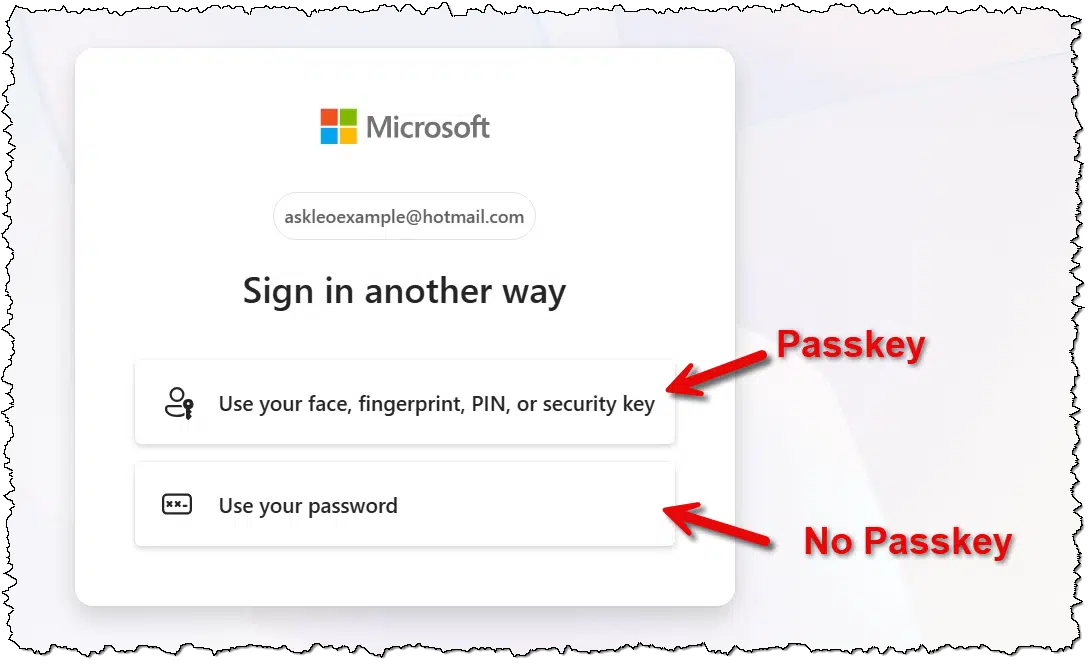
If a passkey isn’t present or if the passkey fails to work, the account you’re attempting to sign in to will provide an option to sign in another way. That “other way” may be a password, if your account has one; or it may send you an email or text message containing a link or code.
In other words, it’s the same as before you set up the passkey to begin with. When a passkey fails for any reason, you start over by signing in some other, less convenient way. You can then choose whether or not to set up a new passkey.
Related
Passkeys and Hardware Keys
Passkeys and hardware authentication keys are completely different but partially related. You can use some, but not all, hardware keys as passkeys. I'll clear up the confusion, and tell you what to look for.#181120
If those other ways still work, what’s the point?
A common question at this point is, “What’s the point of passkeys if I can still sign in with a password?”
There are two, in my view.
Passkeys are more secure than passwords, and passwords are going away. It’s a slow process, but more and more accounts use no password at all. That way, there’s nothing for hackers to steal or phishers to intercept; you can’t steal something that doesn’t exist. However, if you don’t have a password, then signing in often uses a more tedious process of waiting for a confirmation email or text and doing whatever it instructs you to do.
Unless you have a passkey set up.
Passkeys are more convenient. Rather than filling in a password or waiting for that email, you use your face  , a fingerprint, a PIN, or a hardware key. That unlocks whatever’s needed to authenticate you, and you’re done. Using a passkey may require just a single click after providing your account ID2.
Password managers and passkeys
As we’ve seen, each account requires setting up its own passkey on every device you own. But there’s a way around this.
Password managers can register themselves as passkey repositories. This means your passkey is stored securely in your password manager, just like passwords, instead of the device.
Using a password manager, you only need to set up an account’s passkey once. Once a passkey has been created and stored in your password vault, it works on any device on which you have that password vault installed and accessible. The password vault makes your passkeys available everywhere, just as it does your passwords.
You configure your password vault for how passkeys work, just as you do for passwords. Depending on how you set it up, using a passkey may require that:
- The vault is unlocked: your passkey or password is immediately available.
- You provide your face/fingerprint/PIN/hardware key each time before a passkey or password is available.
- You provide your vault master password before a passkey or password is available.
The settings you choose depend on the level of security you want for that device. For example, on my PC at home, it’s enough that I unlocked my 1Password vault sometime earlier that day. I want more security on my phone, though, so I’ve set it to demand my face3 each time I access either passwords or passkeys.
Do this
If you’re not using them already, consider using passkeys. Because they’re difficult to understand, they seem somewhat scary compared to the authentication methods you’re familiar with. The reality is that security professionals — the people whose job it is to understand this stuff deeply — agree that passkeys are more secure than password authentication. I agree.
Subscribe to Confident Computing! Less frustration and more confidence, solutions, answers, and tips in your inbox every week.


I love that you have made it easier to recognize the links to the footnotes.
It took me WAY too long to do this. I saw it on another site, liked it, reverse-engineered the approach, and here we are.
I’ve watched your YouTube and I thank you for clarifying so MANY of my concerns. I do still have one very nagging question.
OK. I understand that when I lose the one passkey for any one (or even all) of my devices, I can easily revoke the lost passkey for each device, and create a new passkey (just like I did the list one).
However, I note that each time need my mobile on which I have the Authenticator app installed available as the means to verify my identity.
I’m lost now when I wonder how I proceed if, and when, I lose or replace that mobile phone of mine! How would I set up my replacement mobile to enable me to manage all my other computers & devices?
Thank you and I hope my question makes sense to you.
So you’re confusing (I think) passkeys and two-factor authentication. They are two different thigns.
Passkeys are best though of as passwords that are unique to each device you sign in from.
Two-factor authentication is a second level of authentication to further protect your account. If you lose your two-factor device this article applies: I Lost My Two-Factor Authentication Device. How Do I Recover?
Thank you for all your videos. I find them very helpful.
Regarding Passkeys, I’d like to clarify something. It seems that you are saying a passkey stored on a device is a ‘device-bound’ passkey, and that those stored in password managers are synced or transportable passkeys. Or at least, that’s true in the Microsoft world. Do I understand correctly? Can you briefly explain how that is accomplished?
I am also not convinced they really are more secure, for a couple of practical reasons.
1) Since most people use 4 digit PINs (or 6 if they’re more security aware) they are reducing all that Passkey protection to about 20 bits of entropy. Using biometrics can mitigate that, but it’s not perfect. In some cases a photo of the person can bypass the lock. I know it’s getting better, but I’m not comfortable with it and probably never will be. That also ignores the fact that biometrics are not protect by the 5th Amendment.
2) If I use a password and a 2FA method that uses notifications (even SMS or email), I’ll get notification that someone is trying to access my account. I don’t get any notification when a passkey is used. If someone gets access to one of my devices, or compromises a transportable key, I will NEVER know, unless I frequently check access logs for all my services with passkeys. That doesn’t sound like improved security to me.
Yes email and SMS are unencrypted, but if I use unique, high quality passwords, that mitigates most of the risk. Besides, there are other 2FA methods which are not plain text and do include push notifications – such as Microsoft Authenticator.
3) Any account that authenticates via email or SMS message only (i.e. without a password) is stupid (IMHO) because they are both plain text. Even worse, if I lost my phone, someone could have a list of my services and the way to authenticate … my phone! That’s stupid (IMHO). I have closed an account with a credit card company that went to that method because I think it is so ill conceived. I think if belongs firmly in the category of “security theatre”.
I would like to hear your thoughts on these points because I recognize that I don’t know everything and may misunderstand things. It just feels like the industry is saying “we can’t teach people to be secure, so we’ll accept second best and cross our fingers.”
Once again, thank you for your efforts and your YouTube videos.
@Tom H,
I am by no means an expert in this field but I tend to agree with your assessment. I fail to see how anything could be more secure than a strong password plus 2FA via text message which enforces physical possession of a specific mobile phone. Even if a password is compromised, without physical possession of the phone any hacker would be stumped, unable to go any further.
Honestly, I think the main reason security experts rate passkeys as providing superior security is based largely on users’ naivety. That is, despite all warnings to the contrary, far too many people are still using weak passwords with no 2FA.
@Jimbo
Text messages are not secure by any means. They can be intercepted by someone cloning your SIM card, or sniffing the traffic at a rogue cell tower since the message itself is in clear text.
The same is true for email. That’s sent in plain text. Email is really more like sending things on postcards. Anyone who handles it can read it.
A far better solution would be an authenticator app with push notifications to an app on your phone. They establish a secure channel so no one can steal the code.
My main point is that good password discipline plus push notifications gives me more information. That makes it easier to detect an attempt to misuse my account. If someone gets my passkeys, I’ll never know until the money is gone.
Sadly, I think the industry has accepted that the majority of people don’t maintain good password discipline. Either they don’t know how, don’t understand the risks, don’t have the right tools, or are unwilling to give up convenience.
If people are willing to trust their phone vendor’s system, and biometrics, then it becomes more automatic and more convenient. I don’t trust them and I’m not willing to use biometrics.
It seems the industry feels that feels the general increase of security for the average user is worth the change. I’m afraid that soon the day “everyone knows Passkeys is better” is coming and I won’t have the choice anymore. After all, if they leave the password door open as a backup, then nothing is gained. The attackers will just keep using passwords. Someday, they have to close the password path to close off that vector.
While a passkey can be thought of as something like a password, it definitely is not one, and when using it to log into the website it’s intended for, nothing reusable is ever transmitted over the Internet, which is the main reason it’s so much better than a password in the first place.
Regardless whether you store your passkeys on your PC or in a password manager (My recommendation), in order to use them, an intruder would have to be able to log in on your computer (You DO lock it when not using it – right?) or somehow gain access to your running system. Neither scenario is very likely, and the most likely scenario is that the thief either removes your device’s drive(s) to access them on another machine, or simply wipes everything to freshly install Windows for re-sale as used (the most likely).
The only caveat I have for what I’ve said so far is if you’re someone who’s in a position to make you a target for unfriendly state actors or for corporate espionage. In those cases you have to lock down your device using much stronger measures than the average user needs, and if you’re using a desktop computer, lock it in place with the best hardware available for that purpose, so it can’t easily be stolen in the first place.
As I see it, the only element that can weaken the security of passkeys resides between the seat and the keyboard, as is true with everything about computer use and security.
Ernie
Passkeys still need protection; the private key they rely on is stored on your device. The device itself effectively becomes the “password.” Physical locks can help prevent theft of the hardware, but whole‑disk encryption protects passkeys from offline access, which ensures that even if a thief removes the drive and tries to read it elsewhere, everything remains inaccessible. Locking the device when unattended plus full‑disk encryption provides the strongest defense against physical compromise of the machine that stores them. Encryption is the more important safeguard, because if someone steals the device, the only thing you lose is the hardware—not the secrets stored on it.
If each account/device pair has its own passcode, does that mean that all I would need to remember is my PIN which would be the same for all of them?
Your PIN can be different for every device, if you choose to set it up that way.
Yes. That’s why many websites call it a “simplified login” or something similar when they are offering to set up a passkey. Similar in a way to a password manager, your device becomes the passkey manager, and your pin or biometric data becomes the master “password”.
I have a problem, my computer says Google doesn’t recognise it, any suggestions?
I just want to point out that passskeys, although more secure, are not passwordless.
Basically, you are swapping the password to the online service, for the password to your device.
Leo, you wrote:
“I’ll show you… a technique that makes passkeys work everywhere.”
I don’t see that here.
I have a device (Amazon Fire HD10+) whi h cannot accept passkeys at all. I could really use a way to get passleys onto my fire!
Thanks again Leo for another great clarification
I use a password manager as recommended by you and I have a question regarding this: I am concerned about the security of the password manager insofar as when I log on to the computer and open my bank app the password is already filled in and I just have to click Enter to get into the account. This is surely not a good way to manage my passwords as anyone can get into my bank accounty this way once my computer is on – am I doing something wrong?
You don’t say which password manager you are using so I can’t be specific. Find a setting in your password manage to disable storing your master password.
One thing not mentioned or that I failed to notice in the presentation is the option to download 1 time security codes from the site. I always do this when the only option I approve for sign in is a passkey. I keep them in an encrypted folder. I have never used my password manager for saving passkeys, which is mainly due to paranoia. I figure I have the yubikey, so why take a chance on anything else?
Did you say you keep your One Time Passwords (OTP) in an encrypted folder. If that’s the case, those OTPs are useless as they can only be used once and usually expire after 10 minutes or so.
Perhaps he’s keeping the key that’s used by OTP apps to generate those codes, OR he’s referring to the set of one-time-use backup codes some services provide.
I remember when my bank used to mail me a sheet with 100 OTPs also known as TANs (Transaction Authentication Numbers). I’d scan and OCR them and keep them in an encrypted text file. Later they switched to text messages and now require a phone app.
TAN lists are extremely rare and are only used in a few banks in less developed countries.
That’s why I use my password manager for passkey management as well. That way, if I want to log into a site with a passkey on any of my computers/OSes, my password manager logs me in after I authenticate myself to it. My password manager’s vault is also where I store any personally identifiable information too, so there’s nothing of value on any of my computers.
Ernie
Can’t AI (or other possible methods) simply say “I lost my passkey” then go through the seemingly simple process of accessing my accounts and implementing a new passkey without my permission or knowledge?
Only if they already have access to the other ways to sign in to your account — in otherwords, only if your account is already compromised.