“It’d be a shame if something happened to your data.”
I’ve been railing against OneDrive’s backup “feature” since it was introduced. I believe I have good reason. The “feature” (I always put it in quotes intentionally, as I don’t consider it a feature at all) is confusing and leads to potential data loss.
Yes, those last two are intentional. “Lost data” can be found again if you’re quick and you know where to look. “Data loss”, on the other hand, is exactly what it sounds like: lost and gone forever.
I started this article some months ago and put it on pause in the hopes that Microsoft would clear up this absolute nightmare.
No such luck.

OneDrive and data loss
Once OneDrive’s backup “feature” is enabled, you can run out of storage space fast. Deleting files to make more space can lose your data permanently. Options include paying for more space, abandoning OneDrive, avoiding the backup “feature”, and becoming more OneDrive-literate so you can use it safely.
The conditions required for data loss
Here’s how you can end up losing data.
- You have a free Microsoft account with no additional storage purchased.
- You use that Microsoft account to log in to your computer, where you run OneDrive.
- You have more than 5GB of data in your Documents, Pictures, Desktop, Music, and Video folders, and possibly Outlook.com attachments.
Those are all fairly common. As part of setting up Windows 10 or 11, you are strongly encouraged1 to create or use a free Microsoft account. The process of setting up Windows will enable OneDrive. The default location for your files will typically be one of those folders.
Oh, and you also need to be less than clear on how OneDrive works. Don’t feel bad: most people are in this bucket, and Microsoft is not helping.
The trigger for data loss
It generally starts here.
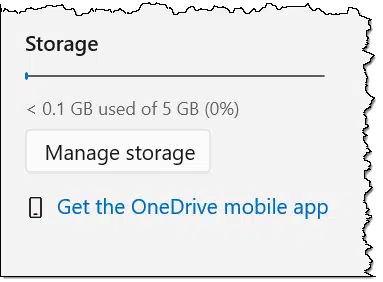
You have OneDrive running on your PC, and you’re using only a fraction of your OneDrive allocation.
Then, at some point — intentionally, accidentally, or without your knowledge — the OneDrive backup “feature” gets enabled.
The data in your Documents, Pictures, Desktop, Music, and Video folders gets moved into your OneDrive folder on your PC, where it is synced online to OneDrive.com. That’s likely to be more than 5GB of data.
Your OneDrive is now full. In fact, it’s overfull.
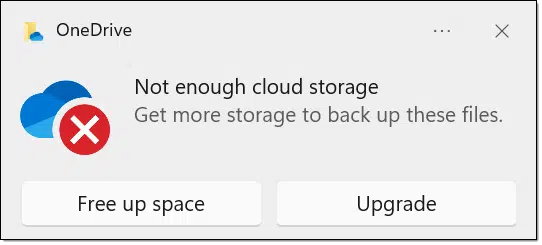
OneDrive stops syncing. Instead, it begins to nag.
Let’s look at what happens if we click on “Free up space” in the dialog above.
Free up space
This option is incomplete at best. Notice the links in blue in the image below.
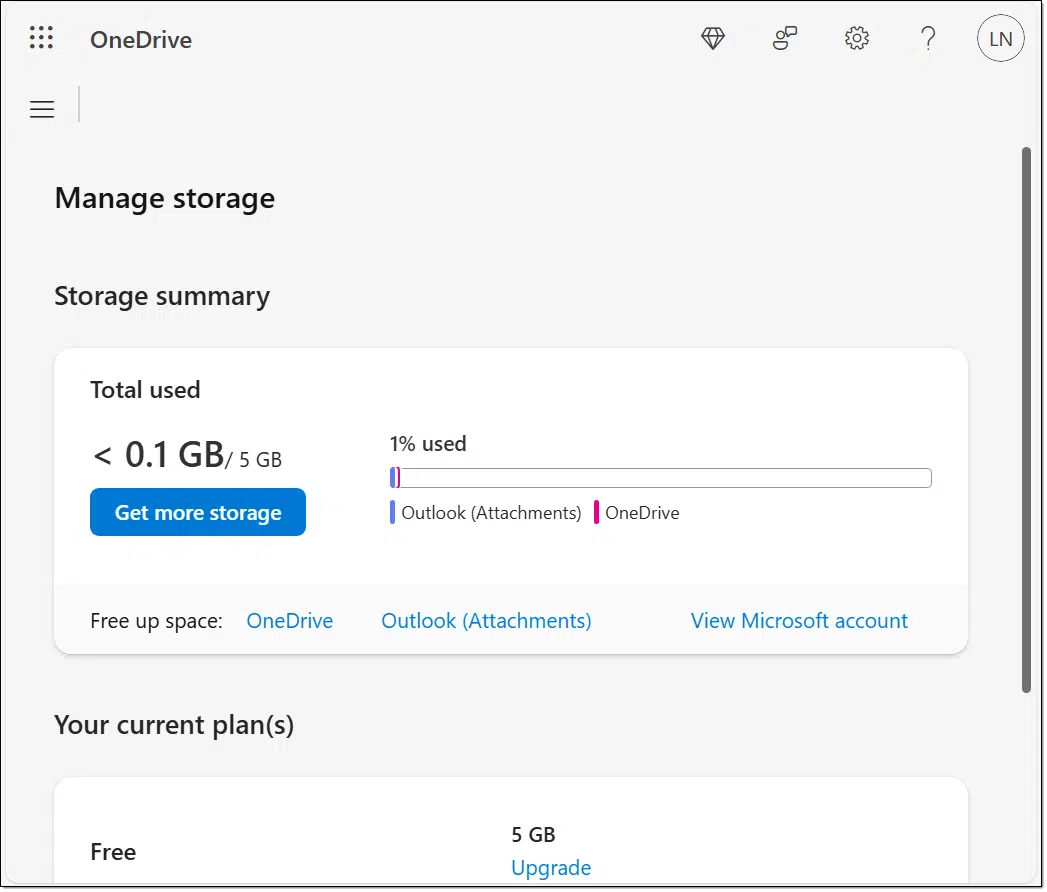
Click on OneDrive, and you’ll be taken to a page showing you the current largest files stored in OneDrive online. This only lists files already in OneDrive online; it doesn’t take into account the files on your PC that would be uploaded if you weren’t overfull. It completely misses the fact that part of reducing your OneDrive storage requirement must also involve the files that are about to be uploaded.
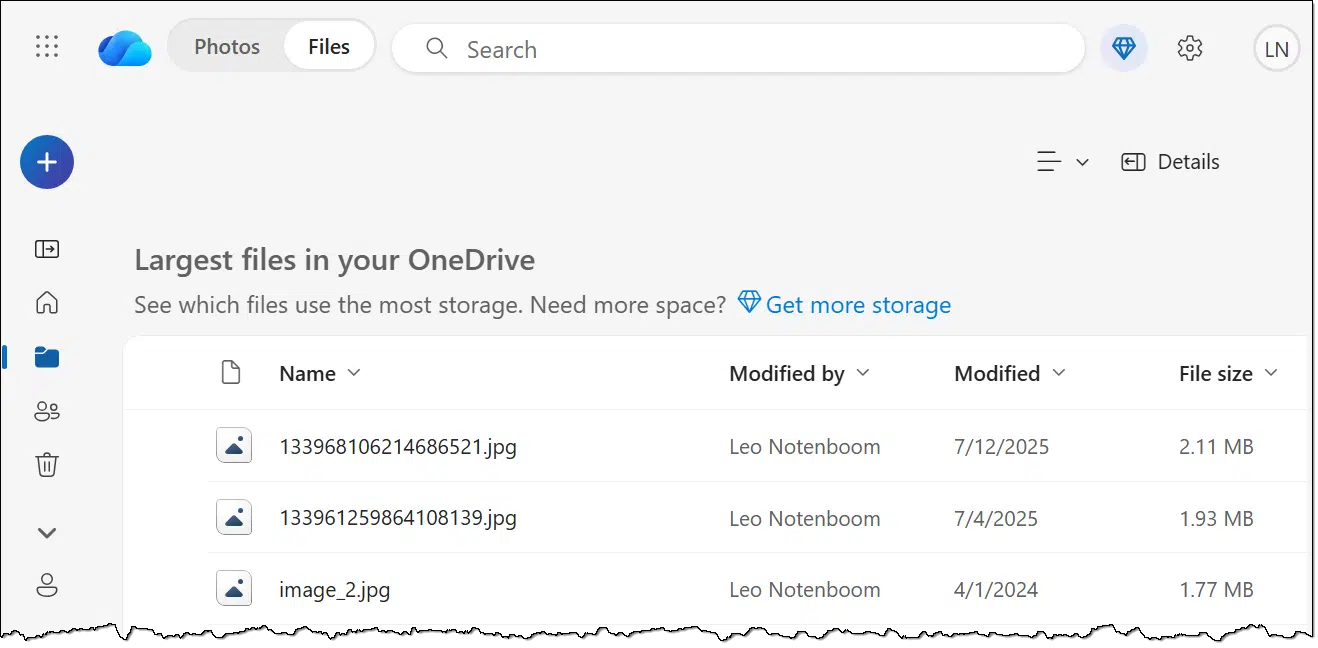
Click on Outlook (Attachments), and you’ll be redirected to a list of emails with the largest attachments.
Given that OneDrive just went out of its way to display for you the files taking up the most space online, you might think the thing to do would be to delete some of them from OneDrive. Let’s look at why that won’t actually free up space and can easily lead to data loss.
Why deleting files doesn’t free up space
Simply deleting a file in OneDrive does not immediately free up its space. When you delete a file in OneDrive (online or on your PC), that file is moved to the OneDrive Recycle Bin online, where it still takes up storage.
- Good news: if you suddenly realize you didn’t want to delete the file everywhere, you can restore it from the Recycle Bin at OneDrive.com.
- Bad news: if you realize that the Recycle Bin files take up space, and you want to free up space because OneDrive is pestering you, then the logical thing to do is empty it, at which point the file is gone forever. Why? See below.
How you lose data
Here’s the catch: because of the way OneDrive works, deleting a file from OneDrive.com online deletes it from every PC signed into that OneDrive account. Many people don’t realize that OneDrive’s purpose in life is not to provide cloud storage, but rather to synchronize files between PC’s and OneDrive.com online. That means files uploaded show up in both places, and files deleted are deleted from both places.
If you don’t clearly understand how OneDrive works, it’s trivially easy to lose data by deleting files you think are safe when they are not. It’s a story I’ve heard over and over.
Still more confusion
So far, Microsoft’s guidance implies that you free up space by deleting files from OneDrive.com, online. As we’ve seen, this deletes them from the OneDrive folder on your hard drive as well. Empty the Recycle Bin at OneDrive.com, the space is “really” freed, and you’ve lost data permanently.
But that’s not enough. It hasn’t addressed the size of the data that the OneDrive backup “feature” is still trying to place into OneDrive. Only when the contents of the OneDrive folder on your PC are under your 5GB limit does OneDrive stop complaining.
As an extreme example, I simply placed one file, 6GB in size, into my OneDrive Documents folder.2 No amount of cleaning up what’s currently stored in my OneDrive is going to make room for that file. It, by itself, is larger than my OneDrive storage allocation.
And yet none of the “help” offered so far has us looking at the files stored on the PC; the focus is on deleting items already in OneDrive.com online.
If you have more than 5GB in your default Documents, Pictures, Desktop, Music, and Video folders, OneDrive will continue to nag you to delete files until the aggregate is less than your 5GB OneDrive quota.
It’s a friggin’ mess.
Solution #1: Pay the ransom
Extortion, ransom, upgrade — whatever you call it — the simplest solution is to pay Microsoft for more OneDrive storage space. All your files will be “backed up” in OneDrive.com online. All the files stored in the folders selected for the backup feature: Documents, Pictures, Desktop, Music, and Video. Be sure that you’re comfortable with all those files being stored in the cloud. For example, do you want your personal, private, or corporate confidential files uploaded to Microsoft’s servers? Not everyone does.
You can purchase 100 gigabytes of OneDrive storage (there may be additional increments available), or you can sign up for Microsoft 365, which includes 1 terabyte of OneDrive storage. Simply do so with the same Microsoft account you’re using for your PC, and magically, all should be well.
I resist this solution for obvious reasons. I use the terms extortion and ransom on purpose because to me, they encapsulate the tactics Microsoft seems to be using to sell more OneDrive storage space.3
Solution #2: Stop. Using. OneDrive.
This has become my preferred solution. Get rid of OneDrive completely.
Turn off the backup “feature”, sign out of OneDrive, and then uninstall it aggressively, using a tool like Revo Uninstaller. Move all your files out of your PC’s OneDrive folder into folders of your own choice.
If you want synchronized cloud storage, many alternatives to OneDrive aren’t nearly as aggressively destructive.4
The only “catch” is this: Microsoft has shown itself to be particularly aggressive about pushing OneDrive on Windows users. There’s a risk that it’ll come back, even after an aggressive uninstall. Keep your eyes peeled. (And uninstalling it won’t prevent Microsoft Office apps from trying to use it anyway.)
Solution #3: Keep the backup “feature” off
Microsoft pushes the backup feature hard.
When they ask, “Don’t you want to back up?”, they don’t explain the ramifications, such as the impact on your OneDrive account and that all your files will be moved there.
And just like before, the “catch” is this: Microsoft is aggressive about pushing the OneDrive backup feature as well. Even after you turn it off explicitly (or avoid turning it on in the first place), there’s a good chance they’ll either turn it on anyway or guilt/fool you into turning it on. Keep your eyes peeled.
Solution #4: Learn how to use OneDrive safely
As we’ve seen, Microsoft has made OneDrive difficult to understand and even risky to use.
However, OneDrive’s heart is in the right place. If you understand how it works and the ramifications of its various and sundry features and quirks, it can be a reasonably good tool.
The key concepts you must understand when using OneDrive are these.
- OneDrive’s fundamental purpose in life is to synchronize OneDrive folders on your PC with OneDrive.com online. That’s more than providing cloud storage. It’s cloud storage with rules about how things get placed into it and how what’s in it is replicated to or deleted from all the PCs in the same account.
- OneDrive’s backup “feature” moves files on your PC from your Documents and other folders into the OneDrive folder, causing everything to be uploaded to OneDrive.com online (if there’s room). It does not copy the files; it moves them, and the difference is critical to understand.
- Turning off the OneDrive backup “feature” may not be enough, as it doesn’t necessarily undo all damage done.
- Anything you place in the OneDrive folder on your computer is affected by OneDrive. Anything not in your OneDrive folder is not. Keep files out of OneDrive by keeping them out of your PC’s OneDrive folder.
If you’re in a position to get a handle on all that, you can use OneDrive safely.
A word about backing up (of course)
What Microsoft is suggesting with OneDrive backup is honestly not a real backup. As described above, it’s cross-device file synchronization. While that can be viewed as a type of backup, it is in no way a complete backup, nor is it a replacement for a proper backup.
Here’s the thing: a proper backup solution would actually protect you from OneDrive’s misguided backup efforts. If you have a backup regimen in place (here’s my suggested backup approach for Windows), then even if OneDrive comes in and deletes your files, you will still have your own backup to recover from.
Sadly, not enough people are in this position. Please make sure you have a robust backup solution that doesn’t rely on OneDrive.
Do this
Whether it’s extortion or just stunningly bad design and marketing, Microsoft’s approach to OneDrive has been a disaster for many people. In the past, the risk of data loss was considered a show-stopping bug in a product release. Apparently, for reasons unknown, that’s no longer true when it comes to OneDrive.
Use it with caution, if you choose to use it at all.
Subscribe to Confident Computing! Less frustration and more confidence, solutions, answers, and tips in your inbox every week.
Podcast audio

Footnotes & References
1: Effectively forced, in Windows 11.
2: Ironically, a Windows 11 Setup Disc image.
3: Conspiracy theorists also believe that Microsoft wants to see your documents. I don’t buy this because they already could if they wanted to, whether they’re in OneDrive or not.

Yet another reason (IMO) to NOT use OneDrivel.
I had Microsoft turn on the OneDrive Backup after a couple of feature updates, which required my having to restore a backup image and then monitor closely when Windows Update went through the feature update process. Once, OneDrive actually tried to move my Video folder to my OneDrive folder. That would have gotten me into trouble with my ISP as well as completely filling my OneDrive storage at 3.6 Tb. I no longer use OneDrive at all except for email as I use Outlook.com for email.
Hi Leo,
First of all, thank and your staff very much for all the help you give us in your wonderful articles.
I guess I am a little bit confused about “OneDrive Backup” and the “Windows Backup” (which is also not really a backup). This is the one that backups up all of the folders, credentials, Apps, and Settings and WiFi info to my OneDrive Storage (when I reset my PC or need to transfer my “stuff” to a new PC). And let’s not forget the Win7 old Backup in Control Panel (deprecated). Which probably was the closest to a backup they have ever came to. Does Microsoft have a Backup fetish? You say the OneDrive backup does not copy the files; it moves them, and the difference is critical to understand. I am glad I did not fall for that one which installing OneDrive.
Thanks Leo! Great article as always.
OneDrive is flexible. You can use it to sync files with the OneDrive servers, or you can have it retrieve the files on demand. On demand keeps the files on the server but not on your computer. File Explorer shows placeholders with the file names, but they aren’t downloaded to your computer until you open them or mark them as “Always keep on this device”. It’s nearly transparent to the user, it appears as if the files are is local. The only noticeable difference is that if the files are large, they will take a long time to ope,.
I wouldn’t say Microsoft has a backup fetish. The have a keep you using their services to keep up engagement fetish. It’s all about money.
Thanks for calling it what is is. Also, thanks for your article explaining how to effectively turn off OneDrive https://askleo.com/how-do-i-disable-onedrive-in-office-365/
I uninstalled OneDrive over a year ago, per your advice (thank you for that). I have a “real” backup system, one of those that you recommended, so all is good.
So, now, there’s still a OneDrive folder on my PC — it does not go away just because I uninstalled the OneDrive function. The contents of that folder are exactly what were there before I uninstalled the OneDrive.
My current questions:
1. Are the contents of the remaining OneDrive folder ACTUALLY occupying space on my hard drive; or are they simply mirrored in the OneDrive folder (thus not needlessly occupying space)?
2. If those contents ARE actually duplicatively occupying space, can I just delete the contents of the OneDrive folder without losing actual data?
Thank you for your continued contributions to the “lost world” of folks like me. You inspire us! Stay well & safe.
Yes.
When you uninstall OneDrive, the local OneDrive folder becomes a normal folder. No mirroring, no cloud‑only placeholders, no special behavior. Whatever files you see inside that folder are on your hard drive and occupying disk space. Uninstalling OneDrive does not remove the folder or the files. Windows just stops syncing.
As much as I dislike Win11, I hate OneDrive even more – I made the mistake years ago with OneDrive on an earlier WinOS and immediately regretted it… and at the time wasn’t aware of how to get out of the OneDrive trap. Eventually, just did a reinstall with a true backup from another earlier third-party REAL BACKUP service, NOT a sync nightmare. Long story short, I now use a Linux distro that gives me MUCH MORE control over the OS and my data; I use a non-cloud local backup with a secondary NON-Microsoft cloud backup. I still have one box that is on Win11, but it’s used only as a learning tool so I can help other family members & friends that are still being frustrated by the Microslop Experience!
I agree about setting up local account right from the start. This helps keep the wolf (Microsoft) off your back, although it will always return. I used to run a small part time home computer shop and still take care of my neighbors, friends and relatives. (at 70 thought I would be done by now but just as busy). Anyway, use RUFUS to make a bootable flash drive. It will allow you to install Windows 10 or 11. Takes out all the prompts and other BS on the install process. Also, make sure you are NOT connected to internet when setting up. You will get a local account and that will help a lot. Load up your documents and such and do your own backup. When you eventually get internet going, you will get OneDrive installed anyway, delete and check it on each update as it will come back. Revouninstaller works well. Now if I (or RUFES)can find a workaround for SSE 4.2 and PopCnt, I could go higher than 23H2 of Windows 11. 22H2 works pretty good on this old Vista machine with 4bg ram! (not a speed demon, but fair!).
On such an under-powered device (4GB RAM?), you may be better served by switching to a GNU/Linux distribution. For those new to GNU /Linux, I usually recommend Linux Mint (LM), or alternatively (the same distribution, but based on Debian rather than Ubuntu) Linux Mint Debian Edition (LMDE). The primary difference is that the primary flavor of the OS (LM) is based on Ubuntu, which is developed and maintained by canonical, a commercial GNU/Linux technical support company used by many commercial organizations, and who partners with Microsoft on the subsystem for Linux on Windows, while LMDE is based on Debian, a distribution with, perhaps, one of the longest histories in GNU/Linux. The choice is yours.
Ernie
Ironically(?) Ubuntu is based on Debian, as I understand it.
I know, but after what I experienced when Mandrake stopped developing Mandriva, I shy away from commercially developed distributions, such as Canonical’s Ubuntu & friends. Instead, I seek our community driven distributions driven by active, long lived communities, such as Debian and it’s derivatives, Arch-based distributions, and the like. Since I feel this way, I suspect that I’m not alone, so I always try to make sure that user’s new to GNU/Linux are made aware that LMDE exists as an alternative, which is Linux Mint’s reasoning for developing this Debian-based flavor of their excellent distribution.
Ernie
I never use any kind of cloud. I think I am smart enough to handle that on my own. I go to app and delete OneDrive.
I hate One Drive and would like to get rid of it. But, I do have a question. If I make copies of everything in One Drive and move them to an external drive (or two!!), then disable One Drive, can I safely put things back on my laptop? Unfortunately, I didn’t know — nor, apparently, did the tech — that when I bought a new laptop and had a data transfer done, Windows 11 automatically “took hold” of my desktop, too. Now, everything on my desktop is in One Drive. It’s a mess.
Yes. Just DO NOT put them within the OneDrive folder on your computer.
I have several OneDrive accounts and use them to share e.g. large folders of photos or data with people or make data available to myself if I have to use someone else’s computer.
But I upload files to OneDrive via the browser or FileZilla (the $20 upgraded version), and do all I humanly can to root the OneDrive app out of my computers.
Another safety step: I never store anything I care about (and rarely anything at all) in any of Microsoft’s “Vee haff vays uff mekking you schtore your data vhere ve vant you to” folders. Documents/Photos/Whatever. If MS made it, my stuff stays out. So OD can do whatever it likes with those imposed folders. I don’t care.
I *do* store all of my working and must-have files in a series of directories that always have the same names and contents no matter which Windows PC I’m on (I jump between several of them routinely). A simple BAT file uses ROBOCOPY to synch the files from my master PC to the network and thence to any of the other PCs. Variations on this basic system have protected my stuff since it lived on a 200 megabyte (yes, mega) Lantastic server PC. Through any number of hard drive crashes. Since the data’s XCOPY or ROBOCOPY synched to other PCs regularly, only small amounts of data lost even when the HDD in question was fried. And back up within minutes of installing a new HDD.
I recently transitioned from Windows 10 to Win11, and I noticed that all my files, photos, etc., went to OneDrive. I used to have them on my PC with the box checked to “leave on desktop”, but now my desktop folders are gone, or empty. I want my files on both my desktop and on OneDrive, not just on OneDrive. Is it my imagination that they were MOVED to OneDrive? I wasn’t asked; I just said to update to Windows 11. I still have a complete file backup if I need it. No files have disappeared, but they are no longer on my desktop AND on the cloud as I wanted.
If your files are in folders under the One Drive folder, then everything has been moved to One Drive. You can reset your One Drive settings to keep all your files on your computer too if you want. As for myself, I’ve decided to do away with One Drive, and switch to using Mega.nz as my preferred cloud storage choice, but I’ll describe all of that at the end of this, when I enter my own post!
Ernie
I deleted OneDrive as soon as I figured out it was automatically backing up my files without my even knowing it. I use an external drive for backup and am very satisfied. I have grown to loath Microsoft. I have learned Linux Mint thanks to you and some day may pull the plug on Windows. Try out Mint people!
I’m going to come to Microsoft’s defense here – well, not really, but …
Microsoft (or any company) is going to do what it wants to benefit itself, and it couldn’t care less about your gripes. You should know that by now. You can’t win that war.
How long has OneDrive been around? How long has AskLeo been talking about it? How long have we known that OneDrive is an invasive, convoluted, ill-conceived, poorly executed POS? A long time! Yet, here and elsewhere, we still use it, talk about it, and complain about it. Why? Because we’ve been indoctrinated to blindly use apps – even if we don’t understand anything about them.
An often repeated advice from Leo has been (paraphrasing), if you don’t like it, then don’t use it. This may not apply to Windows as a whole, but it does apply to OneDrive. Give it up and stop using OneDrive. I’ll admit that it’ll take some serious effort to banish OneDrive from your Windows (i.e. just changing some Settings isn’t going to work). In fact, you may have to completely suspend all Windows Updates to stop OneDrive from reincarnating, but that is worth the effort or any perceived “risk” (which is another Microsoft bugaboo we’ve been trained to accept without much understanding).
On the topic of “using apps without understanding” consider this: if an app makes you lose direct control and access of your data, then you shouldn’t use it (unless you understand exactly how it processes your data). For example, moving your data somewhere hidden, using proprietary formats and encoding to force app dependence, using some organizational approach that was good for the 20-year-old programmer in China, etc.
The above commentary may be applied, as well, to gripes about Windows 11 as a whole. If you don’t like Windows 11 as it has been shoved down … you don’t necessarily have to use Linux instead. You can dumb down Windows 11 to behave as reliably and predictably as Windows 7. But it will take research, effort and understanding about what the heck is going on in there. Unfortunately, this will apply only to a very small fraction of people.
Late in 2025, I had occasion to wipe Windows, and perform a fresh install, so I made sure I had the latest version of Rufus, and an effectively new, seldom used, 16GB USB3 drive, then I downloaded Windows 11 PRO 25H2 from the Microsoft Website. I used Rufus to put the Windows ISO image on the USB drive, answering the questions from Rufus to make the resulting tool Install Windows 11 PRO 25H2 with a local account, so now, my user’s home folder is named ‘ernie’, and not that first five character ablution Microsoft defaults to, as well as having a password when needed, while after signing into my Microsoft account, I have all those conveniences as well.
But, before signing into my Microsoft account, I checked that One Drive was not yet enabled, so I could uninstall it in Windows settings, then I rebooted, and afterwords, I was able to delete the One Drive folder from my computer as well. Only after doing all that, and fully updating my new system using Windows Update repeatedly, until the only response was “You’re up to date!”, did I install Firefox, add the 1password extension there, and go get the MEGAsync desktop app so I could set it up to sync the local folders I wanted with their counterparts on mega.nz, which of course downloads my files to my computer as well as sync those folders with the cloud on all my computers, so what I have on this computer is also available on my other two machines (and Vice-Versa), not only in Windows, but in my GNU/Linux distribution of choice, Garuda Linux, where admittedly, I have a different set of files in my Pictures, Documents, and eBooks folders, which are synced to their own folders on mega.nz. Additionally I have a couple folders that I use on both OSes, my resources, Videos, and Music folders.
The bottom line here is that I have Windows 11 PRO 25H2 installed in a dual-boot configuration with Garuda Linux, and I’m completely free of One Drive and all it’s nagging and problems, while being able to use the same app in both OSes to manage and synchronize my files with the cloud everywhere!
Ernie
Leo, thank you for the great tips and tricks. I’ve been a faithful Microsoft user since Windows 95, and now happily using Win 10 Pro. Very hesitant to ‘upgrade’ to Win 11, especially with all the VERY questionable policies of Microsoft now. I am seriously considering Linux for the first time in 30+ years. Thanks again!!!! Please keep these tips coming.
Dave F.
FWIW, today I learned about a utility that helps me de-bloat, and regain a fair level of control over Windows 11’s data collection / monitoring of my activities /advertising efforts, named Winhance, and which you can learn about at https://winhance.net/. I’m using it, and so far, I’m impressed. When I run it, it makes the configuration changes I select in a variety of categories, where it informs my about what effect each change will have on my computer, then when I exit the app, it simply closes, so it’s not hanging around to monitor my activity either!
@Leo! You may want to check this app out, and tell us all what you think about it!
Ernie
I tend to shy away from third party debloating apps (there are MANY). Not because they’re bad, but because we often don’t know the source and risks. I know many have great reputations, and of course would only mention those, but then I have to deal with helping average users through things like this:

I understand, and I usually feel the same, but the thing that got me to try Winhance is that it explains what each recommended entry does, and the consequences of removing it, so I decided to give it a try, and to my pleasure, I learned that the only recommended entries were apps I use or want for their features, so I’ve already de-bloated Windows as effectively as possible, considering my wishes, and the best thing is that it did nothing without my approval, first.
Ernie
Not long after One Drive was introduced I had to set up new laptop just before a (thankfully short) trip.
Once I got where I was going I got out the laptop … and nothing would run. The lag at the rural location was so bad all the apps I wanted to run errored out. It took a few minutes to realize all the data files in my Documents had been moved to One Drive. It took hours to sort that out and having now lost an entire evening, I uninstalled One Drive and never looked back.
Micro$oft is not your friend.
And Leo, you CANNOT retire. I need your regular doses of digital reality to keep me organized in cyberspace.