How to share URLs that work.
We all share links from time to time. We discover a webpage we want others to see, so we use some sharing technique to send that page to our friends via email, social media, instant messaging, or something else.
Some of those techniques are less efficient/more fragile ways to share links, and some are better.
Let’s make sure we’re sharing links in the best ways possible.

Sharing links
- Basic sharing: copy the link in your browser’s address bar.
- You can often, though not always, remove everything after the first “?” from a link.
- Copy links by right-clicking and “Copy link” or equivalent.
- Click through and copy the link of the actual page you land on.
- Test your links in an Incognito window before sharing.
Link? What’s a link?
First, let’s define what a link is. In its purest form, it’s nothing but a URL1. For webpages, that’s the thing that starts with HTTP or HTTPS.
This is a URL or a link to the Ask Leo! home page.
This is also:
That’s a link to the home page (the HTTPS part), but with “display text” (the “Ask Leo!” part) on top of it. Both links take you to the Ask Leo! home page.
Basic link sharing
Perhaps the easiest approach is to right-click on the URL displayed in your browser’s address bar and click on Copy.
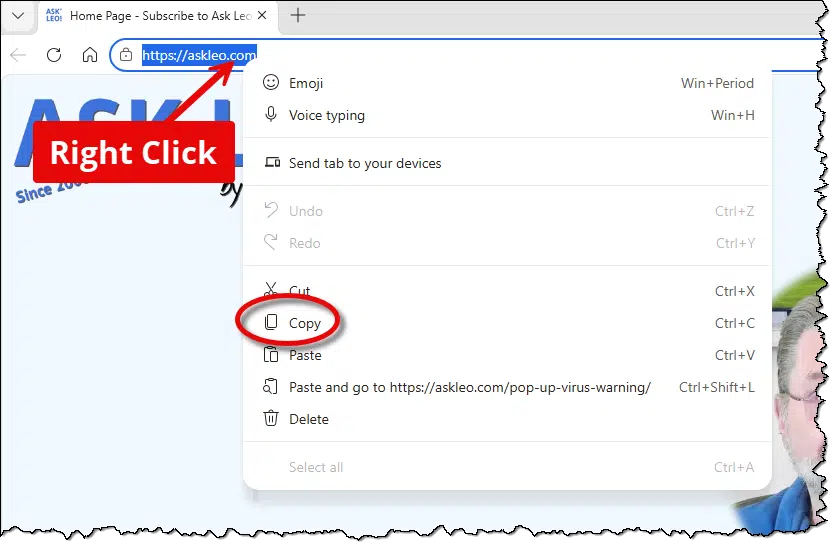
Whatever is in the address bar is copied to the clipboard. You can then switch to whatever app you want, and paste it.
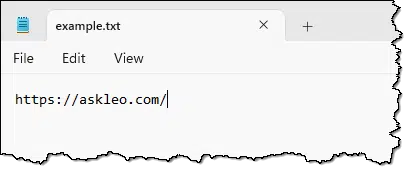
Here I’ve pasted it into Notepad so it’s easy to see exactly what we have.
Making sure the link works
Before we move on, I want to share a technique that checks whether what we’ve copied works.
Open an In-Private or Incognito window and test it there. If it works, the link will work for anyone; it doesn’t rely on being signed in or anything else related to your specific browser session.
Paste the link into the address bar and hit Return (or right-click in the address bar and click on Paste and go to, if present).
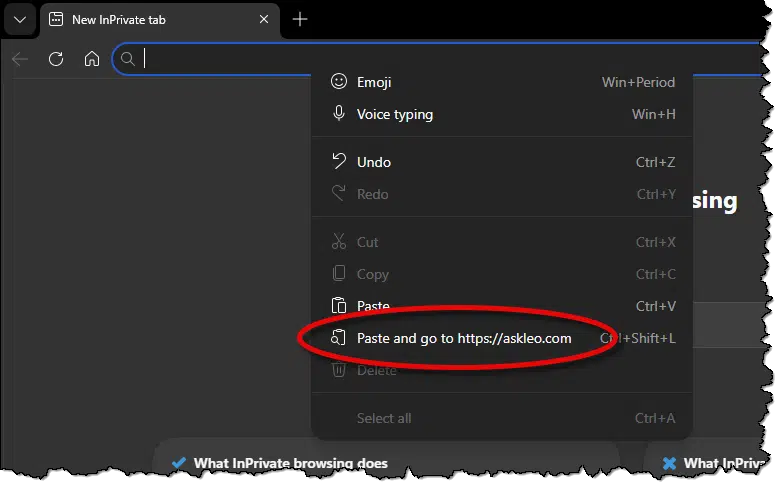
For https://askleo.com, it should work just fine, but there will be situations where the link may not do what we expect. Let’s look at one way to get around them.
Removing URL parameters … sometimes
On occasion, the URL has additional information that begins with a question mark.
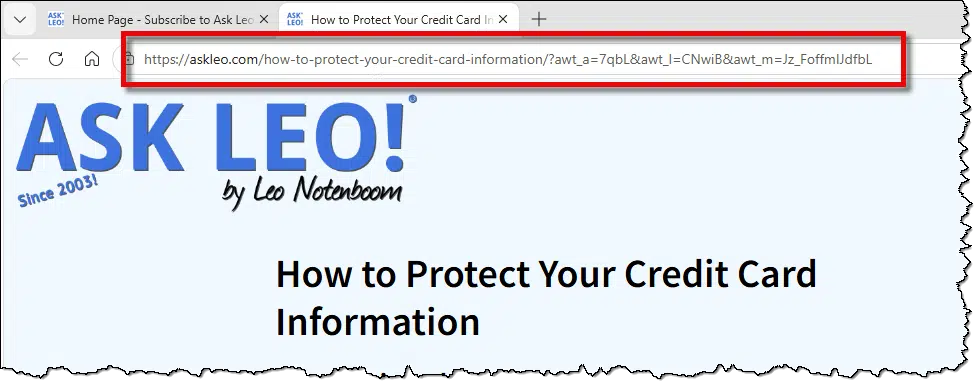
Here’s that URL pasted into Notepad:

There are three major parts of that URL worth understanding.
- https://askleo.com is the website
- how-to-protect-your-credit-card-information is the specific page on that website you’re viewing (“/” is a separator, not technically part of the page)
- ?awt_a=7qbL&awt_l=CNwiB&awt_m=Jz_FoffmIJdfbL Anything that follows the “?” separator is called a URL parameter.
Most of the time, URL parameters are nothing more than click- and link-tracking. They may have various names (“utm_” is a common prefix for tracking parameters), but they exist to let the page/site owner know how often their page has been visited, and perhaps by whom.
The trick? They can usually be removed without breaking the link. These two links will take you to the same page.
- https://askleo.com/how-to-protect-your-credit-card-information/?awt_a=7qbL&awt_l=CNwiB&awt_m=Jz_FoffmIJdfbL
- https://askleo.com/how-to-protect-your-credit-card-information/
To make the URL you share shorter and more readable, you can remove the URL parameters before you share.
Most of the time. Sometimes URL parameters do affect what you see. For example, you might be tempted to remove the URL parameter from this URL:
https://askleo.com?s=outlook
In this case, the URL parameter matters. With it, this is an askleo.com site search for the term “outlook”. Without it, it’s just the askleo.com home page.
This is why I suggest you test the link before sharing it, especially if you make modifications like this. If the result changes when you remove the URL parameters, then you probably want to share the full URL, parameters and all.
Why does length matter so much?
At this point, you might wonder why we’d make the effort to shorten a URL.
Besides making what you share more legible and easier to understand, length matters in a couple of situations.
URLs are a single line of text. Some email programs “word wrap” your email, and some poorly behaved ones word wrap URLs that are longer than the width they expect. What this means is that rather than the email containing
https://askleo.com/how-to-protect-your-credit-card-information/?awt_a=7qbL&awt_l=CNwiB&awt_m=Jz_FoffmIJdfbL
The email program might wrap it into:
https://askleo.com/how-to-protect-your-credit-card-information/?awt_
a=7qbL&awt_l=CNwiB&awt_m=Jz_FoffmIJdfbL
Depending on the URL involved, the word wrapping can cause it to fail to work at all, often resulting in server errors such as Not Found or even Internal Server Error2.
The other scenario is a little more obvious: length limitations in whatever you’re sharing on. For example, that URL above is 107 characters in length. That’s nearly half your allotted space if you’re sharing on a platform with, say, a 260-character limit. We’ll look at other ways to shorten things in a moment.
Copy the URL, not the text
Given a link like:
it’s tempting to just select the text, copy, and paste.
Depending on where you’re pasting, you might get:
- Written by a real human: a clickable link as you expect, including the formatting of the original (in this case, bold).
- Written by a real human: the plain text with no link at all.
Instead, right-click the link and select Copy link (sometimes Copy link address, Copy target, or similar).
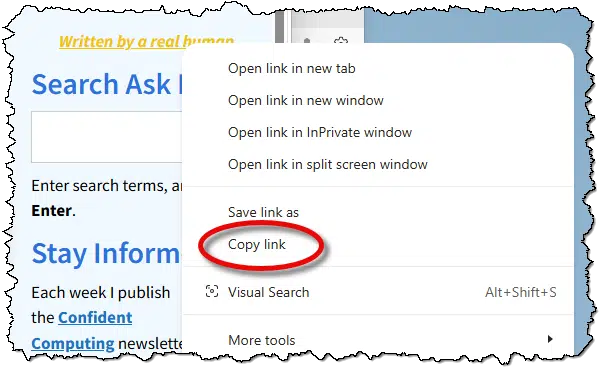
This will copy the underlying URL. In this example, that means you’ll get
https://askleo.com/how-i-use-ai-at-ask-leo/
which you can then share to direct people to that page.
Don’t copy links from search results (and some email)
Since we now know how to copy a link by right-clicking and selecting Copy link, it might be tempting to do that when you want to share a specific search result.
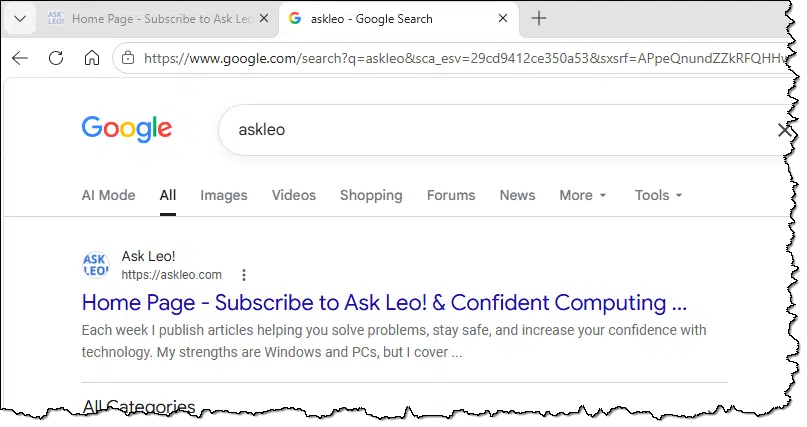
Don’t.
If you were to copy the link from “Home Page – Subscribe to Ask Leo! & Confident Computing …” above, this is what you would get:
https://www.google.com/url?sa=t&rct=j&q=&esrc=s&source=web&cd=&cad=rja&uact=8&ved=2ahUKEwj3wMzqyoKWAxVaDjQIHcaSLbUQFnoECBcQAQ&url=https%3A%2F%2Faskleo.com%2F&usg=AOvVaw0hh37i-xjrtcHitweSp5Un&opi=89978449
That’s a redirection link used by Google to track when someone clicks on a search result. Yes, it’ll take you to the destination, but … yikes! It’s not something you really want to share. Among other things, it’s not at all easy for the person you’re sharing with to see where that link even leads. They shouldn’t click on it.
Instead, click through to the page and copy the URL from the address bar as we did above.
This same situation happens in some email programs. For example, if you use a Microsoft account or Outlook.com, links in your email message may look normal.
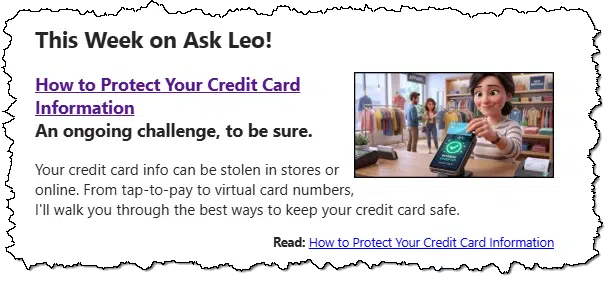
But if you right-click and click on Copy link, this is what you’ll get:
https://na01.safelinks.protection.outlook.com/?url=https%3A%2F%2Faskleo.com%2F%3Fawt_a%3D7qbL%26awt_l%3DCNwiB%26awt_m%3DJz_FoffmIJdfbL%26p%3D190672%253Futm_source%253Dnewsletter&data=05%7C02%7C%7C90bccd16867c48b58c5e08def0148087%7C84df9e7fe9f640afb435aaaaaaaaaaaa%7C1%7C0%7C639212168008689374%7CUnknown%7CTWFpbGZsb3d8eyJFbXB0eU1hcGkiOnRydWUsIlYiOiIwLjAuMDAwMCIsIlAiOiJXaW4zMiIsIkFOIjoiTWFpbCIsIldUIjoyfQ%3D%3D%7C0%7C%7C%7C&sdata=x8yj1mvqNc9TzGOzeqz3LOD7K%2B0dIuKbadBoi1B0xK8%3D&reserved=0
That’s one heck of a link! And yes, as the website name (safelinks.protection.outlook.com) implies, it’s a mechanism used by Microsoft to protect you from malicious links, but when you’re sharing, it’s just massive overkill.
The solution is the same: click through and then share the URL that appears in your address bar:
https://askleo.com/how-to-protect-your-credit-card-information/?awt_a=7qbL&awt_l=CNwiB&awt_m=Jz_FoffmIJdfbL
Using our previous tip, you can clean that up to:
https://askleo.com/how-to-protect-your-credit-card-information/
Perfect.
So far, we’ve made links shorter. Now we’re going to make them a little longer, but with a purpose.
Sharing links with highlights
Sometimes there’s a specific phrase or section of a webpage you want to point someone to. You might share the page URL, and add instructions to “Scroll down until you see X”.
There’s an easier way. Select (click, hold, and drag the mouse pointer) the text you want to highlight. Then right-click on that.
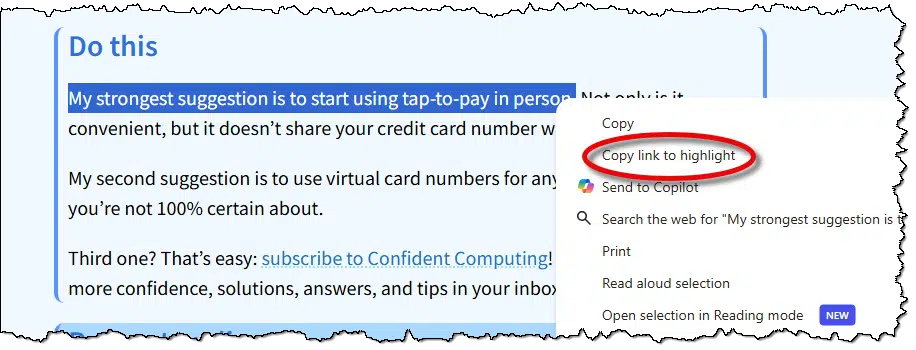
Click on Copy link to highlight. The resulting link (which you can examine by pasting it into Notepad) will look something like this:
https://askleo.com/how-to-protect-your-credit-card-information/#:~:text=My%20strongest%20suggestion%20is%20to%20start%20using%20tap%2Dto%2Dpay%20in%20person.
This includes additional syntax to search for the string “My strongest suggestion is to start using tap-to-pay in person.” When someone clicks on that link, they’ll:
- Be taken to that page.
- The page will be searched for that string.
- The first occurrence will be highlighted.
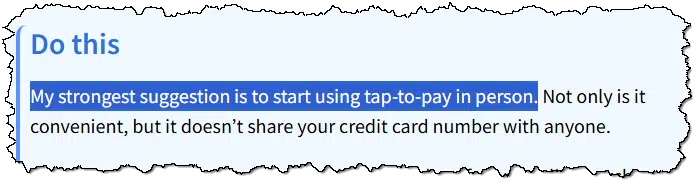
Note that if the page changes after you copy the link, and the search string no longer exists, it’ll act like a normal link and just present the top of the page.
Shorten long URLs
As we’ve seen, URLs can be long, and sometimes there’s not a lot you can do about it. A good example is the “link to highlight” we created in the previous section.
That’s where link shorteners help. I’ll use TinyURL as my example, but there are many.
You paste your long URL into TinyURL:
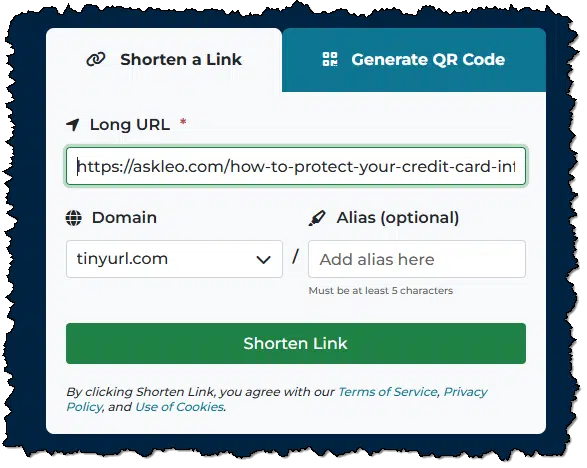
You can see that even though it’s been pasted in, the long URL is longer than the text box can display.
Click on Shorten Link, and TinyURL generates a new short URL. In this case, it created:
That link will take you to the same destination, highlighting included.
As I said, there are many link shorteners, and some sites even have their own. I do3.
will do the same.
There are pros and cons to using link shorteners. Sometimes they go away (goo.gl is a good example), they’re not necessarily private, and they can occasionally be misused, so people may be wary of clicking on them. But they’re also common, and as we’ve seen, helpful.
Check public access before sharing
This is another form of testing. Even if you haven’t modified the link, open an InPrivate or Incognito window and paste-and-go to the link you’re about to share.
I do this all the time, because occasionally I want to share something that isn’t public, like something behind a paywall I’m paying for. If you can open it in an Incognito window, then anyone can see it.
If not, you need to do something else. My first step is to look for the option on the original site to share a gift link, but that’s not always available.
Share a link to a specific spot in a YouTube video
This is specific to YouTube, of course, but the share dialog has the option to “start at” a specific time. If you click the Share button on a YouTube video, look for the “Start at” option.
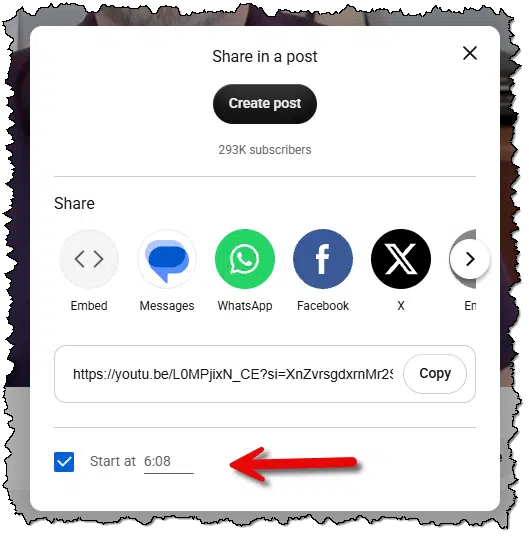
This adds a URL parameter to the link copied to the clipboard when you click on Copy.
https://youtu.be/L0MPjixN_CE?si=XnZvrsgdxrnMr2Sh&t=368
That tells YouTube to begin playing the video 368 seconds in. This way, you don’t force someone to watch an entire video just to get to a point you find interesting.
A QR code is just a link that’s easier to share with mobile devices
Another useful trick is that in most modern browsers you can easily generate a QR code for any URL.
Most browsers have a share function. In Edge, one place you’ll find it is in the ellipsis (“…”) menu under More tools, Share.
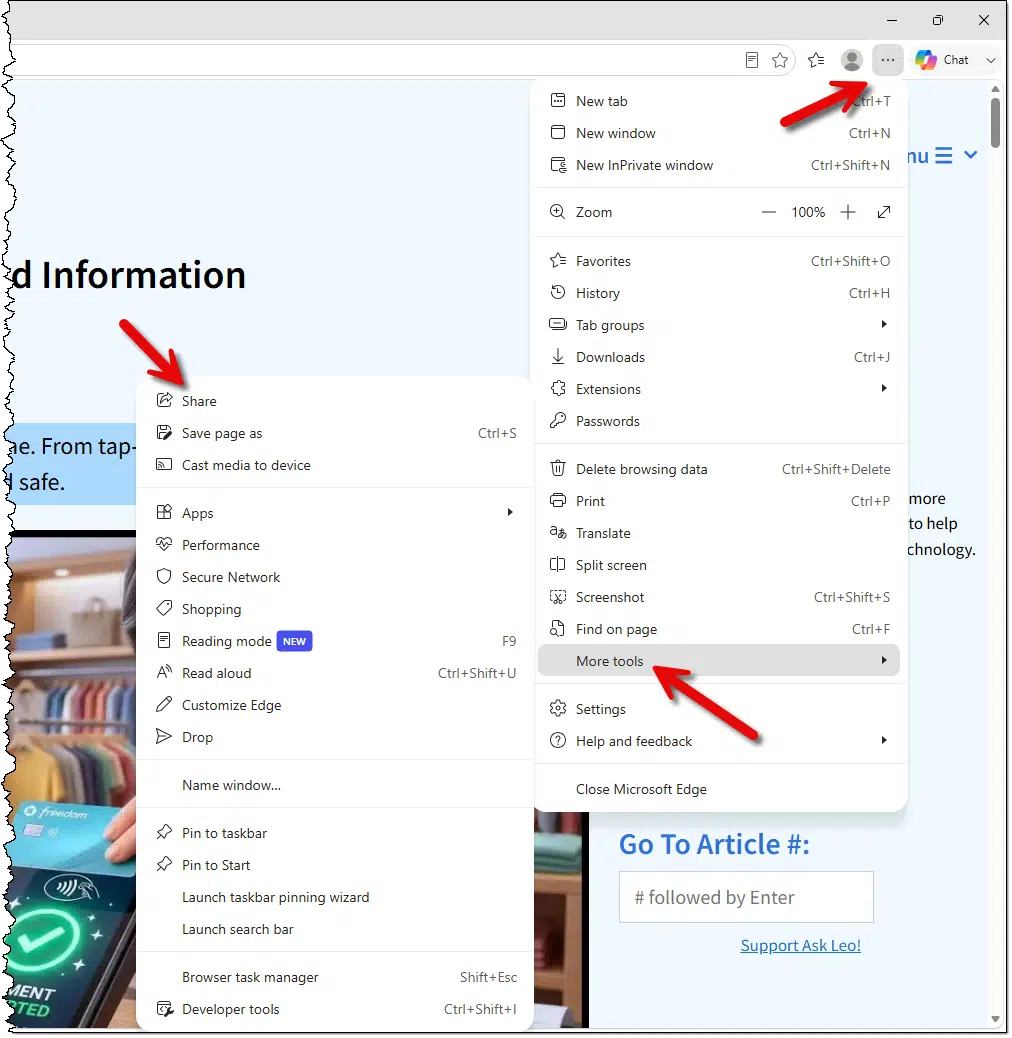
One of the options near the top is a small Generate QR Code button.
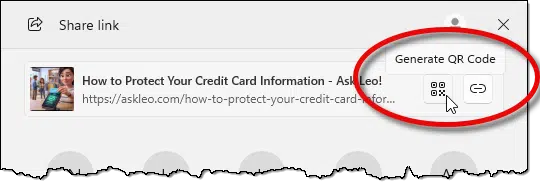
Click that, and the browser will generate a QR code for the currently displayed URL.

Surprisingly, Edge doesn’t have a “save” option, but you can screenshot that and use the image wherever you like. That QR code encodes the following text string:
https://askleo.com/how-to-protect-your-credit-card-information/
In other words, that QR code is a link.
Ask Leo! only
This one is unique to Ask Leo!, but I wanted to share it since it’s quite useful. In fact, I use it frequently.
If you look near the bottom of the article, you’ll find links that look like this.
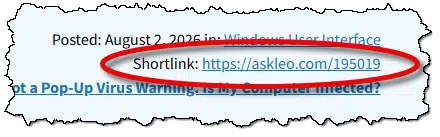
That’s a shortlink to this article.
Either of these links goes to the same page.
Every article has a shortlink near the bottom.
Do this
Share! Share what you find of interest online with others. Use the tips and tricks above to make sharing easier, more useful, and clearer as you do.
Subscribe to Confident Computing! Less frustration and more confidence, solutions, answers, and tips in your inbox every week.
Podcast audio

Footnotes & References
1: Uniform Resource Locator, for the technically inclined.
2: While it’s technically a server error — it should handle this stuff more gracefully — a surprising number of Internal Server Errors are the result of broken links.
3: Based on the open-source YOURLS.
Thanks to Gary Rosenzweig over at MacMost.com for the inspiration: 9 Tips For Sharing Links And Images.

I am a big fan of using the plain text URL, shortened as much as possible, so people can see where it is going. I trust Leo but will not go to almost any other redirect type of shortened URLs.
When I click on a Bitly link, it sends me to an interim page with a link button telling me where it’s redirecting to. I trust Bitly links because of that. It might even be safer than a full URL because the full URL might be hiding a rogue URL.
What is the difference when you (your website provider) receive a link-through with the tracking information intact vs. removed?
Is the tracking information (especially with longer URLs) specific to my original webpage view? When my friend links in with the URL I sent them with the tracking information does your website provider think it is me linking in (or pass information based on my webpage “session”)? Does that behavior depend on how the linking information is constructed?
My bottom line, is there value in stripping all tracking information all the time, or only strip it from sites I trust (like AskLeo.com)?
Exactly HOW tracking info works varies dramatically. For example if you get a link to one of my articles from a newsletter subscription, and you share that full link with someone else, it’ll look like you clicking the link not them. Other tracking may work differently.
The big value in stripping tracking is a) shorter links and b) privacy.
Only the final destination website interprets the URL parameters. Other entities along the route can see them because they’re part of the request, but they normally ignore them. Leaving them in is harmless — it just sends unnecessary data to the site and makes the URL longer, sometimes spanning several lines as tracking information accumulates through forwarding.
On the other hand, removing parameters can occasionally break a link. It’s happened to me a few times, so I always test my links by pasting them into the browser’s address bar before sharing.I always test my links before posting or sending them by pasting them into my browser’s address bar.
Different browsers use different short cuts for copying URLs
Windows / Linux: Ctrl + L (focuses address bar), then Ctrl + C (copies URL).
Firefox – F6 then CTRL + C
Zen (Firefox’s cousin) – F3
Because I’m a GNU/Linux enthusiast/user, I frequent the It’sFOSS website (https://itsfoss.com/), in particular, their Community forum: It’sFOSS Community (https://itsfoss.community/). When I find an item I think may be interesting to my fellow FOSSers, I copy the link (removing the tracking stuff) and open a new topic, adding a named link to the body of the post, frequently something like “I saw this in , named: and thought you may be interested.” In so doing, I not only link any interested readers to the article, I also tell them where I found the link.
Leo! Check out the community forum! You can see how they implement their post entry dialog, and perhaps add some of that functionality to your comment posting dialog here!
Ernie
Here is a trick for shortening Amazon Links:
Everything between “https://www.amazon.com/” and “/dp” is ignored, so it can be modified, or deleted complete. So, for example:
https://www.amazon.com/Demo_for_Leo/dp/B0DJLW32QG
and
https://www.amazon.com/dp/B0DJLW32QG
Both take you to the same page.
Something to keep in mind if what you are doing is subject to Section 508 from the United States Government. Make sure to comply with screen readers and how links should be in your writing.
Do not include language or text such as “click here”.
Also, writing or posting an entire link will mean that the screen reading will read every… single… character… in the link.
Replying to fix a n.
Also, writing or posting an entire link will mean that the screen reader will read every… single… character… in the link.