It keeps hackers out.

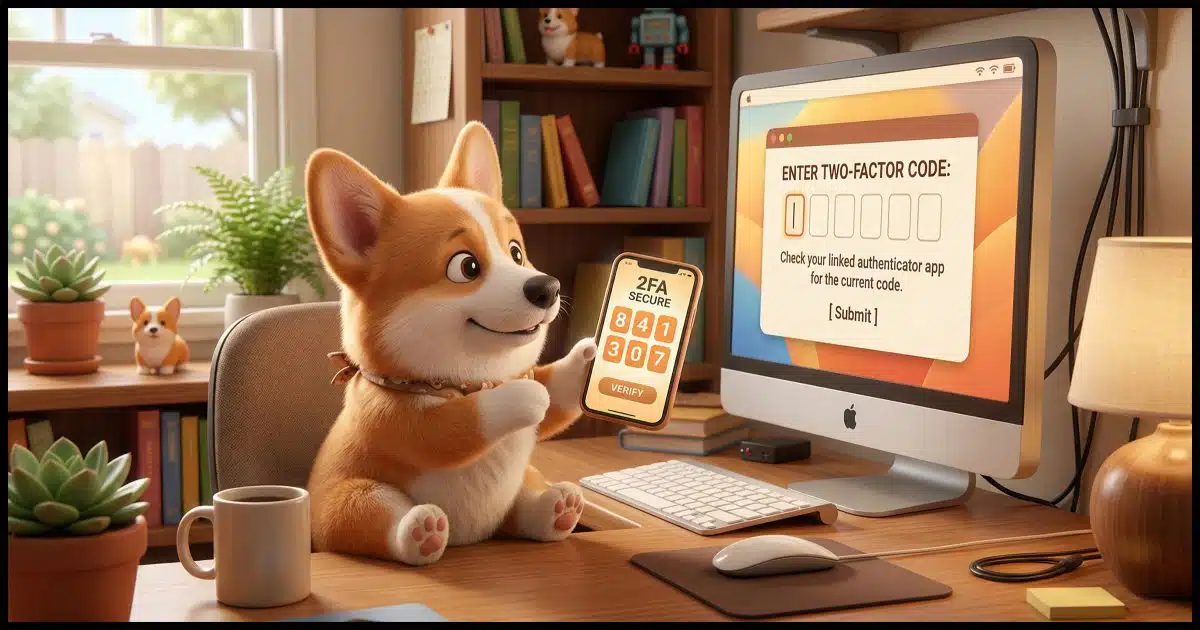
We rely on passwords to protect our online security. At the same time, hackers seem to be getting better at figuring them out!
In response, security folks created something called “two-factor” or “multi-factor” authentication, which uses two different types of information. Together, they prove you are who you say you are and give you access to the account.
Two-factor authentication keeps your account secure even if your password is compromised. It’s something I strongly suggest you use.

Two-factor authentication
Two-factor authentication (2FA) adds something you have (like a mobile device) or something you are (like your fingerprint) to something you know (your password) to confirm you are authorized to access an account. Losing your second factor is not a deal-breaker, and there are ways to make two-factor less intrusive in day-to-day use. If you have 2FA enabled, hackers can’t get in, even if they know your password.
Authentication
The word authentication gets thrown around a lot.
All authentication means is a way to prove that you are who you say you are. It validates that you are authentically you, not some impostor (like a hacker).
It’s important because once you’ve proven you are who you say you are, you get the right to use the things that are yours. Once you prove you are you, for example, you’re allowed to access your email account.
In person, we use physical things, like a photo ID, to prove we are who we say we are. Online, things are more difficult.
Help keep it going by becoming a Patron.
Something you know
Authentication has almost always been in the form of something you know. You know your username and the password that goes with it. Since only you should know your password, your ability to type it in proves you must be you and no one else.
If you forget your password, the answers to a set of security questions might be used instead, which still boil down to something(s) you — and hopefully only you1 — know.
Something you know is easy to transfer from one person to another. When it’s on purpose, that’s okay, though it’s less than secure. When someone who shouldn’t know your password learns it, something you know becomes something they know, too. The result? They can impersonate you and sign in to your account. 2FA keeps that from happening.
Something you have
Two-factor authentication typically adds something you have to how you prove you are you. When it comes time to authenticate, you need two things:
- Something you know: you must know your username and the password that only you should know.
- Something you have: you must possess something specific that is also unique to you.
How you go about proving you have something in your possession is pretty hard to do securely — until you factor in encryption. For example, “what you have” might be a smartphone running an application that has been associated with your account using encryption. More on that in a moment.
Something you are
There’s an additional factor — sometimes combined with a password, and sometimes even a password plus something you have2 — something you are.
Most commonly, this is biometric data like your fingerprint or your face, which are, in theory, unique to you. When it comes time to authenticate, you need two things:
- Something you know: you must know your username and the password that only you should know.
- Something you are: you must provide your fingerprint or allow a facial scan.
Using fingerprints or face ID is fairly common, though they’re often also used by themselves as a single factor. Only when combined with something you know and/or something you have is it considered multi-factor.
Proving what you have
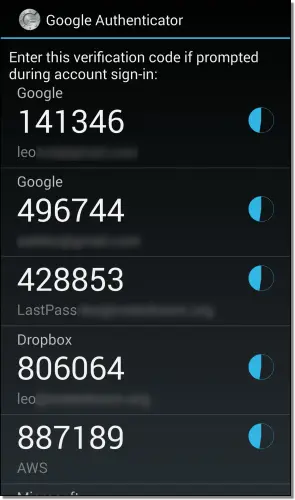
The most common approaches to proving what you have are Google Authenticator or text-based 2FA.
Many people install the Google Authenticator app or an app compatible with it.3 It works like this:
- You install the Google Authenticator app on your smartphone.
- You “associate” the Authenticator with your online account. This is usually done by scanning a QR code provided by the set-up process for that account or by entering a code that’s displayed.
The app now begins displaying a six-digit random number that changes every 30 seconds.
In reality, the number isn’t random at all; it’s a complex function of encryption keys created as part of the process you just completed. It’s unique to your account and your smartphone. Only the app and the service know what the number should be at any point in time.
If you type in the number provided by the app when requested by the service, it proves you have the device running the app.
In this case, your two factors are:
- Something you know: the username and password to your account, which you prove you know by typing them in as usual.
- Something you have: your device, which you prove you have by entering the number displayed by the Authenticator app when requested.
Your log-in process now requires you to provide your username and password and then provide the random number being displayed by your smartphone. Either one by itself is not enough.
Using SMS for two-factor
An alternative (for those who don’t have a smartphone or who just prefer it) is to use text messaging (SMS) to prove you have your phone.
Setup is simple: you give your mobile number to the service and tell them you want to use it for two-factor authentication.
Related

Yes, SMS Two-Factor Authentication is Broken; Use it Anyway
SMS messaging has some serious security vulnerabilities, but does that mean you should always avoid it? No.#131589
Your two factors are:
- Something you know: the username and password to your account, which you prove you know by typing them in as usual.
- Something you have: your phone, which you prove you have by entering the random number text-messaged to it when you try to log in.
Your log-in process now requires you to provide your password and the number texted to your phone.
Some systems use automated voice readout of the number, meaning you don’t need to use texting at all; you don’t even need to have a mobile phone — a landline will do. When you try to log in, a voice call is made to your phone number, and an automated system reads you the number you need to type in.
While there are occasional stories of SMS being hacked, the reality is that using SMS two-factor is still much more secure than not using two-factor at all.
Making two-factor less annoying
“You mean I have to do this every time I log in?”
Nope.
After you log in once using two-factor authentication, most services let you set how often the second factor will be required on that device. You usually have the following options:
- Never again on this computer. This means this computer is trusted. You can log in to it again without needing the second factor. (Note: clearing cookies usually resets this per-browser setting.)
- Every so often on this computer. This usually means the service will not ask for a second factor again for some number of days, often 30. (Note: clearing cookies will reset this, too.)
- Always ask. Two-factor authentication is always required.
This lets you tailor how aggressive two-factor authentication should be.
On a computer at home, you might never use 2FA, but on a mobile device or laptop you travel with, you might require it to always be used in case you lose the laptop. This is what I do.
2FA protects even if you enable and never use it
“Why would I choose ‘never ask again’?”
“Never ask again” can apply only to a computer on which you’ve successfully used two-factor at least once. On any computer you’ve never used, two-factor will always be required at least once.
That means the computer of a hacker who has stolen your password can’t be used to get in.
This is how two-factor authentication keeps you secure. Even if they know your password, hackers cannot log in if you have two-factor authentication enabled.
Related
What If I Lose My Second Factor?
When you lose your second factor, there are two things to be concerned about: getting into your own account -- for which you should be prepared -- and someone else having access to your second factor -- which isn't as scary as it sounds.#124532
Losing your second factor
“What happens if I lose my phone?” (Or other two-factor device).
When you set up your account with something like Google Authenticator, you are also given a set of one-time passwords or recovery codes. Save those somewhere secure. You can log in with each of those passwords exactly once without requiring your second factor.
After losing your second factor, you would:
- Log in using a one-time password.
- Temporarily disable two-factor authentication.
- Change your password for safety (optional, but recommended).
- Re-enable two-factor authentication, associating a new phone or another two-factor device.
I save the one-time passwords in an encrypted file.4
Some services, like Microsoft, also let you set up a recovery code independent of two-factor authentication. I recommend you do that, too.
If you’re using SMS as your two-factor mechanism, recovery can be as simple as going to your mobile provider and getting a replacement phone while keeping your mobile number. Texts are sent to your mobile number and will follow you to your replacement phone.
Do this
I have two-factor authentication enabled on all of my accounts that support it, and I recommend you do the same.
For me, that means, among other things, my bank, Amazon, Gmail, 1Password, Dropbox, Facebook, Microsoft, and even my World of Warcraft account. Unfortunately, not every service supports two-factor authentication (yet).
You’ll also find that in addition to or instead of the two common methods I mentioned above — Google Authenticator and text messaging — some services have other approaches to two-factor. Facebook allows you to use the Facebook mobile app to provide the code. Some services provide keychain fobs that display a randomly changing number. Other services use devices like the USB-based YubiKey.
Pick what makes the most sense to you, but add two-factor authentication to increase the security of your most important accounts, if not all of them.
Subscribe to Confident Computing! Less frustration and more confidence, solutions, answers, and tips in your inbox every week.
Podcast audio

Footnotes & References
1: Since we’ve made so much of our information public in recent years, these questions have fallen out of favor. Too many other people might be able to discover the answers to your so-called “secret” questions.
2: Resulting in three-factor authentication. Referring to this enhanced security feature as multi-factor covers the possible combinations.
3: There are several. I now use 1Password (my password vault) for two-factor codes, and then Proton Authenticator for the two-factor code associated with my 1Password account.
4: This is an excellent use, for example, of the secure note feature in many password managers — with the exception of the one-time codes for the password manager itself, of course.

My bank has moved to 3 factor authentication. First I enter the username and password on the website. Then to get in they send a TAN (Transaction Authentication Number, a one-time password) to my phone app. The third factor is entering the app password to see the TAN. To make a transaction, I have to enter the app password again to receive a second TAN. I’m so glad I have a password manager on my phone, otherwise I’d have to type in a lot of passwords and PINs.
Leo –
Hi. A bank recently implemented what seems like a form of Two-Factor Authentication. When you first try to access your online account, after entering your user ID and password, the bank calls your registered phone and provides you with a code, which the user then keys into the bank’s website. And then you’re in your online account. Typical 2FA processing so far.
What is different (for me, at least) is the bank will not call your phone every time with a code. They will call you with a code only if they detect a different IP address being used. So this bank appears to be using the computer, instead of the phone, as the “something you have” requirement. (I would like to force a phone call each time, but I can’t change my router’s dynamic IP address on demand.)
What are your thoughts on the bank’s usage of the IP address? Is it just as safe — or safer — to use the IP address rather than the phone as the second authentication?
Thanks.
It’s probably not the IP address, but a cookie. I’ll bet if you clear cookies (or use a different browser, or fire up in-private or incognito mode) it’ll do the phone thing again.
Very common, very convenient. The “what you have” is access to the phone at that number. That it remembers that it’s seen this computer before (typically by cookie, as I said) is a common convenience.
Leo, actually, it was the bank who informed me that a call from their system is triggered only if a different IP address for my device is detected. I had phoned the bank after I couldn’t trigger a call even though I had cleared my cookies and history several times using my browser (Firefox) and CCleaner.
Are you finding this use of the IP address as an authenticator somewhat unusual and, perhaps, not so secure?
It’s not a question of finding a cookie safer than an IP address. They are both similarly safe. It’s more a question of stability. A cookie stays on the computer until you delete it, or it expires, and the bank has control of the expiration date of a cookie if it sets one. It’s unpredictable when the IP address changes
Unusual, but I’m good with it.
Interesting that comment about likely being cookie dependent. I should make a suggestion about that to a family member who does some online banking activity. I may suggest that the person use the regular-mode of the browser.
It’s quite common for 2fa logins systems to leave a cookie after verifying the second factor. The computer with that cookie then serves as a second factor. I’ve never heard of a bank doing that. Generally, they’re more careful because there’s more at stake. That method has a flaw. With your computer being the second factor, someone who has access to your computer, for example, at work can get in if they installed a keylogger, they can access your bank account on that computer. A rare situation but not 0% probability.
My bank does it. “We don’t recognize the computer you’re using”. Then after successfully entering the code, the cookie is optional: “would you like to register this computer?”. I like the approach. I don’t register on portable devices, for example.
I like the idea too. My bank is so picky, I have to get a code from my 2FA app for each transaction even in the same session.
My warning was for people using shared computers. If you use a shared computer for banking or any other sensitive work, clear the browser cookies (CTRL+SHIFT+Delete) when you are finished.
Better yet don’t do any sensitive work on a shared computer.
Please Sir I need help, my facebook account was hacked and the password for 2FA was changed for their computer use, when i request for password i won’t get it,Thank you.
The only recourse you have is to carefully follow Facebook’s account recovery process. https://askleo.com/how_do_i_recover_my_facebook_password/
Two factor authentication sounds like a wonderful idea. When it works.
I do not use a smartphone or mobile phone. I have no need for one. I don’t wont one. I have a landline phone. At home.
PayPal try to send me code to my landline but I receive nothing. I have spoken to them at length about this and they say my phone service provider is blocking the call. My service provider say they are not blocking any calls. PayPal say say resolve the issue within a week. After a week nothing changes.
I cannot access my account; I cannot make payment on eBay with PayPal; I cannot sell anything on eBay.
I cannot use many websites that require a mobile phone number as part of the registration.
I am locked out of my savings accounts with the UK government because their system also does not work on a landline.
Wonderful system.
Have I to give up my landline phone and use a mobile phone instead?? Is this the end of home phones??
I don’t know how mobile phone pricing is in the UK, but here, there are services as low as €5 a month. You can probably get a basic (not smart) mobile for under €20 or a similar equivalent in GBP.
If it’s available in your country, you might look at getting a google voice number. It’s free, and can accept texts. (Not sure if it’s available in the UK, though.) https://voice.google.com/
Sometimes I’m too smart for my own good. In my password manager notes section I have a list of 8 items titled “Recovery Codes for Google Authenticator” and the codes are each 10-digit lower-case alphanumeric, no special characters. I have no idea where I got these but the notes entry list was modified in Dec 2019. I’m not asking for a psychic explanation but as mentioned in this article, if my phone was lost or Authenticator was deleted, could these be used to sign in to some account (e.g., Firefox or Facebook) by using one of these codes instead of the code Google Authenticator would have provided OR would one of these codes be used to actually recover Google Authenticator itself? I could not figure out in Google where I could get replacement or additional codes. I don’t know what is meant in this article about “Save those someplace secure. You can log in with each of those passwords exactly once without requiring your second factor.” Log in where, please? Hoping you or your loyal fans have some insights, please? Thanks.
If one never closes their laptop, never shuts down, and the laptop is lost, can someone access everything despite two-factor authentication?
If you’re already logged into the account in question, yes.
When I started reading this item, I was using Bitwarden Free Personal. It prompted me to check out which features I have available to me, and I discovered that the free plan doesn’t include integrated 2-Factor Authentication (TOTP), so I investigated the 1password, LastPass, and Bitwarden Personal Premium plans. The LastPass Free plan does not include integrated 2FA, although I could install their authenticator app on my phone, which I want to avoid if I can, and there’s still no free plan from 1password, so all the free options were out for me. Next I compared LastPass Premium with Bitwarden Premium, and Bitwarden came in at $19.80/year compared with LastPass premium at $36.00/year for the same or similar features, but
even for the premium plan, LastPass still requires that I install their separate Authenticator app on my phone for 2FA, so I opted to remain with Bitwarden, but upgrade to their premium plan.
Ernie