It’s possible to do securely.
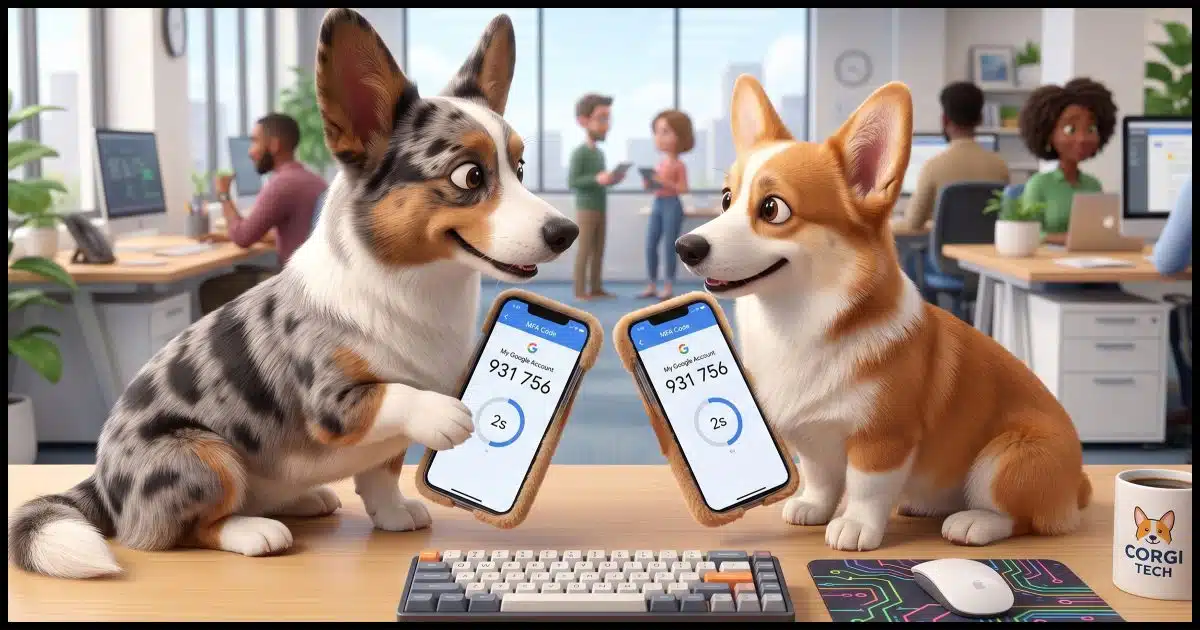
I’ve run into this multiple times in accounts from a variety of providers, both email and online service-related. Once you enable two-factor authentication, it becomes difficult for the account to be shared between multiple people in different locations.
There are a couple of solutions if the service offers the correct types of two-factor authentication.

Sharing two-factor authentication
Two-factor authentication sharing might seem impossible, but it might not be. You can share a TOTP (Time-Based One-Time Password) setup code with trusted teammates so everyone gets their own copy of the code. A shared email address is another option. You can have both 2FA security and shared access.
The problem
You start with a single account. Let’s say these are our credentials:
Username: teamname@somerandomservice.com
Password: ETbVBpguV2frcDqN8KeJ
The good news is that it’s easy to share that account with multiple people. All they need are those two pieces of information: username and password.
Then you add two-factor authentication of some sort. All of a sudden, that login information isn’t enough, at least for the first login. In addition to the username and password, you need one of these:
- A code texted to one person’s phone.
- A code displayed by the 2FA app on one person’s smartphone.
- A code or link emailed to one person’s email address.
- The ability to confirm the login on a dedicated app installed on one person’s smartphone.
- The ability to confirm the login somewhere where it’s already logged in, usually someone else’s device or computer.
You get the idea. You try to sign in, and all of a sudden, you need to ask someone else for a confirmation code or something else. Couple that with codes that expire after a few minutes, and it can be a frustrating experience.
Help keep it going by becoming a Patron.
Solution 1: TOTP sharing
TOTP, or Time-based One Time Passcode, is more commonly known as Google Authenticator-Compatible 2FA. It’s the most practical and secure method of two-factor authorization for most people.
You can share this form of 2FA with other users by capturing the QR code or the secret string it represents when you set up 2FA. (The steps you take to get this code will vary depending on which service you’re using to set this up.) Then you share it with other users you want to have access to the account.
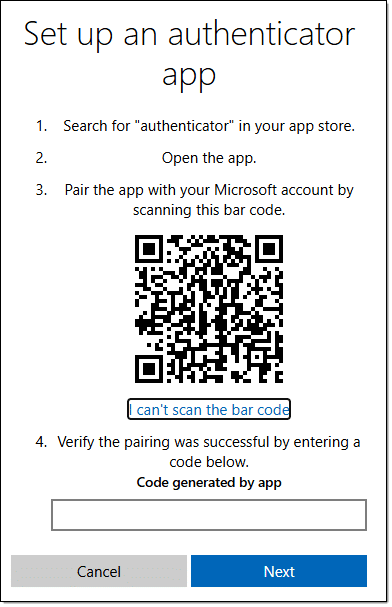
If you can’t scan the barcode — perhaps you’re using a desktop 2FA app like Proton Authenticator — then click the “I can’t scan the bar code” link to reveal the secret key you can copy/paste into the app instead. Most 2FA setups either have this as an option or show the QR code and secret key string from the start.
Now, share that code1 with others so they can paste it into their own 2FA app, and they’ll have the same 2FA code displayed when needed.
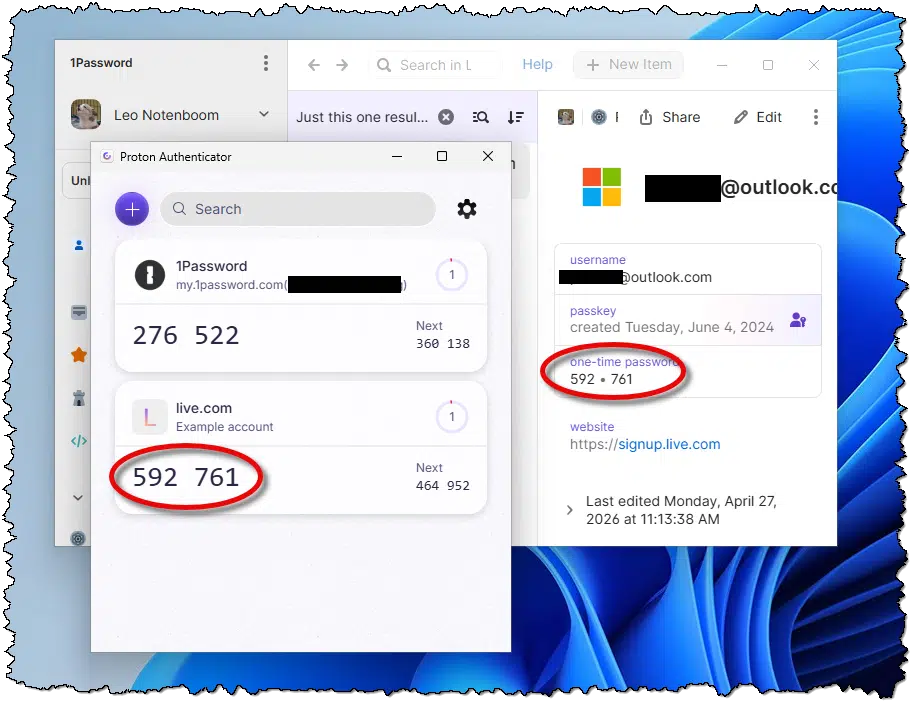
TOTP two-factor can now be used by anyone you’ve shared the code with, and no one else. After this one-time setup, each person signing into the account will see the same TOTP code for this account on their own device. It doesn’t matter what TOTP app you’re using, as long as it’s TOTP / Google Authenticator compatible.
Related

How Two-Factor Authentication Works and Why You Need It Right Now
Your password alone might not be enough to keep hackers out. Two-factor authentication adds a second layer of protection that stops intruders even when they know your password. I'll explain how it works, why you need it, and how to set it up without making your daily log-in a hassle.#16401
Solution 2: Email sharing
This is a technique I use with one of the organizations I volunteer for. They subscribe to an online service where the account is identified by a single email address. Thus, once again, the default sign-in for that single account is something like:
Username: teamname@somerandomservice.com
Password: ETbVBpguV2frcDqN8KeJ
That’s enough to log in until the service requires a two-factor security confirmation code, which is sent to that email address. If that email address goes to a single person, then anyone else needing to sign in who hits the two-factor requirement needs to ask them for the code before they can sign in.
The solution was to use a distribution list email address as the account email address. If a code is required, it’s emailed to that list, which is distributed to everyone authorized to use the app. The person logging in uses it, and everyone else ignores the message. The downside is that everyone also gets all the email sent to that account.
Distribution lists are one easy way to do it if you have the capability. Another might be for a single person to be represented by that email address, but with a “rule” or “filter” set up in their account that triggers on these types of authorization code messages and automatically forwards them to authorized users.
Not a solution: SMS and hardware keys
There isn’t a way to distribute SMS-based two-factor authentication to multiple people because it goes to a single telephone number. If that’s all you have, then the person at that number will need to be contacted if the code is required.
Hardware keys are even worse. Their additional security lies in the fact that you must have the physical key in your possession; it can’t be duplicated. It’s possible that some accounts will let you associate multiple different hardware keys, which you could then distribute to multiple users, but I expect this is rare.
Not required: the Microsoft Authenticator app
You mention in your question that you were required to use the Microsoft Authenticator app. Microsoft would like you to think so, but that’s not the case.
In the security settings for your Microsoft Account, you have the option to “Add another way to sign in to your account.”
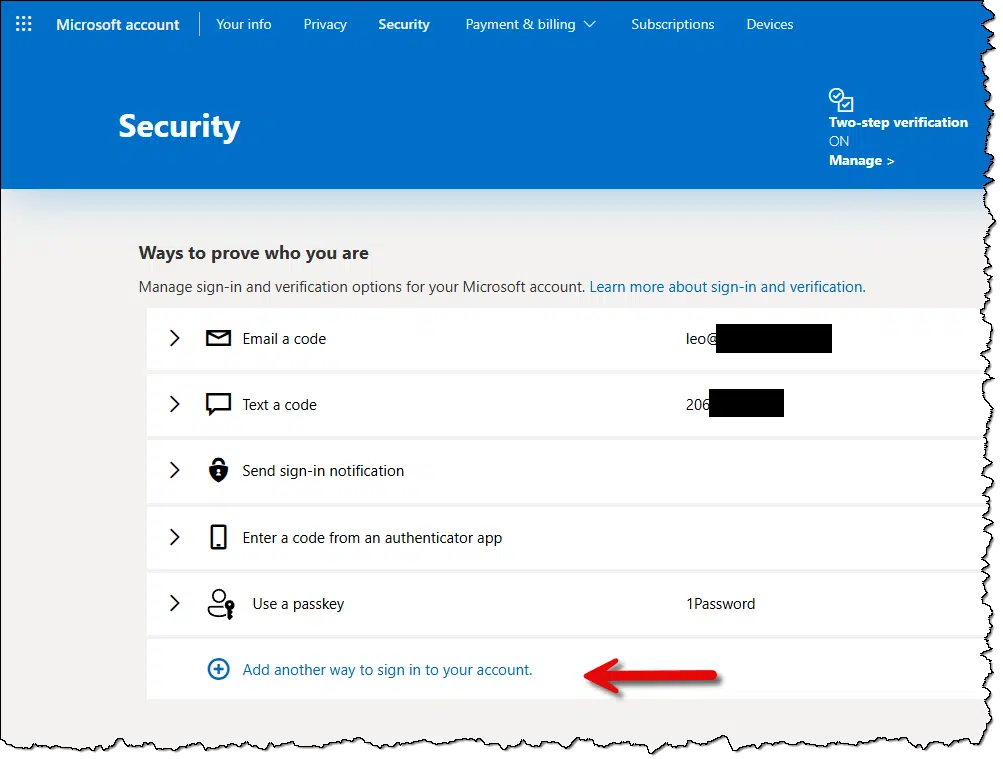
One of the options is to “Use an app”.
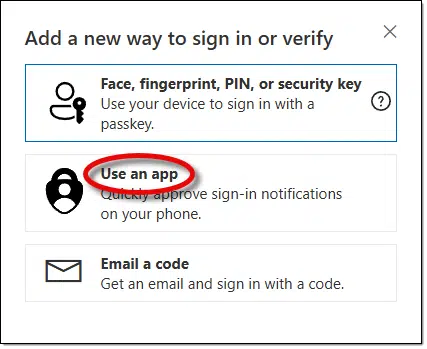
That then takes you to a screen prominently encouraging you to set up the Microsoft Authenticator.
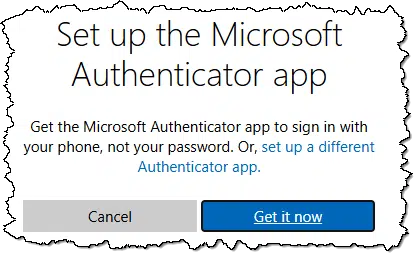
Note the link in blue: “set up a different Authenticator app“. Click that instead, and you’ll be taken to the TOTP setup screen as displayed at the beginning of this article.
You can then use whichever TOTP app you like, be it Microsoft’s or any other.
Do this
Use two-factor authentication whenever possible. It’s the simplest thing you can do to secure your account.
Do it even for accounts that are shared among multiple people. Using the techniques above, you can keep those accounts secure as well.
Subscribe to Confident Computing! Less frustration and more confidence, solutions, answers, and tips in your inbox every week.
Podcast audio

Footnotes & References
1: You can share a screenshot of the QR code, but it’s likely easier to share the secret key displayed as text.

Since the question was about a Microsoft account, it seems the easiest solution is to share the Microsoft account recovery code with them. This only works for Microsoft accounts or any other account that might have a recovery code.
I have had this issue with Zoom. Several of us share the Zoom account for the Church. But the Zoom account is set up with the Church’s email account, which also requires two factor authorization.
So you go to sign in to the Zoom account. It sends the code to the registered email account. This often requires a call to the secretary to get the code to enter. If she is not in the office you may not be able to get the code.
So what happens is that you do not sign out of the account-ever. Thereby bypassing the security. Zoom lets you do this, other programs don’t.
Yes, I have my own Zoom account, but need access to the Church’s in order to set up and send out Zoom invitations for the Church account.
This is exactly the scenario I have a distribution list for.
But yes, once you sign in you typically don’t need 2FA again unless you clear cookies or switch browsers.
I use a variety of TFA managers. Preferably Authy but also the Microsoft & Google Authenticators.
My MS Authenticator apps are on 2 phones & both receive MS requests to authenticate access to various personal & work accounts.
I would think it should be possible to use MS Authenticator across phones owned by different team members to provide the TFA.
A related issue is how one excludes someone who has left the team (or has been booted out).
Change the password and don’t tell them the new one. A password change should force a re-login.
Quote: “You can share a TOTP (Time-Based One-Time Password) setup code with trusted teammates so everyone gets their own copy of the code.” End Quote
Is this setup code also time sensitive, or can it be saved for emergency recovery, such as if the phone on which the app’s installed is damaged and you must set up the authenticator app on another device?
Ernie
You share with them the code that allows them to set up their own authenticator. THAT then is time sensitive, and every one shows the same code at the same time.
Another way is using a password manager. Bitwarden has a provision for using TOTP codes by copying the secret key code in the same passcard as the username and password. Bitwarden uses an organizational model for password sharing. Members of the organization can have access to the shared passcards. As the administrator, I can group passcards into collections and control who has access to which collection. And add or remove members of the organization as needed.