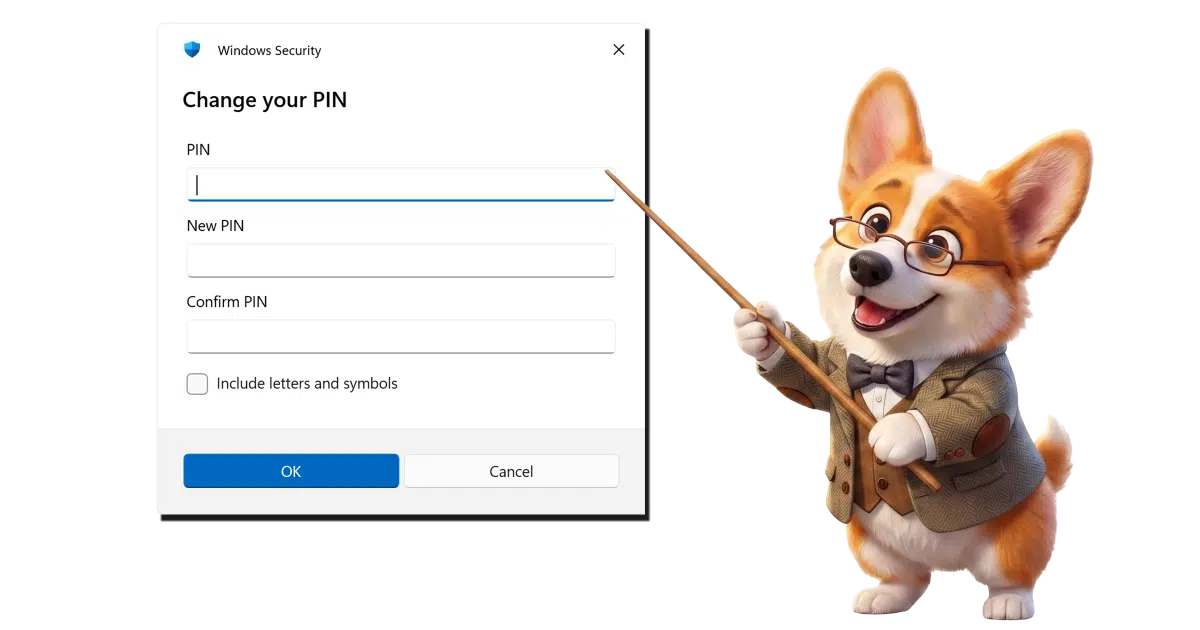
It’s not part of your Microsoft account. It’s unique to each device you use it on.
To change the PIN (Personal Identification Number) you use to sign in to a machine, you need to change it on that computer.
Knowing that, it’s pretty easy.

Changing PINs
Your PIN is not part of your Microsoft account; it’s separate for each device where you set it up. To change it, open Windows Settings, search for PIN, and click Change PIN. Type your old PIN, then your new one twice.
Changing the PIN
In the Settings app, search for PIN.
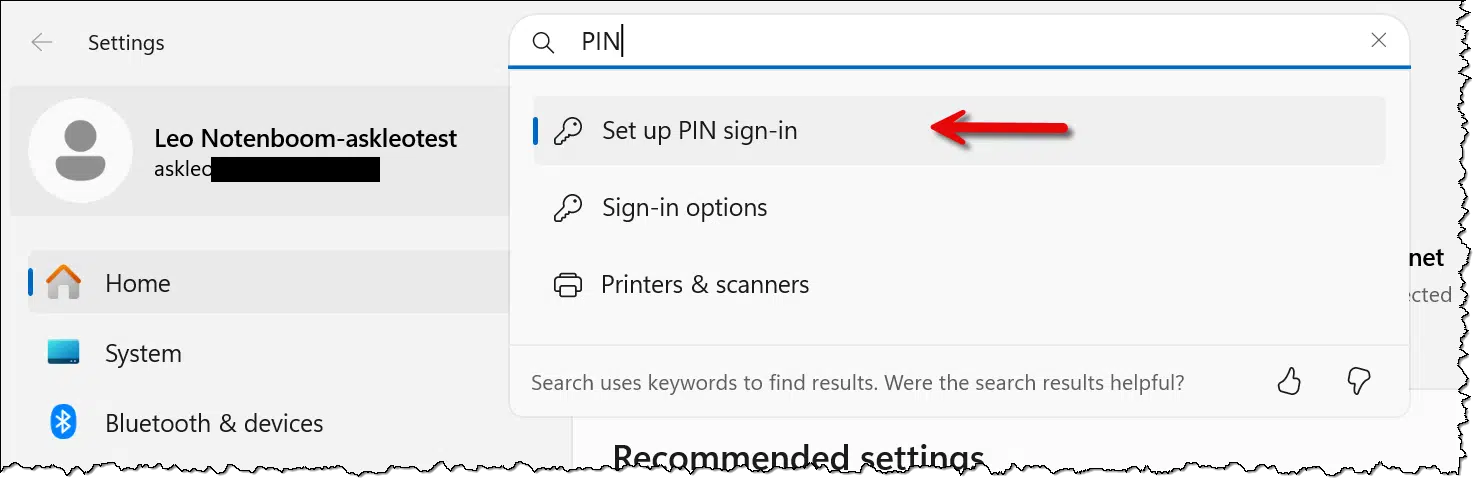
I recommend using search because Microsoft likes to change where things are. In the example above, click on Set up PIN sign-in (even if it’s already set up).
In the resulting page, click on PIN (Windows Hello) to expand it and expose the Change PIN button.
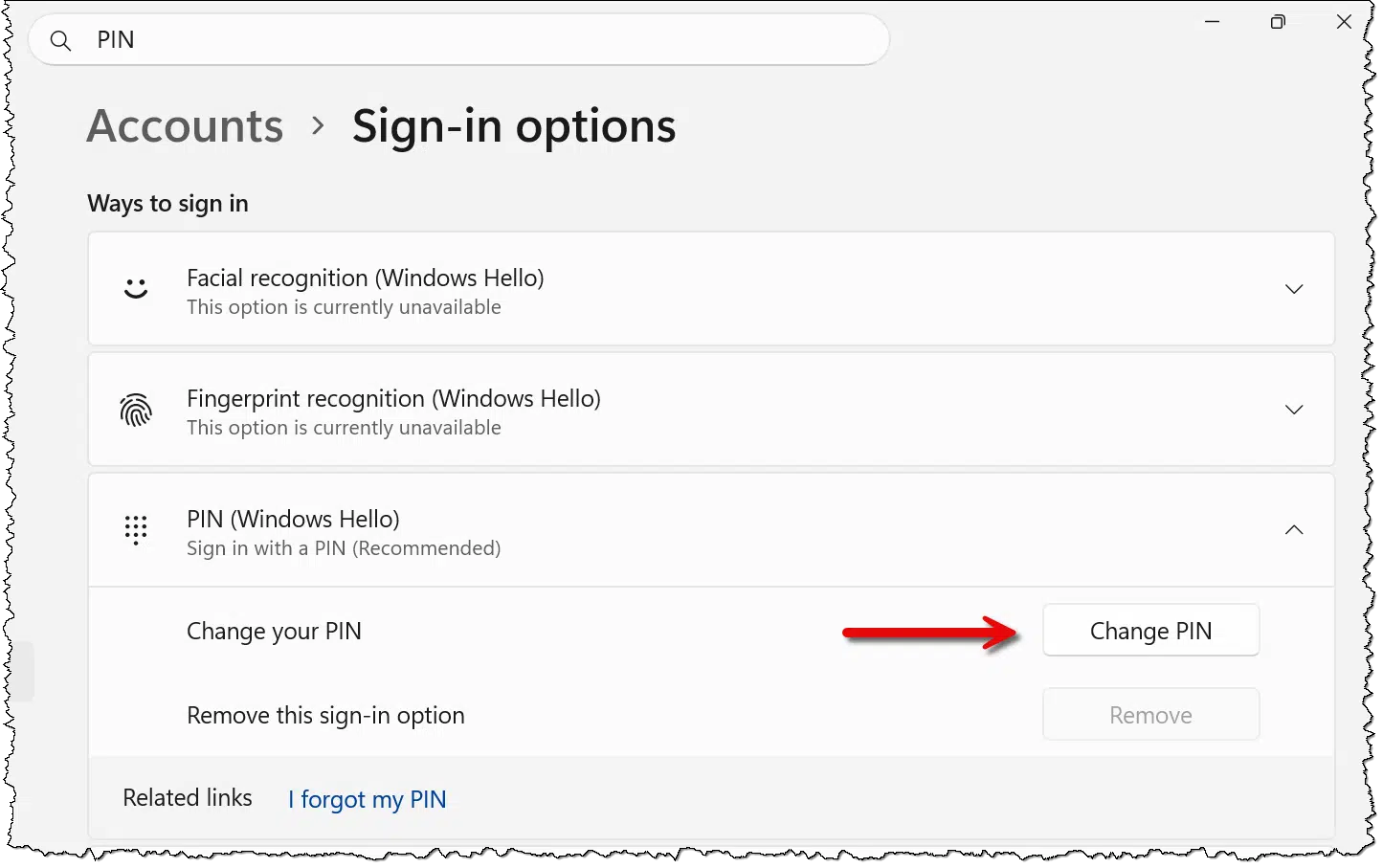
Click on the Change PIN button.
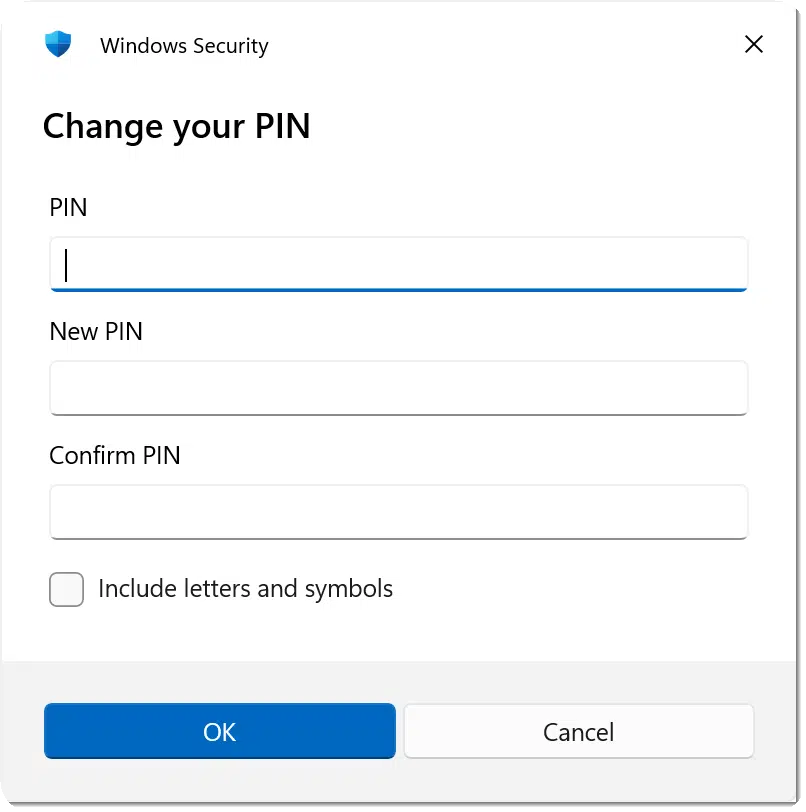
Enter your existing PIN, and then your new PIN twice. Click OK, and your PIN will be changed.
That’s all there is to it.
Help keep it going by becoming a Patron.
Related

How Can a PIN Be as Secure as a Password?
A short PIN seems weaker than a long password, yet for signing in to Windows, it can be just as safe and maybe safer. The secret is where the PIN works, not how long it is. I'll explain and show you how to make yours stronger if you're uneasy.#24089
Why change your PIN?
Normally, there’s no reason to change a PIN, unless you’re concerned your PIN has been compromised in some way by someone who has access to your computer.
Since a PIN is machine-specific, it’s not used online at all. The only time it comes into play is when you’re at your machine attempting to sign in, or when some of the other reasons Windows Hello (the technology that handles things like PINs, fingerprints, security keys and the like) is used. Many password managers ask Windows to confirm you are who you say you are before filling in a password. If you’re configured to use a PIN to sign in, you may need to enter that PIN again to proceed.
If someone knows your PIN and has access to your computer, they can log in and impersonate you.
If that’s the case, and it’s not someone you trust, it’s time to change your PIN.
What about other computers?
While it’s common to set them all to use the same PIN1, each device has its own. That means you’ll need to decide if you want to change your PIN on every machine that uses one.
Most importantly, changing a PIN on one machine does not affect the PIN used on other devices. It’s a machine-level, not an account-level, setting.
How are PINs even safe?
Most account compromises happen when someone on the internet gets your online account password and signs in to your account. PINs used to sign in to Windows are not used online, so they don’t represent a risk to, say, overseas hackers or database breaches.
To use a PIN, someone needs physical access to your machine. That makes them a convenient and secure way to keep your computer — including your signed-in online accounts and local data — safe from someone walking by or from someone who steals your computer2.
Do this
If you feel your machine is at risk of physical access by someone who knows (or can guess) its PIN, then change the PIN. It’s easy to do.
Also easy: Subscribe to Confident Computing! Less frustration and more confidence, solutions, answers, and tips in your inbox every week.
Podcast audio

Footnotes & References
1: Yes, perfect security would mean that you don’t reuse PINs for all the same reasons you should not reuse passwords. However, we are all imperfect; what can I say?
2: A knowledgeable thief might still be able to access data stored on the hard drive, but a) few thieves are knowledgeable, and b) that’s what BitLocker is for.

So, that’s why I managed to lock myself out of my computer a couple of times when I made some changes to the UEFI settings. I was able to sign back into my computer and reset the PIN but couldn’t figure out why Windows wanted me to sign in another way. Thanks, Leo!
When I select PIN, I see “Related links” I forgot my PIN Sorry, this PIN isn’t working for your organization’s resources. Tap or Click here
This is a personal Windows 11 Pro setup. I cannot use the guidance provided. What would my next step be?
Are you signed in using a local account or a Microsoft account? I’m running Windows 11 Pro and used my Microsoft account to sign onto Windows.
When I go to Settings>Accounts>Sign-in options, I see the same thing as what is in the article and can follow the steps as described.
In some respects PINs are similar to passwords in that one needs to choose a secure PIN, especially for laptops which are more susceptible to loss or theft.
Less secure PINs, such as consecutive numbers or numbers that follow a familiar pattern, such as straight up and down the keypad (e.g. 2580), should be avoided.
What I find irritating – and typical modern day Microsoft- is that none of this is explained when you originally set up a PIN on, say, a new device. I found this when, having used a PIN on an older device, the new device didn’t accept the same PIN. But they hadn’t said it was device specific! Whereas the Windows account password IS across devices!
On my desktop and laptop computer I use letters and numbers rather than just numbers, which allows a lot more more combinations. I wish phones and tablets would also allow a keyboard rather than just a number key pad to do this. Also Windows doesn’t seem to let you know you can do this.
I’ve used the same PIN on all my computers since Microsoft introduced Windows Hello for personal (non-enterprise) computers, but in view that my laptop is the only active Windows device I currently use (since re-purposing my desktop as a Proxmox-powered home lab/server), I’ve been considering upgrading my PIN to be as secure as any online password I’m using these days, and the only thing holding me back is me coming up with a 16-character PIN that I can easily remember, especially since most of the pass-phrases I currently use employ a similar pattern, and I’d prefer to switch that out for a different one. For example, I remember my bit-Warden pass phrase because it refers to something that has meaning for me, and the pass phrase for Proxmox refers to something different, but equally meaningful to me. Until I come up with something that’ll work for me, I’ll stick with my current PIN.
Ernie
Hello Leo,
I tried to change My Windows PIN, but when I get to the settings it shows the following error:
“Something went wrong. Try again later.”
I did a google search for the error and came across a Youtube clip showing several ways to correct this error. The link is below:
https://www.youtube.com/watch?v=sbHVp6IA8qE&t=22
I do not know if any of your other followers will or have come across this error.
Thank you for the link! While I’m not currently experiencing any issues with my PIN, I have in the past, and I expect that it could recur going forward. I’ve also saved the author’s link to his website so I can peruse his collection of other How To’s later, when I have more time.
Ernie