In a word: scope.

It can be as secure — perhaps even more secure — because it’s used in a different way.
You can also choose to increase a PIN’s security by using some of the same techniques we use for passwords in general.

One PIN per PC
Your Windows PIN works only on the one computer where you set it up. A thief would need both the PIN and the computer itself, so a faraway hacker can’t use it. Want more strength? Make your PIN longer, or make it password-like with letters and symbols.
The big difference: scope
The biggest difference between using a PIN and a password to sign in to your computer is that the PIN only works on the computer on which you set it up.
If someone knows your PIN, they’ll be able to sign in to that device, but only if they also have physical access to the computer. If they can do that, your machine isn’t physically secure. With or without your PIN, anyone who has physical access to your machine can use any number of techniques to get at its contents.
There are at least two instances in which having an “easy” or automatic sign-in puts you at additional risk.
- If you have saved logins or passwords in your browser, anyone can walk up to your computer and access those sites or credentials.
- If you use BitLocker to encrypt your data, logging in allows access to that data.
In those cases, the ability to log in using that easy-to-remember PIN could allow access, but it still requires physical access to the computer.
To an overseas hacker, a PIN is pretty much useless… unlike your password.
Help keep it going by becoming a Patron.
A PIN can be more secure
Many people fear a type of malware known as a keylogger.
When installed, keyloggers secretly record your keystrokes (and possibly more) and send the recording to hackers. Log in to a website, for example, and the keylogger records both your username and password. Only something like multi-factor authentication can save you.
If you use a PIN to sign in to your computer, however, they can record anything they like, and it won’t get them anywhere. The PIN only works on that device, which a remote hacker has no access to. Even if you use a Microsoft account to sign in to your computer, that PIN is useless everywhere else.
There’s an argument that using a PIN is more secure, since you never type your Microsoft account password into your machine. Keyloggers can’t log what you never enter.
Strength: treat it like a password
If a four-digit PIN still makes you uncomfortable, consider treating it like a password. There are two approaches.
The first is to make it longer. There’s nothing that says you have to use your four-digit ATM-style PIN as your Windows sign-in PIN. Use something longer — much longer, if you like. Just adding a single digit to your regular PIN makes it ten times stronger. A six-digit PIN is one hundred times as strong.
The second is to include letters and symbols in your PIN.
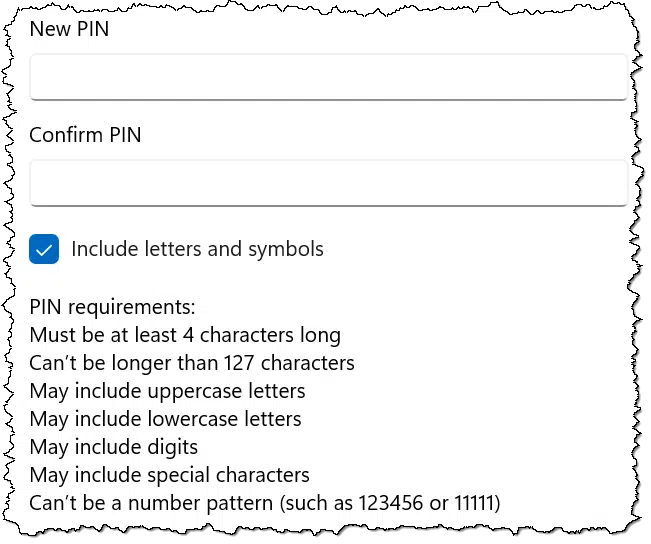
A PIN with letters and symbols is nothing more than a password. This, then, would act as an alternative password used to sign in only to this specific device.
PINs are convenient
Using a PIN is, I believe, intended to make signing in to your Microsoft account more convenient. As we’ve seen, it may make it a little more secure because you don’t type in your actual password. If you log in with a PIN, you’re free to make your Microsoft account password long and complex. This strengthens the security of your online accounts, like Outlook.com email, OneDrive online storage, and more.
Alternatively, if you configured your Microsoft account to be password-less, meaning you’re using only passkeys or other forms of authentication, you may be required to set up a PIN (or facial or fingerprint recognition) as the primary way to sign in to your computer. Your online accounts are more secure (there’s no password to be compromised), but PINs move from a convenience to a potential requirement.
What if I forget my PIN?
When you sign in, there’s a link you can click on if you’ve forgotten your PIN.
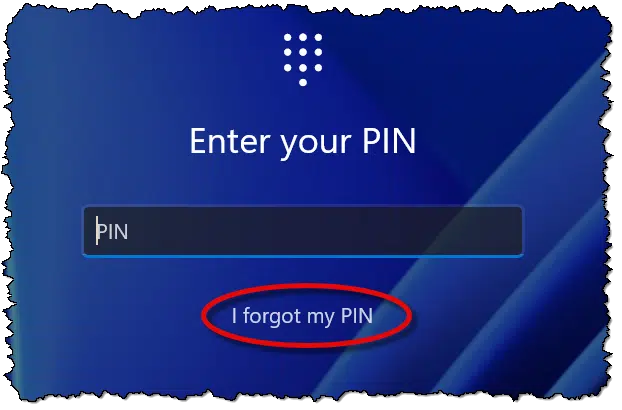
This will take you online and have you authenticate with your Microsoft account in another way.
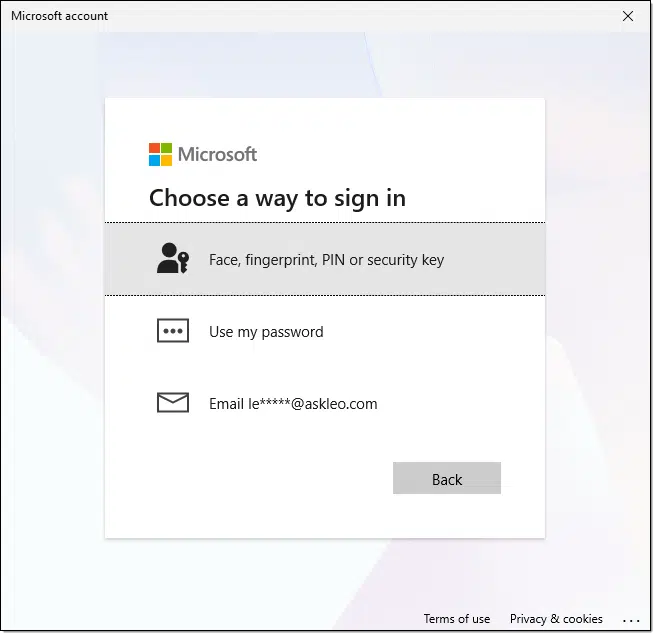
In my case, I’m offered:
- Windows Hello: the face, fingerprint, PIN, or security key option. You’ve forgotten the PIN, but if you previously set up one of the others (and I recommend you do), it can be used.
- Your password, if your account has one. (Meaning it’s not a “passwordless” account.)
- Email to an alternate recovery account, if one has been set up.
All of these are much like the Microsoft account recovery process. Once authenticated, you’ll be signed into your computer and given the opportunity to set a PIN that you’ll (hopefully) remember.
Do this
Consider adding a PIN to your Windows sign-in. Within Settings, search for “PIN”, and it’ll be in a group of settings called “Windows Hello”.
Subscribe to Confident Computing! Less frustration and more confidence, solutions, answers, and tips in your inbox every week.


Now you can use letters and special characters in your PIN. By definition, it’s no longer a PIN, Personal Identification Number, it’s a PIP Personal Identification Password or Passphrase. 😉
You can count on Microsoft for ridiculous naming conventions.
I’m not sure what the point of this article is, other than to promote the word “pin” over the word “password” – because it’s the current fad. If the scope of this discussion is logging into a given computer, with a local credentials, then it makes no difference what you call it – pin or password or harry. You’re doing the same thing. You’re typing in an alphanumeric text string to get access to this one computer. This usage has nothing to do with using passwords on websites, yet the article seems to conflate the two use cases. In the case of logging into a computer, your “password” can be a 4-digit number, or your “pin” can be a 20-character string. What’s in a name? Not much in this case.
Of course, if the computer user is a dingbat and uses the computer’s login password also on website accounts, then that’s an entirely different issue. That doesn’t make a “pin” any safer, other than most websites won’t let you use a 4-digit number as a password.
In this scope (logging into your computer), the discussion of key loggers is a tangent and makes no difference. But the article goes on talking about “Log in to a website, for example, and the keylogger records …” . So what? Are we talking about logging into a computer sitting on your desk, in your house, or are we talking about website account in a browser? That’s like mixing apples and corgis.
The article also mentions that all bets are off if you lose possession of your computer. Well, once again, so what? Whether you use a pin or password it makes no difference. In fact, since 99.9999% of people will use a 4-digit pin, then the pin is much more Unsafe.
As I said in a previous comment, a PIN isn’t a login password. It’s a password that unlocks the real password (the credential) stored on the device. That credential is associated with the account and is stored on every device that uses that account.
Semantics. What counts is how things work – the resulting effect.
If you ask me, the one thing that differentiates a PIN from a Microsoft account password is that it’s only used to sign in to the specific computer it has been configured on, combined with the fact that it’s also stored locally, in your computer’s securely encrypted storage space in the local TPM device, and it only provides access to the specific computer it has been configured on, not your Microsoft account that could provide access to any Windows computer that uses your same Microsoft account as well. That’s the importance of the scope of your computer’s Windows Hello PIN. It accesses only one computer, not every machine you own, and have configured with your one Microsoft account.
I have a Windows Hello compatible, biometric USB fingerprint scanner on each computer I own, so now I sign in with a simple swipe on the scanner’s screen on any of my computers, so I never need to enter a PIN. Additionally, I use BitWarden’s password manager, so every password I add into my vault is encrypted locally, on my computer before being stored (encrypted) in my vault on Bitwarden’s cloud, so I’m the only person who is able to access my Internet passwords unless I share my master password or PIN (I don’t!). As a side note, BitWarden allows me to set up an access PIN too, which is encrypted and stored in my vault so it can be used on any computer I’ve installed it on.
The difference between a Windows login PIN and a password is that the PIN doesn’t unlock the account. It unlocks the “password” stored on that PC, which in turn logs you in to Windows. The password works anywhere you sign in to that Microsoft account, but the PIN works only on that device.
>> There’s an argument that using a PIN is more secure, since you never type your Microsoft account password into your machine. Keyloggers can’t log what you never enter.
You’ve ignored a fairly major distinction here.
If you ASS-U-ME that we’re all using MS account credentials to log into our computers, then perhaps this article makes sense. But if we dodge all of Microsoft’s bullying and set up the computer without a MS account login, there’s no difference between a PIN and a password. If you’re at the computer, either gets you in. Once in, you have no access to anything secured by MS account credentials. Unless you’re an idiot and use the same login for the MS account as for the computer itself. MS wants you to be an idiot. Some of us prefer not to be.