You don’t have to use a mouse all the time.

My recent article, How to Select Text Faster: Six Tricks You May Not Know, was quite popular, but it also drew a common response: what about the keyboard?
Fair enough. Let’s set the mouse aside (mostly) and focus on using the keyboard to select text.

Keyboard text selection
Hold SHIFT and use your arrow keys to select text. Add CTRL to select a word at a time. SHIFT+Home and SHIFT+End select to the start or end of a line. CTRL+A selects everything. Test Page Up and Page Down in your favorite programs.
It all begins with SHIFT
Almost all keyboard selection techniques are normal cursor movement techniques combined with the SHIFT key. The right arrow moves one character to the right, while SHIFT+right arrow creates or extends the selection one character to the right.
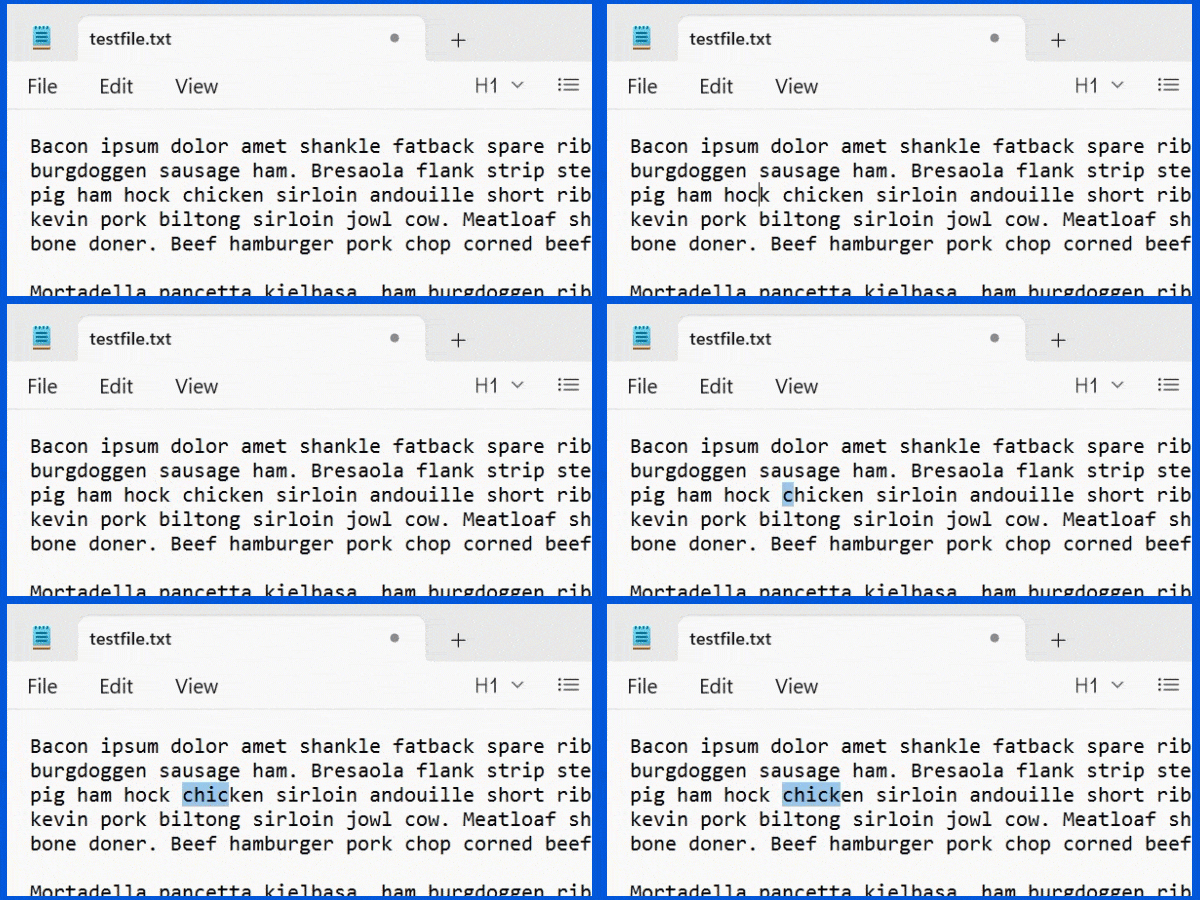
As soon as you release the SHIFT key, the selection is complete. You can then operate on it. For example, typing CTRL+B toggles bold on and off for the selection.
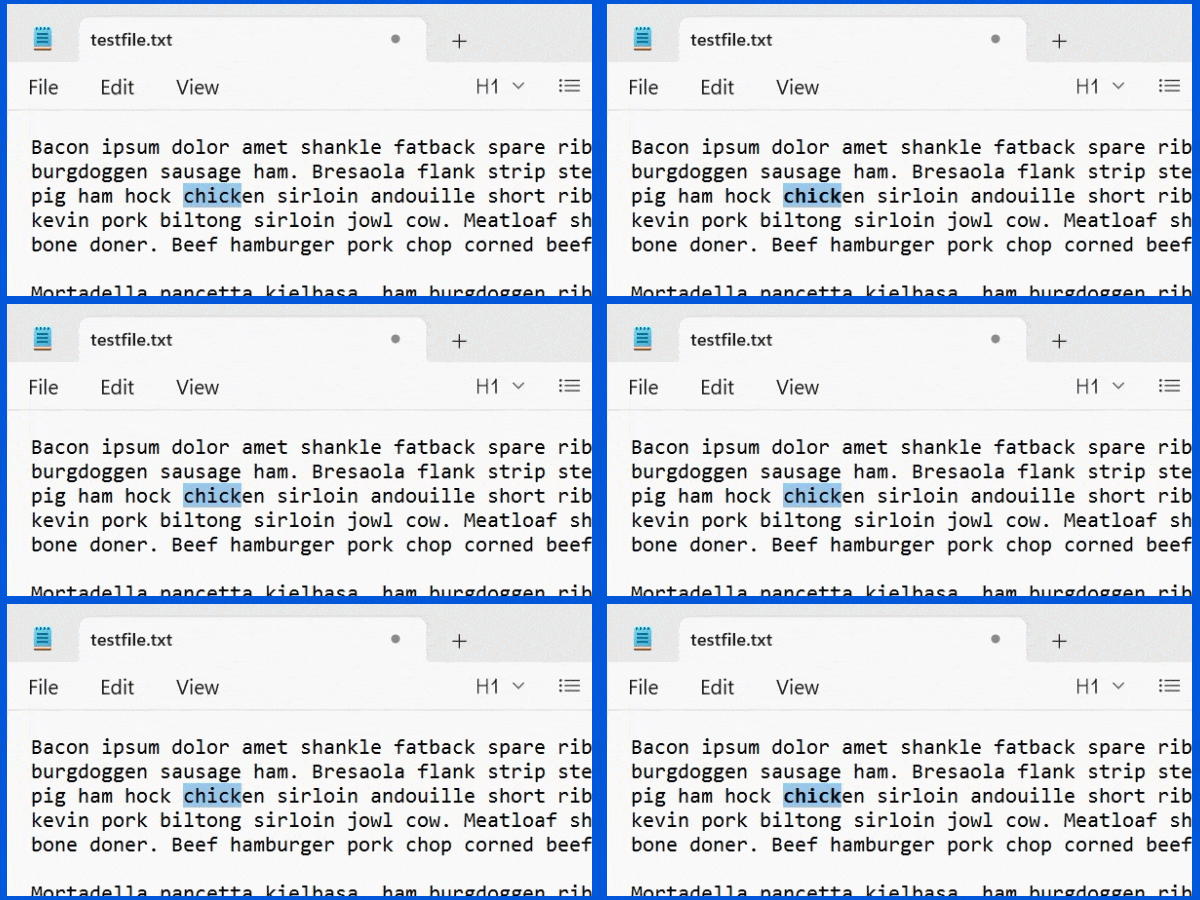
While you hold down the SHIFT key, you can move the cursor using any of the arrow keys in any direction to create the selection you want.
CTRL right and left to select by word
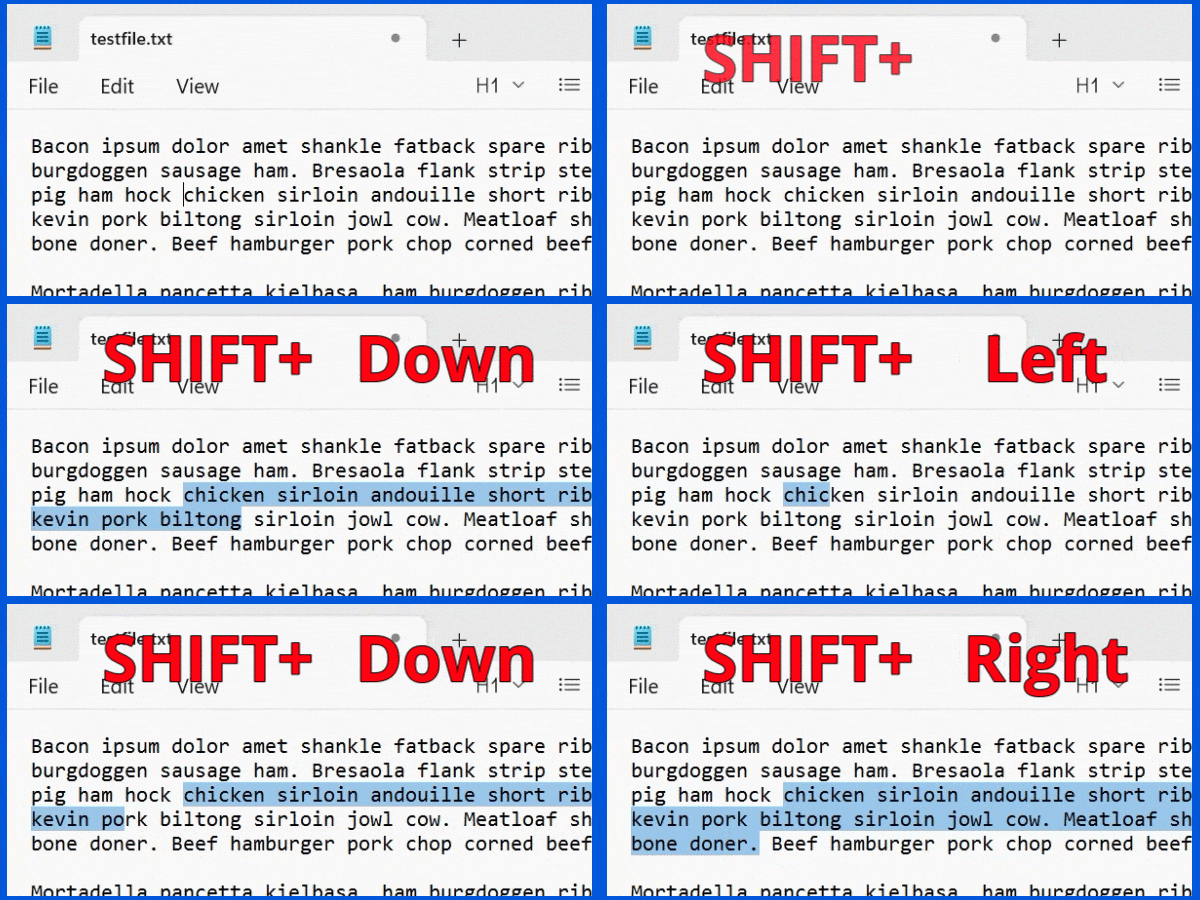
If you hold down the CTRL and SHIFT keys as you move the cursor around with the right and left arrow keys, you’ll select (or deselect) one word at a time.
If you don’t hold down SHIFT, you’ll move the cursor one word at a time without creating or extending a selection.
CTRL up and down to select by paragraph
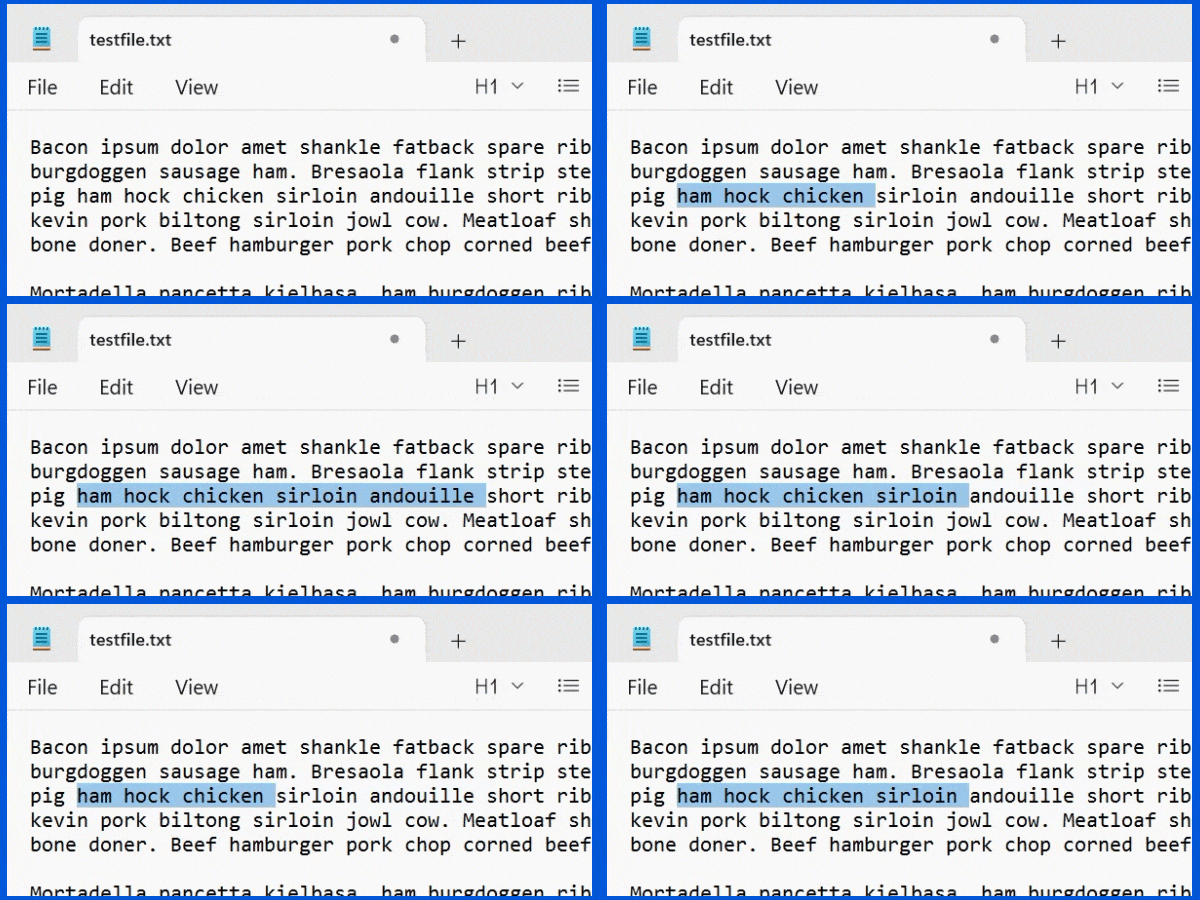
If you hold down the CTRL and SHIFT keys as you move the cursor with the up and down arrow keys, you’ll select by paragraphs.
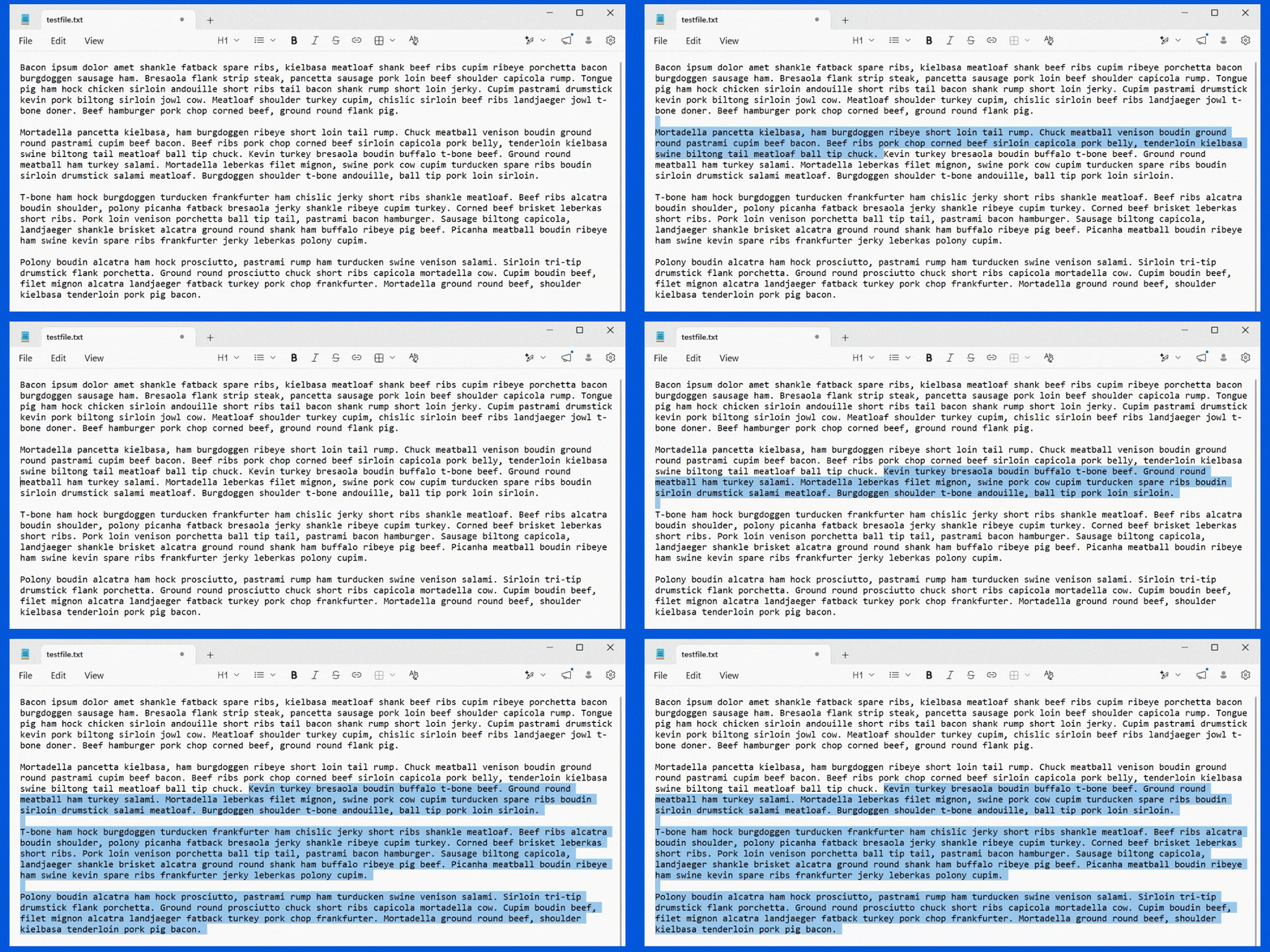
If you don’t hold down SHIFT, you’ll just move the cursor to the next paragraph. Note that some tools (such as Notepad, in the example above) consider blank lines between paragraphs as a kind of paragraph themselves.
Other movement keys
SHIFT+Home or End will create (or extend) the selection to the beginning or end of the current line, respectively.
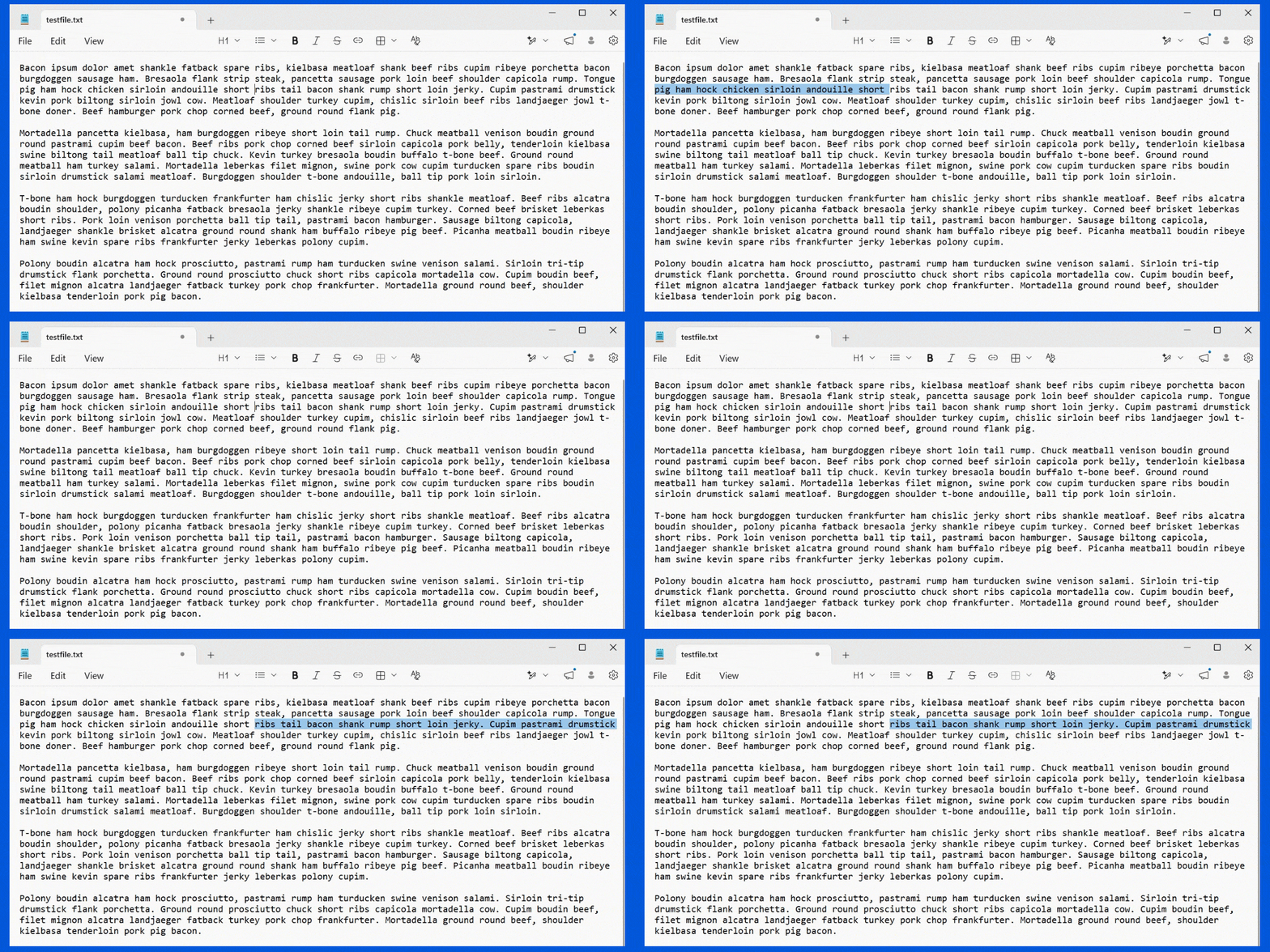
CTRL+SHIFT+Home or End will select from the current location to the beginning or end of the document, respectively.
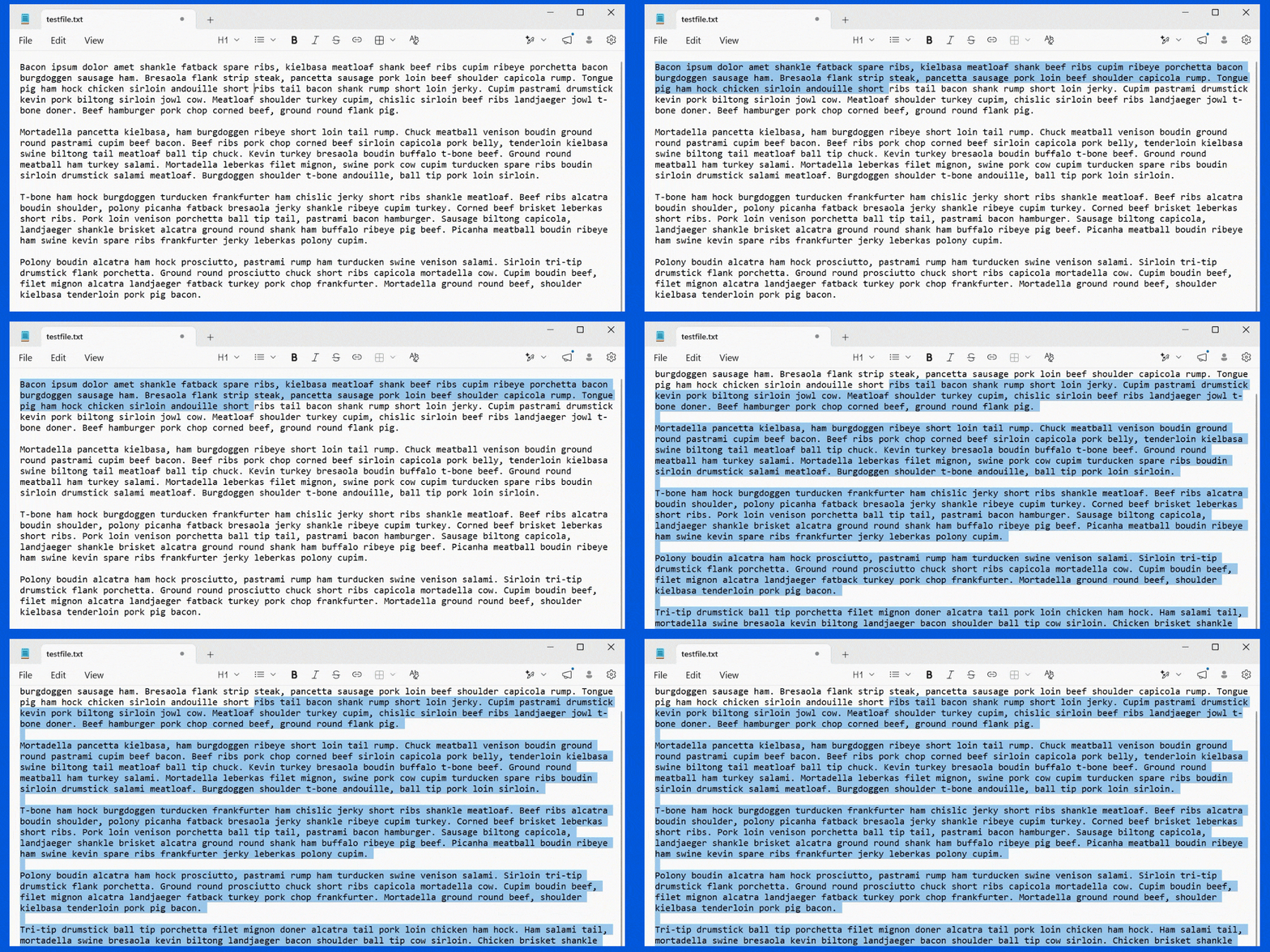
I find that SHIFT+Page Up and Page Down, as well as SHIFT+CTRL+Page Up and Page Down, differ between applications. Some select to the beginning (or end) of the current paragraph, and some to the beginning (or end) of the current document. It’s worth experimenting with those keystrokes to see how they behave in the applications you use most often.
And finally, our old friend CTRL+A selects “All”, meaning it selects everything in the current document or edit box.
Do this
Depending on how you use your computer, you may find keyboard selection more useful than the mouse. And if you’re at all like me, you probably switch between the two constantly. Given how much time we spend editing text, it’s worth knowing how to select it efficiently.
Subscribe to Confident Computing! Less frustration and more confidence, solutions, answers, and tips in your inbox every week.


Thank you. I summarised it into a cheat-sheet .txt file for any interested:
From Ask Leo on Youtube. Help on selecting text quickly and efficiently using the Keyboard
or using the Mouse.
Keyboard
========
Press this key To do this
Shift+Arrow Select text upto where cursor is moved, 1 char at a time (arrow == left/right/up/down)
Ctrl+Shift+Arrow Select text upto where cursor is moved, 1 word at a time
Shift+Home Select text from cursor to beginning of line
Shift+End Select text from cursor to end of line
Ctrl+Shift+Home Select text from cursor to beginning of document
Ctrl+Shift+End Select text from cursor to end of document
Ctrl+A Select whole document
Shift+Page-Up/Down and Ctrl+Shift+Page-Up/Down Application dependent. Try to see effect.
__________________________________________________________________________________
Mouse
=====
Click-hold-drag-release usual way of selecting
Double-click select entire word
Double-Click-hold-drag-release Selects a word at a time
Triple-click select entire line or para
Triple-Click-hold-drag-release Selects a line or para at a time
Margin-click-hold-drag-release select an entire line at a time
Click, move, SHIFT+click select all text between the 2 click positions