Some convenient text-selection techniques you might be missing.

This might fall into the category of “everyone knows that”, when, in fact, everyone does not know it. As a result, they’re missing out on some convenient and powerful techniques.
This is about several ways of selecting text.
I’ll also explain what selecting means.

Selecting text faster
Selecting text means marking the material you want to change. You can drag across it, double-click for a word, triple-click for a paragraph, or click in the margin for a line. Or skip dragging: click once, then hold Shift down, and click again.
Selecting text
Selecting text indicates which text you want to do something to.
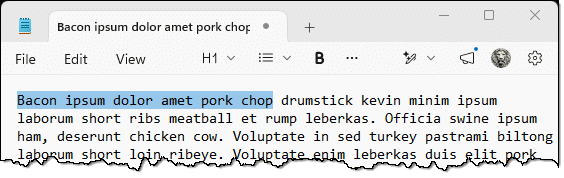
In this example, the text “Bacon ipsum dolor amet pork chop”1 is highlighted because we’ve selected it. This tells Notepad, in this case, that if we click on the Bold control, it should be applied to the text we’ve selected.
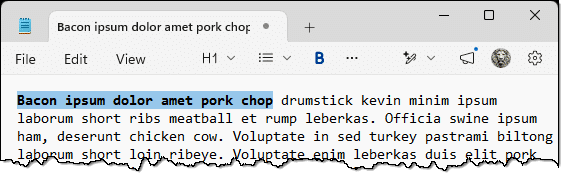
The trick, if you want to call it that, is that there are many, many ways to select text.
Help keep it going by becoming a Patron.
Click-hold-drag-release
Probably the most common way to select text is to click where you want the selection to start (or end), hold the mouse button down, drag to the other end, and release.
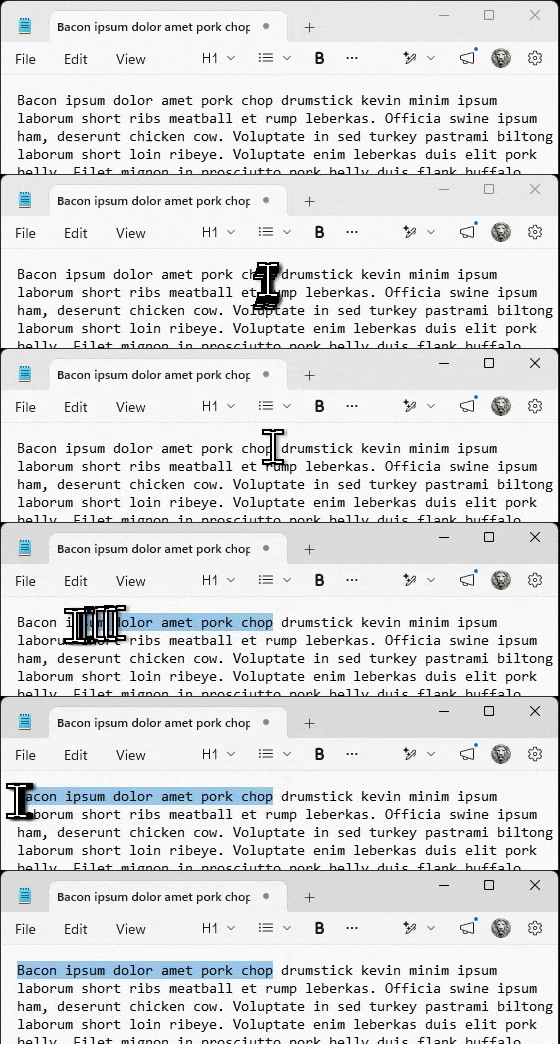
This requires you to click in a precise place, which can be a challenge. You’ll note I selected backward. This is because clicking exactly prior to the first letter in “Bacon” is difficult to do. A little too far to the left, and I’d be selecting something else (we’ll discuss that below), and a little too far to the right, and I’d miss the letter “B”.
This brings us to a second technique: word selection.
Double-click-hold-drag-release
Double-clicking on a word selects the entire word. If that’s all you need, you’re done.
If you want to select several words, then double-click anywhere on the first (or last) word you want selected, hold the mouse button down, drag it to the other end of the text, and release the button.
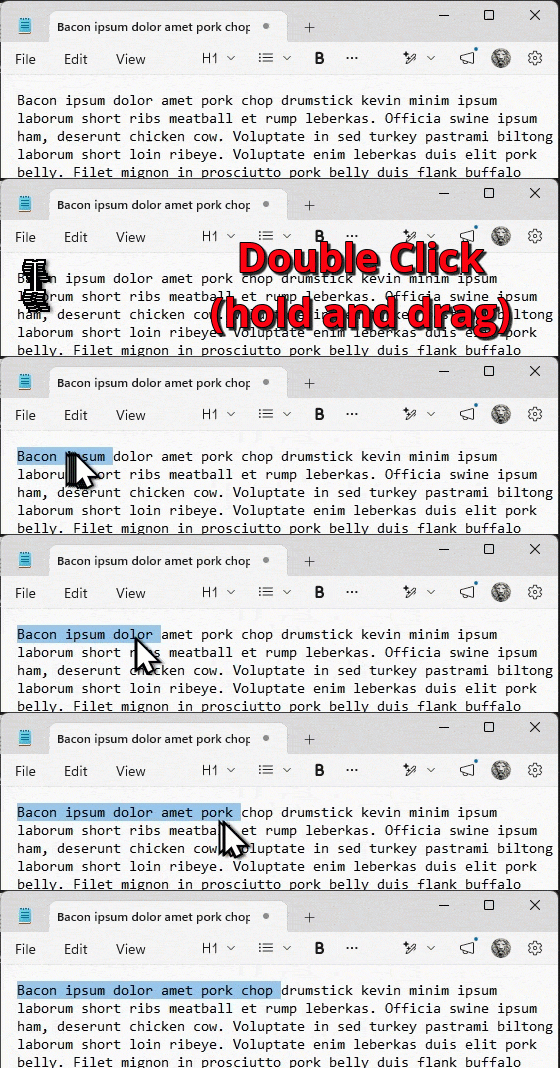
Clicking anywhere on the word makes this easier to get right.
There is one caveat. In the example above, using Notepad, double-clicking a multi-word selection includes the final space.
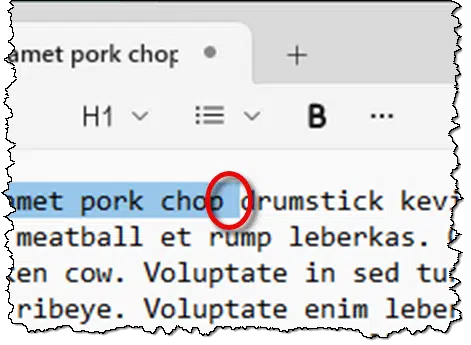
If you’re selecting a single word (i.e., not dragging for more), then the space is not included.
Not all applications do this, though many, maybe most, do. Some will trim the extra space. It’s worth paying attention to, particularly if you’re selecting a password. If the extra space is included, it may fail to be recognized as the correct password wherever you paste it.
Triple-click-hold-drag-release
Triple? Yes. Click the mouse three times, and the selection gets … bigger. In most applications, a triple-click will select the entire paragraph.
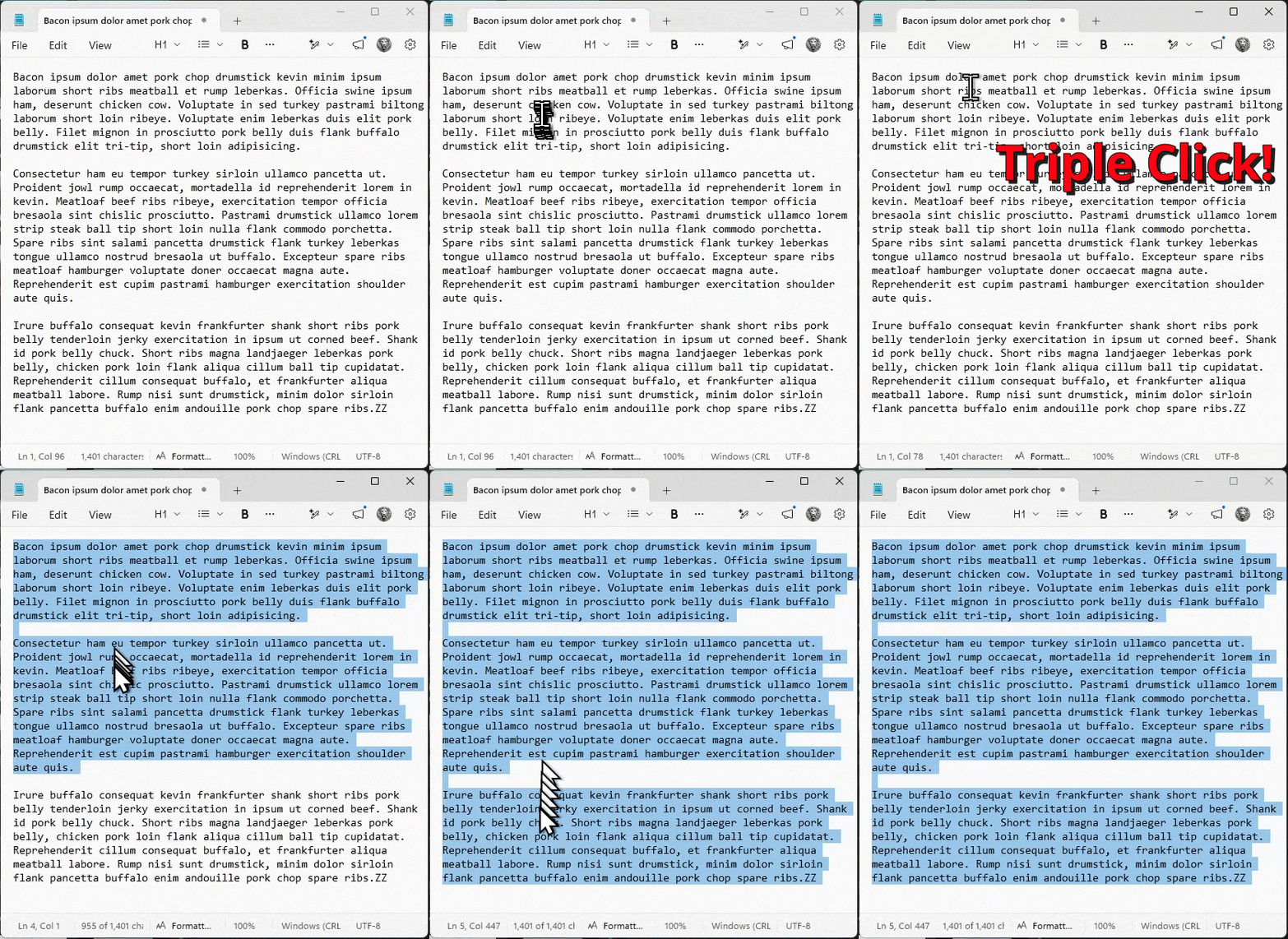
Thus, triple-click-hold-drag-release allows you to select by paragraphs. Even less mousing accuracy is required.
Sadly, quad-click (fourple?) doesn’t appear to be a thing, at least in the applications I tried. Nonetheless, it might be supported, so give it a try in your favorite program, just in case it is yet another means of selecting text.
Margin-click-hold-drag-release
If you click in the margin to the left of a word or line, then the entire line is selected. You can click-hold-drag to select line by line.
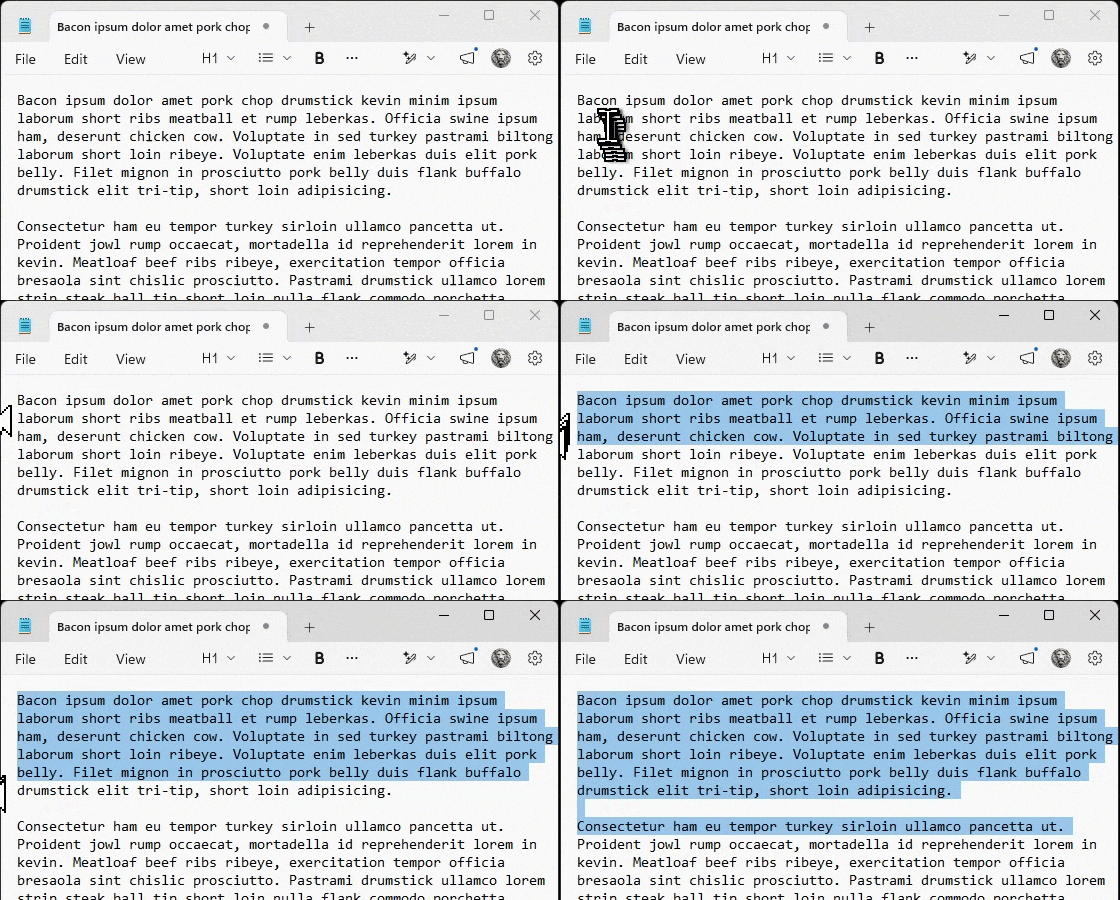
This pays no attention to words or paragraphs, just lines. It’s a quick way to get portions of text.
This is the “other” selection type I alluded to above. It’s easy to accidentally select the line when all you’re trying to do is put the cursor in front of the first character, like the “B” in “Bacon”.
Click, move, SHIFT+click
This technique involves no dragging at all.
Click and release at the beginning (or end) of what you want selected. Then SHIFT+Click at the end (or beginning) of what you want selected.
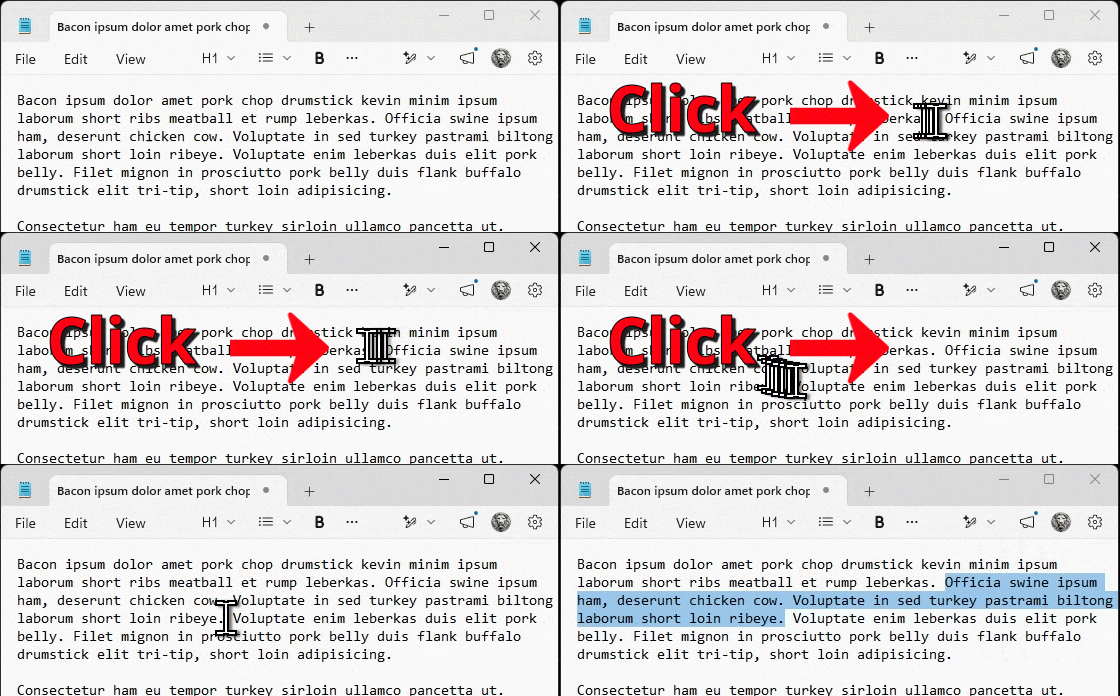
Technically, a SHIFT-click extends any existing selection to the current cursor point. I find this much more convenient than any of the click-and-drag operations.
CTRL+A: Select all
Even though this is primarily about mouse-based selection, I have to mention CTRL+A because it’s used so often.
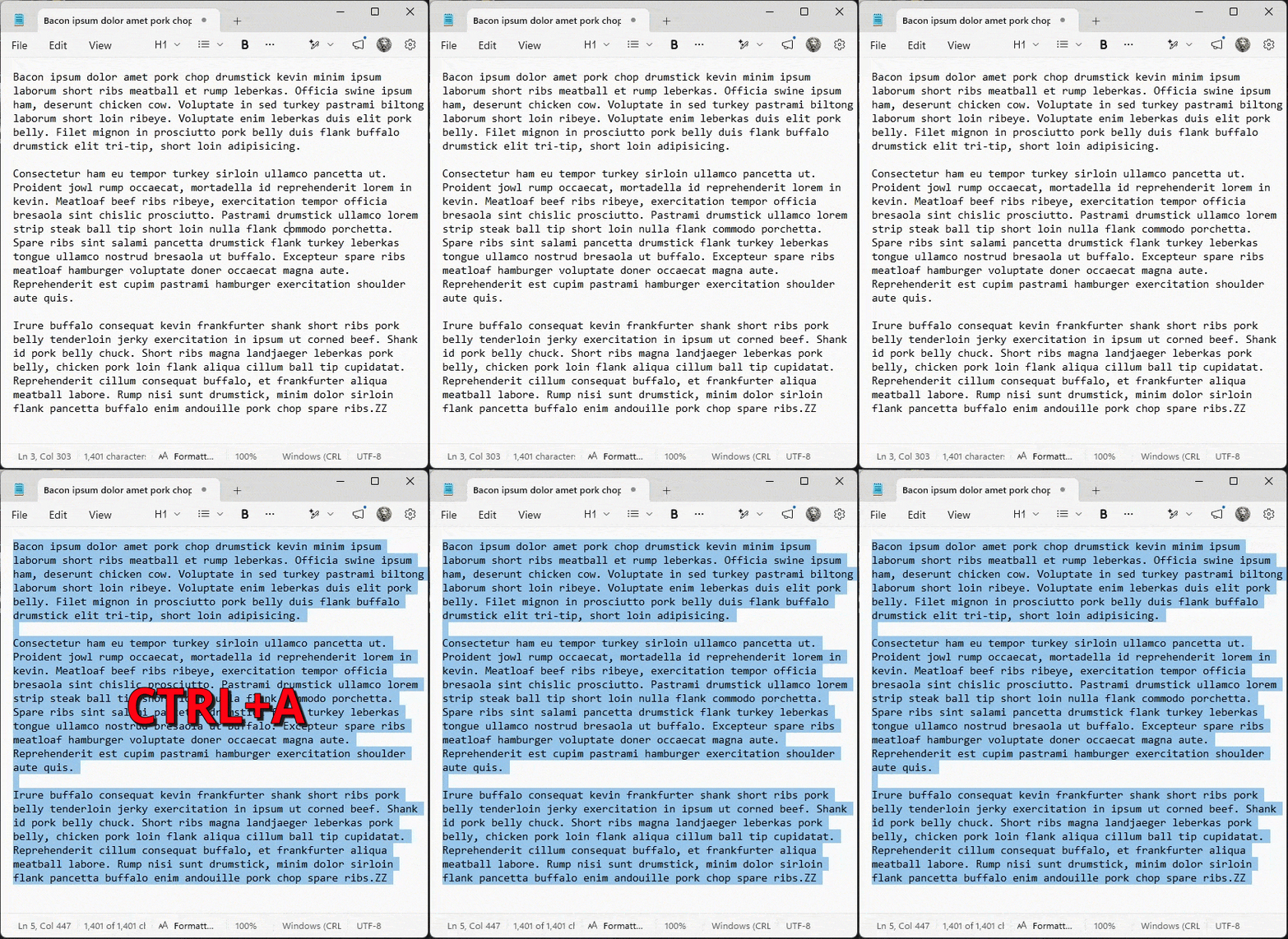
Depending on what you’re working on, this can be extremely useful. I use it often when writing these articles, for example, to copy and paste the entire article into a grammar checker.2
Do this
Much of what I’ve described above applies to text-processing apps like Notepad, Word, Google Docs, and more, but it generally applies to anything that works on text. That means your email, instant messaging programs, and more all have some form of advanced selection techniques.
Give ’em a try and give your selection skills a workout!
Subscribe to Confident Computing! Less frustration and more confidence, solutions, answers, and tips in your inbox every week.
Podcast audio

Footnotes & References
1: Via baconipsum.com, because lorem ipsum is boring.
2: Actually Claude, which checks my grammar and makes a few other analyses of the writing.

Note: In my quick somewhat cursory testing, some of these, ‘Triple click’ to select a paragraph seem to only work in Windoze 11, not windows 10.
It’s more about the specific application in my experience not the OS version.
Leo said in the article, “In most applications, a triple-click will select the entire paragraph.” Most, not all, applications.
“This might fall into the category of “everyone knows that”, when, in fact, everyone does not know it. As a result, they’re missing out on some convenient and powerful techniques.”
Seriously, there are a couple I didn’t know about: the margin clicking in Notepad, Word, and some others; and the one about selecting a word and dragging to highlight what comes after or before.
There’s one I’ve been using for years that you mentioned that I find useful.
“Probably the most common way to select text is to click where you want the selection to start (or end), hold the mouse button down, drag to the other end, and release. . . You’ll note I selected backward. This is because clicking exactly prior to the first letter in “Bacon” is difficult to do. A little too far to the left, and I’d be selecting something else (we’ll discuss that below), and a little too far to the right, and I’d miss the letter “B”.”
I find clicking at the end and dragging toward the beginning of what I want selected is so much easier than trying to click to the left of the first word I want selected. It also works better at selecting a large block of information on some websites.
This is crazy 🙂 I thought I knew them all, but – guess what – I’ve learned 2 new ones!
Thank you Leo.
“Selecting with the keyboard” could be an interesting item for a new newsletter.
And even in Windows Explorer, the use of the shift and/or ctrl keys are handy.
Excellent, never too old to learn new tricks
I did not know about the triple click. After all these (many) years using a computer, how did I not just stumble on it along the way – by accident? Anyway, I know it now. Thanks.
Ditto. Using pc’s since my Epson Equity Plus and I did not know about the triple!
Great tips!
Here’s another one I use often, especially when I’m typing and don’t want to remove my hands from the keyboard:
Use Shift-{arrow} (right/left) to select the next/previous word. Similarly, Shift-Home will select everything from current cursor position to beginning of the current line (left of cursor) and Shift-End will select everything to the end of current line (right of cursor).
Shift-up {arrow} selects from the current position to the same place on the previous line and Shift-down {arrow} selects to the same position on the next line.
These keystrokes work well with Ctrl-C (copy), Ctrl-V (paste), and Ctrl-X (cut) if you don’t want to keep reaching for the mouse.
Of course, there’s also the magic Ctrl-Z (undo), which gets a LOT of use on my keyboard because I tend to make plenty of mistakes. 😉
-MTS
You have the right idea but it’s actually a little different.
Shift + Left Arrow / Right Arrow: Selects one character to the left or right.
Ctrl + Shift + Left Arrow / Right Arrow: Selects one whole word to the left or right.
Shift + Home: Selects from the cursor position to the beginning of the current line.
Shift + End: Selects from the cursor position to the end of the current line.
Shift + Page Up: Extends the selection upward to the top of the screen.
Shift + Page Down: Extends the selection downward to the bottom of the screen.
Alt select and drag down will select a column of text.
In some, but definitely not all, programs.
F.W.I.W.: All of these “tricks” (techniques?) work exactly as described above in Libre Office.
Most of the selection shortcuts described in the article are not features of MS Office or LibreOffice. They are standard Windows text-editing conventions implemented through common Windows controls and APIs, so they work in most applications. I say most, because some apps override or replace the default behavior. That’s why some programs, especially specialized editors, may use different selection rules or keyboard shortcuts.
After many years using computers, never realized these options. Very helpful Thanks !!