If you didn’t start it, someone else did.
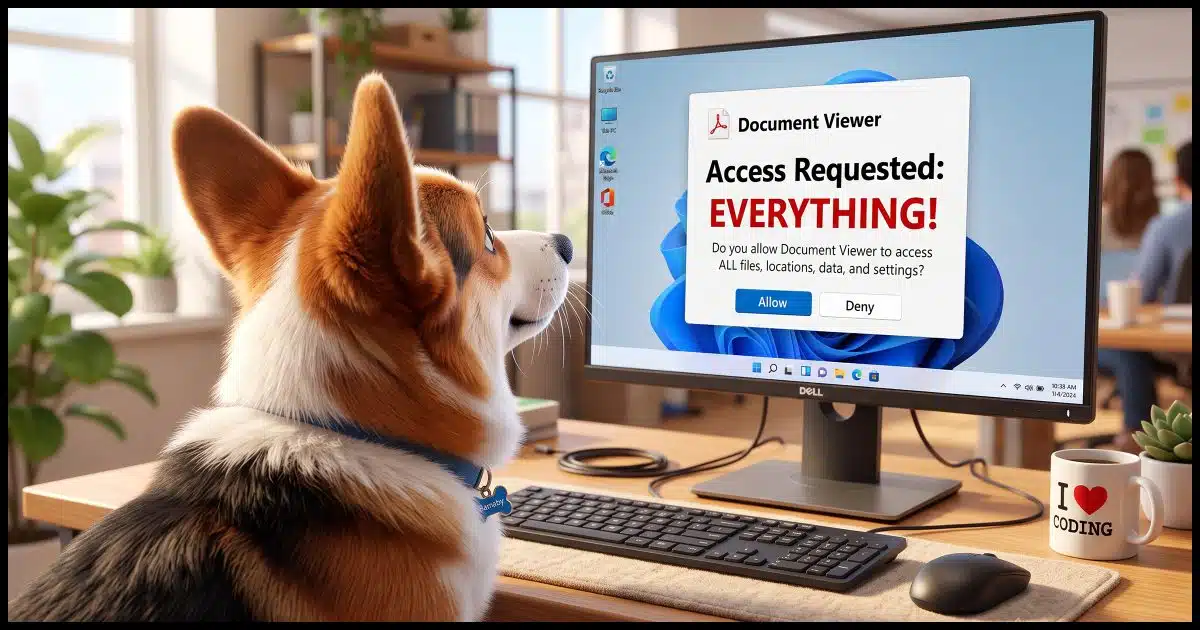
There’s a relatively new scam called consent phishing or OAuth phishing that can result in account takeover and loss. While it seems you would be protected by traditional account security like passwords and two-factor authentication, this can still happen.
The good news is that it relies on your lack of attention, which is something in your control.
Let’s look at what to pay attention to.

Check before you allow
Scammers can make fake apps that look real. If you click a link, are asked to authorize and provide permissions, and say yes, you may be giving it access to your email and more, including the ability to lock you out of your account. Always stop and read what an app wants before you allow access. When in doubt, say no.
One scenario
- An attacker registers a real app with a provider1 you use, such as Google. They give it a harmless-sounding name like Document Viewer, Security Update, or PDF Scanner, and sometimes a convincing logo.
- They send you a link by email or text, or otherwise direct you to a malicious site. It goes to the genuine sign-in page on google.com, so the URL and padlock all look right.
- You sign in to Google, including using two-factor authentication if you have it. Again, this is the genuine Google sign-in page, and you are indeed signing into your Google account.
- The page asks whether you want to allow the app to “Read, send, and delete all your email” or “See and download all your files.”
- If you allow it, the attacker can now read your mail, search for password-reset messages, download files, and send mail as you.
After that, the attacker can reset your password (since they can now see the password-reset emails) and lock you out of your account.
Help keep it going by becoming a Patron.
What this looks like when legitimate
This is all based on a completely legitimate scenario.
For example, here’s what it looks like if you want to add a Google email account to your Outlook desktop email program.
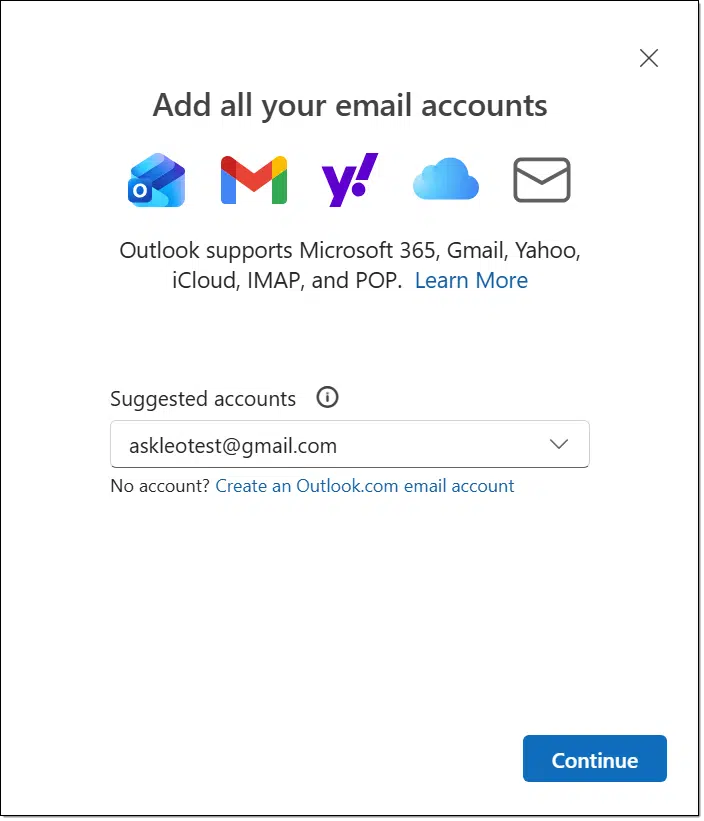
You are asked to sign in to your Gmail account using Sign in with Google.
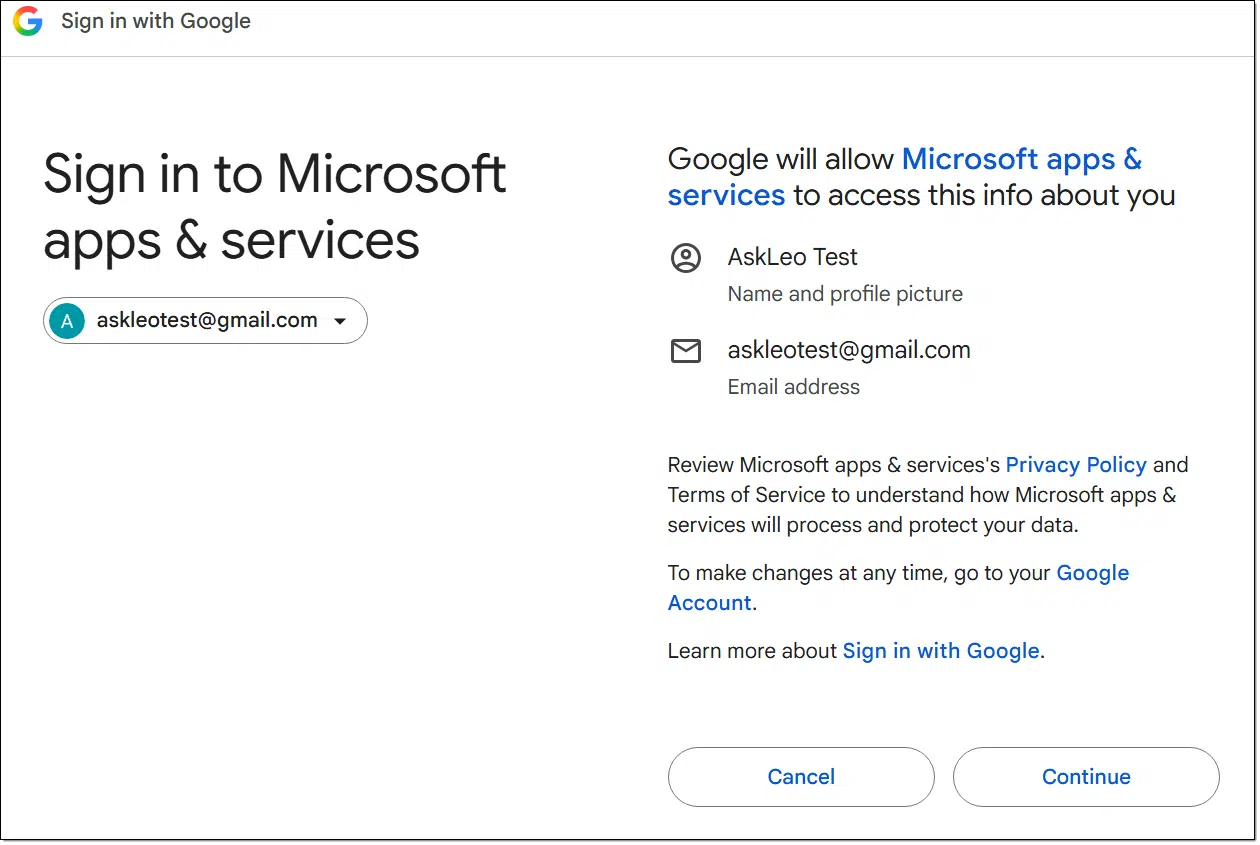
Once you do, you are asked to confirm the level of access you want to give Outlook.
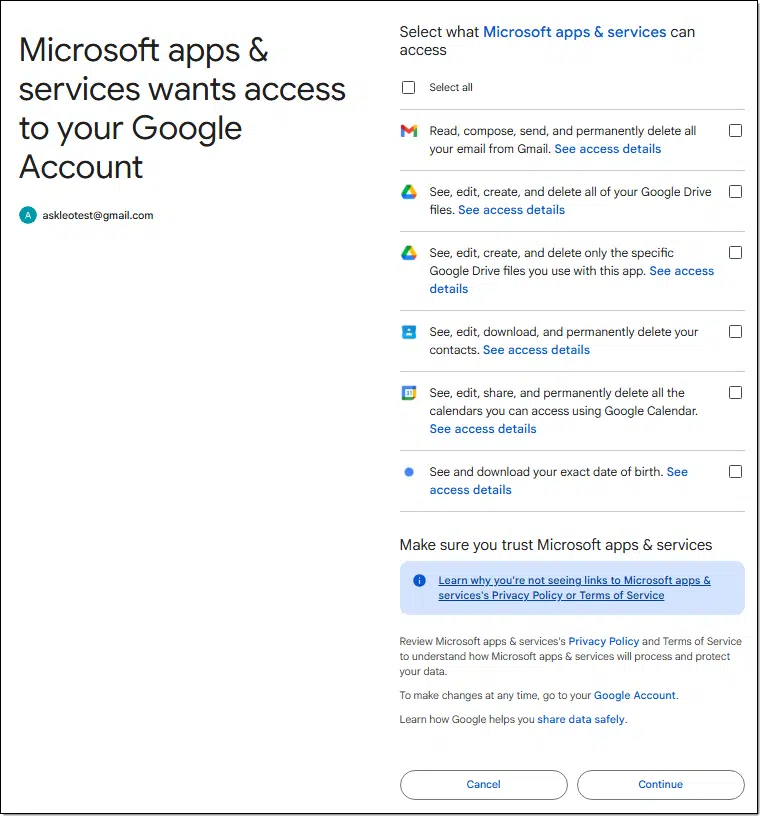
That’s a lot of access! Not just mail, but calendar, contacts, and even files on Google Drive. All are necessary to allow Outlook to act as your interface to Google Mail.
It’s unclear what happens if you don’t allow them all. It could work with limited functionality, or it could reject the attempt until you’ve allowed everything. That’s up to the application you’re using — Outlook, in this case.
In normal use, you would probably give Google permission to share everything with Microsoft so you can use the Outlook app2 to read your Google email on your computer. Nifty.
This technique of authentication is called OAuth. It’s a common approach to authenticating in situations like this.3
What this looks like when not legitimate
It looks exactly the same, except the name of the application requesting access — “Microsoft apps & services” in the example above — is replaced with something else. Depending on the scam that’s being attempted, it could be things like Document Viewer, Security Update, PDF Scanner, or something else legitimate-sounding.
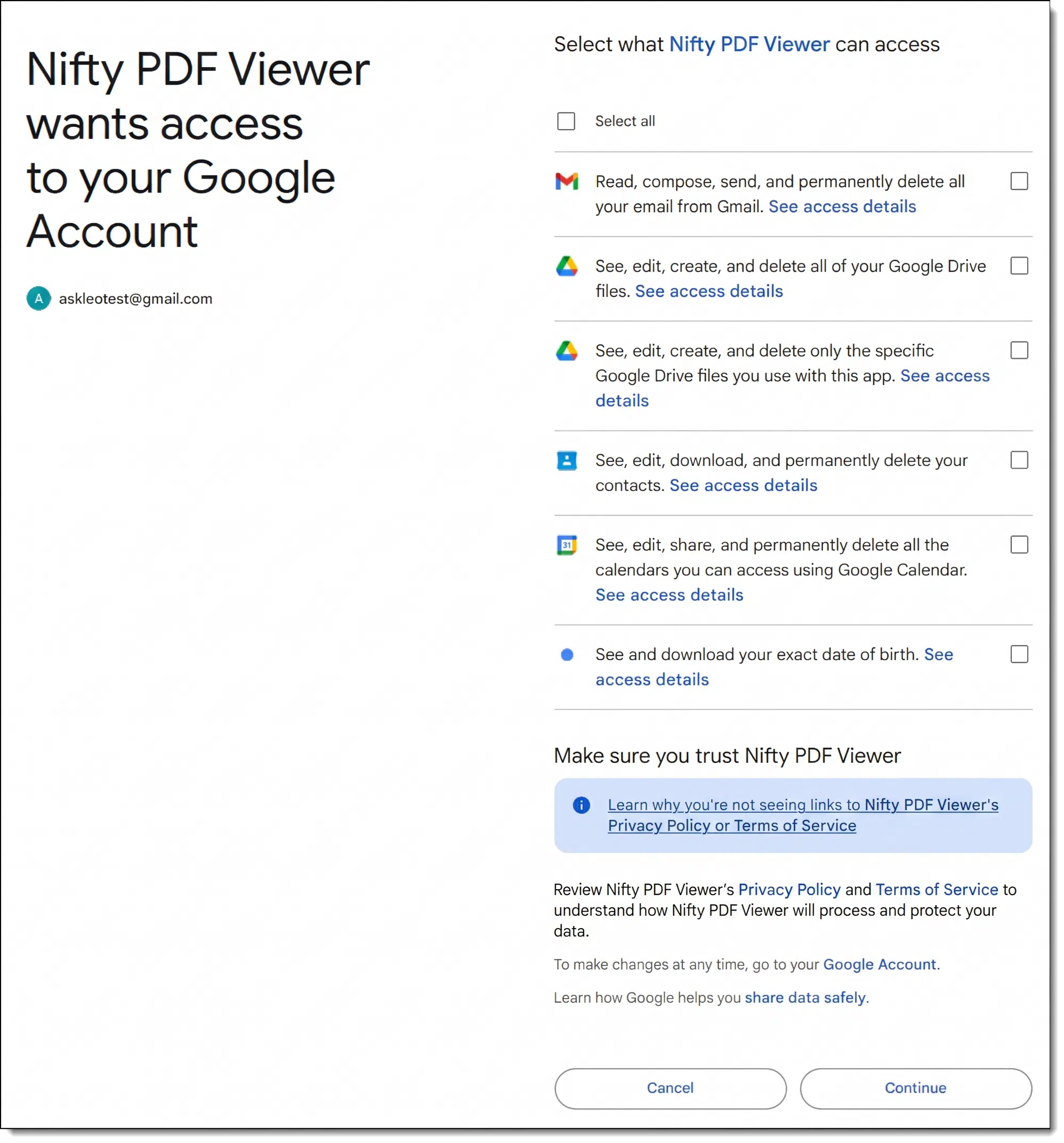
Great. If it looks the same, how can you tell when it’s not legitimate?
To begin with, always be skeptical. When in doubt, do not authorize the access. But beyond that, there are some things to consider.
The most important thing is to take the time to read the permission screen and confirm it makes sense. Be skeptical of anything asking to read or send email, access all Drive files, or “maintain access” (offline access). In our legitimate example above, it makes sense that Outlook needs all the access it’s requesting. A Document Viewer that wants full access to your mail is a big red flag.
Second, don’t authorize something you didn’t start. These situations occur when you are taking some action to link accounts in some way. If you get a link out of the blue that sends you to a sign-in and consent page, close it.
It’s a good idea to periodically audit what’s already connected. In Google’s Security settings, look for “Third-party apps & services” or “Linked Apps”. In your Microsoft account, look at “Privacy -> App access” in your account settings. Other services should have similar settings.
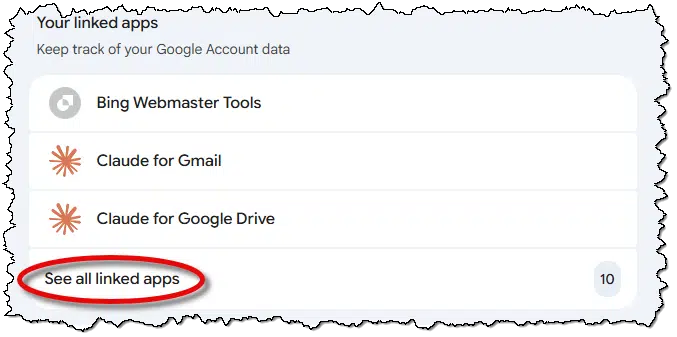
Remove anything you don’t recognize or no longer use.
If you’ve clicked Allow on something suspicious, use those same settings to revoke the app’s access first. Then change your password, check your email’s forwarding rules, and look for unfamiliar messages in the Sent folder.
Do this
This is another scenario where, unfortunately, the burden falls on you to be skeptical. Fortunately, as you run across these more often — and you will — it will become clearer which are and are not legitimate. But as always, when in doubt, just say no.
If it’s too late and you’ve been locked out of your account, then you need to attempt to recover the account via the “I forgot my password” or equivalent approach offered by the service.
Podcast audio

Footnotes & References
1: Yes, it apparently does require some kind of registration. Given the volume that services face, it’s likely this is automated and thus easily accomplished. The good news, though, is that this means the service can revoke access. The bad news is that there’s a window where the technique will work, and once your account is compromised, it’s compromised.
2: Note: This is the Outlook application that runs on your computer. Visiting Outlook.com using your web browser doesn’t have this capability.
3: It’s used partly because it supports advanced authentication methods, including two-factor authentication.

“Second, don’t authorize something you didn’t start. These situations occur when you are taking some action to link accounts in some way. If you get a link out of the blue that sends you to a sign-in and consent page, close it.”
I’d put that one first. If you stop at that point, the others are no longer an isue.
You never hear about hackers being caught and exposed. You never hear about the money being recouped. There must be a paper trail. Technology can track everything I do and say, but they can never track criminals who hack into our computer systems.?? Hard to believe.
Yet the tech companies put all the onus on us and let average citizens lose their life, savings and peace of mind while these hackers just whistle themselves to the bank and the bank accepts our money.
You don’t read the same news stories that I do. I definitely hear about hackers occasionally being caught, people going to jail, and money being returned. Here’s the thing: it’s incredibly difficult, and therefore rare. It almost never happens at the individual scale, but rather with large criminal enterprises. Sadly, they often just set up shop in a different country and resume.
PS: There is often no complete paper trail. That’s why hackers ask for payment in crypto, gift cards, wire transfers, and more. These are almost completely anonymous.
I’ve read that the Russian government mainly goes after hackers and spammers who target Russians and generally ignores spam and attacks on other countries. It’s not an official policy, but there is evidence borne out by arrest statistics. Other countries may have similar policies.
You say “attacker can now read your mail, search for password-reset messages, download files” — but this is true only if you have entangled yourself with Google. If you own your own domain and have your email thru that rather than gmail (as you have often recommended) this doesn’t apply. If your data files are maintained on your computer (and backed up) rather than saved on Google cloud services, this type of authorization scam can’t download them.
So you might clarify that.
That’s not true. A hacker can compromise an account associated with a self-hosted domain just as easily. The difference is that, with a self-hosted domain, you have additional recovery options. In many cases, you can work with the domain registrar or hosting provider to regain control of the domain and restore email service.
I’m glad my password manager can detect these sites aren’t the correct URL sometimes and avoid filling in my password details.