You might have more Recycle Bins than you realize.
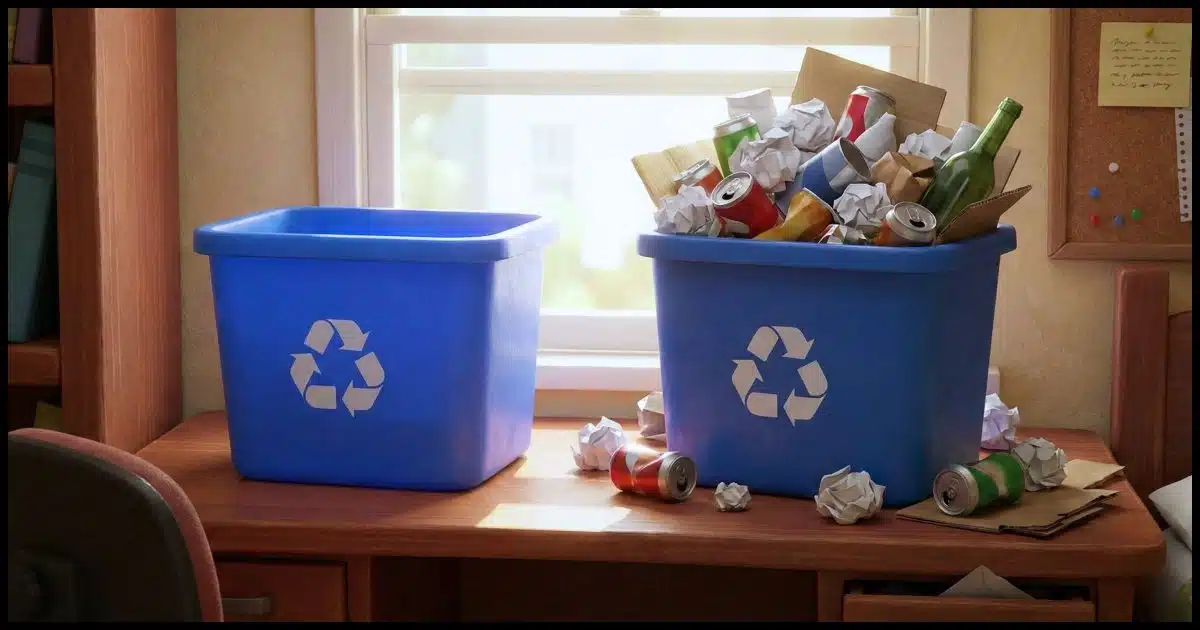
When we talk about the Recycle Bin, what usually comes to mind is the one on your computer’s desktop. When you delete a file in Windows File Explorer, it’s moved to the Recycle Bin rather than being immediately and permanently deleted. If you change your mind, you can restore files from the Recycle Bin. Conversely, you can empty the Recycle Bin, permanently deleting the files.
That’s not the Recycle Bin I’m talking about. 
If you use almost any online cloud storage, you have another Recycle Bin. The catch? It applies only to your cloud storage.

The other Recycle Bin
Cloud storage has its own safety net. When you delete files stored in services like OneDrive, they also go into an online Recycle Bin or Trash. Even after emptying your PC’s bin, you can still restore files online—if you act before the time limit runs out.
When a file is deleted
I’m going to use OneDrive as an example throughout this article, because it’s present in Windows from the start.1 The concepts, however, apply to many other online storage providers, including Dropbox, Google Drive, Proton Drive, and others.
As I mentioned above, normally, when you delete a file (such as C:\Users\%USERNAME%\Documents\MyDocument.docx) in Windows File Explorer, the file is simply moved to the Recycle Bin.
If the file you’ve deleted was in a cloud storage provider’s folder — say C:\Users\%USERNAME%\OneDrive\Documents\MyDocument.docx — something additional happens. OneDrive is notified that the file has been deleted from the OneDrive folder and then synchronizes the OneDrive folder on your PC with the contents of your OneDrive online storage: it deletes the file online.
What most people don’t realize is that when OneDrive deletes a file online, it also moves the file to an online Recycle Bin.
The OneDrive Recycle Bin
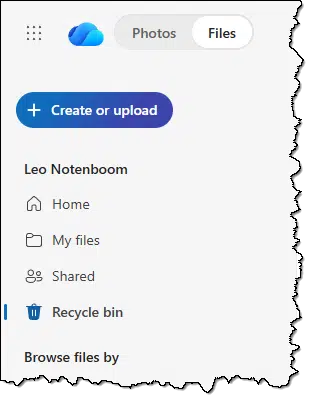
If you visit OneDrive.com online, in the right-hand pane, you’ll see several shortcuts. “My files”, for example, is the link that shows you all the files stored online at OneDrive.com. “Recycle Bin” is exactly what you’d expect: files that have been recently deleted from your OneDrive files.
OneDrive.com’s Recycle Bin is completely unrelated to the Recycle Bin on your PC. When you empty your PC’s Recycle Bin, OneDrive.com’s Recycle Bin is completely unaffected.
The online Recycle Bin scenario
Let’s say that:
- You have a file in OneDrive on your computer — say C:\Users\%USERNAME%\OneDrive\Documents\MyDocument.docx.
- You delete that file.
- You empty the computer’s Recycle Bin.2
- You have a change of heart and now desperately want that file back.
- Except it’s no longer in your computer’s Recycle Bin, because you emptied it.
Because that file had been stored in OneDrive, you should now immediately go to OneDrive.com online and look in the Recycle Bin there.
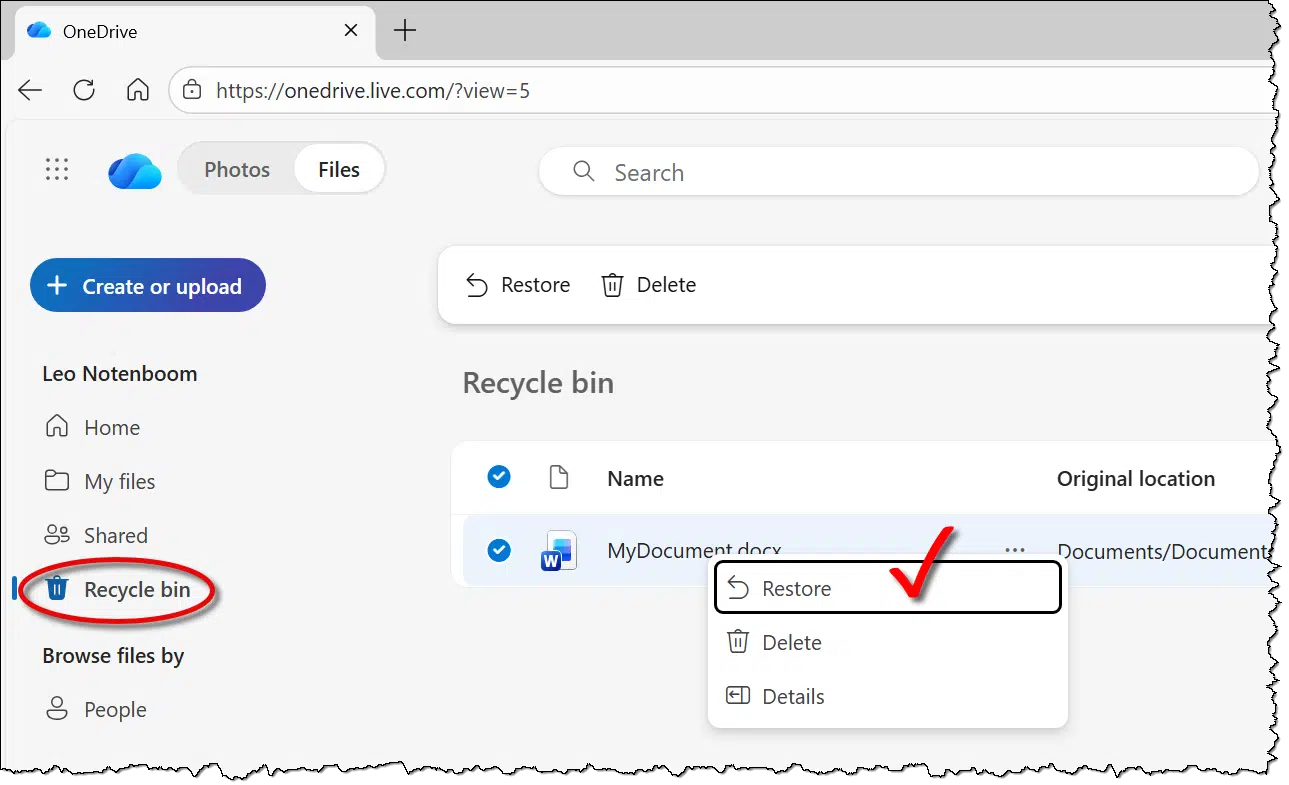
If you find your file there, it’s a simple matter to right-click on it and select Restore to get it back.
The catch
There are two catches here.
- The Recycle Bin’s contents are kept for at most 30 days. Files older than 30 days are permanently removed.
- The Recycle Bin counts against your OneDrive storage quota. If your total OneDrive storage exceeds your account’s quota, files may be permanently deleted from the Recycle Bin.
That second one often surprises people if they delete files to make more space, but the available storage doesn’t change. It’s not until files are permanently removed from the Recycle Bin that the space is truly freed.
One person’s Recycle is another person’s Trash: other services
OneDrive.com calls it a Recycle Bin.
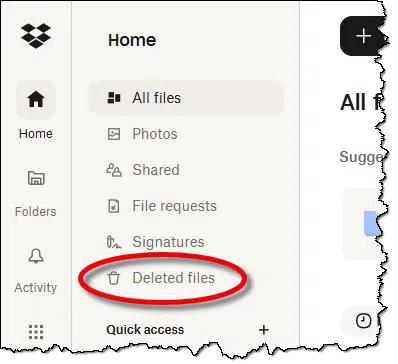
Dropbox.com has Deleted Files.
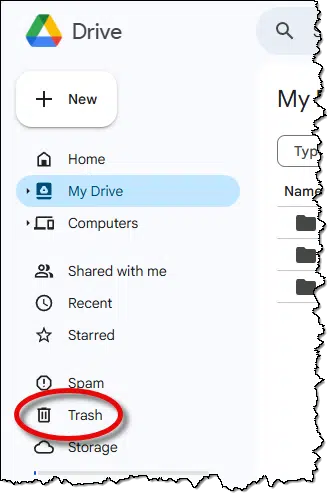
Google Drive (drive.google.com) has Trash.
Proton Drive also called it Trash.
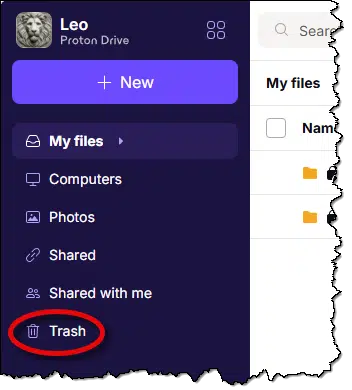
You get the idea: it goes by many names, but the concept is the same.
The details, however, often are not. OneDrive saves files in the Recycle Bin for 30 days before permanently deleting; others save for fewer or more days. In almost all cases, the Recycle Bin counts against the quota you’ve been assigned by the service. Check with the service you’re using, not only for what they call it but also for how long you can rely on it.
Important: this is online storage
I do want to reiterate that this “other” Recycle Bin is provided by the cloud storage service you’re using. Files that are not stored in that service’s folders — for example, as outlined in How Do I Store Files on My Computer and Not OneDrive? — are not protected by this additional safety net. Only the files actually stored in the OneDrive folder (or Dropbox, Google Drive, Proton Drive, and so on) benefit from this additional layer of protection.
Files kept outside of those folders have only the computer’s Recycle Bin for safety.
Do this
Using cloud storage isn’t for everyone. Some providers seem to go out of their way to make it difficult to feel safe using their services. But if you use one, as I do, you have an additional safety net for when things go wrong… a safety net you may not have even realized was there.
Interested in learning more about the features and functionality in Windows and online services? Subscribe to Confident Computing! Less frustration and more confidence, solutions, answers, and tips in your inbox every week.


The Recycle Bins from cloud sync services like Dropbox, Proton, and OneDrive are also great protection against ransomware. If all your files are encrypted by ransomware, the Recycle Bins would contain backups of all the files encrypted by ransomware in OneDrive. We always recommend system image and incremental backups. We recommend cloud sync apps as a supplement.
Yeah, Dropbox has save me several times when I was able to find an earlier version of a document I had mistakenly changed or deleted.
I use mega.nz here, and theirs is called the Rubbish bin, and it has saved my bacon a few times too! I got sick of how Microsoft was constantly promoting their other offerings, and trying to induce me into using the OneDrive so-called backup system that I didn’t want, so I went looking and found Mega! They offer 20GB storage and a desktop app I can use to set up my service with them very easily, and best of all, they only pop-up messages on their website when I login to let me know about new stuff they have to offer, but they don’t beat me over the head with everything relentlessly as Microsoft does!
Ernie
If you can bear with me, (One Drive befuddles me), if I have a file on my desktop that is also in One Drive, if I drag it from the desktop to the desktop recycle bin, is it deleted only from the desktop or from One Drive as well? Would I also find it in the One Drive recycle bin?
Also, am I correct that if a file is in One Drive but may also be saved in another place like Dropbox, if I delete it from Dropbox, the file still remains in One Drive and vice versa, correct?
Deleting it from the Desktop deletes it from OneDrive as well, and it will be saved in the OneDrive Recycle Bin.
OneDrive and Dropbox have nothing to do with each other and operate completely independently of each other If you delete it from Dropbox, the file still remains in One Drive and vice versa.
create a desktop shortcut with “https://onedrive.live.com/?view=5” and name it “onedrive recycler”.
select it > alt enter > change icon > browse > %SystemRoot%\System32\imageres.dll
select the 4th row of column 8 which looks right. (there are others that look nearly the same)
I dragged it next to the normal recycle bin and it ooks nice.
I was a bit suprised to find the OneDrive recycle bin was for my wife’s computer not mine. I could easily switch back and forth by clicking the upper right hand “profile initials” next to “get more storage and settings gear”.
It turns out that the https://onedrive.live.com can be signed into a completely different account without interfering with the c:\\users\myaccount\onedrive.
Kind of neat, but you must be careful