There are probably many more connections than you expect.

Our machines are pretty much constantly connected to the internet these days. That means the software running on your device is connected to remote servers and services, either constantly or as needed, and probably with little indication.
I’ll show you a few ways to see what your machine is up to, using built-in and free tools.

Looking at network connections
Your computer is probably making hundreds of internet connections right now. You can see them using built-in Windows tools like Netstat and Resource Monitor, or the free download TCPView. Most connections are normal, but you can use these tools to see ’em.
First, your IP address
To do this, we need to recognize the IP address of the device we’re on.
In a Windows Command Prompt, run the command:
ipconfig
You’ll get results like this:
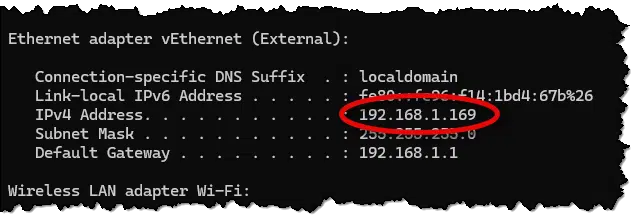
In this case, you can see that my computer’s IP address is 192.168.1.169. This is my local address, since I’m behind a router. (Use tools like whatismyip.com to see the IP address your router presents to the internet.)
Help keep it going by becoming a Patron.
Netstat
Netstat is a command included in Windows. Run Windows Command Prompt as administrator and enter:
netstat -b
This will take some time and produce a lengthy list of all the network connections your computer has open currently. The “-b” option, which triggers the need for an administrative command prompt, causes the list to include the running program associated with the network connection.
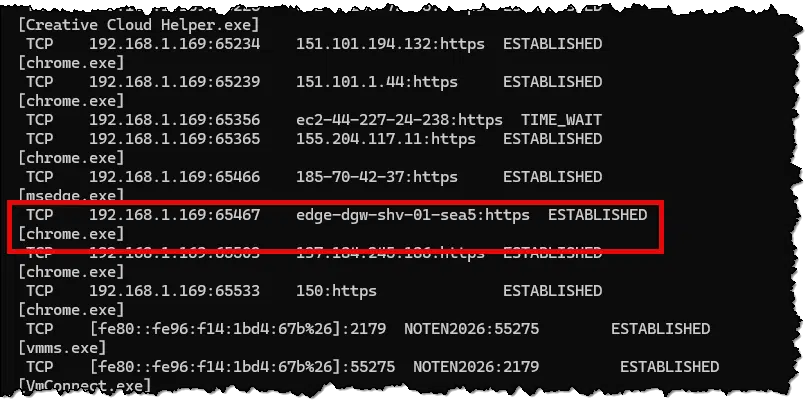
I’ve highlighted one entry to use as an example. My machine — 192.168.1.169, using port number 65467 — has connected to edge-dgw-shv-01-sea5 using https. Great, but what is edge-dgw-shv-01-sea5? A little research (via Claude AI) tells us:
edge-dgw-shv-01-sea5 is a server belonging to Meta (Facebook). Here’s a breakdown of what the name means:
- edge – It’s an “edge server,” meaning it sits at the outer edge of Facebook’s network, close to users, to make connections faster. (Not related to Microsft Edge in any way.)
- dgw – Stands for data gateway, a server that handles data routing or connections.
- shv-01 – Internal server numbering (server #1 in this group).
- sea5 – Location code for Seattle, Washington (data center #5).
So the full domain would be edge-dgw-shv-01-sea5.facebook.com, and it’s one of hundreds of similar servers Facebook operates worldwide to handle traffic for Facebook, Instagram, WhatsApp, and other Meta services.
In other words, my Chrome browser has an open connection to Facebook.1
As you can see, the output from netstat is pretty dense, and understanding each connection may take significant research.
Netstat analysis
I fed the full netstat -b output to Claude Code AI and asked for an analysis.
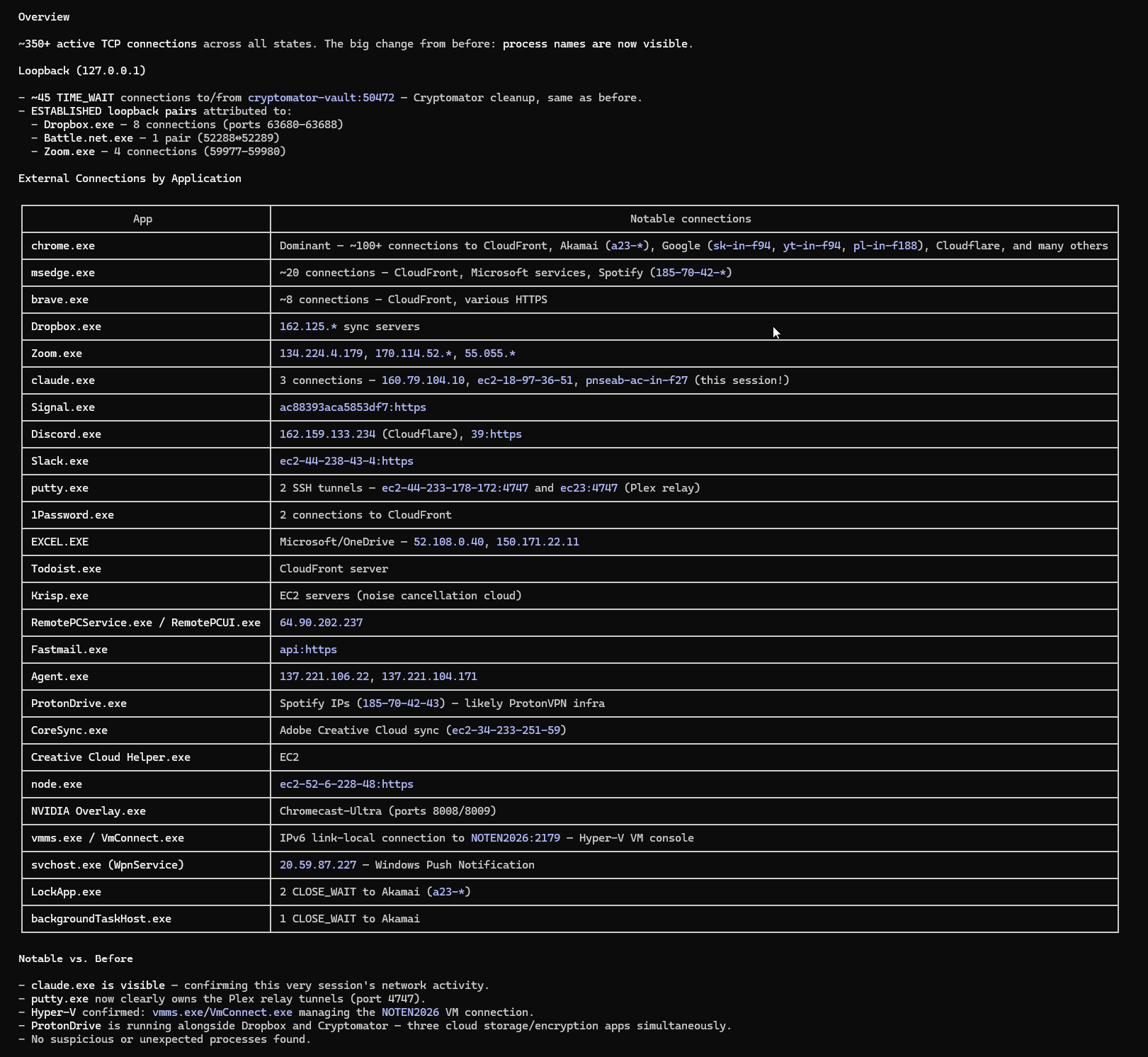
It’s a fascinating analysis of what was happening on my computer in that moment. Yes, I run a lot of programs, but I had no idea that the result would be over 350 active network connections. (Not all are internet-related; for example, “loopback” connections to 127.0.0.1 are the machine using networking to talk to itself.)
TCPView
While netstat is present in every copy of Windows, a more useful tool might be TCPView, which is part of the SysInternals toolset. If you haven’t installed SysInternals tools, doing so now will get you access to this tool and many others.
Run TCPView, and a window will open up that refreshes periodically to show you the network connections currently established on your machine.
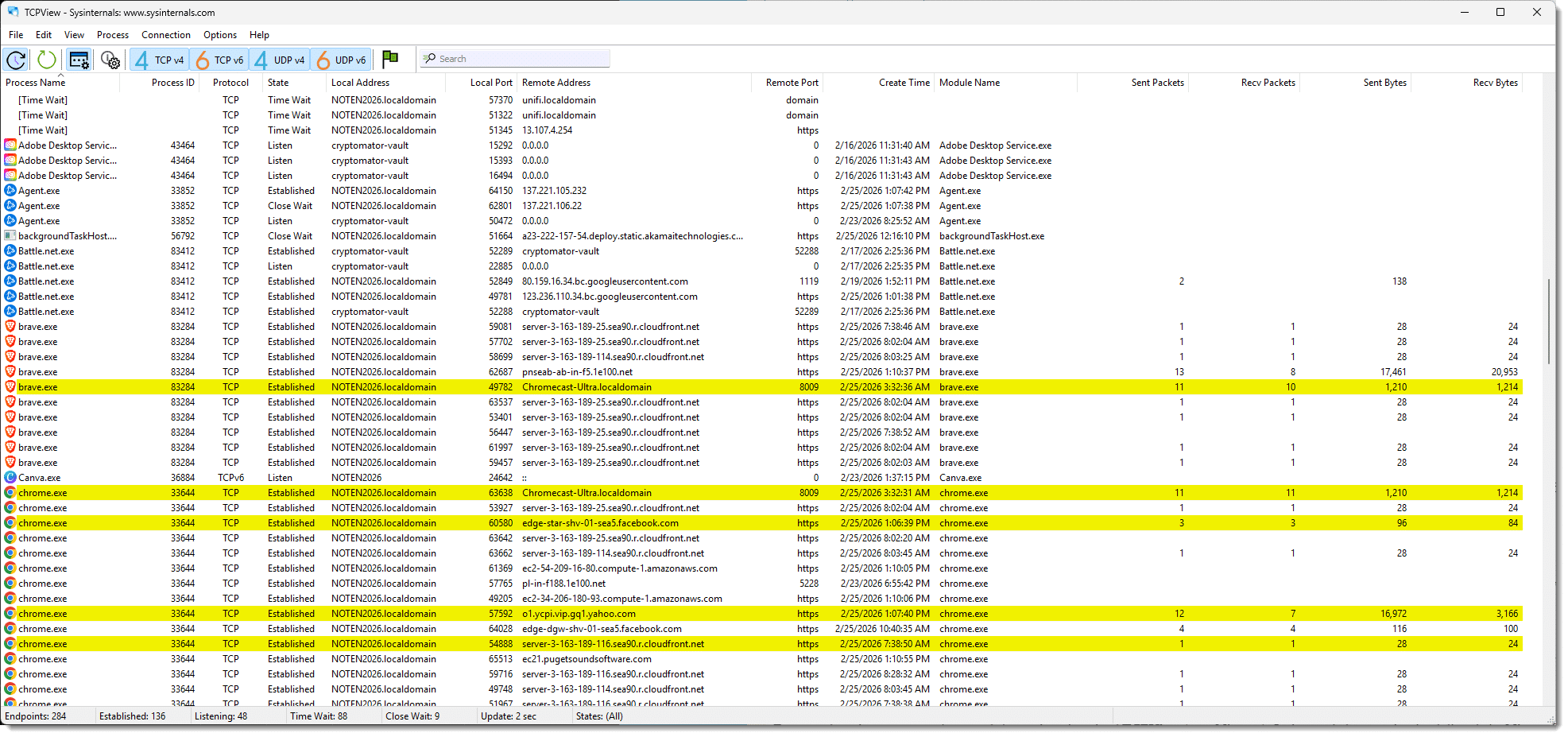
Highlighted lines represent connections being made and connections being taken down. Two useful tidbits when using TCPView:
- In the options menu, make sure Resolve Addresses is turned on. This will make the “Remote Address” column more useful because it will list names, rather than IP addresses, when it can.
- Click on the column headers to sort by the contents of that column. For example, clicking on the “Sent Bytes” column shows me that Dropbox has been responsible for the majority of data being sent by my machine since I started TCPView. (Chrome’s #2, likely because I’m writing this article directly on my website using Chrome and periodically saving drafts.)
TCPView is, essentially, a more readable version of the same information produced by Netstat.
Resource Monitor
Another tool built into Windows that can provide a quick overview is Resource Monitor. It doesn’t have the detail of TCPView, but it can quickly inspect your network activity.
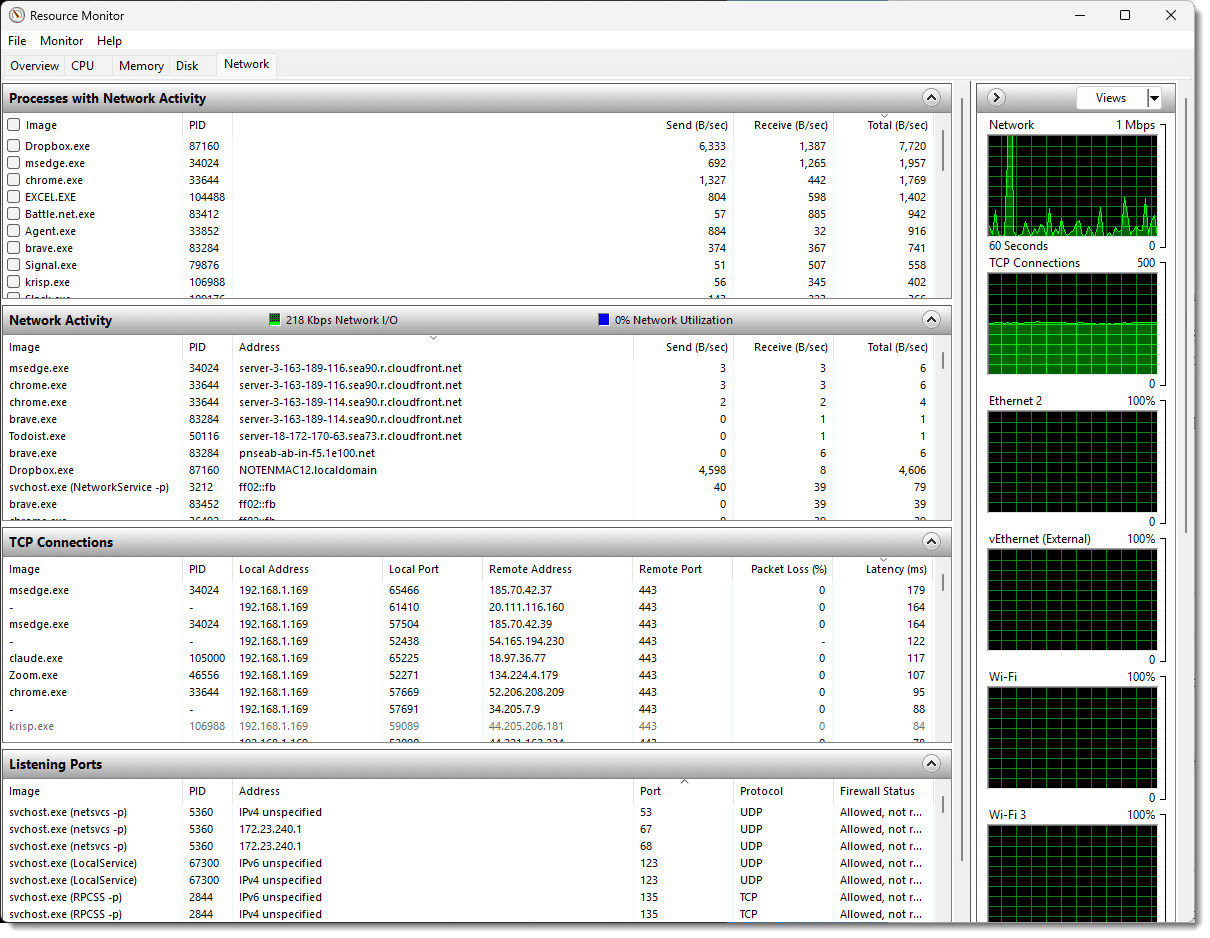
When you run the tool, be sure to click on the “Network” tab at the top. You can expand and collapse the sections within the display by clicking on the grey header bar and the column headers within each section.
As I said, it may not have the detail of TCPView, but it’s a quick way to identify which applications are using your network.
So. Much. Data.
If you’re a little overwhelmed at the amount and kind of data presented by these tools, don’t feel bad. Unless you’re an experienced network engineer (I’m not!), the information is complex, obscure, and dense.
When we use these tools, we’re often looking for a culprit — an application hogging the network, perhaps. That’s often quickly determined in tools like Resource Monitor or TCPView simply by sorting based on the various activity columns and seeing which application rises to the top.
You’ll often be faced with naked IP addresses or obscure domain names. Additional research will be required. In the case of IP addresses, you can use a whois server, like whois.domaintools.com, for information about the IP address host. In the case of obscure domain names, like our earlier “edge-dgw-shv-01-sea5” example, tools like Claude AI can often provide a useful analysis. Just remember that AI is not infallible (there are some less important details of my larger analysis above that Claude got wrong).
And finally, do not assume malware or a hack just because you see a connection you don’t understand. Yes, malware can show up, but it’s much more common for obscure connections to be completely legitimate, even if they are difficult to identify. If you’re looking for malware, running scans with your anti-malware tools instead is much more reliable than trying to identify random network connections as suspicious.
Do this
If you haven’t already, installing SysInternals Tools is a simple and safe thing to do. Not only will you get TCPView, but you will also get other tools I reference from time to time, like Process Explorer and Autoruns.
Whichever tool you use, look at your system’s network connections when you’re not diagnosing a problem so as to have a sense for what “normal” looks like. You may not have 350 network connections, but I can almost guarantee that you’ll have more than you expect.
Subscribe to Confident Computing! Less frustration and more confidence, solutions, answers, and tips in your inbox every week.
Podcast audio

Footnotes & References
1: Even though I did not have Facebook open in the browser. It’s likely one of Facebook’s many “tracking links” used by one of the other sites I had open.

Is there a Front-End for Sysinternal Tools?
Thanks,
Ted
No. Installing the package installs a collection of individual tools.
When I first installed Win11, I spent some time watching what it was up to using Wireshark (which is like TCPView on bad drugs). One of the connections that was really pumping the data was something I didn’t recognize at all, but Whois identified it as one of Amazon’s content delivery servers. Armed with that and a bit of searching later, I learned that Windows Update was using it (seems using Amazon’s server was Microsoft’s load balancing scheme). Well, no wonder it was moving multiple GB of data!
Just an example of how not everything you can’t immediately identify is nefarious.