You? Rarely. Your system? Constantly.
The short answer is that with proper security software, you need to do nothing. The security software will scan automatically. I’ll expand on that in a moment.
The longer answer is that even with good security tools, you might want to occasionally run a scan. The definition of “occasionally” depends on your level of concern and whether or not you think you’re experiencing a malware-related issue on your computer.

When to scan for malware
You don’t need to scan for malware often. Most security software runs scans automatically. Run a full scan or an additional tool if you suspect malware or just want a little extra peace of mind.
Automated scans
Most security software runs automated scans at least daily, if not more often. These scans include the most common areas malware attempts to infect, and are typically pretty quick.
Some tools scan downloads automatically.
Some tools also scan newly installed software.
Windows Defender’s “Real-time protection” option does both.
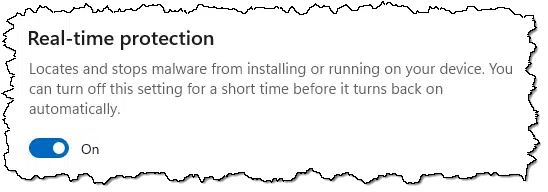
Assuming you have real-time protection enabled, the most common actions are handled automatically without any action on your part.
Help keep it going by becoming a Patron.
Manual scans
All security software should allow you to run a manual or “on demand” scan. Windows Defender offers several options.
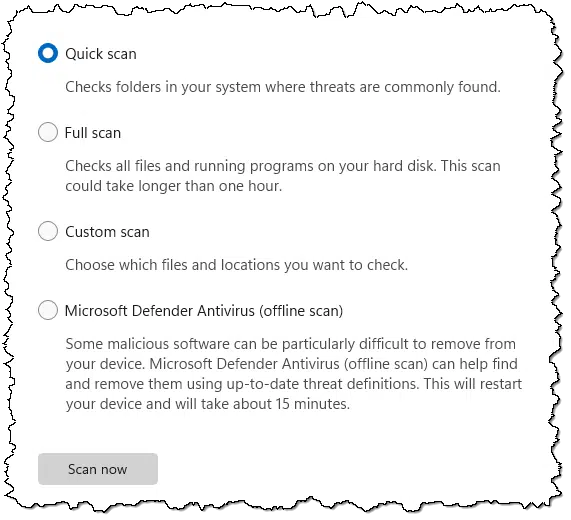
If you want to run an additional scan, it makes the most sense to run a full scan. Your software has already been running quick scans automatically. A full scan includes all areas of your drive1.
You might run a full scan if you suspect there’s malware on your computer that the default scans have not caught. There’s certainly no harm in running a full scan; just be aware that it’ll take longer.
There’s no harm in running a full scan every so often, particularly if it gives you a little additional peace of mind. If you need a time frame, I’d say once a month or so.2
Related

How Do I Remove Malware from Windows?
I'll walk you through the steps to clean an infected computer, from backups and full scans to the one method guaranteed to work... plus how to avoid the whole mess next time.#3811
When Defender steps aside
In the examples above, I’ve shown Windows Defender (which is included in Windows 10 and Windows 11), as it’s my recommended solution for most people.
Be aware that if you install an additional security software package, Windows Defender will turn itself off. For a variety of reasons, it’s not a good idea to have more than one security package active at the same time, particularly for real-time scanning. If you use different software, follow its instructions to perform manual scans, and check its documentation to confirm what scans it performs automatically.
If you uninstall the additional tool, Windows Defender should notice and turn itself back on again. If it doesn’t, you can.
When to use a second tool
When malware is suspected but your primary tool scans come up clean, you’re often advised to use a second tool. Often Malwarebytes is mentioned as that second tool.
No single tool can detect all possible malware. If you suspect malware, using an additional tool to perform additional scans increases the likelihood that more malware will be detected and removed. Even though it’s still possible that something could be missed, using two good tools — like Defender and Malwarebytes — can dramatically reduce the risk.
Just remember that Defender may turn itself off when you install another tool. Be sure to check. If that’s the case, you’ll need to uninstall that tool to return to your original configuration.
Do this
Most of the time, you need to do nothing; security scans happen automatically without your intervention.
If you suspect something got through, or if it’ll make you feel better, there’s no harm in running a periodic full scan manually.
Subscribe to Confident Computing! Less frustration and more confidence, solutions, answers, and tips in your inbox every week.


I have a second free antimalware program installed but not scanning in real-time. When I run a full scan, I usually run the second antimalware program as I figure Windows Defender had already looked at the files as they came in and a second program is more likely to catch any malware.
I have two questions relating to the 195348 video: I have Avast One running on my PC. It can be ‘paused’. Will doing that allow the occasional scan using a re-activated MS Defender?
Question 2. I run “SpyBot” once a week, looking for PUPs etc. I also run the “SpyBot” utility “Immunize”. Is the need to run “SpyBot” useful with Malware Bytes also on the machine, and how useful is Immunize? Thanks Leo / Team
1. Unfortunately, pausing Avast does not allow Defender to run manual scans as long as Avast is installed. If you need a second opinion, a second on‑demand AV scanner will run while Avast is installed.
2. A second opinion can be useful, but with Malwarebytes already on the machine, SpyBot doesn’t add much value anymore — its PUP detection is outdated, and the Immunize feature is pretty much obsolete. Malwarebytes Free gives you a far more effective weekly second‑opinion scan, so while a second opinion is useful, SpyBot itself is no longer useful.
appreciate that mark – been using spybot as my plan B for years. apparently time to move on. thx, kenbo
Do you advise having ransomware protection on and what protected folders do you suggest
If you mean something like Macrium Image Guardian whick locks the backups so that the backups can’t be modified or deleted, I use it.
Windows Security (AKA Windows/Microsoft Defender) is my anti-malware suite, and I allow it to keep malware definitions up to date as it sees fit. On the first of the month I run a full system scan with Malwarebytes in case anything got past Defender (Unlikely, but not impossible).
Today, after reading this item, I decided to look for a locally installed or online anti-malware tool explicitly designed to perform on demand scans, so I asked Gemini AI in Firefox, and it provided several options (including Malwarebytes which I already have), and after a bit of research, I decided to give the Emsisoft Emergency Kit a try, mostly because it uses malware signatures of it’s own in combination with those from Bitdefender. Additionally it’s portable (an EXE archive), not to mention that it’s free for personal use. When I executed EmsisoftEmergencyKit.exe from my Downloads folder, by default it would have extracted into a C:\EEK folder that would be created on the fly, but I selected the ‘Browse’ button to have it installed on a thumb drive (IIUC, EEK is an acronym for Emsisoft Emergency Kit). As part of this ‘first run’, it updated itself/signature store, then ran a quick scan. By keeping it on a thumb drive, I can reboot Windows into safe mode to run my monthly scan. That way, most malware won’t load, so the scanner may have an easier time finding everything that needs quarantine/removal.
If anyone has anything to say about this utility, please reply,
Ernie
@Leo! I attempted to offer my opinion about @Ron G’s question “Do you advise having ransomware protection on and what protected folders do you suggest”, and when I attempted to post my response, my browser was redirected to a page accusing me of being a scammer or something else I didn’t catch. I apologize if my response triggered a spam response, but I don’t see how my response could be interpreted that way. I didn’t try to get him to access any external website. I didn’t recommend any specific software. All I did was describe how I use Defender’s Access control, my observations of the features benefits and disadvantages, based on my experience, as well as who I believe should activate it, as well as saying that if the prospect, regardless how remote, concerned him, then he should activate it and look through his computer’s protected folders list to decide if he wants to protect any others.
Ernie
Comment spam is a HUGE problem. Seriously, without something in place, there would be 1,000s of spam comments every day. It would render the real comments useless.
And, as you can imagine, ANY form of spam detection (email, comment, whatever) is going to have both false positives and negatives. The current system is pretty good, and has been for a while. (Except that Mark has been blocked out completely for reasons I cannot fathom. Fortunately, he has a back door to bypass all that.
All that is to say … it’s complicated. It’s not based on comment content, but rather the characteristics of how you interact with the site — specifically ways in which humans interact with the sites and bots do not.
Since you were able to post this comment I honestly don’t know what triggered the other, but I’d suggest you try again.
Perhaps another time, but thank you for your reply, and I do understand how complicated spam blocking can be …
Ernie
Update: I’m no longer locked out, 😉
I have Malwarebytes turned on and scanning every day.
I didn’t realize that Windows Defender would be automatically turned off if Malwarebytes is running.
Should I leave Malwarebytes as the primary anti-threat protection?
Should I turn off Malwarebytes and let Windows Defender become primary?
One other option that appears under the Microsoft Defender Antivirus option is to leave Malwarebytes as the primary anti-threat protection and have Microsoft Defender do “periodic scans” for threats.
Which option makes the most sense and provides the best protection?
When Malwarebytes Premium is installed and active, Windows Defender automatically goes into Passive Mode. Defender’s real‑time protection and manual scans are disabled.
There’s no major difference in detection rates between the two. Both catch the same kinds of threats, and each occasionally finds something the other misses. The real distinction is efficiency and integration:
Malwarebytes Premium is excellent at catching PUPs (potentially unwanted programs) and adware. Windows Defender is lighter on system resources and fully integrated with Windows Security Center.
If Malwarebytes is already running smoothly and you like its interface, keep it as your primary protection.If you prefer simplicity and fewer background processes, uninstall Malwarebytes and let Defender handle everything. That leaves Malwarebytes free to run system scans.
Personally, I stick with Defender.
For the average user, should we enable the option to register Premium Malwarebytes in the Windows Security Center? I was told a long time ago not to register it.
If you register Malwarebytes Premium in Windows Security Center, it becomes your real‑time antivirus and Defender turns off. Both have similar detection rates, but Defender uses fewer resources, so I prefer to keep it active and let Malwarebytes run alongside it.