It’s easier than it used to be.

UEFI, which stands for Unified Extensible Firmware Interface, is a more powerful and flexible replacement of BIOS, or Basic Input/Output System, from the days of the original IBM PC. (It’s common, by the way, to refer to UEFI as BIOS even though that’s technically incorrect. My theory is that BIOS is easier to pronounce.)
Both UEFI and BIOS are firmware: software stored in hardware physically present in your computer. They’re typically in chips on the main circuit board, or motherboard. Their most common task is to locate, load, and run the software stored on your boot device. In other words, they’re the piece of software that knows how to start the process that loads the operating system when you turn on your machine.
Both have settings you can change. You used to need to know an obscure keystroke to get to BIOS; with UEFI, it’s somewhat easier.

UEFI: three ways in
UEFI (formerly BIOS) controls how your computer starts up, among other things. You can access it in three ways.
- Press a special key when you power on.
- Use the Windows Settings app.
- Type a short command.
Each one works a little differently, but they all get you there.
The goal
The most common reason to access UEFI is to change the boot order — for example, to enable booting from a USB device rather than the internal disk. There are many, many other options within the UEFI configuration, but most are safe to ignore.
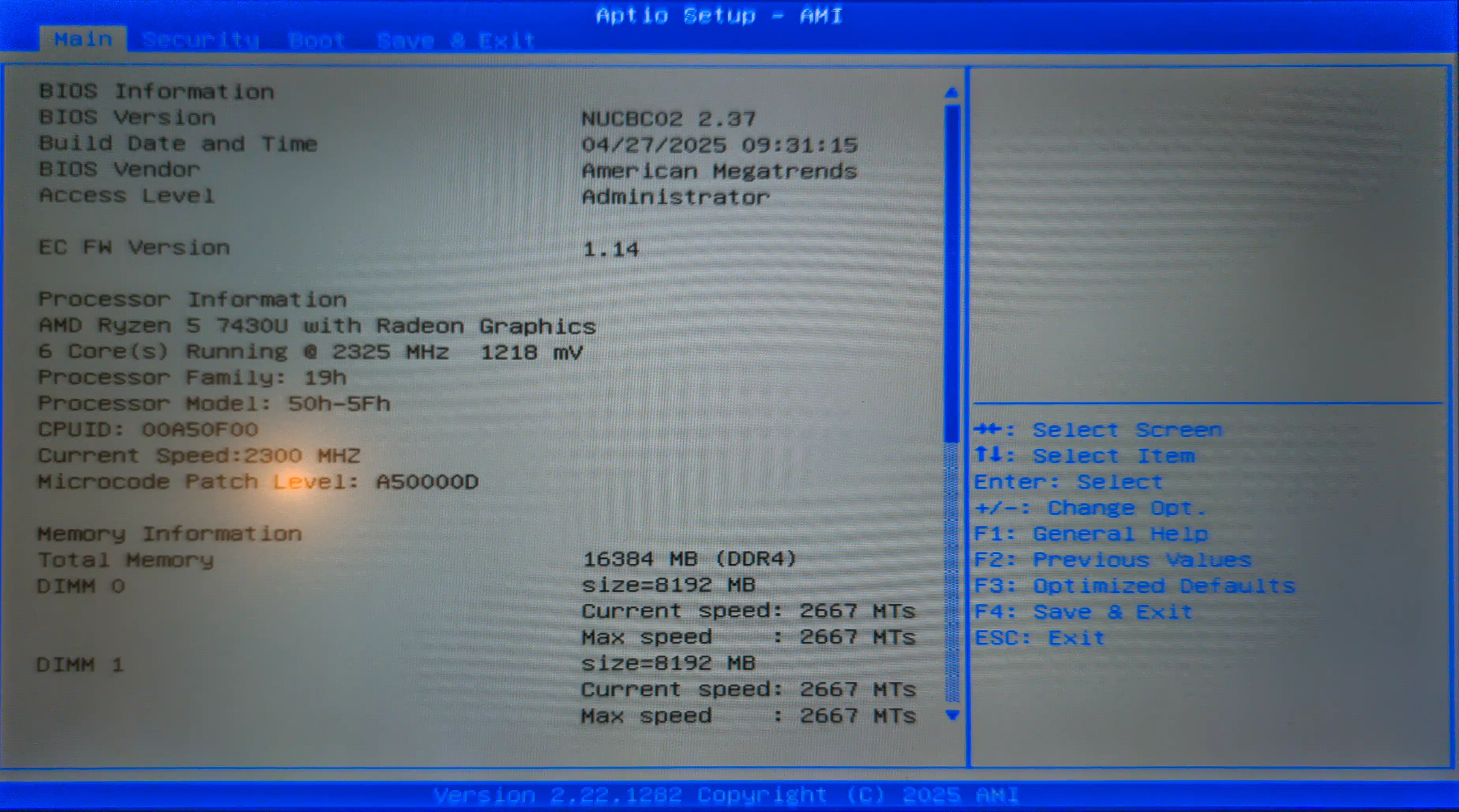
This is an example of the UEFI configuration screen we’re looking for. Yours may look different, as there are many different styles.
Help keep it going by becoming a Patron.
The obscure keystroke remains
Since other techniques only work if you have Windows already running and installed, there needs to be another way in. You might need this method when dealing with a new “bare metal” (empty hard drive) computer.
Unfortunately, there’s no standard magic keystroke. It varies depending on both the manufacturer and the specific computer model.1 In a very rough order of commonality:
- Delete or Del
- F2
- F10
- F1
- F12 (more often used to display a boot choice menu)
- Esc
On some laptops, the “F” keys may or may not need an “Fn” key to be held down at the same time.
Timing is everything. Perhaps the most frustrating aspect of the keystroke method is knowing when to type or hold down the key. In general, the sequence is:
- Turn on the machine.
- Immediately type or hold down the magic key.
- If a UEFI or BIOS screen appears, look for information indicating which key to type (e.g., “Press Del to enter UEFI”), and then immediately type that key.
- If the Windows logo appears, it’s too late.
When it works, you should find yourself at a UEFI configuration screen. If not, you’ll be booted into Windows or receive an error message about there not being anything to boot from. You’ll need to try again.
The Windows way
If Windows is running, you can use a different approach. It might require several steps, but it’s not dependent on knowing a magic keystroke or typing it at just the right time.
It all starts in the Settings app. Navigate to:
- System
- Recovery
- Advanced Startup
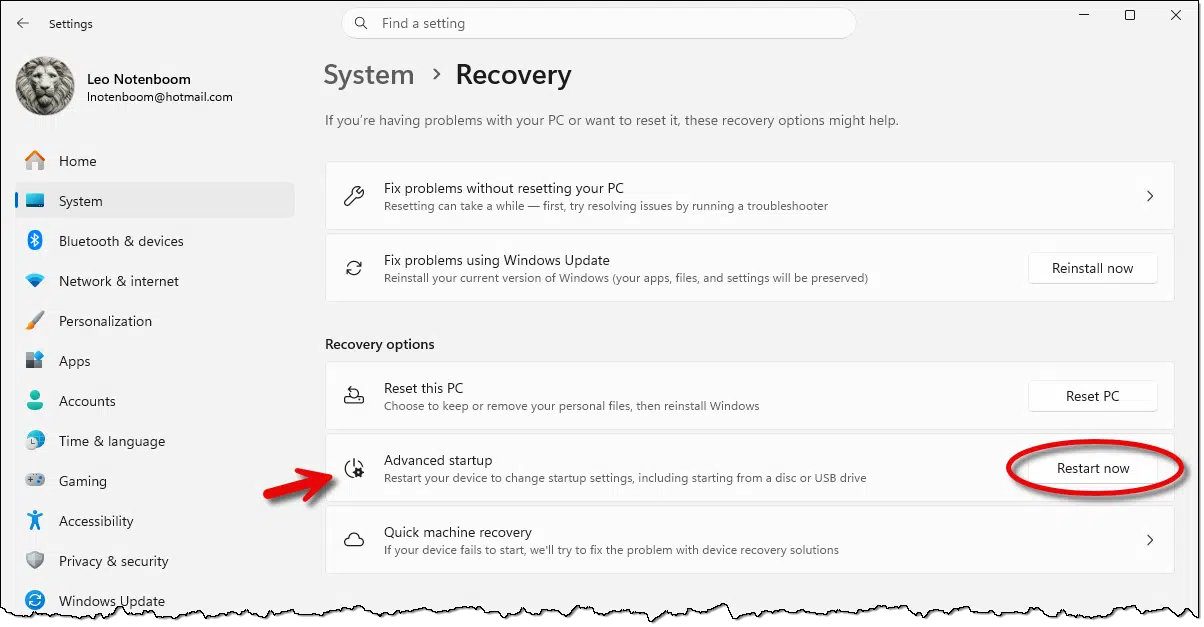
Clicking “Restart now” will reboot your computer. You’ll find yourself in a blue interface with several options. Once again, these options may differ between computers, but the general sequence to the UEFI screen is:
- Troubleshoot
- Advanced settings
- UEFI Firmware Settings

Click on that, and after a confirmation, the computer will reboot again. Then you’ll find yourself at your UEFI configuration screen.
The Command Prompt way
This does not work on all computers, but it’s a handy approach when it does.
In an administrative Command Prompt or PowerShell, type:
shutdown /r /fw /t 1
The parameters:
- /r: reboot
- /fw: enter firmware on reboot (firmware being the UEFI settings)
- /t 1: delay 1 second before rebooting
Run the command, your computer will reboot, and you’ll find yourself in the UEFI settings.
Do this
We don’t need to mess with UEFI settings very often. Nonetheless, every once in a while, we need to make a change or check a setting. Now you’ve got three ways to get there from here.
Subscribe to Confident Computing! Less frustration and more confidence, solutions, answers, and tips in your inbox every week.
Podcast audio

Footnotes & References
1: In reality, it depends on the UEFI software itself, which is what varies between computers.

My computer was updated with hardware recently, about a month ago. I had my GPU and CPU updated by the Micro Center. Everything is running fantastic, no issues. But every so often I get a message from my system or AMD Adrenalin GPU software saying that I need to switch from CSM to UEFI. I have to admit I have not called the Micro Center to ask about this. Everything seems to be running well, so I really don’t know what to do. The GPU was a new one an AMD RX 9060 XT, 16 gig and my CPU was new as well that is a Ryzen 7 5800XT 8 core. Before that las year I had an extra MV.2 2TB install for my games and another 1TB SSD attached, it’s one of the square drives. These are all running well with no issues. If I change the setting as asked, will is mess up my computer? I’m a older senior, 65, and I really won’t know what to do if that happened. Any suggestions on what I should do and the consequences of my actions if I do decide on change those setting per the advised messages?
Tony
That’s not a message I’m familiar with. I’d contact the people that did the upgrade.
I found it amusing that ‘UEFI’ is not mirrored in the corgi’s glasses in the AI generated image at the top of the article. Quirks like this with AI generated content always raises a wry simile with me.
The UEFI/BIOS controls the bootloader among other things. Many people don’t know the origin of the expression boot up the computer. It was originally called bootstrapping (my spell check didn’t bat an eyelash at that word) as in pulling itself up by its bootstraps which is a 19th century metaphor for doing the impossible.
Dating myself, i learned programming on a CDC 6400. the bootstapper on it was a field of 144 metal toggle switches which had to be set in the right was to get the machine to boot. that system was the size of a room. my watch has more power than it did.
The very first computer I ever used was a CDC 6400, at the University of Washington in 1976.
My first was a CDC 3300 at Northeastern University, Boston in 1967. My second was a tiny PDP 8.
My first computer usage was on a CDC 6400 in the basement at my university. I went through stacks of punch cards over the years I was there. I found programing with them was the most delightful mentally stimulating activity I had done up until then 🙂
I first learned to program using punch cards on a CDC 6500 in the basement of the computer center at Mich State in 1973. Went through a lot of cards learning to keypunch with no errors.
According to most commentators, your target audience are the boomers. I’m 78 and following you since it seems the start of time.
Any young people interested in bootstrapping?
I remember the bootstrap term from my MS-DOS 3.1 days while reading the User’s manual, then later reading what I understood to be the Microsoft Basic Input/Output System Bible (the MS-DOS API documentation) that I got when I bought my first Basics of Assembly Language book. I was trying to learn the basics of Assembly Language so I could write Assembly scripts that I could enter into debug to assemble small .com services to allow MS-DOS do things it wasn’t originally intended to be capable of. While I don’t remember many of the details from that time, the one thing I’ll never forget was the feeling of satisfaction I got when my first dot-com utility successfully assembled and ran without errors. That was the first and only time I’ve ever felt that level of exhilaration since!
As for the ‘shutdown /r /fw /t 1’ command string, I have a shortcut in my Start menu to reboot to the UEFI using this command. I haven’t tested it yet, but I will 🙂 …
Ernie
While I was at it, I created two shortcuts, Reboot, and Reboot to UEFI. Each has its own icon image (*.ico). To make them more useful, I stored them to my Start menu as follows:
ALT+Click an empty space on your desktop
In the resulting context menu, choose New…
In the resulting sub-menu, choose shortcut
The New Shortcut dialog will load:
In the location field, Enter “C:\Windows\System32\shutdown.exe /r /fw /t 0”
Click the Next button
In the next screen, Enter Reboot to UEFI (or whatever you want to name it) in the Name field.
Click OK to save the shortcut.
Repeat the above sequence, except that for the location field Enter C:\Windows\System32\shutdown.exe /r /t 0
and in the Name field Enter Reboot (or whatever makes sense to you).
Alt+click both shortcuts, one at a time
Choose properties in the resulting context menu.
In the Properties dialog, click the Advanced button
In the Advanced Properties dialog, click the Run as Administrator check-box because both shortcuts will need Administrative privileges to work (So you’ll have three clicks to reboot or access the UEFI settings on your computer, one to open the start menu, another to click the shortcut, and a third to approve the action in the UAC dialog).
Click OK twice to exit.
Open Windows File Explorer and navigate to “C:\ProgramData\Microsoft\Windows\Start Menu\Programs”
Drag both icons (one at a time) into the right pane and release them to move them there.
Close File Explorer and Open your Start menu.
Scroll down the ‘All’ list to the R’s section, and you should see both items.
To make them as easy as possible to access, pin both to the Start menu
Ernie
I have tried everything I can find to gain access to my bios, but I cannot. My Backup software runs from a DVD drive, but Windows has modified the BIOS so I cannot boot from the DVD. I also can’t access the BIOS in any way I have found. I have a Windows Recovery USB drive. I’m about to reset the CMOS to see if that works.
First try performing an Internet search on “How to access the UEFI on “put your computer’s make and model names here”. I’d be surprised if you don’t get the key combination for your system in the AI overview or one of the first several search results.
Ernie