A tool I use constantly throughout the day.


Many programs do what you’re asking. I’m going to share what I use, not just for email addresses or email signatures, but for many other things. In fact, I’ll use it several times as I update this article.
AutoHotkey is a free program that runs in your notification area. It intercepts keystrokes (and mouse activity, if you like), and allows you to configure anything from simple remapping of one key to another to simple text insertion and complex actions that are nearly little programs in and of themselves. The only caveat is that it’s a tad geeky to set up, so it may not be for everyone, but it’s incredibly powerful. Let me show you some of the things I configure AutoHotkey to do.

Autohotkey: type less, do more
AutoHotkey is a free program that can save you time and keystrokes every day. Short key combos can type out long text, like your email address or signature, for you. It takes a little setup, but it is well worth the effort.
Setup
After installing AutoHotkey, you want to set it to run constantly. The best approach I’ve found is this.
- Write your AutoHotkey scripts and configuration in a text file, say “myautohotkey.ahk”.
- Place a link to that file in the shell:startup folder.
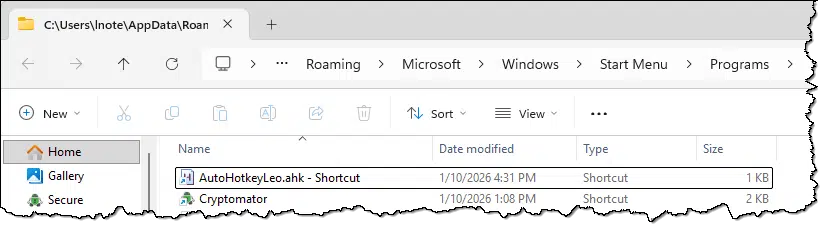
This way, the script is loaded whenever I sign in, and AutoHotkey is running and waiting to do its job.

AutoHotkey examples
This might be a little too geeky for some, and I get that. I’m not going to do a deep dive into AutoHotkey syntax. Instead, I’ll show you some of the ways I use it. Hopefully, you can model what you need from that.
Simple text insertion
When someone asks a question and a screenshot would help me understand what’s up, I often refer people to my article on creating screenshots. With AutoHotkey, all I need to do is type “]ts” (without the quotes), which is then erased (backspaced over) and “https://askleo.com/screenshot” is entered instead.
The AutoHotkey line that does this is:
:*:]ts::https://askleo.com/screenshot
You can see why I don’t want to go into AutoHotkey syntax in detail. It’s powerful, but it can be a little intimidating.
- The “:” characters are delimiters between fields.
- The first field, with a “*” in it, is the options field. “*” means to trigger immediately as soon as the last character of the trigger string has been typed.
- The second field with “]ts” in it is the trigger string. I happen to use “]” as a common start for my string replacements, but the trigger string can be anything you like.
- “::” separates the trigger from its replacement.
- “https://askleo.com/screenshot” is the string to be typed in place of the trigger string.
Today’s date
If I need to enter today’s date, all I need to do is type “]td”: for 2026-04-20 to appear; or, for date and time, “]tf” will show as 01:32 PM 20-Apr-2026.
In AutoHotkey:
:*:]td::

{

PasteText (FormatTime(, "yyyy-MM-dd"))

}

:*:]tf::

{

PasteText(FormatTime(, "hh:mm tt dd-MMM-yyyy"))

}
AutoHotkey is essentially a programming language unto itself, and this syntax shows how to use braces to enclose multi-line or other types of instructions. “PasteText” is a function I’ve written that uses the CTRL+V keystroke to paste. It’s proven more robust across a wider range of programs.
My “Do this” closing sequence
At the bottom of every article, you’ll see a heading and section labeled “Do this”. For me, that’s this shortcut: “]aa”. In AutoHotkey:
:c*r0:]aa::

(

<<a wordpress shortcode>>

Do this
<<a wordpress shortcode end>>{up}{up}+!2{down}

)
Here we have a true multi-line replacement. Of note is the sequence “{up}{up}+!2{down}” which, after entering that final WordPress shortcode end string, move the cursor up twice, “types” CTRL+ALT+2 to change the current line (the “Do this” line) to a level-2 heading in WordPress, and then moves the cursor down one line into the position where I can then start typing.
Email signature(s)
I wear many hats, and thus have many email signatures. My “default” is “]gg”, which results in:
Leo A. Notenboom
—————-
https://askleo.com/about – Ask Leo!
https://leonotenboom.com – Everything else
The AutoHotkey entry for that is:
:*:]gg::

{

PasteText (FileRead("c:\Dropbox\usr\templates\leo_sig.txt"))

}
In this case, my actual signature text isn’t in the AutoHotkey script at all, but in a text file stored in a standard location on all my devices, which AutoHotkey reads and then pastes into place.
Arbitrary files
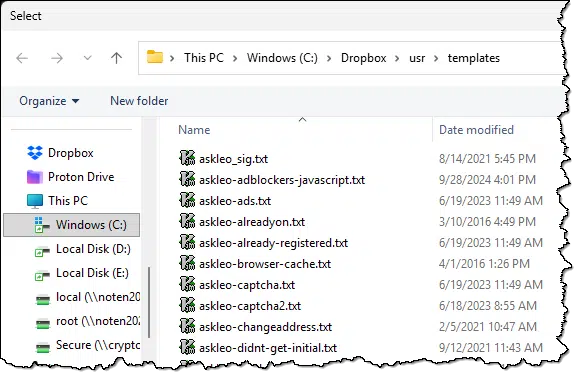
At one point, I realized that there are a) a large number of standard/stock responses I use regularly, b) they’re larger than I’d really want to put into my AuthHotkey script, but c) AutoHotkey can read files. Even better, AutoHotkey can ask what file to open. My “]tt” script:
:*:]tt::

{

szFile := FileSelect(3,"C:\Dropbox\usr\templates","Select","Text (*.txt)")

if (szFile = "")

MsgBox "Nothing Selected"

else

PasteText (FileRead(szFile))

}
This allows me to have an arbitrarily large collection of stock answers that I can choose from as needed with just a couple of keystrokes and clicks. When run, it presents a File Open dialog box:
About my use of “]”
Don’t let the “]xx” format of my shortcuts throw you. I chose that. It’s rare that I type a string starting with a close-bracket, meaning it’s a great candidate to dedicate to string replacement shortcuts, as I’ve shown above.
In reality, it can be anything you want — “btw” could automatically type in “by the way”, for example, or “leo@a” could be immediately replaced by leo@askleo.com as a quick shortcut to avoid typing the entire email address, if that’s something you do frequently.
More ideas
Here are some more ideas, originally from the AutoHotkey home page.
- Automate almost anything by sending keystrokes and mouse clicks. You can write a mouse or keyboard macro by hand or use the macro recorder.
- Create hotkeys for keyboard, joystick, and mouse. Virtually any key, button, or combination can become a hotkey.
- Expand abbreviations as you type them. For example, typing “btw” can automatically produce “by the way”.
- Create custom data-entry forms, user interfaces, and menu bars. See GUI for details.
- Remap keys and buttons on your keyboard, joystick, and mouse.
The approach I’m using — hand coding the AutoHotkey macros — can seem a tad geeky, because, well, it is. But it is incredibly powerful.
Do this
My simple examples above only skim the surface of what AutoHotkey can be used for. For simple things like text replacement or keystroke remapping, it’s a near-perfect solution.
AutoHotkey — I recommend it.
Subscribe to Confident Computing! Less frustration and more confidence, solutions, answers, and tips in your inbox every week.


Thanks Leo, just installed autohotkey, and run the test example – very impressive – this will save me hours of tedious typing – thank you AGAIN – more useful advise!
For many years I’ve used a program called My Function Keys. With this, you assign text to the normally useless F keys. A single keystroke is all that is needed. It costs about 12.00 or so. You can even move the text files to other computers so that all you computers behave the same.
Hello Leo, I tried AutoHotkey for a while and made a few keyboard shortcuts, but then gave it up because it’s a little too geeky and I couldn’t find a good set of instructions. I would need a task-oriented manual if possible.
Is there an “AutoHotkey for Dummies” or equivalent?
This is a good program for those who have the patience to learn to use it.
Michael
I love AutoHotKey! I use it to start applications that I use frequently but don’t want open all the time, or a set of apps I use for presentations. I’ve also created some scripts to get to control panel apps without all the pointing and clicking.
As for instructions, there are people who have posted their AHK scripts for others to use. I learned quite a bit from seeing other scripts.
In Word7 there is now a button called Quickparts. Add your email address to that.
I use the My Function Keys program suggested above by Ron. It has changed a bit. Only the F1 thru F4 keys are programmable, but there is no cost. Very simple to set up and a real time saver.
I would also like to recommend the freeware Windows automation engine AutoIt. Much of AutoHotKey’s scripting style is based on the old version 2 of AutoIt; AutoIt itself is now in version 3 and has been for years.
As a point of disclosure, I am one of the developers of AutoIt.
WOW!! Thanks for introducing me to AutoHotkey.
Took a bit of savy but now it is so easy and I am using it in all my corespondance.
Keep up the good work
Cheers
can the keyboard be programmed to start up a computer(windows xp pro)?
15-Dec-2010
I find the CAPS LOCK key irritating to the extreme simply because it is so easy to activate the CAPS LOCK and end up typing several lines in unwanted upper case. Could you please advise how to inactivate this key without interfering with the SHIFT KEY function.
Many thanks in anticipation.
Use Powertoys “Key board Manager”
based on what I read in Leo’s piece of AutoKey, you can remap the caps lock key. With a wandering pinkie finger, I, too, often hit that key causing all kinds of mischief and irritation.
I first tried this out a few years ago when you first recommended it, but I found it a little too geeky. Two years later, after using your advice to install Ubuntu Linux on an old machine to give it a new lease on life, I have become much more of a geek. Now I have fallen in love with AutoHotkey and have it on my Windows desktop.
It would have been more helpful, to me, if you mentioned how do you access the AUTOHOTKEY feature.
@Charlie Pelissier:
Simply go to http://www.autohotkey.com/.
You might also find it useful to look at http://www.icpug.org.uk/national/features/060305fe.htm.
I was delighted to find I could force CapsLock to be always off, but never thought to use it as a Mute toggle.
Please note that the version of AutoHotkey being actively maintained and developed is AutoHotkey_L, from the same source.
One of the most useful shortcuts I have transposes the characters on either side of the insertion point – absolutely anywhere.
And if, like me, you have a TrueCrypt volume in Dropbox, it’s very useful to be able to ensure it’s dismounted before suspending Windows.
And life is much simpler if you use a text editor which can highlight AHK syntax appropriately, such as TextPad or NotePad++.
I was interested in the AutoHotkey discussion because of the problems I’ve had in creating macros in MS Word 2010. I used to write some complex macros before the 21st century arrived, but now when I try to create a macro, 1) it doesn’t seem to work, and 2) you are warned that macros may compromise your computer because, I think, of their interference with program language. I got the impression that a macro might make you more vulnerable to hackers. I like macros better than Word’s QuickParts. Once you have inputted all the keystrokes, one keystroke combo activates them and saves you all kinds of time. I wonder why they are now warning us about macros. Are macros in Word that dangerous?
I wonder if it can do control-5. Windows does not process some codes and if Autohotkey does not intercept the keyboard itself it will never see control-5 and many other combination codes. I’m hoping…
Hi, I’ve been using Perfect Keyboard since my DOS days. Still happy with it.
Would using AutoHotkey add to security of my PC if all or part of my password is an AutoHotkey shortcut? My thinking is that if my computer has been hacked with a keyboard logger, then the hackers only see the AutoHotkey sequence, it will not be of any use to them unless they can take control on my PC.
If your computer has a keyboard logger, then your computer has malware and malware can do anything, including whatever technique you use to enter a password.
Hi, I find using AI to write AutoHotKey scripts much easier than writing the script myself. Example:
“I want that typing CTRL + Shift + d will print todays date (me)
It responded
Here’s your AutoHotkey v2 script:
ahk
#Requires AutoHotkey v2.0
^+d::
{
today := FormatTime(, “dd/MM/yyyy”)
SendInput(today)
}
I followed along, and set up the file as suggested, but I don’t get any reaction. The ‘H’ never appears in my notification area, although the program is in the “start” list, and task manager reports it there.
It is not listed in the “processes” list.
I tried rebooting my PC (running win10, 64bit), but that makes no difference. I had something like this running in my Unix days in the “VI” editor, and miss the functionality.
Make sure that
– Autohotkey was properly installed.
– your script is in the .ahk file
– it’s a link to the .ahk file you place into your startup folder.
If you just double click on that link it should run Authotkey. (Remember that notification area icons can often be hidden behind the “^” icon down there).
Thank you for the article. Just the other day, as I was entering the same text again, I thought ‘wouldn’t it be nice if there was an easier way to do this?’.
I have installed AutoHotKey and have planned for today to read and understand and implement hotkeys and hotstrings.
One question about the ‘Do This’ section above. You wrote ” “{up}{up}+!2{down}” which, after…move the cursor up twice, “types” CTRL+ALT+2 to change the current line…” – shouldn’t this be either “{up}{up}^!2{down}” or “SHIFT+ALT+2”?
Without going deeply all I can say is that it does what I describe
Sorry, I wasn’t saying the script is wrong, I just thought that there could be a typo – never mind.
I had one key that I hate, the Copilot key. I use Copilot but that key is a PITA, because I prefer 2 CTRL keys. I used the PowerToys Keyboard Manager to change it. I’m not sure if Autohotkey would do that as it’s not a normal key, but rather a shortcut key. I used the PowerToys Keyboard Manager to remap the shortcut. Ironically, I used Copilot for instructions.
There are many free apps available and I find these two easier to use:
PhraseExpress
SharpKeys