So many apps. So many updates.
It’s common advice to keep your system and all your installed applications as up to date as possible. Windows Update takes care of Windows and many of its apps, as well as other Microsoft apps like Microsoft Office.
But what about everything else?
The reality is a mishmash of applications that install update checkers that run all the time, apps that check for updates each time you run them, apps that check for updates every so often as you run them, and, of course, apps that don’t check for updates at all.
UniGetUI is a great solution for all that.

Keeping your apps up to date with UniGetUI
UniGetUI makes it easy to keep almost all your apps updated in one place. Instead of juggling lots of update tools, it gathers everything into one list and updates them with a click. It runs in the background, alerts you when updates are ready, and saves you time and hassle.
Origins of UniGetUI
There’s no central repository of applications for Windows. The Microsoft Store is a start, but it’s nowhere near complete. You probably have applications installed from a variety of sources around the internet.
Microsoft created1 a command-line tool and infrastructure called “WinGet” to address this. It’s already installed in your Windows 10 or 11 PC.
WinGet is essentially a large database of information about Windows applications, where they live, how they’re versioned, and what one needs to do to install, uninstall, or update them.
Run “winget list” in a command prompt, and you’ll get a list of all the apps installed on your machine that WinGet knows about (which is most, these days).
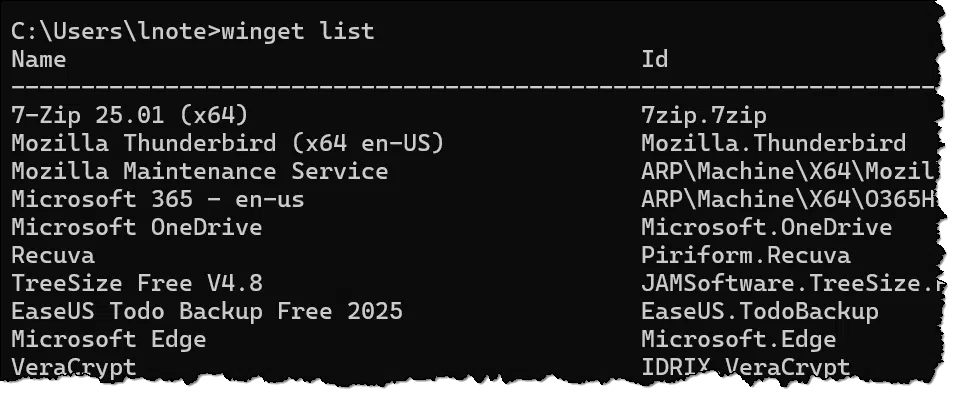
The problem, though, is that WinGet is a command-line tool. It works, it’s handy, and it solves a needed problem, but it’s a little much for the average user.
UniGetUI is, in a sense, a graphical user interface wrapper for WinGet — plus more2.
Installing UniGetUI
While UniGetUI has an official website (shown at the top of the page), it’s easy to install from the Microsoft Store. Search for unigetui.
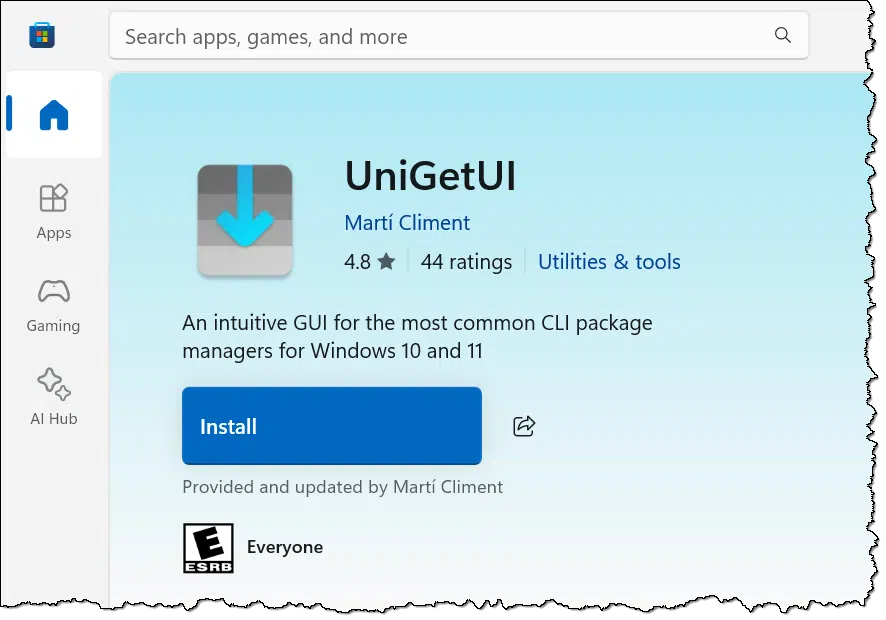
Click on Install, and the tool will be downloaded and installed. Click on Open to run it.
UniGetUI: Listing your installed apps
Click on the computer icon in the left-hand pane for a list of all the apps UniGetUI “knows about” that are installed on your machine.
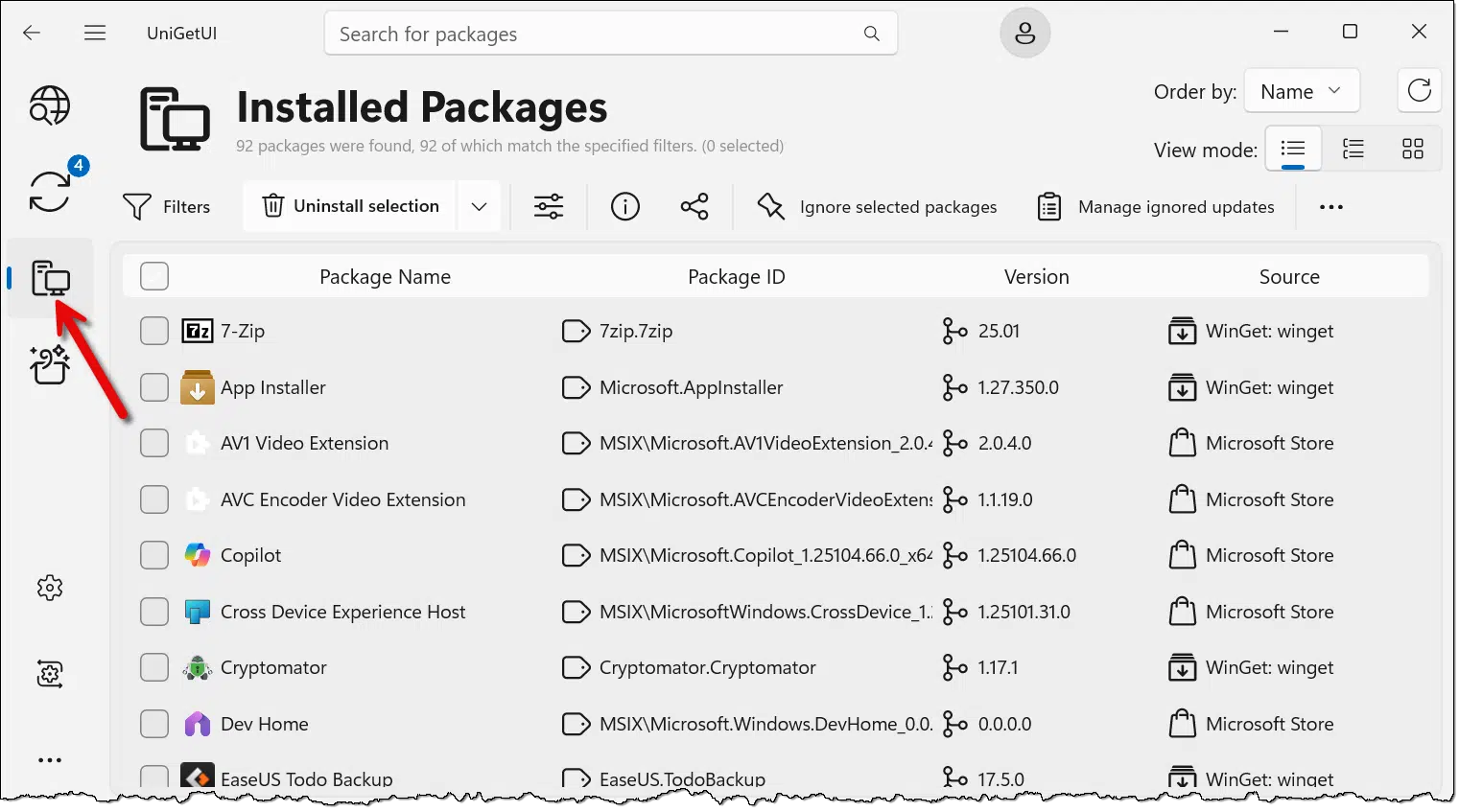
You can scroll through this list to explore what you have. You can also right-click on any item you find for more information, as well as a few actions you can take on that item. Of course, be sure you know what will happen before making any changes. For example, uninstalling a recognized application is one thing, but uninstalling things you’re not sure of could cause problems later.
As you’ll see, it’s a long list. It’s probably the best inventory of what’s installed that I’ve seen to date.
UniGetUI: Updating your installed apps
Click on the update icon in the left pane, and the list of applications will be filtered to those with available updates.
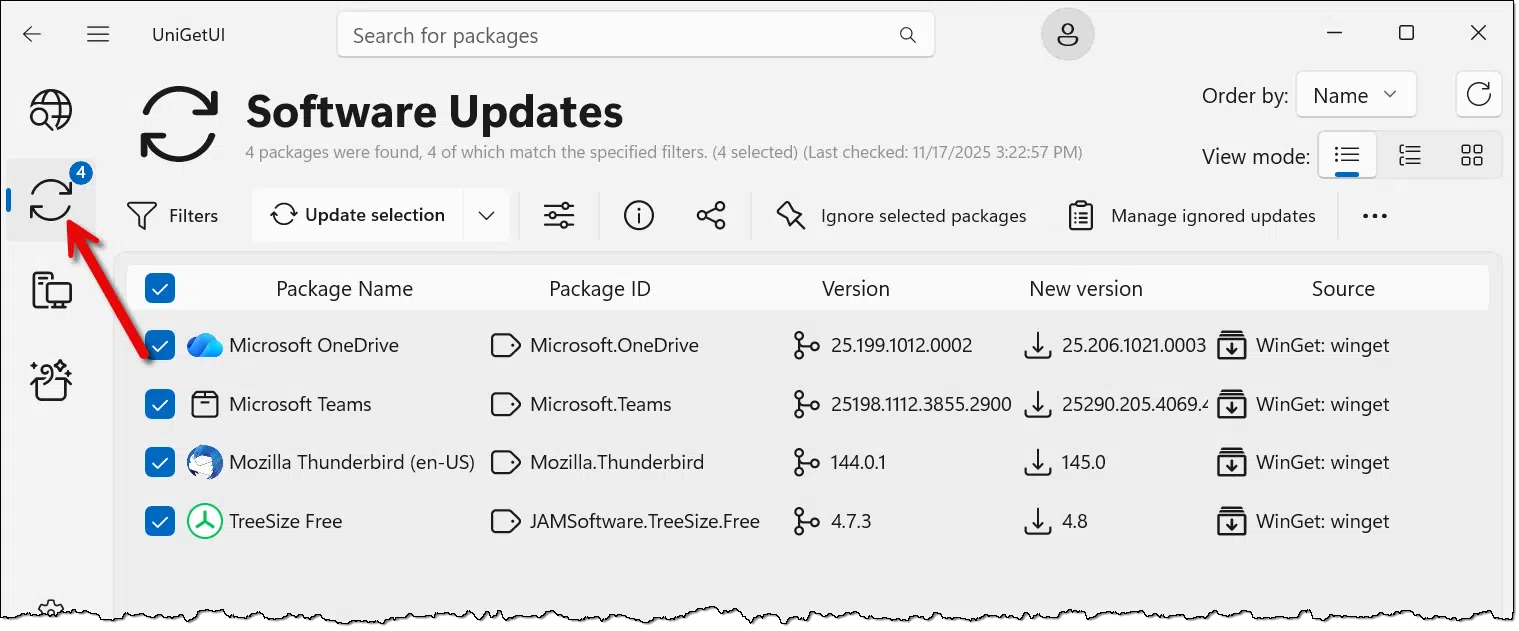
In the example above, you can see several updates are available on my machine. In this example, I could rely on each of those update mechanisms happening independently.
- Microsoft OneDrive – which could be updated by Windows Update the next time it runs.
- Microsoft Teams – which could be updated by Windows Update the next time it runs.
- Mozilla Thunderbird – which could be updated either by its resident update service, or it would notify me of an available update the next time it runs.
- TreeSize Free – which would notify me of an available update the next time it runs.
However, the first time you run UniGetUI, you’re likely to have a long list of available updates.
Click on Update selection, and all of them will be updated immediately. The updates are run sequentially, one after the other. Some may require that you confirm a UAC prompt. When complete, your applications will be up to date.
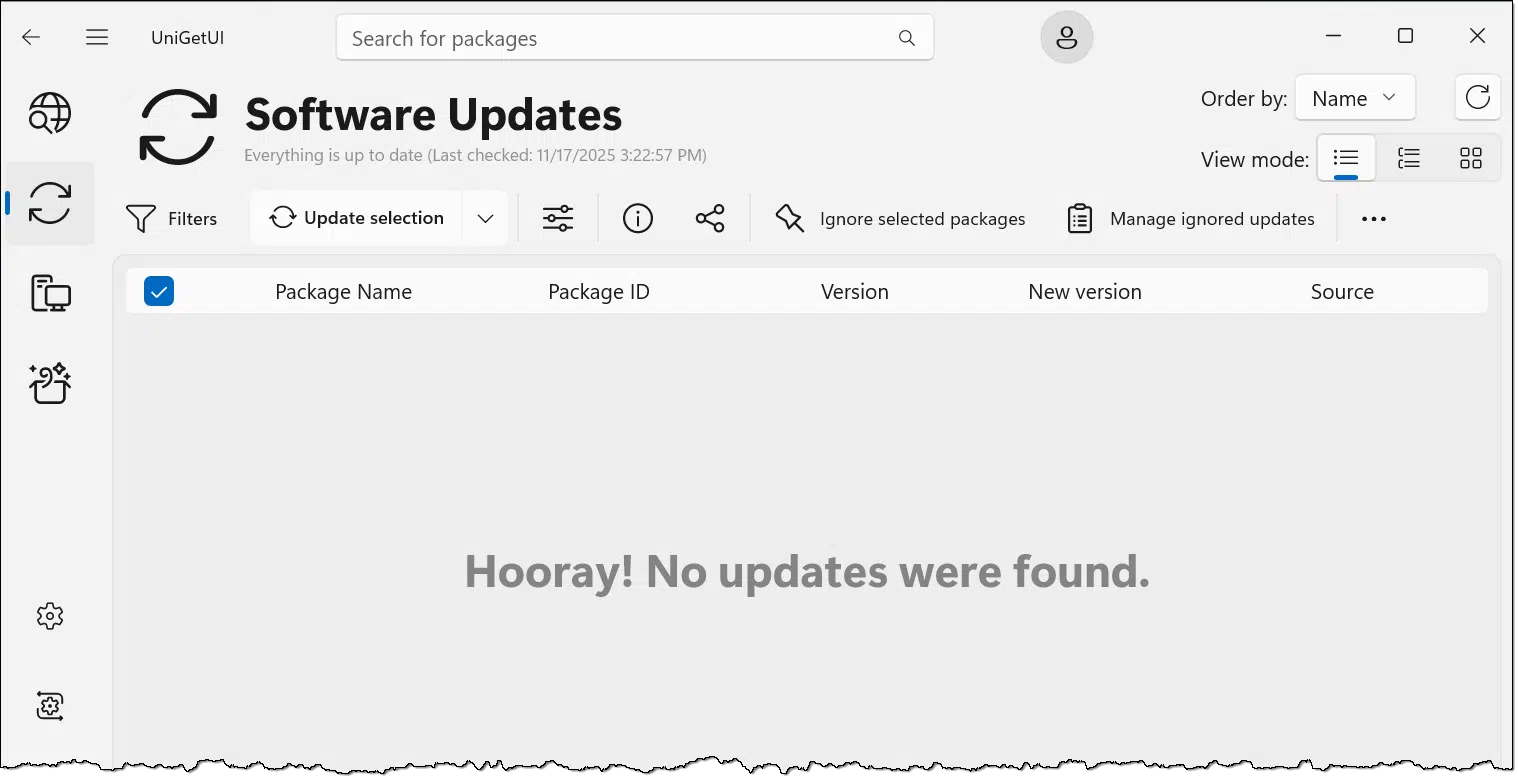
UniGetUI: automation
Once installed, UniGetUI runs a small program in the background to monitor for updates.
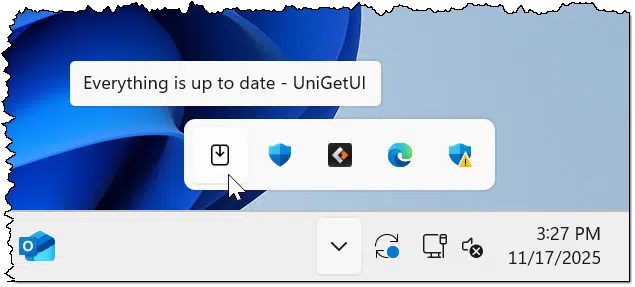
Every so often, you will get a notification from UniGetUI that one or more apps have updates available. You can choose to dismiss that notification, or you can instruct it to install all available updates. You can also click on the notification icon to open the program and choose to update manually.
You may be surprised at how often software is updated. I’m an extreme case, of course; my list of applications has 273 entries on my primary computer. But even my “simple” example machine shown here has 95. It’s rare that a day goes by without one or more of those applications having an available update.
It’s your choice, of course: update every time, wait until a few have accumulated, or turn UniGetUI’s notifications off completely and just fire it up periodically to run a manual check on your own schedule.
UniGetUI: failures
I’ve been running UniGetUI for several months. Shortly after I installed it, I realized that it was having difficulty with one application. The attempt to update that app would never succeed from within UniGetUI.
One of the right-click options is to have UniGetUI ignore that specific package.
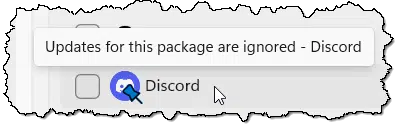
This particular app does a fine job of updating itself regularly, so rather than try to track down a solution, I just told UniGetUI to ignore it.
Out of the 273 items in my list, that’s the only one I’ve had an issue with. I don’t know if the issue is the program’s, UniGetUI’s, or if it’s something about my system. As I said, I didn’t bother to explore further.
Do this
Particularly if you have a lot of installed apps, I recommend you use UniGetUI to keep them up to date. I now use it on both my desktop and laptop. I recommend it as an alternative to multiple, inconsistent update methods.
If nothing else, have a quick look at the results of “winget list” in a command prompt, since it’s already installed. This’ll give you a peek at what is installed on your computer.
Subscribe to Confident Computing! Less frustration and more confidence, solutions, answers, and tips in your inbox every week.


Bad Link:
Installing UniGetUI
While UniGetUI has an official website https://wwwmarticliment.com/unigetui/
should be https://www.marticliment.com/unigetui/
Good catch. I fixed it.
I tried UniGetUI. I’m impressed! Thanks for the tip.
Not clear whether I would benefit downloading the updating app on my iPhone 13 with latest updates?
After SUMo (Software Update Monitor) was discontinued I’ve been using UniGetUI.
I’m a bit leery with using the “Update selection” in UniGetUI. I don’t know if the updates would include the default options when UniGetUI updates a program or not. As an example, perhaps a toolbar or a browser helper is a default option. Instead, I look at the list in UniGetUI then I run the applications in the list and look for an update option. Even if UniGetUI updates software and excludes defaults like I mentioned above, I have seen some default options written both ways (“X” the box to _exclude_ something, or “X” the box to _include_ something).
I agree with David regarding updaters/package managers. If/when I install anything, I decline the optional/bundled additions. These included extras are unwanted so I remove checkmark from the tiny and often hidden opt-in box (sneakily sometimes need to add checkmark to opt-out) in the installer. When UniGetUI installs updated versions, I do not know if it will install this unwanted/bundled stuff.
Additionally, I prefer to use portable versions or programs wherever possible. I have more portable programs on my computer than I have installed progs. I thought UniGetUI would save time manually updating each portable program but it does not even detect or update them.
UniGetUI doesn’t run the original installers, so it won’t include any of the bundled add‑ons you normally have to watch for. It pulls clean builds from the package sources, so your existing settings are preserved and no PUPs get installed.
Portable apps are a different story — since they aren’t registered with the system, UniGetUI can’t detect or update them, so those still need manual updates. Some portable apps are updated by UniGetUI, but you can’t count on it.
Great program, Thanks! Been getting the news letter for at least 15-20 years? (can’t remember) Couple small issues which you had addressed. Microsoft Defender Smart Screen (apps and Files) had to be turned off to allow the install. I had 16 updates when I ran it. It did 15 and one “Revouninstaller” would not work, so I marked it ignore. Also, had to click allow “UAC” on about half of the updates. Otherwise I like it. I am the “family and friends” computer geek (at 70 years old), has been a hobby of mine since around 1980. This program will help out tremendously when I am working on getting their machines back up and running/updated. Thanks again.
I could not find the app in Google store. This doesn’t make sense but does it not exist in Canada?
In Microsoft store
I currently use Patch My PC Home Updater, and I like it a lot, but it doesn’t load at Windows startup automatically, and when I start it, I must answer the UAC prompt. If it dealt with both of those issues, it would be the perfect solution for me because I us it now to export my wanted software list so I can easily recover, no matter what happens. I’ve found the solution to getting it to load on system start using the ‘C:\Windows\System32\sudo.exe “C:\Program Files\Patch My PC\Patch My PC Home Updater\PatchMyPC-HomeUpdater.exe”‘ command in a shortcut I put into the system startup folder (accessible by entering ‘shell:startup’ in the PATH field near the top of the File Explorer Window), but I still have to respond the the UAC prompt each time I start or restart Windows.
With that said, I gave UniGetUI a try, and I’m impressed! It handles many more apps that my current solution, and I don’t have to deal with the UAC prompt at startup, so I’ll see how things go when I have to update any software (everything is up to date at present!).
Ernie
Hi Leo & team. Thanks for this. It looks good. However one of the suggestions I have is for an update to the Microsoft Visual C++ Redistributable. I’m normally nervous about updating things like this. Is this something that I shouldn’t worry about, or just ignore?
Thanks for your great newsletter.
In almost all cases, it’s important to take updates. Most address security vulnerabilities and bugs.
How Important Is It to Seek Out and Take Updates?
Great and helpful little program.
Just an observation I started it in one of my several profiles and it wouldn’t work. Kept asking for admin permission, then failed to load when approved.
Of course I should have thought it through and it did work well when started in the Admin profile, proper.
There’s a similar product called “Ninite” that I think you have mentioned through the years. Is this along the same lines, Leo?
Ninite will only update programs downloaded via Ninite. UniGetUI runs in the background and updates in real time.
Thank you, Mark, for that clarification. Merry Christmas!
I’ve been using uCHeck free for some time and am now using the Premium level. How does this compare to UniGetUI?