Important choices to be made.

Both Windows 10 and Windows 11 come under fire for various privacy issues. Depending on what you read, it does appear that not all privacy-related issues are necessarily under your control.
However, much of it is, and that begins when you install or update Windows.
Let’s install Windows 11 and control what we can along the way.

Windows 11 Setup and Privacy
When you install Windows 11, you can select certain privacy settings. Read each choice instead of just clicking Next. Say no to typing data, personalized offers, and OneDrive backup. Using a local account helps with privacy, too.
It starts with the Terms of Service
One of the first and most frustrating aspects of the Windows setup process is its Terms of Service. To use the product at all, we are forced to accept the lengthy and full-of-legalese document.
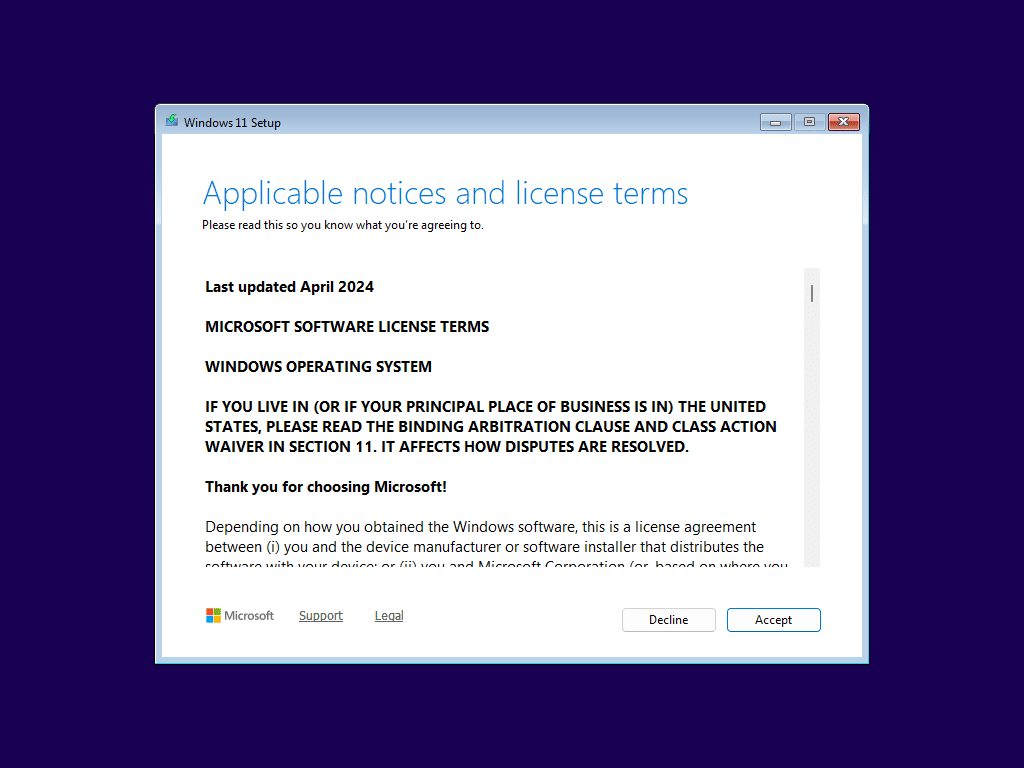
One of the most common complaints is “I never said Microsoft could do that!” Unfortunately, you absolutely did, by clicking the “Accept” button on the terms of service screen.
There’s nothing you can control here other than to decline and avoid installing Windows completely. It’s all or nothing.
If this is of concern, I recommend finding the documents online:
- Microsoft Privacy Statement: https://aka.ms/privacy
- Microsoft Services Agreement: https://aka.ms/msa
You can then copy/paste the entire document into an AI chatbot and ask questions. For example, you might ask, “Does this agreement mean Microsoft owns my files?”1 or similar questions of concern. Another good request would be “Summarize the major privacy implications.”
Help keep it going by becoming a Patron.
Using a Microsoft account
After much of the operating system has been installed — possibly involving a reboot or two — you’re asked to sign in to a Microsoft account.
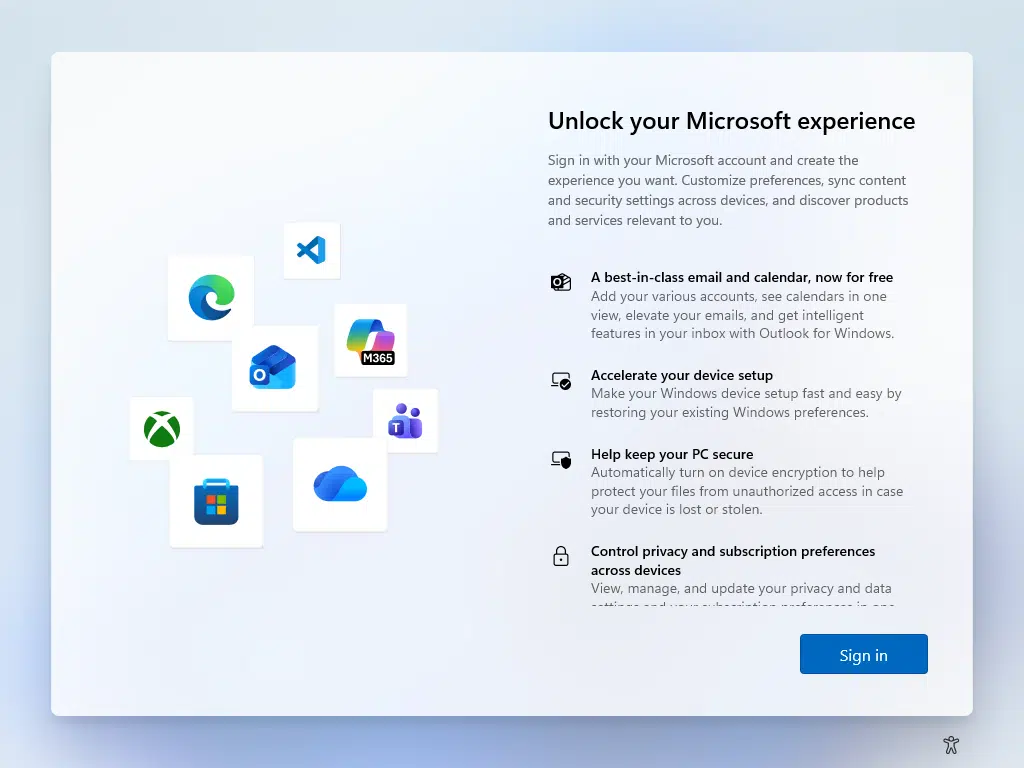
One approach to increased privacy is not to sign in with a Microsoft account at all, but use a local account instead. Unfortunately, in Windows 11, Microsoft has made this difficult, and workarounds for the process are constantly being thwarted. At this writing, two approaches appear to continue to work.
- Set Up Windows 11 With Only a Local Account — Still Working in 2026 uses the Windows Command prompt during setup to disable the network, enabling local account creation.
- Still Another Way to Install Windows 11 With Only a Local Account involves first installing Windows 10 with only a local account, and then upgrading to Windows 11, which preserves the account.
For this article, though, I’m going to carry on with Microsoft’s preferred (almost forced) approach using a Microsoft account.
You can use a non-Microsoft email account as a Microsoft account.
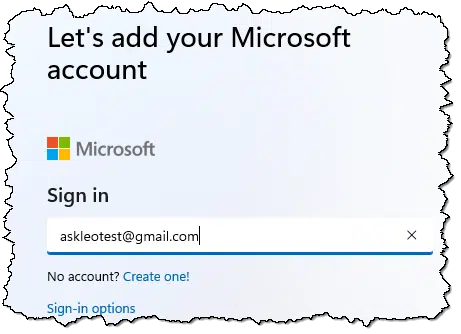
In the example above, I’m using a Google Mail account as my Microsoft account2. While this doesn’t dramatically alter Windows’ own privacy settings, it removes Microsoft’s email services from the equation in case you’re concerned about Microsoft peeking at your messages.
After you enter your Microsoft account email and sign in, Windows Setup will suggest (or require, depending on how you signed in) that you create a PIN.
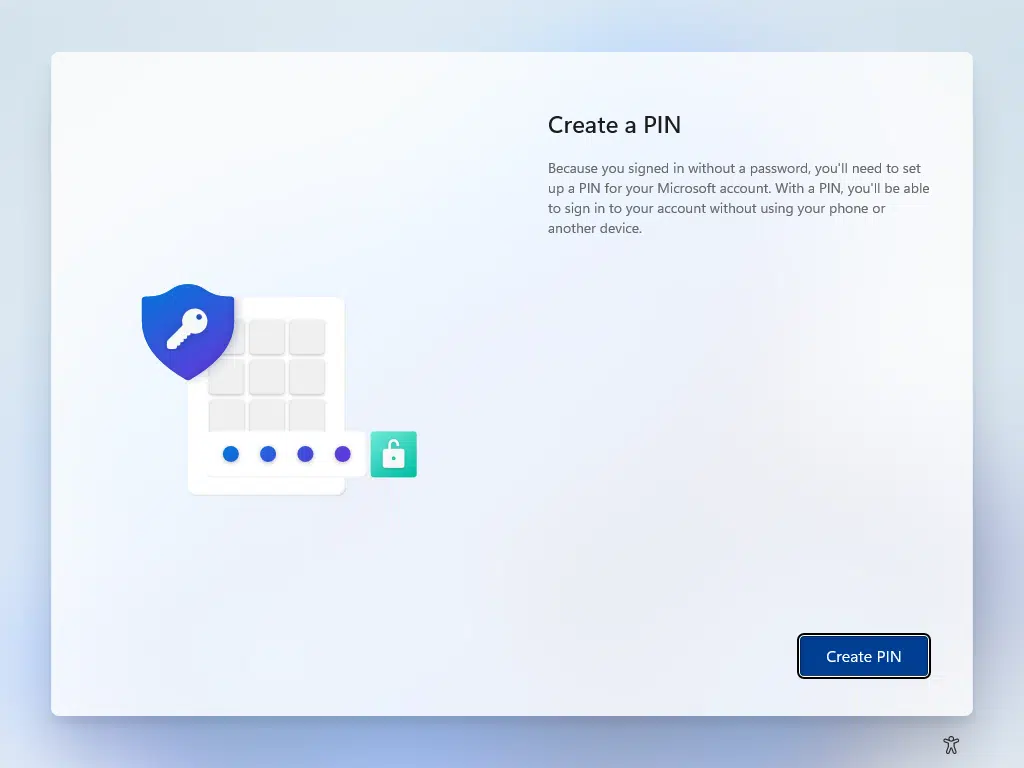
I recommend using a PIN; it’s easier to sign in with and just as secure.
Privacy options
You’re then presented with a screen full of privacy options.
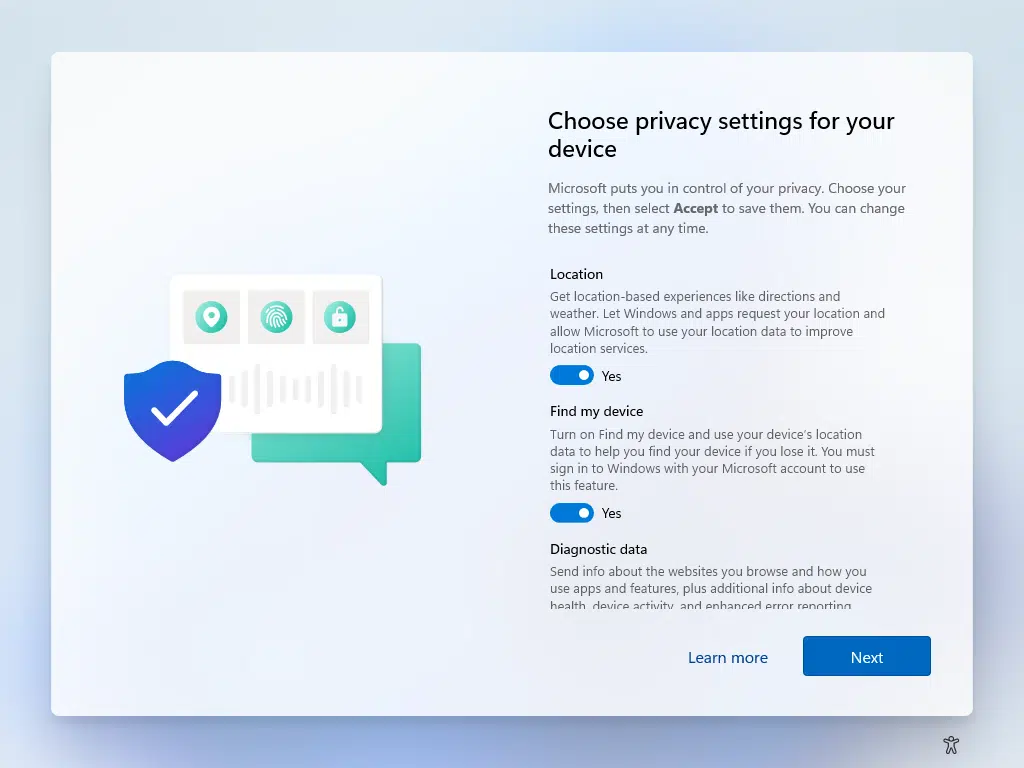
Note that this is a scrolling list, and not all privacy settings are visible from the start. (Even the scroll bar is hidden until you mouse over the list.) Clicking the Next button may force a scroll until all have been displayed.
Naturally, the default responses are set to share as much with Microsoft as possible.
My most important recommendation is not to blindly click “Next/Accept” but rather to examine each privacy setting to make an informed decision.
Here are the settings and my recommendations.
- Location: Get location-based experiences like directions and weather. Let Windows and apps request your location and allow Microsoft to use your location data to improve location services.
Yes. This often enables additional features and functionality in apps and websites that request it. (You can control whether this information is shared with specific websites as you visit them.) On the other hand, if keeping your location private is something you’re concerned about, you may feel more comfortable not accepting it and living with the resulting loss of features.
- Find my device: Turn on Find my Device and use your device’s location data to help you find your device if you lose it. You must sign in to Windows with your Microsoft account to use this feature.
Yes. If you have a portable device and you have location turned on, I recommend turning this on as well.
- Diagnostic data: Send info about the websites you browse and how you use apps and features, plus additional info about device health, device activity, and enhanced error reporting. Required diagnostic data will always be included when you choose to send optional diagnostic data.
Yes. Windows will collect information about the websites you browse and how you use apps and features. Microsoft claims that data is anonymized and collected in a personally unidentifiable way. I believe this information is used for future product enhancements. Of course, if you don’t trust Microsoft, this would be one to turn off. If you say no, you’ll be presented with an item to “Send required diagnostic data”, which I believe is required and used when programs fail or crash.
- Inking & typing: Send optional inking and typing diagnostic data to Microsoft to improve the language recognition and suggestion capabilities of apps and services running on Windows.
No. You may not want what you’ve typed or written to be sent to Microsoft. Presumably, this also eats up additional bandwidth. Since this appears to be used for future product improvement, there’s no real benefit to you to turn it on.
- Personalized offers: Let Windows use info about your device and how you use it to enhance your Windows experience by showing you personalized tips, recommendations, and offers. Microsoft also uses data from other products to personalize these offers. To stop use of this other data, visit https://aka.ms/personalized-offers.
No. While it may make tips more personalized, I think most people read this as “give me more targeted advertisements”. It won’t affect how you use Windows. Also, I tend to be generally anti-tip myself, not finding them particularly useful. And I think we’re all tired of targeted advertising.
Once you’ve scrolled to the end of the list, the “Next” button will change to “Accept”. After you’ve made the appropriate selections, click Accept to move on.
Restoring from another machine
At some point, setup will offer to restore “familiar settings” from other machines associated with your Microsoft account.
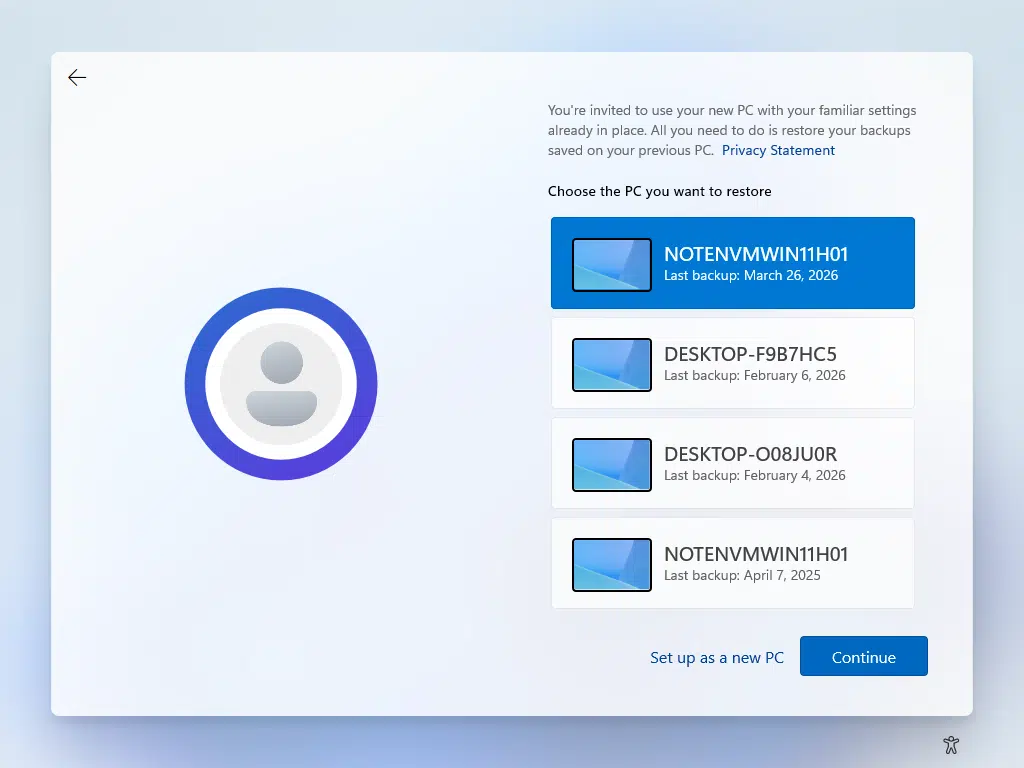
You may need to select a “More options” link if there’s only one machine shown or if “Set up as a new PC” is not visible.
You’ll note that “NOTENVMWIN11H01” is listed twice: that’s the machine I’m setting up, and these are two prior instances of its settings having been backed up.
I strongly recommend choosing “Set up as a new PC” to make explicit choices and not assume the prior machines had the settings you actually wanted. The only time I’d select one of the backups is if you were absolutely certain that the machine selected has all the settings and features exactly as you want them.
If you select “Setup as a new PC”, Setup will encourage you to use a backup anyway.
Restoring your info makes your new PC familiar again
- Have easy access to your files
- Restore your favorite apps
- Use your new PC with familiar settings already in place
- Your Windows and Edge passwords, remembered
I read “easy access to your files” as enabling OneDrive, and possibly its backup, which is to be avoided at nearly all costs. It’s also unclear what Microsoft considers my “favorite” apps.
Customize your experience and link your phone
Setup progresses a little further and encourages you to customize your experience.
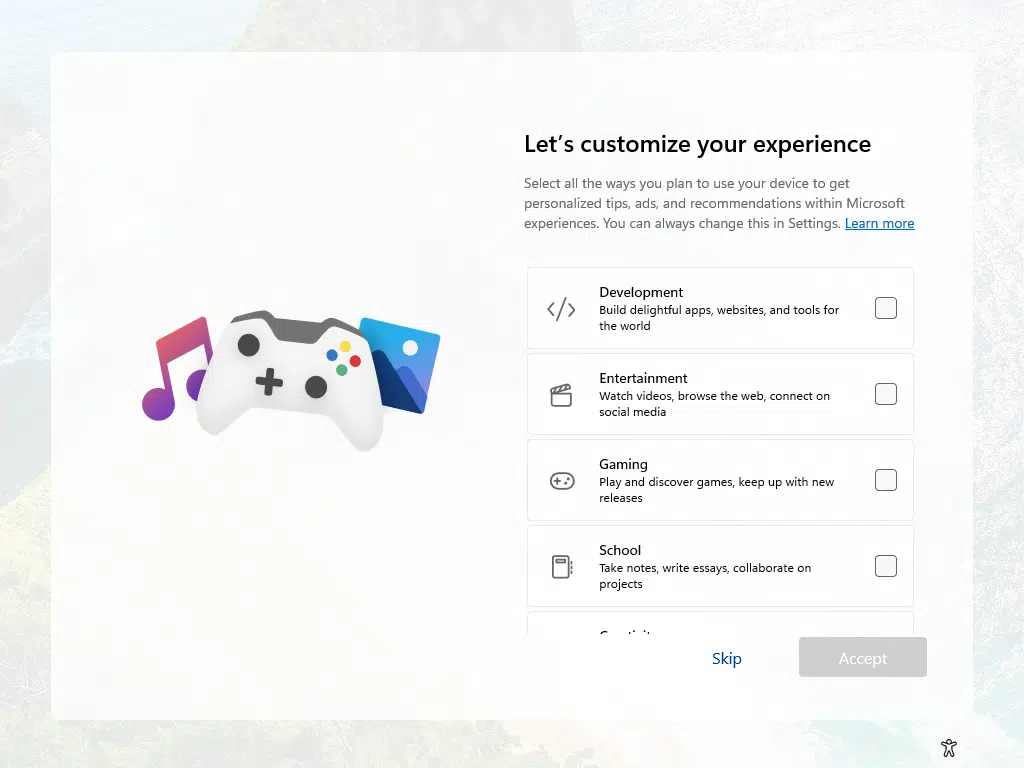
I strongly recommend selecting Skip, as once again, it’s unclear what changes to your system each of these options implies. There’s nothing that can’t be added or altered later.
Next, you’ll be asked to link your phone to your computer. My personal experience with this has been very rough, and naturally, there are many privacy implications. I recommend Skip here as well.
Browsing data, Microsoft 365, and Game Pass Premium
Microsoft continues to push Edge as your web browser very hard. One way they do this is by importing information from other browsers you have installed to make the switch more seamless.
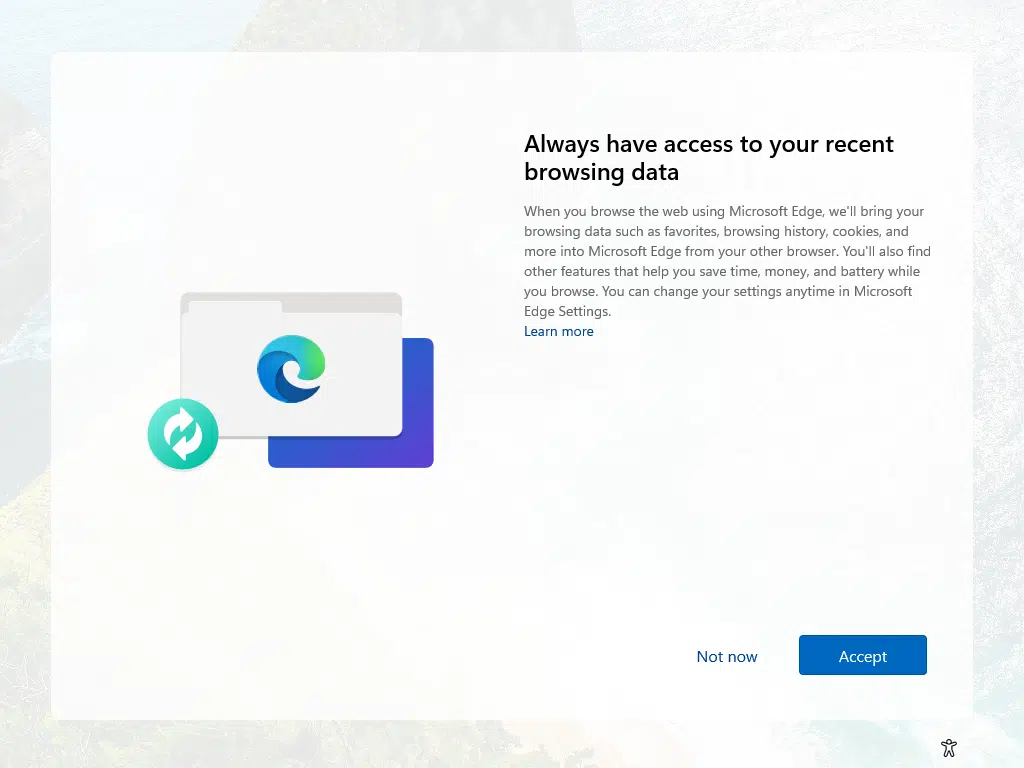
Once again, privacy issues should be clear: one of the reasons you might use other browsers is specifically to keep Edge (and Microsoft) out of the loop. I recommend Not now if that’s of concern to you.
You may be offered a free trial of Microsoft 365. Unless you plan to use Microsoft 365 and subscribe after the trial ends, I recommend you Decline Microsoft 365 and the possible follow-on offer for Microsoft 365 Basic.
You may be offered an opportunity to sign up for Game Pass Premium. Once again, I recommend declining this offer; you can always get it later.
A word about backing up and OneDrive
In the sequence I just walked through, there was no mention of OneDrive. It may show up in other installs; you may get pestered later, or when you choose to enable OneDrive by running it and signing in to your account.
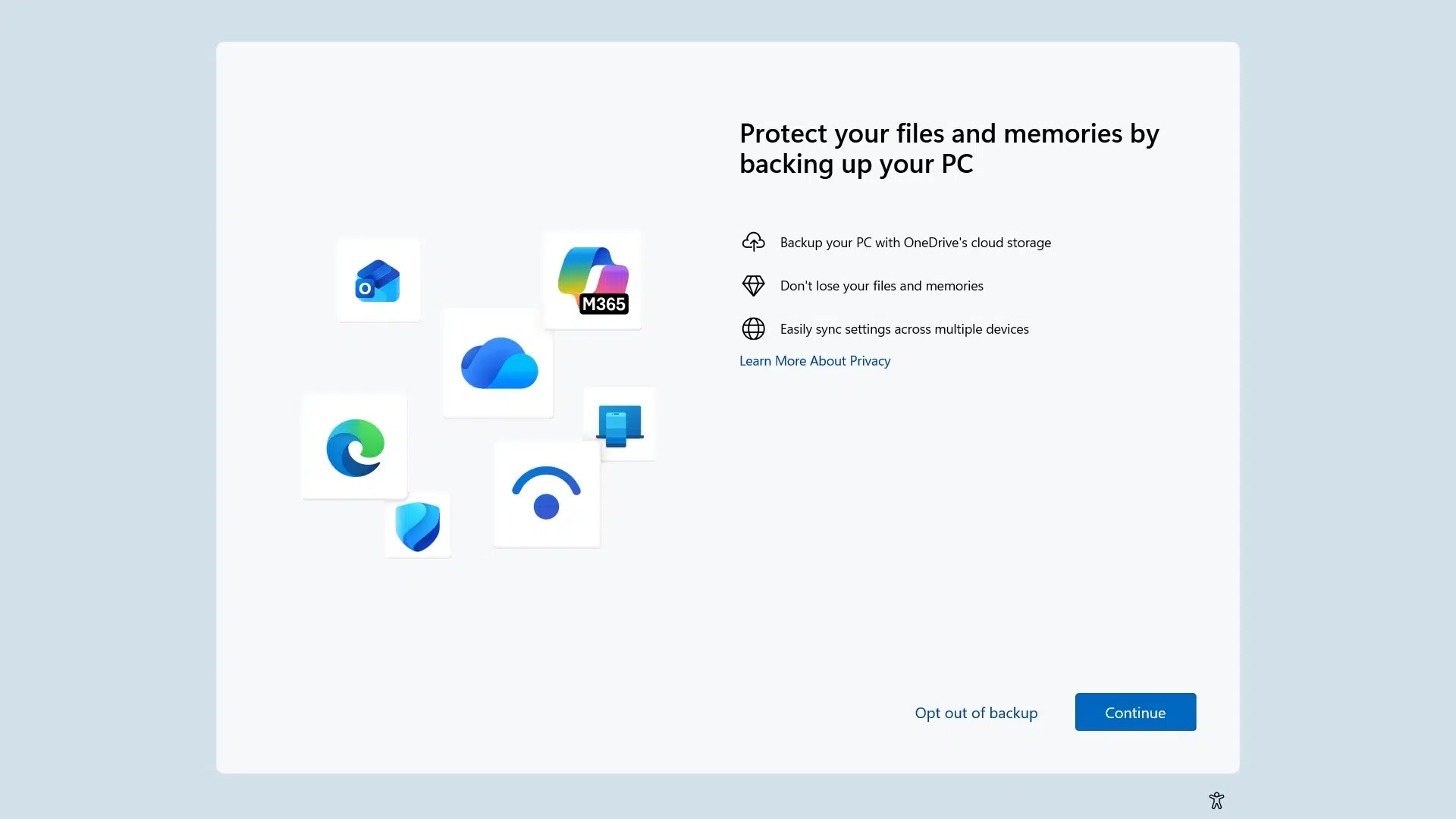
Do not enable backup, even if OneDrive is not mentioned. Opt out even if pestered to do otherwise (and you will be pestered).
Backing up is a good thing, and I recommend it frequently. The backup offered by Microsoft in these scenarios is the disastrous OneDrive backup “feature”.
The privacy implications are massive: files in your Documents folder will get uploaded to OneDrive whether or not you realize it. If you have multiple machines using the same OneDrive account, then Documents (and possibly other folders like Desktop) will get merged and become visible on all machines. Regardless of whether or not you consider exposing your documents to Microsoft an issue, having them show up on other machines (that perhaps others are using) might be a huge deal. If your account is ever compromised, all your “backed up” documents will be in the hands of the hacker. (There are more reasons beyond privacy that you should avoice the “backup” feature. The Problem With OneDrive Backup goes into more detail.)
Backups? Yes. OneDrive backup “feature”? Most definitely not. Here’s what I recommend instead.
Do this
The privacy issues around Windows are as important as they are murky.
On one hand, many of these are issues we regularly accept on other platforms with other companies and other technologies without so much as a second thought. It’s very possible — likely, even — that the information collected here really is used only to improve our experience with Windows and make it a better operating system for everyone.
On the other hand, in Windows 10 and 11, Microsoft seems to be taking information-gathering to a new level. They are also being perceived as less than transparent about what is collected, whether we opt out or not.
Regardless of the outcome, it’s important to be aware of the choices made available, even if they’re not the default, and make our own decisions.
Subscribe to Confident Computing! Less frustration and more confidence, solutions, answers, and tips in your inbox every week.


I avoided some of these issues by reading from several of your articles and others’. This is the best-organized article I’ve seen. I think I’ve set 11 up well, but I’m not sure. Is there a way to go back and check/change as needed?
When it comes to Windows 11 and its Settings, one must practice some of the “common sense” adages in the Leo article https://askleo.com/just-what-is-common-sense/ (in this week’s newsletter).
– Don’t believe everything you read.
– Be skeptical: question everything.
– If it sounds too good to be true, it’s probably not true.
The privacy Settings are just a façade to make you feel good. To have a decent chance of suppressing Windows 11 privacy transgressions you have to get deep into the Windows Registry, Group Policy, Services, Scheduler, and block hundreds of Microsoft URLs. That’s when you “Do your research” and realize that it’s overwhelming and you can’t really win 100%. Microsoft confirms that resistance is futile in its service agreement and privacy statements. But don’t give up. You may not win, but you can make it a lot better. After that you can then start worrying about Facebook, Google, Tiktok, …..
And when it comes to Windows 11 Updates, “If it ain’t broke, don’t fix it”.
(I know, I know, without those updates there will be apocalypse and calamity).
Hello,
I feel I must take this opportunity to thank Leo for yet another outstanding article. He has a habit of excelling himself. I’m so much the wiser and appreciative of the users’ comments above. How nasty and shameless Microsoft (and Bill Gates) have been since I bought my first computer with 3.1 in January 1996. I still know relatively little about information technology: it’s so daunting. But perhaps it’s time for a new beginning with a Mac?
Do you mean that altruistic company that has sweatshops built in China that give jobs to needy children? Apple is just as guilty as Microsoft when it comes to dark patterns. 6 of one, half a dozen of the other.
As for Linux, make sure you get a computer made in Taiwan or other non Chinese company.