They keep changing.
If you’re having trouble connecting to a Wi-Fi hotspot — open and public, or otherwise — it could be a mismatch between the capabilities of your Wi-Fi hardware and the hotspot providing the wireless networking.
To do this, we need to figure out which protocols — that whole “802.11” thing — your card is capable of. Once we have that information, we can make a few assumptions.
Fortunately, your card’s capabilities are easily discovered.

Which Wi-Fi?
To check your Wi-Fi protocols, open Command Prompt and type netsh wlan show drivers. Look for “Radio types supported” to see which protocols are possible. Then go to Settings > Network & Internet > Properties to see which protocol and frequency you’re using right now.
Examining capabilities
On a computer with Wi-Fi, enter the following command:
netsh wlan show drivers
The result will be a lengthy list.
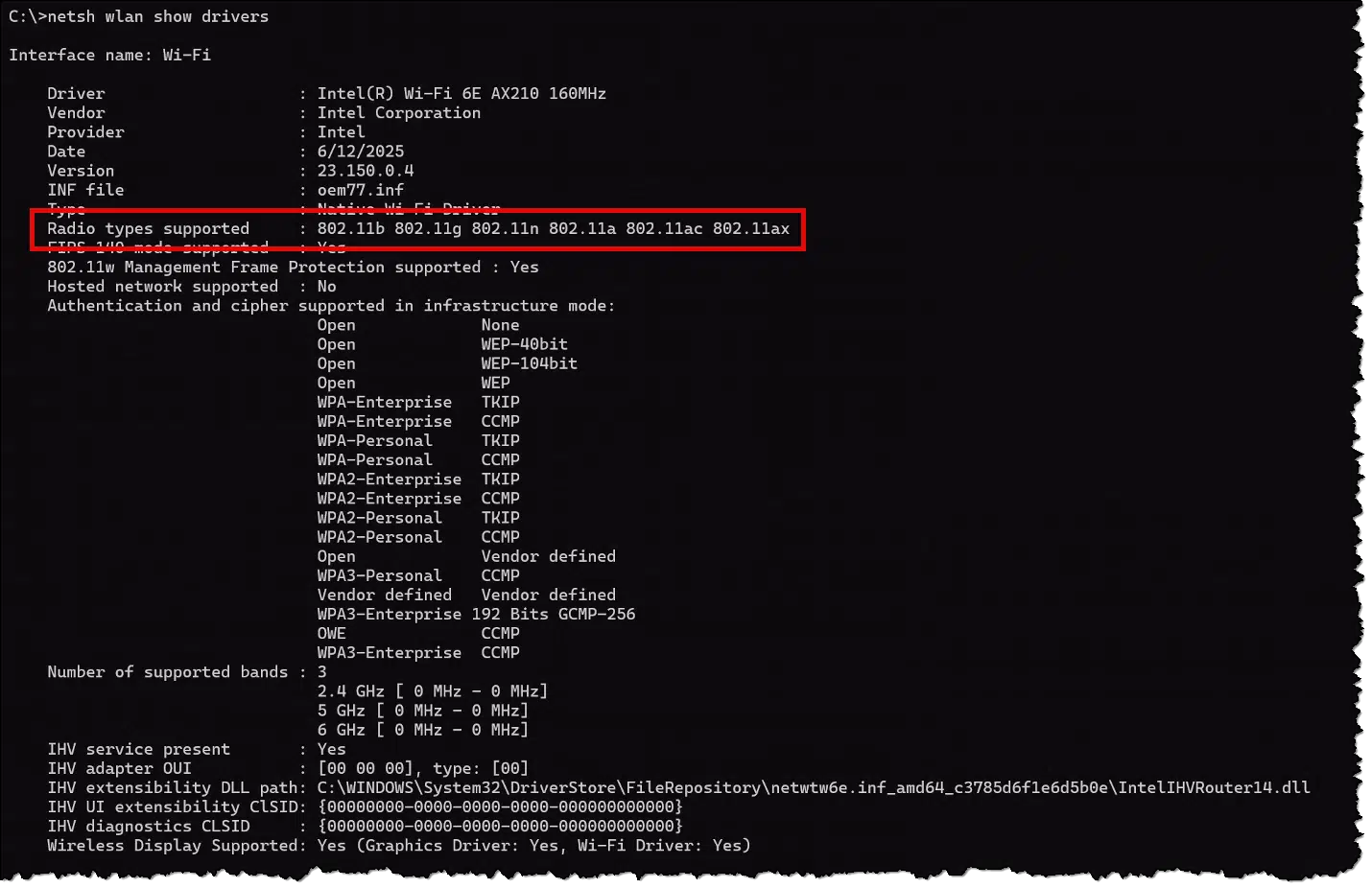
Look for the line “Radio types supported”. That will tell you the WI-Fi protocols your adapter is capable of using. In the example above, that includes: 802.11b, 802. 11g, 802.11n, 802.11a, 802. 11ac, and 802.11ax.
Great. What’s all that mean?
Help keep it going by becoming a Patron.
802.11 variations
802.11 is a formal standard for the wireless protocol used by what we typically call Wi-Fi. It defines the signals, frequencies, and other characteristics of how wireless devices communicate with one another. Originally released in 1997, there have been, and continue to be, revisions to the protocol.
| Generation | IEEE standard |
Adopted | Speed Range (Mbit/s) |
Frequency (GHz) | ||
|---|---|---|---|---|---|---|
| 2.4 | 5 | 6 | ||||
| Wi-Fi 1 | 802.11 | 1997 | 1–2 |  |
||
| Wi-Fi 2 | 802.11b | 1999 | 1–11 | |
||
| Wi-Fi 2G | 802.11a | 6–54 | |
|||
| Wi-Fi 3 | 802.11g | 2003 | |
|||
| Wi-Fi 4 | 802.11n | 2009 | 6.5–600 | |
|
|
| Wi-Fi 5 | 802.11ac | 2013 | 6.5–6,933 | |
||
| Wi-Fi 6 | 802.11ax | 2021 | 0.4–9,608 | |
|
|
| Wi-Fi 6E | |
|
|
|||
| Wi-Fi 7 | 802.11be | 2024 | 0.4–23,059 | |
|
|
| Wi-Fi 8 | 802.11bn | TBA | |
|
|
|
(Source: Wikipedia)
Each generation (1, 2, 2G, etc.) of the protocol differs in its range of transmission speeds and the frequencies over which the protocol might be used.1
The rows I’ve highlighted in blue correspond to the “Radio types supported” in my earlier example. My laptop can use the 802.11b, 802. 11g, 802.11n, 802.11a, 802. 11ac, and 802.11ax protocols.
Great. But what am I actually using?
Wi-Fi in use
In Settings, open Network and Internet. There you’ll find at least one piece of the puzzle.
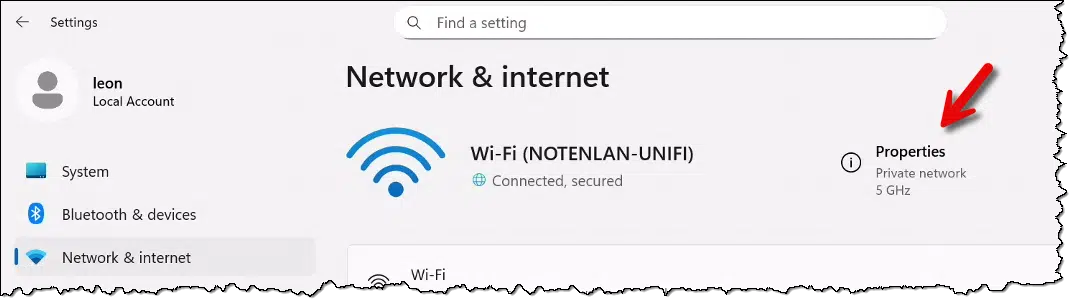
“Properties” indicates that this connection is using the 5GHz frequency, but that doesn’t tell me which 802.11 protocol is in use.
Click on Properties for more information.
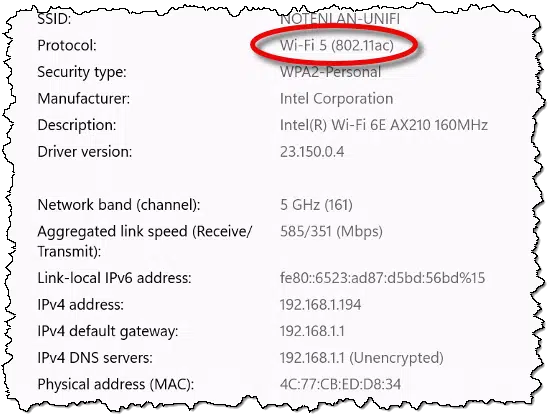
Along with other information, here you can see that my laptop is connecting using 802.11ac, also known as Wi-Fi 5.
Side trip: DFS
The original question was submitted by an individual whose Wi-Fi was having problems aboard a cruise ship. He was told his device probably didn’t support something called “DFS”, or Dynamic Frequency Selection. This is another formal specification — 802.11h — dealing with interference when using the 5GHz frequency.
There are other devices that use certain frequencies in the 5GHz range, including ships’ radar. On a cruise ship, you do not want your Wi-Fi signal to interfere with the radar. DFS is a protocol addition that allows your Wi-Fi device to sidestep possible interference, so it makes sense that your cruise ship might require your device to support DFS.
Determining whether or not your specific device supports it is a little unclear. The rule of thumb seems to be that any device supporting 5 GHz Wi-Fi made after 2019 likely supports DFS channels. Prior to that, things could get iffy.2
Do this
Most of this is completely transparent in normal use. Your laptop will generally note what your local router or Wi-Fi access point makes available and use the option best suited to the situation.
But if you’re curious about what your device’s capabilities are and what choices were made when connecting, now you can peek under the hood.
Subscribe to Confident Computing! Less frustration and more confidence, solutions, answers, and tips in your inbox every week.


Good explanation in this article, but the question about whether a given WiFi device “supports” some standard needs more explanation. So far, all generations of WiFi are backward compatible, allowing connections to older versions. Of course, with an older version WiFi device you won’t get the higher speeds, security features, and bells and whistles, but you should be able to connect. Some routers may have settings to block older protocols, but those should be configurable. Of course, an older device won’t support newer generations of WiFi standards.
So Leo, where did the “802” come from. Was it just a number pulled out of a hat? Or was it chosen because the person making the decision lived in Vermont… where an unrelated 3-digit number lives as Vermont’s telephone Area Code?
Definitely not random. The IEEE (Institute of Electrical and Electronics Engineers.) assigns standards numbers, but I don’t know what their algorithm is.
my primary laptop and desktop computers both have two Wi-Fi adapters connected, all of which support Wi-Fi 6, although the router I received from Rocket Internet only supports Wi-Fi 5, so that’s the best connection I can get, until I can afford to purchase a new Wi-Fi 7 router. I found a TP-Link Deco 7 BE23 Dual-Band BE3600 WiFi 7 Mesh Wi-Fi Router on Amazon for $79.98(US), a price I can afford, and at a coverage of 2500 Sq Ft, it reaches a bit more than the square footage of my home.
Maybe in the coming month or so …
Ernie
I am on 5g network and I notice my network profile is set to private network. Should I be using the private network or public as recommended.
Lily
That’s a good question. Many probably don’t understand the difference. A private network is network that includes people you trust, for example your home network. It allows device discovery, and file and printer sharing among people on the network. It’s generally safe to set it to private unless there is someone on the network you aren’t sure about, like visitors you allow to use your Internet.
Public doesn’t allow device discovery, or file and printer sharing, so it’s the safer default when you’re not sure. I’d use a Public network setting as your phone is accessible to anyone in range.
5G is, essentially connecting to the wild internet directly. I recommend Public.