Here’s one way.
Over the years, Windows has improved its accessibility features. They allow users with hearing, visual, motor, or other types of needs to interact with computers using assistive technologies. But the tools are there for everyone, and can be useful to all of us.
This is one such case.

Signing in without a keyboard
On the sign-in screen:
- Click on the accessibility icon.
- Turn on the on-screen keyboard.
- Use the on-screen keyboard to “type” into the password or PIN field.
Accessibility at sign-in
You may need to click in the password or PIN field, or perhaps even some other non-control area of the screen. In the lower right, you’ll see an icon for accessibility features.
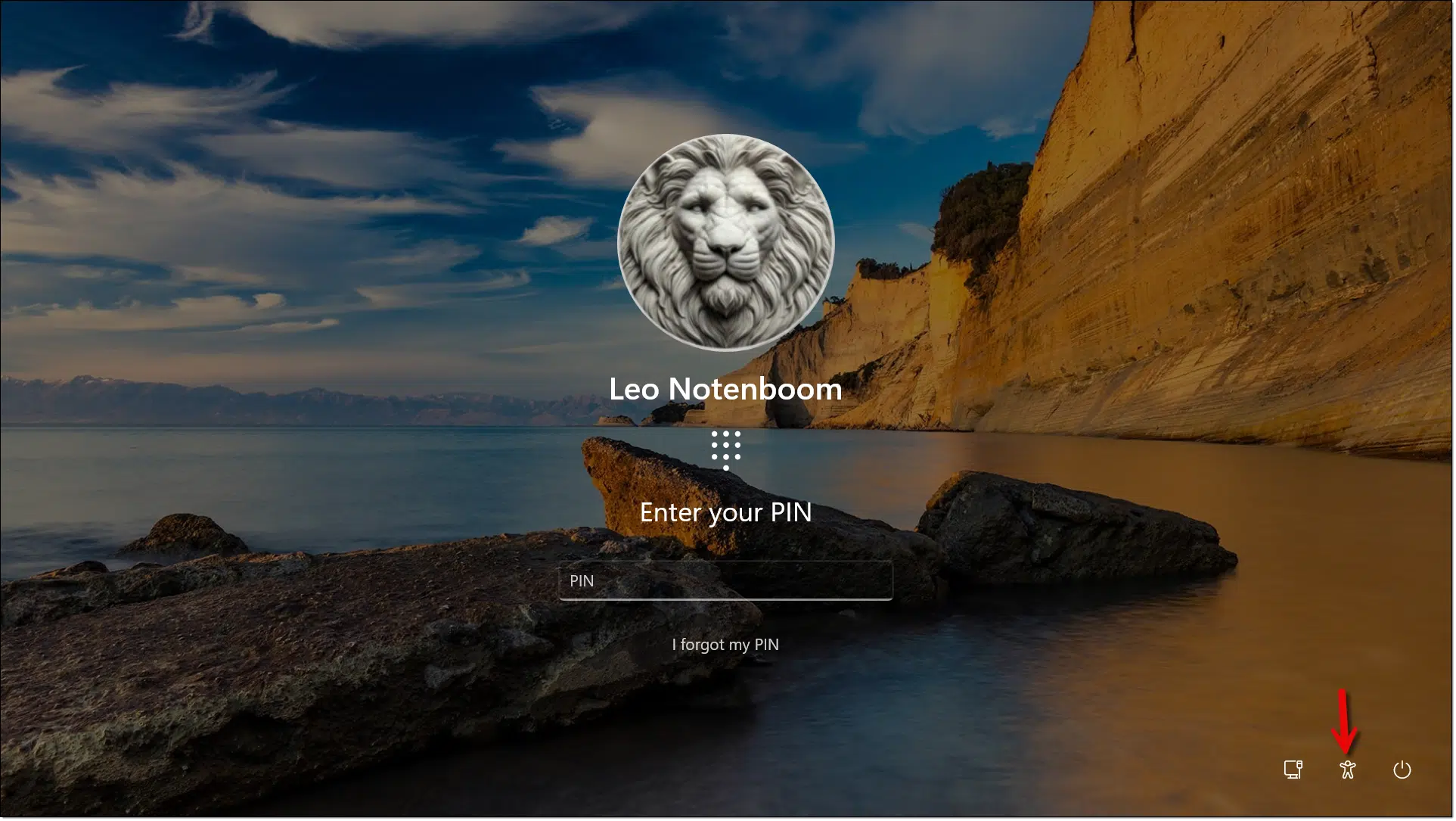
Click on that icon, and you’ll be presented with a menu of options.
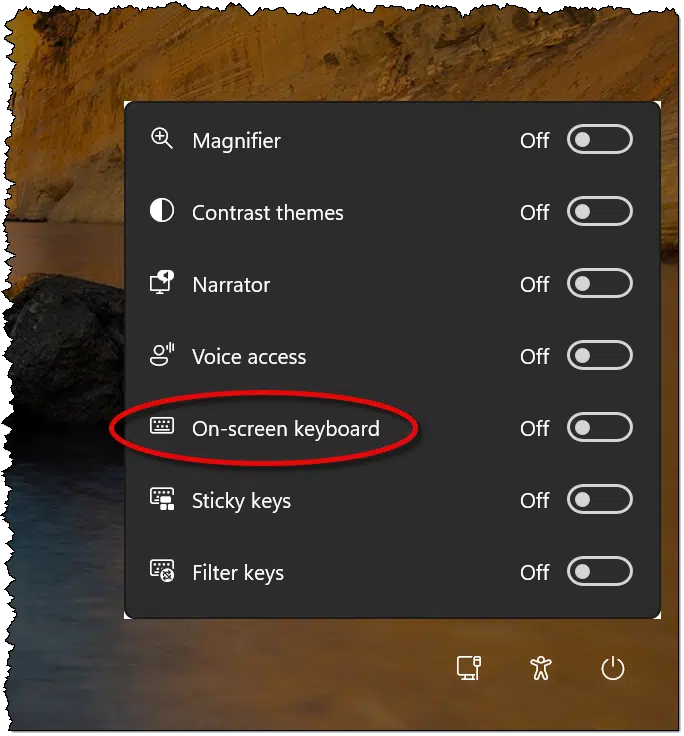
Turn on the on-screen keyboard.
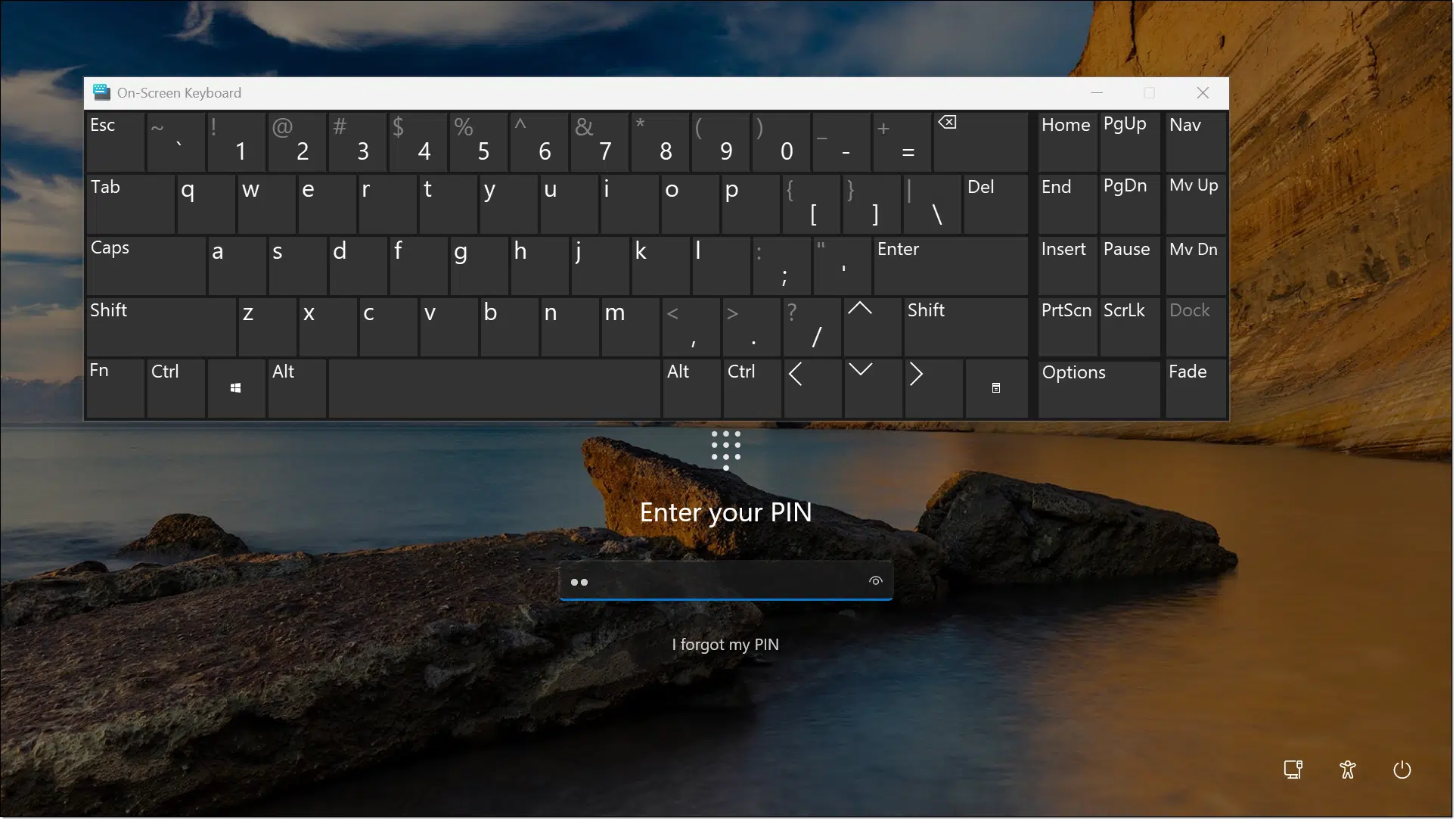
Click in the field you want to type into — the PIN field, in the example above.
Now click the letters and/or numbers on the on-screen keyboard, and they’ll be entered into the entry field as if you’d typed them using a real keyboard.
Do this
Windows can be difficult to use without a keyboard, but signing in isn’t that difficult. Presumably, once you’re in, you’ll be able to perform important tasks — perhaps copying files so you can work on them on a different computer with a working keyboard.
While you’re there, check out the other accessibility features; you might find something you really like.
Subscribe to Confident Computing! Less frustration and more confidence, solutions, answers, and tips in your inbox every week.


I really found that article interesting. I am still somewhat of a novice. I did not even know what an accessibility icon was. There are some very intersting items on that list. I can’t do it now, but I am going to come back and try to check tham all out when I have the time.
Thank you for a wonderful column. Joan Gordon
I tried it and IT WORKS ! (…and I don’t have a touch screen).
Thanks, Leo. That was very good information.
This is a useful tip. Also useful if your keyboard accidentally changes to a different language. My company’s IT suggested this once. We’re a bilingual company so all computers are capable of English or French language.
“You may need to click in the password or PIN field”
When I open the onscreen keyboard, I then have to click the PIN field twice to get it to enter data.
Another use for the onscreen keyboard.
Social media bans posts with certain keywords. I use the Russian keyboard to substitute similar looking characters, and they completely slip by the censorship bots.
РОТАТО ≠ POTATO
I just went to my local thrift store, got a mouse and keyboard for $5.00
Which is great, and I strongly recommend, but doesn’t help if the problem is elsewhere (like, say, the USB port itself or the USB subsystem).
Very soon after purchasing my first computer in 1997, I learned that, for me, powerlifting and left mouse clicking were not agreeable for my elbow. I switched to using the number 5 on the right key pad and the problem was and is solved.
Regarding that first picture: “Ooo! Aslan!” <Wink.>
Oops, regarding that second picture.
Sorry, I can’t seem to count right today (Sigh.)
Thank you for all the helpful articles, Leo. I wonder what else us “boomers” can do to learn more of the technology that we need. Any suggestions?