It can be a single click away.
Sure. I’ll show you how.
I question your need to restart so frequently, but I’ll trust your motives.
Besides, the technique I’ll show you applies to more than just restarting.

One click restart
Tired of clicking through three menus every time you restart your computer? You can turn that into a single click by creating a desktop shortcut, giving it a custom icon, and pinning it to your taskbar. Even if a one-click restart isn’t what you need, you can use these same tricks for other programs, too.
Traditional restart
A typical way to restart your computer involves three clicks:
- Right-click on the Start button.
- Click on Shutdown or sign out.
- Click on Restart.
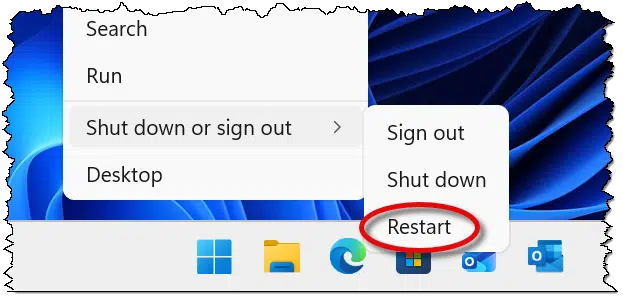
But perhaps that’s two clicks too many.
Restart shortcut
We’ll start by creating a shortcut on your desktop. That shortcut will run the “shutdown” command with parameters to perform an immediate restart.
Right-click on an empty area of the desktop. Click on New and then Shortcut. Enter the following as the “location” of the item:
shutdown /r /t 0
“/r” means restart, and “/t 0” means with a time delay of zero seconds, meaning immediately. (Note that there are spaces between each of the parameters.)
You should see something similar to this:
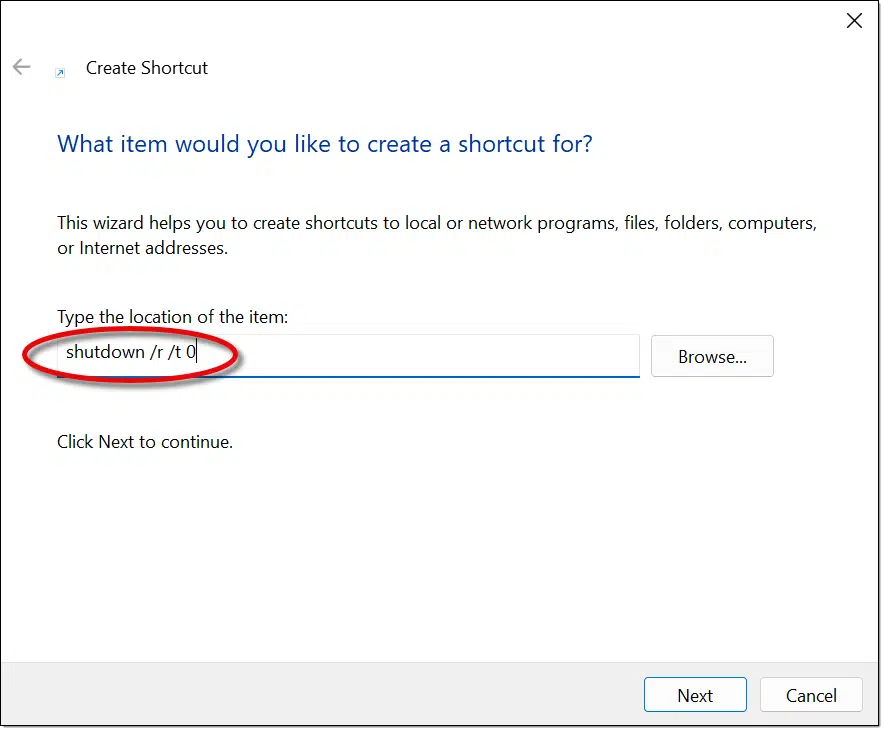
Click Next and give the shortcut a name, like “Restart”. The result will be a desktop shortcut.
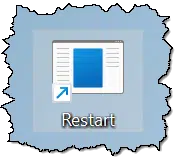
If you were to double-click this, your machine would restart.
We’re down to two clicks. Before we get it down to one, let’s make the shortcut look more distinctive.
Customizing the shortcut icon
As we’ll see in a moment, we’re on a path to a one-click restart. That means we’ll want the shortcut to be easily identifiable to avoid clicking on it accidentally.
Right-click on the shortcut and then click on Properties.
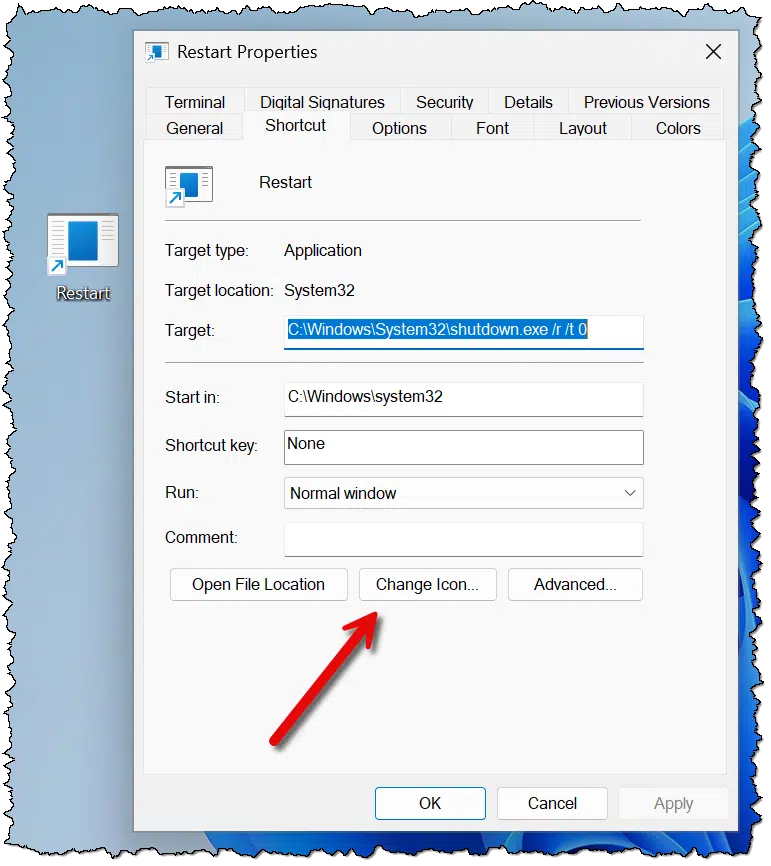
Click on Change Icon… and you will likely get an error message.
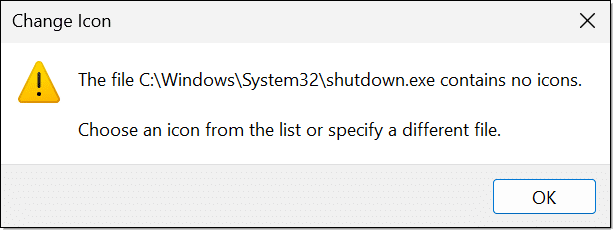
Not a problem. Click OK, and you’ll be shown the icons contained in the system file “SHELL32.DLL”.
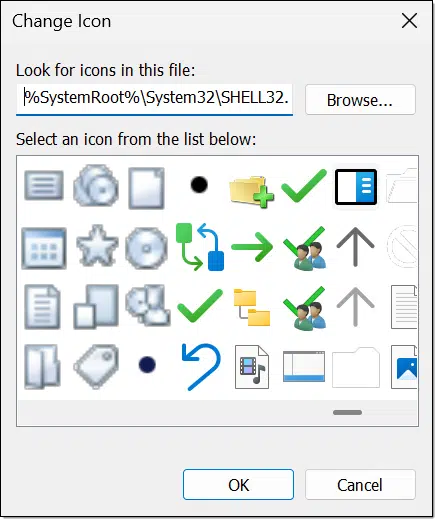
There are dozens of icons to choose from. Scroll through the list, click on the icon you want to use, and click on OK. Click on OK again to close Properties. Your desktop shortcut will change.
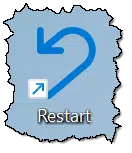
Now we’re ready to remove one more click.
Pin it to the taskbar
Right-click on the shortcut and click on Show more options.
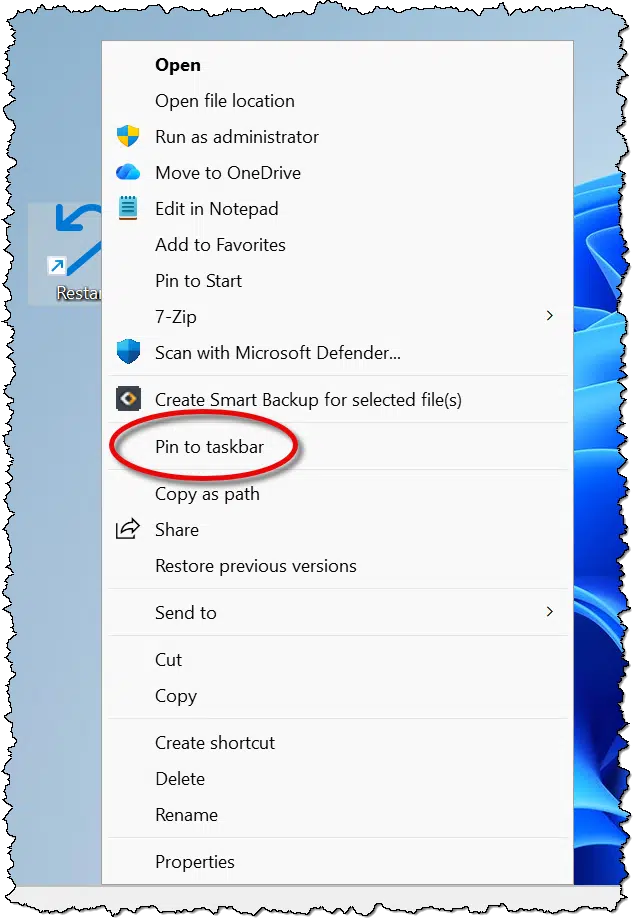
Click on Pin to taskbar.
Now your shortcut will be visible on the taskbar.
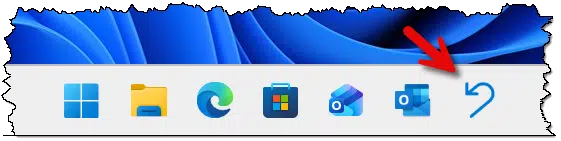
A single click on that shortcut will now restart your machine.
Do this
While having a one-click restart seems a tad unusual, the techniques I’ve outlined above — creating a shortcut, changing its icon, and pinning it to the taskbar — can all be used for many other situations and programs. Even if you don’t need such an accessible restart, you now have tools you can use for other, perhaps more common, reasons.
Subscribe to Confident Computing! Less frustration and more confidence, solutions, answers, and tips in your inbox every week.


I don’t see why the person who asked needs to restart so often. I use that command with /s instead of /r because I shut down daily.
Agreed. I’ve set up an icon on my desktop to shutdown with a single click using the command as you do:
C:\Windows\System32\shutdown.exe /s /t 0
And I suspect folks should be advised that you can simply drag and drop a desktop icon onto your task bar. It will appear as the last item, but you can always drag it to another spot on the task bar.
I have a few apps like Rufus and MD5 & SHA Checksum Utility that run from wherever I keep them which are frequently described as portable apps, so I create folders for each in File Explorer under C:\Users\$(USER)\[Folder] where ‘Folder’ is a placeholder for the folder name you choose, then I ALT-Click the executable, and in the resulting context menu, I choose ‘Show more options’, then ‘Send to’, and in the extended menu, ‘Desktop (create shortcut)’. If the app doesn’t have an icon (as is often the case), I search the Internet for a suitable icon image (e.g.: “restart icon image”). For this I use the Greenfish Icon Editor Pro (A free icon/image editor that includes the ability to generate various types of icons in the Icon menu) to edit the appearance of the image (If needed), and generate a Windows icon using the loaded image I selected. If I’m working with a JPEG image, and I want to make the background transparent, in order to successfully save my changes to my image folder, I have to save it as a PNG image, because the JPG/JPEG image format doesn’t support transparency before I generate the icon. Finally, I save the generated Windows icon to my icon folder under Pictures, so I can use it with my shortcut (ALT-Click the shortcut and choose Properties. In Properties, choose ‘Change icon’, then ‘Browse’ to navigate to the icon I just created, and finally “OK” my way out.) Now that my shortcut has the icon I want, I have three options, 1. Pin it to Start, 2. Pin it to the task bar, or add it to the Global Programs folder so it’s listed in the ‘All icons’ list just like an installed App (at C:\ProgramData\Microsoft\Windows\Start Menu\Programs\).
I hope something I added here helps others,
Ernie
I’ve always liked a clean desktop (on my computer, my physical desk is a disaster), so I created a shortcut to clear the Recycle Bin and pinned it to the Taskbar. Now I don’t have to minimize windows to clear it.
Paste this into the Target field and follow the instructions in the article.
powershell.exe -Command Clear-RecycleBin -Force
Also, when I looked for “Show more options”, I found “Pin to taskbar” was already in the right-click jump list.
If anyone has any pet shortcuts, you might want to post them here.
For the System Properties dialog:
C:\Windows\System32\SystemPropertiesAdvanced.exe
For the Environment Variables dialog:
C:\Windows\System32\rundll32.exe sysdm.cpl,EditEnvironmentVariables
By creating Shortcuts with these as the location of the item and naming it appropriately I was able to add both to my Global programs start folder at:
C:\ProgramData\Microsoft\Windows\Start Menu\Programs
Both were displayed in the list when I clicked Start, so I could add them to start, and move them into my Windows Utilities folder.
I use Start Folders to enable me to organize my Start icons
Ernie
Great, using this info I now have a one click Hibernate on my task bar 🙂