The right shortcut in the right place.
There are many ways to start programs automatically when Windows boots or when you sign in. Most of them are obscure registry settings used by applications when they’re installed. Fortunately, there’s one easy approach.

Auto-start
You can have a program start when you sign in to Windows by using the hidden Startup folder. Put a shortcut to the program there, and Windows will run it automatically each time you log in. It’s simple, safe, and doesn’t require editing the registry.
The Startup folder
There is a special folder called Startup. Any programs or shortcuts in it are run each time you sign in.
In older versions of Windows, you could navigate to that folder on the Start menu and add shortcuts as needed. The folder still exists, but it’s hidden.
There are several ways to examine the Startup folder.
- In the Run dialog box (on the alternate Start menu, or opened by typing Windows Key + R), run1 the command “shell:startup“.
- In the Run dialog box, run the command: “%APPDATA%\Microsoft\Windows\Start Menu\Programs\Startup“. (%APPDATA% is shorthand for “C:\users\%USERNAME%\AppData\Roaming”, and will automatically have the correct “%USERNAME%”.)
- In the Run dialog box, run the command: “C:\users\%USERNAME%\AppData\Roaming\Microsoft\Windows\Start Menu\Programs\Startup“.
- In Windows File Explorer, navigate to “C:\users\%USERNAME%\AppData\Roaming\Microsoft\Windows\Start Menu\Programs\Startup,” replacing “%USERNAME%” with your Windows log-in name.
Regardless of which technique you use, the result will be a Windows File Explorer window opened on the Startup sub-menu.
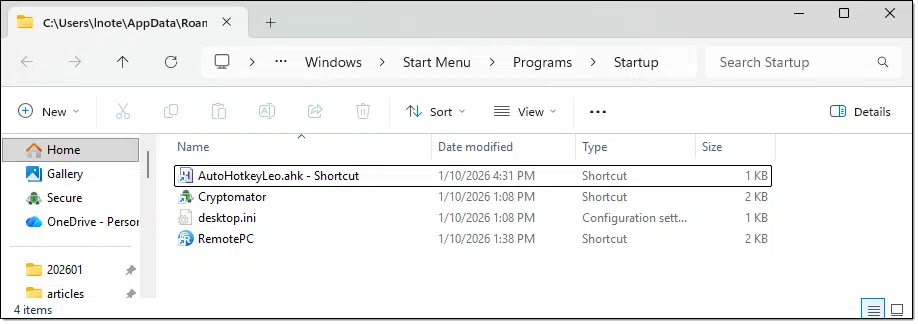
As you can see, I have several things in there.
Installed programs that automatically run something on startup often place their shortcuts in that folder. The “Cryptomator” shortcut you see there was added by Cryptomator’s setup program. Others, such as “AutoHotkeyLeo.ahk – Shortcut”, I created manually.
Creating a Startup shortcut
Once in the Startup folder in Windows File Explorer, you can add a shortcut to any program (or folder2) using whatever technique you like.
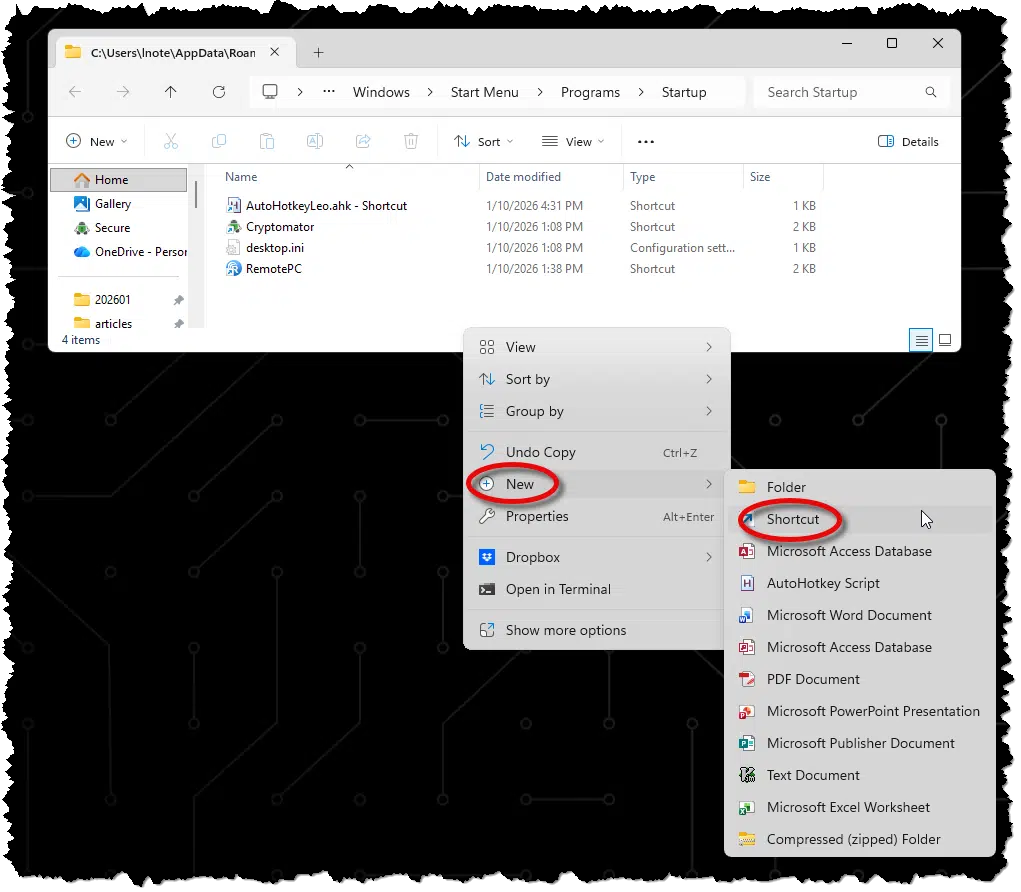
One approach is to right-click in the right-hand pane beneath any pre-existing shortcuts and click on New and then Shortcut.
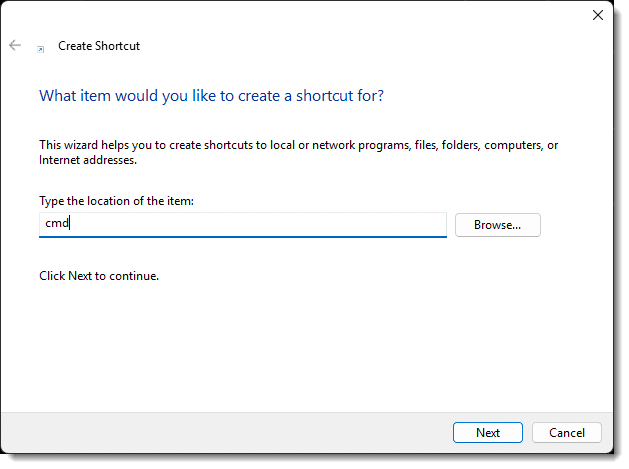
In the resulting dialog, enter the name of the program you want to run. This name can be a full path to the program (use the Browse button to locate that file), or, in the case of many Windows programs, can simply be the name of the program. Below, I’ve entered cmd, the Windows Command Prompt.
Click Next. In the next dialog, you can change the name displayed for the shortcut, if you’d like to. (Unless you’re regularly examining the contents of the Startup folder, you’ll rarely, if ever, see the shortcut name.) Click Finish.
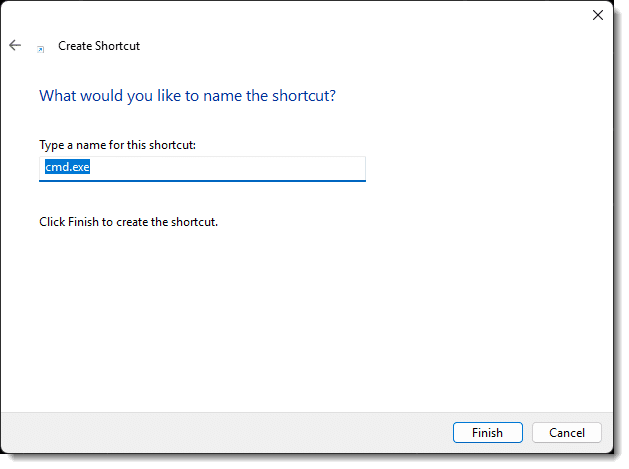
That’s it. You now have a shortcut in the Startup folder.
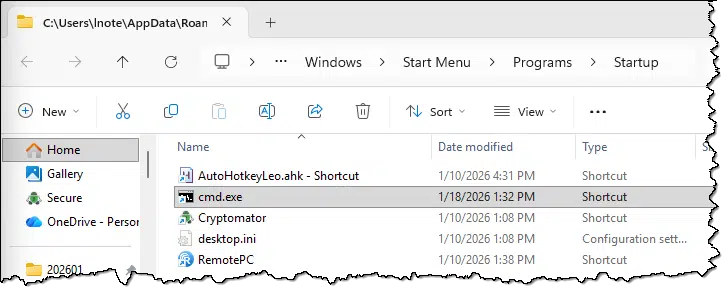
Now, the next time you sign in to your computer, the new shortcut will run. In this example, that means a new instance of the Windows Command Processor will open.
Using the Startup folder
Any shortcut you place in the Startup folder will automatically run when you sign in to your system. You might have it:
- Open a document.
- Open a program.
- Run a script or batch file to perform more complex operations.
My use of AutoHotKey is a good example. I use AutoHotKey to create keyboard macros — short key sequences that are automatically expanded into longer text. I want that running all the time, so I place a shortcut to the AutoHotKey script — “AutoHotkeyLeo.ahk”– in the startup folder. That way, when I sign in to Windows, AutoHotKey automatically runs the script.
Note: the Startup folder is only one place where startup items are found. As I mentioned earlier, there are other complex approaches (typically involving the registry) for more complex situations than just when you sign in. The SysInternals tool autoruns will show all of them.
Do this
If you need to have something run automatically when you sign in, now you know how. My only warning is not to get carried away. Your sign-in may become slower the more you add.
Subscribe to Confident Computing! Less frustration and more confidence, solutions, answers, and tips in your inbox every week.


I remember in the old Windows 3.x days and through Win 95 & 98 that was the only way to start a program with Windows.
I have a shortcut to %APPDATA%\Microsoft\Windows\Start Menu\Programs\
I’ve been using it to manage the Start Menu since Windows 2000.
I run a few portable programs, for example, Thunderbird. I have the Thunderbird Portable installation in OneDrive to keep Thunderbird synced on all my computers. IMAP syncs the emails but using Thunderbird Portable in the Cloud also syncs the address book.
I’m reminded of it because it’s one level higher than the startup folder. You might want to look at it. You’ll learn some of the stuff under the Windows hood (or bonnet if you’re from the isles).
Thanks, once again Team Leo! I have two comments, if I may. Although I find it hard to believe that twice as many computers are running W11 in such a comparatively short time, there are still something like a billion PCs running (many of us ‘have to’) Windows 10. Where the advice / procedures are not identical, would it be possible to mention the differences? As in the case of Startup, where the vertical ellipsis isn’t how one gets at things, and there are other differences, too.
Question two: In W10, I have exactly copied the Properties from the Firefox icon, located in my Task Bar, and placed a copy in the Startup file. Firefox will not automatically start. What am I missing?
Many Thanks!
The concept is identical between 10 and 11. “shell:startup” opens a folder, and shortcuts placed in that folder run on sign-in.
Not sure what “properties” you copied from the firefox icon. My recommendation is in shell:startup folder, right click, New -> Shortcut and then the target would be the full path to Firefox.exe … in my case that’s “C:\Program Files\Mozilla Firefox\firefox.exe”
Leo, you wrote:
“My use of AutoHotKey is a good example. I use AutoHotKey to create keyboard macros…”
Share with us, Leo! What program is AutoHotKey, and where do we get it???
I’m sure you’re capable of searching, yes? I mean it’s a unique enough name. And sure enough, #1 search result: https://www.autohotkey.com/
Even a search on askleo.com returns an older article: https://askleo.com/autohotkey_mouse_and_keyboard_remapping_macros_and_hotkeys/
Or https://askleo.com/autohotkey_mouse_and_keyboard_remapping_macros_and_hotkeys/ (this one you’ll need to click through the various download links to actually get the video, it’s old and aspects are broken).
I’m always surprised when people don’t search. Is there a reason?
Either Lazy, or couldn’t find the results they were looking for, for a variety of reasons! Including, not amending their search when the needed results are not obtained from the initial attempt!?
Just a few thoughts, powered by my memory of my own past experiences as I learned the art!
Ernie