Why you are and are not the administrator of your own computer.

The concept of the “administrator” in Windows is somewhat confusing. It’s not uncommon for people to be disallowed from doing something on their PC because they’re not the administrator, even though their account is the only one on the machine.
Administration has several forms. Let’s explore what they are and what it means to be administrator… even when you’re not.

Administrator versus administrator-capable
Windows has three types of accounts.
- Your everyday account is administrator-capable: it asks your permission (via a UAC dialog) before making big changes.
- A standard account works similarly, but its UAC needs an admin’s password.
- A hidden true administrator account exists, but it’s a security risk.
Administrator-capable
When you install Windows from scratch, the account you create is typically the one you end up using day-to-day. It’s what I call administrator-capable.
This means two things:
- As you go about your business, the account does not have administrative permissions.
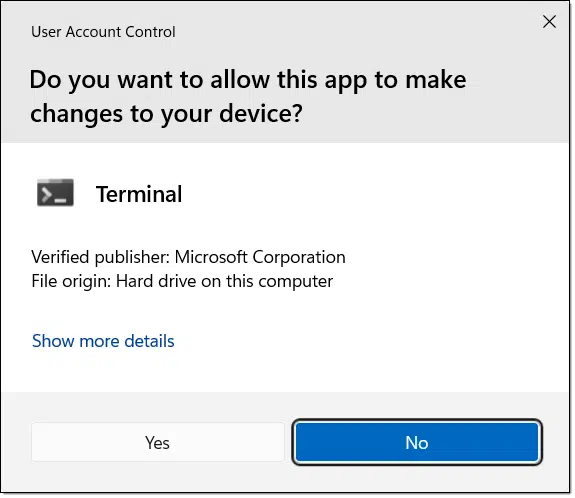
- If you attempt to do something that requires administrative permission (say, install a new program), you’ll be prompted with the UAC, or User Account Control dialog. You have to say, “Yes, I want this change to happen.”
Related

What’s the Difference Between an Administrator Account and a Limited User Account?
Windows includes three types of accounts: administrator-capable, limited user, and the (hidden) true administrator account.#172886
In some cases, attempting to do something requiring administrative privileges will fail, saying “elevation required” or something similar. An administrator-capable account can then either run the program “as administrator” or run it from within a Terminal/Command prompt (Admin).
The rule of thumb is simple: the default user account created when you install Windows can run as administrator, but does not do so by default. This makes it more difficult for malware to do bad things should it attempt to run.
Standard or limited user account
The other common type of account is referred to as a standard or limited user account. The account is not administrator-capable, yet it can still run software requiring administrative privileges with an additional condition.
In fact, it’s amazingly similar to an administrator-capable account.
- As you go about your business, the account does not have administrative permissions.
- If you attempt to do something that requires administrative permission, you’ll typically be prompted with the UAC or User Account Control dialog, but with an additional requirement.
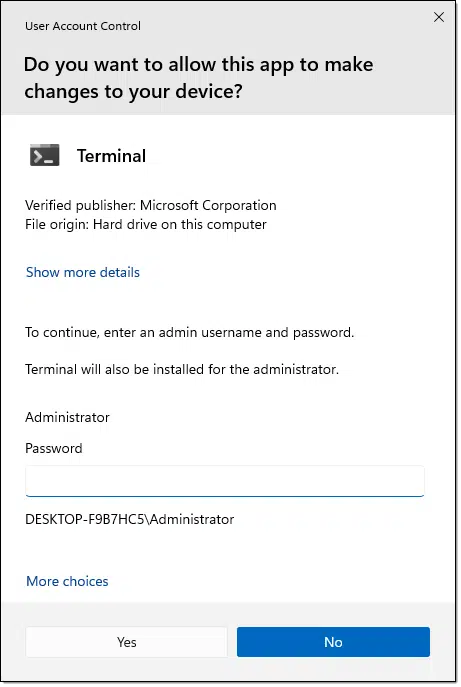
If you’re running a standard user account, UAC dialogs include the requirement that you provide the password for one of the administrator-capable accounts on the machine.
In other words, a standard user cannot perform administrative actions unless they also know or have been given the credentials for an administrative account.
These accounts might be given to someone who needs to use the computer, but shouldn’t be making administrative-level changes on the machine.
Help keep it going by becoming a Patron.
Related

How To Enable the Administrator Account in Windows
There's a hidden account with complete administrative access. I'll show you how to enable it and discuss why you shouldn't use it very often, if at all.#170746
The true administrator account
There is an account called administrator on every Windows machine.
- It is disabled by default.
- It can be enabled by any administrator-capable account.
- When initially enabled, it has no password, meaning it’s a huge security risk until you set one.
- When used, it runs “as administrator” at all times; no UAC prompts will appear.
It may sound nice to never have to deal with a UAC prompt and always be able to do whatever you want, whenever you want. The problem, of course, is that using the administrator account for day-to-day activity is a major security risk. Any malware that makes it onto your machine while you’re in administrator mode is also an administrator and won’t be stopped by any UAC notifications. Malware in this situation typically arrives and installs silently.
In reality, and for safety, there’s rarely a reason to enable this account. If enabled, it should not be used for normal activity.
Disabling UAC
One approach some people use to make their administrator-capable account more like the true administrator account is to turn off User Account Control completely.
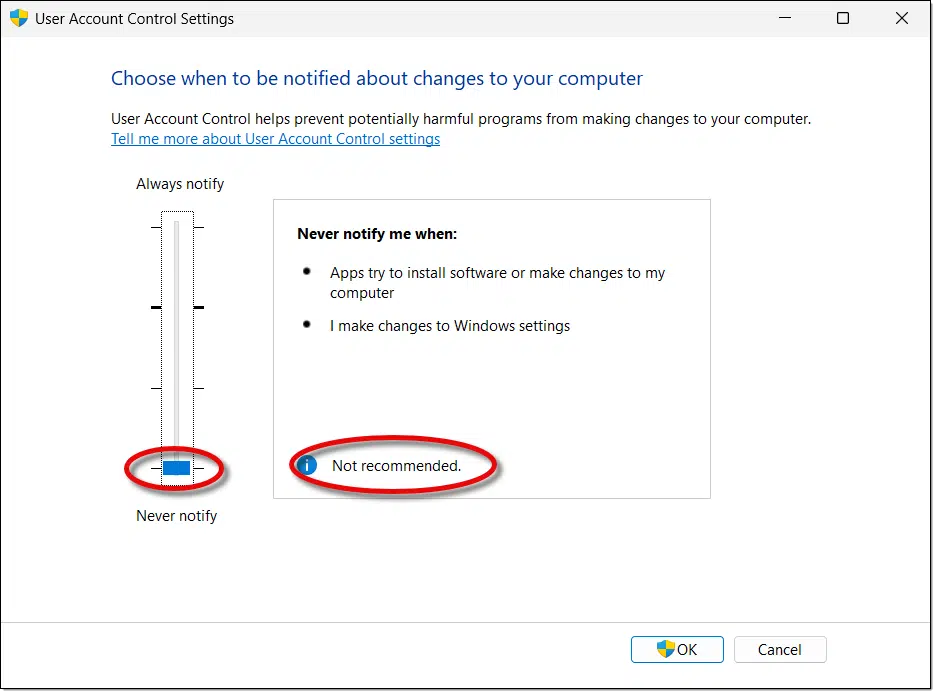
With this set to “Never notify”, an administrator-capable account acts more like the true administrator account. You’ll never see a UAC prompt; actions requiring administrative access will simply work.
UAC “Never notify” is not recommended because it removes an important barrier that protects you from malware. With this setting, if malware makes it to your machine, it can run without notice. UACs force you to give permission for big changes to take place.
Linux equivalents
Since interest in Linux is increasing, it might be worthwhile to include that, with the exception of the UAC prompt, each of these types of administrator access has equivalents in the Linux world.
The administrator account is equivalent to the account called root in Linux. Sign in to Linux using the account root, and you have all administrative privileges all the time. Just like Windows, it’s not recommended to run as root all the time — not so much because of malware but because mistakes can have unexpected system-wide consequences.1 It’s sometimes referred to as the super user account.
Administrator-capable is equivalent to a Linux login that has been added to the “sudoers” files. This allows the account, normally running with restricted permissions, to “act as” root by invoking the “sudo” (“do as super user”) command and providing their own password (the one they already know and used to sign in the first place; this prevents other people from walking up to the machine and using sudo). Just like Windows, the initial account created by most Linux installers is administrator-capable and in the sudoers file.
Standard or limited user accounts are equivalent to a Linux login that is not in the “sudoers” file. They, too, can still perform administrative tasks, but only if they know the root (aka “super user”) password, using the “su” command.
UAC doesn’t have a direct equivalent in Linux. The closest equivalent is that if you attempt to do something requiring super user access, it’ll just fail. You’d then re-run the command with sudo if your account has that capability, or you’d use “su” to become root if you know the password.
Do this
Unless you have specific reasons to do otherwise, stick with using your administrator-capable account. The annoyance of a UAC interruption when you need to do something requiring administrative access is a very small price to pay for its additional security.
Subscribe to Confident Computing! Less frustration and more confidence, solutions, answers, and tips in your inbox every week.
Podcast audio

Footnotes & References
1: The canonical example is the mistake of running “rm -fr /” in a Linux terminal by mistake. This command attempts to remove every file and folder on the hard disk. If you’re running as root, it’ll work, rendering your machine unbootable. If not running as root, you’ll just get an error.

One thing I never understood was why Windows doesn’t throw up a UAC screen instead of giving an “elevation required” error.
Agreed.
It’s because the application has the ability to be executed with Administrative permissions (as Administrator), e.g.: a terminal or PowerShell window, not something a user’s trying to do, at least as I understand the difference.
Ernie
I have been blocked by the elevation message from time to time and I’ve been using computers for 30 years or more. But I still have not learned how to activate the elevation needed to do a certain installation or access a certain project. I suppose AI could give you the answer, but since I’ve got your attention, I’ll ask the question here thanks Leo always enjoy your email.
Sherman Kaplan
Depends on where/how you see it. Usually you can right click on the program’s icon and “run as administrator”, or if in command prompt, run it from within a Command Prompt (Admin).
How about the notice that my administor has disabled that feature (as in certain “help” tabs in Excel) when it is my purchased program on my computer accessible to no one else?
I’d take that up with your ‘administor’! If you ask me, the company should have to provide employees with computers for use at work if they want to control how the software on the computer’s being used there is configured, or which capabilities should be enabled or disabled. If it’s your computer and you paid for the Microsoft Excel app, then no one but you should be able to make any changes to anything on your computer!
Ernie
I believe you misread the comment. He said,
“it is my purchased program on my computer accessible to no one else?” (Emphasis mine)
It might be one of those rare cases to log in as Administrator.
After re-reaading the OP, I agree! Sorry for reacting to my first impression without carefullty reading the post a second time (especially since it’s so slow). Do you have any idea why those elements might be disabled??
Ernie
I’ve used Windows since version 3.1, and I’ve never needed to use the Admin account … ever! When I learned that the Admin account has been disabled and would have to be re-enabled to be useful, I was very happy about that because I fully understood what that meant, and I’ve never had reason to change my mind (so far!).
With that said, thank you, Leo for this very clear description of these three types of accounts, and the permissions each has, as well as the excellent correlation between the three account levels in both Windows and GNU/Linux!
Ernie
You did not mention the SUPER elevated admin level the computer is uses during start-up to have ultimate control over all processes.