You do something else.

A common variation of this question is, “What if I lose the device on which my passkey is stored?”
Passkeys are easy to use and complicated to explain.
Fortunately, this question has a fairly straightforward answer: just start over.

Bootstrapping passkeys
When a passkey stops working or you lose your device, you just sign in another way, like a password or a code sent to your email. Then set up a new passkey. A password manager can store passkeys so they work across all your devices automatically.
In the beginning…
In the beginning, you had no passkey for whatever account we’re talking about. You signed in some other way. That way was probably more inconvenient. You may have signed in using a password. Accounts that don’t use passwords (which are becoming more common) don’t have this option, of course. Or you may have signed in by responding to an email or text message containing a link or code.
Somewhere along the line, you added a passkey for this device (I’ll call this computer 1). You may have been offered the option to create a passkey, or you explicitly visited the security and sign-on settings for the account to add one.
After that, sign-ons on this device become a two-step process:
- Identify what account you’re signing into (usually with an email address).
- Provide your face, fingerprint, PIN, or security key1 to unlock the passkey stored on your device, which is then used to complete the authentication.
Setting up a passkey on this device did not remove the other ways to sign in. It just added a faster, more secure approach.
Help keep it going by becoming a Patron.
Related

What Is a Passkey?
Passkeys are a new form of signing in that promise to be easier and more secure. I'll walk you through some of the high level concepts and how they work, and how they keep you safer than passwords.#157308
Repeat on other devices
By default, passkeys are unique to each device. So far, you’ve set up a passkey on one device, computer 1. What happens when you now want to sign in to that same account on another device — computer 2?
You repeat the process.
- You sign in using a password or by responding to an email or text.
- You set up a passkey on that device.
Once again, sign-ons on this second device are now also a two-step process:
- Identify the account.
- Unlock the passkey.
If you have more devices, you repeat this passkey setup process on each.
When the passkey fails
Passkeys don’t really fail, but they can be revoked. Once you’re signed in, most accounts list the passkeys set up for it, usually in the security section of the account options. They also give you the chance to revoke or disable passkeys associated with specific devices. You might do this if you’ve lost your device, for example.
So, let’s say we revoke the passkey used for computer 1. What happens when you try to sign in to it again? You try another way.
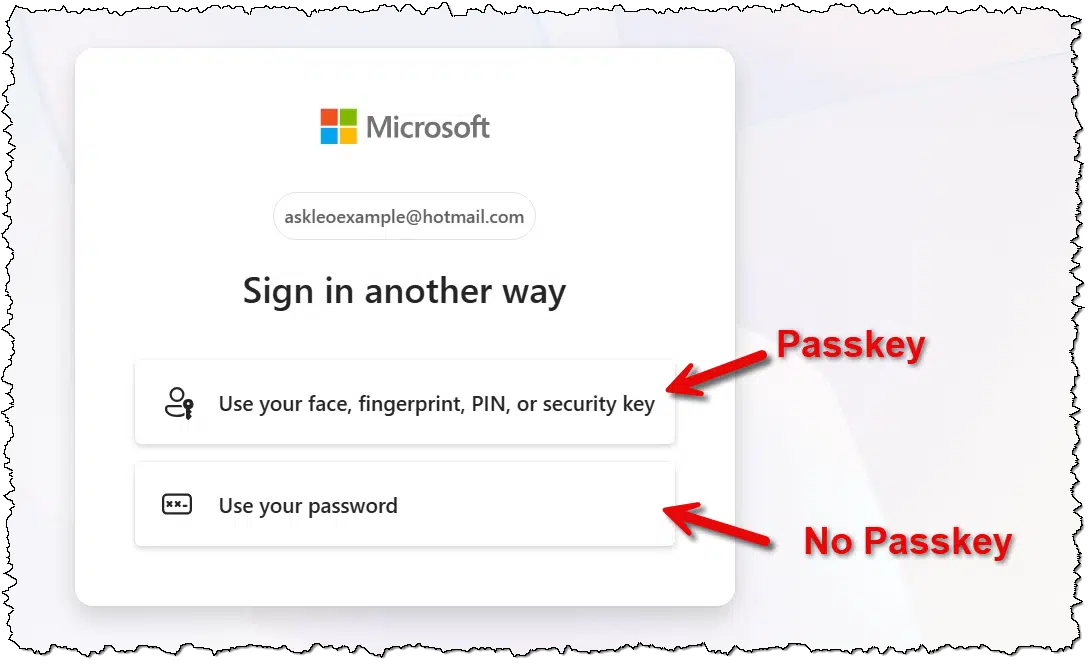
If a passkey isn’t present or if the passkey fails to work, the account you’re attempting to sign in to will provide an option to sign in another way. That “other way” may be a password, if your account has one; or it may send you an email or text message containing a link or code.
In other words, it’s the same as before you set up the passkey to begin with. When a passkey fails for any reason, you start over by signing in some other, less convenient way. You can then choose whether or not to set up a new passkey.
Related
Passkeys and Hardware Keys
Passkeys and hardware authentication keys are completely different but partially related. You can use some, but not all, hardware keys as passkeys. I'll clear up the confusion, and tell you what to look for.#181120
If those other ways still work, what’s the point?
A common question at this point is, “What’s the point of passkeys if I can still sign in with a password?”
There are two, in my view.
Passkeys are more secure than passwords, and passwords are going away. It’s a slow process, but more and more accounts use no password at all. That way, there’s nothing for hackers to steal or phishers to intercept; you can’t steal something that doesn’t exist. However, if you don’t have a password, then signing in often uses a more tedious process of waiting for a confirmation email or text and doing whatever it instructs you to do.
Unless you have a passkey set up.
Passkeys are more convenient. Rather than filling in a password or waiting for that email, you use your face  , a fingerprint, a PIN, or a hardware key. That unlocks whatever’s needed to authenticate you, and you’re done. Using a passkey may require just a single click after providing your account ID2.
Password managers and passkeys
As we’ve seen, each account requires setting up its own passkey on every device you own. But there’s a way around this.
Password managers can register themselves as passkey repositories. This means your passkey is stored securely in your password manager, just like passwords, instead of the device.
Using a password manager, you only need to set up an account’s passkey once. Once a passkey has been created and stored in your password vault, it works on any device on which you have that password vault installed and accessible. The password vault makes your passkeys available everywhere, just as it does your passwords.
You configure your password vault for how passkeys work, just as you do for passwords. Depending on how you set it up, using a passkey may require that:
- The vault is unlocked: your passkey or password is immediately available.
- You provide your face/fingerprint/PIN/hardware key each time before a passkey or password is available.
- You provide your vault master password before a passkey or password is available.
The settings you choose depend on the level of security you want for that device. For example, on my PC at home, it’s enough that I unlocked my 1Password vault sometime earlier that day. I want more security on my phone, though, so I’ve set it to demand my face3 each time I access either passwords or passkeys.
Do this
If you’re not using them already, consider using passkeys. Because they’re difficult to understand, they seem somewhat scary compared to the authentication methods you’re familiar with. The reality is that security professionals — the people whose job it is to understand this stuff deeply — agree that passkeys are more secure than password authentication. I agree.
Subscribe to Confident Computing! Less frustration and more confidence, solutions, answers, and tips in your inbox every week.

