Flexible… yet confusing.
The navigation pane — that left-hand pane in Windows File Explorer — can be a cluttered mess. In fact, I suspect that for whatever reason, “cluttered mess” is the default setting.
Fortunately, you have more control over what goes there than you might realize.
Let’s examine what we can do with Windows File Explorer’s navigation pane to make it more useful.

File Explorer navigation
Windows File Explorer’s left pane can be messy, but you can fix it. Change what it opens to, turn off clutter from recent and frequent items, and pin only the folders you use. A few small changes can make File Explorer more useful.
It starts with options
Before we even look at the navigation pane, I want you to open up the Options dialog in Windows File Explorer. Click on the ellipsis at the far right of the menu bar and then click on Options.
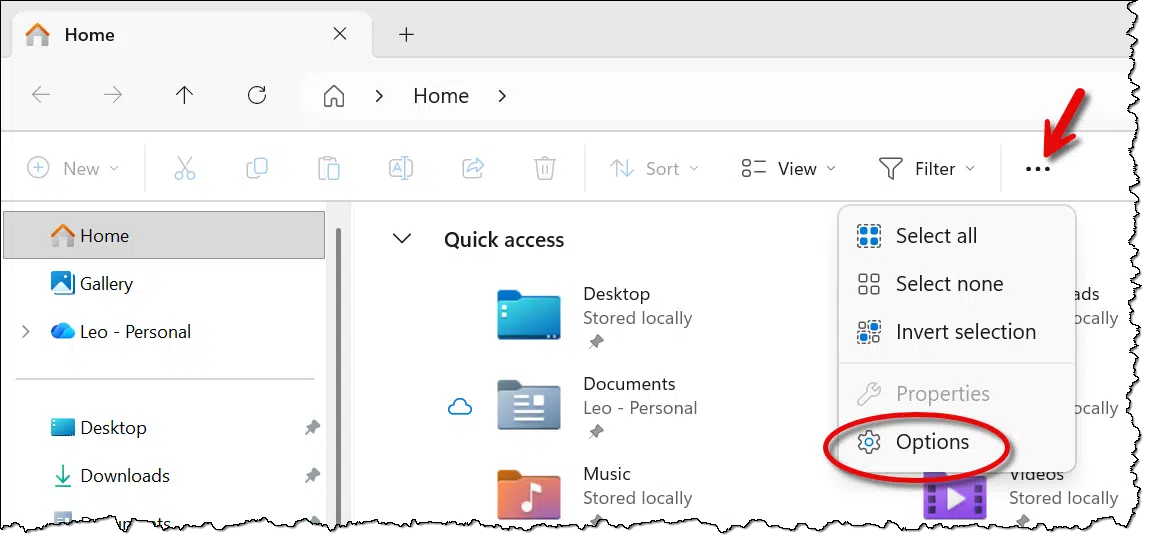
This will bring up the Options dialog box. The first thing we’re going to examine is the “Open File Explorer to:” setting.
Help keep it going by becoming a Patron.
When Windows File Explorer opens
This setting allows you to choose how Windows File Explorer opens by default.
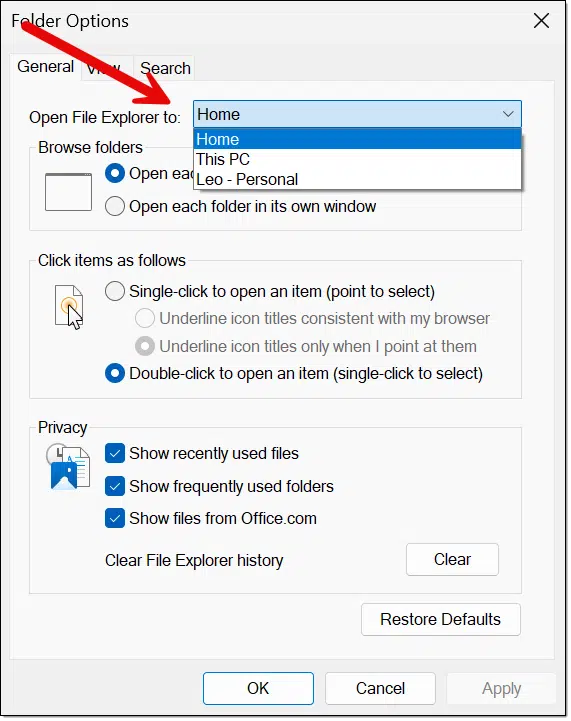
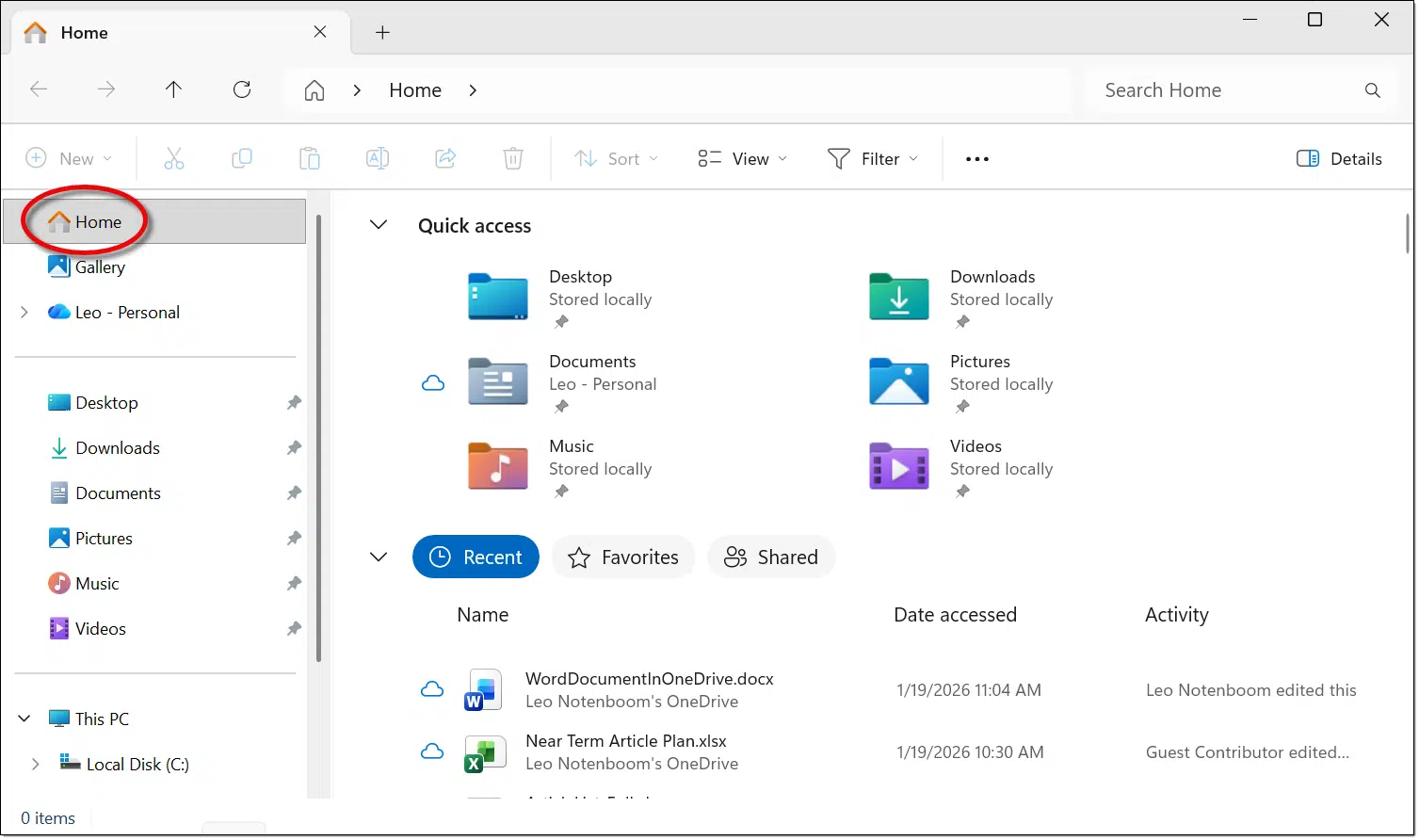
Open File Explorer to: Home
This is the default.
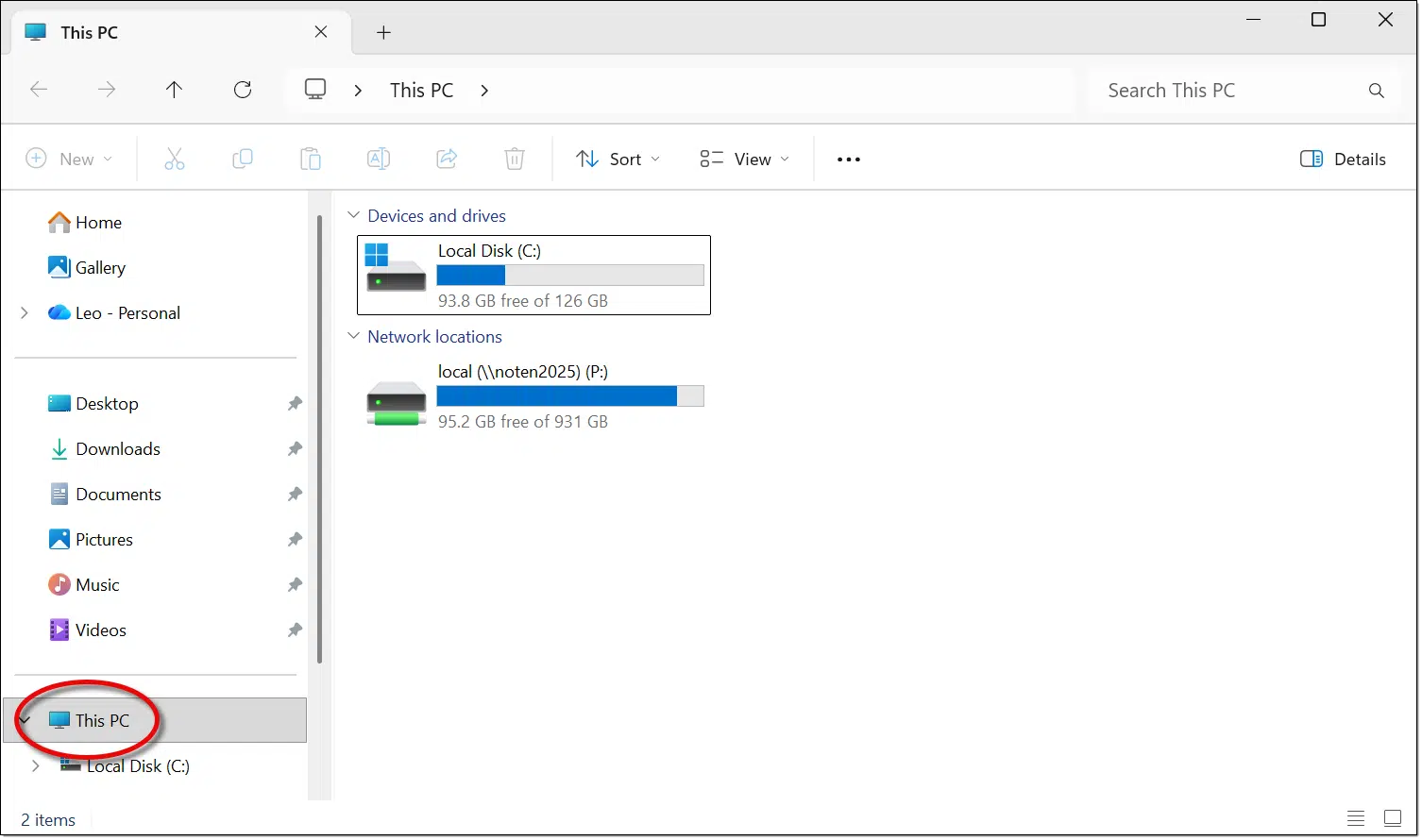
Open File Explorer to: My PC
When Windows File Explorer opens, This PC is selected in the navigation pane, showing the PC’s connected disks.
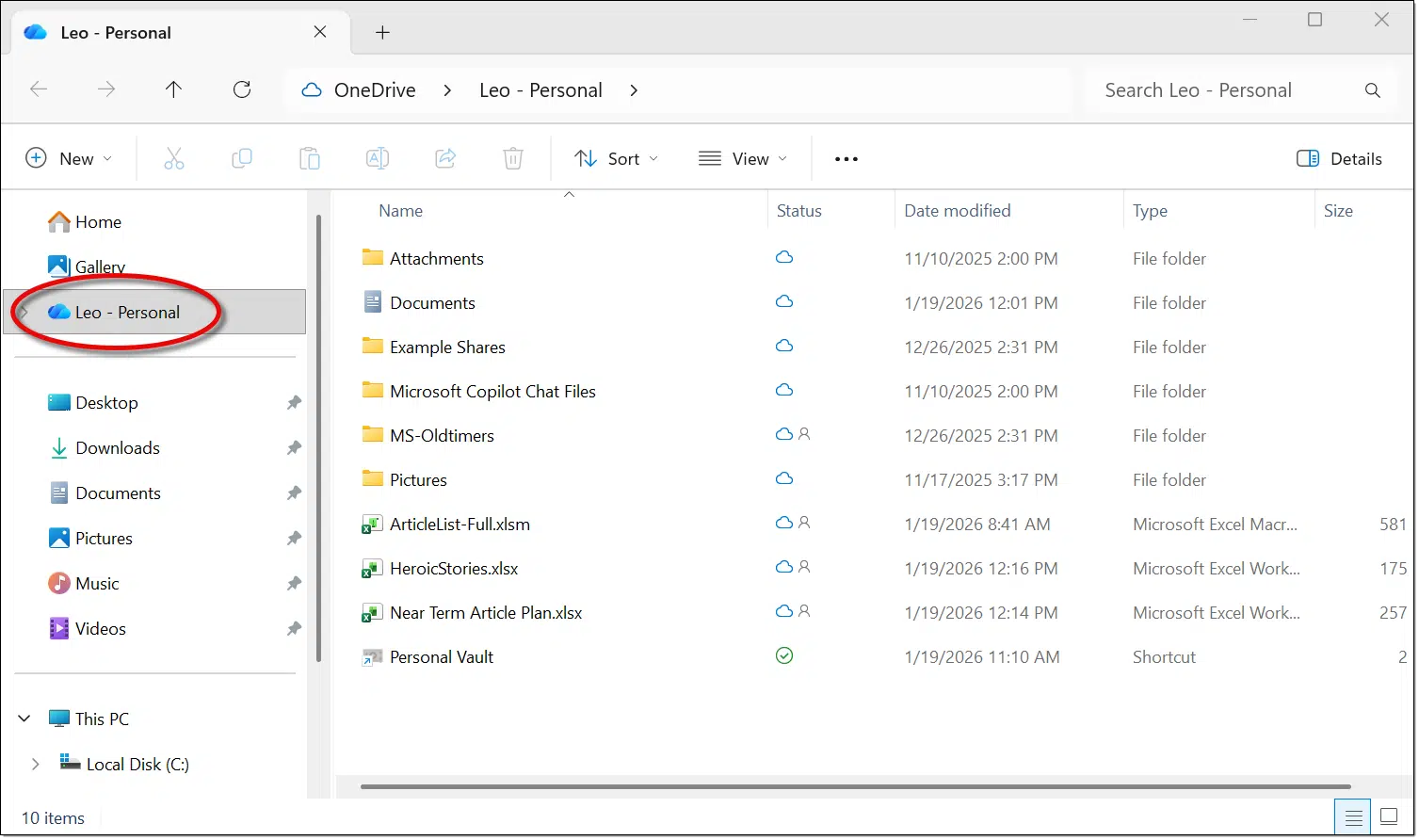
Open File Explorer to: Leo – Personal
This third option opens Windows File Explorer to your OneDrive folder. Yours will have the blue OneDrive cloud icon, but with a different name.
Choose the setting you think will be most useful to you. Your choice applies when opening Windows File Explorer, but of course, you can change what you see as you’re using it by clicking on the Home, My PC, or OneDrive cloud item in the navigation pane.
Privacy
Back in the Folder Options dialog, you’ll see three checkboxes under Privacy. By default, they’re all checked, and by default, they each add a fair amount to the clutter you see when you open Windows File Explorer.
- Show recently used files controls what’s shown in the “Recent” section of the Windows File Explorer Home page.
- Show frequently used folders controls whether frequently used folders are included in the pinned shortcuts area of the navigation pane.
- Show files from Office.com controls whether files you’ve recently been accessing online (typically via OneDrive.com) are listed.
I recommend you uncheck them all.
In particular, I think you’ll find unchecking “frequently used folders” will remove some of the clutter from the navigation pane.
Pinning and unpinning
Windows File Explorer pins the default set of folders — Desktop, Downloads, Documents, Pictures, Music, Videos — in the navigation pane.
Unpin the ones you don’t use. Right-click on the item, and then click on Unpin from Quick access.
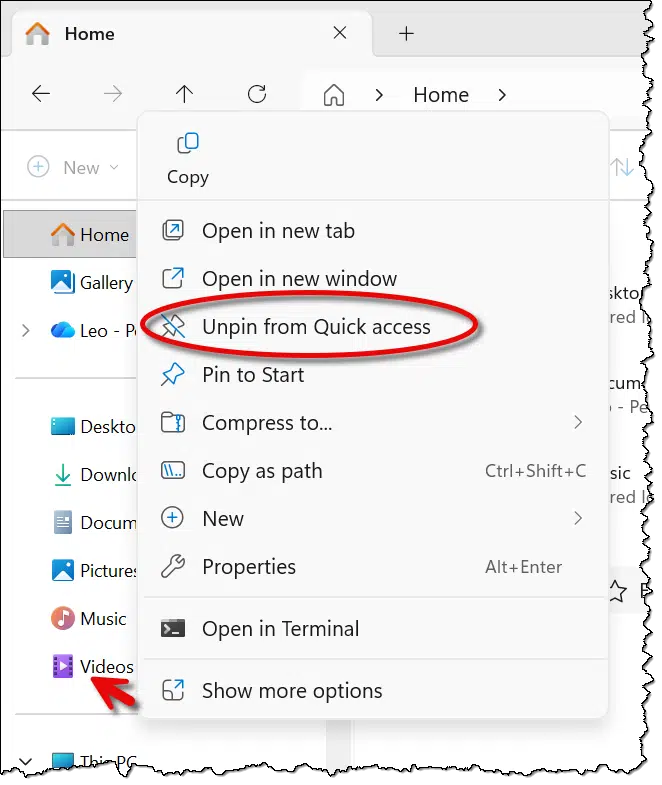
You can unpin them all, if you like. Since I avoid Windows default folders, that’s what I do.
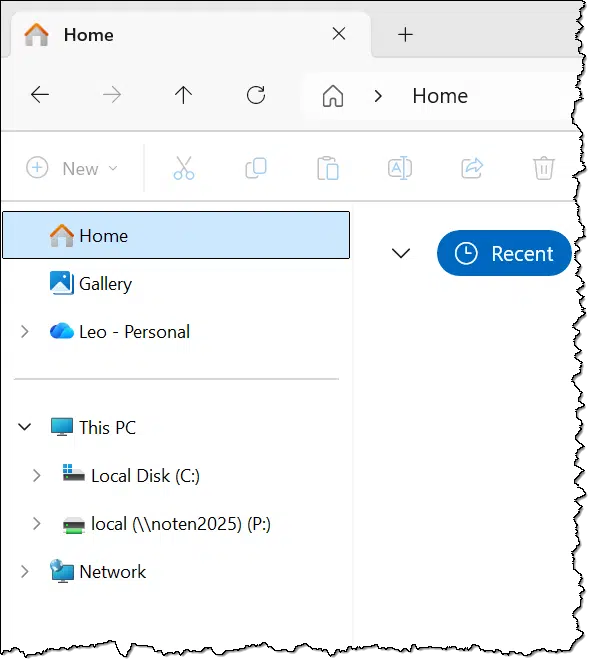
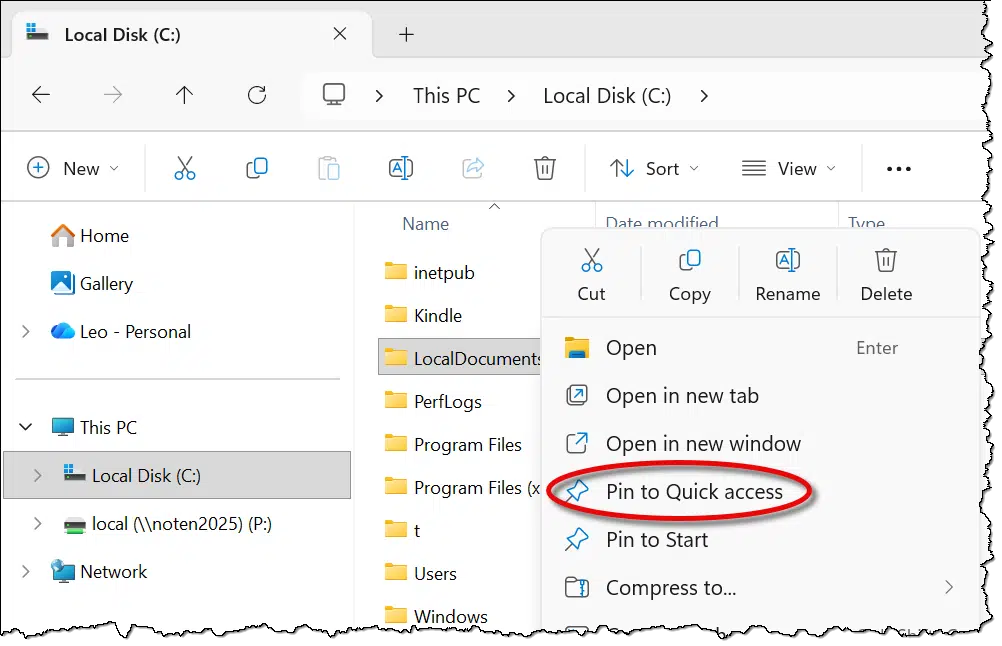
Instead of Microsoft’s defaults, consider pinning folders you actually use. For example, say I have a folder of my own, C:\LocalDocuments. I can right-click on that folder and click on Pin to Quick access:
The result is that the folder of my choosing is listed in Windows File Explorer’s Quick access area in the navigation pane.
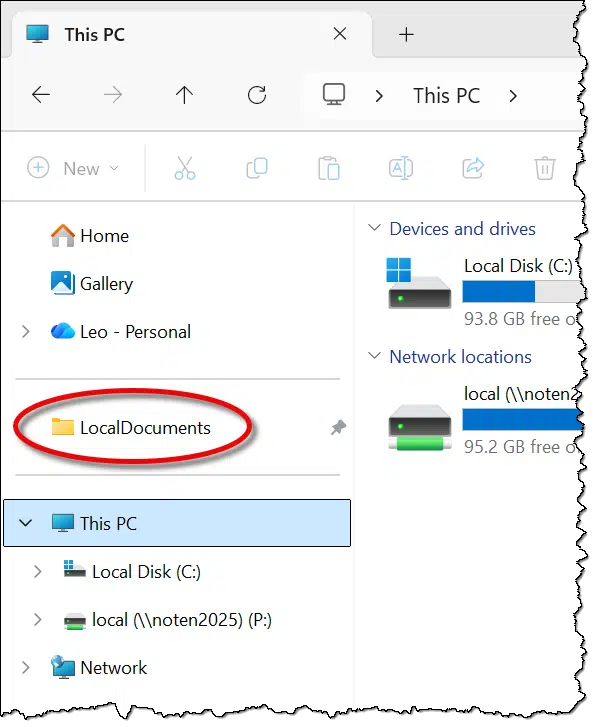
I find this much more useful than Windows defaults or most frequently used items.
Do this
Take a few moments to learn how to customize Windows File Explorer, and in particular, the navigation pane. You may find yourself using Windows File Explorer more frequently as it becomes a less confusing and more focused tool.
Subscribe to Confident Computing! Less frustration and more confidence, solutions, answers, and tips in your inbox every week.


I’ve gone even further and found a way to remove Home, Gallery, and OneDrive from the Navigation pane. On my computer, only This PC and the Recycle Bin are present. It requires changes to the registry, but there are sites that have instructions to make File Explorer work the way one wants it to. The changes will stay in place even through updates. I run Windows 11 Pro and implemented the changes in 22H2. I’m now on 25H2 and Windows Update hasn’t messed with my changes (yet!).
I’ve not played too much with File Explorer because I mainly use Total Commander, but following along with this article, I’ve set File Explorer to open to to my OneDrive folder where I do most of my work. This makes File Explore much more useful to me. All those other tweaks ae useful but now it opens where I want to be, and I can mostly ignore the other locations.
Unfortunately, the only folders to choose from on my machine are:
Home
This PC
OneDrive
Dropbox
Galaxy Tablet
Those are fine choices for me, but some people would prefer it to open to the Documents or other folder.
I rarely disagree with Leo, but I love my frequently used folders. A lot of software remembers where you last saved something and that’s fine, but I don’t want to save it in the same place as the last time. I want to save it in the place I used the time before last. And that place is in the frequently used folders, so one click and I’m where I need to be.
That’s the beauty of it. The File Explorer is highly customizable to our needs. I never use frequently or recently used files shortcuts so I disabled them. It’s a useful feature for others.
Leo never said we should disable it. He said it reduces clutter. One’s clutter is another’s treasure 😉
This article is FANTASTIC! Thank you. Thank you. Thank you!
Bonus Tip:
After rereading this article, I made a few tweaks to the Navigation Pane, and the changes were reflected on all of my Windows machines because they are all connected to the same Microsoft account. Saved me a lot of work, although, for some, that might not be what they want.
Interesting. Good thing my work account is different than my personal account then because I have different needs on my work laptop than my personal because what I do at work is very different from how I use my computer at home.
OMG, thanks so much, Leo, you read my mind. For many months now, I have been planning to ask you about this very subject, as it has been driving me insane. I find File Explorer to be so not intuitive. I put files in the Quick Access folders, thinking that they will stay there, but they don’t, even though there are many other files in there. What happened to the most recent ones? Are the ones in there duplicated elsewhere? Based on your previous good advice, I do not use OneDrive. So then I figured perhaps these are shortcuts to the folders in the Users file, which takes additional effort to find.
I have been wondering why there are random folders on the left. I had no idea they were “recently used,” And if I do something with them, such as delete them? They are supposed to be on my desktop or elsewhere.
One of the most useful videos for me in years. And I have been on 11 Pro for a year and a half.
Good information. My Quick Access panel is cleaner now. However, in the 3rd/last section, I see folders labeled iCloud Drive and iCloud Photos. When I right click, there is no option to unpin them. I am on a Win 11 computer and do not use these files. Any help in getting rid of them would be helpful.
Sounds like you have an iCloud app installed. See if it’s listed in Settings -> Apps and decide if you want to uninstall it.
Hi,
My explorer does not what yours is doing, at all. According to Copilot I have the newest explorer that is quite different, and sadly, not finished. I did NOT ask for it, just got it here in the Netherlands on my 2 PC’s. I give you an example. Your navigation pane is devided in 3 sections, mine is not anymore. Pinning? Gone. Send to quick acces? Not functioning anymore. That will be replaced by something like Send to Favorites, but that is not implementaded yet. In short, drama. So be aware for upcomming “updates”!!
What you may be seeing is the difference between the EU and US versions of Windows (including Windows Explorer differences). The EU version is more decluttered. There are also differences in Windows Explorer between logging in with a local account and a Microsoft account. And there are differences if you have actively running OneDrive and/or Copilot. Of course, these differences are as good as the next update, when they will likely change. So, this Leo’s article may have a shelf life of milk sitting on the kitchen counter. There are a couple of ways of using the Windows 10 style Explorer in Windows 11, or use a third party tool to revert to a more classic (non-changing) Explorer.
That’s a logical explanation, but I live in Germany, I bought my computer from a shop in Germany, and I get all three section in File Explorer’s Navigation Pane, so the problem must lie elsewhere.
Great article. Love the illustrations showing what’s where. Thanks Leo.
I don’t see the “Unpin from Quick Access”. Some setting on my CPU needs changing? No luck so far. Thanks, this is a very useful article if I can get it to work for me.
After reading this, I de-selected everything under Privacy other than “Show frequently used files, because it’s useful for me, and I added several folders to the Quick Access menu, because that’ll be very useful for me too! Thank you for this item! Until reading it, the concept that I could have any control whatsoever in the configuration or what’s available to me in the app!
Ernie