It depends.

One of the steps in my article, 8 Steps to Securing Your Router, is to change your router’s default password.
Several people wrote in to ask how to do that, as it’s not clear how you access your router settings, much less the password screen.
I’ll show you how I accessed the settings on my old LinkSys router. Your specific steps will be different, but the concepts will likely apply.

Locking down your router
Your router’s default password is a security risk. Use ipconfig to find your router’s IP address, open it in your browser, and log in. Set a strong new password and save it in your password vault. Every router is different, but the steps are similar.
Default passwords
It used to be common for all routers of a particular model from a particular manufacturer to have the same default password. If you had X company’s model Y router, you could look online to find out that the default login was, for instance, a username of “admin” and a password of “admin”.
Needless to say, anyone could look this up and get the login information for your router. If they could connect to the router — say via your open Wi-Fi — they could log in and cause all sorts of havoc.
Router manufacturers changed their technique. Each router would have a unique password, typically printed on a sticker somewhere on the physical device. That’s much more secure, but it has two problems: anyone with physical access to the router can read the sticker, and over time, the sticker often fades, gets torn, wears off, or becomes unreadable, which is a problem if you ever need it.
In both cases, changing the default password and then saving that password in your password vault is the solution.
Help keep it going by becoming a Patron.
Connecting to your router
The most reliable way to locate your router is by the “gateway” address listed in your network configuration.
In a Windows Command Prompt, run the ipconfig command.
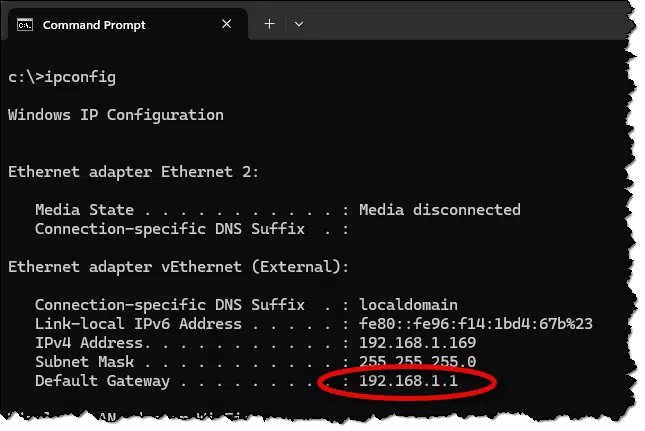
Look for the Default Gateway address.
Now, in your web browser, enter that address as the URL you want to go to and press Enter.
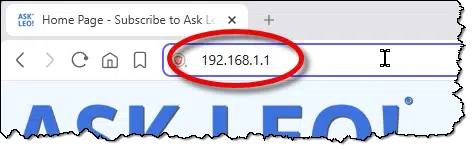
Depending on your router’s configuration, you may get an error message telling you that the connection is not secure.
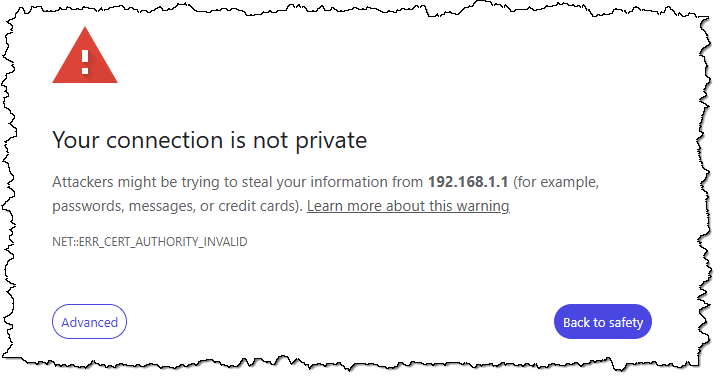
This is typically because most routers can’t fully support an HTTPS connection internally. That means they’ll default to HTTP, or they’ll use HTTPS but with a security certificate that cannot be properly validated (the “ERR_CERT_AUTHORITY_INVALID” error above).
Since this is a local connection to your router, it’s safe to proceed anyway. In the example above, for example, you’d click on the Advanced button to continue.
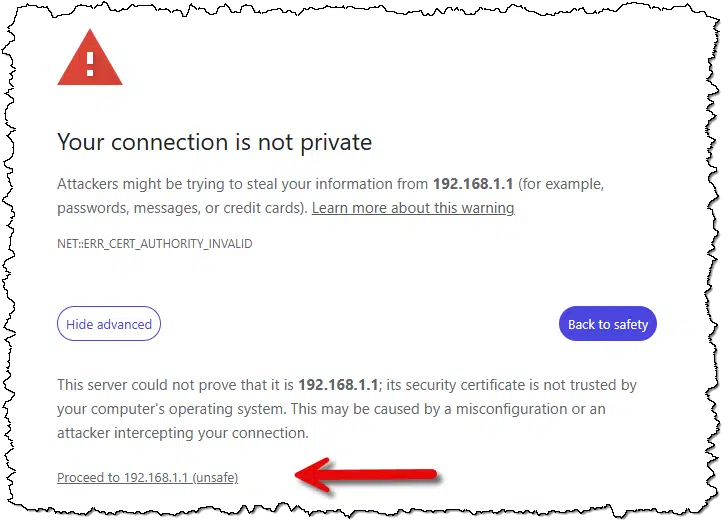
Again, even though it’s labeled “unsafe”, this is safe because we’re connecting locally (a 192.168 IP address) to our router. If this message were to appear when attempting to connect to a real website on the internet, it would be unsafe.
Clicking on Proceed will take you to your router’s administrative interface.
My router, your router, my old router
Every router model is different. I can’t give you instructions for your router because I have no way of knowing what those would be. Besides, I’d have to list hundreds of different instructions here, which isn’t practical. Your router should have come with instructions, or you can look up the instructions online by specifying your router’s make and model.
My current router is a mesh network controlled by a Unifi UCG Fiber. It’s complicated1.
My old router was a LinkSys model, and it’s what I use for examples below.
Your router will almost certainly be different, but the general concepts should apply.
Signing in
Once you’ve entered your router’s IP address into your browser’s address bar and pressed Enter, you should be asked to sign in with the current/default password.
On my old Linksys, the default is to leave the User name blank and enter “admin” as the password. It’s this very default setting that we’re going to change, because as you can see, everyone knows it. On newer/current routers, you may need to use the password found on a sticker somewhere on the router itself, usually on the bottom.
Once you enter the correct user name and password, press OK. You should land on your router’s configuration home page.
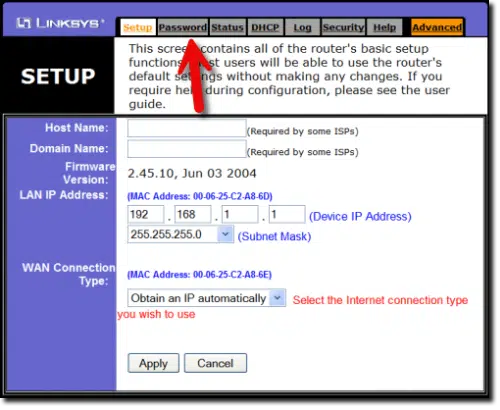
As you can see, there’s a Password tab at the top of this UI. Clicking it takes you to the Password management page.
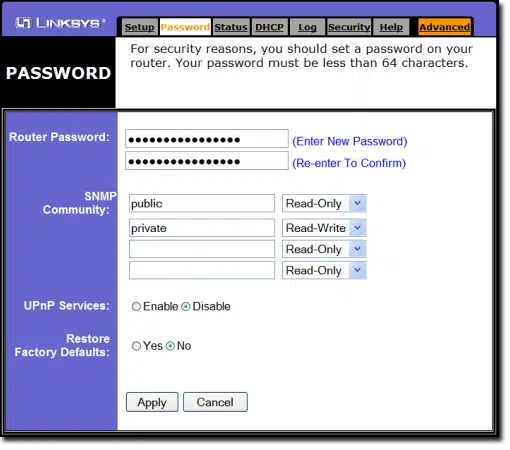
Enter your new password twice and click on Apply.
Your router has a new password.
About this password
A couple of additional notes on your new password.
- Choose a strong password. Access to your router can be used for many things. Malware has been known to perform complex spoofing attacks by altering how and where the router gets its DNS information, for example. You’ll want a strong password to protect it. Since this is a password you enter infrequently, it’s worth it to make sure it’s secure, even if it is difficult to enter. I recommend using the first 16 or 20 characters of a random password created by a good password generator.
- Don’t forget this password. Keep it somewhere safe. If your password vault offers to save it, let it. If it doesn’t, create a manual entry or secure note to save it. If you forget your password, you’ll need to perform a “reset to factory defaults”, which will reset the password to its default, as well as erase any other settings you may have changed.
As I said, unless you have the same exact router that I do, it’s likely that the details of what I’ve shown will be different for you. Check your router’s documentation for the exact steps to perform this change.
Do this
Change your router’s password. The default password is about as secure as having no password at all.
Subscribe to Confident Computing! Less frustration and more confidence, solutions, answers, and tips in your inbox every week.
Podcast audio

Footnotes & References
1: Its administrative interface, for example:


Actually, I thought this option was for the more expensive routers. Found out my little Netgear RP614 had that option. I did have to go to the Netgear website to find out the password, but that was just a minor inconvenience. Thanks Leo !!
What are UPnP services and which selection should I choose?
What is the maximum number of characters allowed for router passwords? (my router is a linksys wrt54gs)
I have a comtrend ct-5071t router. I can access the page but i was not given any documentation after the phone company set up the router. I cant find any documentation online either. Do you know of a way to physically reset the password or the standard password for the comtrend line?
stick a pin in the reset hole on the router for 5 seconds. A message will come up asking for a password change and give you the option of securing it with a key. Much easier.
06-Apr-2011
i still dont know how to change it..My problem is that the people who lives around me are hacking my router and i have to change my user and password but i dont know how can you help me please.Thank you.
this still dosent work i have a linksys router and did what the instruction says n it still dosent work leaving the user name blank and password admin still doesnt let me get through wat the heck!!
I tried to change my Password and after typing the current one the following message appeared: 401 Unauthorized
Authorization required.
What do I have to do and how to continue?
28-Jan-2012
I quit using gateways (combined modem/routers) provided by Xfinity because I found out that when changing the default password on the gateway, the password was still accessible to Xfinity. Even ones recommended by Xfinity for those who purchase a gateway instead of paying a rental fee do this.
I use a separate modem and router instead. Now Xfinity can only see the modem and everything connected to it is hidden from them, including the router password.
Xfinity routers allow Comcast to perform remote management tasks such as firmware updates, diagnostics, and other maintenance functions. This access is limited to the modem/router itself and does not extend to anything on the home side of the network.
They can see your public IP, the MAC addresses of connected devices, signal levels, and—if you use the factory defaults—your Wi‑Fi SSID and password. However, knowing that password does not give them access to your home network or devices. To use a Wi‑Fi password, someone must be physically within range of your wireless signal.
If you follow the article’s recommendations and change the default Wi‑Fi and admin passwords, you prevent anyone within range from joining your network, and you prevent anyone on your LAN from accessing the router’s settings.
Comcast cannot log into your personal devices, read your HTTPS traffic, or access your files. Their access is restricted to the gateway’s management interface, not your internal network.
Does the gateway or router have two sets of Name and Password combinations? The only Name and Password I know about are the “SSID”+alphanumeric code and a “network key” of a string of digits, printed on a label, on the gateway/router case. Some clarification here is desired.
Your router has an administrative interface that allows you to change settings and more. That’s the username and password we’re talking about here.
I recently switched from ATT Fiber 300 Internet service to Rocket Internet, wholly owned and operated by the local ISP (Buckeye Broadband) to reduce my monthly Internet cost from around $60.00 to $9.99/month, and from 300mbps up & down to 20mbps up and 600mbps down. Since I seldom upload large files, the trade-offs are well worth it for me. The Rocket installer set me up with a modem that connects to the old Cable-TV co-ax that was still in place to connect me to the Internet and a discrete router that gets Internet connection through the modem. After installation was complete, I found that Wi-Fi service to the East end of my home had become unreliable, and after trying every remedy I knew of with the existing hardware, I decided to investigate new/additional gear, and settled on a Wi-Fi 7 mesh-capable router as the best potential solution, so I purchased one to improve access at the East end of my home, and it has improved the situation for me. Apparently, one feature of Wi-Fi 7 is that the router is able to more directly focus transmission to weaker connections on my LAN, and it seems to be working here, because the intermittent drop outs have all but stopped.
After connecting the new router, I configured it to use my existing Wi-Fi password and SSID (both of which I’d set up previously using a long strong password) so everything on my LAN could connect transparently. Next I logged onto the router’s web-based interface to reset its login password to a 16-character one that’s stored in my BitWarden vault to simplify future access. While I was at it, I changed the WAN-side DNS settings to use Cloudflaire’s servers, and to enable IPv6 connectivity in addition to the IPv4 that was configured by default.
The result is that I now have a fast, secure Internet connection for my LAN at a much lower cost – something very important to me in view of the currently unstable economic climate.
Ernie