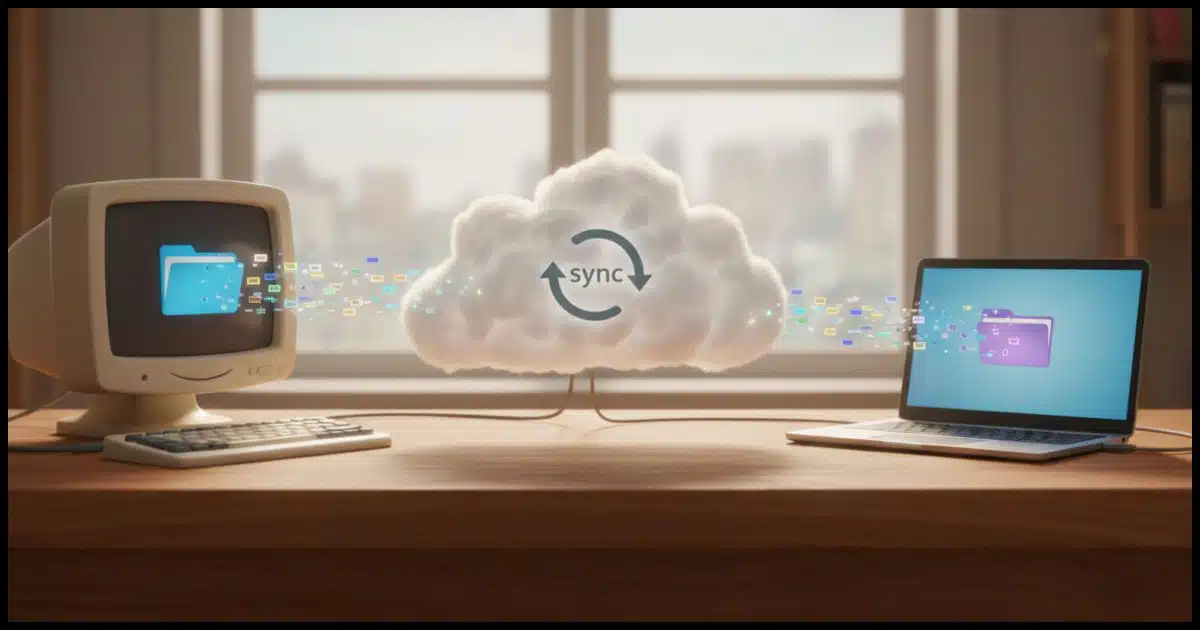
It seems that cloud storage is available everywhere.
But what is it? How do you use it? Why is it valuable?

Cloud storage
Cloud storage is just keeping your files on someone else’s computer on the internet. When you install the app, it watches a special folder and automatically copies changes up and down. Put a file on one device, and it shows up on your other devices too. It feels like backup, but remember: deletes sync everywhere too.
Cloud storage is someone else’s computer
At its most basic, cloud storage is nothing more than a big computer on the internet where you can store files.
Let’s break that down a little.
- A computer. Conceptually, you can think of it as a computer with a really big hard drive, but in reality, it’s hundreds (if not thousands) of computers provided by the service provider. Put another way, you’re using your service provider’s computer(s).
- On the internet. One idea behind cloud storage is that we don’t care where that computer is, only that we can get to it from wherever we are; hence, the internet. Without an internet connection, you can’t reach your cloud storage (or even the rest of “the cloud”1).
- Where you can store files. This is what differentiates cloud storage from other cloud services: it’s just a place you can store files. It doesn’t run programs or process data in the cloud; it’s just a place to put files.
So far, so good, and there are providers that do only that: provide you with storage online and nothing else.
The providers we’re talking about today — OneDrive, Dropbox, Google Drive, iCloud, and others — build on that concept to increase their usefulness dramatically.
To understand more, we need to step back a minute and talk about copying files from one machine to another.
Help keep it going by becoming a Patron.
Floppies, USB sticks, and networks
For a long, long time, the traditional way to copy a file from one computer to another was to do so by hand. Depending on the technologies available at the time, you could:
- Copy that file to a floppy disk on one machine, take the disk to another machine, and copy the file from the floppy to the second machine.
- Copy that file to a USB stick, take that to another machine, and copy the file from the USB stick to the second machine.
- Copy the file from one machine to another across a local network.
Regardless of the mechanism you use, generally you have to do it — it’s a manual process. In fact, it’s a manual process that remains common today (except for the floppy disk part).
Enter the cloud
Cloud services become more than just a place you can put files once you install their software on your PC. The software monitors a folder specific to that service on your hard disk for any files that you add, remove, or change. When that happens, those files are added, removed, or changed in the associated online cloud storage account.
It’s called synchronization, and it’s an important concept: changes you make in one place are automatically replicated — or “synchronized” — to the other. Using OneDrive as an example:
- Add a file to the OneDrive folder on your PC, and it’s uploaded and added to your OneDrive.com cloud storage online.
- Make a change to a file in the OneDrive folder on your PC, and that change is made to the file in your OneDrive.com online. (Typically by uploading the changed file.)
- Delete a file from your OneDrive folder, and it’s deleted from OneDrive.com online.
But that’s only half the story.
Cloud storage as a copy tool
If you install the cloud service’s software on more than one machine, and you sign in to that software with the same cloud storage account, then all those devices monitor the same cloud storage and automatically synchronize the folder on their hard drives with the files stored in the cloud.
Copying a file from one machine to another now means placing that file in the cloud storage folder on your PC and waiting for it to appear in the same folder on another.
Here’s how that works:
- You place a file in, say, your OneDrive folder on computer A.
- The OneDrive software running on A notices that a new file has appeared and uploads it to your OneDrive.com account online.
- The OneDrive software running on device B notices that a new file has appeared in your OneDrive.com account online, and downloads it to its OneDrive folder.
You can do this for as many files or folders as you like until you reach the storage limitations of your online cloud service account.
Keeping things in sync
Clearly, cloud storage services can be used to copy files from point A to point B, but the concept of synchronization enables something much more complex: keeping a set of files and folders in multiple different places in sync with one another.
- You change some files on computer A, and those changes automatically show up on device B.
- You change some files on device B, and those changes show up on computer A.
- Delete files from one, and they’re deleted from the other (so you better be sure you want to delete it).
- Add files here, and they show up there as well.
Two or more machines and two or more copies of your files are always kept in sync with one another using online cloud storage as a kind of intermediary.
It’s kind of a backup — sort of but not really
Consider where we just left things: files on computer A and files on device B are automatically kept in sync with one another. You have two copies of everything, each copy on a different machine, along with a third copy stored online in your cloud storage.
Your files are in three places. It’s kind of an automatic backup that gets updated as you make changes to the files.
It is a backup because, should any one of those places disappear, the others remain. Should you lose a computer, the files are on the other computer and online. Should you lose all your devices, the online version is there, accessible via any web browser.
It’s not a backup because your online account is only “one place”, or it at least acts like one. If you delete a file2, it’s deleted everywhere at once. If you lose access to the account, the file or files may be removed from all your computers as well as online. And of course, if it’s only in one place, it’s not backed up — even if that “one place” is your cloud storage.
But by using its automatic synchronization feature, cloud storage can be part3 of a healthy backup plan.
Each online service includes additional features and functionality, of course, but this concept of storing files online and automatically synchronizing between multiple machines is perhaps the most basic and most useful feature of all.
Does “someone else” have access?
Many people have privacy concerns about keeping data in the cloud. If it’s someone else’s computer, can that “someone else” see your files?
Well, technically, they have to be able to access your files to be able to provide the cloud storage service.4 The real question is: do they?
Some people believe they absolutely do. The most common accusation is that your uploaded files are used to train the LLMs behind AI programs. Many believe that even companies without AIs aggressively use your files to build a profile, target advertising, or just about anything else that the files could be used for.
I do not believe this. I certainly don’t believe it for the major cloud storage providers like OneDrive, Dropbox, Google Drive, iCloud, and others. (Certainly other, lesser-known providers could come along and do whatever they want with the files you give them.)
However, there is one important caveat to this: these providers may be legally obligated to turn over your files in response to a court order. The only solution to keep your files private while still using their services is to proactively encrypt your files before they’re uploaded. Tools like Cryptomator are built for exactly this.
But, naturally, whether you’re willing to use these services at all will depend in part on your level of trust that your data will remain private.
Do this
If you’re not using it already, explore whether cloud storage might be useful to you. I use it heavily both for the near-real-time backup as well as being a simple way to make sure my files are replicated across all the machine(s) I want them on.
Subscribe to Confident Computing! Less frustration and more confidence, solutions, answers, and tips in your inbox every week.
Podcast audio

Footnotes & References
1: I call it the cloud because it’s the buzzword you hear most often. In reality, “the cloud” is nothing more than any or all services provided over the internet.
2: I’m explicitly ignoring possible Recycle Bins or their equivalent. Not all cloud storage providers have them, and they have differing characteristics if they do.
3: It also shouldn’t be relied on as a complete backup since it doesn’t include anything outside of your cloud storage folders, such as your other data files or the system itself.
4: Technically, this isn’t 100% accurate. Proton Drive, for example, encrypts your files before they’re uploaded to the cloud in a way that even Proton can’t decrypt, so they cannot see the contents of your files. But this level of privacy is rare.

Hi, Leo and Team Leo.
I have a couple of questions as a result of another great video:
1.) I get that a file added/deleted/modified on Computer 1 will sync with the cloud and Computers 2, 3, etc. Likewise, adds/deletes/mods on Computer n will also sync with the cloud and Computers “not-n”. When add/delete/modify a file in the cloud does that also sync with all logged-in computers?
2.) If I use Cryptomator to encrypt a specific file on Computer 1, do I also have to use it when making subsequent changes to the same file on Computer n (including changes made to the same file in the cloud?
Thanks for providing these videos, articles, and guides.
Yes. And yes.
Thanks, Leo. That’s as I suspected. True synchronization.
As I understand it, OneDrive is not a complete backup because a DELETE on a local computer will delete in the sky (OneDrive) and all connected computers. Is there an option to “redefine” (or restrict) DELETE to keep it local and not have it sync with OneDrive and other connected computers (other than manually temporarily turning off sync)? Would such an option be a good idea?
No. Synchronization is exactly what OneDrive (and Dropbox, and others) were designed to be and do first and formost. They were not designed as backup solutions, per se.
There are two solutions:
In the early days of computing the Internet was represented as a cloud icon. In a way, it’s just as accurate to say “a computer on the Internet” instead of the Cloud. The Cloud is a more marketable term.
One thing not mentioned is the ability to keep files in the OneDrive or MyDrive (Google Drive) folders on the local drive by turning off the Files On Demand feature in OneDrive or select Mirror files in Google Drive. By doing so, files and folders are always kept on the computer hard drive and can be backed up when running a backup.
I have a PC and a laptop with Google Drive set to mirror files. Folders and files are kept in a Cryptomator vault. Both the PC and laptop get backed up using Macrium Reflect. The files in the Cryptomator vault get copied monthly unencrypted to an external drive. It was a little work to set up, but my important files end up in six locations (PC, laptop, Google Drive, PC backup, laptop backup, and Cryptomator copies).
I use Cryptomator to keep files inaccessible primarily as a precaution against a data breach. A side effect is that Google, and before that Microsoft, doesn’t have access to them, either.
Are there any cloud Internet sites tbat provide “cloud storage” without any syncjronization? That is, simple actual storage , and nothing more.. ???
Services like Carbonite back up files without syncing. Unfortunately, they don’t give full control over which folders to include or exclude. Carbonite gives more control than BackBlaze.
There are others, but I haven’t had any experience with them.
You can use any Cloud sync service to upload, but unfortunately, the files have to be backed up manually.
Using OneDrive Without Using OneDrive
Google (don’t install their app) is the one that comes to mind. Mega is one I keep hearing about. Perhaps others will comment with more alternatives.
And of course OneDrive, as long as you uninstall the app.
Thank you for this and your other excellent articles. I have a question about synchronisation that has always puzzled me (and has made me reluctant to adopt synchronisation). I use a laptop and pc interchangably, and I might be amending the same document on both of them. So I am not sure which version of the document will be the one that remains on the cloud server after the laptop and PC have both synchronised with the cloud server. So my quesiton is – when the laptop and PC synchronise with the cloud server, which one synchronises first? Is there an “ordering” rule? Or, do they synchronise on a real-time basis (ie, immediately when a document is amended)? Thank you.
Whichever version reaches the server last becomes the “official” one. Unfortunately, that isn’t always the same as the version you saved last. In rare cases, an earlier save can upload later and end up as the synced version.
The good news is that OneDrive usually detects this and warns you about a conflict so you can choose which copy to keep.
The most recent document saved to disk is the one that gets uploaded.
Editing the same document on two different machines at the same time is a problem. I recommend you edit on only one at a time — close the program when not editing. That way the most current document will be on both machines without conflict.
I now use mega.nz as my cloud storage service of choice. They offer 20GB storage with their free account, and they encrypt my files on my computer before transfer, and store them encrypted, so they’re transferred back encrypted as well, so all my stuff’s secure, end to end. They have their MEGAsync desktop app, which I can download for free on both Windows, and GNU/Linux … perfect for me, because I dual-boot Windows 11 PRO 25H2 with Garuda Mokka (heavily customized) GNU/Linux, an Arch-based distribution I prefer. With MEGAsync, I can choose which folders I want to sync without limit, so I sync all the common folders, Documents, Pictures, Music, and a few I’ve created for my own purposes in both OSes, so I can isolate what’s synced on Windows from what’s synced on GNU/Linux.
When I decided to make the switch, I se up One Drive to make all files available on my computer, so when I get rid of the app, nothing will disappear. After many iterations of how I organize my files in the cloud, my Windows installation now started life as a local one, with a password. Immediately following installation, I deleted the One Drive app, restarted, and deleted the One Drive folder on my computer too. Then, after installing and setting up Firefox, as well as the 1password extension, I downloaded the MEGAsync desktop app, signed in to mega with it, and set up the folders I want to sync between mega and my computer. After all this, and repeatedly running Windows update until the only response I got was “You’re up to date!”, I signed into my Microsoft account so I’d have access to features such as the Microsoft store, etc. Another Microsoft app I’ve deleted was the Outlook web-app, because I don’t like how it works, replacing it with Mozilla’s Thunderbird email client
While, mega offers a backup solution, I don’t choose to use it, because I want to keep my data below the 20GB limit my free account provides. Instead, I use the Macrium Reflect Free app to backup everything in Windows to an external drive, and I manually use RescueZilla to create weekly images of my Garuda system as well. The result is that I have backups of everything, going back at least one month while all my files are automatically synchronized on all three of my computers, under both my Windows and GNU/Linux OSes. I do examine what’s in mega’s rubbish bin monthly before removing all content there, again in the interest of managing my data storage limits. Among the things I like about mega is the fact that they don’t incessantly pester me with adds touting all the other services they have to offer, such as their backup service, and IIRC a few newer ones I’m not interested in, so I don’t pay any attention to them, and don’t know what they are right now.
My objective here has been to fill out the information about mega.nz, how I use it, and what it’s capable of, as well as how I use it in particular. I hope this is useful to others,
Ernie