Microsoft is pushing, so we push back.
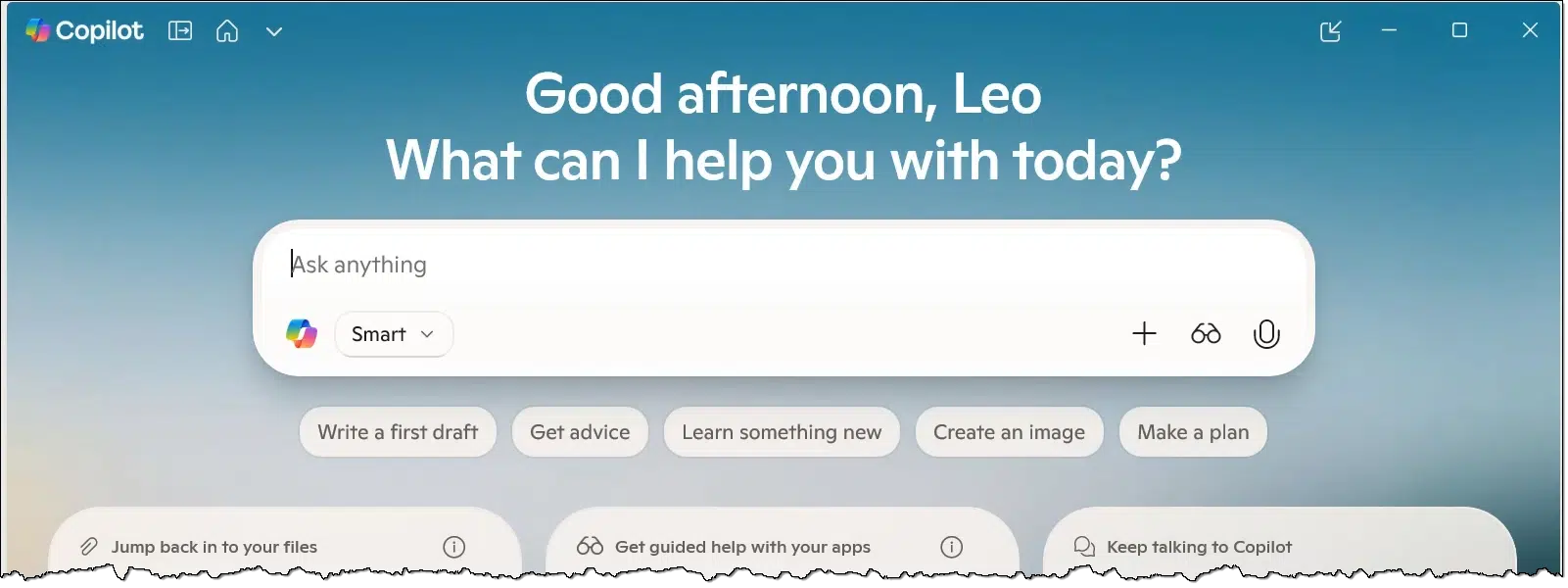
Yes, Microsoft is pushing Copilot hard, and they’re not being subtle about it. Not at all.
Unfortunately, while it’s branded as a single feature, there are as many places to disable or hide Copilot as there are places it shows up. Can you get rid of it? Well, kind of, but not really. Can you hide it? Well, that depends on which of Copilot’s many heads you’re talking about.
Let’s go Copilot hunting.

Getting rid of Copilot everywhere
Microsoft keeps adding Copilot everywhere, but you can push back. Though it can’t be removed completely, explore settings to hide or disable it in Windows, Office, Edge, and even Notepad. Since Microsoft is pushing it so hard, be flexible about looking for those settings, and don’t be surprised if, like a bad penny, Copilot comes back.
Copilot
Copilot is Microsoft’s artificial intelligence (AI) assistant. I asked Copilot, “What is Copilot?” Here’s what it said:
Copilot is your AI companion built by Microsoft — designed to boost your knowledge, sharpen your ideas, and help you get things done with a mix of practicality and creativity. Think of it as a partner that can shift gears with you: one moment helping you debug a script, the next helping you imagine a Pixar‑style scene with a mischievous motherboard (which, knowing you, feels right at home).
🌟 What makes Copilot different
- Adaptive intelligence that adjusts to your style — whether you’re being pragmatic, playful, or philosophical.
- Deep reasoning when you need it, quick answers when you don’t.
- Creative muscle for images, stories, concepts, and brainstorming.
- Technical clarity for troubleshooting, coding, and problem‑solving.
- Cross‑platform presence — Windows, Mac, web, mobile, Xbox, Edge, and even WhatsApp.
🧠 What Copilot does
- Synthesizes information from the web
- Helps you think through complex ideas
- Generates and edits images
- Writes, explains, and refines text
- Helps with tasks, planning, and learning
- Supports your curiosity, whether it’s about RSS parsing or the philosophy of knowledge systems
💬 How Copilot interacts
I don’t just answer questions — I engage. I challenge ideas when it helps you think deeper, and I lean into your imaginative side when you want to build something whimsical.
If you want, I can also show you how Copilot differs from other AI assistants in terms of capabilities and personality.
That all reads like a lot of sales talk, and while that’s not far off, it’s also a reasonable overview of the kinds of things Copilot can do.
Is it a good thing? That depends on how you feel about AI and how you use it. Personally, I’m a fan. I play and experiment with it often, as I discuss in my article on how I use AI.
Not everyone feels as I do. As Microsoft tacks Copilot onto everything, it is antagonizing the folks who aren’t interested in AI and annoying those who might be on the fence.
Caveat: When I use any AI, I think of it as a relatively intelligent intern whose work I constantly need to double-check. 
Caveat 2: Microsoft is pushing and playing with Copilot something fierce. The instructions below apply as of this writing, but are of course subject to change as Microsoft mucks about.
Let’s get rid of as much Copilot as we can.
Getting rid of Copilot in Windows
Copilot appears in Windows as its own app. It’s pretty easy to hide this instance of Copilot.
To begin with, unpin it from the Taskbar.
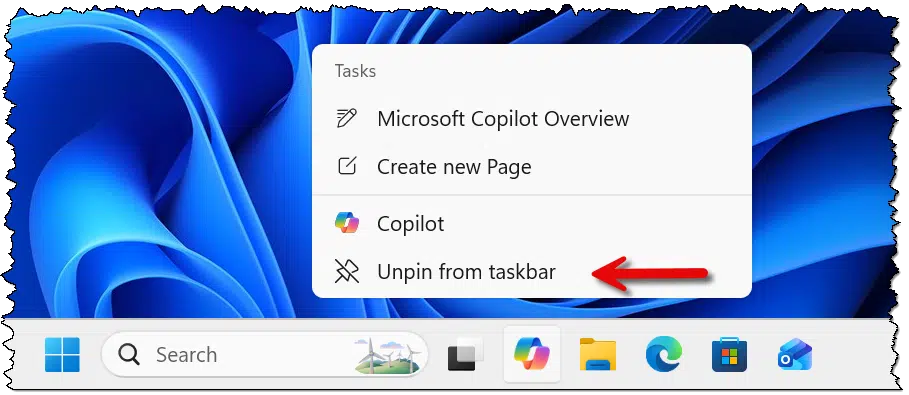
That may be enough if you’re only concerned about the visual distraction. You can also uninstall the Copilot app from your PC.
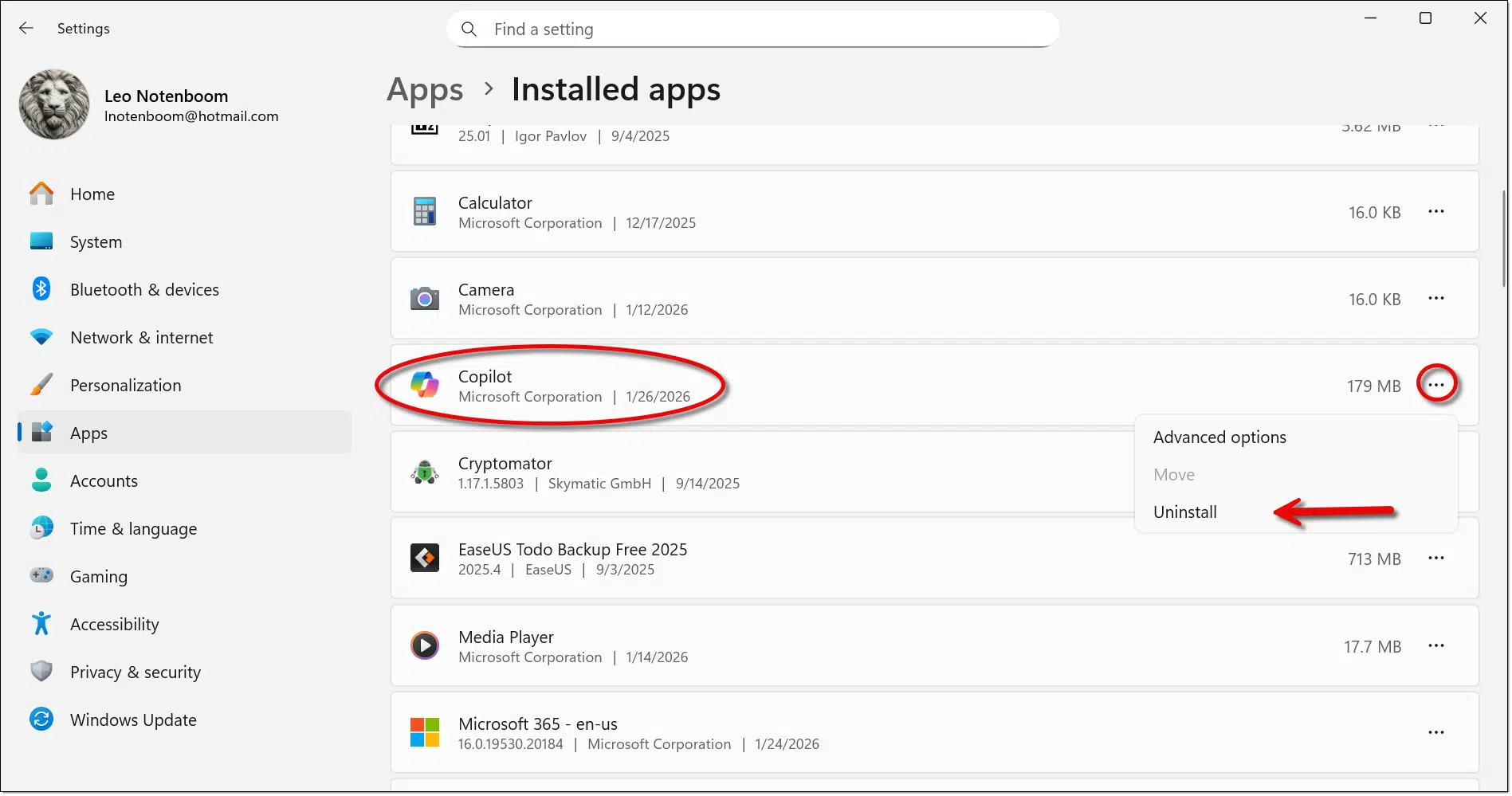
In Settings -> Apps, scroll down the Installed apps list, and you should find Copilot. Click on the ellipsis and then the Uninstall option.
There is an argument that it might be beneficial to use an uninstall tool like Revo Uninstaller to remove Copilot and more of its remnants. I’ve not yet seen a reason to do so, but using Revo does result in a more thorough uninstall, perhaps avoiding future issues or a return of the tool. Then again, a Windows Update could also cause the tool to return, so you’ll want to keep an eye on it anyway.
Getting rid of Copilot in Office (Microsoft 365)
To the best of my knowledge, there is no way to remove Copilot from Microsoft 365 (formerly known as Office). However, we can neuter it.
In each Microsoft Office app that has Copilot, click on options near the lower left (or click the File menu to expose the options link).
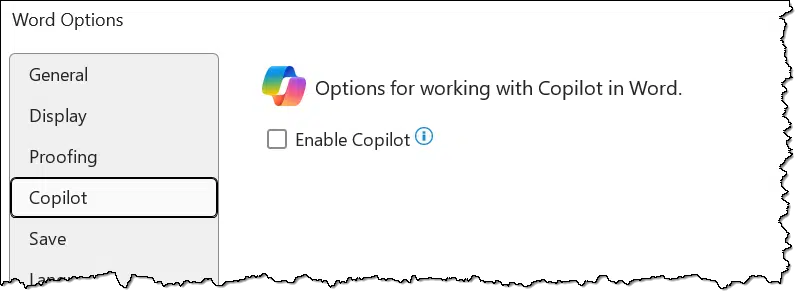
Uncheck the “Enable Copilot” box; then click OK.
This will not remove Copilot, but it will disable it. The Copilot icon in the ribbon turns grey.
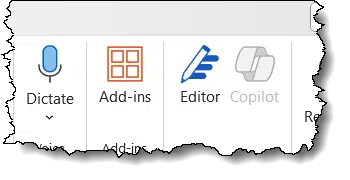
Unfortunately, that simple switch isn’t present in all Office apps. Microsoft plans to add it, at least to Excel, but that doesn’t exist as of this writing.
We need to dive into more obscure settings.
In File -> Options -> General, scroll down to “Privacy settings” and click on the Privacy Settings… button. In the resulting dialog, scroll down to the section labelled “Connected experiences”.
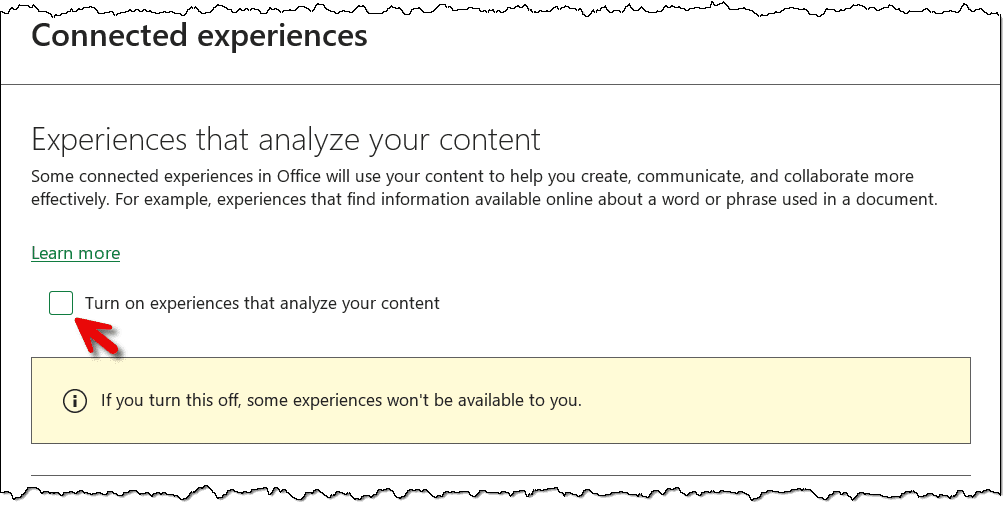
Make sure that Turn on experiences that analyze your content is unchecked. This should disable most AI features.
Get rid of Copilot in Edge
To begin with, right-click on the Copilot icon in the Edge menu bar and click on Hide Copilot.
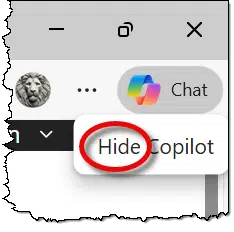
That will open the settings window with the option to show the Copilot button.
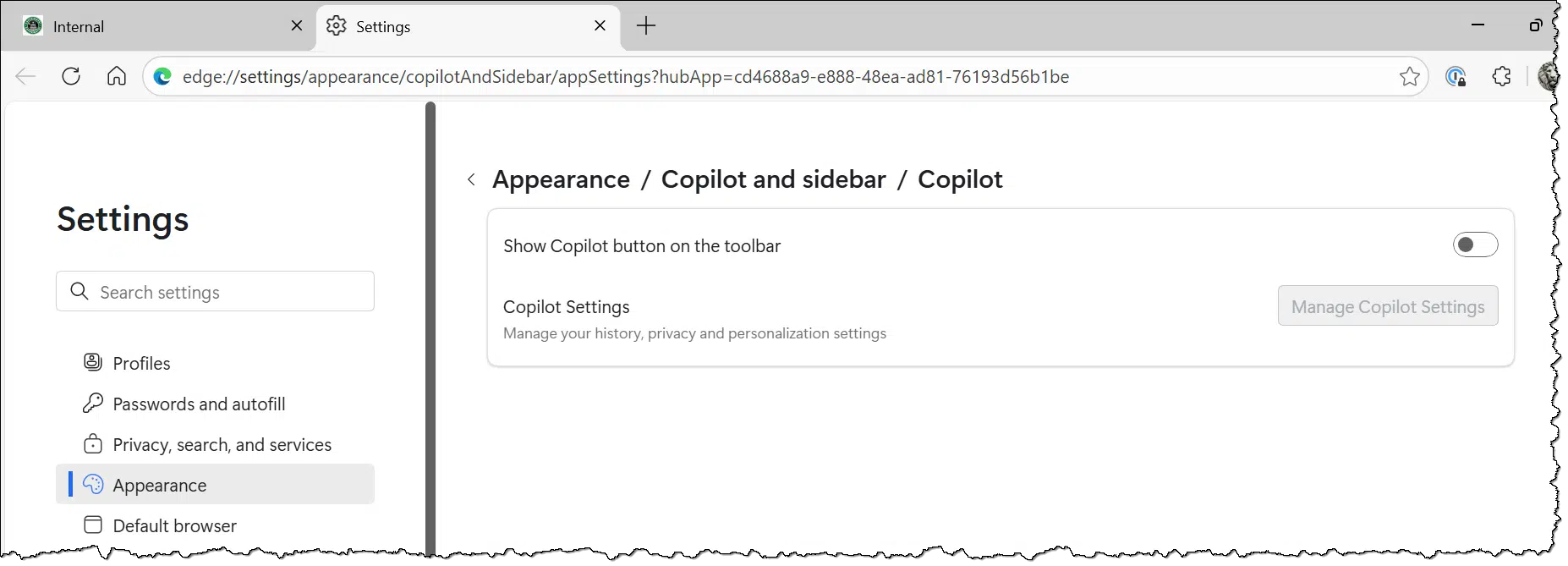
Sadly, that doesn’t remove Copilot; it just hides that annoying button. There’s more to be done.
While you’re in Settings, now search for Copilot.
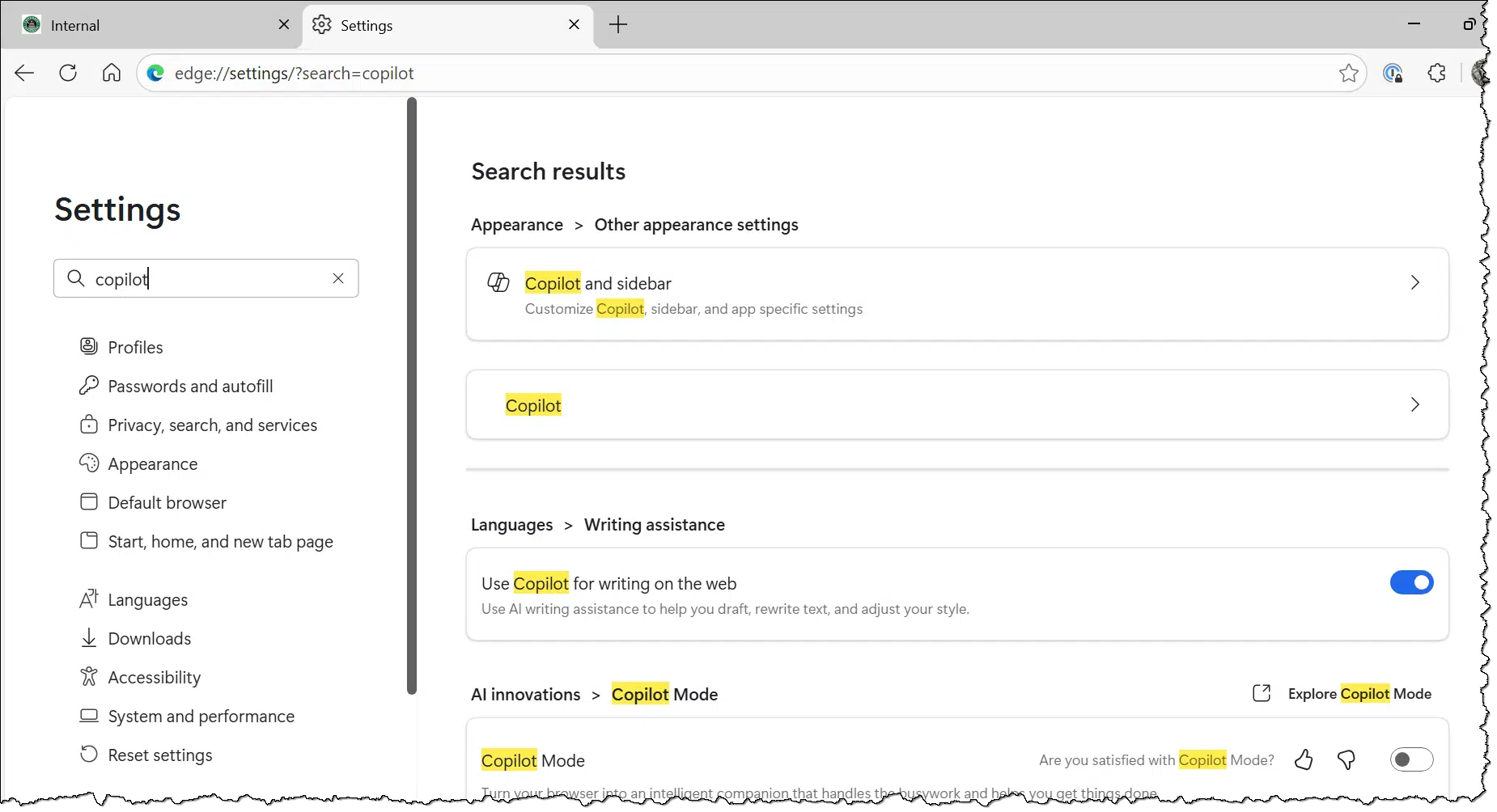
This might be the most important approach to managing Copilot in Edge, as I expect settings related to Copilot to come and go over time. Perform the search, and then examine each setting to see if it’s something you care about and want to turn off.
Get rid of Copilot in… Notepad?
It’s sad that this is even a thing; AI just doesn’t belong in Notepad, in my opinion.
Run Notepad and click on the gear icon in the upper right. Click on Settings, and then scroll down to AI Features.
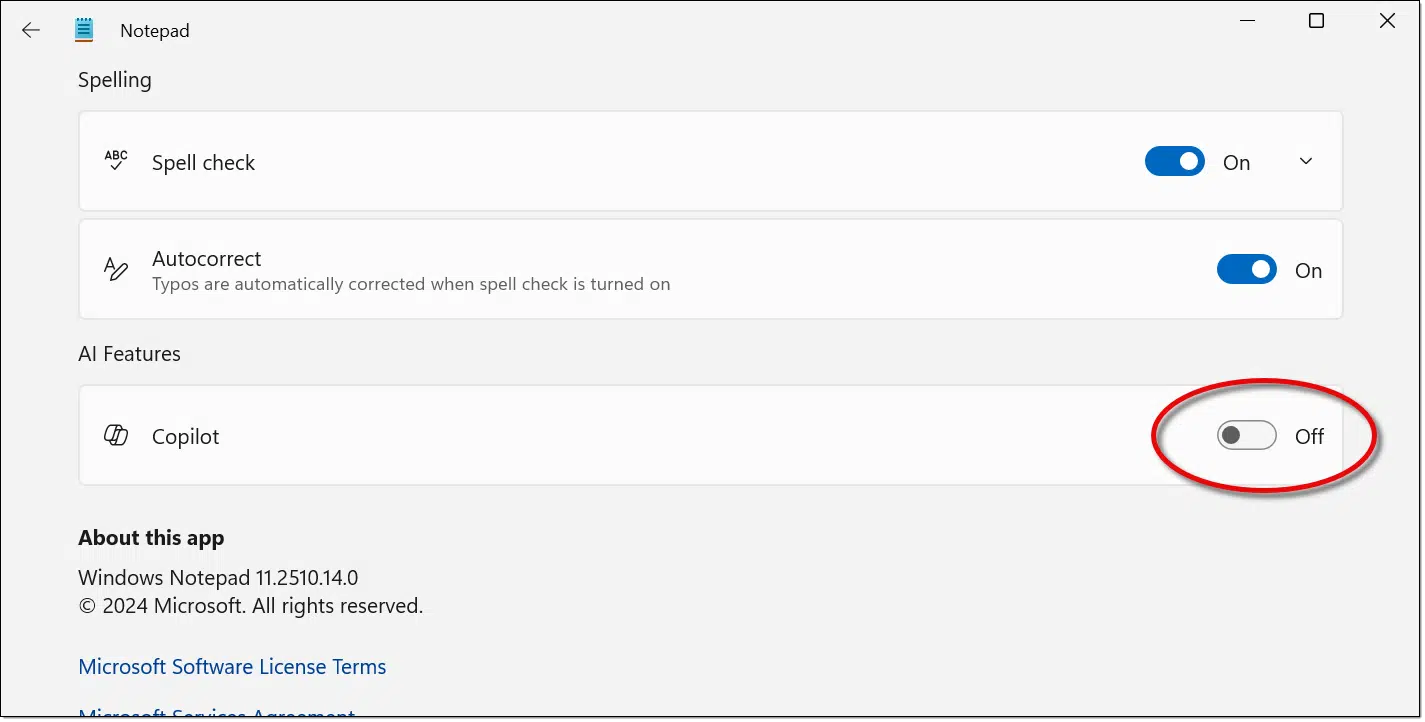
Make sure that Copilot is off.
Get rid of Copilot elsewhere
Copilot is a per-application or per-situation thing. You can’t fully uninstall Copilot like a normal app. In fact, you can’t fully uninstall it at all, because Microsoft treats it as a built-in Windows feature.
If you encounter Copilot in places other than I’ve covered here, check the options available in that app or place to see if it’s controllable. You may need to dive deeply into options, depending on the situation. It’s also possible there’s no option to disable it at all.
Do this
Do not be surprised when things change.
Microsoft seems bent on pushing Copilot, which means it may show up in more places, and the approaches to turning it off or hiding it may change or be disabled. It’s also possible — perhaps even likely — that updates may re-enable it if you’ve turned it off. Expect to revisit this issue.
Subscribe to Confident Computing. Less frustration and more confidence, solutions, answers, and tips in your inbox every week.


Leo,
You did not mention opening Task Manager and selecting Disable.
MS Paint has copilot that as of today, still cannot be unchecked. However, you can copy MS Paint from an older version of Windows and use it. I use the older Paint for other reasons.
Vern
I use winaero tweaker to tweak Windows 10/11. There you can stop windows updates until such time that their updates are stable. I searched for Copilot and they have a way to stop it. You all might want to look at this tool.
Look at this article for a script to remove copiolit.
{link removed see next comment}
I ran this script and it bricked my Surface Pro 9 running Win 11. Thanks to Leo, I am going to do a complete restore from Macrium Reflect in just a few moments.
I was so sick of Copilot oozing its way into everything that I quit my Microsoft 365 account and ditched Windows. Now I’m enjoying Linux Mint and can use AI when I choose to.
Linux can be a good alternative. I have 3 Windows computers, 3 Linux Mint Mate machines, and a MacBook. I can uses them all interchangeably and once I’m in a program or browser, I’m barely aware of which program I’m using. I need a machine that runs Windows 10 and 11 for my work troubleshooting for answers to questions, otherwise, I could rely 100% on Linux. What many people don’t realize about Linux is that the main user interface difference from the users POV is the Start Menu which is actually a little more intuitive than Windows. Even pressing the Windows key and typing the program name searches and runs that program. I stick with Mint because it’s lightweight, lighter than Zorin or Ubuntu. In fact, if what you care about is how your version of Linux rather than the bells and whistles, MATE actually operates more like Windows under the hood than Zorin does.
I’d like to learn Linux, got suggestions on my learning?
I’ve used computers for years and decided to lose Microsoft after I did a reinstall of Win 10 requesting system restore only and to keep my files and programs. It trashed my install, deleted applications and added others such as Gemini and crap from Win 11. Lost my Bookmarks and Contacts. Thanx for any help.
I have a course under construction: https://askleo.com/product/linux-for-everyone-online-course/
So far, I assume that Copilot is free, or does it work like OneDrive, which is free up to 5GB of storage? Is there a replacement for it that is better and free? I limited OneDrive to only contain files and folders that are on my desktop. So I feel fortunate that I’ve eliminated the pop-up message that I need more storage. I’d like to get a replacement for Microsoft’s other devil lurking on my computer.
Copilot chat is free. The upsell is to MS 365 which integrates Copilot with Word, Excel, and PowerPoint. It’s basically Clippy on steroids 😉 and just as useless.
I use the Pro version of Windows and through Local Group Policy and some registry tweaks, I removed Copilot from Windows (or at least it is well buried). I ended my subscription to Microsoft 365 after growing tired of Microsoft’s changes to how OneDrive functions and then the introduction of Copilot in all the Office apps. I now use LibreOffice, Firefox, Thunderbird and Google Drive. The best I’ve been able to do with Edge is to hide Copilot. Removing it altogether from Edge requires being a member of an Active Directory, which doesn’t work for consumers.
Windows 11 Forum (https://www.elevenforum.com/) has many step-by-step tutorials for doing just about anything with Windows. It is number 2 behind Ask Leo! as a source of information for me.
For many years, I’ve used a local password login for windows (not my live.com password). I’ve suffered no Copilot intrusions anywhere – don’t even see it listed in Task Manager. I have win11 25H2, and get regular updates. I do not use Edge (least secure major browser out there). I use Office programs from 2010 to 2019 without problems…
I turned copilot off completely on my wife’s computer. I install Linux Mint.
I have Windows 11 and attempted to use the process, below, to disable copilot. However, when I unchecked the box and restarted as directed, One Drive was off. Now, I’m not a fan of One Drive, but by default there is a lot of my “stuff” in it, and I need it to run. So, I enabled copilot again. My main objection is that it pops up on nearly every Word document. I don’t need everything analyzed!! Very annoying.
In File -> Options -> General, scroll down to “Privacy settings” and click on the Privacy Settings… button. In the resulting dialog, scroll down to the section labelled “Connected experiences.” etc.
This must apply primarily to Win11. I do not find all the options available in Win10.
Before I retired from the federal government a few years ago we had strict policies about uploading any document to any external site (such as grammerly) to keep (potentially) confidential information from leaking. The government has it’s own Amazon cloud account. I wonder how AI is handled in the realm of keeping confidential information internal to the business? I don’t think letting Word upload docs to an AI is appropriate!
Unfortunately my Microsoft Surface laptop has a dedicated Copilot key, if only it could be reprogrammed.
Disabling Copilot systemwide should disable that key. It become a dead key.
Thanks for that Mark. I disabled Copilot as shown above and pressed the Copilot key. It opened a menu where I could reprogramme it for Search.
I use Firefox, Thunderbird, Libre Office, Office ’97 and a NAS, so I don’t suffer from Copilot intrusion. In fact for my purposes I could happily run Windows XP with little disadvantage, and perhaps more security. I also run Linux Mint which gets better the more you do on it. I have to admit however that Chatgpt is very handy.