
CHKDSK has been around longer than Windows. This utility has changed dramatically for new environments and new disk formats, but in some ways, it’s pretty much the same old disk-checking utility we’ve used since the days of MS-DOS.
Regardless of its age or origins, CHKDSK is an important tool for disk maintenance and, in some cases, recovery from a variety of disk-related issues.
Let’s run CHKDSK.

CHKDSK in a nutshell
CHKDSK is a tool that checks your hard drive for problems. You can run it from Windows File Explorer or the command line. It fixes file system errors and can look for bad spots on the disk. It won’t bring back lost files, but it helps your drive work safely.
CHKDSK in Windows Explorer
In Windows Explorer, right-click on the drive you want to check.
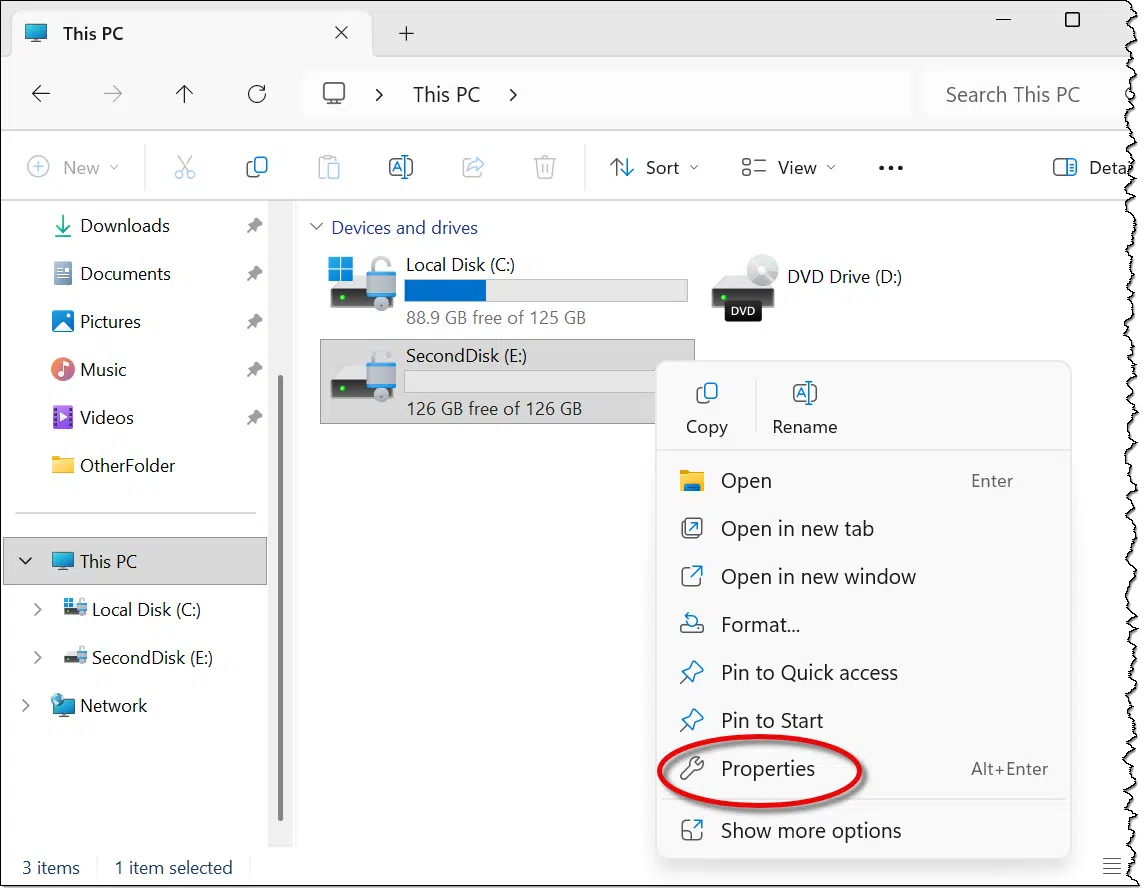
Click Properties. In the resulting dialog box, click the Tools tab.
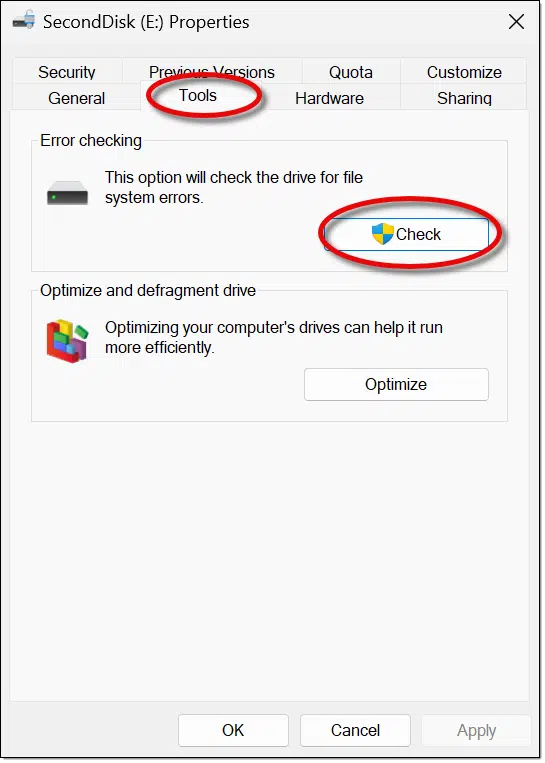
Click the Check or Check now… button.
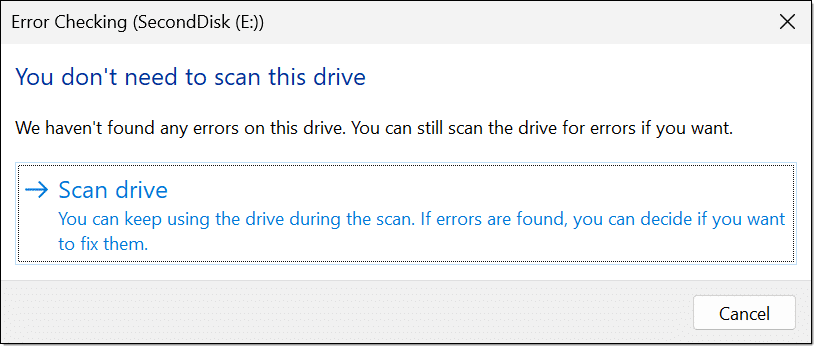
Windows tracks the state of the drive, so it may tell you a scan isn’t needed. You’re welcome to scan anyway.
Eventually, this is the message you hope to see.
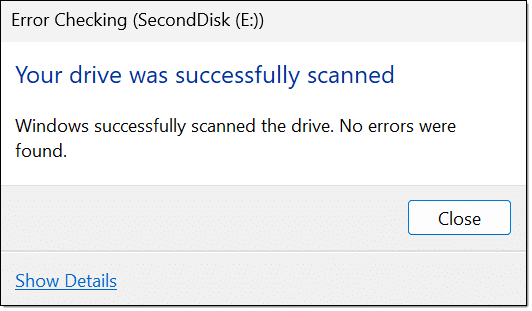
“Show details” opens Event Viewer to display the log of CHKDSK’s activity. Any errors to be repaired would be listed here.
There is a possibility of getting a message like, “Windows can’t check the disk while it’s in use”, particularly if CHKDSK finds an error. You may be given an option to dismount the drive, or you may be told you need to close programs that have files open on the drive before the scan can proceed.
Help keep it going by becoming a Patron.
CHKDSK via command line
CHKDSK is a command-line tool. All the options above run that same tool in a way that captures its output.
You can do that directly yourself.
Right-click on the Start button and click on Command Prompt (Admin), PowerShell (Admin), or Terminal (Admin).
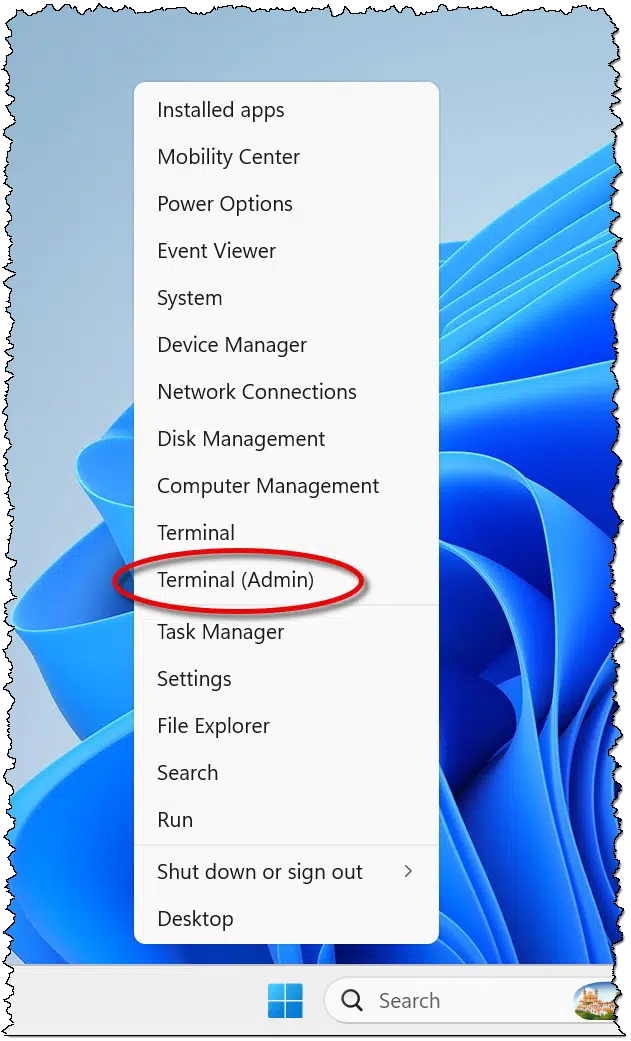
In the resulting command line, type:
CHKDSK /F E:
…to run CHKDSK with the “/F” or “fix” parameter. Without /F, CHKDSK will report, but not repair, any errors. “E:” is the drive you want to check.
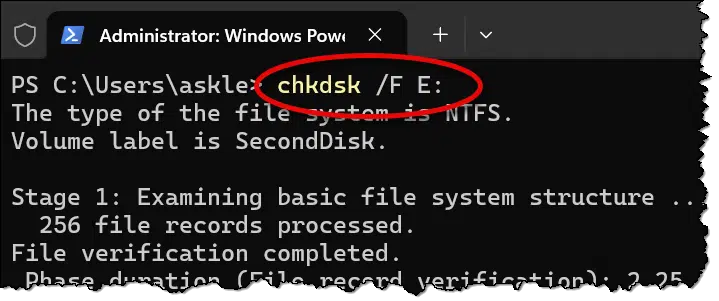
If you run the command-line CHKDSK /F against the C: drive, you’ll get an error and a choice.
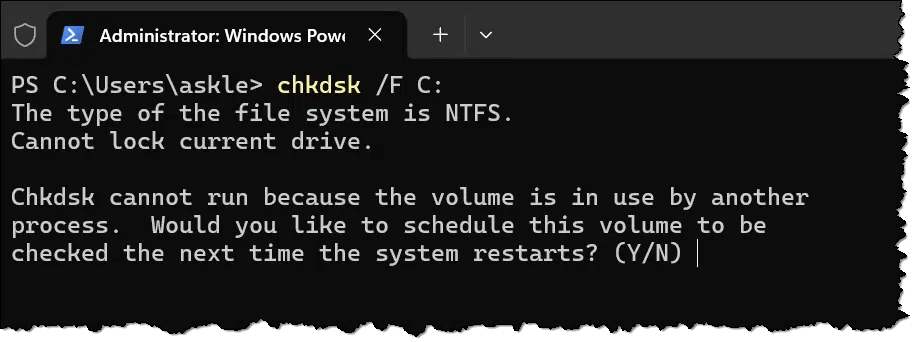
CHKDSK /F requires exclusive access to the disk. You can say No, and CHKDSK is not run. If you say yes, CHKDSK runs the next time you reboot the machine.
Getting the results of a scheduled CHKDSK
A common question is where to find the results of a CHKDSK that runs before Windows starts. The information shown above disappears as soon as Windows starts to boot.
Right-click Start and then click on Event Viewer in the menu.
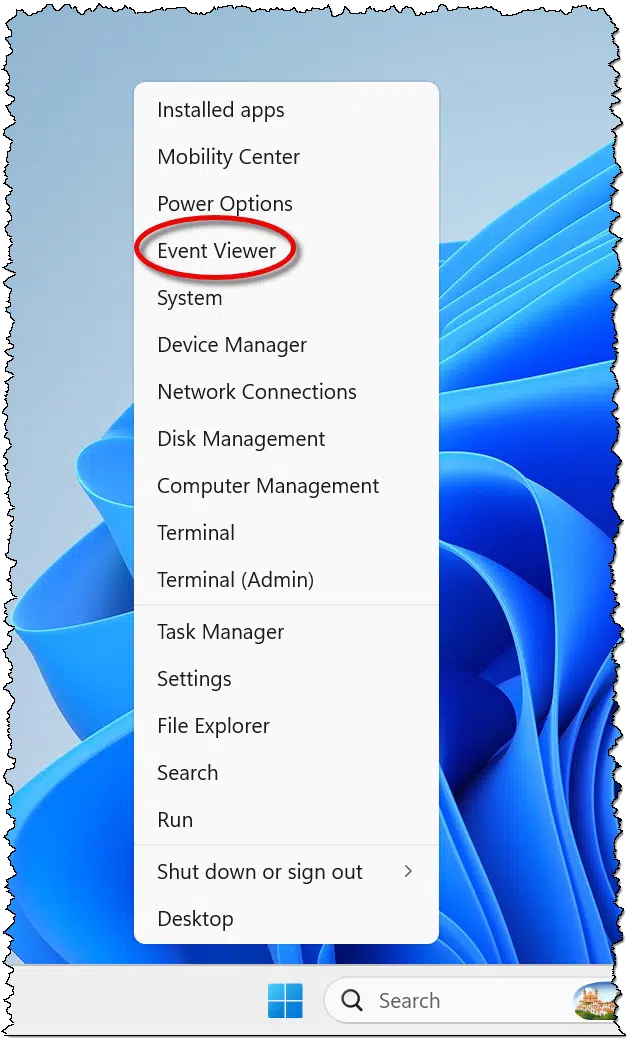
Event Viewer runs.
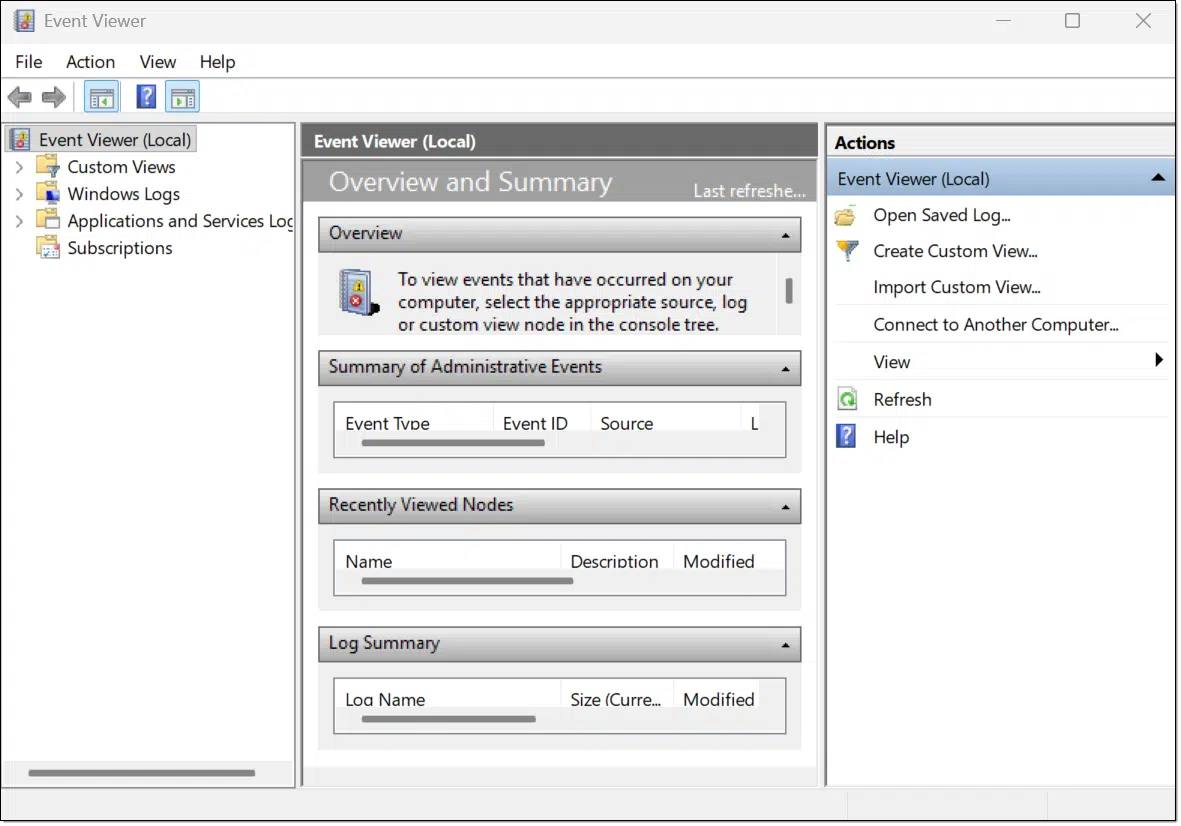
You may want to resize it and adjust the pane separators to make some information more visible. I maximize it to take up my whole screen by double-clicking on the title bar.
Click the Application log under “Windows Logs”. Look for the line item that ends with Wininit (for Windows Initialization) and has “Checking file system on C:” in the lower General tab. You may need to scroll through the application events listed in the top-center pane.
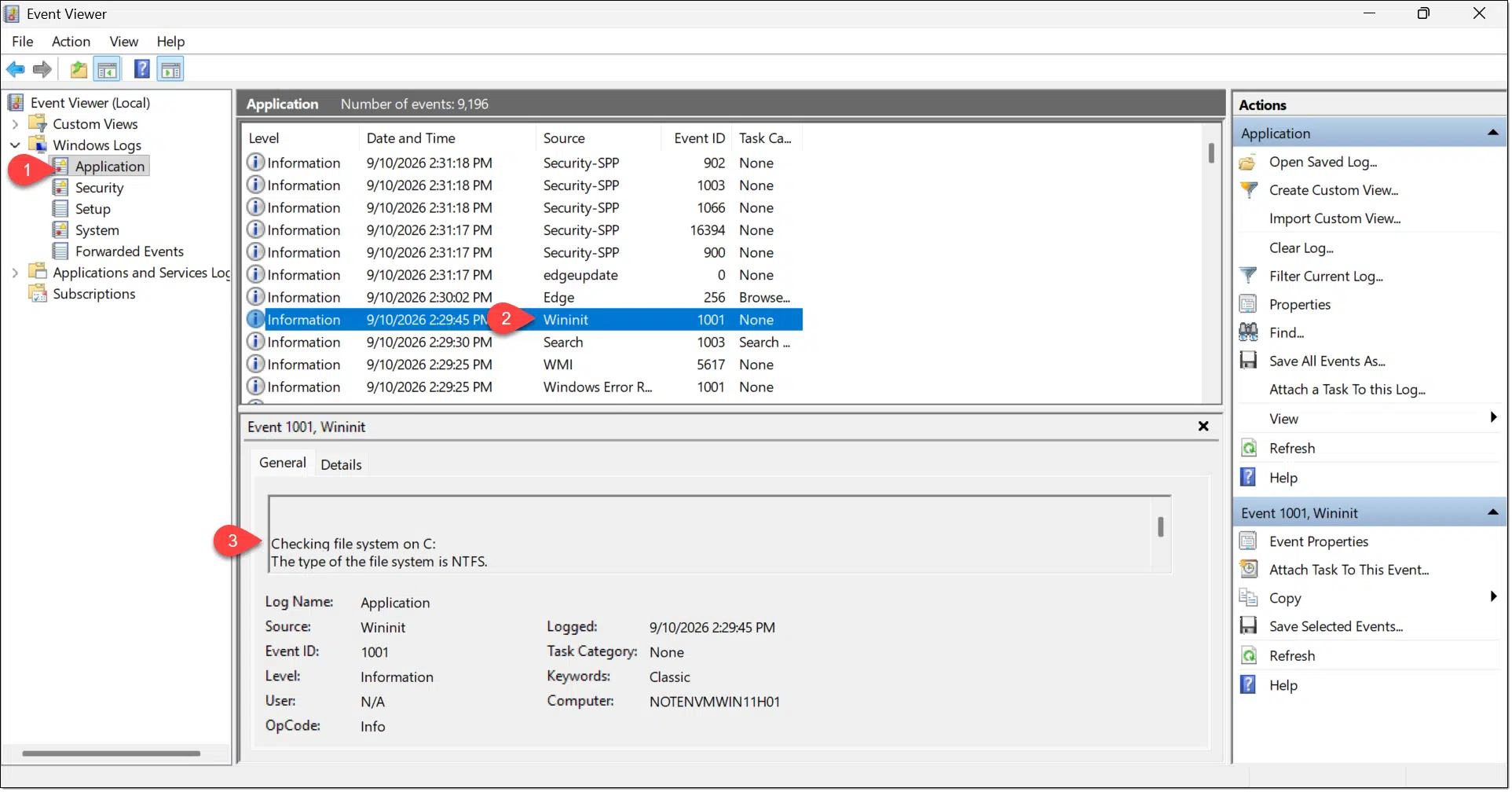
To make reading the results easier, just double-click on that Wininit line.
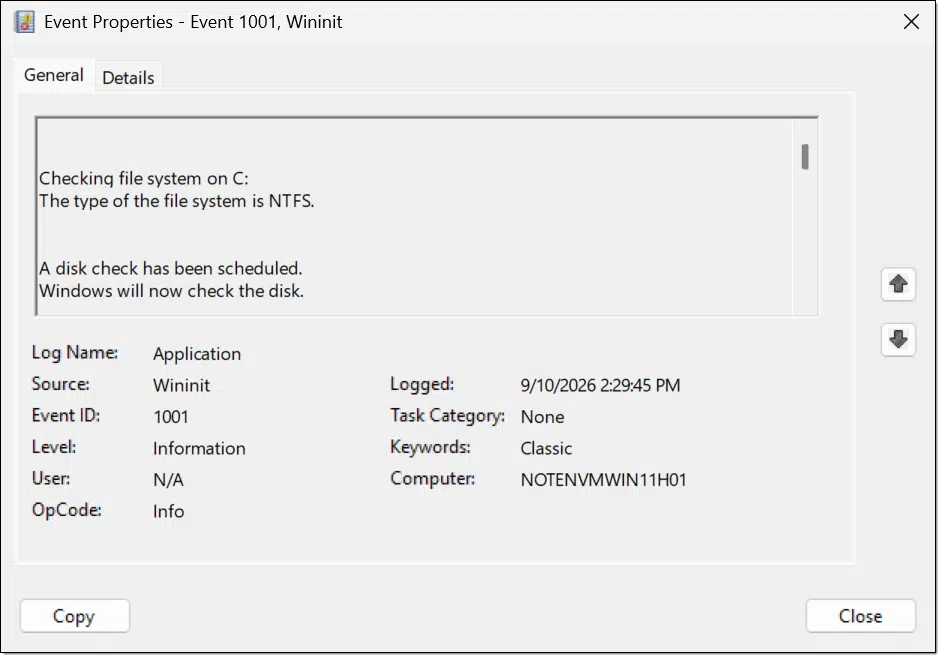
The scrolling box near the top contains the CHKDSK results that scrolled past on the screen before Windows loaded. You can scroll through to read it.
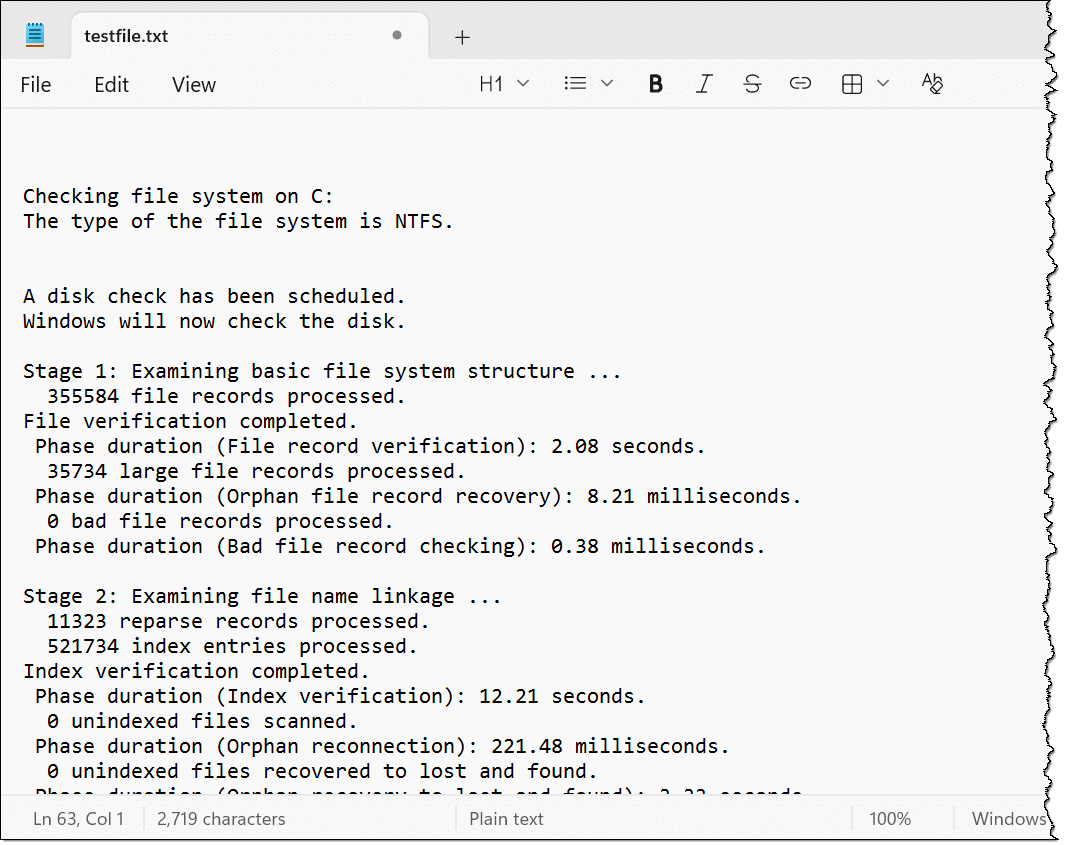
You can also click within that scrolling box, type CTRL+A to select all, CTRL+C to copy it all, and paste it into a text editor like Notepad for easier reading.
Scanning for bad sectors
Normally, CHKDSK checks that the information stored on the disk is correct. There’s a fair amount of overhead information that tells Windows where files are located and how they’re stored and distributed on the disk media. CHKDSK uses its knowledge of what this information is supposed to look like to ensure it’s correct and try to fix it when it’s not.
Scanning for bad sectors is another thing entirely. When the “/R” option is included, CHKDSK reads the entire disk, not just the overhead information. As a result, a bad sector scan takes significantly longer than a simple CHKDSK.
As CHKDSK reads, it notices whether those reads succeed. When they do not, it marks the area that failed as “bad” so the system won’t attempt to write more information into problematic areas.
It’s important to note that this scan doesn’t test whether the data found is good or valid; only that it can, in fact, be read.
Related
How Long Should CHKDSK Take?
Several factors affect how long CHKDSK takes to run, but a scan requiring an unusual amount of time may signal additional problems.#2285
So what does CHKDSK check?
It’s difficult to describe exactly what information CHKDSK checks without getting lost in the geekery of file system details and hard disk layout. Essentially, it checks the organizational and overhead information that allows Windows to locate and access the files stored on that disk.
One analogy might be to think of a hard disk as a simple telephone book.
By default, CHKDSK reads through all the listings and makes sure they all have a name and a properly formatted telephone number. If a street address is present, CHKDSK might also ensure that the address is properly formatted and matches a real address in the phone book’s coverage area.
If problems are found and CHKDSK has been asked to repair them, it might take actions like removing invalid phone numbers. It could add a proper area code or country code that was supposed to be there in the first place, but it will do so only if it can infer what the right answer should be from other information. Similarly, it might try to fix a physical address, but may remove that information if it can’t come up with what it should have been. CHKDSK can also remove entries that are so garbled that their proper values can’t be figured out.
Scanning for bad sectors? That’s sort of like calling every phone number in the book and making sure it rings through to a real phone.
When to CHKDSK
Normally, CHKDSK only needs to be run when a problem is suspected.
Scan for bad sectors when you encounter a bad sector, usually in the form of a bad read, write, or explicit CRC error. CHKDSK will do what it can, but most importantly, it will remove the bad area from use.
Running CHKDSK to check the validity of the file system is a quicker operation. It’s not unreasonable to run it every so often, particularly if your computer has been crashing. In most cases, Windows will run a CHKDSK after a system crash or improper shutdown. This isn’t done to fix the cause of the crash (although in some cases it could) but to fix disk-related issues that may have resulted from the crash.
Unlike disk defragmentation, CHKDSK is safe to run on both SSDs and HDDs.
What CHKDSK won’t do
While we talk about CHKDSK “repairing” a hard disk, it is not a data recovery tool. Its job is not to recover lost or damaged files, but to ensure that the information on the disk is in a consistent, safe state.
CHKDSK does not cause errors, but it may expose errors that were present on the disk before it was run.
If you need to search for files accidentally lost or deleted, use tools like Recuva.
If you’re trying to recover data from a hard drive that has a persistent media problem or is so damaged that a CHKDSK scan for bad sectors can’t help, then a tool like SpinRite might be your only option…
…unless, of course, you have a backup. Then you can replace your failing hard drive, restore data from your backup, and be on your way.
Do this
I tend to prefer the command-line CHKDSK because it’s easier to see what it’s up to, and the options (there are several – run CHKDSK /? to see them) are more clearly exposed.
No matter how you run it, now you have another tool in your arsenal to help when you suspect a disk issue of some sort.
Subscribe to Confident Computing! Less frustration and more confidence, solutions, answers, and tips in your inbox every week.

hi Leo
I used to CHKDSK /f /r to fix a file or folder not accessible – corrupted.
Worked fine – 8 hours on a 8TB external drive.
At first, looked like it didn’t work, but turned out to be fixed after a reboot.
Only issue is there are a large number of duplicate folders e.g. FolderA(1).
is there a quick way to safely delete such duplicate folders?
Thanks a mil in advance.
regards
Chris
Not without inadvertently deleting what might be important within. You can use Windows File Explorer, multi-select ’em all, and hit delete — so deleting all that possibly important stuff is easy, but I really wouldn’t do it without investigating what’s inside those folders.
If you do decide to delete the duplicate folders, make sure they are backed up and keep that backup for a few months to be sure you really don’t need the information in those folders. Better yet, make a system image backup of your machine.
CHKDSK /f /r is exactly the same as CHKDSK /r. /r includes the /f function.
Hey Leo,
First, when accessing CHKDSK via a windows GUI, it gives the 2 options of just scan or scan and fix – but how does one know if option 2 is using the “f” or the “r” parameter?
Next, my secondary internal drive (drive “E”) became inaccessible, and CHKDSK was not able to get past a certain point without saying that it could not continue due to an unreadable sector. I tried many times and in many different ways (cmd line, windows GUI, scheduled before OS start, third party interfaces like HDD Regenerator) but CHKDSK would always fail – and this was when the drive in question was mounted internally (as drive E – not the system drive). BUT I had a hunch, and when I removed drive E, and turned it into an external USB drive (using my adapter harness), CHKDSK was successfully able to complete, and fix the drive. It took 2 attempts, but it worked! So my main question is, can you explain why CHKDSK would behave like this? Does it somehow operate differently with an external USB drive than with an internal drive? Like maybe the code is more advanced for USB drives since USB and USB devices are newer to the PC platform than CHKDSK is, and MS had to configure CHKDSK to work in the USB environment, thus inadvertently creating a more dynamic version? May be reaching here, but there has to be an explanation. A little more background, when I plugged it into the USB port for the first time, Windows immediately recognized that it had issues, and recommended that I run either the scan OR the scan and fix, and this brings me back to the first question, which is how would I know if it was running under the “f” or the “r” parameter? Question here is, if it is the “f” parameter, and it was successful, would you run it again through cmd line with the “r” parameter just to be more thorough? Primarily wanted to share my experience in case this could help others…
Hi Leo,
I’m having a crisis. On Windows 7 Home Premium, I started the GUI disk check on an 8T Seagate external drive. It started okay, opening a second window and showing the progress. I left it for several hours. When I came back, the progress window was gone, the drive inaccessable, but the disk light is continually dimming and brightening, showing activity I assume. I closed the Tools GUI. I don’t see a process in the Task Manager that appears to be doing anything. There is a single CHKDSK entry in the event log that does not appear to be growing. Here’s the log from that event:
——————————————————————————-
Chkdsk was executed in read/write mode.
Checking file system on G:
Volume label is TV Backup.
CHKDSK is verifying files (stage 1 of 5)…
34816 file records processed. File verification completed.
636 large file records processed. 0 bad file records processed. 0 EA records processed. 0 reparse records processed. CHKDSK is verifying indexes (stage 2 of 5)…
41906 index entries processed. Index verification completed.
CHKDSK is verifying security descriptors (stage 3 of 5)…
34816 file SDs/SIDs processed. Cleaning up 7 unused index entries from index $SII of file 0x9.
Cleaning up 7 unused index entries from index $SDH of file 0x9.
Cleaning up 7 unused security descriptors.
Security descriptor verification completed.
3546 data files processed. CHKDSK is verifying Usn Journal…
1055896 USN bytes processed. Usn Journal verification completed.
CHKDSK is verifying file data (stage 4 of 5)…
Read failure with status 0xc000000e at offset 0x18e4eed6000 for 0x10000 bytes.
Read failure with status 0xc000000e at offset 0x18e4eed6000 for 0x1000 bytes.
Read failure with status 0xc000000e at offset 0xc0393000 for 0x1000 bytes.
The disk does not have enough space to replace bad clusters
detected in file 7040 of name .
… (the read errors repeat for consecutive files until)
Read failure with status 0xc000000e at offset 0x1920b3b8000 for 0x10000 bytes.
Read failure with status 0xc000000e at offset 0x1920b3b8000 for 0x1000 bytes.
Read failure with status 0xc000000e at offset 0xc0393000 for 0x1000 bytes.
The disk does not have enough space to replace bad clusters
detected in file 7086 of name .
Read failure with status 0xc000000e at offset 0xf487acd000 for 0x10000 bytes.
Read failure with status 0xc000000e at offset 0xf487acd000 for 0x1000 bytes.
Read failure with status 0xc000000e at offset 0xc0393000 for 0x1000 bytes.
The disk does not have enough space to replace bad clusters
detected in file 70
— (to me, it looks the the CHKDSK program crashed, but then what’s accessing the drive?)
—————————————————————————
If I stop the computer, is it possible the disk will become available again with an intact file system? Or should I just wait? I’ve been looking at this for an hour, and nothing new has been added to the log.
Any advice would be much appreciated.
Terry
I would fire up Process Monitor or Process Explorer and see if you can identify the process accessing the drive. (In process explorer use “find handle” to search for the drive letter:).
At this point I’d say your disk has some serious issues, and I hope you have it backed up.
Windows “chkdsk” is a buggy, poorly designed half-baked nonsense utility. Proof: the # of “bad sectors” that it reports should if anything always INCREASE not decrease. I have an older hard drive that has minor problems, that runs XP (NOT connected to the internet, don’t need any arrogant ‘lectures’) and when I run chkdsk /f /r it will sometimes report MORE (total) “bad sectors” compared to a previous run, then like today it will report FEWER (total) “bad sectors”. That is IMPOSSIBLE. Nothing gets “repaired” – chkdsk can’t repair physical defects on a HD. I have kept a literal list/record of how many “bad sectors” chkdsk reports on this hard drive when I run it each month, and it both increases AND decreases which is impossible.
My understanding is that CHKDSK /R can indeed repair marginal sectors.
The /f parameter stands for fix. It fixes errors in the file tables.
The /r parameter stands for repair. It fixes any bad sectors that it can.
There’s no need to run chkdsk /f/r because it’s exactlay the same as chksdk /r which repairs (fixes) both. In English fix and repair mean the same thing, in Microsoftese, not the same 😉