Taming misbehaving sites.

Cookies are small amounts of data placed on your computer by the websites you visit that allow them to do things like remember you’ve already signed in (and much more). They’re part of the grease that makes your website experience run smoothly.
Most of the time.
If a website is having problems, clearing cookies may clear up the problems. The problem, of course, is that clearing all cookies (which you do through your browser settings) means you’ll have to sign in again to every site you’d signed into before.
Fortunately, most browsers have made it easier, if not obvious, to clear the cookies associated with a single site.

Clearing a site's cookies
If a website is acting up, clearing its cookies can often fix the problem. The good news is that you don’t have to clear cookies for all sites. Just click the small icon to the left of the address bar, find the cookies for that particular site, and remove them.
It’s all in the icon
Using Edge as our example, visit the site you want to clear cookies for and click the padlock icon at the left of the address bar.
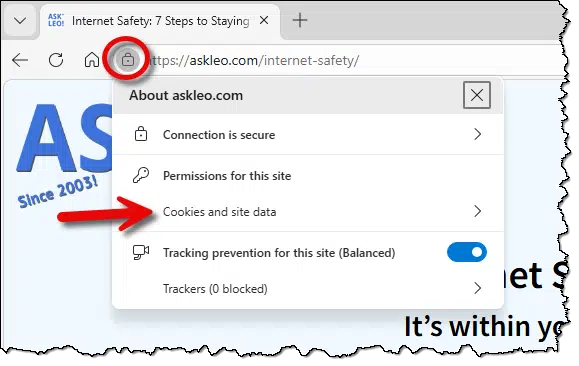
This exposes a menu of assorted information associated with that site and your connection to it.
Click on Cookies and site data.
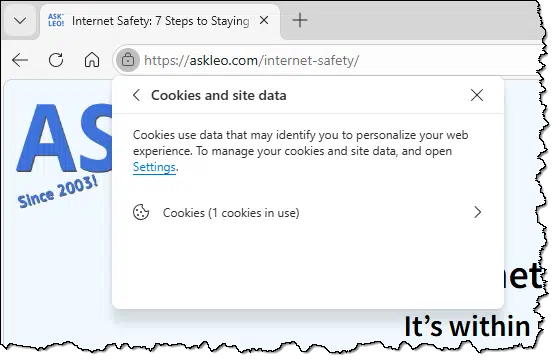
Assuming cookies are in use, click on Cookies. A new pop-up will appear.
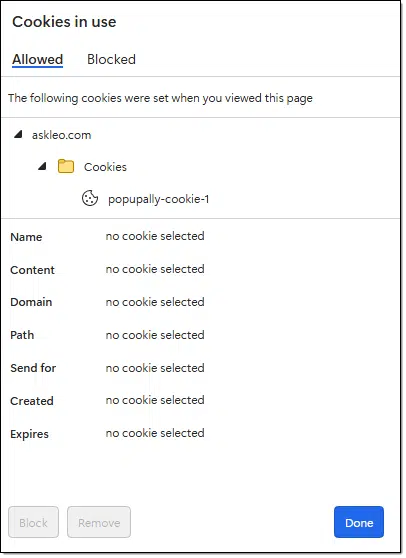
Click on the down-pointing triangles to expand the information shown.
In the example above, the site askleo.com has currently set one cookie — “popupally-cookie-1”1.
You can clear information in several ways.
- Click on the website (askleo.com, in the example), and click the Remove button, and all cookies and site data will be removed. (This site doesn’t use any “site data”, which is another form of persistent storage a website can elect to use.)
- Click on Cookies underneath the website, click the Remove button, and all cookies will be removed.
- Click on a specific cookie and click Remove to remove only that cookie.
In practice, I just click on the website name and click Remove to remove everything.
Help keep it going by becoming a Patron.
Google Chrome
Chrome is similar, yet different in the details and wording.

Click on:
- The small slider icon to the left of the address bar.
- Cookies and site data.
- Manage on-device site data.
- The garbage can icon to delete cookies and other on-device data.
Firefox
Firefox is similar.
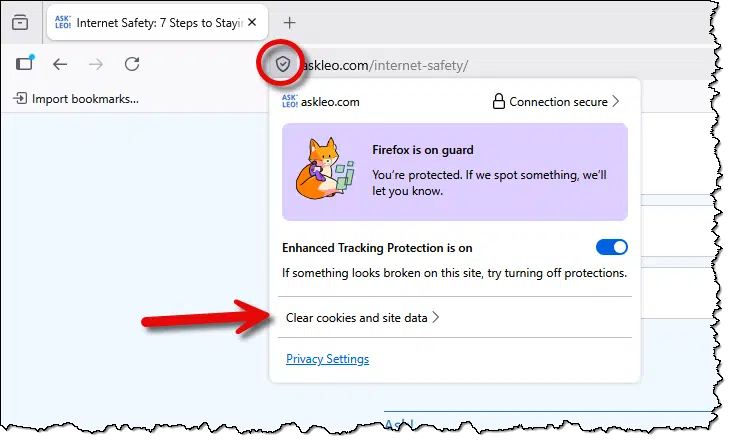
Click on:
- The shield icon at the left of the address bar.
- Clear cookies and site data.
- The Clear button.
Other browsers
Other browsers use the same process: find an icon to the left of the address bar and then navigate to the information or controls for clearing the cookies. Given that most browsers are built on the same technologies as those above, I expect the experience to be similar.
Related

How Do Cookies Work, and How Do I Delete Them?
Deleting cookies is an easy task. Whether it's necessary or not is another matter.#2032
Why?
Deleting cookies can fix sites that aren’t working. This lets you try it without wiping out the cookies for all your other sites, which logs you out of them.
I have a site I visit regularly. Every so often, it just doesn’t work. Switching to a different browser works, at least for a while, after which it starts misbehaving as well. Switching to incognito mode works for a while. The primary symptom is that it loops, refreshing the login screen, so there’s never a chance to log in. Additional symptoms include being signed out while I’m doing something and error messages related to webpage display.
On a whim, I cleared cookies for the site when it started misbehaving. Bingo! It started working again, though eventually it would still fail. Fortunately, it works long enough for me to do what I need to do.
My theory (and it is only a theory) is that there’s a bug in how the site is coded that either keeps dropping more and more cookies onto my machine until an HTTP size limit is reached, or some cookies get a little bigger on each page load until that limit is again reached. Either way, clearing the cookies does the trick for a while, at which point I can just do it again.
Do this
Clearing cookies for a single site is a useful tool to have in your “Why isn’t this working?” arsenal. It can’t fix every website-related problem, but it’s useful when it does.
Subscribe to Confident Computing! Less frustration and more confidence, solutions, answers, and tips in your inbox every week.
Podcast audio

Footnotes & References
1: This cookie controls how often you see my newsletter information pop-up message.

Try the Awesome Cookie Manager extension on Chrome. It’s awesome. When a website limits the number of times I can access an article, I just click on the extension, use the filter to select the right cookies, delete and then reload and continue using the website.