Safe? Maybe. Risky? Probably. Messy? Definitely.
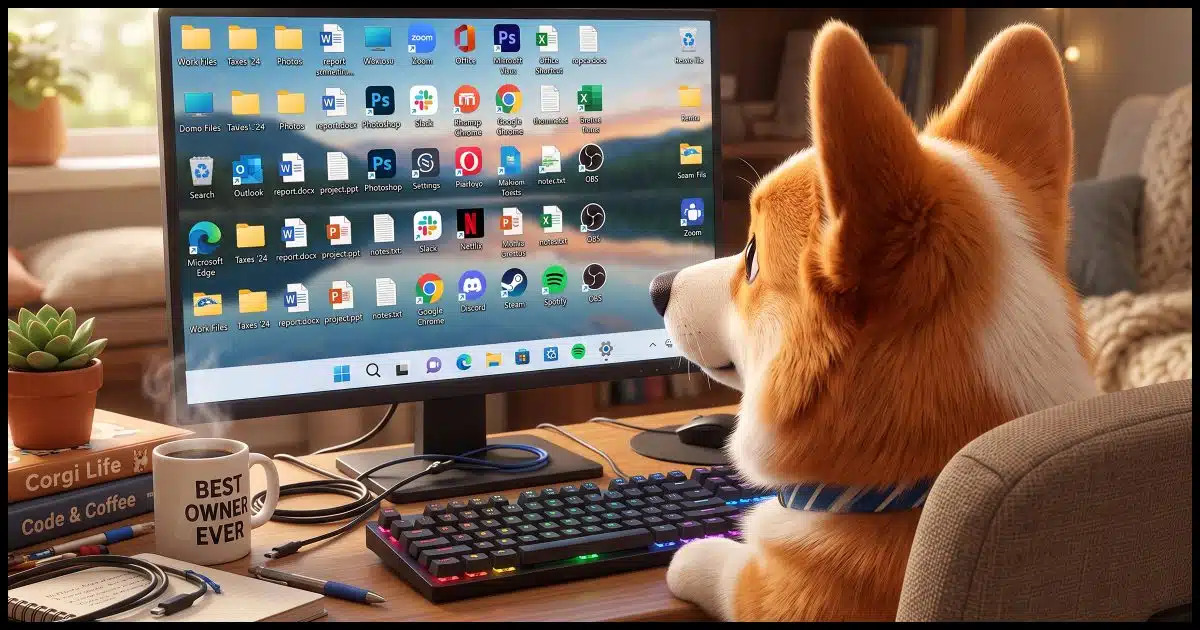
We’re moving into what I call religious territory here. There are definitely very strong opinions on both sides of this issue.
I agree with the article you found. The desktop should be only for shortcuts, not for files.
I’ll even go one step further: I’m not a fan of putting shortcuts on it.

Keeping the desktop clear
Your desktop is just a folder, and it’s an easy place to lose things. One stray click or drag can move or delete what’s there. Keep your files in Documents instead, and use the Start menu or taskbar to open what you use most.
How files disappear from the desktop
It’s easy to accidentally click and drag or otherwise mess up things stored on your desktop. That’s probably what happened with your files and folders. Something unexpected happened, and because they were on your desktop in front of you, you somehow accidentally selected and deleted or moved them.
I can’t say that’s what happened for certain. One of your applications may have done that; for example, cleanup applications can do it.
Help keep it going by becoming a Patron.
How the desktop works
The desktop is just like any other folder on your hard drive. It can contain anything: files, programs, subfolders, shortcuts, etc. But it also has a special property being displayed: a background image plus icons of whatever resides in this special desktop folder.
The desktop was never intended to be a place to store actual data. Instead, you’re expected to put files and folders into your Documents folder, and applications into the Programs folder. As the article you mentioned pointed out, the desktop is a place where you’re expected to put pointers — shortcuts — to things that are stored elsewhere.
In my opinion, shortcuts on the desktop still aren’t all that handy. When you’re working in an application, the desktop is hidden. If you have shortcuts there, you have to make the desktop visible to get to them. (Though  +M is a quick way to do that.)
It’s easier to use the Start menu, and that’s why the disappearance of Start in Windows 8 caused such a kerfuffle. People rely on Start. Fortunately, it came back in Windows 10.
How people really use the desktop
Unfortunately, because the desktop can contain anything, people use it for everything.
People use up their entire desktop with things it wasn’t meant to hold. It can slow the computer down a little, and I know it slows people down as they try to find what’s where on their cluttered desktop. (And heaven forbid that Windows re-arranges the icons on the desktop, which it has been known to do unexpectedly.)
Application installation programs contribute to the problem as well. It’s not uncommon for the installation of a single app to result in half a dozen more icons on the desktop. Sigh.
What I recommend
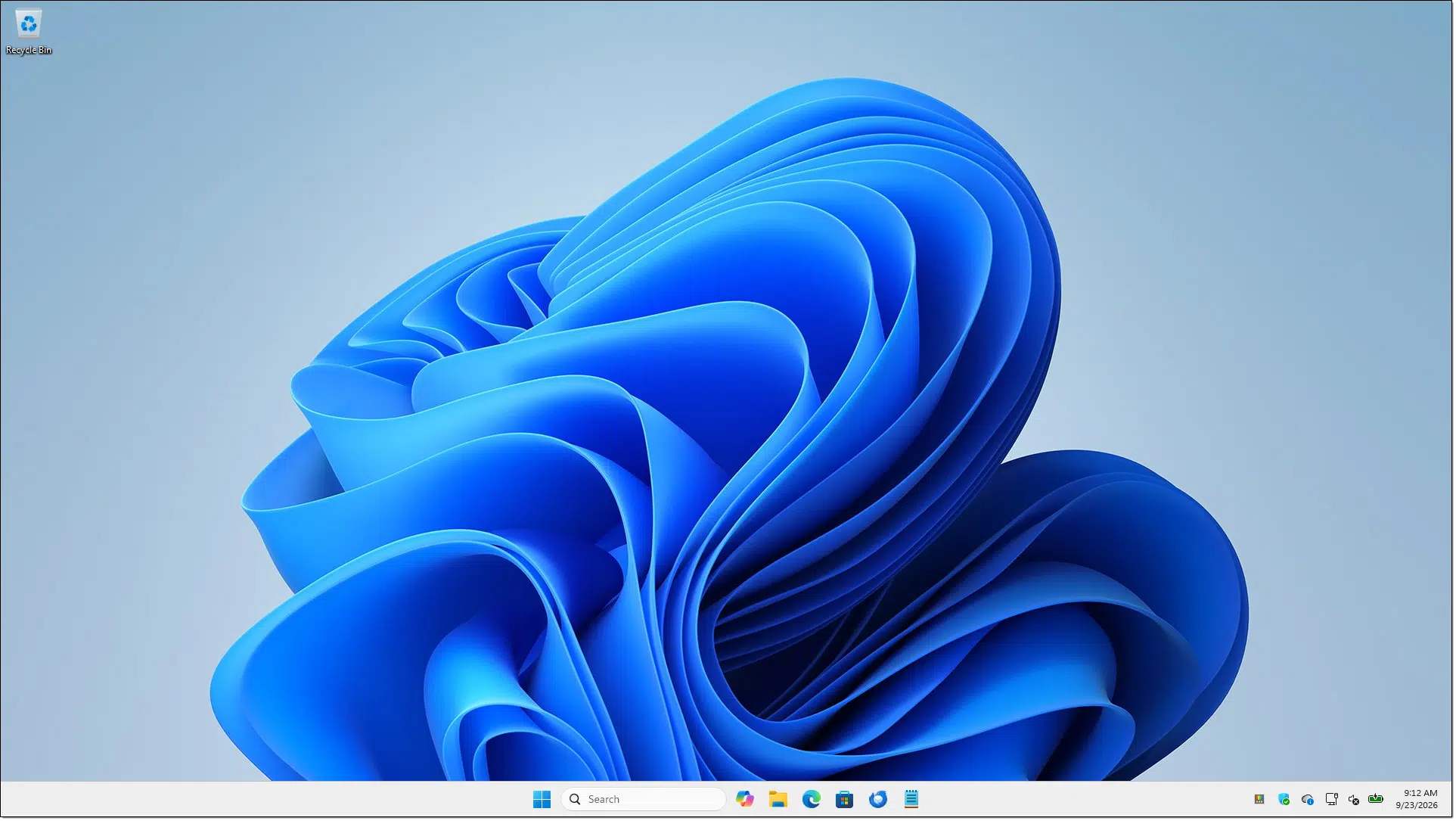
I cringe when I see desktops covered with icons for shortcuts, documents, programs, or whatever. Some people are comfortable with that, but for me, it’s way too cluttered.
But it’s not completely a matter of taste. I base my opinion on my years of using Windows and understanding how it was (and was not) designed.
My recommendation is simple. Move documents and data files to your Documents folder. If you use Dropbox as part of your backup strategy, you can also move your files to a Dropbox-linked folder. Whatever you do, move your files off the desktop.
Uninstall and reinstall programs so they end up in your Programs folder.
If you want anything on your desktop, create a shortcut.
You can also use the Start menu. Pin the programs (or documents) you use frequently to the Start Menu, and they’re just a click away. Even better, consider pinning programs you use constantly to the Taskbar.
Having wall-to-wall icons is not the purpose of the desktop. It can be used for that, but it’s just too fragile a place to put files and programs — as you’ve unfortunately discovered the hard way.
Do this
I won’t tell you what to do, but by now, I suspect you know what I want you to do. 
Figure out how you want to use the desktop, and stick to that instead of letting it become a cluttered mess.
Subscribe to Confident Computing! Less frustration and more confidence, solutions, answers, and tips in your inbox every week.


This was a great lesson for me to learn. What is not clear to me has to do with being able to hide or view desktop icons within Windows 10. Generally I choose the option to hide them and if I need to see them, right click and then click on “View” and toggle between hide or show. What I had assumed, and perhaps incorrectly so, is that if the icons were hidden, I could not interact with them regardless of any clicking happening from my mouse actions while the pointer was over the desktop. Was I right about this, or could I have inadvertently been interacting with icons for files and what have you, without even realizing it, because they were invisible at the time? Thanks for all you do.
J. P.
The icons are not just invisible; they are also non-interactive. You cannot click, drag, or otherwise interact with them; the system disables them completely.
So, if your icons are hidden, mouse clicks on the desktop will not activate or select any of those icons, even if your pointer is over where they would normally be.
I used to keep a lot of files on my desktop with windows 10. I bought a new Windows 11 home 64bit and my desktop has about 5 shortcuts and 6 not important folders. I have USBs ( 2 – as duplicates), in case one “goes bad”. I did this mainly to keep all my files out of the “One Drive” and cloud. In settings, I have disabled One Drive from starting when computer starts. I keep an eye on the taskbar, on the right side to make sure after a windows download it does not change that setting. I am an old guy, 85 and I know it is not the best, and fastest way to do things, but it works for me.
The first time I used the Desktop was on an Apple II. It was originally designed as a temporary workspace for files. Sort of like a clipboard for files.
I still occasionally use it for that. I don’t believe that violates the principles of this article, as it’s only for immediate use. I only keep one icon permanently on my Desktop, the Recycle Bin. I’ve even considered hiding that, but there’s no other convenient way to open it, and I’d lose the capability of using the desktop as a temporary workspace.
How can you avoid having all the external drives icons on the desktop? Is it possible to remove those external drives icons away from desktop?
Using Mac
Sorry for the canned answer, but we get Mac OS questions a lot.
Unfortunately, our expertise is primarily in PCs, Windows, and general Internet or computing-related questions. We just don’t have the expertise to do justice to most Apple Macintosh, iPhone or iPad-related questions.
Leo’s friend Gary Rosenzweig has a great post on where to get help: http://macmost.com/getting-help
Leo does a weekly podcast with Gary, the TEH Podcast.
The following website shows how to hide external drives, as well as an option to hide CD drives and more. I tested it and it works.
https://osxdaily.com/2022/12/07/how-to-hide-external-drives-from-mac-desktop/
The worst is when I have a desktop full of files and send a screenshot to my Windows 11 group. The scorn I receive is painful.
I have nothing other than a specific variety of shortcuts on my desktop.
Across the top-center, I keep four shortcuts, a link to my links folder under Documents, two for the system wide and user-level Programs folders which contain icons that are visible in the start menu (so I can add shortcuts for apps that require no installation like MD5 & SHA Checksum Utility and Rufus as well as a few web-based games I like to play to my Start Menu), and one linked to my Notes.txt file that I use for temporary notes as needed.
Down the left side are eight shortcuts to websites I frequent in the left-most column, and a few temporary shortcuts I may need for a limited period of time.
Across the bottom-center, I have five shortcuts to specific files I want quick access to, a ToDos, PhoneNumbers, 2 MonthlyBills (one for the LibreOffice and another for the WordCraft versions), and one for my Cardiac record (Daily Weight, blood pressure, pulse rate, etc.).
Down the Right side I have the Digital Clock, Weather, and the CPU meter widgets from the Widget Launcher app (Windows Store) and a Simple Sticky Notes collapsed Note containing a variety of Samsung plus channels.
In the task bar I have shortcuts to the Widget box to the left of Start, the Microsoft Store, TuneIn, VLC, Calculator, my Android 15 device on Mumu Player, File Explorer, Thunderbird and Firefox, and a number of items in the notification area that I want visible for quick access (MEGAsync desktop for access if issues arise), or easy view (CoreTemp that displays the highest CPU core temperature), as well as others.
All this is to make Windows conform to how I want to use it rather than me conforming to how Microsoft thinks I should.