Maybe you can help me.
I WISH.
Seriously, I have over a terabyte of photos, and I have yet to find a good, reliable photo management tool with the features I want.
So, rather than presenting an answer (or the lack of one), let me describe my ideal solution. Perhaps readers will chime in with something I’ve overlooked.
I’ll also list a few tools I’ve used in the meantime.

The ideal photo app
I’m looking for a photo app to organize decades of pictures. Not just a viewer, but a real manager for your PC that doesn’t duplicate files, offers robust search, and recognizes faces and places. Some apps come close, but most miss the mark. I’m open to suggestions!
Image viewers versus photo management
I want to distinguish between image viewers and photo managers.
Image viewers are, in most cases, glorified File Explorers optimised for displaying photos and not much else. They may have a few of the features I’ll mention below, but they typically come up short. Examples include XnViewMP, FastStone Image Viewer, IrfanView, and others. Lately, I’ve been using XnViewMP, which is a free, open-source program.
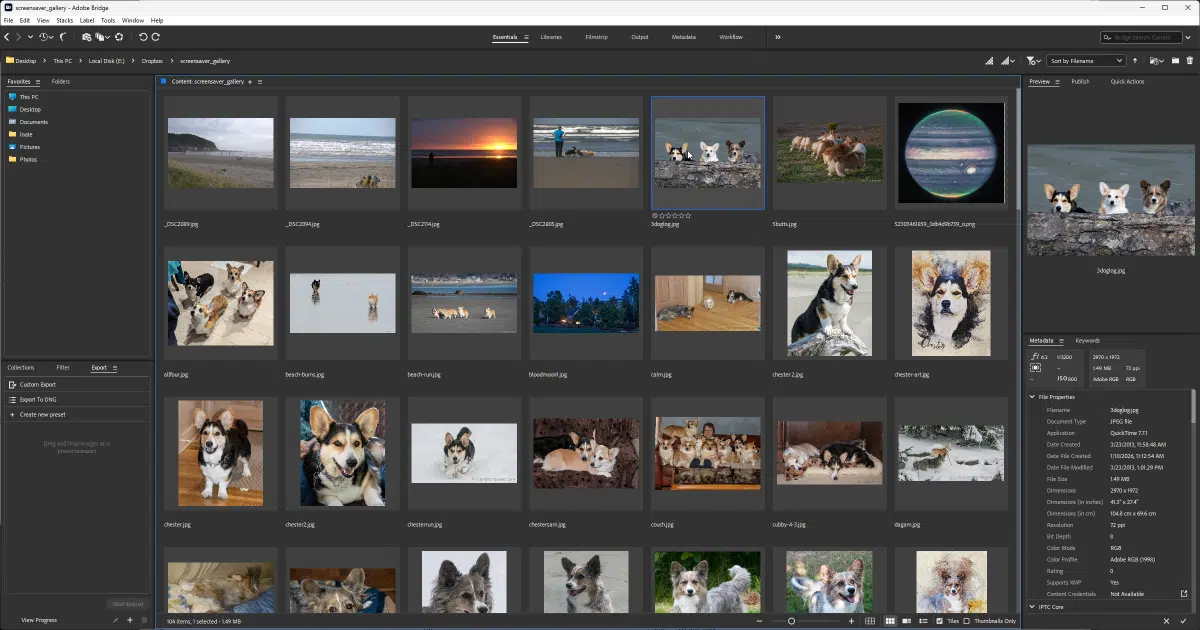
Photo managers are more powerful tools that not only allow you to build your own folder structure but also include features such as collections, ratings, annotations (ideally stored directly in the image file), and other advanced features I’ll discuss below. Adobe Bridge is the closest I’ve seen in this regard. Adobe’s Lightroom is another contender, except it fails our first problem.
Problem #1: No copying
There’s a “feature” I don’t want. Some tools make a complete copy of everything you give it. When you “add” or “import” photos, they’re immediately copied into the tool’s own database or folder structure.
No, thank you. Did I mention I have a terabyte of photos? I don’t need or want the tool to suddenly turn that into two terabytes. Tools like Adobe Lightroom operate this way. Not only do they duplicate the amount of space required, but their database is typically proprietary, locking you into using their program. Once imported into their database, you need to continue to use their tool if you want to access the files.
What I want the tool to do is operate on the folder(s) on my PC that I tell it to operate on. No copying and no uploading.
Problem #2: Stick around
Years ago, I might have recommended Google’s Picasa. It was a great photo management app with useful features and some integration with Google Photos online. But, in almost traditional Google fashion, they discontinued it.
This makes me gun-shy. I now avoid anything not only from Google, but also applications from companies I don’t recognize or companies that have little to no track record.
That makes the selection pool much smaller. Good tools come and go all the time. If I pick a tool, I want some confidence it’ll still be around in a decade or two.
PC-based
I want this tool to run on the collection of photos stored on my PC.
Many tools are cloud-based, meaning they either duplicate everything into the cloud or operate solely in the cloud. Google Photos is a great example of a tool that has many features I’m very interested in, but I rule it out because everything is only in the cloud (even what you see on your mobile device is cloud-based). There’s no simple way to automatically synchronize photos from Google Photos to my PC1. My PC is the canonical location for my files, and is what I take great pains to back up regularly.
Robust search
Naturally, I want the tool to have a powerful and easy-to-use search function. It needs to search not just file names (the common default) but the metadata stored within the images themselves.
That means not just keywords that have been added to the images (common in stock photos, for example), but everything: date, camera, location coordinates — any or all of the data that accompanies each photo.
Image viewing tools have search, but it’s typically incomplete, obscure, or difficult to use.
Advanced features
“Show me all the photos that include Leo.” “Show me all the photos taken at the Space Needle.”
Facial recognition and object recognition is one of the features of Google Photos that I desperately want to see in a desktop photo management app. There’s really no reason this can’t happen, given the capabilities of modern computers, but I haven’t seen it yet.
And yes, this also begins to walk the borderline into AI. AI could be one approach to implementing that kind of content-aware search. AI is already present in many photo editing tools, but not the browsing and management tools (yet).
You know I have to say this
I must add that, given that photos are truly irreplaceable, make sure they’re backed up.
In addition, always back up the originals. You can recover your edits by redoing them on the original, but you’ll never recover the original from an edited version.
And remember, items uploaded to social media are downsampled to save space by lowering image quality. Social media posts are not a backup.
Do this
I don’t have an answer. I haven’t found what really meets my needs.
It’s your turn: I’m curious if you have a suggestion for a photo management tool — something that goes beyond the ability to browse photos in folders.
Subscribe to Confident Computing! Less frustration and more confidence, solutions, answers, and tips in your inbox every week.
Podcast audio

Footnotes & References
1: There used to be, but again, in typical Google fashion, they removed that feature.

For over 20 years I have been using “JASC Media Center Plus” version 3.10. It came along with Windows 3.1 – yes it’s that old but it still has a lot of unique features for my 1 terabyte photo collection.
You tell it what folders to search, optionally you can select all subfolders. Then start the scan of these folders – it’s fast. It supports many media types, not just images although that’s all I use it for.
It creates and displays a thumbnail image of each image found, typically 100 pixels square. Then you then save all the found thumbnails in a “.alb” album file. The album can be sorted on various criteria. Keywords and comments can be added to thumbnails. These are stored in the Album file, not in the original image file.
Thumbnails can be searched and/or selected and then the original files viewed full screen (individually or as a slideshow).
There are options to move or copy files to others folders. Mouse pointer over thumbnail shows basic image data (size, date, keywords etc). Typically I have many album files for different topics.
Example Album size, 50MB for 30gb for jpg files (12000 files). You can’t but this anymore – JASC no longer around (!) but I think the exe files are still available somewhere on the web.
I’ve never used JASC Media Center Plus, but I still have an old version of JASC PaintShop Pro 7. It’s great for simple edits when Gimp is overkill. Unfortunately, JASC went out of business over 2 decades ago. They might be available in the Internet Archive, but activation would be a problem.
I still use “Windows Live Photo Gallery” which came with the Windows Essentials 2012 suite years ago and it’s still by far the best product in its class though it’s no longer supported. It works in W11 though. The newer offerings from MS (Microsoft Photos) are so bad, I just don’t understand how they could have had such a great product and then replace it with such an inferior product.
The Internet Archive (archive.org) hosts the official Windows Essentials 2012 offline installer, which includes Windows Photo Gallery.
Microsoft Photos replaces Windows Photo Gallery. It’s free and has Co Pilot for anyone that wants AI and it works well with One Drive for your photo storage. Me personally don’t want anything that’s tied to One Drive, the only thing on my PC that’s the desktop.
I liked Picasa but all I’m looking for is a simple program to sort and find photos by categories like person, or persons, date and location or a combination of categories.
I design/decorate sets for TV and Film… I deal with thousands of photos; research, locations, set dressing elements, etc. and could not function without using ACDSee Photo Studio. https://www.acdsee.com/en/products/photo-studio-ultimate/# as my main work flow screen and photo/video management/editing tool. It is much easier to master than PhotoShop for quick adjustments, color corrections, perspective fixes, etc. And the latest version has some great AI Functionality. Highly recommend!
I absolutely agree. ACDSee fits just about every criteria suggested. I also tried Digikam because it is free open source, but I eventually went back to ACDSee.
Hi Cathy,
After reading your post here I tried your recommended program, ACDSee Photo Studio Ultimate 2026, and it surely does look like a very good and useful program.
The latest version is 2026v19.01.4391 which I just got.
The lifetime license cost is on sale now down from $150 to $99.99.
Thanks.
I have used ACDSee for years. It comes in three types at three prices, ranging from home to ultimate.
You may need to try a free trial to see if it does searches and other things that you need, but for most of my photos it does almost all the digital management and editing I use. While I am retired now, I used it for my photojournalism needs for a long time. However, I have kept a second program for more editing. In the past it has been Photoshop Elements, but now I am using Luminar Neo, which as several AI processes. ACDSee’s photo management screen allows me to right click and open another edior, which is super slick.
Don
What‘s about Excire Photo? I quote from the website excire.com:
„State-of-the-art AI to find, organize, and cull your photos and videos. Managing your files has never been so fast—or so easy.“
I have been using the program for about two years and am very happy with it.
Try ON1, There browser pane uses a tree file similar to the file system you have on your computer be it Apple or Windows. Their edit module is totally non destructive with your original photo keeping any changes in a separate small side file in your original folder next to the photo you modified. Best of all they offer a free trial and the software, if you choose to purchase it, is yours to keep no recurring subscription required. link ON1.com
I suggest to have a look at digiKam. Handles large amounts of pictures very well, fullfills all your requirements, it’s open-source, cross-plattform and offers large amount of tools to handle your photos. The UI is a bit overwhelming at the beginning but that’s because the software offers so much.
https://www.digikam.org/
Recently, I’ve been using Hydrus Network to sort and manage a host of different images and videos; from my personal photos to music videos, memes, and other informative content. It’s a little complicated and somewhat obtuse at times, but it’s really handy once it’s been set up. It manages all photos and videos with tags instead of a filename / folder structure, so while that probably isn’t what you want, it might work for some folks. It’s also free and open source.
Hi. Also an ex-MSFT here. I’ve been “fighting” the same issue as you but a substantially larger target (6TB of photos and videos). I was quite happy with Apple’s Aperture but then as it was discontinued my organization crumbled. I’ve tried and tested a lot of paid apps, mostly on MacOS, until I found a tool that besides being multiplatform is free and OpenSource. The tool is called Digikam (https://www.digikam.org/) and it makes my organization much better. I now have all my media (photos and videos) inside a file system folder structure of year/month/event that makes it quite easy to manage even if i loose access to digikam, if you want you can have the base folder either on local drives or network shares, and even have multiple locations for the original files. As it is now, i can look for duplicates, people, obejects (this is still a bit flaky), and a lot more options, like adding metadata to pictures if so needed (which I mostly use to set gps coordinates to DSLR photos that were taken some years ago). Now I’m digitizing negatives and polaroids and it’s great to be able to set metadata to these too. I am not connected with the project, but just a happy user…..
I have been using Idimager’s Photo Supreme for over 10 years and I think it meets all your requirements.
Check it out here:
https://www.idimager.com/
Best regards,
Roman
I have been asking myself this question for over a decade – and I only have 1/2 the amount of photos Leo has.
Its a problem, especially if you come at it with a mixed bag of 25 years of different approaches.
My requirements:
1) No copies. I have been using my own version of physical file layout for 20+ years. Any app i choose must use it.
2) Local functionality. I object to using ‘the cloud’ for any type of “cold storage” (photos, music, documents, etc), for moral as well as practical reasons; those data centers operate 24/7 and use enormous amounts of power. They may still be only a fractional contributor to global warming but their growing use is moving us in the wrong direction.
3) Future proof. My requirements differ from Leo’s – slightly. I may choose to switch apps in the future. I want any new app to be able to build its own database from the embedded metadata in my image library. That means being able to at least export the database – with any updates I make to it – back to the photos themselves.
4) Good search – my primary requirement. I usually find things using my physical file layout, but it can take a while, and it takes no advantage of my tags and labels.
5) Good AI type face and location recognition I consider a nice to have, but I have played with it and it is obviously potentially very useful – if it works.
So, comments:
a) I have – and sometimes use – Adobe Bridge. I consider it a “photo viewer”.
b) Adobe Lightroom is the reference standard for Digital Asset Management. It does NOT copy files automatically, although I understand that it can. I refuse to pay Adobe’s pricing for what is basically a seasonal hobby for me.
c) I’ve looked seriously at Adobe Photoshop Elements. Again, I dislike Adobe’s pricing model.
d) I think well of iMatch (Photools.com). I used it in the past, then drifted away. It is Windows only (I switched to Linux, but came back to Windows 10/11). I can live with their pricing model.
e) I explored DigiKam and like a lot of its capabilities. Its pricing is unbeatable (of course). I have a weird workflow and DigiKam lacks certain features that would be very useful for me.
Right now i am leaning towards getting a new license to iMatch.
Thanks for raising this question.
Jack
Your requirements are similar to what mine were when searching for a suitable photo management program. Most importantly the ability to store a reference to existing photos instead of copying them to the application database and to read/write metadata (tags and dates specifically) directly from/to photos so this information could be used by other programs.
Found digiKam (https://www.digikam.org) supported both of these requirements and other useful functionality such as the ability to integrate a third party application for exif data such as ExifTool (https://exiftool.org/).
Hi Everyone,
I feel your pain. Finding a good asset manager is challenging. I spent 17 years of my career managing a computational imaging lab at a biomedical research facility for the University of California. Even with a substantial budget it was challenging to find something. We resorted to building our own system with the help of multiple outside programmers. I think that experience helped to accelerate my hair loss … pulled a lot out myself. LOL
Challenges … for private individuals and professionals
1. Needs change with time and experience
2. Proprietary formats / systems can make moving to a different application very difficult or impossible
3. Need a broad range of tools that satisfy basic and advanced needs but that can be used easily by inexperienced / casual users
4. Developers must keep improving features, security, usability, etc.
5. Cost must be reasonable for the customer
6. The developer must have a long-term commit to the product and as much as possible act in the customer’s best interest
The list goes on and on … and the headaches increase …
Anyway, … I suggest looking at iMatch by Photools … also mentioned by JWReeves above. It’s a digital asset manager that works with images, videos, audio files, and documents. I’ve used it for years and like it. The developer has made a very good effort to address the list I’ve outlined and more. He has designed the system with the ability to export the data held in the database to another system if you require something very different. There are multiple ways to add metadata and tags to assets, and multiple ways to search for assets, including facial recognition. There is also a very nice viewer function that opens a wide variety of file formats It’s $135 for an individual to purchase.
The feature set can be found here:
https://www.photools.com/imatch/
https://www.photools.com/photools-press-kit/
I hope this is of some help. Have a great week.
I watched your video on Youtube and decided to see what GPT could come up with. I took a copy of your video transcript and asked ChatGPT to compile a list of the features you wanted and then to do a deep dive to see if there is a software out there that meets all you needs. I thought the results were pretty impressive, maybe even something you can use:
Desktop photo management apps that match Leo’s “ideal” feature list
Source transcript and how the feature list was derived
The transcript you provided matches a recent piece by Ask Leo! describing an “ideal” desktop photo manager: a single, searchable system for decades of photos (Leo states he has “over a terabyte”), with a strong preference for tools that operate directly on folders on the PC rather than ingesting/copying everything into a proprietary library.
In the same transcript/article, Leo explicitly distinguishes “image viewers” (file-explorer-like tools) from “photo managers” (tools that add collections, ratings, and annotations, ideally stored in the image file), and he lists several products he has already tried or considered.
Features Leo is looking for in a “complete” photo management app
Leo’s requirements are unusually specific and include both “hard constraints” and “advanced/AI” expectations. The items below are taken directly from the transcript/article, consolidated into a practical checklist.
The core functional goal is a single, easily searchable system that can organize “decades” of photos from one main location that can be updated and backed up.
The most important constraints are:
No copying and no uploading: the tool should operate on existing folders on the PC (no doubling storage, no forced ingestion into a proprietary structure, and no cloud-only workflow).
Vendor longevity (“stick around”): Leo is wary of discontinued products (he cites Google ending Picasa) and wants confidence the product will still exist in “a decade or two,” preferring vendors/projects with track records.
PC-based canonical library: the primary (“canonical”) photo archive should live on the PC and be backed up as such; cloud-only systems are disqualified.
Search and metadata needs are central:
Robust, usable search across more than filenames: it should search embedded metadata including (at minimum) keywords, date, camera, and location/coordinates.
“Photo manager” capabilities beyond folder browsing: collections, ratings, and annotations, with a strong preference that annotations live in the image file (i.e., standards-based metadata) rather than only in a proprietary database.
Advanced “content-aware” (AI-adjacent) features Leo explicitly wants:
Face recognition (“show me all the photos that include Leo”).
Object recognition and/or place recognition (example: “show me all the photos taken at the Space Needle”).
He frames these as the kind of Google Photos functionality he wants in a desktop tool and notes that modern computer capability should make this feasible.
Finally, he emphasizes a process requirement: backups must include originals, and social media is not a backup.
Best-fit desktop apps that match most of Leo’s list and are not mentioned in the transcript
This section focuses on tools Leo did not list (he already named common viewers and a few Adobe/Google options). The emphasis here is: local-first, no forced copying, metadata-centric search, and content-aware (face/object) discovery.
digiKam
A key takeaway from the research is that Leo’s “I haven’t seen it yet” claim about face/object recognition in desktop photo managers is no longer accurate: digiKam explicitly targets this exact gap—and has done so for years.
Why it matches Leo’s hard constraints
digiKam is designed around “Collections” that point to root folders containing your photos/videos, including local disks, removable media, and network shares.
This is structurally aligned with Leo’s requirement that the tool operate on folders he already has, rather than relocating assets.
For metadata portability, digiKam’s documentation states that common organizational attributes (tags, captions/titles, ratings) are stored in standard metadata fields (IPTC/XMP/Exif) and can “become part of the image,” not just the database.
It also provides explicit database ↔ file synchronization, including a “From the database to files” direction.
Search breadth (metadata-driven) digiKam documents the ability to classify and search by timestamps, tags, ratings, GPS position/captions, and also to search “most standard metadata items like camera model, lens, coordinates, image size and many more.”
Face recognition and object recognition digiKam has a dedicated “People” workflow using deep-learning-based face detection/recognition, including downloading a model, scanning albums, and naming faces—precisely the “show me photos with X” workflow Leo wants.
For object recognition, digiKam’s documentation describes an “Auto-Tags Assignment” tool that “scans the images in your collection using a neural network … trained to identify common objects.”
Longevity digiKam also clearly addresses Leo’s “stick around” concern: the project describes its first release as occurring in 2001 and frames itself as a two-decade effort, with current support across Windows/macOS/Linux.
Where it may still fall short digiKam’s object tagging is best understood as “keywords for common objects/scenes,” not necessarily “landmark identification” of named places like “Space Needle” (unless the model happens to learn such a label). Leo’s example is specifically landmark-level recognition, which is rarer offline.
ACDSee Photo Studio
A long-running commercial product is often the closest match to Leo’s “stick around” requirement, and ACD Systems positions ACDSee as a mature, local-first DAM.
Why it matches Leo’s “no copying” and PC-based requirements ACDSee users describe a core architectural point consistent with Leo’s ask: the app “doesn’t import files into the application to work on them, but it does catalog them in the database,” while “import” is framed as moving files between media (e.g., camera → computer) rather than forcibly ingesting everything.
Face recognition ACDSee documentation states that face interactions create “face data” that can be embedded, and that “face data is embedded in your image’s XMP file,” enabling restore/use in a new database.
Object recognition-like search via AI keywords ACDSee’s “AI Keywords” feature is explicitly positioned as automatic keyword assignment based on image content (e.g., coastline → “body of water,” “umbrella,” “beach”).
The vendor also describes this as “locally supported AI” that analyzes images on your machine and makes searching by content terms possible without manual tagging.
Longevity ACDSee’s own “About” narrative places its history beginning in the mid-1990s, aligning well with Leo’s preference for a vendor with a multi-decade track record.
Important portability caveat While ACDSee can embed face data into XMP, community discussions indicate the face metadata may live in a proprietary ACDSee-specific namespace (and may not be recognized by other apps), creating a form of lock-in at the metadata layer even if files remain accessible.
This is directly relevant to Leo’s desire for annotations “ideally stored directly in the image file” in a broadly usable way.
Mylio Photos
Mylio is one of the more direct “Google Photos-like intelligence, but local” contenders found in the research.
No-copy operation with existing folder structure Mylio documents a concept of “Linked Folders” that “preserves your existing file structure” and displays media “without moving it.”
This maps cleanly to Leo’s requirement that the tool operate on folders on the PC without duplicating the library.
Content-aware search (objects + people) Mylio’s manual describes SmartTags as “automatically generated using AI to recognize objects and other visual traits.”
Mylio’s own news/feature descriptions emphasize local indexing plus AI capabilities (SmartTags, face detection) combined with metadata and text recognition to fuel fast search.
Local processing Mylio explicitly describes AI processing happening locally on devices “without the usual transfer to the Cloud.”
It also notes background operation on Windows/macOS that can “run facial recognition” and SmartTags.
Metadata portability Mylio’s documentation states XMP sidecar files can contain “keywords,” “labels and ratings,” and “face-recognition tags,” which supports Leo’s preference for non-proprietary metadata that can be backed up and reused.
Trade-off relative to Leo’s “single main PC library” mental model Mylio is built around synchronization and multi-device access, and while it can be used without cloud lock-in, it is less “single-machine DAM” and more “distributed library with local-first options.”
Depending on how strictly Leo wants “one PC is canonical,” this may be either an advantage (multi-device resilience) or complexity.
Secondary candidates that satisfy many requirements but have clearer trade-offs
Excire Foto
Excire markets itself very directly at the “find anything in huge local archives” problem.
Excire positions its standalone desktop tool as “No subscription. No cloud,” and highlights features including free-text (“prompt”) search, automatic keywording, face/people search, and GPS-based search.
On the “no copy” axis, Excire’s quickstart material says that when adding photos to its database, “the original files remain unchanged in their location,” while it creates reduced preview files in the database.
This aligns with Leo’s space concerns, while still acknowledging that any serious manager will create some local database/thumbnail footprint.
For metadata write-back/portability, Excire’s support documentation states it tries to place metadata directly in the file for common formats unless configured to always use sidecars (and uses sidecars when direct writing isn’t feasible).
The primary gap relative to Leo’s “stick around” criterion is not feature-based but risk-based: Excire is not a decades-old platform in the way ACDSee is, so it may not fully satisfy Leo’s desire for confidence over “a decade or two,” even if technically strong.
IMatch
photools.com (IMatch) is heavily oriented around classic DAM principles: metadata integrity, advanced organization, and local control.
IMatch’s documentation emphasizes that its database “does not contain your files” and that it does not move/copy files into the database; it stores metadata about files and references them.
This matches Leo’s “operate on folders on my PC” requirement.
IMatch also strongly addresses Leo’s privacy concerns around face recognition: it states its AI runs on the computer (not cloud), and that no image/face data is transmitted to third parties.
Where IMatch is less clearly aligned with Leo’s “Google Photos-like object/landmark recognition,” at least in the sources reviewed, is that its “AutoTagger” capability is described as using “AI Services” for automatic keywording—suggesting that object recognition may involve calling external providers depending on configuration, which can conflict with Leo’s “no uploading” constraint.
Tools that may still be worth checking, depending on how “complete” is defined
Photo Supreme
IDimager Systems (Photo Supreme) is notable primarily because it explicitly covers some of the “places/landmarks” territory that most desktop tools do not.
Its documentation describes operating as a referenced catalog where importing existing archives can leave file locations unchanged: “no files are copied, moved, or deleted,” and copying can be disabled during import.
For AI features, Photo Supreme describes local face detection and face recognition, plus optional integrations: object recognition, text recognition, and landmark detection via Google Vision, and also local analysis via Ollama for privacy-preserving processing.
The key trade-off is that landmark detection as described (Google Vision) is inherently cloud/API-driven, which may violate Leo’s “no uploading” principle unless the feature is avoided or replaced by fully local models.
Phototheca
Lunarship (Phototheca) appears explicitly designed as a Picasa-like replacement and is unusually strong on “write metadata into the file.”
Phototheca’s manual states that when importing from a local hard drive it “never copies a photo,” remembers locations, and builds thumbnails only.
It also documents face recognition/people tagging workflows.
For metadata portability, Phototheca states that when tagging with keywords it saves them into both IPTC and XMP metadata in the JPEG file, so tags survive copying and can be read by other metadata-aware tools.
It also claims read/write support for XMP and IPTC in JPEGs, and provides location assignment that writes coordinates into GPS metadata.
The main missing piece relative to Leo’s “Google Photos” wish list is evidence of true object/landmark recognition (beyond GPS-based place metadata and manual/keyword tagging).
Tonfotos
Tonfotos is a local-first face recognition tool aimed at large family archives, and it does satisfy several of Leo’s priorities.
Tonfotos documentation states face recognition “runs locally” and does not send photos to external servers/providers.
It has an explicit feature to store face names/regions in XMP metadata.
However, Tonfotos community discussions show that “contextual search” for objects/scenes like Google Photos has been requested as an enhancement, implying it may not be fully present today—so it may fall short of Leo’s object/landmark recognition expectations.
Where the market still misses Leo’s “ideal”
Two gaps recur across “almost-fit” tools.
First, there is a difference between place search via metadata (GPS coordinates already embedded in photos) and landmark recognition from pixels (“this is the Space Needle”). Leo explicitly wants the latter.
In practice, many desktop apps do face recognition and object keywording, but true landmark identification is most commonly delivered through cloud APIs (for example, Photo Supreme’s Google Vision landmark detection), which collides with Leo’s explicit “no uploading” principle.
Second, even when tools “store metadata in XMP,” portability varies. Embedding face regions and names can be done in XMP, but some products use proprietary schemas or require special export steps; ACDSee’s community discussions highlight this interoperability issue for face tags.
This matters because Leo’s ideal manager assumes the annotations remain valuable even if the software changes.
Finally, Leo’s “no copying” requirement is sometimes misunderstood in practice: many managers avoid duplicating originals but still create databases, previews, and thumbnails. Excire explicitly describes creating reduced preview files while leaving originals untouched; Photo Supreme similarly uses a thumbs/previews database while referencing originals.
Summary of the deep search results
Leo’s transcript describes an “ideal” that combines: folder-referenced local storage, long-term survivability, deep metadata search, and Google-Photos-like face/object/place discovery.
Based on current desktop offerings, the closest overall matches (not mentioned by Leo in the transcript) are:
digiKam as the most direct “local + no forced copying + metadata-driven + face recognition + object auto-tagging” match, with strong longevity evidence.
ACDSee Photo Studio as the “established vendor” alternative with local cataloging (not forced import), local AI keywording, and face recognition—tempered by metadata portability concerns around face tagging.
Mylio Photos as a local-first, AI-assisted library that can preserve folder structure without moving/copying and offers object traits + face recognition, with standards-oriented metadata via XMP sidecars.
If Leo’s priority shifts toward “Google-Photos-like semantic/prompt search” on a local PC library, Excire Foto becomes especially relevant (no cloud, prompt search, face search, auto keywording), while IMatch becomes strongest if face recognition + metadata hygiene are the priority and object recognition can be handled cautiously (to avoid uploads).
For the specific “Space Needle”-style landmark recognition use case, Photo Supreme stands out because it explicitly offers landmark detection (via Google Vision) while still supporting a referenced catalog with copying disabled—though that landmark feature may conflict with Leo’s “no uploading” rule.
I have just installed Immich on one of my computers. I am very impressed with what it can do. It has no photo editing facility just organising etc. I know it is Linux based. Well Docker I think. I am currently running it on a Trunas PC using an old Computer. It is self hosted. It does take a little while when you first set it up to import information to its data base but after it has doe that it seems fast. All via a web interface.
Not sure if this fully does the things you want but maybe. But I am sure you must have come across it.
I think Mylio can be a solution for you. Instead of me listing all features and why I’ve chosen Mylio, please follow this link: https://mylio.com/
I tried Mylio a while back and gave up on it. The cross-device feature is very nice. Too many features depend on a subscription. Lots of nagging to upgrade! I am also not convinced that you wont end up being locked-in. All of the AI face recognition systems that I’ve tested require a lot of time invested, to the ability to port this information into another system is important.
And it has the advantage of being a homophone of My Leo (lol)
If I had the resources, I would Re-Introduce PICASA to the World! –
I began Digital Photography in the early 2000’s after decades of Film Photography, and shortly thereafter, along came PICASA!!
This was a ‘Heaven-Sent’ Tool from Google, and had almost ALL of the Features we are discussing.
It Organized, allowed decent Editing, and, – you could send them Directly from PICASA via Email to whoever you chose to. –
I use TOPAZ for any Serious Edits, but PICASA would be my ‘Daily Photo Tool’ if only it were still an option! – WHY?? – Was it too perfect for us daily users?
Google Photos is very good, but I can’t just ‘Copy & Paste’ a photo into an email if the recipient doesn’t have “Gmail”, (at last count). – THERE! – That’s my Rant!
Picassa was good!
I ditched Google Photos 11 years ago. I had it on my iPhone which had limited memory and it was quite clear that it was duplicating the photos on the phone. This meant that when i was being a tourist and taking lots of photos I had to keep on purging photos to free up space on the phone.
Off topic: I now use OneDrive to back-up the photos from my iphone/s to the cloud. Unfortunately the search and classification features for photos in OneDrive are pretty poor, but this does protect me if something catastrophic happens to my phone
Like Leo I’m also looking for a photo management system. Both Immitch and PhotoPrism are on my list to use on a TrueNAS server.
I will also recommend a thorough review of IMatch at phototools.com. I don’t use many of its available features but do buy and update it because it has the best geotagging from gpx files and integration with Google Maps that I have found. Unfortunately being from what seems to be a very small company might be a deterrent.
I just want to say that, after all the help I have received from Leo in like 20 years or more (Maybe I discovered Leo when he first wrote about using POP and IMAP in Thunderbird), it is a pleasure to return this microscopic bit of help. I am another satisfied customer of ACDSee. I have used their program since about 1999 or so, when I think it was released. I am currently using Pro 9, the last version I bought, who knows when, which ran on my Windows 7 machine and which runs fine on Win10. For 30 years, I was a business journalist and had to take many, many, many photos, and have never found a management program equal to ACDSee. And what’s nice is that the version you buy is portable forever through your ACDSee account. I can keep installing Pro 9 on computers for whatever time I have left on this planet. And in my experience, their customer service people have always been responsive. Admittedly, I haven’t interacted with them for a long time, but from what I see above, it’s still a good company. Well, that’s my vote. Thanks again for your years of invaluable help.
I use acdsee free version mainly for a viewer. I try photoshop on occasion as I am subscribed to Adobes annual program. But it is too confusing even with online tutorials and Adobes tutorials.
But my reply is this, why does Apple only use a marker when creating folders on their devices?
From day one I asked Apple support about this. They couldn’t give me an answer.
My point is, on a PC when you create a new folder and move items into it, the files you moved are moved, not just sitting somewhere on your hard drive like Apple devices.
And I found out the hard way by deleting the files after I moved them into a new folder on my Apple device . Then being a noob with Apple I had to ask how to get the deleted files back.
I’ve been a happy user of ACDSee Ultimate for years. It has many advanced file management and editing features. Others here have gone into greater details about its capabilities – basically I just wanted to add another voice to the recommendation!
Not mentioned (or I missed it), finding duplicate or almost duplicate photos can be a headache. Over the last few years I’ve been scanning my family’s old color and B&W prints (300 or 600 dpi) whenever I come across them. In the 1960’s Dad sold Real Estate and used a Polaroid J66 camera to take pictures of houses he had for sale. We also had other film cameras in both color and B&W. So far I have about 1T of photos , but that can be misleading since I save them as tif at either 300 or 600 dpi.
I always make a copy of a photo, give it a similar name (such as 5287Back.bmp), convert it to 100% white background, and add black text of what the Front image is (I’ll often save the text images as a pdf so I can search using Windows Explorer, etc). I was finding some duplicate and many very similar photos. I found most of programs that find duplicate photos only compares the filesize or filename. I found https://en.panaustik.com/ to be very handy at finding duplicates and near duplicates based on the images. You can also set how much similarity there is. It will also find photos that could be stitched together to make a panorama. Unfortunately I find the help files are not that helpful. If you use the software, I found it best to search WITHIN a folder. If you try the software, copy several dozen photos into a folder and experiment with the various settings.
Yes, My Photos end up on Google Photos, Backed up on Amazon Photos & Localy, but are stored in bulk (1Tb+) on one of my Synology NAS. One of the built in Aps is Synoogy Photos which has many of the features of Google Photos. Able to search Photo, Video, Date, Geolocation, by Album which I create. Not Complete, but a good base on a catalog and backup.
I have used Adobe Elements since Day 1. I would be considered a lightweight user who just wants to store a large number of family and historical photos in an organized way in easy to access folders with facial recognition and the ability to locate photos that I need quickly. I used to be a heavy Photoshop user, so am comfortable flipping over to the photo editor to modify photos as needed. The cost to upgrade when a new version comes out is minimal and fits easily into my retirement budget. For anyone looking for a great organizational tool who doesn’t care what’s under the hood of the app, I recommend Elements.
I just read an interesting article covering this topic that specifically discusses two products other commenters have recommended: Excire and On1, talking about what the author likes for each with some examples from his own use/needs (he likes both but ultimate chose Excire for his needs). Check it out at: https://www.findingtheuniverse.com/how-to-organize-photo-library/
Wow! I’ll have to come back later. I got burned out about half way in. lol I have a master file I try my best to keep up with in my Windows Pictures on my PC. I’ve used Nero Duplicate MAnager to clean it up intiatlly. Now I’m fairly sure I don’t have any duplicates. I copy it every so often to another HD on my computer by erasing the Pictures file on that HD and recopying my entire master file to it. I still use Nero to find pics or to do any editing. I do have Google Photos online too which of course is a condensed version and I have stopped any programs like One Drive that want to place everything online.
Tell me what I don’t understand with my solution? Is there something I’m missing? Oh I may have forgot to mention that I copy them to an external 5 TB electronic hard drive about one a month or so.
Hello Leo. I know this may be not what you are looking for, but for me, my go to photo organizer is Photoshop Elements (PSE). I have used it since PSE 9 and am currently on PSE 24. (No, I have not updated to every version in between. Only to 14 and 22 as price was my main driver when it comes to updates.)
The ability to structure how my photographs are stored by events and keywords is the ability I enjoy. Give me the name of a person and I will find the photos containing that person in my over 35,000 photo collection. Yes, I have to tag each photo with that person’s name or use face recognition (which I have not yet used), but that is not much of a hassle when I add the photo to the library.
An added bonus is I can edit photos. This is a feature I use only occasionally. I retain both the original and the edited photo.
Going against your criteria, there are gaps. However, it may be just me in that I have not used the full capability of PSE, especially in either PSE 22 or PSE24. This I will leave you to judge. But for me, PSE has worked wonderfully for many years.
I just came across this recommendation on Make Use Of.
https://immich.app/
I don’t use a photo manager. I manage my own photos in folders as they are downloaded to my computer from my phone, so I can’t vouch for this program.